

Page 1
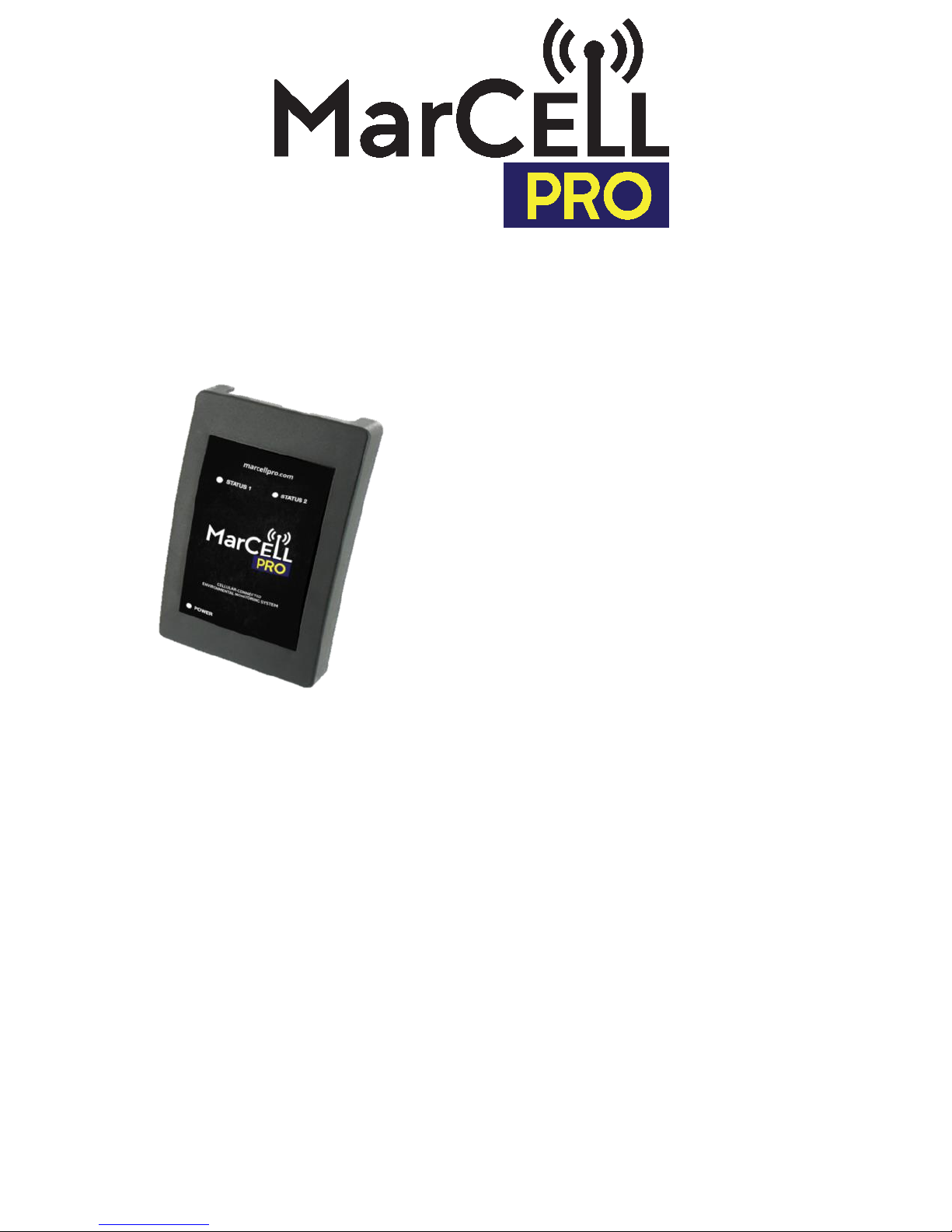
Quick Start Guide
Model: MAR PRO
LIABILITY DISCLAIMER STATEMENT
Sensored Life,LLC (hereafter known as Sensored Life) makes no warranty, representation, or guarantee regarding the suitability of its
products for any particular purpose, nor does Sensored Life assume any liability arising out of the application or use of any product, and
specifically disclaims any and all liability, including without limitation consequential or incidental damages. Sensored Life products are not
designed, intended, or authorized for use as components in life support systems, or for any other application in which the failure of the
Sensored Life product could create a situation where personal injury or death or significant financial loss may occur.
Should any person or persons purchase or use Sensored Life products for any such unintended or unauthorized application, that person or
persons shall indemnify and hold Sensored Life, and its officers, employees, affiliates, and distributors harmless against all claims, costs,
damages, expenses, and reasonable attorney fees arising out of, directly or indirectly, any claim of property damage, personal injury, death
or financial loss associated with such unintended or unauthorized use, even if such claim alleges that Sensored Life was negligent regarding
the design or manufacture of the product in question.
The smart, simple and cost
effective way to remotely
monitor and alarm your
properties temperature,
humidity, power and
more!
FCC COMPLIANCE STATEMENT
This device complies with part 15 of the FCC rules. Operations is subject to the following two conditions:
1) This device may not cause harmful interference and 2) this device must accept any interference received including interference that
may cause undesired operation
MarCELLPRO.com
Page 2
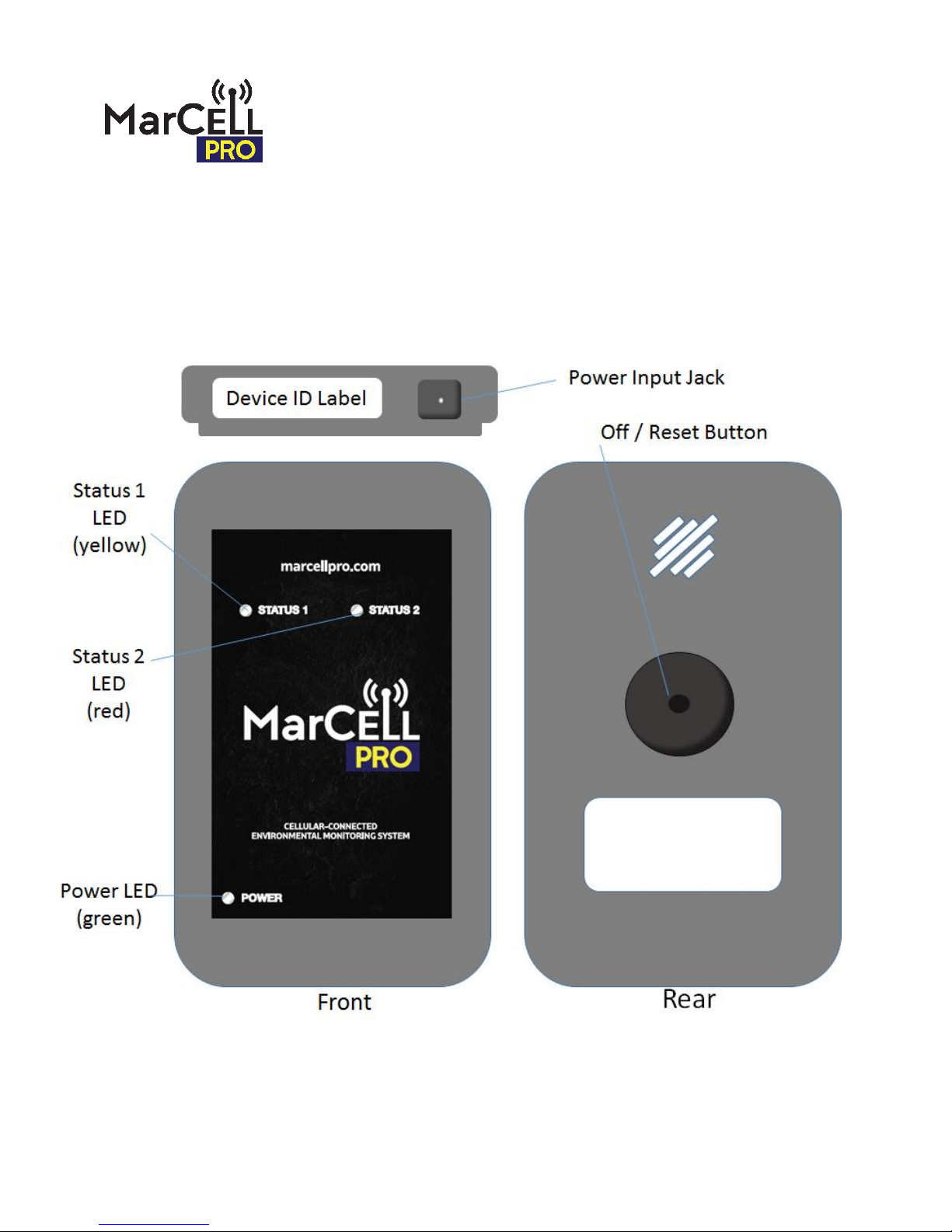
Base Unit
The base unit is essentially a temperature and humidity logger,
power monitor and cell phone all rolled into one small package.
Page 3

START HERE
–
Set Up Your MarCELL PRO Base
Unit
Step 1:
Register
Go to www.marcellpro.com
Click on Register near top right of home page
Follow instructions for setting up a new account
Enter Device ID (from label on top of unit), name & location
Accept or change Temperature, Humidity safe ranges
Set up notifications (What you want MarCELL PRO to do when an
alert condition is detected)
Next, sign up for service to activate the unit
Step 2:
Plug
in
You can now plug in your MarCELL PRO
The outlet and unit should be indoors and/or protected from
direct contact with the elements (snow, rain, etc.). When
selecting an outlet, stay away from a location which gets direct
sunlight or subject to drafts
Step 3
Verify
After 20 seconds to 1 minute, the LED power light should turn to
a steady green light signaling it has registered online and it is
ready to begin monitoring the environment & reporting alerts.
If you do not receive a solid green light for power – refer to the
trouble shooting chart
IMPORTANT NOTE: No temperature or humidity alerts will be sent out
in the first 30 minutes after your
MarCELL PRO is
first plugged in as the
sensors get used to their new environment & stabilize.
Step 4
Test
This test should only be done once the unit has been registered
and the unit is plugged into a live wall outlet and the status light
on the MarCELL PRO is on and solid green
To test the unit, simply unplug it from the wall for 30 seconds.
This will have the same effect as a power outage. MarCELL PRO
will detect that power has been lost, connect to the
internet and
send the alert(s) you have set up.
Depending on your connection – you should receive a
notification (depending on what type was set up in step 1)
within
1-2 minutes
Page 4
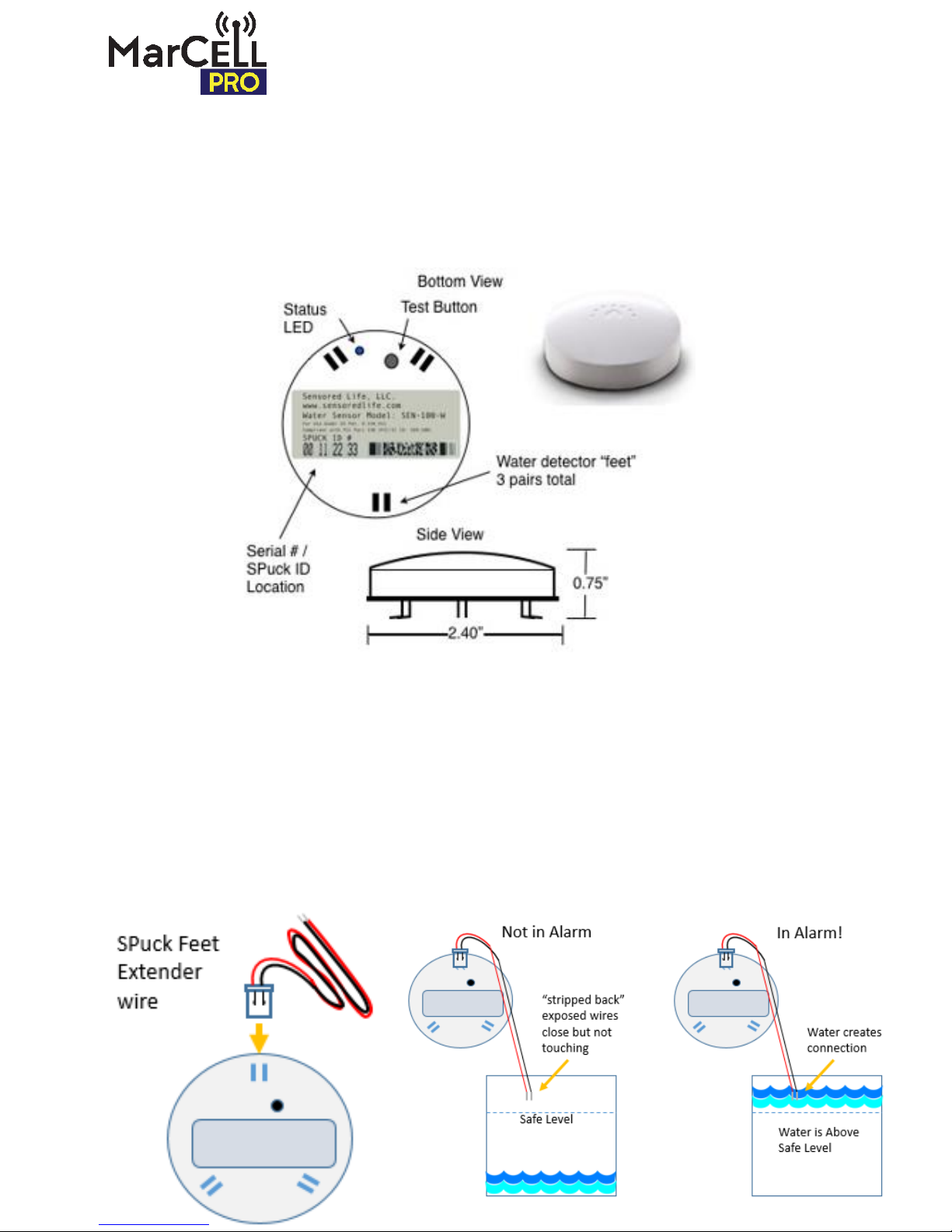
Water Sensor Pucks
(SPucks)
The MarCELL PRO base unit can optionally be “paired” wirelessly
with up to 16 SPucks. SPucks are designed to quickly detect water in
a flooding situation via metal contacts (feet) on the bottom of the
unit.
An optional “feet extender” wire and harness may also be included in
your package. Use in applications such as sump pumps, bilges or other
areas where rising water would quickly overwhelm the SPuck.
See marcellpro.com/water-sensors for more information and advanced
user applications
Page 5

Water
Sensor Puck Setup
Step 1:
Log
-in
and
pair
the
SPuck to
the base
unit
Prior
to setting up a water SPuck, make sure your
MarCELL PRO base unit is registered and operating
properly.
Registering a SPuck connects it to your account and a
specific MarCELL PRO base unit.
Go to www.marcellpro.com
Click on login to access your account
Select “My Devices”, then select the base unit you want to link
your SPuck to.
Select “add SPuck” and follow instructions on screen.
Accept or change Temperature, Humidity safe ranges
After completing the SPuck registration online, the new SPuck will be
wirelessly paired with your MarCELL PRO unit. (this process may
take a few minutes and result in the base unit blinking its green
power light)
Step
2
Test and
select
location
To
ensure that a SPuck can communicate properly with the MarCELL
unit, perform the following test by standing a few feet from the
MarCELL PRO unit.
-
Flip SPuck over and press and release the test button. Note that
the blue LED will light for a second or two and then turn off.
-
The SPuck will send a wireless signal to the MarCELL PRO base
unit. If the MarCELL PRO base successfully receives this message,
it will flash its green power LED indicator for 30 seconds. (you will
not however receive any alerts with this test)
Next, test again from the location the SPuck will be placed. Again,
note if the base unit blinks green after hitting the test button on the
SPuck. If it does not, refer to trouble shooting page.
Step
3
Place
into
service
Place the SPuck
so that the metal “feet” are flat on the surface.
If water come in contact with any pair of the feet, the SPuck will
send a wireless signal to the MarCELL PRO base unit and
dispatch the alert you have set up.
IMPORTANT: Once a water SPuck detects the presence of
water and sends a signal, it automatically deactivates to
conserve its battery. In order to reactivate the SPuck, turn it
over and press the test button. Once the blue LED blinks –
your
SPuck is back in service.
Page 6
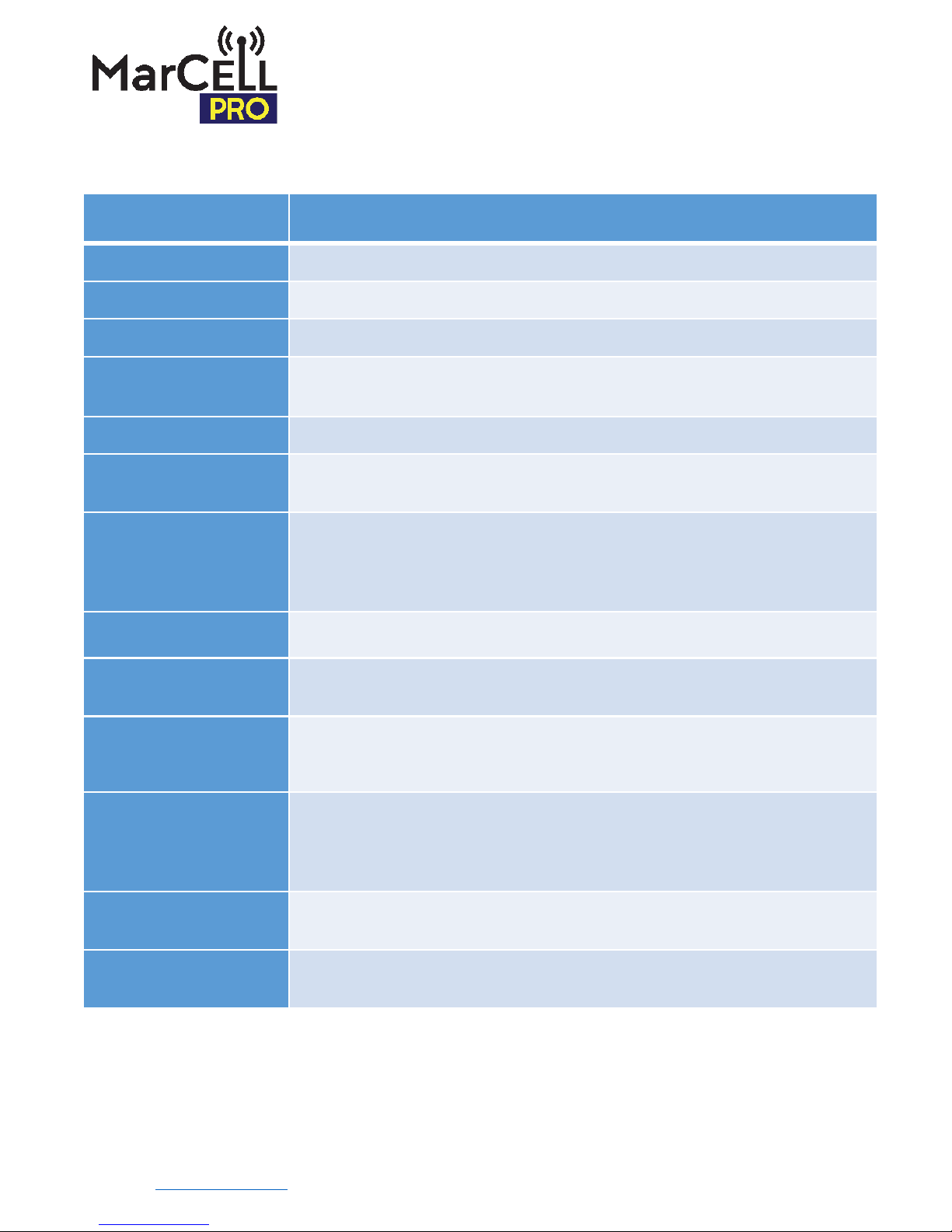
MarCell PRO SPECIFICATIONS
Dimensions
5.80” Tall x 4.50” Wide x 1.50” Deep
Model Number:
MAR
-PRO
Power Input
DC, 5V @ 2A
Battery Type
Internal Li
-Ion rechargeable. DO NOT REMOVE. Electronic Recycling of entire unit req’d if
battery no longer functioning.
Battery Duration
24
-48 Hours Typical when fully charged
Operating Range
Temp: 10 to 120 degrees F.
Rel. Humidity: 10 to 95%, non
-condensing
Alarm/ Notification
Conditions
Temperature (out
of safe range determined by user)
Humidity (out of
safe range determined by user)
Power (change in status)
Water (
Presence with Sensor Puck (SPUCK))
Notification Types
Email
, Text Message, Phone Call (North America)
Number of Notifications
Up to 9 separate notifications (text, email and/or phone call
) + 2 additional with each
SPuck
added
Communication Technology
Cellular
– CDMA - Verizon or AT&T
Verizon
– only for use in USA. AT&T – for use only in USA and Canada. Do not attempt to
use outside these areas as overages will occur and will be charged to your account
Historical Data Recording
and Sampling Frequency
Presence of alarm
conditions is monitored every 10 seconds within MarCell PRO and unit
connects online and reports immediately upon meeting the alarm threshold.
If no alarms
are detected
- data for temperature, humidity and power is recorded and logged every 30
minutes.
Historical Data Upload
Interval
Historical Data (see above) uploaded to web every 8
hours or when “update now” has
been activated online. (PRO users receive 20 “update
nows” per month)
Wireless External Sensor
Communication
915MHz, proprietary protocol, 16
external “paired” SPucks max
Base Unit
Specifications and
Troubleshooting
LIMITED WARRANTY
Sensored Life LLC, hereby warrants that it will repair or replace, at its option,
any part of the MarCELL Temperature, Humidity and Power Alarm (hereafter known as MarCELL), which proves defective by reason of
improper workmanship or material, free of charge for parts and labor, for a period of 1 year from the date of original purchase by the buyer.
This warranty does not apply if, in the sole opinion of Sensored Life, MarCELL has been intentionally damaged due to misuse, neglect,
improper packing, shipping, modification or servicing by other than Sensored Life, or personnel authorized by Sensored Life. For information
on how to obtain service under this warranty contact the dealer where your MarCELL was purchased, or contact Sensored Life via our
website at: www.SensoredLife.com or MarCELLPRO.com.
Page 7

Status Light Sequence Meaning on MarCELL PRO Unit
Lights Shown Meaning Notes / Action
Status 1: Blinking Yellow Unit detects power at outlet and is initializing
Normal start up when unit first plugged
in
Power: Blinking Green
(at start up)
Unit connected with cell tower & registered
with server
Stage two of start-up sequence
Power: Solid Green
Unit is working normally - monitoring
environment
Standard general monitoring mode
Power: Quick Blinking
Green
Unit is reporting data to the server Upload of hourly data or alert
Power: Slow Blinking
Green
No power at outlet but unit still monitoring Running on battery power
Status 2: Solid Red No cellular reception Try different outlet for better reception
Status 2: Blinking Red
Status 1: Blinking Yellow
Either Unit not registered but connection
with cell tower and server established -orunit is registered but connection subscription
has expired or been cancelled
Go to www.SensoredLife.com and
register unit or update connection plan.
No alerts will be sent.
No light
Either “off” button pressed or unit has been
without power and battery has run out
Restore power to outlet to resume
monitoring function
Power: Blinking Green
Status 1: Blinking Yellow
Unit is retrying a cellular call or new firmware
being downloaded to unit.
DO NOT UNPLUG during this process
Status 1: Solid Yellow
Unit is in “Do not Call Mode” because cellular
subscription is suspended
If suspended, restore your device or
renew your subscription online to start
receiving notifications
If you need support for your unit please contact us!
marcellpro.com
(866) 568-2770
Base Unit Diagnostics and Troubleshooting
Resetting your MarCELL PRO Unit
Your MarCELL PRO unit has been manufactured to provide years of trouble-free operation. On
rare occasions if you notice that it has gotten into a strange mode or has stopped reporting,
you may reset the device. Use the following procedure: Unplug the unit from the outlet.
Gently press and hold (for 1-2 seconds) the “off/reset” button located on the back of the unit,
above the label. Use your finger or the eraser of a pencil to gently press and hold the button.
The LED lights on the front of the unit should turn off. After 5-10 seconds, plug MarCELL PRO
back in to resume normal operation.
Page 8

Troubleshooting SPucks
Problem
Actions
Blue LED does not
light when pressing
test button
-
Make sure battery is properly installed
-
Make sure battery indicator on SPuck page is green
-
Install new battery, wait 30 seconds and try again
SPuck
not
communicating with
MarCELL PRO base
unit
-
Make sure MarCELL PRO base unit is registered and
operational
-
Make sure SPuck is registered to the correct MarCELL
PRO unit
-
Make sure blue LED flashes when pressing test button
-
Move MarCELL PRO Base unit or SPucks closer to each
other. There are too many dense objects in the way or
distance is too great.
SPuck
not detecting
water
-
Press test button to make sure SPuck has been reset
-
Make sure SPuck is on smooth, non-metallic, relatively
level surface and that both feet in the pair would come
in contact with water if a leak occurs.
SPuck Specifications
Dimensions & Weight 0.75” Tall x 2.40” diameter 1 ounce
Battery type CR2032 Lithium Coin Cell
Battery Life Typically 5 years – depending on number of times in alarm
Operating Range Up to 200 feet from base unit depending on structures
Wireless Technology Radio Frequency (RF – Compliant to FCC part 15)
Communication Frequency 917 MHZ
Status Indicator 1 Blue LED
SPuck Specifications
and Troubleshooting
If you need support for your unit please contact us!
 Loading...