

Page 1
1
© 2018 Maka Tec
hnologies Group
. A
ll Rights Reserved.
USER MANUAL
Trademarks
All brand and product names are trademarks or registered
trademarks of Maka GPS Technologies Group. In association with
Maka GPS Technologies Private Limited (Singapore), Maka GPS
Technologies Sdn. Bhd. (Malaysia), Maka Technologies Group
(H.K.) Limited. and Maka Corporation USA Inc
.
The information in this manual is subject to change without notice
.
www.makagps.com
10/2018
. R
1.1
Page 2

2
© 2018 Maka Tec
hnologies Group
. A
ll Rights Reserved.
Table Content
Getting Started
• General information 03
• Specifications 04
• Product guidance 05-06
• Notice of safety 07-09
• Cautions while using 10-12
• Other Caution 13
Product Guide
• Default Components 14
• Optional Components 14
• External Appearance 15
• Installing instruction 16-17
• Power Cable hardwiring 17
Recording Guide
• Recording Guide 18
• Driving Recording Guide 19-20
• Event/Manual Recording Guide 21-22
• Parking Recording Guide 23-24
Screen Guide
• Booting / Main Screen 25-27
• Video Playback 28-29
Setting
• Setting Guide 30-35
PC Viewer
• Overview 36
Other
• Q&A 37
Page 3

3
© 2018 Maka Tec
hnologies Group
. A
ll Rights Reserved.
Getting Started
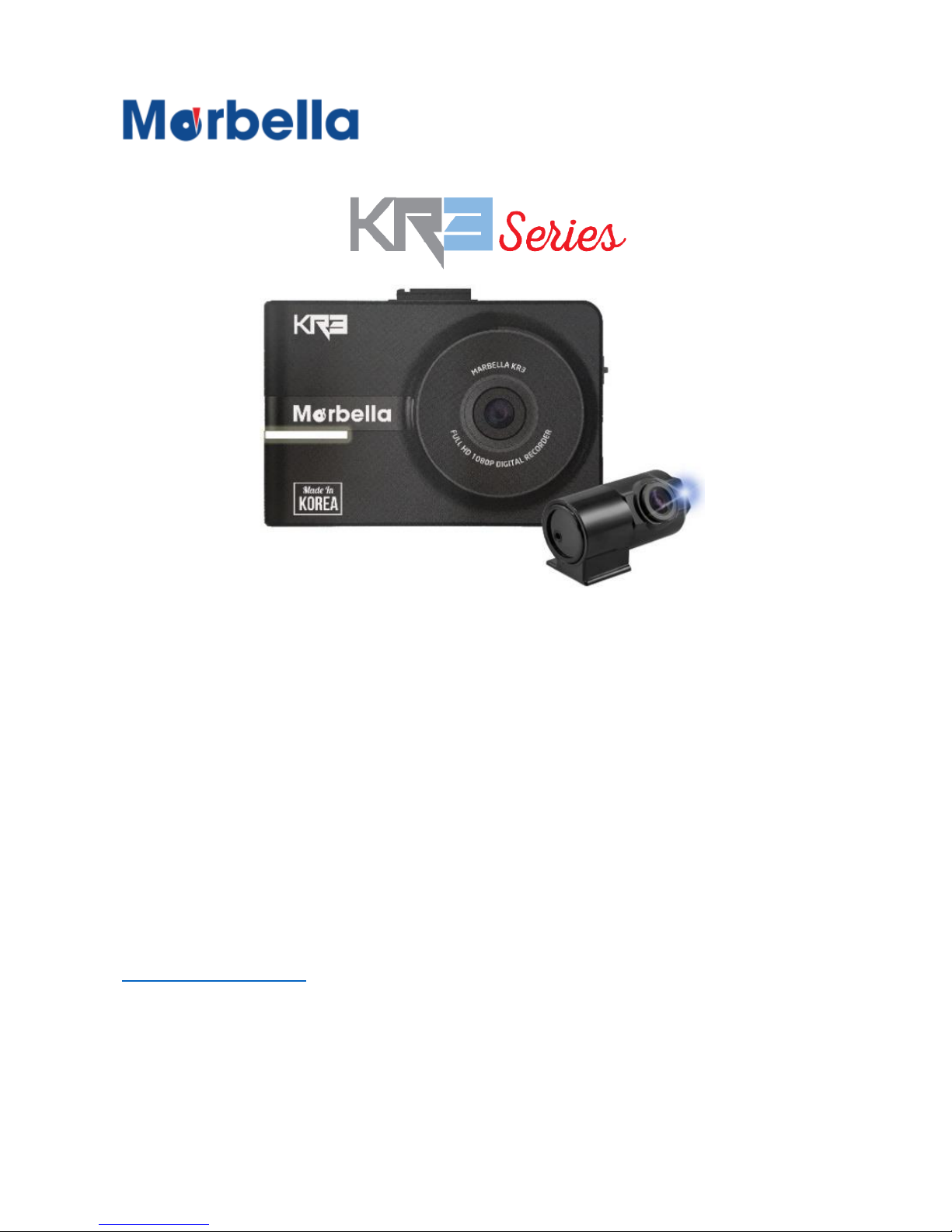
General Information of your KR3 FHD Digital Roadcorder
TM
General Information
Before using the device, read this user manual carefully for proper
use.
If firmware is updated to improve product performance, this user
manual can be revise without prior notice.
Product Guidance
Our device is also called vehicle recorder recording your driving
process.
• Because the device cannot always record all video and
sounds depending on different circumstances, please use
it as a reference to check driving video
• This device support TTF format free function
• With format free technology to eliminate the need for
periodical manual formatting of recorded video files on the
micro SD memory card. It also helps extend the life of
your memory card
• Unlike other Korean car dashcamera, you can view
recorded video files from Marbella KR3/KR3S on any
media player without having a trouble to download a
dedicated player to playback on your computer
Serial Number
• Each product has own serial number
• Serial number is printed on the sticker attached on the
bottom of device supplying production date etc.
Page 4
4
© 2018 Maka Tec
hnologies Group
. A
ll Rights Reserved.
Getting Started
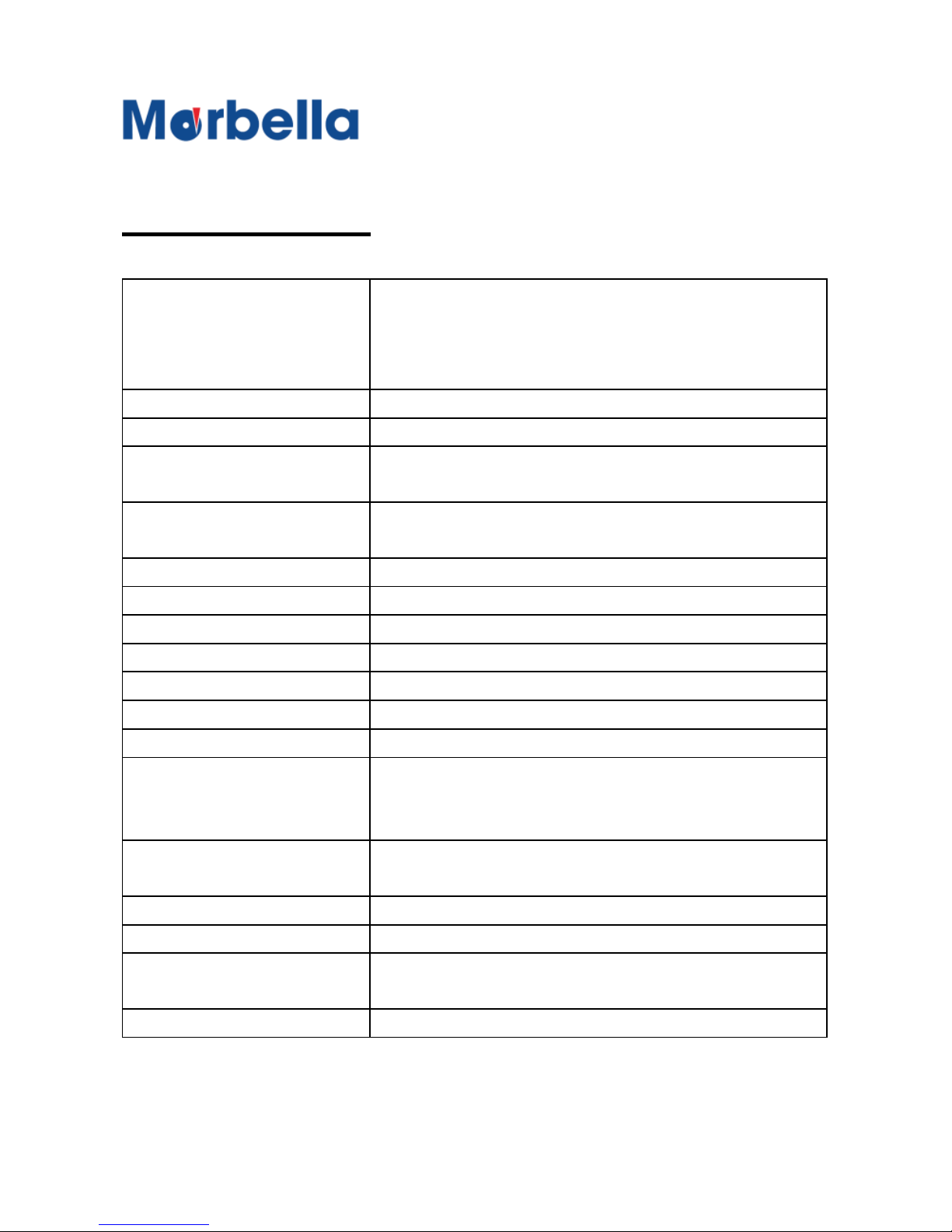
Specifications of your KR3 FHD Digital Roadcorder
TM
Specifications
General / Product Specification
Video Resolution
Front - FHD 1920 x 1080 @ 30fps / Rear
FHD 1920 x 1080 @ 30fps (Rear camera
is optional accessory unless you
purchased the Marbella KR3S)
Image Sensor
1 / 2.7” FHD CMOS sensor
Video Codec
H.264 High Profile
Applicable
Micro SDHC (16GB / 32GB / 64GB /
128GB)
Recording Mode
Normal / Event / Manual / Parking (Motion
& Impact detection)
Viewing Angle
Front 140° / (Optional or KR3S Rear 140°)
LCD
3.5” Touch LCD
GPS
External (Optional accessories)
Micro Phone
Built-in
Speaker
Built-in
LED Indicators
Security LED
G-Sensor
3-Axis Acceleration Sensor, +2g / -2g
Input Power
DC 12V, 0.5A / DC 24V, 0.3A / DC
Plug(Φ3.5 x 1.1) / Wire : (B)GND,
(Y)BATT, (R)ACC
Power consumption
Max. 4.8W (if all the options are turned on,
the things such as GPS and LCD)
Operating Temp
-20°C ~ 70°C (-4°F ~ 158°F)
High Temp. Cut-off
Approximate 70°C (158°F)
Software
Dash Cam Viewer / The recommended
PC Operating system is XP or higher
Dimension
97mm x 69mm x 15mm
Page 5

5
© 2018 Maka Tec
hnologies Group
. A
ll Rights Reserved.
Getting Started
Product Guidance of your KR3 FHD Digital Roadcorder
TM
Product Guidance
Voice Recording
High sensitive MIC is installed
• Record video and voice simultaneously
• No voice recording
Operating Status
• When booting, voice guide you recording in process
• White LED (Front device) show recording in process
• Blue LED (Back device) show recording in process
• Red LED (Back device) show event recording in process
Security LED
• Visibility of the White LED blinking light from out the
vehicle show device is operation
• LED will flashed when the device detects a motion during
parking mode and warn off any theft
Time Check
RTC is install
• RTC refer to “Real Time Clock”
• Default time is factory setting time
• If GPS cable (Optional) is connected, Real Time will be
detected
• If you want to change the time, you need to set your
country local time one first and then date/time.
Page 6

6
© 2018 Maka Tec
hnologies Group
. A
ll Rights Reserved.
Getting Started
Product Guidance of your KR3 FHD Digital Roadcorder
TM
Speaker Guidance
Speaker is installed
• Event sound notification are generated in various status
• Voice Guidance is generated
• Voice is generated during playback in device
Mounting
Mount holder is supplied
• Fix mount holder onto front window shield
• Adjust camera height angle
• Not supported for right and left angle
Page 7

7
© 2018 Maka Tec
hnologies Group
. A
ll Rights Reserved.
Getting Started
Notice of Safety of your KR3 FHD Digital Roadcorder
TM
Notice
This user manual is made for easy using the device, furthermore it
will be helpful for your safety driving. Before operating the device,
read the manual carefully and follow these safety warnings in-order
to prevent the user’s property damage
• If the device is relocated, then it may cause the camera
angle changed simultaneously. Before using the device,
be sure to adjust the camera angle and double check it.
• Make sure that the device is installed in a proper place. If
not, video recording cannot work well.
• Windows tinting may affect video quality, so avoid tinting
the windows deeply.
• Keep your vehicle windows always clean for the best
video quality.
• The device is regarded as driving record equipment;
driver or user may get the proper video images only in the
normal conditions. When you drive through a tunnel or
drive at night, video quality may change. Intense back
light also affected the quality of the video.
• If the device is damaged by a huge car accident or power
does not connected, it may affect the recorded video
accident situation normally.
• Keep camera lens clean at all time. If the lens has some
substances or fingerprint on it, video quality recorded will
be affected.
Page 8

8
© 2018 Maka Tec
hnologies Group
. A
ll Rights Reserved.
Getting Started
Notice of Safety of your KR3 FHD Digital Roadcorder
TM
• The recommended operating temperature range will be at
-10℃ to 60℃, make sure that the optimal temperature is
maintained.
• Do not expose the device under extreme temperature (too
high or too low), or else the device life span will be
affected and can be damaged quickly. Even if you are not
using it, keep the device within acceptable operating
temperatures.
• Do not use the device in a hot and humid circumstance.
• Make sure that it is far away from the water or other
liquids, it may cause device damage and we will not take
responsibilities for such incidents.
• Do not press the button intensely, or else it might cause
device damage.
• Only use soft and dry cotton cloth to clean up the device.
• Do not use strong chemicals or detergents to clean the
device, it might cause device damage.
• Do not arbitrarily disassemble or drop the device, it may
cause serious damage or a mechanical breakdown.
• Do not operate the device while driving, or else it might
cause a vehicle accident.
• Do not install the device in which driver’s view is blinded,
it may cause car accidents.
• The device cannot interwork well with other company's
equipment.
• If you are trying to connect in a force, it may cause device
damage and we will not take responsibilities for such
incidents.
Page 9

9
© 2018 Maka Tec
hnologies Group
. A
ll Rights Reserved.
Getting Started
Notice of Safety of your KR3 FHD Digital Roadcorder
TM
• Keep the device and cables clean, or else it may cause
damage or malfunction.
• When the device is damaged by an accident, stop using it
and contact us immediately.
• Keep checking the camera angle; make sure that the
device is fixed firmly, as it may become detached due to
severe vibration of vehicle in a long distance driving.
Page 10

10
© 2018 Maka Tec
hnologies Group
. A
ll Rights Reserved.
Getting Started
Cautions while using of your KR3 FHD Digital Roadcorder
TM
Cautions While Using
Before using the device, read the instructions carefully for proper
use.
• When you first start using our device, check the recorded
files after 5minutes filming. After checking the device and
SD card before recording, do double check that the
installation method has no problem then you may take
recordings normally.
• Do not save any other files on SD card, it may cause
malfunction, or it may affect the storage capacity of
recording.
• Do not remove SD card before cutting off the power of the
device completely. After turning off your engine, if you
take out SD card from the device when LED is still on,
then the last recorded file may not be saved properly.
• Keep the memory capacity of SD card more than 300MB
for normal recordings. If the capacity is less than that, it
may not record properly.
• For more safely using SD card, we highly recommend you
keep to format SD card regularly; it can prevent SD card
error effectively.
• After long time recording usage with enclosed SD card, it
may not work well due to its own limited write/read cycles.
Replace it with new one, or else we will not take any
responsibilities for such case.
Page 11

11
© 2018 Maka Tec
hnologies Group
. A
ll Rights Reserved.
Getting Started
Cautions while using of your KR3 FHD Digital Roadcorder
TM
• Use the most reliable SD card for the device. We will not
take any responsibility for damages or problems caused
by other branded SD card instead of using the enclosed
SD card. It may cause bad quality of recordings by using
less reliable SD card.
Important Note:
The MicroSD memory card should be tested for errors on a regular
basis and as the memory card is a consumable item, it will need to
be replaced periodically.
Maka GPS Technologies Group shall NOT be responsible for any
problems and/or damages that may occur from the use of
disingenuous, modified, or unauthorized parts and accessories.
The device and the recorded videos are intended for personal use
and the recorded videos should be used for reference only.
The device does NOT guarantee video recording of all accidents
as built-in impact sensor may not be activated due to combination
of user settings and the level of impact during the collision.
Page 12

12
© 2018 Maka Tec
hnologies Group
. A
ll Rights Reserved.
Getting Started
Cautions while using of your KR3 FHD Digital Roadcorder
TM
• Whenever possible, move and park your vehicle in a
shady area. If you park the vehicle outside for a long time,
remember to cut off the power supply from the device. Or
else it may cause malfunction of the device due to the
extreme high temperature. If the inside vehicle
temperature raised to over 80℃, the device is
automatically cut off the power due to the auto power off
circuit built-in it.
• If you connect the hardwire power cable for parking mode,
vehicle battery begins to be discharged. The decrepit
vehicle or long-term parking can be discharged easily. If
you connect the device to permanent power in parking
mode, vehicle battery can be totally discharged. The
device has built in Low Voltage Cut Off circuit, so it may
prevent the vehicle battery from drainage in parking
mode.
Page 13

13
© 2018 Maka Tec
hnologies Group
. A
ll Rights Reserved.
Getting Started
Cautions while using of your KR3 FHD Digital Roadcorder
TM
Other Cautions
• When you insert SD card into the device, check card
directions carefully.
• Carefully remove SD card from the device, so that it may
not stick out so far from you.
• Do not remove SD card suddenly while the device is still
working. It may cause recognition problems of SD card or
SD card will be damaged.
• When upgrading the firmware, do not remove SD card
and keep the power is connected well. Or else it may
cause the device damage.
• Keep the window is clean and mount holder fixed firmly,
as it may become detached while driving. Do not use the
same adhesive tape several times for fixing mount holder,
it may detach from windows and cause an accidents.
• Before connecting the hardwire power cable, read the
power cable hardwiring manual firstly. If you connect it in
a wrong way, it may cause the device damage.
Page 14
14
© 2018 Maka Tec
hnologies Group
. A
ll Rights Reserved.
Product Guide
Default Components of your KR3 FHD Digital Roadcorder
TM
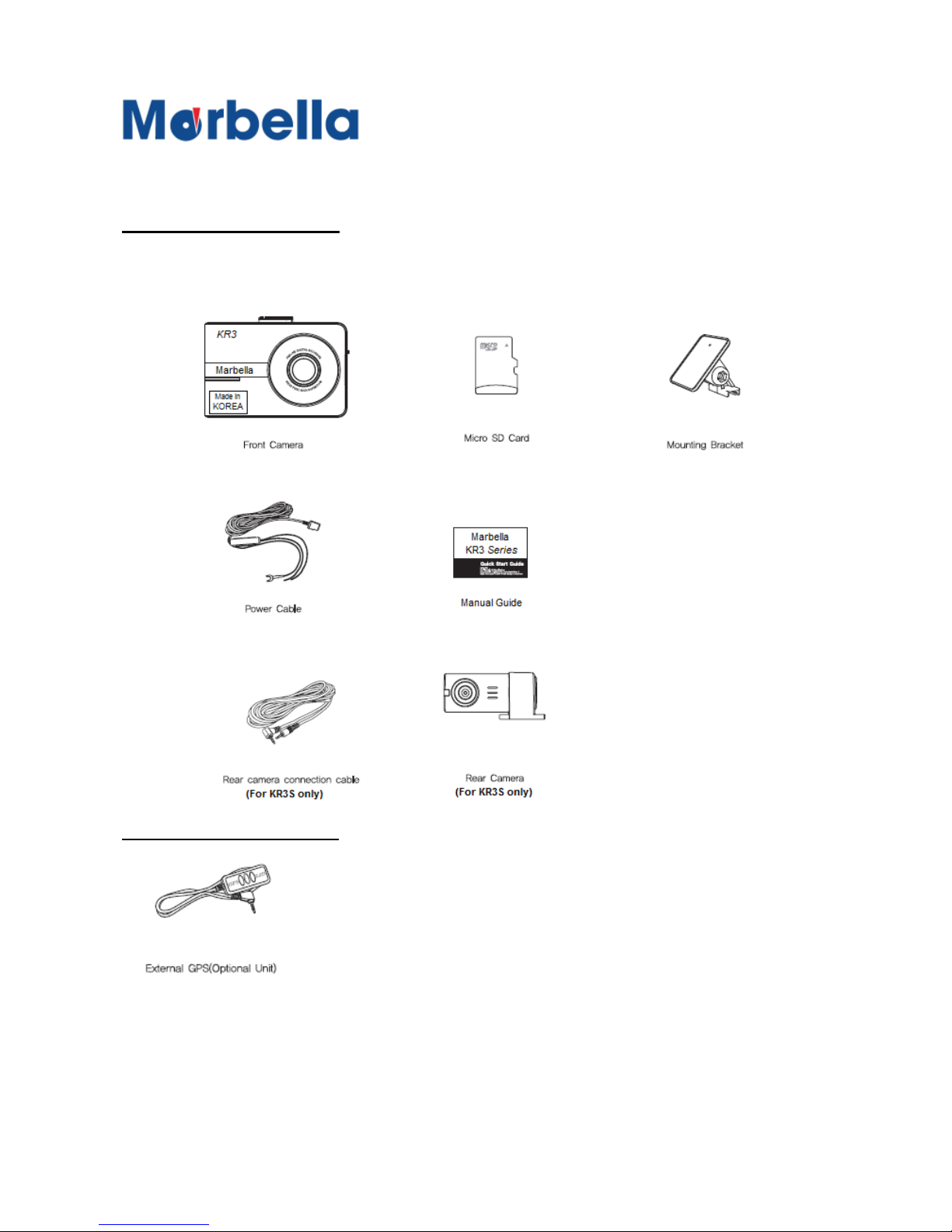
Default Component
Components could be changed to improve product quality without
prior notice.
Optional Component
Note : Each component could be changed depending on their quality and
supply status
Page 15
15
© 2018 Maka Tec
hnologies Group
. A
ll Rights Reserved.
Product Guide
External Appearance of your KR3 FHD Digital Roadcorder
TM
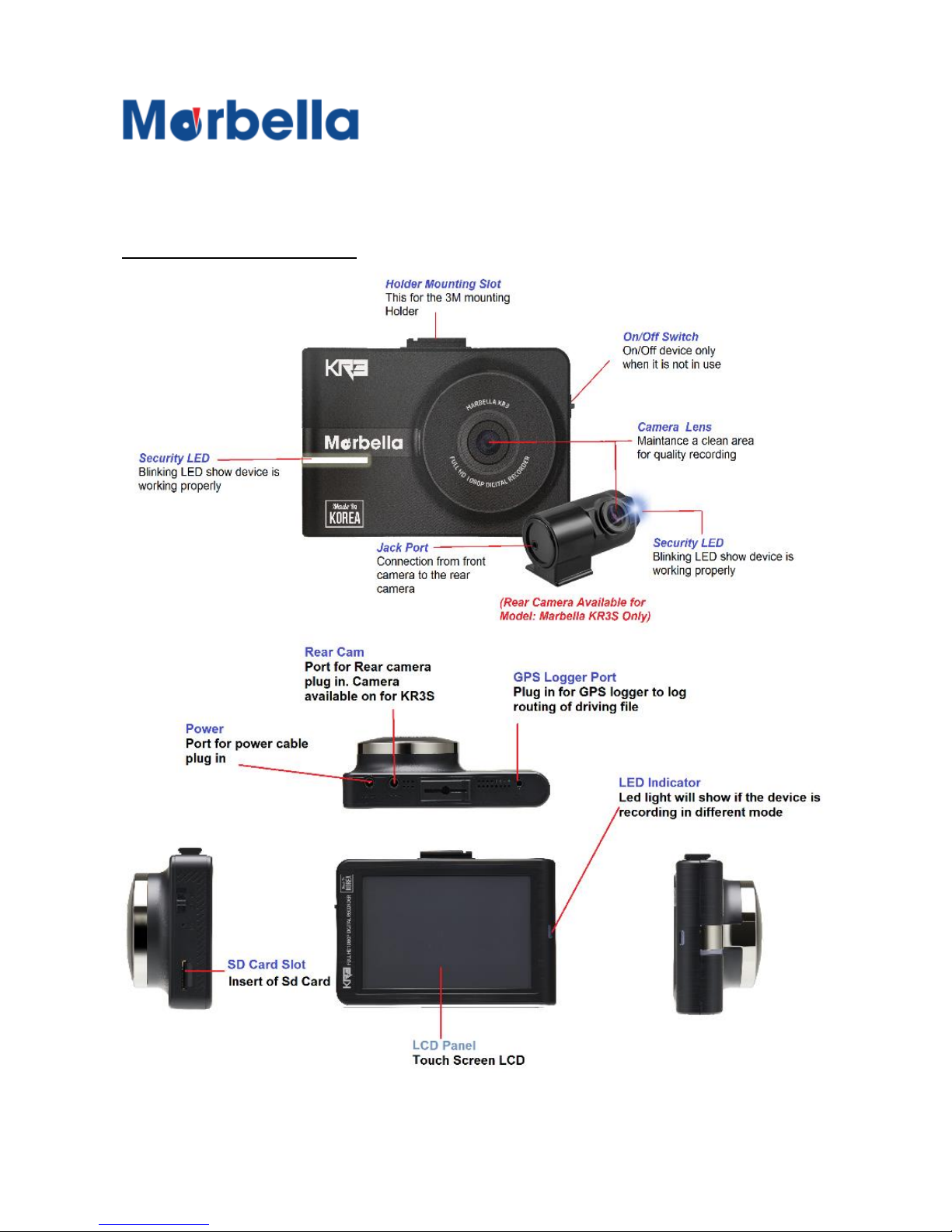
External Appearance
Page 16
16
© 2018 Maka Tec
hnologies Group
. A
ll Rights Reserved.
Product Guide
Installation Instruction of your KR3 FHD Digital Roadcorder
TM
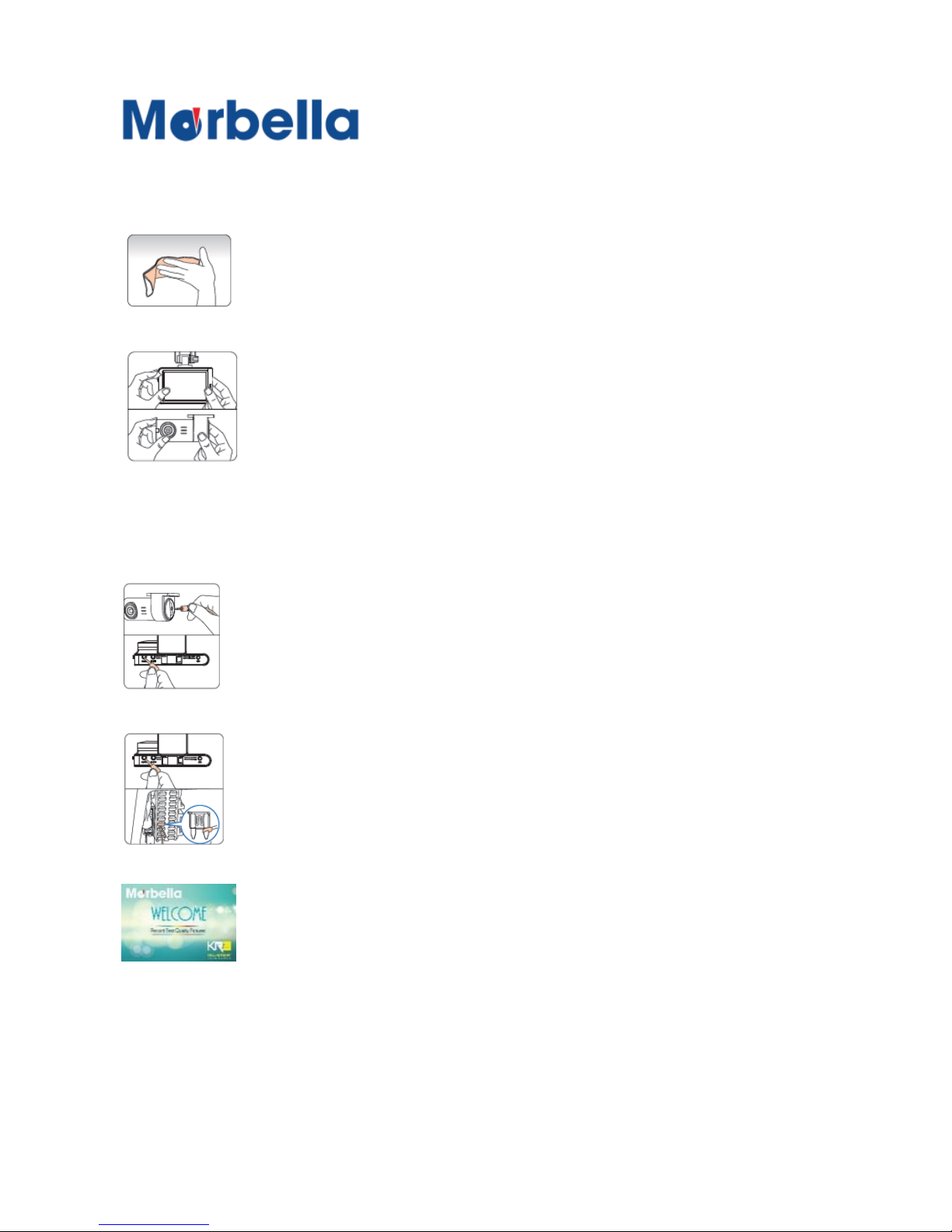
1. Cleaning of both window (windscreen & Rear Window)
Select a suitable place for the device mounting and
clean the spot with a dry cloth to achieve a good
contact between the glass and the 3M double side
tape
2. Attach two camera on both side of the window
Remove the adhesive film from both front and back
mounting and attach the cameras. Adjust the angle
accordingly make sure the lens is not facing upward.
Note : To decrease the blurriness of the video, make
sure the device is secure tightly so any vibration will
not affect much
4. Connect Rear camera connection cable
Connect supplied one side of the cable to the rear
camera jack socket and the other side to the main
device jack socket.
3. Connect power Cable
Connect the supplied power cable to DC IN socket of
the front camera.
Hard wire cable (ACC/GRN/BATT) will needed to be
connected to the fuse box
5. Ensure that your dash cam is in proper working order
Insert the SD card into the device. Once device is
connected properly, boot up screen can be seen and
enter into the live view. A voice guide will prompt you
recording begin once all is in order.
Page 17
17
© 2018 Maka Tec
hnologies Group
. A
ll Rights Reserved.
Product Guide
Installation Instruction of your KR3 FHD Digital Roadcorder
TM
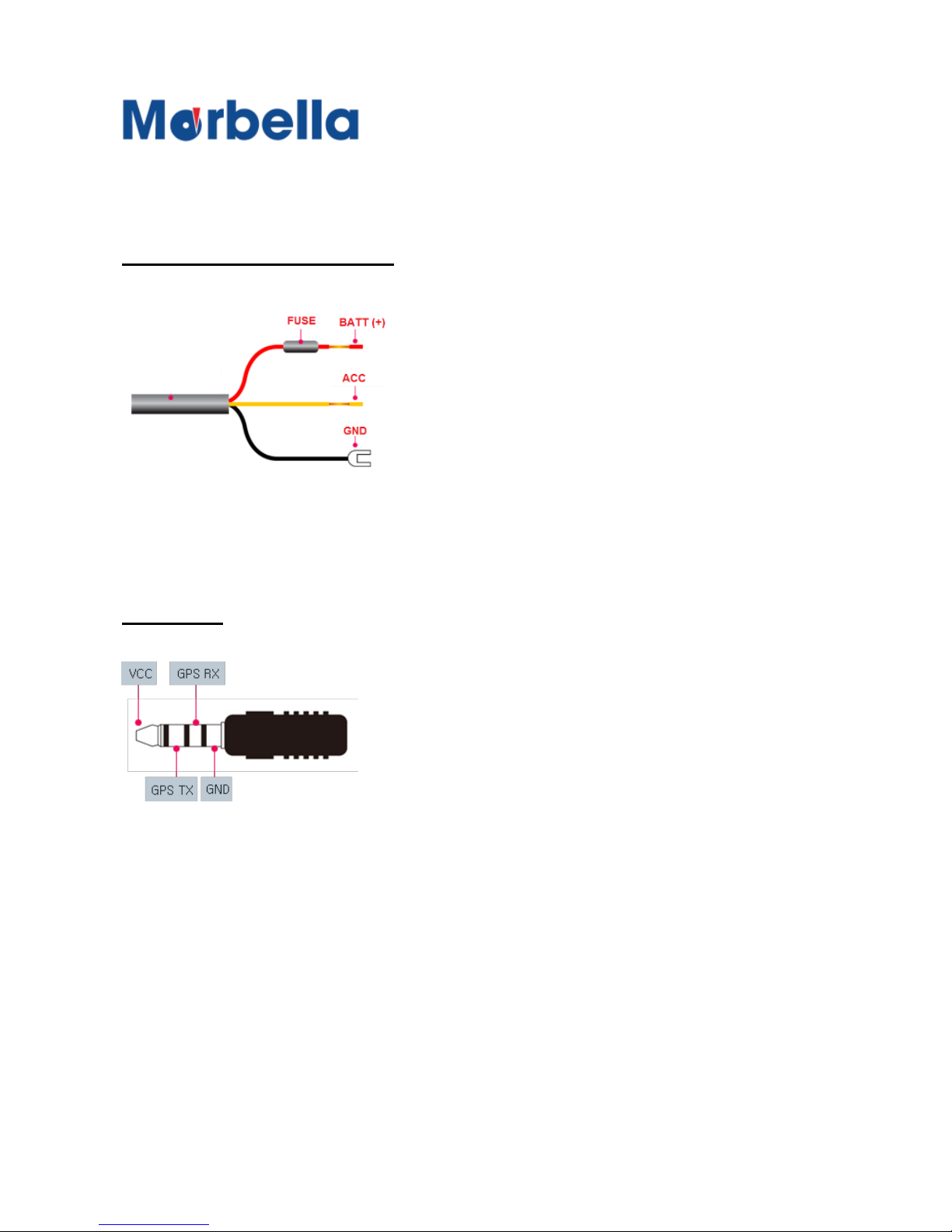
Power Cable Hardwiring
Plug info
Batt (+)
Red wire having fuse. Connect it to car
permanent source (Ex. Emergency lamp,
dome light, tail light etc)
ACC (+)
Yellow wire. Connect to the fuse that gets
power through the ignition (Ex. Cig lighter,
audio)
GND
Black wire. Connect to the vehicle chassis
or vehicle bolts
GPS Plug
GPS IN Plug 2.5pai pin information
Page 18

18
© 2018 Maka Tec
hnologies Group
. A
ll Rights Reserved.
Recording Guide
Recording Guide of your KR3 FHD Digital Roadcorder
TM
Recording Guide
There are 4 type of recording – Normal / Event / Parking / Manual
(Manual event folder)
Normal Recording
When the ignition is turn on, the device will begin recording
automatically till the ignition is turned off.
Event Recording
In the case of an impact, event recording mode will be activated
through G-Sensor detector and separate files will be produce
Parking Recording
If a movement is detected in parking mode, recording will be
activated for a certain time. If there is no more movement, it will
stop recording and goes into standby mode.
Manual Recording (Manual Event)
In the case of an event seen or impact is small, click on the button
and a manual event file will be created. this icon will
appear on the bottom right screen
Page 19
19
© 2018 Maka Tec
hnologies Group
. A
ll Rights Reserved.
Recording Guide
Driving Recording of your KR3 FHD Digital Roadcorder
TM
Driving Recording Guide
When the ignition is turned on, the device will begin recording
automatically till the ignition is turn off
If the SD card memory is full
The program will delete the oldest file in order, then create the new
file by current date and time.
In case of an impact?
The Sensor will trigger the event mode When an impact is
registered, it begins to record 5 sec prior to the impact and 10 sec
after the impact
If the power goes out while driving?
All current recording will be saved immediately.
In power hardwiring connection, it goes to parking mode recording.
In ACC (cigar power) connection, recording will be stopped.
Recording Time
Recording file is made at 1min long
Recording Files
It is made in the format.
Year/Month/Day, Hr/Min/Sec, Ch
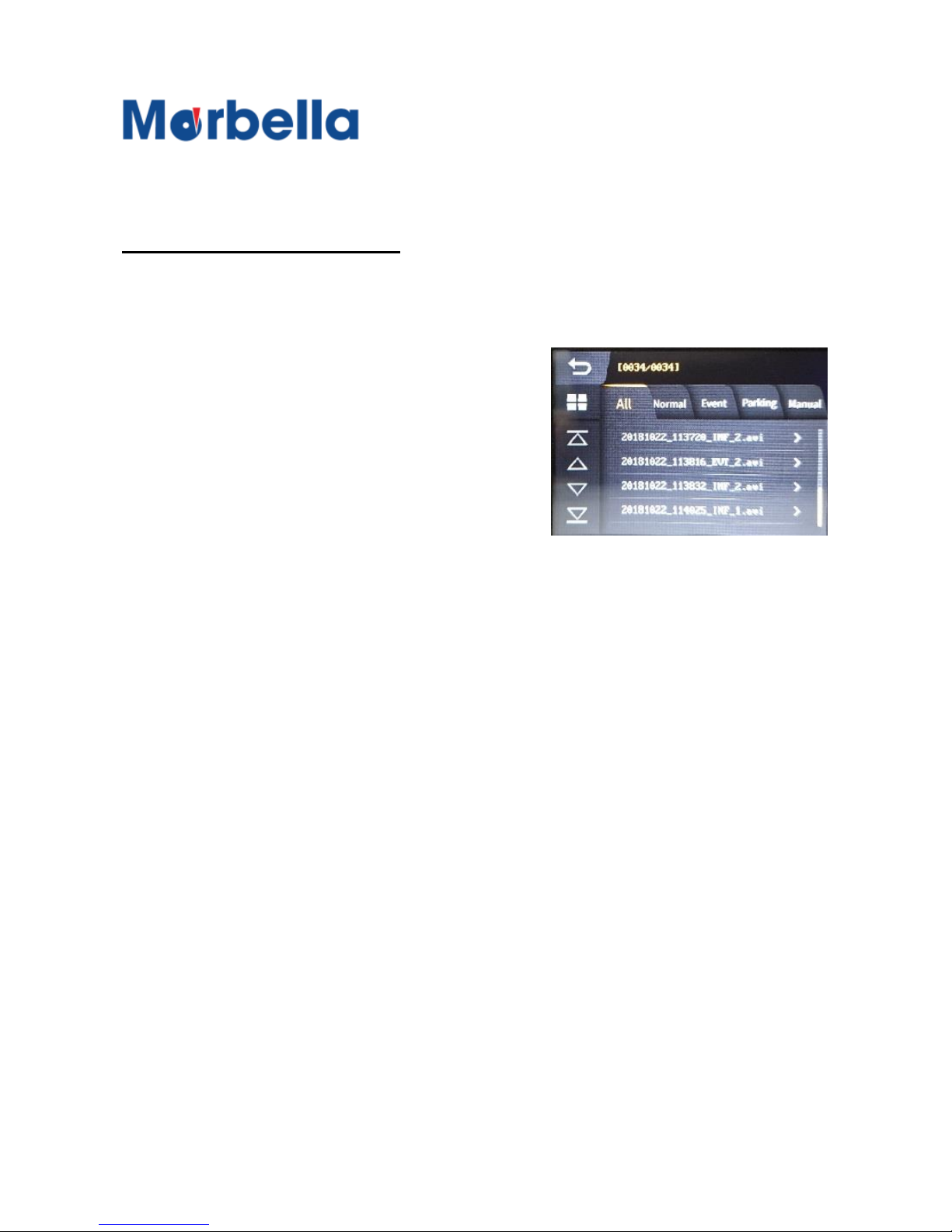
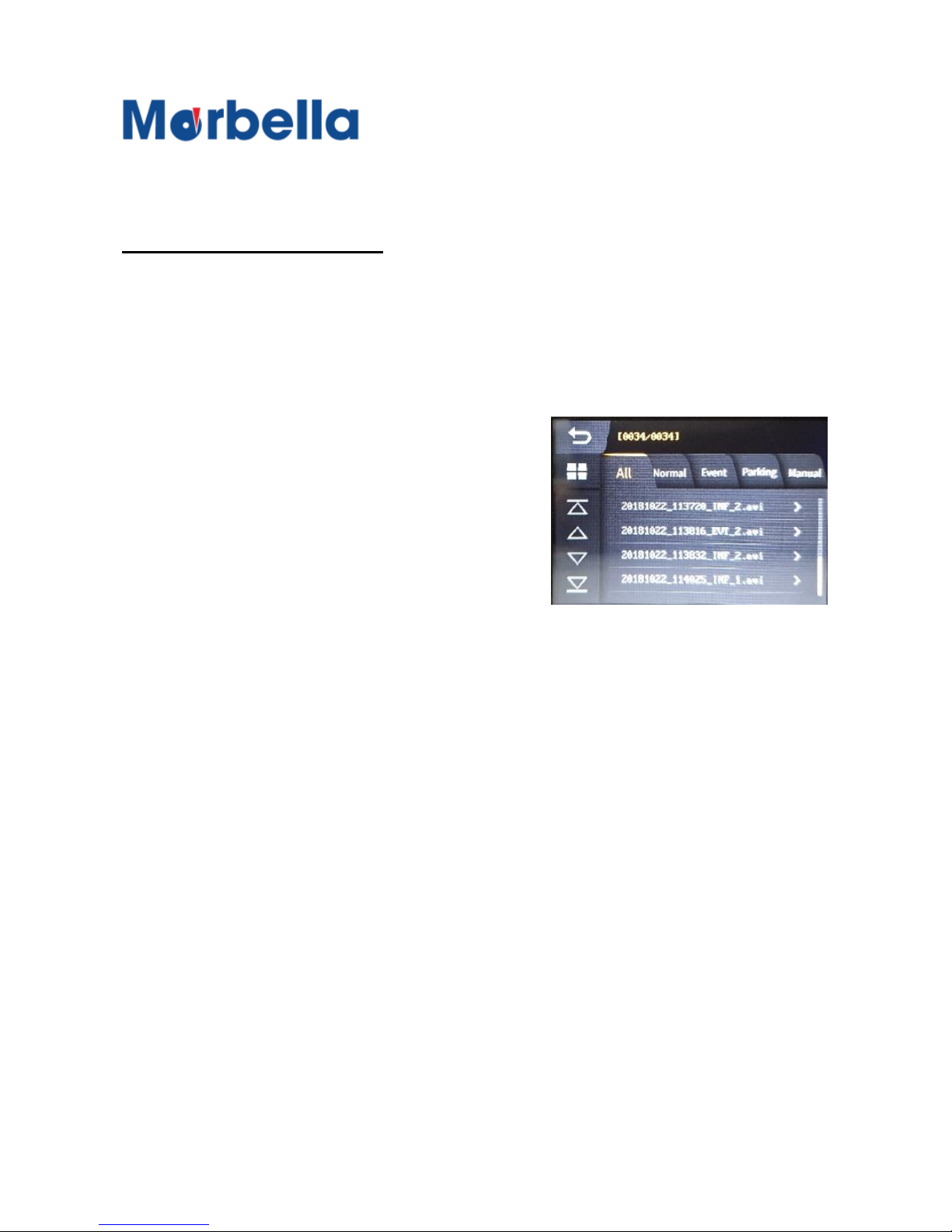
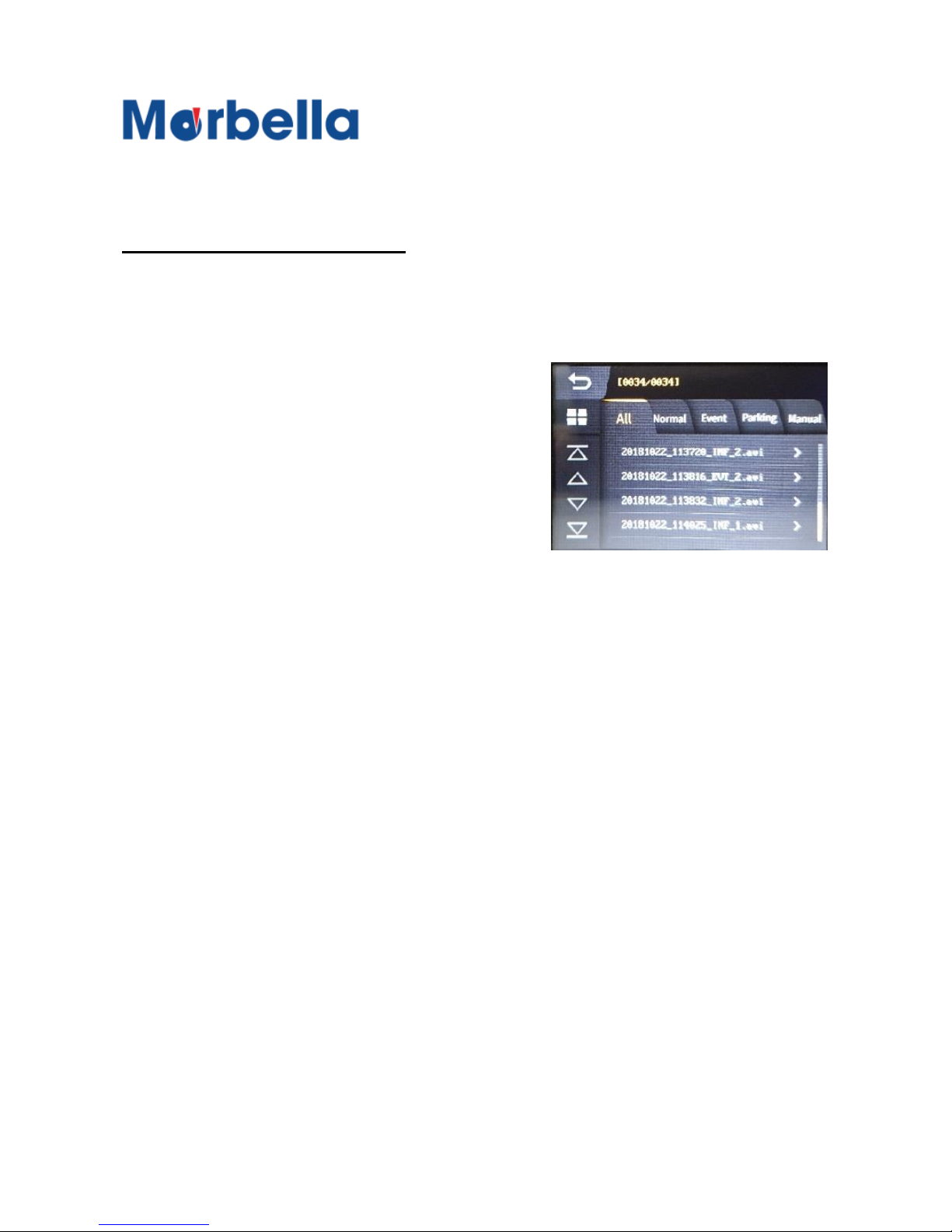
Ex: 20181022_113720_INF_2
20181022 - Date (Yr 2018, Oct 22nd)
113720 – Time (11oclock,37min,20sec
INF – Normal file, 2 – Front / Rear Camera (If 1 will be Front only)
Page 20

20
© 2018 Maka Tec
hnologies Group
. A
ll Rights Reserved.
Recording Guide
Driving Recording of your KR3 FHD Digital Roadcorder
TM
If you remove the SD card during driving recording?
This device record at every 1sec. Last 1 second image is not
saved. And because the SD card or main unit could be damaged,
do not remove SD card during operation.
If you cannot find a file in driving recording file list?
During driving recording, if an impact is detected, event recording
starts.
Find event recording file in main unit display or play back via media
player.
If driving record does not work?
First, there could be power supply problem.
Please check hardwire or cigar power cable, also LED lamp on.
Second, SD card could have a problem.
Please check if the SD card is inserted firmly, or SD card life time
could be ended.
Carefully check and manage SD card periodically
Third, main unit could have a problem.
In this case, do not disassemble it by yourself, but call to service
center.
Page 21
21
© 2018 Maka Tec
hnologies Group
. A
ll Rights Reserved.
Recording Guide
Event Recording of your KR3 FHD Digital Roadcorder
TM
Event Recording Guide
When a impact is occurred base on your registered data (adjust the
value in configuration), alarm will beep once in shortly and REC
LED lamp flashes in Red
Purpose of event recording is to save a important file such as
accident video separately in order to prevent its missing.
If the SD card memory is full
The program will delete the oldest file in order, then create the new
file by current date and time.
How to detect an impact
This device have G-sensor installed.
This sensor consider normal driving if a car moves in same speed.
But in very short time if a car moves forward/reverse or right/left or
high/low suddenly, this sensor consider its as an impact, and
generate event recording.
Recording Time
Event file is recorded for 5sec prior to
the impact and 10sec after the impact
Recording Files
It is made in the format.
Year/Month/Day, Hr/Min/Sec, Ch
Ex: 20181022_113720_EVT_2
20181022_113720_EVR_2
20181022 - Date (Yr 2018, Oct 22nd)
113720 – Time (11oclock,37min,20sec
EVT – Event file, 2 – Front / Rear Camera (If 1 will be Front only)
Page 22

22
© 2018 Maka Tec
hnologies Group
. A
ll Rights Reserved.
Recording Guide
Event Recording of your KR3 FHD Digital Roadcorder
TM
If car engine is off suddenly by such as a accident?
In case of hardwiring power connection, if there is no disconnection
with car battery, it keep recording. But in case of cigar power
connection recording stop after saving 1sec image
If you remove the SD card during driving recording?
This device record at every 1sec. Last 1 second image is not
saved.
And because the SD card or main unit could be damaged, do not
remove SD card during operation
Page 23
23
© 2018 Maka Tec
hnologies Group
. A
ll Rights Reserved.
Recording Guide
Parking Recording of your KR3 FHD Digital Roadcorder
TM
Parking Recording Guide
Parking recording mode will be only activated when the device is
connected by hardwire power cable. Recording starts when there is
an impact or movement.
If the SD card memory is full
The program will delete the oldest file in order, then create the new
file by current date and time.
How to do parking recording
Parking recording mode will be only activated when the device is
connected by hardwiring. (Impossible in cigar power connection)
In Parking mode, if a movement in front or rear side (man, car,
animal, etc), it keeps recording at 1min long. If a movement is not
Recording Time
Parking file size is maximum 1min. In
case an impact is detected, it records
up to 10sec from an impact. In case an
movement in front or rear is detected, it
keep recording at 1 min long till
movement is ended
Recording Files
It is made in the format.
Year/Month/Day, Hr/Min/Sec, Ch
Ex: 20181022_113720_PRK_2
20181022 - Date (Yr 2018, Oct 22nd)
113720 – Time (11oclock,37min,20sec
PRK – Parking file, 2 – Front / Rear Camera (If 1 will be Front only)
Page 24

24
© 2018 Maka Tec
hnologies Group
. A
ll Rights Reserved.
Recording Guide
Parking Recording of your KR3 FHD Digital Roadcorder
TM
detected it stop recording. If an impact is detected by car or man,
the device detects and starts recording up to 10 from an impact.
If recording is not saved from a certain time when parking a car for
long time?
In order to prevent car battery drainage, this device support auto
off function of parking recording
There 2 ways to protect battery.
First, you can set up parking recording time
Second, you can setup low battery power detection. Car battery
power voltage become down around the time battery is discharged.
Check your battery discharge power voltage and set it up in
settings.
When a movement is detected what will happen?
LED lamp in the device blinks,
Page 25
25
© 2018 Maka Tec
hnologies Group
. A
ll Rights Reserved.
Recording Guide
Booting / Main Screen of your KR3 FHD Digital Roadcorder
TM
Booting
Power on the ignition or slight the power switch on your left hand
side of the device to turn on the device
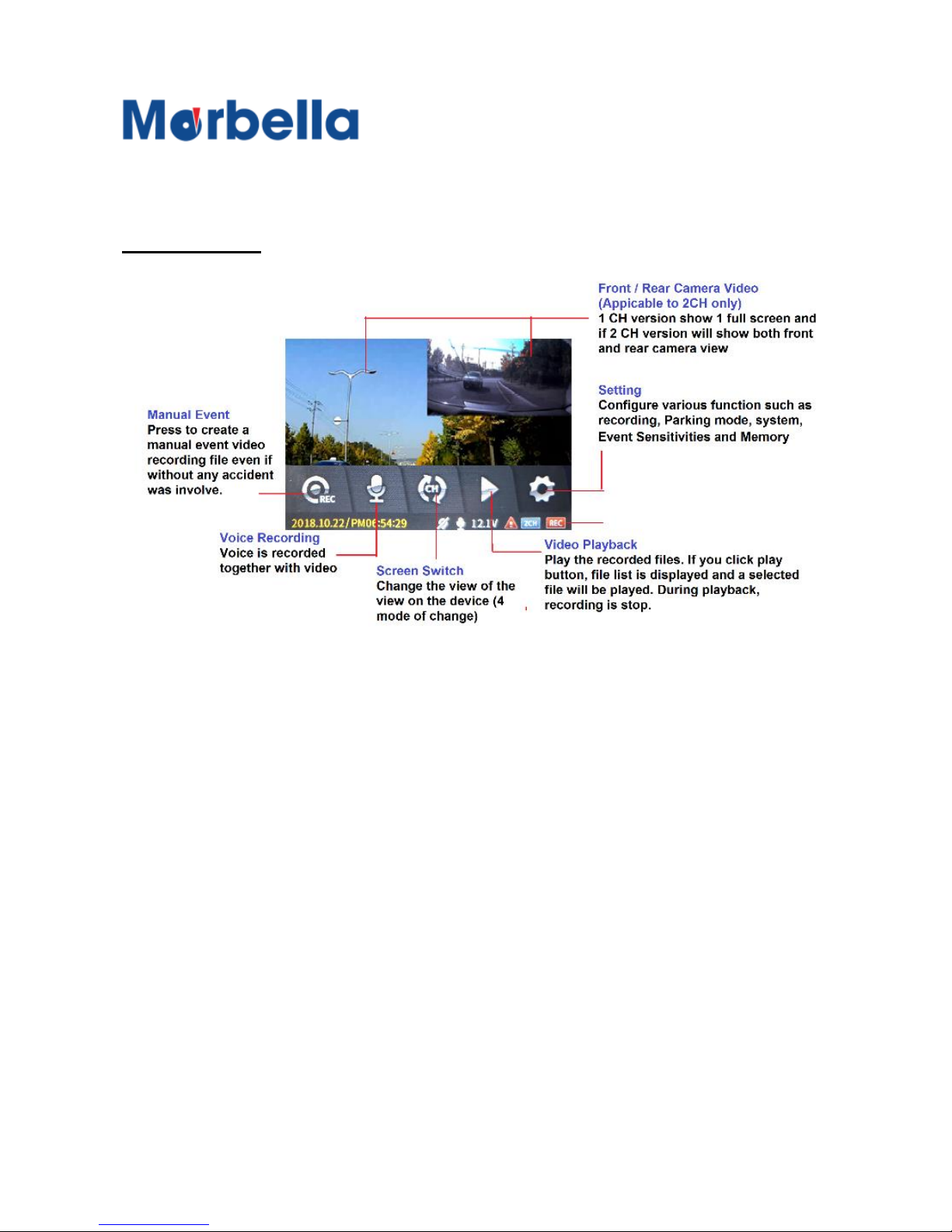
Main Screen
There is status bar at the bottom, real time video screen in the middle,
menu bar in the bottom above status bar. Menu bar will disappear
when a single tap on the LCD panel.
After power is
connected, it will
automatically enter into
the driving mode and
start recording.
(In hardwiring power
connection, parking
mode is changed to
driving mode)
Page 26
26
© 2018 Maka Tec
hnologies Group
. A
ll Rights Reserved.
Recording Guide
Booting / Main Screen of your KR3 FHD Digital Roadcorder
TM
Main Screen
Page 27
27
© 2018 Maka Tec
hnologies Group
. A
ll Rights Reserved.
Recording Guide
Booting / Main Screen of your KR3 FHD Digital Roadcorder
TM
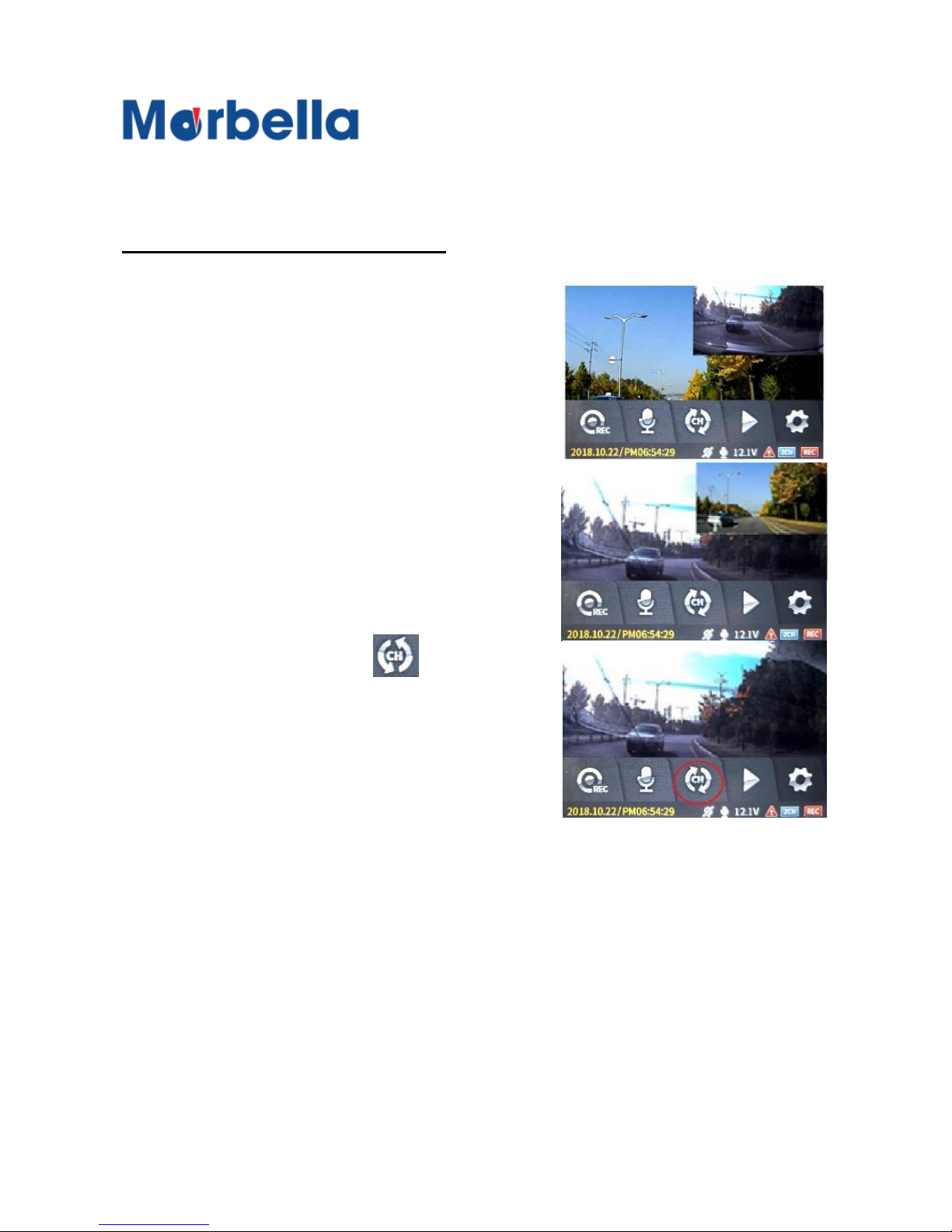
How To Change Main Screen
Noted : Rear Camera view only apply for Marbella KR3S user
or optional to upgrade for the rear camera.
1. Tap on the screen to view full
screen and you will not see
the menu bar.
3. Tap on the screen when in
full view to change position
of viewing camera.
2. Tap on the icon to
toggle the screen mode
change. There will be 4
type of mode change.
Page 28
28
© 2018 Maka Tec
hnologies Group
. A
ll Rights Reserved.
Recording Guide
Video Playback Screen of your KR3 FHD Digital Roadcorder
TM
Noted : Rear Camera view only apply for Marbella KR3S user
or optional to upgrade for the rear camera.
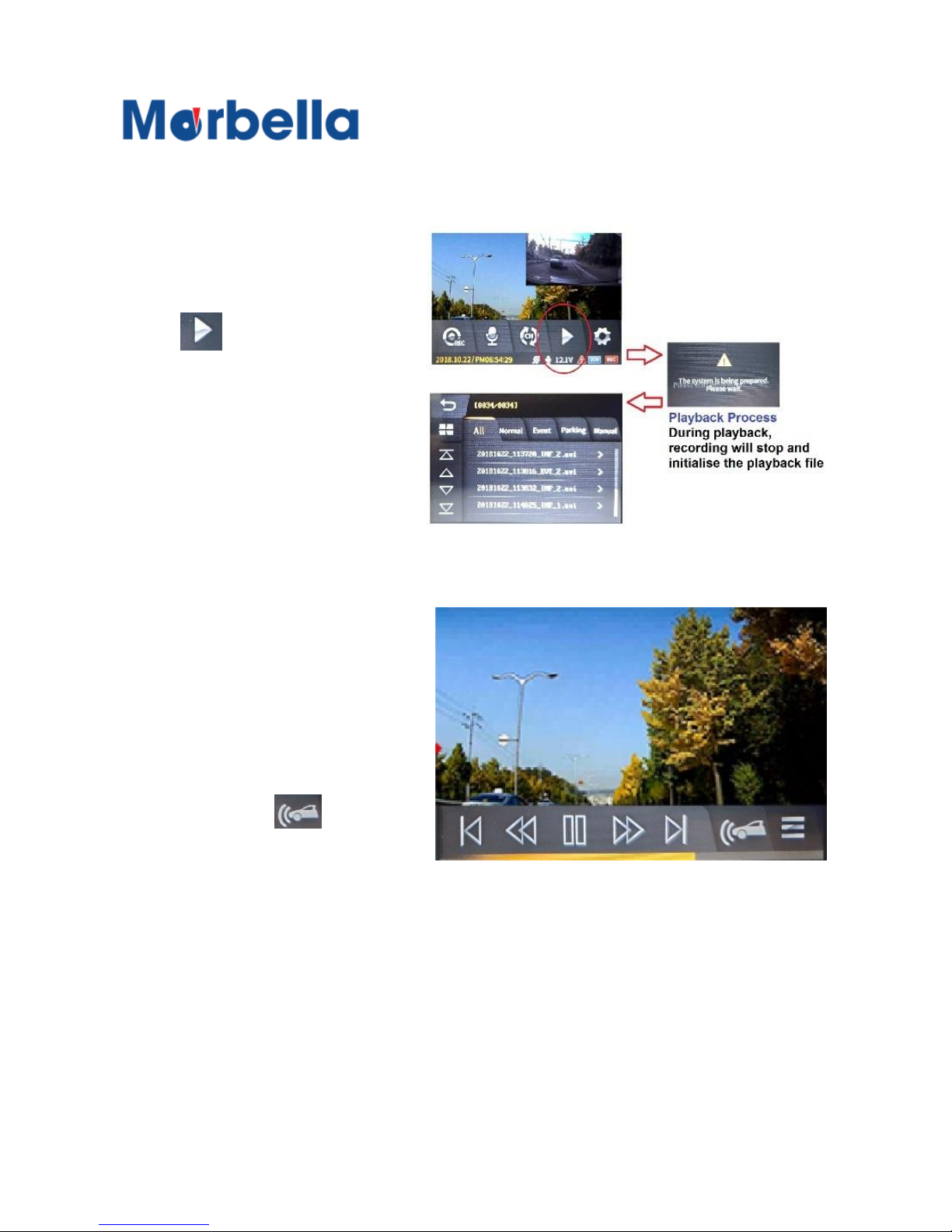
1. Tap on the icon
to stop
recording and go
into playback
mode. A list of
recording file will
appear.
2. Tap on any file
you wish to play
and playback will
start. To view the
rear camera
recording tap on
the icon to
switch over.
Page 29
29
© 2018 Maka Tec
hnologies Group
. A
ll Rights Reserved.
Recording Guide
Video Playback Screen of your KR3 FHD Digital Roadcorder
TM
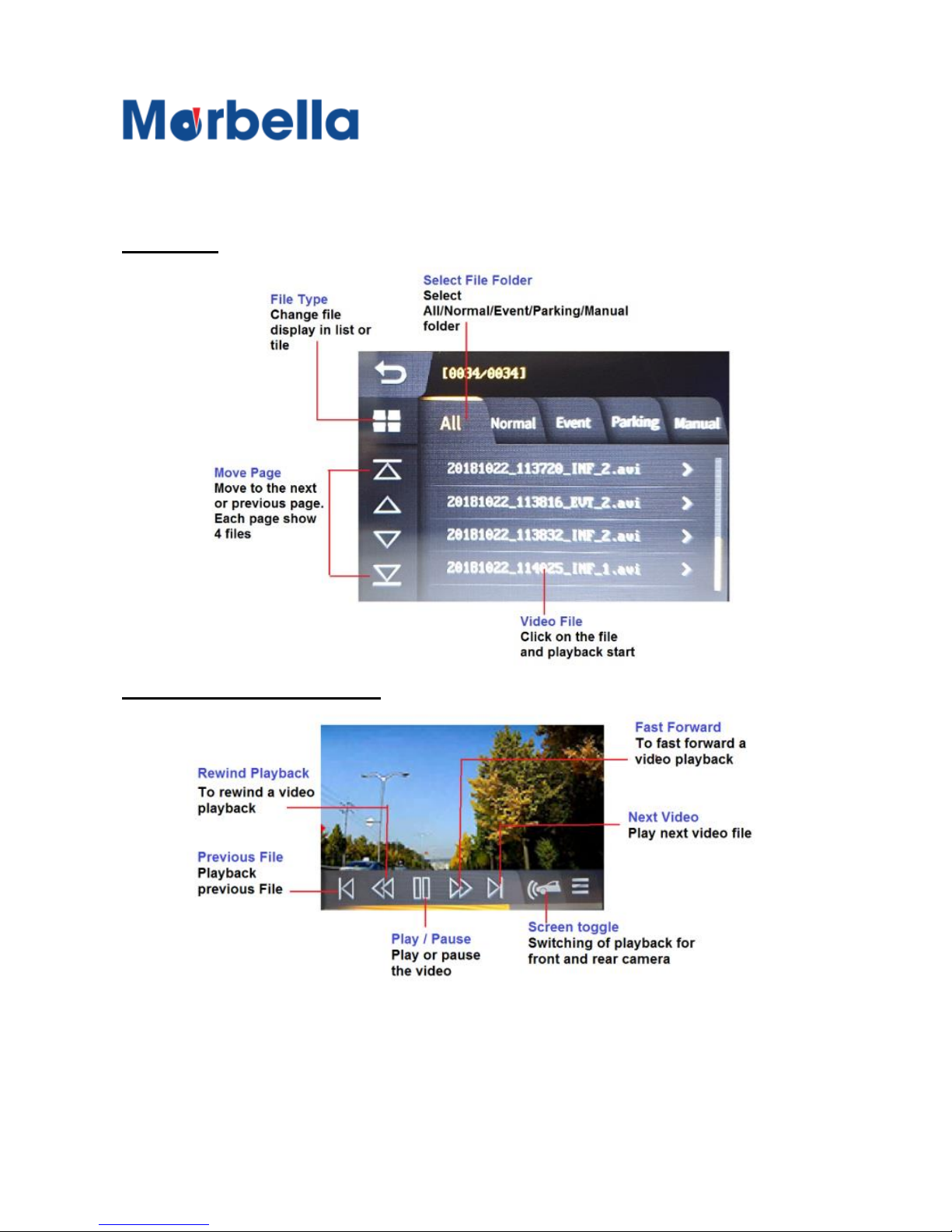
Play List
Video Playback Screen
Note : Playback of video can also be done via media player. Recommended
to use VLC player
Page 30
30
© 2018 Maka Tec
hnologies Group
. A
ll Rights Reserved.
Setting
Setting Guide
of your KR3 FHD Digital Roadcorder
TM
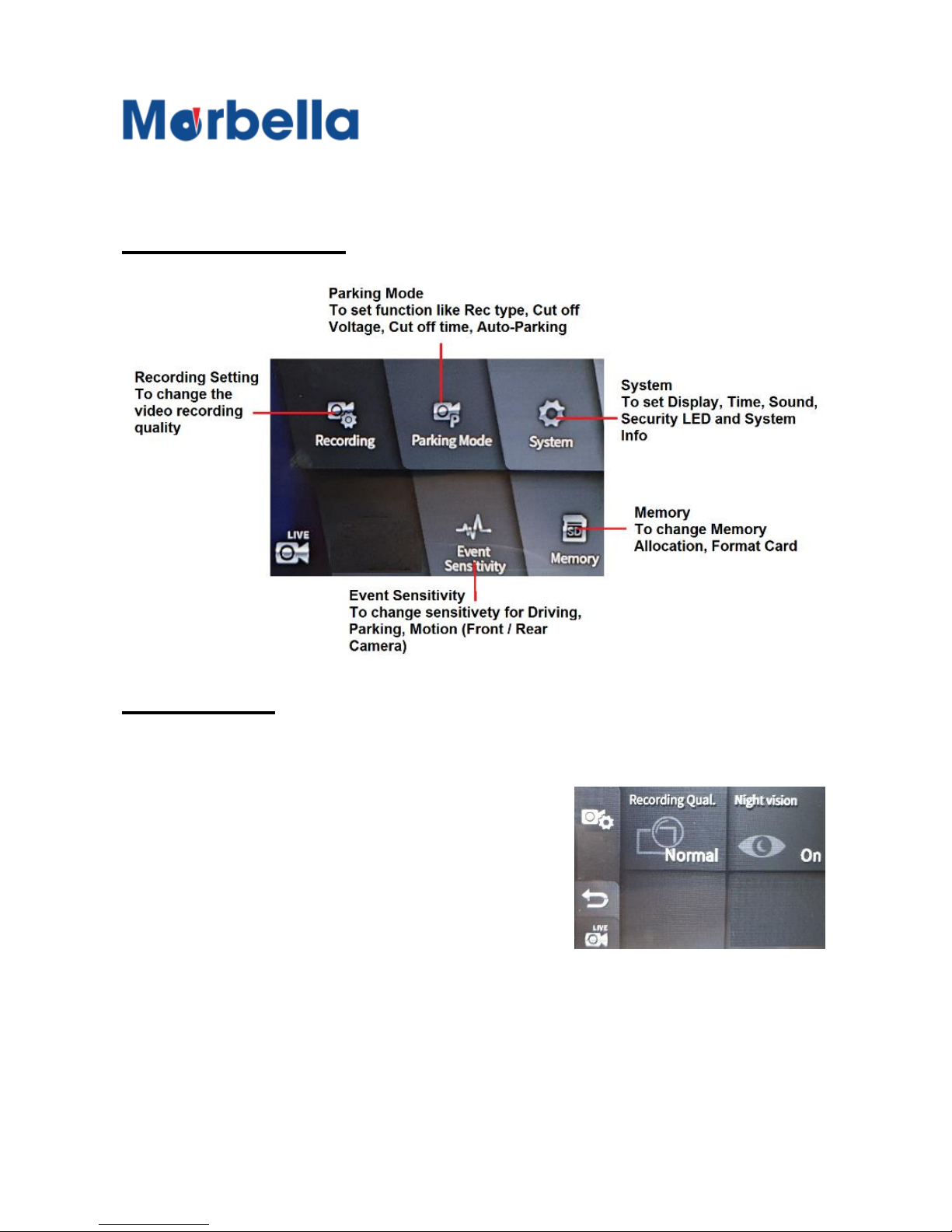
Setting Introduction
Setting Guide
Recording
1. Recording Quality
Selection by tapping to change
from Low, Normal, High
2. Night Vison
Selection by tapping to change
On/Off
Page 31
31
© 2018 Maka Tec
hnologies Group
. A
ll Rights Reserved.
Setting
Setting Guide
of your KR3 FHD Digital Roadcorder
TM
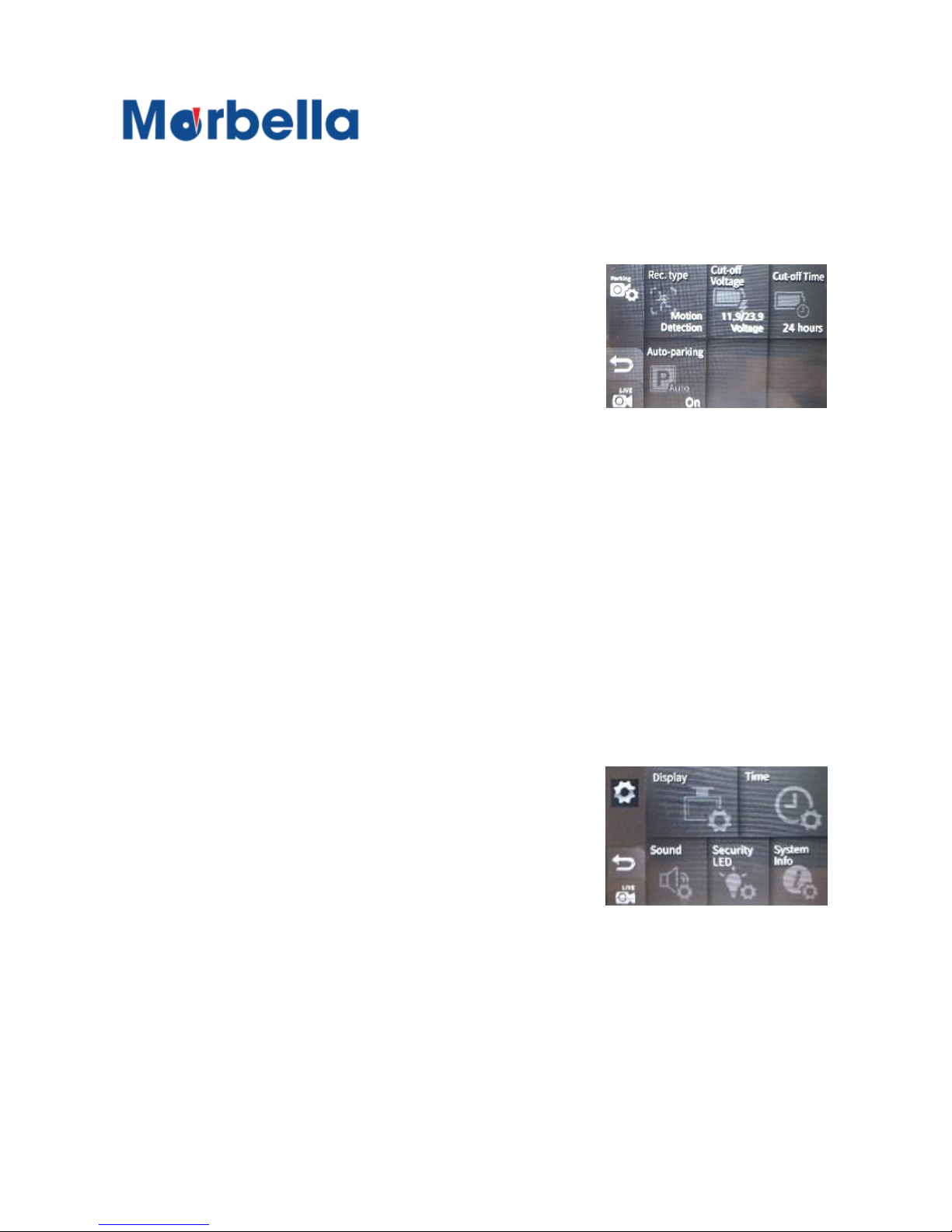
Parking Mode
System
1. Rec type.
Selection by tapping to change
from
i: Motion – Recording base on
Motion Detection during Parking
ii: Time Lapse (New Function) –
Recording is based on continue loop recording when
parking. All video played will be in fast forward paste base
on the frame per second is set. The lower the number, the
longer it can record.
2. Cut-off Voltage
Selection by tapping to change Voltage cutoff. Recommend
setting as 12.3V
3. Rec type.
Selection by tapping to change from Motion / Time Lapse
1. Display
Select by tapping to change
display brightness
2. Timer
Selection by tapping to change
Screen off timing or turn on.
3. Sound
Select by tapping to turn voice recording on/off
Page 32
32
© 2018 Maka Tec
hnologies Group
. A
ll Rights Reserved.
Setting
Setting Guide
of your KR3 FHD Digital Roadcorder
T
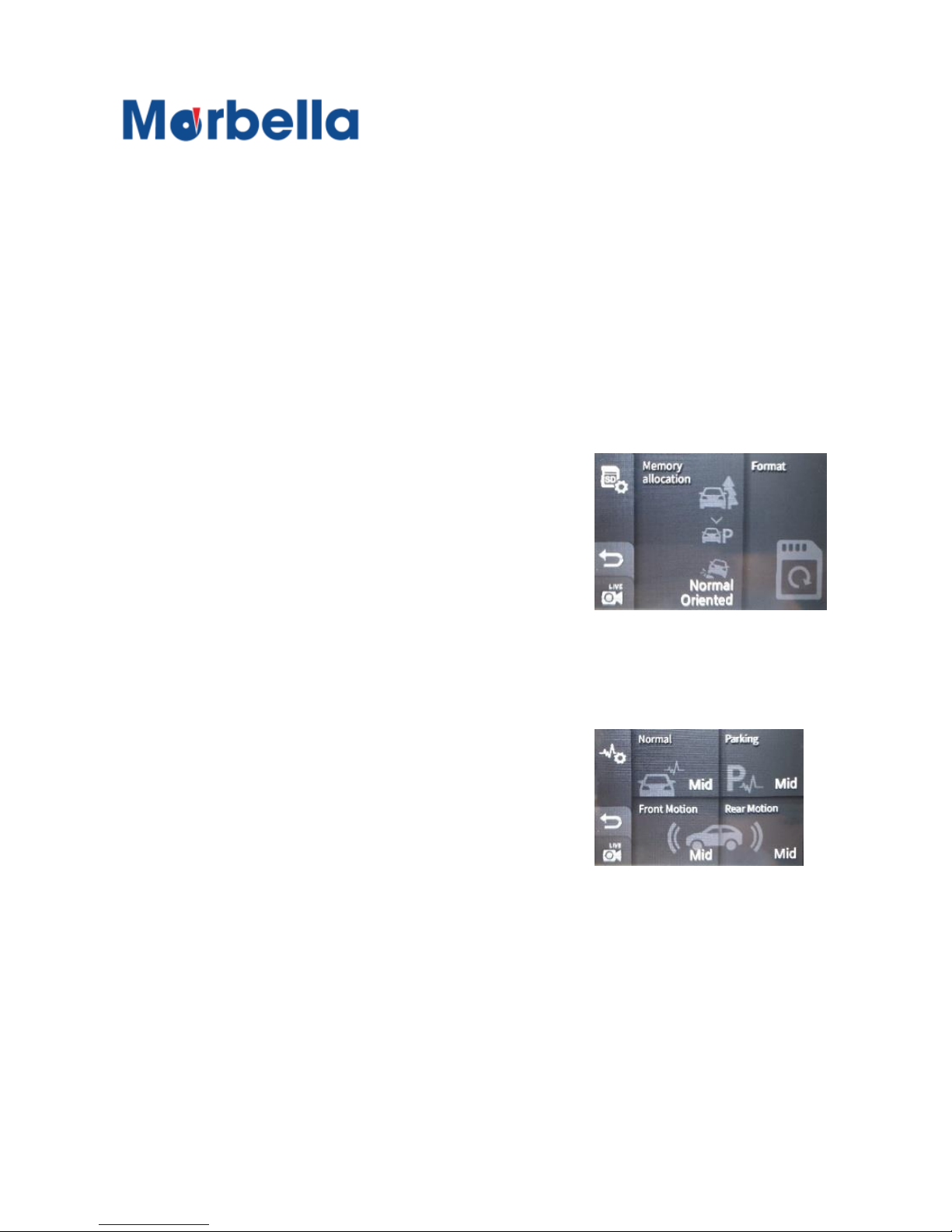
Memory
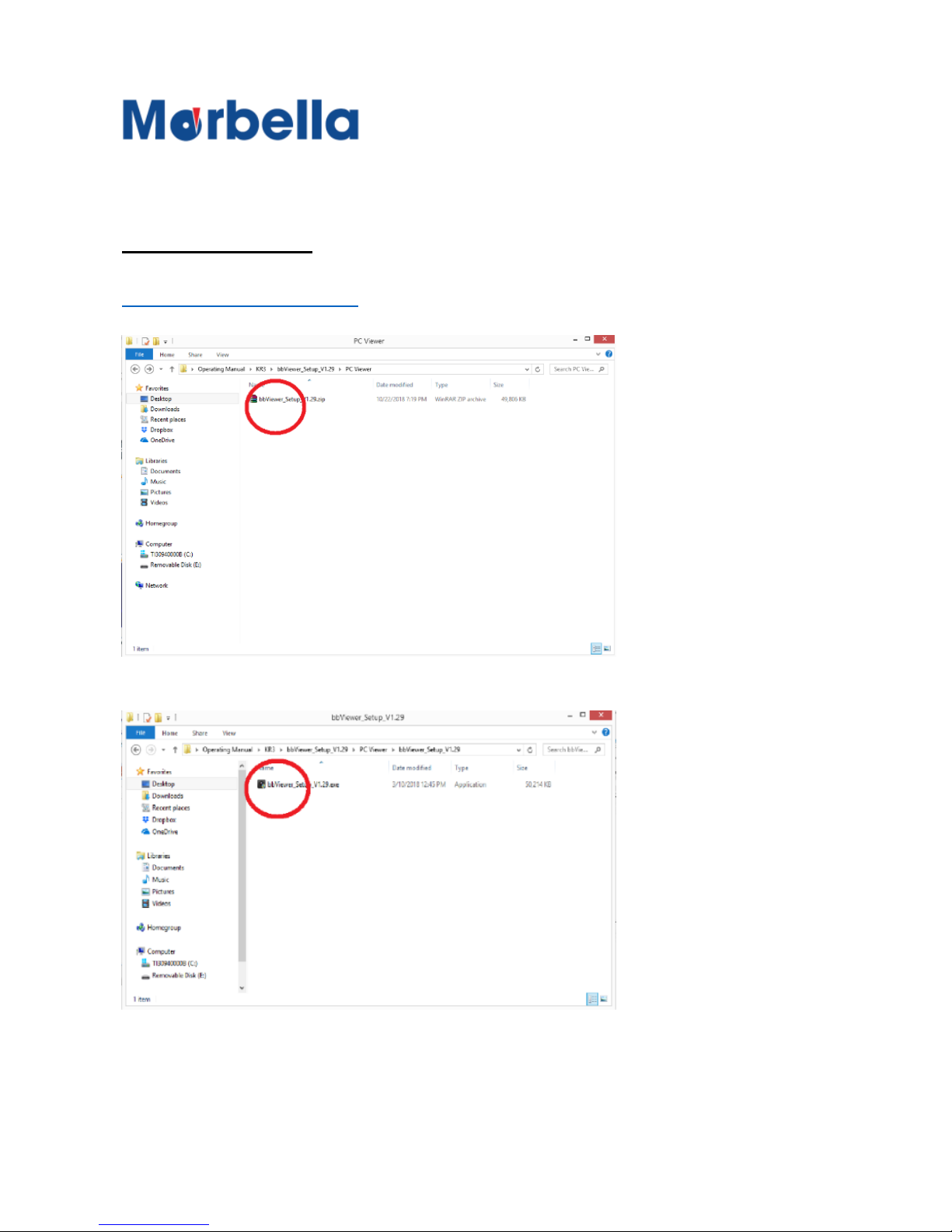
Event Sensitivity
1. Memory Allocation
Select by tapping to change sd
card memory recording time
preferred more to
Normal/Event/Parking
2. Format
1. Normal
Select by tapping to change
sensitivity of Driving Impact
sensor. Recommend set as low
2. Parking
Select by tapping to change sensitivity of Parking Impact
sensor. Recommend set as high
3. Front / Rear motion
Select by tapping to change sensitivity of Motion Sensitivity
(Low/Mid/High)
4. Security LED
Selection by tapping to change the blinking mode blink or off
during parking and driving
5. System Info
Information of the device name/firmware version and factory
restore (initializing)
Selection by tapping to have your sd card format
Page 33
33
© 2018 Maka Tec
hnologies Group
. A
ll Rights Reserved.
PC Viewer
PC Viewer Install
of your KR3 FHD Digital Roadcorder
TM
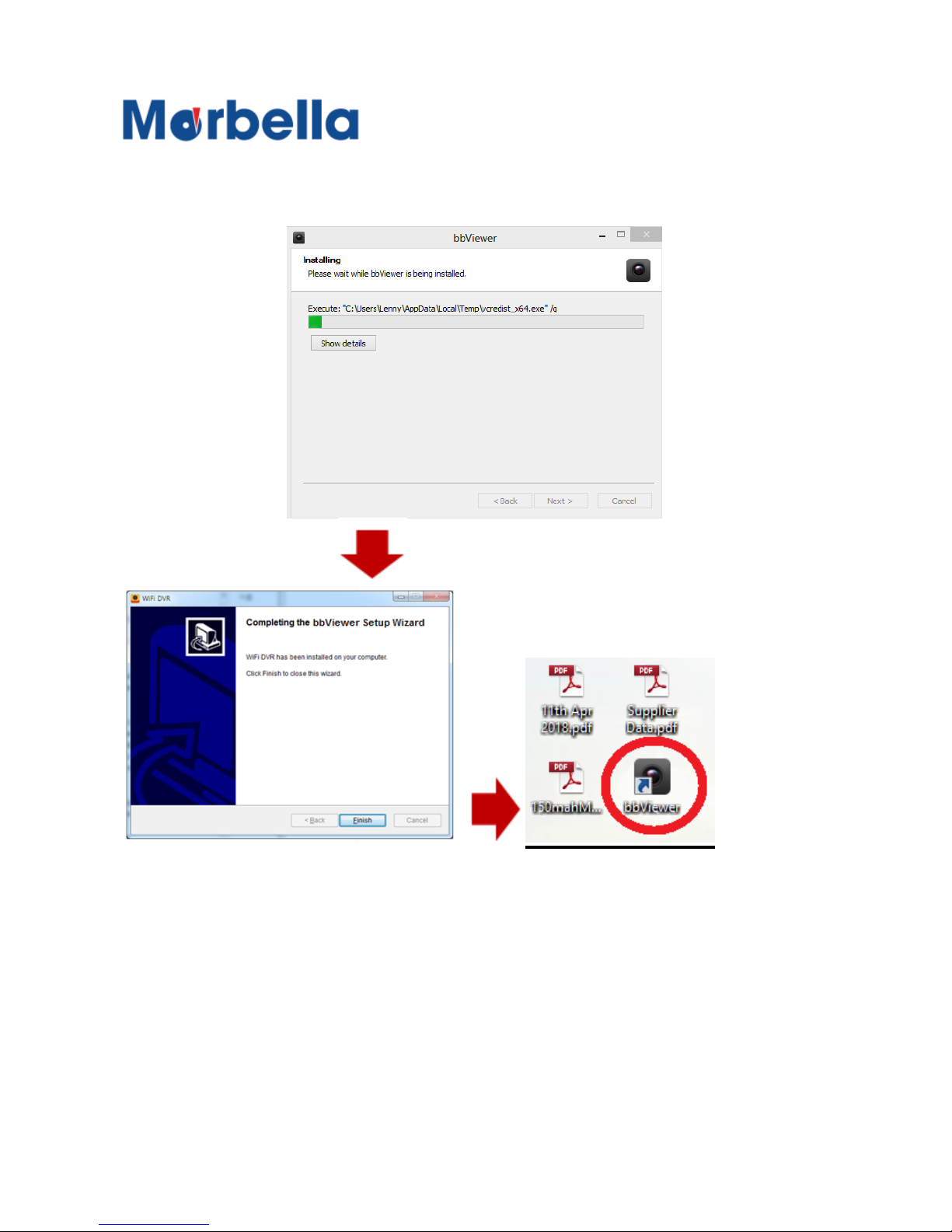
PC Viewer Install
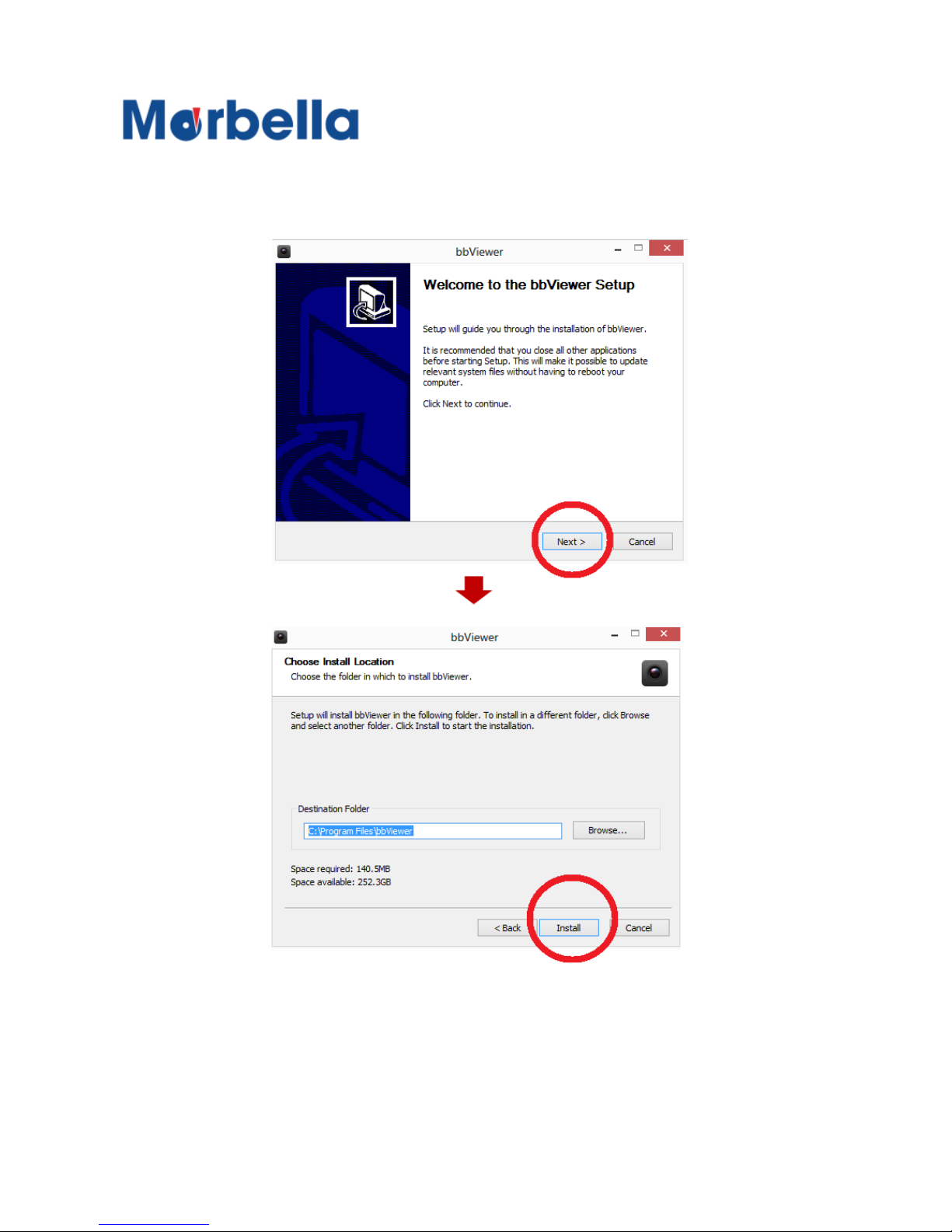
Install PC viewer which can be download from :
www.makagps.com.sg > Support > Download > Marbella
Dashcamera
Unzip the file after download complete
(bbViewer_Setup_V1.29.zip)
Double click on the file to proceed install the viewer
(bbViewer_Setup_V1.29.exe)
Page 34
34
© 2018 Maka Tec
hnologies Group
. A
ll Rights Reserved.
PC Viewer
PC Viewer Install
of your KR3 FHD Digital Roadcorder
Page 35
35
© 2018 Maka Tec
hnologies Group
. A
ll Rights Reserved.
PC Viewer
PC Viewer Install
of your KR3 FHD Digital Roadcorder
Page 36
36
© 2018 Maka Tec
hnologies Group
. A
ll Rights Reserved.
PC Viewer
Starting PC Viewer
of your KR3 FHD Digital Roadcorder
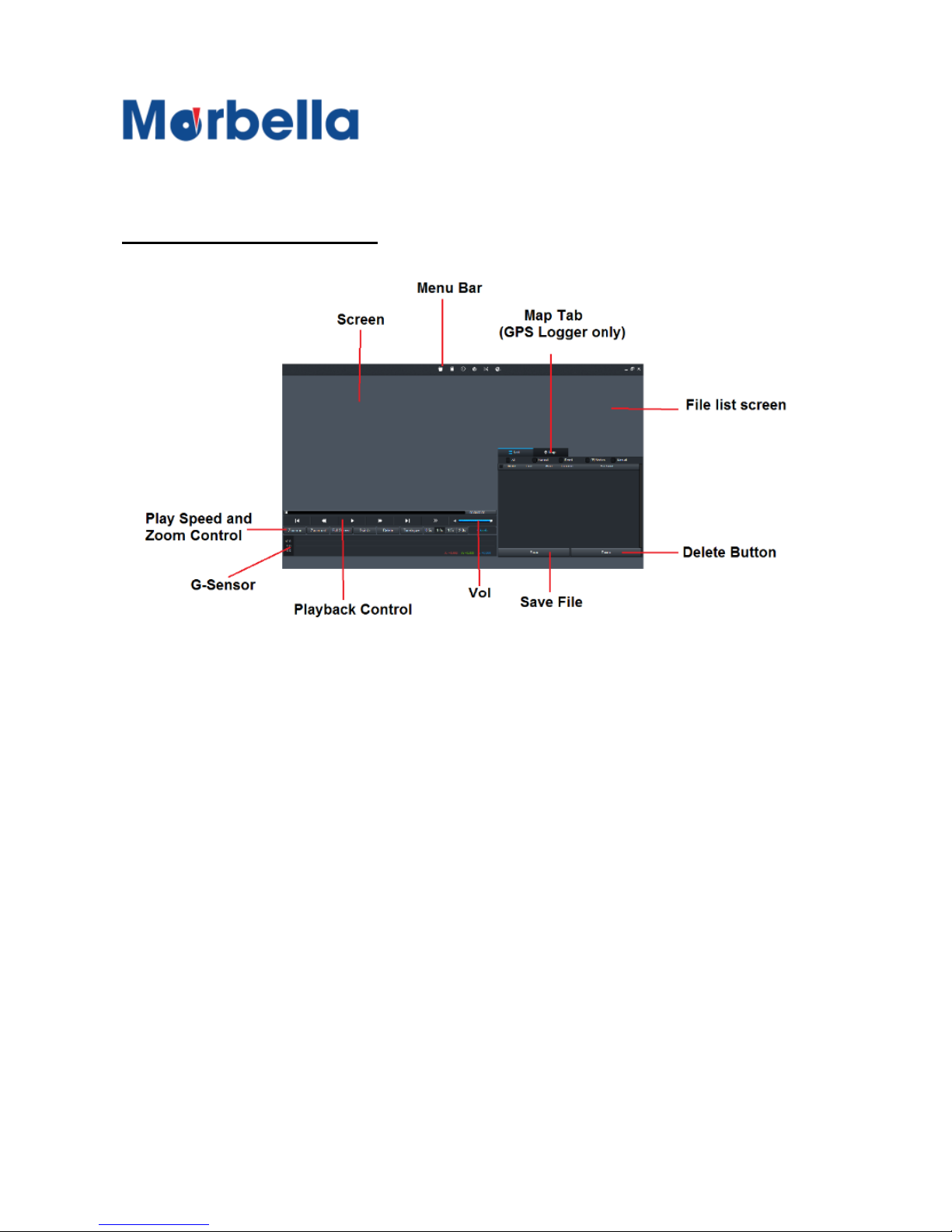
Overview of PC Viewer
Page 37

37
© 2018 Maka Tec
hnologies Group
. A
ll Rights Reserved.
PC Viewer
Q & A
of your KR3 FHD Digital Roadco rder
Q & A
Q: Video recording does not work.
A: Check whether SD card is inserted properly. SD card has its own
lifetime.
If it does not work well, replace it with a new one or format SD card
regularly.
Q: Voice recording does not work.
A: Check whether voice REC function is activated.
Check that MIC hole is not blocked by anything.
Q: There is no power on the device.
A: Reconnect the power supply by enclosed cigar lighter.
Q: It cannot copy the files on SD.
A: Before using SD card, format it once again.
Q: LCD screen goes dim.
A: Tinted window glass can affect to the screen brightness.
Check the better position and fix again the device.
Or you can adjust the brightness through PC viewer program.
Q: GOOGLE map does not display on the screen.
A: GPS module has built in the GPS mount holder.
(This is an optional and sold separately)
Check GPS mount holder cables is connected well.
Check that there is nothing to block GPS signal reception.
Q: The quality of recording image is shaking during driving.
A: Check whether the mount holder is fixed well. Or else, fix the
device firmly into the vehicle by enclosed adhesive tape.
Q: The recorded image is too blurry.
A: Check camera lens and window glass is clean.
Q: Rear camera does not work.
A: Check whether the R-cam cable is connected well to the
product. Check there is nothing around camera lens.
 Loading...