

Page 1
QUICK
START GUIDE
AURA
Page 2

Table Of Content
1. GETTING STARTED
2. PLANNING THE ROUTE
3. ALTERING THE ROUTE
4. CITY GUIDES AND TRAVEL BOOK
5. SETTINGS
1.1 Entering an Address
1.2 Turn by Turn Navigation
1.3 Acquiring GPS Position
2.1 Action Menu
2.2 Navigating to a Point of Interest
2.3 Searching POI by Name
2.4 Searching POI by Categories
2.5 Navigating Home
2.6 Navigating to Recent Destinations
2.7 Navigating to Favourite Destinations
2.8 Defining a new Favourite Destination.
3.1 Route Summary
3.2 Route Options
3.3 Modifying the Route
3.4 Sharp Curve Warning Alerts
3.5 Map Browsing Mode
3.6 Avoid Toll Roads, Highways or Ferries
4.1 City Guides
4.2 Travel Book
5.1 Notifications & Sounds
5.2 Map View
5.3 Route Planning
5.4 Regional
5.5 Hardware
5.6 Travel Book
5.7 Autoclose Dialog
5.8 About
PAGE 0 1-08
PAGE 0 9-15
PAGE 1 6-25
PAGE 2 6-29
PAGE 3 0-32
www.mapmyindia.com
QUICK START GUIDE
Page 3
QUICK START GUIDEQUICK START GUIDE
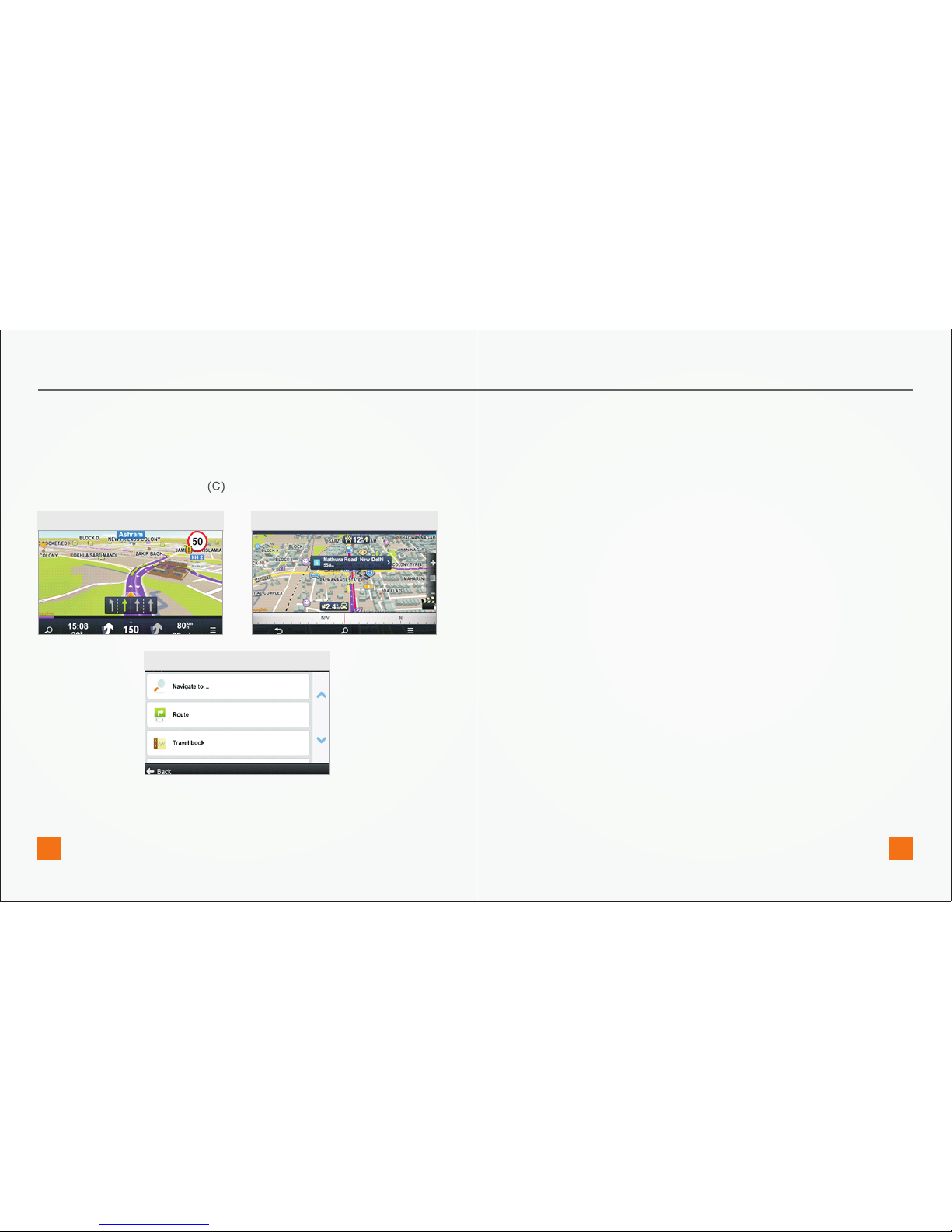
1. Menu
2. Map Browsing Mode
3. Back
4. Map Action Items
5. Zoom
6. 2D/3D view
7. Compass
Enter the Menu by tapping the arrow on the right side of the
information bar. You can scroll between the menu pages by sliding a
finger across the screen, or by using the scroll bar on the right side on
Personal Navigation Devices (PNDs).
Drag the map with your fingers to enter the Map Browsing Mode (B).
Return to the previous screen.
Tap any place on map for more actions related to the position on it. For
more information see the chapter Action menu.
Tap (+) button to zoom-in to more detailed view, (-) button to zoom
out.
Switch between 2D a 3D view by taping on the grid between the + and
– symbols on the right side of the navigation screen
Use compass at the bottom of the screen to turn around and change
direction of the view. Tap on the compass to return
the map to the north-up position.
In Navigation Mode (A), the software tracks your position for visual
reference of route and map around you. If you want to explore other
locations, drag the map with your fingers to switch to Map Browsing
Mode (B). To select destinations, review information about your route
and alter settings, go to Menu
C
B
A
Getting Started
www.mapmyindia.com www.mapmyindia.com
01 02
Page 4
City
Locality
Sublocality/ Village/House Number
Street
Street crossing
Middle of street
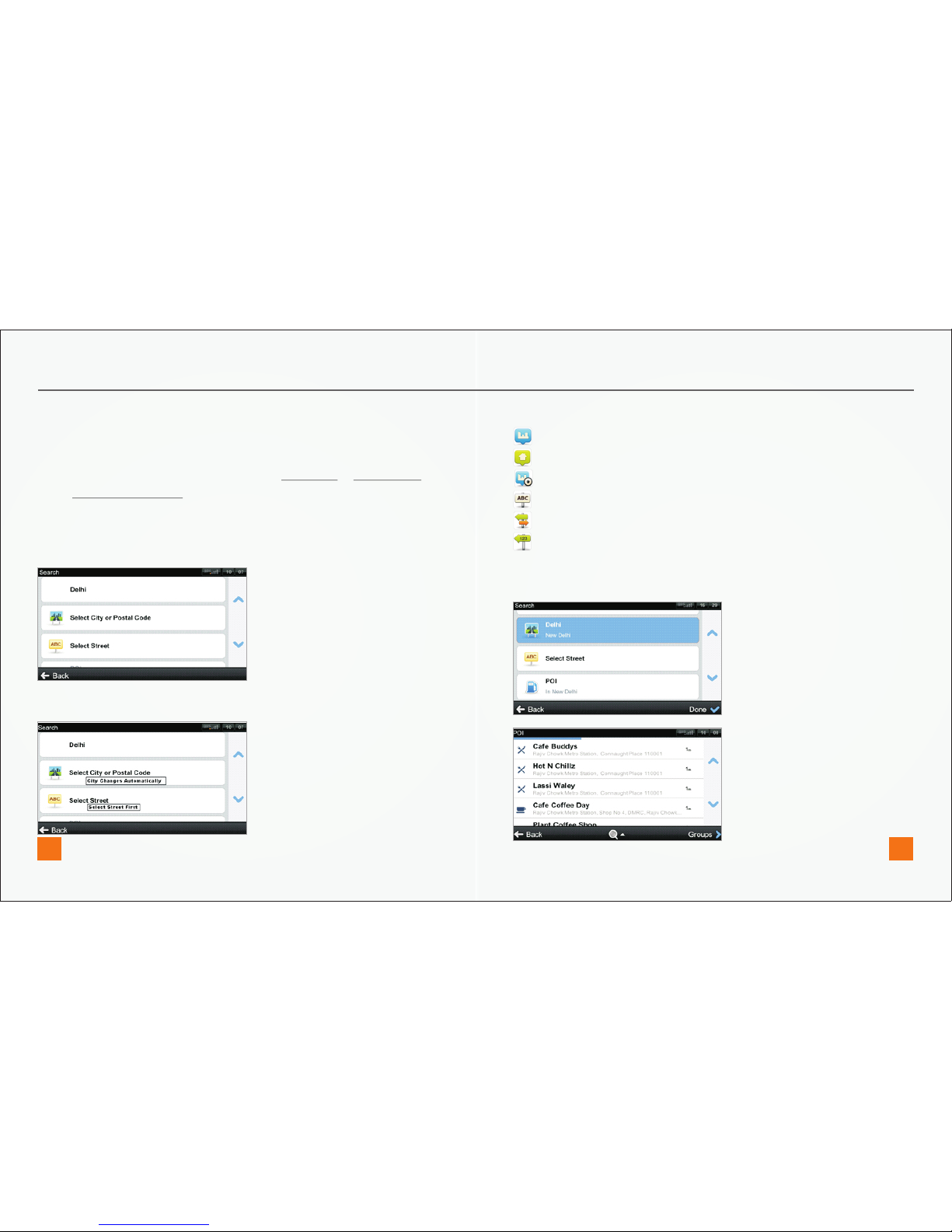
The list also features explanatory icons left to the city/street name:
1.1 ENTERING AN ADDRESS
To set your destination by entering its address select
After you select the option, you can enter Select City or Postal Code or
enter Select Street directly. Enter the first few letters of the City/Street
name to see a list of similar names.
Application supports City-first and Street-first address entry.
Menu > Navigate to… > Address or POI
City-first address search
QUICK START GUIDE
Select the desired city/street from the list.
Tap on POI to see a list of all points of interest near selected address.
Street-first address search
www.mapmyindia.com www.mapmyindia.com
03 04
Page 5
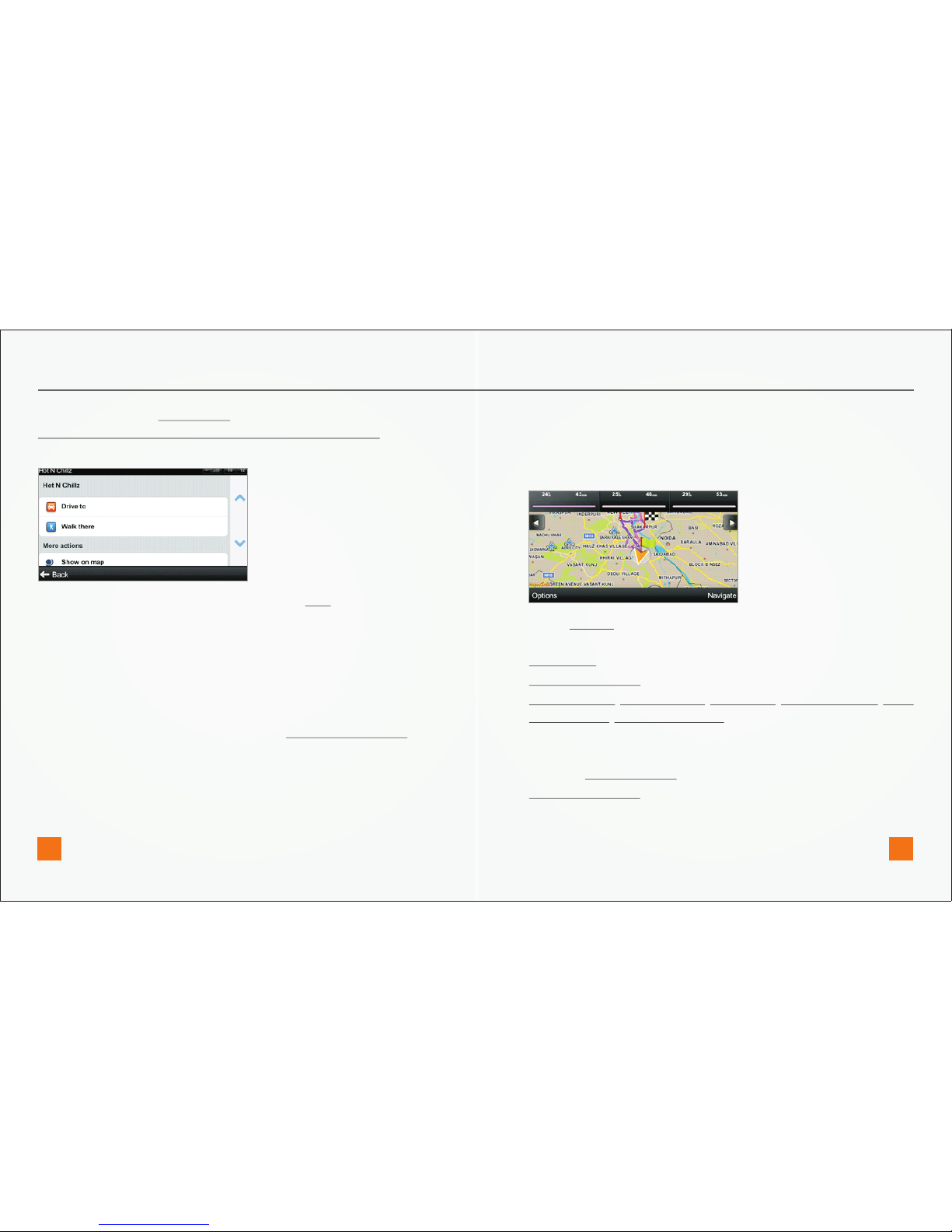
Tap on Options to access route summary. From route summary you
can:
Cancel route
Access Route options
Avoid: toll roads, Avoid highways, Avoid ferries; Avoid special area, Avoid
unpaved roads, Avoid restricted area,
Manage traffic incidents on route (Availability of the traffic service
depends on your product configuration.)
See list of Important places
Show all instructions
To accept the route and start turn by turn navigation, tap Done. If
you wish to return to planned route go to Menu > Route
Tap Done button and Action Menu with following options will appear:
Drive to, Walk there, Travel via, Show on map, Add to favorites. For more
information about Action Menu, see the chapter Action menu.
QUICK START GUIDE
To select a different address altogether, tap the Back button.
Note: Walk there mode is available only on PND’s
If your device can determine your current position, your route will be
calculated immediately from that positon. If your current position
cannot be determined, you will be offered the following options:
Wait for valid position (Recommended)
Your route will be calculated from your current position as soon as a
valid GPS signal is available (see the chapter Acquiring GPS Position).
Last valid position
Your route will be calculated from your last known position (i.e. where
you were just before the device lost GPS signal).
Select from map
Allows you to select any starting point for the route calculation.
When route calculation is complete, the preferred route is displayed
on map along with two other routes.
www.mapmyindia.com www.mapmyindia.com
05 06
Page 6
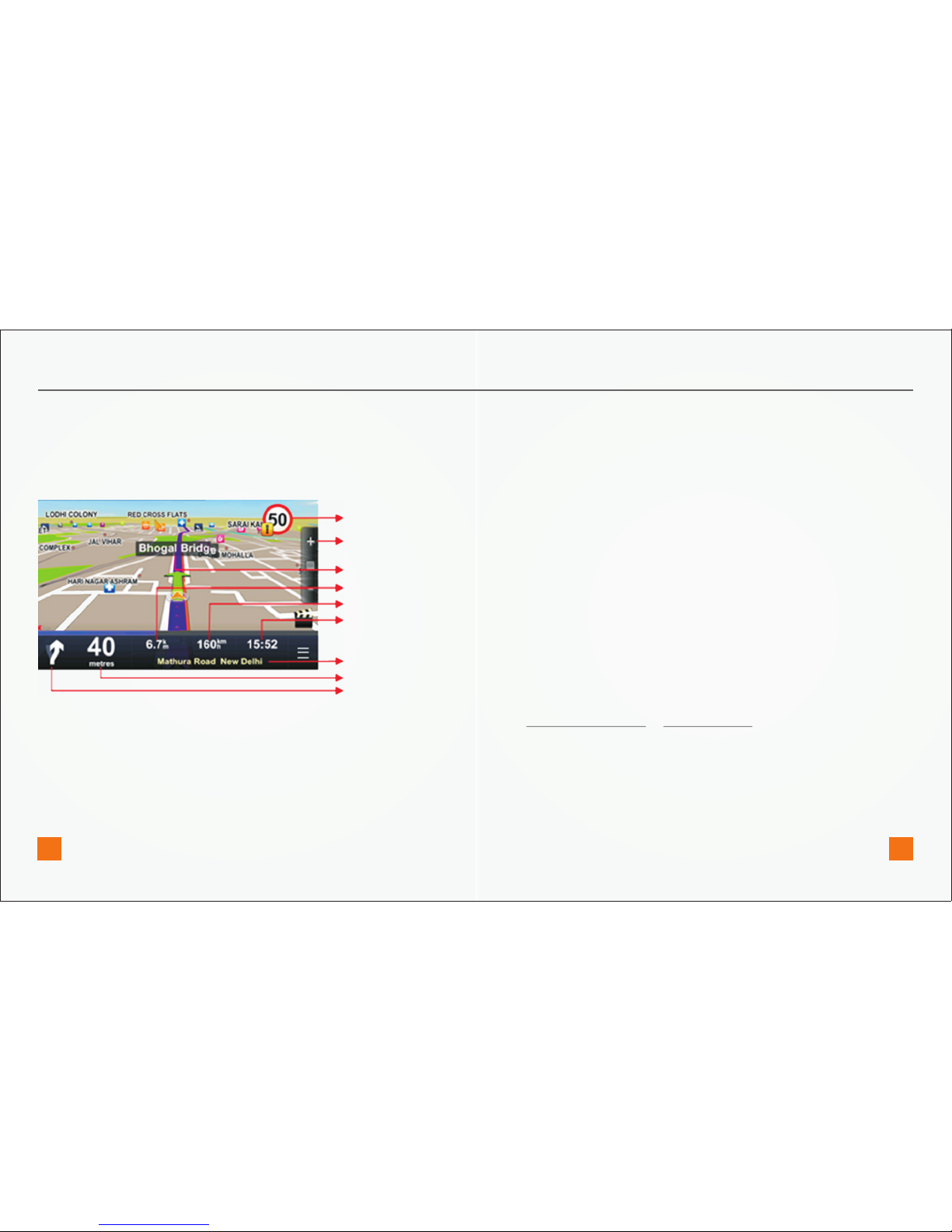
3 Current road/street
4 Estimated time of arrival at destination
5 Current speed
6 Distance to destination
7 Next road/street to take
8 zoom in/out
9 Current speed limit
If there is no GPS signal, the GPS signal indicator on the right side of the
screen will show empty bars. This can happen under any of the
following conditions:
1. The device is in a tunnel or at a location where signals from the
GPS satellites are obstructed by buildings, trees, electric cables or
other objects
2. Device system settings or Product settings are set incorrectly
You can check and configure GPS settings in:
1.3 ACQUIRING GPS POSITION
Menu > Settings > Hardware
9
8
7
6
5
4
3
2
1
QUICK START GUIDE
1.2 TURN BY TURN NAVIGATION
The Navigation Screen will show the map of your surrounding area with
the calculated route highlighted in blue.
As you approach a junction, further directions are displayed to indicate
which road to take.
In addition to turn by turn directions, the Navigation Screen also
provides a range of further useful information:
1 Next maneuver
2 Distance to next change of direction
www.mapmyindia.com www.mapmyindia.com
07 08
Page 7
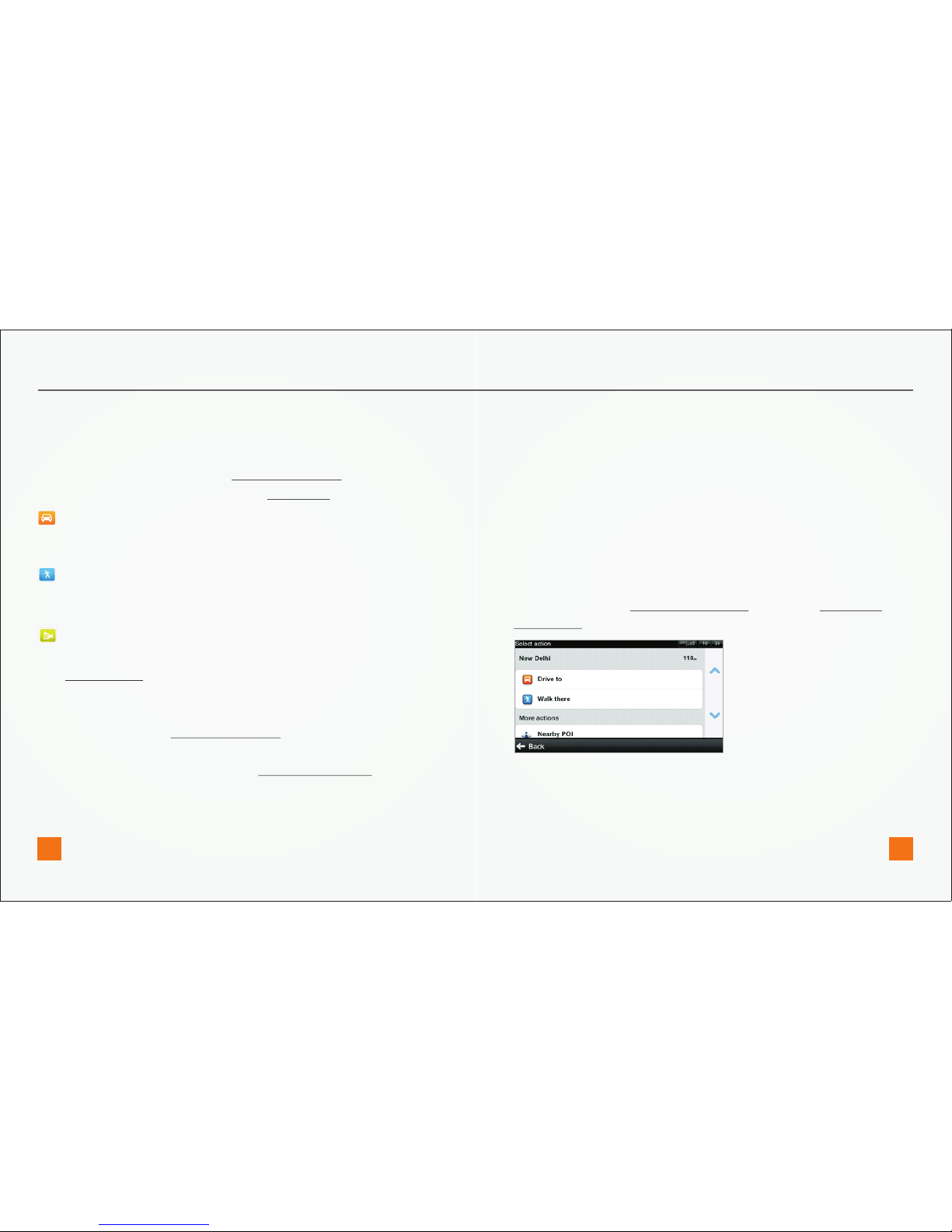
Drive to
Walk there
Travel via
More actions
Show on Map:
Add to favorites:
Set selected location as destination and calculate route
for car navigation.
Set selected location as destination work Walk mode and
calculate pedestrian route.
Insert a waypoint to an existing route.
Not available from Map Browsing Mode.
Add selected location to the list of Favorite Destinations.
Planning the Route
QUICK START GUIDE
2.1 ACTION MENU
Action menu is the last step in the process of selecting any location in
Aura . A variation of action menu is available after:
Clicking anywhere on map in Map Browsing Mode
Making a selection from any part of Navigate to… menu
2.2 NAVIGATING TO A POINT OF INTEREST
In addition to the road network, the map also stores the details of
thousands of Points of Interest (POIs) such as gas stations, restaurants,
hotels, tourist attractions and other facilities.
To set any POI as your destination, you have multiple options:
Menu > Navigate to… > Address or POI will find POI near the selected
address.
Menu > Find > Nearby POI shows a list of POIs near your current (or last
valid) position.
Select a position in Map Browsing Mode and choose Nearby POI from
Action Menu
www.mapmyindia.com www.mapmyindia.com
09 10
Page 8
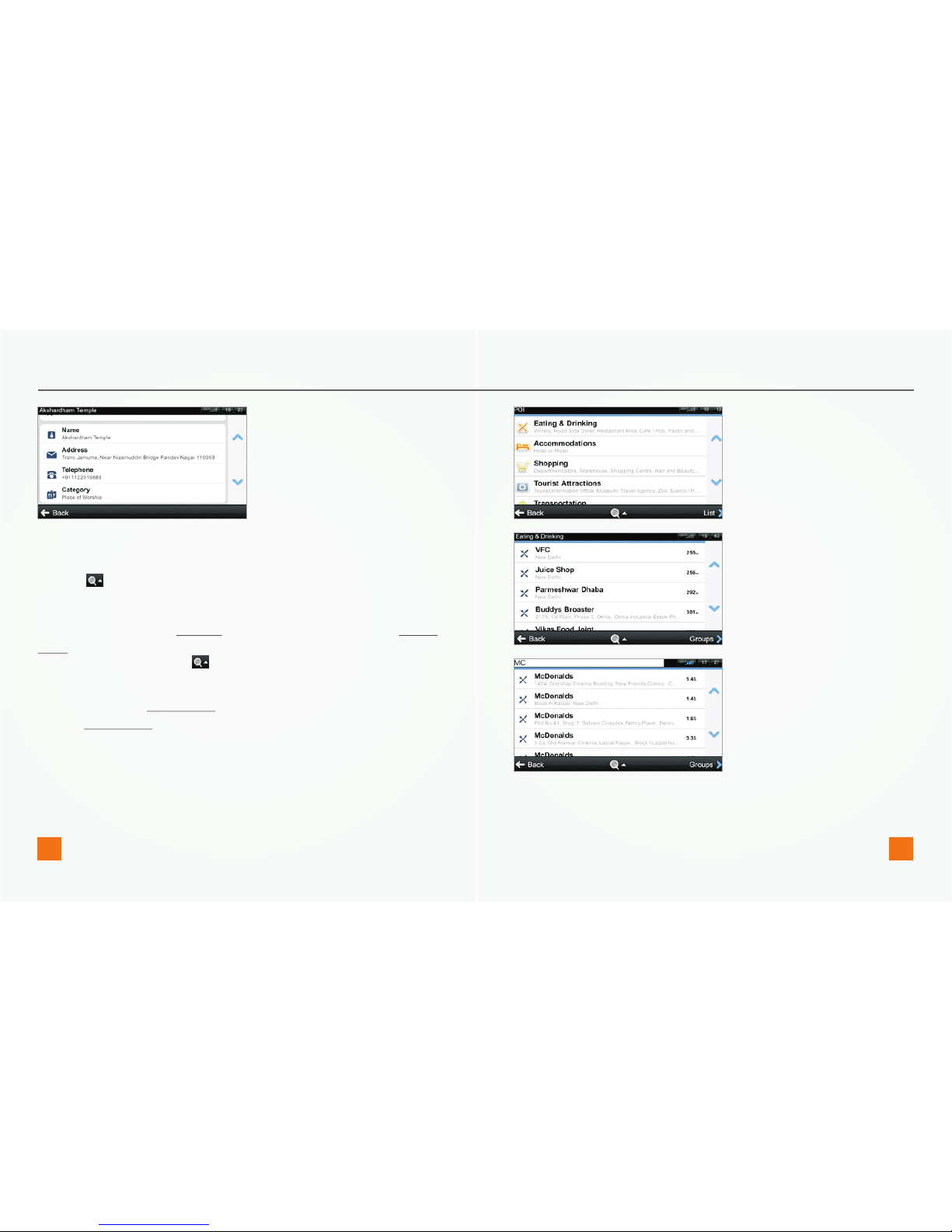
2.3 SEARCHING POI BY NAME
2.4 SEARCHING POI BY CATEGORIES
Anytime during the search process, you can start typing the name of
POI (tap to show the keyboard) to refine the results.
You can switch between List view (shows narrow list of POIs) and Groups
view (shows POI categories and subcategories). To refine your search
results, tap the icon at the bottom of the screen and type the
name of the POI you are looking for. You can also enter partial names.
When finished, the Action Menu pops up. For more information, see the
chapter Action menu.
QUICK START GUIDE
www.mapmyindia.com www.mapmyindia.com
11 12
Page 9
the last entered address is preselected. If you are selecting City or
Street, the list of previous selections appears. They are marked with
icon
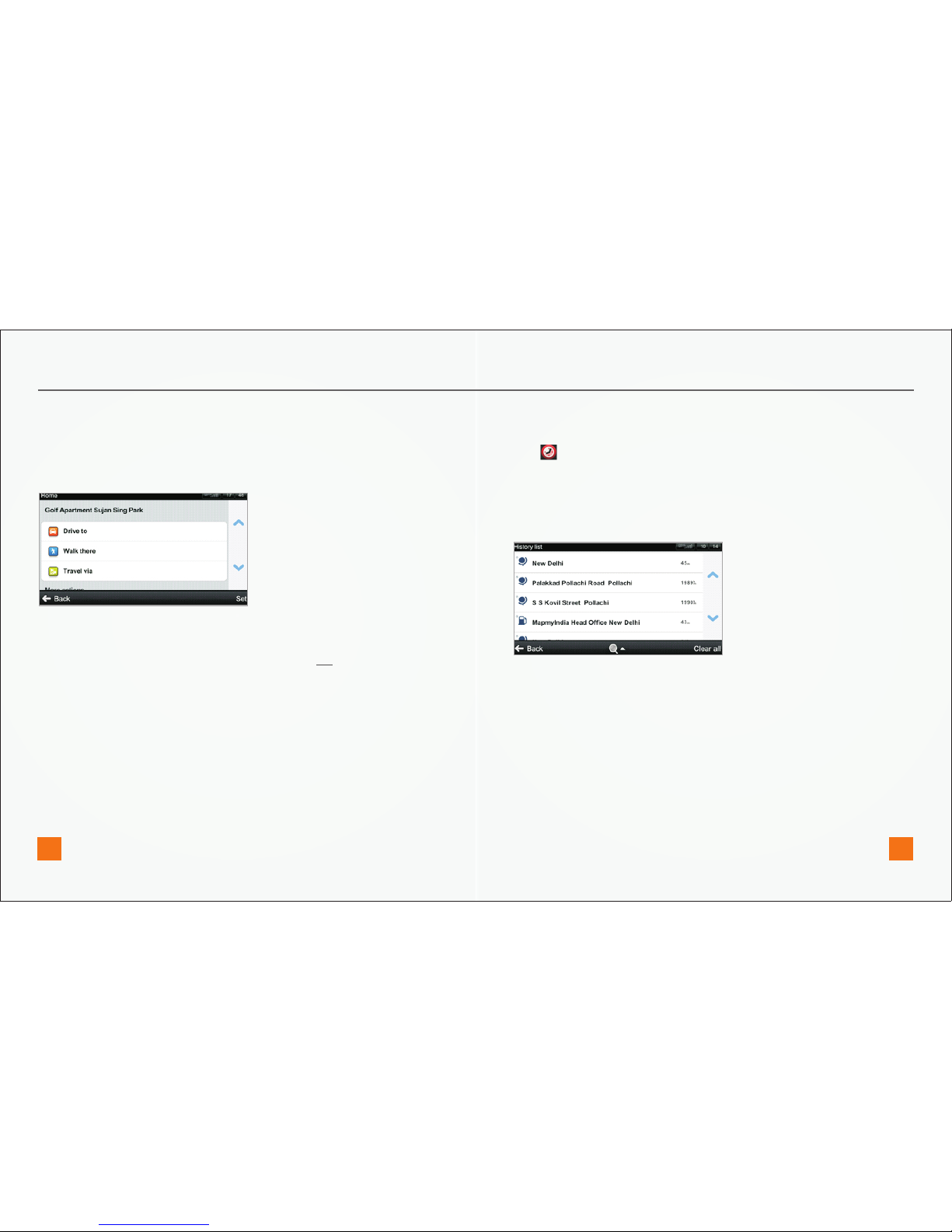
You can directly go to a list of recent destination by selecting
Menu >Navigate to…> History
and start navigation by selecting a previous destination from the list
shown.
Tap on the item and select action.
2.5 NAVIGATING HOME
To start using this feature, you need to set your home location first,
select:
Menu > Navigate to… > Home
Once your home address is stored, you can navigate home from the
same dialogue.
If you wish to change your Home address, tap the Set button.
Aura keeps track of your recent destinations, making it easy to return to
a previously set location.
When entering an address through
2.6 NAVIGATING TO RECENT DESTINATIONS
Menu > Navigate to…> Address or POI
QUICK START GUIDE
www.mapmyindia.com www.mapmyindia.com
13 14
Page 10
Altering the Route
3.1 ROUTE SUMMARY
You can access detailed information about the calculated route from
the Route menu.
Select Menu > Route to:
1. Cancel route
2. Access Route options (see page 18)
3. Search POIs along the route
4. Avoid toll roads, Avoid highways, Avoid ferries; Avoid special area,
Avoid unpaved roads, Avoid restricted area,
5. Manage traffic incidents on route (Availability of the traffic service
depends on your product configuration.)
6. Add waypoint
7. See list of Important places like waypoints, crossings and cities near
the route.
8. Show all instructions
9. Optimize route
10. Access Saved routes
11. Change start Point.
12. Travel Via new point.
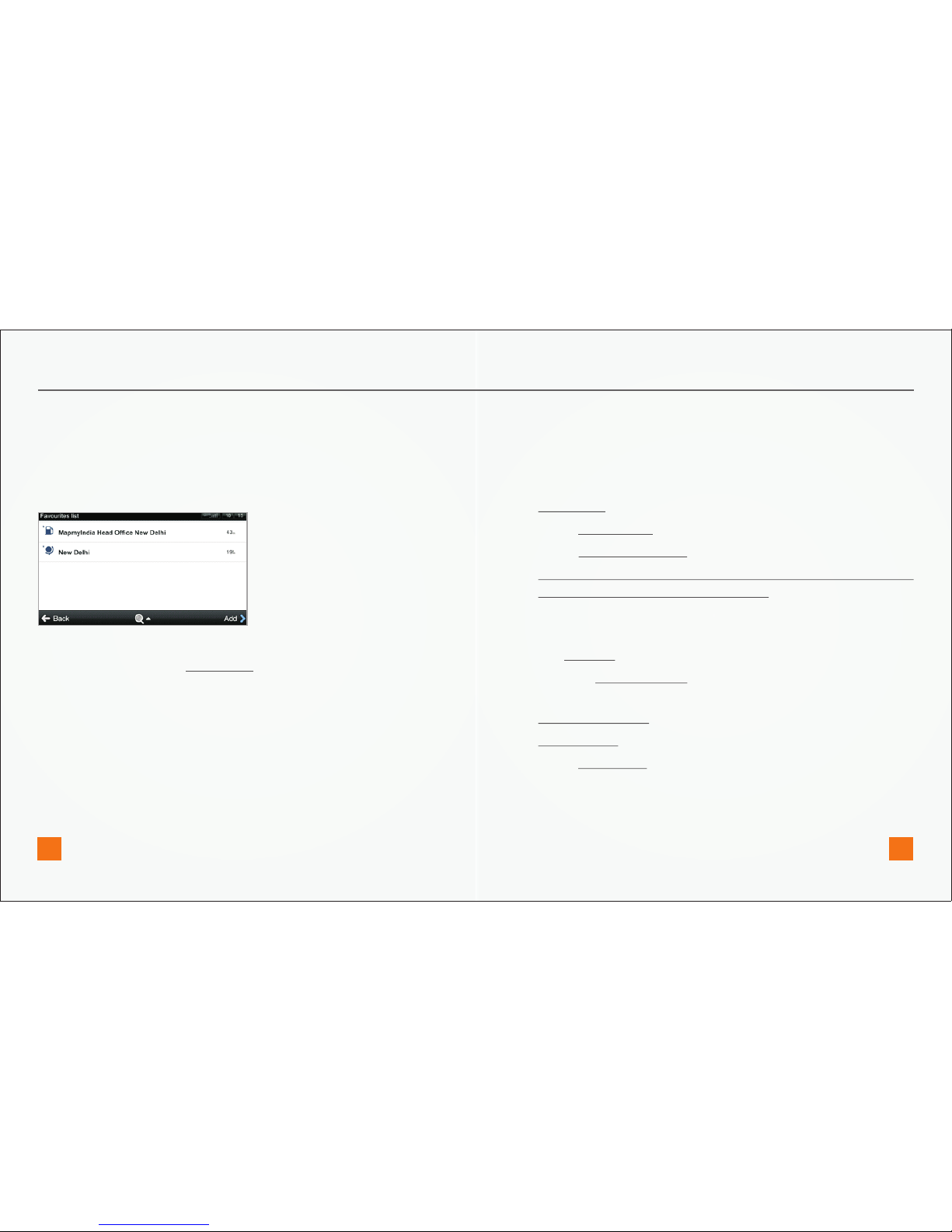
Select the desired Favourite destination by tapping it and then select
your next option from the Action Menu.
To add new item to the list of your favourite destinations tap on Add
then set address by choosing from following options:
- My current position,
- Select from map, or
- Enter address
2.8 DEFINING A NEW FAVOURITE DESTINATION
2.7 NAVIGATION TO FAVOURITE DESTINATIONS
To view a list of your favourite destinations, select
Menu > Navigate to…> Favourites
You can start navigation by selecting a Favourite destination from the
list shown.
QUICK START GUIDE
www.mapmyindia.com www.mapmyindia.com
15 16
Page 11
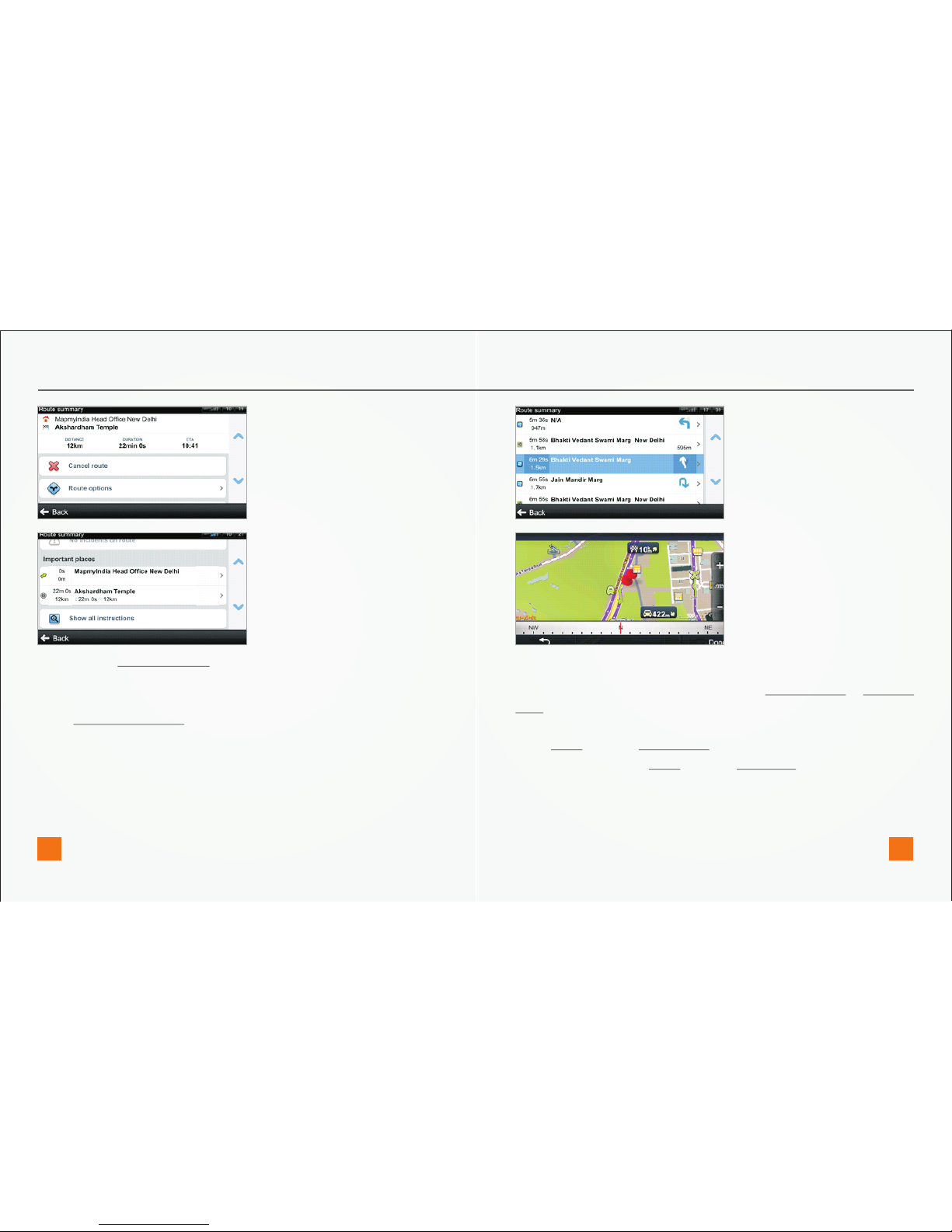
In the section Important places you can see a list of important junctions
and places along the route.
To get a detailed list of all junctions and directions along the route,
select Show all instructions.
Tap on selected item on the list to view the junction on the map.
QUICK START GUIDE
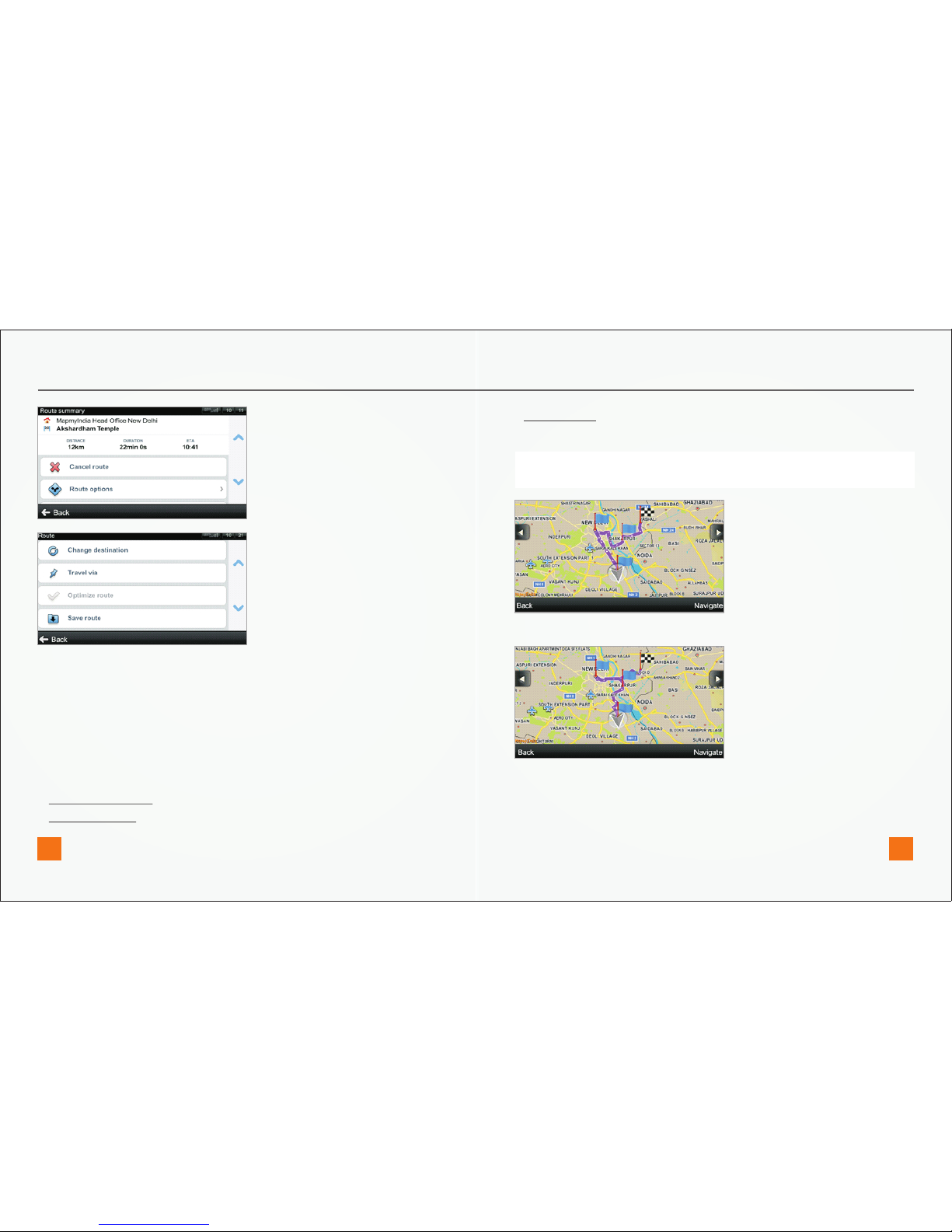
3.2 ROUTE OPTIONS
To see the entire route on the map, select Route options > Show on
map.
To see the calculated route as if you were driving along (fly over mode)
select Route options >Demonstrate.
To save the route select Route options >Save route.
www.mapmyindia.com www.mapmyindia.com
17 18
Page 12
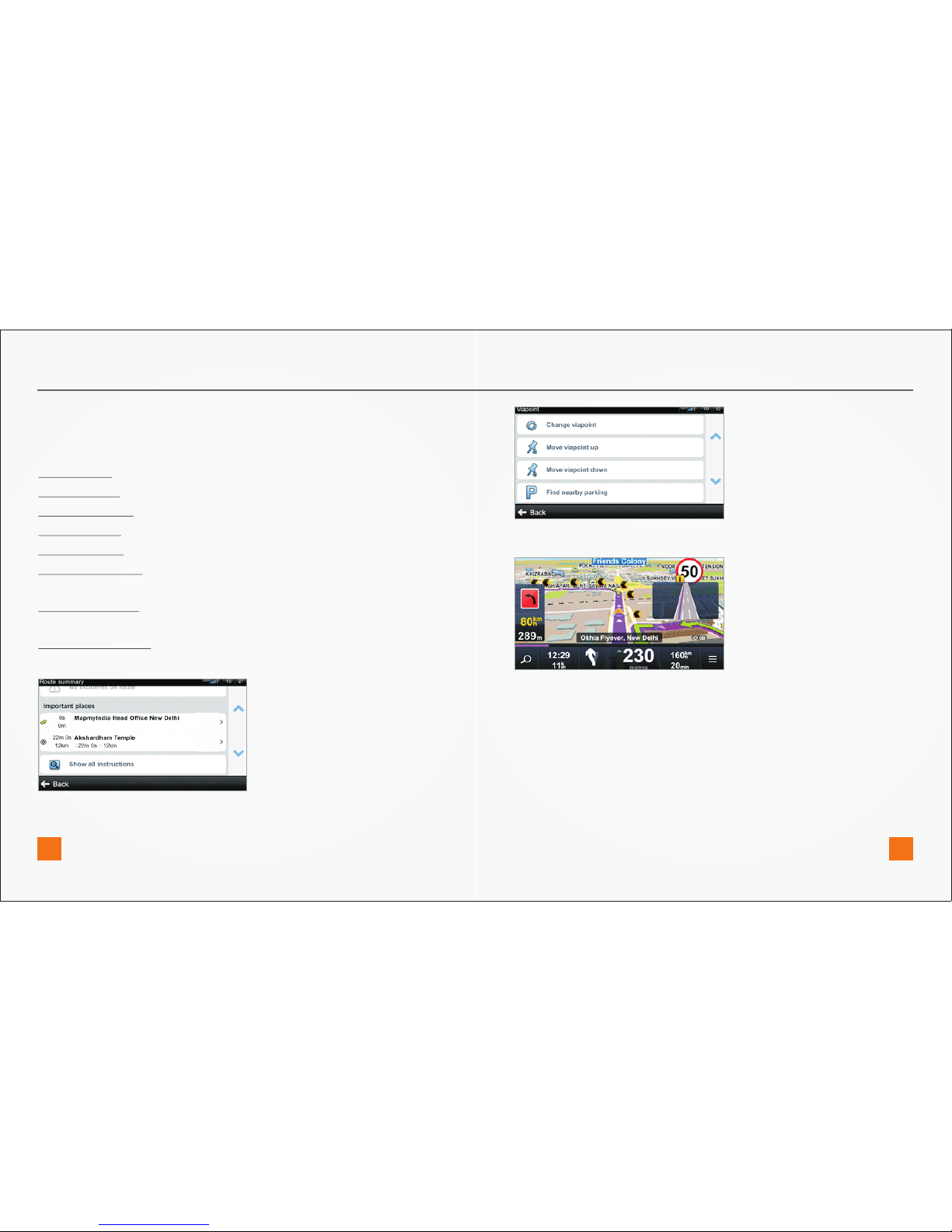
Route before optimization
This option is only available if the route planned contains more than
two waypoints.
QUICK START GUIDE
3.3 MODIFYING THE ROUTE
If you wish to travel through a certain place on your trip, choose from
following options:
Use option Travel via in Action Menu. (For more information, see the
chapter Action menu.)
Tap on Add waypoint in Route summary and set address by choosing
from following options:
lMy current position,
lSelect from map or
lEnter address
To optimize a route with multiple waypoints, select Optimize route.
Optimized route
www.mapmyindia.com www.mapmyindia.com
19 20
Page 13
www.mapmyindia.com www.mapmyindia.com
21
22
QUICK START GUIDE
You can modify those parts of the route that are listed as Important
places.
Tap on selected item and a variation of following menu will appear:
Show on map
Delete viapoint
Change waypoint
Move waypoint up
Move waypoint down
Change start point (This option is available only when the selected item
is the start point.)
Change end point (This option is available only when the selected item
is the end point.)
Find nearby parking (This option is available only when the selected
item is the end point.)
3.4 SHARP CURVE WARNING ALERTS
Alerts for an approaching sharp turn alongwith ideal speed (at that
curve) with an audio-visual indication.
Page 14
www.mapmyindia.com www.mapmyindia.com
23
24
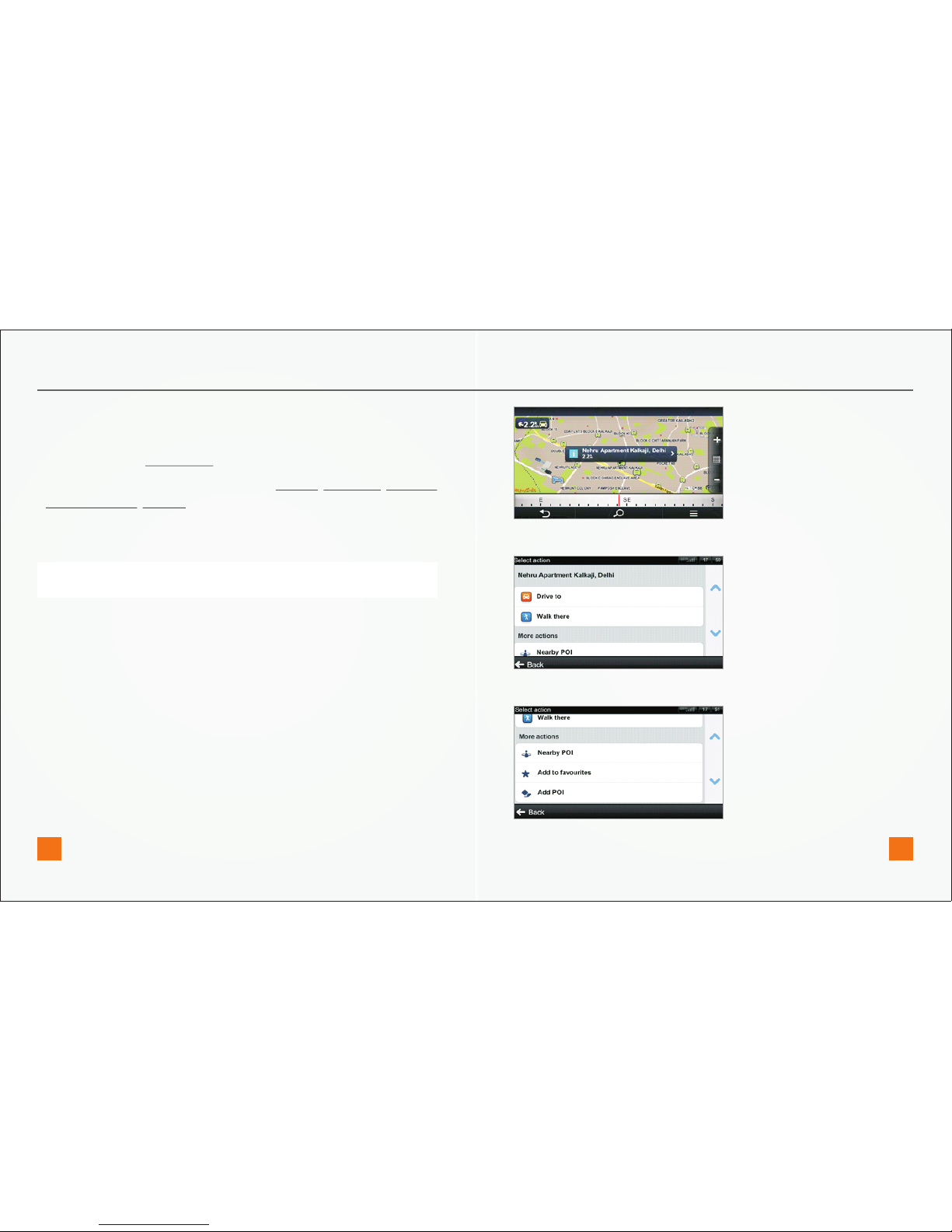
3.5 MAP BROWSING MODE
When you drag the map the map browsing mode will appear. Tap into
the square and the Action Menu will appear.
Actions available for the selected location: Drive to, Walk there, Travel via
, Add to favourites, Add POI.
For more information about available actions, see the chapter Action
menu.
QUICK START GUIDE
Note: The action menu appears only if you zoom into a part of map
that is included in your product license.
Menu > Info > Route > Cancel route
Page 15
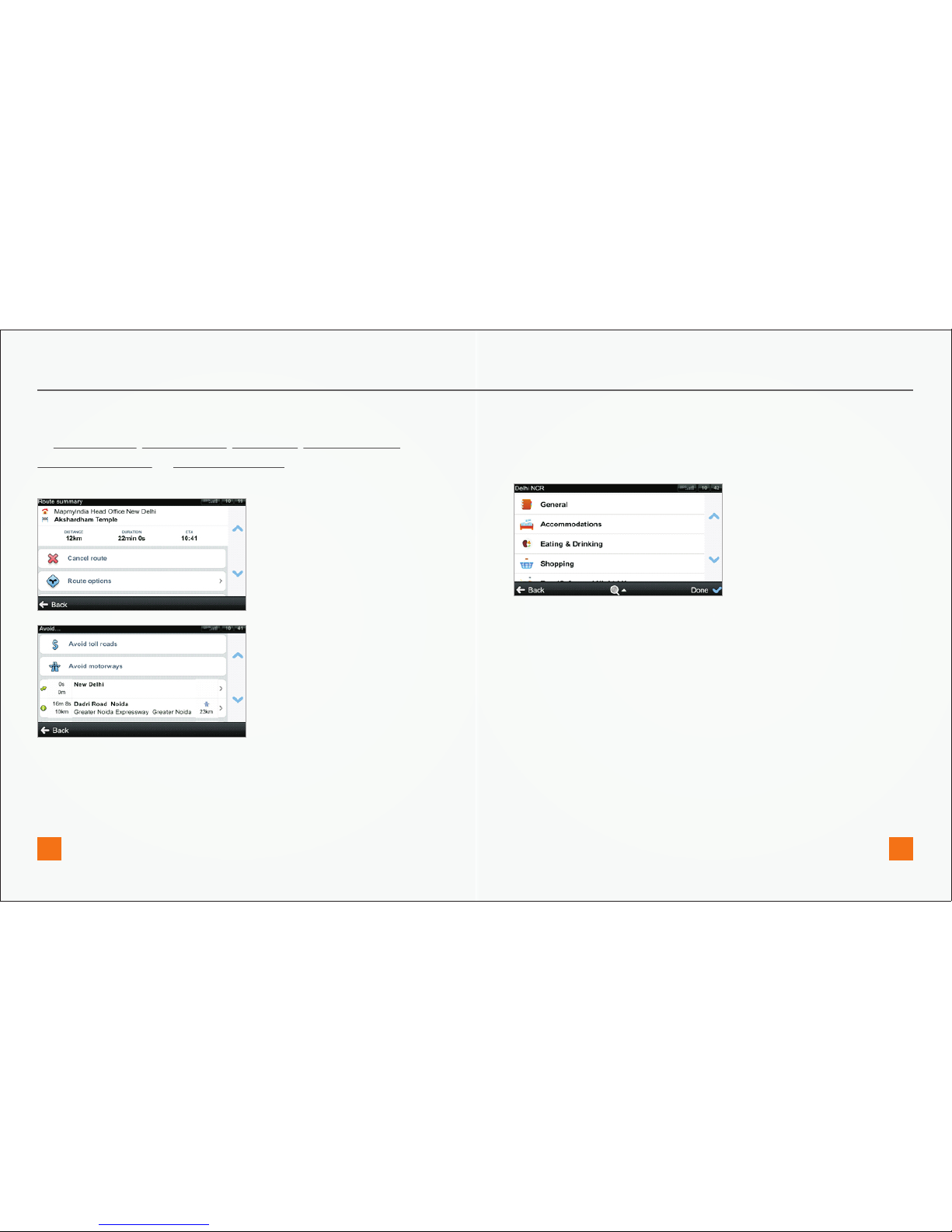
If you have added some waypoints to your route, you can avoid these
sections for each via point separately.
If you wish to cancel the calculated route entirely, and use the
navigation system only as an indicator of your current position, select
Menu > Info > Route > Cancel route
3.6 AVOID TOLL ROADS, HIGHWAYS OR FERRIES
To Avoid toll roads, Avoid highways, Avoid ferries, Avoid special area,
Avoid unpaved roads, or Avoid restricted area, tap on the icons shown in
the route summary.
If a city guide is available for the city you are currently in, it will be
already preselected for you. If a city guide for your current location is
not available you will see a list of states or cities depending on the
product package.
Select state to see the list of cities available.
Use the search function, the magnifying glass on the bottom of the
page, to look up a certain name.
4.1 CITY GUIDES
To learn more about important cities go to
Menu > Find > City Guides
City Gudies & Travel Book
www.mapmyindia.com
25 26
Page 16
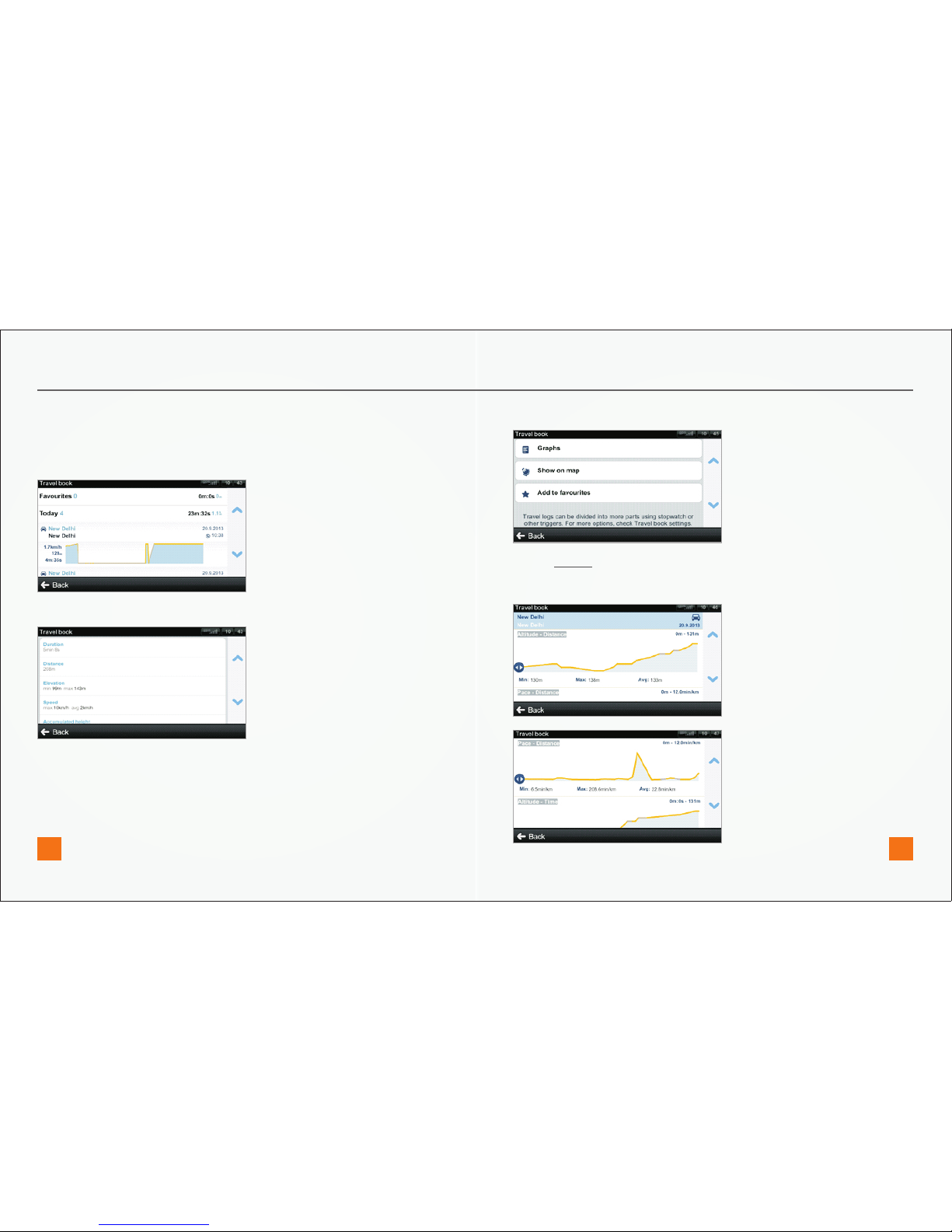
4.2 Travel book
To see traveled routes statistics and altitude profiles, go to
Menu > Info > Travel book
Scroll down for more action
Tap on selected log to see overall statistics
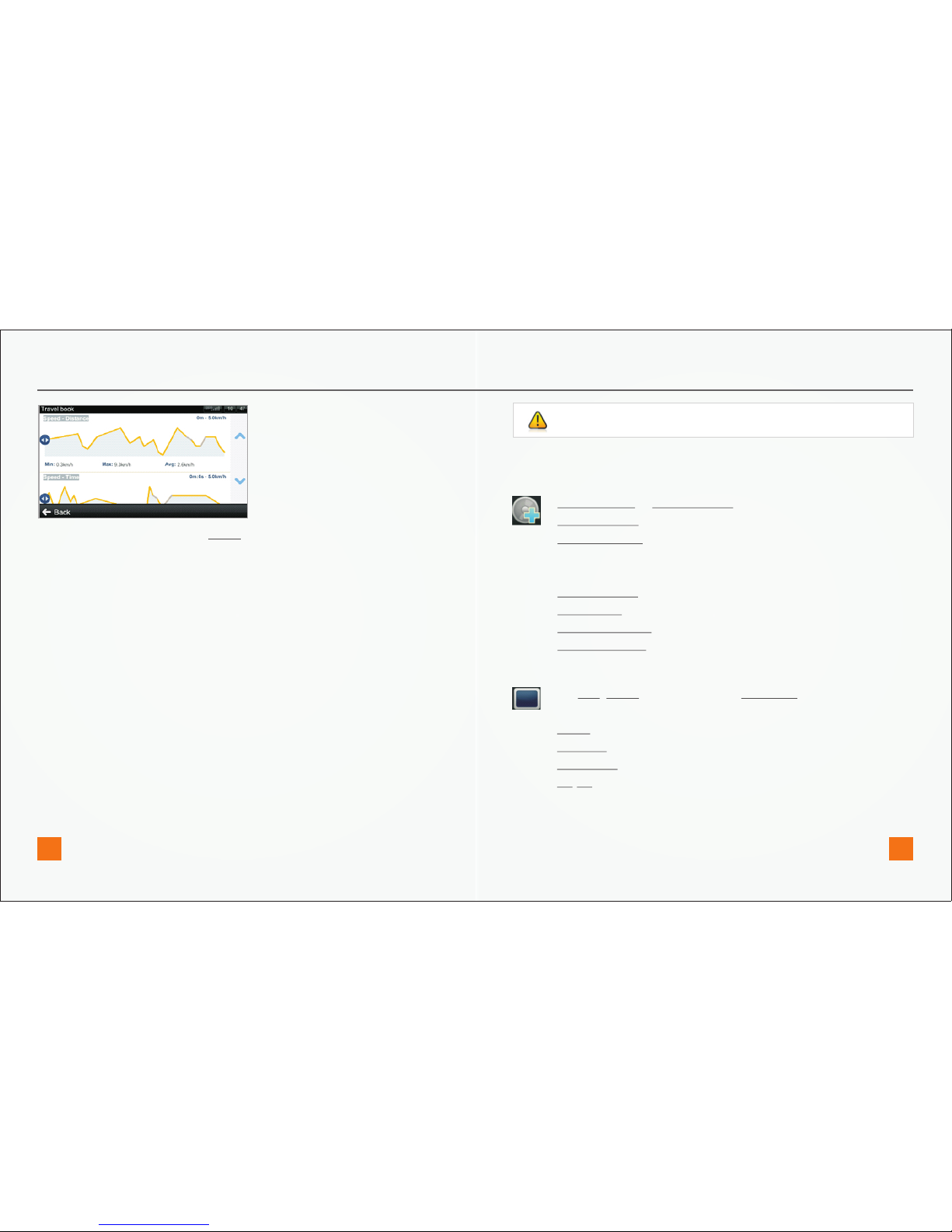
Tap on Graphs and drag the blue marker to see logs marking
altitude, distance, time, speed and acceleration.
www.mapmyindia.com www.mapmyindia.com
27
28
Page 17
www.mapmyindia.com www.mapmyindia.com
29 30
To see the log on map tap on Show on map. To add the log to favorites
tap on Add to favorites.
Settings
IMPORTANT: Menu items marked with * are not available in all devices.
5.1 NOTIFICATIONS & SOUNDS
5.2 MAP VIEW
To change factory settings, go to Menu > Settings.
Enable sounds or Disable sounds
Voice guidance
Volume settings* - Set the sound intensity separately for low
driving speed and for high speeds.
Set sounds for notification
Speed cameras
Speed limits
Railway crossings
Points of interest
Set Day/ Night colours, or choose automatic switching
between them
Points of interest
Buildings
Landmarks
2D/3D change between 2D and 3D map view
Signpost info
Lane assistant
Autozoom
QUICK START GUIDE
Page 18
www.mapmyindia.com www.mapmyindia.com
31 32
QUICK START GUIDE
5.3 ROUTE PLANNING
5.4 REGIONAL
5.5 HARDWARE
5.6 TRAVEL BOOK
5.7 AUTOCLOSE DIALOG
5.8 ABOUT
5.9 RESET TO DEFAULTS
Avoid toll roads - Set the preference of paid road segments:
avoid them, do not avoid them, or always ask.
Route computing - Set the routing algorithm to Fastest,
Shortest, Economic.
Traffic incidents – Set this preference to avoid incidents
automatically.
Voice - language of voice instructions.
Language - language of user interface.
Keyboard layout
Set kilometers/miles, format of time, temperature and GPS
coordinates.
Settings for advanced users only.
Set the GPS communication port manually.
Set laps while in walking mode to be Stopwatch triggered,
Distance triggered or on automatic Lap detection. For more
information, see the chapter Travel book.
Dialogs will be hidden automatically after specified time.
Information about version, device code and available
application memory. Please provide this information in
communication with MapmyIndia support.
Restore default settings.
Page 19
www.mapmyindia.com www.mapmyindia.com
All information provided in this document is copyrighted. No part of
the manual can be distributed or copied without prior written consent
of CE Info Systems(MapmyIndia). MapmyIndia reserves the right to
change/improve the user interface. MapmyIndia accepts no liability if
the content of this manual or options specified do not match the
interface on the user's device.
68 - Okhla Industrial Area Phase 3,New Delhi - 110020
For technical support, please contact: +91-9910007102/03
Ph: +91-11-4600 9900, +91-9999333223/4
Email: [email protected] Web: www.mapmyindia.com
The information contained in this document is the property of Sygic a.s.
MapmyIndia and may be used only for the purposes of operating and
supporting the relevant software created by Sygic a.s. MapmyIndia.
Sygic a.s. MapmyIndia reserves all rights concerning the information
contained herein. This document or any part thereof may not be
reproduced, distributed, or translated into other languages in any way
or form except with the written approval of Sygic a.s. MapmyIndia
This document is provided to the user on an ‘as is’ basis. Although
maximum care was taken during preparation of this manual to provide
accurate information and to avoid errors, some technical inaccuracies
or editorial errors may occur, for which Sygic a.s. MapmyIndia accepts
no responsibility.
In the interest of improving the content of the document, Sygic a.s.
MapmyIndia reserves the right to modify, amend or delete any part of
the document at any time without prior notice.
Disclaimer
For more information and updates, visit www.mapmyindia.com
© 2013 Sygic, a.s. MapmyIndia All rights reserved.
QUICK START GUIDE
 Loading...