

Page 1

Instrukcja obsługi
User’s Manual
Mp3 Player
MM285
Page 2

MM285
2
User’s Manual
MA402 User Manual ......................................................................................................... 3
Key Functions ..................................................................................................................... 4
Handling TF/SD Card ............................................................................................................... 5
Handling LINE-IN ....................................................................................................................... 5
Handling Bluetooth ................................................................................................................. 5
Charging ........................................................................................................................................ 6
Warnings ........................................................................................................................................ 7
Technical Information ............................................................................................................ 8
Instrukcja obsługi
MA402 Instrukcja użytkownika ................................................................................. 10
Key Functions ...................................................................................................................11
Podstawowe ..............................................................................................................................12
Obsługa kart SD ...................................................................................................................... 12
Obsługa LINE-IN .....................................................................................................................12
Obsługa Bluetooth ................................................................................................................13
Ładowanie ..................................................................................................................................13
Specykacja ............................................................................................................................... 14
Page 3

MM285
3
Main Menu
•
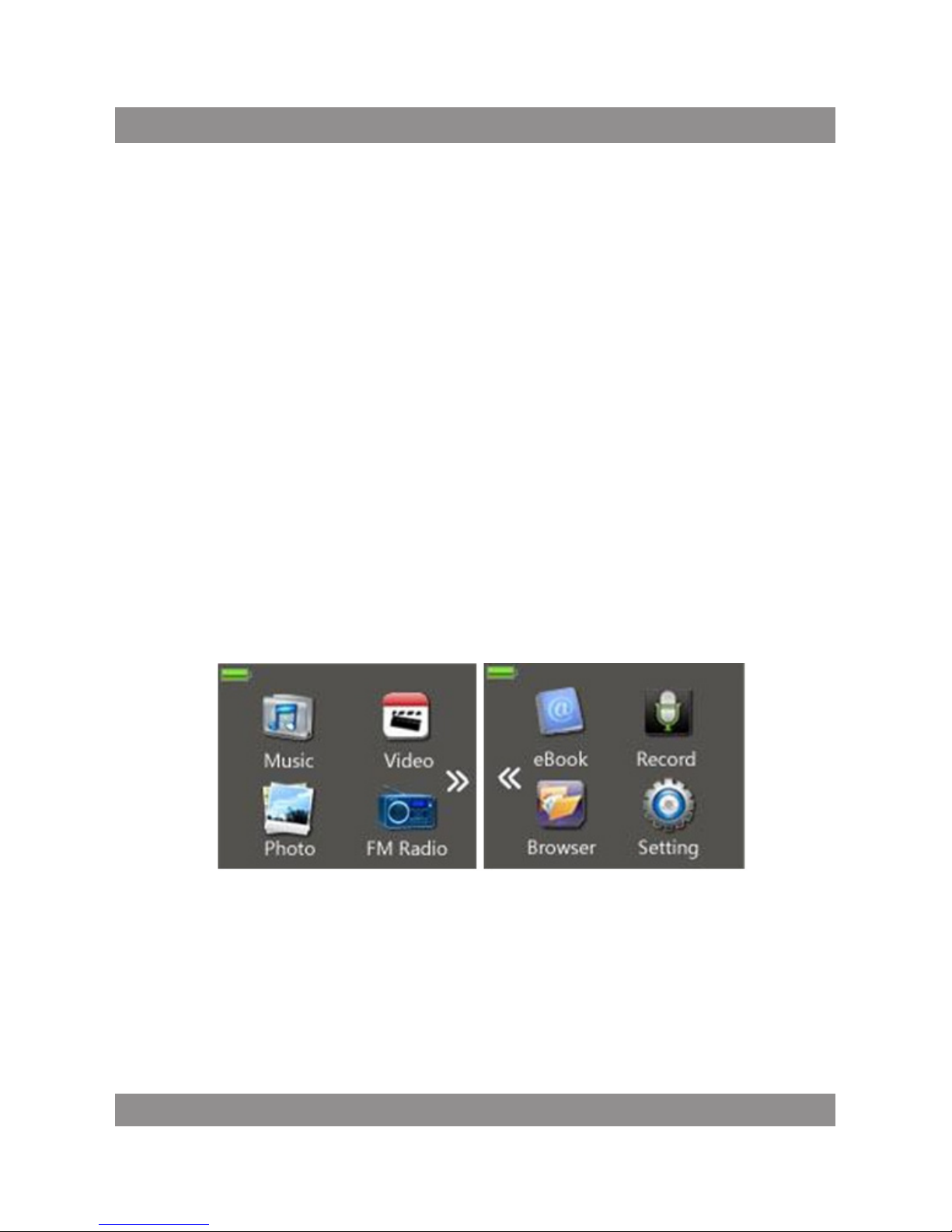
Main menu consists of two screens. To slide back and forth between the
• two screens, touch the Arrow icon.
• Tapping an Icon will take you into the appropriate mode.
Music
• Music mode allows you to playback audio les.
•
Tech Note - Device will only support audio les in MP3, WMA, and WAV
formats. Other formats will NOT play on this device.
•
Tech Note - Device does NOT support DRM encrypted, or copy protected
audio les. If you load those les to the device, they will NOT play, and
generate an error message.
• To begin playing a le, tap the icon in the center of the screen. Tap the
same icon to pause the le. Tapping the right or left arrow icons on the
screen will skip to the next or previous tracks. Pressing and holding
the plus button (+)or minus button (-) to fast forward, or rewind the
current track.
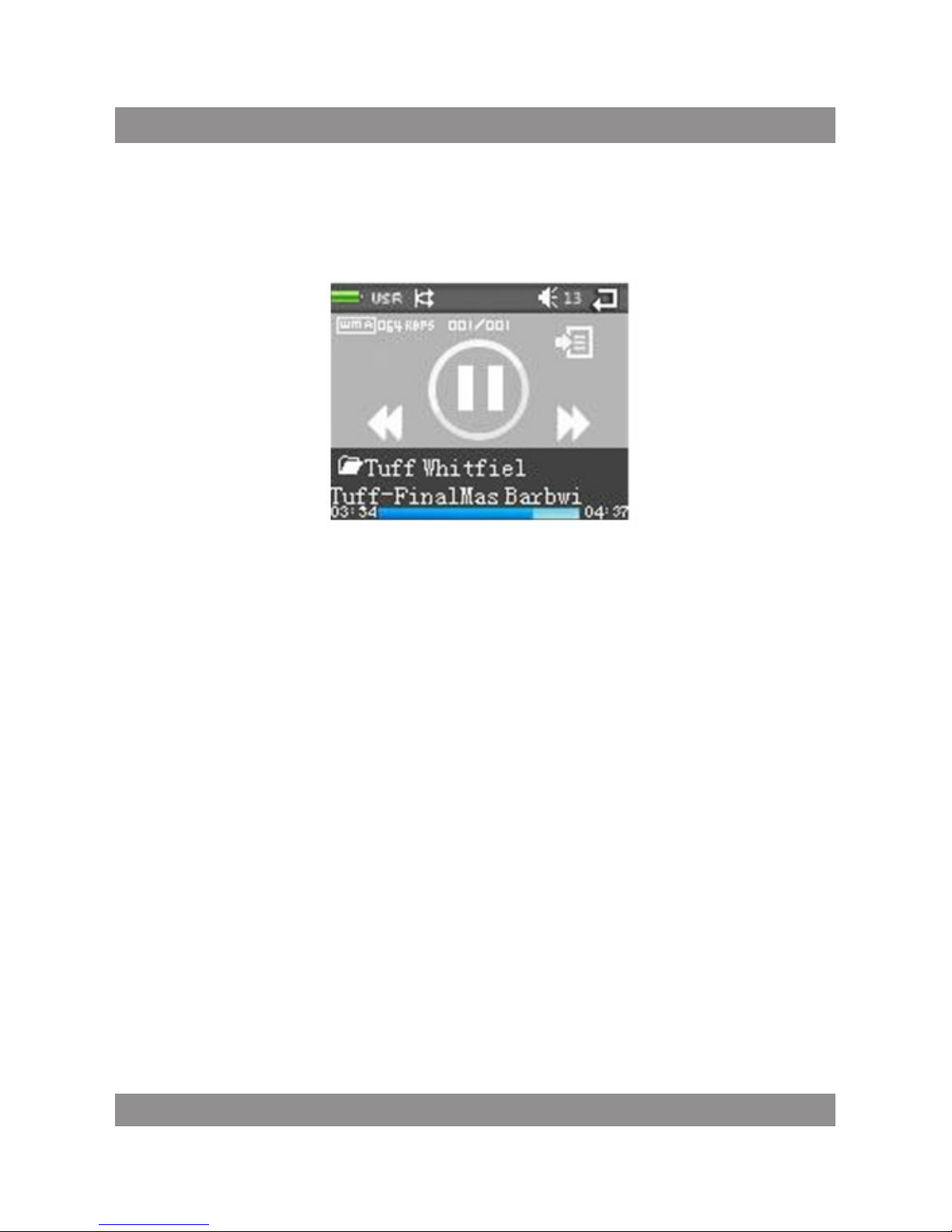
Icon Explanation (top to Bottom)
Battery Icon - This icon will display your battery charge.
Equalizer - This icon will display your equalizer mode.
Repeat Mode – This icon will display Repeat mode.
In order,these are: Normal, Repeat One, Folder, Repeat Folder,
Repeat All,and Random All.
Volume - This icon and number displays your volume level.
Volume levels range from 0 (muted) to 40 (maximum).
To adjust volume press + and - buttons on the top of the device.
Back Icon - tapping this will return you to the main menu.
File Format - This icon displays the format your le is saved as.
This sample shows a le in .WAV format.
Page 4
MM285
4
Bitrate - This Number will display the bitrate of the current le (in kbps)
Song counter - This icon displays how many les are in the current
playmode, and which le you are on.
Menu Icon - Tapping this icon will take you into your Music submenu,
or Music selection menu. If your audio le is
PLAYING and you tap this icon, you will go to the Music
Submenu. If your audio le is PAUSED and you tap this icon, you will
go to the Music selection menu.
Tapping the “M” button on the top of the device will do the same.
Progress bar - This bar at the bottom indicates the le progress. As
your le plays, this will ll. The number at the beginning of the bar
indicates at what point in the le you are, and the number at the end
of the bar indicates the total le length. If your progress bar is not lling,
then the le is not playing.
Music Submenu
Page 5
MM285
5
The music submenu allows you to adjust your repeat mode, equalizer,
and replay mode. This submenu is accessed by tapping the submenu
icon or “M” button while the le is playing.
Music Selection Submenu
The Music Selection Submenu allows you to browse through the folders
saved on your device to select specic folders or les to play. This submenu
is accessed by tapping the submenu icon or the “M” button in music mode
while the le is paused.
Video
Video Mode allows you to play back your movies and videos.
Tech Note - This device will only support video les in AMV format at
160x128 resolution. Files in other formats and resolution will NOT play
on this device.
To begin playing a le, tap the icon in the center of the screen. Press Power
button to pause the current le. Tapping the right or left arrow icons on
the screen will skip to the next or previous tracks. Pressing and holding the
plus button (+) or minus button (-) to fast forward, or rewind the current
track.
Page 6

MM285
6
Tapping the submenu icon or press the “M” button while the le is
paused will take you into the video Submenu which has the same
local Folder, Delete File, Delete All, and Repeat modes as the Music
submenus.
Photo Mode
Photo mode allows you to view photos and pictures.
Tech Note - Player supports image les in JPG, BMP and GIF
Formats.
Tech Note - The native resolution of device is 160x128. Images
larger than that will compress when they are displayed, leading to a
loss of quality. Extremely large images may not display at all.
When a le is displayed, you can slide the image to the next or
previous screen by placing your nger/stylus on the right side of the
screen and then sliding it to the left, or by placing your nger/stylus on
the left side of the screen and then sliding it to the right.
Tap the power button to return to the Image selection screen.
FM Radio
Device is equipped with an FM tuner, which allows you to tune in to your
local radio stations.
Tech Note - Please make sure that you connect your headphones
before entering Radio mode, as they will act as an antenna.
Pressing the “M” button will take you into your Radio submenu.
Radio Submenu
Your Radio Submenu allows you to set and delete station presets, switch
reception bands and more.
Save This item allows you to save your current station as a preset. You
can have up to 30 presets saved.
Record - Selecting record will take you to your recording mode.
Please refer to this section for instructions. Please note that this will record
Page 7

MM285
7
directly from the FM signal and not the microphone.
Delete - This option will delete the current radio preset. If you are not on
a preset station, this has no function.
Delete All This will delete all saved radio presets.
Auto Search This will begin scanning through your stations, saving any
with a strong enough signal as a preset. Please note that this WILL override a
ny presets you have saved.
Normal Band This is your standard FM band in the US. Stations range
from 87 to 108.
Japan Band - This is the standard FM band in Japan and parts of Asia.
Stations range from 76 to 90.
eBook
The eBook mode allows you to view text .
Tech Note - This device supports eBook les in TXT format only.
Pressing the + button will “turn the page” giving you the next page of text.
Pressing the - button will go back to the previous page of text.
Pressing the “M” button will bring you to your eBook submenu where
you can add, delete, or select a bookmark.
Recorder
The Recorder mode will allow you to record voice using built in
microphone, and play them back.
To begin recording, simply tap the icon in center of the screen. To
pause the recording, tap the icon again. To save your recording, tap
the back icon, which will save the recording and return you to the
options of recording, and playing back a saved recording
Recording Playback
Your Recording playback mode acts identically to the Music Mode. Please
refer to that section for operation instructions the le in the appropriate
mode. For example if you select a song, it will immediately open the music
mode and begin playing that le. If
Page 8

MM285
8
you selected a picture, photo mode would open and display the image.
Settings
Date/Time - This will allow you to adjust your date and time.
Auto Dim - This is a power savings feature which will power down the
screen if the touchscreen and buttons are not in use.
Language - This option will change menu.
Auto O - This power savings setting allows you to set an auto power
o timer.
Memory Info - This screen will display the percentage of used memory
and the total available memory.
Firmware version - This will display information on the rmware of
the device.
Page 9

MM285
9
Page 10

MM285
10
Menu główne
Menu główne składa się z dwóch ekranów. Aby przemieszczać się pomię
dzy ekranami, dotknij ikonę strzałki.
Dotknięcie wybranej ikony przeniesie Cię do odpowiedniego trybu.
Muzyka
Tryb muzyczny umożliwia odtwarzanie plików audio.
Uwaga! - Urządzenie obsługuje tylko pliki audio w formatach MP3, WMA
i WAV. Inne formaty nie będą odtwarzane.
Uwaga! - Urządzenie nie obsługuje plików z DRM, lub zabezpieczonych
przed kopiowaniem plików audio. Pliki takie nie będą odtwarzane.
Aby rozpocząć odtwarzanie pliku, wybierz ikonę w środku ekranu. Dotknij
ikony ponownie, aby wstrzymać odtwarzanie pliku (pauza). Dotykając
strzałek w lewo lub w prawo przechodzimy do następnych lub poprzednich
utworów. Naciskając i przytrzymując przycisk plus (+) lub przycisk minus
(-), przewijamy do przodu lub do tyłu bieżący utwór.
Opisy ikon
Ikona baterii Pokazuje naładowanie baterii.
Equalizer Wyświetla tryb korektora dźwięku.
Tryb powtarzania Ta ikona wyświetli tryb powtarzania. Dostępne są
następujące tryby: Normal, Repeat One (powtarzaj jeden), Folder (folder),
Repeat Folder (powtarzaj folder), Repeat All (powtarzaj wszystko), i Random
All (losowo wszystko).
Volume Ta ikona i numer wyświetla poziom głośności. Poziom głośności
w zakresie od 0 (wyciszony) do 40 (maksimum). Aby wyregulować głośność,
naciśnij przycisk + lub - w górnej części urządzenia.
Ikona powrotu dotknięcie spowoduje to powrót do menu głównego.
Format pliku Ta ikona wyświetla format w jakim plik jest zapisany
Bitrate liczba ta wyświetli bitrate bieżącego pliku (w kbps)
Page 11

MM285
11
Song Counter Ta ikona wyświetla ile jest plików w bieżącym trybie
odtwarzania i który plik jest odtwarzany.
Menu Icon Wybranie tej ikony przeniesie Cię do menu muzyki, lub menu
wyboru muzyki. Jeśli plik dźwiękowy jest odtwarzany i naciśnij tę ikonę
aby przejść do podmenu Muzyka. Jeśli plik dźwiękowy jest wstrzymany i
dotknij tę ikonę aby przejść do menu wyboru muzyki. Przycisk „M” na
górze urządzenia robi to samo.
Pasek postępu - to pasek na dole pokazuje postęp pliku.
Liczba na początku paska wskazuje, w jakim punkcie w pliku jesteś,
a liczba na konńcu paska oznacza całkowitą długość pliku.
Podmenu Muzyka
Podmenu muzyka pozwala na dostosowanie trybu powtarzania, korektora
i tryb odtwarzania. To menu jest dostępne przez dotknięcie ikony podmenu
lub przycisk „M”, podczas odtwarzania pliku.
Podmenu Muzyka Wybór
Muzyka Wybór podmenu pozwala na przeglądanie folderów zapisanych
w urządzeniu, aby wybrać określone foldery lub pliki do odtwarzania.
To menu jest dostępne przez dotknięcie ikony podmenu lub przycisk „M”
w trybie muzycznym, gdy plik jest wstrzymany.
Wideo
Tryb wideo pozwala odtwarzać lmy i pliki wideo.
Uwaga!- To urządzenie obsługuje tylko pliki wideo w formacie AMV w
rozdzielczości 160x128. Pliki w innych formatach i rozdzielczości nie będą
odtwarzane. Aby rozpocząć odtwarzanie pliku, wybierz ikonę w środku
ekranu. Naciśnij przycisk zasilania, aby wstrzymać bieżący plik. Dotykając
strzałek w lewo lub w prawo na ekranie, można przejść do następnych
lub poprzednich utworów. Naciskając i przytrzymując przycisk plus (+)
lub przycisk minus (-), przewijamy do przodu lub do tyłu bieżący utwór.
Naciśnięcie ikony podmenu lub przycisku „M”, przenosi w podmenu
Wideo, który ma takie same funkcje jak podmenu muzyka.
Page 12

MM285
12
Tryb zdjęć
Tryb zdjęć pozwala na przeglądanie zdjęć i obrazów.
Uwaga! - Player obsługuje pliki graczne w formatach JPG, BMP i GIF.
Uwaga! - natywna rozdzielczość urządzenia to 160x128. Obrazy większe
są kompresowane do wyświetlenie co prowadzi do utraty jakości. Bardzo
duże zdjęcia mogą nie być wyświetlane.
Gdy wyświetlany jest plik, można przesunąć obraz do następnego lub
poprzedni ekran, umieszczając palec / rysik na prawej stronie ekranu
i przesuwając ją w lewo, lub poprzez umieszczenie palca / rysika po lewej
stronie ekranu, a następnie przesuwając ją w prawo.
Dotknij przycisk zasilania, aby powrócić do ekranu wyboru obrazu.
Radio FM
Urządzenie wyposażone jest w tuner FM, który pozwala dostroić się do
lokalnych stacji radiowych.
Uwaga! - Upewnij się, że podłączone zostały słuchawki. Słuchawki wyko
rzystywane są jako antena.
Naciskając przycisk „M” przenosi do podmenu Radio.
Podmenu Radio
Podmenu Radio pozwala na ustawienie i usuwanie Pamięci stacji, prze
łączanie pasma odbioru.
Save Ta pozycja pozwala na zapisanie aktualnej stacji jako preset. Możesz
mieć maksymalnie 30 presety zapisane.
Rekord Wybór rekord uruchamia tryb nagrywania. Należy pamiętać, że
nagrywanie będzie bezpośrednio z sygnału FM i nie mikrofonu.
Usuń Opcja ta spowoduje usunięcie bieżącego presetu radia. Jeśli nie ma
zaprogramowanej stacji, to nie ta funkcja nie jest dostępna.
Delete All Spowoduje to usunięcie wszystkich zapisanych ustawień
radiowych.
Automatyczne wyszukiwanie Umożliwia automatyczne wyszukiwanie
Page 13

MM285
13
stacji radiowych, zapisując każdy z wystarczająco silny sygnał jako preset.
Normalna Band To jest twój standardowy zakres FM w zakresie od 87
do 108.
Japonia Band - To standardowe pasmo FM w Japonii i części Azji. Stacje
w zakresie od 76 do 90.
eBook
Tryb eBook umożliwia wyświetlanie tekstu.
Uwaga! - To urządzenie obsługuje tylko pliki eBook w formacie TXT.
Naciśnięcie przycisku + zmienia na następną stronę tekstu. Naciśnięcie
przycisk - cofa do poprzedniej strony tekstu.
Naciśnięcie przycisku „M” powoduje przejście do podmenu, gdzie można
dodawać, usuwać lub wybierać zakładkę.
Recorder
Tryb Recorder pozwala na nagrywanie dźwięku za pomocą wbudowanego
mikrofonu i odtwarzać je.
Aby rozpocząć nagrywanie, wystarczy dotknąć ikonę w środku ekranu.
Aby wstrzymać nagrywanie, ponownie wybierz ikonę. Aby zapisać na
grania, dotknij ikonę powrotu.
Odtwarzanie nagrania
Twój tryb odtwarzania Nagrywanie działa identycznie jak tryb muzyczny.
Proszę odnieść się do tej sekcji instrukcji obsługi plików.
Page 14

MM285
14
Ustawienia
Data / czas - Pozwala to na ustawienie daty i czasu.
Auto Dim - Jest to funkcja oszczędności energii, który wyłączy ekran
dotykowy gdy przyciski nie są używane.
Język – umożliwia zmianę języka menu.
Auto O - ustawienie oszczędności mocy pozwala ustawić automatycz
nego wyłączania.
Informacje o pamięci - Wyświetli procent używanej pamięci oraz całkowitą
dostępną pamięć.
Wersja rmware Wyświetla informacje o rmware urządzenia.
Page 15

MM285
15
 Loading...