

Page 1
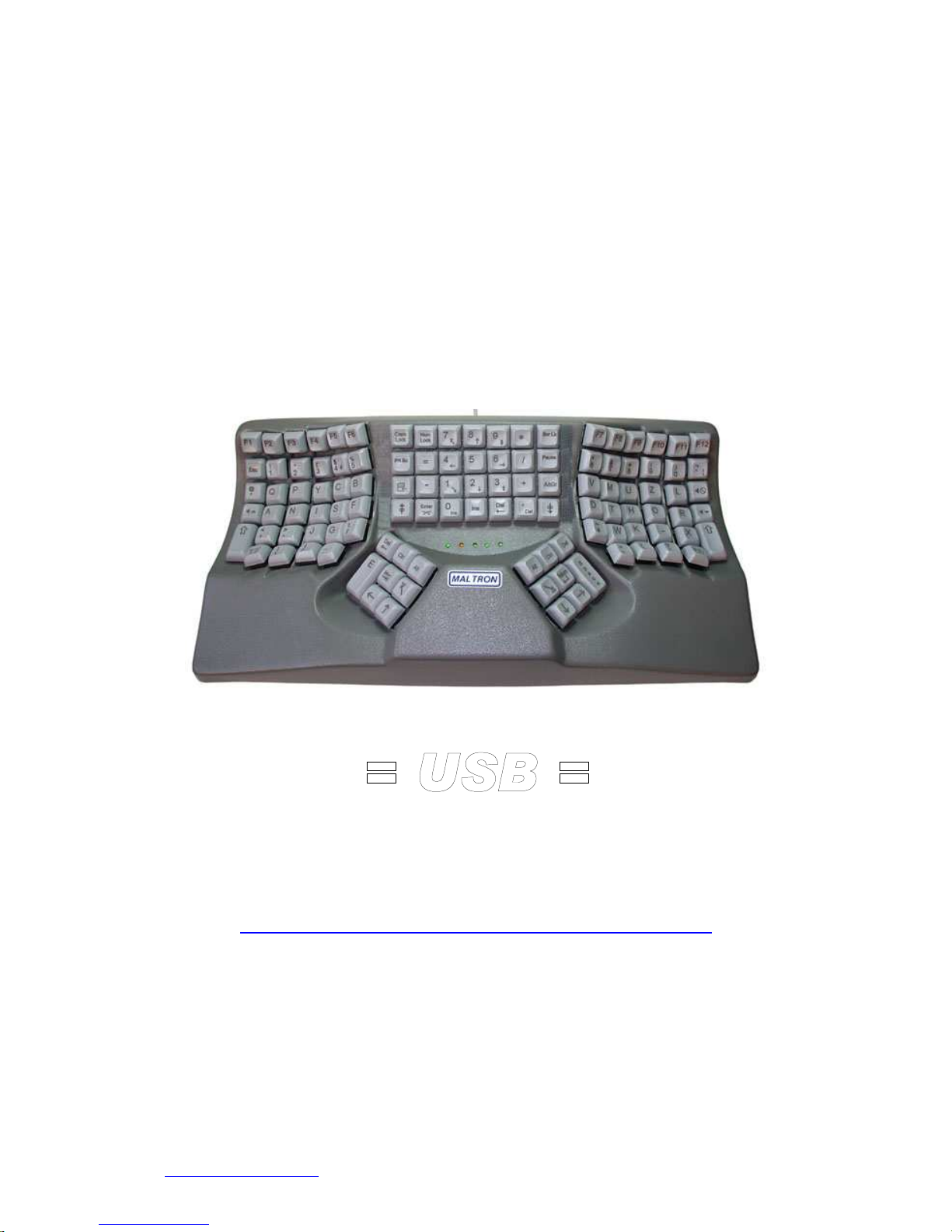
MALTRON L89 Ergonomic Keyboard
PCD Maltron Ltd., Castlefields, Stafford, Staffordshire, ST16 1BU, UK.
Tel: 01785 785529 Fax: 0845 230 3266
www.maltron.com 1
English UK
Qwerty / Maltron
http://www.maltron.com/maltron-kbd-ltype-l89p.html
Page 2
MALTRON L89 Ergonomic Keyboard
PCD Maltron Ltd., Castlefields, Stafford, Staffordshire, ST16 1BU, UK.
Tel: 01785 785529 Fax: 0845 230 3266
www.maltron.com 2
Introduction
The Maltron L89 3D ergonomic keyboards are individually made from lightweight
vacuum formed plastic sheet material.
The styling of the keyboard reflects ergonomic form and function, and incorporates
many unique features whilst retaining as much as possible the familiar key layout.
1. The Space, Enter and TAB keys are under the thumbs.
2. The cursor control and delete keys are under the thumbs.
3. The number pad is moved to a central position and no longer sits between the user
and their pointing device.
4. The Caps Lock key has been moved away from the Shift key.
5. A number of secondary symbol keys have been repositioned to maintain best use
between the different layouts supported by the keyboard.
6. The USB L89 keyboard supports both PC and Mac native key-codes which are
selected by a slide switch underneath the keyboard.
QWERTY Layout
Notes:
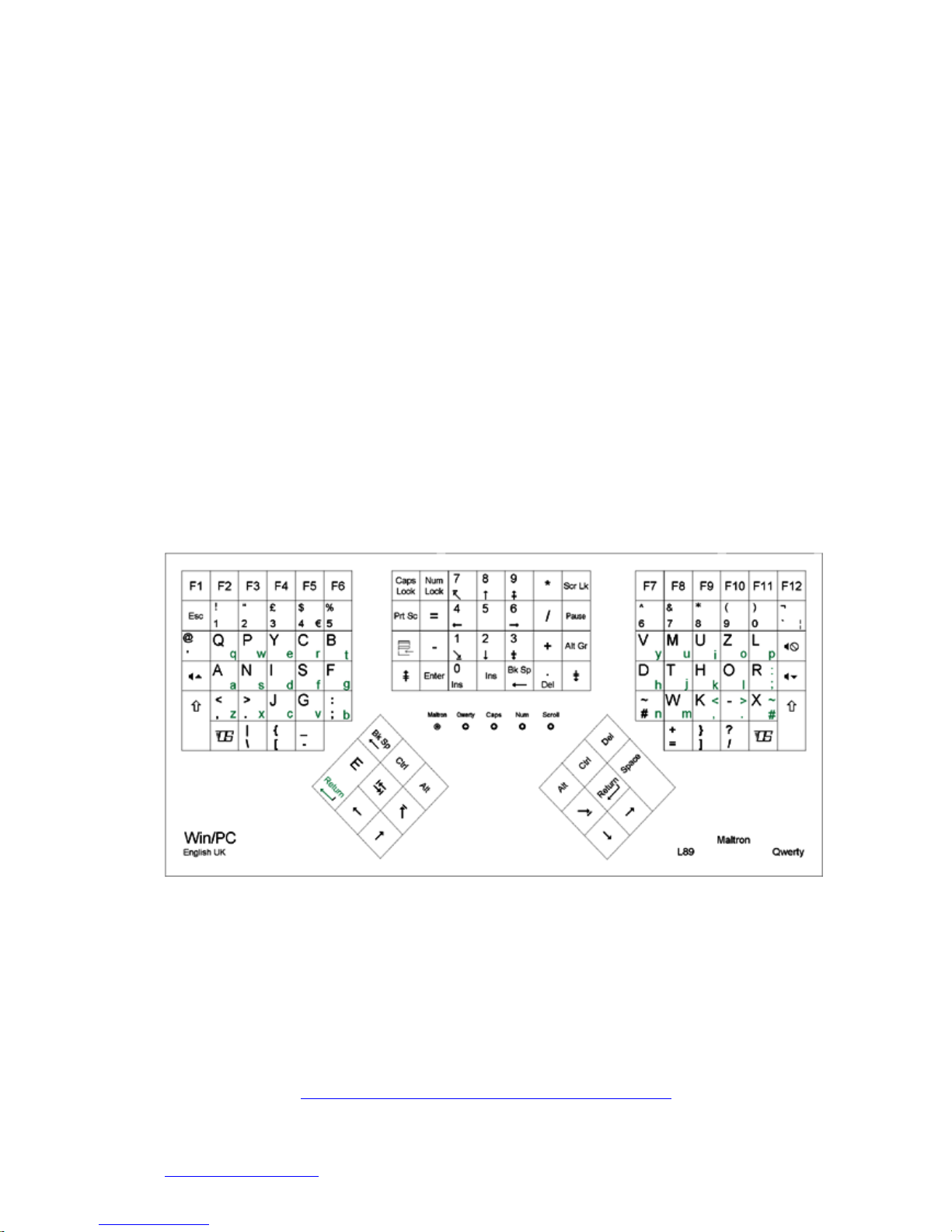
See the key layout diagrams at the end of the handbook for the specific Qwerty and
Maltron (here shown in green lower case letters) layouts for your keyboard.
These diagrams are positioned so you can use them as an aid to typing without
having to remove them from the handbook.
N.B. If you have downloaded this manual from the Maltron website see the PDF files
on the L89 UK Web page:
http://www.maltron.com/maltron-kbd-ltype-l89.html
Page 3
MALTRON L89 Ergonomic Keyboard
PCD Maltron Ltd., Castlefields, Stafford, Staffordshire, ST16 1BU, UK.
Tel: 01785 785529 Fax: 0845 230 3266
www.maltron.com 3
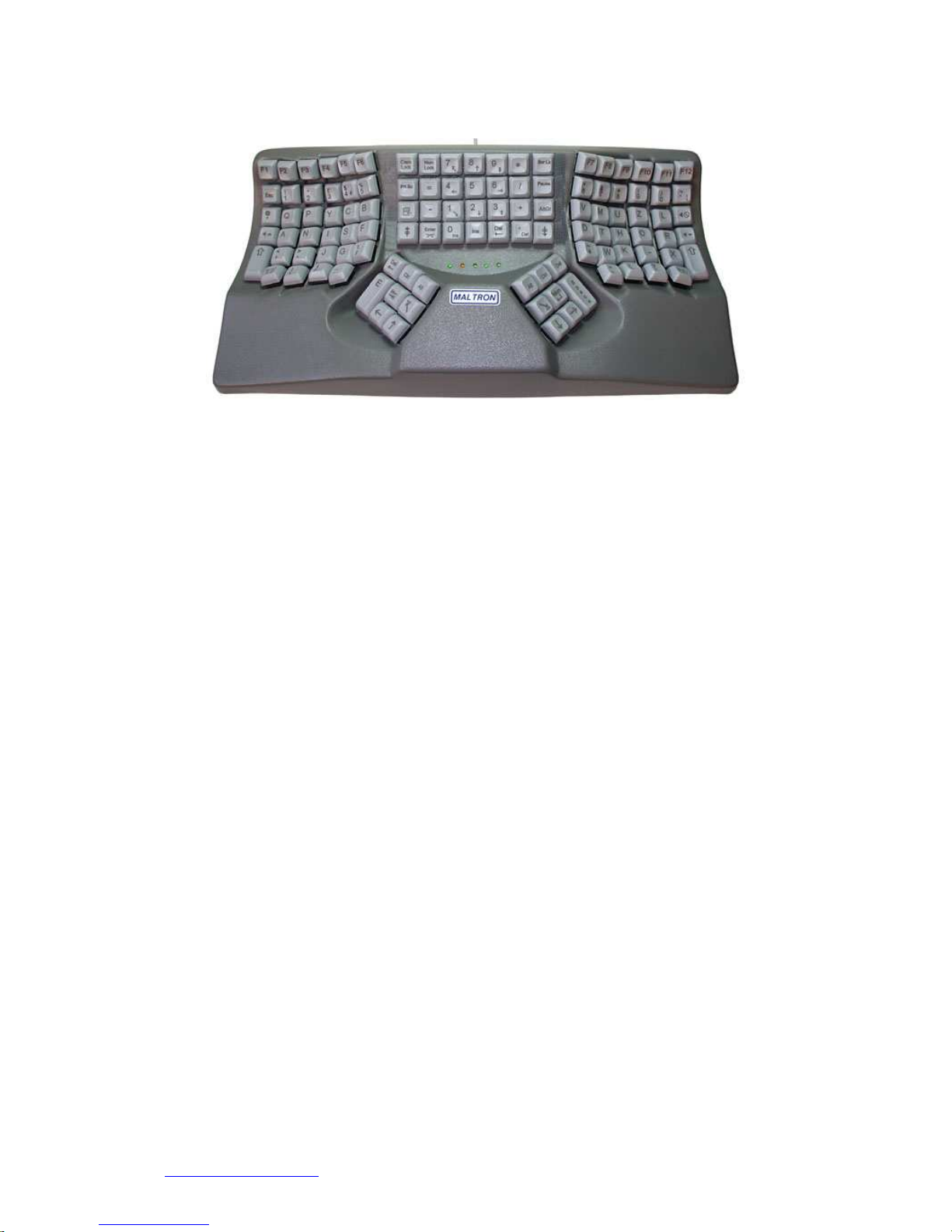
Special Design Features
1. Maltron spaced design principle for the letter/symbol groups (split in
accordance to touch typing conventions) positions the hands apart and reduces
the tendency to “hunch” the shoulders.
2. Keys arranged for vertical finger movements – no sideways micro movement
between rows improves accuracy and reduces finger work load.
3. Number pad is located centrally for easy use by either hand.
4. Large area beneath the two letter groups provide positions for resting the palms
when not typing which helps relax arm and shoulder muscles.
5. Thumb keys for space, tab, enter, delete and cursor control position thumbs in a
more natural relaxed position.
6. Individual Cherry MX gold cross-point contact key switches provide in excess
of 10 million operations life expectancy per key.
7. Two layouts in the keyboard – Qwerty or Maltron selected by slide switch.
8. PC or Apple native key-codes selected by slide switch.
9. Operating system independent OS and APL (application menu) keys.
10. Number pad has “=” key for Apple OS users (uses “+=” key-code for PCs).
11. Top row F1 to F12 Function keys positioned to allow easy use.
12. Dedicated “Mute”, “Volume Up”, “Volume Down” & Apple OS “Eject” keys.
13. Caps Lock key moved away from Shift key to number pad, prevents accidental
operation when typing.
Page 4
MALTRON L89 Ergonomic Keyboard
PCD Maltron Ltd., Castlefields, Stafford, Staffordshire, ST16 1BU, UK.
Tel: 01785 785529 Fax: 0845 230 3266
www.maltron.com 4
Indicators
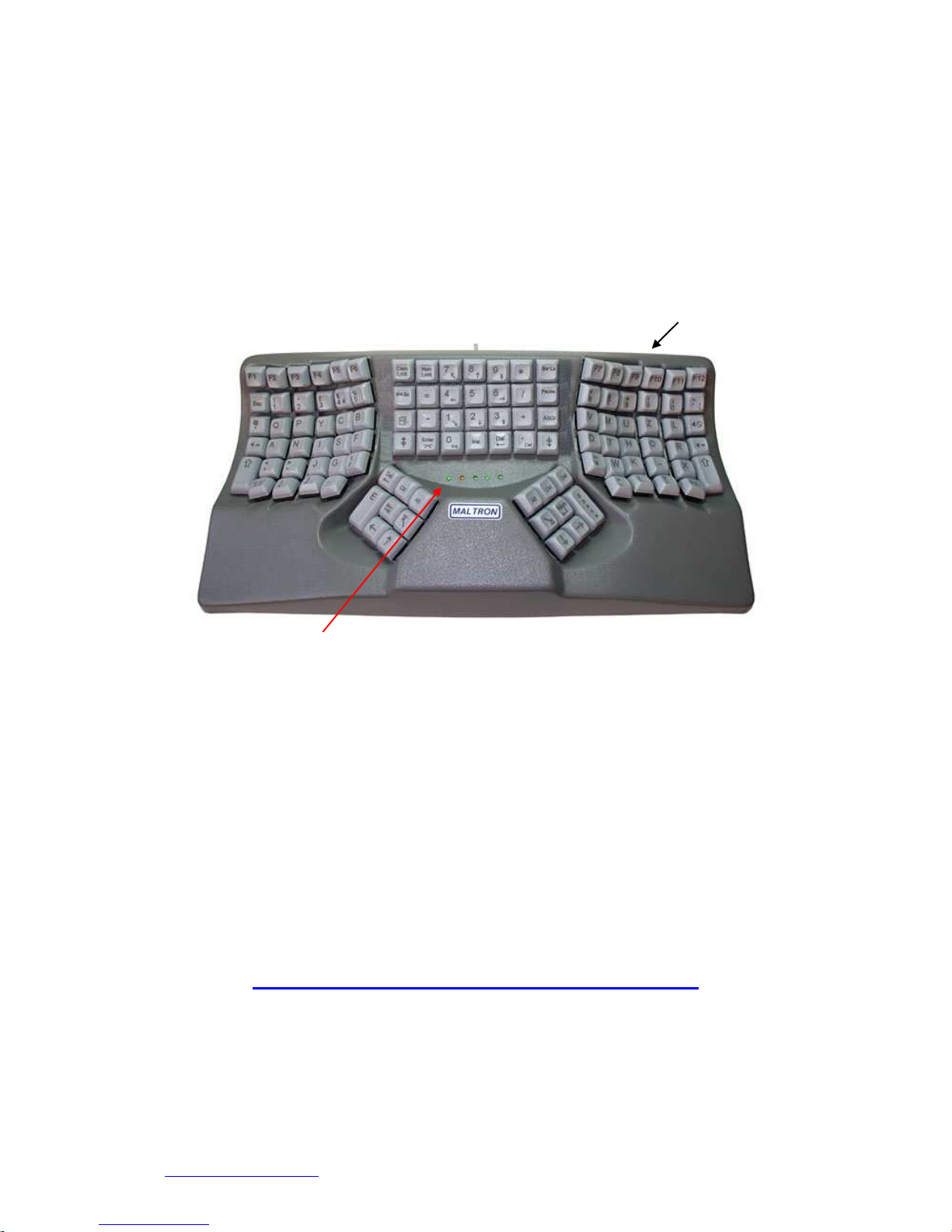
Five LED indicators are grouped centrally below the number pad group on the
keyboard. These indicate keyboard settings e.g. Caps Lock.
In addition to the three standard indicators there are two additional indicators which
show which key layout has been selected. To avoid confusion these LEDs are
dimmer than the three standard keyboard function LEDS.
Maltron/Qwerty (M/Q) select on underside of keyboard.
LED indicators.
LEDs (from left to right):
1. Maltron (Green) [Dim]
2. Qwerty (Yellow) [Dim]
3. Caps Lock (Green)
4. Number Lock (Green)
5. Scroll Lock (Green)
Note:
Please see our website for information on the advantages of the Maltron letter layout, which can
reduce the amount of finger movement by up to ten times.
http://www.maltron.com/maltron-advantage-dual.html
Page 5
MALTRON L89 Ergonomic Keyboard
PCD Maltron Ltd., Castlefields, Stafford, Staffordshire, ST16 1BU, UK.
Tel: 01785 785529 Fax: 0845 230 3266
www.maltron.com 5
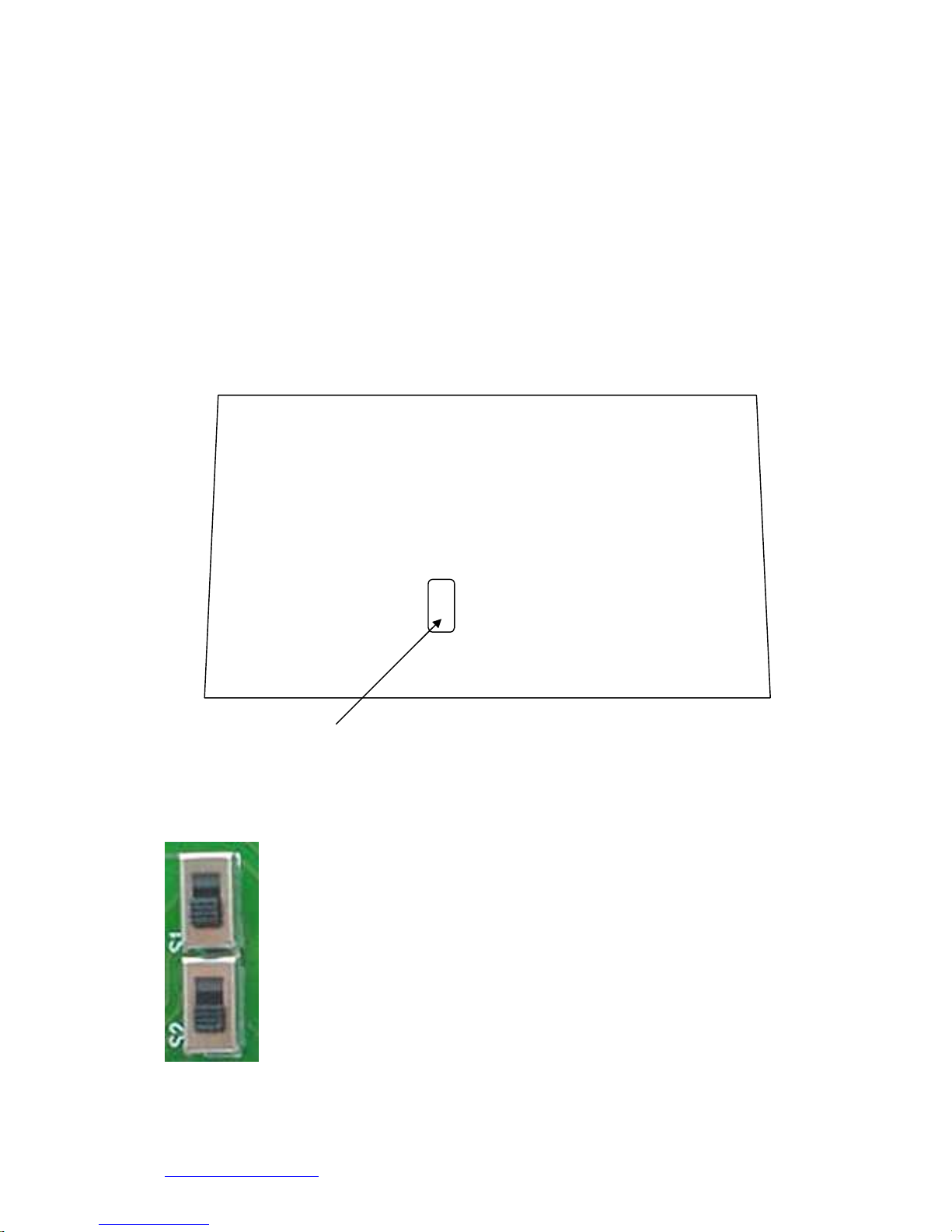
Keyboard Operation Configuration Switch
Two slide switches are accessible from the underside of the keyboard.
This enables selection of keyboard key-codes for Qwerty/Maltron and PC/Mac.
These switches protrude through the rectangular aperture, and may be changed by the
user as required once the keyboard is powered up i.e. the Num lock or Caps Lock
key/LED functions (do not operate immediately after plugging in the keyboard
otherwise the computer may not get the correct USB initialization data).
WARNING: Be careful not to use excessive force. The switches will move over with
a light side pressure – and should “click” into position. The keyboard will not work
properly if either of the switches are in the intermediate position.
Bottom View
Configuration switch location:
Keyboard Configuration Switches
1. Qwerty.
2. Maltron (selected in picture).
1. PC.
2. Mac (selected in picture).
Page 6

MALTRON L89 Ergonomic Keyboard
PCD Maltron Ltd., Castlefields, Stafford, Staffordshire, ST16 1BU, UK.
Tel: 01785 785529 Fax: 0845 230 3266
www.maltron.com 6
Notes:
Document: Version L89 USB UK 1.0 –11th February 2008.
 Loading...