

Page 1
1
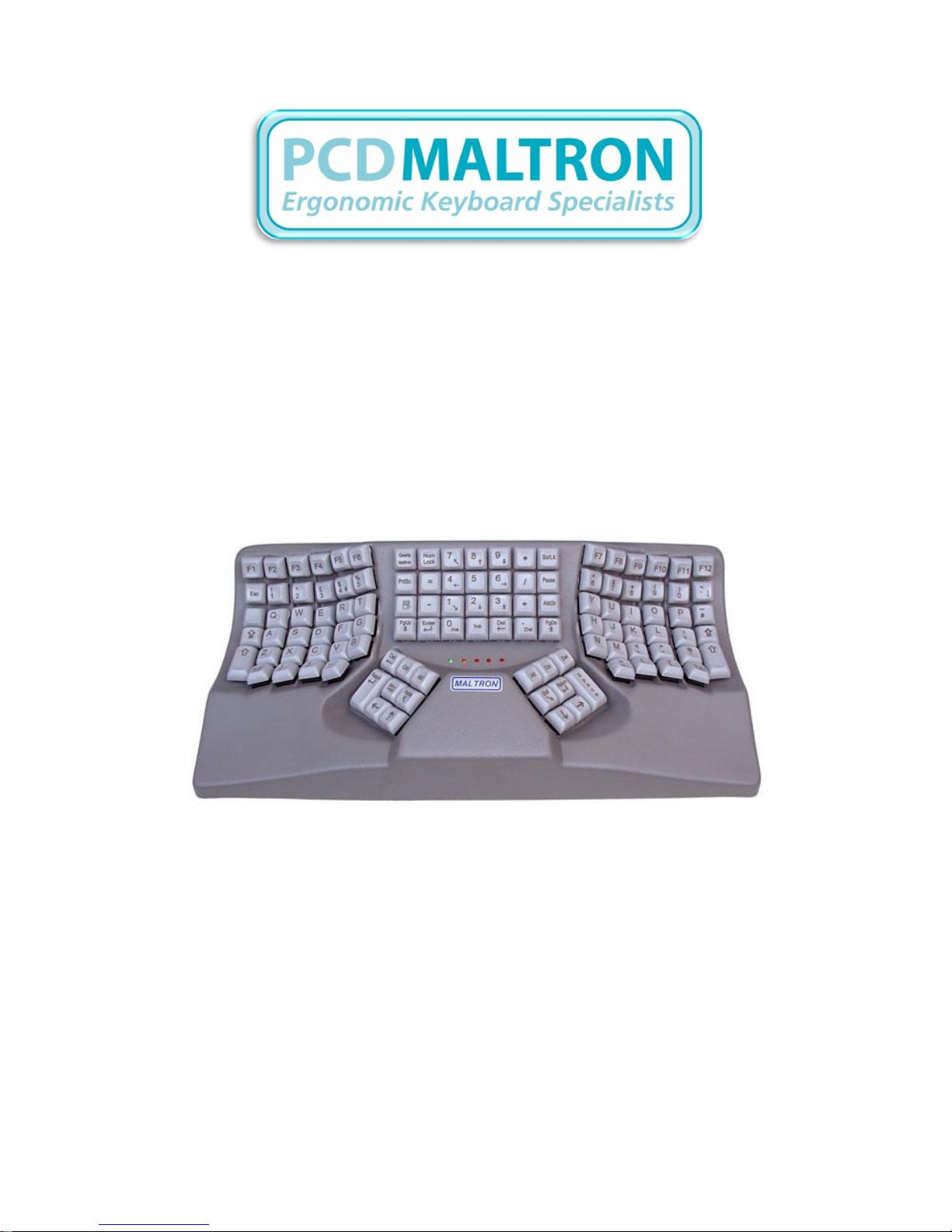
THE MALTRON KEYBOARD
‘Designed to fit hands’
J89-PS/2 model
Reference guide
“Helping sufferers to relieve the pain and suffering of Upper
Limb Disorders”.
Keep your fingers bent in the relaxed hand shape and do not rest your wrists on
the keyboard while keying.
This will allow freedom of movement and enable you to attain a higher speed
and greater accuracy.
PCD Maltron Ltd., Castlefields, Stafford, Staffordshire, ST16 1BU,
UK
Tel: 0845 230 3265 Fax: 0845 230 3266
www.maltron.com [email protected]
Page 2

2
Dear User
Congratulations on selecting the Maltron Dual handed keyboard. We are confident that
you will notice very quickly the benefit of using the keyboard through its ergonomic
shape and ease of operation very quickly.
Please take the time to familiarise yourself with the keyboard and note the design layout
allows your wrists to be quite straight so removes the prime cause of trouble. This
change frees space in the centre of the keyboard so that the cursor keys and other keys
can now be allocated to the thumbs, which are strong and versatile.
It is probable you will not have experienced using a Maltron keyboard before
consequently it will feel unfamiliar to you….Don’t worry, this is perfectly natural and is
expected.
For this very reason we provide on line training courses covering good posture, figure
position, general instructions and a comprehensive range of exercises which will help you
to become accustomed to the keyboard.
Please contact PCD Maltron Ltd if you do not have access to the website
www.maltron.com and we will arrange for the paper based training modules to be sent
to you.
As they say, practice makes perfect so persevere with the exercises and don‟t expect to
be as efficient with the Maltron keyboard straight away as you have been with your
existing one.
It is advisable to refrain from using alternative keyboards during the familiarisation
phase as this will only slow down the time it will take to become accustomed to using
your new keyboard.
What we can guarantee is once you have mastered it you will notice improved accuracy
which comes from the way in which keys fit the shape of the fingers. From the tactile
information received through the finger ends the position of the hand is accurately
known and this reduces the error rate. There is no possibility of the hand being displaced
without the operator knowing.
Please feel free to contact PCD Maltron Ltd on 0845 230 3265 or e-mail
[email protected] with any questions or observations you have or just to share with
us your own personal experience.
Once again thank you for choosing the Maltron keyboard and we sincerely hope you can
once again enjoy trouble free typing.
Best wishes
PCD Maltron Ltd
Page 3

3
The Maltron Keyboard
Introduction
Welcome to your new MALTRON keyboard. We at PCD Maltron Ltd are sure that the
combination of the Maltron keyboard and your personal computer will soon give you a
surprising ease of operation, with much reduced stress and fatigue. Please share your
enjoyment with us by letting us know how you progress, and tell us of any ideas for
improving the keyboard further.
Specially shaped to fit hands, the Maltron keyboard offers a new level of comfort and
accuracy. Comfort implies a freedom from posture stress and this in turn means reduced
fatigue. The typewriter keyboard, designed in the 1870‟s to suit the mechanics of the
time, requires the hands to be held together with the wrists turned outwards. This
action, almost unconsciously, causes the shoulders to be slightly raised and it is this
sustained tension needed to maintain the typing position, which causes the shoulder and
neck aches and pains experienced by so many keyboard operators.
By dividing the keys into two well separated groups, the Maltron allows wrists to be quite
straight and so removes the prime cause of trouble. This change frees space in the
centre of the keyboard so that the cursor keys and other keys can now be allocated to
the thumbs, which are strong and versatile.
Additional to the new shape, modern electronics allows us to give a choice of layout at
the touch of a button – QWERTY or MALTRON. The improved accuracy obtained by
operators using the Maltron keyboard comes from the way in which keys fit the shape of
the fingers. From the tactile information received through the finger ends the position of
the hand is accurately known and this reduces the error rate. There is no possibility of
the hand being displaced without the operator knowing.
To help get started, we have included for practice a list of the 150 most common words
which make up over half of all typing, but if you intend to continue with the QWERTY
layout please be sure to use the adaptation exercises supplied separately.
Setting Up
As you will have seen, the cable from the keyboard ends with a multi-way plug. This is
polarized to make sure it goes in correctly. Connect the plug into the usual keyboard
input socket and arrange the keyboard to suit your preferred position. Please ensure this
allows you to sit comfortably, with the keyboard close and low enough for your upper
arms to be hanging vertically from your shoulders, and your forearms to be horizontal.
After plugging in the Maltron keyboard, switch on the computer. The keyboard should
light up with a yellow or green light – indicating that the keyboard has power. A yellow
light indicates that the keyboard is ready in the QWERTY layout. If you asked for the
Maltron layout key top designation then Switch 4 will have been set ON and your
keyboard will start in the Maltron mode and the green light indicates this.
Page 4

4
The Maltron Keyboard
Special Design Features
The fully ergonomic Maltron keyboard is designed to fit hands, and to work with IBM
PS/2 type computers or Macintosh machines via a PS/2 – USB convertor.
The Maltron keyboard has the keys where fingers can reach them easily in comfort.
The whole essence of ergonomic design.
1. Central top row of Function keys – easily reached, these are arranged to match
normal function key layout.
2. Central number pad. This is located centrally to be easy for either hand.
3. Thumb keys for the cursor and other frequently used functions – your thumbs can
now be used much more productively!
4. Enter (return) key on the thumb removes the long little finger stretch.
5. Delete keys on the thumbs allow the immediate removal of conscious errors,
without the loss of finger position.
6. A shift lock key is provided as well as a caps lock to give wider facilities.
7. Two layouts in every keyboard:-
QWERTY for QWERTY trained operators.
Maltron for those using this much more efficient letter layout.
Layouts are instantly changed by pressing the QWERTY/MALTRON Key.
8. Key tops may be singly or dually designated as preferred.
9. The Maltron letter layout reduces finger movement and work load with the most
used letters placed under the home row positions.
10. Shaped to allow straight up and down movement of fingers – reduced twisting
improves accuracy and reduces finger work load further. The straight finger
columns follow the natural movement of fingers.
11. Shaped to make key heights fit fingers. Longer fingers now get more space.
12. Spacing the finger and thumb groups apart from each other removes the need to
bend wrists and allows elbows and upper arms to be relaxed.
13. Palm resting pads for „Thinking time‟ allows hands and arms to relax.
Please do not attempt to change keyboards with the computer on. This may cause
spurious signals to corrupt your work and may possibly damage keyboard or computer.
For PS/2‟s a switch box is available to allow two keyboards to be connected at the same
time, so that someone wishing to use a standard keyboard can connect it without having
to exchange connections at the back of the computer and restart the machine.
Page 5

5
Operation
The Maltron keyboard design in providing extra keys for the thumbs has allowed the
thumbs to be put into use. The cursor keys have been put under your thumbs. The basic
concept is that the left thumb moves back towards the beginning (up and left) and the
right thumb moves you forward (right and down). Likewise the home and end keys are
on your thumbs. Another great use for your thumbs is the delete keys which are placed
immediately above the thumbs‟ home positions. This means that you can delete a typing
error without moving your fingers off the home row. As the thumb is your strongest digit
we have also given it the ALT and CTRL keys which are usually held down while another
key is pressed. Both thumbs are therefore given productive work and the fingers are
relieved of work and stretches.
The QWERTY/MALTRON Key
A special feature of this keyboard is the QWERTY/MALTRON key which selects the layout
to be used. The yellow light indicates QWERTY operation and the green light MALTRON.
The QWERTY layout allows QWERTY skilled operators to adapt to the shape and benefit
from its advantage with minimum learning difficulty. The QWERTY and MALTRON letter
layout diagrams in the back of this handbook may be used to locate any letters or
symbols which our special shape has caused to be moved from a more familiar location.
As the shape is so different the brain rarely confuses what it has learnt from the Maltron
keyboard with what it learnt from the flat keyboard. This applies to either layout. This is
similar to the ability of musicians to play different instruments of different shape without
confusion. We do not advise that you try to learn both layouts on the Maltron – it is
better to pick one and stick to it.
Please do display or copy the layout diagrams at the back of the handbook and place the
layout you‟ve chosen at eye level near the computer screen. If you watch yourself type
then you actually learn to type watching! You will only free your hands from your eyes
by watching the screen and the layout diagram instead of watching your hands.
Indicators
The LED lights indicate the different modes of operation. From left to right they are:
Maltron (green) leftmost
Qwerty (yellow)
Caps Lock (red)
Num Lock (red)
Shift Lock (red) rightmost
Page 6

6
Keyboard Operation Selector Switch
Visible through a small aperture in the bottom cover of the keyboard is a multi position
switch. This enables selection of keyboard functions on start-up or reset. The switch
positions can be changed using a ball pointed pen or something similar.
Switch 1 Leave in “off” position
Switch 2 Leave in “off” position
Switch 3 Leave in “off” position (Factory test position)
Switch 4 Start up options
This switch selects the alternative letter layouts
Set “off” to start in QWERTY mode displaying the yellow LED
Set “on” to start in MALTRON mode displaying the green LED
Switch 5 The backslash key
Selects alternative key codes for the “backslash/pipe” key
Set “off” for the usual operation, sends key code Hex 61
Set “on” for alternative to match older or Linux machines, Hex 5D
Switch 6 For correct operation of CAPS LOCK for French Keyboards, set “on”
Switch 7 This switch controls the operation of the SHIIFT LOCK key
Set “off” the SHIFT function has a single shot operation, i.e. it is
automatically cleared by the next key release. This is useful when a
SHIFTED function and another key is needed to execute special
commands. Set “on” SHIFT is maintained until either of the SHIFT keys is
pressed or the SHIFT LOCK key is pressed again
Switch 8 Not used by this keyboard leave “off”
Reset Button
Close to the switch is a separate button. Press to restart the keyboard after changing a
switch while powered on, or to restart the keyboard should some malfunction occur
during normal work.
Typematic Repeat Rate
This keyboard is fitted with a special facility to allow the key repeat rate to be changed
at the keyboard. An “off” condition and three different speeds may be selected by the
combination of the QWERTY/MALTRON key and Function Keys 1-4.
When the Q/M key is pressed and held down, the yellow lights flash alternatively at the
key repeat rate. On completion of the following actions the yellow or green light comes
on again to indicate layout selection.
Page 7

7
1. Press and hold the Q/M key then press and release F1. Release the Q/M key. Key
repeat is stopped.
2. Press and hold the Q/M key then press and release F2. Release the Q/M key. Slow
repeat rate.
3. Press and hold the Q/M key then press and release F3. Release Q/M key. Medium
speed repeat rate.
4. Press and hold the Q/M key then press and release F4. Release Q/M key. Fast
repeat rate.
To check key repeat rate, hold down the Q/M key. The green and yellow lights will then
flash at the selected repeat rates.
If the Q/M key is pressed but not held, keyboard operation will change to the alternative
key layout.
With some software programmes and machines, e.g. Apple, the repeat rate is set by the
computer during programme setup and may operate erratically if control other than “off”
is attempted from the keyboard.
Blank keys
There are 2 blank keys. The LH one generates the key scan Code Hex 51 and the right
one Hex 6A. These can be used with the Operating system software program to enable a
special function.
The 150 Commonest Words
These words make up more than half of all prose.
A an at he than that the then there are
Her here we were what when new where after
As for has how no not now of one or
Other see so those to two was who another
Know off own she state these too work
Any first from him his I if in into is it
Its man may men more most my some their
Them this they make many me men same way
Years all and do down had like made only
People said shall well will would also day
Did down last life little long Mr. Old still
While can come could great go our out should
Such upon us would which you your came each
Get good great might much must through under
Us up about be been before but by back because
Being between both every have over very even
Just never
IBM is the registered trade mark of International Business Machines Corp.
Apple and Macintosh are the registered trademarks of Apple Computer Inc.
Page 8

8
Hand and Key position information
The unusual shape of the Maltron keyboard often gives rise to questions concerning how
to place the hands to take advantage of the strain free design. The best way to assess
this is to do the following actions:
1. Either standing or seated, allow both arms to fall totally relaxed by the sides
2. Open and close the hands 2 or 3 times and then allow them to be totally relaxed
3. Look at the finger shape. Usually seen in the half open position the finger end
directions now lie at 70-90 degrees from the forearm axis, with the wrists still
totally relaxed.
4. Keeping the hands in this position, raise the forearms to be horizontal, and
position the hands so that there is a distance of roughly 20cms between the index
fingers.
5. Opening and closing the fingers now shows that the ends move in arcs of
different radius.
6. As far as possible the keys have been positioned to fit these, so that lowering the
hands on to the keys should give comfortable finger positions on the ASDF on the
left and the JKL keys on the right. The thumbs should be relaxed to fall on the
Space and Enter keys.
7. The back of the hands will also be tilted to give angles of about 30 degrees to the
horizontal, and a strain free wrist position.
8. When keying, the palms should be around 1cm above the resting pads, but at
any pause for “thinking” time they should be lowered on to the pads immediately,
and the hands and arms relaxed.
Keyboard Position
The keyboard should be mounted low enough to ensure that the horizontal arm position
and the conditions of 7 & 8 above are fully met. This may mean mounting it on a pull out
slide under the desktop, or sitting on a chair high enough to give this condition with the
keyboard on top of the desk.
Page 9

9
The Maltron Trackball Keyboard
An alternative model to the successful two handed Maltron keyboard incorporates a track
ball in the central pad between the thumb groups of the unique Maltron design.
Features
This model of the trackball keyboard is fitted with a newly developed unit. It features
great accuracy and is velocity sensitive. This means that a small but quick movement
will move the cursor a long way, while the same movement made slowly enables
accurate positioning. Another feature is the use of a matt surface on the 16mm ball. This
gives a better surface grip and prevents any small movement of the ball which might
otherwise occur as the thumb or finger is raised.
Cables
1. This keyboard now has a single ending in a purple coloured PS/2 6 pin minidin
plug. This has both keyboard and trackball outputs and can be connected to Lap
Top computers with a single input socket so that both keyboard and trackball
work correctly.
2. A splitter cable is built in so that separate keyboard and trackball (mouse) PS/2
plugs are present for desk units with two inputs. The mouse plug is coloured
green.
3. Ensure that all connections are firmly made before powering up the computer.
Action Buttons
In the new “F” model, the action buttons are conveniently located behind the trackball so
that the thumb of one hand can position the trackball and a finger of the other hand
used to press the appropriate button. The group of three buttons is arranged so that the
centre one is a “right hand” mouse button and the two either side are “left hand”
buttons. This symmetrical arrangement ensures that either hand can be used with equal
ease as preferred and the accurate and careful positioning of the ball is not disturbed
when operating the action buttons.
The stress relieving design of Maltron keyboards has already enabled many hundreds of
suffers from RSI or CTS (Repetitive Strain Injury or Carpel Tunnel Syndrome) problems
to return to work with career prospects recovered. The new combination is a significant
step in overcoming problems with mice as well.
Cleaning
After some use it is possible that due to dust entry the cursor movement can become
erratic. This problem is easily cleared by cleaning the socket. The retaining ring is
removed by turning it anti-clockwise about 1/6 of a turn with the ring release tool
provided. If mislaid, the points of a pair of sharp pointed scissors may be used. The ball
may then be lifted out or dropped into a hand cupped over it, while inverting the
keyboard. Carefully clean the socket with a cotton bud. After cleaning, return the ball
and ring to the unit and turn the ring clockwise until it clicks into the working position.
Page 10

10
Static and your Keyboard
You need to know
Static electricity in your office is very erratic and will change from day to day with the
weather, with the central heating and with ventilation. It also changes with the clothes
worn by people in the office (nylon is one of the worst) and the number and types of
VDU‟s you use. It often collects on things like curtains, light switches and VDU‟s –
depending on air circulation. You need to know this so that you can, over time, identify
which factors in your office are causing any static.
Static shocks are usually noticed when you hear crackling (try wiping a dusty TV or VDU
screen after it has been on for a while). However, “small” static shocks of 50V or 100V
go largely unnoticed by humans. If this hits digital electronic equipment, then the
equipment often cannot cope and becomes unreliable.
The Maltron Keyboard
Like any piece of electronics, the Maltron keyboard does not like being hit with static.
Unlike most pieces of electronics, it is touched every day by people who move around
picking up static charge from computer VDU‟s, curtains, chairs and carpets. Even just
taking off a coat with a nylon lining or getting up from your chair, can charge a person
up several 1000 volts. If the charged person then touches the keyboard immediately, its
electronic brain gets the shock.
To some extent we protect against this shock with good screening of signal lines and
using insulating plastic, but inevitably some gets through. If your keyboard is working
most of the time but occasionally resets or beeps or just goes crazy, then static i s the
first suspect, even more so when the keyboards performance changes from day to day
for no obvious reason.
What next?
Solving the static problem is usually quite easy.
The best way of solving the problem is at source. To do this you have to find where the
problems are coming from. For example, it could be when you operate the blinds in the
office or rise from your chair, or walk across the carpet and sit down. Then you should
be careful not to touch the keyboard until you have touched something that i s well
earthed such as the metal case of the computer. Another example – it could be you have
to move an office fan to point away from your desk. In general, these options need
experiment and whilst they are the cheapest, they need more patience.
The most popular way of solving the problem is with antistatic mats which are wired to
the computer case, water pipes, or some other well grounded metal. There are mats for
the floor, or alternatively there are mats you can use on your desk under the computer
and keyboard.
Page 11

11
Another way to solve the static problem is to use an anti static spray. This can be
sprayed lightly over the surface and will help to carry static away from the area. One
spraying usually lasts a few weeks and is easy to apply. This can benefit in another way
in that it reduces static problems experienced with VDU‟s causing charged dust to be
blown into the face of the user, too little to notice, but enough to dry out skin and tire
the eyes.
Spraying your keyboard
We suggest an anti static spray such as Johnsons Sparkle anti static polish. First use a
soft brush (such as a 25mm paint brush) to loosen any dust down between the keys and
then hold the keyboard up and give it a good blow to remove any trapped dust. This
ensures that a sticky deposit does not build up between the keys which could stop the
keys working. Next, spray the keyboard all over the top surface to make it lightly wet
and then use the brush to spread the fluid down among the keys and all over the
surface. Allow the spray to dry off completely before using the keyboard (10 minutes or
so). Keep the spray and brush together in a bag and repeat the application every 3 or 4
weeks, or whenever a static problem occurs.
This will also help keep your keyboard clean. Anti static wipes can be used about once a
week to rub over the front surfaces and key tops. After wiping the keyboard also wipe
the VDU and the surrounding plastic frame.
If your computer seizes up or becomes erratic while in use, turn the keyboard on end so
that no keys are pressed, and press the black reset button in the base of the keyboard.
If the problem persists, due to serious internal damage, contact us directly, quoting the
keyboard type and chip number. A new microchip, which can be fitted by you or us, may
be necessary to solve the problem.
PCD Maltron Ltd
Castlefields
Stafford
Staffordshire
ST16 1BU
Phone 0845 230 3265
Fax 0845 230 3266
Email [email protected]
Web site www.maltron.com
Page 12

12
The Microsoft Keyboard Layout Creator
Overview
You can quickly and easily define your own keyboard layout for a language Microsoft
doesn't support. Or define your own keyboard layout so you can quickly and easily enter
your favourite symbols with a simple keystroke.
The Microsoft Keyboard Layout Creator extends the international functionality of
Windows 2000, Windows XP and Windows Server 2003 systems by allowing users to:
Create new keyboard layouts from scratch
Base a new layout on an existing one
Modify an existing keyboard layout (.KLC) file and build a new layout from it
Package the resulting keyboard layouts for subsequent deployment and
installation.
This minor update to MSKLC fixes several customer-reported bugs in diverse areas such
as support for the Tibetan Tsek character on the spacebar and support for ligatures in
the AltGr shift state.
Quick Details
File Name:
MSKLC.exe
Version:
3.0
Date Published:
20/05/2004
Language:
English
Download Size:
4.6 MB
System Requirements
Supported Operating Systems: Windows 2000; Windows 2000 Service Pack 2;
Windows 2000 Service Pack 3; Windows Server 2003; Windows XP
To install and use the Microsoft Keyboard Layout Creator tool, your system must meet
the following requirements:
Windows 2000, Windows XP, or Windows Server 2003 (MSKLC will not run on
Windows NT 4.0, Windows 95, Windows 98, or Windows Me).
Microsoft .NET Framework v1.0 or v1.1 must be installed
Instructions
1. Click the Download button to start the download.
Page 13

13
2. Do one of the following:
o To start the installation immediately, click Open or Run this program
from its current location.
o To copy the download to your computer for installation at a later time,
click Save or Save this program to disk.
o
Related Resources
1. Global Development Web Site
2. MSKLC Information
3. .NET Framework Development Centre
4. .NET Framework Downloads
Page 14

14
FCC Statement
(Federal Communications Commission)
This devise complies with Part 15 of the FCC rules. Operation is subject to the following
two conditions:
1. This device may not cause harmful interference and
2. This device must accept any interference received, including interference that
may cause undesired operation.
Class B Digital Device. This equipment has been tested and found to comply with the
limits for a Class B digital device pursuant to Part 15 of the FCC Rules. These limits are
designed to provide reasonable protection against harmful interference in a residential
installation. This equipment generates, uses, and can radiate radio frequency energy
and, if not installed and used in accordance with the instructions, may cause harmful
interference to radio communications. However there is no guarantee that interference
will not occur in a particular installation. If this equipment does not cause harmful
interference to radio or television reception, which can be determined by turning the
equipment off and on, the user is encouraged to try to correct the interface by one or
more of the following measures.
Reorient or relocate the receiving antenna
Increase the separation between the equipment and receiver
Connect the equipment into an outlet on a circuit different from that to
which the receiver is connected
Consult an experienced radio/TV technician for help
Caution to the user. The Federal Communications Commission warns the users that
changes or modifications of the unit not expressly approved by the party responsible for
compliance could void the user‟s authority to operate the equipment.
FCC Identification Code:
FCC ID: MCAD GICD
Maltron keyboards also meet E.C. requirements regarding emission of electromagnetic
radiation and susceptibility to interference from such radiatio
 Loading...