

Page 1

MALATA
EDUCATION ELECTRON
Home Education Specialist
EBOOK E60
USER'S MANUAL
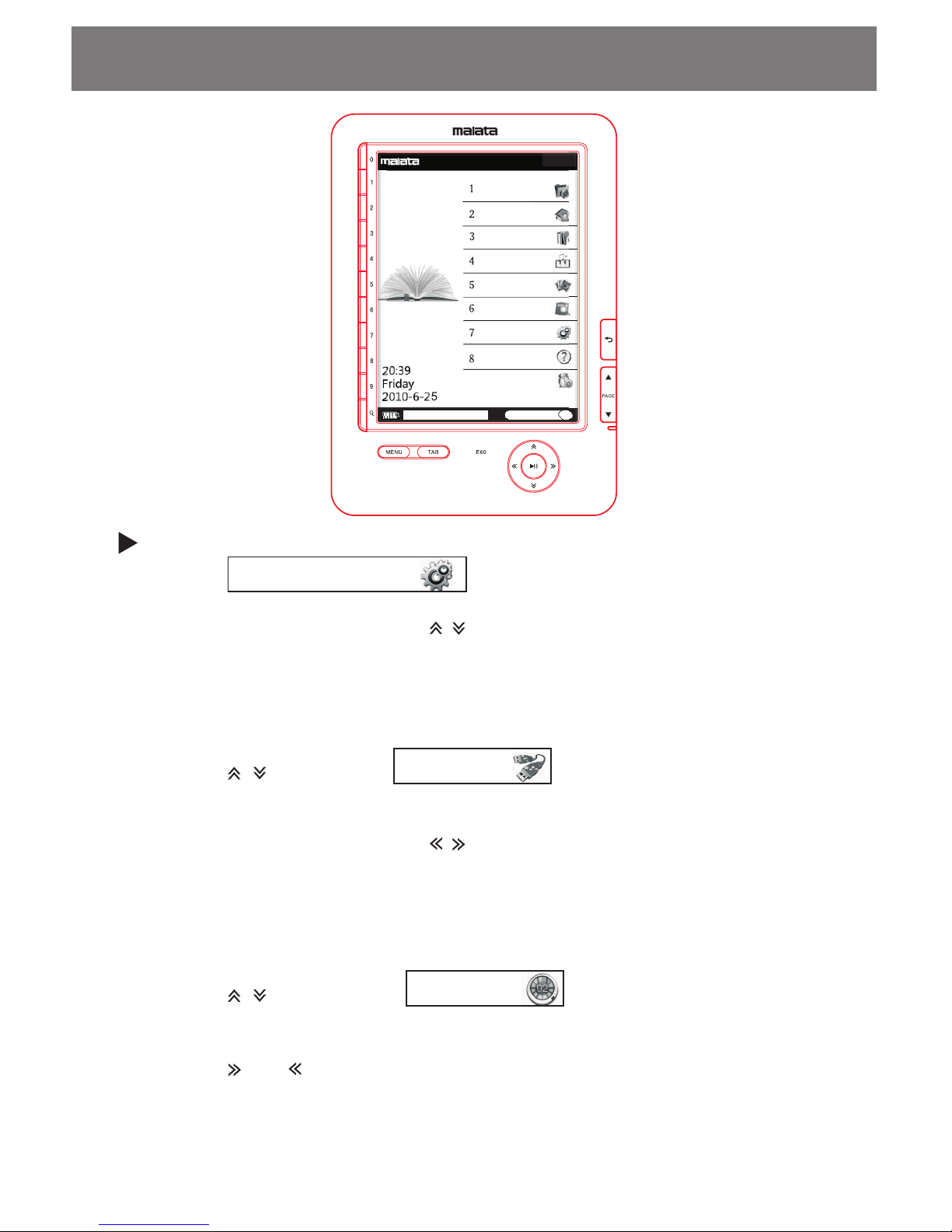
Recent
Favourite
Library
Music
Picture
Book searcher
Settings
Help
9 Power off
Page 2

Thank you for purchasing our eBook.
Please read this entire manual carefully with the unit prior to use,
the documentation will assist you in operating the system properly
to obtain the best equipment performance,please save this manual
for later use.
All important information should be copied for avoiding damage,
deletion or change.
The unit will be upgraded continously, maybe the manual isn't so
detailed, please refer to this device.
Introduction
Cautions and warnings
This unit is a high precision device, so it has some limitation,
please note the following before using it.
Do not detach the unit, refer all servicing to qualified service
personnel when the apparatus has been damaged in any way.
Do not shock the unit violently and drop it from a high place,
if the unit suffer any impacts, LCD may be damaged.
Please enroll in the website " www. malataedu. com "for the
VIP user's right after purchasing the unit.
Do not place the unit in a higher or lower temperature, high
voltage, moisture,a dirty or magnetic environment, any liquid
should not be placed on this unit.
Do not place this unit near any magnetic enviroment, such as
TV or radio which is being played.
Do not use chemical liquid and aerosol cleaner, please use
soft cloth to clean the unit.
If information is lost because of human factor, which will not
be in our duty.
-01-
Page 3

Content
Cautions and warnings
Accessory
Specification
Troubleshooting
Help
Settings
Parts introduction
System connection
Function operation
Browsing picture
Playing music
Ebook library
Favourite books
Recent books
Searching book
-02-
13
13
11
Page 4

Parts introduction
Power on/ off button:turns the
unit on or off.
Number buttons( 1- 9, 0) :
a.select the numbered items on
the list screen.
b.input the page number that
you want to jump to on the
book page.
C.enters a numeric value on
the " settings" menu.
Size button: adjust the text or
picture size.
Menu
TAB: Jump to 10 pages.
/ : roll up page forward /
backward.
Enter/ play/pause:
a.selects an item or applies
a setting.
b.play/pause music etc.
Volumn+ / - : adjust volumn.
Power indicator:
lights up in red while charging.
Flashes in yellow when pressing
buttons.
Recen t
Favou rit e
Libra ry
Music
Pictu re
Book se arc her
Setti ngs
Help
9 Power o ff
( )Return: go up to the upper
page.
/ / /
( )Directional buttons:
a.moves the cursor on the number
tab of the list screen;
b.turn pages on the book page.
-03-
Page 5

USB port
When the device is connecting computer, data will be sent each
other via USB cable.The unit works by battery( Li) built- in.
At any time, connect to the computer or adaptor via USB cable,
charge will be on automatically. After the charge is end,you may
continue to operate the machine by clicking the pop- up window
on the computer.
Micro SD socket
To insert SD card into socket correctly as above indication.
To press SD card and SD card will be ejected directly. For avoiding
damage the device and SD card, please draw SD card out when the
unit is off.
System Connection
Earphone jack
To plug the earphone into earphone jack as indicated above.
Reset
If the device does not work as expected, you may try to reset the unit
by pressing the RESET button with a small pin or clip, then press the
POWER button to turn on the unit.
-04-
Page 6
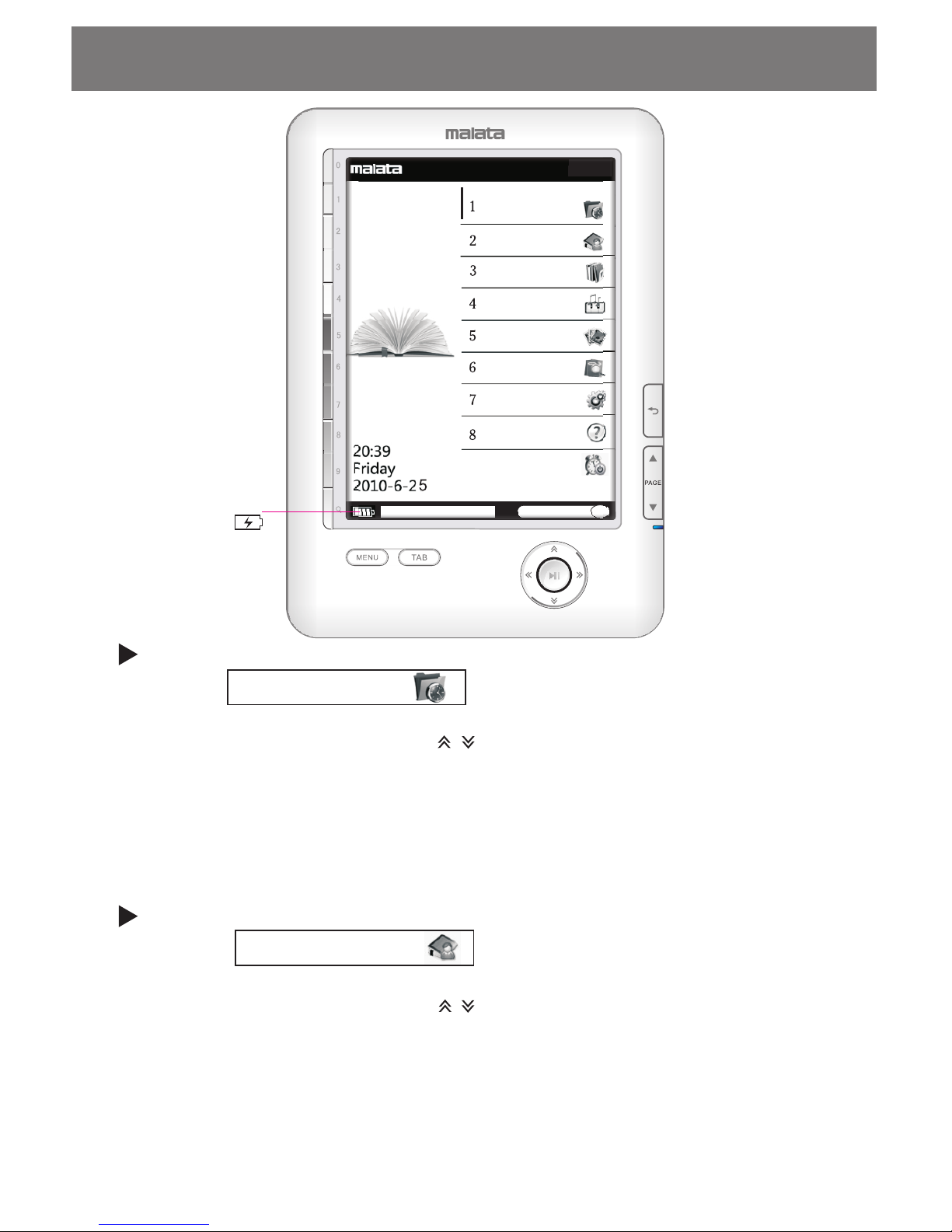
Battery capacity
/charge icon
Function operations
Recent
Favourite
Library
Music
Picture
Book searche r
Settings
Help
9 Power off
1 Recent
or press NUMBER button( 1 )to enter into the main interface.
2.Press directional buttons( / ) to select the desired book
(including recent books).
3.Press ENTER button.
When pressed MENU button at the interface,
Delete:delete the book which is being chosen.
Clean:clean all books.
Exit: exit from MENU.
Recent books
1.Select and press ENTER button
Favourite books
2 Favourite
1.Select and press ENTER button
or press NUMBER button( 2 )to enter into the main interface.
2.Press directional buttons( / ) to select the desired book.
3.Press ENTER button.
When pressed MENU button at the main interface,
Delete:delete the book which is being chosen.
Clean: clean all books.
Exit: exit from MENU.
-05-
Page 7
Function operations
3 Library
1.Select and press ENTER button
or press NUMBER button( 3 )to enter into the main interface.
2.Press directional buttons ( / ) to select the desired book.
3.Press ENTER button.
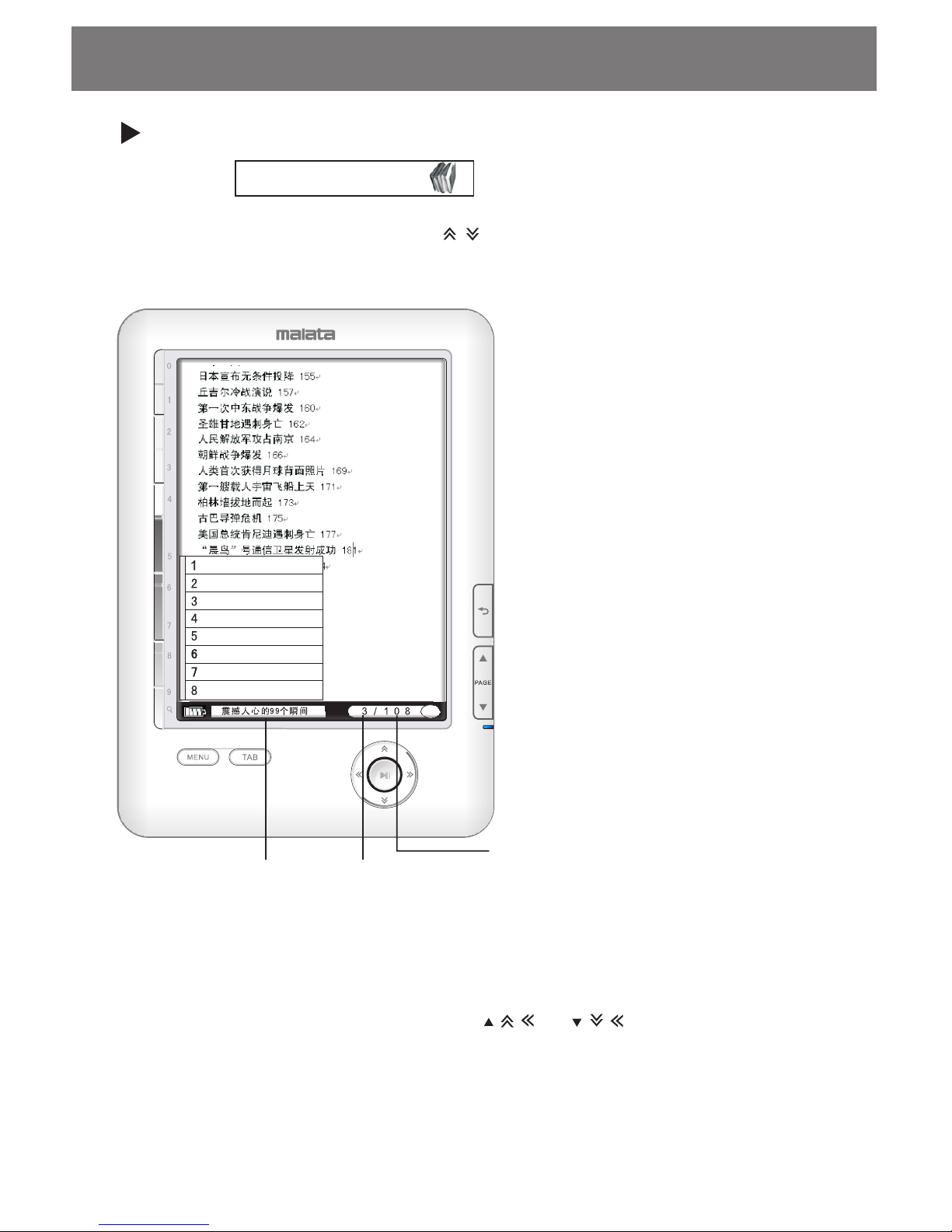
Ebook library
Book na me
Curre nt page n umber
total p age num be r
When pressed MEN U butto n on page s,
1. Zoom: adjust the page size.
2. Go to page: jump to the desir ed
page by selecting.
3. RefershMode: refresh the current pag e.
4. Bookmark: manage book mark.
5. Favorite: add favorite books to
eBook library.
6. Outline: view in dex.
7. Flow model:re-edite PDF file( text) .
8. Exit: exit from the current menu.
Note:
The character transferred to cur ve h as n' t
Flow model o r Zoom fun ctio n.
The selected book is refreshed automatically at the beginning;
if press TAB button, there will be jumping 10 pages ahead; if
press NUMBER buttons,then you may input number and make it
jump to the desired page;if press or ,there will be
jumping to previous or next page.
ZOOM
GotoP age
Refre shMod e
Bookm ark
Favor ite
Outli ne
Flow Mo del
Exit
-06-
Page 8
Not e:
This unit supports JPG, PNG, JIF formats and their size is to 1M.
Function operations
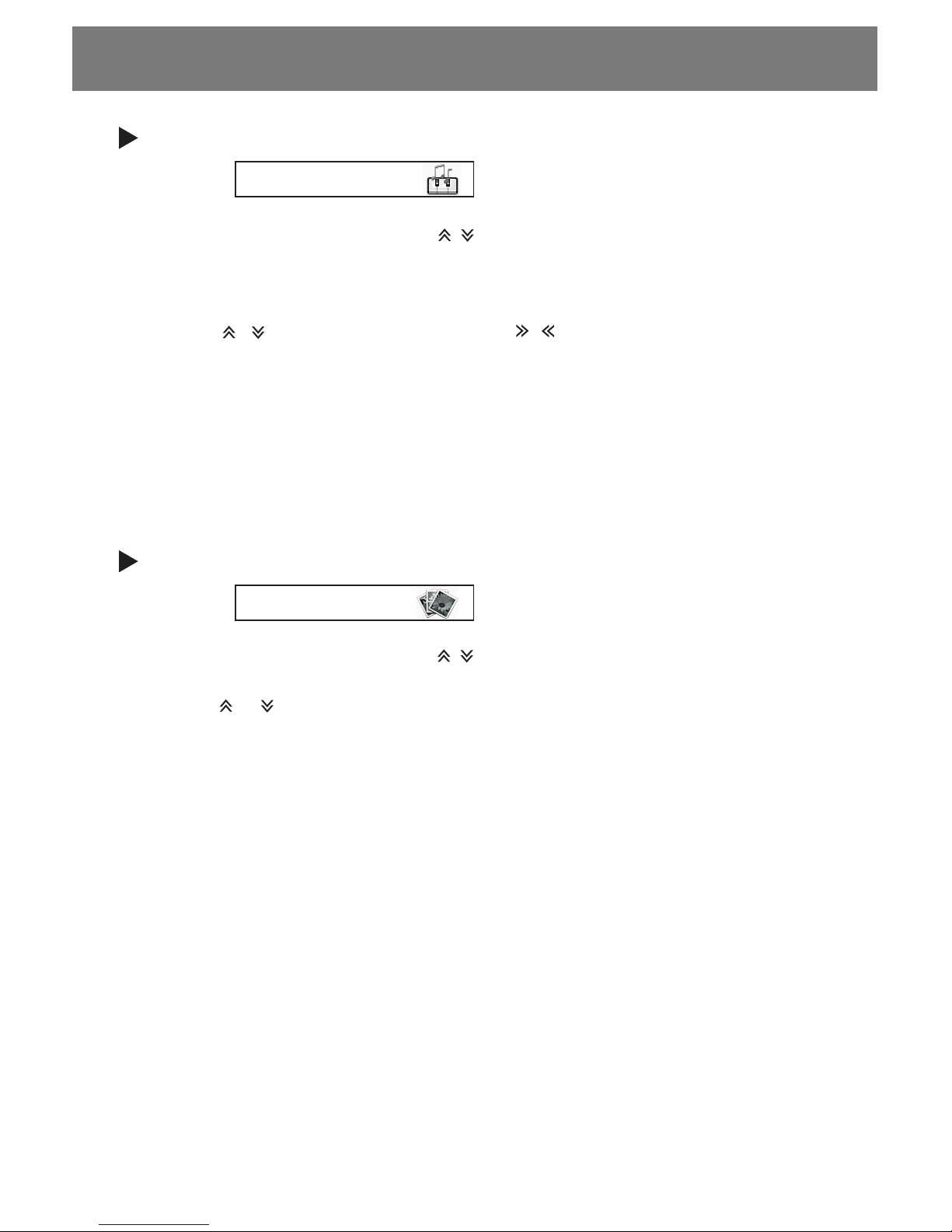
Playing music
4 Music
1.Select and press ENTER button
or press NUMBER button( 4 )to enter into the main interface.
2.Press directional buttons( / ) to select the desired song.
3.Press PLAY button, song will be played , re- press PLAY
button,song will pause.
4.Press Volumn+ or Volumn- to increase or decrease volume.
5. Press / to select song;Press / to enter fast forward
or rewind mode;
When pressed MENU button at the main interface,
Exit: exit from playing mode.
All loop:all song will be played orderly.
Shuffle: all song will be played unregularly.
Single loop: replay the current song continuously.
5 Picture
1.Select and press ENTER button
or press NUMBER button( 5 )to enter into the main interface.
2.Press directional buttons( / ) to select the desired picture.
3.Press PLAY button, the picture will be showed.
4.Press or to view previous or next picture.
When pressed MENU button at the main interface,
Zoom: adjust the picture size.
Rotate: rotate the picture.
Exit: exit from the current picture.
Browsing picture
-07-
Page 9
Searching book
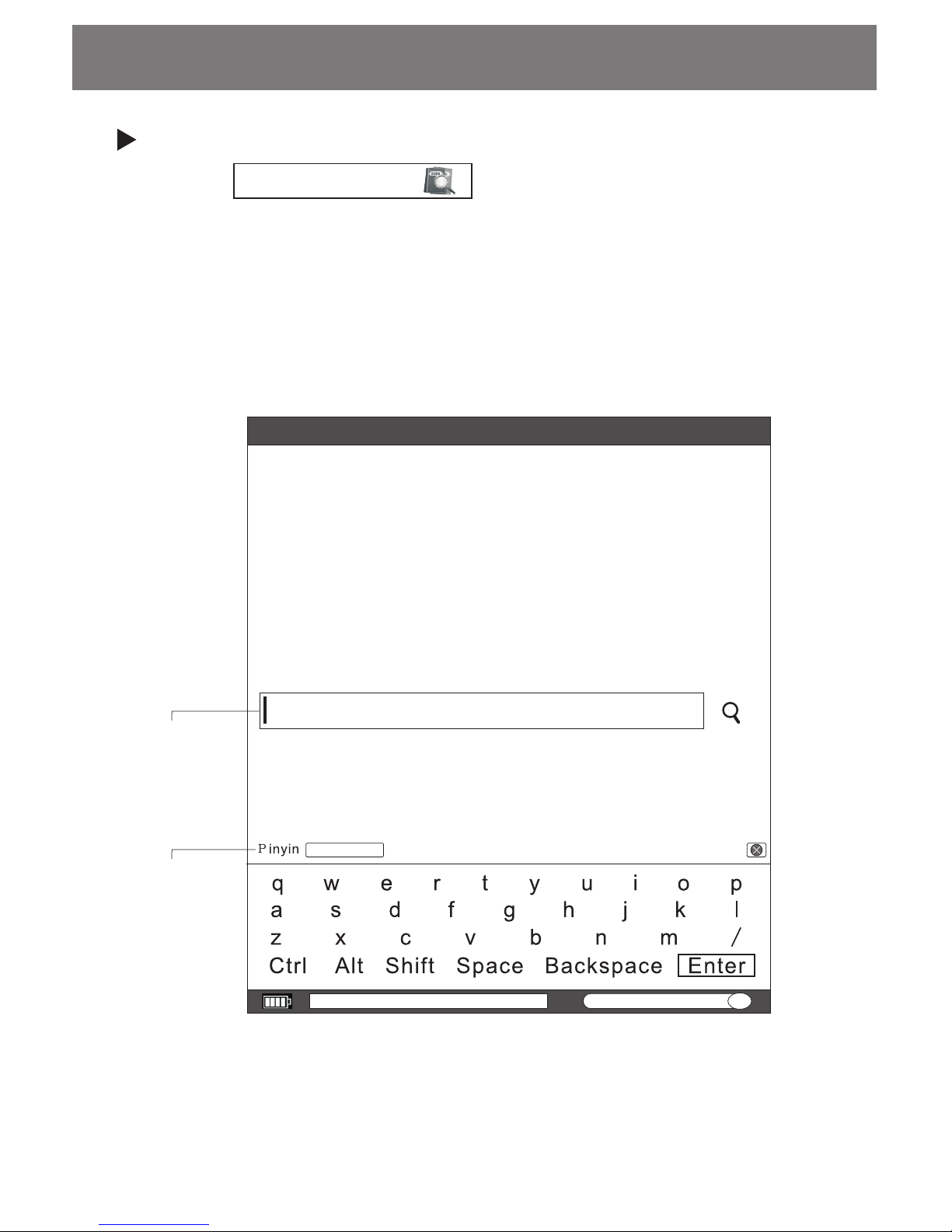
6 Book searcher
1.Select and press ENTER button
or press NUMBER button( 6 )to enter into the main interface.
2.Press TAB buttons to select input method( English/Russian
/Pingyin/Wubi) .
3.Input a book name or a key word by the keyboard.
4.Press RETURN button to close the keyboard.
5.Press ENTER button.
Function operations
Searcher
Input
Press TAB
button to
select input
method
-08-
Page 10
Settings
7 Settings
1.Select and press ENTER button
or press Number button( 7 )to enter into the main interface.
2.Press directional buttons( / )to select setup type(For example:
U Disk, Format, language,Time,Default,Auto off,RefreshMode,
Upgrade and System Info. )
3.Press ENTER button.
Function operations
1.Press" / " to select , then press ENTER
button;or Press Number button(1) directly.
2.Connect the unit to the computer via the supplied USB cable.
3.
4.To find the proper disk( I: ) on the computer and copy files
each other.
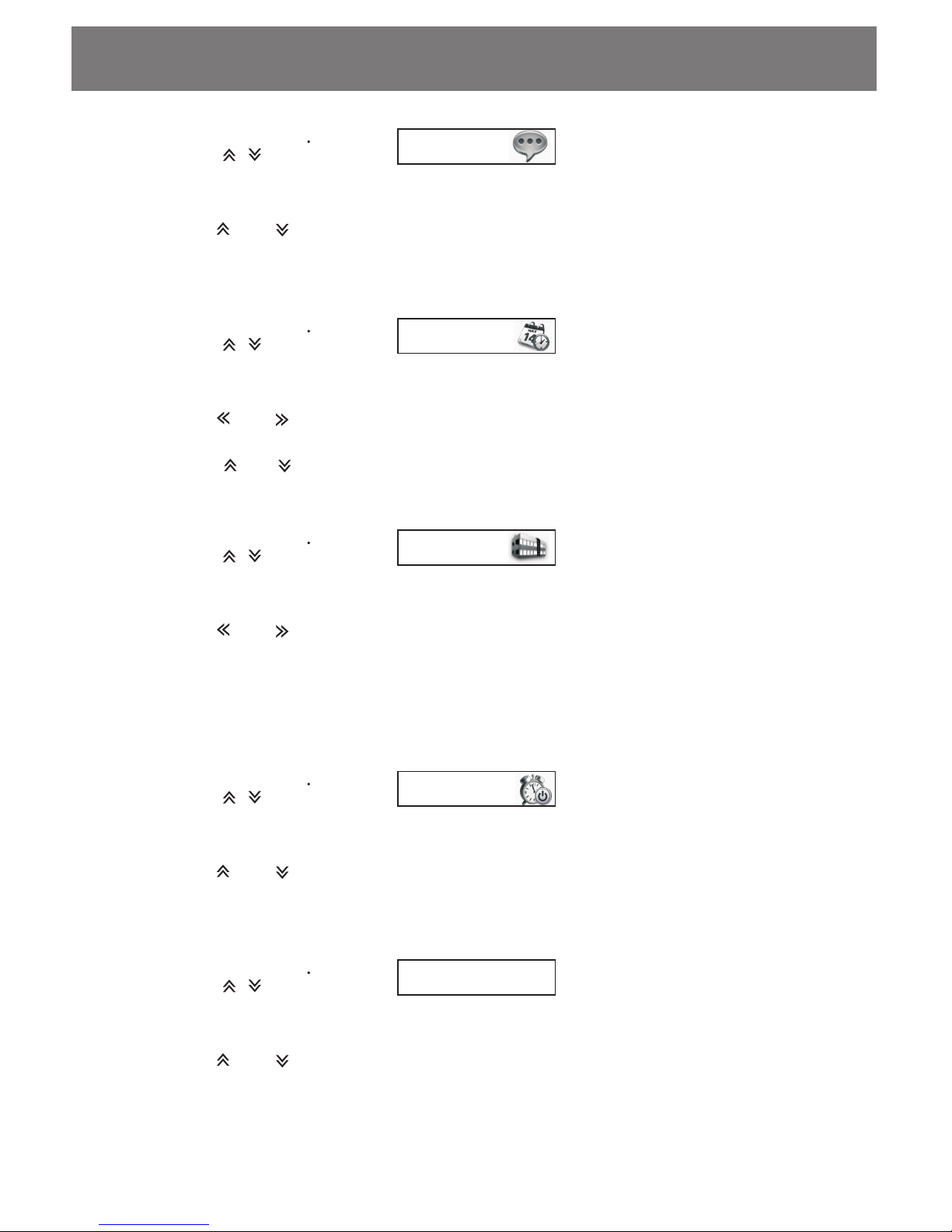
1 Udisk
U Disk
Format
1.Press" / " to select , then press ENTER
button; or press Number button( 2) directly to enter into the
interface.
2. Press or to select Format.
3. Press ENTER button.
2 Format
Recen t
Favou rit e
Libra ry
Music
Pictu re
Book se arc her
Setti ngs
Help
9 Power o ff
eBoo k
Press directional buttons( / )to select "OK"and press ENTER
button.
-09-
Page 11
Function operations
1.Press" / " to select , then press ENTER
button; or press Number button( 3) directly to enter into the
interface.
2.Press or to select the desired language(English,Russian,
Simplified Chinese).
3.Press ENTER button.
3 Languag e
Language
Time
1.Press" / " to select , then press ENTER
button; or press Number button( 4) directly to enter into the
interface.
2.Press or to select setting item(month/ day/ year/ hour
/minute) .
3.Press or to adjust the desired number value.
3.Press ENTER button.
4 Time
Default
1.Press" / " to select , then press ENTER
button; or press Number button( 5) directly to enter into the
interface.
2.Press or to select "Restore".
3.Press ENTER button.
Note:
Above operation will restore the device to initial state.please
make sure the battery has enough power to complete the process.
5 Default
Auto off
1.Press" / " to select , then press ENTER
button; or press Number button( 6) directly to enter into the
interface.
2.Press or to select the time that the unit will be off
automatically.
3.Press ENTER button.
6 Auto off
RefreshMode
1.Press" / " to select , then press ENTER
button; or press Number button( 7) directly to enter into the
interface.
2.Press or to select the refrsh mode(High speed,Low flash,
Good quality).
3.Press ENTER button.
7 Refreshmod e
-10-
Page 12
Function operations
Upgrade
1.Press" / " to select , then press ENTER
button; or press Number button( 8) directly to enter into the
interface.
2.Insert SD card which have upgrade file into socket.
3.Press or to select "System" or "Kernel" .
4.Press ENTER button.
Note:
Do use Upgrade if you are not a professional.
8 Upgrad e
System Info
1.Press" / " to select , then press ENTER
button; or press Number button( 9) directly to enter into the
interface.
2.There are version , time and serial number for view.
9 System Info
Help
8 Help
1.Select and press ENTER button
or press Number button( 8 )to enter into the main interface.
2.There is some infomation how to use the device.
Power off
9 P ow e r of f
1.Select and press ENTER button
or press Number button( 9 )to enter into the main interface.
2.Press or to select " shutdown" .
3.Press ENTER button. The unit will be off.
-11-
Page 13

Information is missing
Maybe information will be missing because of uncertain factor (virus,
voltage stability etc.) , please remember to make a copy for avoiding
any inconveniences and troubles.
Troubleshooting
The unit can' t be operated during connection to computer
Please check if USB cable connect to the computer properly.
Please use the supplied USB cable.
When the operated computer belongs to desktop, you may use front
or back USB port on it.
The file can' t be opened.
Please assure if the format is supported.
Please check if the file is damaged.
There is the difference of code or version.
The advanced E-ink display is used on the unit, its effect is
same as paper' s. If you don't like it, you may press MENU to
select Refresh.
There is shadow on the display during use.
The unit is turned off automatically.
When the voltage is too low, the unit will be turned off
automatically for avoiding damaging battery .You may set the
time for saving energy according to system setup.
The unit doesn't work.
you may try to reset the unit by pressing the RESET button with
a small pin or clip,then press the POWER button to turn on
the unit.
The unit can' t not be turned on.
Please let the unit be charged and use it in half an hour.
The file can' t be saved.
Please check if the program is installed properly.
Please check if the connection between computer and player
is correct.
Please check if memory capacity is enough.
-12-
Page 14
Specification
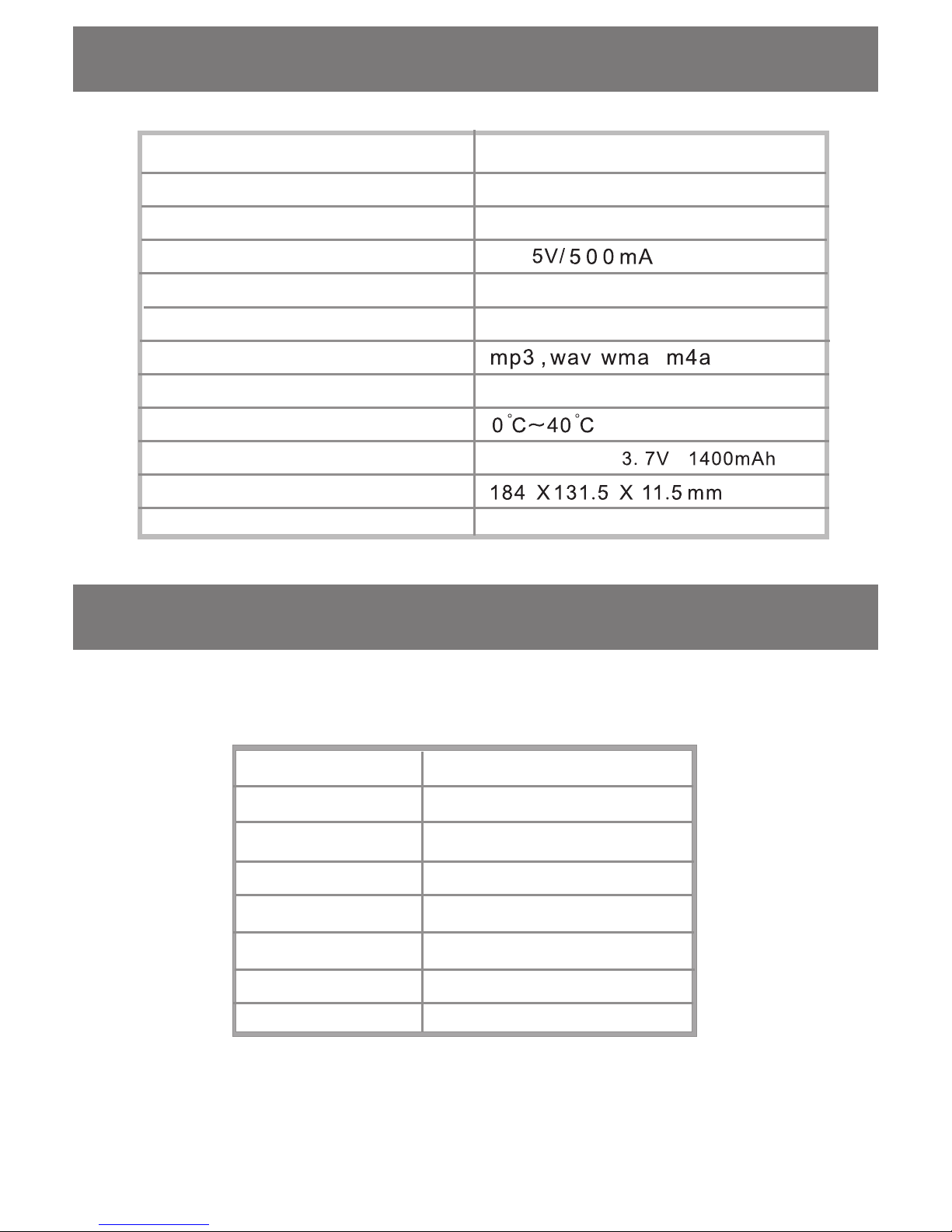
Model
E60
Dimension
Rechargeable battery Li( built in)
Operating temperature
Format(Picture)
JPG, BMP, PNG,GIF etc.
Format(Audio)
To 16GB
External card
(SD)
Port( For download)
USB port
AC adaptor
DC
Available memory capacity
Approx. 2GB
Display
6" e- ink
Accessory
Please read this manual carefully and check all accessories below
before use.
Item
Quantity
Ebook
1pcs
Adaptor
1pcs
USB cable
1pcs
Fur bag
1pcs
User' s manual
1pcs
Warranty card
1pcs
-13-
Page 15
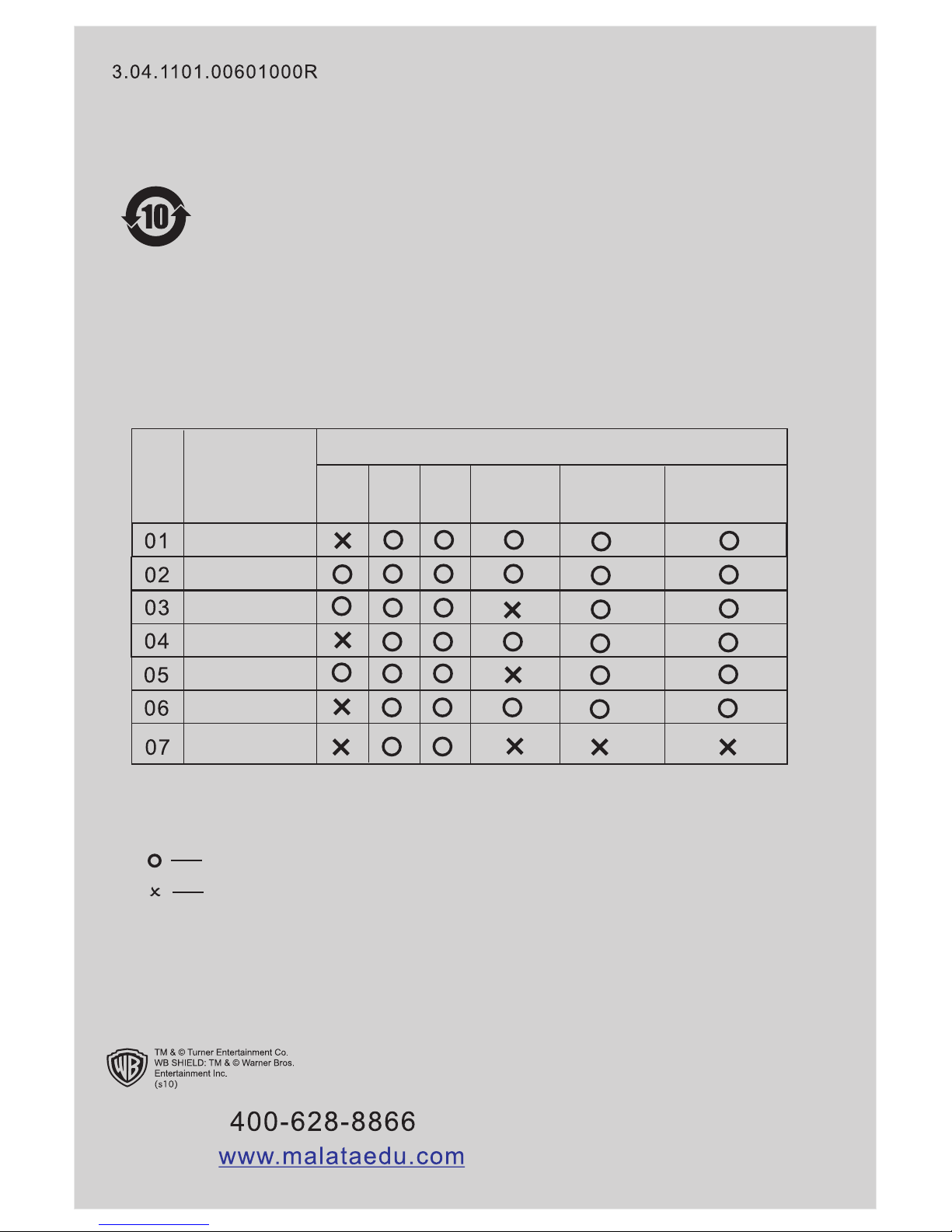
Item
Part name
Lead
Mercu ry
RoHS Directive
Adaptor
Speaker
Display
Plastic
Wire
Metal
Cadmi um
PCBA
Hexav alent
chrom ium
Polyb romin ated
biphe nyls
Polyb romin ated
diphe nyl
ether
six substances
This icon means that the device has ten years life.
During this time,the following substances on this device
do not harm to heath,enviroment or property when you
use it properly.
Please see as below.
Remark:
Comply with SJ/T 11363- 2006
Doesn't comply with SJ/ T 11363- 2006
Website:
Contact:
 Loading...