

Page 1
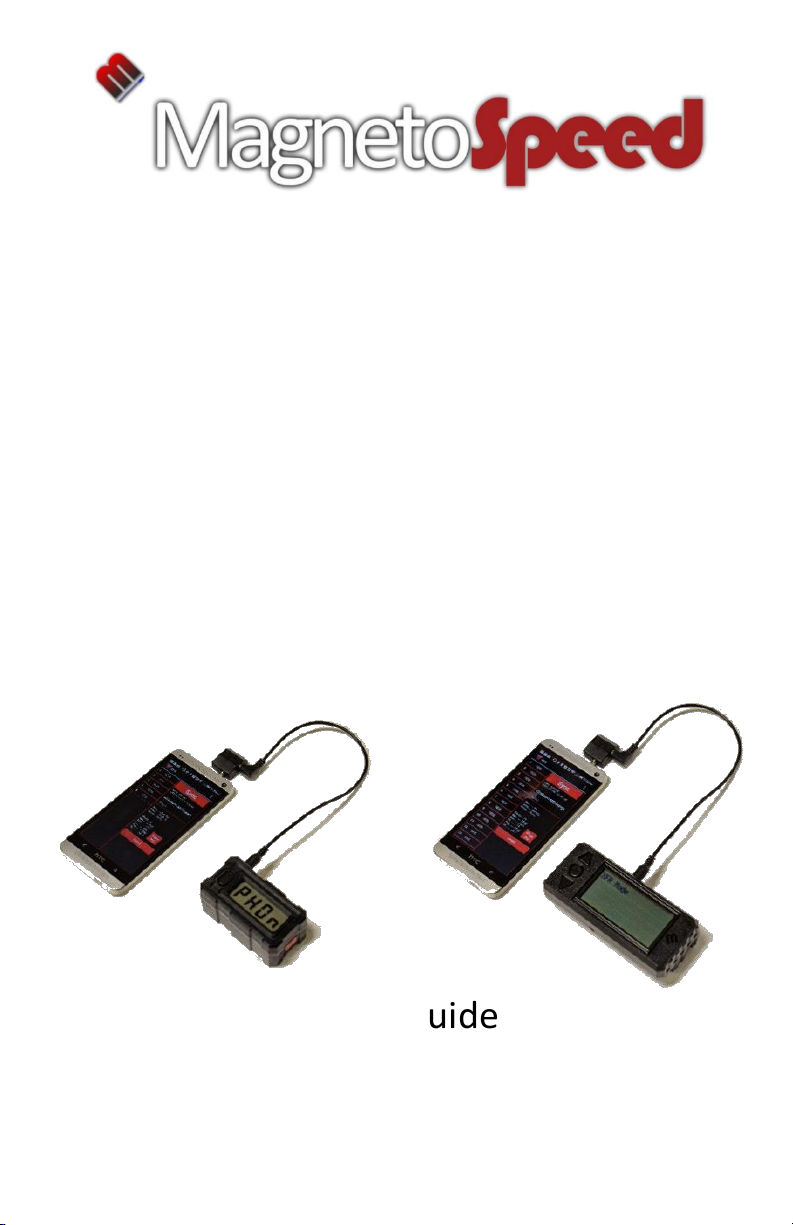
XFR Smart Phone Connector
(Android Version)
For transferring data from a V3 or Sporter
display unit to a smart phone or tablet
Generally, compatible with iPhone and Android
devices. For a full compatibility list, check
www.magnetospeed.com/pages/xfr
Quick Start Guide
Parts List
Detailed Overview
Troubleshooting Guide
Page 2
Quick Start Guide
If you are using a V3, make sure it is
running at least FW 2.1.00. If not, get the
latest FW from www.magnetospeed.com
Connect it
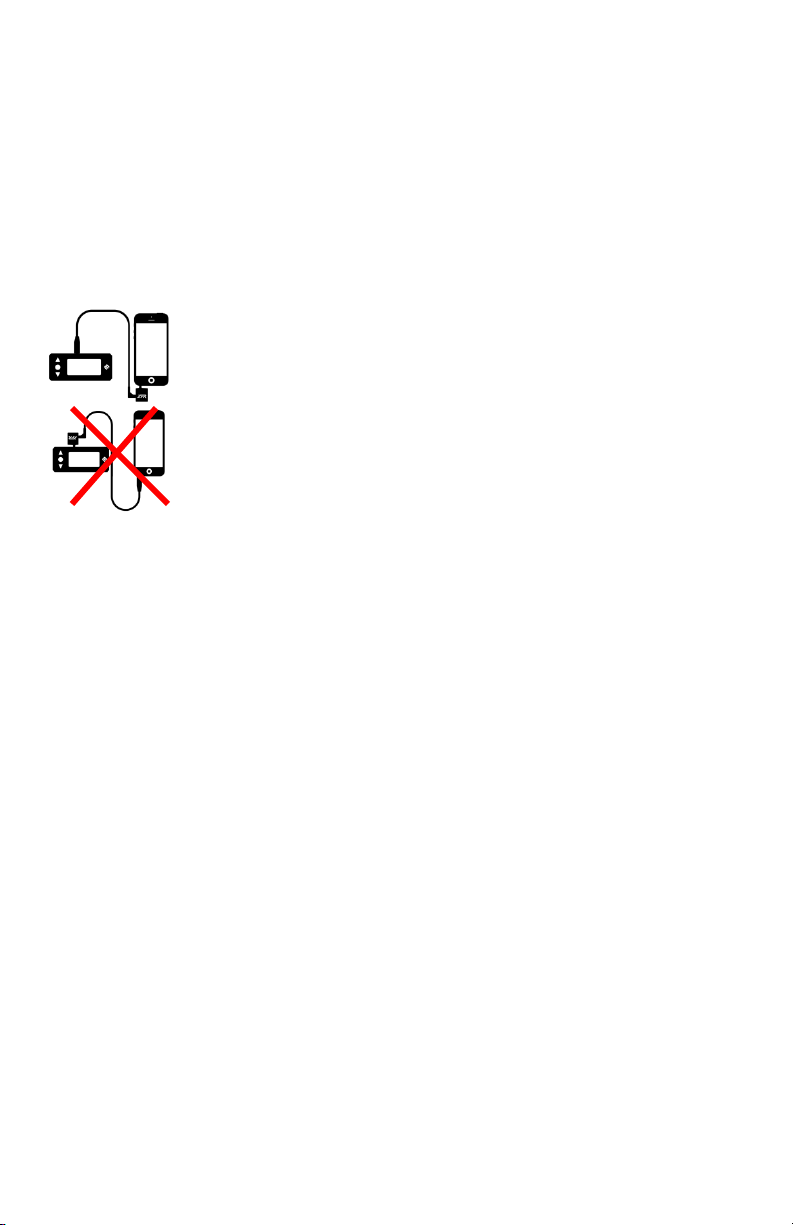
• Plug the male jack on the XFR brick into the phone
or tablet
• Connect the MagnetoSpeed device to the XFR brick
with the included 3.5 mm male-to-male audio cable
• The MagnetoSpeed device should recognize that it
is connected to the XFR brick. If not, try pushing a
button or reconnecting the cables.
Sync it
Configure it
Send it
• Adjust the media volume level to about 60%-90% of
volume.
• Press the “SYNC” button and observe the
MagnetoSpeed device respond to the phone/tablet.
• Give the series a name, if you like.
• Go to the menu and enter an email address; this
only needs to be done once as it is saved in the app
• Note that the menu can also be used to change
settings on the MagnetoSpeed device
• Return to the homescreen and email the file.
• Press the “email” button to send your data attached
as a CSV file.
• You can clear the shots from the phone and/or the
MagnetoSpeed device after sending, or from the
menu
Page 3
Parts List
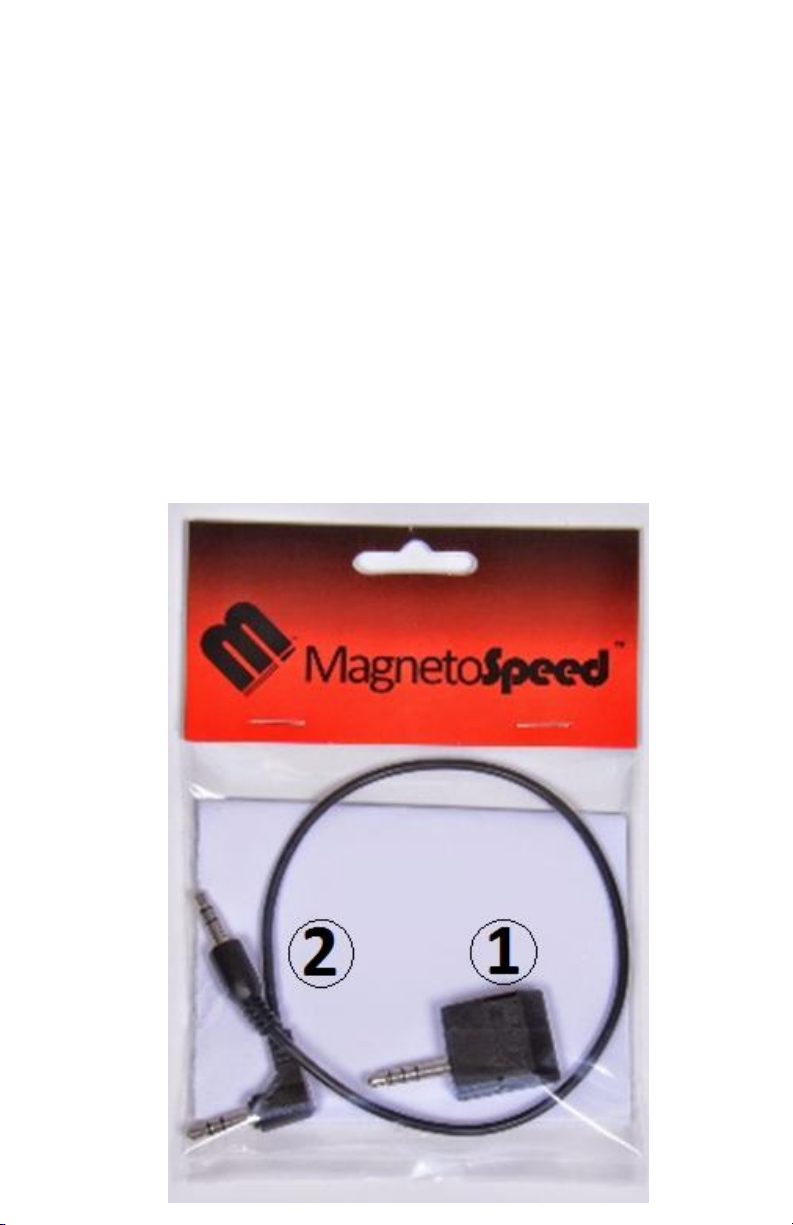
1) XFR Brick
2) 3.5 mm male-to-male
audio cable
Page 4
Detailed Overview
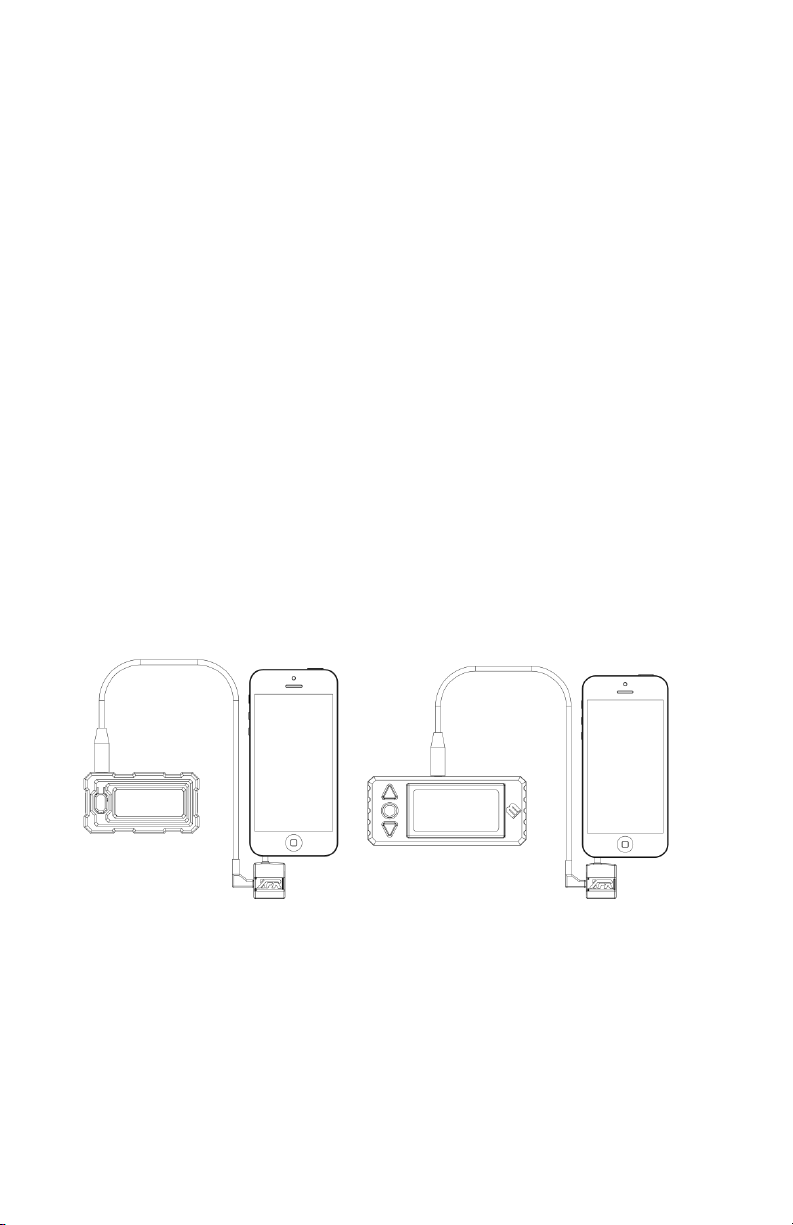
The MagnetoSpeed XFR allows communication between a
V3 or Sporter device and a smart phone or tablet. The
devices communicate in a manor similar to modems, where
signals are encoded and transmitted as audio signals. This
approach allows compatibility with a wide range of devices
and has the advantage of working with existing V3
hardware (though the firmware on the V3 may have to be
upgraded).
MagnetoSpeed has developed apps for the
iPhone and Android devices. These apps let a user retrieve
shot data as well as configure their V3 or Sporter remotely.
These apps are currently in their early stages and will be
expanded to incorporate more features as time permits.
Sporter
V3
Page 5
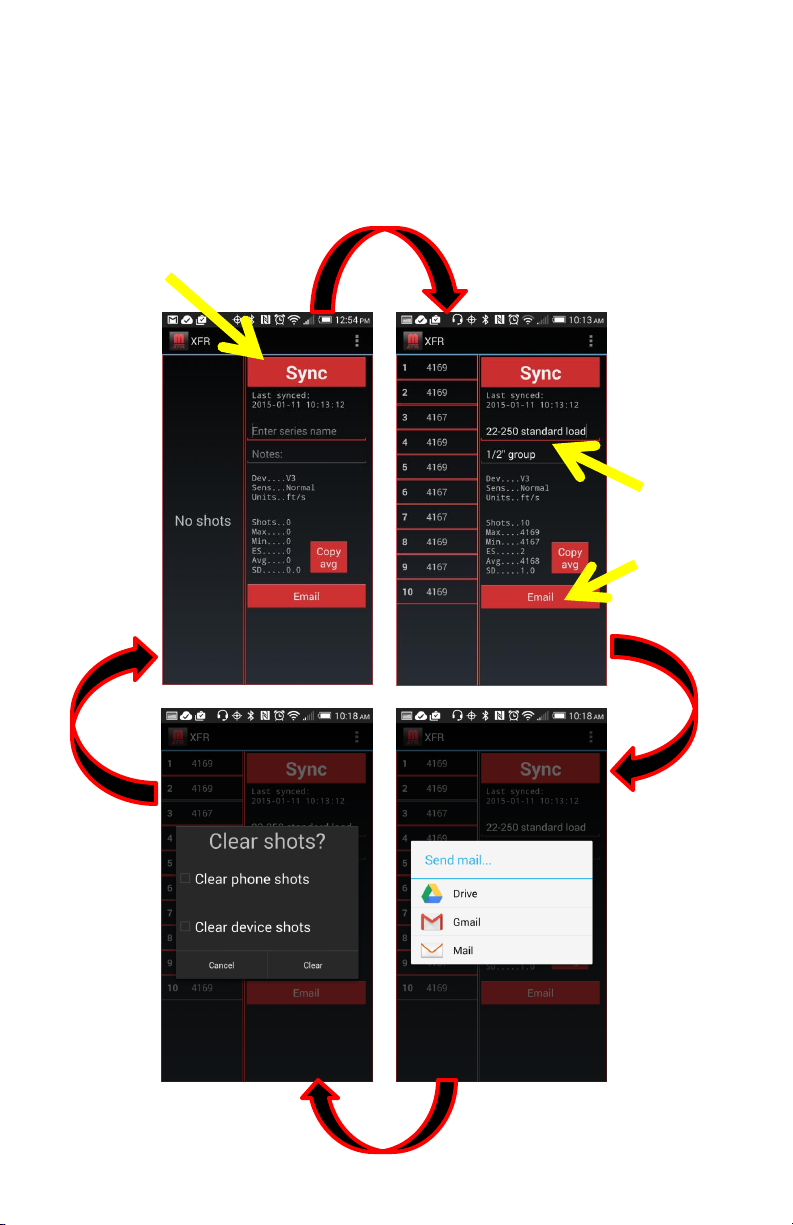
Normal operation
1) Press “Sync” to get data from
V3 or Sporter
2) Enter series
name and any
notes
3) Press “Email”
to export the
data
5) After the
data has been
sent, a popup
appears that
lets the user
clear the
shots from
the phone
and/or the
attached
device.
4) Select desired
way to send data
(these options
depend on you
device, not the
app)
Page 6
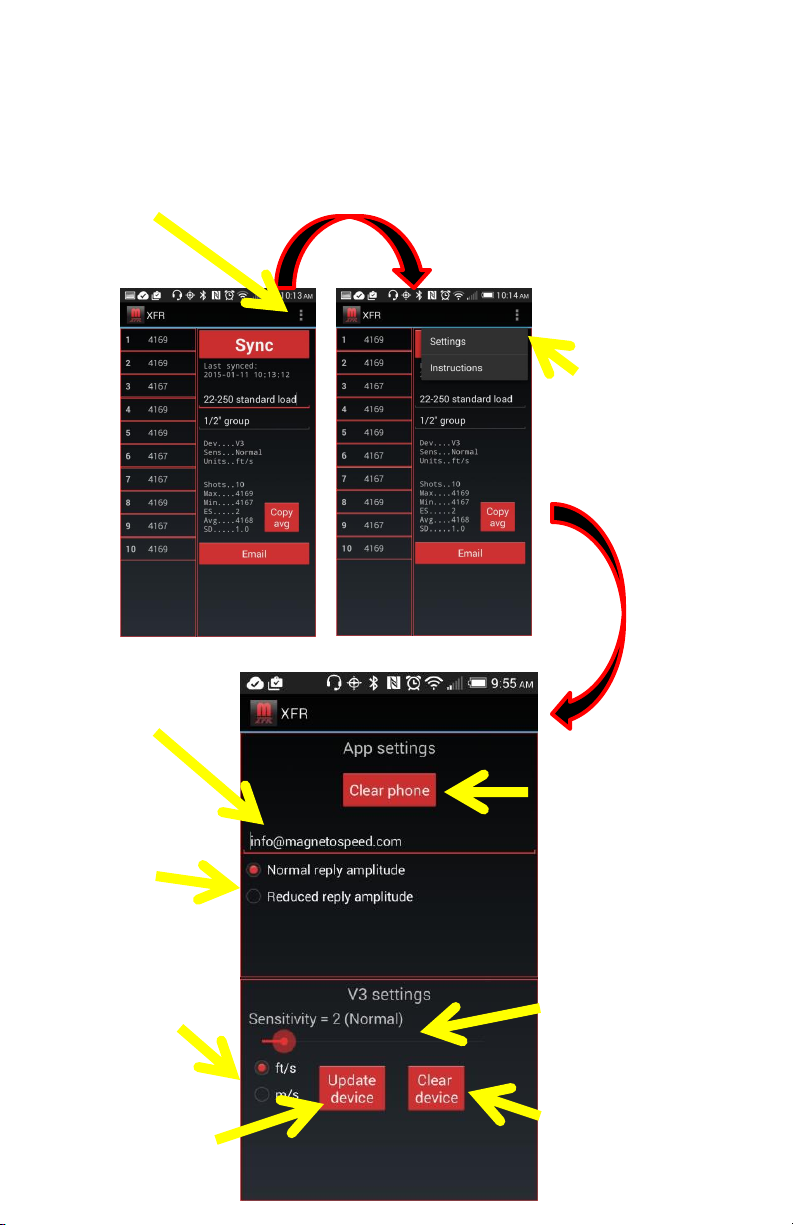
1) Press the
Android
menu
button
The email address that
will be pre-populated
when you send and email
Menu
2) Select
“Settings”
and the
menu
appears
Option used
for phones and
tablets that
have very
sensitive
microphones
Radio buttons to
choose the units
for both the
phone and the
attached device
Sends the updated
configuration to the
attached device
Clears the shots from the
phone/tablet, but not the
attached device
Slider to adjust the
attached device’s
sensitivity
Clears the shots from the
attached device, but not
from the phone/tablet
Page 7
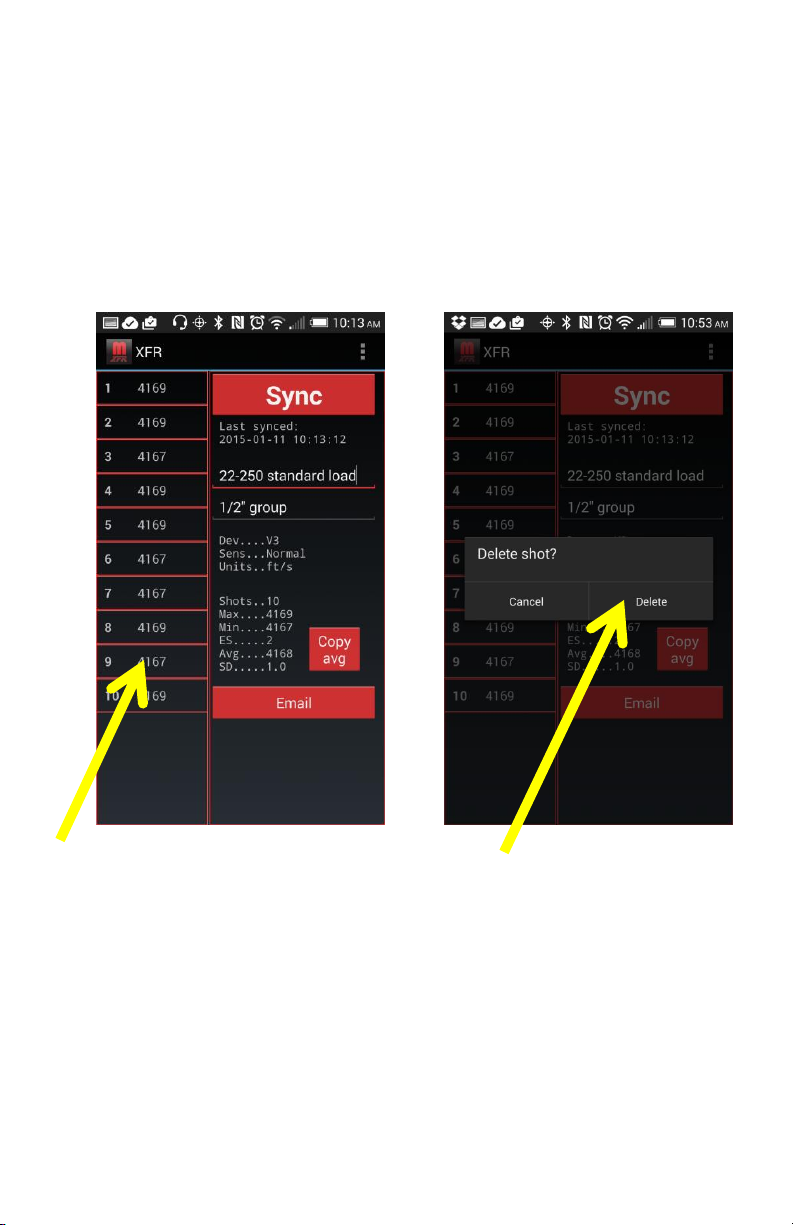
Deleting a shot
1) Press the shot to delete
from the list.
2) Confirm to delete the shot.
Note that the shot is only
removed from the app; shot
data is never transferred back
to the attached device.
Page 8
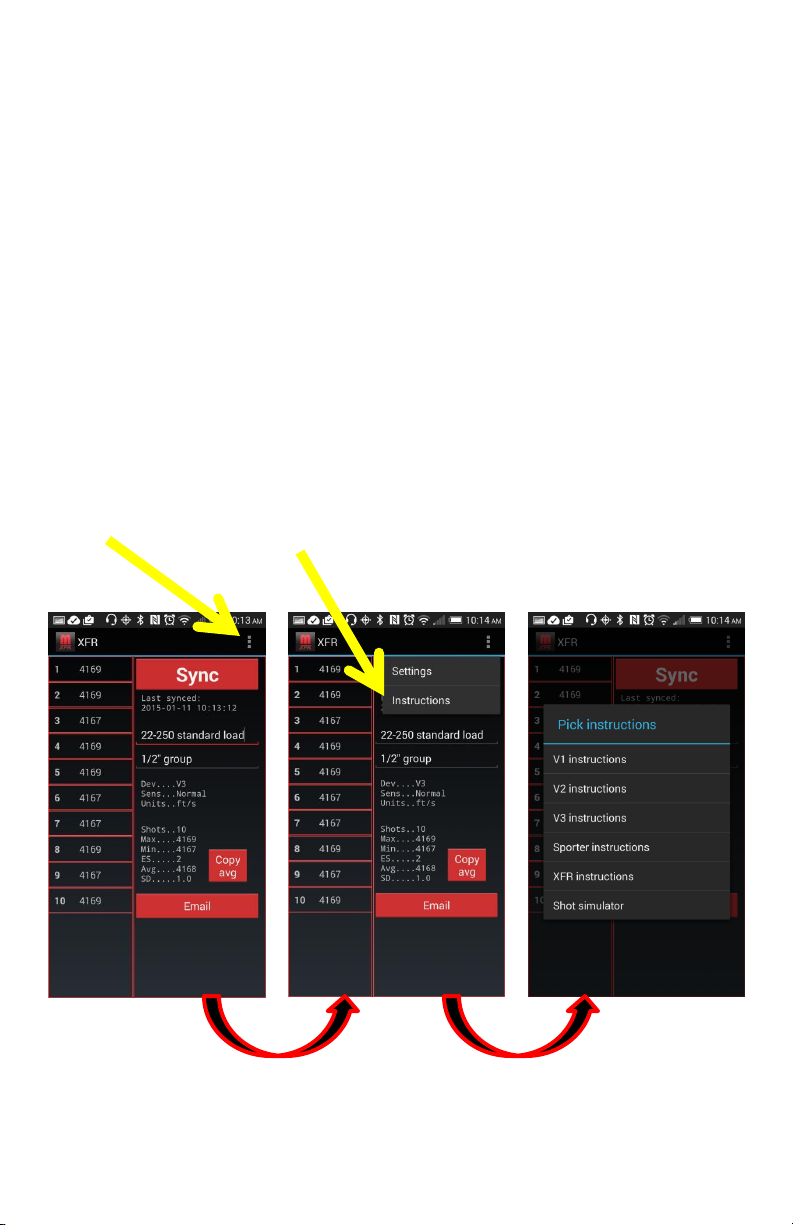
Accessing instructions
3) Choose the desired
instructions from the list.
The shot simulator
1) Press the
Android
menu
button
2) Select
instructions
enables the phone/tablet
to act as a “virtual bayo”
which can be useful for
testing the operation of
the MagnetoSpeed
device before using it at a
range/
Page 9

Troubleshooting
Guide
If you have an Android device, please check
www.magnetospeed.com/pages/xfr
for any special notes about using your device and for a list of
tested devices. Supporting Android devices is a challenge due to
the diverse implementations that manufactures use for both
their headphone outputs and microphone inputs. We are doing
our best to support as many devices as our hardware will allow.
1) MagnetoSpeed device doesn’t recognize XFR brick
– Try reconnecting the 3.5 mm cable
– For the V3, make sure your firmware is up to date. The
XFR requires at least FW 2.1.00
2) MagnetoSpeed device doesn’t acknowledge anything when the
phone/tablet attempts to sync
– Make sure your volume is high enough
– Unplug the XFR, and make sure you can hear audible
“chirps” when you press “sync”
– Reconnect XFR and try again
3) MagnetoSpeed device displays an “invalid response” or “err” when
attempting to sync.
– This means the device is having trouble decoding the
signals it is getting from the phone. This is generally
caused by a volume level that is barely enough to trigger
the MagnetoSpeed device, but too low to be properly
decoded. Some smartphones introduce significant
distortions and artifacts at high volume levels, so maxing
out the volume does not always solve the issue. Try to
find a volume level that works, if that is not possible,
contact MagnetoSpeed.
Page 10

Troubleshooting
Guide
4) MagnetoSpeed device responds with “Sync” when a sync is
attempted, but the phone/tablet does not get a valid response.
– Try setting the “reduced reply amplitude” in the menu.
This changes the codes sent by the phone/tablet so that
the MagnetoSpeed device will respond with a much lower
magnitude signal. This lower magnitude signal works
better with phones/tablets that have very high
microphone gains.
– Contact MagnetoSpeed and if running the Android app,
send us the “diagnostic.csv” file in the magnetospeed
folder on your phone or tablet.
 Loading...