

Page 1

Page 2

Quick Start Guide 1
Package Contents 2
Safety Precautions 3
Product Specications 4,5
Device Layout
Front, Top, Left 6
Back, Bottom, Right 7
Handling Your Device
Charging Your Device 8
Turning On/O Your Device 8
Sleep Mode On Your Device 9
Index
Getting Started
Windows® 8 Start Screen 10
Windows® 8 Desktop 11
Charms Bar 12,13
Turning O the Device with Settings 13
Switching Between Applications 14
Using the Application Bar 15
Closing an Application 15
Device Warranty 16
Page 3

Page 4

Quick Start Guide
Congratulations on your purchase of a MAGIC Zlate™ 11.6” Windows® 8 Tablet Computer.
This guide is provided to help you get started quickly with your device, please read it carefully
and save it for future reference.
For detailed instructions, up-to-date information and helpful tips, please visit the product website
at www.tcdmagic.com.
The Quick Start Guide information is protected by International Copyright Laws. Any parties, without our prior consent,
are not permitted to copy or reproduce. Our company reserves the right to the nal interpretation of this manual.
1
1
Page 5

Package Contents
Please make sure that the items shown below are included in the package.
Should an item be missing, please contact the local retailer from where you purchased this product.
1) MAGIC Zlate™ Tablet Computer
2) Power Adaptor & Cable
3) This Quick Start Guide
4) Detachable Keyboard
This package may contain plastic packaging or other smaller objects which may pose a hazard to infants, children or small pets.
Please dispose of packaging materials safely and properly.
2
2
Page 6

Safety Precauons
• Avoid placing the device near any strong magnetic field.
• Do not allow the device to be dropped.
• Do not expose the device to wet and damp environments.
• Do not use any chemical cleaner to clean the device.
• Do not switch off the device during software updates or in uploading and downloading processes.
• Use only power adapters supplied with this device.
• Do not use the device in a restricted area.
• Use only original accessories and batteries designed for the device.
• When connecting to other devices, please refer to the peer device’s user manual for detailed
safety instructions.
3
3
Page 7
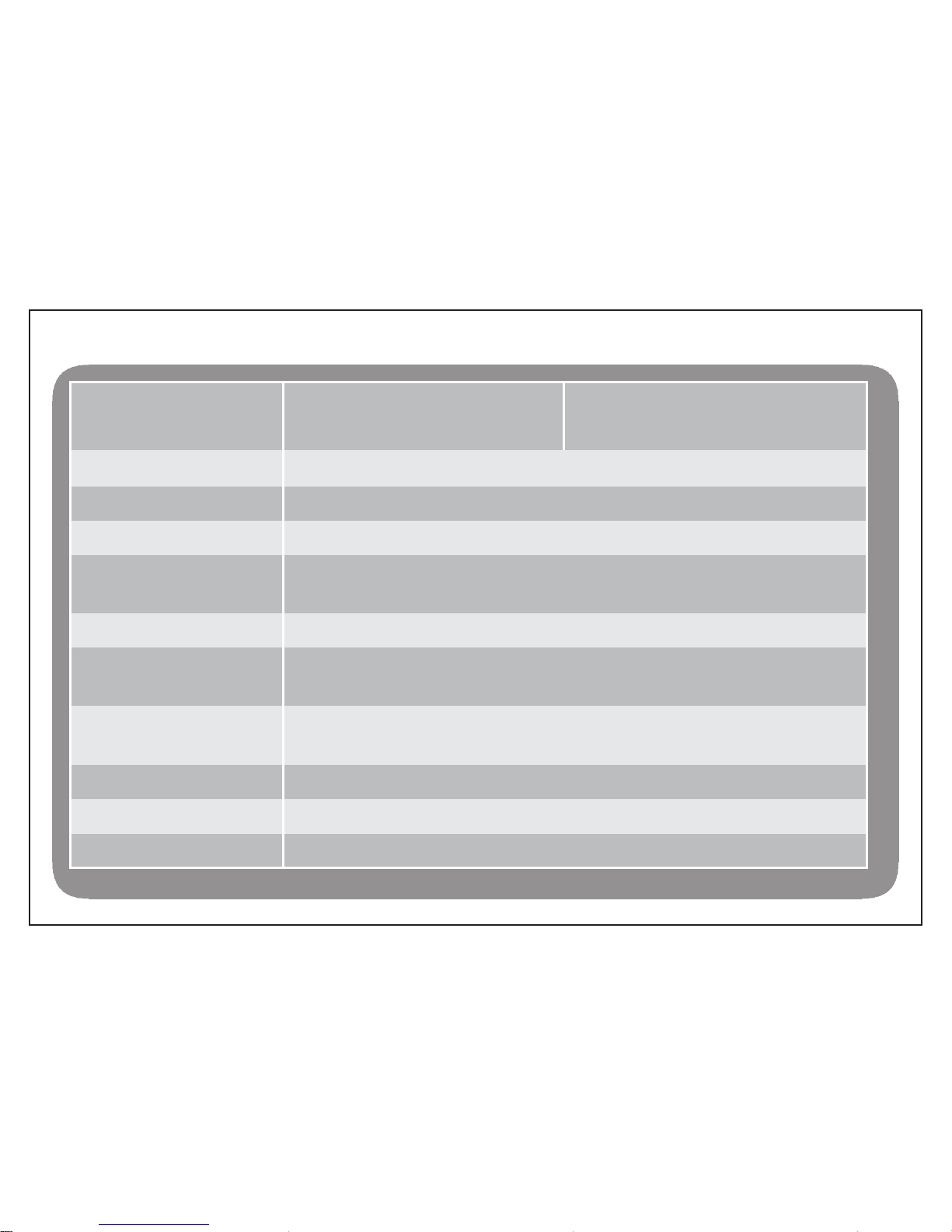
Device Model ZTX1- 6 -34AWX ZTX1- 6 -14BWX
Intel® Processor
Celeron® DualCore Up to2.42 GH Pentium® QuadCore Up to 2.58 GHz
Storage Memory 32GB 64GB
Operating System Windows® 8.1
RAM 4GB LPDDR3
Display 11.6” 1366 x 678 HD Resolution
10 Points Capacitive Touch Screen
GPU Intel Generation 7 Graphics
Audio Stereo Speakers
Integrated Microphone
Wireless Wi 802.11 b/g/n/ WiDi Enabled
Bluetooth 3.0HS/4.0
Dimension 304mm x 196mm x 11mm
Weight ~800 gram
Battery 35W/Hr
Product Specificaons
4
4
Page 8
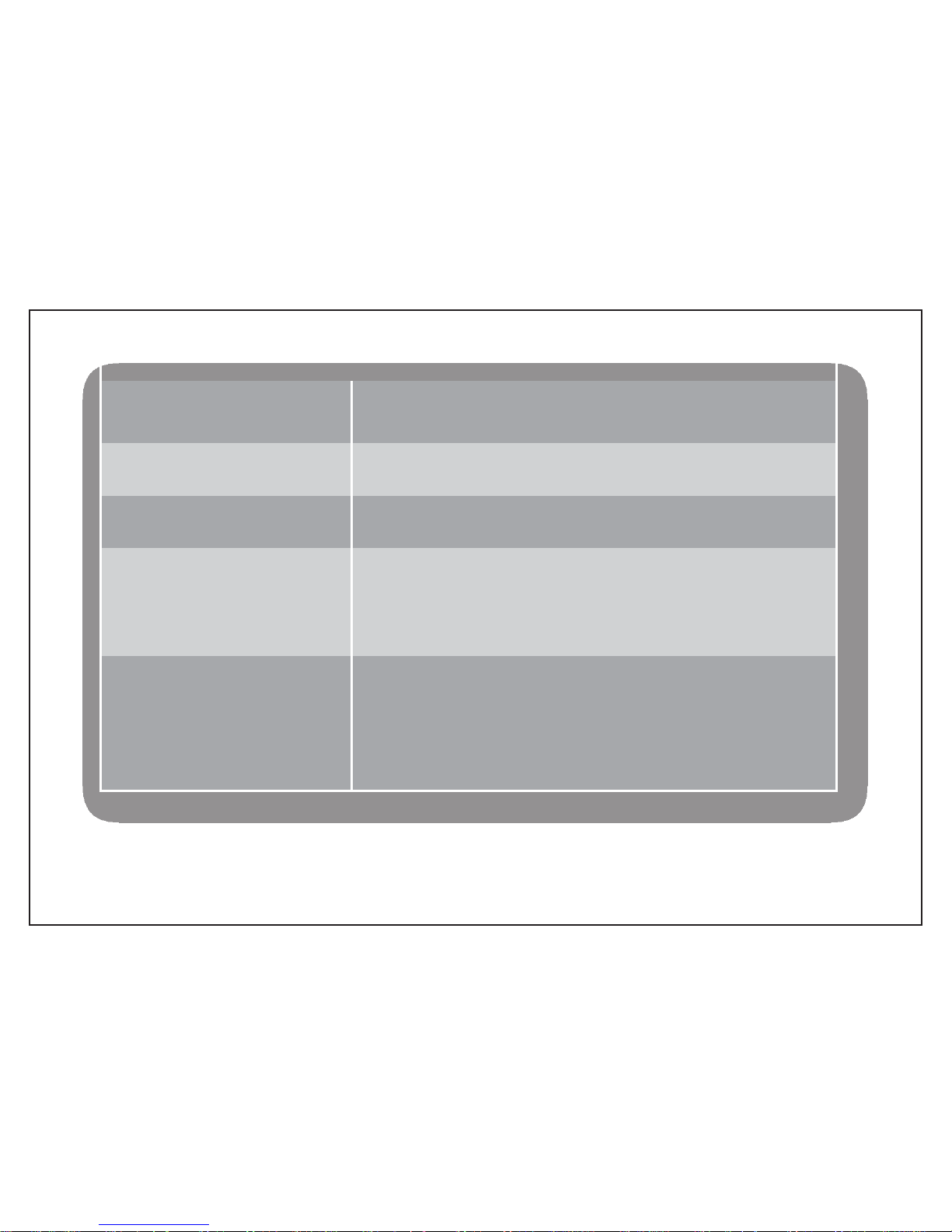
Cameras 5.0 MP
2.0 MP Webcam
Sensors G-Sensor
Accelerometer
E-Compass
Ambient Light Sensor
Hardware Control Power Button
Windows Home Touch Button
Volume +/ Rotation Lock Toggle
Ports USB 3.0 x 1
Mini HDMI x 1
3.5mm Audio Jack x 1
SD Slot
DC Charging Port
Product Specificaons
5
5
Page 9
2
5
6
7
4
1
3
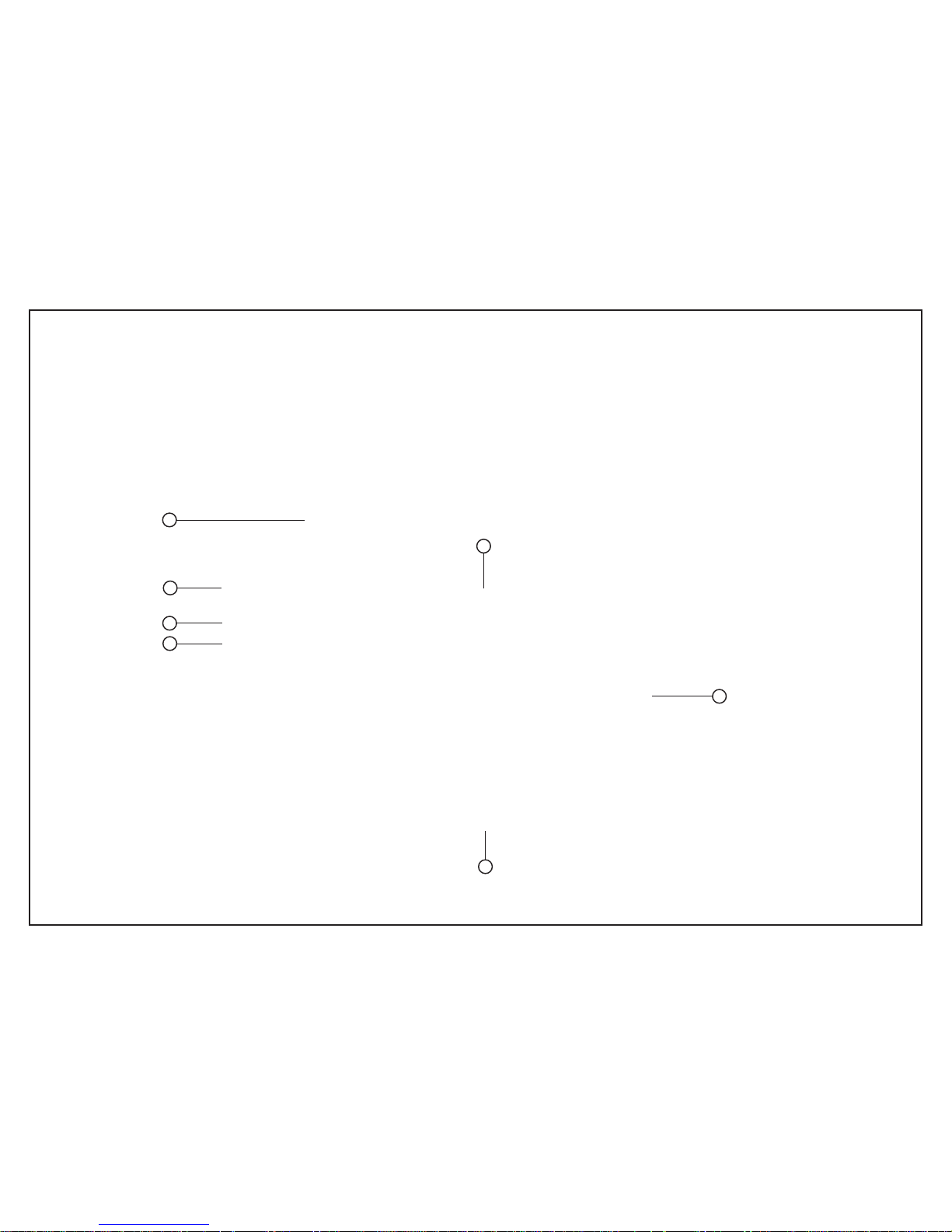
➀ Power Button ➃ USB Port ➆ 2.0 MP Webcam
➁ Mini HDMI Port ➄ Micro SD Card Slot
➂ LCD Display ➅ Windows Home Button
Device Layout (Front, Top, Le)
6
6
Page 10
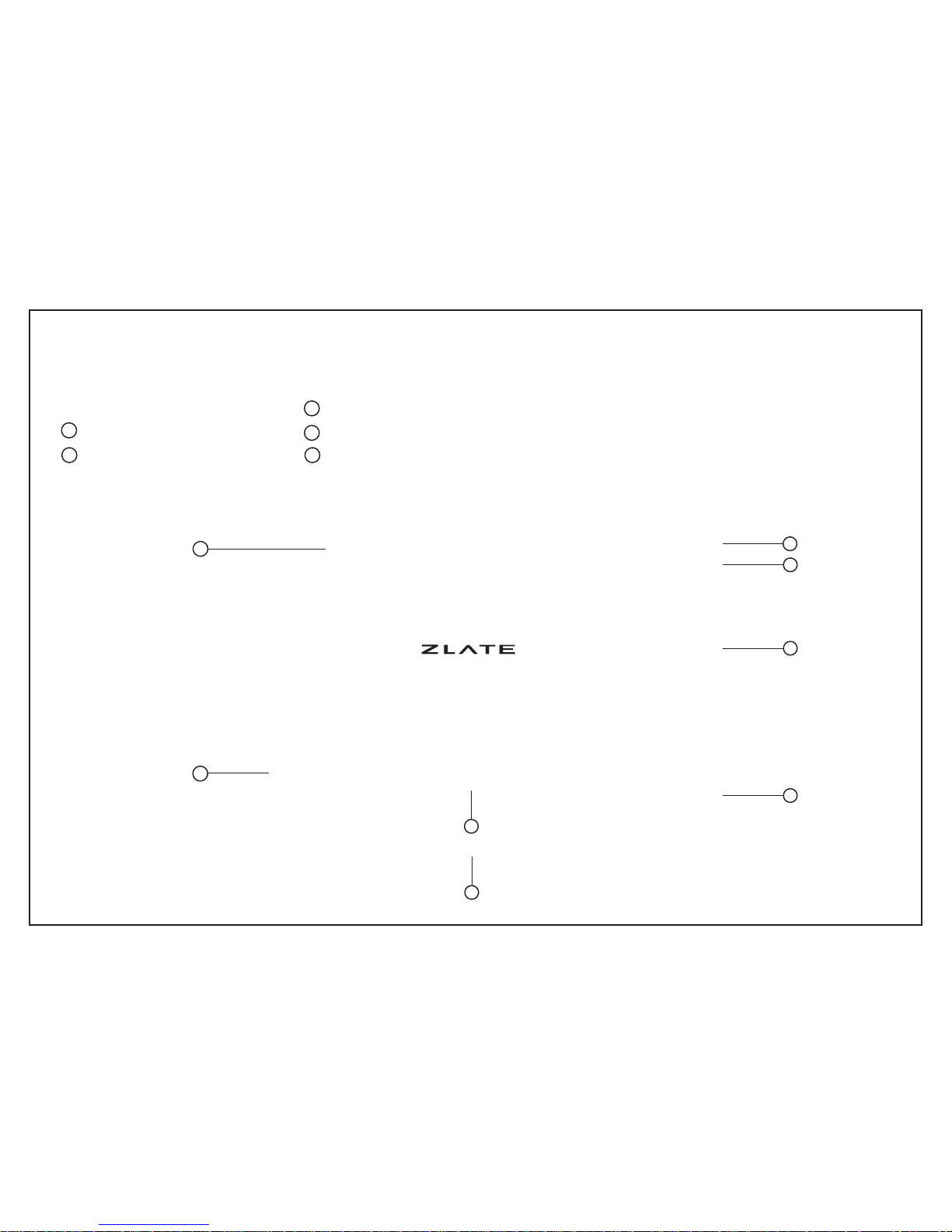
➀ 3.5mm Audio Jack Volume +/- ➂ Charging Port
Rotation Toggle Lock Stereo Speakers ➅ Docking Connectors
Kick Stand 5.0 MP Camera
Device Layout (Back, Boom, Right)
7
4
6
7
2
1
3
MAGIC
2
4
5
5
8
87
7
Page 11

8
Charging Your Device
Before using your device for the 1st time or if left unused for extended periods,
the internal battery must be charged to use the device.
Plug the connector end of the adaptor to the device to charge it.
The indicator light will blink red while the device is being charged.
Turning On/O Your Device
Press Power Button once to turn on the device. The indicator light will turn a steady green.
Press & Hold the Power Button to turn o the device.
Handling Your Device
Note: Device should ideally be turned o using the Shut Down option from the Charms Menu.
Please see Getting Started section for more info.
8
Page 12

Sleep Mode On Your Device
Sleep Mode preserves the battery life of your device.
Press the Power Button once while device is turned on to put the device to Sleep Mode.
The indicator light will blink green.
The device will automatically enter Sleep Mode when inactive for a period of time.
Enable / Disable Keyboard
Hold volume + and volume - keys at the same time for 4 seconds to enable / disable the keyboard.
Handling Your Device
9
9
Page 13

Windows® 8 Start Screen
The Start Screen provides access to all installed applications on your MAGIC® device.
Swipe left or right to view more tiles, swipe upwards to view all applications installed.
The Windows Home Button always returns you to this Start Screen.
Geng Started
The Start Screen where Windows® 8 Apps
can be launched by tapping on a tile.
Swipe upwards to view all applications
installed on the device.
10
10
Page 14

�
Windows® 8 Desktop
The desktop is where legacy applications (Windows® 7 and below) can be run.
The desktop also provides access to advanced features of your device such as networking tools
and a ‘windowed’ multi-tasking environment.
Tap on the Desktop tile to run the device
in desktop mode.
Run legacy software applications in the
desktop environment.
Geng Started
11
11
Page 15
Charms Bar
The Windows® 8 Charms Bar is opened by
swiping left from the right side of the device.
The Charms Bar contains various commands
to interact with the system and device.
These commands are: Search, Share, Start,
Device and Settings.
Geng Started
Search
Tap Search and enter keywords into the Search Box to nd les or applications.
Share
Tap Share to easily transfer or upload les and multimedia to social networks
or other contacts.
Start
The Start button returns you to the Start Screen from anywhere.
12
12
Page 16
Turning O the Device with Settings
It is advisable to Turn O the device
using the Settings Charm.
To Turn O the device, open the Charms
Bar and tap Settings.
Select Power O from the menu.
Device
This feature allows easy access to any device connected to the computer such
as a digital camera.
Settings
The Settings charm allows conguration of the device such as volume and display
brightness control, and turning o or sleeping the device.
13
13
Page 17

Swipe right from left edge to switch to next
open application.
Swipe right > left from left edge to reveal
menu of open applications.
Switching Between Applications
To switch between applications in Windows® 8, swipe right from the left edge of the screen
display to cycle between all open applications.
To switch to a specic opened application, swipe right then left immediately from the left edge
of the screen, to reveal a menu bar of opened applications.
Geng Started
14
14
Page 18

Using the Application Bar
The Windows® 8 App Bar is opened by swiping upwards from the bottom of the screen display.
The App Bar displays commands available for the current application that is being used.
Closing an Application
To completely close an opened application, start swiping from the top edge of the screen display
downwards while in the application to be closed.
Geng Started
15
15
Page 19

Device Warranty
16
16
 Loading...