

Page 1
(Security device)
September 2008
English
Page 2
Introduction
Your Cadman program has been shipped with a security device called a Wibu-key (green
connector plug).
Before you can run the software it is necessary to install the proper Windows drivers.
After installing the drivers, please ensure that this Wibukey is attached to the proper
port on the computer. USB port or parallel port depending on the delivered key.
NOTE :
Close all the programs that are running under windows.
Make sure that you are logged in as Adminstrator !
Remark: Please make sure that the computer is free from viruses, adware, spyware,
Trojan or other virus like infections before you start the installation ! If you do not have
antivirus software you can us the online scan (located on the documents Cd) to check
if your system is free from infections.
Page 3
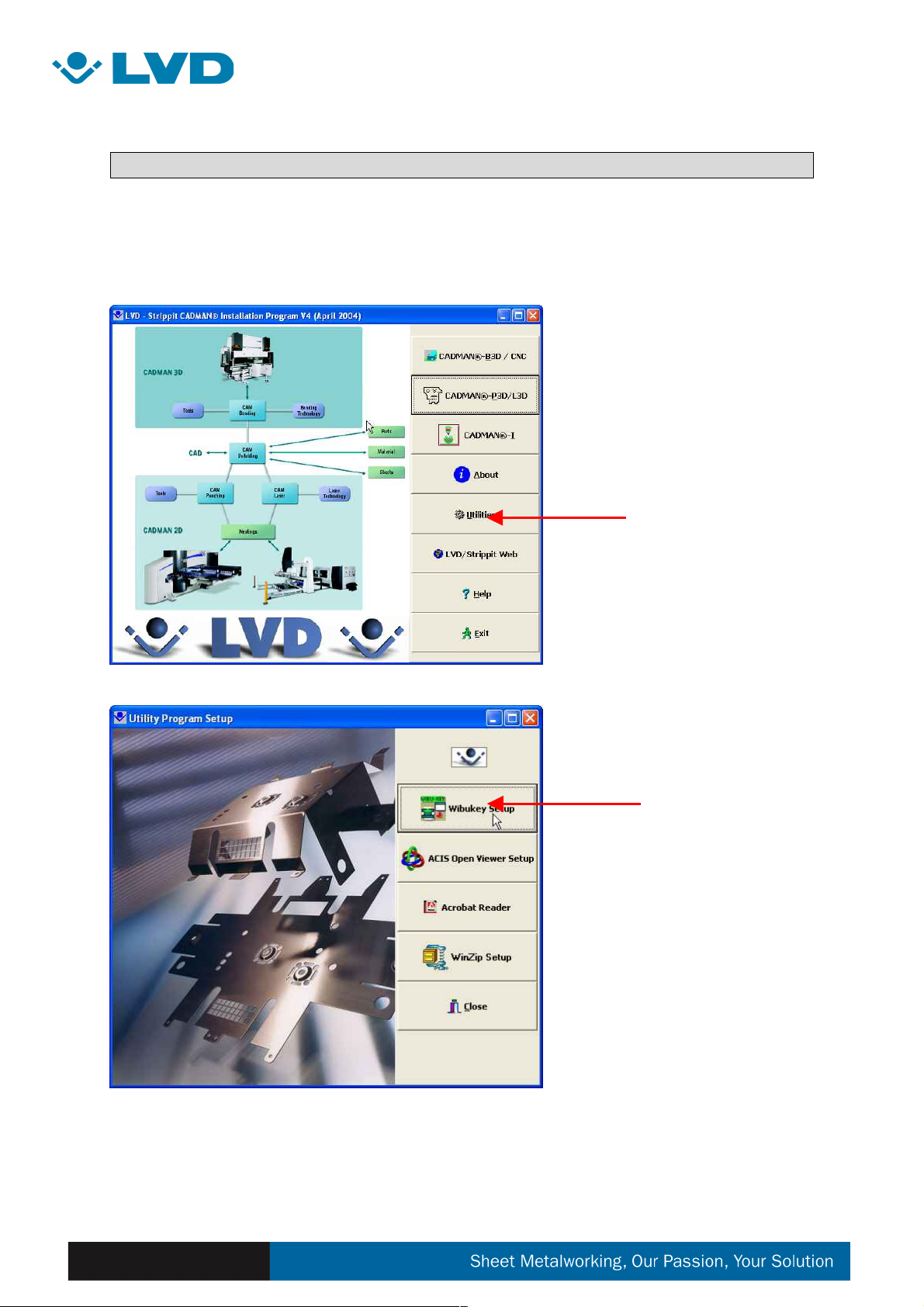
STEP A:
Insert the CD-rom in the drive. The next screen appears automatically.
(If it does not, browse to the cd-rom with explorer and run the setup.exe.)
Select Utilities from the
selection menu.
Select Wibukey setup.
Page 4
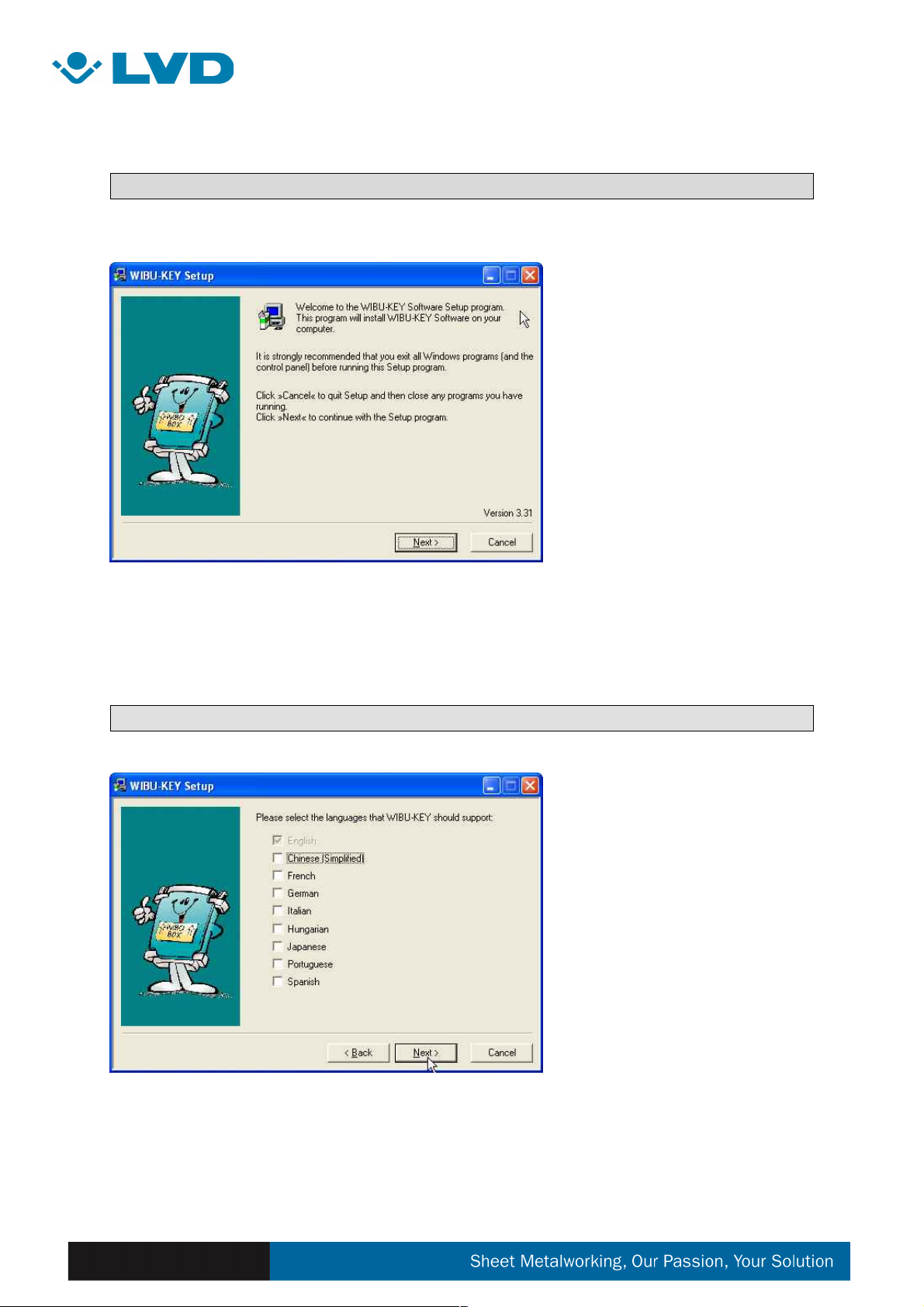
STEP B:
Press next to continue.
STEP C:
Choose the desired language
and press “next” to continue.
Page 5
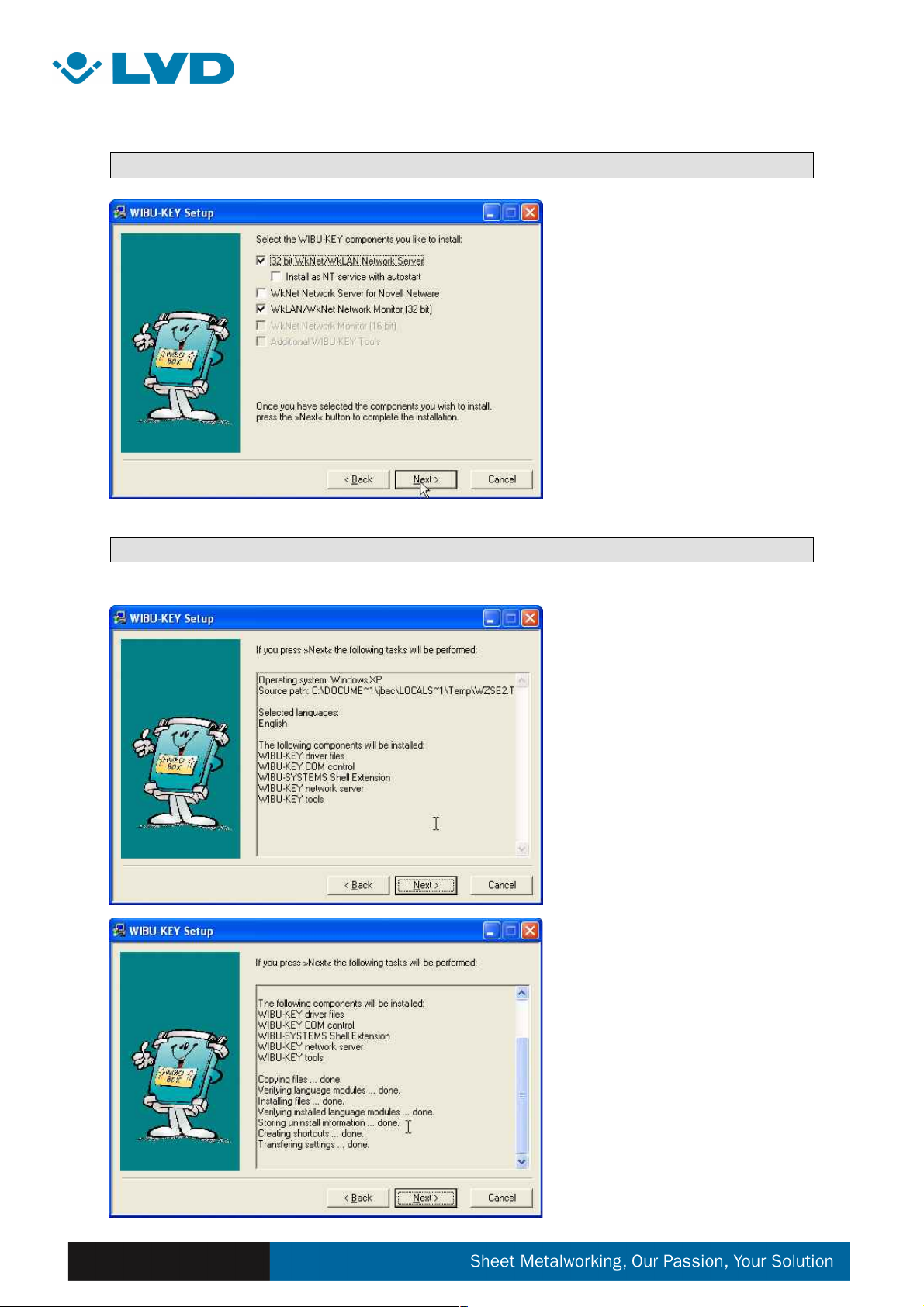
STEP D:
Please leave these as they are.
Press “next” to continue
STEP E:
The setup will display the
current operating system and
the drivers files wich are
needed for WIbu-Key.
By pressing the “next” button all
files will be copied on your hard
disk.
The installer shows the current
action.
Page 6
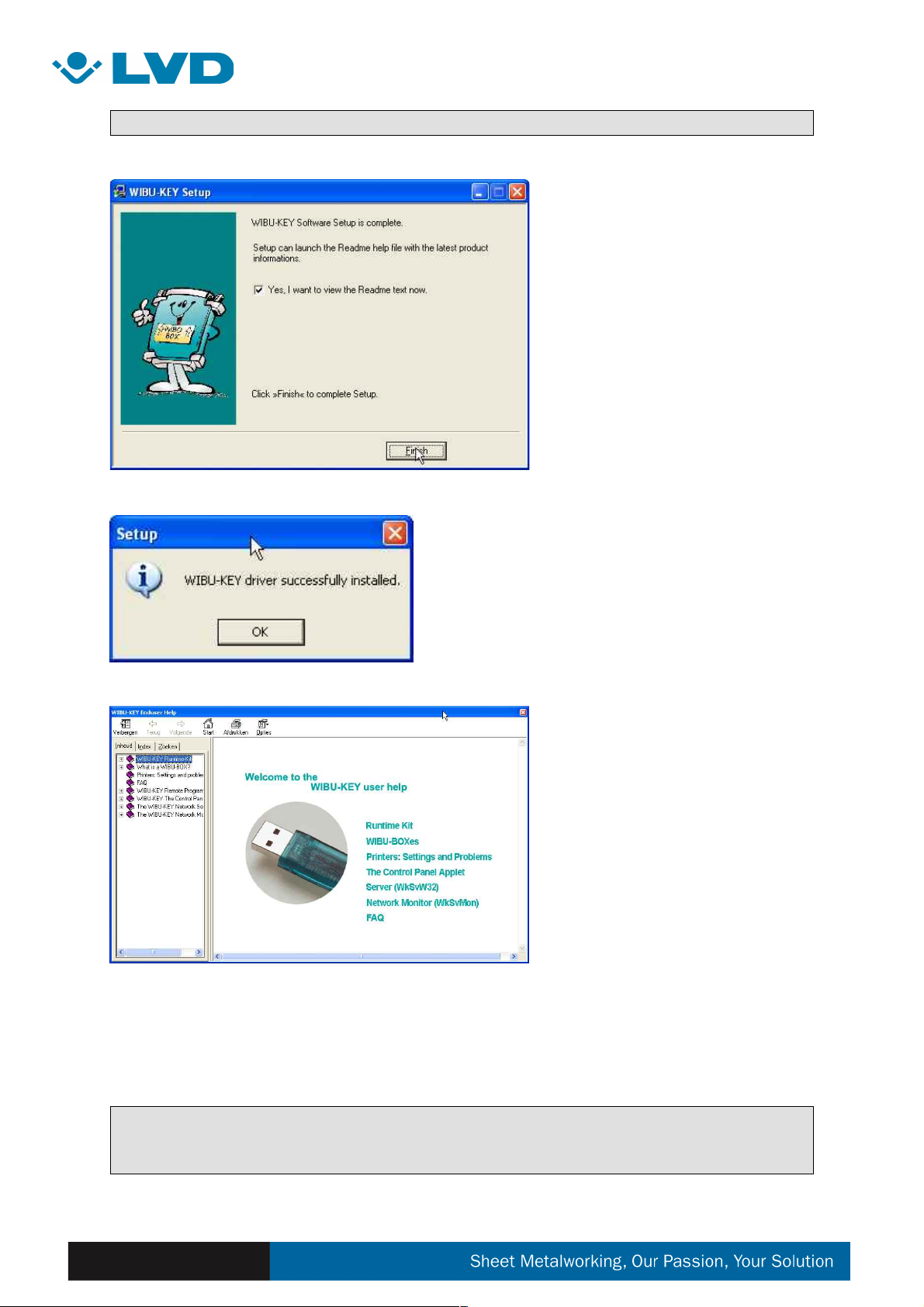
STEP F:
Press “finish” to end the driver
installation.
When the readme selection is
activated the readme_me file will
be shown on exit of the installer.
Press “OK” to quit.
Read_me file example. (only
shown when selected on exit of
the installer)
After the installation you will find a new icon called Wibu-key in your control panel.
To verify the installation you may start the control panel application. It should display
the contents of the installed Wibu-box.
Remark: If any errors occur during the installation or during the start of the control
panel application, you will have to shut down your operating system, restart your
computer and retry the whole installation process.
Page 7
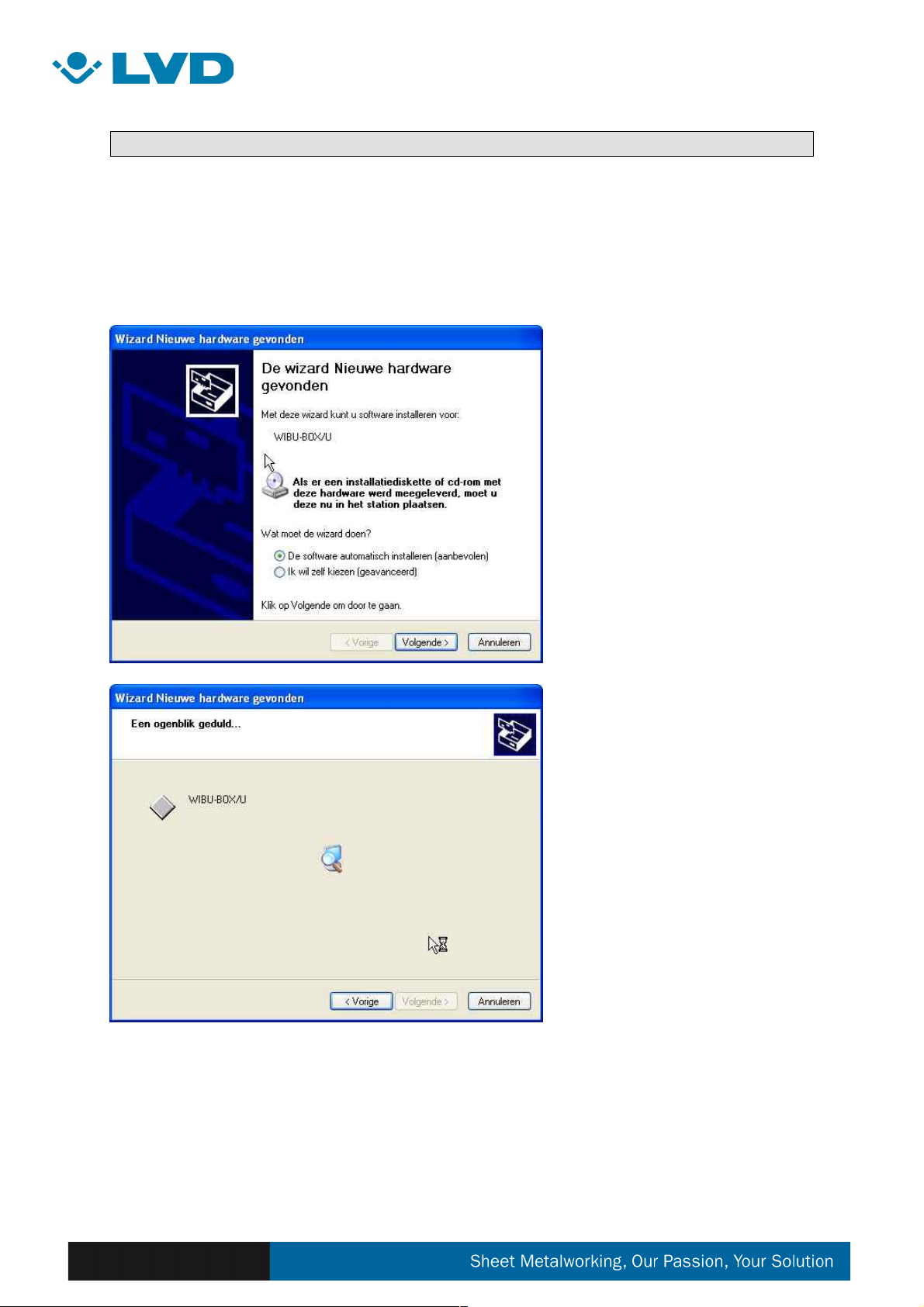
STEP G: only for USB Dongles on Windows XP or Windows 2000
When the drivers have been successfully installed , please attach the USB Dongle into
any free USB port. (this may be a USB 1.1 or USB 2.0 port.)
After attaching the key to the port, your windows operating system will come up with the
message to install the necessary drivers (Plug and Play windows feature).
Leave to the “recommended”
setting. (Automatically install
the software)
Press “next” to continue.
Your windows system is now
searching for the driver. (this
can take several minutes
depending on the speed of the
computer.
Page 8
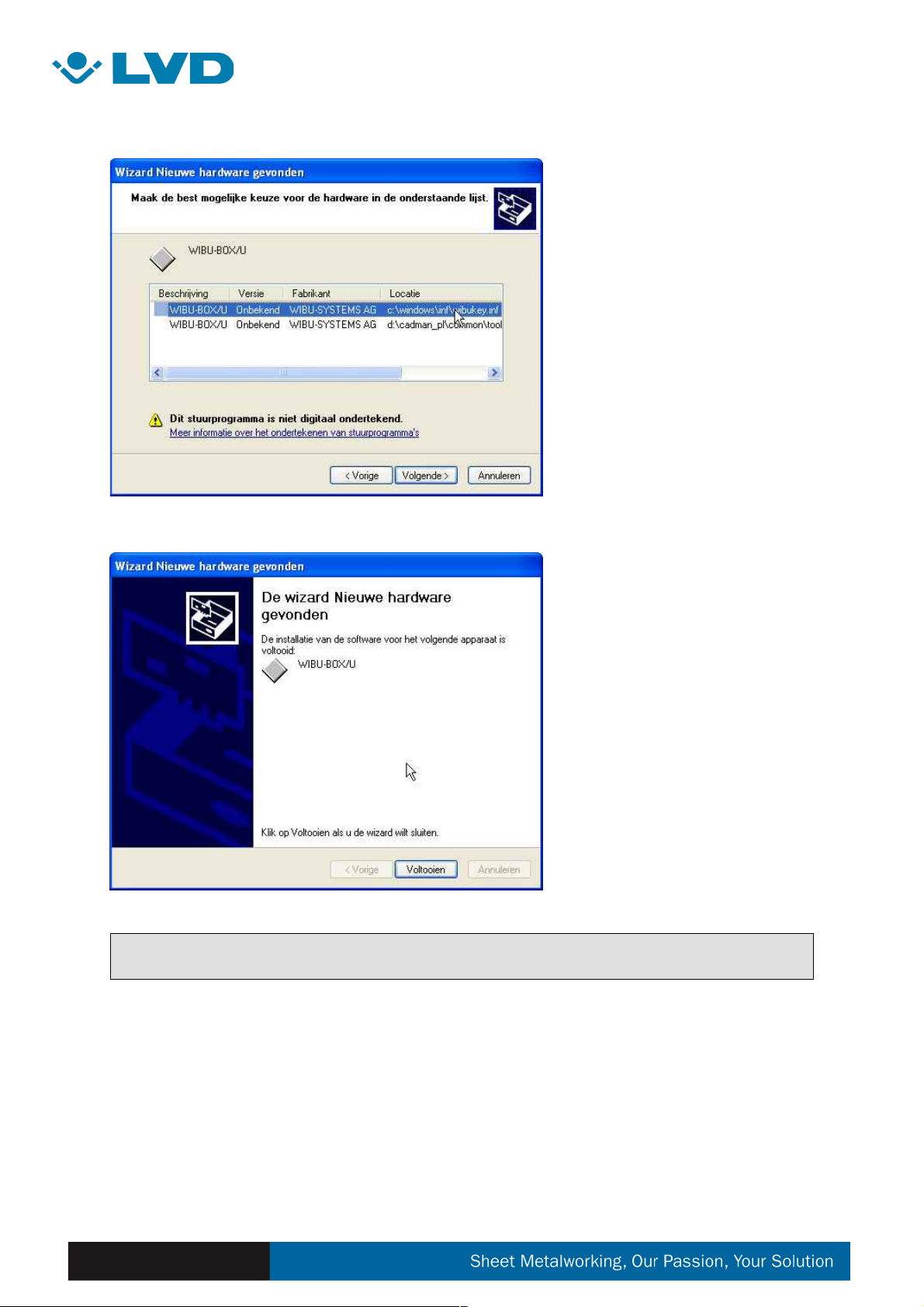
Select the driver that is located
in the windows directory.
Press “next” to continue.
Finished installing the USB
drivers.
Press “finish” to quit.
NOTE: When attaching the USB dongle to other free USB ports on which the dongle
wasn’t attached before, this steps will need to be repeated.
Page 9
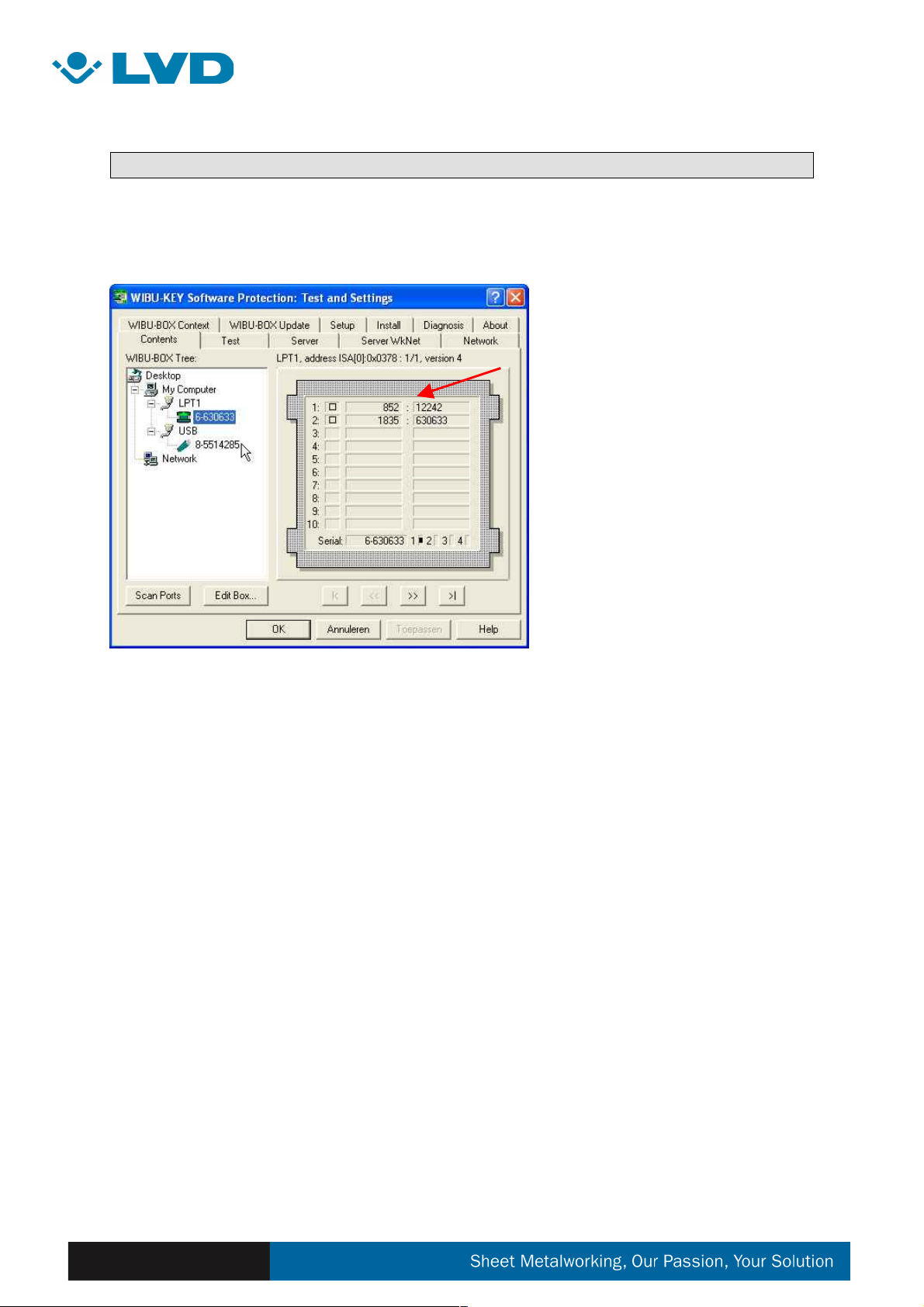
Testing the key :
The key can be tested for proper operation by clicking on the Wibu-key Icon, which you
will find in the control panel. The next dialog will appear:
The Line with 852 is the LVD
Code.
First of all you need to find the number of the Wibu-key. If you have problems with the
key first test it on your system by clicking the TEST tab and push the START button.
Errors (if any) will be listed on the screen. Having a slower mouse response during this
test is normal. Stop the testing with the STOP button.
If any errors are listed please contact LVD or Strippit Inc.
Page 10
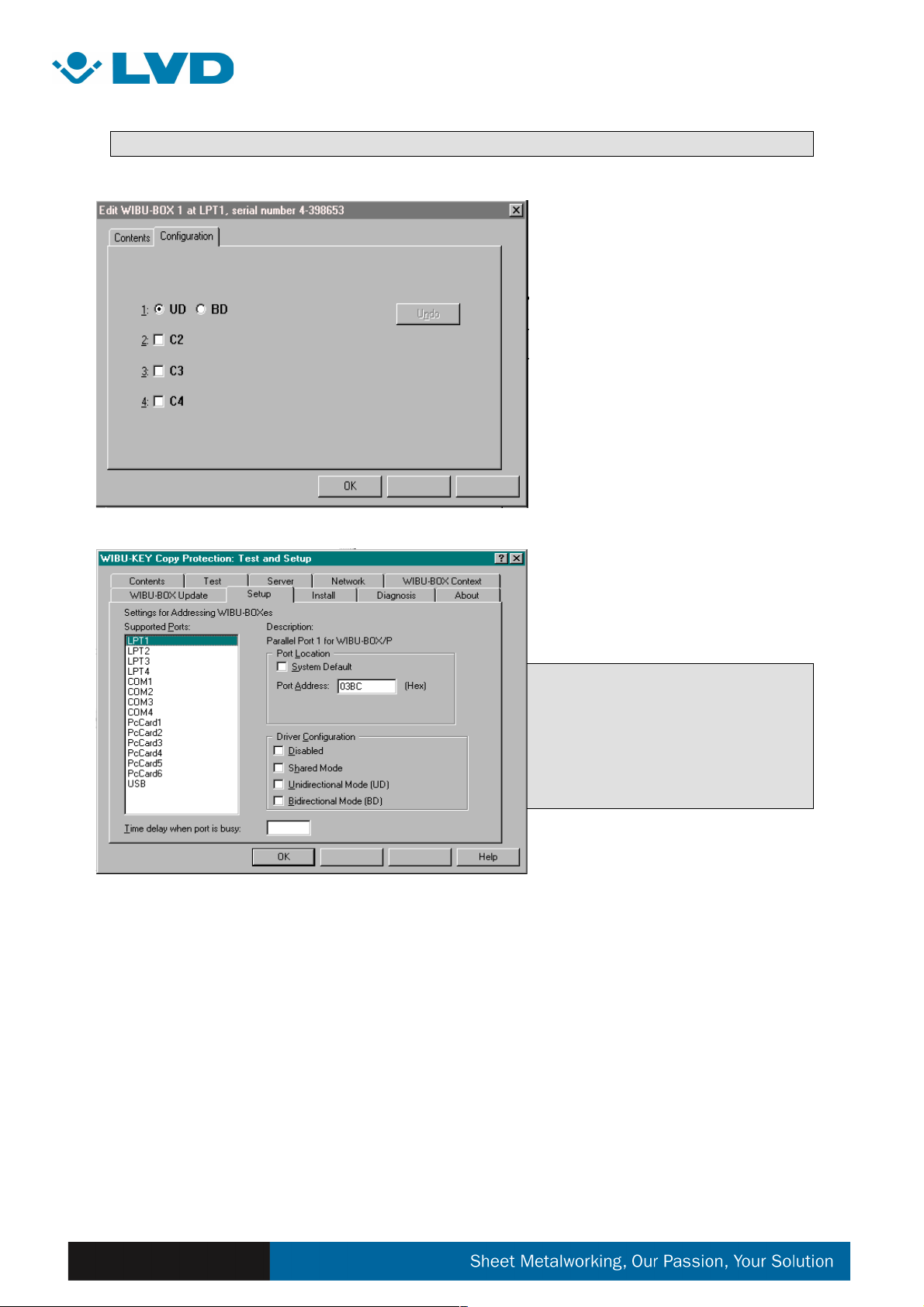
Settings:
(Parallel version only !)
If you double click on the square
before the LVD code then this
screen appears. Mostly it should
be set on UD mode. But with some
printers you will need to change it
from UD mode to BD mode. (this
is required for HP printers)
USB and Parallel version :
You can also check these settings
if they are the same as in the this
screen.
CHANGE THIS ONLY IF YOU HAVE
PROBLEMS !
Most often if you do not find the wibukey personal number, it is something
to do with the communication
settings. Normally in this screen,
nothing should be selected.
Page 11
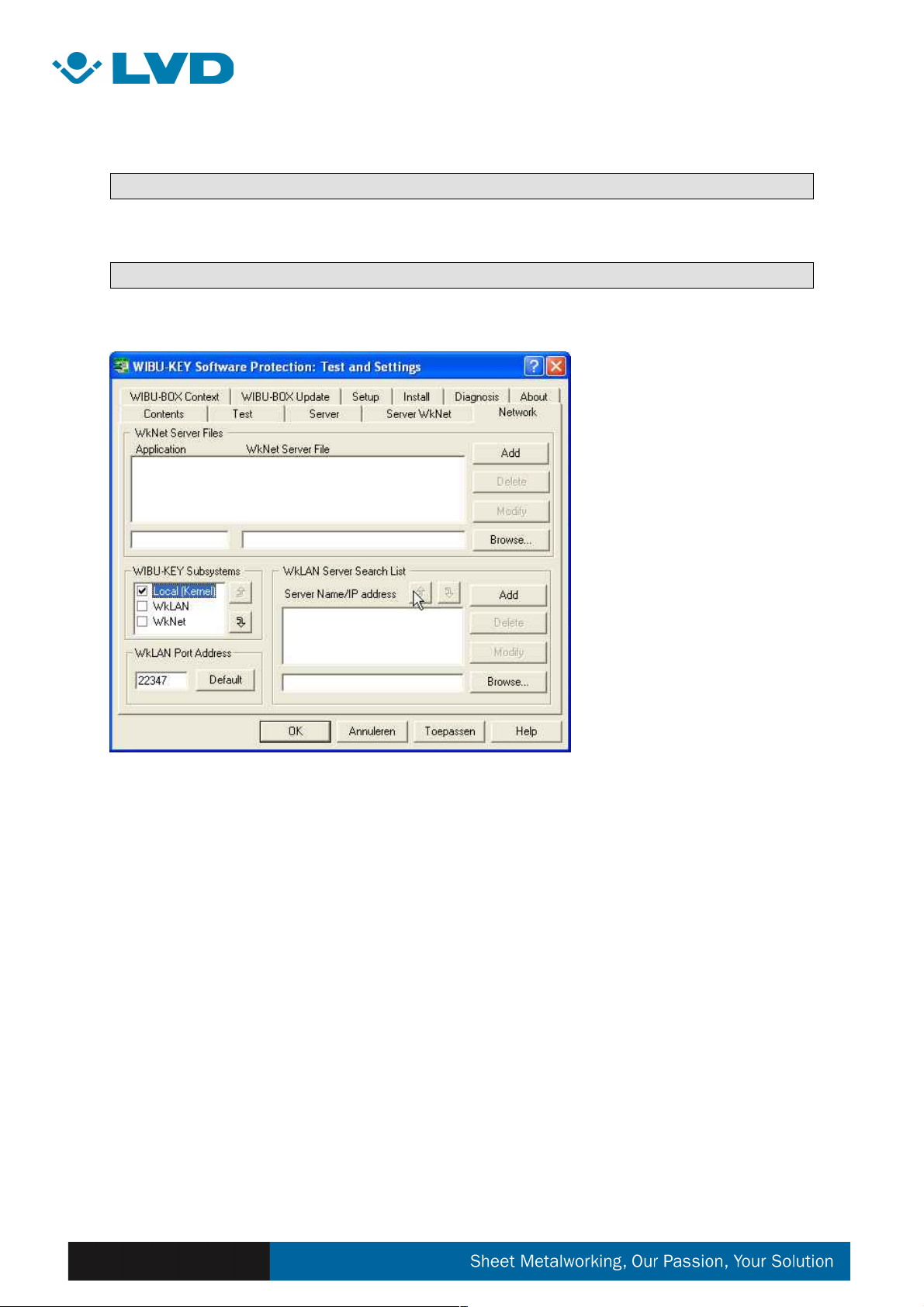
Speed Issues :
If you feel that there is a speed issue with the wibu-key please check the following :
Note: only for non network licenses !
In the Wibu-key control panel application select the Network tab.
If Wklan or Wknet are
enabled an you are not
working with a network
license please deactivate
Wklan and Wknet. Make
also sure that Local is on
top. If not, select “local” and
press the up arrow until
“local” is on top.
Delete any server name or
ip address if listed in the
wklan server search list.
Clear the wknet server files
list.
Page 12
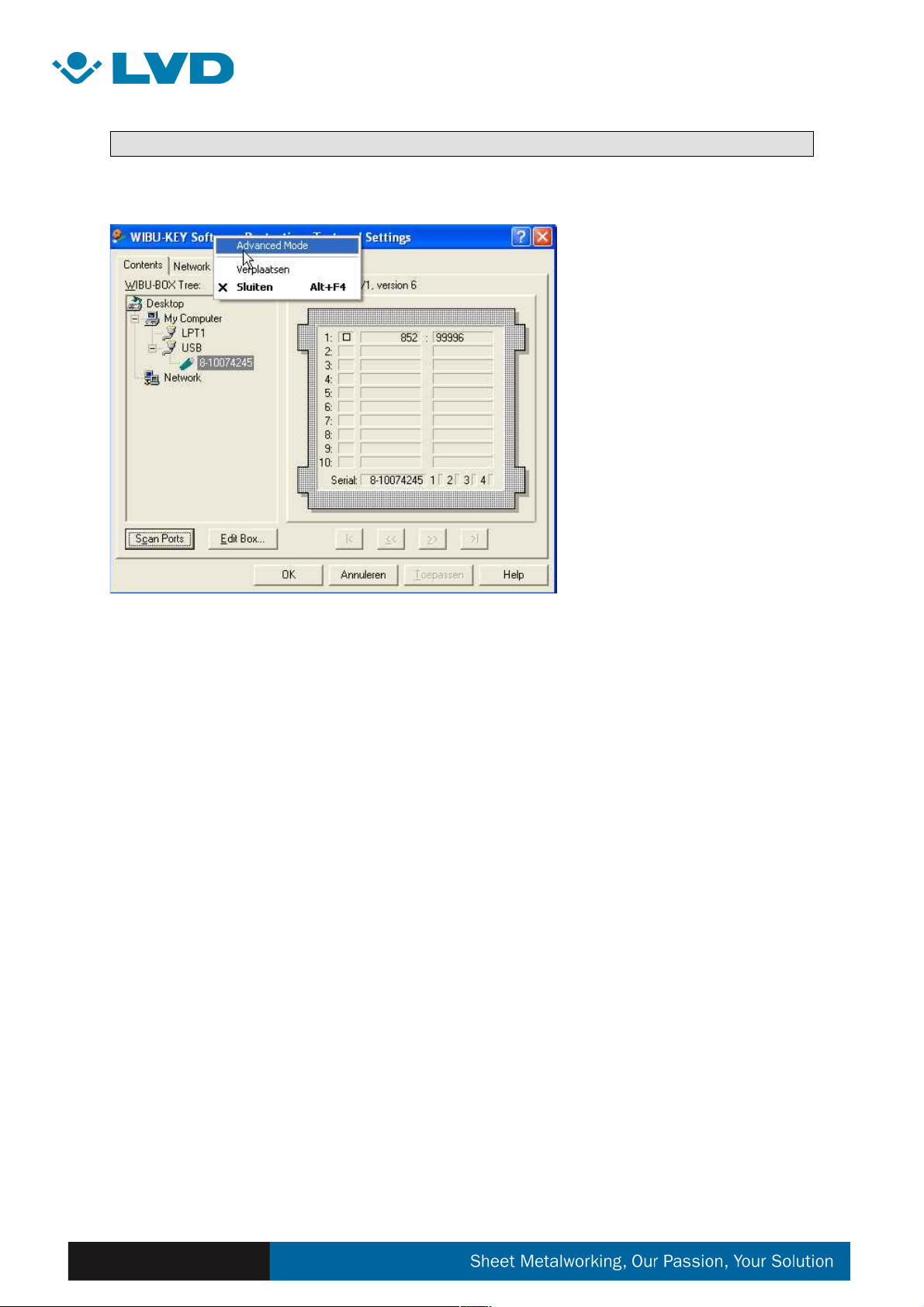
Advanced options :
If the Advanced options are not available do this :
Right Click on the top of the
window and select “advanced”
to get all necessary options.
Page 13

Customer Support:
Should any problem occur during the installation, please contact LVD Software support.
International
Tel.: +32 56 43 05 11
Fax.: +32 56 43 25 00
E-mail:[email protected]
 Loading...