

Page 1
©2016 Lucid Sound, Inc. PO Box 131112 Carlsbad, CA 92013 U.S.A. Lucid Sound, Lucid Gaming, the Lucid Sound logo, and the Lucid Gaming logo are trademarks of Lucid Sound, Inc., its subsidiaries, and affiliates. The shape and design
of this product are a trade dress of Lucid Sound, Inc., its subsidiaries and affiliates. All rights reserved. All other product names and images are trademarks or registered trademarks of their respective owners. Made in China. Product features,
appearance and specifications may be subject to change without notice. Please retain this information for future reference.
USER GUIDE
Page 2
IN
5V
IN
5V
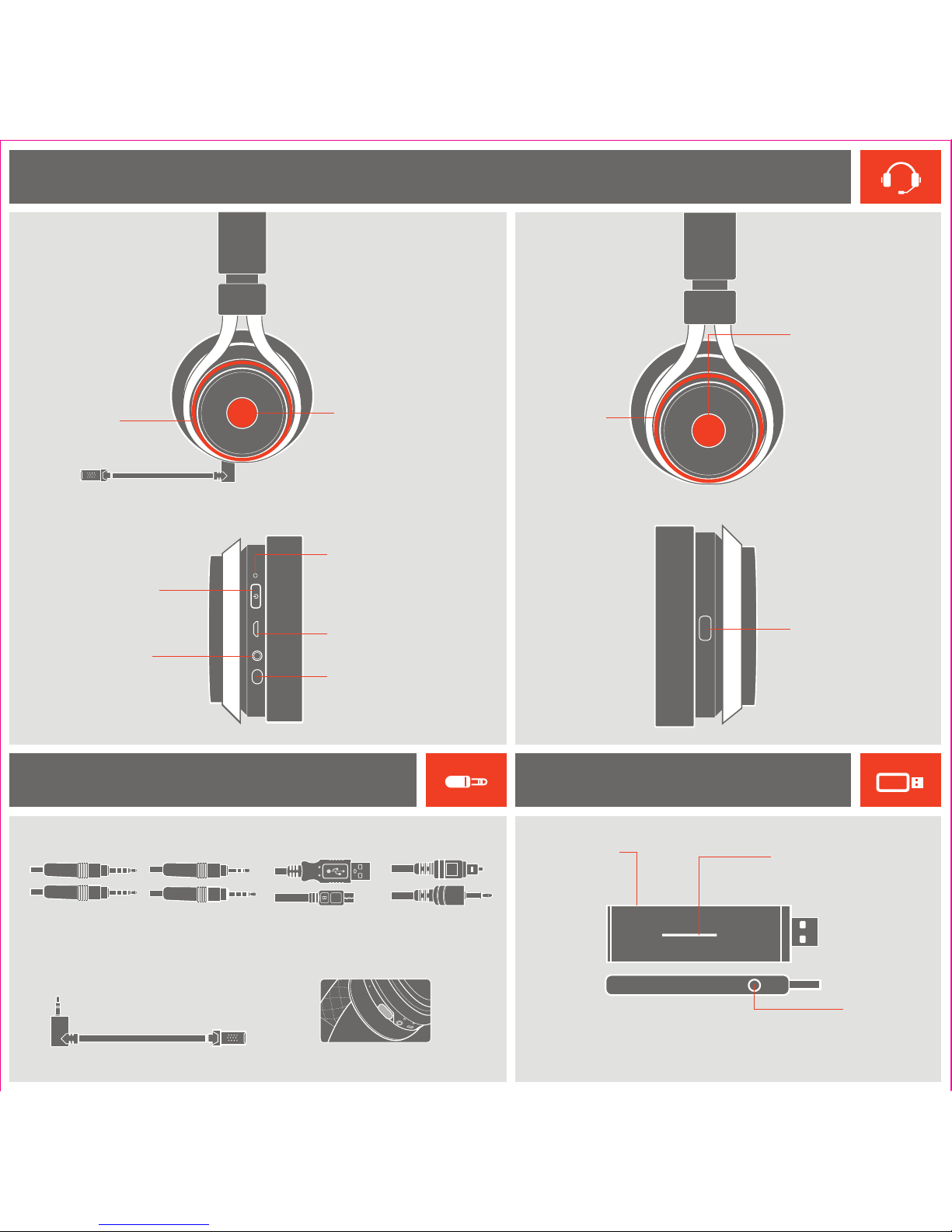
EQ
(R )(L)
HEADSET
CABLES/PARTS
Xbox 360
Chat Cable
Xbox One Chat Cable /
Mobile 3.5mm Cable
Pairing Button
Press and hold for
2 seconds to enter
pairing mode
Optical
Input
USB
Charging Cable
Optical
Cable
Boom Mic Mic Port Cover
Status LED
Solid = ON/Connected
Slow Blink = Searching
Blink twice then pause = Pairing
BASE STATION
EQ Preset Select
1 beep for Normal
2 beeps for Bass Boost
3 beeps for Treble Boost
Mobile/Xbox Input
Power LED
Solid = ON/Connected
Slow Blink = Searching
Fast Blink = Battery Low
Blink twice then pause = Pairing
USB Charging Port
Microphone Port
Game Volume
Game Mute
Rising tone = muted
Falling tone = unmuted
Power/Pairing button
Press and hold for 7 seconds
to enter pairing mode
Chat Volume
Microphone Mute
Rising tone = muted
Falling tone = unmuted
LED on boom mic
illuminates when muted.
Page 3
DIGITAL OUT
(OPTICAL)
IN
5V
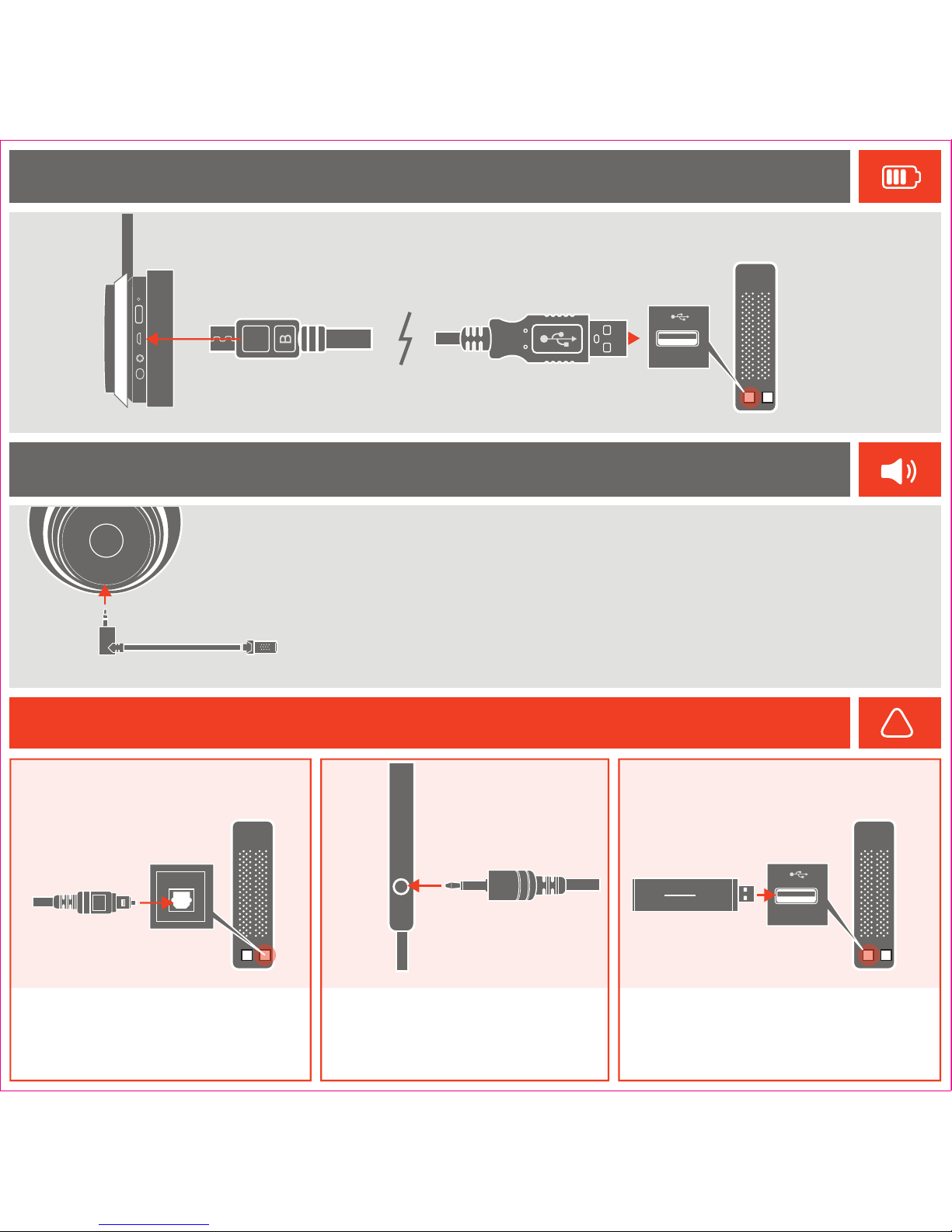
Connect the small end (micro-USB) of the charging cable to the headset. Connect the other end to a
USB port. The LED on the headset will pulse while charging and turn solid when charging is complete.
When battery has less than 15% power remaining, unit beeps twice every 30 seconds.
The LS30 includes an optional boom microphone. When this microphone is removed, an internal microphone
is activated. To connect the boom Microphone, simply insert it into the port on the bottom of the headset.
Step 1.
Connect the wide end of the optical cable to the
optical port on the rear of the Console. Early Xbox
360 Consoles may require an HDMI Audio Adapter
(not included)
Step 2.
Connect the thin end of the optical cable to the
optical port on the side of the Base Station
Step 3.
Plug the Base station into a USB port on the Console
CHARGING
Microphone
Connecting to Console
For: PS3, PS4, Xbox One, and Xbox 360
!
Page 4
Lucid Sound, Inc. warrants this product to be free from defects in materials and workmanship for the warranty
period. This non-transferable, 1 year limited warranty is only to you, the first end-user purchaser. If a defect covered
by this warranty occurs AND you provide proof of purchase, Lucid Sound, Inc., at its option, will repair or replace
the product at no charge (excluding shipping to Lucid Sound).
The Lucid Sound, Inc., 1 year limited warranty is available to North American and European customers. Your sole
and exclusive remedy is repair or replacement of your Lucid Sound product. In no event shall Lucid Sound’s liability
exceed the original purchase price of the product. This warranty does not apply to: (a) normal wear and tear or
abusive use; (b) industrial, professional or commercial use; (c) if the product has been tampered with or modified.
Our goods come with guarantees that cannot be excluded under the Australian Consumer Law. You are entitled to
a replacement or refund for a major failure and compensation for any other reasonably foreseeable loss or damage.
You are also entitled to have the goods repaired or replaced if the goods fail to be of acceptable quality and the
failure does not amount to a major failure.
To receive warranty service, please contact us at:
lucidsound.com
888-661-4469
[email protected]
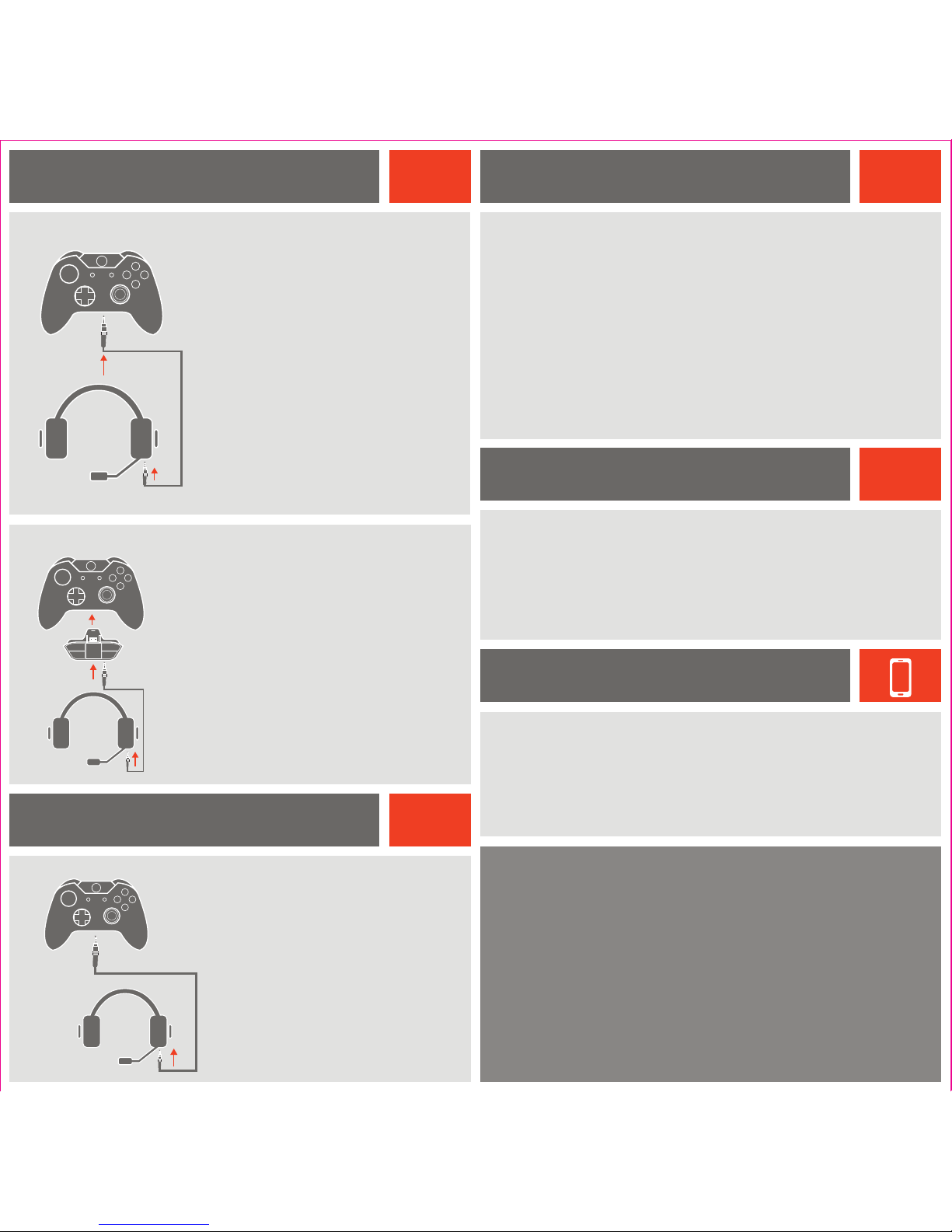
Always turn on the headset before turning on the
controller.
Connect one end of the Xbox One chat cable to the
3.5mm port on the headset and the other end to the
3.5mm port on the Controller.
On the Xbox One, go into All settings > Kinect &
devices > Devices & accessories and choose the
Xbox One Wireless Controller in use.
Select ‘Volume’ and set ‘Headset volume’ to maximum
and ‘Mic monitoring’ to minimum.
Make sure that ‘Headset mic’ is turned to ‘On.’
If it appears, set ‘Headset chat mixer’ all the way to the
right for 100% chat.
On the Xbox One, go into All settings > Display &
sound. Under ‘Audio Output’ select ‘Optical audio’
and choose ‘Stereo uncompressed.’
1.
2.
3.
4.
5.
6.
If the Xbox One Controller does not have a
3.5mm port, an Xbox One Stereo Headset
adapter is required (not included).
Connect one end of the Xbox One chat cable to
the 3.5mm port on the headset and the other
end to the 3.5mm port on the Stereo Headset
Adapter.
Adjust the game/chat balance on the Stereo
Headset Adapter to 100% chat and increase
the volume on the adapter to maximum.
On the Xbox One, go into All settings >
Display & sound. Under ‘Audio output’ select
‘Optical audio’ and choose ‘Stereo
uncompressed.’
1.
2.
3
4.
Go into Settings > Sound and Screen > Audio Output Settings > Primary
Output Port and select ‘Digital Out (Optical)’
Make sure that only ‘Linear PCM 44.1kHz and ‘Linear PCM 48kHz’ are checked.
Go into Settings > Audio Output Settings > Audio Format (Priority) and select
‘Linear PCM.’
Go into Settings > Devices > Audio Devices and set both the ‘Input Device’ and
‘Output Device’ to ‘USB Headset(Lucid Sound LS30)
Set the Output to Headphone to ‘Chat Audio’
Set the ‘Volume Control (Headphones)’ to maximum
1.
2.
3.
4.
5.
6.
Xbox One Setup
Controller with 3.5mm port
Using Stereo Headset Adapter
XBOX ONE
PlayStation 4 Setup
Go into Settings > Sound Settings > Audio Output Settings > Optical Digital.
Make sure that only ‘Linear PCM 2 CH. 44.1kHz’ and ‘Linear PCM 2 CH. 48kHz’
are checked.
Go into Settings > Accessory Settings > Audio Device Settings and set the
‘Input Device’ and ‘Output Device’ to ‘Lucid Sound LS30’
1.
2.
3.
PlayStation 3 Setup
PS4
PS3
Connect one end of the mobile cable to the 3.5mm input on the headset and the
other end to the 3.5mm output on the mobile device.
The headset will only work in passive (OFF) mode. (Note that the volume, EQ, and
mute features will not function)
1.
2.
Mobile
Connect one end of the Xbox 360 chat cable to
the 3.5mm port on the headset and the other
end into the 2.5mm port on the Controller.
Go into Settings > System > Console
Settings > Audio and select ‘Digital Stereo’
1.
2.
Xbox 360 Setup
XBOX 360
 Loading...