

Page 1

1
Page 2
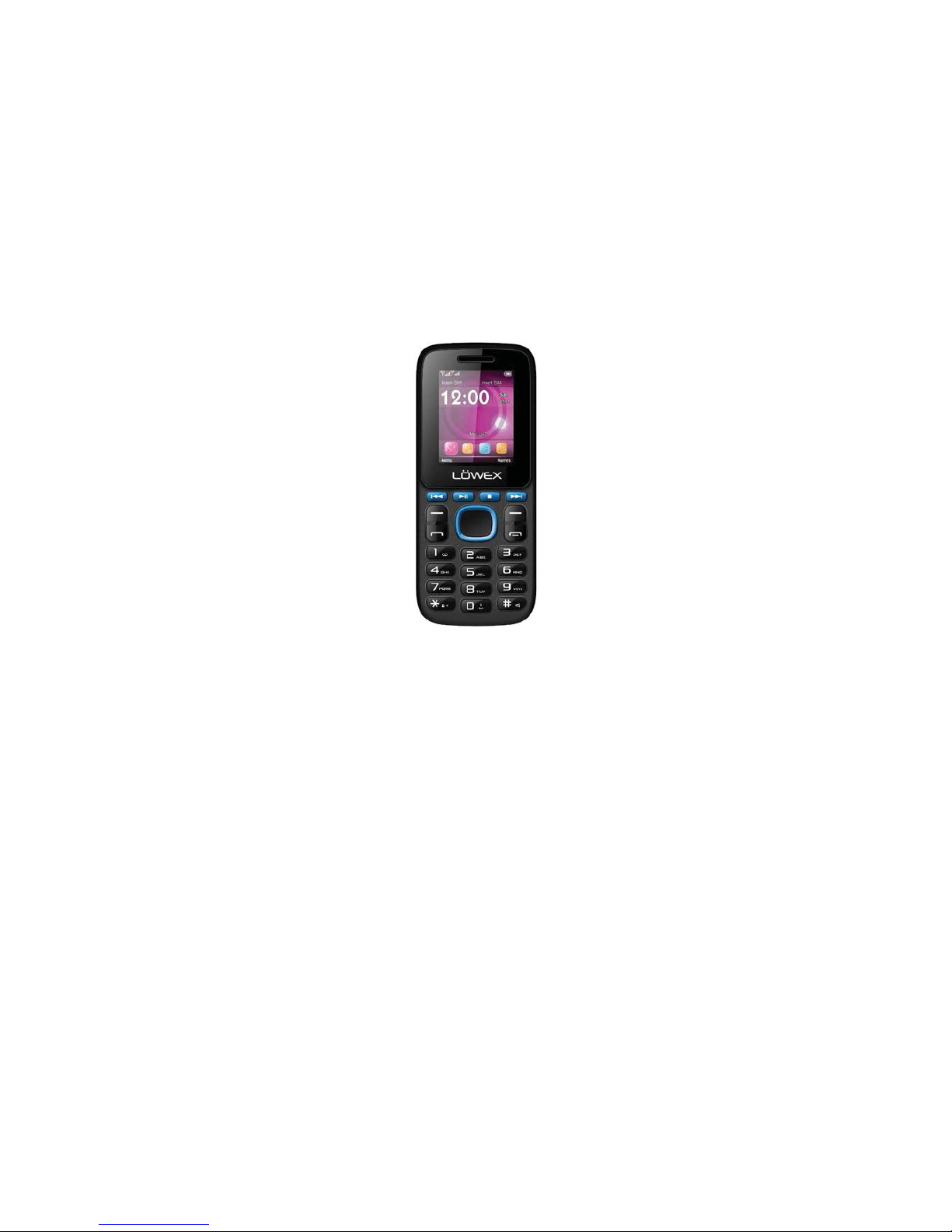
2
LOWEX™ Model / Modelo:
F
F18/F18m/F24
Page 3

3
WELCOME TO OUR FAMILY:
Thanks for choosing LOWEX™ Products; we are proud to welcome you
to our family!
You have recently purchase a LOWEX F18/F18m/F24 Feature Phone
and we will help you to setup your new device in order to obtain
the optimal performance of the unit, and a user friendly
experience.
Please take a look of our Quick Guide in order to review some
of the most useful and convenient features of your cell phone.
Remember to maintain contact with us through our website and
social media accounts; we are always interested in receiving your
feedbacks and comments.
Page 4

4
LOWEX™ Limited Warranty
LOWEX™ Products and its affiliated companies worldwide
(“LOWEX™”) warrants all our products against defects in material
or workmanship for a period of two (2) years from the original
date of purchase of the product(S) by a consumer (the “warranty
period”). LOWEX™ does not warrant, and is not responsible for,
any smart phone or other device made by anyone other than LOWEX™.
If a material or workmanship defects arises with regard to any
LOWEX™ product, and a valid claim is received within the Warranty
Period, LOWEX™ will (1) repair the LOWEX™ product using new or
refurbished parts or (2) replace the LOWEX™ product with a new
or refurbished LOWEX™ device. For purposes of this limited
warranty, “refurbished” means a product or part that has been
substantially returned to its original specifications. In the
event of a defect, these are your exclusive remedies. LOWEX™
reserves the right to charge a small shipping and handling fee
in connection with the fulfillment of any valid claim.
For additional Information please contact us: [email protected]
Page 5

5
USER MANUAL
Dear LOWEX™ USER:
On the standby interface, press right soft key to enter
the interface of the name card holder. When the record
of the name card holder is not empty, press let soft
key for the following operation:
Prompt: Take the recorders in SIM card 1 for example.
Write Message
Ƶ New SMS
You could write new message by using this
function .When you input the message to be sent,
press left soft key to send, to insert the templates,
to add contact person information and symbol, and
to save, etc.
Ƶ New MMS
You could edit the MMS, and insert pictures or
ringtones with this function.
Select the “New MMS” and enter, you could edit the
receiver, forwarder, confidential receiver, the
title and content, and operate the functions of send,
preview, save and set the timing send.
Page 6

6
Inbox
Store the SMS, and push message you’ve received. The
SMS, and push message could be differentiated by
different icons. The icons before the message list
means whether this message is SMS or Push message and
which is stored in SIM1, SIM2 or the phone.
Choose one SMS and press left soft key, then you will
do several operations, for example, reply the SMS,
delete, dial and mark. Press OK key directly you can
read this SMS, or Push message.
MULTIMEDIA
Camera
The device is equipped with webcam with high pixels.
You can take photo any time and save the photo in the
device or Micro SD. The photo can be used as wallpaper
of your device or you can send it to your friends through
Bluetooth.
Video recorder
The device is equipped with a video capture so that you
can chat with your friends through it. A driver is needed
to be installed when the video WAP service requires
Page 7

7
network backup. You can consult the network operator
or service supplier about the availability, rates and
tax of WAP services.
Letter (Capital, Normal)
Enter edit page, press “#” and switch the input mode
to “letter”, then press the keys on keypad, selected
letters will appear on the screen.
Press the number key can get the first letter marked
on the key; press twice quickly can get the second letter
marked on the key. Similarly, if the letter you want
to input have the same key with the former letter, please
wait until the cursor appears again, and then input the
new letter.
Number
Enter “edit” mode, press “#” key you can change the input
way to “number”. Then press the keys, number will appear
on the screen. The key 0-9 separately represents the
figure from o to 9. You can press corresponding key to
get desired number. Press right soft key can delete the
number you input.
ACCESSORIES
Page 8

8
You may choose following enhancements of the device.
You can also check with your dealer.
Additional battery (the customer is suggested to
confirm whether it is supplied.)
You can purchase the lithium batteries with different
capacity provided by this company.
Travel or car charger (The customer is suggested to
confirm whether it is supplied.)
Earphone (The customer is suggested to confirm whether
it is supplied.)
CARE & MANINTENANCE
Maintenance of battery
Your device is powered by a rechargeable battery. It
is necessary to have the battery charged when it is going
to wear out. The full performance of a new battery is
achieved only when it is fully wore out.
Unplug the charger from the electrical plug and the
device when not in use. Do not leave fully a charged
battery connected to a charger over a week, since
Page 9

9
overcharging may shorten its lifetime
Temperature tends to affect the limit of battery to be
charged. Therefore, it is necessary for the battery to
be cooled or warmed before it is charged. If the
temperature of batter exceed 40䉝, the battery cannot
be charged.
Capture function is used. The details can be found in
driver installation guide.
Audio player
This phone could play the MP3 stored in the phone memory
and support the background play.
Press up key and down key to adjust volume. Press left
soft key to access Options:
On the audio player interface, move cursor to the
shortcut keys on the screen, you could rapidly operate
the MP3 functions.
Under the MP3 list interface, press left soft key, then
you can do operations as follow ways:
--- Music lists: Display all the MP3 or the play list
Page 10

10
you’ve saved.
Recorder
Use this function you can record or listen to your own
record. The record file format way:
Press left soft key and select “record”. You can also
do the following.
Enter “record” interface, move the cursor to the record
icon and press OK key to record. During the process,
press left soft key can make a pause, press it again
will continue the record. Press right soft key can stop
and save the record. You can press left soft key again
and do the following:
FM Radio
You can listen to Fm radio freely. Enter the radio
interface; search the frequency automatically by
pressing the up and down direction keys, and change
previous or next channel by pressing the left and right
direction keys.
On the interface of the radio playing, press left soft
key you could enter the options menu and do operations
as follows:
Page 11

11
Setting
You can customize the settings, such as time and date,
language, call setting etc.
Network selection:
This function can let you select the network manually
or automatically when the phone is in the roaming state.
You can use this function only after you have made an
effective roaming.
Select SIM1/SIM2 and then access:
--- Auto select: Press the left key and OK, the mobile
phone will search various networks, this operation will
let your phone register the most suitable network.
--- Manual Select: Press the left soft key and OK, the
mobile phone will search various networks, You can
select the suitable network from the listed networks.
Internet
The device is compatible with WAP service. You can visit
various WAP services, for instance, news, weather
forecast and airlines etc. The services are specially
designed for the device and are maintained by WAP
service supplier.
Page 12

12
Dial a call
In standby mode, press numerical keys to input phone
number to dial phone number. When you finish inputting
phone number, press the dial key to make a call. If
you’re making a long distance call, add the area code
preceding the telephone number.
Reject a call
You can press End key to reject an incoming call.
Receive a call
When an incoming call arrives, the phone will give out
the corresponding prompt (such as vibration, ringtone,
and etc.); if network support, the phone screen will
show the name and telephone number of the caller; at
this time, you can press Dial key to receive an incoming
call.
End a call
After finishing al call, you can press End key to end
a call.
Emergency Services
You can directly dial an emergency service call without
Page 13

13
SIM card. Different network uses different emergency
numbers, please consult your network operations
company for more details.
Function Menu
File manager
Your mobile phone support T card function. You can check
the specific content and service condition of the phone
memory via this function. Meanwhile, you can format
memory, too.
Phonebook
This function could help you browse the name card holder,
store, edit and delete names and phone numbers in the
phone and SIM card. To facilitate the management of the
records, this phone sets the group
Use the battery only for its intended purpose and avoid
short-circuiting. Accidental short-circuiting can
occur when a metallic object causes direct connection
of the positive (+) and negative (-) terminals of the
battery.
Do not use damaged battery.
Leave the battery in hot or cold places will reduce the
Page 14

14
capacity and lifetime of the battery. A device with a
hot or cold battery may not work temporarily, even when
the battery is fully charged.
Do not dispose of batteries in a fire as they may explode.
Dispose of batteries according to local regulations.
Care of maintenance of your device.
The suggestions below will help you protect your
warranty coverage.
--- Keep the device and accessories out of the reach
of small children;
--- Keep the device dry. All types of liquids or moisture
will corrode electronic circuits.
Additional Safety Information
Traffic Safety
Unless there is an emergency, otherwise do not sue the
device.
Page 15

15
Note: This equipment has been tested and found to comply
with the limits for a Class B digital device, pursuant
to part 15 of the FCC Rules. These limits are designed
to provide reasonable protection against harmful
interference in a residential installation. This
equipment generates, uses and can radiate radio
frequency energy and, if not installed and used in
accordance with the instructions, may cause harmful
interference to radio communications. However, there
is no guarantee that interference will not occur in a
particular installation. If this equipment does cause
harmful interference to radio or television reception,
which can be determined by turning the equipment off
and on, the user is encouraged to try to correct the
interference by one or more of the following measures:
üReorient or relocate the receiving antenna.
üIncrease the separation between the equipment and
receiver.
üConnect the equipment into an outlet on a circuit
different from that to which the receiver is connected.
ü Consult the dealer or an experienced radio/TV
technician for help.
Page 16

16
Caution: Any changes or modifications to this device
not explicitly approved by manufacturer could void your
authority to operate this equipment.
This device complies with part 15 of the FCC Rules.
Operation is subject to the following two conditions:
(1) This device may not cause harmful interference, and
(2) this device must accept any interference received,
including interference that may cause undesired
operation.
Page 17

17
RF Exposure Information (SAR)
This device meets the government’s requirements for
exposure to radio waves. This device is designed and
manufactured not to exceed the emission limits for
exposure to radio frequency (RF) energy set by the
Federal Communications Commission of the U.S.
Government.
The exposure standard employs a unit of measurement
known as the Specific Absorption Rate, or SAR. The SAR
limit set by the FCC is 1.6 W/kg. Tests for SAR are
conducted using standard operating positions accepted
by the FCC with the EUT transmitting at the specified
power level in different channels. The FCC has granted
an Equipment Authorization for this device with all
reported SAR levels evaluated as in compliance with the
FCC RF exposure guidelines. SAR information on this
device is on file with the FCC and can be found under
the Display Grant section of www.fcc.gov/oet/ea/fccid.
To ensure that RF exposure levels remain at or below
the tested levels, use a beltclip, holster, or similar
accessory that have no metallic component in the
assembly and must maintains a minimum separation
distance of 15mm between your body and the device.
 Loading...