

Page 1

Quick User Guide
Model: LPC20
Works With
iPhone 4s & Up, iPod Touch 5
the new iPad, iPad with Retina Display, iPad mini
Scan QR Code to Install Lollipop PC for iOS
Page 2

FCC Notices
1. The manufacturer is not responsible for any radio or TV interference
caused by unauthorized modifications to this equipment. Such modifications
could void the user’s authority to operate the equipment.
2.This device complies with Part 15 of the FCC Rules. (1) This device may not
cause harmful interference, and (2) this device must accept any interference
received, including interference that may cause undesired operation.
NOTE: This equipment has been tested and found to comply with the limits
for a Class B digital device, pursuant to part 15 of the FCC Rules. These limits
are designed to provide reasonable protection against harmful interference
in a residential installation. This equipment generates uses and can radiate
radio frequency energy and, if not installed and used in accordance with the
instructions, may cause harmful interference to radio communications.
However, there is no guarantee that interference will not occur in a
particular installation. If this equipment does cause harmful interference to
radio or television reception, which can be determined by turning the
equipment off and on, the user is encouraged to try to correct the
interference by one or more of the following measures:
Reorient or relocate the receiving antenna.
Increase the separation between the equipment and receiver.
Connect the equipment into an outlet on a circuit different from that to
which the receiver is connected.
Consult the dealer or an experienced radio/TV technician for help.
CAUTION
RISK OF EXPLOSION IF BATTERY IS REPLACED
BY AN INCORRECT TYPE
DISPOSE OF USED BATTERIES ACCORDING
TO THE INSTRUCTIONS
Page 3
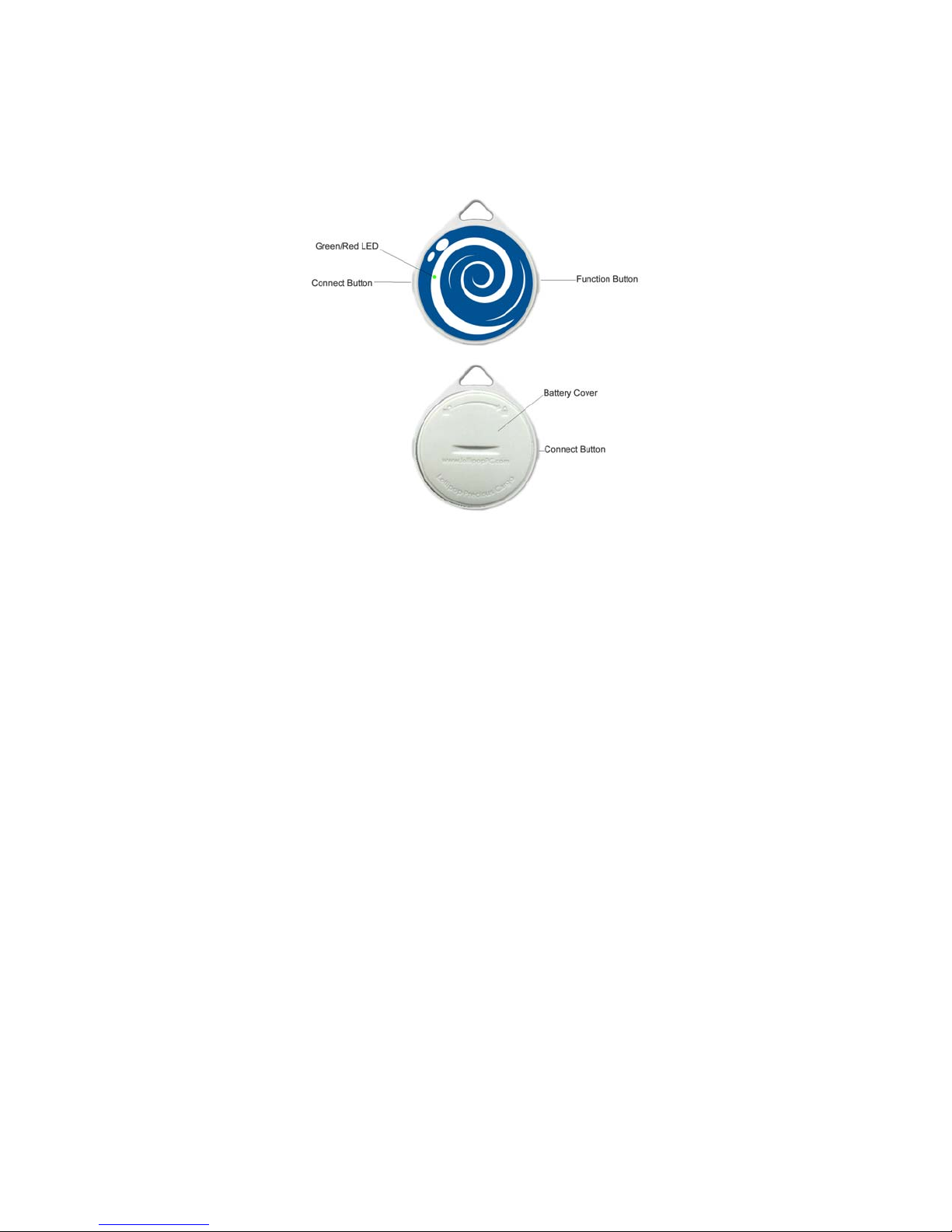
Package Include: 1 x Lollipop PC ( Lollipop PC),
1 x CR2032 Coin Battery and 1 x Quick user guide
Battery Install & Replacement
Take out Lollipop PC and the complimentary CR2032
battery from the package.
Page 4

Install Battery
a. Open Battery Cover by rotating 10 degrees in clockwise
to the unlock icon by a coin or other suitable tool , and then
detach the battery cover from Lollipop PC.
b. Insert the CR2032 into battery slot in the arrow’s
direction, and then push CR2032 down into slot.
c. Close Battery Cover in the direction of lock icon
anticlockwise, until the cover turns to place.
Replace Battery
Open the battery cover and take out CR2032 by paper clip.
Three Steps to SETUP
Step 1: Download and Install Lollipop PC APP.
Please search and download Lollipop PC App at iTunes
App Store, 0r Scan QR code to quickly access APP –
Lollipop PC
http://lollipoppc.com/app/download/
Step 2: Open Lollipop PC App and Run it
Touch "Settings" then "General" on your iPhone's screen.
Touch "Lollipop PC" then touch "Turn BlueTooth On."
Page 5

And open Lollipop PC app in iPhone 4s and up or new
iPad.
Step 3: Pairing
Move Lollipop PC near iPhone, Push Connect button ( ● )
It will take 3 seconds to pair Lollipop PC device with
iPhone or iPad, with Green Led in the flashing status and
beeper. The Lollipop PC App will discover Lollipop PC
device, please tap “Pair” to permit the Lollipop PC
connection. The flashing Green Led will turn off, after the
Lollipop PC is Paired with iPhone or iPad.
Lollipop PC Status
z Pairing
In case that Lollipop PC is disconnected with Lollipop PC
APP, or Lollipop PC is closed (OFF) in Lollipop PC APP, the
Lollipop PC will have two “beep” sounds to indicate Pairing
status with Green LED flashing in one half second, after
pushing the connection button (
PC will be in closed status if Lollipop PC can not be paired in
60 seconds.
z Paired
Lollipop PC APP will show connected and paired, The
● ) over 5 seconds. Lollipop
Page 6

Lollipop PC will be in paired status and the Green light will
stop flashing after 2 seconds.
z Disconnected
Lollipop PC will have 5 seconds beep alarm with a red light
flashing in 5 seconds intervals, after the distance of Lollipop
PC Apple device is out of the wireless range.
z Closed
Tap the OFF icon in Lollipop PC APP device panel, and
Lollipop PC will be closed. To extend battery use time,
Please Close Lollipop PC in spare time.
ALERT
z In/Out of Range Alert
If the distance of the Paired Lollipop PC and iPhone/iPad is
out of range, both Lollipop PC and iPhone/iPad will trigger
alert. "Setting mode" in Lollipop PC APP will define the type
of alert. When Lollipop PC App find and connect pre-paired
Lollipop PC, the Alert will be also triggered.
z Trigger Find my Lollipop PC Alert
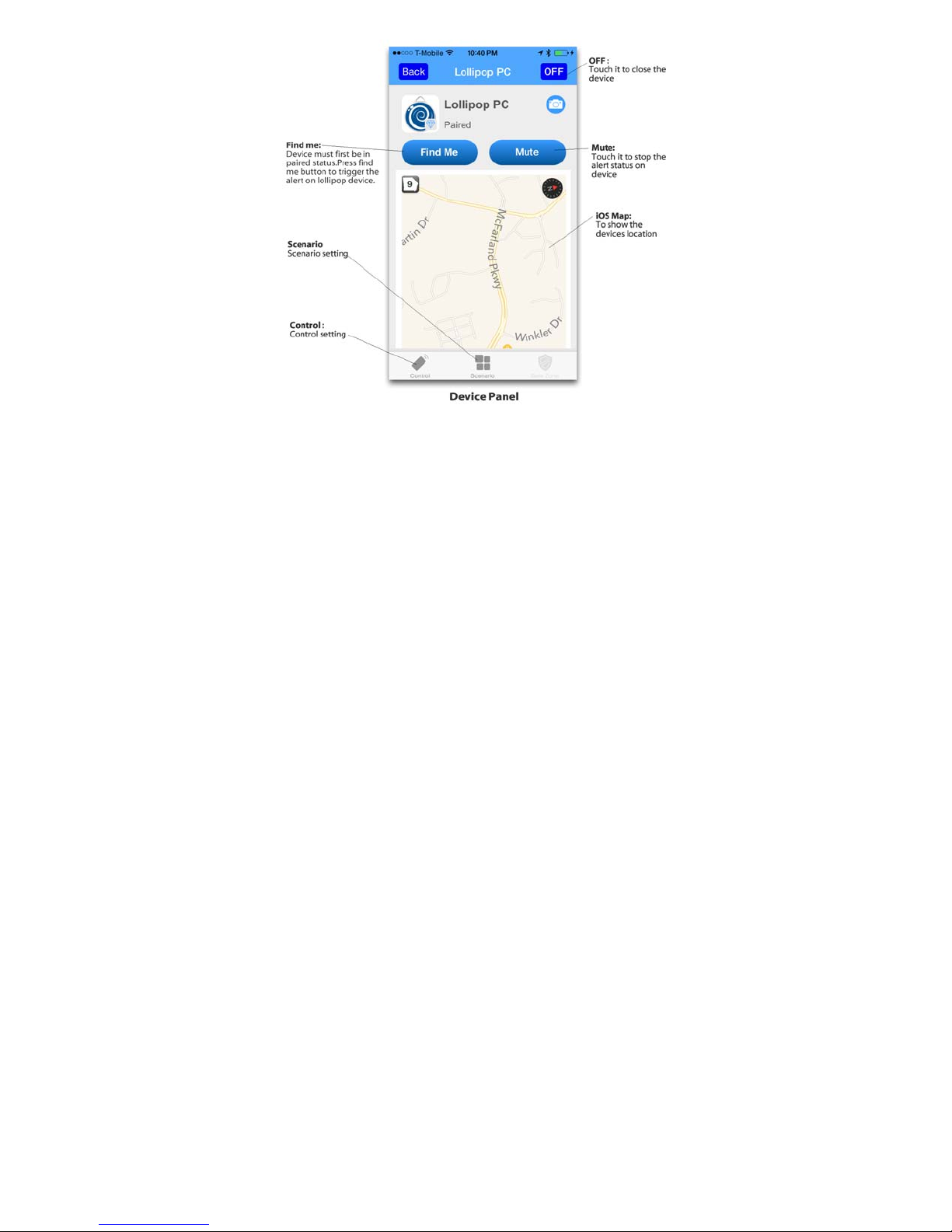
Tap "Find me" in Lollipop PC APP when Lollipop PC is
Page 7

in paired status, Lollipop PC will beep or Red LED will flash.
Tap "Mute" in Lollipop PC APP in Paired Status, it will
Mute Lollipop PC Alert and stop Red light flashing.
Pressing "MUTE" button in Lollipop PC can also mute
the alert.
Trigger Find my iPhone/iPad Alert
z Mild Alert:
Push Connect and Function button together in paired
status. It will trigger mild Alert in iPhone/iPad.
z High Alert
Push (>3S) Connect and Function button together in paired
status,it will trigger high Alert in iPhone/iPad
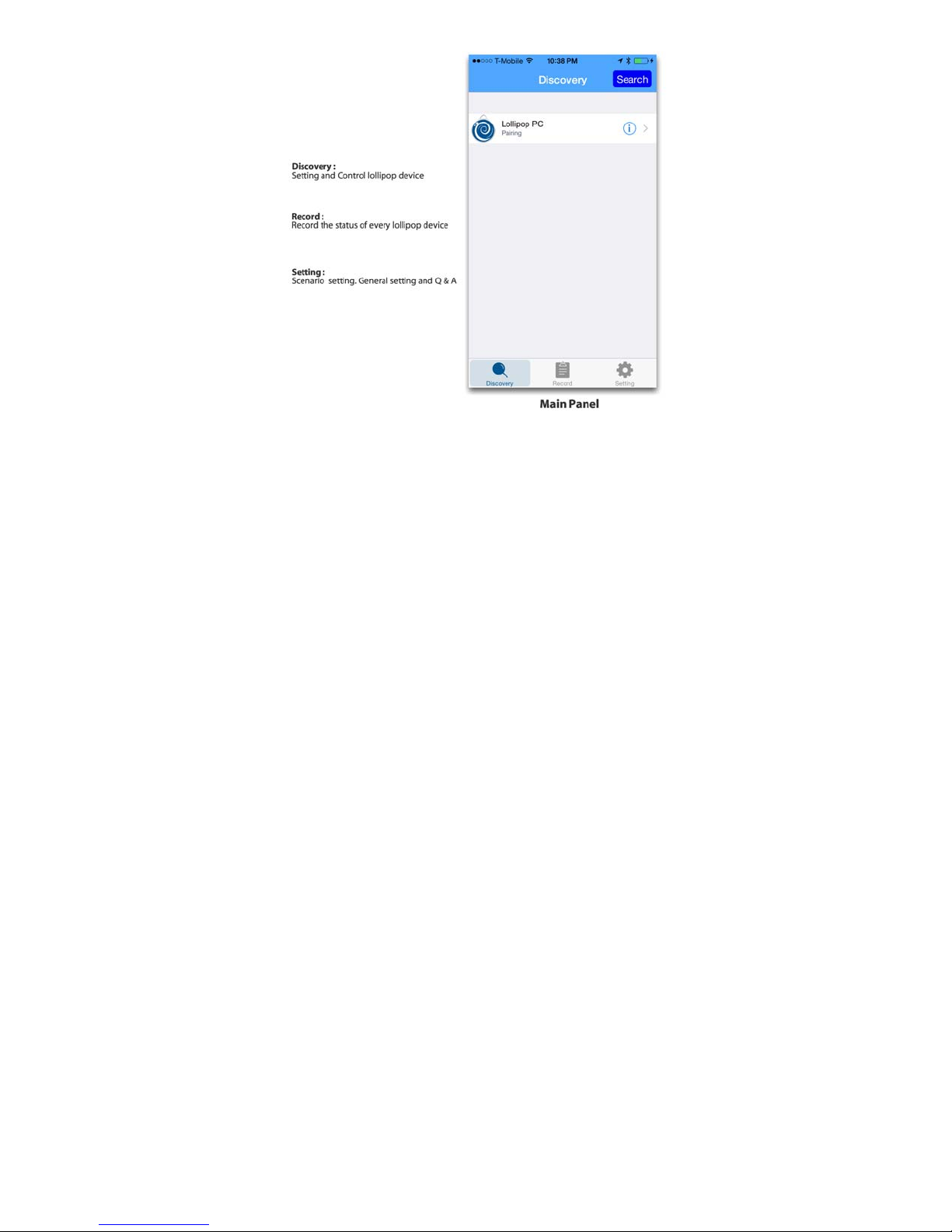
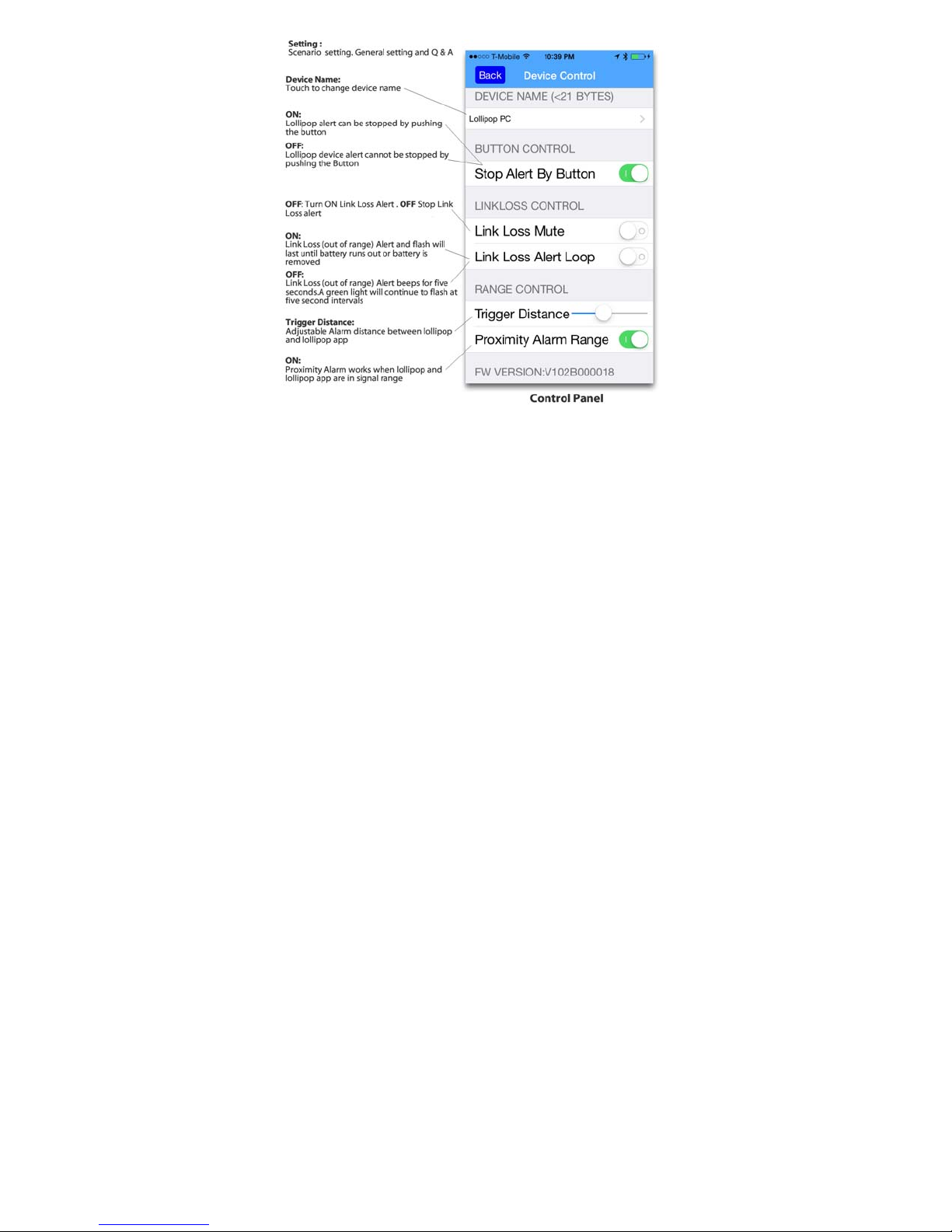
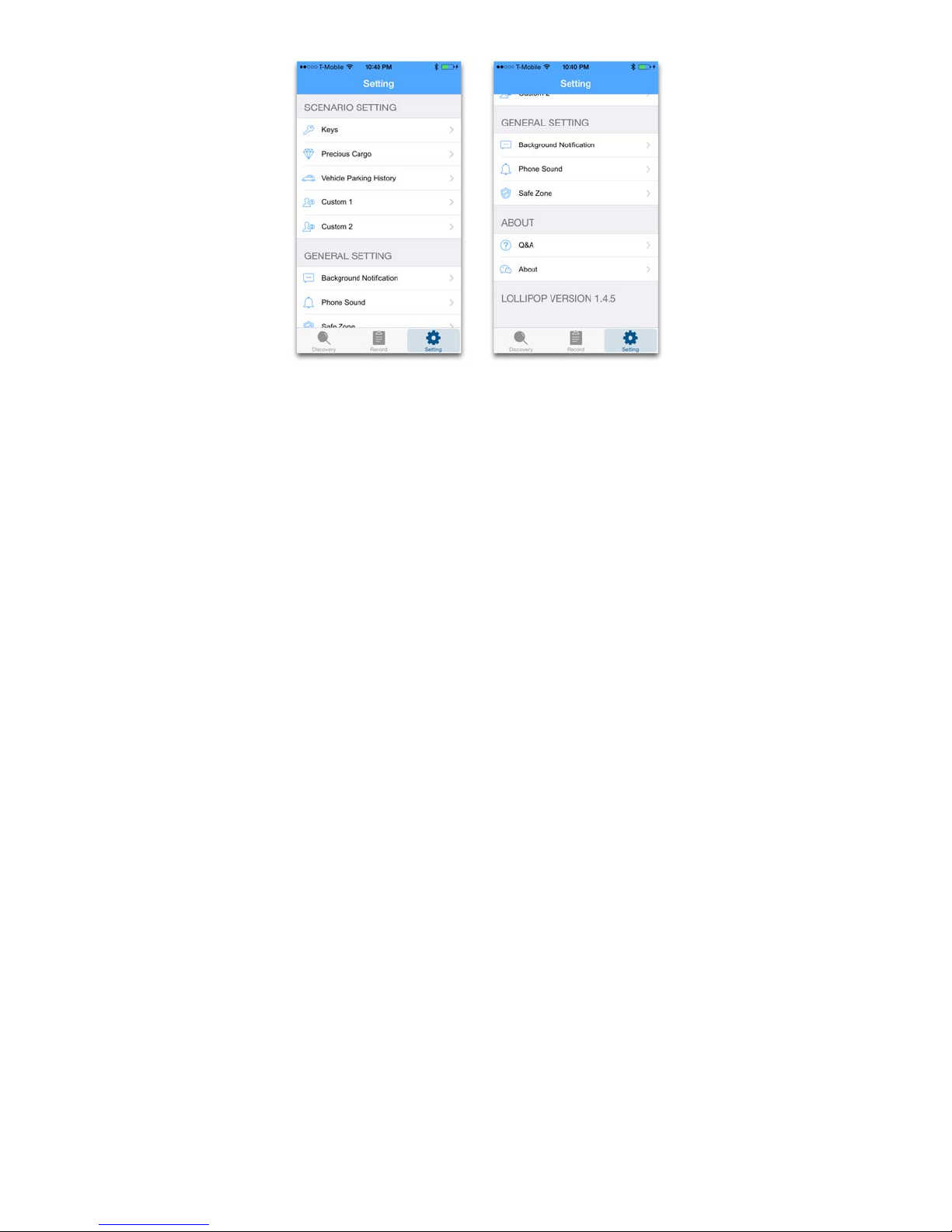
Lollipop PC iOS APP Main Features:
:
Page 8
Page 9
Page 10
Page 11
FAQ
z If Lollipop PC can not be found by iPhone in some
cases, please touch [Setting -> BlueTooth on your
iPhone, turn BlueTooth ON and OFF once again to
reset BlueTooth.
Page 12

z To re-pair your iPhone and Lollipop PC, please select
“Forget this Device” on [setting -> BlueTooth ->
Lollipop PC.
z Always remember if you lose connection with your
Lollipop PC for any reason and you couldn't reconnect,
simply go to your phone Setting - BlueTooth - click on
Lollipop PC option then press on "Forget This Device"
and reconnect again by pressing the connect button
on your Lollipop device then press "PAIR" on your
iPhone.
Important Safety Instructions
WARNING: Failure to follow these safety instructions
may result in injury or damage. To avoid injury, please read all
safety instructions prior to use.
• Never leave child unattended. The Lollipop is not a substitute for
responsible adult supervision.
• Do not immerse in water. The Lollipop is not waterproof and should not
be worn while swimming.
• Test this monitor and all its functions so that you are familiar with it prior
to actual use.
Page 13

• This product is not a toy. Do not allow children to play with it.
• Keep instructions for future use.
Enjoy Your Lollipop PC...
www.lollipopPC.com
 Loading...