

Page 1
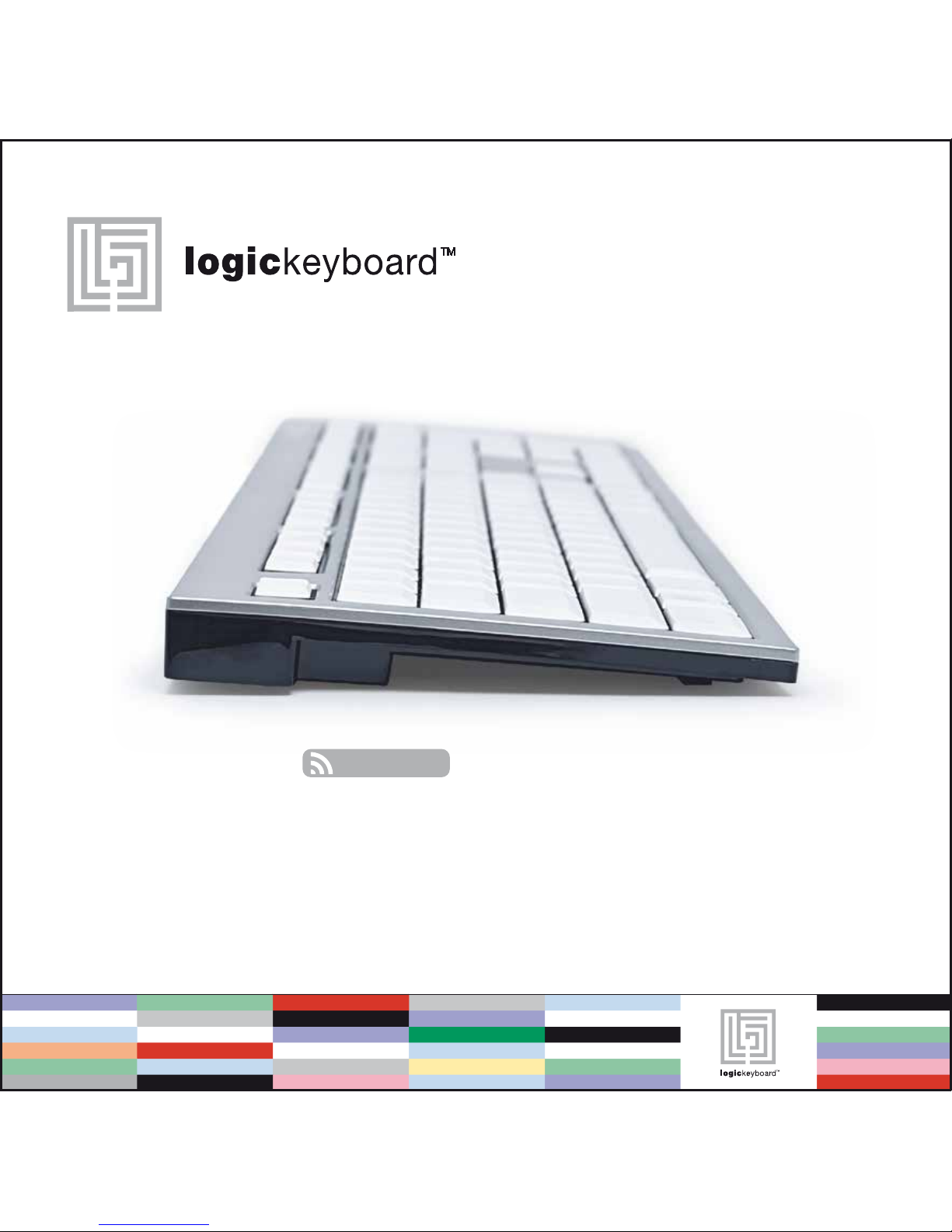
Quick setup guide
Wireless for PC
RF 2.4 GHz
Page 2

Thank you for purchasing the
Logickeyboard™ Wireless Slim Line
PC keyboard. This product from
Logickeyboard™ is made to match
the same high design and quality
standards as our other Slim PC keyboard line, with low profiled keys for
less hand strain, and with the same
outstanding key mechanism that
enables a light touch and quiet key
operation, but still a sublime tactile
feedback that helps you increase
your productivity.
System requirements
Windows XP, Vista or Windows 7
Any USB 2.0 port
What’s in the Box
Wireless Slim Line keyboard
USB Nano receiver
2 pcs AAA batteries
Warranty information
Quick Installation Guide
Dimensions
Length 446 mm ~ 8.3 inches
Width 141 mm ~ 5.6 inches
Height 23 mm ~ 0.9 inches
Weight 840 g ~ 32.5 oz
www.logickeyboard.com
Page 3
1
A
A
1
How it works
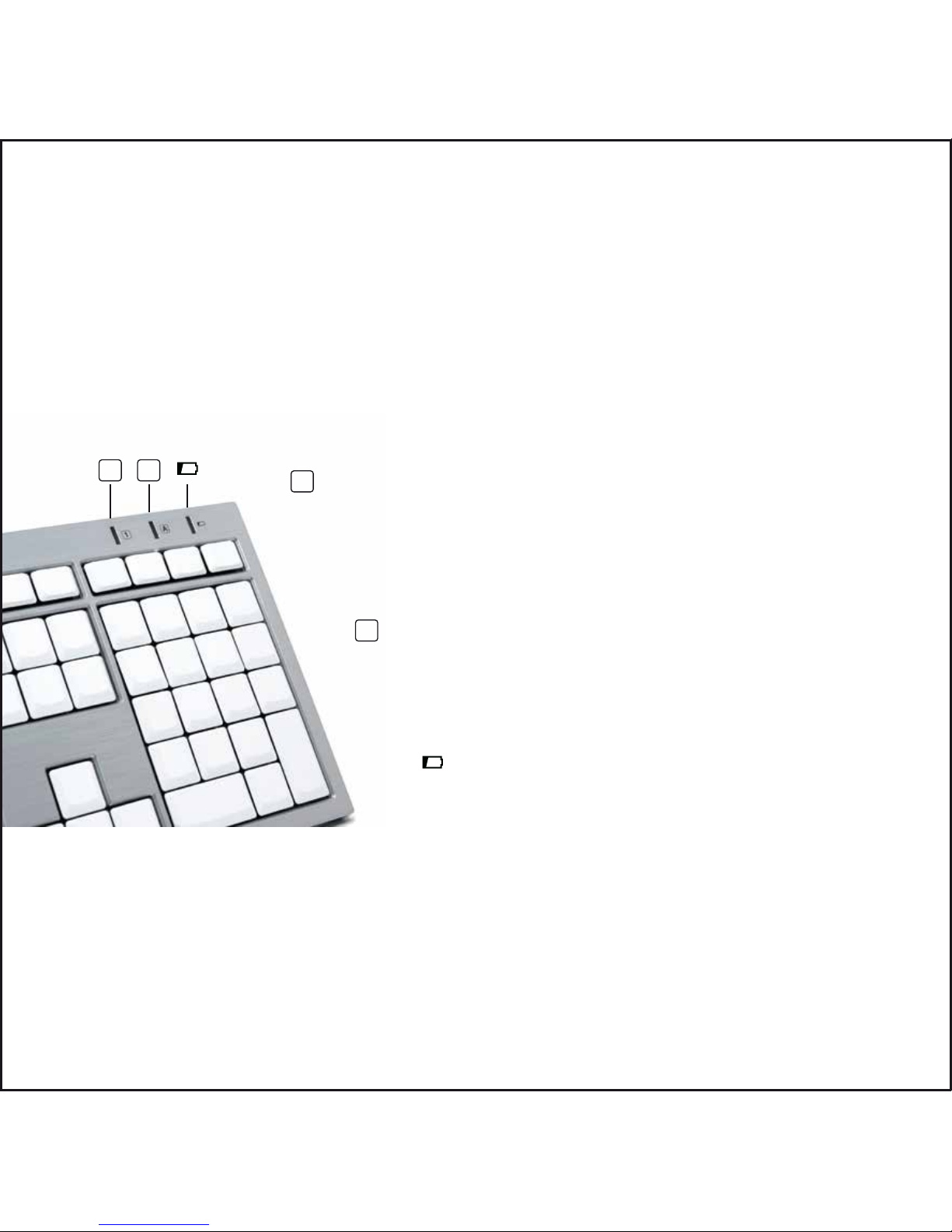
Your new Wireless Slim Line PC keyboard works like any other keyboard when
set up correctly. The difference between this keyboard and any wired USB
keyboard are mainly on the LED indicators outlined below.
Please note – you do not need to turn off the
battery power on the back of the keyboard under
normal use. The keyboard is made with a power
saving function that automatically turns off the
battery power when the keyboard is standing by.
www.logickeyboard.com
Num Lock indicator
When activating the Num Lock mode on your keyboard, this indicator flashes
for just one second to let you know that the function is on. The indicator
turns off after the one second to save battery power. When the Num Lock
function is turned on, the indicator blinks for every keystroke you make. This
indicator is also used when you are ‘pairing’ the keyboard with the receiver. It
lights for a few seconds to indicate that pairing is activated.
Caps Lock indicator
When activating the Caps Lock mode on the keyboard, this indicator
flashes for just a couple of seconds to let you know that the function
is turned on. The indicator turns off again to save battery power.
When the Caps Lock function is on, the indicator blinks for every
keystroke you make.
Low battery indicator
If this LED starts flashing, please power off your keyboard
and replace the batteries. After turning the keyboard back
on again, it should be fully functional, and you do not need
to pair it with the receiver again.
Page 4

Please note- if installed correctly, there is no need to press the pairing button on the back of the
keyboard during the installation process. If your installation fails and your keyboard does not pair with
the Receiver during this first installation attempt, we recommend that you press the Pairing button once
and see that the Num Lock indicator lights up for a few seconds. Alternatively, you can remove the USB
Nano Receiver and use it on another USB 2.0 port on you computer.
How to set up your Wireless
Slim Line PC Logickeyboard™
Your new Wireless Slim Line PC
keyboard and USB Nano Receiver is
made for easy installation on your
Windows© PC. Just follow the few
steps below:
1 ) Insert the USB Nano receiver into
any USB 2.0 port on your computer.
2) Let your PC complete the
installation of the USB Nano
receiver. Wait for the confirmation
message on you monitor. It may
take a minute. No driver installation
is needed.
3) Make sure that the Power Switch
on the back of the keyboard is turned
to the “Off” position
4) Remove the battery cover and
insert two AAA batteries according
to the embedded direction guide in
the battery tray. Put the battery cover
back on and turn the Power Switch to
“On”
Your Wireless Slim Line PC
logickeyboard™ is automatically
paired with the Receiver and ready
for use. Pairing is referred to Nano
receiver recognizing the radio
frequency transmitted from the
wireless keyboard.
www.logickeyboard.com
Page 5

Logickeyboard™ is a trademark of BSP Europe A/S. All other names, product names and trademarks in this
documentation are the property of their respective holder. Copyright 2012© by BSP Europe A/S – Denmark
For Technical Support
please go to our web site
www.logickeyboard.com/QandA
where you can find some of the most
frequent Questions & Answers.
You can also feel free to contact
us for specific support or guidance
at any time. Please go to URL
www.logickeyboard.com/contact
Disclaimer - The content of this
manual is subject to changes without
notice. We assume no responsibility
for any errors or inaccuracies that
may appear in this Quick Installation
Guide. Nor do we assume responsibility for any damage on other
products or services than supplied or
provided by logickeyboard™
www.logickeyboard.com
 Loading...