

Page 1
User Manual
Document Version 2.0/October 2018
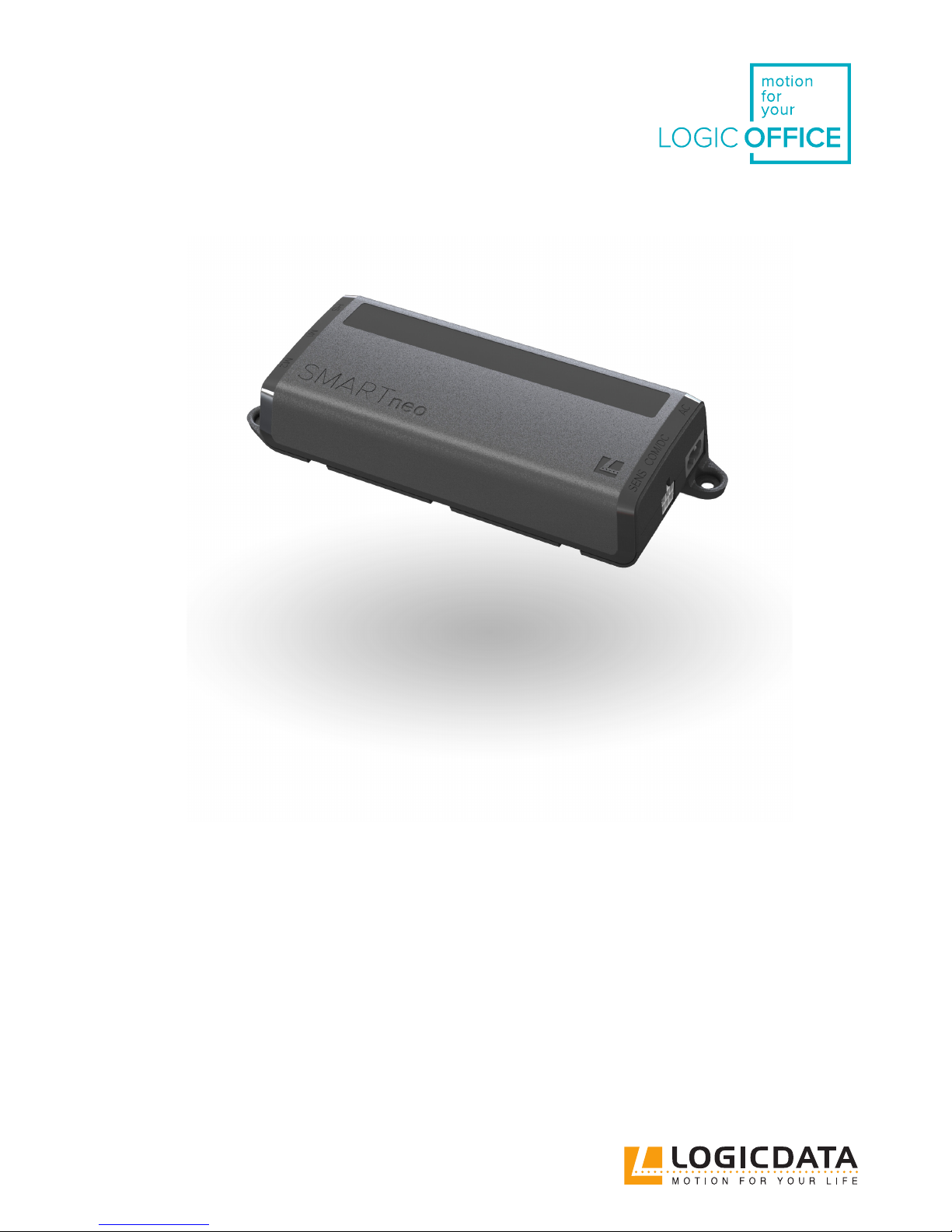
SMARTneo
Page 2
USER MANUAL SMARTneo // PAGE 2
INHALT
1 Preface 4
1.1 Copyright 4
1.2 Royality-free use of images and text 4
1.3 Trademark 5
1.4 Symbols and signal words used 5
2 Safety 6
2.1 General safety regulations and obligations 6
2.2 Residual hazards 6
2.3 Qualied persons 10
2.4 Liability 10
3 Product 11
3.1 Description 11
3.2 Intended use 13
4 Delivery scope 13
5 Unpacking 13
6 Assembly 14
7 Commissioning 16
7.1 Connecting drives 16
7.2 Connecting the hand control 17
7.3 Cascading 17
7.4 Connecting the power supply 17
7.5 Overall conguration (example) 18
7.6 Reset during rst start up 18
8 Dismantling 19
9 Operation 19
Page 3
USER MANUAL SMARTneo // PAGE 3
9.1 Adjusting the table height 20
9.2 Saving the memory position 20
9.3 Actuating the memory position 21
9.4 Manual reset 22
9.5 Correcting the height display 23
10 Software-dependent functions 24
10.1 Slow travel speed area 24
10.2 Safety area 24
10.3 Container stop and shelf stop positions 25
10.4 Plug Detection 26
10.5 Auto Detect Number of Drives 27
10.6 Detection of SLIMdrive drives 27
10.7 Duty cycle monitoring 28
10.8 Change of the display unit (cm or inches) 29
10.9 Changing the number of motors 30
10.10 Control system to factory settings reset
(SO Menu) 31
11 Collision protection 33
11.1 Intelligent System Protection (ISP) 33
11.2 Drive back 34
12 Maintenance 34
13 Fault Removal 34
13.1 Possible malfunctions and their remedy 35
13.2 Error messages on the display
of the hand control 36
13.3 Click-Codes 39
14 Additional information 40
14.1 Technical specication 40
14.2 Disposal 40
Page 4
USER MANUAL SMARTneo // PAGE 4
1 PREFACE
The product documentation consists of this manual and a data sheet.
This document is intended to enable assembly personnel safe working with the products. Assembly person-
nel must therefore have the complete documentation available at all times. The document must be comple-
te and legible without problems. Please observe the notes listed in this document in order to avoid hazards
and damage to the products.
The information in this document was compiled with great care. Even though regular revision and up-
dating is used to attempt ensuring correctness and completeness of the content, no guarantee can be given
for complete absence of errors and for completeness.
If you experience problems or have questions regarding the documentation, please contact our technical
documentation department.
1.1 COPYRIGHT
© February 2018 by LOGICDATA Electronic und Software Entwicklungs GmbH
All rights reserved. All information in this documentation is copyrighted. No part of this documentation
may be duplicated or reproduced without the written consent of LOGICDATA. LOGICDATA reserves the
right to make changes to the specications and other information in this documentation without prior an-
nouncement.
1.2 ROYALTY-FREE USE OF IMAGES AND TEXT
After the purchase and complete payment of the product, the running texts and graphics in Chapter 9 “Ope-
ration” of this documentation may be used by the customer to create the end customer documentation
for the height-adjustable table, in which SMARTneo is installed, for 10 years after delivery at no cost. This
licence does not include logos, design and page layout elements of LOGICDATA. The customer may make
all necessary changes to the texts and graphics in order to adjust them to the purpose of the end customer
documentation. The texts and graphics must not be – changed or unchanged – sold, published digitally or
sublicensed. A transfer of this licence to third parties without the permission of LOGICDATA is also preclu-
ded. The complete property rights and copyright for the texts and graphics remains with LOGICDATA. Texts
and graphics are oered in the current state without warranties or promises of any kind.
Please contact our technical documentation department to obtain texts and graphics in an editable format.
E-mail: [email protected]
Page 5
USER MANUAL SMARTneo // PAGE 5
1.3 TRADEMARK
Documentation can possibly also include representations of registered trademarks of goods or services as
well as information on copyrighted or otherwise protected know-how of LOGICDATA or third parties. In all
cases, all rights remain exclusively with the respective owner of the rights.
LOGICDATA® is a registered trademark of LOGICDATA Electronic und Software GmbH in the USA, the Eu-
ropean Union and other countries.
1.4 SYMBOLS AND SIGNAL WORDS USE
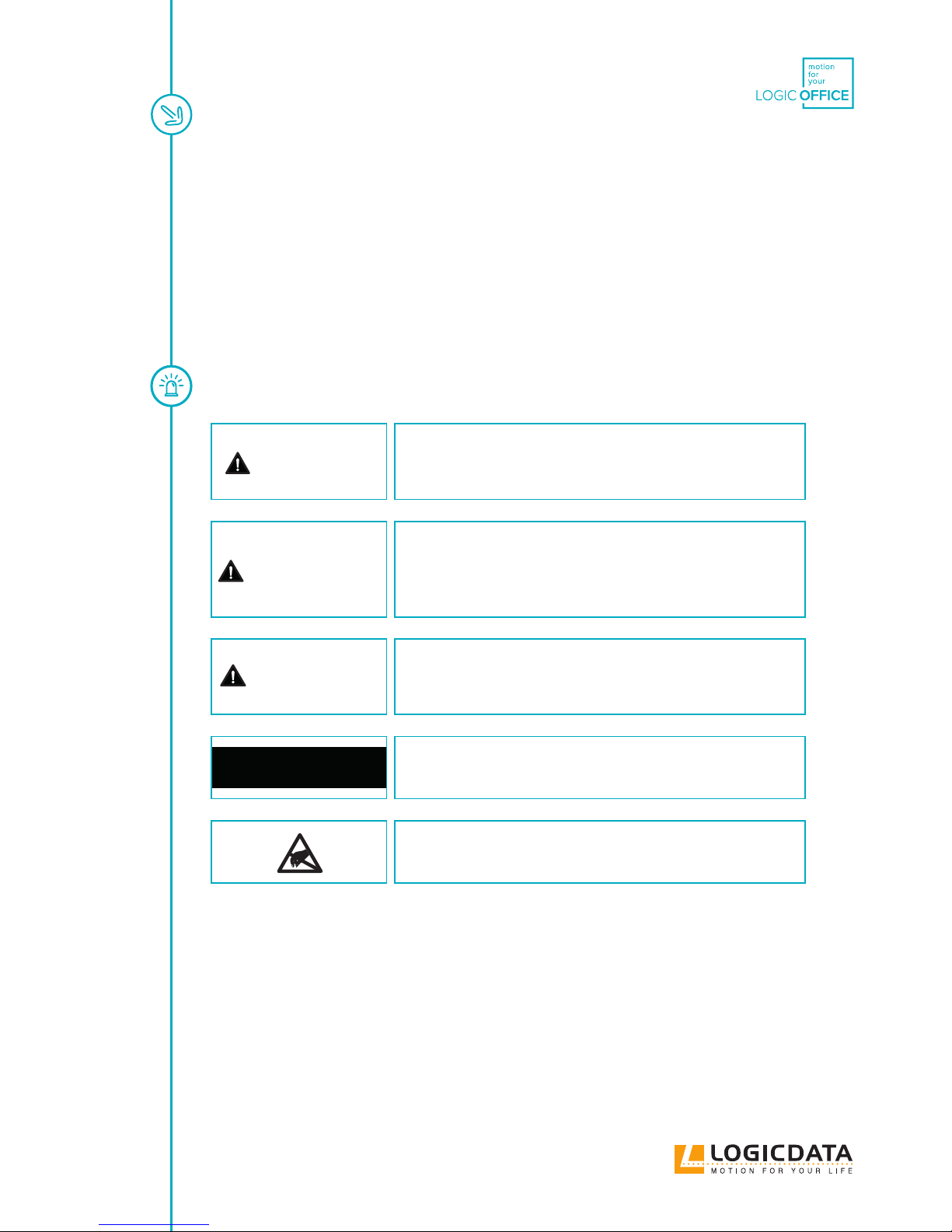
DANGER
Imminent threat to the lives of individuals
Warns against a dangerous situation. Failure to observe the war-
ning will result in death or severe personal injury.
WARNING
Risk of personal injury (serious injuries) and additional
material damage
Warns against a dangerous situation. Failure to observe the war-
ning can result in severe personal injury.
CAUTION
Danger of material damage and additional low risk of injury
Warns against a dangerous situation. Failure to observe the war-
ning can result in injuries or material damage.
NOTICE
Notice that facilitates the handling or understanding of the
product.
Damage from electrostatic discharge (ESD)
Page 6
USER MANUAL SMARTneo // PAGE 6
2 SAFETY
2.1 GENERAL SAFETY REGULATIONS AND
OBLIAGTIONS
Generally, the following safety regulations and obligations apply to handling the product:
• The product must be operated only in perfect and clean state.
• It is prohibited to remove, change, bridge or circumvent any protection, safety or monitoring
equipment.
• It is prohibited to convert or change the product without the written release of LOGICDATA.
• In case of malfunctions or damage, the product must be replaced immediately.
• Repairs are prohibited. Defective products must be replaced as a whole..
• Hardware replacements or changes to the system conguration are permitted only in non-energi
zed state.
• Only qualied persons may carry out work on the system
• The national employee protective conditions as well as national safety and accident prevention
regulations apply to system operation.
2.2 RESIDUAL HAZARDS
Even with maximum diligence during the design and construction of the components and taking into
consideration all safety-relevant issues, there can be residual hazards which were evaluated using via
risk assessment.
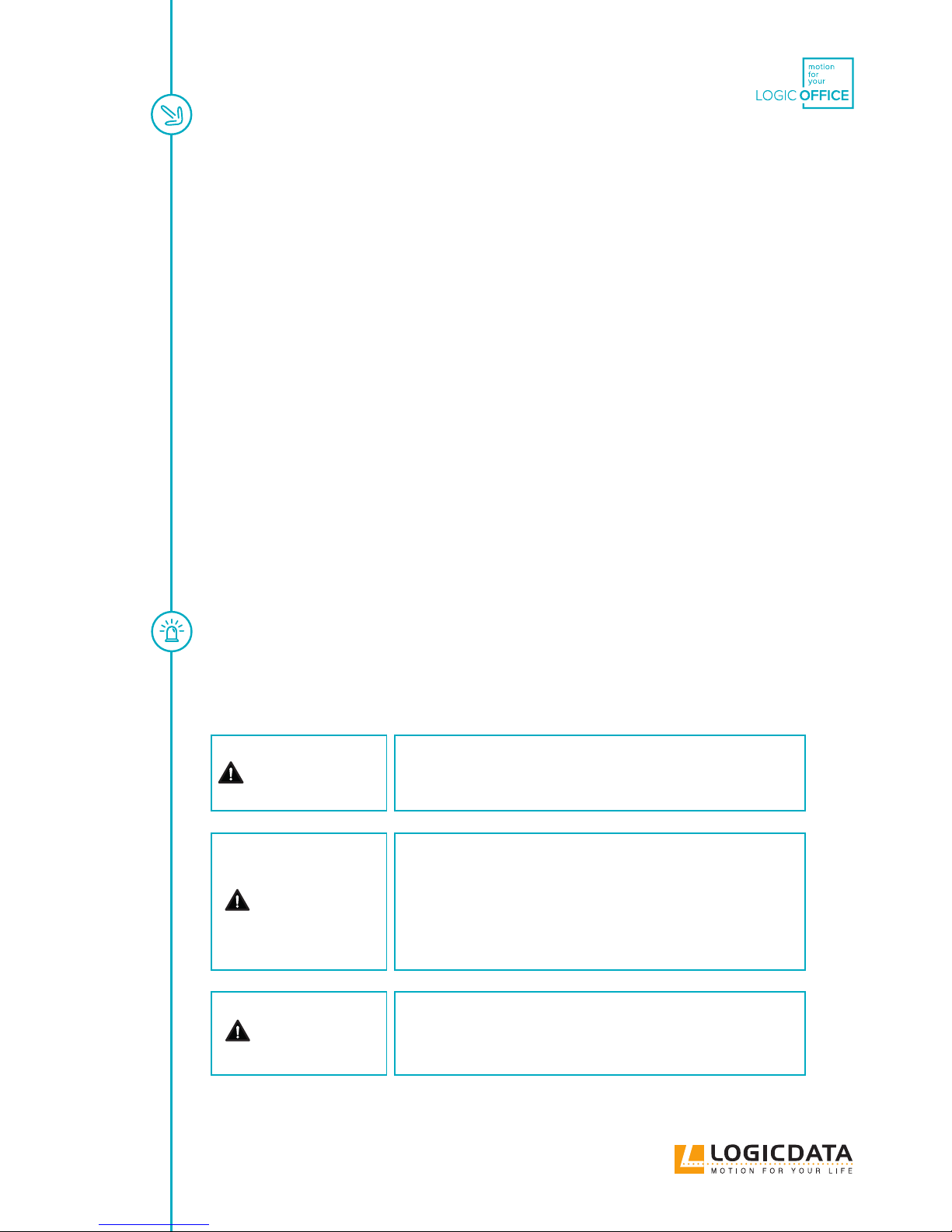
WARNING
Danger of electric shock
Never open the motor control unit.
There is a danger of electrical shock.
DANGER
Danger due to incorrect mains voltage
The motor control must be operated only with
mains voltage and the frequency ranges marked on the
rating plate of the mains adapter must not be exceeded.
There can be electrical hazards otherwise.
DANGER
Disconnect the power supply
Disconnect the power supply before removing or connecting any
components. There can be electrical hazards otherwise.
Page 7
USER MANUAL SMARTneo // PAGE 7
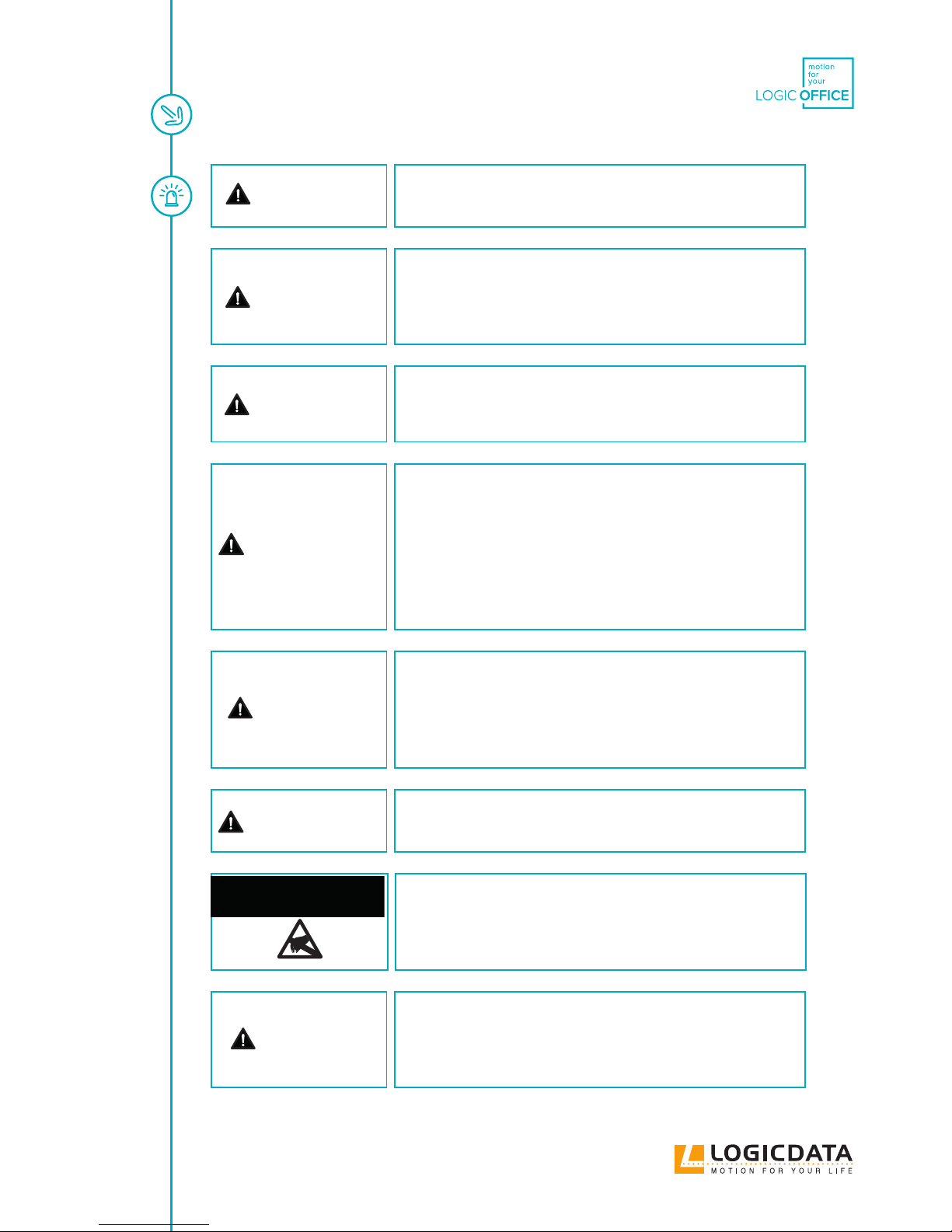
DANGER
Don‘t change or convert components
The components must never be changed or converted.
DANGER
Danger of crushing when changing the tabletop height
There is a crushing hazard if the table top position is changed.
Therefore always make sure that there are no items or persons in
the danger zone and that no one reaches into the danger zone.
DANGER
Risk of explosion
Do not operate the components in a potentially explosive atmo-
sphere.
WARNING
Usage by children and persons with restriction
This device can be used by children above the age of 8 years as
well as by persons with reduced physical, sensorial or mental
capacities or a lack of experience and knowledge if they are
supervised or were instructed in the safe use of the device and
understand the resultant hazards. Children may not play with
the device.
DANGER
Danger in case of damage
When an electrical line is damaged, it must be replaced imme-
diately through the manufacturer or on the customer service in
order to prevent further damage. Recommissioning must not be
done until the fault removal has taken place.
WARNING
Danger in case of humidity
Do not use the motor control unit outside or in wet areas!
Ensure ESD-oriented handling during the unpacking.
Errors that can be attributed to electrostatic discharge will void
warranty claims.
NOTICE
DANGER
Danger due to liquids or heated surfaces
Never dip the connection cable or parts of the hand control into
liquids and keep the connection cable away from heated surfa-
ces.
Page 8
USER MANUAL SMARTneo // PAGE 8
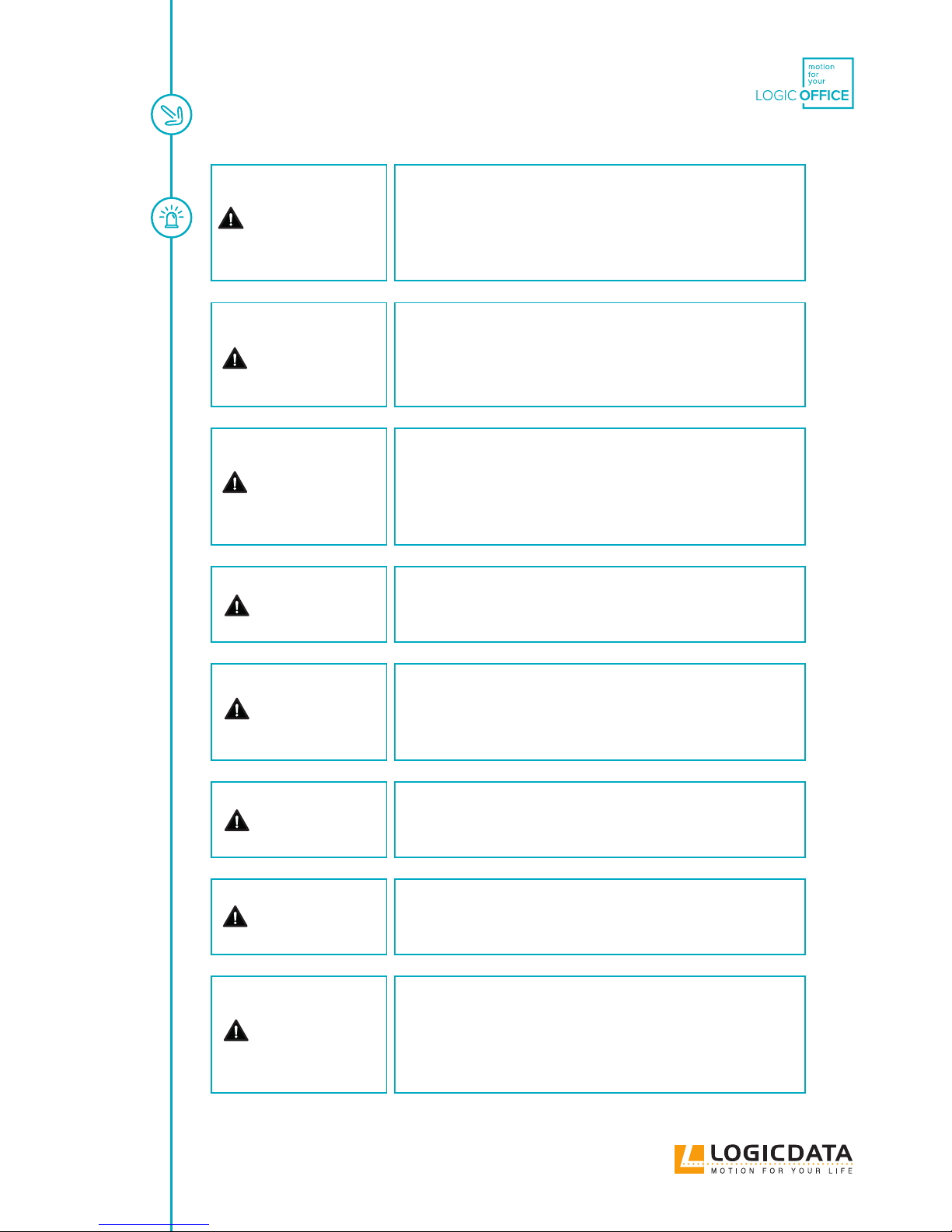
WARNING
Danger due to continuous operation
The motor control unit is not designed for continuous operation.
Changing the table top position without disruption must not
exceed the duty cycle specied on the rating plate!
DANGER
Danger due to defective power supply cable
Always use a standardized power supply cable. Ensure that the
power supply cable is not damaged. Operation of the motor cont-
rol unit with a damaged power supply cable is prohibited.
DANGER
Danger due to self-built products
Connecting self-built products on the motor control unit is
prohibited. Use only components suitable for LOGICDATA
motor control units as the device may otherwise be damaged or
destroyed.
DANGER
Remove from the electricity network before plugging
Before plugging hand control in and out, you have to pull the
power supply cable from the mains plug without fail.
DANGER
Danger due to malfunction
With a malfunction (e.g. if the motor control unit continues to
run independently when a movement button is stuck), the mains
plug must be pulled immediately.
DANGER
Danger due to humidity
Protect the motor control unit against moisture, dripping and
spray water!
DANGER
Danger due to changes to motor control
Conversions or changes to motor control unit and control ele-
ment are prohibited.
DANGER
Danger of crushing
In the event of a malfunction (motor or module error), it can
happen that the table top moves a bit with every attempt to start
before the safety shutdown engages. Please note the increased
crushing hazard hereby!
Page 9
USER MANUAL SMARTneo // PAGE 9
DANGER
Danger due to inactive collision protection
With all reset processes (Chapter 9.4 Manual reset), the collision
protection (ISP) is inactive. Please note the increased crushing
hazard hereby!
DANGER
Remove from the electricity network before cleaning
The motor control unit must be cleaned exclusively with a dry,
soft cloth. Before cleaning, you must pull the power supply cable
from the mains plug without fail.
DANGER
Cleaning by children without a supervision
Cleaning may not be carried out by children without supervisi-
on.
DANGER
Danger of crushing
There is a crushing hazard if the table top position is changed.
Therefore make sure that there are no items or persons in the
danger zone and that no one reaches into the danger zone.
WARNING
Increased safety risk
The rmware is delivered with deactivated double-click func-
tion. If you activate the function, the grading of the safety
functions according to EN ISO 13849-1 PL b, Category B, loses its
validity. The legal requirements from the standard are no longer
met with this function.
To use the double-click function, you have to carry out a new
assessment of the higher safety requirements according to EN
60335-1 which cannot be met by this product. LOGICDATA is not
liable for injuries or damage which can result from the activation
of the double-click function.
DANGER
Various dangers when exceeding the carrying capacity
Ensure that the maximum load of the table specied by the table
manufacturer is not exceeded.
DANGER
Use compatible hand control
For the HV socket, use only HSC-OV-MDF-4M2 or LOGICDA-
TA-compatible hand control cables. Especially LAN cables or
comparable cables must not be connected to the control unit.
Page 10
USER MANUAL SMARTneo // PAGE 10
2.3 QUALIFIED PERSONS
Products of LOGICDATA may be installed and commissioned only by qualied persons who are authorised
to plan installation, install, commission or maintenance/repair and who have read and understood the pro-
duct documentation. Qualied persons have, because of their training, professional experience and timely
professional activity, the required technical knowledge to be able to test, evaluate and handle electrical and
mechatronic products and systems according to the generally valid standards and the guidelines of electri-
cal engineering and furniture production. They know and observe the basic regulations for industrial safety
and accident prevention and the basic and specialised standards applicable to the special application.
All safety standards and guidelines relevant for the application must be taken into consideration. The fur-
niture manufacturer carries out a safety review of the overall system and is responsible for the certication
of the overall system.
2.4 LIABILITY
The information in this documentation describes the characteristics of the products without assuring them.
The products comply with the state of the art as well as the applicable safety and health regulations. But
there can still be hazards through faulty operation or incorrect use.
LOGICDATA is not liable for damage resulting from:
• Inappropriate use of products
• Failure to observe the documentation
• Unauthorised changes to the products
• Unprofessional work performed on and with the product
• Operation of a product even though it is damaged
• Wear parts
• Incorrectly carried out repairs
• Unauthorised, inappropriate change of operating parameters
• Disaster situations, external inuences or force majeure.
The manufacturer of the height-adjustable tables into which the LOGICDATA products are installed is res-
ponsible for the LOGICDATA products in the specic application and the compliance with the correspon-
ding guidelines, standards and laws. LOGICDATA is not liable for damage that can be attributed directly or
indirectly to the delivery, performance or use of this document.
Page 11
USER MANUAL SMARTneo // PAGE 11
3 PRODUCT
3.1 DESCRIPTION
SMARTneo is a motor control for electrically height-adjustable desks. The following variants are available:
SMARTneo-2-YYY-EU
• Designed for the European power supply system.
• The double-click function is not permissible in Europe.
• Two motors can be actuate to the control.
• Two controls can be connected to one cascading cable LOG-CBL-SMARTneo-SYNC-1000 in order
to actuate up to four motors.
SMARTneo-2-YYY-US
• Designed for the US-American power supply system.
• The double-click function can be activated in the parameters.
• Two motors can be actuate to the control.
• Two controls can be connected to one cascading cable LOG-CBL-SMARTneo-SYNC-1000 in order
to actuate up to four motors.
Page 12
USER MANUAL SMARTneo // PAGE 12
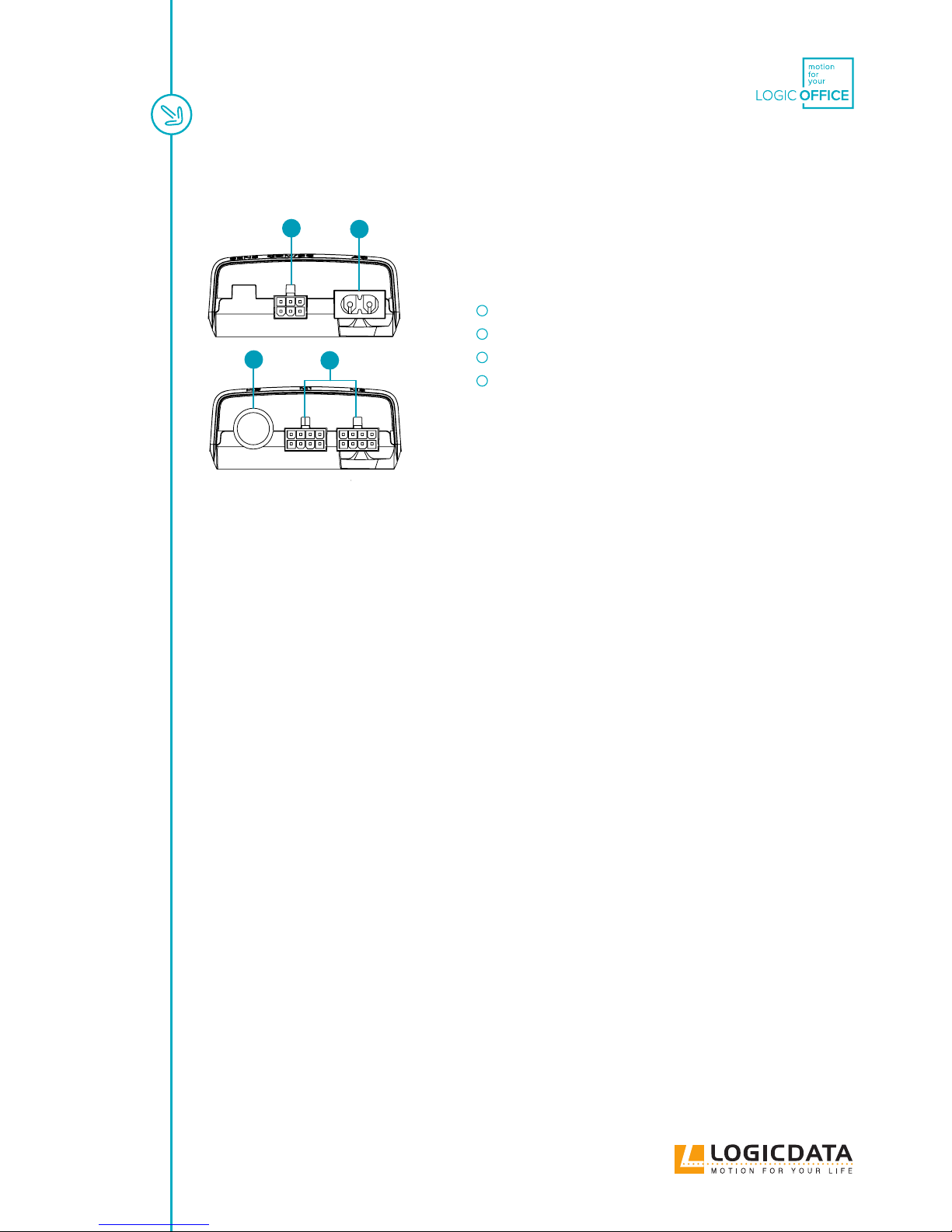
Fig. 1: Connections to the control
The mechatronic overall system for the vertical adjustment consists of the following products:
One engined table
• 1 control SMARTneo
• 1 actuator, e. g.: SLIMdrive-500, SLIMdrive-660s
• 1 hand control e. g.: TOUCHfx, HSF or another LOGICDATA hand control, LOGIClink
• 1 mains cable with two-pin connection C8
Two engined table
• 1 control SMARTneo
• 2 actuators, e. g.: SLIMdrive-500, SLIMdrive-660s
• 1 hand control e. g.: TOUCHfx, HSF or another LOGICDATA hand control, LOGIClink
• 1 mains cable two-pin connection C8
Four engined table
• 2 controls SMARTneo
• 1 cascading table
• 4 actuators , e. g.: SLIMdrive-500, SLIMdrive-660s
• 1 hand control e. g.: TOUCHfx, HSF or another LOGICDATA hand control, LOGIClink
• 2 mains cable with two-pin connection C8
Only the listed products are compatible and may be connected to the control.
Because of technical limits, the following restriction exists for the system conguration:
• Only system components released by LOGICDATA must be used.
6-pin minit for cascading cable (COM/DC)
2-pin C7 for current supply (AC)
DIN for hand control (HC)
8-pin minit for actuators (M1, M2)
1
2
3
4
Page 13
USER MANUAL SMARTneo // PAGE 13
3.2 INTENDED USE
SMARTneo is an electrical device for use at home. It may be used only in dry interior spaces and according to
the product description. The installation site must be level, vibration-free and free from contamination. It
must be ensured that there is no extraordinary exposure through dust or toxic or caustic gases and vapours
or through inadmissible heat exposure at the installation site.
This device can be used by children above the age of 8 years as well as by persons with reduced physical, sen-
sorial or mental capacities or a lack of experience and knowledge if they are supervised or were instructed
in the safe use of the device and understand the resultant hazards. Children may not play with the device.
Cleaning may not be carried out by children without supervision.
After the mechatronic system has been installed in a table, the table manufacturer / customer is responsible
for a risk analysis and assessment of the complete table and for creating a user documentation.
4 DELIVERY SCOPE
The delivery scope comprises controls, without cables or compatible products. The controls are packed in
cartons. Fitting material is not included in the delivery scope.
5 UNPACKING
Proceed as follows to unpack:
1. Put on an antistatic bracelet.
Ensure ESD-oriented handling during the unpacking.
Errors that can be attributed to electrostatic discharge will void
warranty claims.
NOTICE
2. Remove the packing material.
3. Check the contents of the package for completeness and damage.
4. Dispose of packaging material in an environmentally responsible way.
Page 14
USER MANUAL SMARTneo // PAGE 14
6 ASSEMBLY
Mount the SMARTneo motor control on the underside of the table top. For assembly you need the following
tools and materials:
• 1 cross screwdriver
• 1 pencil
• 1 drilling machine (for predrilling)
• matching screws (not included in the delivery)
NOTICE
Assembly of the system is described in the corresponding custo-
mer manual.
WARNING
Unplugging mains cable
During installation of the system, the motor control unit‘s power
supply cable must be disconnected from the mains plug.
WARNING
Acclimation of the product
Before mounting and commissioning the SMARTneo, make sure
that the product acclimatizes to the temperature and humidity
values specied in the data sheet for operation.
To mount the SMARTneo motor control, proceed as follows:
NOTICE
We recommend mounting with the aid of the drilling template.
If you do not want to use the drilling template, please follow the
instructions in detail.
1. Position the motor control in the desired position on the table top.
2. Mark the drill holes with a pencil.
3. Pre-drill these 2 drill holes.
4. Attach the SMART to the pre-drilled locations with 2 screws.
5. Tighten the screws.
Page 15
USER MANUAL SMARTneo // PAGE 15
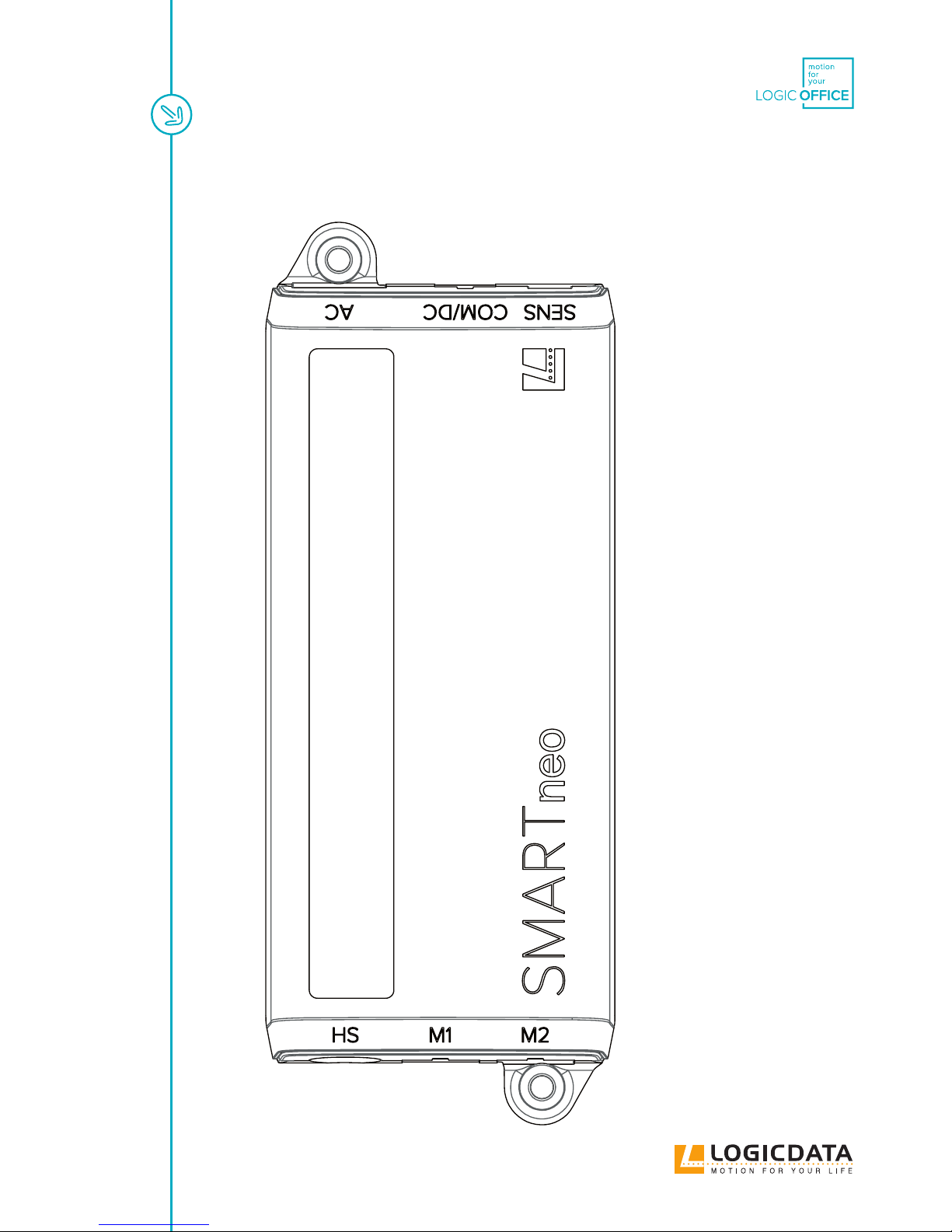
Fig. 2: drilling template
Page 16
USER MANUAL SMARTneo // PAGE 16
7 COMMISSIONING
The table system may be assembled only by qualied persons. The workplace must be clean, dry and ESD
protected.
Ensure ESD-oriented handling during the unpacking.
Errors that can be attributed to electrostatic discharge will void
warranty claims.
NOTICE
WARNING
Power supply cable connection
Plug in the power supply cable only after all other electrical
connections have been established. (Motors and hand control
are connected to the control, etc.)
DANGER
Commissioning only by knowledgeable sta
Commissioning of the motor control unit may be carried out
only by knowledgeable technical sta. Knowledgeable technical
sta has the necessary electrotechnical training and is familiar
with these operating instructions.
DANGER
Acclimation of the product
Before assembly and commissioning of the SMARTneo ensure
that the product is acclimated for the temperature and humidity
values specied in the data sheet.
Proceed as follows to commission the motor control unit SMARTneo:
7.1 CONNECTING DRIVES
Plug in the motor cables in the appropriate 8-pin motor bushings (M1, M2).
NOTICE
While plugging in the motor cables, be mindful of the paramete-
risation of the motor control unit.
Page 17
USER MANUAL SMARTneo // PAGE 17
NOTICE
While plugging in the motor cables, you must observe the se-
quence M1 and M2 without fail.
7.2 CONNECTING THE HAND CONTROL
Insert the hand control in the RJ 45 hand control bushing (HC).
7.3 CASCADING
Cascading enables, through the connection of up to two controls, the operation of up to four synchronized
drives.
NOTICE
It must be specied in advance via parameters whether a control
system is used for cascading. Minor deviations from the func-
tions of a single control are possible.
NOTICE
For additional information regarding the cascading, please refer
to the operating instructions for the cascading of motor controls.
Operating instructions are available in the download area of the
homepage www.logicdata.net
7.4 CONNECTING THE POWER SUPPLY
WARNING
Check before you connect the power supply
Before you connect the power supply cable, check again:
• whether the mains voltage complies with the
rating plate of you control
• whether all components are connected to the
correct bushings. The motor control unit SMARTneo is
operational when the power supply cable is connected.
NOTICE
Depending on the parameterisation of the motor control unit
SMARTneo, a reset or a calibration run can be necessary after the
rst connection of the power supply cable.
Page 18
USER MANUAL SMARTneo // PAGE 18
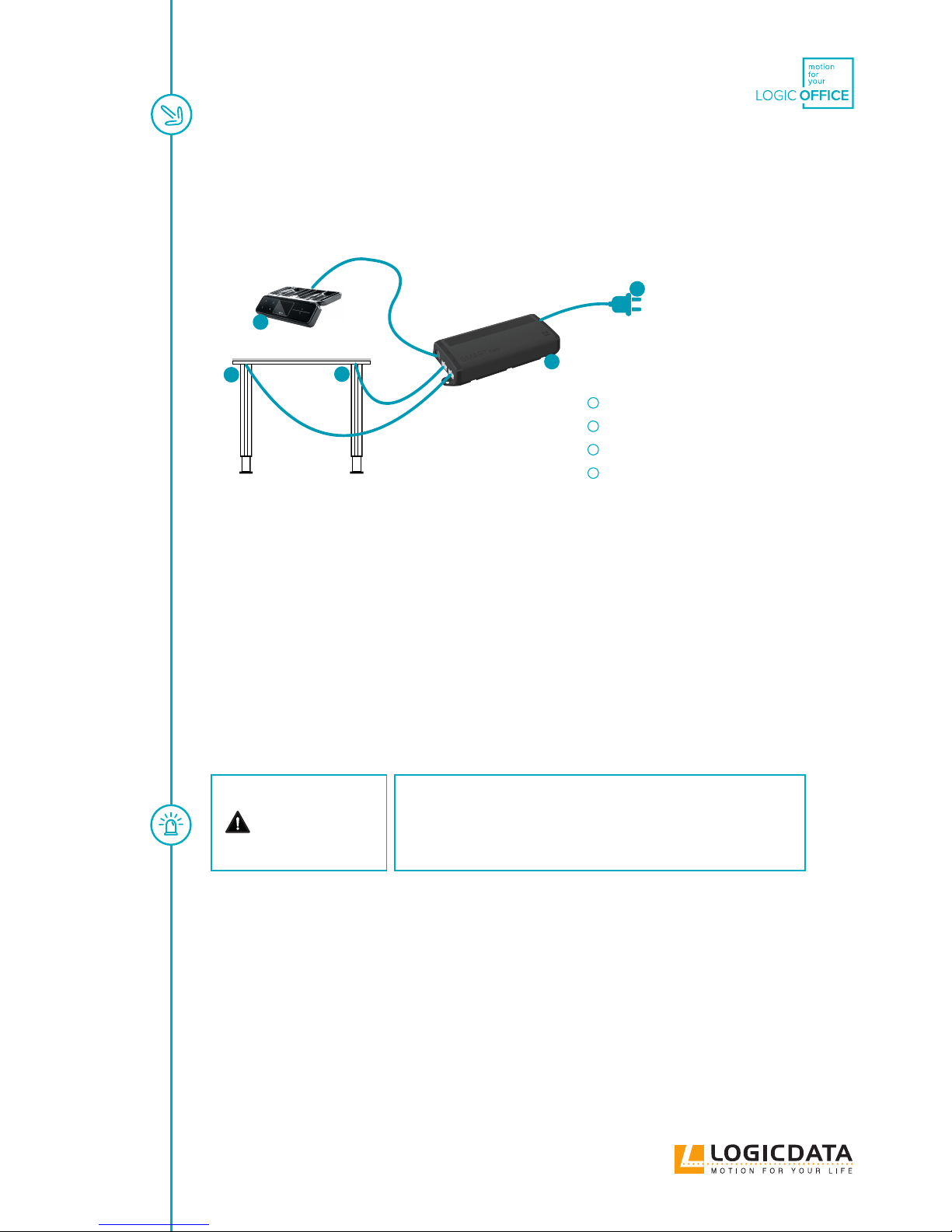
7.5 OVERALL CONFIGURATION (EXAMPLE)
The following gure shows a sample conguration:
Abb. 3: Connections to the control SMARTneo
7.6 RESET DURING FIRST START-UP
During the rst start-up, there is a compulsory reset in order to be able to commission the product.
The reset puts all columns on the same level. This ensures that the table top is moved parallel to the basic
level. In addition, the control stores the connected components in the standard version.
After the reset, conguration changes are detected and rated as errors. The system no longer moves until
the saved state has been restored.
DANGER
Danger of crushing
With all reset processes (Chapter 9.4), the collision protection
(ISP) is inactive. Please note the increased crushing hazard
hereby!
The execution of the manual reset is explained in chapter 9.4.
1
4
3
2
2
Motor control SMARTneo-2
2 motors (in the table legs) (M1, M2)
hand control (HC)
Power supply cable 2-pin(AC)
Page 19
USER MANUAL SMARTneo // PAGE 19
8 DISMANTLING
Proceed as follows for dismantling:
1. Disconnect the table’s power supply.
2. Disconnect all plug connectors from the control.
3. Dispose of all parts within the scope of the valid shut-down in an environmentally responsible way and
sorted according to material (see Chapter 14.2).
9 OPERATION
DANGER
Danger during a thunderstorm
During a thunderstorm or if you are absent for a longer period of
time, pull the power supply cable out of the socket. Otherwise,
device damage may be caused by network-related overvoltage.
The motor control unit SMARTneo provides a broad range of functions. However, the availability of some
functions depends on the hand control used.
The basic functions that can be executed with each hand control intended for the motor control unit
SMARTneo are described in this section.
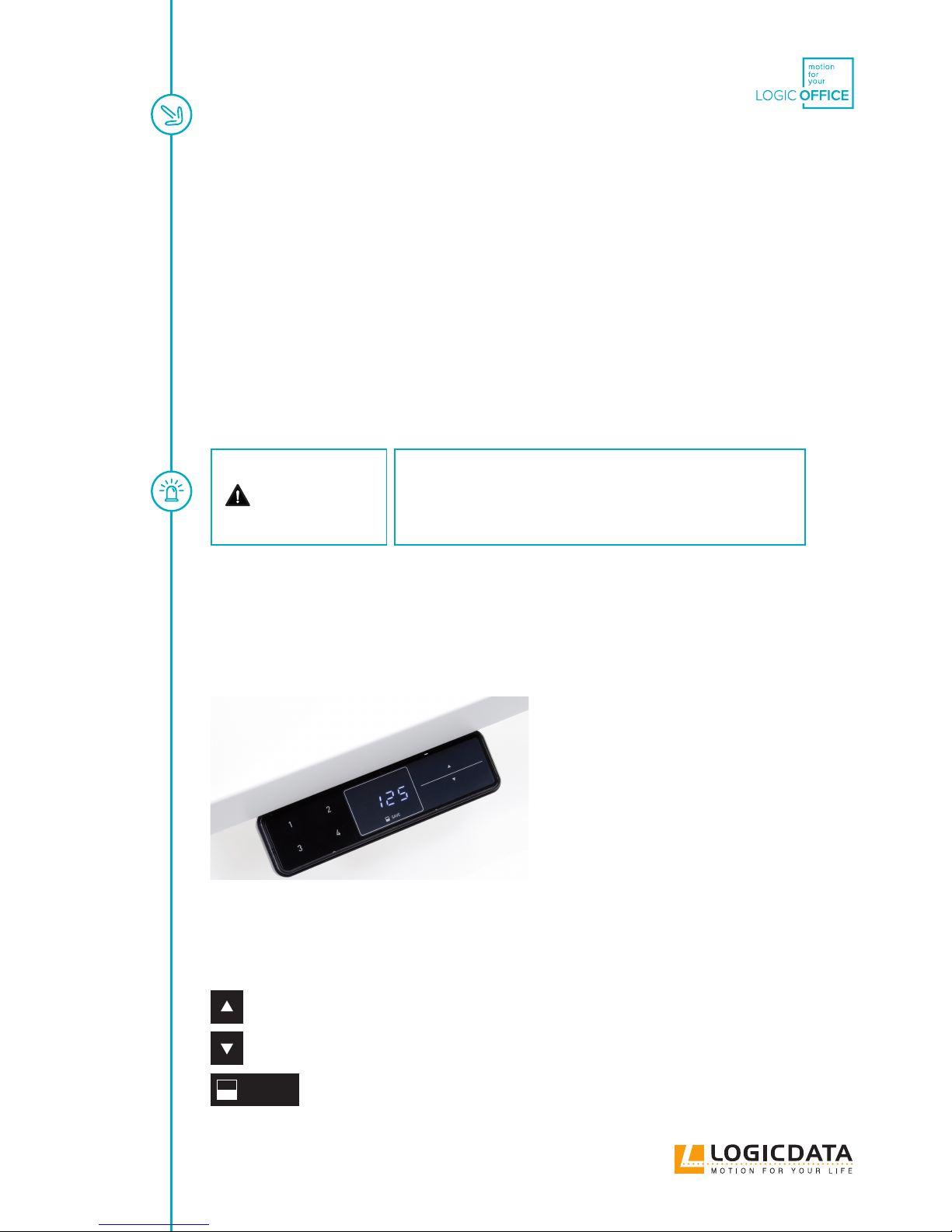
Fig. 4: User interface
The individual keys are represented as follows for further description:
Table top up
Table top down
SAVE
Memory button
Page 20
USER MANUAL SMARTneo // PAGE 20
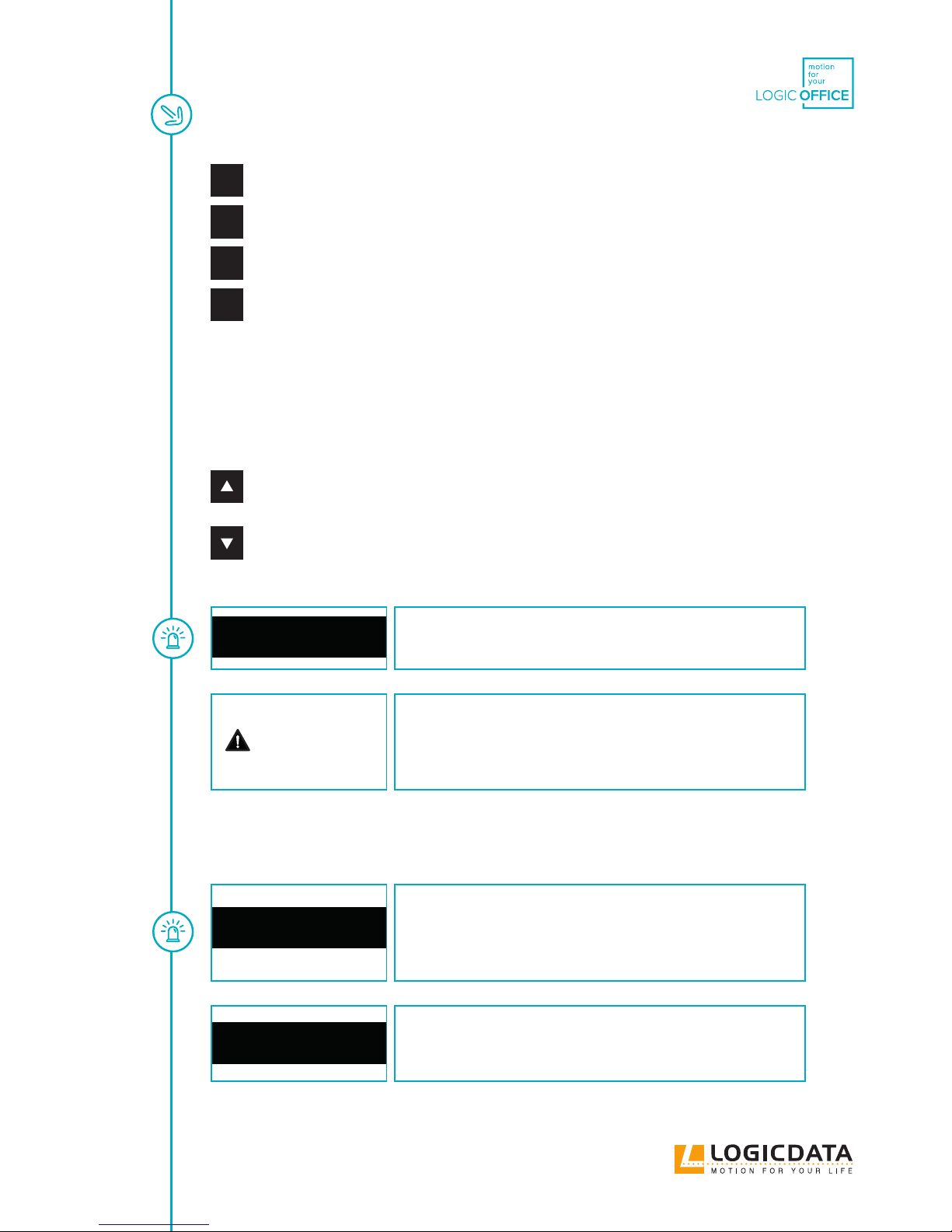
1
Memory position button 1
2
Memory position button 2
3
Memory position button 3
4
Memory position button 4
9.1 ADJUSTING THE TABLE HEIGHTS
This function serves for easy adjustment of the table top position up or down.
Proceed as follows to move the table top up or down:
Table top up
Push the button until the required table top height has been reached.
Table top down
Push the button until the required table top height has been reached.
NOTICE
The table top moves up or down until you release the button or
the maximum or minimum table top height has been reached.
DANGER
Danger of crushing
There is a crushing hazard if the table top position is changed.
Therefore always make sure that there are no items or persons in
the danger zone and that no one reaches into the danger zone.
9.2 SAVING THE MEMORY POSITION
NOTICE
When the motor control unit is switched on for the rst time and
the parameters of the control were not adjusted appropriately, all
saved positions will be equal to the lowest table top height (lower
table top position).
NOTICE
The following functions of the motor control unit SMARTneo
can be used only of you have a comfort hand control with display,
memory position buttons and a memory button.
Page 21
USER MANUAL SMARTneo // PAGE 21
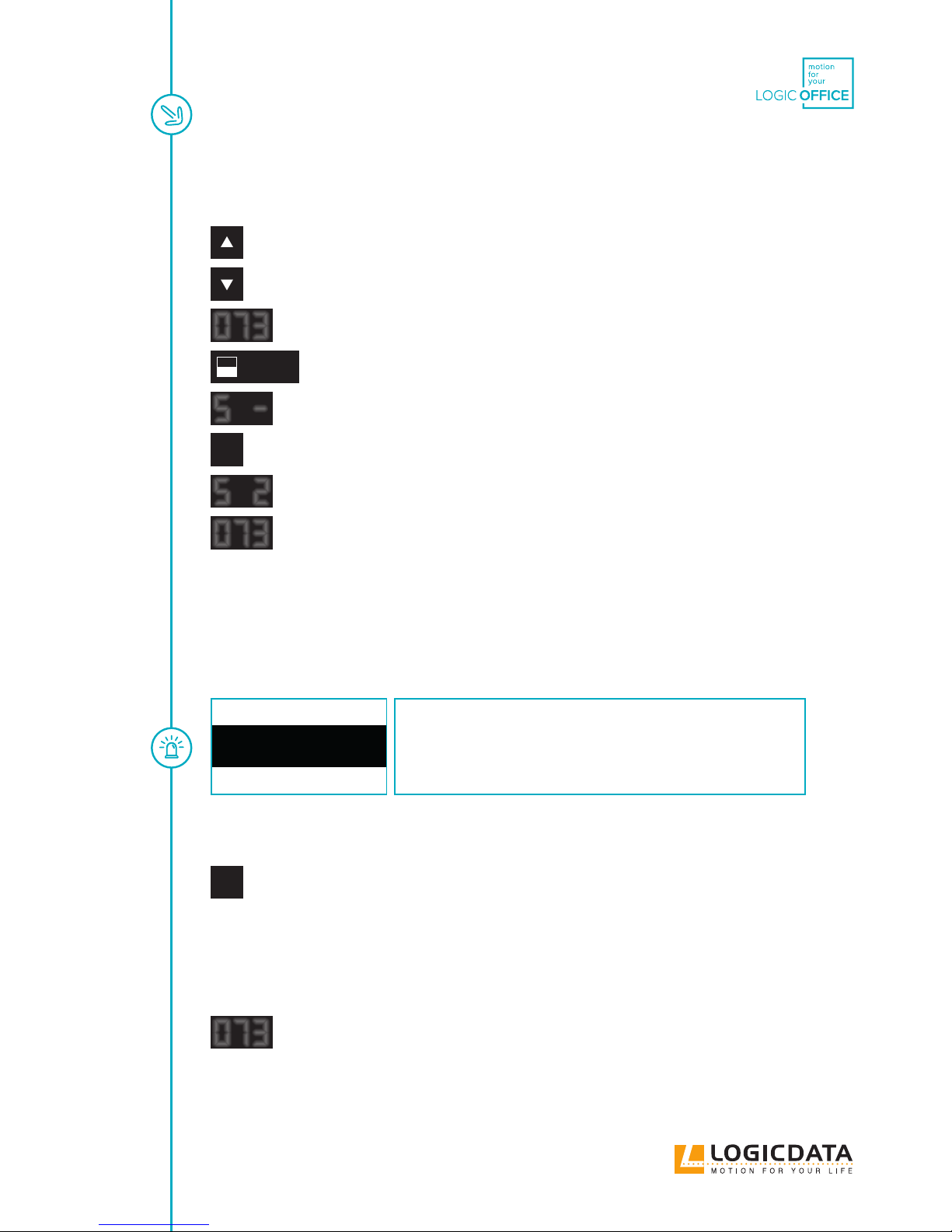
This function saves a dened table top height (one table top height per memory position button can be sa-
ved). Proceed as follows to save the table top position:
Move the table top to the desired height.
o73
The display shows the table top position (e.g. 73 cm).
SAVE
Press the memory button.
5
-
The display shows S –.
2
Press the required memory position button, e.g. 2.
5 2
The display shows S 2.
o73
The control clicks twice when the saving process is completed.
After about two seconds, the table top position is displayed again.
9.3 ACTUATING THE MEMORY POSITION
You can use this function to adjust a saved table top position. Proceed as follows to adjust a saved table top
position:
NOTICE
Availability of the double-click function depends on the software
conguration of the motor control unit. The double-click func-
tion is available only for SMARTneo-2-YYY-US which is designed
for the american market.
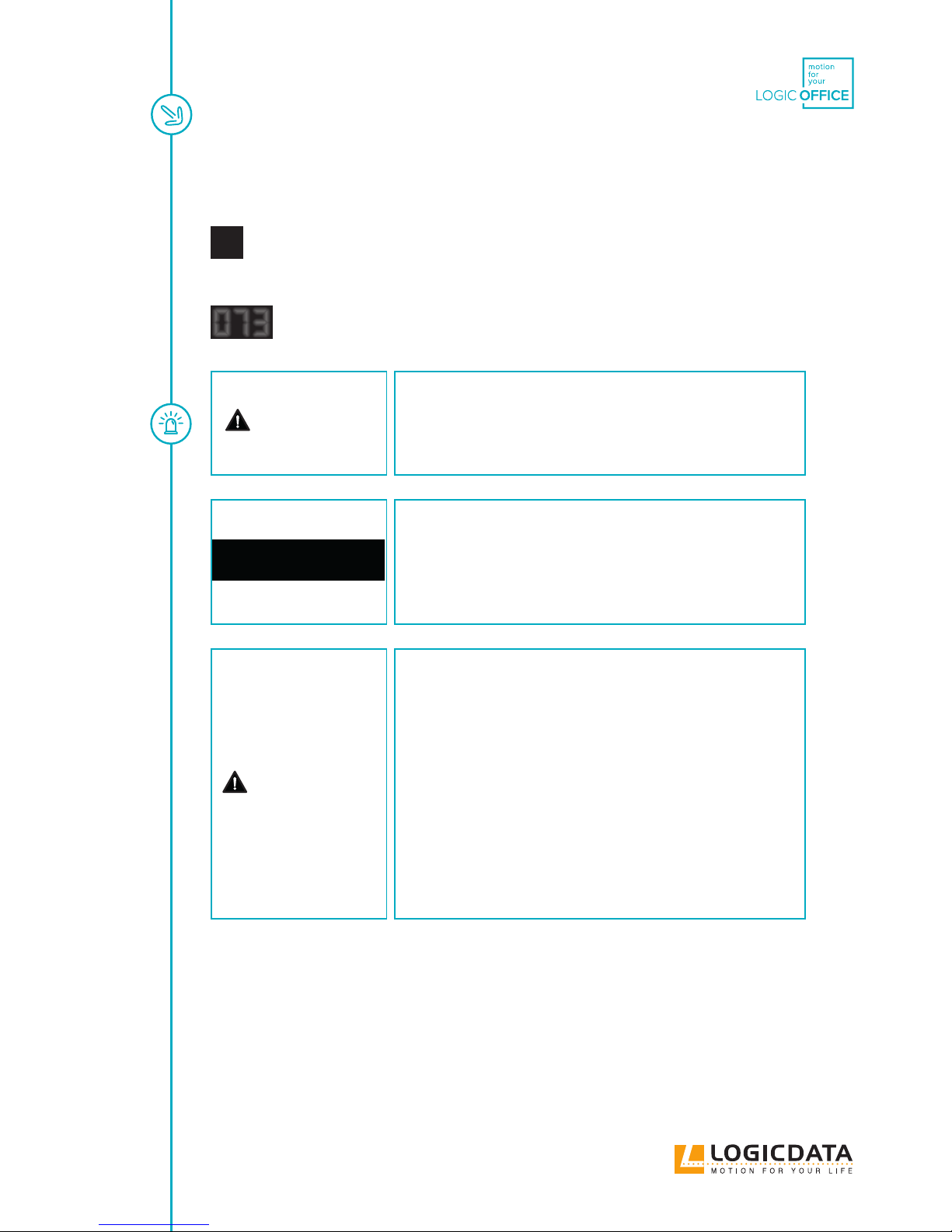
Version A (without double-click function)
2
Press the required memory position button (e.g. 2) and keep it
The table top moves until the saved table top position has been reached.
When you release the button before the saved table top position is reached, the table top
stops and the saved table top position is not reached.
The table top has reached the saved table top position. Release the memory position
button now.
o73
The display shows the current (saved) table top position.
Page 22
USER MANUAL SMARTneo // PAGE 22
Version B (with double-click function)
2
Double-click the required memory position button (e.g. 2).
After the double-click, the table top automatically moves to the saved
table top position.
o73
The display shows the current (saved) table top position.
DANGER
Danger of crushing
There is a crushing hazard with an automatic table top position
change. Therefore make sure that there are no items or persons
in the danger zone and that no one reaches into the danger zone.
NOTICE
If you press another button during the automatic adjustment of
the table top to a saved position, the table top will stop immedi-
ately. Then, you have to activate the automatic adjustment of the
table to a saved position again.
DANGER
Increased safety risk
The rmware is delivered with deactivated double-click func-
tion. If you activate the function, the grading of the safety
functions according to EN ISO 13849-1 PL b, Category B, loses its
validity. The legal requirements from the standard are no longer
met with this function.
To use the double-click function, you have to carry out a new
assessment of the higher safety requirements according to EN
60335-1 which cannot be met by this product. LOGICDATA is not
liable for injuries or damage which can result from the activation
of the double-click function.
9.4 MANUAL RESET
If the actual table top position is no longer used with the displayed table top position or an already congu-
red motor control unit on another identically constructed electrically height-adjustable work station, you
have to carry out an end position alignment of the lowest table top position.
Page 23
USER MANUAL SMARTneo // PAGE 23
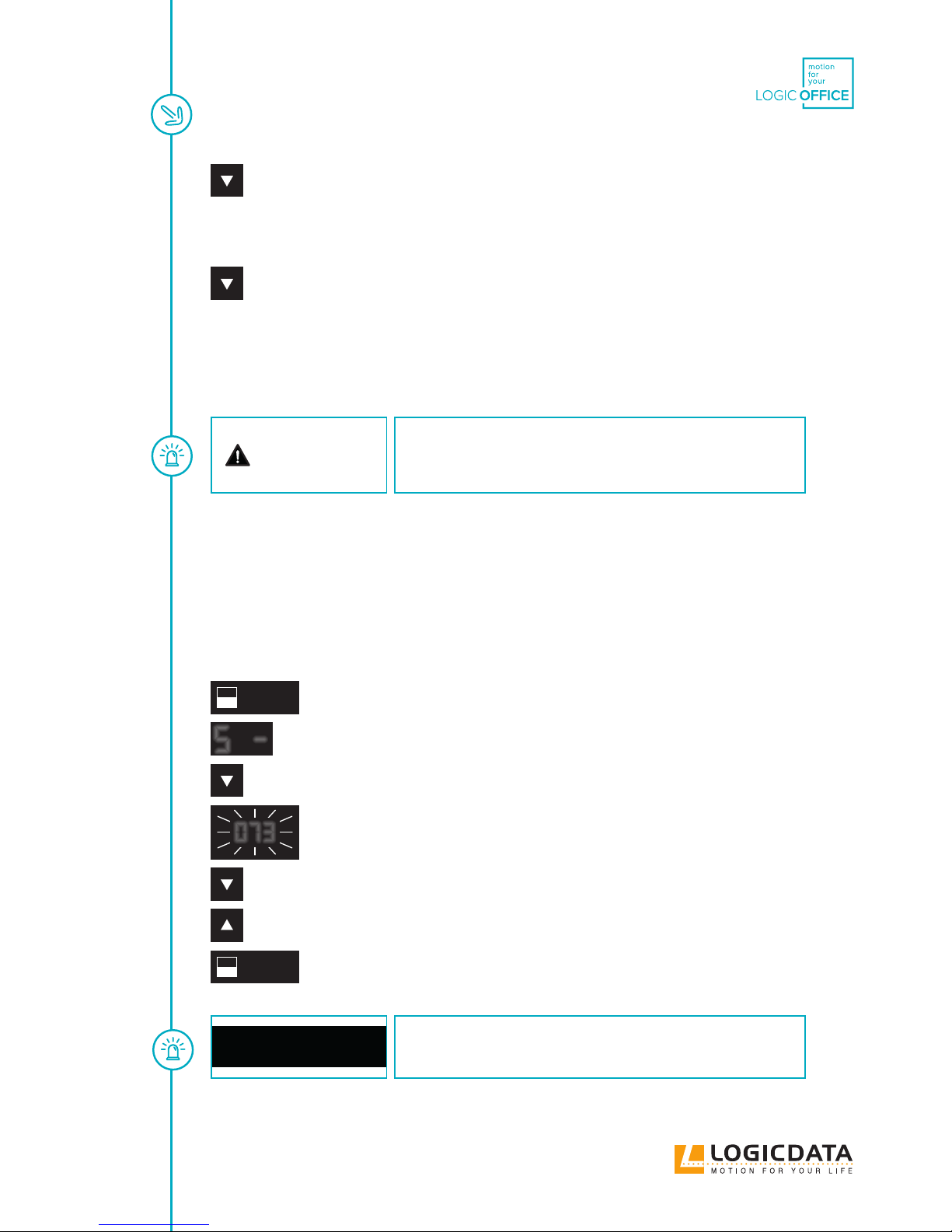
Press the button Table top down.
Press the button Table top down until the table top has reached the lowest table top
position (programmed table top position).
Press the button Table top down (and continue to press it).
After about 5 seconds, the table top is adjusted downward until
the absolute lowest table top position is reached.
Release the button Table top down. The electrically height-adjustable
workplace can be used as usual again.
DANGER
Danger of crushing
With all reset processes, the collision protection (ISP) is inactive.
Please note the increased crushing hazard hereby!
9.5 CORRECTING THE HEIGHT DISPLAY
With this function, you can change the height display on the display but not the table top position of the
table top. This function is available only for hand control with integrated display.
Proceed as follows:
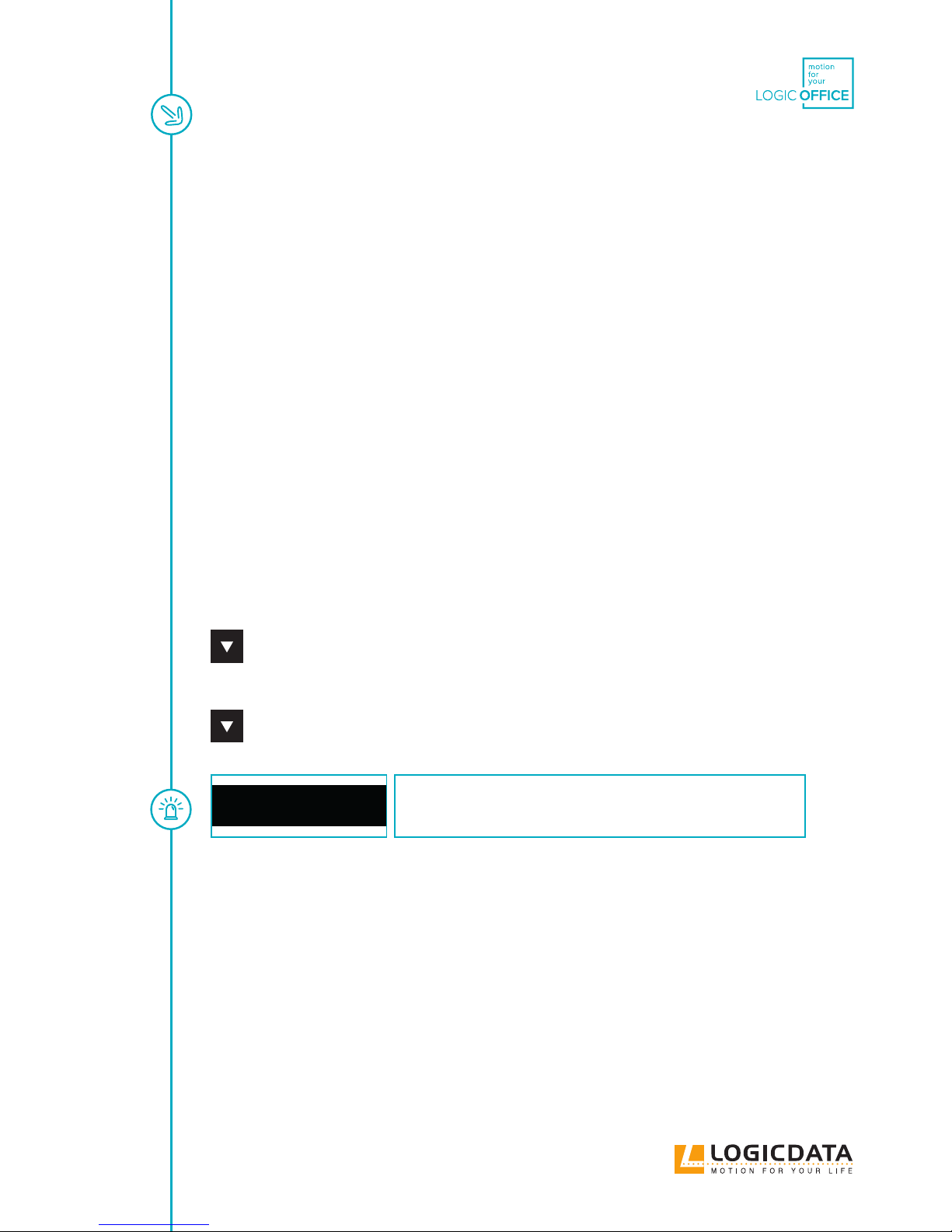
SAVE
Press the memory button.
5
-
The display shows S –.
Press the button Table top down (arrow toward the bottom) for approx. 5 seconds.
o73
The display starts to ash.
Now use the button Table top down (arrow toward the bottom) or table top up (arrow
toward the top) to adjust the height display.
SAVE
Press the memory button.
The height display is now set to the entered table top position.
NOTICE
Please note that the table top position of the table top is not ch-
anged with this setting process. Only the display changes.
Page 24
USER MANUAL SMARTneo // PAGE 24
10 SOFTWARE-DEPENDENT
FUNCTIONS
The motor control unit SMARTneo is parameterised with software before delivery. The following functions
can be used only when the motor control unit is parameterised appropriately.
10.1 SLOW TRAVEL SPEED AREAS
This function (low speed area) causes the speed to be slowed automatically during the table top adjustment
before the following positions are reached:
• Highest and lowest table top position
• All saved positions (e.g.: memory positions, container stop position)
10.2 SAFETY AREA
This function causes a safety stop at a dened table top position (congured with software). The safety stop
functions as follows:
Press the button Table top down (and continue to press it).
The table top is adjusted to the start of the safety area.
The table top adjustment is stopped above the safety area.
Press the button Table top down again. The table top is then
adjusted to the lowest table top position.
NOTICE
Saving the table top positions is not possible in safety areas.
Page 25
USER MANUAL SMARTneo // PAGE 25
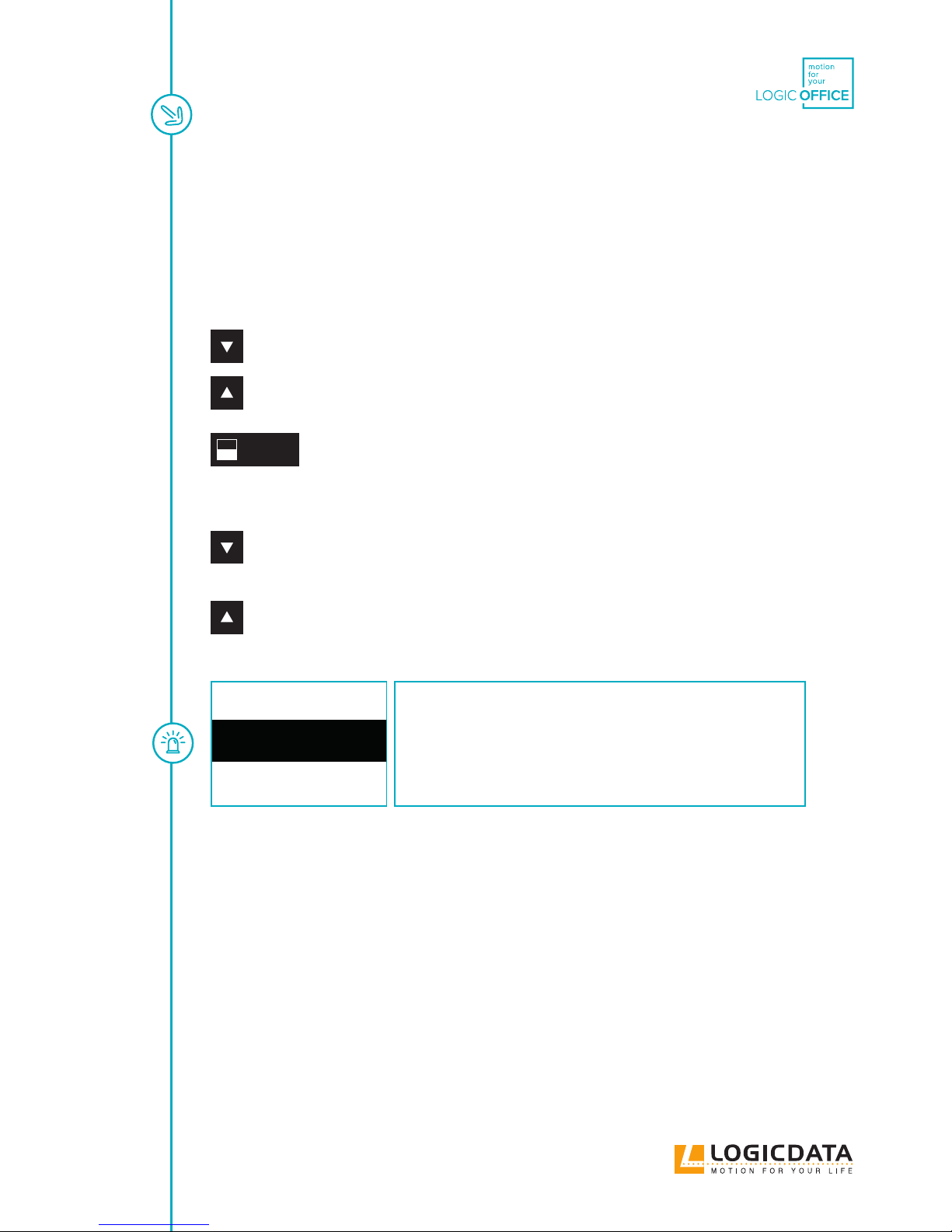
10.3 CONTAINER STOP AND SHELF STOP POSITIONS
These two features can be used to limit the travel range of the table (if e.g. a container is below the table).
A container stop position can be set in the lower half of the travel range, a shelf stop position in the upper
half. If a container stop position is set, then this is used as the new bottom end position, a shelf stop position
is equivalent to a new upper end position of the travel range. Proceed as follows to save a container stop /
shelf stop position:
Put the table top in the position that you want to use as new container stop / shelf stop
position. Use the buttons Table top down or Table top up until the required position is
reached.
SAVE
Press the memory button for 10 seconds. The control clicks twice
when the position is saved.
or
&
simultaneously
With hand control equipped only with up and down button, the function can be
carried out by pressing both the up and the down button simultaneously for 10 seconds.
NOTICE
A container stop position can be saved only in the lower half of
the travel range and a shelf stop position only in the upper half of
the travel range.
These steps must be carried out separately for a container stop
position and for a shelf stop position.
Page 26
USER MANUAL SMARTneo // PAGE 26
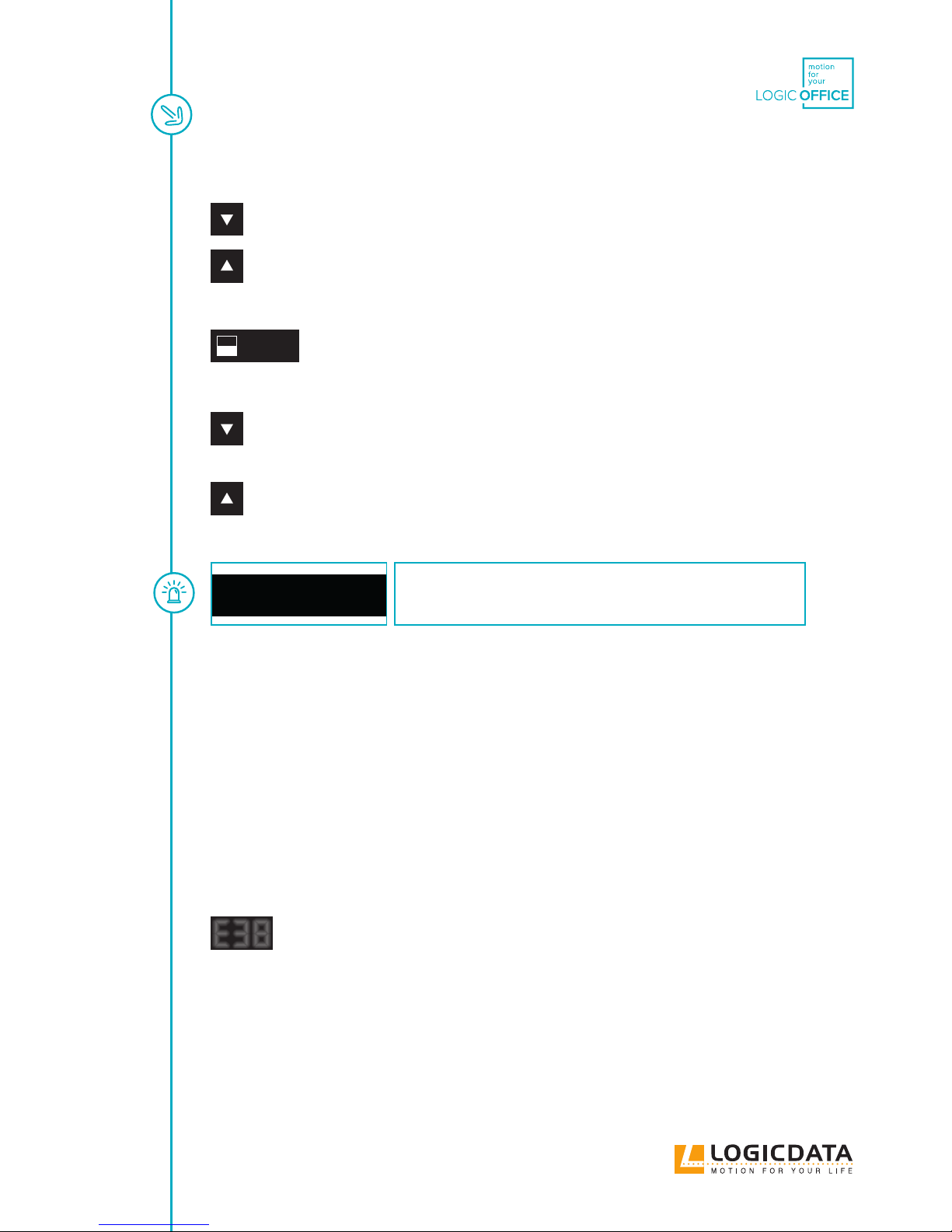
Proceed as follows to deactivate a container stop / shelf stop position:
Put the table top in a random position in the lower half of the travel range in order to
deactivate the container stop. Put the table top in a random position in the upper half of
the travel range in order to deactivate the shelf stop.
Use the buttons Table top down or Table top up until the required position is reached.
SAVE
Press S for 10 seconds. The control clicks once
when the position is saved.
or
&
simultaneously
With hand control equipped only with up and down button, the function can be carried
out by pressing both the up and the down button simultaneously for 10 seconds.
NOTICE
These steps must be carried out separately for a container stop
position and for a shelf stop position.
10.4 PLUG DETECTION
The motor control unit SMARTneo detects whether a motor is connected to the respective motor bushing.
The motor control unit also detects whether a motor was replaced (the availability of this function depends
on the control type and the drives used). When a motor is missing or was replaced, the SMARTneo clicks
three times. The display also shows an appropriate error code if the hand control is equipped with a display.
Proceed as follows to remedy the error:
Possible situations:
A motor was removed from the SMARTneo while the control was connected to the power
supply system.
E38
Error code E36, E37 or E38 is shown on the hand control display depending on which
motor was removed.
Disconnect the power supply of the SMARTneo and wait at least 5 seconds.
Reconnect the missing motor.
Reconnect the power supply of the SMARTneo.
Carry out a manual reset (see Chapter 9.4).
Page 27
USER MANUAL SMARTneo // PAGE 27
10.5 AUTO DETECT NUMBER OF DRIVES
The SMARTneo can automatically detect the number of connected drives, it can thus be determined during
commissioning whether e.g. 1 or 2 motors are to be controlled without having to change the parameteri-
sation of the control. In order to be able to use the SMARTneo again after the drive conguration change,
proceed as follows:
Possible situations:
• First use of the SMARTneo
• After restoring the factory settings (S0 menu)
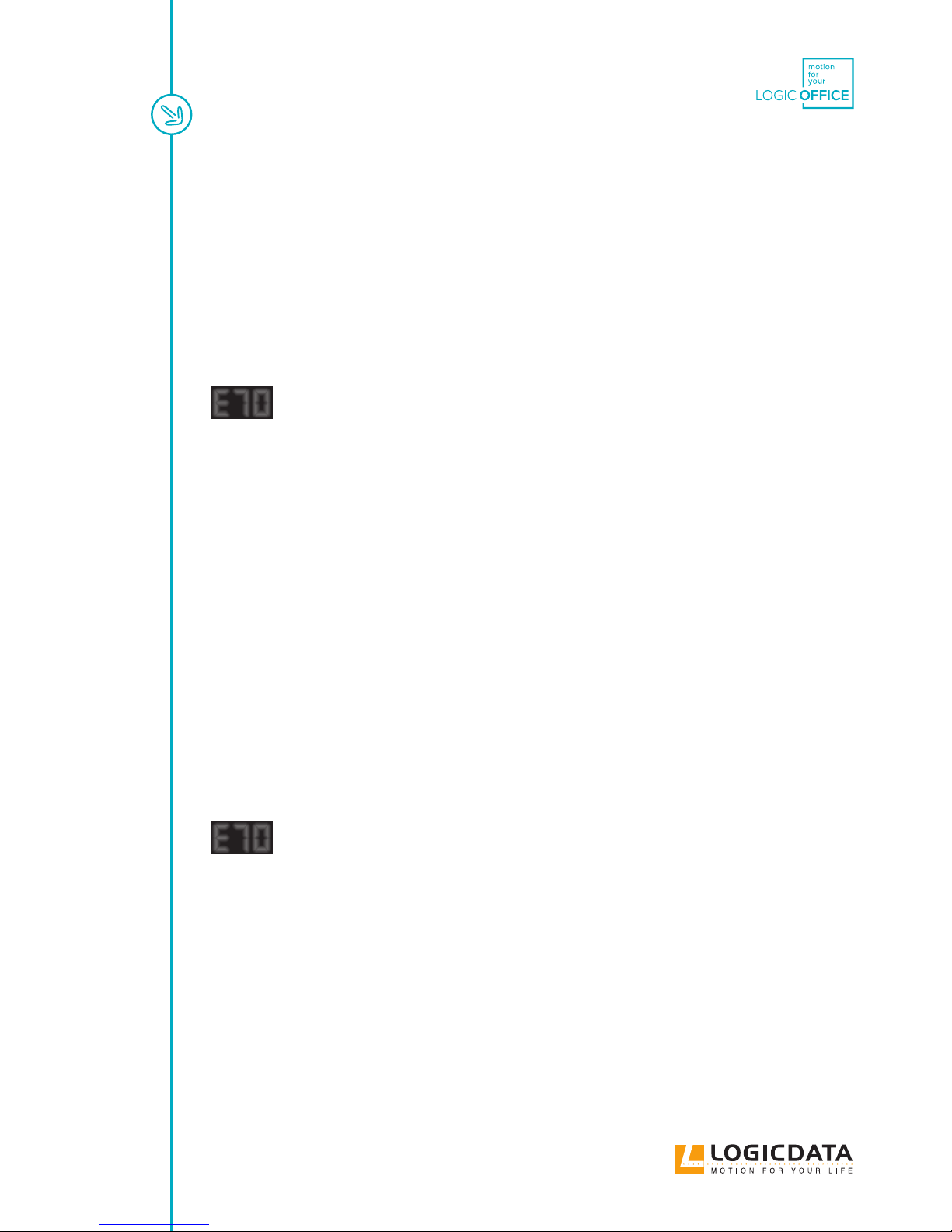
E7o
The error code E70 is shown on the hand control display.
Disconnect the power supply of the SMARTneo and wait at least 5 seconds.
Connect the required number of motors.
Reconnect the power supply of the SMARTneo.
Carry out a manual reset (see Chapter 9.4).
10.6 DETECTION OF SLIMDRIVE DRIVES
The SMARTneo can automatically detect the type of connected SLIMdrive drives; it can thus be determined
during commissioning whether it is a SLIMdrive-500 or a SLIMdrive-660S drive. In order to be able to use
the SMARTneo with SLIMdrive drives for the rst time, proceed as follows:
Possible situations:
• First use of the SMARTneo
• After restoring the factory settings (S0 menu)
• Dierent SLIMdrive drive types were connected to the control
(e.g. a SLIMdrive-660S and a SLIMdrive-500)
E7o
The error code E70 is shown on the hand control display.
Disconnect the power supply of the SMARTneo and wait at least 5 seconds.
Connect the required number of similar SLIMdrive drives.
Reconnect the power supply of the SMARTneo.
Carry out a manual reset (see Chapter 9.4).
In case that a SMARTneo is to be used for other drives than the previously used one (e.g. with a change from
SLIM-drive-500 to SLIMdrive-660S drives), reset the control to the factory settings and follow the instruc-
tions above again.
Page 28
USER MANUAL SMARTneo // PAGE 28
NOTICE
The function of automatic detection of drive types is available
only for LOGICDATA SLIMdrive drives.
NOTICE
This function is available only for motor group 1.
NOTICE
The automatic detection function of the SLIMdrive drive types
depends on the settings in the software parameters of the
SMARTneo. Please contact LOGICDATA for additional informa-
tion.
NOTICE
If the number or type of connected drives changes, the control
must be reset to the factory settings.
10.7 DUTY CYCLE MONITORING
The duty cycle monitoring causes the motor control to be disabled for a dened period of time when a de-
ned duty cycle is reached.
NOTICE
You can nd the precise specication of the duty cycle in the
data sheet.
Page 29
USER MANUAL SMARTneo // PAGE 29
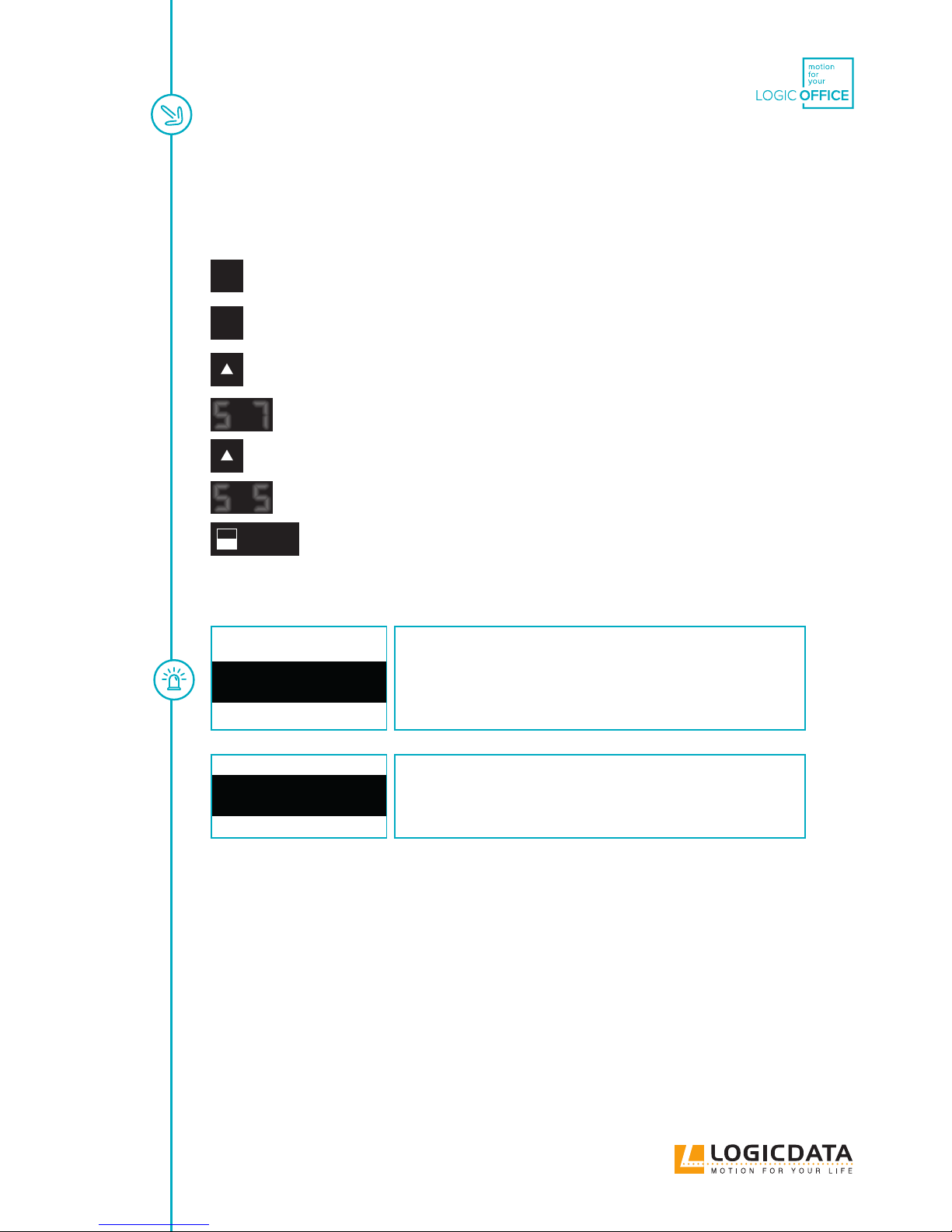
10.8 CHANGE OF THE DISPLAY UNIT (CM OR INCHES)
This function can be used to switch the unit of the display of the memory hand control from centimetres to
inches and vice versa. The table height itself is not changed by this function.
1
2
Simultaneously press the memory position buttons 1, 2 and the button Table top up.
Hold the button combination for approx. 3 seconds. Then release the buttons.
S 7
The display shows S and a number, e.g. S 7.
Press the button Table top up until the display shows S 5.
S 5
The display shows S 5.
SAVE
Press the memory button.
If the display was previously set to cm, it is now set to inches.
If the display was previously set to inches, it is now set to cm
NOTICE
The menu has a time-out of 5 seconds, which means that the
menu is closed automatically and without saving the settings if
no entry is made within 5 seconds.
NOTICE
When the menu appears, the display shows S and a number,
e.g. S 7. The number depends on the parameters of the control.
Page 30
USER MANUAL SMARTneo // PAGE 30
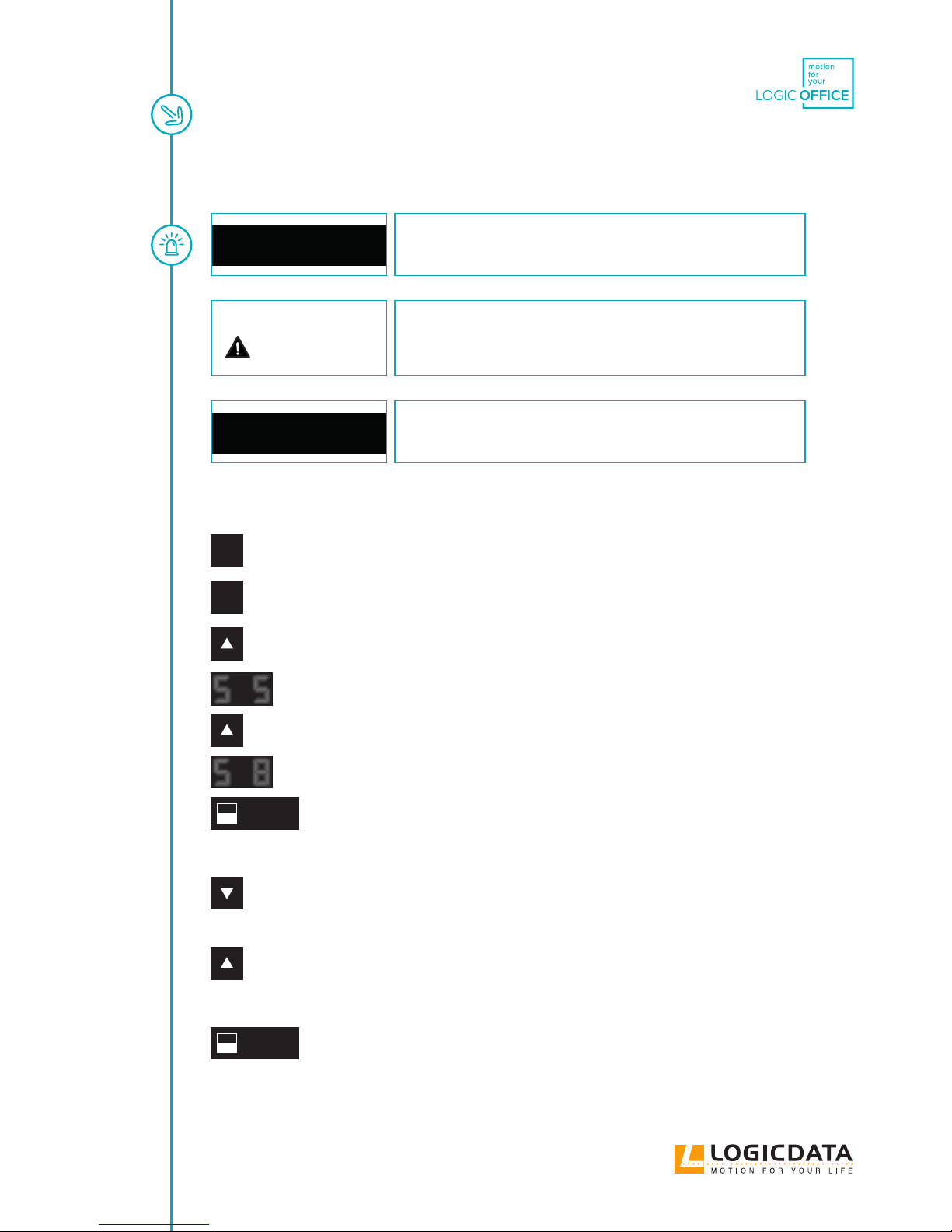
10.9 CHANGING THE NUMBER OF MOTORS
NOTICE
The factory settings are 2 motors for the SMARTneo.
DANGER
Only skilled technical sta
This function must be carried out only by skilled technical sta.
An incorrect number of motors can lead to damage to the table.
NOTICE
A hand control with display and memory buttons is required for
this procedure.
In order to change the settings, you must proceed as follows:
1
2
Simultaneously press the memory position buttons 1, 2 and the button Table top up.
Hold the button combination for approx. 3 seconds. Then release the buttons.
S 5
The display shows S and a number, e.g. S 5.
Press the button Table top up until the display shows S 8.
S 8
The display shows S 8..
SAVE
Press the memory button.
The display now shows the currently set number of motors (1 or 2)
or
Press the button Table top down in order to reduce the number of motors. The lowest
possible number is 1.
Press the button Table top up in order to increase the number of motors. The highest
possible number is 2.
The display now shows the selected number of motors.
SAVE
Press the memory button to conrm the setting.
Page 31
USER MANUAL SMARTneo // PAGE 31
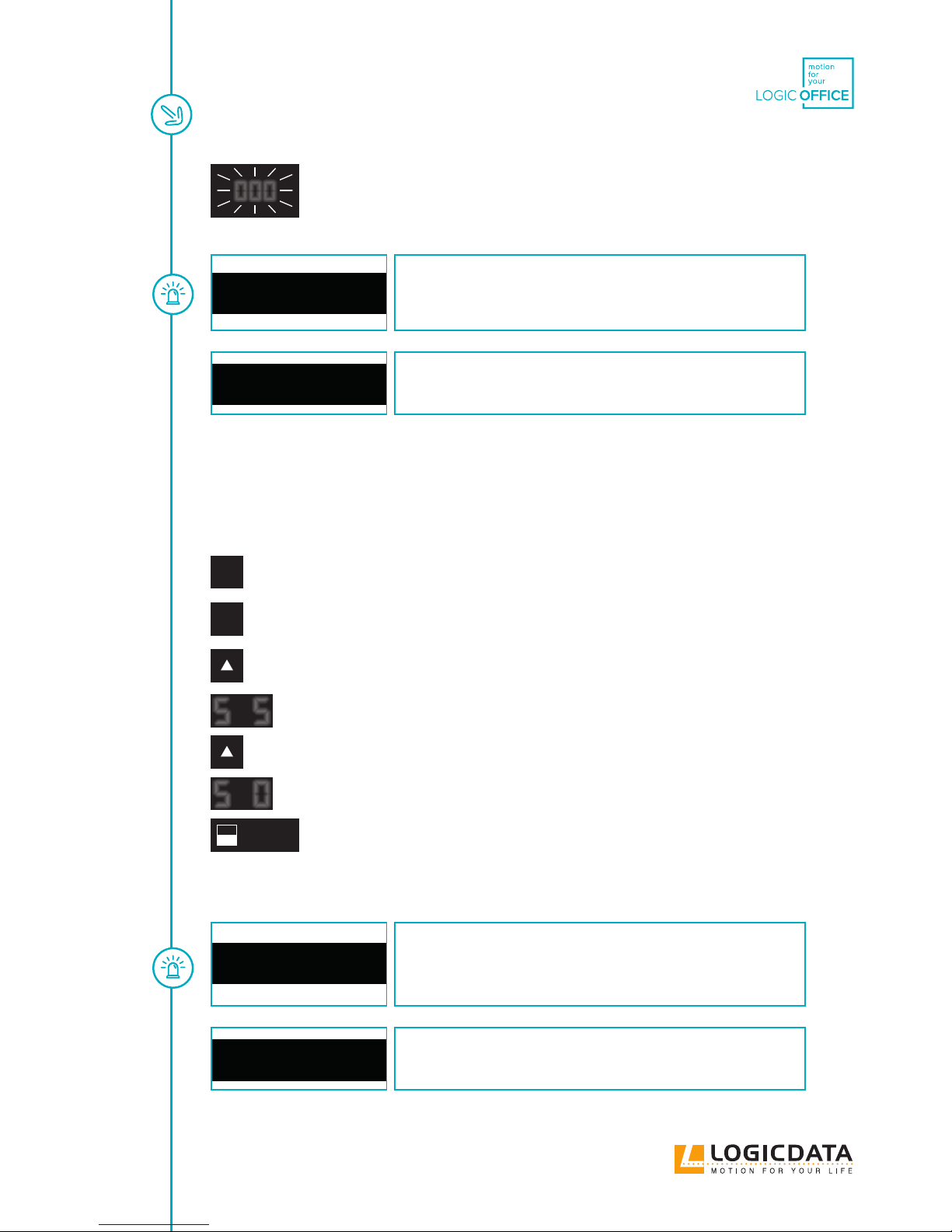
ooo
When 000 ashes on the display, a manual reset is necessary. This process is
explained in Chapter 9.4.
NOTICE
The menu has a time-out of 5 seconds, which means that the
menu is closed automatically and without saving the settings if
no entry is made within 5 seconds.
NOTICE
When the menu appears, the display shows S and a number,
e.g. S 5. The number depends on the parameters of the control.
10.10 CONTROL SYSTEM TO FACTORY SETTINGS
RESET (S0 MENU)
1
2
Simultaneously press the memory position buttons 1, 2 and the button Table top up.
Hold the button combination for approx. 3 seconds. Then release the buttons.
S 5
The display shows S and a number, e.g. S 5.
Press the button Table top up until the display shows S 0.
S O
The display shows S 0.
SAVE
Press the memory button.
The control is reset to factory settings. The control is
now in the same state is during the rst start-up.
NOTICE
The menu has a time-out of 5 seconds, which means that the
menu is closed automatically and without saving the settings if
no entry is made within 5 seconds.
NOTICE
When the menu appears, the display shows S and a number,
e.g. S 5. The number depends on the parameters of the control.
Page 32
USER MANUAL SMARTneo // PAGE 32
DANGER
Reset to factory settings
If the drives in a system are replaced, the control system must
rst be reset to the factory settings and a manual reset carried
out without fail.
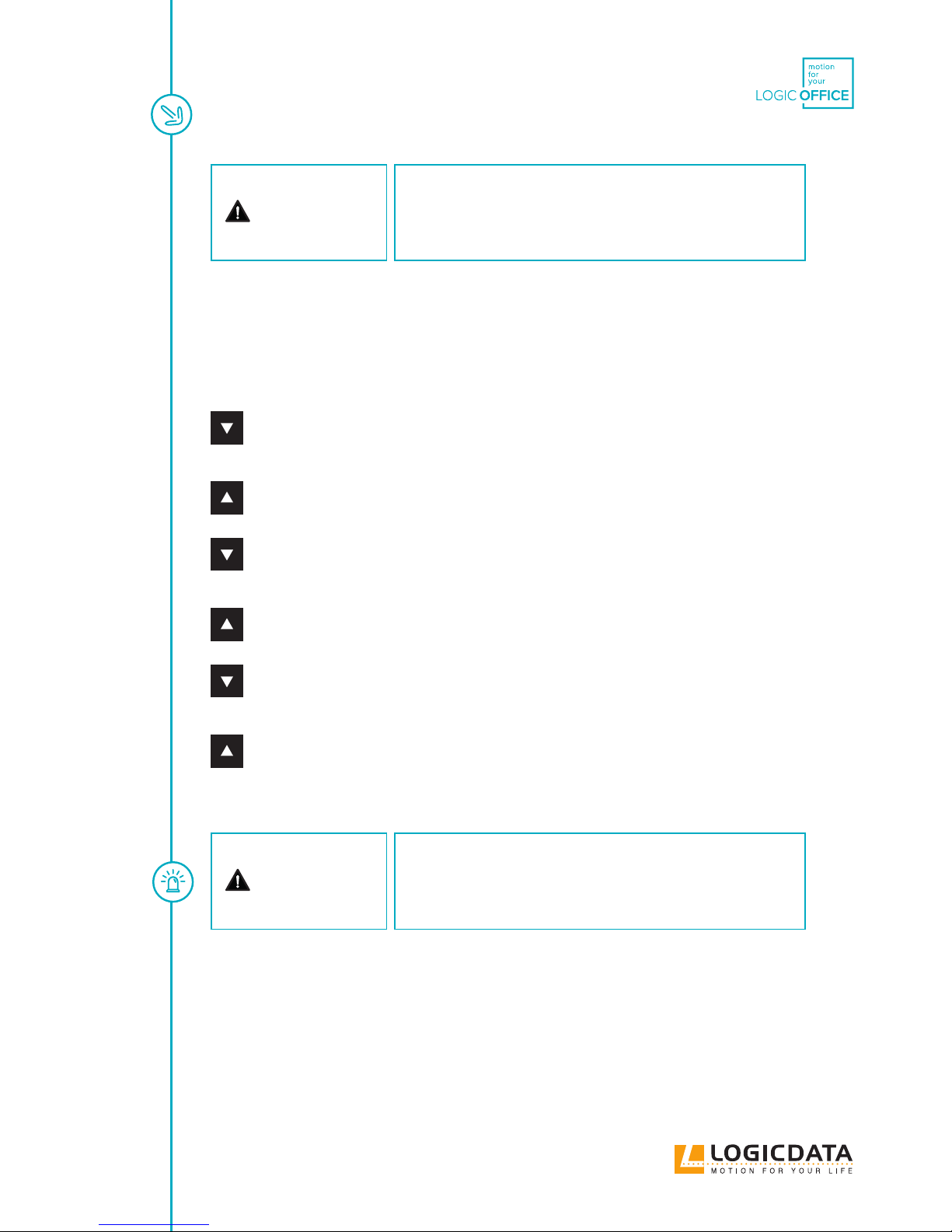
If a hand control is used with only one up and down button each, proceed as follows:
Disconnect the power supply of the SMARTneo and wait at least 5 seconds.
&
While the control is disconnected from the power supply, simultaneously press the but-
tons
Table top up and Table top down. Keep holding
this button combination.
&
Keep holding this button combination Table top down and Table top up while you con-
nect the control to the power supply.
&
Keep holding this button combination Table top down and Table top up until the con-
trol starts to click twice every second. Release both buttons as long as the control click
twice every second.
The control is reset to factory settings. The control is
now in the same state is during the rst start-up.
DANGER
Reset to factory settings
If the drives in a system are replaced, the control system must
rst be reset to the factory settings and a manual reset carried
out without fail.
Page 33
USER MANUAL SMARTneo // PAGE 33
11 COLLISION PROTECTION
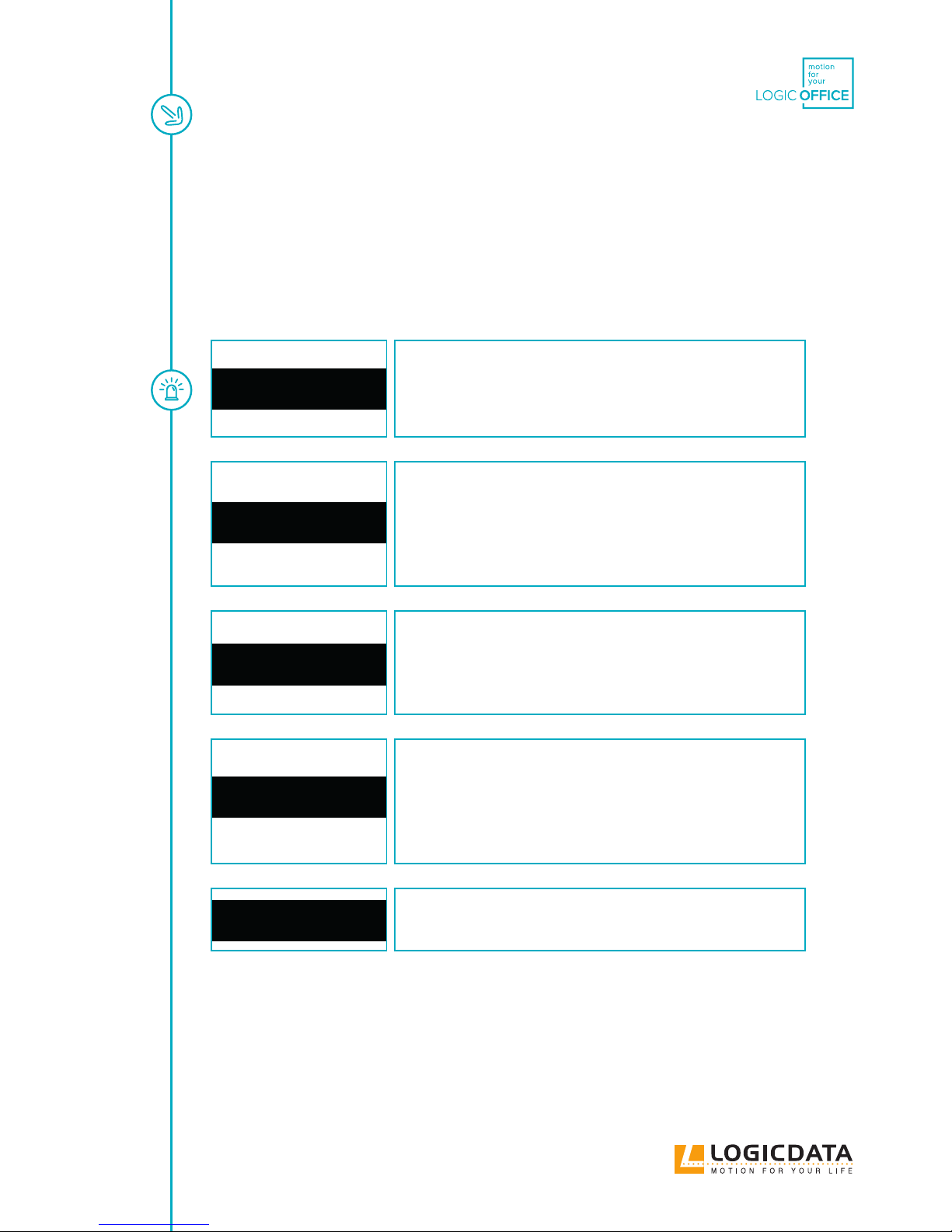
11.1 INTELLIGENT SYSTEM PROTECTION (ISP)
ISP (Intelligent System Protection) is a collision protection system that LOGICDATA has developed accor-
ding to the newest state of the technology. It reduces damage to the system in case of a collision.
NOTICE
The sensitivity and the achievable switch-o threshold of ISP
depend on the entire system (mechanical and electrical compo-
nents). In order to determine the ISP suitability of a height-adjus-
table table, contact LOGICDATA.
NOTICE
For optimal function of the collision protection ISP, please note
the following requirements:
In order to ensure the best possible collision protection, a me-
chanical brake must be integrated that is eective on the down
movement of the height-adjustable workplace.
NOTICE
Without a mechanical brake, a reduced shutdown sensitivity
with a loaded table must be expected. With an unloaded table
top, the collision protection ISP also eective even without the
brake.
NOTICE
As soon as the collision protection ISP has braked the height-ad-
justable table top, the rst movement of the table top can only be
in the opposite direction after the collision protection ISP action
(not in the direction with which the collision protection ISP was
triggered).
NOTICE
The switch-o threshold of the ISP can be set with parameters.
Page 34
USER MANUAL SMARTneo // PAGE 34
11.2 DRIVE BACK
NOTICE
The function Drive back is active only if collision protection (ISP,
sensor unit) is activated.
The table top changes its position automatically after a safety function (through the collision protection ISP
or sensor unit) in order to a dened distance in the opposite direction. This prevents a possible crushing
hazard immediately.
DANGER
Increased safety risk
In exceptional cases however, there can be a crushing hazard
despite the collision protection since not only the motor control
unit is responsible for the motor shutdown, but the interoperati-
on of mechanical equipment and electronics. Furthermore, the
shutdown sensitivity is inuenced by mechanical equipment,
motor and environmental conditions.
LOGICDATA as control manufacturer can therefore not comple-
tely rule out this residual risk and does not assume and liability.
12 MAINTENANCE
SMARTneo is maintenance-free for the entire service life. If cleaning should be necessary, wipe the housing
of SMARTneo with a soft, dry cloth.
13 FAULT REMOVAL
With technical problems, contact our support at:
Tel.: +43 (0)3462 5198 0
Fax: +43 (0)3462 5198 1030
E-mail: o[email protected]
Always provide the product name and the revision status according to the rating plate with any support
request. In case of a defect, replace the SMARTneo as a whole.
Page 35
USER MANUAL SMARTneo // PAGE 35
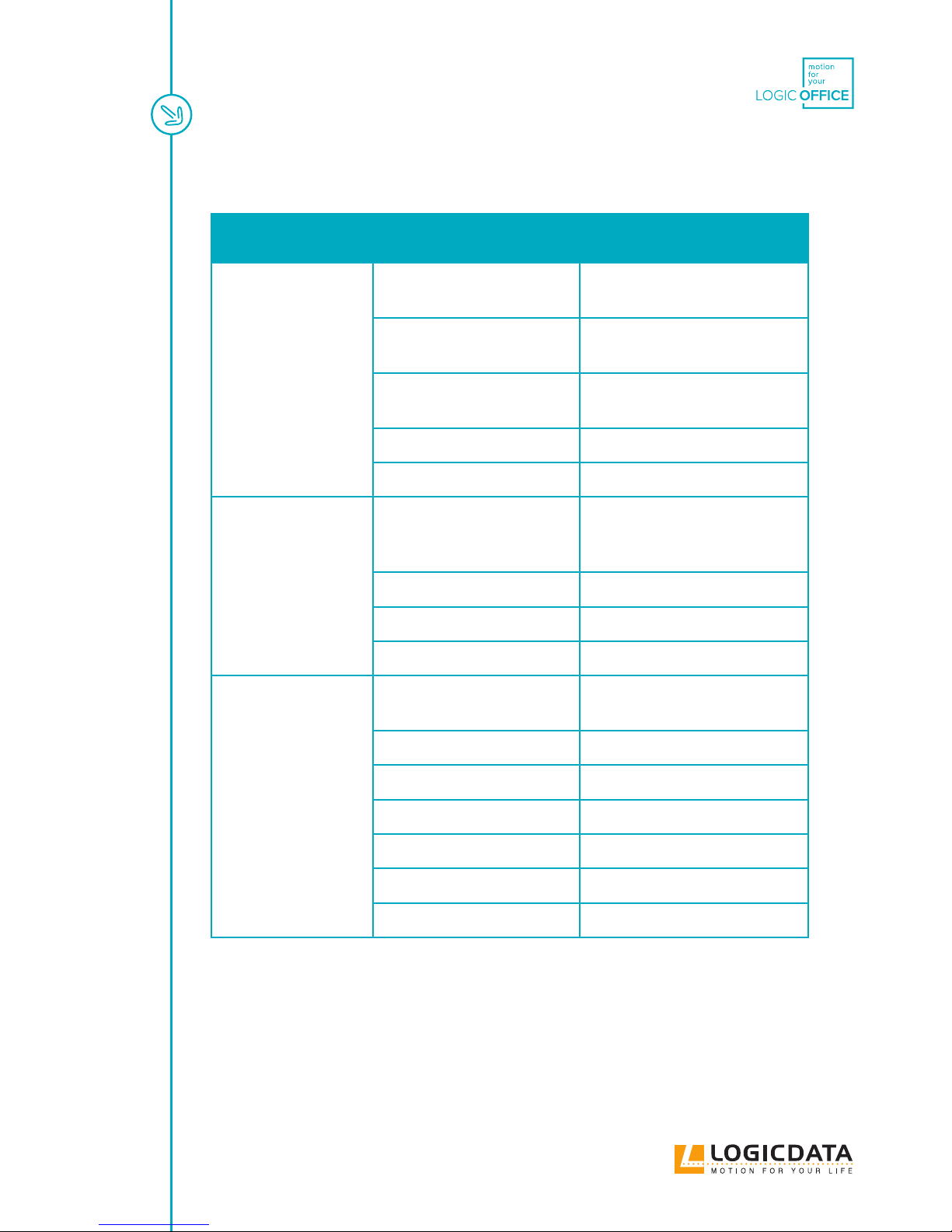
13.1 POSSIBLE MALFUNCTIONS AND THEIR REMEDY
Problem Possible cause Remedy
Drives does not work Power supply cable not plugged inPlug in the power supply cable of
motor control unit
Drives not connected Plug the motor cable into the motor
control unit
Poor plug contact Plug in motor cable, power supply
cable and hand control properly
Motor control unit defective Contact the customer service
Hand control defective Replace the hand control
Drives running in one
direction only
Electricity failure during the run
or power supply cable disconnec-
ted during the run
Manual reset*)
Motor control unit defective Contact the customer service
Hand control defective Replace the hand control
Drive defective Contact the customer service
Motor control unit or
hand control does not
work
Power supply cable not plugged inPlug in the power supply cable of
motor control unit
Hand control not plugged in Plug in the hand control
Motor control unit defective Contact the customer service
Mains cable defective Contact the customer service
Hand control defective Replace the hand control
Poor plug contact Plug the plug in properly
Contact with liquids Replace the hand control
*) If drives move only down
Page 36
USER MANUAL SMARTneo // PAGE 36
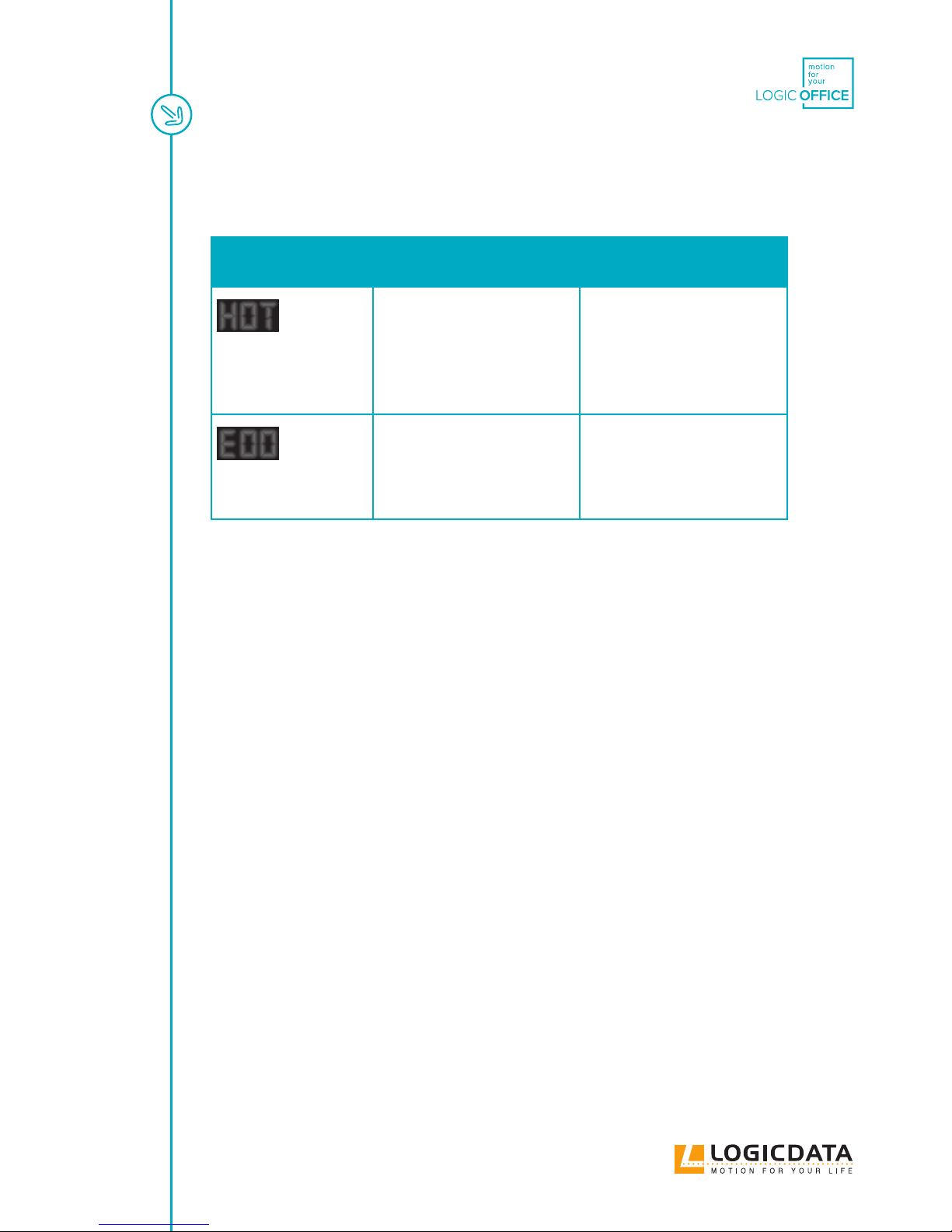
13.2 ERROR MESSAGES ON THE DISPLAY
OF THE HAND CONTROL
Problem Cause Remedy
HOT
The display shows
HOT.
The motor control unit SMART-
neo is equipped with overheating
protection. This overheating
protection at activated because of
overheating.
Wait until the motor control unit
has cooled o and the message
HOT on the display goes out. The
motor control unit SMARTneo is
then operational again.
Eoo
The display shows E
and an error number.
There is an internal motor cont-
rol unit SMARTneo error.
Proceed according to the follo-
wing error list.
Page 37
USER MANUAL SMARTneo // PAGE 37
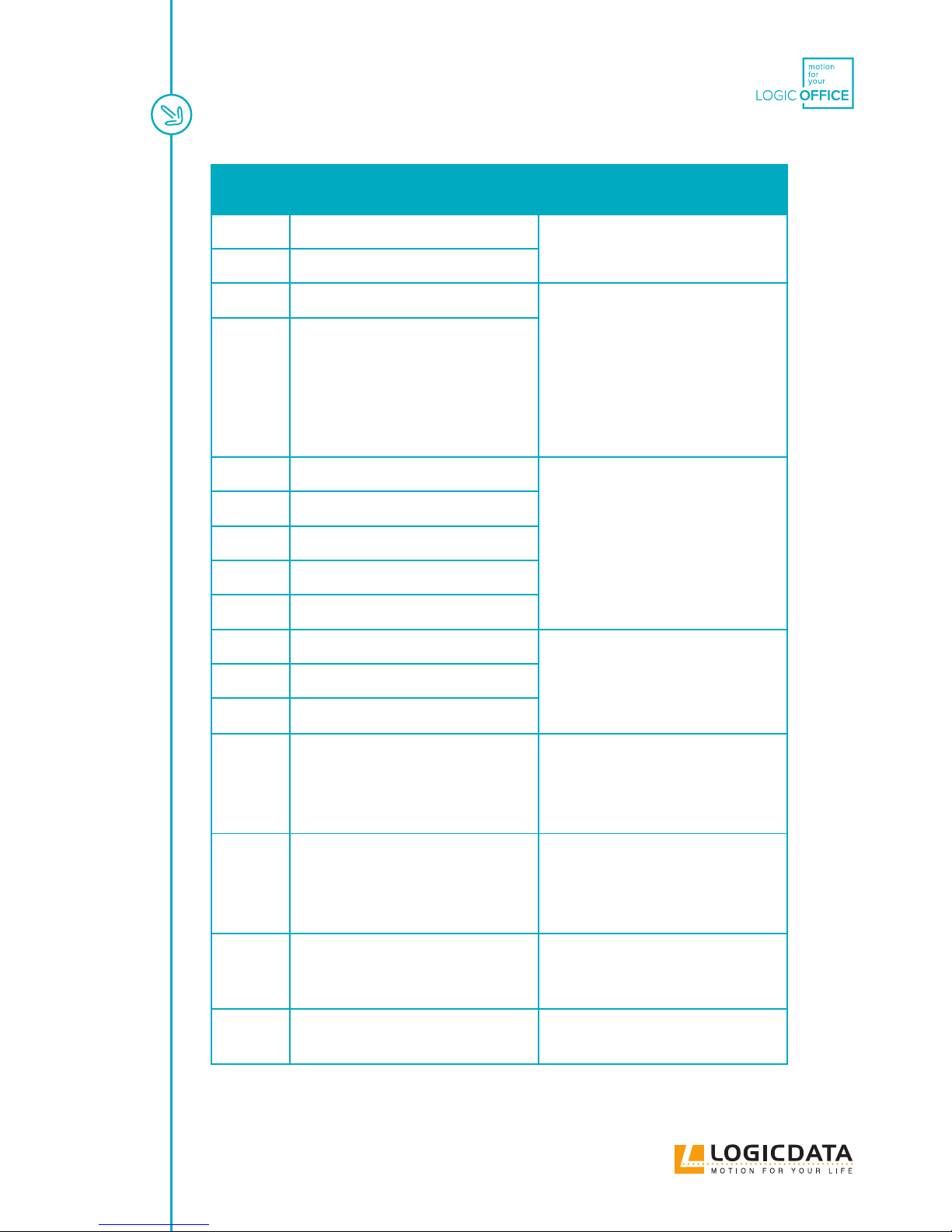
Number Description Remedy
00 Internal error channel 1 Switch o the motor control unit. Con-
tact the customer service.
01 Internal error channel 2
12 Defect channel 1 Disconnect the motor control unit.
Remedy the external short circuit.
or
Plug in the correct motor at the aected
bushing. Put the motor control unit into
operation again.
13 Defect channel 2
24 Overcurrent motor M1 Remove the clamped objects from the
travel range.
Table overload -> Remove the load from
the table.
Contact the customer service.
25 Overcurrent motor M2
48 Overcurrent motor group 1
60 Collision protection
62 Overcurrent of the control
36 Plug detection at motor bushing M1 Plug in the correct motor at the aected
bushing.
Carry out a manual reset.
37 Plug detection at motor bushing M2
61 Motor replaced
55 Synchronisation of motor group 1 not
possible
Remove the load from the table.
Carry out a manual reset. If the error is
still displayed after the manual reset,
contact the customer service.
60 Collision protection Remove the clamped objects from the
travel range. Table overload -> Remove
the load from the table.
Contact the customer service.
71 Changing the anti-pinch conguration Refer to the DMS sensor manual in order
to activate or deactivate the anti-pinch
conguration
67 Voltage too high Disconnect the power supply cable and
contact the customer service.
Page 38
USER MANUAL SMARTneo // PAGE 38
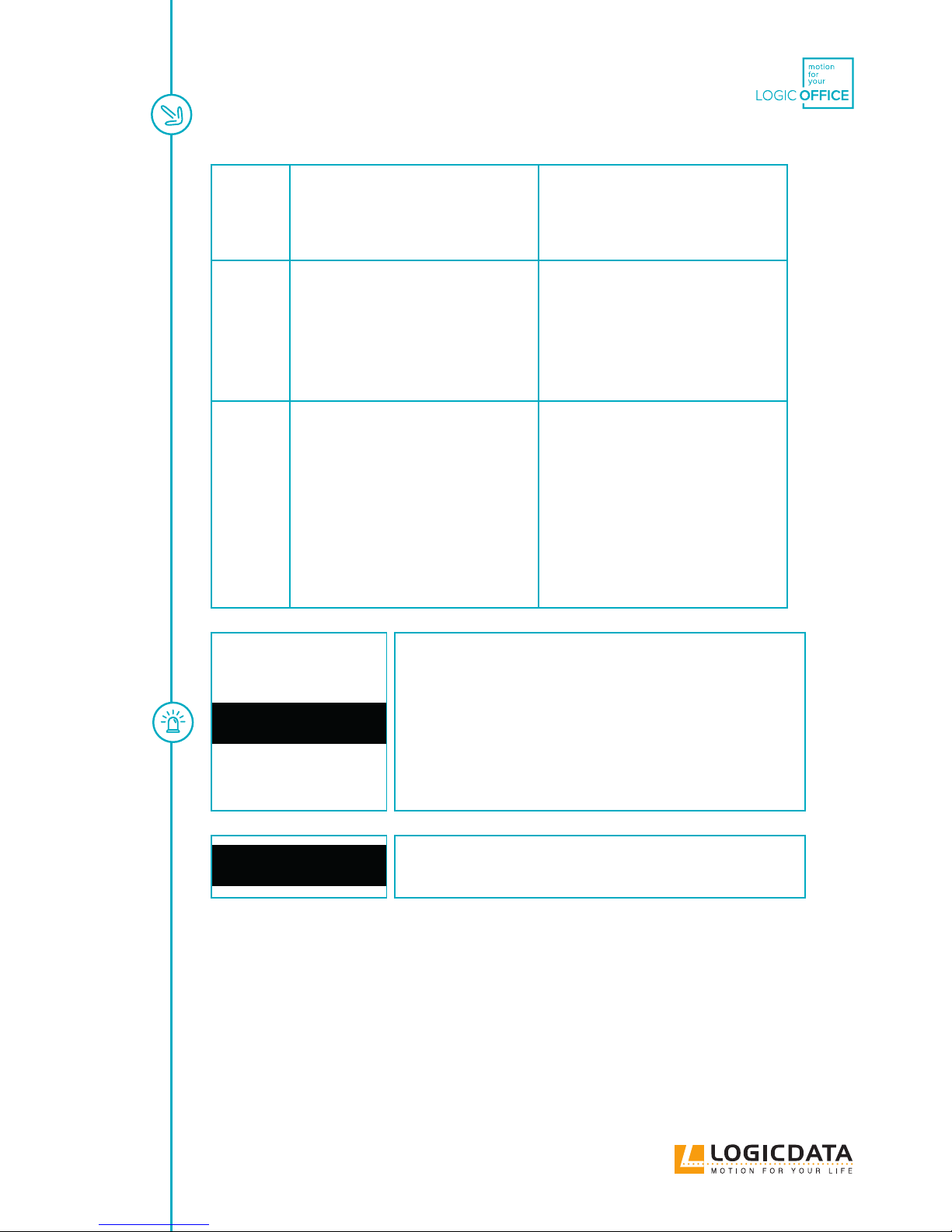
70 Change of the drive conguration Disconnect the power supply for 5 sec-
onds. Connect the required motors and
plug the power supply back in. Carry out
a manual reset.
81 Internal error Carry out a manual reset.
Disconnect the power supply cable and
plug it back in after a few seconds. If
this error occurs regularly, disconnect
the power supply cable and contact the
customer service.
93 Connection error in cascaded combina-
tion
The error is shown for 15 seconds on the
display; the control then switches to the
reset mode with ashing display 000, if
necessary.
Check all cable connections and try to
carry out a drive reset.
If the drive reset is not possible, dis-
connect the power supply of all controls.
Wait for at least 5 sec. and connect all
controls with the power supply again.
Try to carry out the drive reset again.
If a drive reset is still not possible, con-
tact the customer service.
NOTICE
The PowerFail Detection detects power failures and saves all
relevant data before the voltage drops below a critical level.
In a few exceptional cases, this saving is not
possible and during the next start-up of the control,
E81 is displayed and the control clicks three times.
Remedial of this error requires a manual reset
(see Chapter 9.4).
NOTICE
If there is a power failure during the vertical adjustment or if the
mains cable is unplugged, a manual reset may be necessary.
Page 39
USER MANUAL SMARTneo // PAGE 39
13.3 CLICK-CODES
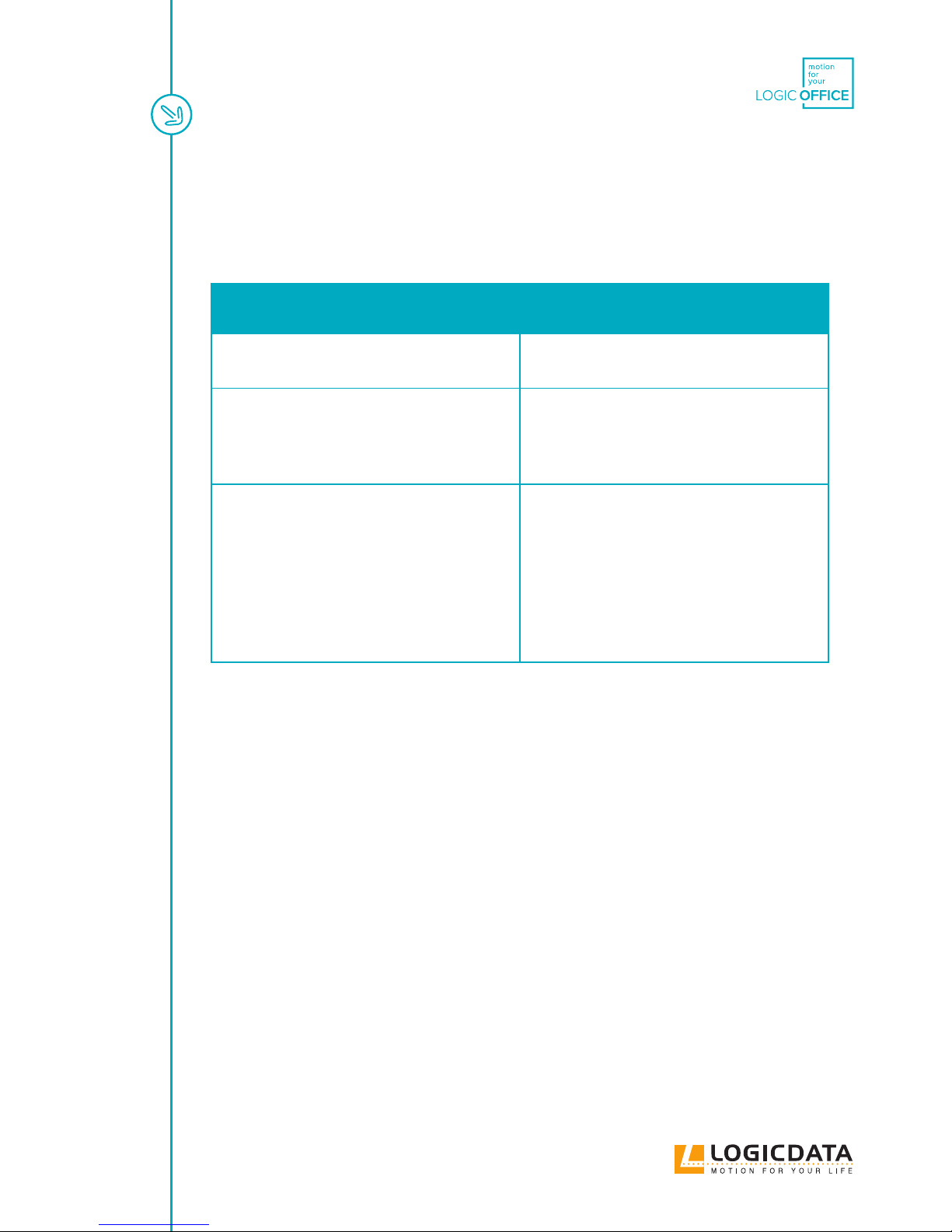
As soon as the SMARTneo is supplied with current, the control uses the installed relays to inform the user
acoustically about the system status as well as the reason for the last shut-o. The following table shows
how the number of clicks correlates with the dierent information.
Number of clicks Status information
2x Normal operation:
The system is working without problems
1x Emergency operation:
The system is in emergency operation mode, the
drives cannot be used. Check the LEDs and/or
the error code on the display of the hand control.
3x – 6x Last shut-o incomplete /
forced reset:
Check the error code on the display of the ma-
nual switch. If the control could not complete a
data savings process before e.g. there was a pow-
er failure, it will click 4–5 times during renewed
commissioning and go into the reset mode, but
without displaying the error code 81 in this case.
Page 40
USER MANUAL SMARTneo // PAGE 40
14 ADDITIONAL INFORMATION
14.1 TECHNICAL SPECIFICATIONS
You can nd the technical data of your motor control unit in the corresponding data sheet.
14.2 DISPOSAL
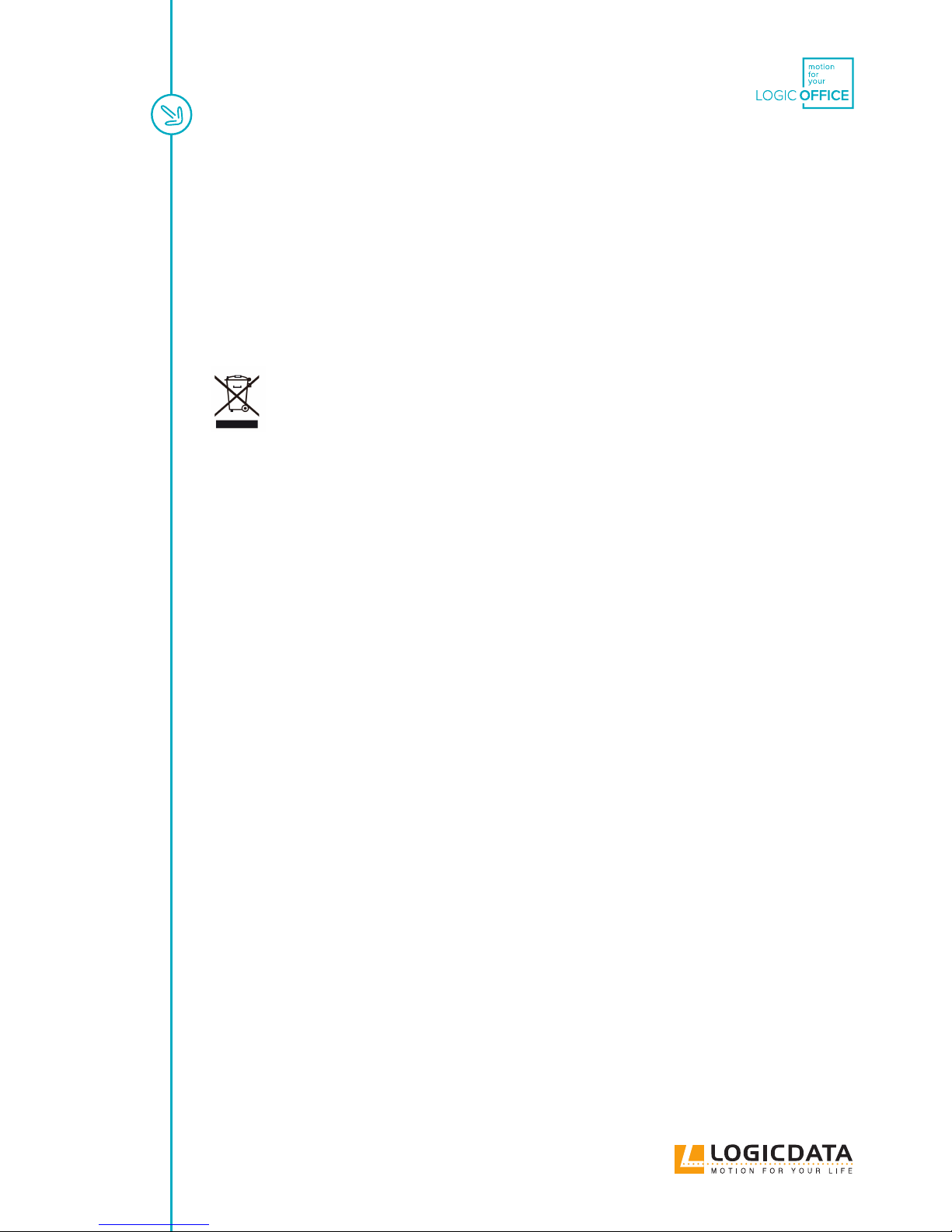
The SMARTneo is an electrical and electronic device which must be disposed of separately from
household trash in accordance with the WEEE guideline 2012/19/EU. The products are labelled
with the symbol shown on the left.
Before the disposal of materials and components, check their recyclability. Recycle all parts, if possible.
Dispose of all materials and parts according local guidelines and regulations. Ensure that the disposal is
lastingly compatible for humans and nature.
Page 41
www.logicdata.net
LOGICDATA
Electronic & Software Entwicklungs GmbH
Wirtschaftspark 18
8530 Deutschlandsberg
Austria
Phone: +43 (0)3462 5198 0
Fax: +43 (0)3462 5198 1030
E-mail: o[email protected]
Internet: http://www.logicdata.net
LOGICDATA North America, Inc.
1525 Gezon Parkway SW, Suite C
Grand Rapids, MI 49509
USA
Phone: +1 (616) 328 8841
E-mail: o[email protected]
 Loading...