

Page 1
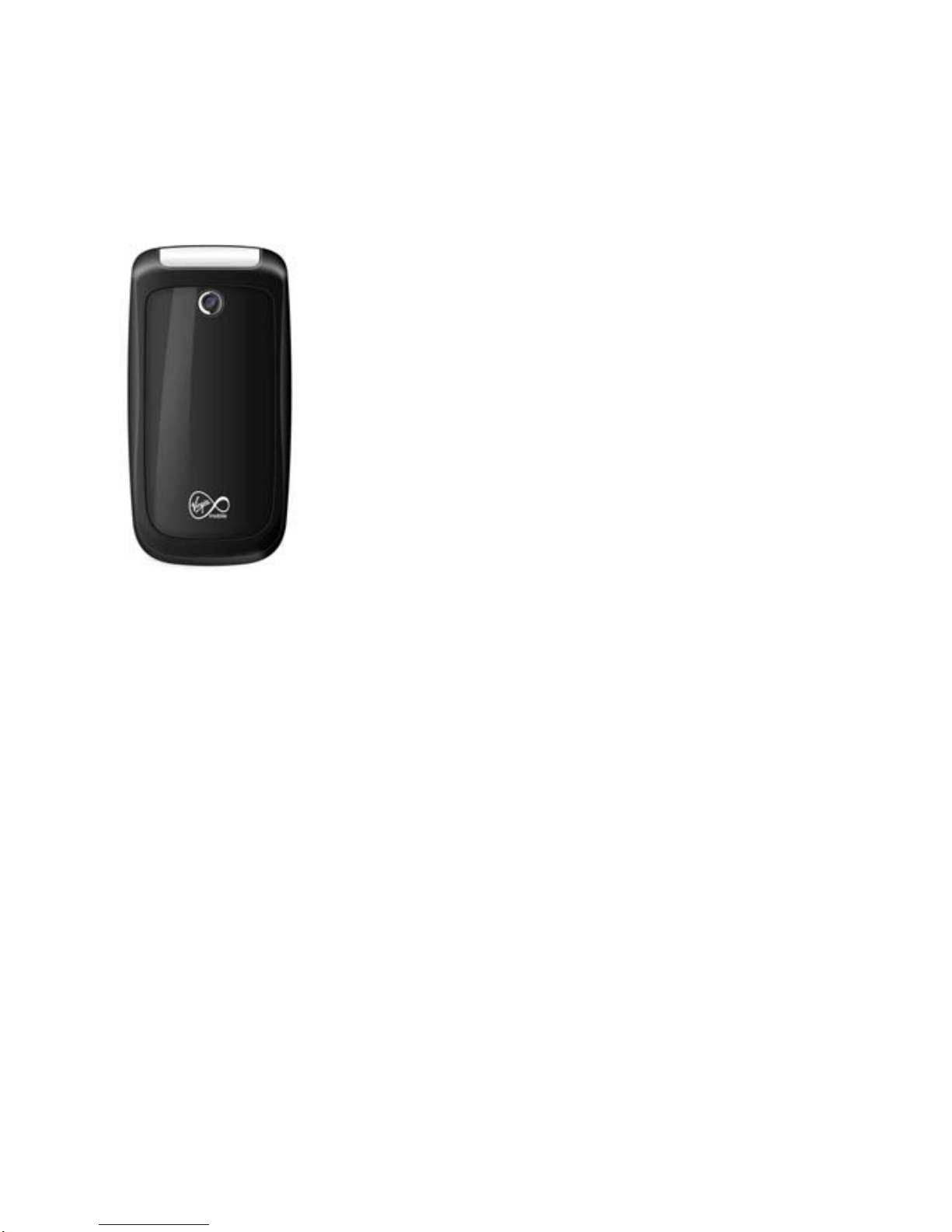
Lobster 320
Congratulations on your purchase of a
LOBSTER 320 mobile phone.
Features:
VGA camera
Games
Ring tone/Vibrator
Messages (SMS)
Page 2

Declaration
Copyright © 2007 Amoi Electronics Co., Ltd. All rights reserved.
All contents herein are protected under copyright law. Reproduction,
transfer, distribution or storage of part or all of the contents in this
document in any form without the prior written permission of
Lobster is prohibited.
Amoi and
are registered trademarks and logo of Amoi
Electronics Co., Ltd and are protected by their respective laws.
Other product and company names mentioned herein may be
trademarks or trade names of their respective owners.
Lobster has read the contents in this document, but there still may
be mistakes or omissions.
Lobster reserves the right to make changes and improvements to
any of the products described in this document and to revise this
document without prior notice.
This document is provided as a user guide on Lobster 320 mobile
phones only and does not constitute any explanation about the
hardware and software configuration of the products described in
this document. The availability of particular products and
enhancements may vary by region. Please check with the Lobster
dealer nearest to you.
Some certain functions referred in this document may be network
services and require support by your network operator or service
provider. Please check with your network operator or service
provider for more details.
For your safety, please read “For your safety” and “Safety
information” in this document before you use this device.
Symbols that may occur in this document are defined as below:
< > stands for soft keys; “ ” stands for display information on
phone screen;[ ]stands for menus.
Page 3

-I-
Contents
1. Your Phone ............................................................................... 1
Keys and parts...................................................................................1
Front open view..............................................................................1
Front closed view...........................................................................2
Left side view ................................................................................. 2
Display and icons...............................................................................3
2.Get Started ................................................................................. 5
Install the SIM card and battery .........................................................5
Charge the battery.............................................................................6
Use the travel charger....................................................................7
Battery strength indicator...................................................................8
Switch on/off your phone....................................................................8
Switch the phone on .......................................................................8
Switch the phone off.......................................................................9
Use the shortcut keys ........................................................................9
3.Call Functions...........................................................................11
Make a call.......................................................................................11
Make an international call ............................................................11
Hold a call and make another.......................................................11
Switch calls..................................................................................12
Use smart dial..............................................................................12
Redial a dialed number................................................................12
Listen to your voice mail...............................................................12
Make an emergency call ..............................................................12
Adjust call volume........................................................................12
Answer or reject a call......................................................................13
Answer a call................................................................................13
Reject a call..................................................................................13
Options during a call ....................................................................14
Hold a call and answer another....................................................14
Conference call............................................................................14
End a call.....................................................................................15
4.Recent Calls............................................................................. 16
Missed calls .....................................................................................16
Answered calls.................................................................................16
Outgoing calls ..................................................................................16
Call timers........................................................................................17
Page 4

-II-
5.Text Entry..................................................................................18
Text entry screen.............................................................................18
Switch input methods.......................................................................18
Abc ..................................................................................................18
eZi Eng............................................................................................19
Use eZi Eng.................................................................................19
123...................................................................................................19
Insert a symbol................................................................................20
Others..............................................................................................20
6.Menu..........................................................................................21
Access the menu.............................................................................21
7. Phbook......................................................................................22
Phbook entries.............................................................................22
Smart dial ........................................................................................22
Search for a contact in smar t dial.................................................22
Options ........................................................................................23
Add new entry..................................................................................23
Save to SIM.................................................................................23
Save to phone..............................................................................24
Speed dial........................................................................................24
Assign a speed dial number.........................................................24
Cancel a speed dial assignment..................................................24
Phbook manager.............................................................................25
Copy ............................................................................................25
Delete ..........................................................................................25
Own number................................................................................25
Memory status.............................................................................25
8.Messages..................................................................................27
Create new......................................................................................27
Inbox................................................................................................28
Draft box..........................................................................................29
Outbox.............................................................................................30
Memory status.................................................................................30
Settings............................................................................................30
Voice mail........................................................................................31
Connect to voice server...............................................................31
Voice server number....................................................................31
Broadcast ........................................................................................31
Activate........................................................................................31
Read............................................................................................32
New Broadcast ............................................................................32
Page 5

-III-
List ...............................................................................................32
9.Call History............................................................................... 33
10.My Document......................................................................... 34
Image...............................................................................................34
Photo............................................................................................34
Music................................................................................................34
11.Entertainment......................................................................... 36
Camera............................................................................................36
Settings........................................................................................36
Take photos..................................................................................36
Game...............................................................................................37
Snake...........................................................................................37
Bubble.......................................................................................... 37
12.Toolbox................................................................................... 38
Alarm................................................................................................38
Alarm status.................................................................................38
Alarm time....................................................................................38
Alarm cycle...................................................................................38
Alarm ring.....................................................................................38
Clear alarm...................................................................................39
Calendar ..........................................................................................39
Note pad ..........................................................................................39
Calculator.........................................................................................39
Use the calculator ........................................................................39
PC Sync...........................................................................................39
Functions......................................................................................40
Steps ............................................................................................40
13.Profiles ................................................................................... 41
Edit...................................................................................................42
Ring tone......................................................................................42
Volume set ...................................................................................42
Ring type......................................................................................42
Vibration type...............................................................................42
Sound effect.................................................................................42
View .................................................................................................42
Reset ...............................................................................................43
14.Settings .................................................................................. 44
Time and date..................................................................................44
Display.............................................................................................44
Picture..........................................................................................44
Page 6

-IV-
Time.............................................................................................45
Text display ..................................................................................45
Backlight brightne ss.....................................................................45
Backlight time ..............................................................................45
Keyboard light..............................................................................45
Contrast.......................................................................................45
Phone settings.................................................................................45
Auto power-on/off.........................................................................45
Languages...................................................................................46
Factory reset ................................................................................46
Call setup.........................................................................................46
Call volume..................................................................................46
Divert ...........................................................................................46
Answer mode...............................................................................47
Call barring ..................................................................................47
Call waiting ..................................................................................47
Caller ID.......................................................................................48
Set network......................................................................................48
Network selection.........................................................................48
Select net sequence ....................................................................49
Security............................................................................................49
PIN code......................................................................................49
SIM lock.......................................................................................49
PWD protect ................................................................................50
Password manager......................................................................50
15.Care and Maintenance...........................................................51
16.Troubleshooting.....................................................................53
Your phone cannot be switched on..................................................53
Your phone switches itself off...........................................................53
PIN/PUK codes locked ....................................................................53
The call quality is poor.....................................................................54
Your caller cannot reach you ...........................................................54
You cannot make calls.....................................................................55
The call volume is too low................................................................55
Your correspondent cannot hear you spea king................................55
The phone doesn’t ring for an incoming call....................................56
The battery does not charge properly..............................................56
Network failure.................................................................................57
17.Safety Information..................................................................58
Operating environment....................................................................58
Medical devices...............................................................................58
Page 7

-V-
Pacemaker...................................................................................58
Hearing aid................................................................................... 59
Emergency calls...............................................................................59
Make an emergency call ..............................................................59
Access Codes..................................................................................60
Phone password ..........................................................................60
PIN code ......................................................................................60
PIN2 code ....................................................................................60
PUK code.....................................................................................61
PUK2 code...................................................................................61
Charging and dischar ging................................................................61
Precautions when using batteries....................................................62
Precautions when using enhancements...........................................63
Additional safety informati on............................................................64
Page 8
-VI-
For your safety
Read these simple guidelines before using the phone. Not following
them may be dangerous or illegal. Refer to “Safety information” on
page
58 for any further information.
ROAD SAFETY COMES
FIRST
Obey all local laws.
Always keep your hands
free to operate the
vehicle while driving. Your
first consideration while
driving should be road
safety.
SWITCH OFF IN
AIRCRAFT
Follow any restrictions.
Wireless devices can
cause interf erence in
aircraft.
INTERFERENCE
All wireless devices may
be susceptible to
interference, which could
affect performance.
SWITCH OFF IN
HOSPITALS
Follow any restrictions.
Switch the device off near
medical equipment.
ENHANCE MENT S AND
BATTERIES
Use only approved
enhancements and
batteries. Do not connect
incompatible prod ucts.
SWITCH OFF WHEN
REFUELING
Do not use the device at a
refueling point. Do not use
near fuel or chemicals.
SWITCH OFF NEAR
BLASTING
Follow any restrictions.
Do not use the device
where blasting is in
progress.
PROTE C T THE
ENVIRONMENT
Do not dispose of
batteries in a fire or as
household trash. Obey
any local battery recycling
laws or environment
protection policy.
CONNECTING TO
OTHER DEVICES
PROTE C T THE
CHILDREN
Page 9

-VII-
When connecting to any
other device, read its user
guide for detailed safety
instructions. Do not
connect incompatible
products.
Do not store any small
parts of th e ph on e such as
a memory card where
children may access
them.
BACK-UP COPIES
Remember to make
back-up copies or keep a
written record of all
important information.
EMERGENCY CALLS
Ensure the phone function
of the device is switched
on and in service. Enter
the emergenc y number,
and then press the call
key. Give your location.
Do not end the call without
permission.
Page 10

Page 11
Your Phone
LOBSTER 320 -1-
1. Your Phone
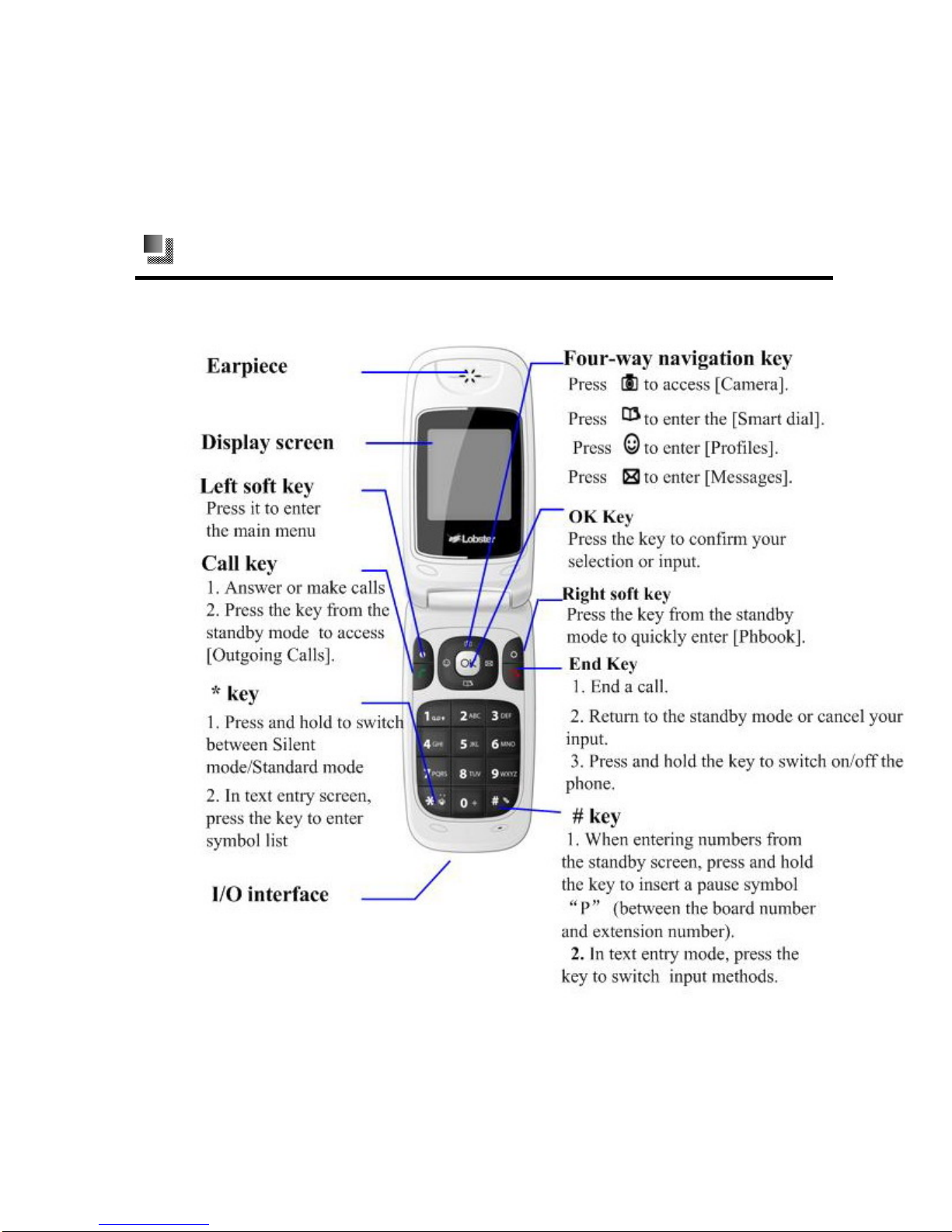
Keys and parts
Front open view
Page 12
Your Phone
-2- LOBSTER 320
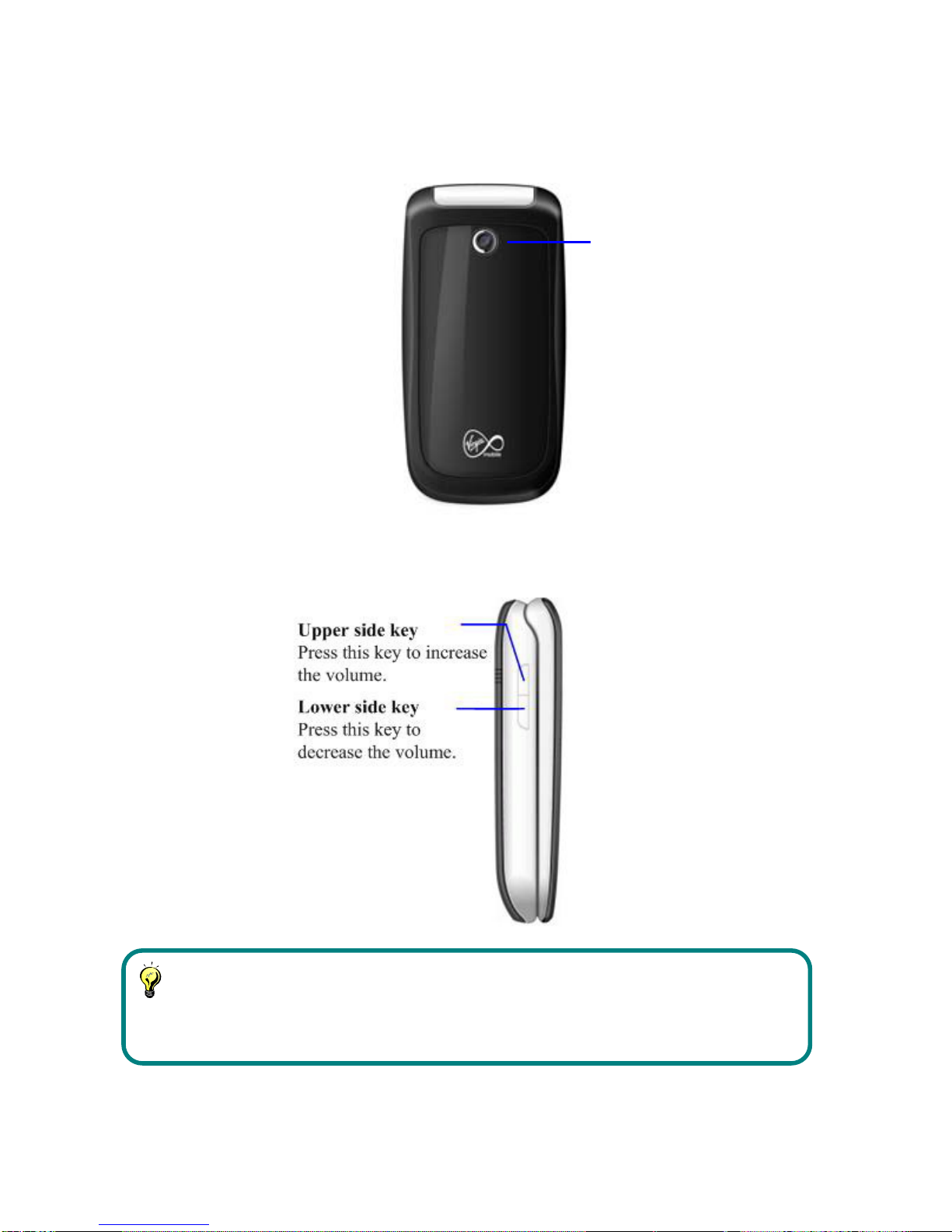
Front closed view
Camera
Left side view
Note:
Read “Use the shortcut keys” on page
9 for use of shortcut keys.
Page 13
Your Phone
LOBSTER 320 -3-
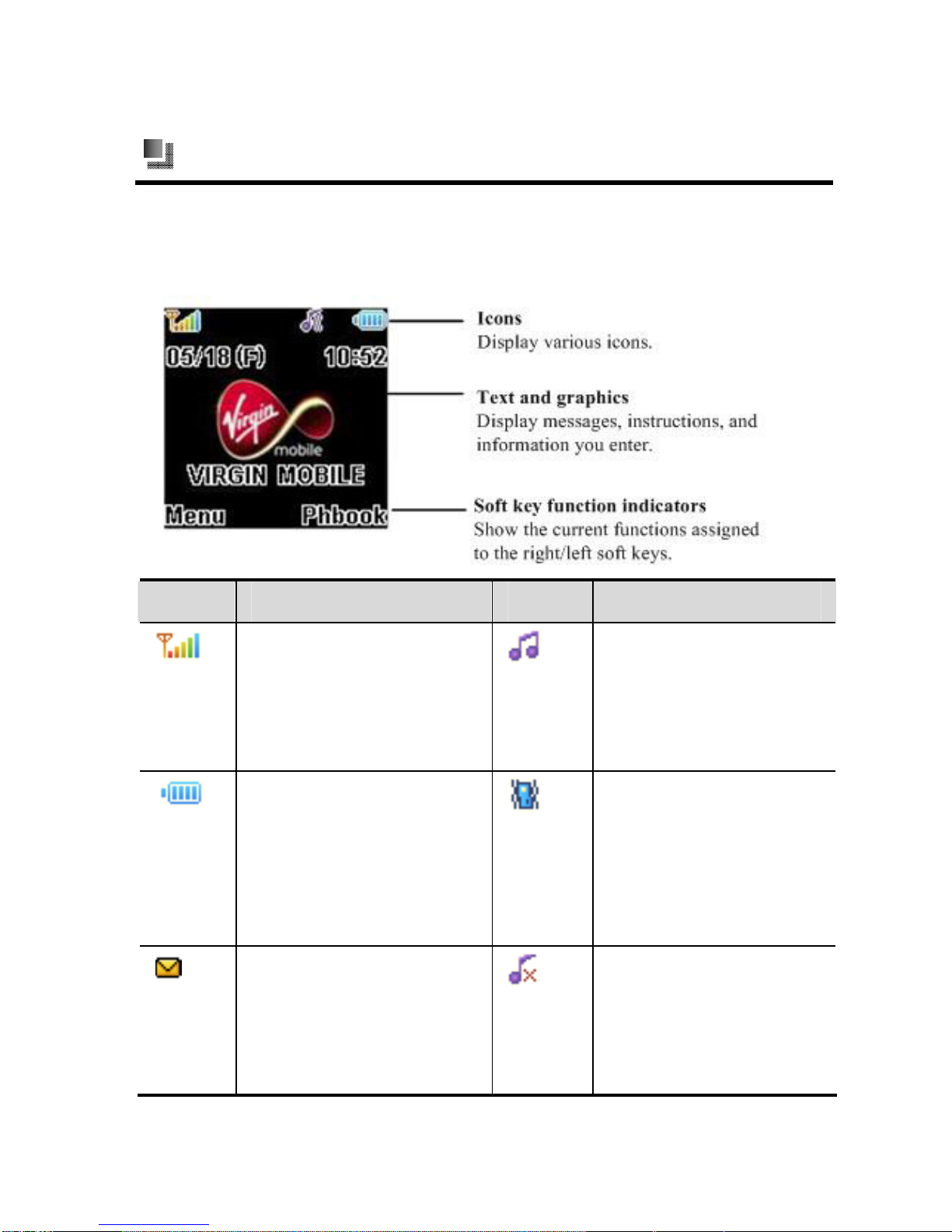
Display and icons
LOBSTER 320 has a 26.10mm(H)×28.15mm(W) 1.5 inch 65K
color CSTN display screen.
Icons What it means Icons What it means
Shows the strength of
the signal to your
phone. The more the
bar, the stronger the
signal.
Your phone rings for
an incoming call or
message.
Shows how much
power is left in your
phone’s battery. The
more the bar, the
stronger the charge in
the battery.
Your phone vibrates
for an incoming call
or message.
You have one or more
new text messages to
read. When your
SMS inbox is full, this
icon blinks.
The phone doesn’t
ring or vibrate for an
incoming call or
message.
Page 14
Your Phone
-4- LOBSTER 320
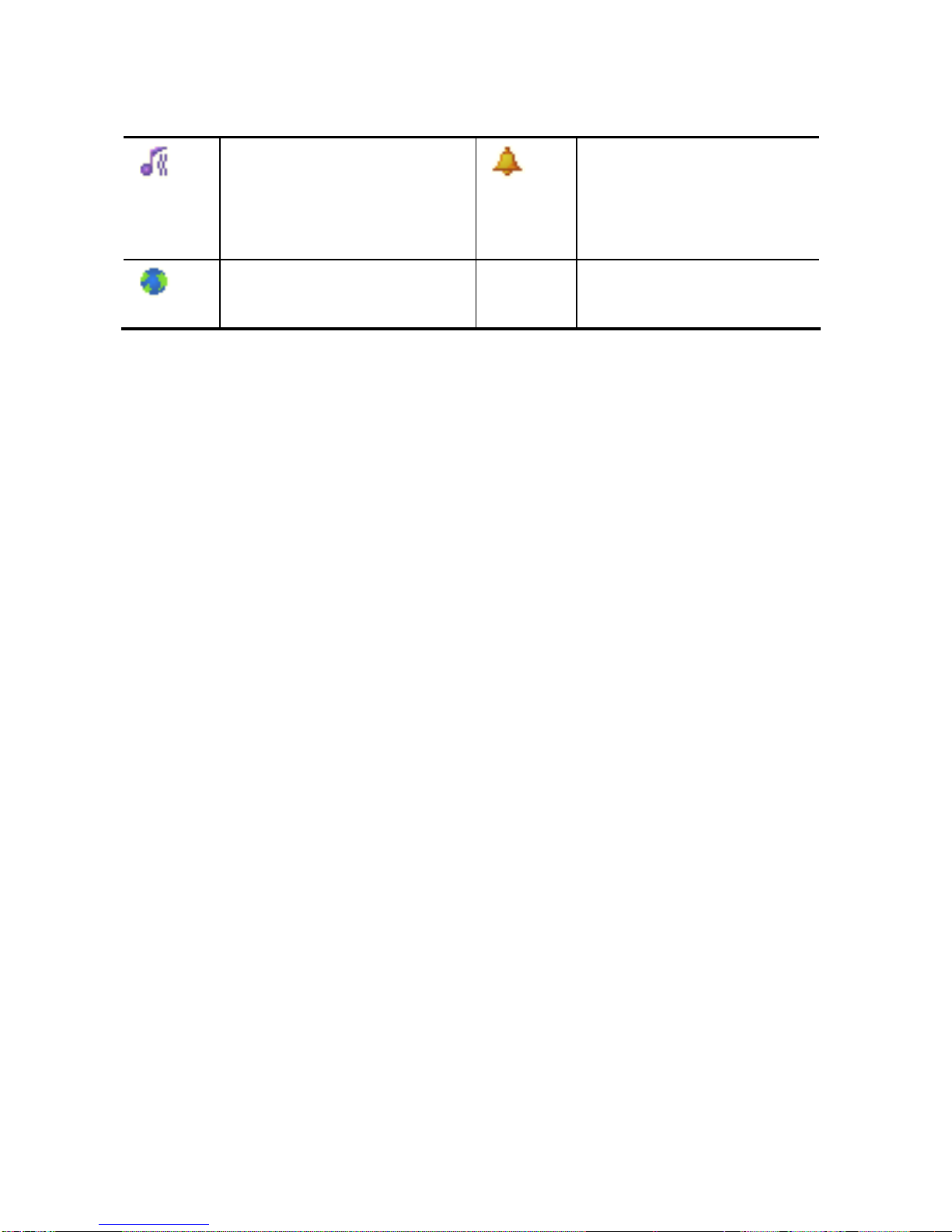
Your phone rings and
vibrates for an
incoming call or
message.
The alarm clock is
set to On.
Your phone is
roaming.
Page 15
Get Started
LOBSTER 320 -5-
2. Get Started
Before you begin, you need to prepare your phone by installing the
which is supplied by the service provider.
SIM card,
Warning:
The SIM card and its contacts can easily be damaged by scratches or
bending, so be careful when handling, inserting, or removin
1.
g the card.
.
. Keep all SIM cards out of the reach of small children.
Follow the user guide provided by the SIM card vendor
2
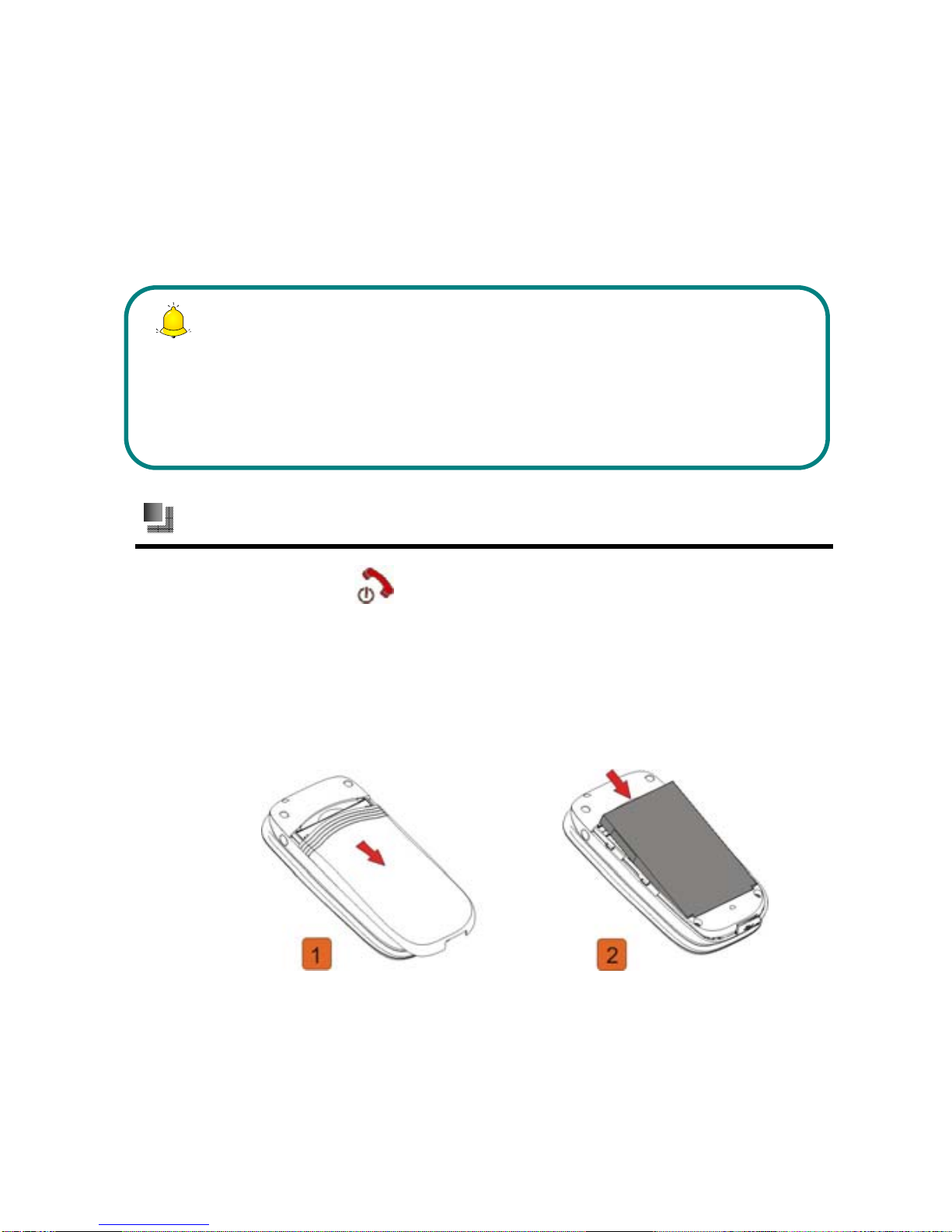
Install the SIM card and battery
(1) d holdPress an for about two seconds to switch off the
(2)
the bottom part of the
battery and lift it up from the top part.
phone.
With the back of the phone facing you, press the battery cover
release button, and slide the cover in the direction of the arrow
to remove it. Then, gently press down
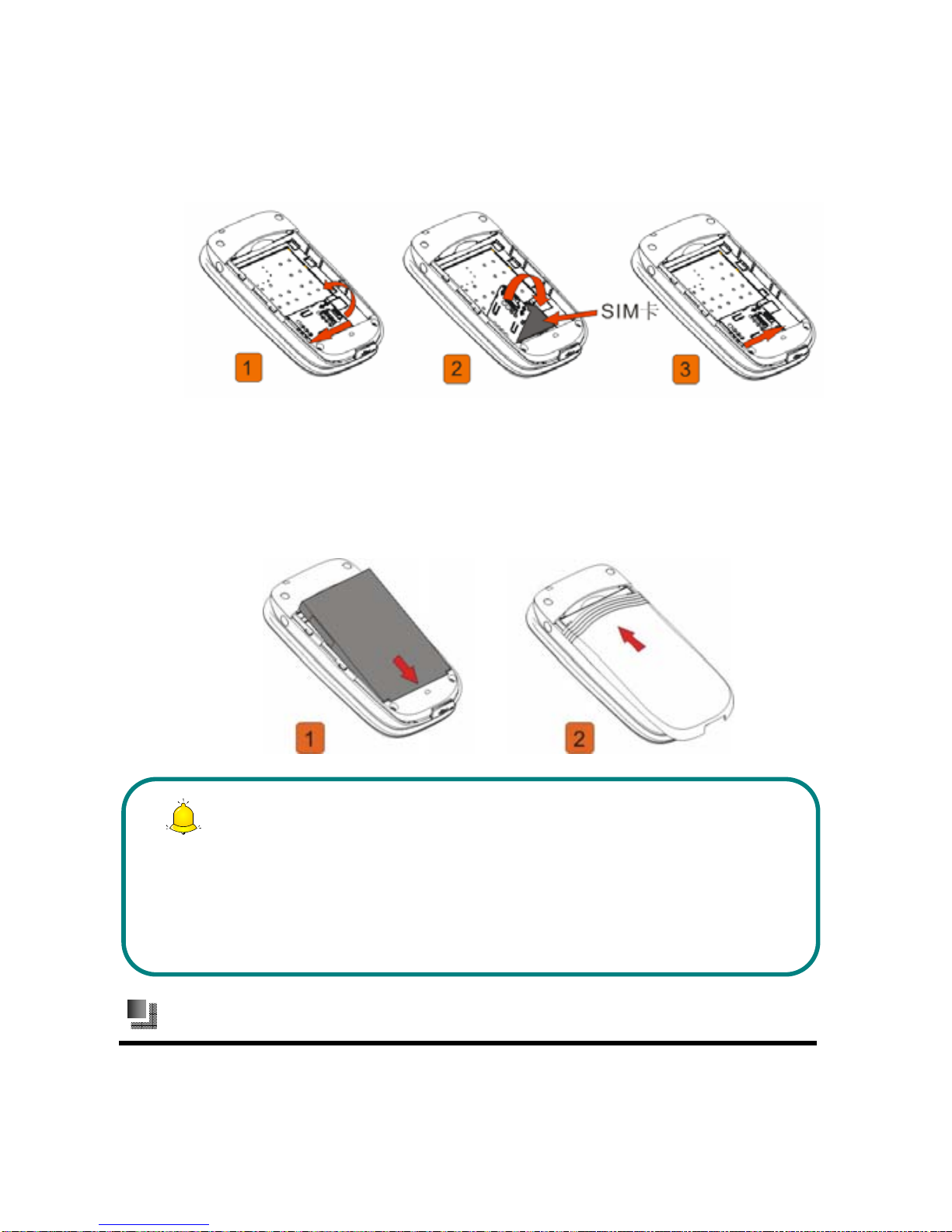
(3)
SIM
contacts facing down (see picture 2). Lock the card cover:
Unlock the SIM card cover: push the card cover in the
unlocking direction and lift it up (see picture 1). Insert the
card: insert the card into the holder, with its gold colored
Page 16
Get Started
-6- LOBSTER 320
close the cover and push it in the locking direction until it’s
tightly locked (see picture 3).
(4) Position the battery so the gold colored contacts match up with
those on the phone. Insert the battery, contact end first into the
slot. Snap the other end of the battery into place. Slide the
battery cover toward the top of the phone to lock the cover into
place.
Note:
1.When inserting the SIM card, make sure the beveled corner matches
up with the card holder.
2.If you cannot switch on the phone after installation of the battery,
please reinstall or charge it.
Charge the battery
LOBSTER 320 is powered by a rechargeable li-ion battery. A travel
charger is supplied with the phone when you purchase. When
Page 17
Get Started
LOBSTER 320 -7-
charging is in progress, you can still use your phone as usual.
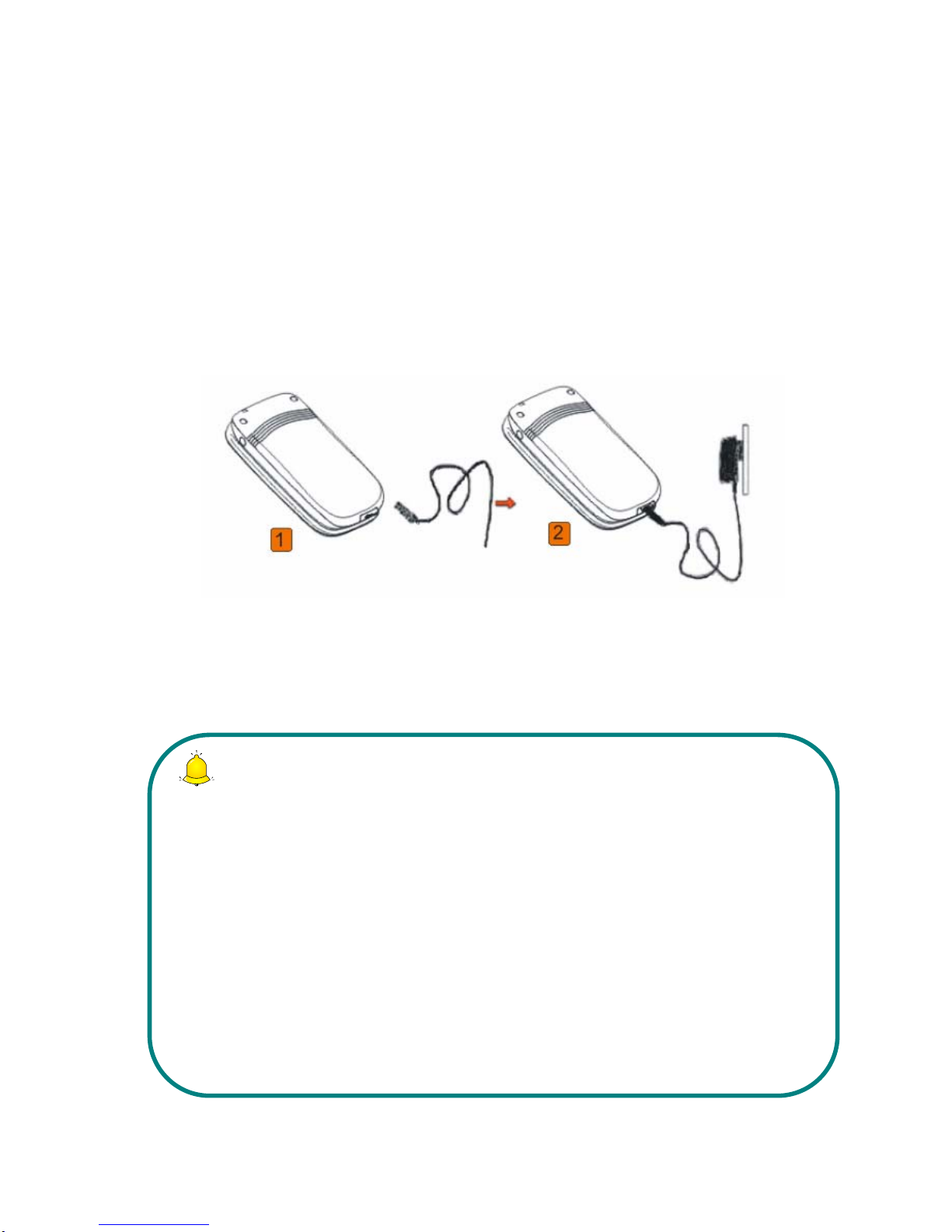
Use the travel charger
(1) Install the battery into your phone.
(2) Insert the charger plug into the connector at the bottom of the
phone.
(3) Connect the charger to a standard wall outlet.
(4) If your phone is on, the battery power indicator appears on the
screen and starts scrolling.
(5) When battery charge is complete, disconnect the charger from
the standard wall outlet first and then from the phone.
Note:
1. If the battery power is completely used up, the battery power
indicator appears 2 or 3 minutes after you start charging. I n gener a l,
the charging time should be 2 to 5 hours.
2. The full performance of a new battery is achieved only after two or
three complete charge and discharge cycles. It’s suggested that each
of the first two or three charging times lasts for over 10 hours.
Don’t charge the battery until the battery charge gets too low to
operate the phone.
3. When the phone battery is removed or the battery power gets too
low, reinstall a new one or charge the battery as soon as possible;
otherwise, the phone time will be reset.
Page 18
Get Started
-8- LOBSTER 320
Warning:
Use batteries and chargers approved by Lobster for use only. Using
unapproved batteries or chargers may cause explosion.
When the battery charge is complete, the battery bar stops
scrolling.
Battery strength indicator
When the battery is low, the empty battery icon blinks, the
“Low battery” message displays on the screen and a warning tone
sounds.
When the battery charge level is too low for operation, the phone
switches itself off and all data that has not been saved will be lost.
Switch on/off your phone
Switch the phone on
Press to switch on the phone.
Warning:
Do not switch the phone on or activate any auto power-on function
when wireless phone use is prohibited or when it may cause
interference or danger.
Warning:
Your phone has a built-in antenna. Do not touch the antenna
unnecessarily when the phone is switched on; otherwise, it may affect
call quality and may cause the phone to operate at a higher power level
than otherwise needed.
Page 19
Get Started
LOBSTER 320 -9-
If the phone asks for a PIN code, enter the PIN code.
If you enter an incorrect PIN code three times in succession, PIN
code is locked. You need to enter a PUK code to unlock it. Read
“Safety information” on page 49 for more details.
Switch the phone off
Press and hold key for about two seconds to switch off the
phone. Or you can set a time for the phone to automatically switch
itself off by using [Auto power-on/off] menu. Read “Auto
power-on/off” on page
45 for details.
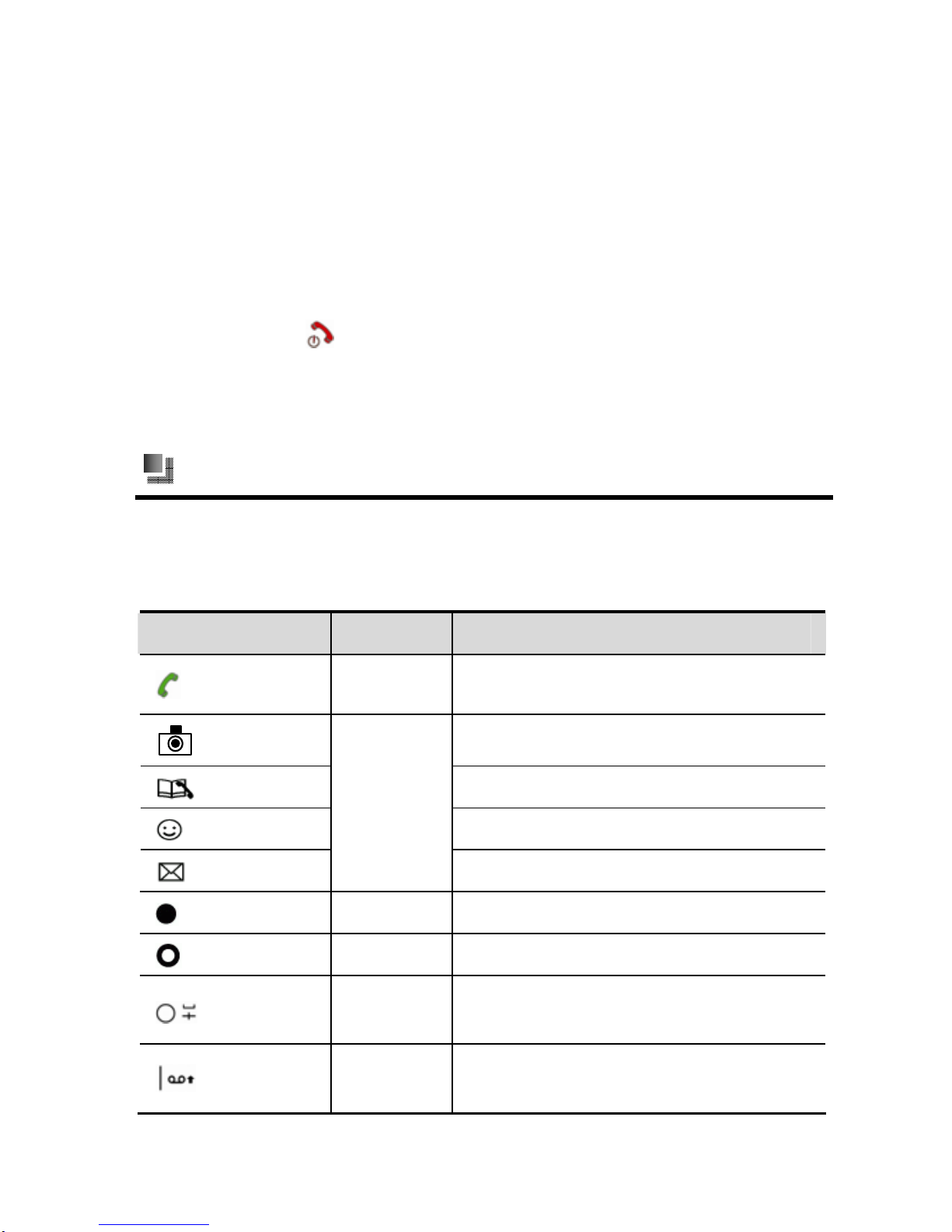
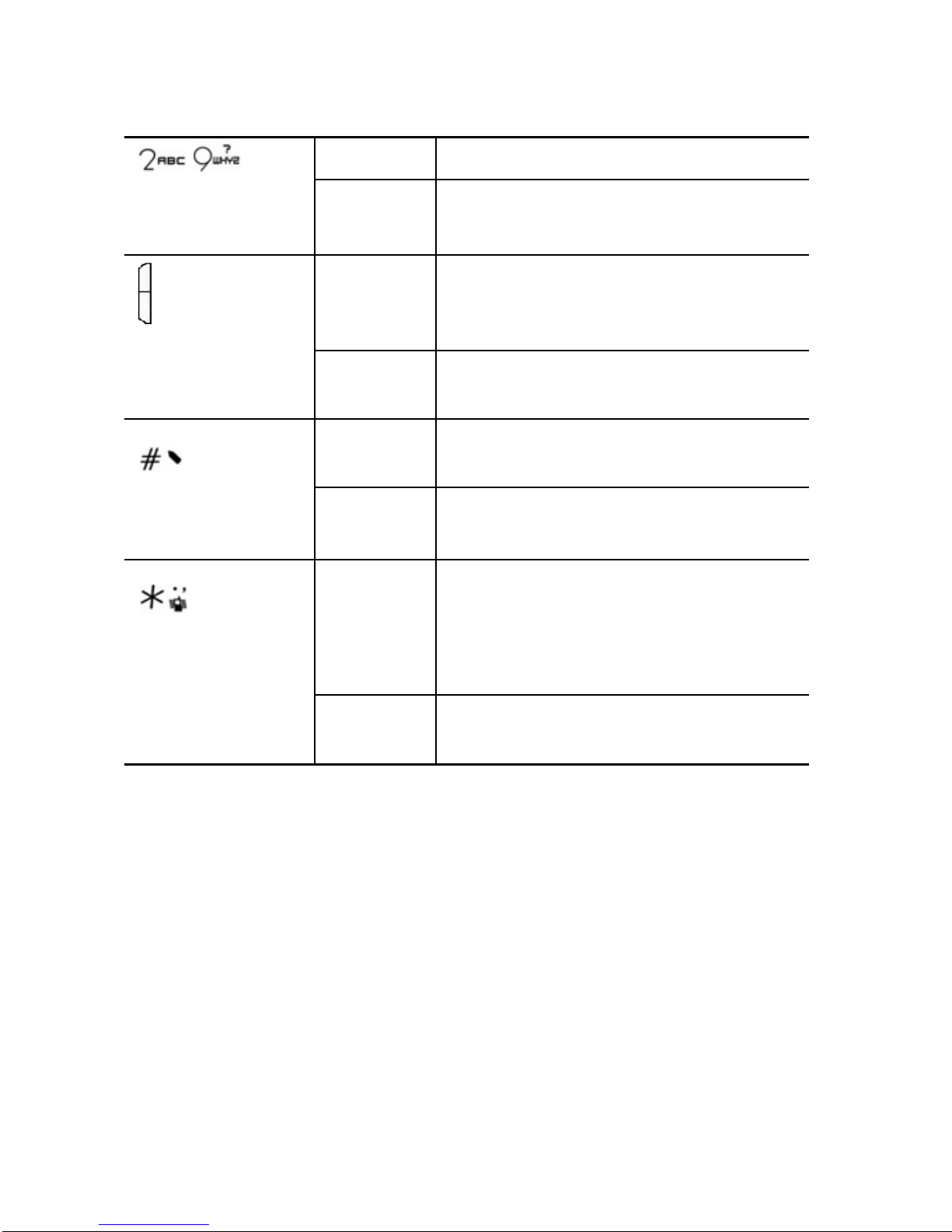
Use the shortcut keys
You can use some shortcut keys to access specific menus directly
from standby mode. Refer to the table below for shortcut keys
available with your LOBSTER 320 phone.
Shortcut keys Action Functions
Press Access [Outgoing calls] list
Enter [Camera]
Enter [Smart dial]
Enter [Profiles]
Press
Enter [Messages]
Press Enter the main menu
Press Enter [Phbook]
Press
and hold
Input a Plus symbol (+)
Press
and hold
Enter [Voice mail]
Page 20
Get Started
-10- LOBSTER 320
Press Input characters and numbers
-
Press
and hold
Execute a speed dial
Press On a call, adjust the call volume;
or turn off the ringing tone when
there is an incoming call.
Press
and hold
Reject an incoming call.
Press In text entry mode, change the
input method.
Press
and hold
Insert a pause symbol before an
extension number
Press
1.In standby mode, input a *
symbol;
2.In text entry mode, access the
symbol list.
Press
and hold
Activate or deactivate the Silent
mode.
Page 21
Call Functions
LOBSTER 320 -11-
3. Call Functions
Make a call
Before making a call, check the signal strength to make sure you
are in a place with a strong enough signal for communication.
In stand
(1) by mode, enter the phone number (including the area
( ess
code).
2) Pr
key to dial.
Note:
When dialing a phone number with an extension, press and hold
to
insert a Pause (P) symbol before you enter the extension number. Th
extension numbe
e
r will be sent a few seconds after the switchboard
number is sent.
Make an international call
ter the country code, area code and phon umber. Then, press En e n
key to dial. If necessary , press and hold key to insert a Plus
code.
( )
(1) are on a call, use the keypad to enter another phone
(2)
(+) sign before entering the country
nt Hold a call and make another Network-depende
You can hold the currently active call to make another call.
When you
number.
Press
key to make the new call and the first call is
automatically put on hold.
Page 22

Call Functions
-12- LOBSTER 320
Switch calls(Network-dependent)
When you have one active call and one on-hold call, you can press
key to switch between the active one and the on-hold one by
using[Swap]menu.
Use smart dial
In the standby mode, enter a phone number and press key to
access the following options:
Append number:Enter the [Smart dial] menu.
Send message:Edit a message to be sent to the phone number
you entered.
Redial a dialed number
In standby mode, press key or select [Recent
calls->Outgoing calls]to enter the outgoing calls list. In the
[Outgoing calls] menu, scroll to your desired number and press
key to redial. Refer to“Recent calls” on page
16 for more details.
Listen to your voice mail
When you have a new voice message, a warning tone sounds. You
can dial the voice mail box number to listen to the voice message
received.
In the standby mode, press and hold
key to dial the voice
mailbox number.
Make an emergency call
Enter the emergency number and press key to dial.
Adjust call volume
Select[Settings->Call setup->Call volume]and press / to
Page 23
Call Functions
LOBSTER 320 -13-
increase or decrease the call volume. When you are on a call, you
can also press
to adjust the call volume.
Answer or reject a call
When your service provider supports caller ID and it is enabled,
your phone shows the caller’s phone number when there’s an
incoming call. If the caller’s phone number has been stored in your
Phbook, your phone shows the name assigned to the phone
number.
Answer a call
You can answer a call in the following ways.
Answer key:when you select [Settings->Call setup->Answer
mode->Answer key], you should press
or key to answer a
call.
Any key answer:when you select[Settings->Call
setup->Answer mode->Any key answer], you can press any
key except
, or to answer a call.
Active flip:
when you select[Settings->Call setup->Answer
mode->
Active flip], you can open the flip cover to answer a call.
Auto answer:when you select[Settings->Call setup->Answer
mode->Auto answer] and when hands-free kit is used, the
phone itself will answer the call in around 3 seconds. You can
also press
key to answer the call before the phone
automatically answers it.
Reject a call
Press key to reject a call.
Select <Reject> to reject a call.
Page 24
Call Functions
-14- LOBSTER 320
Options during a cal l
When you are on a call, press key to access the options during a
call. Some options that you can use during a call are network
services.
Options Functions
Hold Put the active call on hold to answer
another call.
Mute Keep your voice from being heard by the
other parties of the call.
Recent calls Enter [Recent calls] menu. Refer to
“Recent calls” on page
16 for details.
Phbook Enter [Phbook] menu. Refer to “Phbook”
on page
22 for more details.
Messages Enter [Messages] menu.
Hold a call and answer another(network-dependent)
If you have activated call waiting function, your phone gives off a
warning tone when you have another incoming call during an active
call. You can:
Press
key to answer the new call, with the previously active
call to be automatically put on hold.
Press key to reject the new call and go on with the currently
active call.
Conference call(Network-dependent)
Conference calling is a network service that allows up to six
persons to take part in a conference call. Call waiting function
should be activated to use the conference calling service. Refer to
Page 25
Call Functions
LOBSTER 320 -15-
“Call waiting” on page 47 for more details.
(1) When you are on a call with the first participant and a new
participant is trying to reach you, answer the new call with the
first one to be put on hold.
(2) Press
key and select[Add to conference]to connect the
calls. All available options when you press
key are as
follows:
Options Functions
Swap Switch between the active and on-hold
calls.
End current call End the current call.
End all calls End the conference call.
Add to conference Connect the conference call.
Mute Refer to “Options during a call” on page
14 for more details.
Recent calls Enter [Recent calls] menu. Read “Recent
calls” on page
16 for more details.
Phbook Enter [Phbook] menu. Read “Phbook” on
page
22 for details.
Messages Enter [Messages] menu. Refer to
“Messages” on page
27 for more details.
(3) If you want to drop a participant from the conference call, press
/ to select the participant and then press key and
select[End current call].
End a call
To end a call, press key.
Page 26
Recent Calls
-16- LOBSTER 320
d
ls
ked, and your phone must be on and within the
service area.
4. Recent Calls
Your phone keeps up to 30 records of missed, received and diale
calls each. For the [Recent calls] to work properly, your service
provider must support caller ID and it must be enabled, your cal
cannot be bloc
Missed calls
This menu stores your missed calls. In the standby mode, press
key and select[Recent calls->Missed calls]to view the mi
ssed
calls. Refer to “ n page 16 for more details.
Outgoing calls” o
Answered calls
This menu stores your received calls. In the standby mode, press
key and select[Recent calls->Answered calls]to view th
receivede calls. Refer to “Outgoing calls” on page 17 for more
det s
ail .
Outgoing calls
This menu stores your dialed calls. You can enter the [Outgoing
ys:
calls] menu in the following wa
In the standby mode, press
key and select[Recent
calls->Outgoing calls].
In the standby mode, press
key to enter.
Select your desired dialed call
key to ¾ record and press
view the detailed information.
Page 27
Recent Calls
LOBSTER 320 -17-
¾ r desired dialed call re ss Select you cord and pre key to
ing options:
access the follow
Options Functions
Call Dial the selected number.
Edit before call Edit the selected number and dial.
Add to SIM Save the selected number to SIM.
Add to phone Save the selected number to the phone.
Send message Send a message to the selected number.
Delete Delete the selected number.
Delete all Delete all outgoing call records.
Call timers
Use this menu to view the duration of your last call, answered calls,
outgoing calls and all calls.
In the standby mode, press
key and select[Recent calls->Call
s the duration of
your answered calls.
your outgoing calls.
Total time:shows total duration of all calls.
timers]to enter the menu.
Last call:show your last call.
Answered calls:shows total duration of all
Outgoing calls:shows total duration of all
Page 28
Text Entry
-18- LOBSTER 320
ou can use the
that allows you to enter
in the
r numbers. Press the
key you want.
5. Text Entry
LOBSTER 320 adopts eZi predictive input mode. Y
following methods for entering text and numbers.
eZi Eng:A predictive text input method
any character using single keystrokes.
Abc:Press a key once to insert the first letter on the key, twice
for the second letter etc. If you pause briefly, the last letter
display is accepted and your phone awaits the next entry.
123:Number mode that enables you to ente
s corresponding to the digits
Text entry screen
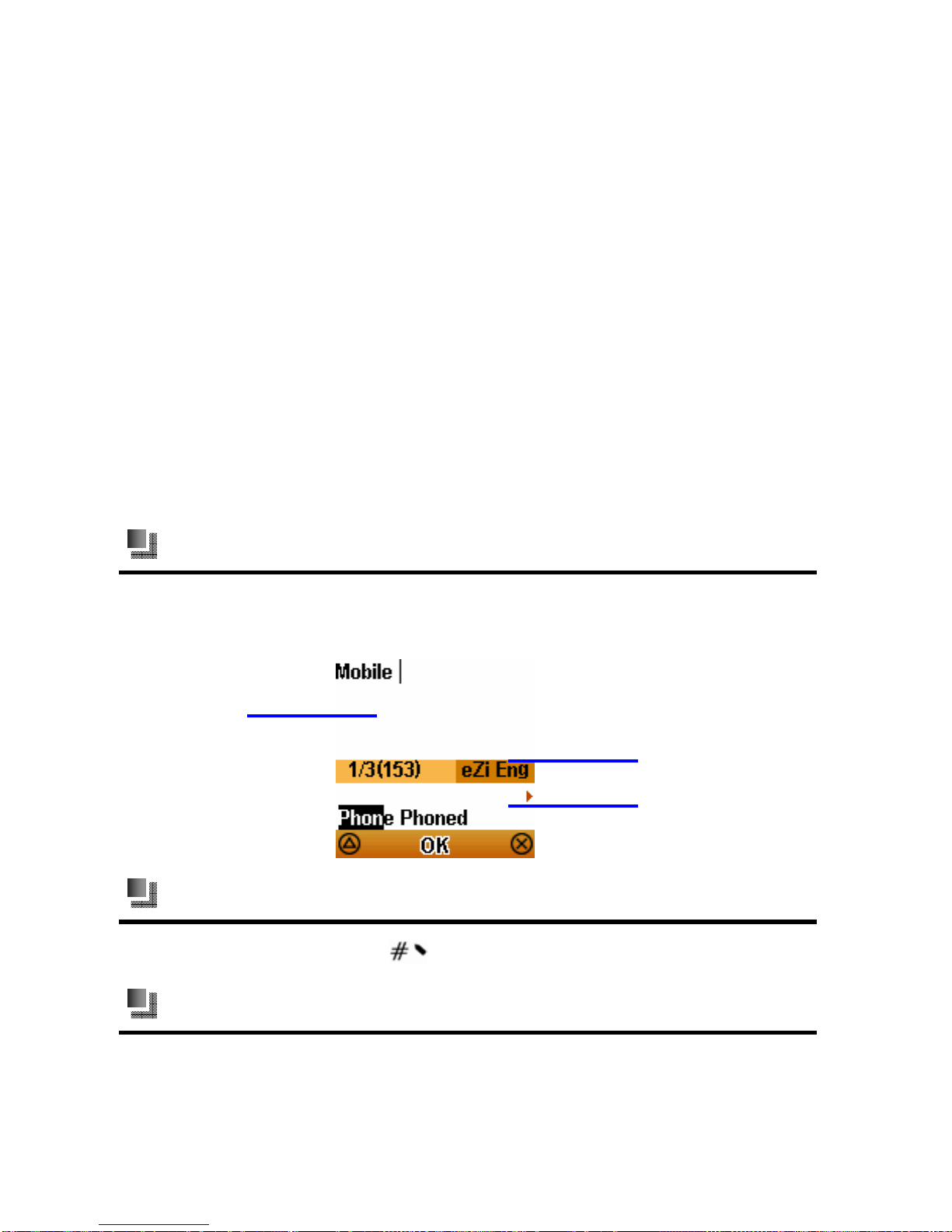
When you’re editing a text message, the display screen will look like
the below image.
Switch input methods
In text en e, press try mod key to switch the input methods.
Abc
Press a key once to insert the first letter on the key, twice for the
second letter etc. If you pause briefly, the last lett
er in the display is
Edit window
Input method in use
Matches available
Page 29
Text Entry
LOBSTER 320 -19-
accepted and your phone awaits the next entry.
Tip:
Press
key to change the case. (ABC: uppercase text; Abc:
sentence case text; abc: lowercase text.
eZi Eng
eZi Eng text input method allows you to write messages quickly
using your keypad and the built-in database. According to the
letters
you insert, the phone “guesses” the word you are trying to
(1)
.
(2)
spell.
Use eZi Eng
Enter a word:Press the corresponding numeric keys. The
phone lists all possible words that match your keystrokes
Select the right word:When there are more than one
matched wo , press
rds
/ keys to select your desired one
and press
key to confirm.
Tip:
Press
key to change the case (eZiENG: uppercase text; eZiEng:
sentence case text; eZieng: lowercase text.
123
Press the keys corresponding to the digits you want.
Page 30
Text Entry
-20- LOBSTER 320
Insert a symbol
While at any text entry screen, press the Star key to display
symbols. To insert a symbol, press the corresponding number
above the symbol. If you don’t see your desired symbol on the
current symbol bar, you can press
/ keys to go to other bars.
You can press
key to exit the symbol bar and press key to
insert a blank(except when you are using 123 input method).
Others
In text extry mode, you can press key to access the following
options:
Options Functions
Template The phone has several preset message
templates that you can insert quickly into
your message.
Phone No. With this option, you can select a phone
number from your Phbook to insert.
Language Select English input method.
Help Get some tips about text entry.
Page 31
Menu
LOBSTER 320 -21-
u can also customize some functions
to suit your special needs.
6. Menu
The menu is a starting point from which you can open all
applications in the phone. Yo
Access the menu
In the standby mode, you can press or key to en
menu and press the
ter the main
four-way navigation keys
/ / / to
select submenus.
Page 32
Phbook
-22- LOBSTER 320
hone’s
used as a single entity called Phbook.
hone number,
an
save in SIM card depends on the memory of your SIM card.
7. Phbook
You can store phone numbers in your SIM card and in your p
memory. The SIM card and phone’s memory are physically
separate, but they are
Phbook entries
Phone entries: You can save up to 500 contact entries in the
phone. Each entry can contain a name, mobile p
office phone number and home phone number.
SIM card entries: Each contact entry in SIM card can contain a
name and a phone number. The amount of entries that you c
Smart dial
standby mode, press In the key to enter [Smart dial] menu.
OR,
In the standby mode, you can press
key to enter[Phbook
and select[Smart dial]to enter. You can know the s]torage
on according ft of the name.
locati to the icon to the le
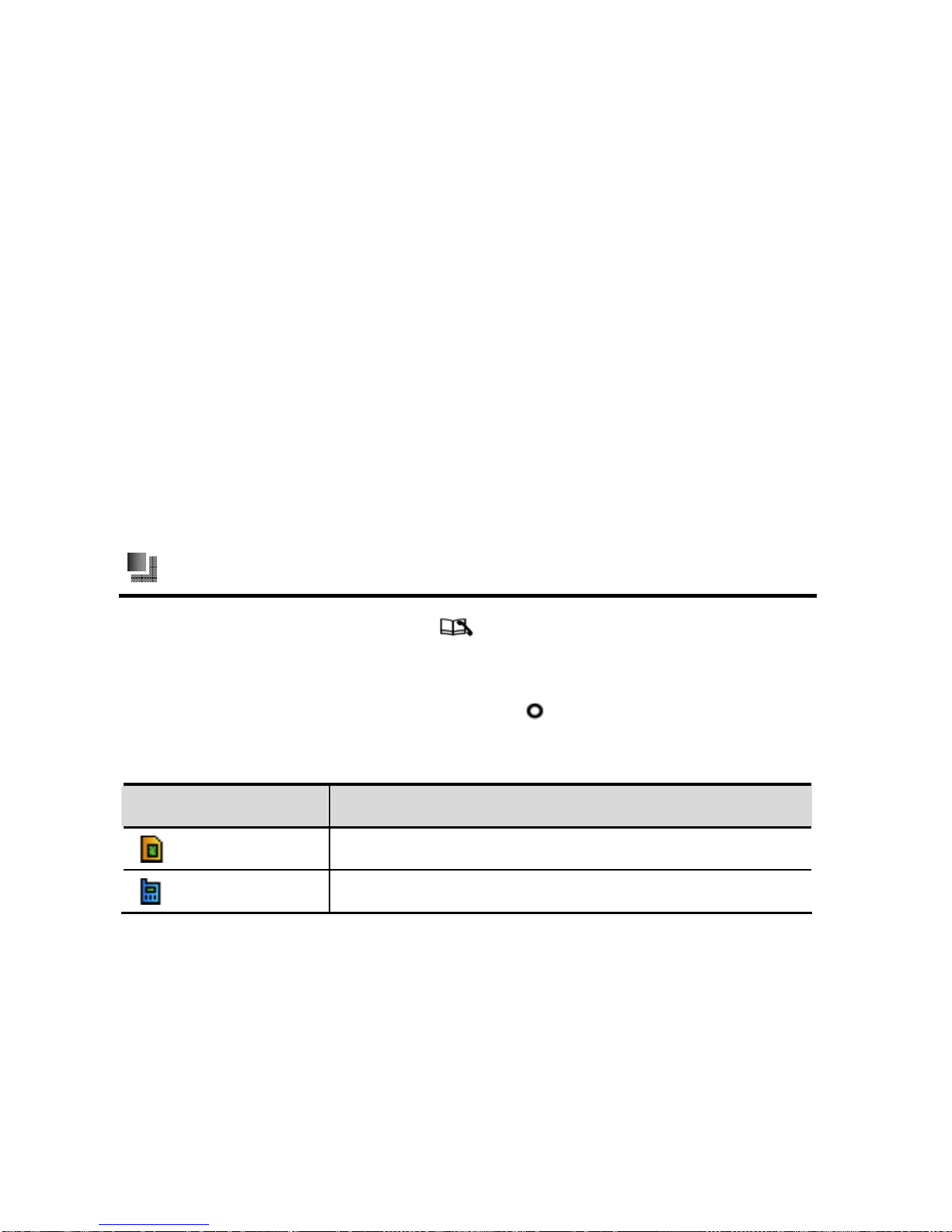
Icon What it means?
The contact entry is saved in the SIM.
The contact entry is saved in the phone.
Search for a contact in smart dial
In the [Smart dial] menu, you can search for a contact entry by
entering in sequence each letter of the entry name. For ex
ample, to
find ‘John’, just input the four letters j-o-h-n in sequence.
Page 33
Phboo
k
Options
With a contact entry found in the [Smart dial], you can:
Select <Detail> to view detailed information of the selcted entry.
Press
key to access the following options:
¾ Edit:Edit the selected phonebook entry.
¾ Add new entry: Add the selected entry to SIM or phone.
¾ Call: Call the selected number.
¾ Edit before call: Change the selected number before dialing.
¾ Send message:Edit a message and send to the selected
number.
¾ Copy:Copy the selected contact entry from phone to SIM and
vice versa.
¾ Delete:Delete the selected contact entry.
Add new entry
In the standby mode, press key to enter [Phbook] menu. Select
[Add new entry]to enter.
You can select[Add to phone]or[Add to SIM]and press
key
to add a new entry.
LOBSTER 320 -23-
Save to SIM
Each contact entry saved in the SIM can only contain a name
and a number. Select <Edit> to open the edit window and press
key to confirm your input. Name and phone number are both
required. You can only save one number for an entry.
Note:
The amount of entries that you can save in SIM card depends on the
Page 34
Phbook
-24- LOBSTER 320
memory of your SIM card.
Save to phone
Each entry saved in the phone can contain a name, mobile phone
number, office phone number and home phone number. You can
save up to 500 contact entries in the phone. To add a contact to the
phone, you should:
Press
key to select the item you want to edit. Select <Edit> to
edit. With all necessary information edited, press
key to save.
Note:
When saving a new contact to the phone without assigning a name,
the phone will automatically name it “No name”.
Speed dial
Use this menu to assign speed dial numbers (2-9) to eight of your
most frequency dialed numbers. Key 1 is reserved for [Voice mail].
Assign a speed dial number
(1) In the standby mode, press key to enter[Phbook]menu
and then select [Speed dial].
(2) Press
key to select your desired speed dial number.
Select <Edit> to input by using the keypad a phone number to
which you want to assign the speed dial number or find a
phone number from the Phbook.
Cancel a speed dial assignmen t
In [Speed dial] menu, select one speed dial number and you can
press
key to cancel the speed dial assignment.
Page 35
Phboo
k
LOBSTER 320 -25-
Phbook manager
Copy
You can copy your contacts from the phone to the SIM card o r vice
versa. You can choose any of the following ways to copy:
One by one:Copy your selected contacts one by one.
All:Copy all contact entries from SIM to phone or vice versa.
Notes:
1 When you are trying to copy by selecting [One by one] an entry that
has the same name and phone number with another entry in the target
memory, the phone asks ”Same entry. Copy?”. However, if you use
[All], the phone copies all entries without asking even if there are
same entries between the copying memory and target memory.
2.When the phone asks “Not enough space.Continue?”, you can select
<Ok> to continue copying until the target memory is full.
3. When copying entries from phone to SIM, only the name and phone
number are copied. An entry saved in the phone with multi-numbers
will be saved as several entries with the same name in the SIM.
Delete
Use this menu to delete contact entries from the SIM or the phone.
You can delete individual contact by selecting[One by one]or
delete all contact entries by selecting[All]. Refer to “Copy” on page
27 for more details.
Own number
This menu allows you to check your own phone number.
Memory status
This menu allows you to check the number of contact entries you
Page 36

Phbook
-26- LOBSTER 320
have stored and maximum number of contact entries you can store
in the phone’s memory and in the SIM card.
Page 37
Messages
LOBSTER 320 -27-
8. Messages
You can read, write, send and save text messages with your
LOBSTER 320 phone. You can save up to 200 messages in the
phone’s memory while the number of messa
ges that you can save
in the SIM depends on the type of the card.
Note:
When you lock the access to [Messages] menu, your phone asks for
phone password each time you are trying to enter the menu. The phone
allows countless wrong phone password input. But once you enter the
correct password, your access to [Messages] and any of its subm
enus
will be permitted. Read “Security” on page 49 for more details.
Create new
Note:
Before you can send a message, you need to save the right SMS servic
center number that can be obtained from your service provide
e
r. Go to
[Messages->Settings->Service centre] to save the number.
In the standby mode, press
key to enter[Messages]menu and
select[Create new]to crea
te a new message. A message can
(1) text
g
(2) message, press
contain up to 160 characters.
Create a new message:
After you enter the text entry screen, select your desired
input method. Read “Text entry” on pa e 18 for details.
When creating a
key to access the
following options:
Page 38
Messages
-28- LOBSTER 320
sert.
display language.
r by using the
e, or press
Template:Select your desired template to insert.
Phone No.:Select your desired phone number to in
Languages: Select your desired
Help:Get tips about text entry.
When you finish with a new message, select <Ok> to input the
target phone number. You can input the numbe
keypad or select a number from the [Phbook].
With the target phone numbe entered, you can select <Send> to
send the messag
r
key to access options listed in the
follow
ing table:
Options Functions
Phbook ok] to pick up your target phone Go to [Phbo
number.
Save the message to [Draft box]. Save
Send and save Send the message and save it in [Outbox].
Inbox
The Inbox stores all messages that you receive. Icon that precedes
the title eived message indic .
of a rec ates the status of it
Icons What it means?
Unread message.
The message is saved in the SIM.
The message is saved in the phone.
Page 39
Messages
LOBSTER 320 -29-
In the standby mode, press to enter[Messages]menu and
then select [Inbox]. In the inbox, the senders’ names are dis
if you have saved the senders’ information in your P
played
hbook;
otherwise, senders’ phone numbers are di ay
When reading a message, you can press
spl ed.
/ keys to pa
up/down, o
ge
r press
/ keys to read the previous or next
and then select <Read> to read
ou can:
message.
In the inbox list, select a message
details of the selected message.
When reading a message, y
Select Reply> to reply. <
Press
key to access the following options:
Forward:Forward the selected message to others. Before
forwarding the message, you can al
¾
so re-edit it. Read “Create
ls.
¾
rs. With a number extracted, you can select
¾ Save the message to the phone’s
IM.
new” on page 16 for more detai
¾ Delete:Delete the message.
Extract number:Extract the sender’s phone number and any
2-20 digit number contained in the message. You can extract
up to 10 numbe
<Call> to dial.
Save to phone/SIM:
memory or the S
Draft box
After creating a message, press <Ok> and then press key to
save the msesage in the [Draft box]. The draft box also stores
messages that ar
e unsuccessfully sent. Read “Inbox” on page 28
for more details.
Page 40
Messages
-30- LOBSTER 320
Outbox
If you select[Send and save]when sending a message, the
message will be saved in[Outbox]after it’s successfully sent. Read
“Inbox” on page
28 for more details.
To make sure that sent messages are saved in [Outbox], you must
first select [On] in[Messages->Settings->Save sent message].
Memory status
Use this menu to check the numbers of messages that are saved
and maximum numbers of messages that you can save in the SIM
and the phone.
Settings
Service centre:SMS center numbers are usually supplied with
the SIM cards. You can use, change or delete the number as
necessary. If you don’t have the number, contact your service
provider.
Status report:When you select[On], the network will inform you
by displaying an informing message when your messages are
successfully delivered.
Save sent message:When you select[On], messages that are
successfully sent will be saved in the[Outbox].
Default storage:Select a preferred memory to save the
messages after your phone receives them. When you select
[Mobile], all messages received are saved in the phone until the
phone memory is full.
Page 41
Messages
LOBSTER 320 -31-
Voice mail
Voice mail is a network service that allows your callers to leave
messages when you are not able to answer their calls. When you
subscribe to voice mail, your service provider furnishes you with a
voice mailbox number. You need to save this number to your phone
to use voice mail. When you receive a voice message, your phone
lets you know by sending you a text message.
Notes:
You can use [Divert] menu to forward calls to your voice mailbox.
Read “Divert” on page
46 for more details.
Connect to voice server
You need to dial the voice mailbox number to listen to your voice
messages.
Voice server number
Use this menu to save or change your voice mailbox number
supplied by your service provider.
Broadcast
Broadcast is a network service that allows you to receive a variety
of text messages, including weather forecast or traffic information.
For more details, consult your service provider.
Activate
Check status: to check whether the broadcast is turned on or
off.
Off: to turn off the broadcast.
On: to turn on the broadcast.
Page 42

Messages
-32- LOBSTER 320
Read
Use this menu to read the broadcast messages received.
New Broadcast
Use this menu to create a new channel. Channels created are
automatically saved in the [List] and your phone receives broadcast
messages from the channels existed in the list.
List
Use this menu to delete a channel saved.
Page 43

Call History
LOBSTER 320 -33-
our phone
red c
9. Call History
Only when your service provider supports caller ID can y
record outgoing calls, answe alls and missed calls.
In the standby mode, press
key and select[Recent calls]to
For details, read “Recent calls” on page 16.
enter the menu.
Page 44
My Document
-34- LOBSTER 320
nt
access images and sound files stored in
at only) and bmp.
PC sync function.
Read “ page 39 for more details.
10. My Docume
This menu allows you to
the phone’s memory.
Supportable image formats are jpg (YUV420 form
Supportable sound file formats are mp3 and mid.
You can also download images and sounds via
PC Sync” on
Image
Photo
In the standby mode, press key and select[My
document->Image->Pho to view the photos sa
to] ved. Select a
photo and you can press
key to view details.
When viewing a photo, you can press
/ ys to go to the
previous or next on
ke
e. And you can also press
key to access the
aper.
Delete t
Re
properties of th
M m s:View the memory status.
following options:
Set as idle screen:Set the selected image as wallp
Delete: he selected image.
Rename: name the selected image.
Property:View e selected image.
e ory statu
Music
In the standby mode, press key and select[My
document usic]to enter . Select your desired sound fil n u
->M e a d yo
Page 45

My Document
LOBSTER 320 -35-
can press key to play. When playing, you can p s res / to
p.
switch to the previous or next sound file and press
to sto
Also, you can press key to access the following options:
Set as ring tone
:Set the current sound file as the incoming
SMS tone:Set the current sound file as the message
d file.
recognize, you can
ringing tone.
Set as
tone.
Delete:Delete the current sound file.
Rename:Rename the current sound file.
Property:View properties of the current soun
Memory status:Check the memory status.
For a sound file that your phone is not able to
press key to access the following options:
d file.
Memory status:Check the memory status.
Delete:Delete the current sound file.
Rename:Rename the current sound file.
Property:View properties of the current soun
Page 46
Entertainment
-36- LOBSTER 320
nt 11. Entertainme
Camera
You can use the easy-to-use 0.3M pixel camera embedded in your
otos.
phone to take ph
Settings
In the standby mode, press key and select[Entertainment
->Camera]to enter the p
review screen. You can make the following
settings to the camera.
Brightness:In the preview window, press
/ keys to adjust
the brightness. The currently selected brig htness level is shown
.
view window, press
at the bottom left of the preview window
Others:In the pre
key to pop up settings
Sel x120.
und:Turn On/Off the shoot sound.
options as below:
¾ Delay shoot:Turn On/Off the delay shoot function.
¾ Resolution: ect 640x480, 320x240 or 160
¾ Shoot so
Take photos
In the preview window, press key to shoot. Af ter each s
phone automatically displays the
hot, the
shot and saves it to[My
document->Image->Photo].
When a shot is displayed, you can press
to go back to the
preview window; or press to access the following options:
Take new photo:Go ba window. ck to the preview
shot as wallpaper.
Set as idle background:Set the
Page 47

Entertainment
LOBSTER 320 -37-
the current shot. Delete: Delete
Game
Challenge yourself or a friend to one of the fun games in your
ame. You can select
s or rules on how to play the game.
nnot
last time.
Help:Get tips or rules on how to play the game.
phone!
Snake
New game:Start to play the game.
Settings:Set the difficulty level of the g
elementary, intermediate or advanced.
Scores:View the top five game scores.
Help:Get tip
Bubble
New game:Start to play the game.
Load game:Continue the game you saved last time. You ca
use this menu if you don’t have any games saved
Page 48
Toolbox
-38- LOBSTER 320
12. Toolbox
, calculator and
PC y work and life.
The toolbox includes an alarm, calendar, note pad
s nc to suit your needs in daily
Alarm
Use this menu to set alarms to sound at specific times. You can set
ode, press
up to three alarms with your phone.
In the standby m
key to enter[Toolbox->Alarm].
e the alarm clock. An activated
Alarm status
Press <Ok> to activate or deactivat
alarm has a
icon on the right.
ypad to set the time for the alarm to sound.
Alarm time
Use the ke
Note:
You need to select am or pm when the time format is
set as [12 hour].
ead “Time and date” on page 44 for more details.
t[Everyday], the alarm rings at the preset alarm
.
Use this menu to select your desired alarm tone.
R
Alarm cycle
You can select[Everyday],[Workday]or[Define]. For instance,
when you selec
time each day
Alarm ring
Page 49
Toolbox
LOBSTER 320 -39-
Clear alarm
Use this menu to deactivate all alarms.
Calendar
In the standby mode, press key to enter the main menu and
select[Toolbox->Calendar]to view the calendar.
Note pad
Use this menu to save up to 10 pieces of notes on your phone.
Each note can contain up to 200 characters.
Select a note and press
key to select [Create new], [Edit],
[Delete] or [Delete all].To read a note, press <Read>.
Calculator
The calculator in your phone adds, subtracts, multiplies and divides.
In the standby mode, press
key and select[Tools->Calculator]
to use the calculator.
Use the calculator
(1) Use the keypad to enter the first number. To insert a minus,
press
key; to insert a decimal point, press key;
(2) Press
/ / / for + - * / respectively;
(3) Press
key to compute.
PC Sync
Lobster PC sync allows you to connect your phone to a comp uter
with a cable and synchronize data and information between them.
Page 50
Toolbox
-40- LOBSTER 320
Note:
1. Lobster PC Sync driver must be installed to your computer before
you can use this function.
2. Buy a cable if it’s not supplied with your phone when you purchase.
Functions Functions
Access or edit phbook information. Access or edit phbook information.
Read or edit text messages. Read or edit text messages.
Download ringtones or images. Download ringtones or images.
Steps Steps
(1) In the standby mode, press (1) In the standby mode, press key and select[Tools->PC
Sync].
(2) Connect your phone to the computer with a cable.
(3) Open “Lobster PC Sync”.
(4) Upon successful connection, you can access or edit
phbook information, read or edit text messages or
download ringtones or images.
Note:
During sync process, do not exit from the PC Sync function. Ensure
the data cable is well connected. When there is an incoming call, the
PC Sync automatically terminates.
Page 51
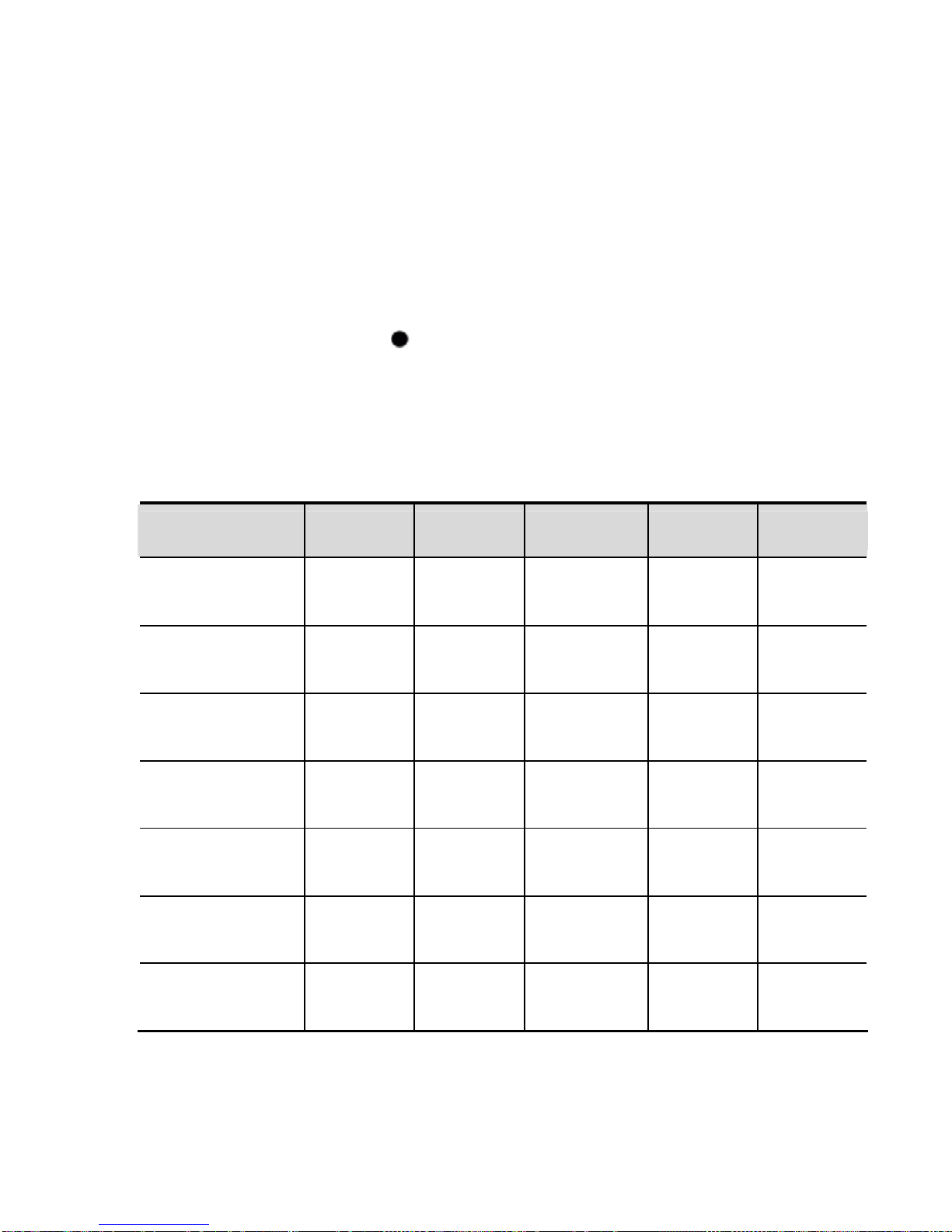
Profiles
LOBSTER 320 -41-
s
r a
e, how your keypad sounds when you press a key, and
13. Profile
Profiles define how your phone reacts when you receive a call o
messag
more.
In standby mode, press
key to enter[Profiles]menu. The
profiles available are Standard, Outdoor, Home, Earphone and
Silent. Ringing options, keypad tones and other settings for eac
the five available profiles can be left at their default settings or
customized to suit your preferenc
h of
es. Refer to the table below for
default settings for each profile.
Options Standard Outdoor Earphone Home Silent
Ring tone
1 1 1
None
Long
melody1
Long
melody
Long
melody
Long
melody
SMS tone
melody1 melody1 melody 1 melody1
None
Short Short Short Short
Volume set
Level 5 Level 5 Level 3 Level 4 None
Ring type
On On On Increasing None
Vibration type
On On On Off On
Keypad tones
On On Off Off Off
Delivery report
tone
On On On Off Off
Page 52

Profiles
-42- LOBSTER 320
Edit
You can customize the currently selected profile in a variety of
ways.
Ring tone
You can select the desired ringing tone preset in the phone or
saved in [My document]. Your phone supports 16 polyphonic ring
tones in MIDI and MP3 formats. This menu enables you to change
the[Ring tone]and[SMS tone].
Volume set
This menu enables you to decrease or increase the volume by
pressing
or keys.
Ring type
You can select[On],[Off]or[Increasing].
Vibration type
Turn on or off the vibrator for an incoming call or message.
Sound effect
Keypad tones:Set the phone t o sound when you press a key.
Delivery report tone:Set the phone to sound when you receive
a text message from the network informing you that your
message is successfully sent.
View
View all settings for the currently selected profile. In [View] menu,
select <Edit> to enter Edit window. View “Edit” on page
42 for more
details.
Page 53
Profiles
LOBSTER 320 -43-
Note:
1. Settings for Silent mode cannot be reset.
2. You should fir st insert the earphone before you can select the
Earphone mode.
Reset
Reset all settings for the currently selected profile to default.
Page 54
Settings
-44- LOBSTER 320
14. Settings
In the standby mode, press key and select[Settings]to enter.
Time and date
Use this menu to change the time and date displayed on your
format:Select[12 hour]or[24 hour]as the time format.
phone.
Set time:Change the time.
Time
Note:
If [12 hour] is selected as the time format, you need to select am or
pm when setting the time.
mat:Select[D/M/Y],[M/D/Y]or[Y/M/D]as the date
format.
Set date:Change the date.
Date for
Display
You can set your phone to display a background picture (wallpaper)
y screen.
n
on the standb
Picture
Select an image stored in the phone as the background picture o
the standby screen. Your phone upports image in .bmp format.
With an image selected, press
s
key to preview in full screen.
/ to switch to the previous or next images.
Press
Page 55
Settings
LOBSTER 320 -45-
Text d
twork operator’s name or the text you input from
the network operator’s name on the
screen.
tness
Time
Select[On]to display a clock on the standby screen.
isplay
Off:Hide the ne
the standby screen.
Network name:Display
standby screen.
Text Display the text you input on the standby :
Backlight brigh
Press / to adjust the backlight brightness.
n.
light
Co
Backlight time
Select the length of time the backlight stays o
Keyboard
Select[ ff],[Night]or[Always on]. O
ntrast
Press / to adjust the contrast ratio of the display screen.
Phone settings
Many different features of your phone’s system can be customized
enables your phone to automatically switch itself on or
ff time, it doesn’t switch
to suit your preferences.
Auto power-on/off
This menu
off at your preset time. For your notice, if your phone is not in the
standby mode at your specified power-o
Page 56

Settings
-46- LOBSTER 320
r
Use this menu to reset the phone’s settings you have changed and
clear all dat You need to enter your phone
et the settings.
itself off.
There are four options available to set, they are [Auto o n], [Powe
], [ ff], [Power off time].
on time Au to o
Languages
Use this menu to select your desired display language, English.
Factory reset
a you have added.
password to res
Call setup
Call volume
Adjust the call volume. Press to increase and to decrease.
Divert
Divert for all calls:Divert all incoming calls to y our specified
n you are on another
eferred
in your service area or when your phone is switched off.
:Check if any diverting option has been selected.
number.
Divert if busy:Divert incoming calls whe
call and incoming calls that are rejected by you.
Divert if no answer:Divert incoming calls in a specified d
time when you do not answer the phone.
Divert if not reachable:Divert incoming calls when you are not
Cancel all:Cancel all call diverting options.
C
h tuseck sta
Page 57

Settings
LOBSTER 320 -47-
Note:
Call diverting is network service. Contact your service provider for
details.
Answer mode
Use this menu to select the desired way for answering a call. There
all”
The call barring function is a network dependent service that allows
ed
y call
n:
ergency
rnational
ll: To restrict all incoming calls.
g: To restrict all incoming calls when roaming.
C
an
ree options:
are four answer modes available:[Answer key],[Any key
answer],[Active flip] and[Auto answer]. Read “Answer a c
on page 13 for more details.
Call barring
your phone to bar incoming or outgoing calls from/to specifi
numbers. You need to enter the net password to activate an
barring option. The following options are available with this functio
Outgoing:To restrict all outgoing calls (except em
numbers).
International: To restrict all outgoing international calls.
International but home: To restrict all outgoing inte
calls except to your home country when roaming.
Incoming ca
When roamin
Cancel all bars: To cancel all call barring settings.
Change password: To change the net password.
Call waiting
all waiting function enables you to hold one call and answer
other.
Enter this menu and you will have the following th
Page 58
Settings
-48- LOBSTER 320
Activate:Your phone informs you when someone is trying to
reach you wh
ile you are on another call. You can hold the
er the new incoming call.
:Deactivate call waiting function.
C
Caller ID
:Hide y our phone number from the person you are
c
Set b y the
network.
currently active call to answ
Deactivate
Check status: heck whether call waiting function is activated or
deactivated.
Send number:Show your phone number to the person you are
calling.
Hide number
ing.
all
y net:Your phone uses the default setting provided b
Note:
t allow the user to change this setting.
Some networks do no
Set network
N
This menu allow new network in the following two
lly
ork
tion to manually search for a new network
etwork selection
s you to search for
ways:
Automatic:Select this option to let your phone automatica
search for and register a new network according to the netw
s red in your SIM card
list to .
Manual:Select this op
currently available. When search is finished, the phone
automatically displays the networks found. You can press
Page 59

Settings
LOBSTER 320 -49-
/ to view and press to register.
Select net sequence
Use this menu to define the order in which your phone searches for
a new network under Automatic search mode when you use your
one outside of your home
ph service network. The number of
networks that you can store in the list depends on the type of SIM
card used. Select a network and press
key or to access th
llowing options:
e
fo
selected network with
ode:After you enter the country code and network
to add to your desired network number.
Delete work.
ition:Move the selected network to your desired
Replace with…:Replace the currently
another one from the list.
Network c
code, select <Ok>
:Delete the selected net
Move pos
position.
Security
P
code can be a 4-8 digit number.
PIN code is requested each time your phone is
d
to 0000.
IN code
PIN code protects the SIM card against unauthorized use. The
Activate:
switched on.
Deactivate:No need to enter PIN code when your phone is
switched on.
SIM lock
This menu allows your phone to work only with the current SIM car
by assigning a SIM lock code. The SIM lock code is preset
Page 60
Settings
-50- LOBSTER 320
PWD protect
Use this menu to lock access to menus including [Recent calls],
[Phbook
] and [Messages]. When set to [Active], you must enter
P anager
Use this menu to change the phone password, PIN code and PIN2
c
the phone password before you can access these menus.
assword m
ode.
Change password:Use this menu to change you r phone
password.
Note:
The phone password is preset to 0000. To prevent unauthorized access
to your phone, make sure to change
the preset password as soon as
possible after pur chase.
e”
your
Change PIN:Use this menu to change your PIN. The PIN code
feature must be enabled to change the PIN. Refer to “PIN cod
on page 49 for more details.
Warning:
rd is
k it, you need to enter the PUK code supplied by
. If you enter an incorrect PUK ten times in
Use this menu to change your PIN2 code.
If you enter an incorrect PIN three times in succession, the SIM ca
blocked. To unbloc
your service provider
ession, the SI
succ M card is permanently blocked and cannot be used
anymore.
Change PIN2:
Warning:
If you enter an incorrect PIN2 three times in succession, the code is
blocked. To unblock it, you need to enter your PIN2 supplied by your
service provider.
Page 61

Care and Maintenance
LOBSTER 320 -51-
e
your warranty coverage and enjoy your phone for many
phone and its enhancements out of reach of small
of
ttery
phone to your nearest authorized
. Its moving
p or
nic devices, damage batteries, and warp
an form inside the phone and
ndling can
your phone with a soft
int can clog the moving parts and
prevent proper operation.
15. Care and Maintenanc
Your phone is a product of superior design and craftsmanship and
should be treated with care. The suggestions below will help you
protect
years.
Keep your
children.
Keep your phone dry. Precipitation, humidity and all types
liquids or moisture can contain minerals that will corrode
electronic circuits. If your phone does get wet, remove the ba
immediately and take the
service center for help.
Do not use or store the phone in dusty or dirty areas
parts and electronic components can be damaged.
LCD display screen is susceptible to damage. Do not dro
shake the phone or touch the screen with sharp object.
Do not store the phone in hot areas. High temperatures can
shorten the life of electro
or melt certain plastics.
Do not store the phone in cold areas. When the phone returns to
its normal temperature, moisture c
damage electronic circuit boards.
Do not drop, knock or shake the phone. Rough ha
break internal circuit boards and fine mechanics.
Do not use harsh chemicals, cleaning solvents or strong
detergents to clean the phone. Clean
fabric dipped with suds if necessary.
Do not paint the phone. Pa
Page 62

Care and Maintenance
-52- LOBSTER 320
Use only the supplied or an approved replacement antenna.
Unauthorized antennas, modifications or attachments could
damage the phone and may violate regulations governing radio
devices.
Page 63
Troubleshooting
LOBSTER 320 -53-
g
ines
of them helps,
co
16. Troubleshootin
If your phone does not work properly, read the following guidel
to see if you can find a useful solution. If none
ntact your nearest service center for help.
Your phone cannot be switched on
Possible reason What should you try?
The battery power is Charge the battery.
used up.
The battery is
improperly installed.
Reinstall the battery.
Your phone switches itself off
Possible reason What should you try?
The auto power-off
function is activated.
Deactivate auto power-off function.
The battery charge is
too low.
Charge the battery.
PIN/PUK codes locked
Possible reason What should you try?
Page 64
Troubleshooting
-54- LOBSTER 320
Wrong PIN/ PUK
codes are entered.
If PIN code is locked, enter PUK code
to unlock. But if you enter an incorrect
PUK code ten times in succession,
SIM card will be permanently blocked
and cannot be used anymore. Then
ask your service provider or SIM card
vendor for a new one.
Note:
1. If you enter an incorrect PIN code for three times in succession,
many functions of the SIM card will be disabled. Read “Safety
Information” on page
58 for more details.
2. If you are not sure about PIN/PUK codes, contact your service
provider.
The call quality is poor
Possible reason What should you try?
You are in a fast
moving vehicle, for
example, train or bus.
Check the signal strength indicator on
the screen. Try the call again when the
signal is stronger.
You are in a weak
signal area.
Move and try again.
Your caller cannot reach you
Possible reason What should you try?
Call diverting Deactivate call diverting settings.
Page 65
Troubleshooting
LOBSTER 320 -55-
function is activated.
You cannot make calls
Possible reason What should you try?
Your phone is
switched off.
Switch on your phone.
You are in a weak
signal area.
Move and try again.
The SIM card is not
properly installed.
Reinstall the SIM card.
The SIM card is
unusable.
Change the SIM card.
The call volume is too low
Possible reason What should you try?
The call volume is set
too low.
Increase the volume.
Your correspondent cannot hear you
speaking
Possible reason What should you try?
The Mute option is Unmute the microphone in the options
Page 66
Troubleshooting
-56- LOBSTER 320
activated. during a call.
The microphone is too
far away from your
mouth.
Hold the phone close enough to your
mouth.
The phone doesn’t ring for an
incoming call
Possible reason What should you try?
The ringing tone is
muted.
Press and hold * button in the standby
mode to unmute.
The ringing tone is set
too low.
Increase the ringing tone volume.
Call diverting function
is activated.
Deactivate Call diverting settings.
The battery does not charge properly
Possible reason What should you try?
The battery has been
stored for too long time
after the battery power
was used up last time.
Charge the battery as soon as
possible when the battery charge gets
low.
The battery is not
properly installed with
the phone.
Reinstall the battery.
The charger is not Reconnect the charger plug to the
Page 67
Troubleshooting
LOBSTER 320 -57-
properly connected to
the phone.
phone connector until you see the
charging icon on the phone screen.
The battery or charger
is damaged.
Contact the authorized service center
for help.
The phone is in too hot
or too cold areas.
Move the phone to room temperature
and try again.
Network failure
Possible reason What should you try?
The SIM card is not
properly installed.
Reinstall the SIM card.
The contacts on the
SIM card and the
phone are dirty or
dusty.
Clean the contacts.
The SIM card is
unusable.
Change the SIM card.
You are in a weak
signal area.
Move to somewhere with strong
enough signal and try again.
Page 68

Safety Information
-58- LOBSTER 320
n 17. Safety Informatio
Operating environment
Remember to follow any special regulations in force in any area
ons. Not following them may
ore, ensure that your phone is switched off during the
less
se it, then use the
hands-free ca irst.
where you use your phone.
Switch off your phone near a refueling point, bunker, chemical
plant or blasting. Follow any restricti
cause an explosion or even death.
Your phone can cause interference and danger in aircraft.
Theref
flight.
Put your phone at a special rack while driving. Do not put it at the
seat or any places where it may drop. Do not use your wire
phone while driving. If you do need to u
r kit or park the car f
Medical devices
Operation of any radio transmitting equipment, including wire
phones, may interfere with the functionality of inadequately
protected medical devices. Consult a physician or the manufacturer
of the medical device to determine if they are adequately shielded
from external RF energy or if you have any questions. Switch off
your phone in health care facilities when any regulations posted in
these areas instruct you to do so. Hospitals or health care faciliti
may be u
less
es
sing equipment that could be sensitive to external RF
a
energy.
Pacemaker
Pacemaker manufacturers recommend that a minimum separation
of 6 inch (15.3cm) be maintained between a wireless phone and
Page 69
Safety Information
LOBSTER 320 -59-
pacemaker to avoid potential interference with the pacemaker.
To minimi
ze the potential for interference, persons with pacemakers
15.3cm) from their
on.
Hold the phone to the ear opposite to the pacemaker.
should:
Always keep the phone more than 6 inches (
pacemaker when the phone is switched
Not carry the phone in a breast pocket.
Warning:
f you have any reason to suspect that interface is taking place, switch
I
o
ff the phone immediately. Consult the physician for more information.
interference
oc aids.
Hearing aid
Your phone may interfere with some hearing aids. If
curs, consult the manufacturer of the hearing
Emergency calls
Wireless phones, including this phone, operate using radio signals,
wireless networks, landline networks and user-programmed
functions. Because of this, connections in all conditions cannot be
guaranteed. You should never rel y solely on any wirel
ess phone for
medical emergencies.
e is not on, switch it on. Check for adequate signal
(2) r your present location.
ary by location.
( ess
essential communications like
Make an emergency call
If the phon(1)
strength.
Enter the official emergency number fo
Emergency numbers v
3) Pr
key to dial.
Page 70
Safety Information
-60- LOBSTER 320
Important:
When making an emergency call, give all the necessary information a
accurately as possible. You
s
r wireless phone may be the only means of
ommunication at the scene of an accident. Do not end the call until
given permission to do so
c
Access Codes
Phone password
This code, supplied with the phone, protects your phone against
. The phone password is preset to 0000. After you
e, reset the phone password as soon as possible.
card against
unauthorized use. When you set on the PIN code request, the code
is requested each time the phone is switched on.
unauthorized use
buy the phon
PIN code
This code, supplied with the SIM card, protects the
Warning:
If you enter an incorrect PIN code three times in succession, the SIM
card is blocked. You must enter the PUK code to unblock the SIM ca
and set a new PIN code
rd
. If you do not have the PUK code, contact your
vice provider or SIM card vendor immediately. Do not enter any
random.
de three times in succession, PIN2 code is
ou will be asked for the PUK2 code to unblock it.
ser
characters at
PIN2 code
This code is supplied with some SIM cards and is required to
access some certain special functions of the card. If you enter an
incorrect PIN2 co
blocked and y
Page 71
Safety Information
LOBSTER 320 -61-
PUK code
This code may be supplied with the SIM card. If you do not have t
code, contact your service provider or SIM card vendor. If you ente
an incorrect PUK code ten times in succession, SIM card is void
he
r
used anymore. Ask your service provider or SIM
s
ca changed. If you
los card vendor.
and cannot be
card vendor for a new one. PUK code is unchangeable.
PUK2 code
This code may be supplied with the SIM card. If you enter an
incorrect PUK code ten times in succession, some certain function
will be inactivated. If necessary, ask your service provider or SIM
rd vendor for a new one. PUK2 code cannot be
t the code, contact your service provider or SIM
Charging and discharging
Your phone is powered by a rechargeable li-ion battery. Standby
and talk times may vary, depending on the operating environment
d settings in the phone.
an
you charge
with your phone switched off, an animation indicating
Use only Lobster approved batteries and chargers. Lobster takes
no responsibility for any damage caused by using unapproved
batteries or chargers.
When your phone is on and charging is in progress, the battery
bar appears on the screen and starts scrolling. When
the battery
that charging is in progress appears on the screen.
Note:
If the battery powe
r is completely used up, the battery bar appears 2 or
5
3 minutes after you start charging. The charging time should be 2hours.
Do not touch the battery or charger with wet hands when
Page 72
Safety Information
-62- LOBSTER 320
charging is in progress to avoid any potential danger.
When charging is complete, the battery bar stops scrolling.
Unplug the charger from the wall outlet and the phone.
Tips:
T
t first
t
he full performance of a new battery is achieved only after two or
hree complete charge and discharge cycles. It’s suggested that the
wo or three charging times last for over 10 hours.
Precautions when using batteries
pends on the remaining battery charge,
be
r from the wall outlet and the phone
r
ven a fully charged battery will lose its
r
Never use any charger or battery that is damaged in any way.
If you use the phone near the network’s base station, it uses less
power. Standby and talk times are greatly affected by the signal
strength on the cellular network and the parameters set by the
network operator.
Battery charging time de
the type of battery and the charger used. The battery can
charged and discharged hundreds of times, but it will gradually
wear out. When the operation time is noticeably shorter than
normal, buy a new one.
Using unapproved batteries and chargers may cause an
explosion. Unplug the charge
when not in use. Do not leave the battery connected to a charge
for over one week. Overcharging may shorten the battery’s
lifetime. If left unused, e
charge over time.
When installing the battery, do not reverse the positive (+) and
negative (-) terminals.
Leaving the battery in hot or cold places, such as in a closed ca
in summer or winter conditions, will reduce the capacity and
lifetime of the battery. Always try to keep or use the battery in
Page 73

Safety Information
LOBSTER 320 -63-
ps on the battery.) This
y in
t.
not try to dry them
oing
y, charger or the heating device used.
It i
normal temperature.
Do not short-circuit the battery. Accidental short-circuiting can
occur when a metallic object such as coin, clip or pen causes
direct connection of the positive (+) and negative (-) terminals of
the battery. (These look like metal stri
might happen, for example, when you carry a spare batter
your pocket or purse. Short-circuiting the terminals may damage
the battery or the connecting objec
Do not dispose of batteries in a fire. Dispose of batteries
according to local regulations. Please recycle when possible. Do
not dispose as household waste.
If your phone, battery or charger gets wet, do
in a heating device such as a drier or microwave oven etc. D
so may cause burning, expansion or explosion of the phone,
batter
s hereby declared that Lobster is not liable for any direct or
indirect damage occurred owing to any of the above misoperation.
Precautions when using enhancements
ory card or battery etc.)
t your phone is switched off and is not connected to a
nts are not water-resistant, keep
enhancement, grasp
If y , contact the
Keep all enhancements (SIM card, mem
out of reach of small children.
Ensure tha
charger before you remove the battery.
Your phone and its enhanceme
them dry.
When you disconnect the power cord of any
and pull the plug, not the cord.
our phone, battery or charger does not work properly
nearest authorized service facility for service.
Page 74

Safety Information
-64- LOBSTER 320
Additional safety information
When left unused, switch off your phone and remove the battery
to save power and eliminat
e radiation.
increase the volume too
e phone.
(S
h permitted levels
power level, the actual SAR level of the phone while
To avoid damage to your hearing, do not
high when using th
DO NOT attempt to disassemble the phone and its battery by any
nonprofessional persons.
Exposure to radio-frequency energy
AR information)
This phone meets European Union (EU) requirements
concerning exposure to radio waves. Your mobile phone is a
radio transmitter and receiver. It is designed and manufactured to
not exceed the limits for exposure to radio-frequency (RF)
energy, as recommended by the EU Council. These limits are
part of comprehensive guidelines and establis
of RF energy for the general population. The guidelines were
developed by independent scientific organizations through
periodic and thorough evaluation of scientific studies. The limits
include a substantial safety margin designed to ensure the safety
of all persons, regardless of age and health.
The exposure standard for mobile phones employs a unit of
measurement known as Specific Absorption Rate (SAR). The
SAR limit recommended by the EU Council is 2.0W/kg. SAR
tests are conducted using standard operating positions with the
phone transmitting at its highest certified power level in all tested
frequency bands. Although the SAR is determined at the highest
certified
operating can be well below the maximum value. This is because
the phone is designed to operate at multiple power levels so as to
use only the power required to reach the network. In general, the
closer you are to a base station, the lower the power output of the
phone.
* The SAR limit for mobile phones used by the public is 2.0
Page 75

Safety Information
LOBSTER 320 -65-
s a substantial margin of safety to give
additional protection for the public and to account for any
variations in measurements. The SAR values may vary,
depending on national reporting requirements and the network
band. According to CE standard, the maximum SAR value of this
phone is 1.611W/kg.
watts/kilogram (W/kg) averaged over ten grams of body tissue.
The limit incorporate
 Loading...