

Page 1

3G Wireless Router R200 Copyright© 2013 Linxee Wireless
1
Contents
I. Introduction ..................................................................................................................... 2
1.1 Product Description .............................................................................................. 2
1.2Product Specifications ........................................................................................... 2
1.3, Package Contents ............................................................................................... 3
1.4. Application Scenario ............................................................................................ 3
II. Parts and Functions ....................................................................................................... 4
2.1Introduction to the Parts ........................................................................................ 5
2.2Introduction to the State Indicators of Router ...................................................... 5
2.3Battery Quantity and Quantity Indicator ................................................................ 6
2.4Introduction to Other Functions and Usage .......................................................... 6
2.4.1Portable Power Supply Function ................................................................. 7
2.4.2Charge the Product ..................................................................................... 7
III. Router Connection and Setting ..................................................................................... 7
3.1Router Connection ................................................................................................. 7
3.2Router Setting .......................................................................................................... 8
3.3 Introduction to WEB Setting ................................................................................. 9
3.3.1 Modify the Wi-Fi Password ...................................................................... 10
3.3.2 Setting 3G Parameters ............................................................................. 11
3.3.3 Senior Settings ......................................................................................... 13
IV. Recover to Default ...................................................................................................... 29
V. Wireless Network Storage Function ............................................................................ 29
5.1 Streaming Media Online Play ............................................................................. 30
5.2 FTP Server ......................................................................................................... 31
5.3 SAMBA Server .................................................................................................... 31
VI. Troubleshooting .......................................................................................................... 31
6.1 Forget the Wi-Fi Encryption Key ........................................................................ 32
6.2 Can’t Logon from the Administration Interface of Router ................................... 32
6.3 Notebook Can’t Search Wireless Signal ............................................................ 32
6.4 How to Cancel Past Network Setting for Windows 7 and Apple Ipad ................ 32
6.5 How to Check the Version of Router Software and Hardware ........................... 33
VII. Contact Info ............................................................................................................... 33
VIII. Certification ………………………………………………………………………………..33
Page 2
3G Wireless Router R200 Copyright© 2013 Linxee Wireless
2
I. Introduction
1.1 Product Description
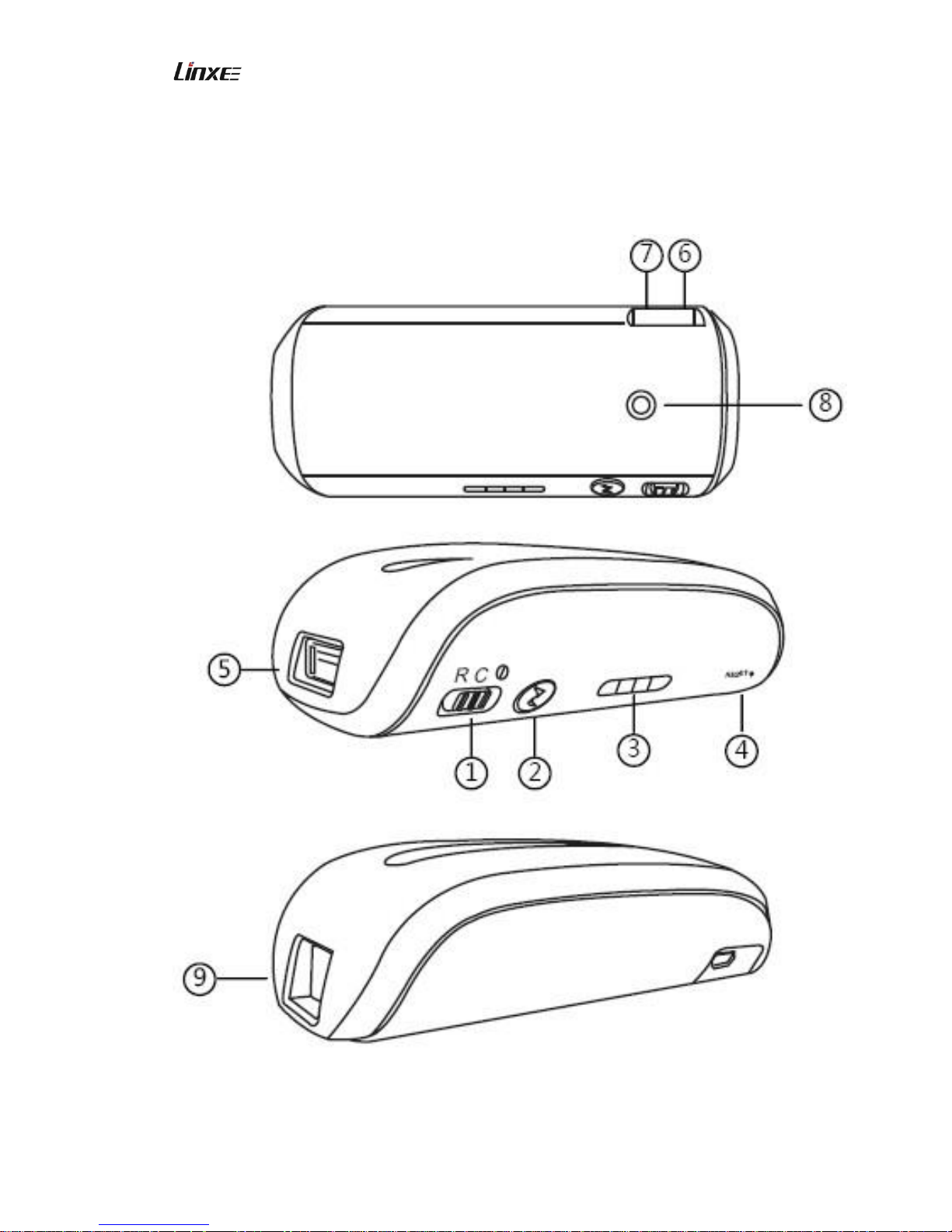
3G wireless router R200 is the network product with the integration of portable power
supply and router, the product combines such functions as 3G router, wireless router,
ADSL dialing network access, wireless network storage and portable power supply, and
allows you to easily enjoy wireless network and share the wonderful contents in the digital
equipments. The functions of the product are shown as below:
3G router: support WCDMA / CDMA 2000 / TD-SCDMA 3G wireless Network
Interface Card dialing and bandwidth share;
Wireless router: support traditional wire broadband network ADSL dialing, dynamic
network and static network access;
Wireless network storage: support to read and share the documents in USB portable
storage devices such as U-disk and removable hard disk, support online VOD;
Portable power supply: charge the portable digital equipments such as iPhone, iPad,
Android smart mobile phone and tablet PC;
Wireless relay: achieve signal relay and amplification, thus extending the coverage of
wireless network.
1.2 Product Specifications
Items
Specifications
Portable Power
Supply
Built-in 4400mAh lithium ion battery
Working time: ≥ 8 hours
Input/output: 5V-1A
Wi-Fi Function
802.11b/g/n, highest speed 150Mbps
Support for 20 users to simultaneously share wireless network
Wi-Fi relay
3G Router
Function
Support Unicom (HSPA/HSPA+), Telecom (CDMA2000/EVDO
A/B) and portable (TD-SCDMA) 3G wireless Network Interface
Card
Network Function
Support dynamic, static IP network mode, automatic dialing,
optical fiber and cable broadband
Product Interface
1x Micro USB
Input 5V 1A(charge R200 product)
1xstandard USB
2.0
output 5V 1A(with wireless Network Interface
Card, USB portable storage device or charge
the external device)
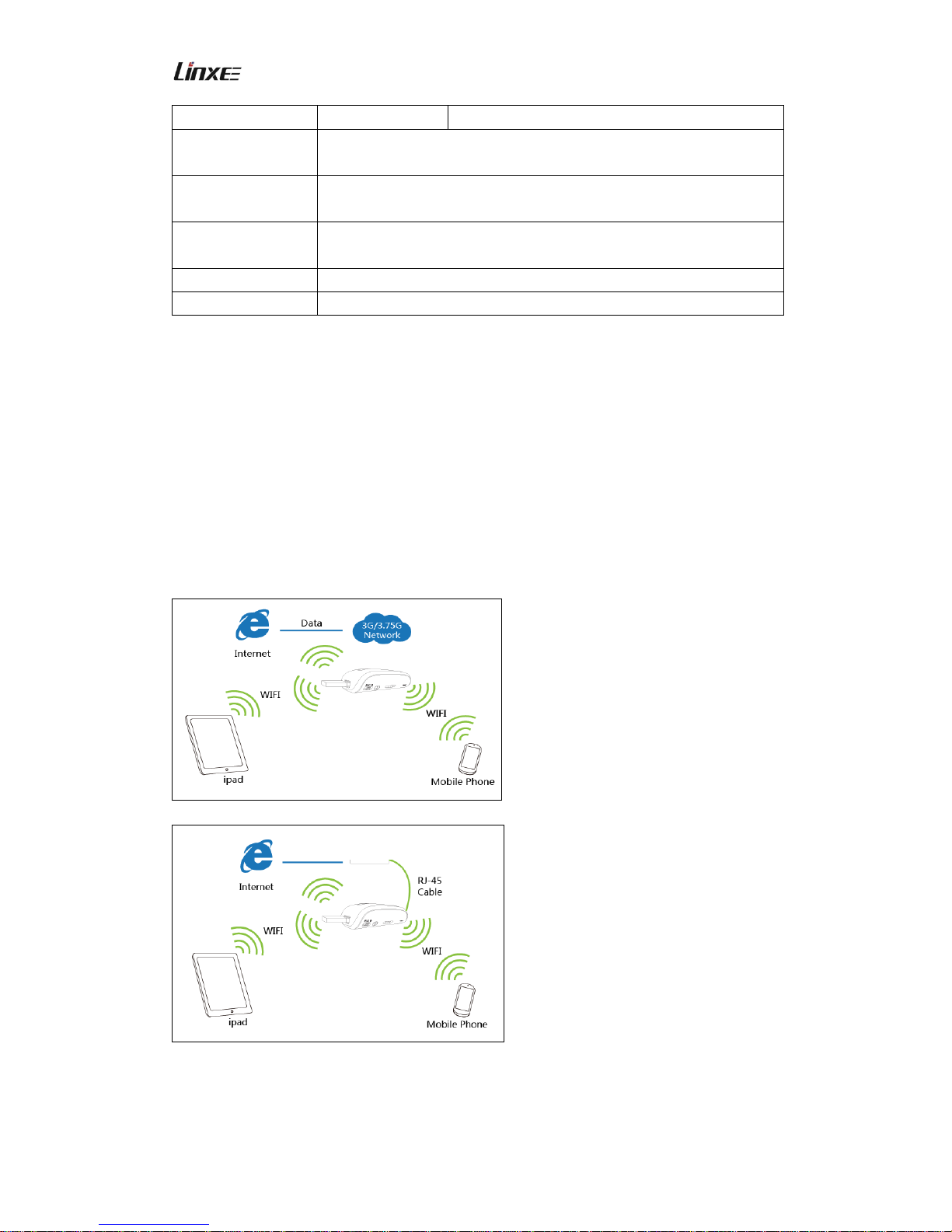
1x RJ45
WAN interface (support DHCP, PPPoE, ADSL,
Page 3
3G Wireless Router R200 Copyright© 2013 Linxee Wireless
3
Static IP and cable) or LAN interface
Wireless Network
Storage Function
Compatible with USB 2.0 equipment, support USB storage
devices such as U-disk, removable hard disk and so on
Indicator Color
charging indicator (blue), quantity indicator (blue), router indicator
(blue and green)
Support Operation
System
WindowsXP/7/8, MAC OS, Android, IOS, Linux
Dimension
96×43×28mm (3.8x1.7x1.1 inch)
Net Weight
130g (4.6 oz)
1.3. Package Contents
Main Unit One
Micro USB Charging Cable One
User’s Manual One
Warranty Card One
1.4. Application Scenario
ADSL Modem/Router
Page 4
3G Wireless Router R200 Copyright© 2013 Linxee Wireless
4
II. Parts and Functions
Page 5
3G Wireless Router R200 Copyright© 2013 Linxee Wireless
5
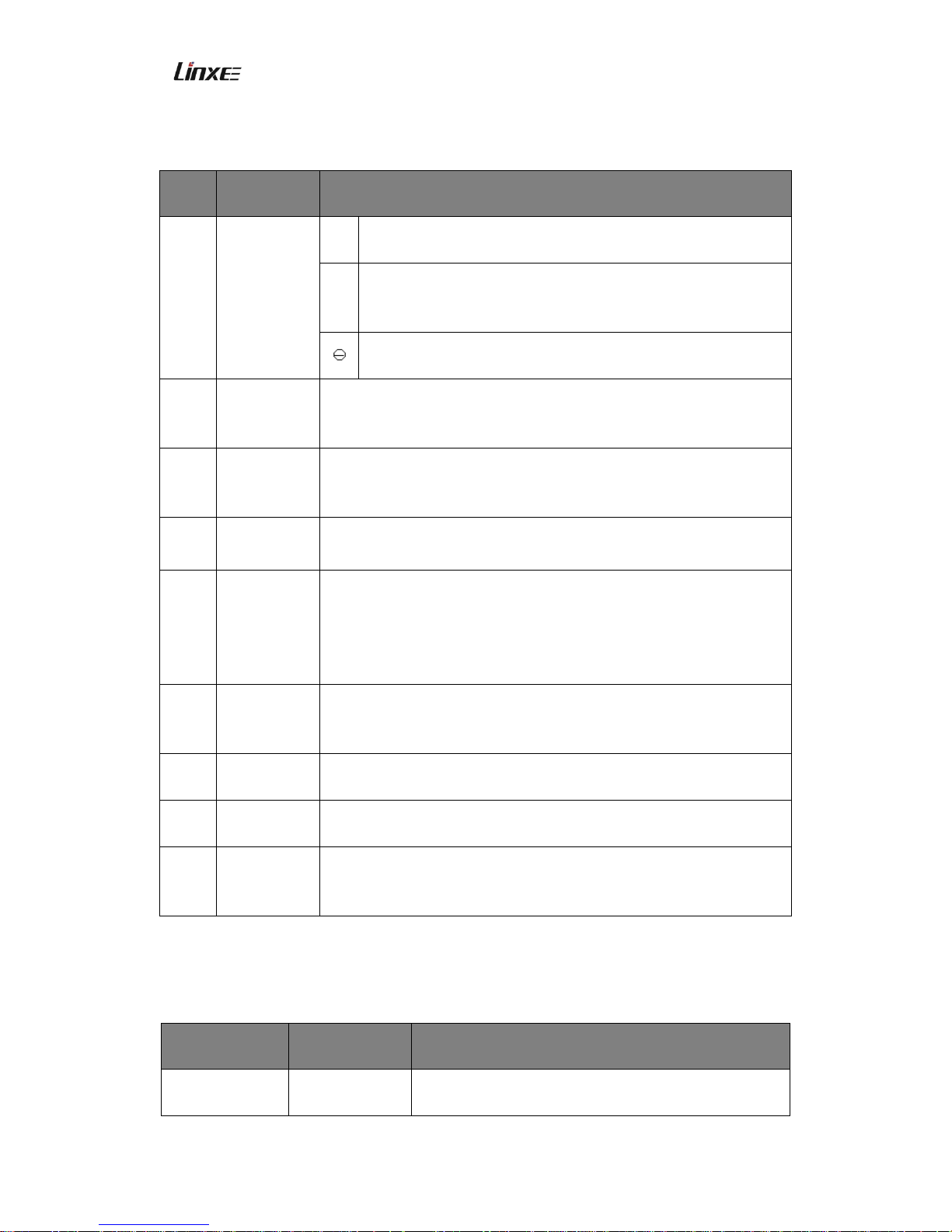
2.1 Introduction to the Parts
Cod
e
Parts
Interface
Detailed Functions
①
Power
Supply
Switch
R
Turn on the router, start the router and charge the external
equipment when the switch keeps at here.
C
Charging, start the Portable Power Supply Function to charge
the peripherals through USB interface when the switch keeps
at here.
Turn off the router, disable all functions of the router when the
switch keeps at here.
②
Quantity
Indication
Button
Press this button, the quantity indicator displays the current battery
quantity.
③
Quantity
Indication
Press the “② Quantity Indication Button” to display the current
battery quantity;
Please see “Battery Quantity and Quantity Indicator” for details.
④
RESET
When the router is on, hold it for 5s and then release it, the router
will recover to the default state.
⑤
USB
Interface
This interface allows to connect portable, Unicom, Telecom 3G
USB Network Interface Card; and USB storage devices such as
U-disk and removable hard disk to achieve wireless network
storage functions; or connect with the digital terminals such as
smart mobile phone, tablet PC and PSP for charging.
⑥
DC
Charging
Interface
DC 5V input, charge the router with Micro USB charging wire.
⑦
Charging
Indicator
When charging the router, the indicator is normally on, and the
indicator turns off after charging.
⑧
Router State
Indicator
Please see “Introduction to the State Indicators of Router” for
details.
⑨
RJ45
Interface
WAN interface: under dynamic IP/static IP/ PPPoE mode, this port
is used as WAN interface for connecting the hotel wire network,
LAN broadband, ADSL Modem/Cable Modem.
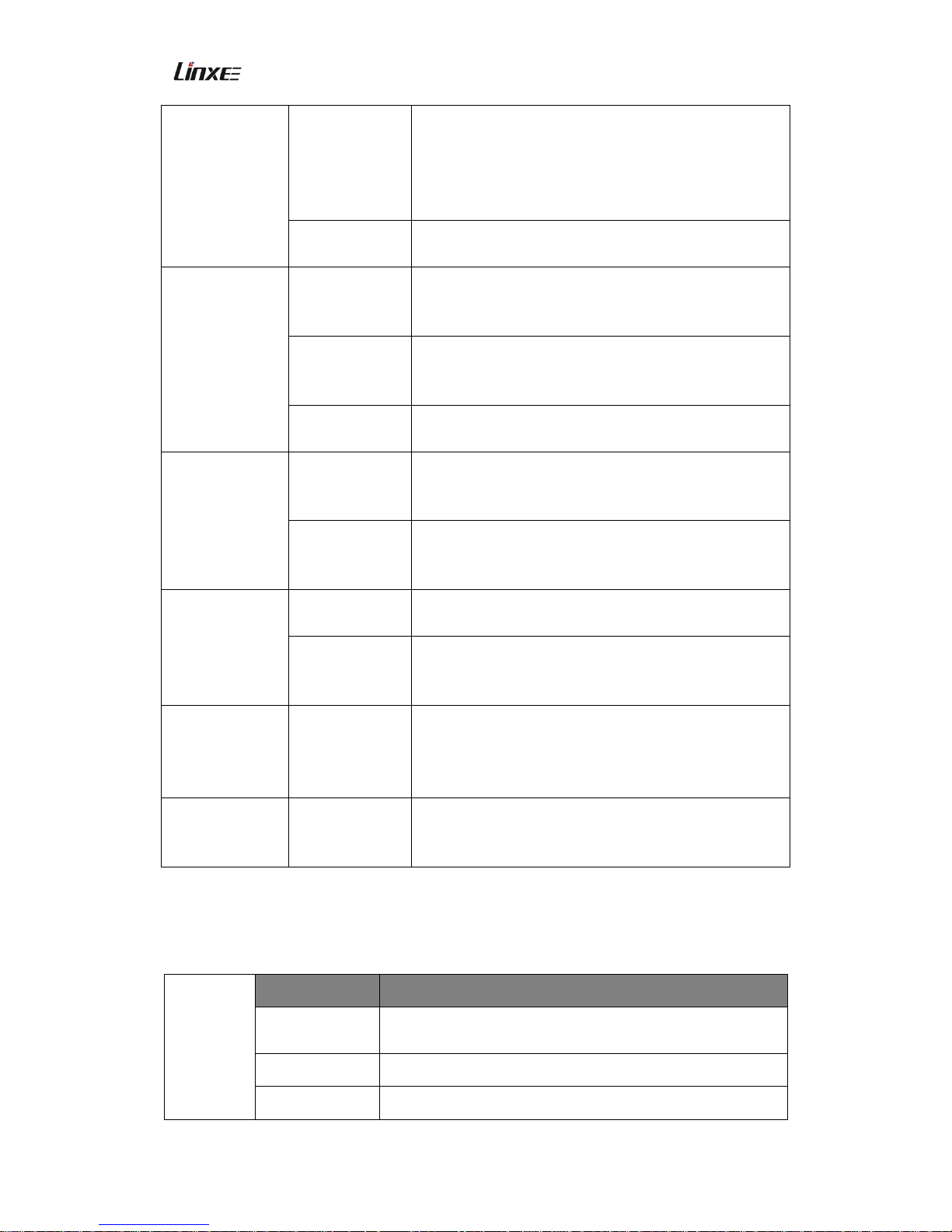
2.2 Introduction to the State Indicators of Router
Executive
Operation
Indicator State
Detailed Introduction
ON
Blue indicator
is normally on
Turn the POWER switch to “ON”, the Blue indicator is
normally on, it means that the router is started.
Page 6
3G Wireless Router R200 Copyright© 2013 Linxee Wireless
6
Insert Portable
Storage
Equipment
Blue indicator
flashes slowly
(1.5s/time)
Insert portable storage devices such as U-disk and
removable hard disk to the USB interface, 8-10s later,
the Blue indicator flashes slowly, it means that the
portable storage device is loading normally and
network is accessible.
Blue indicator
is normally on
Portable storage device is not normally loading.
Insert 3G
Network
Interface Card
Blue indicator
flashes quickly
(0.5s/time)
Insert 3G USB Network Interface Card, wait for about
30s, the Blue indicator flashes quickly (0.5s/time), it
means that the router enters in the 3G dialing state.
Blue indicator
flashes slowly
(1.5s/time)
Blue indicator flashes slowly(1.5s/time), it means that
the router 3G dials successfully, and Internet is
accessible.
Blue indicator
is normally on
Unsuccessful dialing.
Insert ADSL
Network Cable
(under PPPOE
mode)
Green indicator
is normally on
Insert Network Cable, 5s later, if the Green indicator
is normally on, it means that the Network Cable is
connected normally.
Blue indicator
flashes slowly
(1.5s/time)
After Green indicator is normally on, if Blue indicator
flashes slowly, it means that the router ADSL dials
successfully and Internet is accessible.
Insert Router
Network Cable
(under dynamic
IP mode)
Green indicator
is normally on
It means Network Cable is connected normally.
Green indicator
flashes slowly
(1.5s/time)
Network Cable is connected normally, it means that
the router has successfully get the dynamic IP
address from the superior router.
Insert Router
Network Cable
(under static IP
mode)
Green indicator
is normally on
It means Network Cable is connected normally.
Wi-Fi relay
Green indicator
flashes slowly
(1.5s/time)
It means relay mode is connected normally.
2.3 Battery Quantity and Quantity Indicator
Battery
Quantity
Indicator
Indicator State
Detailed Information
No indicator is
on
No power supply, please Charge the Product
1 indicator is on
Quantity is < 25%
2 indicators are
Quantity is 25% - 50%
Page 7

3G Wireless Router R200 Copyright© 2013 Linxee Wireless
7
on
3 indicators are
on
Quantity is 50% - 75%
4 indicators are
on
Quantity is 75% - full
2.4 Introduction to Other Functions and Usage
2.4.1Portable Power Supply Function
3G wireless router R200 has the function of charging digital devices such as mobile
phone and tablet PC. Please turn the switch to Charging (“C”) to activate the Portable
Power Supply function, then connect the charging wire of digital device with the USB
interface of router R200, and then the product may Charge portable digital equipments
including iPad, iPhone and Android smart mobile phone.
2.4.2 Charge the Product
Connect the Micro USB charging wire with the DC charging interface (Micro USB
interface) if router R200, and then connect the other end with the USB interface of the
charging adaptor.
Cautions for Charging:
1. Please select the charging adaptor whose output shall be 5V (output current ranges
600-1000mA). The iPhone and iPad charging adaptor is also applicable.
2. Charging time: about 6-8 hours for 5V 1000mA charging plug; about 10 hours for 5V
600mA charging plug;
Directly charge with the computer USB, charging time is over 12 hours.
3. When charging the product, please do not charge other devices with the product
simultaneously for protecting the battery and prolonging the service life.
III. Router Connection and Setting
3.1 Router Connection
Turn on the notebook or wireless equipment with WIFI functions, search for the wireless
network name, router R200 is “LINXEE_3G _Router_XXXX (XXXX is the last 4 digits of
WIFI MAC address), the SSID name is marked on the product label on the back of router,
click Connection for data transmission with the router.
Page 8
3G Wireless Router R200 Copyright© 2013 Linxee Wireless
8
Note: The default WiFi connection password is 12345678, users may logon the WEB setting
page and set the network name and connection password according to the actual
conditions.
3.2 Router Setting
We have provided the WEB setting page for the ultra thin and portable wireless router
R200, and you may define other functions of the router and enjoy the personalized
product.
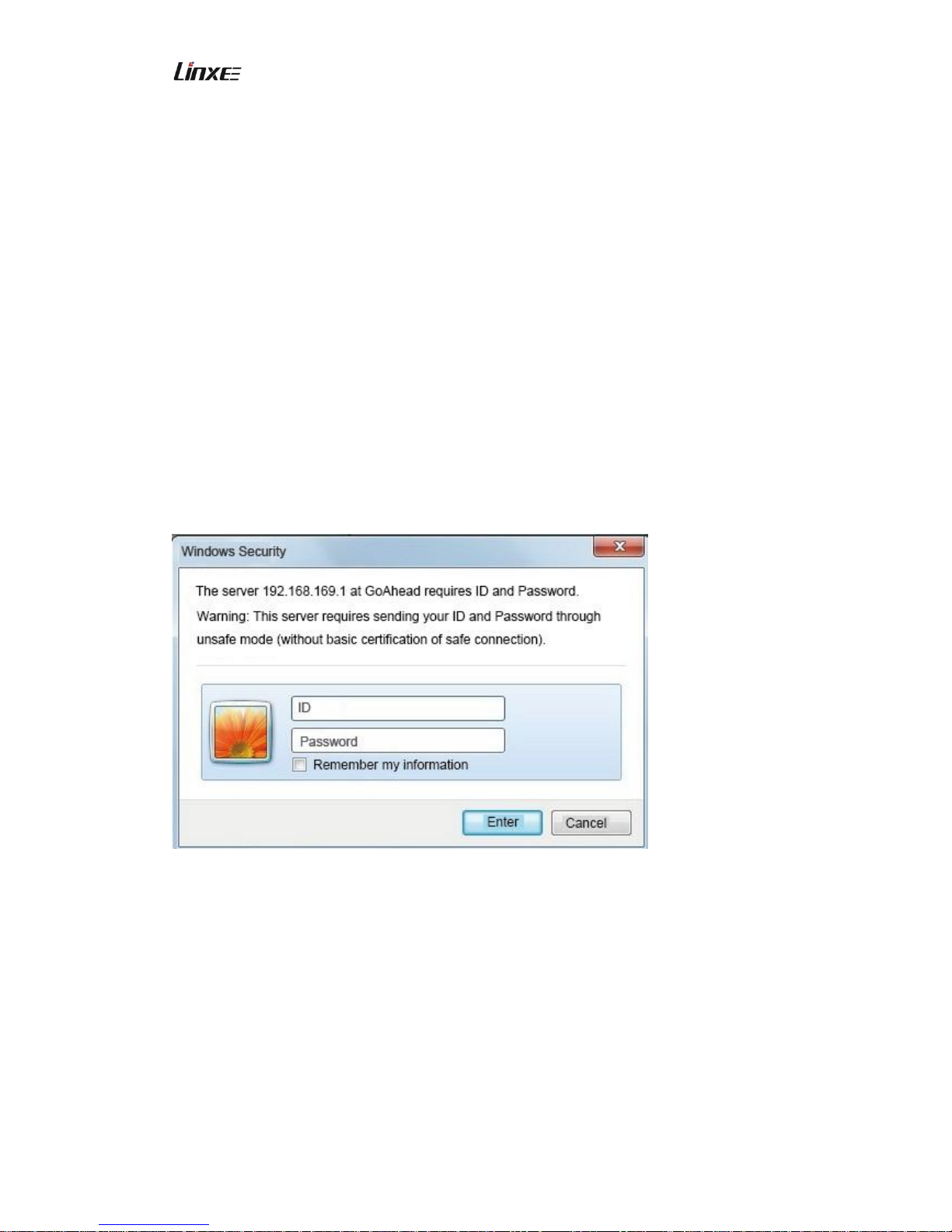
Enter in WEB Setting Page
1. The default IP address of the router is “192.168.169.1”.
2. Input default IP address “192.168.169.1” in the browser, then click Enter.
Fill into corresponding information in the ID and password bar. The default system logon
ID of the router R200 is “admin”, and default password is “password”. You may enter in
WEB Setting Page after inputting the correct ID and password.
Note: In the WEB setting page, you may modify the logon ID and password.
Page 9
3G Wireless Router R200 Copyright© 2013 Linxee Wireless
9
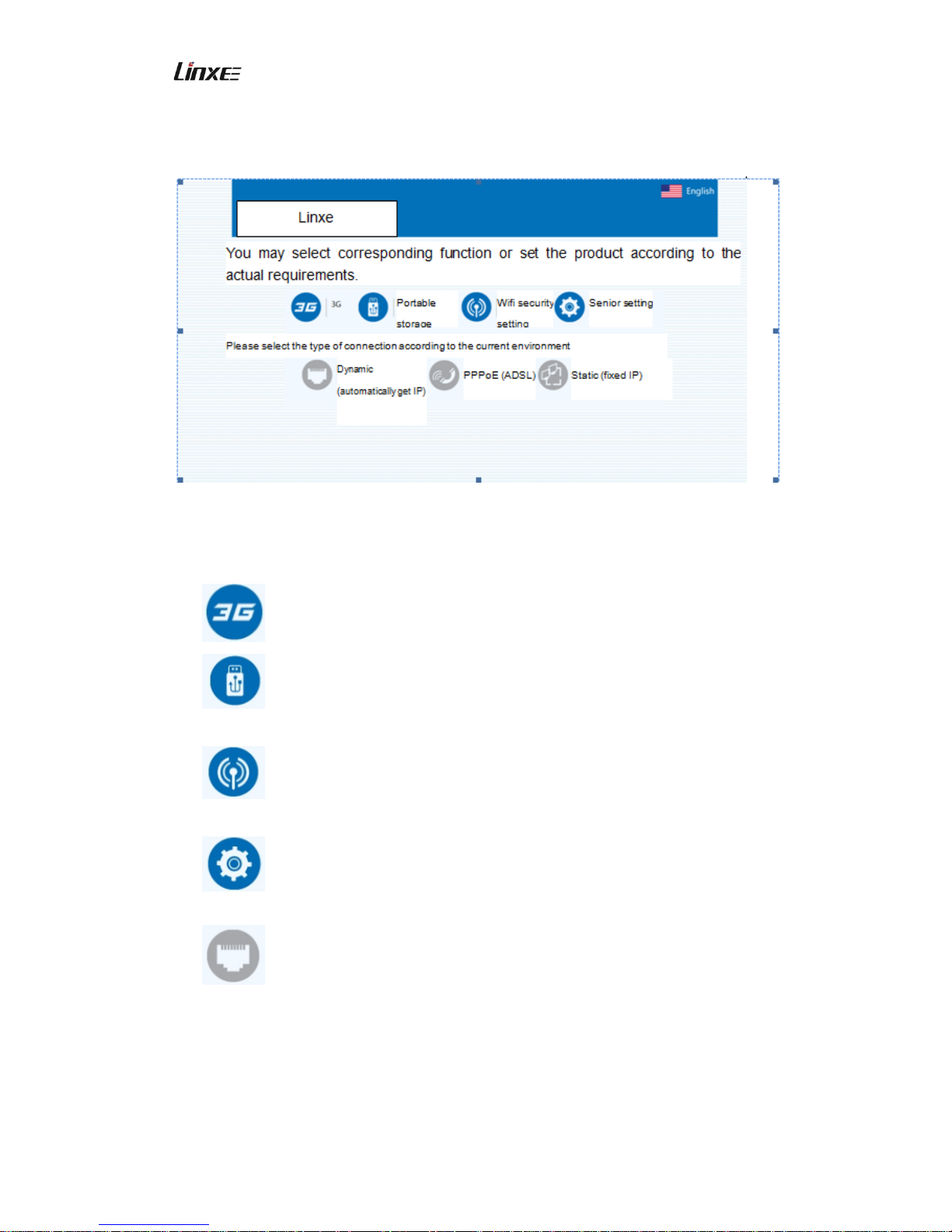
3.3 Introduction to WEB Setting
Introduction to the Marks:
: Click this mark to enter into 3G setting page.
: Click this mark to browse and play multimedia documents in the portable
storage device.
: Click this mark to enter into Wi-Fi Safety Setting interface and modify Wi-Fi
password.
: Click this mark to enter into Senior Settings interface to set more functions
of the router.
: Click this mark, the dynamic IP network access setting interface will show
at the lower part of the page, if the current environment is network access with cable (most
hotels adopt this mode) and IP address is distributed from the superior router, then please
click the “Enter” button to complete setting; otherwise, please click the “Cancel”.
Page 10
3G Wireless Router R200 Copyright© 2013 Linxee Wireless
10
: Click this mark, the PPPoE dialing network access setting interface will
show at the lower part of the page, if the current environment is network access with cable
or telephone wire, then please input PPPoE dialing ID and password, then click the
“Enter” button to complete setting; otherwise, please click the “Cancel”.
: Click this mark, pop up the static IP network access setting interface will
show at the lower part of the page, if the current environment is network access with cable,
and the IP address is designated manually, please fill into the IP address, mask code,
gateway and DNS domain name and address, then click the “Enter” button to complete
setting; otherwise, please click the “Cancel”.
3.3.1 Modify the Wi-Fi Password
The default Wi-Fi password of the router is simple, please modify the Wi-Fi password
when use the product for the first time for assuring data security.
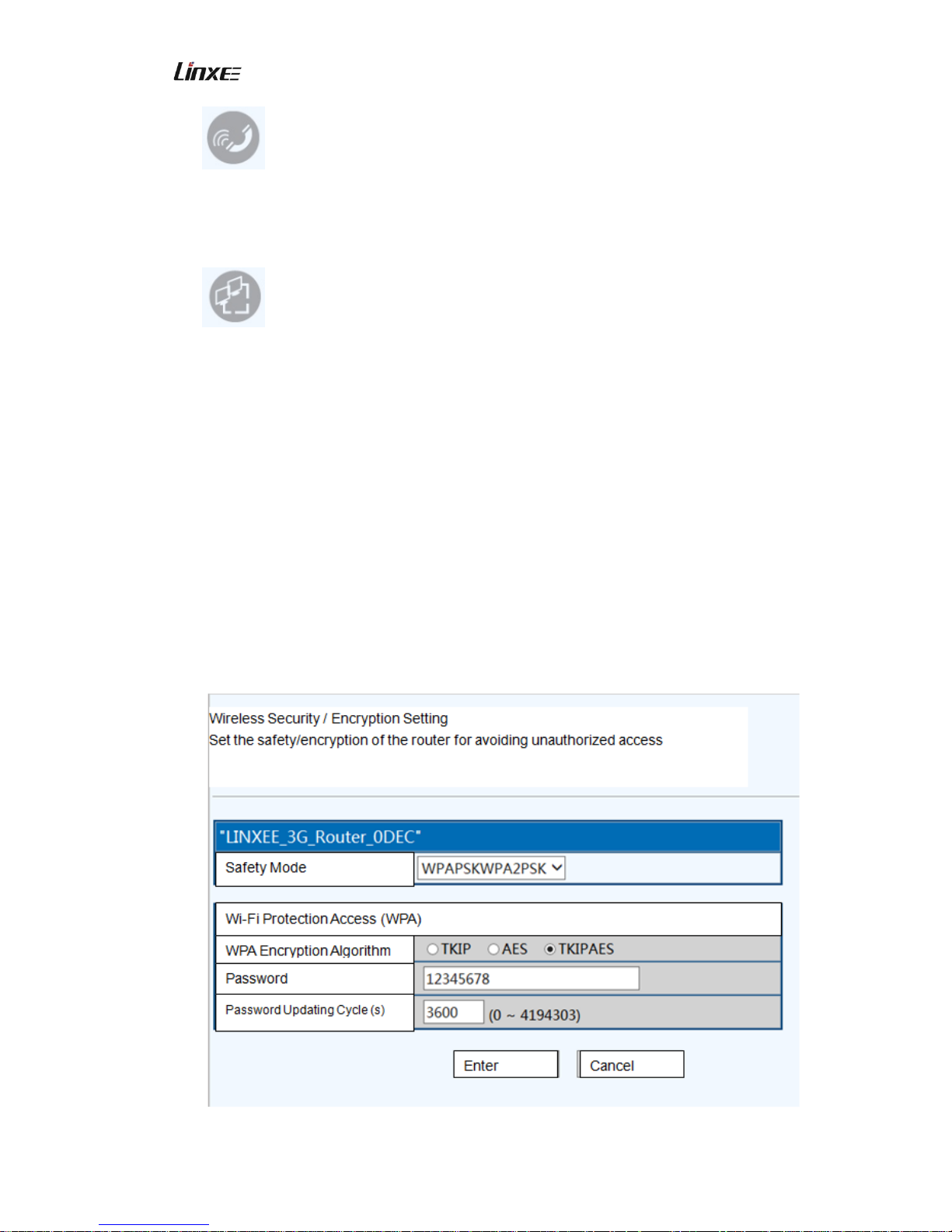
Method to Modify Wi-Fi Password:
In the main menu, click the “Wi-Fi Safety” mark to enter into the Wi-Fi Safety Setting
page.
Page 11
3G Wireless Router R200 Copyright© 2013 Linxee Wireless
11
Instructions:
a) In order to avoid unauthorized access, it is suggested to set wireless encryption, the
recommended encryption mode is WPA-PSK/WPA2-PSK.
b) After modifying the wireless network SSID and encryption setting, please perform
wireless connection again, Wi-Fi password is the new password.
3.3.2 Setting 3G Parameters
When the 3G wireless Network Interface Card is inserted in the USB interface of the
router, router will automatically activate 3G dialing network access.
Under 3G dialing, it requires some setting information, please set the information in
the 3G setting page before inserting 3G wireless Network Interface Card. Under normal
condition, if your 3G wireless Network Interface Card is mainland 3G SIM card, it doesn’t
need special setting in the 3G setting page.
Under common conditions, the router may automatically set dialing number, APNID
and password. You only need to connect the 3G Network Interface Card with the USB
interface of the router without any setting to complete 3G dialing. You may also set the 3G
online parameters manually, the method is shown as below:
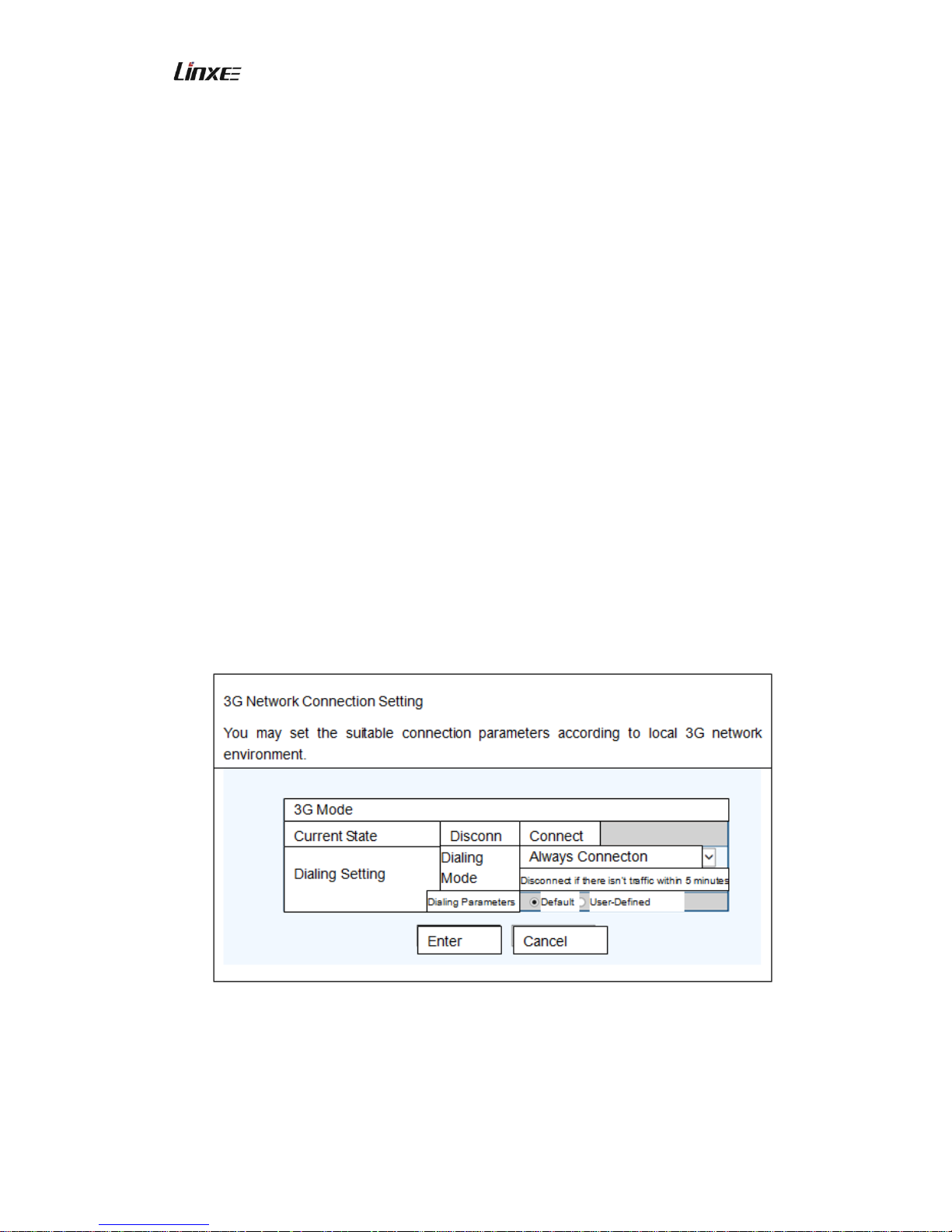
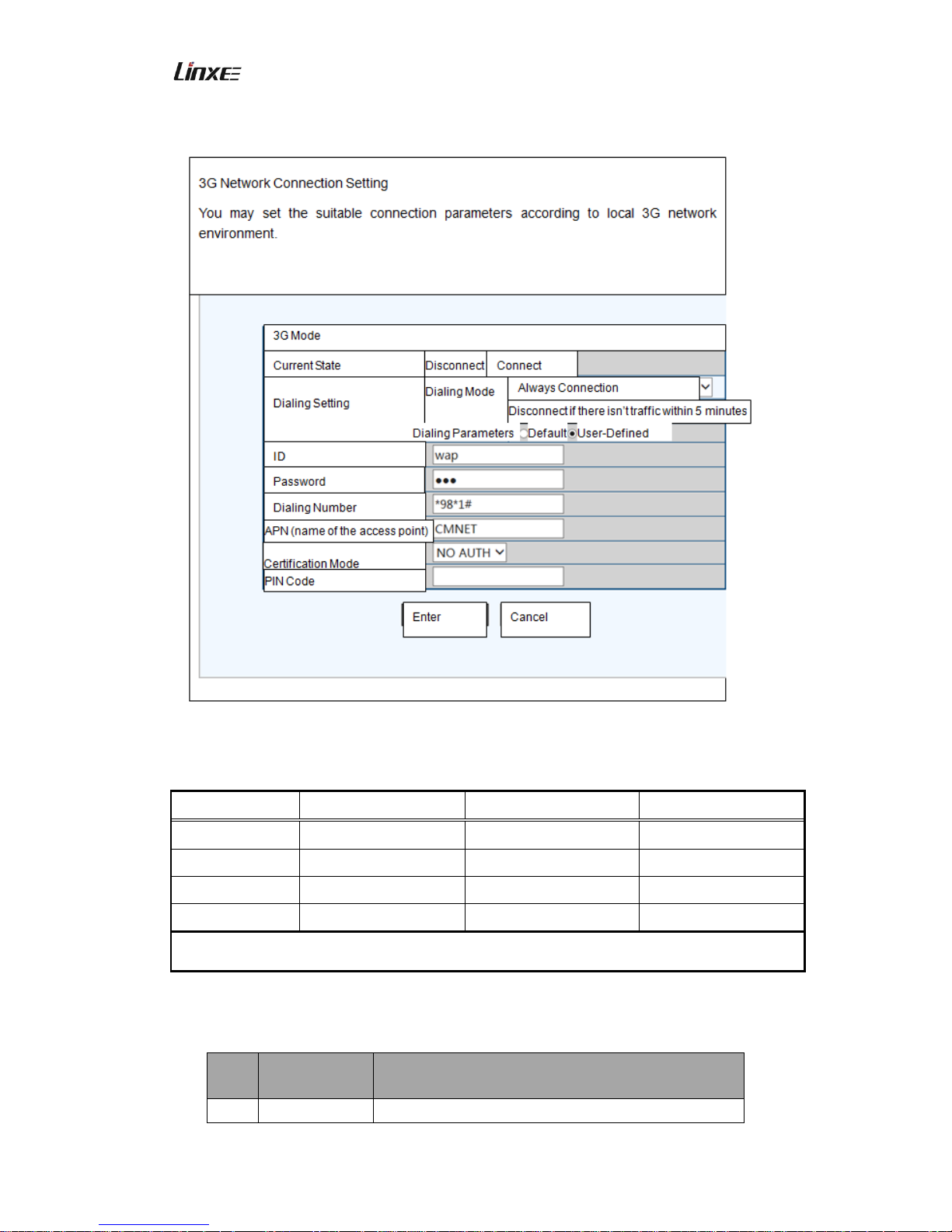
1) In the WEB setting page, select 3G, the following setting interface is shown
2) Click the user-defined, input ID, password, dialing number and APN (name of the
access point) in the interface, and then click Enter.
Page 12
3G Wireless Router R200 Copyright© 2013 Linxee Wireless
12
Note: 3G Wireless Network Interface Card Dialing Parameters List of Different Carriers
Items
China Unicom
China Telecom
China Mobile
Account
wap
wap
Password
wap
vnet.mobi
wap
APN
cmnet
cmnet
cmnet
Dialing Number
*98*1#
#777
*98*1#
Note: Above dialing parameters are only for the mainland carriers, please refer to the
parameters provided by the local ISP provided for other countries.
Introduction to enable this connection at boot time:
Code Functions
Description
①
Always
The router automatically dial and access network
Page 13
3G Wireless Router R200 Copyright© 2013 Linxee Wireless
13
Connection
after inserting 3G wireless Network Interface Card.
②
Manual
User shall manually dial to access network after
inserting 3G wireless Network Interface Card.
③
Dynamic
Connection 1
After inserting 3G wireless Network Interface Card,
the router automatically disconnects if there isn’t
traffic for continuous 3 minutes.
④
Dynamic
Connection 2
After inserting 3G wireless Network Interface Card,
the router automatically disconnects if there isn’t
traffic for continuous 5 minutes.
⑤
Dynamic
Connection 3
After inserting 3G wireless Network Interface Card,
the router automatically disconnects if there isn’t
traffic for continuous 15 minutes.
⑥
Dynamic
Connection 4
After inserting 3G wireless Network Interface Card,
user manually disconnects the network.
Note:
1) The default dialing parameters of the router is only for mainland 3G carriers,
please refer to the parameters provided by local ISP providers for Hong Kong,
Taiwan and other countries, therefore, users outside of mainland shall set the
“Dialing Parameters” from “Default” to “User-Defined” in the 3G setting interface,
then fill into the dialing number provided by local ISP provider, APN ID and
password, and then click “Enter” to complete setting.
2) The product supports most 3G Network Interface Cards, please refer to
Appendix 2 R200 Router 3G USB Network Interface Card List for detailed
models, additionally, we don’t exclude this situation: the product may possibly
doesn’t support the models of 3G Network Interface Card in the list after the
producers have adjusted the parameters of the product.
3.3.3 Senior Settings
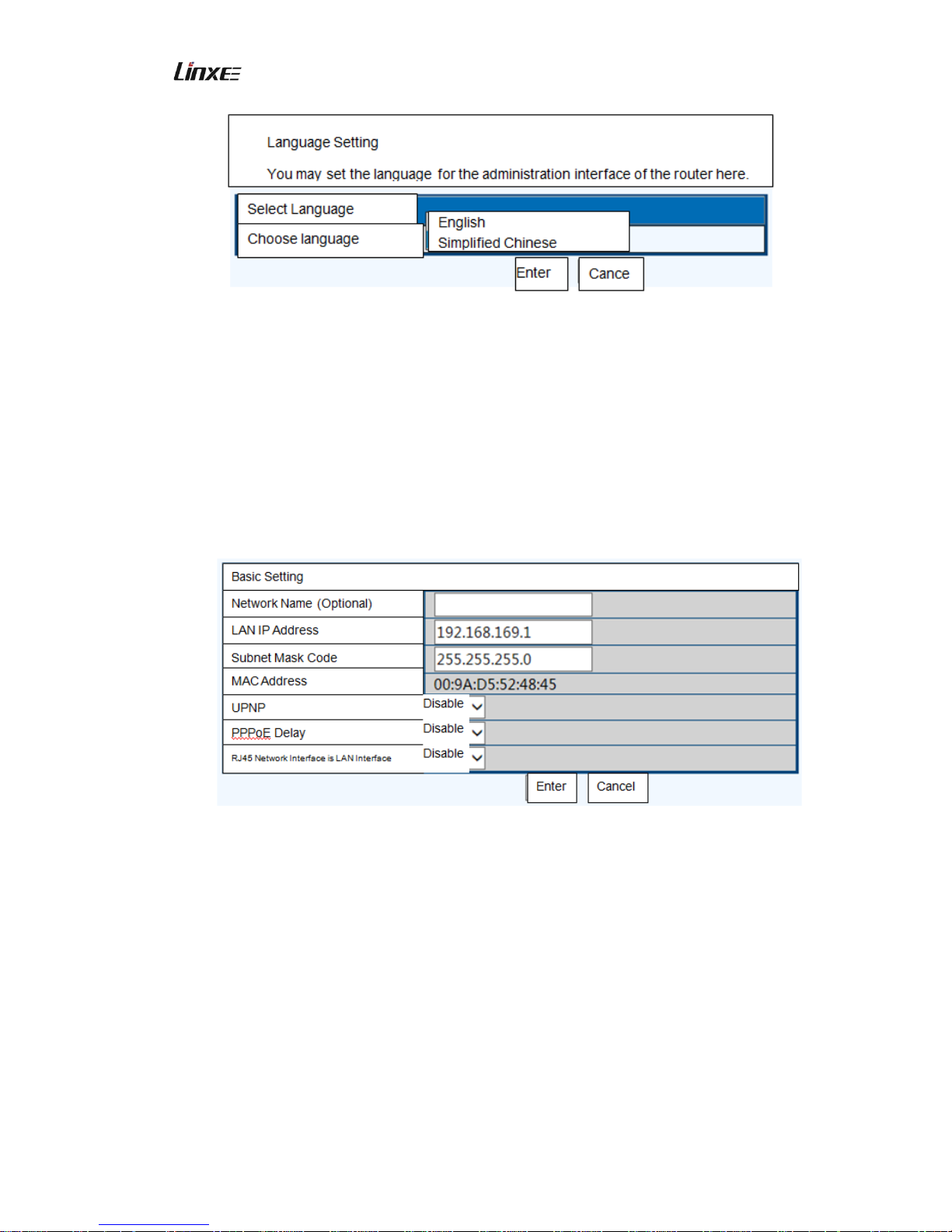
In the WEB Setting Page, In the WEB Setting Page, you may directly
select the page language. Two languages are available: Simplified Chinese
and English.
Page 14
3G Wireless Router R200 Copyright© 2013 Linxee Wireless
14
1. Network Setting
Click the left menu bar, “Basic Setting”, “WAN” and “MAC Address Copy“ functional
options are listed in the “Network Setting”.
Basic Setting
Click the “Basic Setting”, you may set the network mode, network name, wireless
channel and so on.
Network Name
The IOS system equipment allows to name the network created by this router to
substitute 192.168.169.1 for entering in the main page. Users may name it according to
the personal demands, for example, after inputting HD Enter, directly input HD in the
browser to enter into the main page. The default network name of this function is WD.
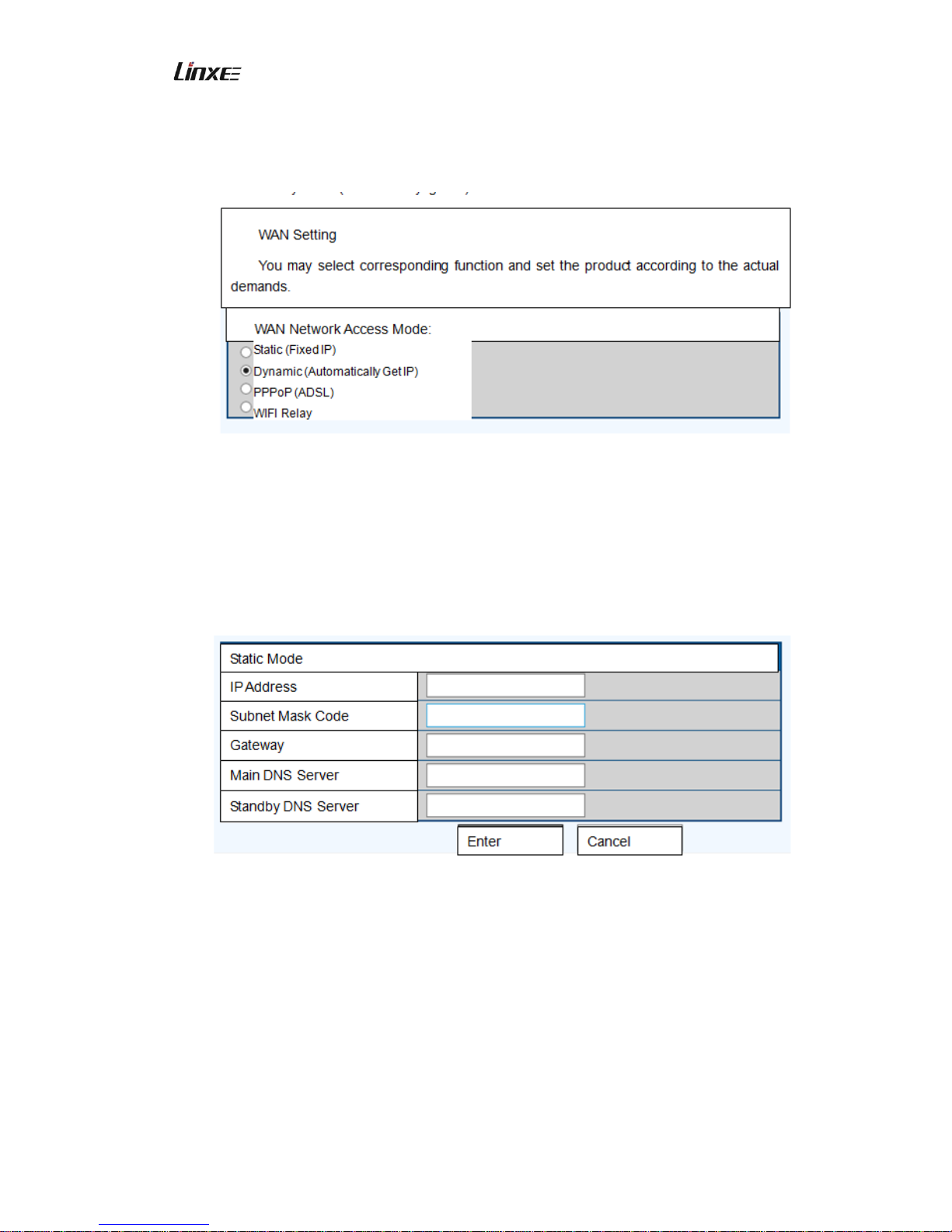
WAN
Click the “WAN” to enter into the WAN setting page, you may select the network
Page 15
3G Wireless Router R200 Copyright© 2013 Linxee Wireless
15
access mode according to the broadband line, this router supports 4 common wire
network access mode: static IP, dynamic IP, PPPoE and WIFI relay. The default WAN
online mode is dynamic (automatically get IP) mode.
4 online modes of WAN is shown as below:
a) Static (Fixed IP)
If the network provider provides the static IP, you shall input the IP address, , subnet
mask code, gateway, DNS server and DNS server provided by the ISP or administrator.
b) Dynamic (Automatically Get IP)
If the network provider provides the dynamic IP, you doesn’t need to set any item
here, please directly click the “Enter”. Dynamic IP is the common network access
mode for public sites such as hotels.
Page 16
3G Wireless Router R200 Copyright© 2013 Linxee Wireless
16
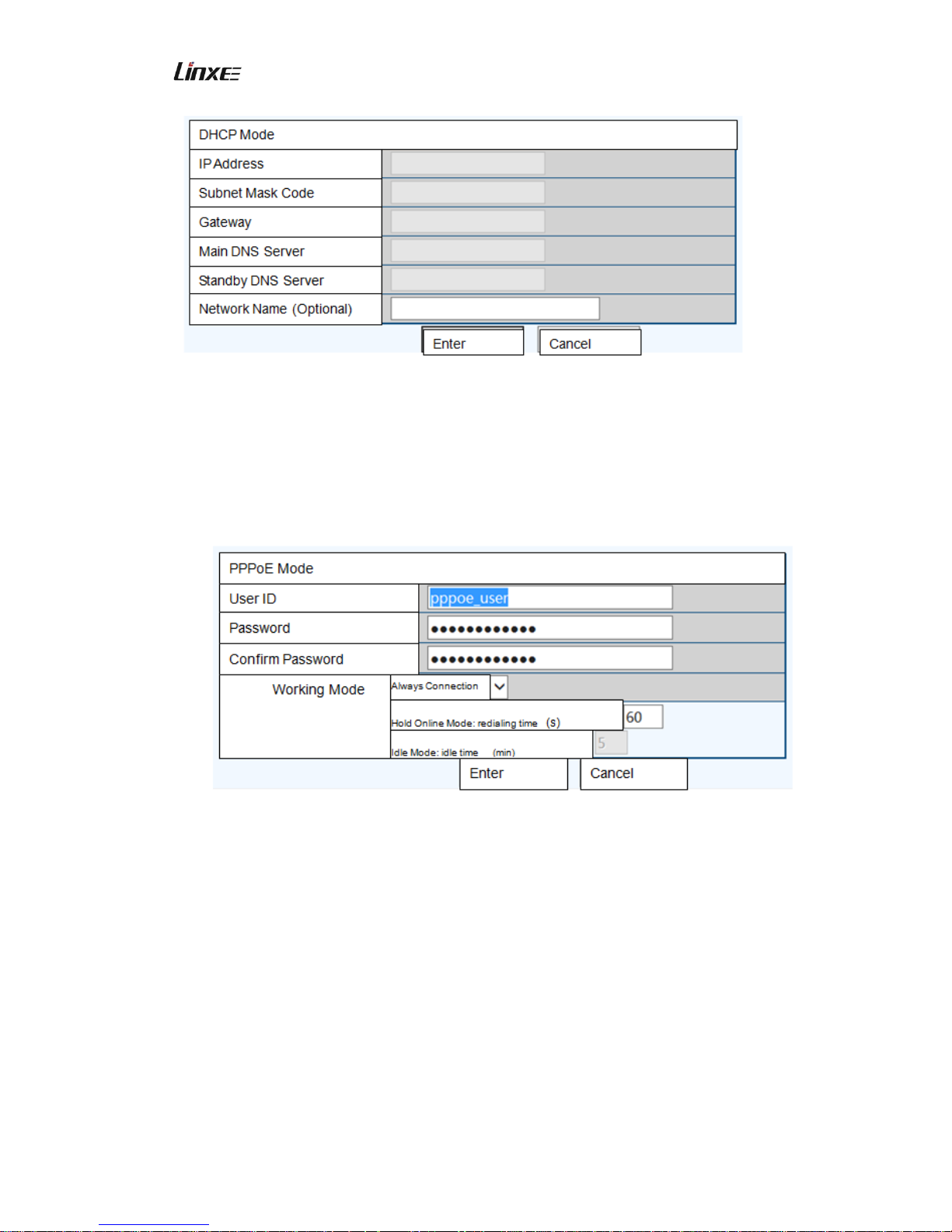
c) PPPoE
If the network access mode is ” ADSL Virtual Dialing”, please input the account
information provided by ISP in the “User ID” and “Password”, complete setting, and then
click “Enter”.
d) WIFI Relay
If you selected the network access mode as “WIFI“ relay, please click “Scan All
AP”, then select the desired AP in the scanned list, input the wireless connection
password of the AP, click “Enter” to complete connection of WIFI relay mode.
Page 17
3G Wireless Router R200 Copyright© 2013 Linxee Wireless
17
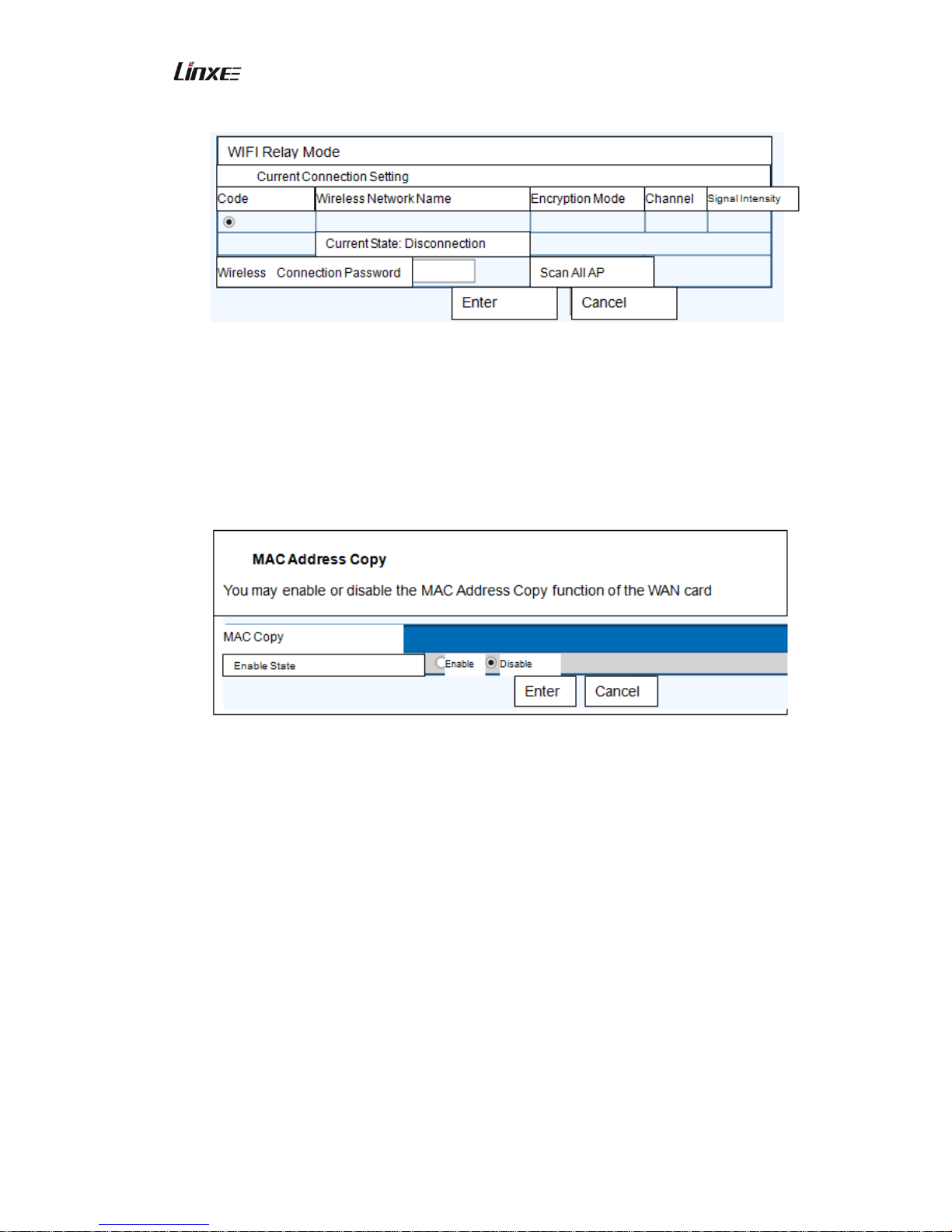
MAC Address Copy
Click the “MAC Address Copy”, you may enable or disable the MAC Address Copy
function of the WAN card.
2. Wireless Network Setting
Click the left menu bar, “Basic Setting”, “Safety Setting” and “Client Terminal List” are
provided in the “Wireless Network Setting”.
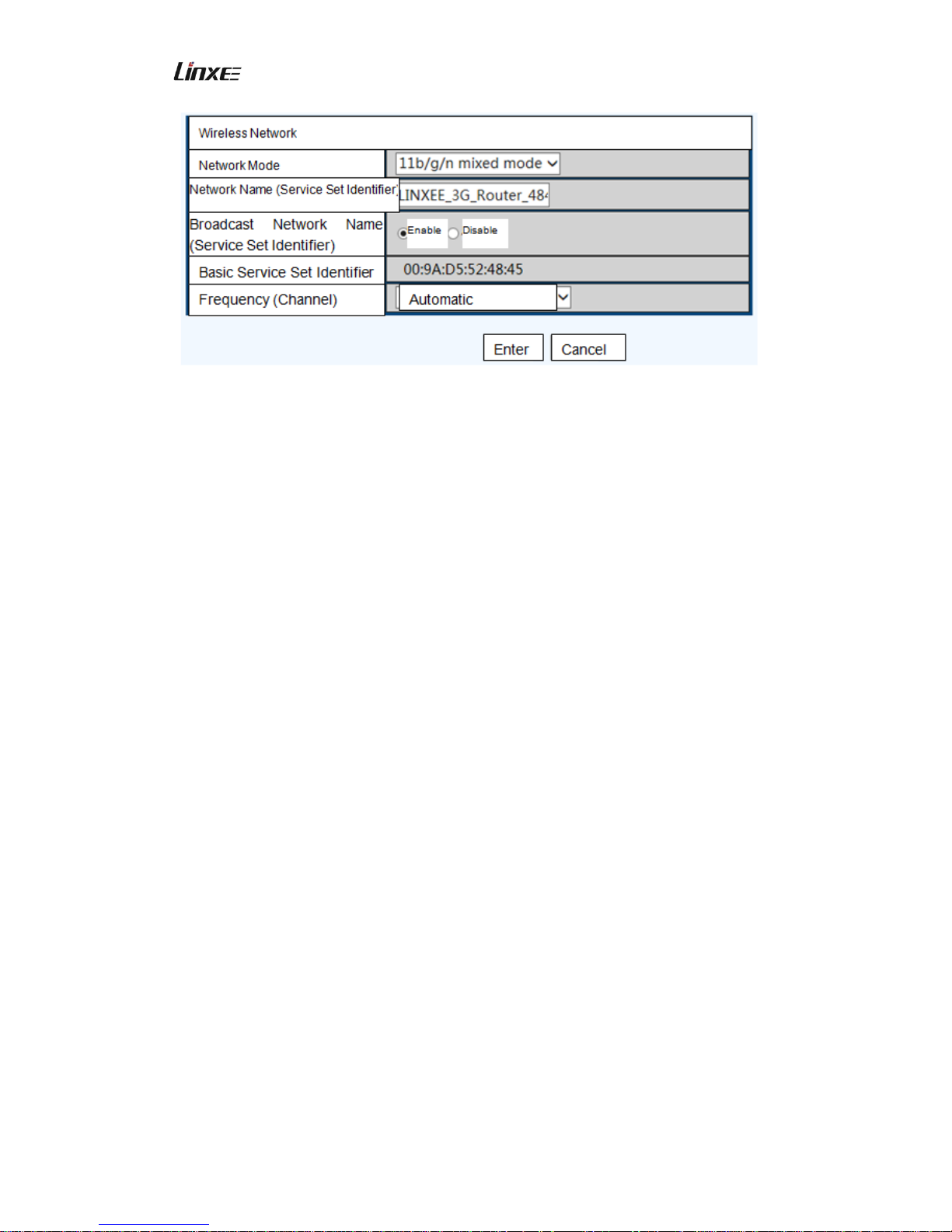
Basic Setting
You may setting the wireless LAN parameters of the router here, including network mode,
network name (SSID).
Page 18
3G Wireless Router R200 Copyright© 2013 Linxee Wireless
18
Network Mode: 11b/g mixed mode, 11b only, 11b/g/n mixed modeand 11n
only(2.4G)mode, default mode: 11b/g/n mixed mode.
Network Name: SSID of the wireless router.
Default: “LINXEE_3G _Router_XXXX (XXXX is the last 4 digits of the Wi-Fi MAC
address).
Basic Service Set Identifier: MAC address of the router.
Frequency: 13 channels and automatic select are provided. Default: automatic select.
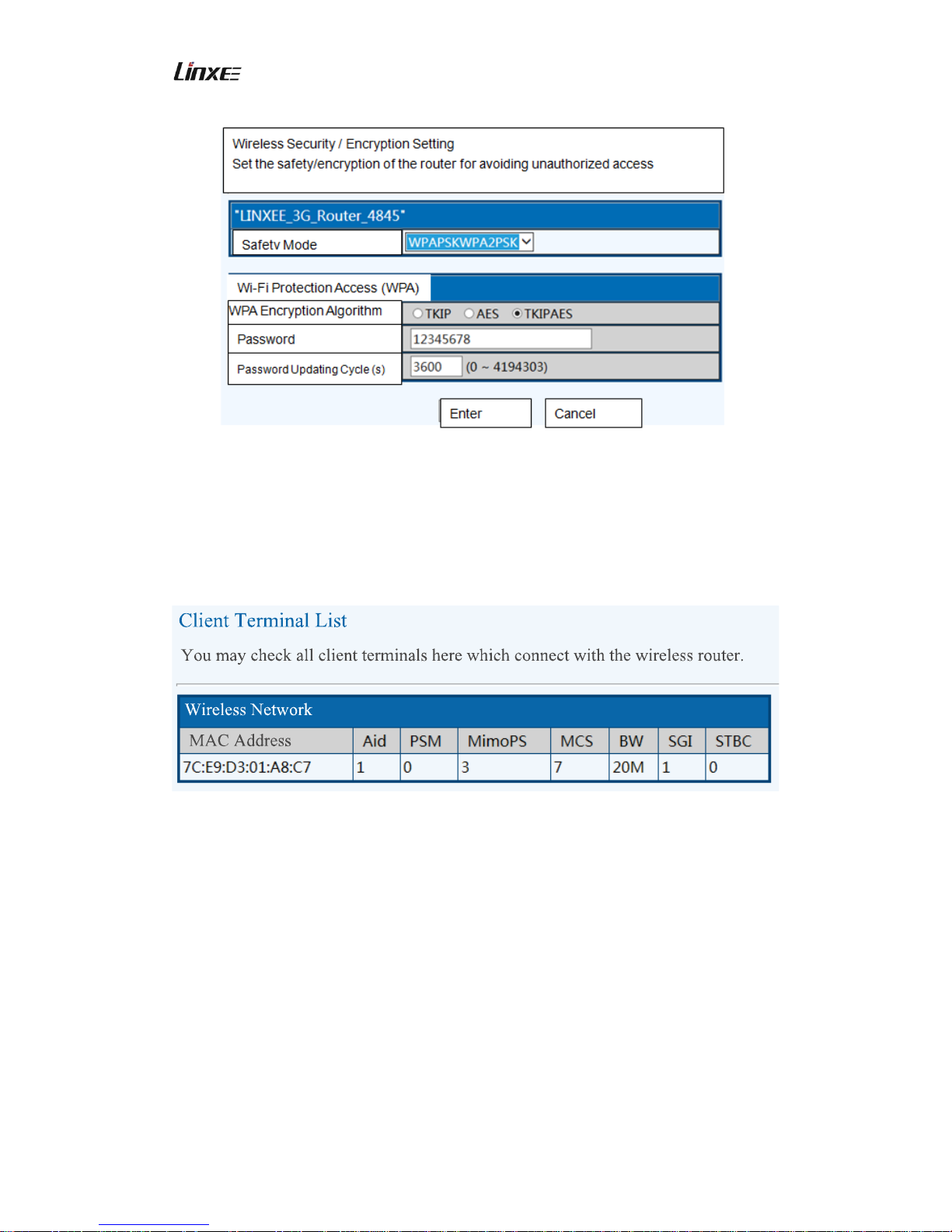
Safety Setting
You may set the safety encryption of the router in “Safety Setting” for avoiding
unauthorized access. The product provides several common safety encryption modes:
Disable (without encryption key), OPENWEP, SHAREDWEP, WEPAUTO, WPA,
WPA-PSK, WPA2, WPA2-PSK and WPA-PSK/WPA2-PSK, please select suitable
encryption mode according to the actual conditions.
Page 19
3G Wireless Router R200 Copyright© 2013 Linxee Wireless
19
Client Terminal List
You may check all client terminals here which connect with the wireless router.
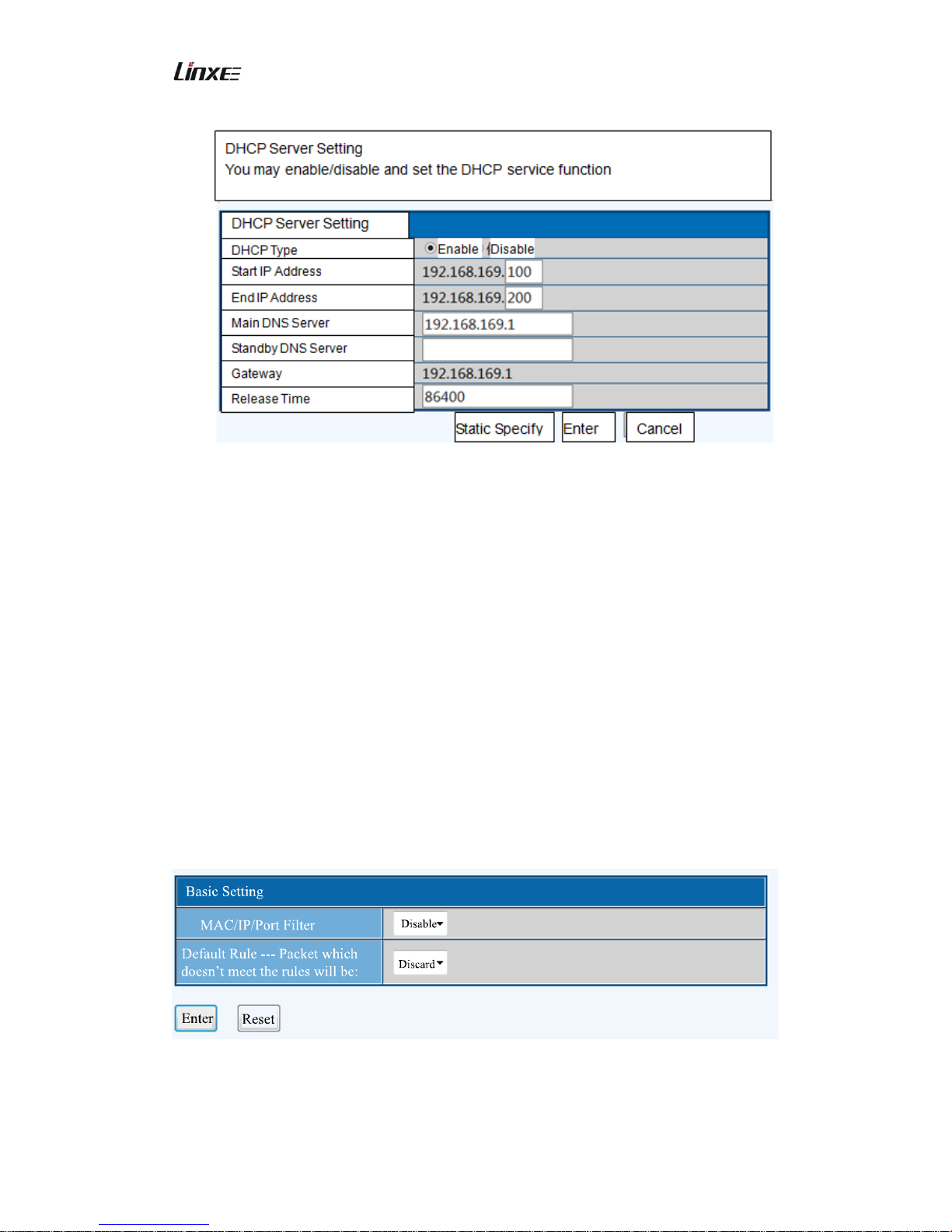
3. DHCP server
DHCP Server Setting:
You may enable/disable the router, set the DHCP service functions, IP address, end
IP address and main DNS server with the items listed in “DHCP Server Setting”.
Page 20
3G Wireless Router R200 Copyright© 2013 Linxee Wireless
20
DHCP Client Terminal List
You may check all valid and unreleased DHCP client terminals information.
4. Firewall
In order to assure the network safety and avoid unsafe factors which may influence the
LAN with convenient administration on the network access behavior, you may set firewall
to achieve control and management.
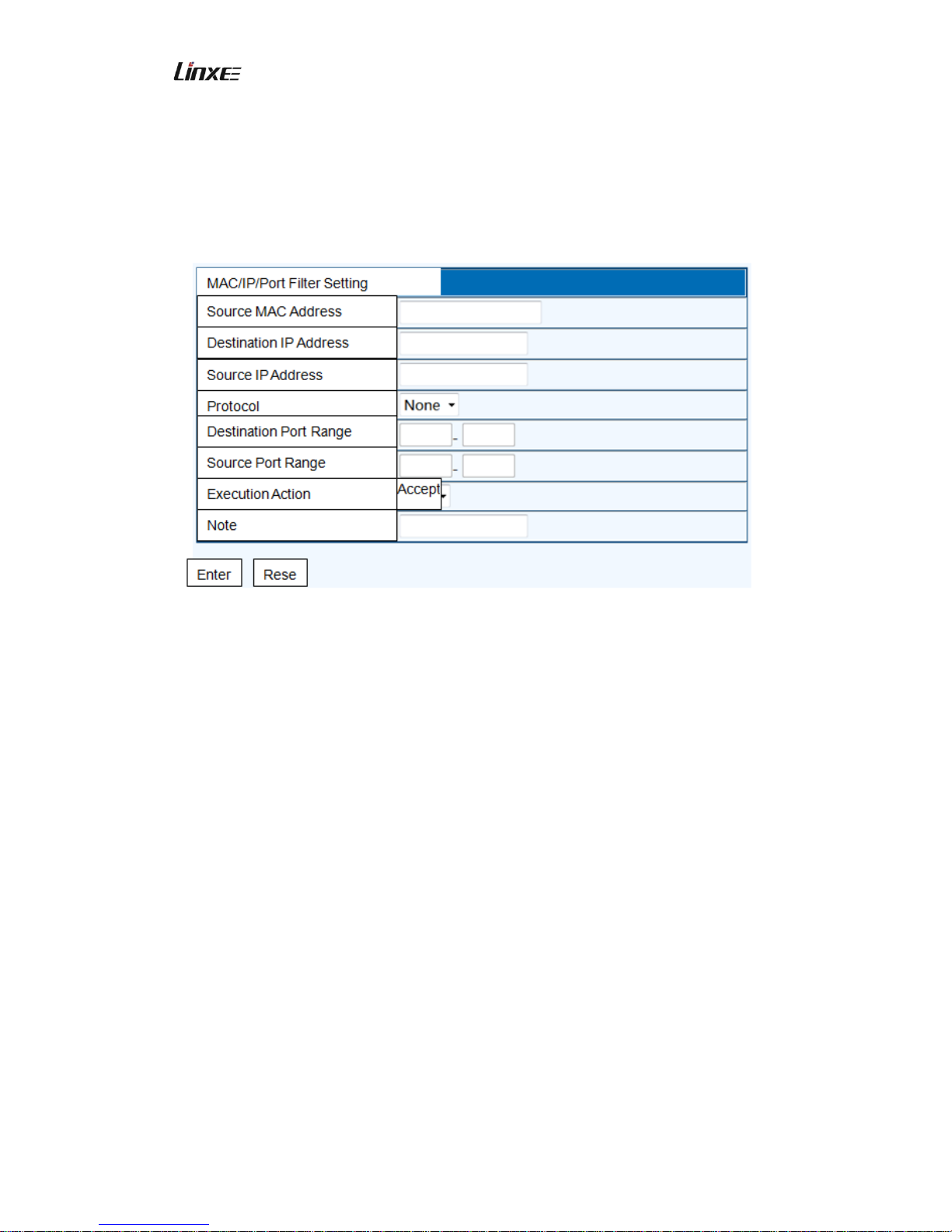
MAC/IP/Port Filter Setting
You may set up firewall rules (at most 32 pieces) to protect your network from Internet
virus and worm.
Disable or enable the MAC/IP/Port filter setting, the default state is “Disable”.
Page 21
3G Wireless Router R200 Copyright© 2013 Linxee Wireless
21
Set the specific parameters in MAC/IP/Port Filter Setting according to the actual
demands.
Set the parameters of MAC/IP/Port Filter Setting according to the actual demands.
Source MAC Address: set LAN internal source MAC address.
Destination IP Address: set WAN destination IP address.
Source IP address: set LAN internal source IP address.
Protocol: select filter protocol type.
Destination Port Range: set destination port range (1-65535).
Source Port Range: set source port destination range (1-65535).
Execution Action: select execution action (accept or discard).
Note: User’s memorandum to the current setting.
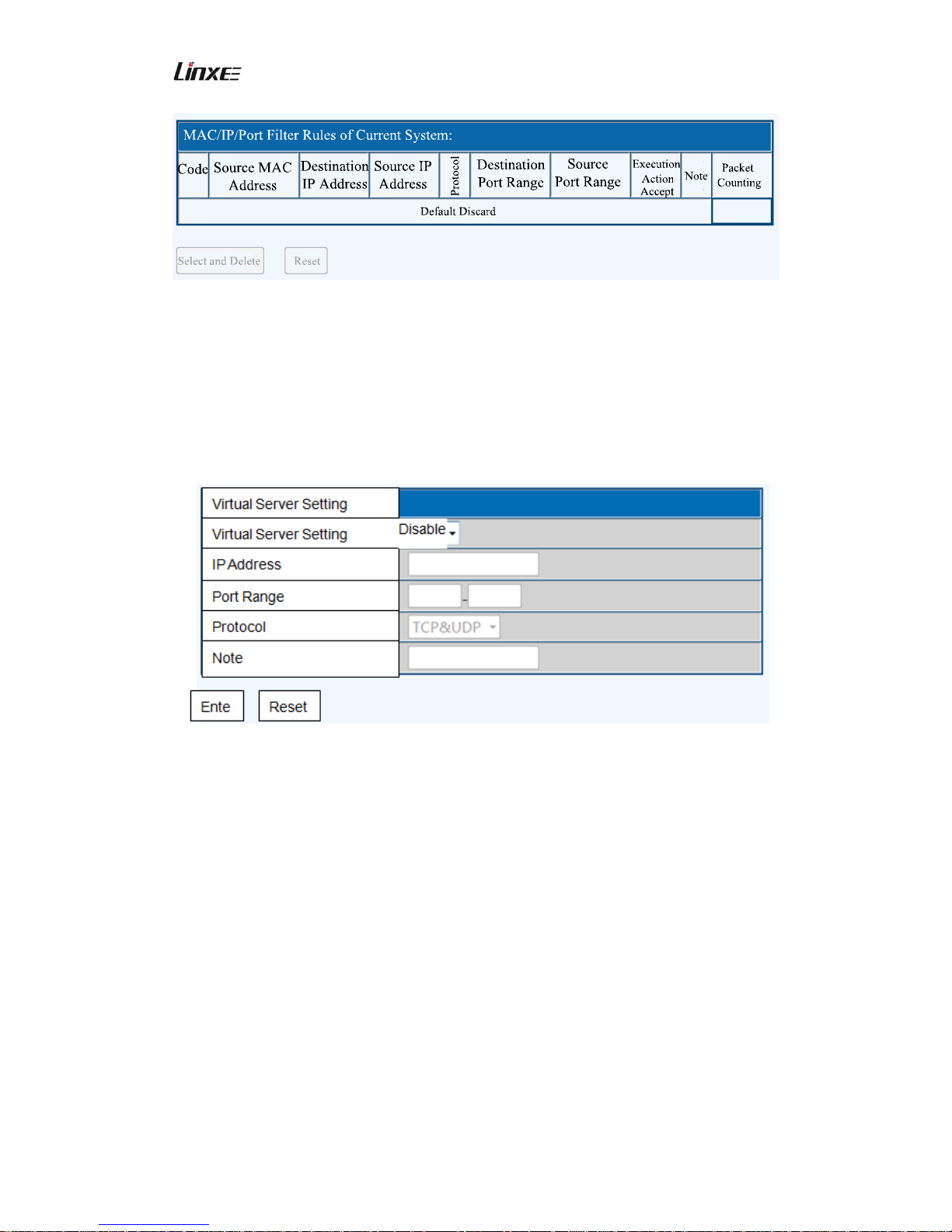
You have set the MAC/IP/Port filter rules list of the current system, and may check,
browse, delete and reset the list here.
Page 22
3G Wireless Router R200 Copyright© 2013 Linxee Wireless
22
5. Port Transfer
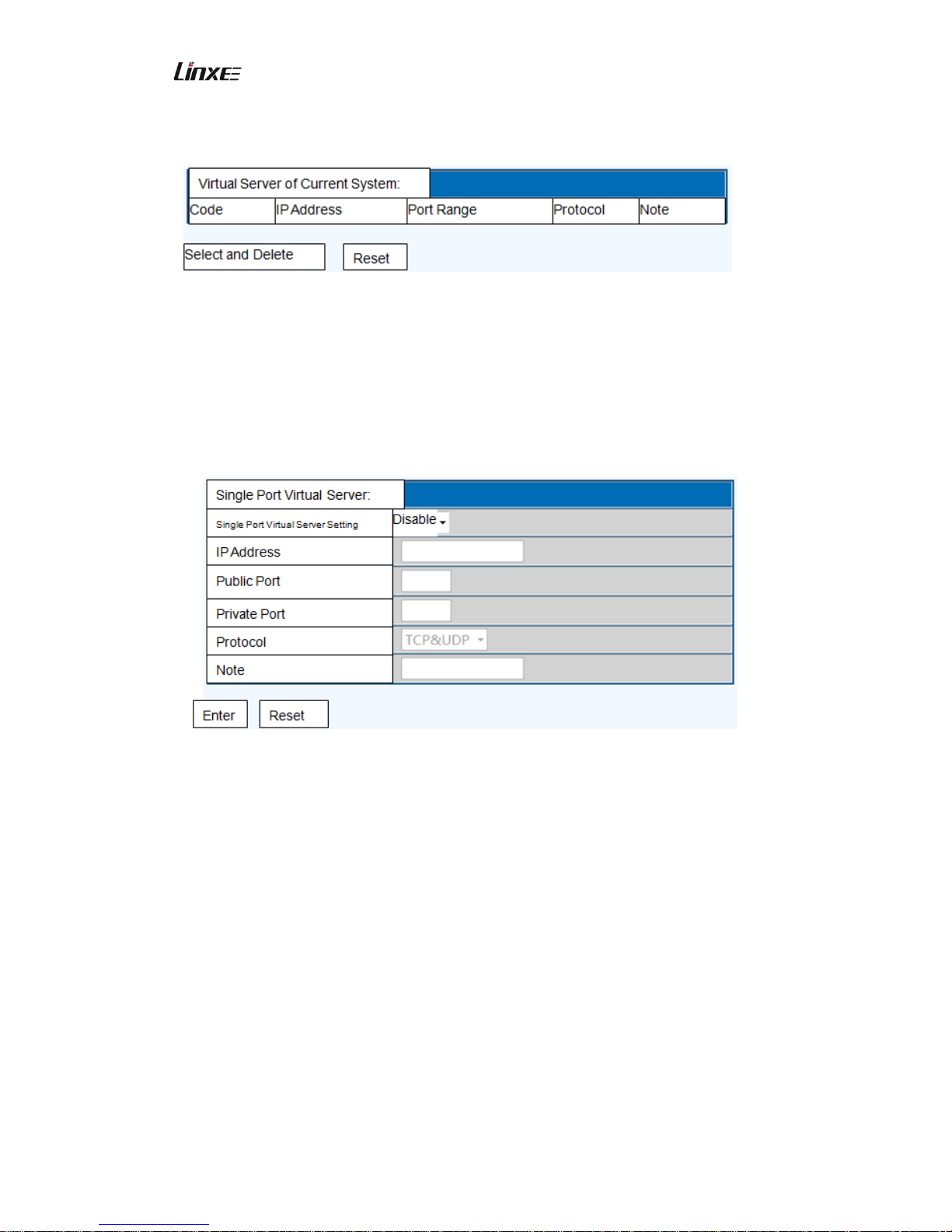
Virtual Server Setting
You may set up virtual server to provide network service (at most 32 pieces), the default is
“Disable”.
Virtual Server Setting: set enable or disable one port transfer rule.
IP Address: set transfer IP address of the virtual server.
Port Range: set transfer port range (1-65535) of the virtual server.
Protocol: select protocol type.
Note: User’s memorandum to the current setting.
Virtual server of the current system:
You have set virtual server list in the current system, and may check, browse, delete and
Page 23
3G Wireless Router R200 Copyright© 2013 Linxee Wireless
23
reset the list.
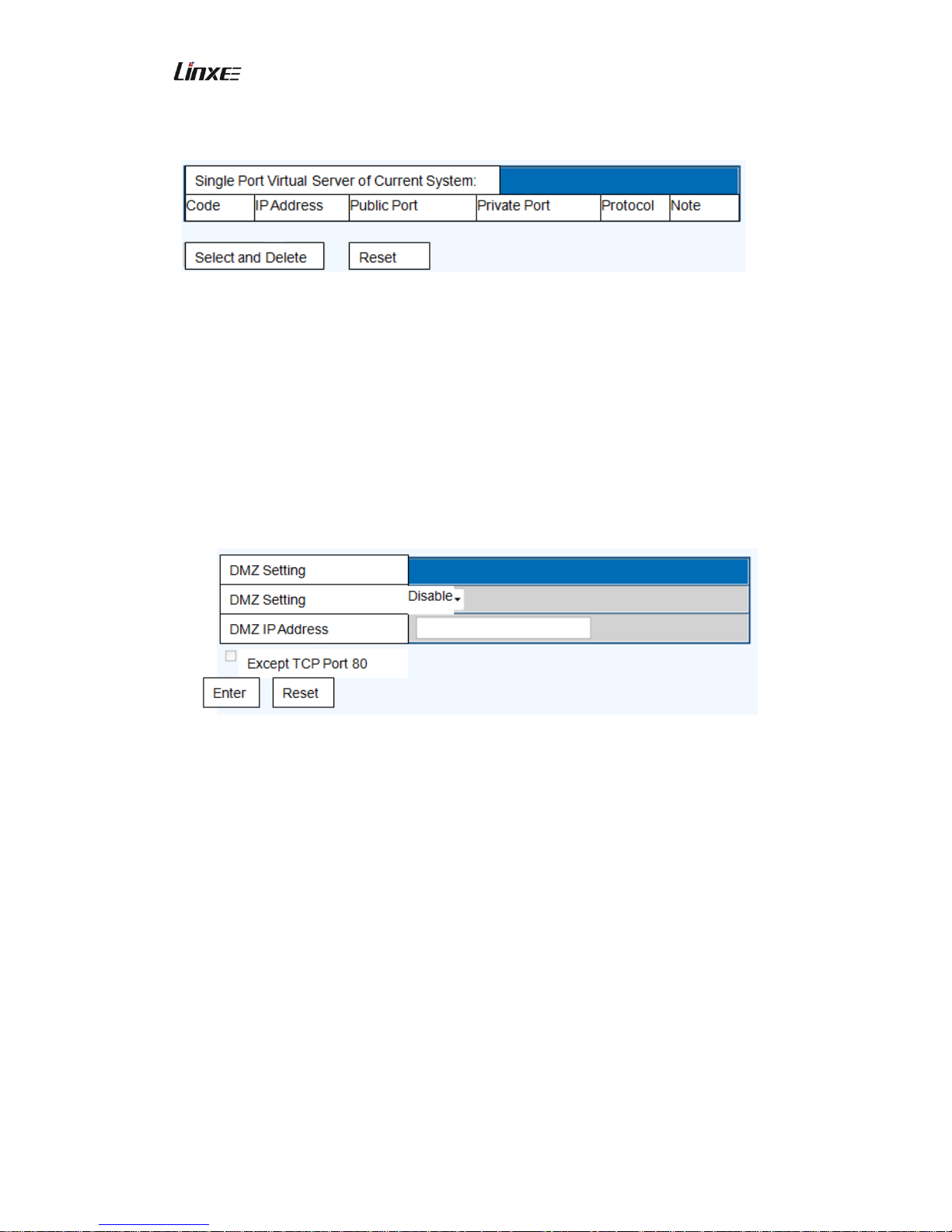
Single port virtual server
You may set up single port virtual server to provide network service (at most 32 pieces),
the default is “Disable”.
Single port Virtual Server Setting: set enable or disable one port transfer rule.
IP Address: set port transfer IP address of the single port virtual server.
Public Port: set transfer public port (1-65535) of the single port virtual server.
Private Port: set transfer private port (1-65535) of the single port virtual server.
Protocol: select protocol type.
Note: User’s memorandum to the current setting.
Single port virtual server of current system:
You have set single port virtual server list in the current system, and may check, browse,
Page 24
3G Wireless Router R200 Copyright© 2013 Linxee Wireless
24
delete and reset the list.
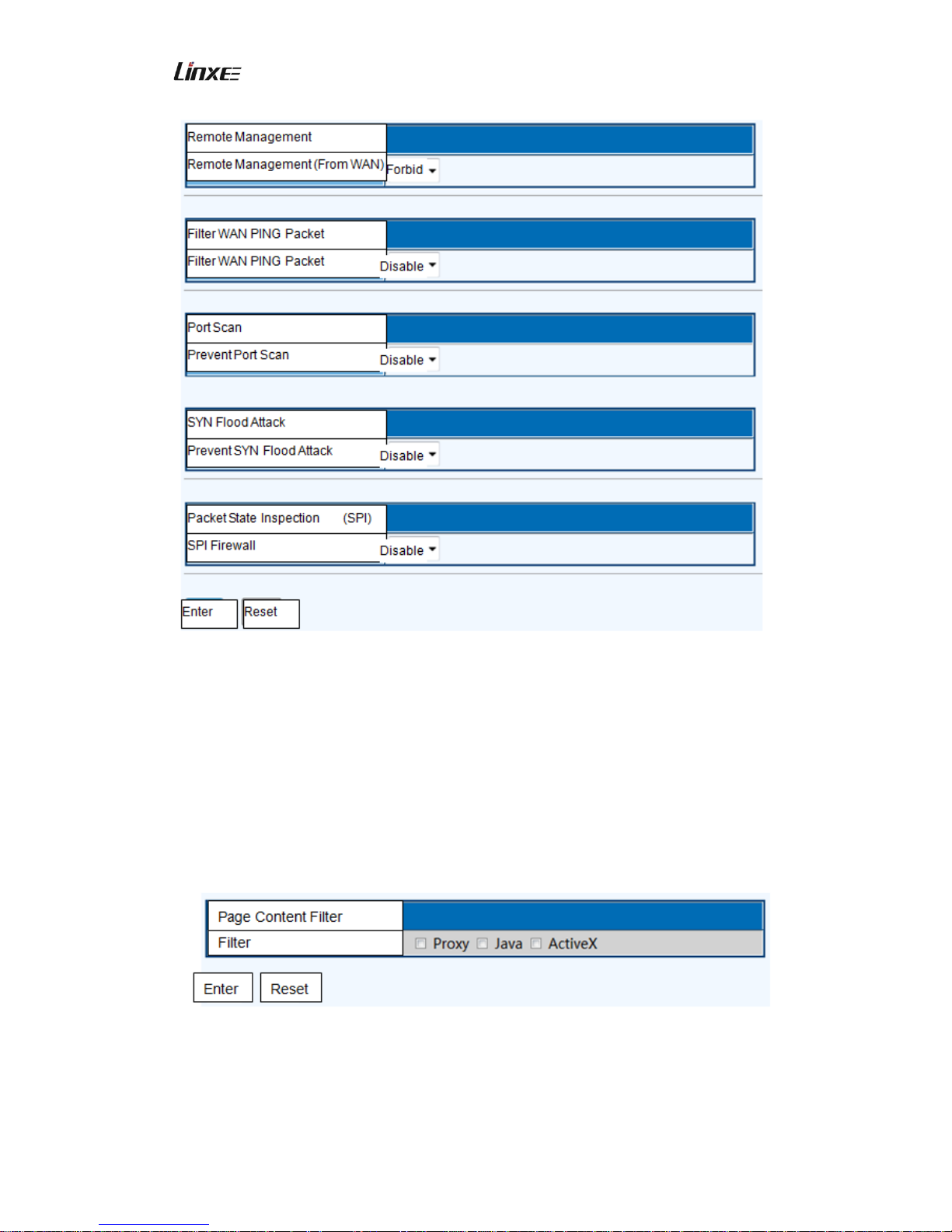
DMZ Setting
Under special conditions, we require completely exposing one computer in the LAN to for
achieving bidirectional communication, then you may set this computer as the DMZ main
unit, therefore, you may set up one isolation zone (DMZ) to differentiate the internal
network and Internet. The default is “Disable”.
DMZ Setting: select to achieve disable and enable the DMZ main unit.
DMZ IP Address: input the IP address of the LAN computer which is used as the DMZ
main unit.
System Safety Setting
You may set system firewall to protect the router or wireless access point. The default
state is “Disable” or “Forbid”.
Page 25
3G Wireless Router R200 Copyright© 2013 Linxee Wireless
25
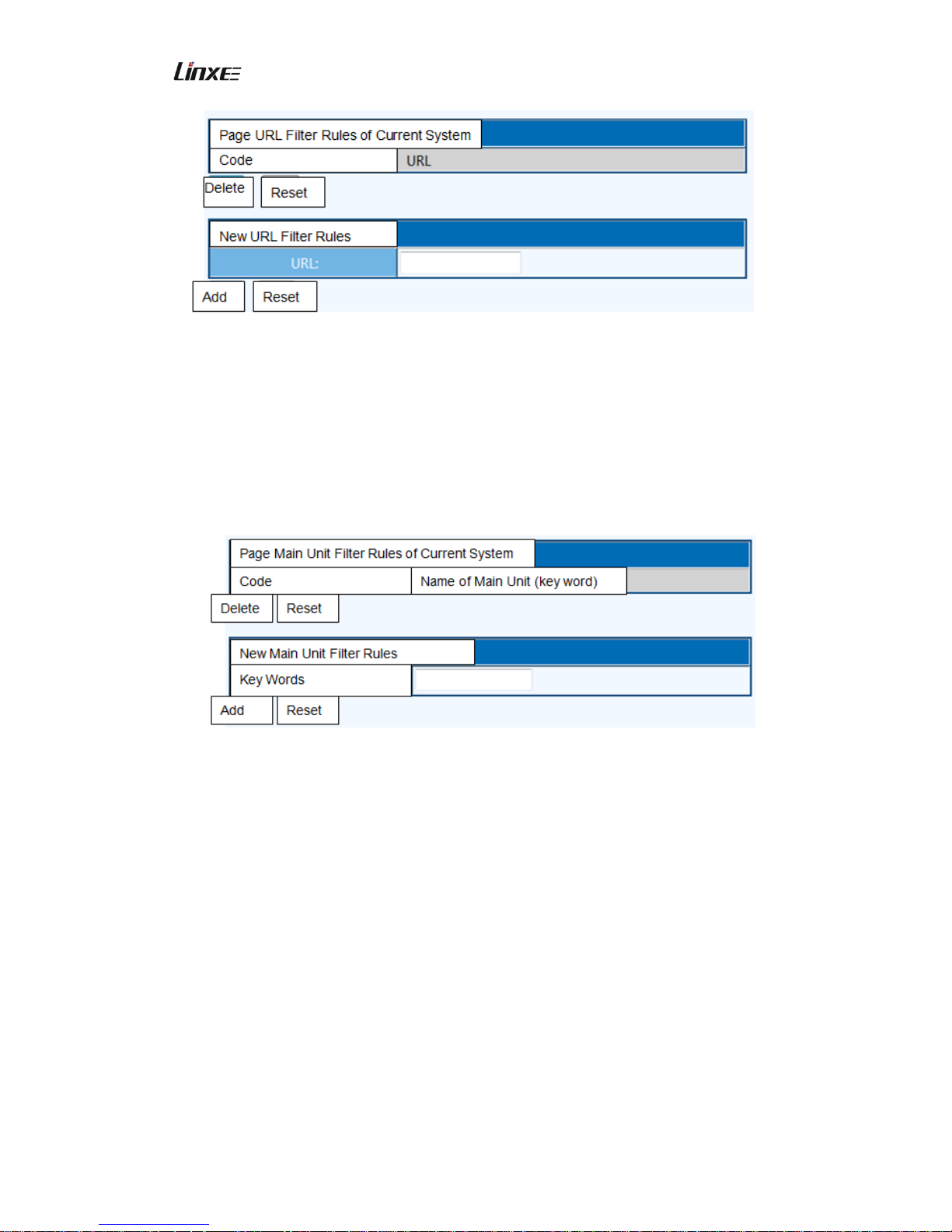
6. Content Filter
Content Filter Setting
You may set content filter rules to restrain the unsuitable pages. It supports 3modes:
Proxy, Java and ActiveX, single selection or multiple selection are allowed. The initial
state is default state.
Page URL Filter Setting
Adopt URL filter function to specify the websites which should not be accessed.
Page 26
3G Wireless Router R200 Copyright© 2013 Linxee Wireless
26
Page Main Unit Filter Setting
Adopt page main unit filter setting to shield the specific key words in the page, and avoid
accessing the websites.
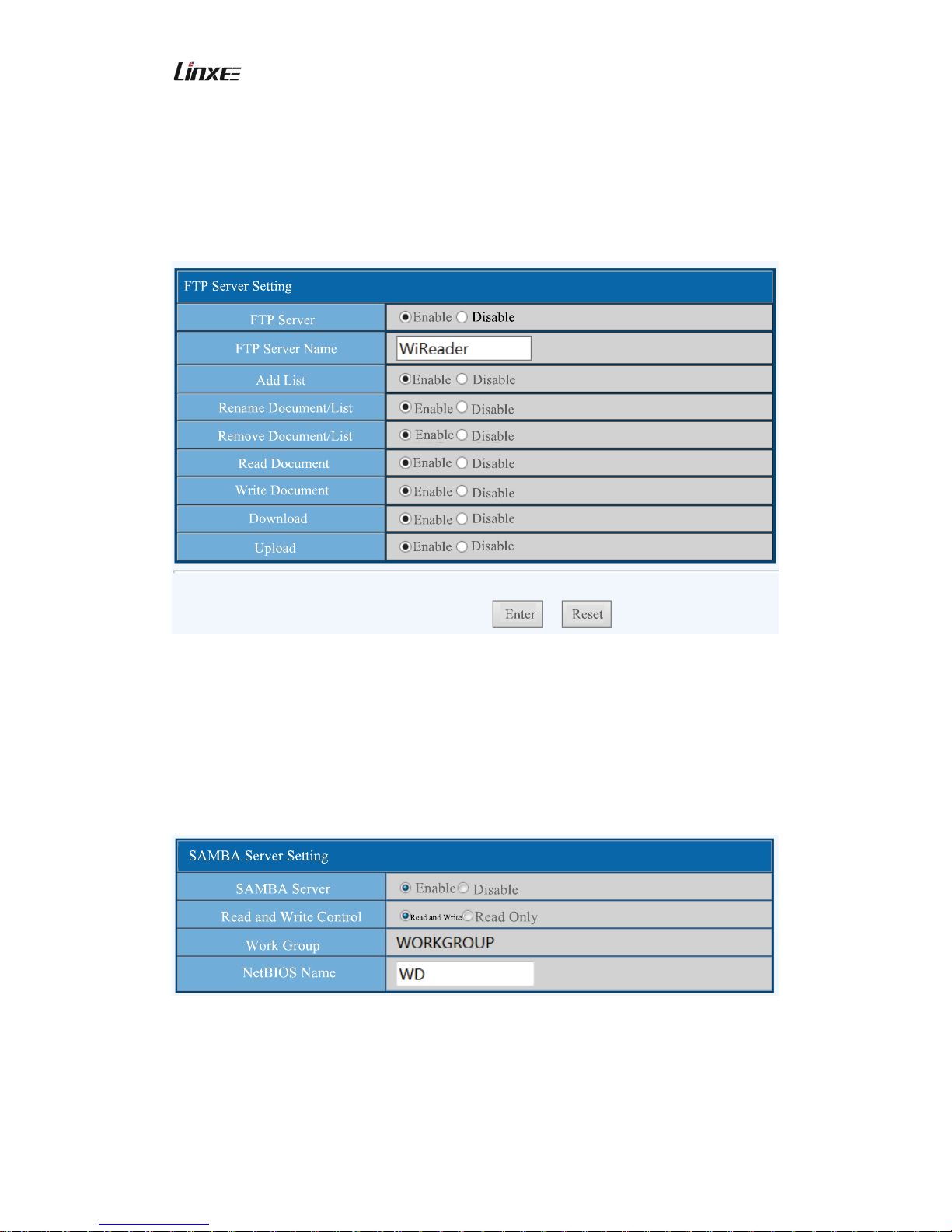
7. Network Share
You may set the FTP Server and network share server in “Network Share”.
In order to avoid possible data loss, please pay attention to followings when using this
function:
When the equipment has low power, please do not connect the USB portable
storage device (U-disk, removable hard disk, storage card) of the equipment for
reading and writing.
When the USB portable storage devices (U-disk, removable hard disk, storage
card) which are connected with this equipment are under reading and writing
state, please do not remove the portable storage devices.
When use this function, please connect USB portable storage devices (U-disk,
removable hard disk, storage card) after this equipment has completed loading
Page 27
3G Wireless Router R200 Copyright© 2013 Linxee Wireless
27
(about 10s).
FTP Server:
You may set the FTP Server in this menu, please refer to Wireless Network Storage
Function for the specific usage of FTP Server. The initial and default states are “Enable”,
default FTP port is 21, default most lines are 10.
Network Share Server:
For SAMBA Server parameters, You may set SAMBA Server in this menu, please refer to
Wireless Network Storage Function for the specific usage of SAMBA Server. The initial
and default states are “Enable”, default read and write control is “Read and Write”.
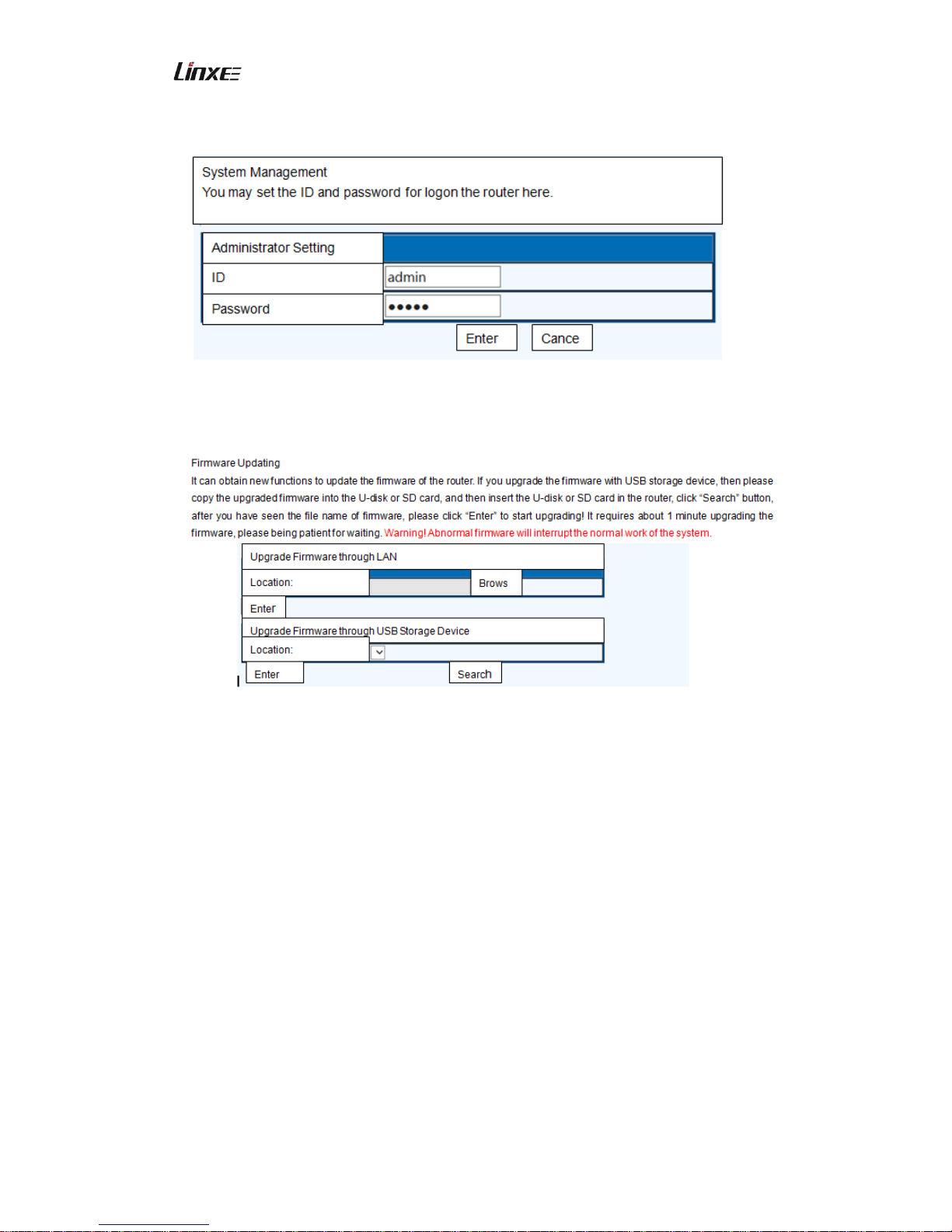
8. System Management
Management
Page 28
3G Wireless Router R200 Copyright© 2013 Linxee Wireless
28
You may set the ID and password for logon the router here.
Firmware Upgrading
The router supports firmware upgrading through browser, and you may obtain new
functions for the router through firmware updating.
Methods of firmware upgrading are:
1) Upgrade firmware through LAN
Upgrade firmware in Windows PC and notebook. Operation steps are shown as
below:
Click “Browse”, find and select the desired documents in the new dialog box, click
“Enter” to start upgrading.
2) Upgrade firmware through USB storage device
Logon the router (browser of PC, smart mobile phone, tablet PC) in the browser,
select “System Management” - “Firmware Upgrading” in the left menu, then insert the
U-disk /TF card which contains upgrading documents into the USB interface of the
router, click “Search”, select the desired documents, and then click [Enter].
Note: During upgrading, the working indicator of the router flashes quickly, when it is flashing,
please do not cut off power supply of the router till it has turned off. After upgrading, the router will restart,
Page 29
3G Wireless Router R200 Copyright© 2013 Linxee Wireless
29
and you shall manually search your wireless equipment, and then connect again.
Setting Management
You may export or import system settings or recover the default settings with this
function.
State
You may check the current state of the router here.
Statistic Information
You may check the statistic information of the router here.
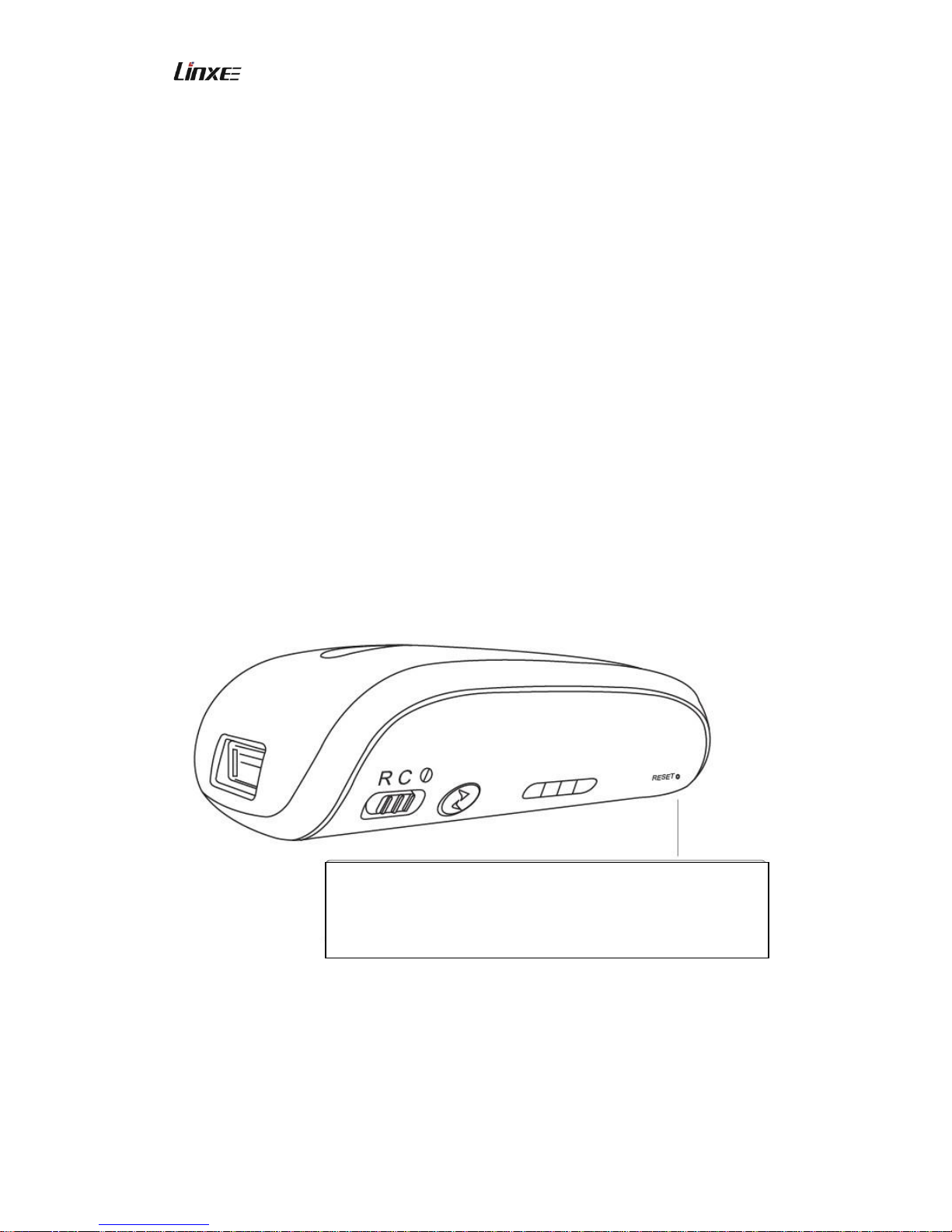
IV. Recover to Default
After modifying the parameters of the router, it may possibly cause some defects. For
example, we modified the Wi-Fi password of the router, but we forgot the password a
period later, and we can’t fill into the correct password when the terminal requires imputing
the password, then, please manually recover the parameters of the wireless router to the
default settings, the specific operation steps are shown as below:
V. Wireless Network Storage Function
This product provides one standard USB interface for connecting with USB storage
devices such as U-disk or removable hard disk and card reader, supports to share and
Please insert a small needle such as paper clip into the hole
shown as the arrow, press it for 5s when touching the switch,
then release it, the blue indicator will flash, which means it is
successfully to recover default settings.
Page 30
3G Wireless Router R200 Copyright© 2013 Linxee Wireless
30
visit the contents in the storage device through Wi-Fi. You may also achieve Streaming
Media Online Play, FTP Server function and SAMBA Server function with the third party
software.
5.1 Streaming Media Online Play
Turn on the Power switch of the router, after the router has started (about 10s), insert
the USB storage devices such as U-disk and removable hard disk in the USB
interface of the router, check the blue LED state indicator of the router which shall
flash slowly, it means portable storage device has loaded successfully;
Open the WIFI setting of the computer or portable equipment, select the SSID of the
router, and start wireless network connection (Refer to 3.1 Router Connection);
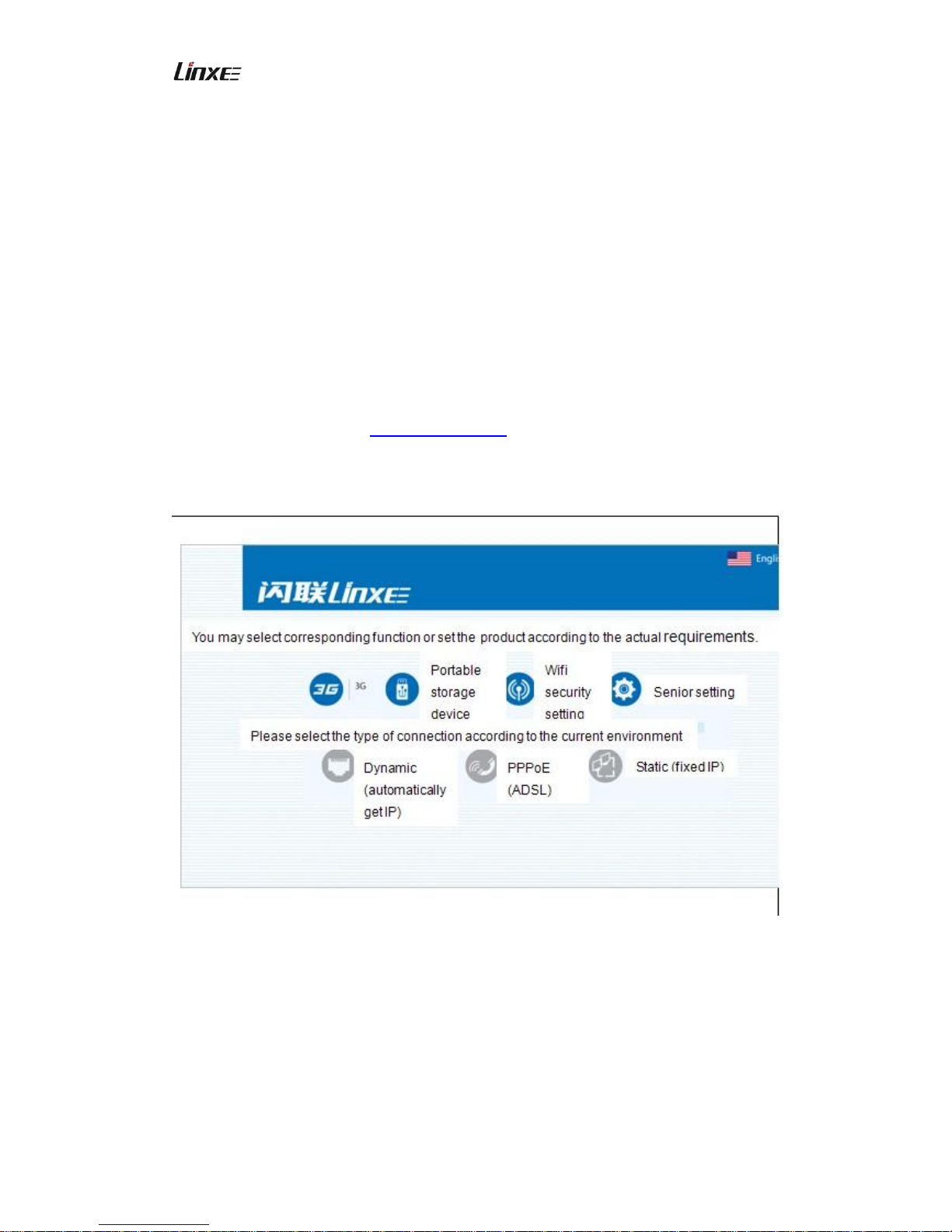
Click the browser, input: http://192.168.169.1 in the address bar, click “Enter” to show
the following page:
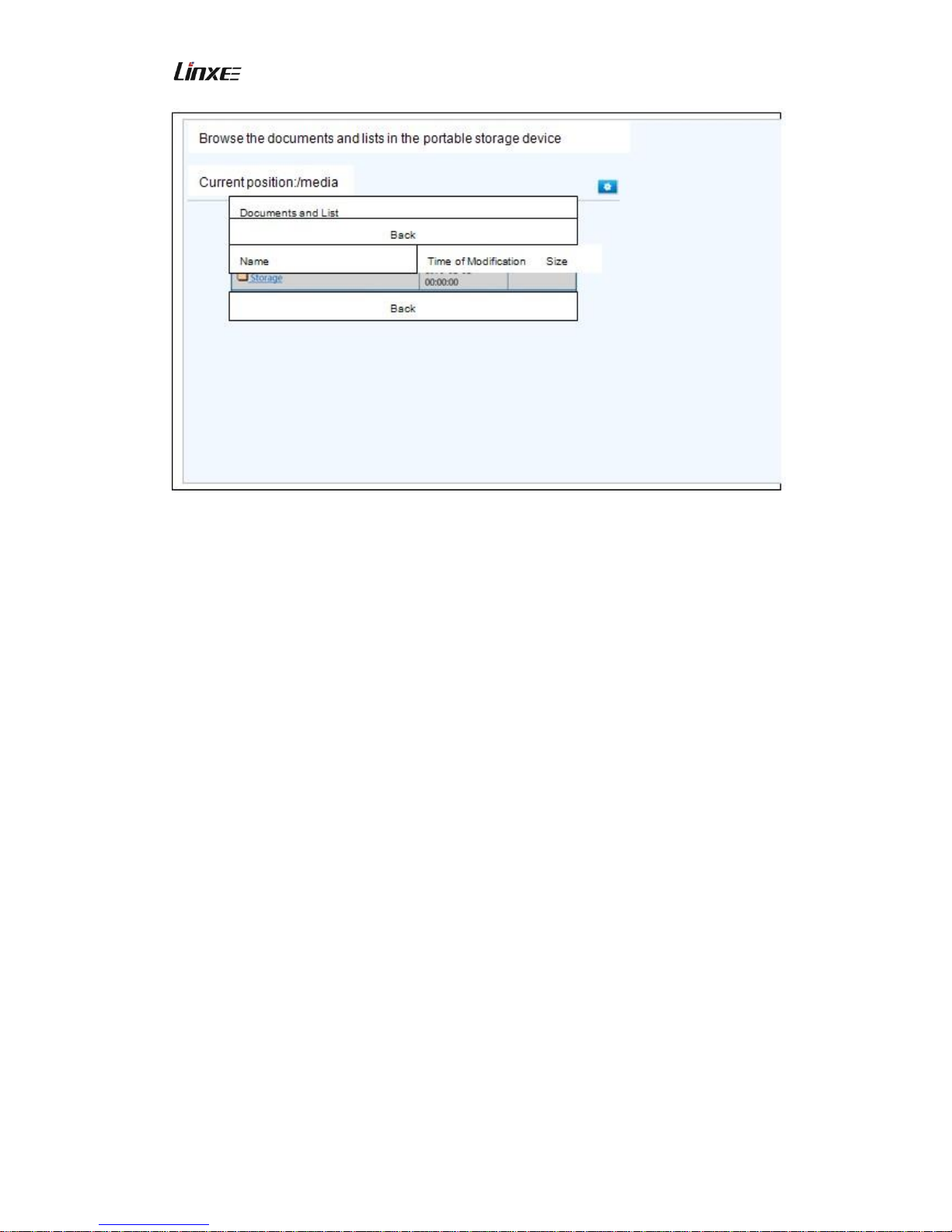
Then click “Portable Storage Device” mark to enter into the portable storage device
documents browse page of the router, here, you may quickly browse the pictures,
videos and music in the U-disk or removable hard disk.
Page 31
3G Wireless Router R200 Copyright© 2013 Linxee Wireless
31
Note:
1. Storage 1, storage 2... are the name of the shared folders in USB storage devices
such as U-disk or removable hard disk.
2. It requires corresponding play software to play Streaming Media online.
5.2 FTP Server
The product allows sharing data in FTP Server through FTP service, please referring to (7.
Network Share) for setting the parameters of FTP service, and the users shall install the
third party application program for supporting FTP service for achieving this function.
5.3 SAMBA Server
The product allows sharing the documents in SAMBA Server through SAMBA service,
please referring to (7. Network Share) for setting the parameters of SAMBA service, and
the users shall install the third party application program for supporting SAMBA service for
achieving this function.
Page 32

3G Wireless Router R200 Copyright© 2013 Linxee Wireless
32
VI. Troubleshooting
6.1 Forget the Wi-Fi Encryption Key
Hold the RESET to recover the router to the default settings, please refer to Article IV
of the User’s Manual.
6.2 Can’t Logon from the Administration Interface of Router
1) Please check if the IP address and DNS address is set as Automatic Get IP
Address, under normal conditions, the obtained IP address shall be
192.168.169.X.
2) Try to logon with other computers;
Please try to reset the router to default settings if the problem is not solved.
6.3 Notebook Can’t Search Wireless Signal
1) Please check if the built-in wireless Network Interface Card of the notebook is
turned on (please refer to the User’s Manual of the notebook for details);
2) Check if the drive of the wireless Network Interface Card is installed successfully
and activated in the Device Manager of the computer;
3) Check if the wireless service of the computer is enable (if the Wireless Zero
Setting in the service options is set as enable, and if the enable type is
automatic);
4) Check if the wireless signal is found 1-2m to the router;
5) Please use the wireless Network Interface Card of other computers, check if it
can find wireless signal;
6) Please try to reset the router to default settings if the problem is not solved.
6.4 How to Cancel Past Network Setting for Windows 7 and
Apple iPad
1) Windows7: network and share center --- management wireless network, select and
delete corresponding wireless network name.
2) iPad: setting ---wireless LAN --- corresponding wireless network name, click the
Neglect in the “Neglect this Network” above the blue arrow at the right side.
Page 33
3G Wireless Router R200 Copyright© 2013 Linxee Wireless
33
6.5 How to Check the Version of Router Software and
Hardware
Click the “Senior Settings” button in the management interface.
VII. Contact Info
Linxee Wireless
5000 Yonge Street
Suite 1901
Toronto, Ontario
Canada M2N 7E9
www.linxeewireless.com
VIII. Certification
This equipment has been tested and found to comply with FCC and CE standards.
Operations is subject to the following two conditions:
1. This device may not cause harmful interference.
2. This device must accept any interference received. Including interference that
may cause undesired operation.
NOTE: THE MANUFACTURER IS NOT RESPONSIBLE FOR ANY RADIO OR TV
INTERFERENCE CAUSED BY UNAUTHORIZED MODIFICATIONS TO THIS
EQUIPMENT. SUCH MODIFICATIONS COULD VOID THE USER’S AUTHORITY TO
OPERATE THE EQUIPMENT.
 Loading...