

Page 1

Smart Wireless Gateway
Smart Management, Home Control Center www.linxee.cn
Smart Wireless Gateway
---------- HA200+
Porduct Name : Smart Wireless Gateway
Product Model : Linxee-HA200+
Company Name : LINXEE (BEIJING) TECHNOLOGY LTD.
The final interpretation right of this operating manual shall be reserved by Linxee (Beijing) Technology Ltd.
1
Page 2

Smart Wireless Gateway
Smart Management, Home Control Center www.linxee.cn
Table of Contents
Statement .............................................................................................................................. 3
I. Product overview ............................................................................................................... 4
1.1 Product pattern .................................................................................................................... 4
1.2 Function identification ........................................................................................................ 4
1.3 Product features ................................................................................................................... 5
1. 4 Product specification .......................................................................................................... 5
1.5 Packing list .......................................................................................................................... 6
II. Installation method .......................................................................................................... 6
2.1 Diagram for device connection: .......................................................................................... 6
2.2 Installation method for smart wireless gateway .................................................................. 6
2.3 Installation steps for smart home control center software ................................................... 7
2.3.1 Software introduction ............................................................................................... 7
2.3.2 Flow for software installation .................................................................................. 7
III. Guide for operation method ............................................................................................ 9
3.1 Use and operation guide for client control software ........................................................... 9
3.1.1 Operation guide for device addition ....................................................................... 10
3.1.2 Operation guide for scene mode setting ................................................................. 11
3.1.3 Operation guide for other settings of software ....................................................... 13
3.2 Web interface of router functions ...................................................................................... 16
3.2.1 Enter Web configuration page ................................................................................ 16
3.2.2 Description of Web configuration page .................................................................. 16
IV. Operation instructions................................................................................................... 18
V. Warm prompt ................................................................................................................. 18
5.1 Precautions ........................................................................................................................ 18
5.2 Common troubleshooting .................................................................................................. 19
5.2.1 What to do if the device cannot be accessed with network after being electrified . 19
5.2.2 What to do if the device cannot be controlled after being accessed with network . 19
FCC Alarm ........................................................................................................................ 19
Schedule ............................................................................................................................. 20
The final interpretation right of this operating manual shall be reserved by Linxee (Beijing) Technology Ltd.
2
Page 3

Smart Wireless Gateway
Smart Management, Home Control Center www.linxee.cn
Statement
Welcome to use smart wireless gateway HA200+ (hereinafter referred to as
HA200+).
For first installation and before using this product, you must read all the materials attached with
the device, which will help you use this product better. If you fail to operate this product
according to this operating manual or operate it mistakenly due to wrong understanding, Linxee
(Beijing) Technology Ltd. (hereinafter referred to as “Linxee”) shall not undertake any
responsibilities for any losses caused thereby.
Linxee (Beijing) Technology Ltd. has proofread and checked this operating manual strictly
and carefully, but we cannot guarantee that this operating manual does not have any mistakes and
omission.
The pictures in this operating manual are for reference only. If any picture is inconsistent
with the actual product, the real object shall prevail. To provide better service, Linxee (Beijing)
Technology Ltd. shall, without prior notice, reserve the right to improve and/or modify the product
and software program described in this operating manual as well as the content of this operating
manual from time to time.
Linxee (Beijing) Technology Ltd. shall not be liable for any data loss and damage caused by
misoperation of software and hardware, product maintenance or other circumstances, and it shall
not be liable for other indirect losses caused thereby. Please backup your data at any time.
The content of this operating manual is protected by copyright laws and regulations. This
operating manual may not be reproduced and copied by any means without prior written
authorization of Linxee (Beijing) Technology Ltd. It may not be transmitted by any means through
any wire or wireless network or may not be translated into other languages.
“ ” is a registered trademark or trademark owned by Linxee (Beijing) Technology
Ltd. Other products, brands or trade names mentioned herein might be the registered trademarks
or trademarks owned by Linxee (Beijing) Technology Ltd. or other companies.
If any inconsistencies are found between the practical situation of this product and the
operating manual during use, you want to obtain the latest information, or you have any questions
or ideas, please consult or login:
Service hotline: 400-898-1666 (Chinese Mainland)
Linxee (Beijing) Technology Ltd. Website: http://www.linxee.cn
The final interpretation right of this operating manual shall be reserved by Linxee (Beijing) Technology Ltd.
3
Page 4
Smart Wireless Gateway
Serial
No.
Function
Description
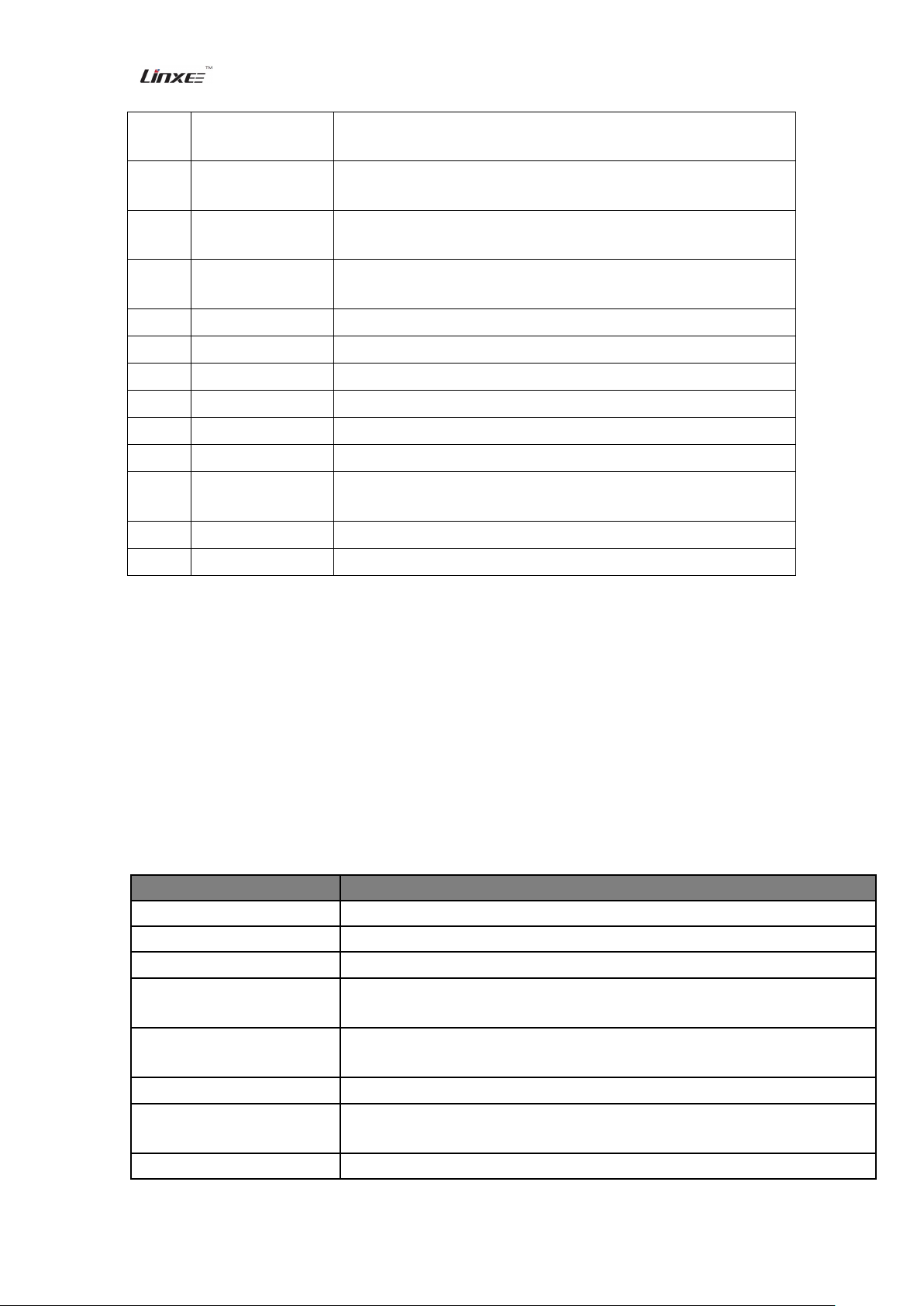
①
WLAN indicator
light
After the network cable is connected, it operates normally and
keeps flickering.
Smart Management, Home Control Center www.linxee.cn
I. Product overview
smart wireless gateway HA200+ is a standard domestic WiFi router with
2.4GHz transceiver home gateway control center which features low power consumption and high
integration and integrates WiFi router and ZigBee gateway module. It supports special WAN
access, LAN access and 802.11b/g/n. TI CC2530Zigbee module is connected to the router via
onboard serial port to have server data stored in HA200+ and support the device’s remote
operation. It provides gateway control center software for Android client and runs in a system
device with Android 3.0 or above, realizing the complete solutions for smart home. The above
complies with the radio frequency system worldwide. This product can serve as a smart wireless
gateway and a wireless router.
This product needs to be controlled by a smart home control center software (software download
link: www.linxee.cn).
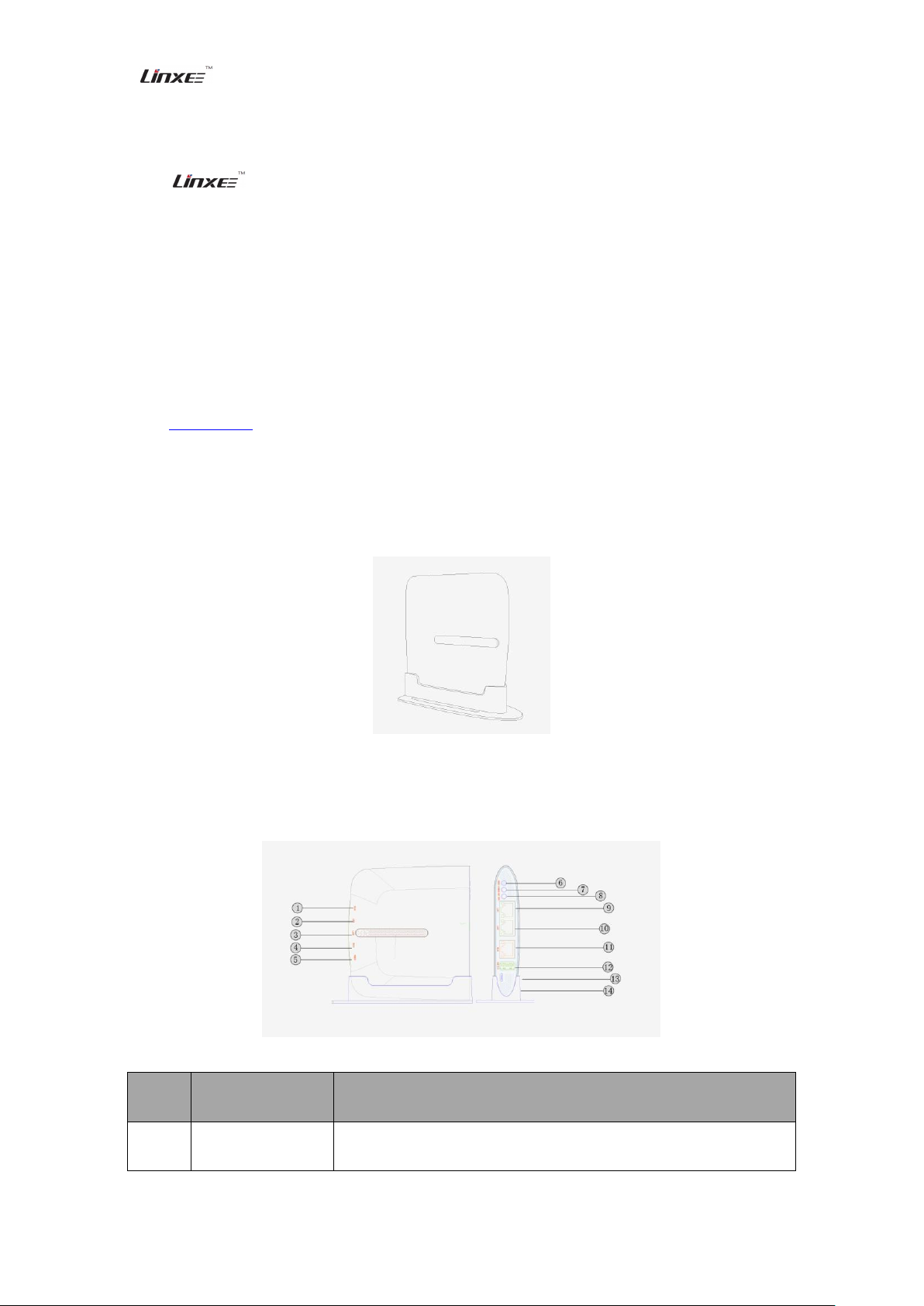
1.1 Product pattern
1.2 Function identification
The final interpretation right of this operating manual shall be reserved by Linxee (Beijing) Technology Ltd.
4
Page 5
Smart Wireless Gateway
②
LAN1 indicator
light
Normally, it provides the device with a wire network function, and
the light flickers.
③
LAN2 indicator
light
Normally, it provides the device with a wire network function, and
the light flickers.
④
WAN indicator
light
It is normal to connect Internet, and the light flickers.
⑤
POWER indicator
light
Normally, the adapter supplies power for the device, and the light is
normally on.
⑥
RESET
HA200+ factory reset
⑦
ZIGBEE
Reset gateway function (this function cannot be used temporarily.)
⑧
WPS
Reset WPS function (this function cannot be used temporarily.)
⑨
LAN1
Wire network interface
⑩
LAN2
Wire network interface
⑪
WAN
Internet network interface
⑫
USB2.0
Standard USB interface is used for supplying power for peripheral
device and subsequent extension function.
⑬
Micro USB
It is a power supply interface for HA200+.
⑭
Base
It serves as a support for HA200+.
Specification
Description
Power voltage
5V/2A micro USB
Transmitting power
20dbm
Radio radiation
Radio radiation power <100mW, comply with national standards.
Barrier-free communication
distance
≤100m
Operating power
consumption
0.4W
Receiving sensitivity
-91DB
WiFi protocol/ frequency
band
802.11b/g/n 2.4GHz
ZigBee frequency band
2,400-2,483.5MHz
Smart Management, Home Control Center www.linxee.cn
1.3 Product features
1. Beautiful, fashionable and elegant appearance;
2. Efficient and sensitive multifunctional router;
3. Control center for network, security and household appliances;
4. Two-way communication function, status feedback, anti-interference, low radiation and low
power consumption.
1. 4 Product specification
The final interpretation right of this operating manual shall be reserved by Linxee (Beijing) Technology Ltd.
5
Page 6
Smart Wireless Gateway
Interface
1 WAN interface, 2 LAN interfaces, standard USB (5V~1A)
Highest transmission rate
72Mbps
Firmware upgrade
Support firmware offline upgrade
Button
Reset button, one-key reset for router and Zigbee module, Wps key, key for
network access of Zigbee module
Operating environment
Operating temperature: -20℃~50℃. The highest temperature for continuous
24 hours should not be higher than 65℃.
Advanced setting
Support the complete configuration interface based on web browser, IGRS
Linxee
Language
Traditional Chinese, simplified Chinese, English
HA200+ host
1
Base
1
Power adapter
1
Power cord
1
Operating manual
1
Warranty certificate
1
Smart Management, Home Control Center www.linxee.cn
1.5 Packing list
II. Installation method
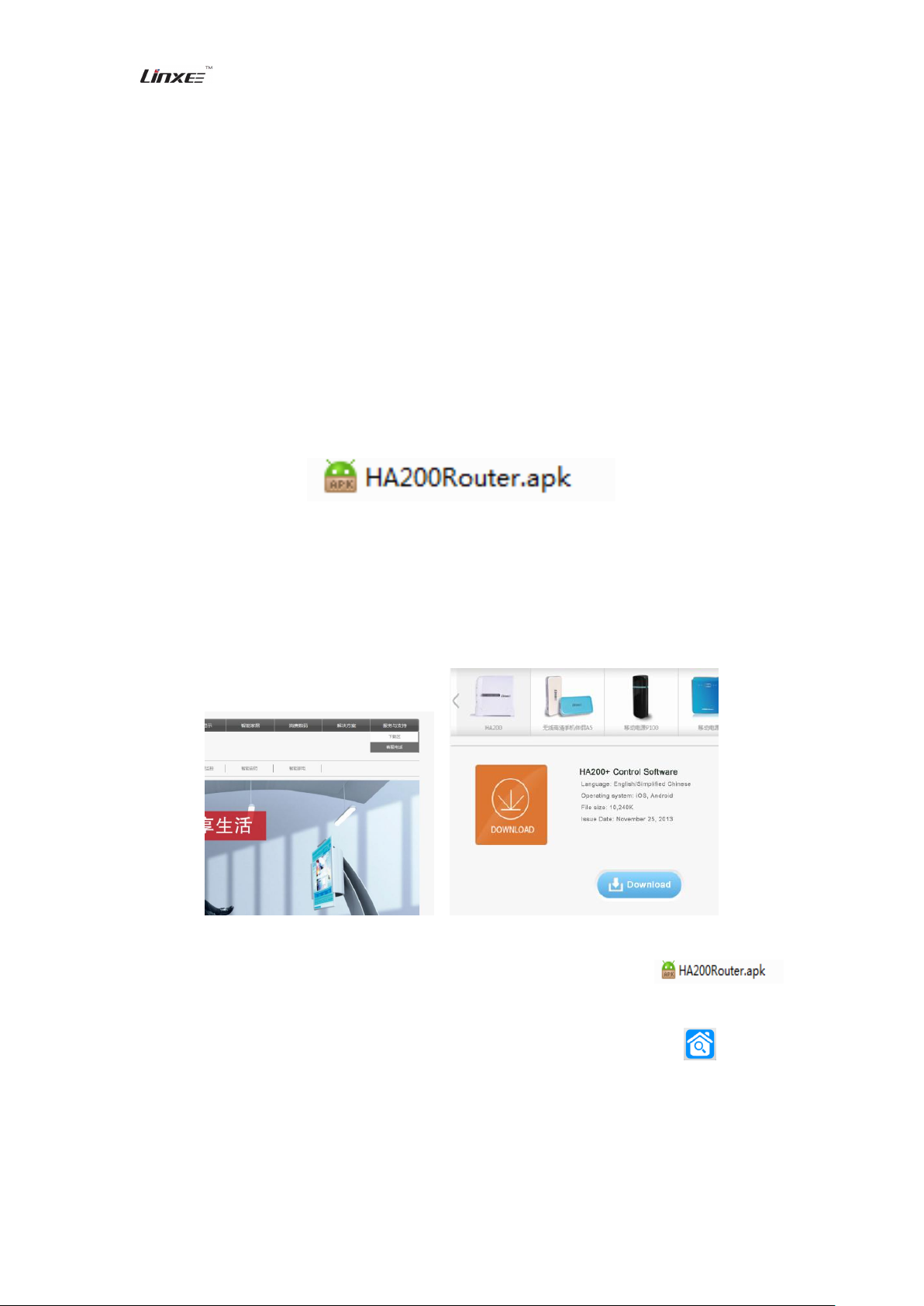
2.1 Diagram for device connection:
2.2 Installation method for smart wireless gateway
1. Have the host located in the base and connect the power cord.
2. In case of remote operation, please insert the external network cable into WAN interface. In
case of LAN control, network cable inserting will be not required.
The final interpretation right of this operating manual shall be reserved by Linxee (Beijing) Technology Ltd.
6
Page 7
Smart Wireless Gateway
Smart Management, Home Control Center www.linxee.cn
3. After Power and WiFi lights in the front of this product are normally on, it indicates that the
operation is normal.
4. Install smart home control software for smart phone or tablet PC.
5. After the control software is installed, connect the WiFi signal for this product and open the
software to add device.
2.3 Installation steps for smart home control center software
2.3.1 Software introduction
The control software for client in this product is applicable for smart terminal with Android
3.0 or above, and the minimum resolution is 800*480.
The installation file is shown in the following picture:
2.3.2 Flow for software installation
Step 1: Download the software from Linxee’s website: www.linxee.cn. After logging in the
website, click “Download” under the option “Service & Support” at the upper right corner, enter,
find and download HA200+ control software. It is shown in the following picture:
Step 2: Find the folder which stores HA200+ control software, click and install .
Click “Next Step” to install the control software.
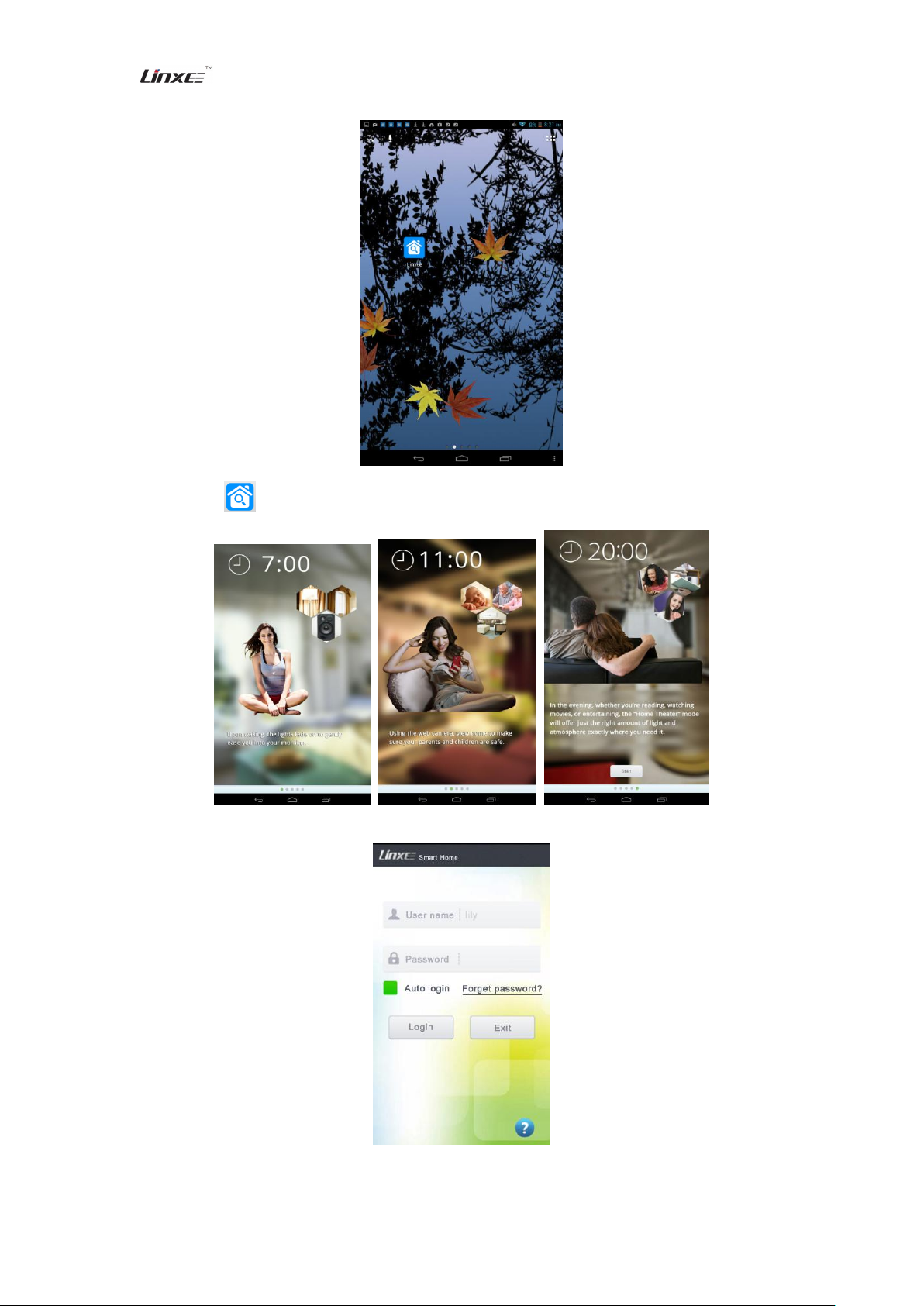
Step 3: After installation, return to the device interface. The control software logo appears in
the interface. It is shown in the following picture:
The final interpretation right of this operating manual shall be reserved by Linxee (Beijing) Technology Ltd.
7
Page 8
Smart Wireless Gateway
Smart Management, Home Control Center www.linxee.cn
Step 4: Click to enter the welcome interface. It is shown in the following picture:
Step 5: Click Experience to enter the login interface. It is shown in the following picture:
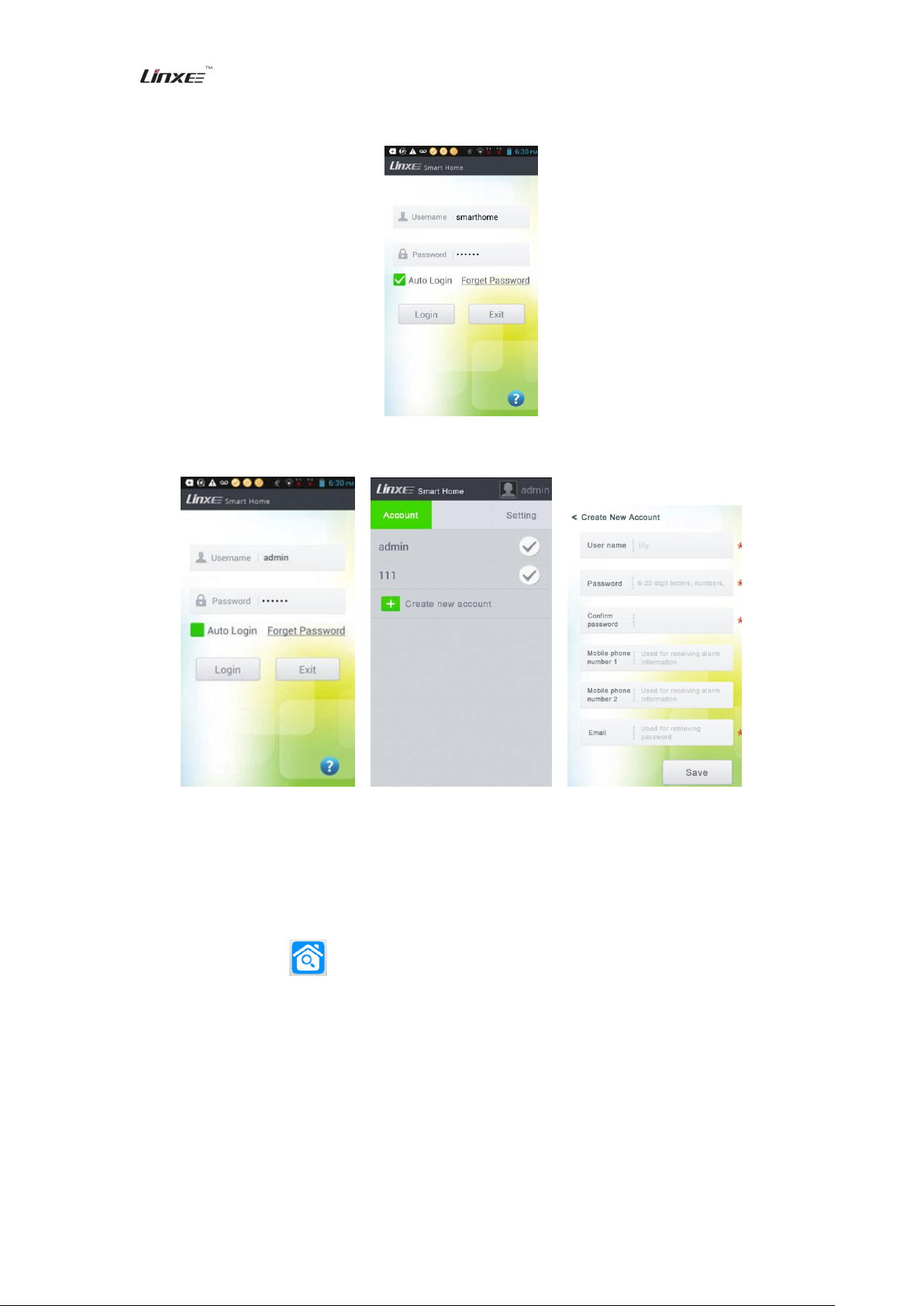
Note: If it is used for first time, you can login via initial account (smarthome) and password (linxee). It is shown in
The final interpretation right of this operating manual shall be reserved by Linxee (Beijing) Technology Ltd.
8
Page 9
Smart Wireless Gateway
Smart Management, Home Control Center www.linxee.cn
the following picture:
Note: You can also login by admin account () and password (password) to create a new account. It is shown in the
following picture:
III. Guide for operation method
3.1 Use and operation guide for client control software
Click the shortcut icon to run software. After logging in the software, it is shown in the
following picture:
The final interpretation right of this operating manual shall be reserved by Linxee (Beijing) Technology Ltd.
9
Page 10
Smart Wireless Gateway
Smart Management, Home Control Center www.linxee.cn
3.1.1 Operation guide for device addition
Select the type of device to be added and enter the option interface of the device type. In this
example, smart LED bulb is used as a demonstration product. The addition operation of other
products is similar to smart LED bulb.
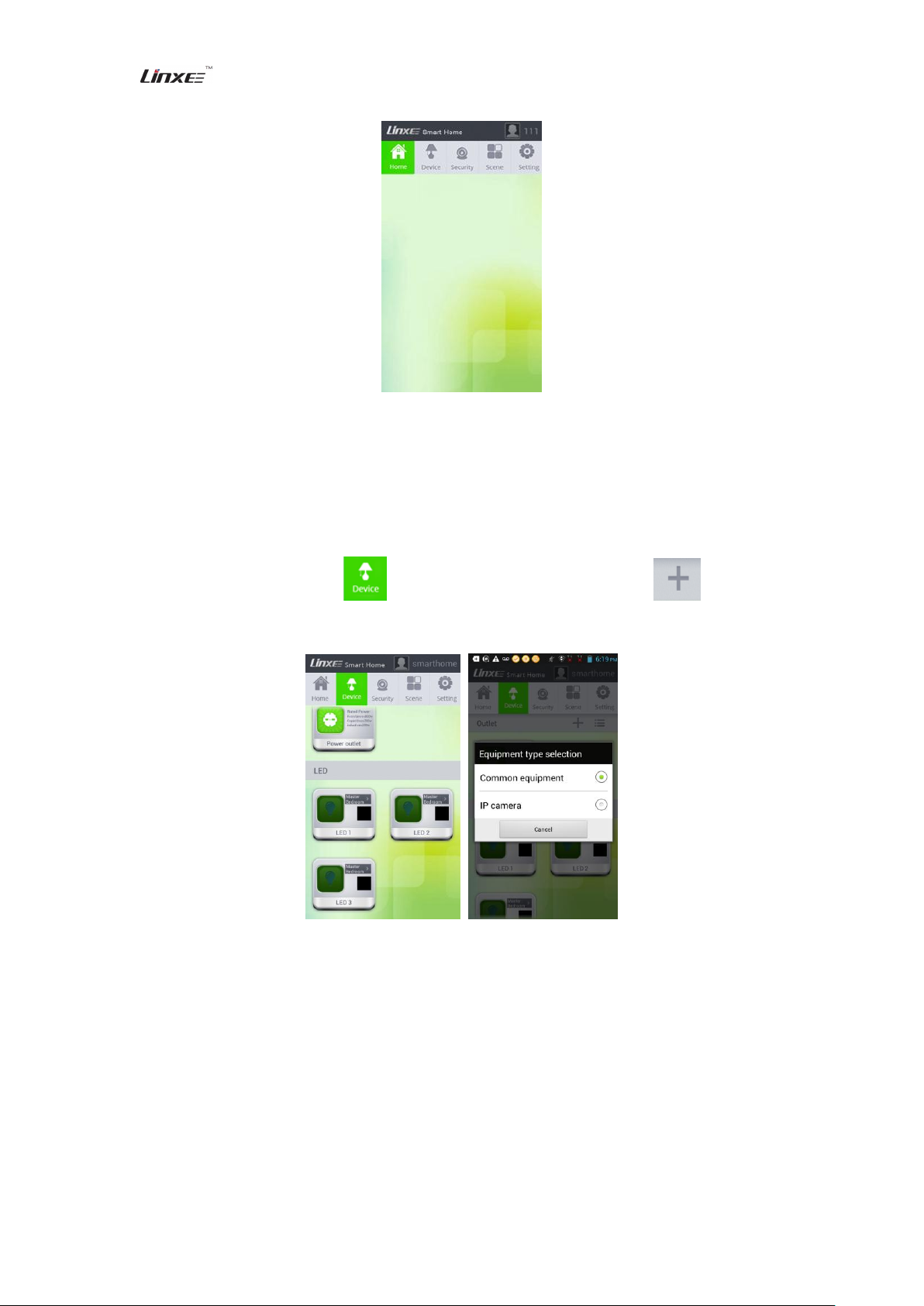
1. Click the electric appliance in the classification column, and click in the upper
right corner again to add devices. It is shown in the following diagram:
2. Click “common device” to enter addition interface, and click “Start” to electrify or reset the
device to be added within 60 seconds. It is shown in the following diagram:
The final interpretation right of this operating manual shall be reserved by Linxee (Beijing) Technology Ltd.
10
Page 11
Smart Wireless Gateway
Smart Management, Home Control Center www.linxee.cn
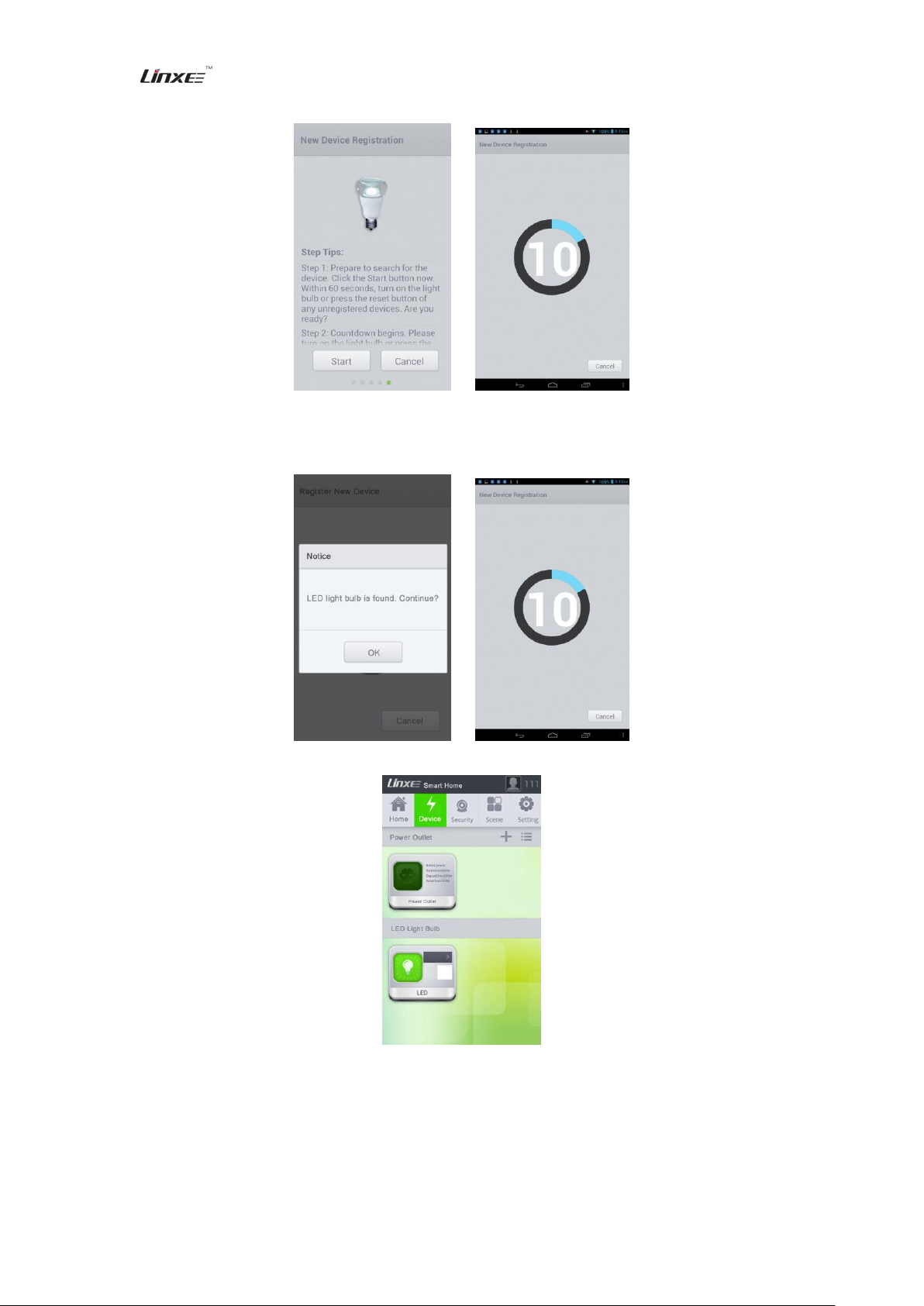
3. After the device is connected with network, a prompt for successful device addition will appear.
Continue adding devices after clicking “OK”, or return to control interface. It is shown in the
following picture:
4. Click the corresponding device button for control. It is shown in the following picture:
3.1.2 Operation guide for scene mode setting
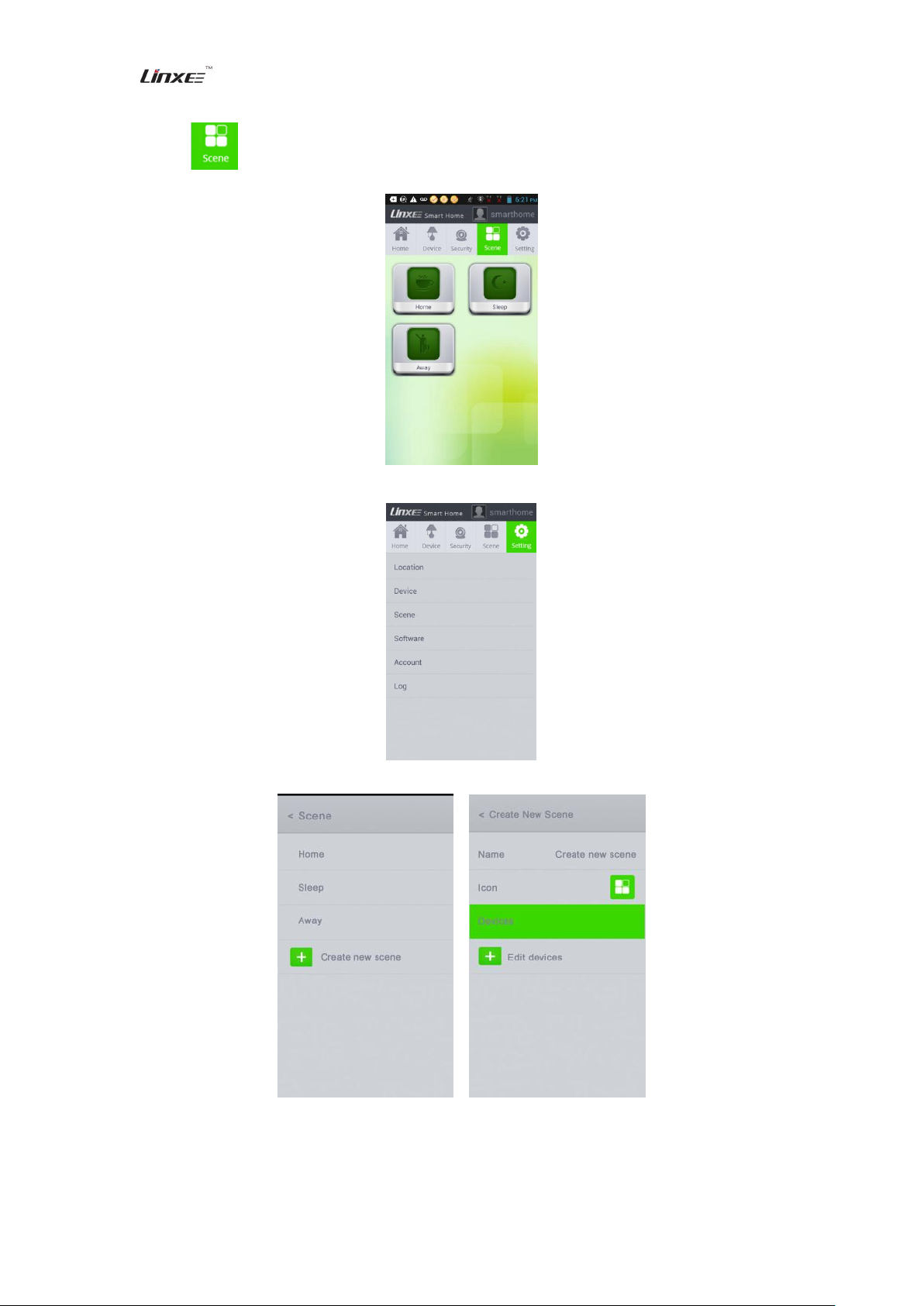
You can enter home mode, leaving mode and sleep mode via scene mode. You can also
realize your favorite family environment mode by custom setting for scene mode.
The final interpretation right of this operating manual shall be reserved by Linxee (Beijing) Technology Ltd.
11
Page 12
Smart Wireless Gateway
Smart Management, Home Control Center www.linxee.cn
1. Click to enter setting interface for scene mode. It is shown in the following picture:
2. Click “Setting” to enter setting interface. It is shown in the following picture:
3. Click “Scene Mode” for edition. It is shown in the following picture:
4. New scene mode can also be created. It is shown in the following picture:
The final interpretation right of this operating manual shall be reserved by Linxee (Beijing) Technology Ltd.
12
Page 13
Smart Wireless Gateway
Smart Management, Home Control Center www.linxee.cn
3.1.3 Operation guide for other settings of software
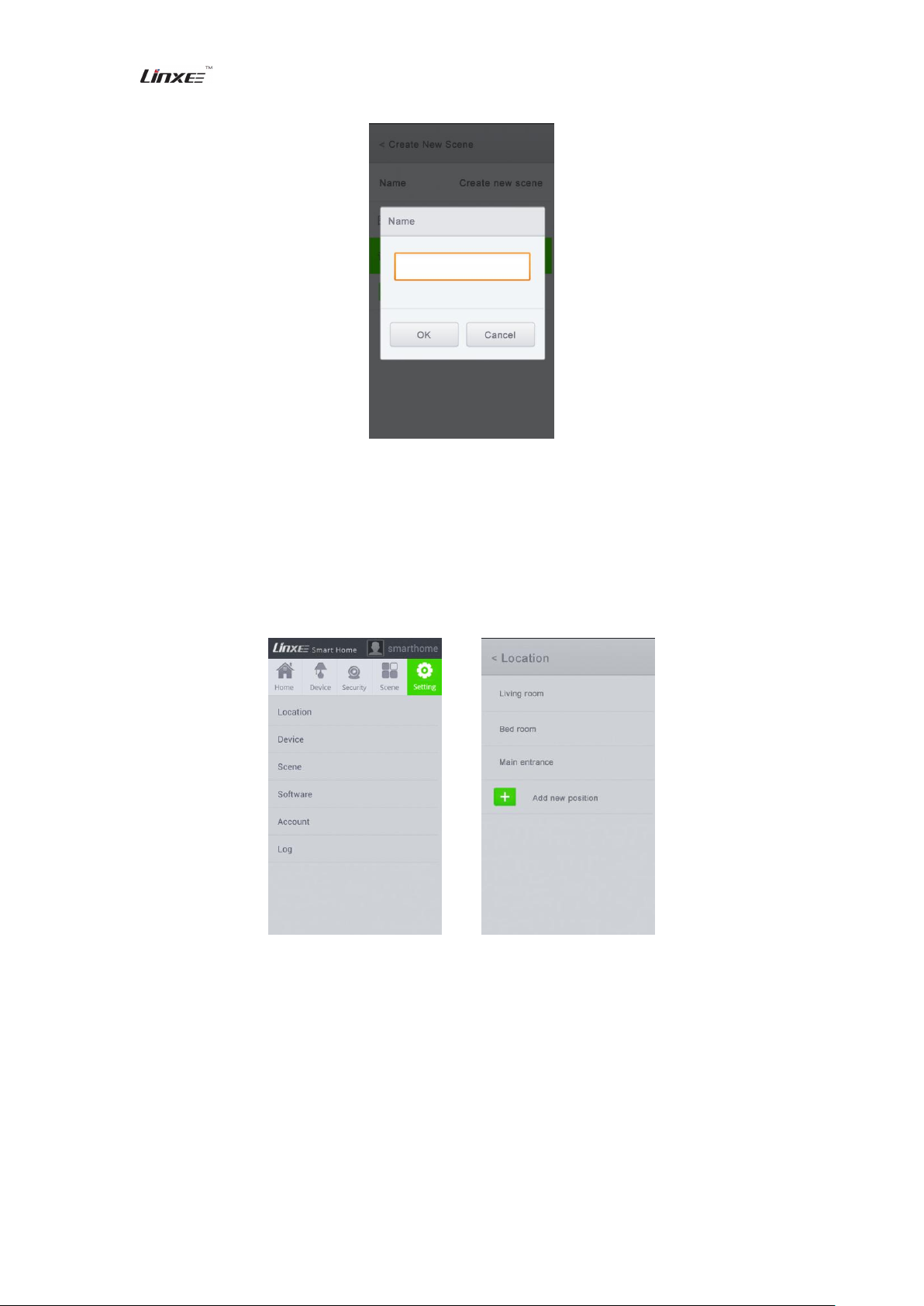
After entering setting interface, enter the corresponding interface to conduct corresponding
setting according to different applications and requirements.
1. Click “Position Setting” to set the name of added device position and add new position name. It
is shown in the following picture:
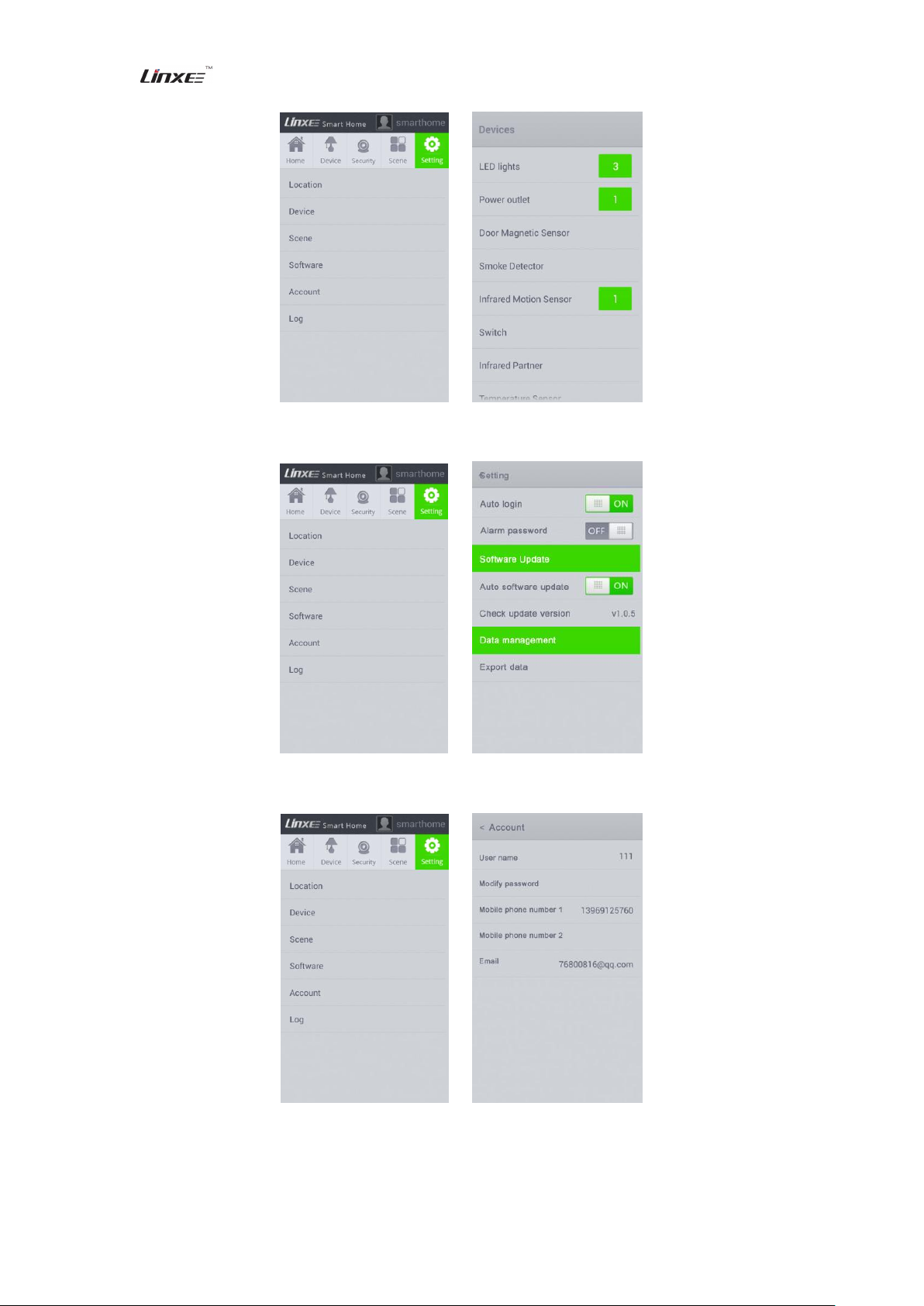
2. Click “Component & Device” to conduct corresponding setting for the added device. It is
shown in the following picture:
The final interpretation right of this operating manual shall be reserved by Linxee (Beijing) Technology Ltd.
13
Page 14
Smart Wireless Gateway
Smart Management, Home Control Center www.linxee.cn
3. Click “Software Setting” to set alarm password and protection state. It is shown in the following
picture:
4. Click “Account Setting” to modify the current user name and password. It is shown in the
following picture:
5. Click “Log Review” to review the device use records. It is shown in the following picture:
The final interpretation right of this operating manual shall be reserved by Linxee (Beijing) Technology Ltd.
14
Page 15
Smart Wireless Gateway
Smart Management, Home Control Center www.linxee.cn
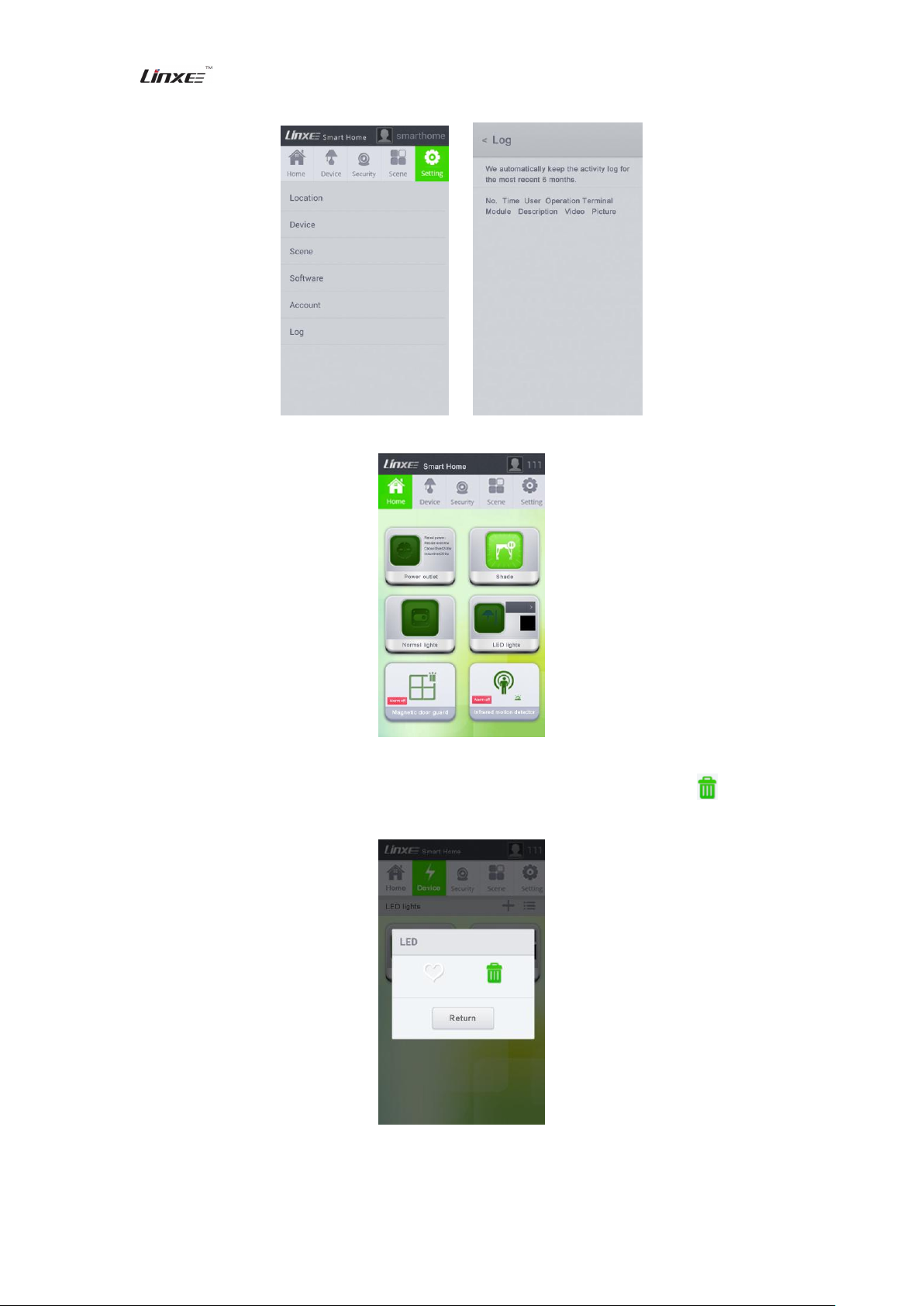
6. The main interface for multiple devices is shown in the following picture:
7. Delete LED bulb and directly disconnect the power of smart LED bulb. After about 30 minutes,
the device logo of control interface turns gray. Long press graying logo and click to delete
smart LED bulb.
The final interpretation right of this operating manual shall be reserved by Linxee (Beijing) Technology Ltd.
15
Page 16
Smart Wireless Gateway
Smart Management, Home Control Center www.linxee.cn
3.2 Web interface of router functions
This product can serve as a home router. To ensure that you can use this product better, we
provide Web configuration page for LINXEE smart wireless gateway HA200+, and you can
customize other functions of the router and set a unique and special product.
3.2.1 Enter Web configuration page
1. The default IP address of the router is “192.168.7.1”.
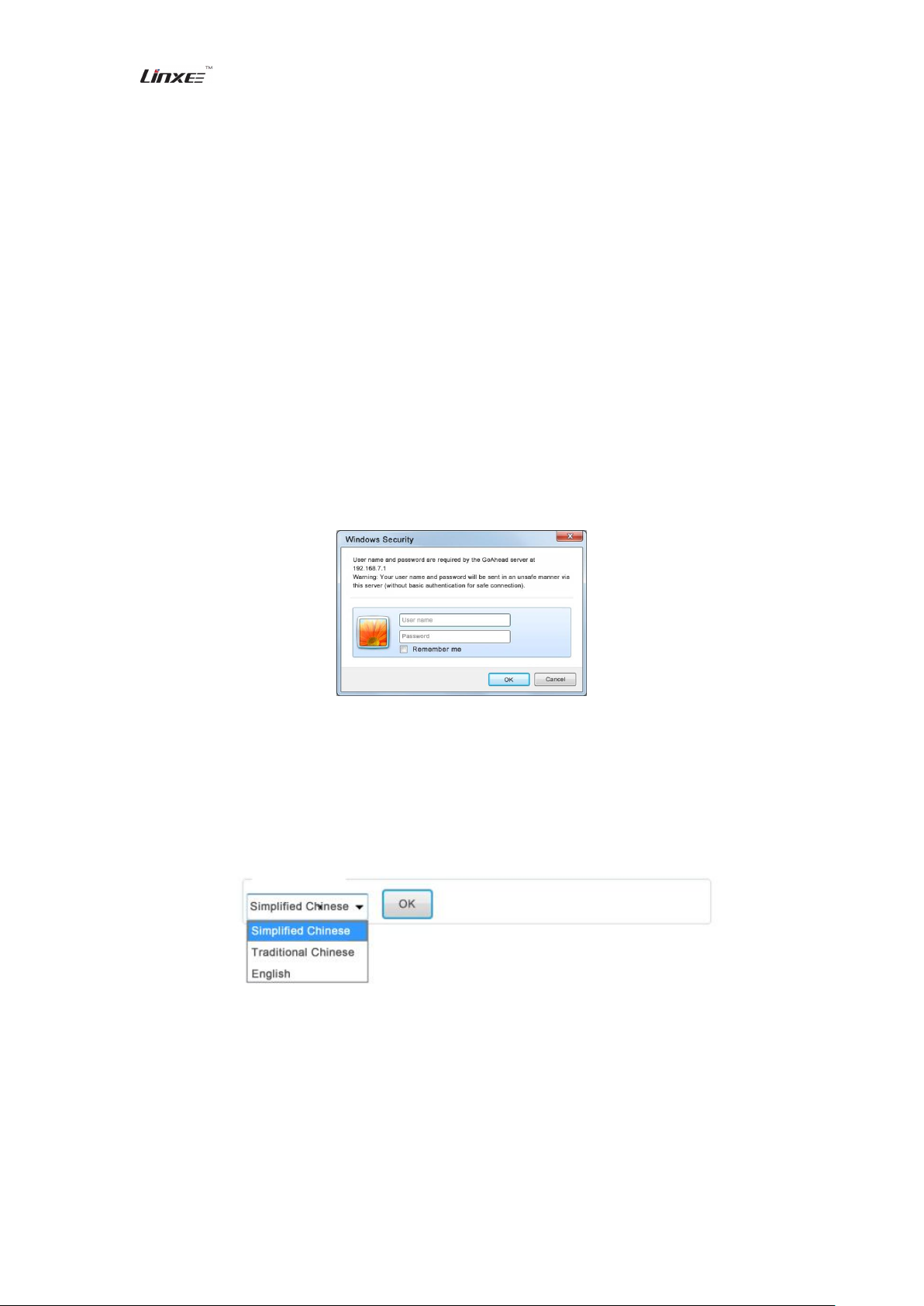
2. Enter the default IP address “192.168.7.1” in the browser and then press Enter for confirmation.
3. Fill in corresponding information in the popping frame for user name and password. The system
login account is “admin”, and the default password is “password”. Enter the correct user name and
password to enter Web configuration page.
Note: You can modify the login account and password after logging in Web configuration
page.
3.2.2 Description of Web configuration page
1. Main interface
After entering Web configuration page, the user can directly select the page language. Three
languages are provided for the product: simplified Chinese, traditional Chinese and English.
2. Network setting
1) WAN
You can select the proper online mode according to the operating environment and set the
parameters for different online modes. Smart wireless gateway HA200+ provides three common
online modes for WAN: dynamic, static and PPPoE. The default online mode of the product is
dynamic. You can also adjust the online mode according to the actual operating environment.
2) LAN
You can set wireless LAN parameters of the router, including modifying default gateway and
16
The final interpretation right of this operating manual shall be reserved by Linxee (Beijing) Technology Ltd.
Page 17
Smart Wireless Gateway
Smart Management, Home Control Center www.linxee.cn
modifying the initial IP address obtained from WiFi terminal device.
Note: Default IP address: 192.168.7.1
Subnet mask: 255.255.255.0
3) Client list
In this client list, you can review all WiFi clients that are connected to smart wireless gateway
HA200+.
3. Wireless parameters
1) Network name
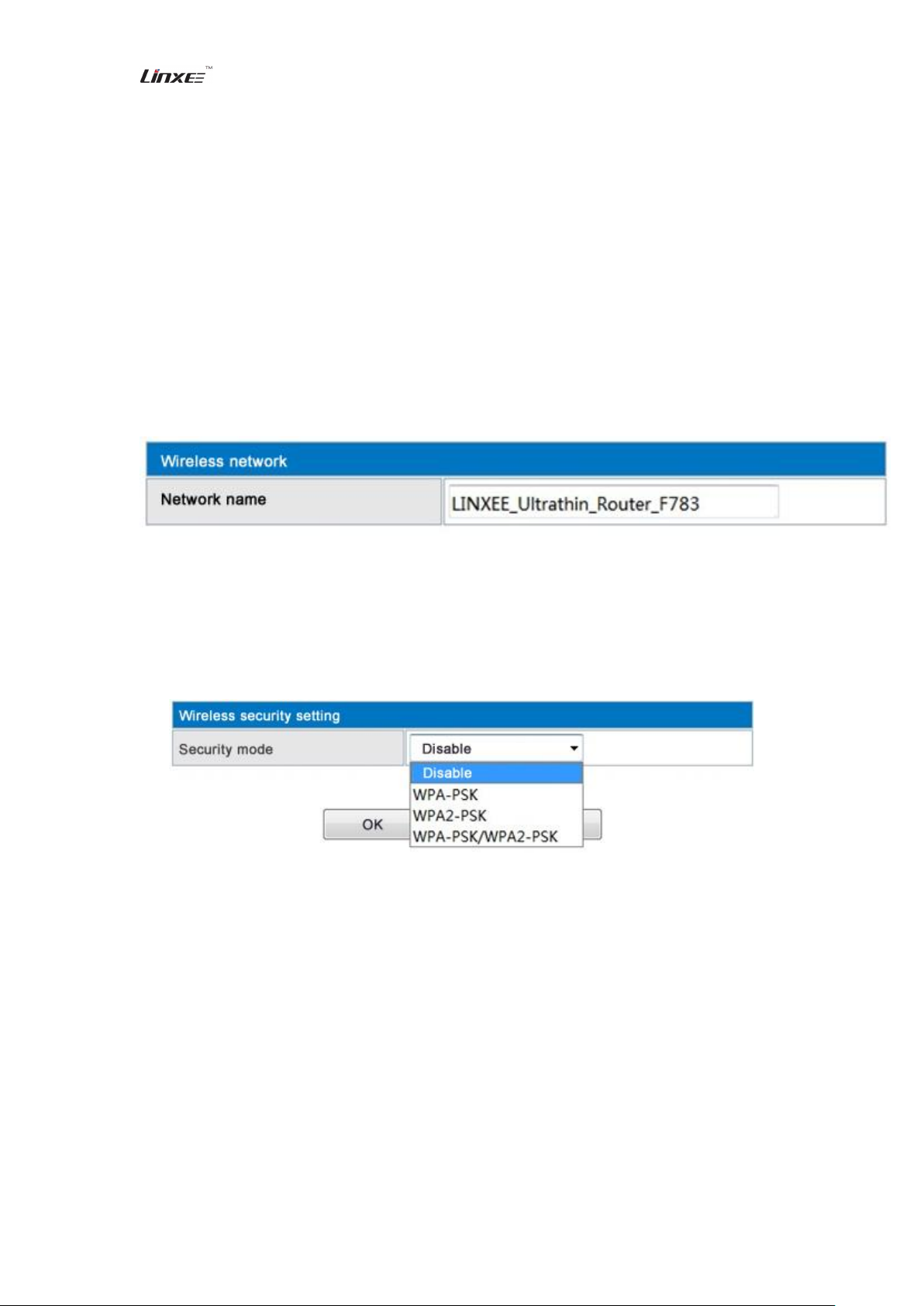
You can set the network name for wireless router.
The default product name is “LINXEE_Ultrathin_Router_XXXX” (subject to the practical
situation).
Note: (XXXX: the last four digits of WiFi MAC)”
2) Security setting
You can conduct security encryption setting by “Security Setting” so as to prevent any
unauthorized access. Four common security encryption modes are provided for the product:
forbidden (without encryption key), WPA-PSK, WPA2-PSK and WPA-PSK/WPA2-PSK. Please
select the proper encryption mode according to the actual requirement. The product does not have
default encryption key.
4. System administration
1) Administration
You can set administrator login account and password as well as system time. The system
administrator login account is “admin”, and the default password is “password”.
2) Firmware upgrade
You can renew router firmware and obtain new functions through firmware upgrade. The
router will automatically start after firmware is upgraded successfully. The upgrading process will
last about several minutes, so please wait for it patiently.
Warning: During upgrade, please do not disconnect wireless network or close router power. If
wrong firmware is selected for upgrade, it will result in a failure to use the router normally.
3) Setting administration
You can export or import the system setting through this function. You can also recover the
system default setting.
The final interpretation right of this operating manual shall be reserved by Linxee (Beijing) Technology Ltd.
17
Page 18

Smart Wireless Gateway
Smart Management, Home Control Center www.linxee.cn
4) State
You can review the information about router’s WAN and LAN networking.
IV. Operation instructions
1. After smart wireless gateway HA200+ is connected according to “Installation Method”, smart
device with Android 3.0 or above can be used to install the smart home control center software to
control the product. Please refer to relevant software specification or help documents.
2. Add other peripheral smart devices. You can add other devices based on the example of adding
LED bulb.
3. Please understand that there might be some inconsistencies with the operating manual during
operation. It might be caused by subsequent update and improvement.
4. This product can subsequently support IOS series products. You can obtain the relevant
information from the company website: www.linxee.cn.
5. This product can control other products. For specific operations, please refer to the company
website or review the specific product manual.
V. Warm prompt
5.1 Precautions
1. Please install and use the manual correctly, confirm whether its operating environment complies
with the conditions in the specification. Do not disassemble the device at will so as to avoid any
danger.
2. Before product installation, please disconnect the power supply so as to prevent any electric
shock.
3. Users can use shielding network cable or non-shielding network cable.
4. After being electrified, the device should not be operated for long time in a poor environment.
5. This product is only used indoor. Waterproofing should be conducted when it is used outdoor.
6. Please do not squeeze the shell during installation so as to avoid any shell damage or finger
scratch.
7. The product should not be installed in a place where there is heat source, hot vapor or corrosive
gas so as to ensure that the product lifetime is not affected.
8. The product uses the high voltage (220V). It should not be operated in a circumstance that the
power is disconnected frequently so as to ensure that its lifetime is not affected.
9. If there is any abnormal product operation or damage, please do not disassemble it by yourself.
You can contact customer service center or the nearest agency, and then the professionals will
serve you.
10. Electronic manual and control software can be downloaded from the company website:
www.linxee.cn.
The final interpretation right of this operating manual shall be reserved by Linxee (Beijing) Technology Ltd.
18
Page 19

Smart Wireless Gateway
Smart Management, Home Control Center www.linxee.cn
5.2 Common troubleshooting
5.2.1 What to do if the device cannot be accessed with network after being electrified?
1. Firstly, check whether the power supply for the device is normal. If it does not work, please
check whether the LAN of HA200+ is normal.
2. If the network cannot operate normally, please press reset button to restore factory setting and
repeat the previous operation.
3. If it does not work, please contact customer service center according to the information in
warranty certificate.
5.2.2 What to do if the device cannot be controlled after being accessed with network?
1. Firstly, check whether the gateway is operated normally.
2. Close control software, check whether it is connected with network, restart control software and
access the network again.
3. You can clear the software data through administrator account and add the device again.
4. Check whether there is any strong electromagnetic interference around the device. If so, please
remove the strong electromagnetic field or relevant jamming devices.
5. The failure of routing nodes results in a failure of data uploading. Please electrify the routing
nodes or recover them.
FCC Warning
This device and its antenna must not be located or operating in conjunction with
any other antenna and transmitter.
This device complies with part 15 of the FCC rules. Operation is subject to the
following two conditions: (1) this device may not cause harmful interference, and (2)
this device must accept any interference received, including interference that may
cause undesired operation.
NOTE: The manufacturer is not responsible for any radio or TV interference caused
by unauthorized modifications to this equipment. Such modifications could void the
user’s authority to operate the equipment.
NOTE: This equipment has been tested and found to comply with the limits for a
Class B digital device, pursuant to part 15 of the FCC Rules. These limits are
designed to provide reasonable protection against harmful interference in a
residential installation. This equipment generates uses and can radiate radio
frequency energy and, if not installed and used in accordance with the instructions,
may cause harmful interference to radio communications. However, there is no
guarantee that interference will not occur in a particular installation. If this
equipment does cause harmful interference to radio or television reception, which
can be determined by turning the equipment off and on, the user is encouraged to
19
The final interpretation right of this operating manual shall be reserved by Linxee (Beijing) Technology Ltd.
Page 20
Smart Wireless Gateway
Part name
Poisonous and harmful substances or elements
Pb
Hg
Cd
CrVI
PBB
PBDE
PCB assembly
× ○ ○ ○ ○
○
Storage cell
× ○ ○ ○ ○
○
Shell and
accessories
× ○ ○ ○ ○
○
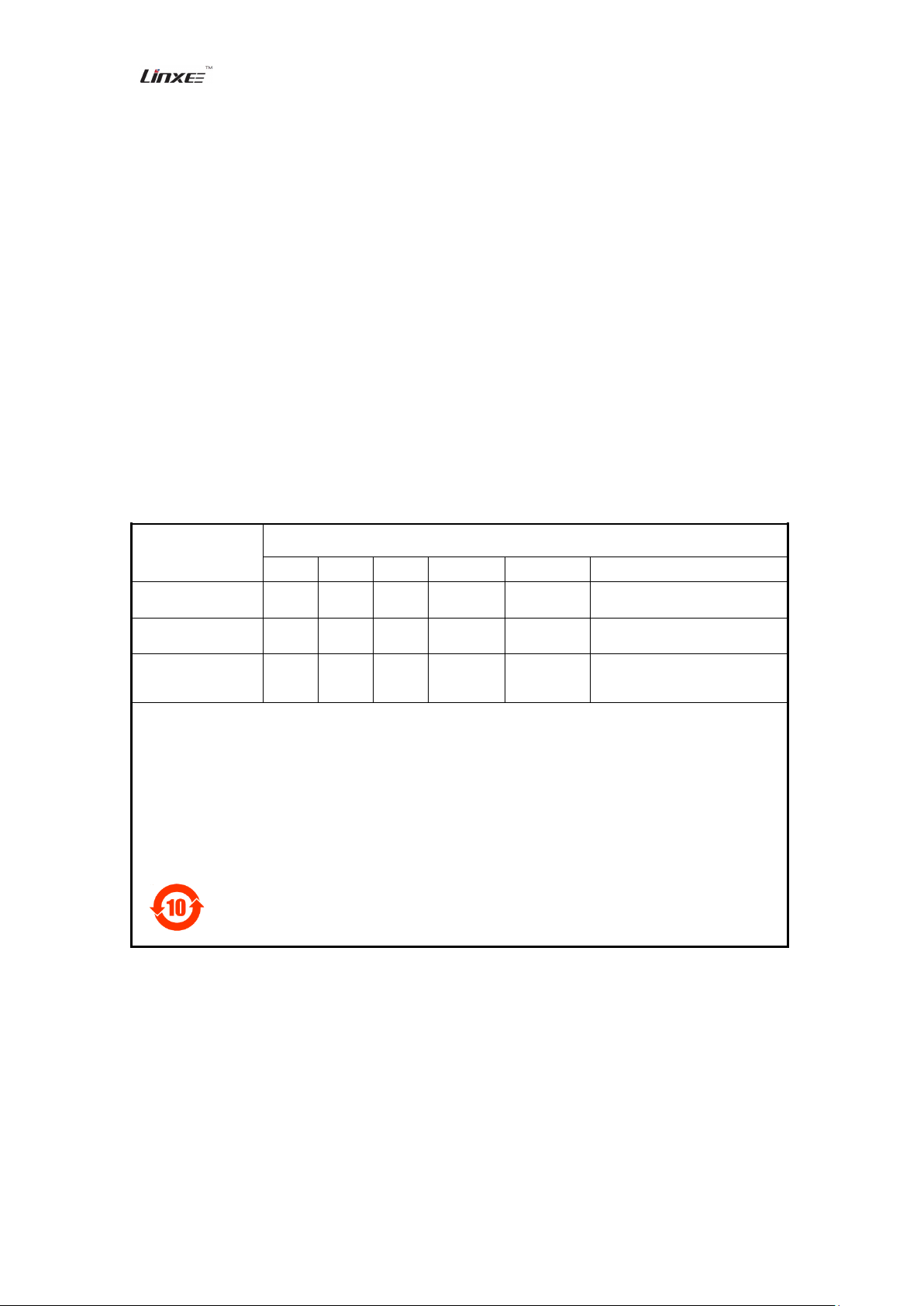
○: indicates that the content of the poisonous and harmful substance in all homogeneous materials
of the part is under the limit set forth in SJ/T11363-2006.
×: indicates that the content of the poisonous and harmful substance in a certain homogeneous
material of the part exceeds the limit set forth in SJ/T11363-2006.
All the parts marked with “×” in the table comply with the regulations of EU ROHS.
PCB assembly*: Include PCB and its parts as well as electronic parts and components.
Due to different product models, your product might not include all of the above parts.
The electronic information products sold in the People’s Republic of China must be
marked with this logo. The figure in the logo represents the environmental service life
of the product in normal use state.
Smart Management, Home Control Center www.linxee.cn
try to correct the interference by one or more of the following measures:
- Reorient or relocate the receiving antenna.
- Increase the separation between the equipment and receiver.
-Connect the equipment into an outlet on a circuit different from that to which the
receiver is connected.
-Consult the dealer or an experienced radio/TV technician for help
RF exposure information: This equipment complies with FCC radiation exposure
limits set forth for an uncontrolled environment。This equipment should be installed
and operated with minimum distance 20cm between the radiator & your body。
Changes or modifications not expressly approved by the party responsible for
compliance could void the user’s authority to operate the equipment.
Schedule
Names and contents of poisonous and harmful substances or elements in the product
The final interpretation right of this operating manual shall be reserved by Linxee (Beijing) Technology Ltd.
20
 Loading...