

Page 1

Linx 10
Page 2

1
Thank You.
Thank You for choosing the
Linx 10 as your new tablet.
This quick-start manual will help
you to get to know your new
product and explain how to get
the most out of all of its great
features.
Page 3

Contents
2
Important safety information 3
Product Overview 4
Instructions for use 6
Check the package contents 6
Charging your tablet 6
Rechargeable Lithium-Ion Battery 6
Using your Tablet 6
Turning your tablet On 6
Putting your tablet into Sleep mode 6
Turning your tablet Off 6
Emergency reboot 7
Increasing and decreasing the volume 7
Using headphones with your tablet 7
Installing a Micro SD card 7
Using the touch screen 7
Unlocking the screen 7
Finding the menus 7
Opening and closing apps 7
Switching apps 7
See all of your open apps 7
Go to the Start Screen 8
Drag an item 8
Zooming in or out 8
Rotating an item 8
Using Windows® 8.1 8
Technical information 9
General information 11
Guarantee 11
Disclaimer 11
Trademarks 11
Recycling 11
Disposal of Waste Electrical & Electronic
Equipment (WEEE)
11
Digital Rights Management 12
Rechargeable Lithium-Ion Battery 12
Battery and charger safety 12
Small children 12
Medical devices 12
Implanted medical devices 13
Hearing 13
Page 4

Important safety information
Your tablet should be treated with care. The information below has been provided in the
interest of safety and will help you to enjoy this product and the benefits it brings for many
years.
• Keep the product and all of its part out of the
reach of children.
• This product is not intended for use by persons
(including children) with reduced physical, sensory
or mental capabilities, or lack of experience
and knowledge, unless they have been given
supervision or instruction concerning the use the
use of the appliance by a person responsible for
their safety.
• Keep it dry. Avoid exposure to precipitation,
humidity and liquids which could all affect the
product circuitry.
• DO NOT leave it in high temperatures as
electronic devices and plastic parts may warp in
heat.
• DO NOT leave it in low temperatures as moisture
can form inside the product, which may damage
the circuit board.
• DO NOT block or cover slots, holes or openings
on the product by placing on soft furnishings such
as carpets, rugs or beds as these are provided
for functionality and/or ventilation to ensure safe
operation of the product.
• DO NOT expose the tablet to direct sunlight.
• Disconnect your tablet from the mains power
supply during thunderstorms.
• Avoid any heavy impacts caused by collisions
or dropping your tablet as this may damage the
product.
• Only use the power supply that came with the
product. Using an authorised power supply will
invalidate your gurantee and may irrecoverably
damage the product.
• Where the mains power plug or an appliance
coupler is used as the disconnect device, the
disconnect device shall remain readily operable.
• DO NOT store in dusty or dirty areas.
• DO NOT use harsh chemicals, cleaning solvents
or detergents to clean the product. Wipe with a dry
soft cloth or tissue paper to clean.
• DO NOT attempt to open the product. This
product does not contain any user serviceable
parts. Unauthorised handling of the device may
damage it and will void your warranty.
• Keep the device away from magnets or magnetic
fields.
• Only use the power supply that came with
the product. Using an unauthorised power
supply could invalidate your guarantee and may
irrecoverably damage the product.
• NEVER use the tablet near emergency/intensive
care medical equipment, if you have a pacemaker
fitted or during an electrical storm.
• The underneath and sides of the product may
become warm after a long period of use. This is
normal.
3
Page 5
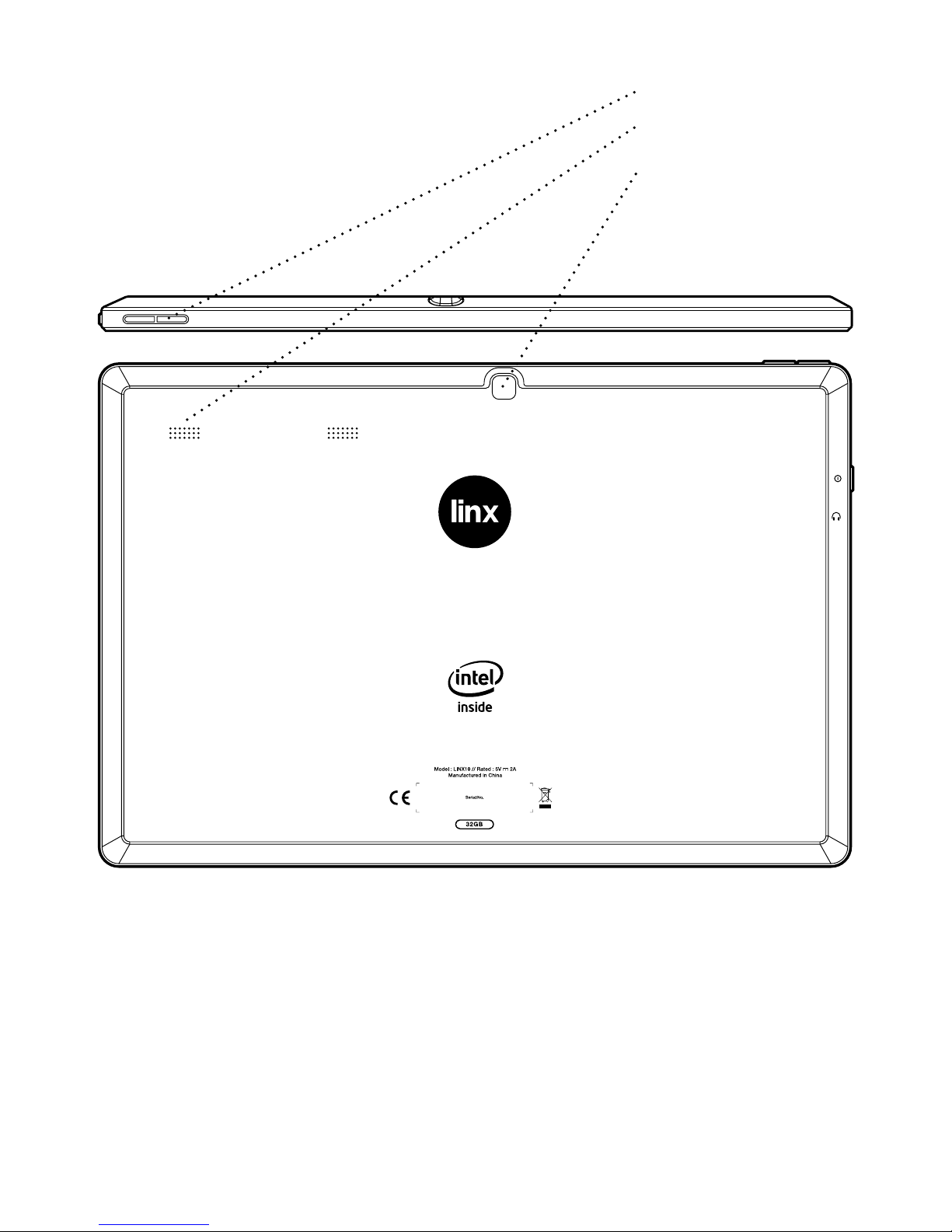
Product Overview
4
2.0 Megapixel (MP)
CCD Camera
Volume up/down
Loudspeakers
Page 6
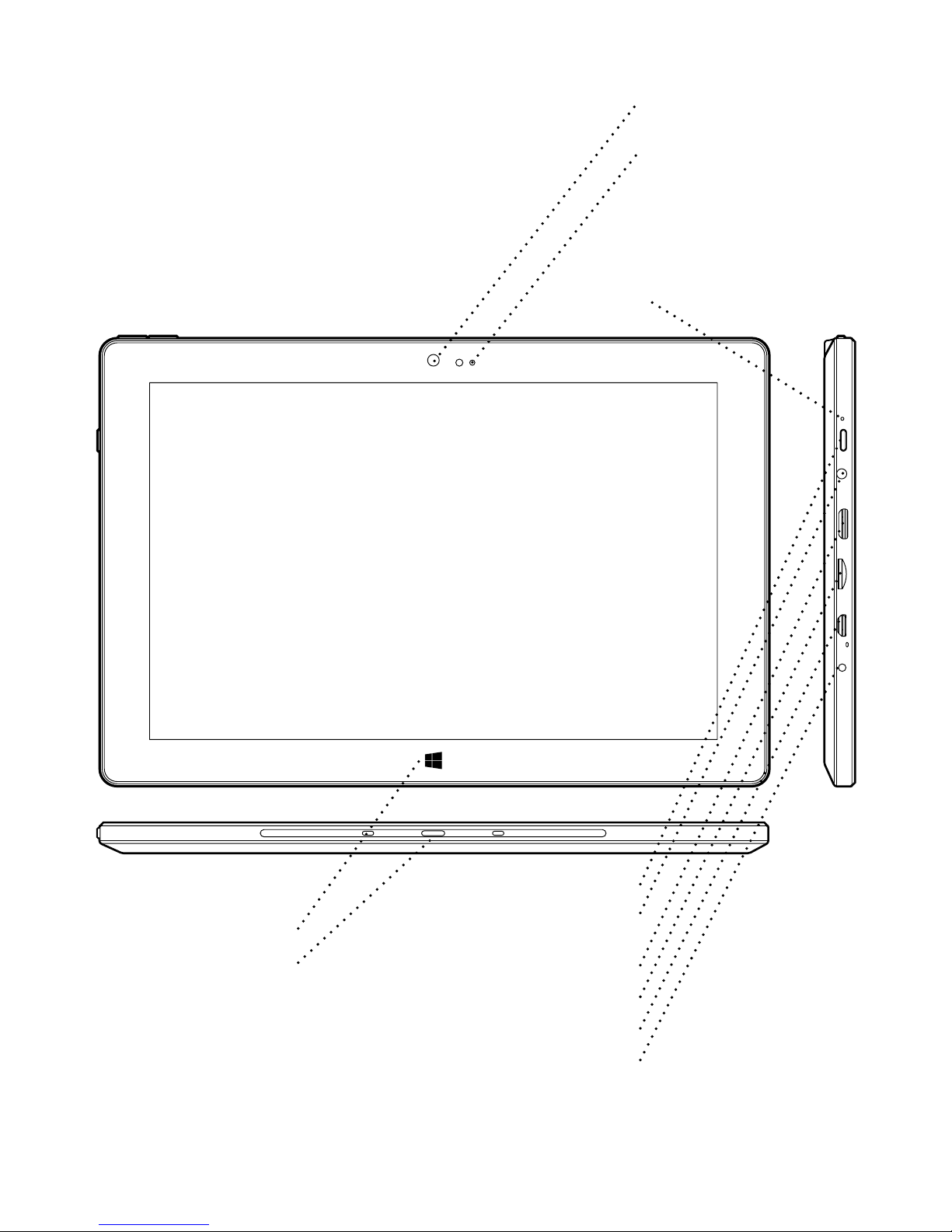
5
Product Overview
2.0 Megapixel (MP)
CCD Camera
CCD Camera indicator LED
Linx Origami Keyboard Case
Dock and connector socket
(sold separately)
Power/Sleep button
3.5mm stereo headphone
socket
Mini HDMI output
Micro SD card slot
Micro-B Type USB connector
DC power socket
Windows® button
Power indicator LED
Page 7

Instructions for use
Check the package contents
The package contains:
- 1 x Linx 10 Tablet
- 1 x Mains Adapter
- 1 x Instruction Manual
Charging your tablet
Your battery has been partially charged at the
factory, but you may need to recharge it before you
can switch the tablet on for the first time.
Note:
It is recommended to recharge the battrey of
the tablet fully before turning on for the first time.
Important: Use only the provided or approved
chargers with this tablet.
1. Plug the charger into a wall outlet
2. Connect the charger to your tablet via the
Micro-B
Type USB connector port. The Power indicator LED
will light up when charging.
When the battery is full, disconnect the charger from
the tablet, then from the wall outlet.
Note: You don’t need to charge the tablet for
specific length of time, and you can use the tablet
while it is chraging.
Note: Your tablet does not support USB charging.
Note: If teh battery is completely discharged, it may
take several minutes before the tablet can be used.
Rechargeable Lithium-Ion battery
Your tablet has an internal Lithium-ion polymer
battery which should last the lifetime of the product.
If you suspect that the battery is dead, try charging
it several times and follow the steps for charging
your tablet.
• Do NOT attempt to change the battery yourself.
• CAUTION: Danger of explosion if batteries are
incorrectly replaced.
• NEVER use or charge the battery if it appears to
be leaking, discoloured, deformed or in any way
abnormal.
• NEVER expose the battery to any liquid.
• NEVER expose the battery to excessive heat
such as direct sunlight or fire.
• NEVER throw batteries in a fire or attempt to
open the outer casing.
• Batteries are harmful if swallowed, so keep
away from and out of reach of infants and young
children.
Using your tablet
Turning your tablet On
To turn your tablet on, press and hold the Power/
Sleep button until the power indicator LED turns on
and the tablet will begin to power up.
Putting your tablet into Sleep mode
To put your tablet into Sleep mode, press the Power/
Sleep button once. The screen should switch off and
your tablet will be in Sleep mode.
To wake the tablet from Sleep mode, press the
Power/Sleep button once. The screen should wake
up and display the lock-screen.
Turning your tablet Off
To turn your tablet off, press and hold the Power/
Sleep button until you are promted with the ‘Slide
to shut down your PC’ message. Slide and drag
your finger down the screen to begin the shut down
process and turn off your tablet.
6
Page 8

Emergency reboot
To reboot your tablet if the screen becomes
unresponsive, press and hold the Power/Sleep
button for 10 seconds until the screen turns off.
Note:
Leave the tablet for 15 seconds before trying
to reboot the tablet.
Important: Avoid powering the tablet down by
using the emergency reboot where possible. Always
try to shut down your tablet using the correct shut
down method to avoid loss or damage to data.
Increasing and decreasing the volume
To increase the volume level on your device, press
the Volume up button. Repeatedly press the Volume
up button until the desired volume is reached.
To decrease the volume level on your device, press
the Volume down button. Repeatedly press the
Volume down button until the desired volume is
reached.
Using headphones with your tablet
You can connect headphones with a 3.5mm plug
(not included) to your tablet. The headphone socket
can be found on the top of the device highlighted
with
. When you have headphones connected the
tablet speaker is switched off and all sound is via the
headphones.
Installing a Micro SD card
Your tablet supports Micro SD cards (not included)
for additional storage of data and files.
Important: Use only compatible memory cards
approved for use with this device. Incompatible
cards may damage the card and the device and may
cause corrupt data stored on the card.
To install a Micro SD memory card:
1. Locate the Micro SD card slot on the tablet.
2. Insert the Micro SD card into the slot with the gold
contacts facing down, carefully slide the memory
card into the slot, pushing gently until it clicks into
place.
Using the touch screen
Unlocking the screen
To unlock your tablet, press the Power/Sleep button
once to wake from sleep mode. When the lockscreen is displayed, drag the screen up to unlock.
Finding the menus
Swipe in from the right screen to open the menus.
From here you can search your tablet, the web,
share files, or change your settings.
Opening and closing apps
To open an app, tap the app tile.
To close an app, slide your finger down form the top
of the screen to the bottom of the screen.
Switching apps
To switch between apps, swipe in from the left of
the screen to switch to your most recently used app.
Keep swiping to cycle through open apps until you
find the app that you want.
See all of your open apps
Slide your finger in from the left of the screen slightly
to grab an open app, then, wihtout lifting your finger,
slide it back to teh left of the screen. To switch to an
app, simply tap an app.
7
Page 9

Go to the Start Screen
To get back to the Window® Start Screen, press the
Windows® button once.
Drag an item
To drag and item, press and hold an item, and slide
your finger across the screen to drag the item.
Zooming in or out
To zoom in or out of an app or photo, place 2 fingers
on the screen and pinch together to zoom in, and
slide apart to zoom out of the item.
Note:
You may not be able to zoom in or out in all
apps.
Important: Avoid scratching the touch screen.
Never use an actual pen, pencil, or other sharp
object on the touch screen.
Rotating an item
Place 2 or more fingers on the item, when rotating
your fingers the item will rotate with them.
Note:
You may not be able to rotate all items.
Using Windows® 8.1
For a full guide to using Windows® 8.1 please visit:
http://downloads.linx-tablets.com/manuals
8
Page 10
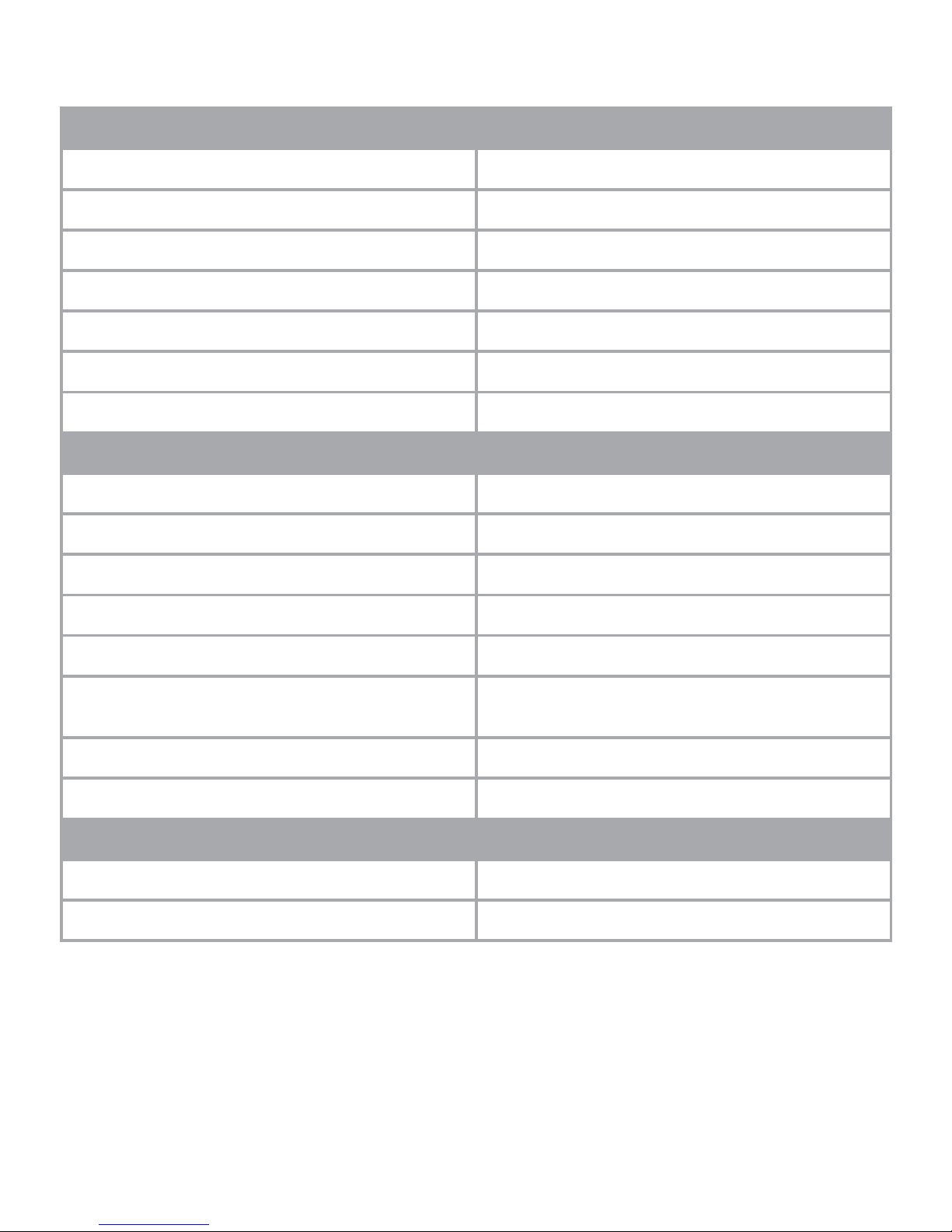
Technical information
Physical Properties
Dimensions (HWD) 257.85 x 172.41 x 11.40mm
Screen Size 10.1”, 16:10
Screen Resolution 1280 x 800 IPS
Touch Module 10-Point Capacitive Touch Panel
Battery Type Lithium-ion polymer battery
Battery Capacity 3.7V / 7,900mAh
Battery Life 6 - 8 Hours
System Hardware Configuration
CPU Type Quad-Core Intel® Atom™ Z3735F
Clock Speed 1.33GHz - 1.83GHz
GPU Intel® HD Graphics (Generation 7)
RAM 2GB DDR3L
ROM Flash 32GB
Camera(s) 2.0 Megapixel (MP) CCD (Front)
2.0 Megapixel (MP) CCD (Rear)
Speaker 2 x Built-in 8Ω / 0.8W Speakers
G-Sensor Gravity acceleration sensor
Network Connections
Wi-Fi Modile Wi-FI 802.11 b/g/n
Bluetooth Version Bluetooth 4.0
9
Page 11
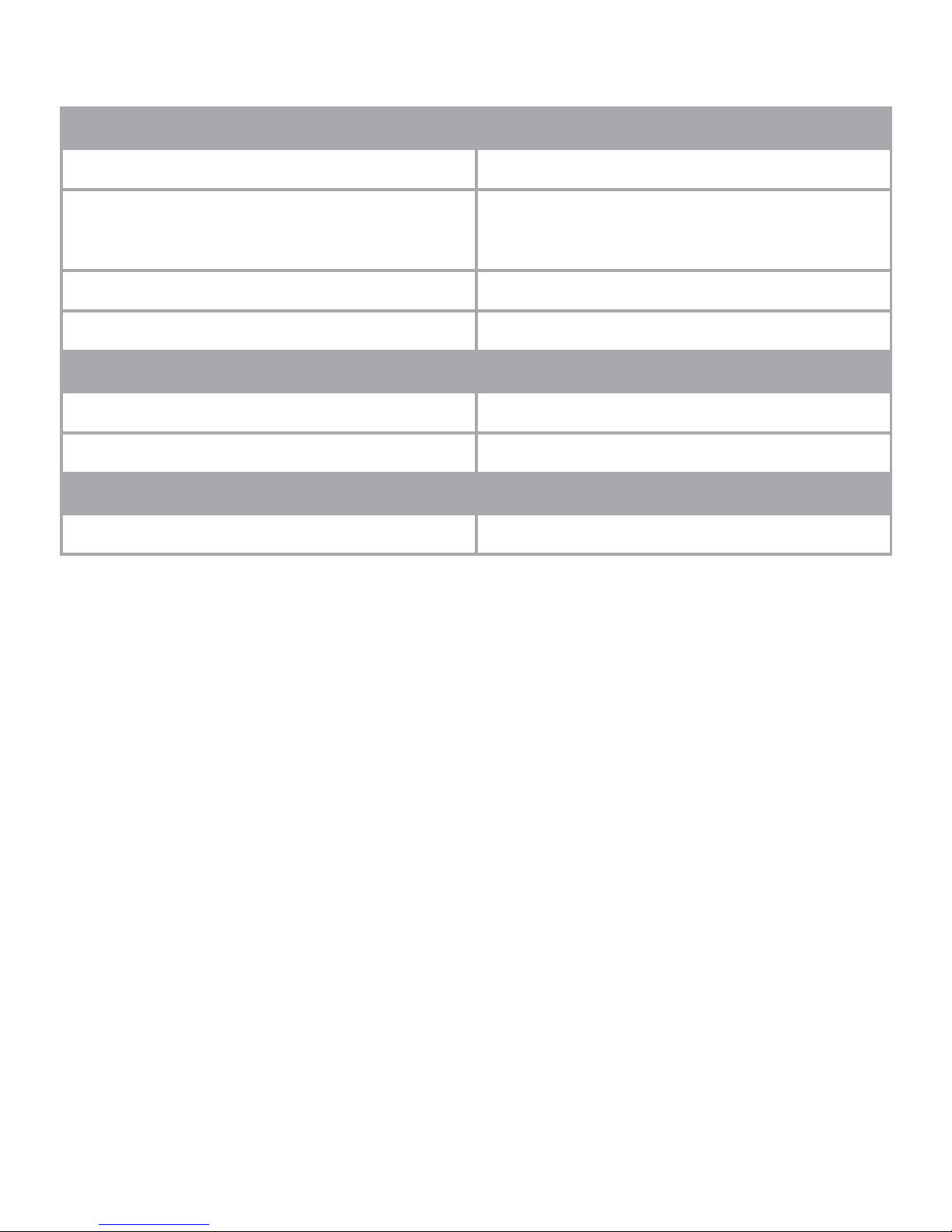
Note: Specifications and external appearance are subject to change without notice.
Technical information
Interface Configuration
Expandable Memory Slot Supports Micro SD
Headphone Jack 3.5mm standard headphone port
HDMI Interface Mini-HDMI 1.4a
Keyboard Support Pogo pin connectivity
Mouse Support USB, Bluetooth Expuntable Wired / Wirless
Required Accessories
Power Adapter USB (5V / 2A)
USB Patch Cord HOST
Software Configuration
Operating System Windows® 8.1
10
Page 12
General information
Guarantee
Exertis (UK) Limited warrants to the end user that
this product will be free from defects in materials
and workmanship in the course of normal use
for a period of 12 months (1 year) from the date
of purchase. This guarantee covers breakdowns
due to manufacturing or design faults. If a genuine
manufacture fault is found Exertis (UK) Limited will
arrange the collection of the faulty device and issue
a ‘like for like’ replacement.
The guarantee is subject to the following provisions:
• The guarantee does not cover accidental damage,
however caused, wear and tear, or negligence.
• It must be solely used for domestic purposes.
• The guarantee will be rendered invalid if the
product is re-sold or is damaged through any
adjustment, modification or repair not authorised
by us.
• Specifications are subject to change without
notice.
• The manufacturer disclaims any liability for the
incidental or consequential damages.
• The guarantee is in addition to and does not
diminish your statutory or legal right.
Should you have a problem with your unit please
contact your supplier or contact Customer Support
at +44 (0)1282 858 893.
Guarantor:
Exertis (UK) Limited,
Shorton Brook Way,
Altham Business Park,
Altham,
Accrington,
Lancashire.
BB5 5YJ
Disclaimer
Exertis (UK) Limited makes no representation
or warranties with respect to the content of this
document and specifically disclaims any implied
warranties of merchantability or fitness for any
particular purpose. Further, Exertis (UK) Limited
reserves the right to revise this, or any other,
publication and to make changes to the contents
from time to time without the obligation of Exertis
(UK) Limited to notify any person or organisation of
such revision or changes.
Trademarks
Linx, the Linx logo, Exertis, and the Exertis logo
are trademarks or registered trademarks of Exertis
(UK) Limited.
Recycling
Always return your used electronic products,
batteries, and packaging materails to dedicated
collection points. This way you help to prevent
uncontrolled waste disposal and promote the
recycling of materials. All materials of the device can
be recovered as material and energy.
Disposal of Waste Electrical & Electronic
Equipment (WEEE)
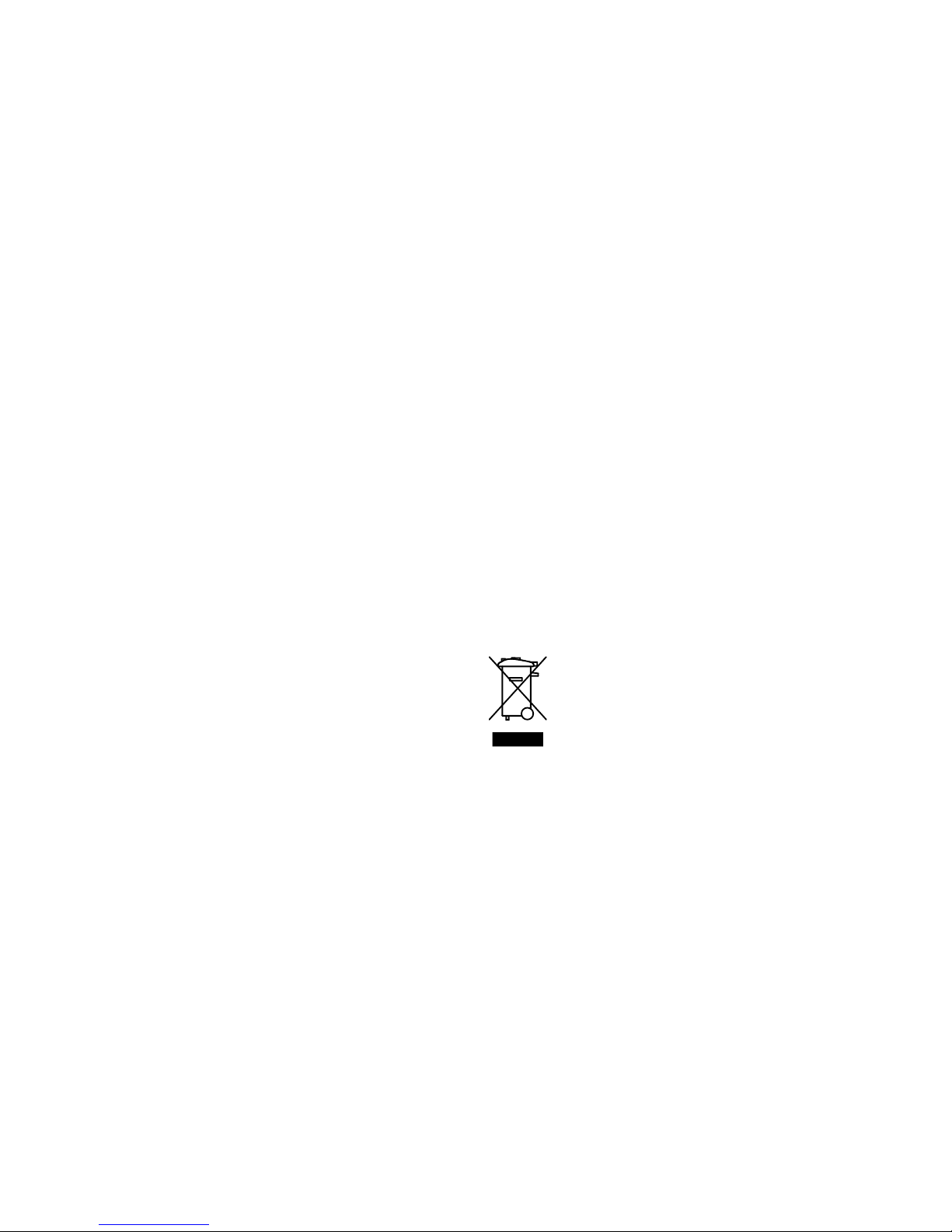
This symbol on the product or on its packaging
indicates that this product should not be treated
as household waste. Instead it should be handed
over to a suitable collection point for the recycling
of electrical and electronic equipment. By ensuring
this product is disposed of correctly, you will
help prevent potential negative consequences
for the environment and human health, which
could otherwise be caused by inappropriate
waste handling of this product. The recycling of
materials will help to conserve natural resources.
For more information about the recycling of this
product, please contact your local council office,
your household waste disposal service or the shop
11
Page 13

where you purchased the product.
Digital Rights Management
When using this device, obey all laws and respect
local customs, privacy and legitimate rights of others,
including copyrights. Copyright protection may
prevent you from copying, modifying, or transferring
photos, music, and other content.
Rechargeable Lithium-Ion battery
This device has an internal, non-removable,
rechargeable Lithium-ion polymer battery. Do not
attempt to open the back cover or remove the
battery, as you may damage the device. To replace
the batter, take the device to the nearest authorised
service facility.
Only use the power supply that came with the
product. Using an unauthorised power supply could
invalidate your guarantee and may irrecoverably
damage the product.
The battery can be charged and discharged
hundreds of times, but it will eventually wear out.
When battery life is noticeably shorter than normal,
to replace the battery,
take the device to the nearest
authorised service facility.
Battery and charger safety
To unplug a charger or an accessory, hold and pull
the plug, not the cord.
When your charger is not in use, unplug it. If left
unused, a fully charged battery will lose its charge
over time.
Always keep the battery between 59°F and 77°F
(15°C and 25°C) for optimal performance. Extreme
temperatures reduce the
capacity and lifetime of the battery. A device with a
hot or cold battery may not work temporarily.
Do not dispose of batteries in a fire as they may
explode. Obey local regulations. Recycle when
possible. Do not dispose as
household garbage.
Do not dismantle, cut, crush, bend, puncture, or
otherwise damage the battery in any way. If a battery
leaks, do not let liquid
touch skin or eyes. If this happens, immediately flush
the affected areas with water, or seek medical help.
Do not modify, attempt
to insert foreign objects into the battery, or immerse
or expose it to water or other liquids. Batteries may
explode if damaged.
Use the battery and charger for their intended
purposes only. Improper use, or use of unapproved
or incompatible batteries or
chargers may present a risk of fire, explosion, or
other hazard, and may invalidate any approval or
warranty. If you believe the
battery or charger is damaged, take it to a service
center before continuing to use it. Never use a
damaged battery or charger.
Do not charge your device during a lightning storm.
Only use the charger indoors.
Small children
Your device and its accessories are not toys. They
may contain small parts. Keep them out of the reach
of small children.
Medical devices
Operation of radio transmitting equipment, including
wireless phones, may interfere with inadequately
shielded medical devices’ function. Consult a
physician or the medical device’s manufacturer to
determine if it is adequately shielded from external
radio energy.
12
Page 14

13
Implanted medical devices
To avoid potential interference, manufacturers of
implanted medical devices recommend a minimum
separation of 6 inches (15.3 centimeters) between a
wireless device and the medical device. Persons who
have such devices should:
• Always keep the wireless device more than 6
inches (15.3 centimeters) from the medical device.
• Turn the wireless device off if there is any reason to
suspect that interference is taking place.
• Follow the manufacturer directions for the
implanted medical device.
If you have any questions about using your wireless
device with an implanted medical device, consult
your health care provider.
Hearing
Warning: When you use a headset or
earphones, your ability to hear outside sounds may
be affected. Do not use the headset where it can
endanger your safety.
To prevent possible hearing damage, do not listen
to audi oat high volume levels for extended periods
of time.
September 2014/Issue No. 1
Page 15

 Loading...