

Page 1
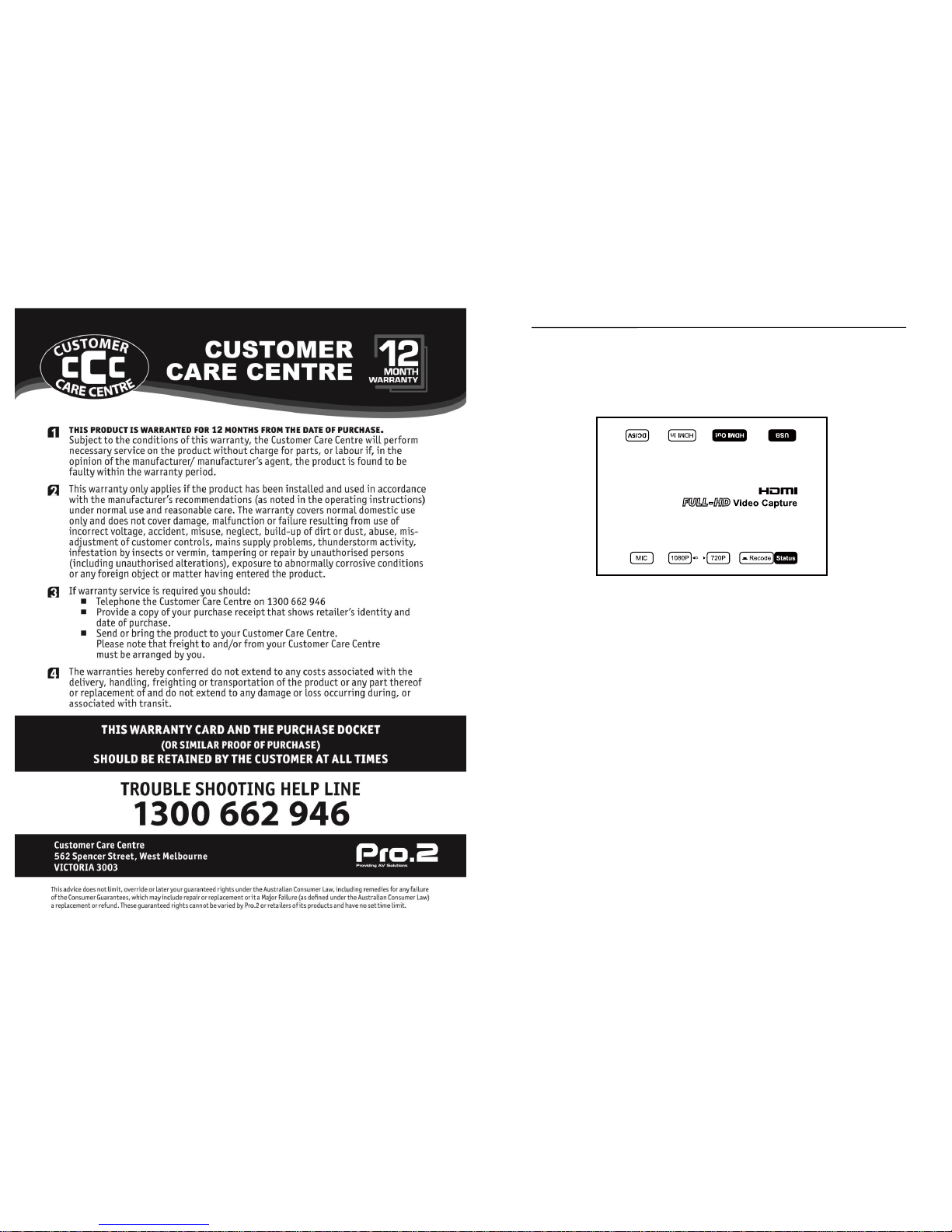
Operating Instructions
Full HD 1080P Video Game Capture H.264 encoder
Model: HDVC01
Operating Instructions
Dear Customer
Thank you for purchasing this product. For optimum performance and safety,
please read these instructions carefully before connecting, operating or adjusting
this product. Please keep this manual for future reference.
FEATURES
Support HDMI signal source of PlayStation 4, Xbox One and Xbox 360 game
play in brilliant 1080p@60HZ with advanced H.264 encoding.
Recording with one-click, easy to use. no need any set up just click
“RECODE” button to record your game play and re-click to stop recording.
Support NTFS/FAT32 format.
Support USB 2.0 Host.
Automatically split the video up to 2GB per file.
Support record video format of MPEG-4 and audio format of RCA L/R 3.5mm
microphone input.
Support downscaling to 720P.
NOTICE
Our company reserves the right to make changes in the hardware, packaging and
any accompanying documentation without prior written notice.
1
Page 2
Operating Instructions
TABLE OF CONTENTS
Specifications
Package Contents
Panel Descriptions
Connecting and Operating
Maintenance
Product Service
SPECIFICATIONS
Operating Temperature Range
-5 to +35℃(+23 to +95℉)
Operating Humidity Range
5 to 90%RH (No Condensation)
Output Video Format
MPEG-4
encoder
H.264
Input resolution
720x480(60HZ);720x576(50HZ);1280X720P(50HZ/60HZ)
1920X1080i(50HZ/60HZ);
1920X1080P(24HZ/25HZ/30HZ/50HZ/60HZ)
Capture resolution
720x480(60HZ);720x576(50HZ);1280X720P(50HZ/60HZ)
1920X1080i(50HZ/60HZ);
1920X1080P(24HZ/25HZ/30HZ)
Support Audio Format
LPCM
Bandwidth
2.25Gbps
USB
2.0
Power consumption
3watts(Maximum)
Dimension (L×W×H)
102.2x70.1x27.1mm
Net Weight
220g(Pcs)
PACKING CONTENTS
1) Game capture
2) 5V/1A x1 PCS
3) Operating Instructions
2
Operating Instructions
PANEL DESCRIPTIONS
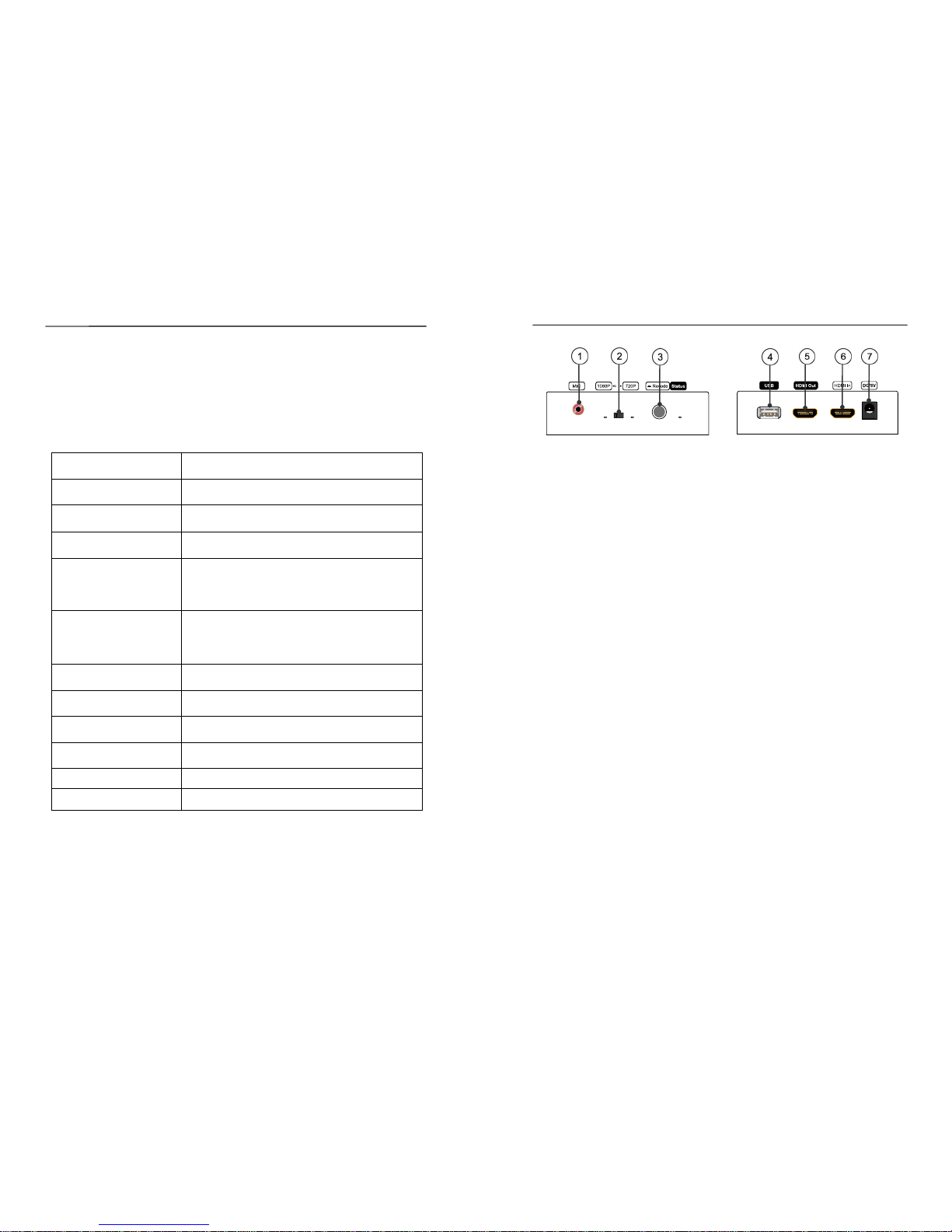
1. 3.5mm microphone input socket
2.1080P by pass or downscale to 720P (resolution lower than 720P, switch to
"720P" position, it is by pass mode)
3. “RECORD” button (click “RECORD” button to record your game play and re-click
to stop recording)
4. USB port 5. HDMI output
6. HDMI input 7. Power input
CONNECTING AND OPERATING
1) Connect the HDMI signal sources (Such as Industry HD Camera, PlayStation 4,
and Xbox 360 etc).
2) Connect the HDMI Output (Such as Computer, TV).
3) Connect the USB host (Such as HDD or USB flash).
4) Connect the microphone to the “Mic” hole.
5) Connect the DC 5V1A power supply.
6) Power on and click the “RECODE” button to start recording.
7) The LED status will flash when start recording.
8) Re-click the “RECODE” button to stop recording.
9) The LED status will stop flashing and keep lighting when finishing recording.
Attention: Insert/Extract cables gently.
MAINTENANCE
Clean this unit with a soft, dry cloth. Never use alcohol, paint thinner of benzine to
clean this unit.
PRODUCT SERVICE
1) Damage requiring service:
The unit should be serviced by qualified service personnel if:
(a) The DC power supply cord or AC adaptor has been damaged;
(b) Objects or liquids have gotten into the unit;
(c) The unit has been exposed to rain;
(d) The unit does not operate normally or exhibits a marked change in performance;
(e) The unit has been dropped or the cabinet damaged.
2) Servicing Personnel: Do not attempt to service the unit beyond that described
in these operating instructions. Refer all other servicing to authorized servicing
personnel.
3) Replacement parts: When parts need replacing ensure the servicer uses parts
specified by the manufacturer or parts that have the same characteristics as the
original parts. Unauthorized substitutes may result in fire, electric shock, or
other hazards.
3
 Loading...