

Page 1
“Unifying the World’s Communications”
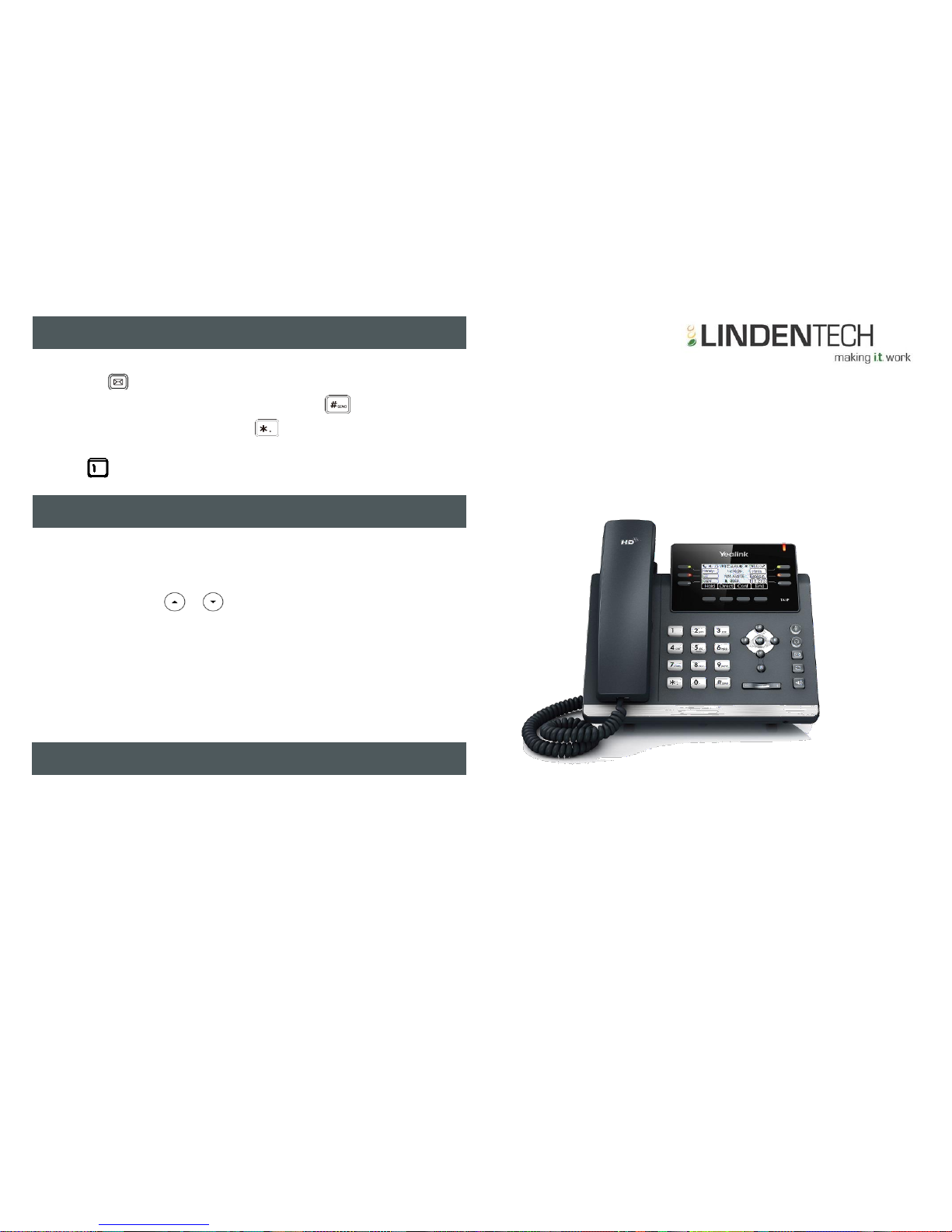
Yealink IP Phone
SIP-T41P Ultra-elegant IP Phone
Quick Reference User Guide
Firmware Release: 73.0
10 January 2014
HOW TO MANAGE CALL HISTORY
To access and manage Call History
• Press the History soft key to view Placed, Missed and Received
CallLog
• Press the scroll keys or to search and select and entry from
the list.
Press the Send soft key to place a call OR press Delete soft
key to delete the entry from the list.
• Press the Option soft key, and select Add to Contacts soft key to add
the entry to the local directory OR for existing entries.
• Press the Edit soft key to edit the phone number of the entry before
placing a call.
• Press Delete soft key to delete the entry from the list.
To access the contact directory and add a contact
• Press the Directory soft key and then select the Add soft key
• Select the directory Group the contact will be added to from the
drop-down list.
• Enter the contact Name (e.g. John Smith) and Number (e.g.0733334444)
• Press the Save soft key
HOW TO ACCESS VOICE MESSAGING PORTAL
To access the Voice Messaging portal
• Press the or press the Connect soft key
• When prompted enter your Pass-code and press
• At the Voice Messaging menu press to reach the Voice Portal
main menu.
• Press to access Voice Messaging and follow the voice guidance
for instructions.
Ultra-elegant Gigabit IP Phone
Ultra-elegant Gigabit IP Phone
HOW TO MANAGE THE CONTACT DIRECTORY
Page 2
7
HOW TO REDIAL A CALL
To call the Last number dialed
• Press the twice to call the last dialed number
To call a Previously dialed number
• Press the
• Press the scroll keys or to the desired entry from the list
• Press the or the Send soft key
HOW TO MUTE AND UNMUTE A CALL
To Mute a call
• Press the to mute the microphone during the call
To Un-mute a call
• Press the to un-mute the microphone during the call
HOW TO SET DO NOT DISTURB (DND) ON AND OFF
To turn DND On
• Press the DND soft key to mute the microphone during the call
To turn DND Off
• Press the DND soft key to un-mute the microphone during the call
HOW TO ADJUST CALL AND RINGER VOLUME
To adjust the Call volume
Press during a call to adjust the receiver volume of the
handset/speakerphone/ headset
To adjust the Ringer volume
Press when the phone is idle to adjust the ringer
volume
2
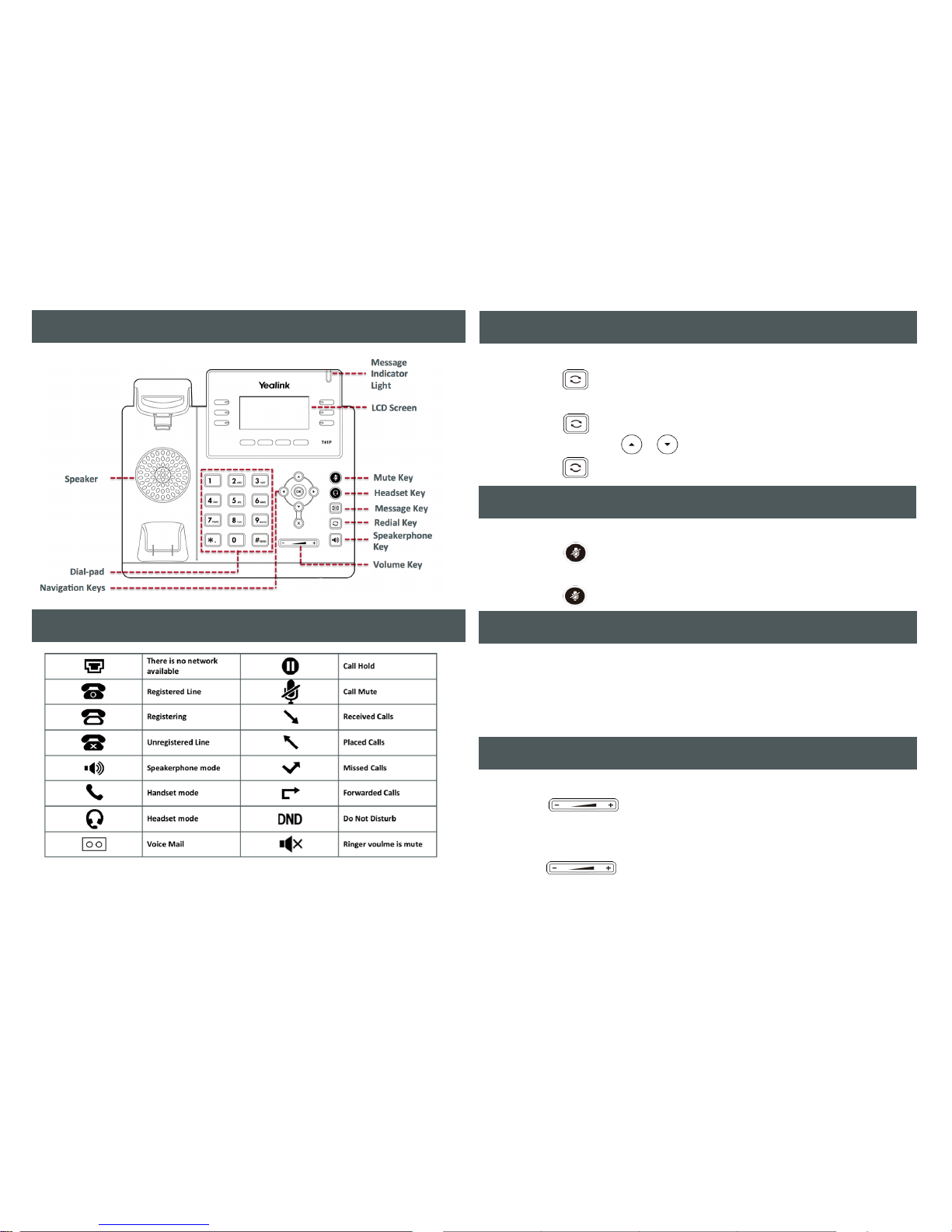
PHONE LAYOUT & FEATURE CONTROLS
UNDERSTANDING THE ICONS
Page 3

3
6
Using the Handset
• Pick up the handset
• Enter the number, then press the Send soft key or
OR Using the Speakerphone
• With the Handset on-hook, press
• Enter the number, then press the Send Soft key or
OR Using the Headset
• With the headset connected, press to activate the
• Enter the number, then press the Send soft key or
HOW TO PLACE A CALL
Using the Handset
• Pick up the handset
OR Using the Speakerphone
• Press or the Answer soft key.
OR Using the Headset
• Press
HOW TO ANSWER A CALL
HOW TO END A CALL
Using the Handset
• Hang up the handset, or press the End Call soft key
OR Using the Speakerphone
• Press or the End Call soft key
OR Using the Headset
• Press the End Call soft key
HOW TO PARK AND RETRIEVE A CALL
To park a call
• While on an active call
• Press the Park soft key
• Enter the destination phone number of the extension where
the call will be retrieved from
To retrieve the parked call, do the following
• From the destination extension
• Press the Retrieve soft key
HOW TO FORWARD A CALL
To enable Call Forwarding
• Press the Menu soft key and then select:
> Features > Call Forward
• Select the desired forward type: Always Forward or Busy
Forward or No Answer Forward:
• Enter the forwarded to destination number
• For No Answer Forward, from the Press the scroll keys or
to select the desired After Ring Time.
Press the Save soft key to accept the change
HOW CREATE A CONFERENCE CALL
To create a Conference call
• Press the Conf soft key during an active call
• Enter the extension or external number of the second party,
then press the Send soft keyor
• Press the Conf soft key again when the second party
has answered the call.
All parties are now joined in the conference call
Page 4

5
4
To place a call on hold
• Press the Hold soft key during an active call
To resume the call, do one of the following:
• Press the Resume soft key
If there is more than one call on hold
• Press the scroll keys or to select the desired held call and then
Press the Resume soft key to retrieve the desired call
HOW TO PLACE AND RESUME A CALL ON HOLD
You can transfer a call in the following ways:
BLIND Transfer - The call is transferred directly without the need to
announce the caller
• Press or the Tran soft key during an active call
The call is placed on hold.
• Enter the number you want to transfer to
• Press the Tran soft key
ASSISTED Transfer - Allows you to announce the caller prior to
releasing the call
• Press the Tran soft key during an active call.
The call is placed on hold.
• Enter the number you want to transfer to and press
• When the second party answers announce the call, then
• Press the Tran soft key
HOW TO TRANSFER A CALL
Using the Handset
• Pick up the handset
• Press the DPickup soft key
• Enter the phone number of the extension which is ringing
• Press the DPickup soft key
OR Using the Speakerphone
• Press
• Press the DPickup soft key
• Enter the phone number of the extension which is ringing
• Press the DPickup soft key
OR Using the Headset
• Press
• Press the DPickup soft key
• Enter the phone number of the extension which is ringing
• Press the DPickup soft key
HOW TO PLACE A DIRECTED CALL PICKUP
HOW TO PLACE A GROUP CALL PICKUP
Enables you to pickup an incoming call ringing at another extension,
which is a member of the same pickup group.
Using the Handset
• Pickup the handset and press the GPickup soft key
OR Using the Speakerphone
OR Using the Headset
• Press and press the GPickup soft key
 Loading...