

Page 1

1 66-UM-IVSCAM-CSE-1
LILIN Ultra, S and ZS series IVS Camera User Manual
Chapter 1 IVS Features ................................................................................................................. 2
1.1 The following situations IVS might not work ........................................................................ 2
1.2 The Border of Non-detection Area ........................................................................................ 2
1.3 IVS Setting ................................................................................................................................ 2
Chapter 2 Instruction for IVS Features ........................................................................................ 3
2.1 Motion Detection ...................................................................................................................... 3
2.1.1 Motion Detection Configuration .......................................................................................... 3
2.2 Tampering Detection ............................................................................................................... 4
2.2.1 Tampering Detection Configuration ................................................................................... 4
2.3 Tripwire ...................................................................................................................................... 5
2.3.1 Tripwire Configuration .......................................................................................................... 5
2.4 Traffic Light Detection (Semaphore + Tripwire Detection) ................................................ 6
2.4.1 Traffic Light Detection Configuration ................................................................................. 6
2.5 Object Counting ........................................................................................................................ 7
2.5.1 Object Counting Configuration ........................................................................................... 7
2.6 Unattended Object Detection (Object Left Detection) ........................................................ 8
2.6.1 Unattended Object Detection Configuration ..................................................................... 8
2.7 Missing Object Detection (Object Remove Detection) ....................................................... 9
2.7.1 Missing Object Detection Configuration ............................................................................ 9
2.8 Crowd Detection (Density Detection) .................................................................................. 10
2.8.1 Crowd Detection Configuration ........................................................................................ 10
2.9 Loitering Detection ................................................................................................................. 11
2.9.1 Loitering Detection Configuration ..................................................................................... 12
2.10 Face Detection ..................................................................................................................... 13
2.10.1 Face Detection Configuration ......................................................................................... 13
2.11 Audio Detection .................................................................................................................... 14
2.11.1 Audio Detection Configuration ........................................................................................ 14
Appendix ........................................................................................................................................ 16
Page 2
2 66-UM-IVSCAM-CSE-1
Chapter 1 IVS Features
1.1 The following situations IVS might not work
⚫ In the rainy day, the rain drops block the FOV for the detected objects.
⚫ In the foggy environment, the fog blocks the detected objects.
⚫ The reflection caused by sunshine and mirror
⚫ The large object blocks the detected objects.
⚫ Blurry video in a strong wind installation
⚫ The detected objects and the background are too similar.
⚫ The shadows of people might be detected.
⚫ The motion blocks and tripwire are on top of a tree or the shadow of the tree.
⚫ The spider nest on top of the camera cover
1.2 The Border of Non-detection Area
The edge (5% FOV) of the camera view is the non-detection area. Make sure that the target
objects should avoid the non-detection area during camera installation. The edge of nondetection area is for the camera’s OSD and the tolerance against camera vibration caused
by wind.
1.3 IVS Setting
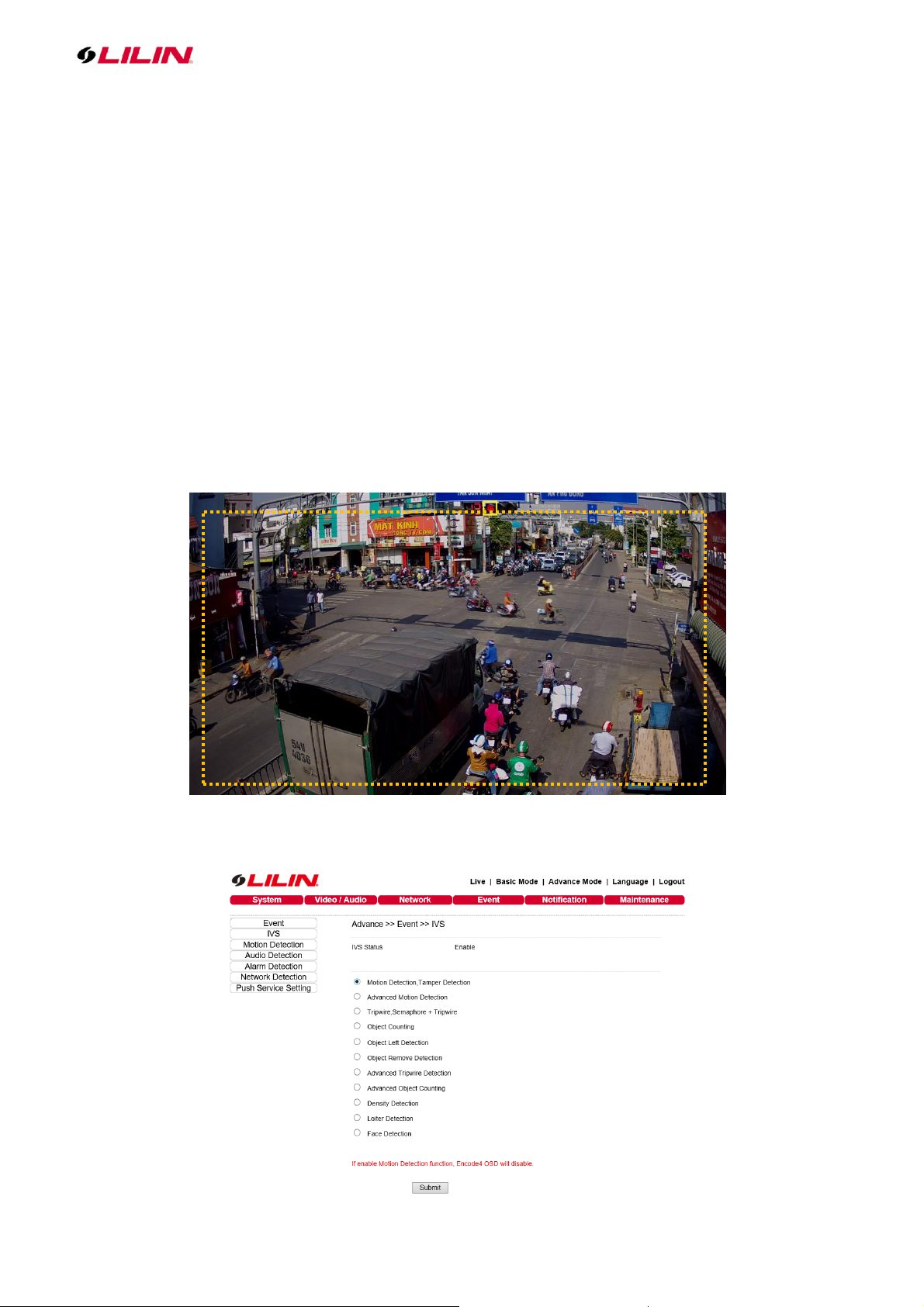
IVS settings are described below:
Page 3
3 66-UM-IVSCAM-CSE-1
Chapter 2 Instruction for IVS Features
2.1 Motion Detection
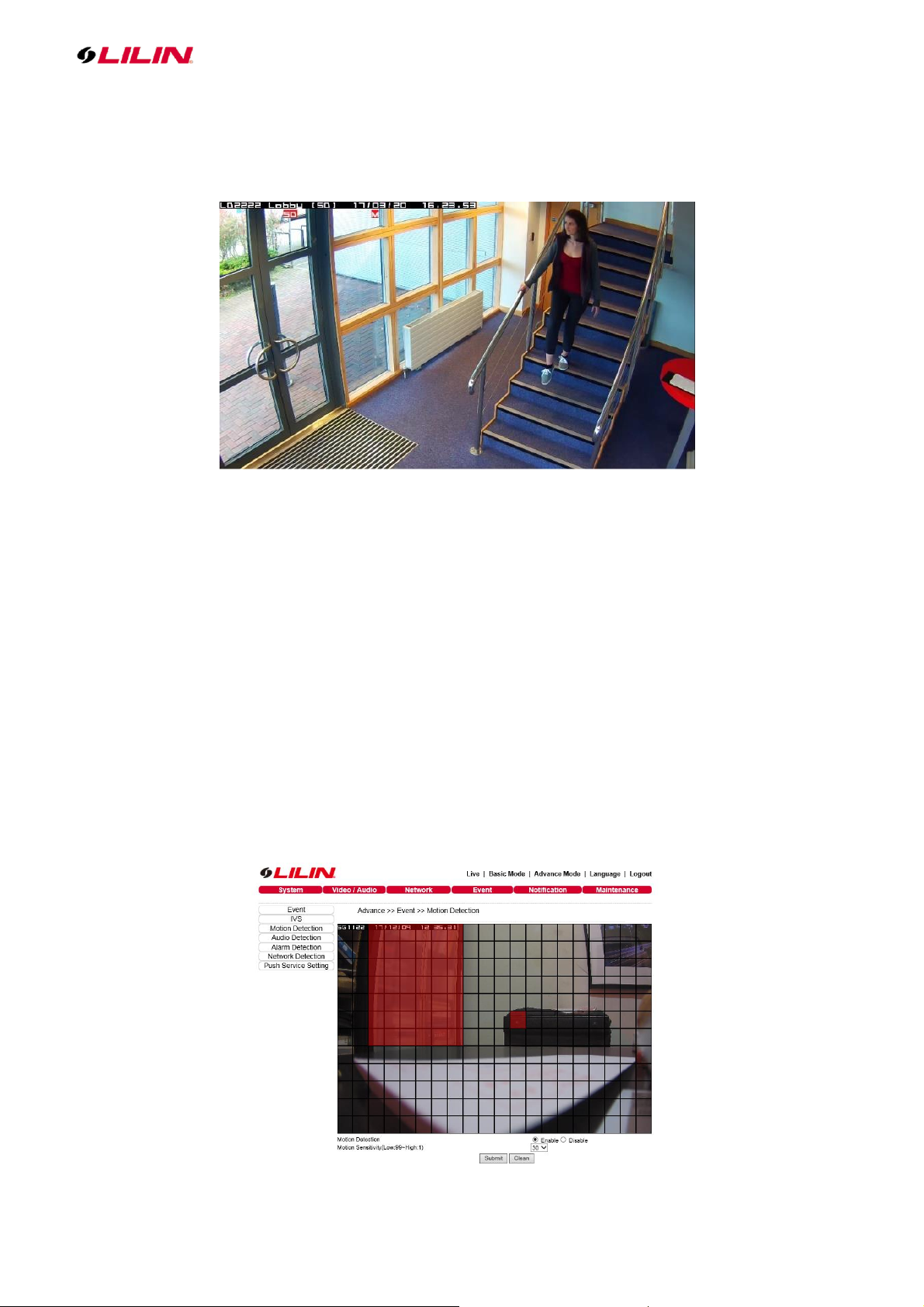
Motion detection (L Series, Pro Series, Z Series, M Series, Ultra, and S Series) detects motion in a
scene, the area can be customised and the sensitivity adjusted to suit specified requirements
Note: LILIN Ultra and S series IVS use advance motion detection technology that is to change the
way motion detection is handled by the camera. With a four-pass filter for separating motion objects,
this results in a more accurate motion detection algorithm, lowering false alarms and other recording
triggers.
2.1.1 Motion Detection Configuration
To enable Motion Detection on the camera, follow the steps below:
⚫ Click on IVS tab on the left.
⚫ Select Motion Detection, Face Detection, Tampering Detection and click Submit button to
save the changes.
⚫ Click on Motion Detection tab on the left.
⚫ Enable Motion Detection feature.
⚫ Use a mouse drag on the video blocks.
⚫ Change Motion Sensitivity according to the motion activities. (Low:99~High:1)
⚫ Click Submit button to save the changes.
Page 4
4 66-UM-IVSCAM-CSE-1
2.2 Tampering Detection
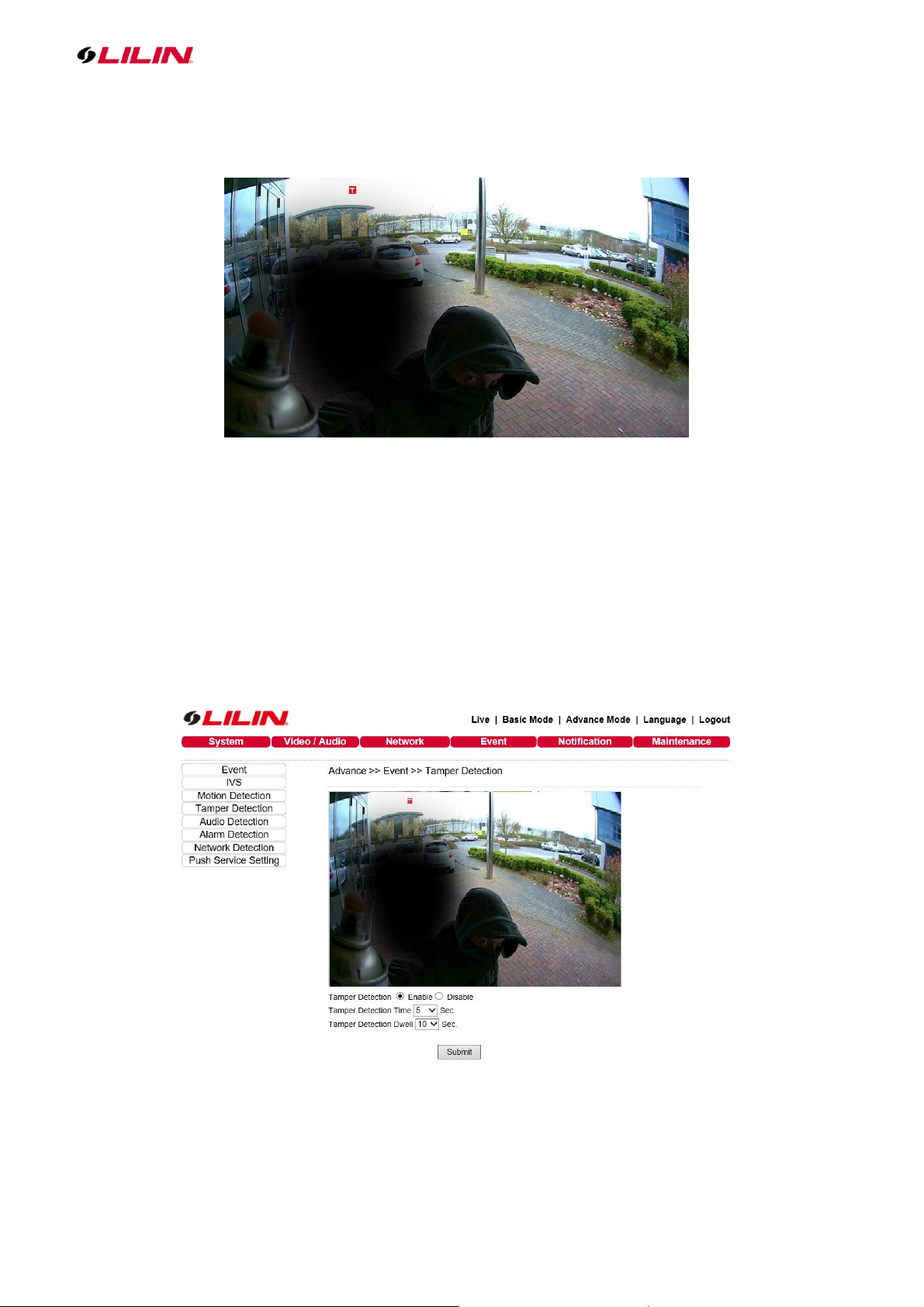
An alarm is triggered automatically when the camera detects if someone attempts to cover, vandalize
or move the lens.
2.2.1 Tampering Detection Configuration
To setup Tampering Detection on the camera, follow the steps below:
⚫ Click on IVS tab on the left.
⚫ Select Motion Detection, Tampering Detection and click Submit button to save the changes.
⚫ Click on Tampering Detection tab on the left.
⚫ Enable Tampering Detection feature.
⚫ Adjust Tampering Detection Time and Dwell Time.
⚫ Click Submit button to save the changes.
Page 5
5 66-UM-IVSCAM-CSE-1
2.3 Tripwire
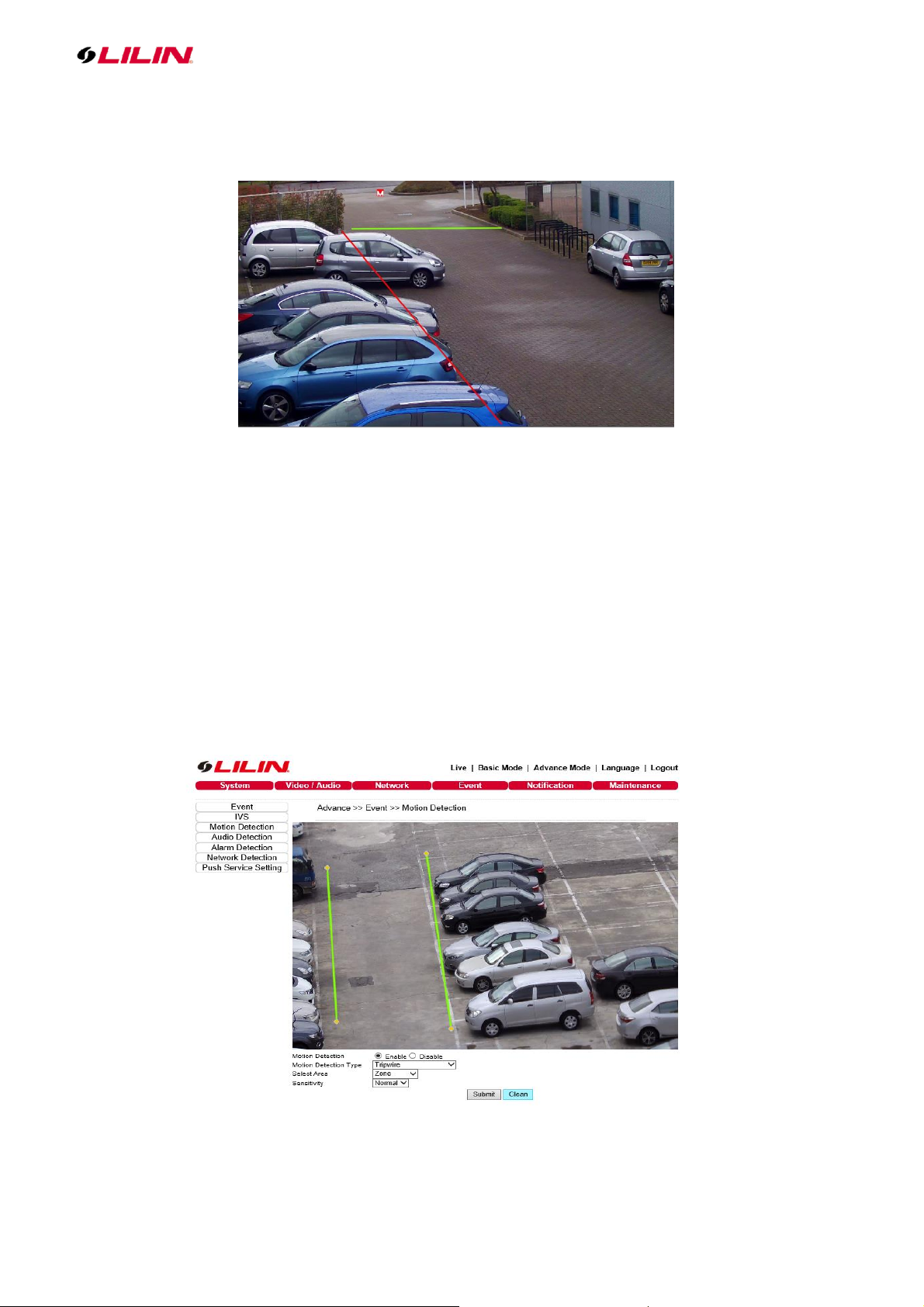
Tripwire allows up to 8 lines or rectangles to be drawn within a camera image, movement from either
direction across this line will trigger a motion detection alarm.
2.3.1 Tripwire Configuration
To setup Tripwire on the camera, follow the steps below:
⚫ Click on IVS tab on the left.
⚫ Select Tripwire, Semaphore + Tripwire and click Submit button to save the changes.
⚫ Click on Motion Detection tab on the left and Edit button on the bottom.
⚫ Enable motion detection feature.
⚫ Motion Detection Type to be selected Tripwire.
⚫ Select Area to be selected Zone.
⚫ Use a mouse drag on the video.
⚫ Change motion sensitivity according to the motion activities.
⚫ Click Submit button to save the changes.
Page 6
6 66-UM-IVSCAM-CSE-1
2.4 Traffic Light Detection (Semaphore + Tripwire Detection)
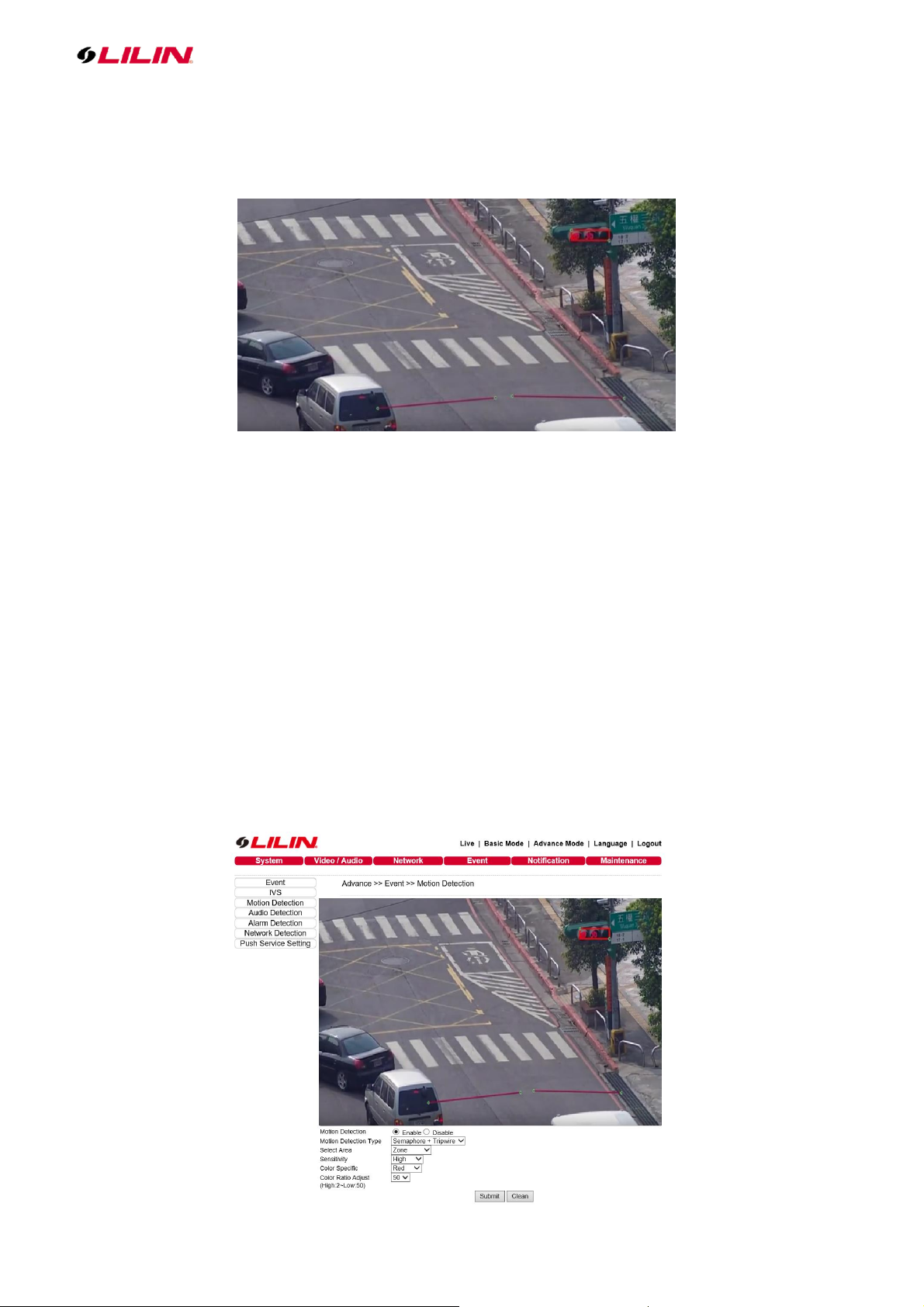
Create alarms when up to 8 tripwire lines are crossed when a specified colour is shown in your chosen
area. Below is an example of tripwires becoming active when the traffic lights turn to red (as this is
where the specified box is)
2.4.1 Traffic Light Detection Configuration
To setup Traffic Light on the camera, follow the steps below:
⚫ Click on IVS tab on the left.
⚫ Select Tripwire, Semaphore + Tripwire and click Submit button to save the changes.
⚫ Click on Motion Detection tab on the left and Edit button on the bottom.
⚫ Enable motion detection feature.
⚫ Motion Detection Type to be selected Semaphore + Tripwire.
⚫ Select Area to be selected Zoom.
⚫ Use a mouse drag on the video.
⚫ Drag a rectangle to where is semaphore on the video, and adjust the rectangle to fit the
actual size of semaphore.
⚫ Change motion sensitivity according to the motion activities.
⚫ Select one specific color and color ratio for detection.
⚫ Click Submit button to save the changes.
Page 7
7 66-UM-IVSCAM-CSE-1
2.5 Object Counting
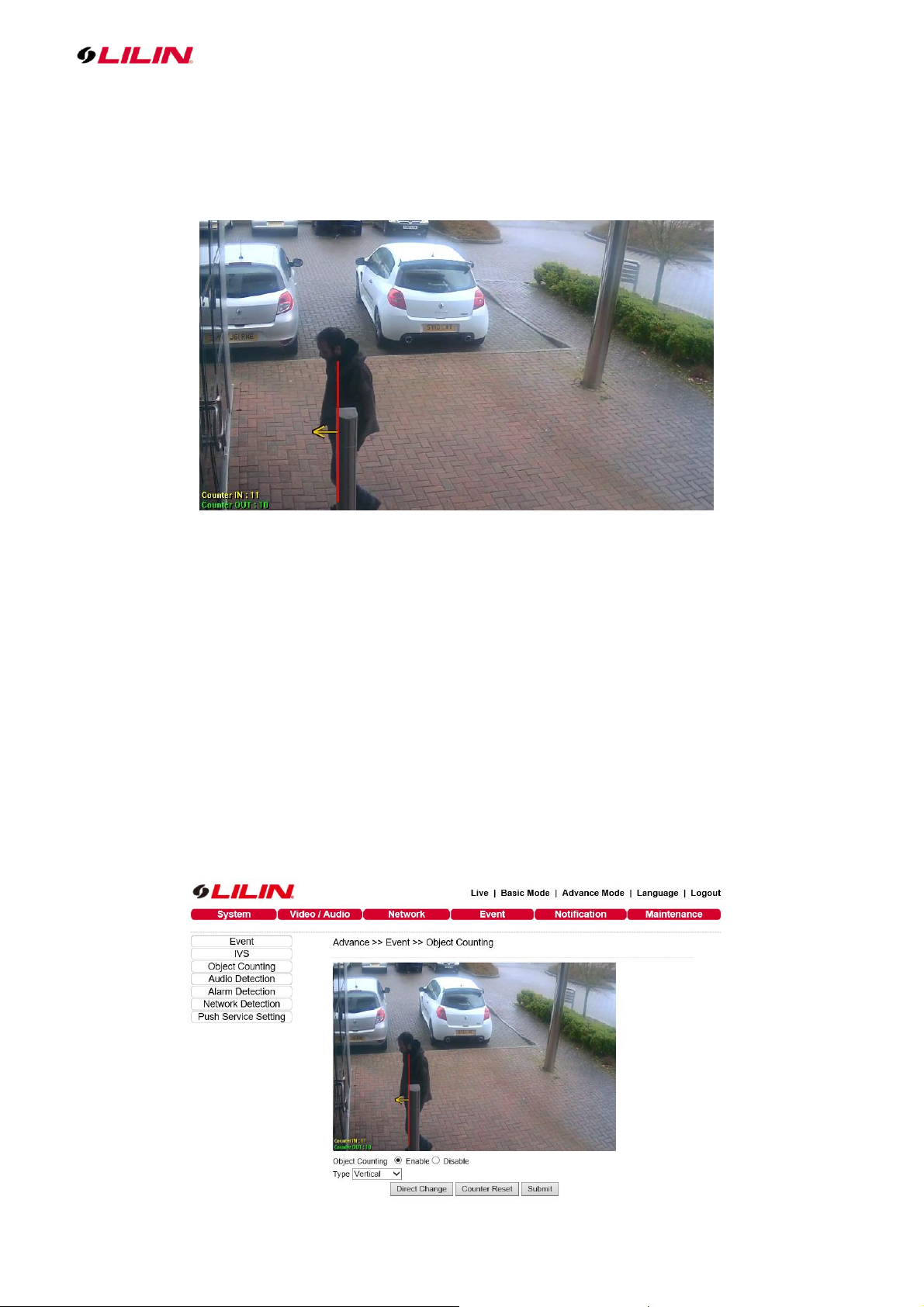
Count the number of objects entering or exiting an area over a specific duration. A virtual area can
be drawn over a camera image with anything passing through the virtual area being logged and
counted. A record of how many times this area has been crossed is then accessible from the camera's
menu.
Note: For a crowd environment, people are right next to each other, the people counting engines
might treat as one people.
2.5.1 Object Counting Configuration
To setup Object Counting, follow the steps below:
⚫ Click on IVS tab on the left.
⚫ Select Object Counting and click Submit button to save the changes.
⚫ Click on Object Counting tab on the left and Edit button on the bottom.
⚫ Enable Object Counting feature.
⚫ Select either Vertical or Horizontal crossing line.
⚫ Use a mouse to drag the crossing line based on the video.
⚫ Click the Direct Change button to define which direction is IN.
⚫ Click Submit button to save the changes.
Page 8
8 66-UM-IVSCAM-CSE-1
2.6 Unattended Object Detection (Object Left Detection)
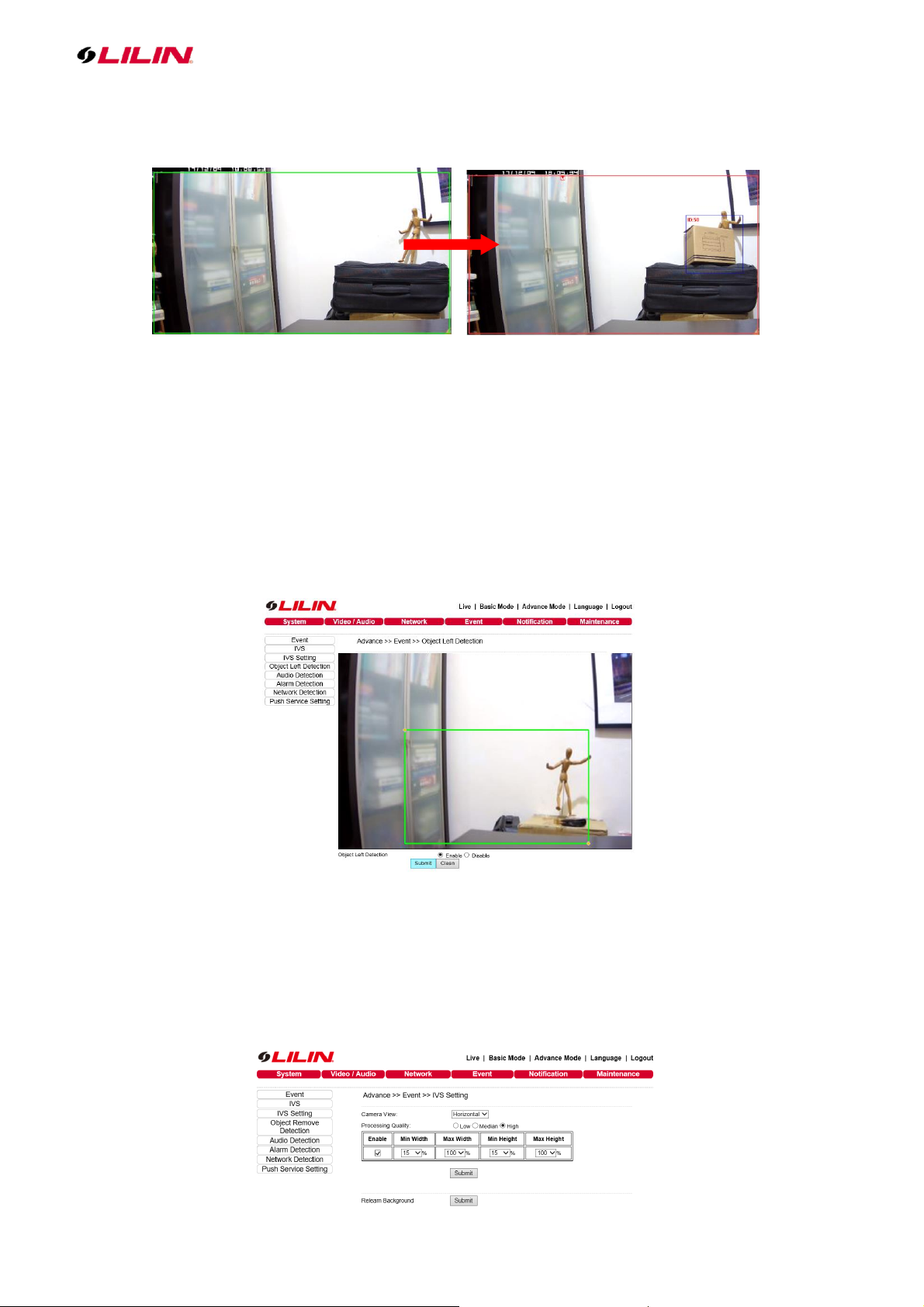
Detect a left object. This can be used for detecting an unattended object or a parking violation. When
an object gets left, a red block gets showed.
2.6.1 Unattended Object Detection Configuration
To setup unattended object detection, follow the steps below:
⚫ Click on IVS tab on the left.
⚫ Select Object Left Detection and click Submit button to save the changes.
⚫ Click on Object Left Detection tab on the left.
⚫ Enable Object Left Detection feature.
⚫ Use a mouse to drag a green detection box to where is monitored area on the video.
⚫ Click Submit button to save the changes.
⚫ Click on IVS Setting tab on the left.
⚫ Select one Camera View according to what camera mounting. (Horizontally is for tabletop,
Angle and Overhead is for ceiling mount)
⚫ Define Min. & Max. width and height for the detected object size.
⚫ Click Submit button to save the changes.
Page 9
9 66-UM-IVSCAM-CSE-1
Note: Relearn background could avoid false alarms. Strongly recommend to click the Submit button,
if the camera field of view gets changed.
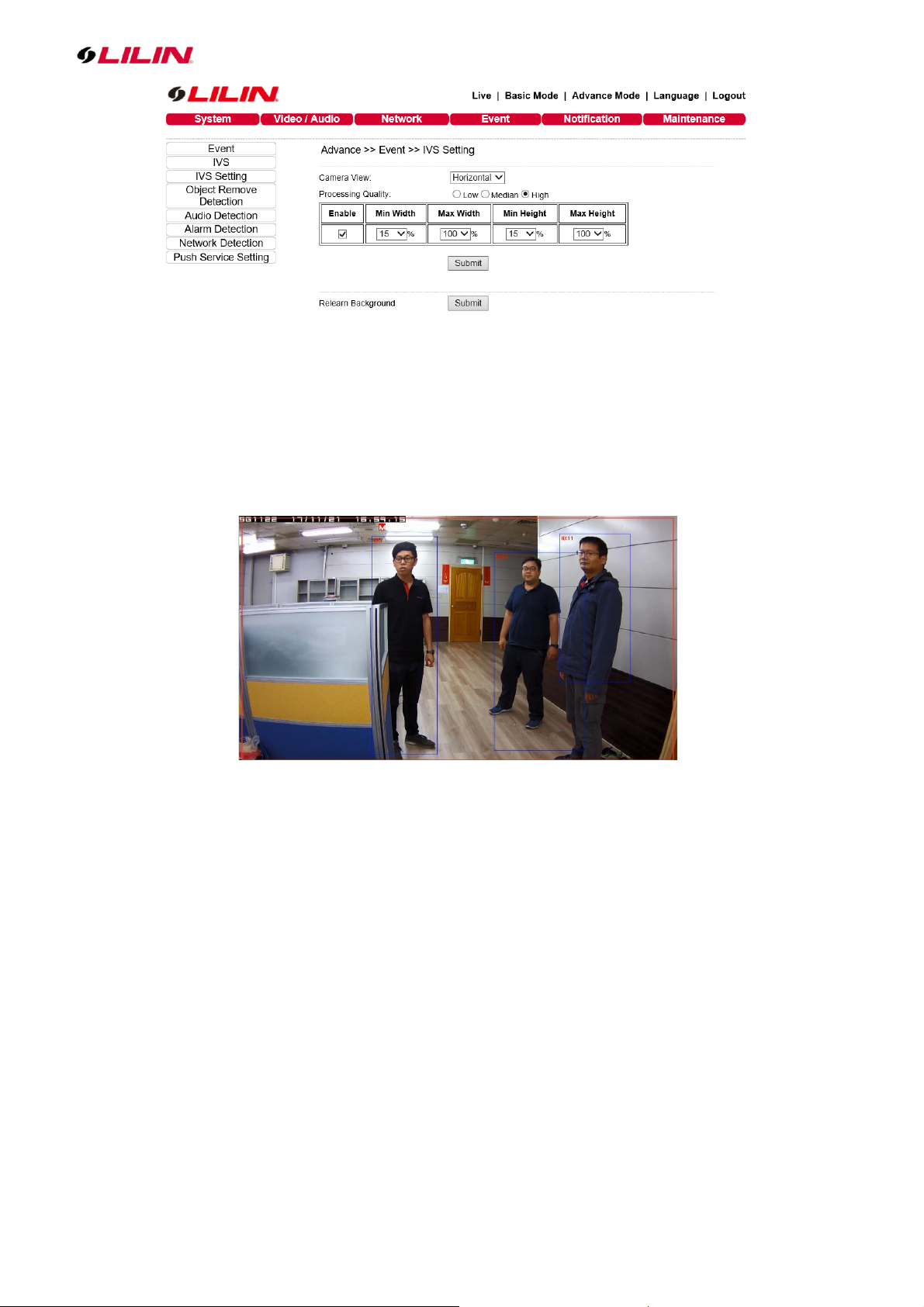
2.7 Missing Object Detection (Object Remove Detection)
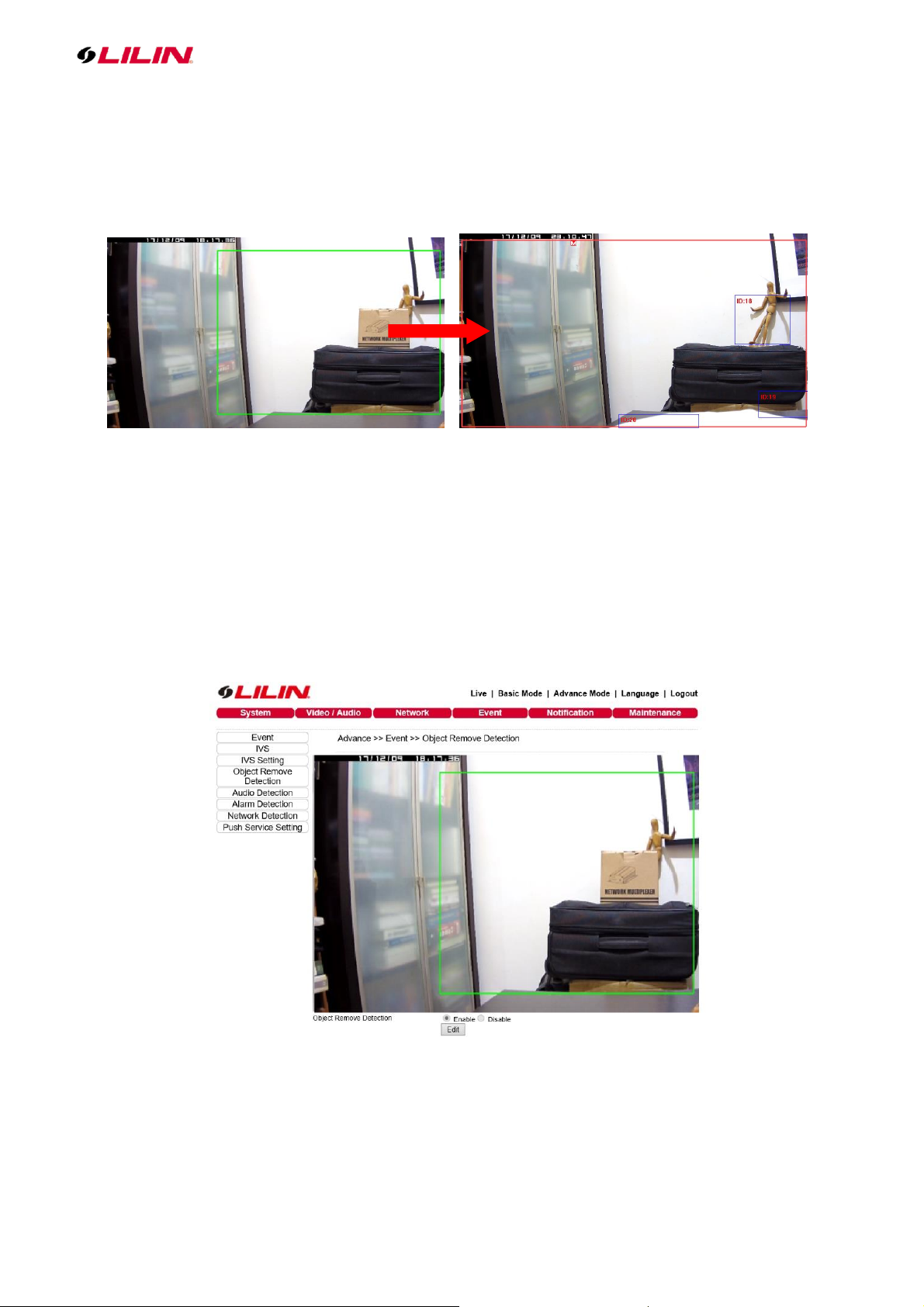
Detect a removed object. This can be used for monitoring an object missing in a museum or
finding a parking space.
2.7.1 Missing Object Detection Configuration
To setup Missing Object Detection on the camera, follow the steps below:
⚫ Click on IVS tab on the left.
⚫ Select Object Remove Detection and click Submit button to save the changes.
⚫ Click on Object Remove Detection tab on the left.
⚫ Enable Object Remove Detection feature.
⚫ Use a mouse to drag a green detection box to where is monitored area on the video.
⚫ Click Submit button to save the changes.
⚫ Click on IVS Setting tab on the left.
⚫ Select one Camera View according to what camera mounting. (Horizontally is for tabletop,
Angle and Overhead is for ceiling mount)
⚫ Define Min. & Max. width and height for the detected object size.
⚫ Click Submit button to save the changes.
Page 10
10 66-UM-IVSCAM-CSE-1
Note: Relearn background could avoid false alarms. Strongly recommend to click the Submit button,
if the camera field of view gets changed.
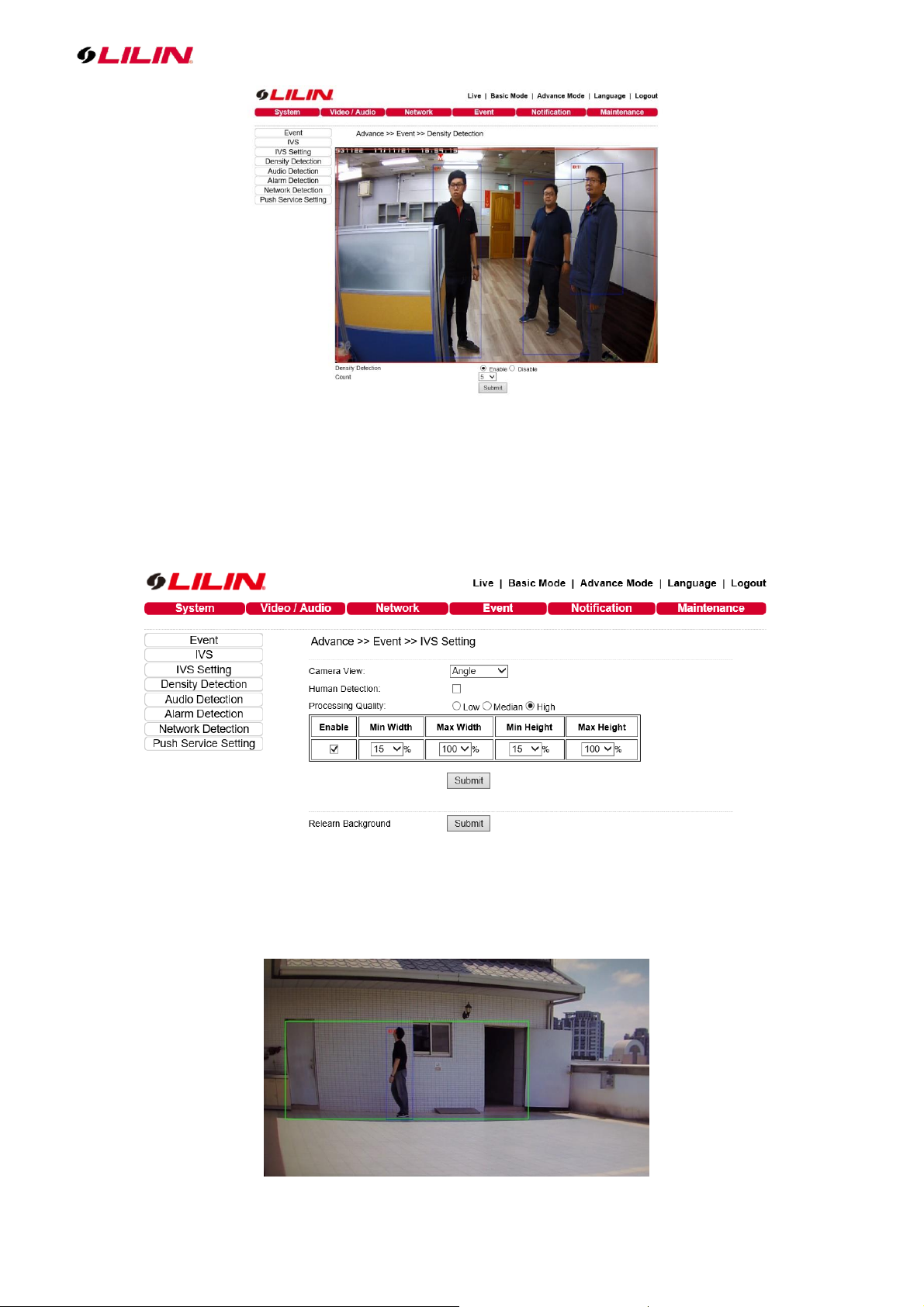
2.8 Crowd Detection (Density Detection)
Detect number of moving people or objects exceeding a certain quantity, and fire warning
alarm. There are up to 32 objects that could be detected. This can be used for crowd
detection.
2.8.1 Crowd Detection Configuration
To setup crowd detection, follow the steps below:
⚫ Click on IVS tab on the left.
⚫ Select Density Detection and click Submit button to save the changes.
⚫ Click Density Detection tab.
⚫ Enable the setting.
⚫ Select the number of the crowd. (Count: 3~32)
⚫ Click Submit button for saving the changes.
Page 11
11 66-UM-IVSCAM-CSE-1
⚫ Click on IVS Setting tab on the left.
⚫ Select one Camera View according to what camera mounting. (Horizontally is for tabletop,
Angle and Overhead is for ceiling mount)
⚫ Define Min. & Max. width and height for the detected object size.
⚫ Click Submit button to save the changes.
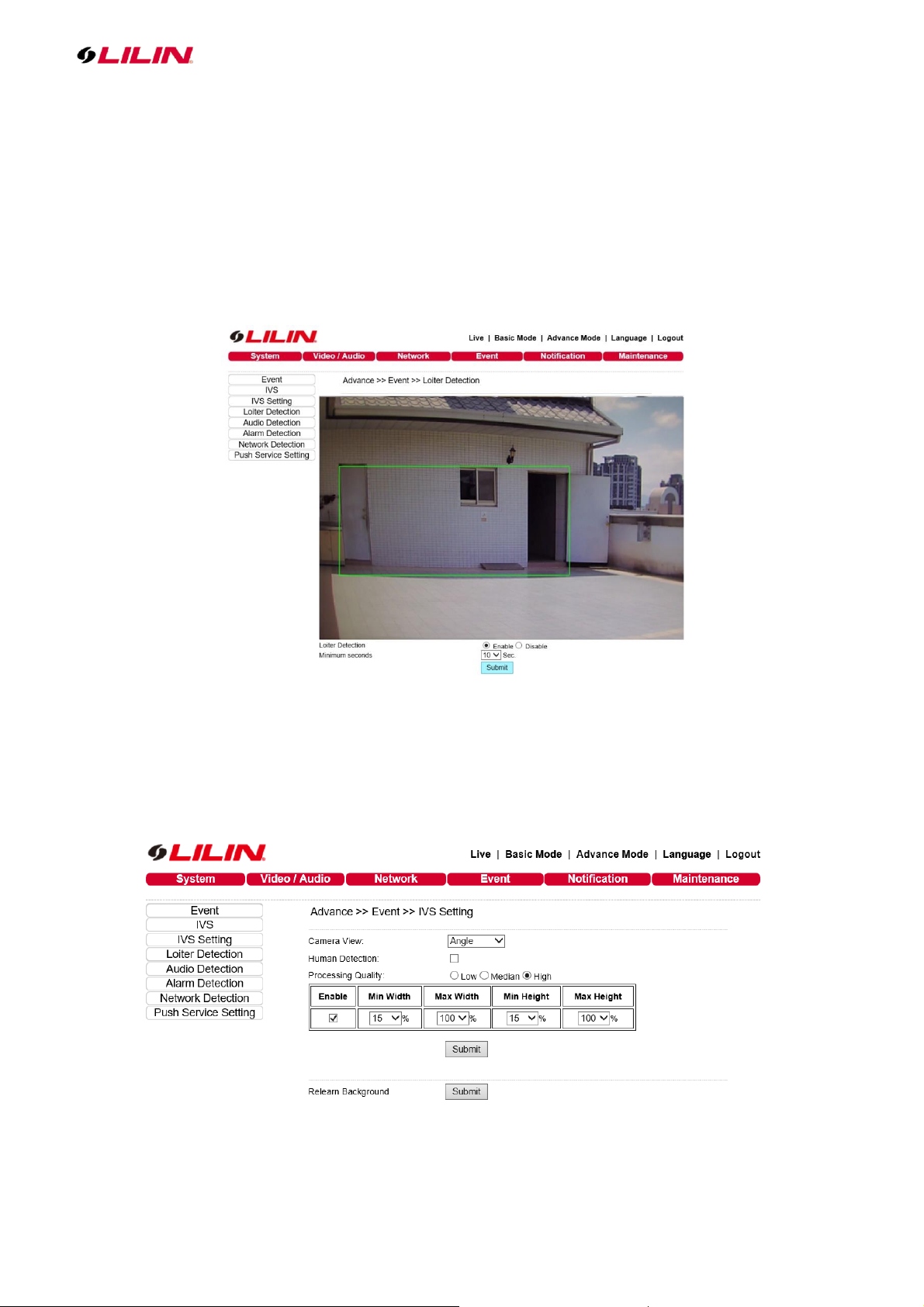
2.9 Loitering Detection
Detect people or objects walking or staying in the detection area for a period of time, and fire
warning alarm.
Page 12
12 66-UM-IVSCAM-CSE-1
2.9.1 Loitering Detection Configuration
To setup Loiter Detection, follow the steps below:
⚫ Click on IVS tab on the left.
⚫ Select Loiter Detection and click Submit button to save the changes.
⚫ Click Loiter Detection tab.
⚫ Click Edit button and choose Enable.
⚫ Select Minimum seconds for judging the loiter event when people or objects are working
or staying the detection area for this setting time. (10/20/30/40/50/60sec)
⚫ Click Submit button for saving the changes.
⚫ Click on IVS Setting tab on the left.
⚫ Select one Camera View according to what camera mounting. (Horizontally is for tabletop,
Angle and Overhead is for ceiling mount)
⚫ Define Min. & Max. width and height for the detected object size.
⚫ Click Submit button to save the changes.
Note: Relearn background could avoid false alarms. Strongly recommend to click the Submit button,
if the camera field of view gets changed.
Page 13
13 66-UM-IVSCAM-CSE-1
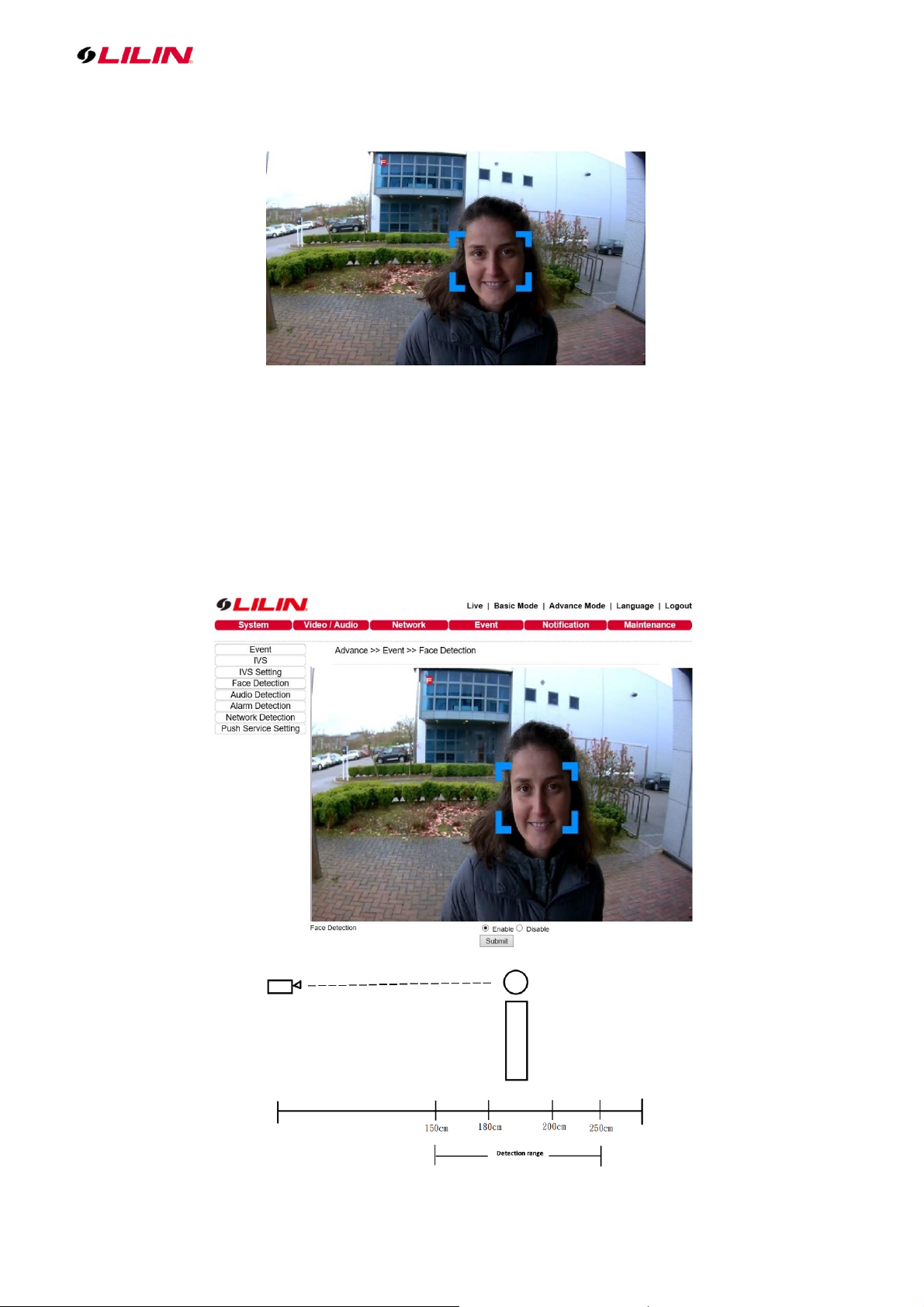
2.10 Face Detection
When a human face is recognized, LILIN cameras can send alerts or customer notifications.
2.10.1 Face Detection Configuration
To setup Face Detection on the camera, follow the steps below:
⚫ Click on IVS tab on the left.
⚫ Select Face Detection and click Submit button to save the changes.
⚫ Click on Face Detection tab on the left.
⚫ Enable Face Detection feature.
⚫ Click Submit button to save the changes.
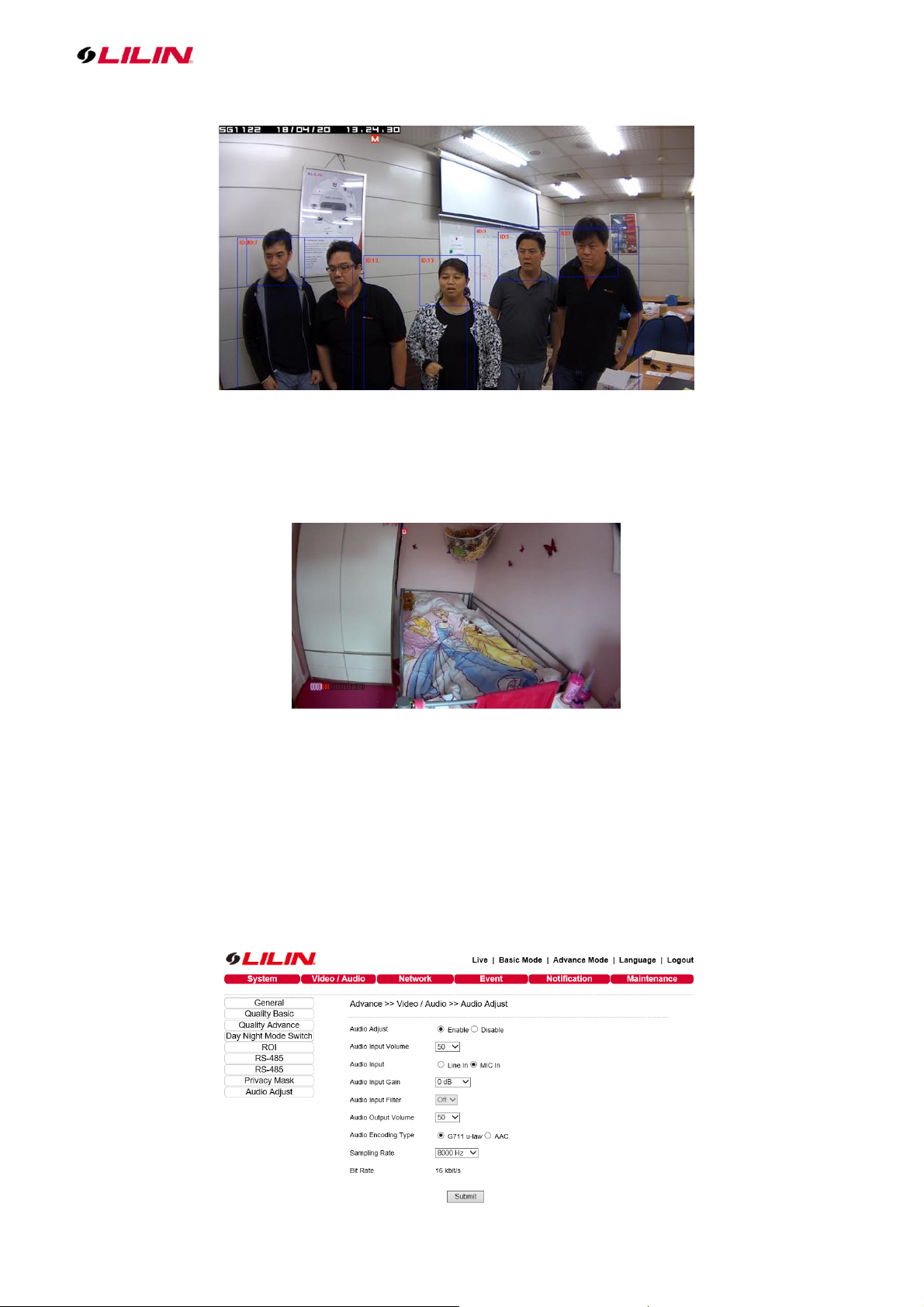
Note: The range of face detection of S & ZS series IVS should be in between 150cm to 250cm.
Page 14
14 66-UM-IVSCAM-CSE-1
There are up to 4 faces that can be detected at same time.
2.11 Audio Detection
An alarm is triggered when ambient sound exceeds predetermined levels. An example is a
camera in a child/baby room acting as a monitor.
2.11.1 Audio Detection Configuration
To setup Audio Detection, follow the steps below:
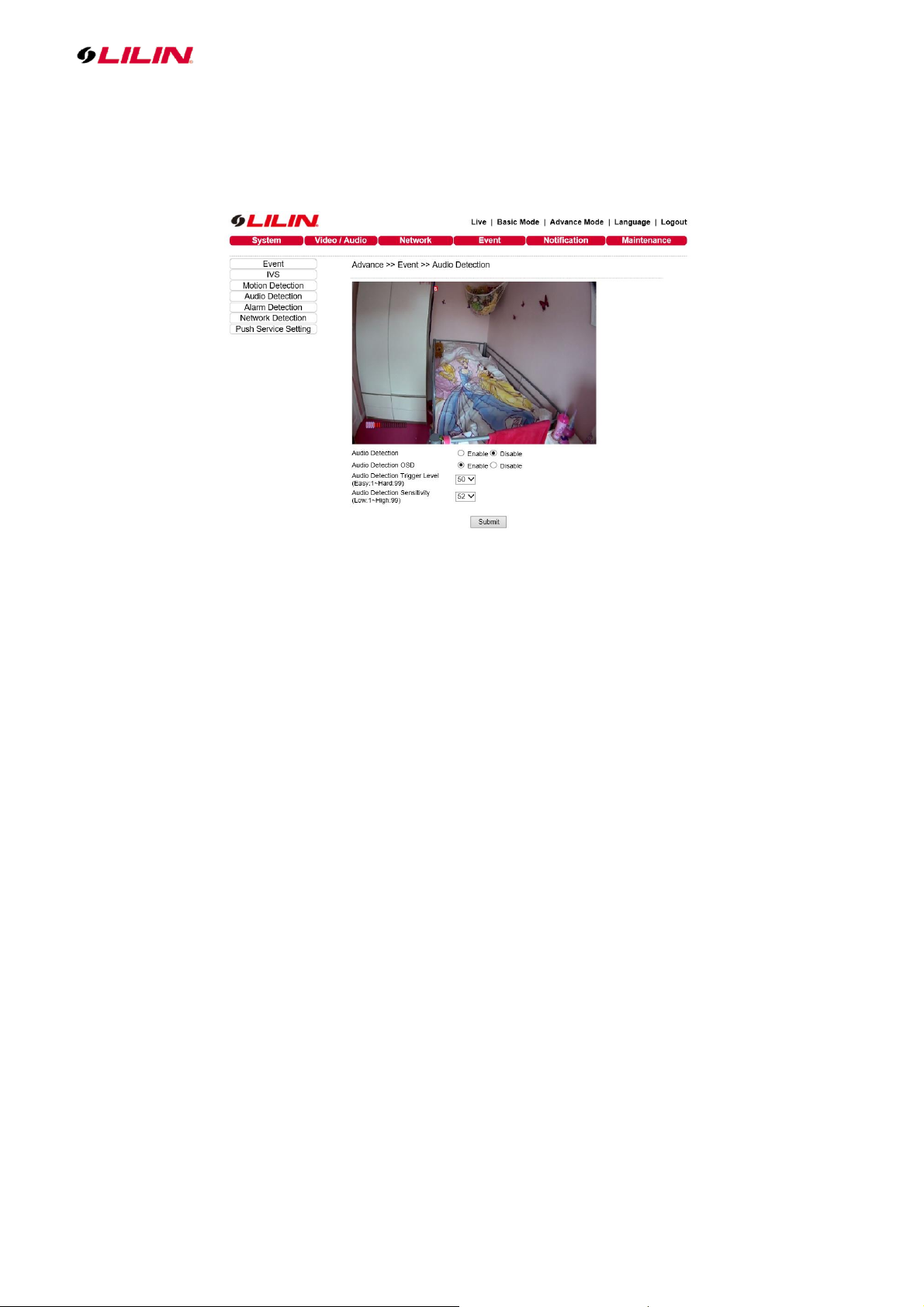
⚫ Enable Audio Adjust from Video/Audio tab.
⚫ Select which Audio Input is used by Camera.
⚫ Click on Audio Detection from Event tab.
Page 15
15 66-UM-IVSCAM-CSE-1
⚫ Enable Audio Detection and Audio Detection OSD features.
⚫ Adjust Audio Detection Trigger Level. (Easy:1~ Hard:99)
⚫ Change Audio Detection Sensitivity according to the audio activities. (Low:1~ High:99)
⚫ Click Submit button to save the changes.
Note:
Basic M Series: These models are MR632, MR832, MR312
Audio: To use audio alarms you must have a built-in Microphone or an external Mic integrated.
Pro Series 4 digits and Z Pro 4 digits IVS: This is standard on the relevant camera series on cameras
with serial number 610***** onwards, if you have older models a special firmware upgrade is available
IVS 1.0: Available on S Series cameras serial number 1702*** earlier models cannot be updated.
IVS 2.0: LILIN UH 4K, UF 120FPS, and ZH series are shipped with IVS 2.0 (firmware 2.7.xx) started
on 12/4/2017. LILIN S and ZS series are shipped with IVS 2.0 (firmware 2.7.xx) started on serial
1712*** (12/4/2017).
Old stocks of LILIN Ultra, 4K, and S series (firmware 2.5.xx) cannot be upgraded to IVS 2.0 (firmware
2.7.xx).
Page 16
16 66-UM-IVSCAM-CSE-1
Appendix
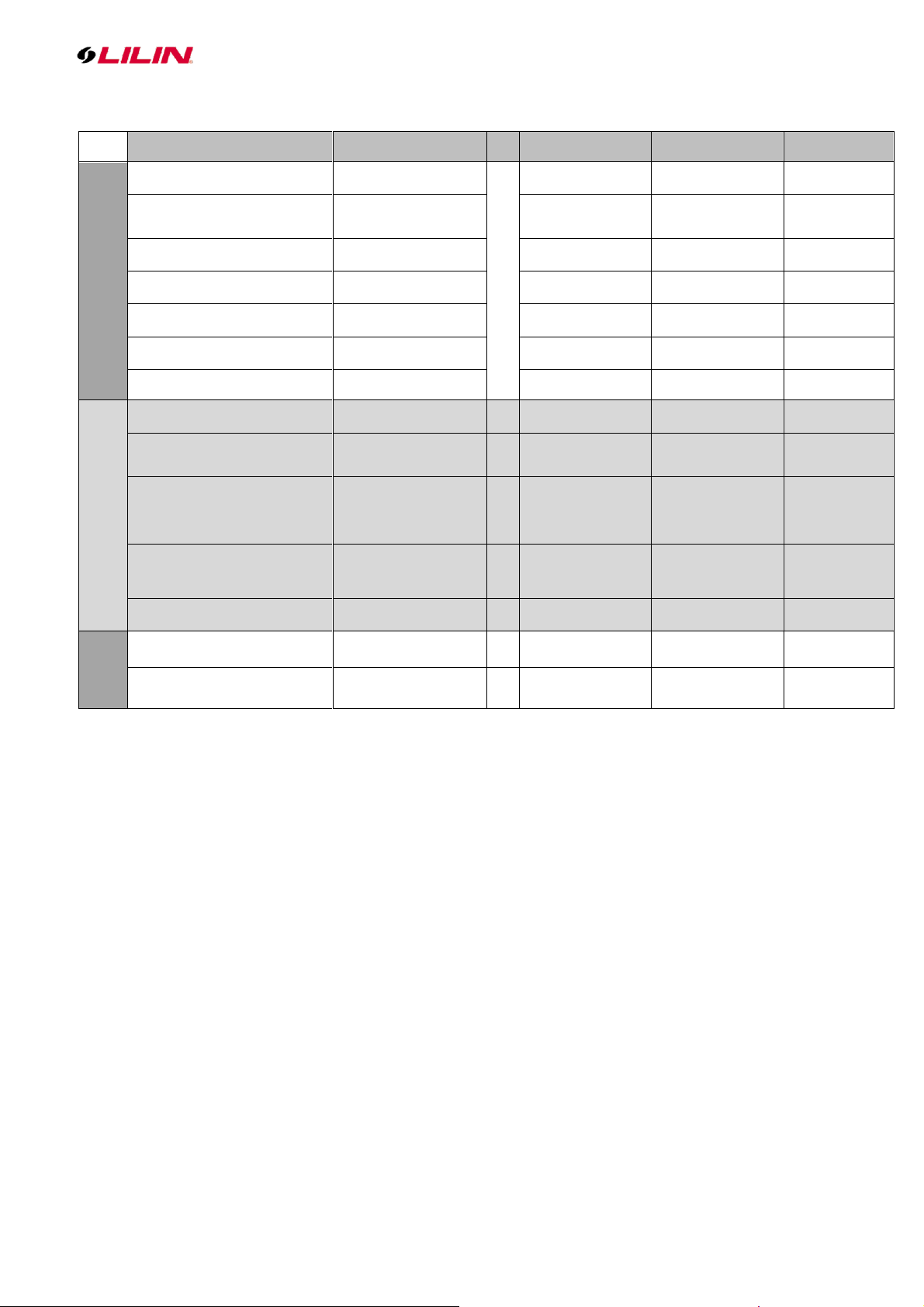
Features
UH,UF, S, ZS
Pro & Z
M (4 digit) & ZM
M (3 digits)
IVS 2.0
Face detection
Basic IVS
Yes
Tampering detection
Yes
Yes
Yes
Audio detection
Yes
Yes
Yes
Tripwire
Yes
Yes
Yes
Zone entering
Yes
Yes
Yes
Object counting
Up to 32 objects
Up to 1 to 2 object
Up to 1 to 2 object
Traffic light detection
Yes
Yes
Yes
IVS 2.1
Face detection
Yes
Missing object detection
(object removal)
Yes
Unattended object detection
(object insertion)
Yes
Crowd Detection (density
detection)
Yes
Loitering detection
Yes (2.1)
Alarm
DI alarm detection
Yes (DI model only)
Yes (DI model
only)
Yes (DI model
only)
Yes (DI model
only)
Motion detection
Yes
Yes
Yes
Yes
 Loading...