

Page 1

LW600 energy Monitor
Page 2

In
stallation
Inserting the batteries
Slide back the battery cover on the Electricity
Monitor and insert 2xAA batteries.
Attaching the clamp
WARNING! Extreme care must be taken when
working with live electrical wiring. If you are in
any doubt, please consult a qualified electrician.
1. Locate your electricity meter and identify the
incoming live cable (usually red in colour).
2. Visually inspect the insulation (plastic covering)
to ensure that there is no damage or deterioration,
such as cracks in the outer covering, visible
copper cores, etc. If any damage is observed, do
not proceed, and consult an electrician.
3. Firmly attach the cable clamp around the live
cable and lock in place.
4. Insert the Electricity Monitor cable into the
monitor as indicated in the diagram.
battery cover
Insert monitor cable
Page 3
L
inking
Linking to the Lightwave App
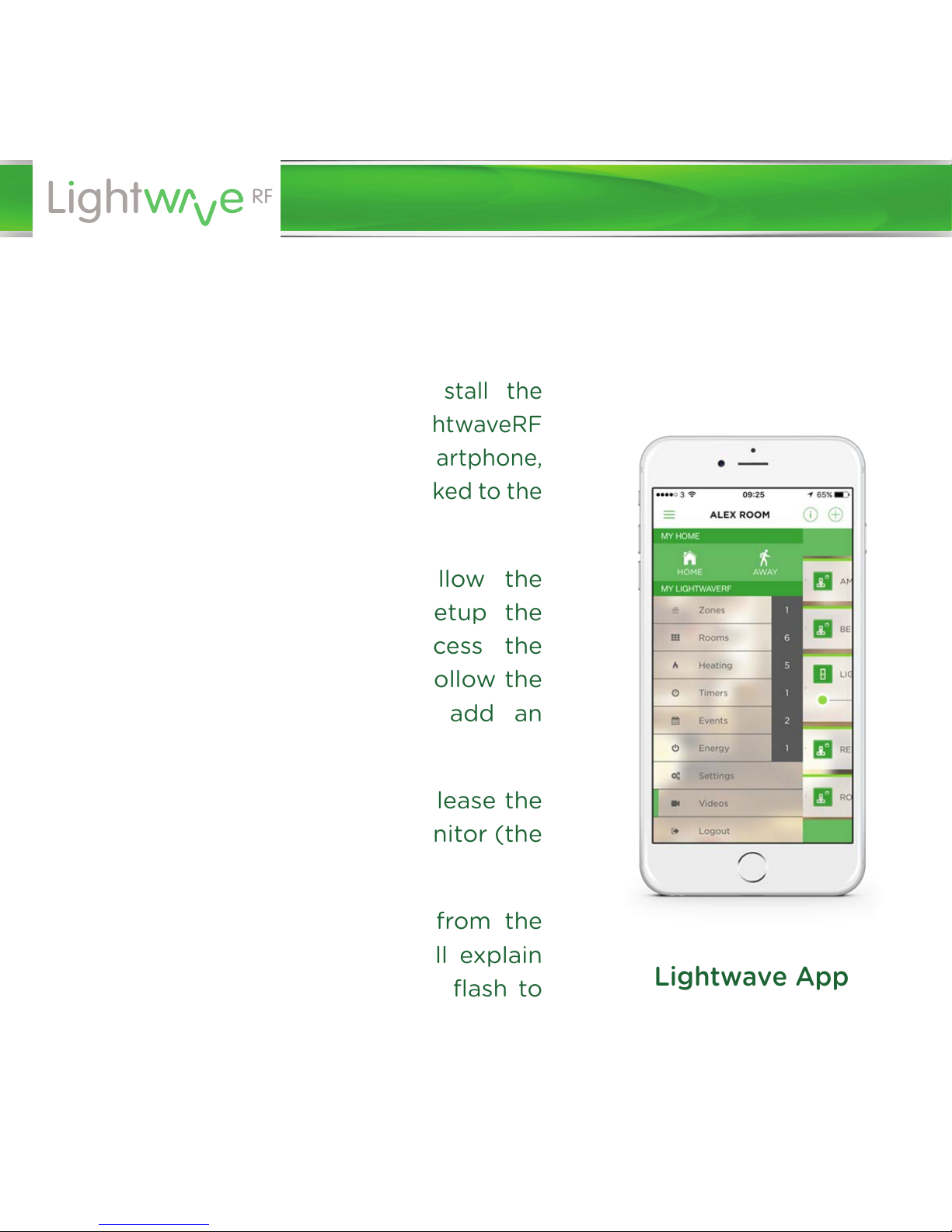
To use the App to view your electricity
usage, you will first need to install the
Lightwave Link. This allows any LightwaveRF
devices to be controlled by a smartphone,
tablet or PC. The monitor can be linked to the
App using the following method:
1. Download the App and follow the
in-App setup instructions to setup the
Lightwave Link and App. Access the
‘energy’ page on the menu and follow the
instructions regarding how to add an
energy monitoring device.
2. When prompted, press and release the
‘link’ button on the Electricity Monitor (the
LED will flash).
3. Send the linking command from the
App (the in-App instructions will explain
how to do this). The LED should flash to
indicate a successful link.
Lightwave App
Page 4
www.lightwaverf.com
Innovation Campus Birmingham
Faraday Wharf
Holt Street
Birmingham
B7 4BB
 Loading...