

Page 1
DAILY OPERATION INSTRUCTIONS
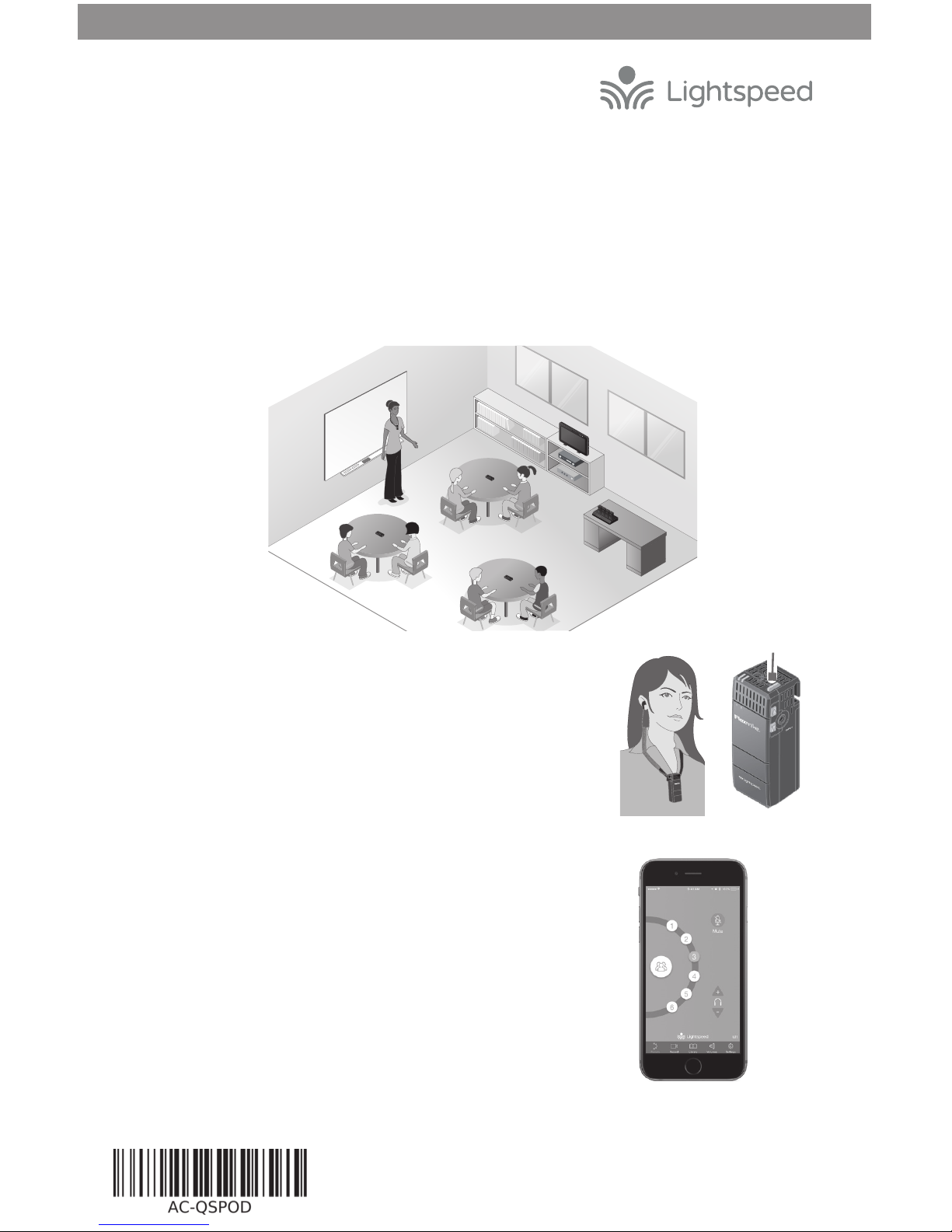
2. Remove the microphone from the charger and put on.
• The microphone will default to the Mute position, the
teacher status will turn to red.
• Place the microphone around your neck and insert the
earbud.
• Press the power/mute button, the teacher status will turn
blue, indicating the microphone is active.
3. Open the Lightspeed Activate app on your mobile device and
begin instruction. Use the app to:
• Address the whole class
• Monitor and Instruct small groups
• Activate student group sharing
• Capture an audio/video recording
• Take classroom photos
• Adjust volume levels
1. Remove the pods from the charger and place them on the group tables.
• The speakers will stay powered on while charging.
• Note the location of the pod numbers.
Power /
Mute
lightspeed-tek.com / 800.732.8999 / 503.684.5538
QS0551US01-0
Page 2
For complete system operating instructions, go to
www.lightspeed-tek.com/ACT-usermanual
(or scan the 2D barcode).
DAILY OPERATION CON’T
4. Using the Activate mobile app:
(Refer to the app tutorial for instructions)
Function Command Description
Whole Class
Instruction
Press class
button
Activates classroom speaker to distribute
teacher’s voice to the entire room.
Small Group
Instruction
Press Pod # Connect to each individual student group
pod. The pod # button will light and a tone
will sound in the earbud when connected
(1-2 seconds).
Just Listen Press MUTE Mute your microphone and move from
pod to pod to monitor (listen only) student
groups, gaining critical insights to the
learning process.
Pod to Class
Sharing
Swipe Pod # to class
button
Allows one student group to address the
whole class. Both the class and pod # buttons
will turn orange.
Disconnect Press activated pod
# again
Disconnects the transmission and turns any
audio o.
Teacher earbud
volume
Press Vol UP/DOWN
arrows
Turns the volume to the teacher’s earbud up
or down.
Recording Tap the record tab Select video, audio, or photo to capture. Tap
the record button to begin.
Recording audio
source
Swipe right to reveal
control arc
Tap the desired audio source: class for
teacher microphone only, or any pod to
capture student group interaction.
5. Pod call button:
• Each pod has a call button for students when they need assistance.
• When the button is pressed, a tone sounds in the teacher earbud and the
corresponding pod # will blink on the app.
• The light will continue to blink until the teacher selects that pod.
• To clear multiple blinking lights: press class button.
• If undesirable, this feature can be turned o in the app settings.
6. Return the components to the Activate Station for nightly recharging:
• Place all components in their respective charging slots
• Charging lights will light: red = charging; green = fully charged.
• The units will fully charge overnight.
 Loading...