

Page 1
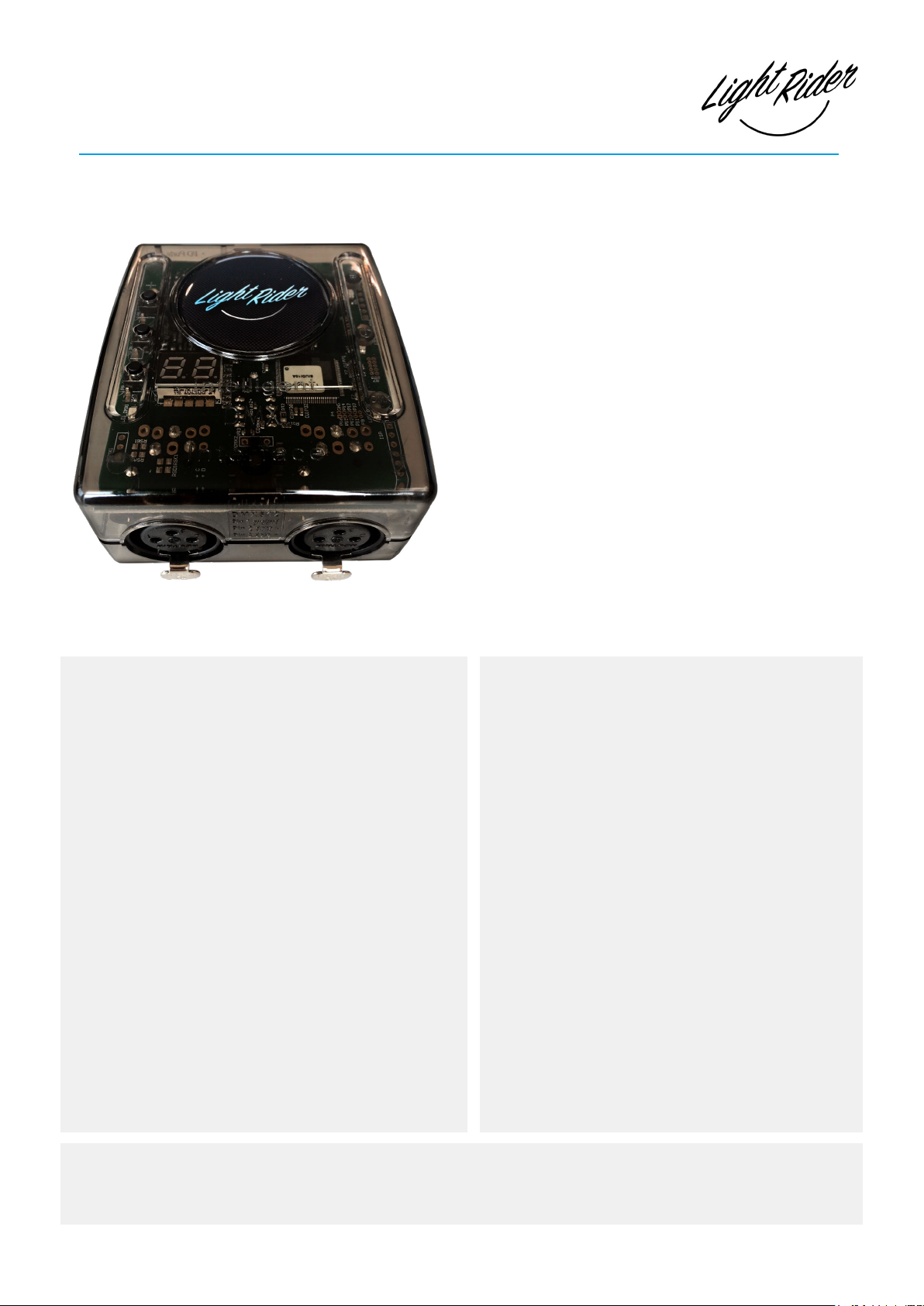
LR512
USB & WiFi - DMX controller
Overview
The LR512 DMX controller can control a wide
variety of dierent DMX systems- from RGB/
RGBW to more advanced moving and color
mixing xtures, as well as other stage eects.
Directly connect to the Light Rider app via an
Apple iPad or Android tablet with no additional
requirements. The controller supports 512
DMX channels in the tablet app, as well as WiFi
connectivity and SUT capabilities.
SUT (Smart Upgrade Technology) enables
upgrades such as compatibility with additional
software and apps when purchased at
store.dmxsoft.com.
Key Features
• Light Rider app connectivity for Android tablet and
Apple iPad.
• Tablet app designed for live use to create an automated light show.
• USB & WiFi connectivity for programming/control
• Up to 2 DMX512 universes in live and stand alone
(Light Rider app only supports 1 DMX512 universe)
• DMX Stand Alone controller for computer software
• Stand Alone mode with 99 scenes
• 100KB ash memory for storing stand alone programs
• 8 dry contact trigger ports via HE10 connector
• Network communication. Control lighting remotely
• OEM customization
• SUT Technology allows the device to be used with
other Nicolaudie Group software via an online upgrade
Note: feature compatibility depends on which application is being used with the controller and which SUT
add-ons have been purchased
www.lightrider.com
Technical Data
Input Power
Output Protocol
Programmability
Available Colors
Connections
Memory
Environment
Buttons
Dimentions
Complete Package
Standards
5-5.5V DC 0.6A
DMX512 (x2)
Android Tablet and Apple
iPad (for Light Rider app).
PC and Mac (for Hardware Manager / computer
software). See website for
specifrication requirements.
Orange
USB-C, 2x XLR3, 2x HE10,
100KB ash
IP20. 0°C - 50°C
2 buttons to change scene
1 button to change dimmer
79x92x43mm 120g
140x135x50mm 340g
Low voltage, EMC, and
RoHS
Optional Accessories
POWER1_EU/UK/US
© Nicolaudie Group 1989-2018. All rights reserved. We reserve the right without notice to amend the technical information and specications.
5V ACDC power supply with EU/UK/US plug
Page 2
Light Rider WiFi & USB-DMX Interface
Ref. LR512
Page 2
Technical datasheet Revision date 26 June 2019
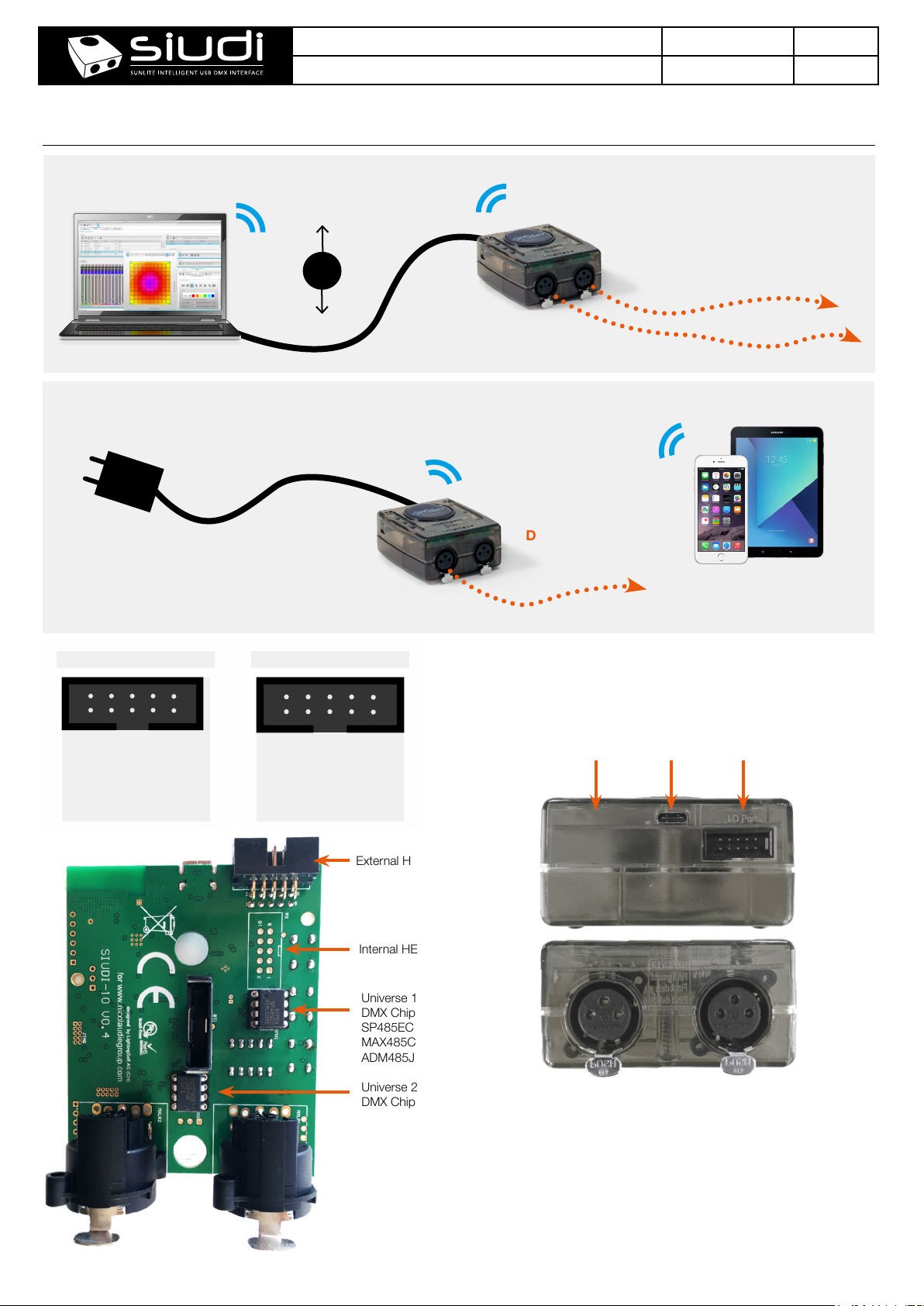
CONNECTIVITY
Live use with a computer
WiFi
OR
USB Type-C
PC or Mac running the software
Light Rider app live use with a tablet
POWER
USB Type-C
AC/DC ADAPTOR
5V-5.5V
POWER1 PSU
WiFi
DMX
(1 Universe)
www.lightrider.com
(2 Universes)
DMX
iPad, Android
V 1.5
External HE10
GND
P6 P4 P2
P8 P7 P5 P3 P1
P1 PORT 1
P2 PORT 2
P3 PORT 3
P4 PORT 4
P5 PORT 5
P6 PORT 6
P7 PORT 7
P8 PORT 8
GND Ground
Internal HE10
2 4 6 8 10
1 3 5 7 9
1 Ground
2 Dimmer
3 DMX1+
4 PREVIOUS
5 DMX1-
6 NEXT
7 Zone
8 LED DMX
9 VUSB
10 LED USB
External HE10
Internal HE10
Universe 1
DMX Chip
SP485ECP-L
MAX485CPA+
ADM485JNZ
Universe 2
DMX Chip
WiFi antenna
REAR
1
FRONT
Universe #1
1 DMX1 ground
2 DMX1 data3 DMX1 data+
USB-C
3
2
8 dry contact ports
3
1
Universe #2
1 DMX2 ground
2 DMX2 data3 DMX2 data+
2
© Nicolaudie Group 1989-2019. All rights reserved. We reserve the right without notice to amend the technical information and specications.
Page 3
Light Rider WiFi & USB-DMX Interface
Ref. LR512
Page 3
Technical datasheet Revision date 26 June 2019
Setting up the Controller
Network Control
The controller can be connected directly from a computer/
smartphone/tablet (Access Point Mode), or it can be connected to
an existing local network (Client Mode). The controller will work in
Access Point (AP) Mode by default. See Programming the Controller
for further information
• In AP Mode, the default network name is Smart DMX Interface
XXXXXX where X is the serial number. For serial numbers below
179001 the default password is 00000000. For serial numbers
above 179000 the default password is smartdmx0000
• In Client Mode, the controller is set, by default, to get an IP
address from the router via DHCP. If the network is not working
with DHCP, a manual IP address and subnet mask can be set. If
the network has a lewall enabled, allow port 2430
Upgrades
The controller can be upgraded at store.dmxsoft.com. Hardware
features may be unlocked and software upgrades may be purchased
without the need to return the controller.
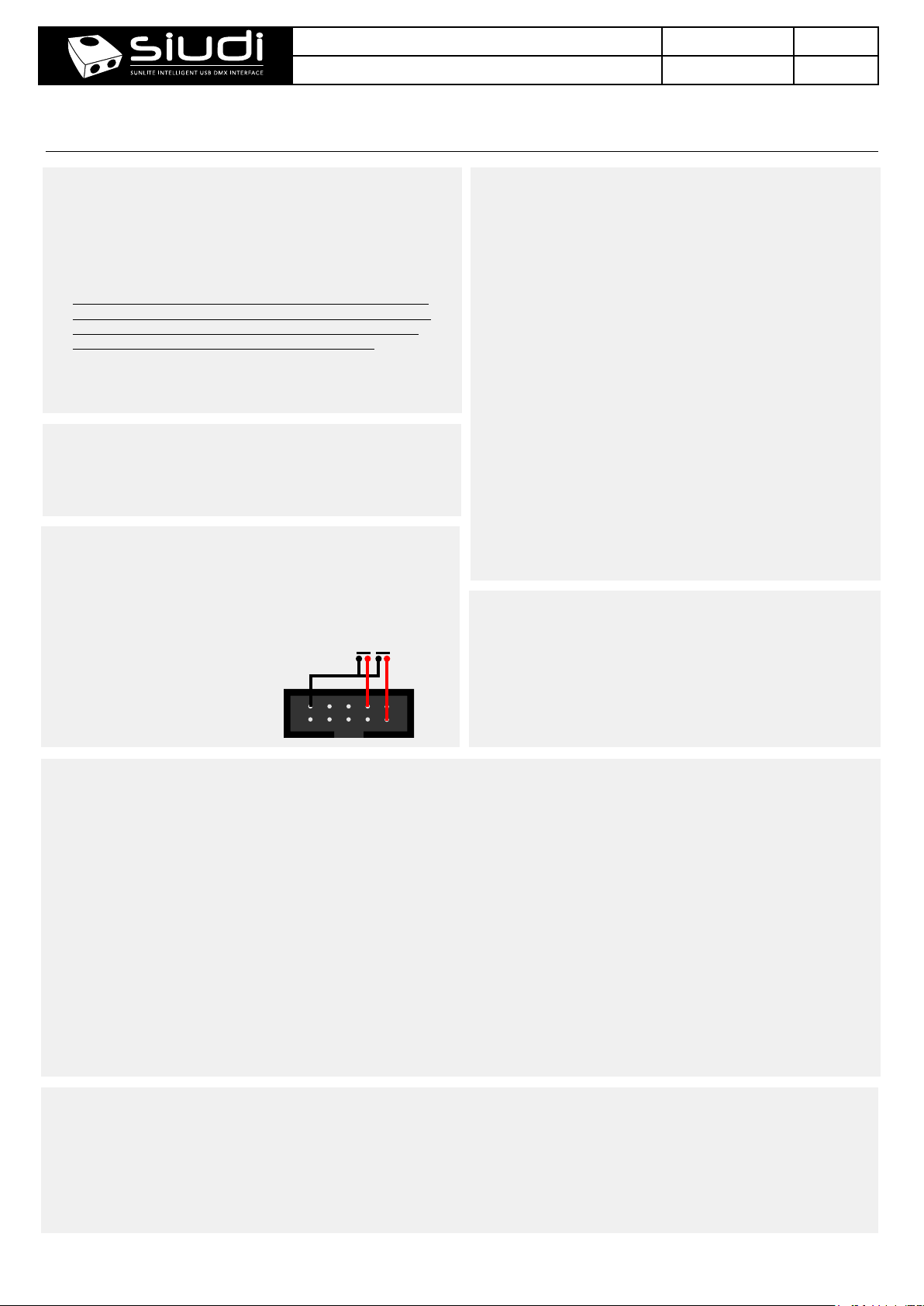
Dry Contact Port Triggering
It is possible to start scenes using the input ports (contact closure).
To activate a port, a brief contact of at least 1/25 second must be
established between the ports (1...8) and the ground (GND) using the
external HE10 connector. Note: the scene will not be switched o
when the switch is released.
... ...
P1 P2
www.lightrider.com
V 1.5
iPhone/iPad/Android Control
Easy Remote Pro
Create an entirely customized remote controller for your tablet
or smartphone. Easy Remote is a powerful and intuitive app
allowing you to easily add buttons, faders, color wheels and
more. Connect to a WiFi network and the app will nd all
compatible devices. Available for iOS and Android.
Arcolis
The Arcolis application is a comprehensive tool allowing you
to directly control and re-program the controller from your
smartphone or tablet. This is a simple application which can
be used by just about everyone in any situation. Mobile, easy
to use and powerful, Arcolis is the ideal controller for dimming
or switching traditional, LED and RGB color mixing DMX
lighting xtures. Program static and dynamic lighting scenes
and eects. Currently available for Android only.
Light Rider
Designed for live use, moving and color eects can be
created automatically to create an automated light show.
UDP Triggering
The controller can be connected to an existing automation system
over a network and triggered via UDP packets on port 2430. Refer
to the remote protocol document for more information.
P6 P4 P2
GND
P8 P7 P5 P3 P1
Programming the Controller
The controller can be programmed from a PC, Mac, Tablet or Smartphone using the software available on our website. Refer to
the corresponding software manual for more information. The rmware can be updated using the Hardware Manager which is
included with the programming software and also available on the App Store.
Computer Software (Windows/Mac) - Single Zone
http://www.store.dmxsoft.com
Purchase licences for additional Nicolaudie Group computer DMX software
Hardware Manager (Windows/Mac/iPhone/iPad) - Firmware, clock..
https://storage.googleapis.com/nicolaudie-eu-tools/Release/HardwareManager.exe
https://storage.googleapis.com/nicolaudie-eu-tools/Release/HardwareManager.dmg
The iPhone/iPad version can be found on the app store
Service
Servicable parts include:
• DMX Chips - used to drive the DMX (see p2.)
© Nicolaudie Group 1989-2019. All rights reserved. We reserve the right without notice to amend the technical information and specications.
Page 4
Light Rider WiFi & USB-DMX Interface
Ref. LR512
Page 4
Technical datasheet Revision date 26 June 2019
Troubleshooting
‘88’ is showing on the display ‘LI’ is showing on the display
The controller is in bootloader mode. This is a special ‘startup mode’
which is run before the main rmware loads. Try re-writing the rmware
with the latest hardware manager
‘EA’ is displayed
There is no show on the device.
The controller is not detected by the
computer
• Be sure that the latest software version is installed from our website
• Connect by USB and open the Hardware Manager (found in the
software directory). If it is detected here, try to update the rmware. If it
is not detected, try the method below.
• Bootloader Mode
Sometimes the rmware update may fail and the device may not be
recognised by the computer. Starting the controller in ‘Bootloader’
mode forces to the controller to start at a lower level and in some cases
allows the controller to be detected and the rmware to be written. To
force a rmware update in Bootloader Mode :
1. Power o your interface
2. Start HardwareManager on your computer
3. Press and hold the dimmer button (marked ‘PB_ZONE” on PCB)
and connect the USB cable at the same time. If successful, your
interface will appear in HardwareManager with the sux _BL.
4. Update your rmware
This stands for ‘LIVE’ mode and means that the controller is connected
and running live with a computer, tablet or smartphone.
The lights are not responding
• Check the DMX +, - and GND are connected correctly
• Check that the driver or lighting xture is in DMX mode
• Be sure that the DMX address has been set correctly
• Check there are no more than 32 devices in the chain
• Check that the red DMX LED is ickering. There’s one by each XLR
• Connect with the computer and open Hardware Manager (found in
the software directory). Open the DMX Input/Output tab and move the
faders. If your xtures respond here, it is possibly a problem with the
show le
What do the LED’s on the controller
signify?
• Blue :
ON : Connected but no data transmission
Flickering : WiFi activity
OFF : no WiFi connection
• Yellow : The device is receiving power
• Red : Flickering indicates DMX activity
• Green : USB activity
V 1.5www.lightrider.com
© Nicolaudie Group 1989-2019. All rights reserved. We reserve the right without notice to amend the technical information and specications.
 Loading...