

Page 1
Welcome
®
Touch
WE ’R E HE RE TO HEL P:
1 (844) LIGHTCLOUD
1 (844) 544-4825
support@lightcloud.com
Page 2

Hello
Lightcloud is a wireless lighting
Lightcloud is a wireless lighting
control service. The Lightcloud
control service. The Lightcloud
Touch is a wall-mounted 10"
Touch is a wall-mounted 10"
touchscreen tablet that gives
touchscreen tablet that gives
users a convenient and
users a convenient and
customizable interface for
customizable interface for
controlling a Lightcloud site.
controlling a Lightcloud site.
Product Features
AC-powered for permanent installation
Customizable zone and scene control
Direct local control for minimum latency
Easy setup from your computer or
mobile device—or just call RAB
Patent Pending
Page 3
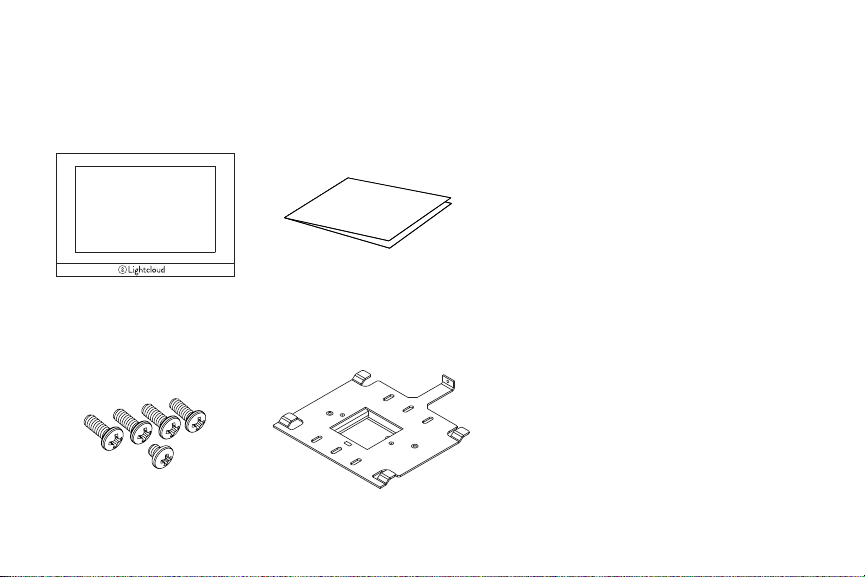
Contents
Specifications
Lightcloud Touch
®
Four #6-32 x 3/8”
One #4-40 x 1/8” acting as a screw set
Instruction Manual
Bracket
PART NUMBER
LCTOUCH
INPUT
90-264VAC, 0.3-0.5A, 47-63Hz
OPE RATING T EMPER ATURE
0°C to 40°C
MAXIMUM RELATIVE HUMIDITY
90%
OVERALL DIMENSIONS
10.8” x 7.5” x 0.7”
WIRELESS RANGE
Line of Sight 1000 feet
Obstructions 100 feet
Indoor Rated
Page 4
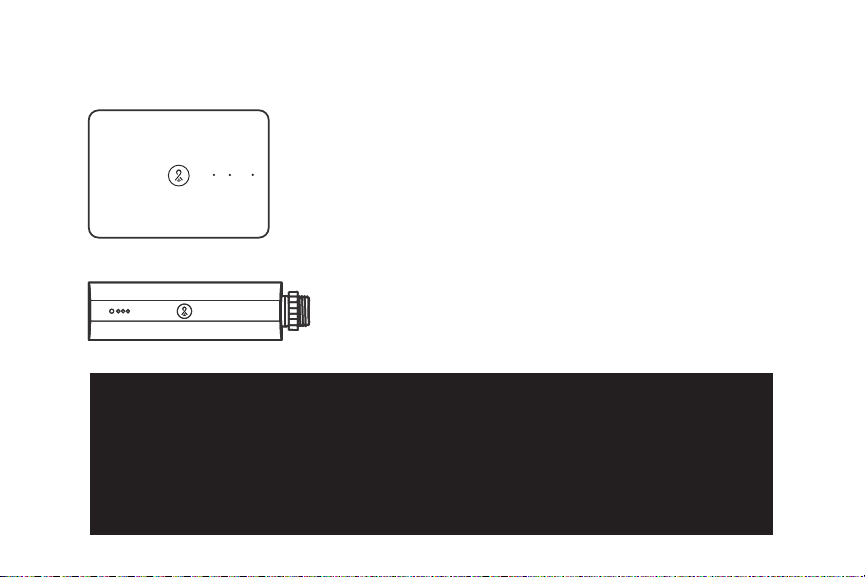
What you need
Lightcloud Gateway
A Lightcloud installation requires
A Lightcloud installation requires
at least one Lightcloud Gateway to
at least one Lightcloud Gateway to
manage your devices.
manage your devices.
Lightcloud Controller
(Or similar Lightcloud actuation device)
WE ’R E HERE TO HELP:
1 (844) LIGHTCLOUD
1 (844) 544-4825
support@lightcloud.com
Page 5
Finding a
suitable location
Lightcloud uses a wireless mesh network
to connect devices such as the Touch
to the Gateway. Unlike a WiFi router,
each Lightcloud device may connect
another device to the network. If there
is a clear line of sight between two
Lightcloud devices, they can be placed
up to 1000 feet apart. If the two devices
are separated by ordinary drywall
construction, try to keep them within
100 feet of each other. Brick, concrete
and steel construction may require
additional AC-powered Lightcloud
devices to go around the obstruction.
See the Deployment section of your
Gateway for more information.
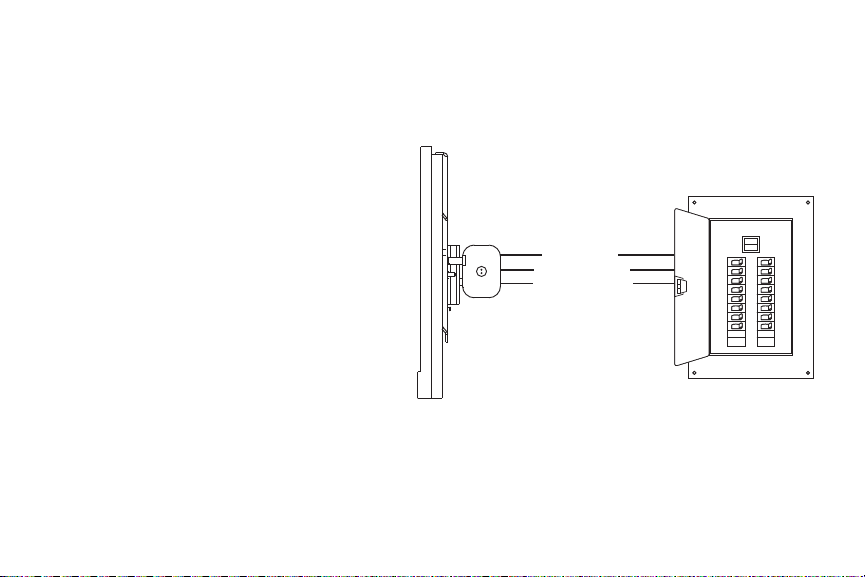
Wiring
BL ACK / HOT
WHITE / NEUTRAL
GREEN / GROUND
Page 6
Setup & installation
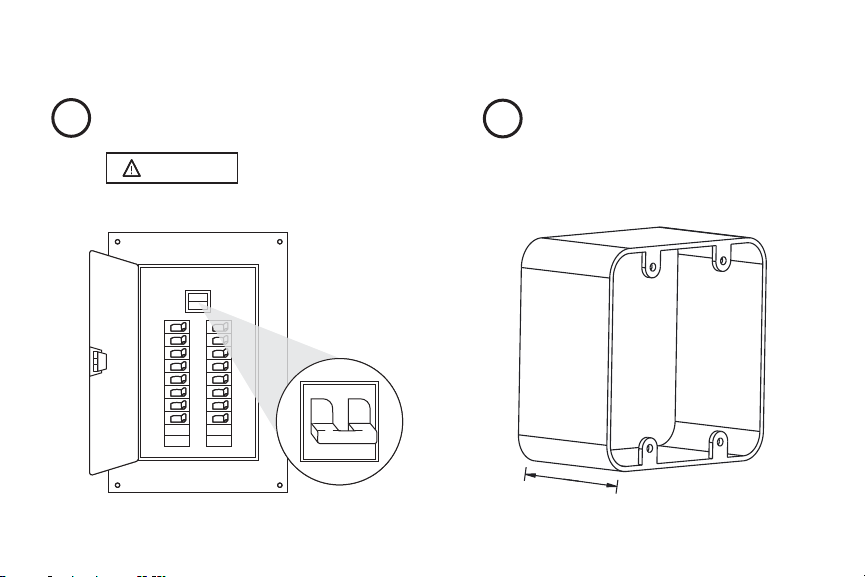
1
Turn off power
WA RNI NG
WA RNI NG
OFF
OFF
OFF
2
Inspect the box
The Touch requires a 2-gang box
with a minimum internal depth of 2”.
2" depth
Page 7

Setup & installation (cont’d)
3
Remove the Bracket
Pull the tab at the top of the Touch
and slide the bracket off the Touch.
4
Wire the Power Supply
Black to Hot
White to Neutral
Green to Ground
BLACK / HOT
WHITE /
NEUTRAL
GREEN /
GROUND
Page 8

Setup & installation (cont’d)
5
Install the Bracket
Center the bracket over the
junction box and attach with screws.
6
Connect power cable to Touch
Connect the power cable to the
back of the Touch
Page 9

Setup & installation (cont’d)
7
Slide Touch onto Bracket
Align bracket tabs with slots on
back of Touch and slide Touch down.
8
Tighten Set Screw
Tighten set screw on top of bracket
Don’t over tighten set screw!
Page 10

Setup & installation (cont’d)
SaveCancel
Location
Zone Name
Dimmable
Power Monitoring
Enter Device Information Repeat for Additional Devices
Send to RAB
Send to RAB
Enter Manually
PLACE RECTANGLE TO FIT CODE ON LABEL
Labeling your device
9
When installing devices, it’s important to keep track of
their Device IDs, installation locations, panel/circuit #s,
dimming function, and any additional notes. To organize
this information, use the Lightcloud Installer Application
(A) or Device Table (B).
9a
Lightcloud Installer Application
Install the LC Installer Application: LC Installer is available
for iOS or Andriod
Scan & Install Lightcloud Devices: Scan each device and assign to
a room. It’s recommended that each device is scanned just before
or just after being wired so no devices are missed. The more notes
that are given, the easier it is to commission the system.
Device Scanner
PLACE RECTANGLE TO FIT CODE ON LABEL
Enter Manually
Scan Device Code
Device Info
Device ID
Location
Zone Name
Dimmable
Power Monitoring
Enter Device
Information
0013A20040B62A4A
Oce Lights
Oce
SaveCancel
Device Scanner
PLACE RECTANGLE TO FIT CODE ON LABEL
Enter Manually
Repeat for
Additional Devices
Send to RAB: Once all of the devices have been added and
organized, submit the information for commissioning.
Of
Controller
Of
Sensor
Of
Dimmer
Of
Daylight
Of
Touch
Send to RAB
Send to RAB
Devices
fice Light - ID 0013A20040B62A4A
fice Light - ID 0013A20040B62A4B
fice Light - ID 0013A20040B62A4C
fice Light - ID 0013A20040B62A4D
fice Light - ID 0013A20040B62A4E
9b
Device Table
For setup and maintenance, we provide two Lightcloud Device
Tables with the Gateway: one that you can attach to your panel
and one to hand off to a building manager. Attach the Device
Identification stickers included with each device to a row,
then write in additional information, such as Zone name, Panel/
Circuit Number, and whether or not a zone uses dimming.
Add Device
DE VIC E ID s
ZO NE NA ME
PAN EL /
CI RCU IT #
Page 11

Setup & installation (cont’d)
10
Power Up
Call RAB at 1 (844) LIGHTCLOUD, or email us at support@lightcloud.com,
10a
10a
to add the Touch to your Lightcloud network.
®
Page 12

10b
10b
Once the Touch has joined your network, you'll see the screen below.
®
Page 13

Functionality
Configure
All Lightcloud products can be commissioned and configured by:
• Logging on to lightcloud.com
• Calling RAB at 1 (844) LIGHTCLOUD
• Emailing us at support@lightcloud.com
1
Configuring the Touch by calling or emailing RAB
1 (844) LIGHTCLOUD
1 (844) 544-4825
support@lightcloud.com
Page 14

2
Configuring the Touch using the web/mobile application
2a2a
Navigate to https://control.lightcloud.com and log in.
Page 15

Functionality (cont’d)
2
Configuring the Touch using the web/mobile application (cont’d)
2b2b
Click the menu icon in the top left.
Page 16

2c
2c
Navigate to your Site, then click Devices.
2d
2d
Find your Touch device in the Device List on the left.
Page 17

Functionality (cont’d)
2
Configuring the Touch using the web/mobile application (cont’d)
2e
2e
Click the icon to add zone and/or
scene controls to your Touch.
In this example, we've configured our
Touch to control two zones and one scene:
Page 18

2f2f
Within a few seconds, the tablet UI refreshes to reflect the changes.
Page 19

FCC Information:
This equipment has been tested and found to comply with the limits for a Class A digital device, pursuant to part 15 of the FCC
Rules. These limits are designed to provide reasonable protection against harmful interference when the equipment is operated
in a commercial environment. This equipment generates, uses, and can radiate radio frequency energy and, if not installed and
used in accordance with the instruction manual, may cause harmful interference to radio communications. Operation of this
equipment in a residential area is likely to cause harmful interference in which case the user will be required to correct the
interference at his own expense.
These limits are designed to provide reasonable protection against harmful interference in a non-residential installation.
However, there is no guarantee that interference will not occur in a particular installation. If this equipment does cause harmful
interference with radio or television reception, which can be determined by turning the equipment off and on, you are encouraged
to try to correct the interference by one or more of the following measures:
• Reorient or relocate the antenna.
• Increase the separation between this equipment and receiver.
• Connect the equipment into an outlet on a circuit different from that to which the receiver is connected.
• Consult the dealer or an experienced radio/TV technician for help.
To comply with FCC RF exposure limits for general population/uncontrolled exposure, this transmitter must be installed to
provide a separation distance of at least 20cm from all persons and must not be co-located or operating in conjunction with any
other antenna or transmitter.
CAUTION: Changes or modifications to this equipment not expressly approved by RAB Lighting, Inc. may void the user’s
authority to operate this equipment.
Page 20

Lightcloud is a commercial
wireless lighting control system.
It’s powerful and flexible
yet easy to use and install.
Learn more at lightcloud.com
1 (844) LIGHTCLOUD
1 (844) 544-4825
support@lightcloud.com
© RAB Lighting, Inc
170 Ludlow Avenue, Northvale, NJ 07647
Custom manufactured in China
05/19
 Loading...