

Page 1
Welcome
LCDAYLIGHT
Daylight
© RAB Lighting, Inc
170 Ludlow Avenue Northvale, NJ 07647
Custom manufactured in China
1 (844) LIGHTCLOUD
1 (844) 544-4825
[email protected]
Lightcloud is a commercial
wireless lighting control system
& service. It’s powerful and
flexible, yet easy to use
and install. Learn more at
lightcloud.com
1 (844) LIGHTCLOUD
1 (844) 544-4825
WE ’R E HE RE TO HEL P:
Page 2

Lightcloud is a wireless
lighting control service.
The Lightcloud Daylight
is a remote, self-powered,
open-loop light sensor
that can switch and dim
Lightcloud Controllers
and other Lightcloud
devices.
Hello
Product Features
Wireless Sensing & Configuration
Ambient Light Sensor
Innovative Self-Powered Design
No Batteries
Patent Pending
FCC Information:
This device complies with Part 15 of the FCC Rules. Operation is subject to the following two conditions:
1. This device may not cause harmful interference, and
2. This device must accept any interference received, including interference that may cause undesired
operation.
Note: This device has been tested and found to comply with the limits for Class B digital devices pursuant
to Part 15 Subpart B, of the FCC rules. These limits are designed to provide reasonable protection against
harmful interference in a residential environment. This equipment generates, uses, and can radiate radio
frequency energy, and if not installed and used in accordance with the instruction manual, may cause
harmful interference to radio communications. However, there is no guarantee that interference will not
occur in a particular installation. If this equipment does cause harmful interference to radio or television
reception, which can be determined
by turning the equipment o and on, the user is encouraged to try and correct the interference by one or
more of the following measures:
• Reorient or relocate the receiving antenna.
• Increase the separation between the equipment and receiver.
• Connect the equipment into an outlet on a circuit dierent from that to which the receiver is connected.
• Consult the dealer or an experienced radio/TV technician for help.
To comply with FCC RF exposure limits for general population/uncontrolled exposure, this transmitter
must be installed to provide a separation distance of at least 20cm from all persons and must not be
co-located or operating in conjunction with any other antenna or transmitter.
CAUTION: Changes or modifications to this equipment not expressly approved by RAB Lighting, Inc.
may void the user’s authority to operate this equipment.
Page 3
Contents
PART N UMBER
LCDAYLIGHT
OPER ATING TE MPERATURE
-10ºC to 40ºC
OPERATING HUMIDITY
10% RH to 95% RH
OVERALL DIMENSIONS
5.25” x 3.16” x 1”
Specifications
USB POWER SPECIFICATIONS
Nominal Input Voltage 100-240VAC
Nominal Input Current 6mA
Nominal Power 0.2W
Frequency 47Hz-63Hz
Warrant y is active as long a s service
plan is active.
Indoor R ated.
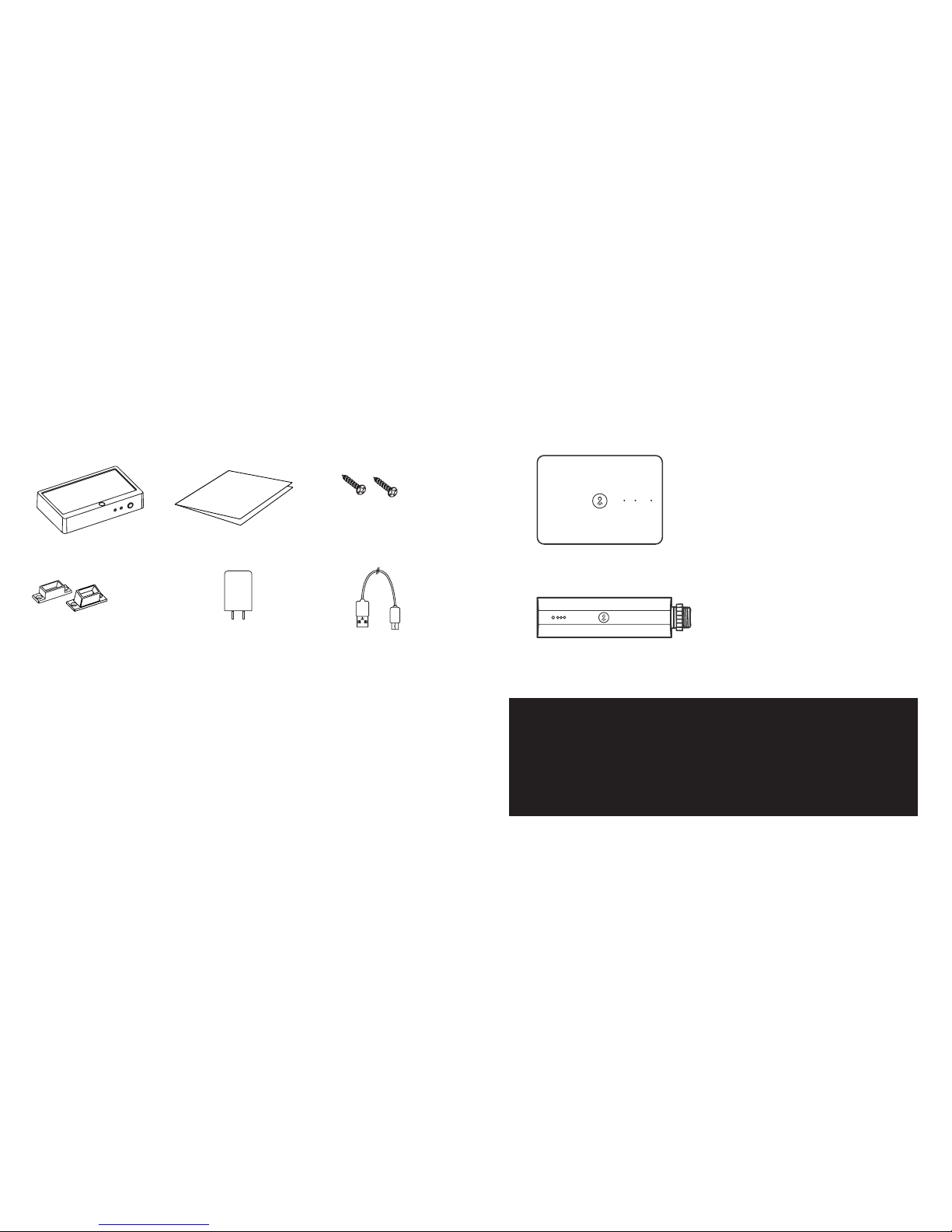
Lightcloud Daylight Instruction Manual
Mounting Screws
Straight & Angled
Mounting Brackets
Power Supply for Setup USB Cable for Setup
What You Need
Lightcloud Gateway
A Lightcloud installation requires
at least one Lightcloud Gateway to
manage your devices.
The Daylight is designed to remotely
control one or more Lightcloud devices
that are capable of switching or dimming,
such as the Lightcloud Controller or
Ceiling Sensor.
1 (844) LIGHTCLOUD
1 (844) 544-4825
WE ’R E HERE TO H ELP:
Lightcloud Controller
(Or similar Lightcloud actuation device)
Page 4
Setup & Installation
2
Contact RAB to add your Daylight
Call us at 1(844) LIGHTCLOUD or email [email protected]
and we'll get your Daylight device added to your Lightcloud network
immediately. When USB power is removed, it is normal for this
LED to be unlit.
1
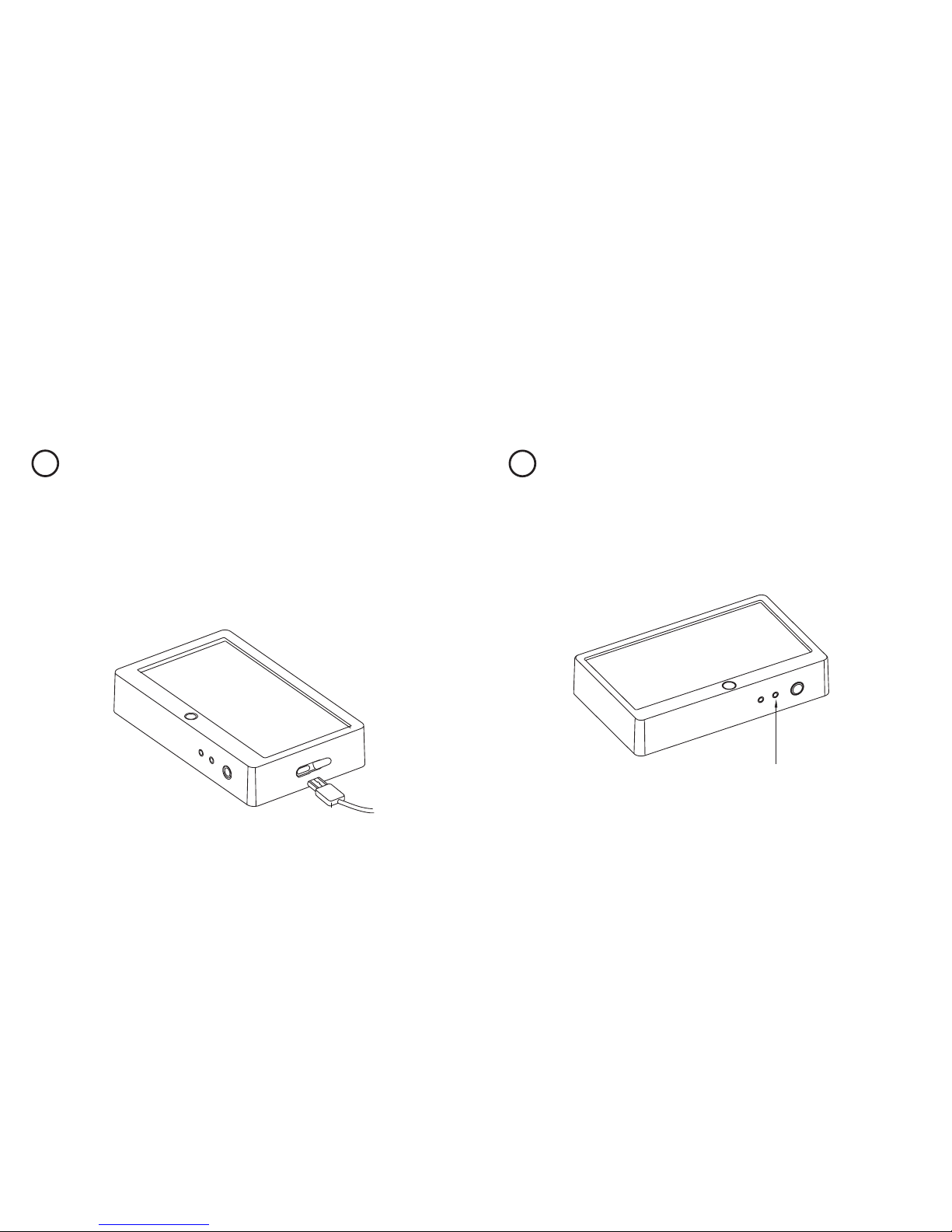
Plug in the Daylight device (setup only)
To join your Daylight to a Lightcloud network, plug it in with the included
Micro USB power adapter. The white Power Indicator will come on and
the Device Status Indicator will blink red every 10 seconds until it is joined
to your network. For setup purposes, you can plug the device in anywhere
that’s convenient, but please stay near the location where it will be
permanently installed in order to ensure continued network connectivity.
Once setup has been completed, you can unplug the device and it will
operate exclusively on solar power—no batteries necessary.
DEV ICE STATUS IN DICATO R
Page 5
Setup & Installation (cont’d)
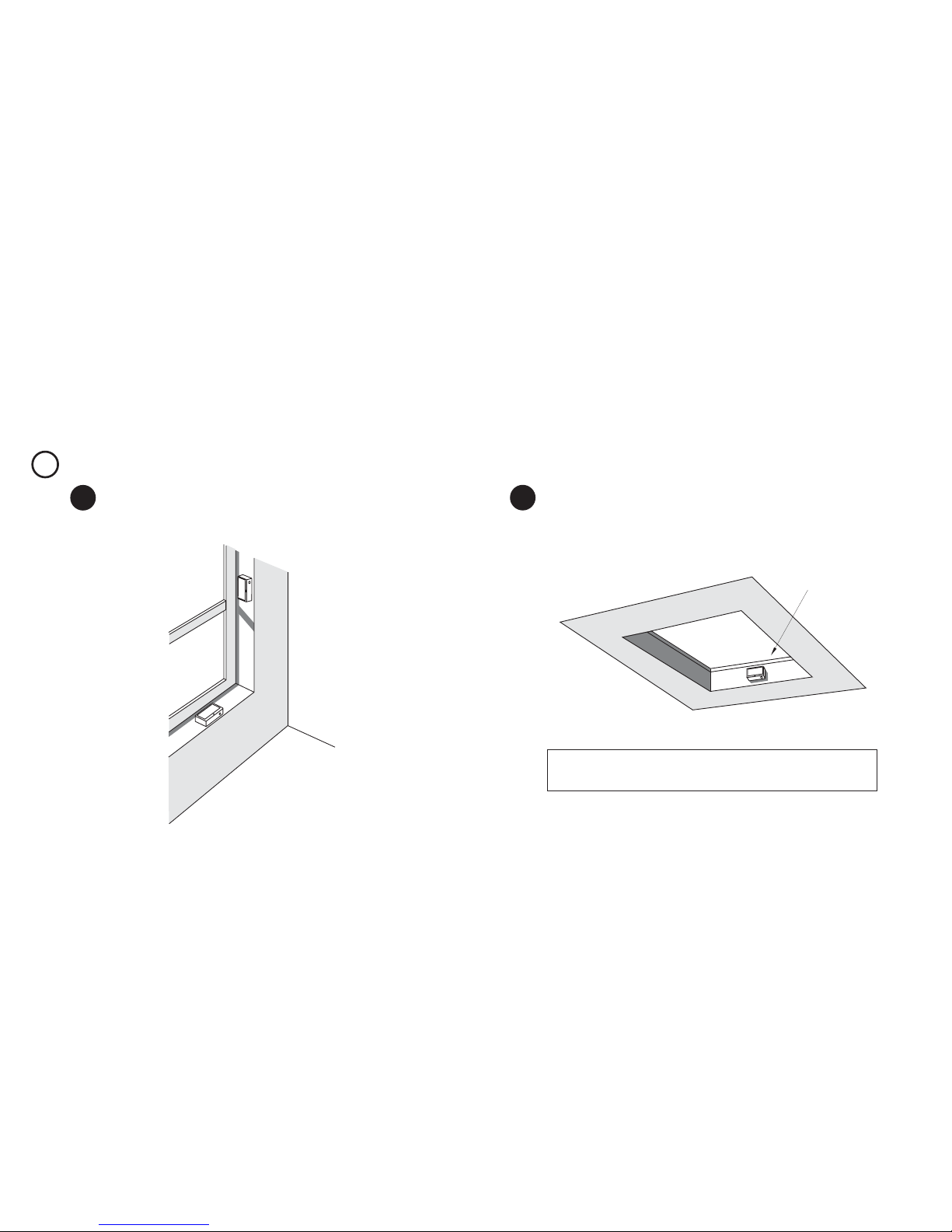
The Daylight needs sunlight to operate, and must be within range
of another Lightcloud device. Direct sunlight is ideal, but indirect
sunlight may be acceptable if there’s enough of it.
3
Find a Suitable Location
Exampl e of
ideal placement s
3a
A skylight is a great location for the Lightcloud Daylight. Be aware of
where shadows will land throughout the day and position the device
where it will receive the most direct sunlight.
3b
NOTE: Remember, south-facing surfaces usually receive more direct sunlight
than north-facing surfaces.
SKYLIGHT
Page 6
Setup & Installation (cont’d)
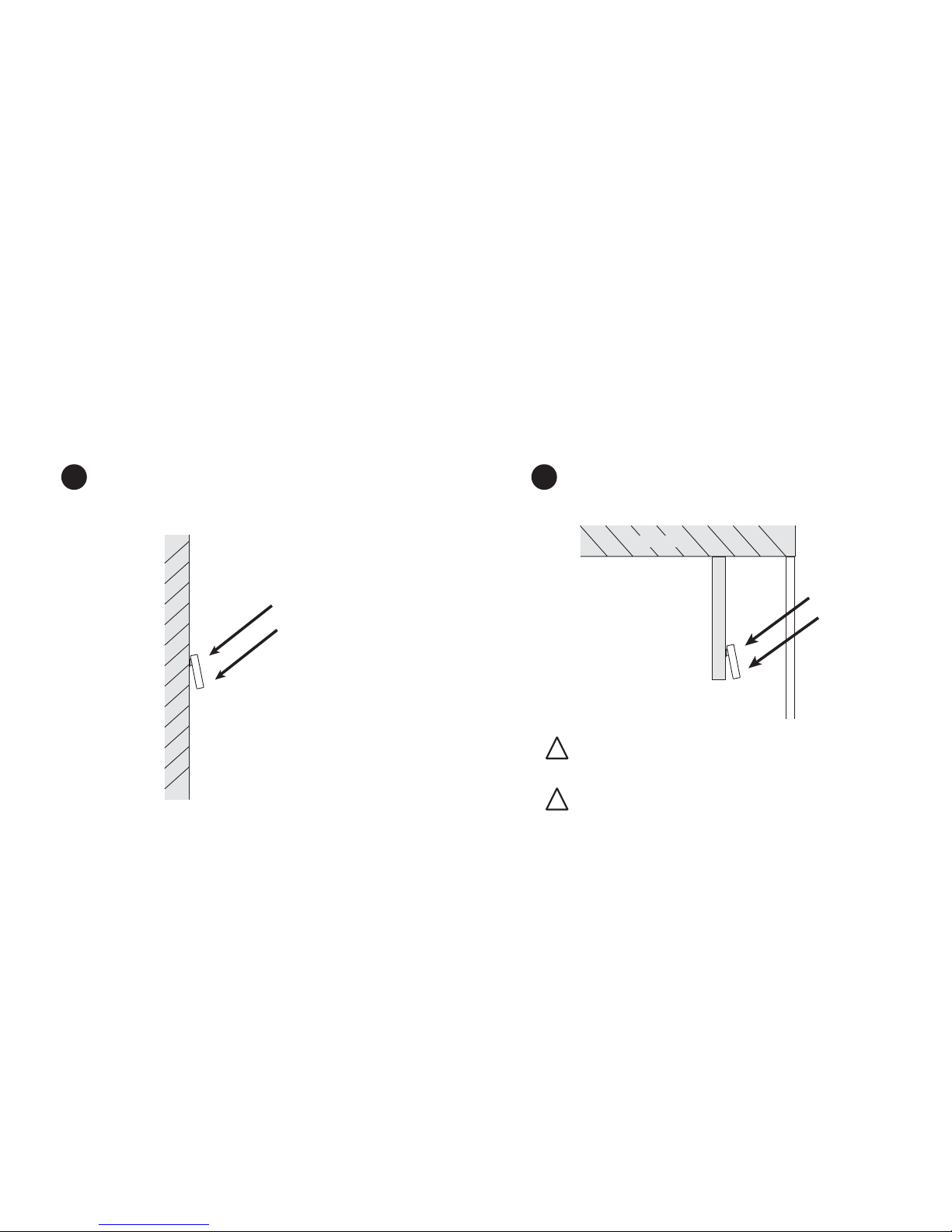
The Daylight includes an angled mounting bracket that can be used
to maximize the amount of sunlight landing on the device’s face.
3c
In some cases, you may want to use an extension of some kind
(not included) to mount the device from the ceiling. Just be sure
it ends up in direct sunlight as much as possible.
3d
DIRECT
SUNLIGHT
Use angled bracket to
get more direct sunlight
DIRECT
SUNLIGHT
May need to use
an extensi on to
obtain dire ct sunlight
CEILING
WINDOW
!
!
The Daylight must be within range of a Lightcloud device or
Gateway. See “Finding a Location”
The Daylight will not act as a “repeater” to extend the range of
your Lightcloud network. If you need to extend your network
range, use a Lightcloud Controller or other AC-powered device.
Page 7
Setup & Installation (cont’d)
4
Install
Login at lightcloud.com and click on Devices to associate a zone
at your site. The application will show the last measured light level
so you can configure actions to take at dierent levels. Or, simply
call or email us:
5
Configure
1 (844) LIGHTCLOUD
1 (844) 544- 4825
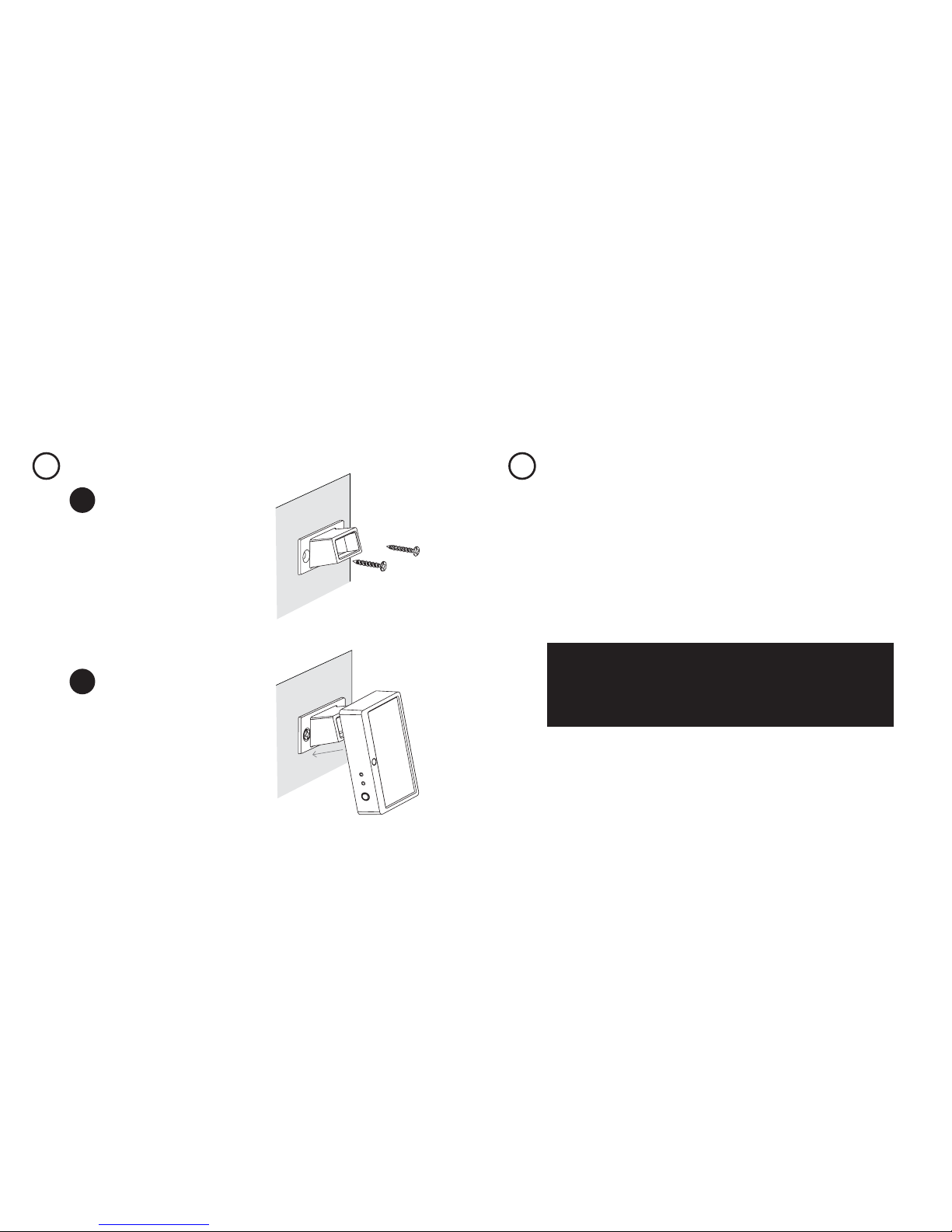
Screw the straight or angled
mounting bracket to the
mounting surface.
4a
Snap the Daylight onto
the mounting bracket.
4b
Page 8
Functionality
Overview
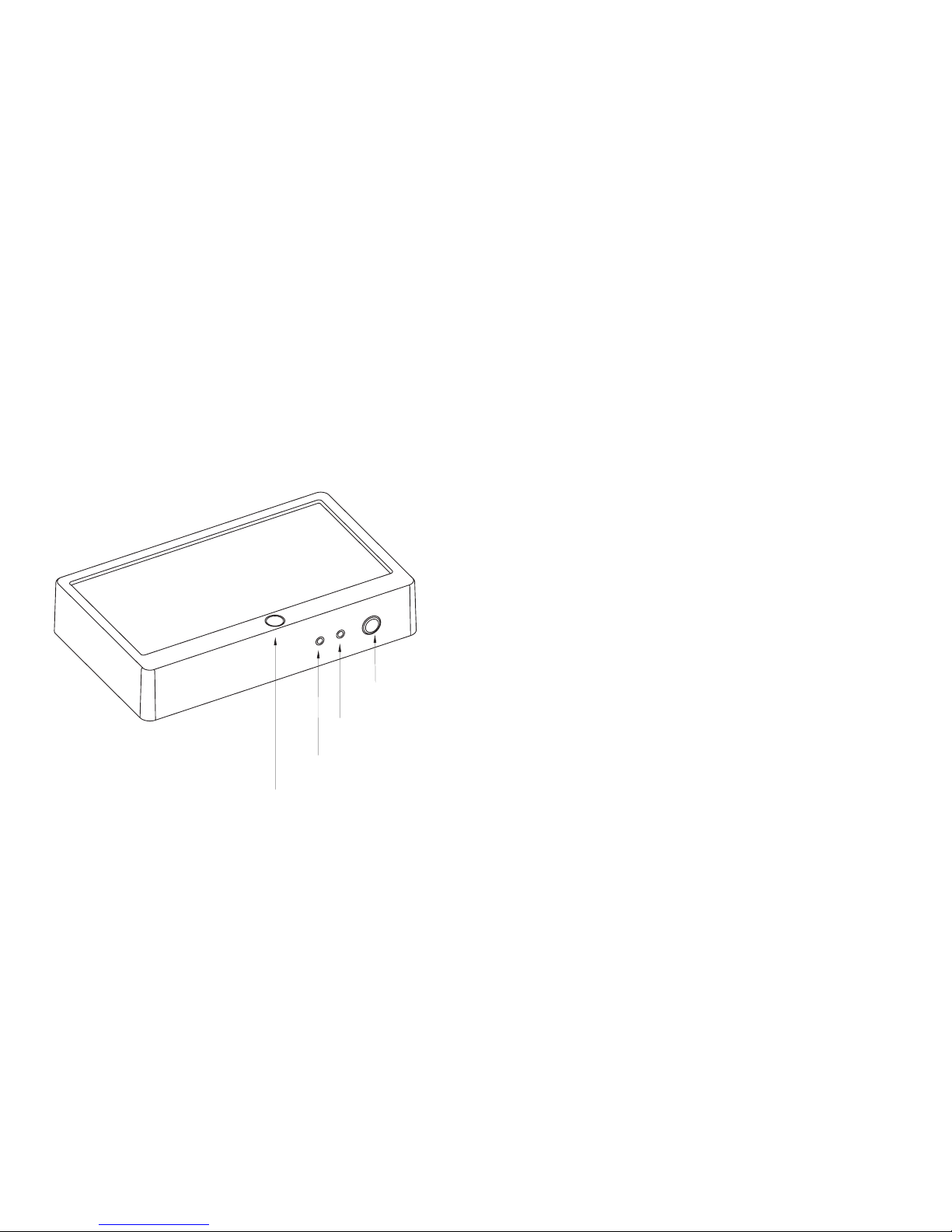
DEVICE STATUS INDICATOR:
• Unlit: When not powered by USB, indicates that the device is joined to a
Lightcloud network and is operating normally
• Solid green: When powered by USB, indicates that the device is joined to a
Lightcloud network
• Green blink: After pressing the Device Button, indicates that a light level
measurement has been transmitted
• Single red blink every 10 seconds: Not joined to a Lightcloud network
• Green/Red alternating: Resetting to factory defaults
USB POWER INDICATOR:
• White: Powered by USB
DEVICE BUTTON:
• Press: Indicate in Lightcloud application and measure light level
• Hold for 10 seconds while USB powered: Force device to leave current
Lightcloud network
• Hold for 10 seconds while connecting USB power: Reset to factory defaults
and leave current network
DAYLIGHT HARVESTING:
Daylight Harvesting is the use of daylight to oset the use of electric lighting to
light a space. If there’s enough daylight in a space, the Lightcloud Daylight can
make sure the lights are turned down or o, and turn them back on when the
sun goes down.
The Lightcloud Daylight automatically takes light level measurements every 10
minutes. Pressing the Device Button will make an immediate measurement. Call
or email RAB, or log in to lightcloud.com to configure actions to take at dierent
light levels, such as turning o a zone when the light level exceeds 50 foot-candles.
AMB IENT
LIGH T SENSOR
DEV ICE
BUT TON
USB P OWER
INDI CATOR
DEV ICE STATU S
INDI CATOR
 Loading...