

Page 1
Quick Start Guide
Lifesize® Phone™ HD
With Lifesize® Phone™ HD, you can manage audio, web and video conferencing, as well as share your
screen, making it easier than ever to collaborate with colleagues and partners. The vivid and responsive
touchscreen interface provides rapid access to the most popular features. Let’s get started!
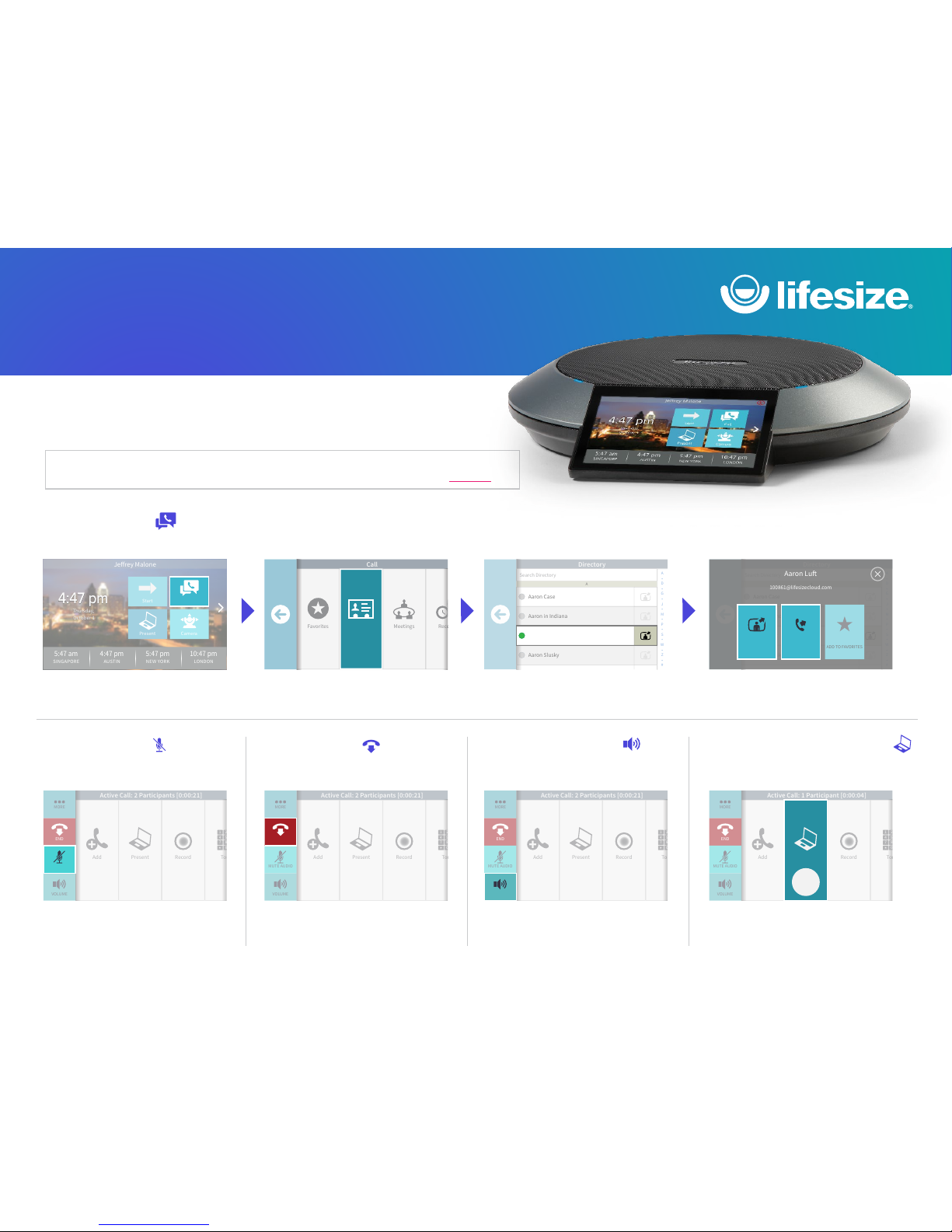
1. From the Home Screen, tap the Call icon.
While in a call, tap the Mute Audio icon. Tap the End icon.
While in a call, tap the Present icon.
While in a call, tap the Volume icon.
Adjust volume with slider.
Make A Call
2. Now tap the Directory icon. 3. Select the person to call. 4. Select Dial as Video or Dial as Voice.
QUICK TIPS: Locate and add contacts using Recents,
Directory, or Favorites. Join a meeting using Meetings.
Use the Keypad to dial a phone directly.
DID YOU KNOW? The lights on Lifesize Phone HD will
turn red when audio is muted..
DID YOU KNOW? There are several ways to end a
call. You can remove yourself or one or more of the
participants on the call
QUICK TIP: While in a call, tap the Layouts icon for screen layout
options. To end presentation mode, just tap the Presenting icon.
DID YOU KNOW? You can share your screen whether you’re in a
video call or giving a presentation to others in the conference room.
QUICK TIP: To adjust the volume before starting a call,
tap the Start icon on the Home Screen to access the
Volume icon.
Mute Audio End a Call Start a PresentationAdjust Volume
For Lifesize customers with Lifesize Phone HD attached to a Lifesize® Icon™ (excluding Lifesize Icon Flex), you can
customize your Lifesize Phone HD home screen with the buttons and time zones that work best for you. Learn how.
Start
Present Camera
Jerey Malone
Thursday,
October 1
Thursday,
October 1
4:47 pm4:47 pm
5:47 am
SINGAPORE
4:47 pm
AUSTIN
5:47 pm
NEW YORK
10:47 pm
LONDON
Call
Favorites Meetings RecentsDirectory
Call
Directory
Favorites Meetings RecentsDirectory
Call
Directory
Directory
A
•
D
•
G
•
J
•
M
•
P
•
S
•
W
•
Z
•
#
Search Directory
A
Aaron Case
Aaron in Indiana
Aaron Slusky
Aaron Lu
Aaron Lu
Directory
A
•
D
•
G
•
J
•
M
•
P
•
S
•
W
•
Z
•
#
Search Directory
A
Aaron Case
Aaron in Indiana
Aaron Slusky
Aaron Lu
ADD TO FAVORITES
Aaron Lu
100861@lifesizecloud.com
DIAL AS VIDEO DIAL AS VOICE
Add Record TonePresent
Active Call: 2 Participants [0:00:21]
*
0
7 8
4 5
1 2
END
MUTE AUDIO
VOLUME
MORE
MUTE AUDIO
Add Record TonePresent
Active Call: 2 Participants [0:00:21]
*
0
7 8
4 5
1 2
END
MUTE AUDIO
VOLUME
MORE
END
Add Record TonePresent
Active Call: 2 Participants [0:00:21]
*
0
7 8
4 5
1 2
END
MUTE AUDIO
VOLUME
MORE
VOLUME
Add Record TonePresent
Active Call: 1 Participant [0:00:04]
*
0
7 8
4 5
1 2
END
MUTE AUDIO
VOLUME
MORE
Layouts
Present
Layouts
Page 2
HEADQUARTERS
Austin, Texas , USA
+1 512 347 930 0
Toll Free US +1 877 54 3 3749
EMEA REGIONAL OFFICE
Munich, Germany
+49 89 20 70 76 0
Toll Free Europe + 00 8000 99 9 09 799
APAC REGIONAL OFFICE
Singapore
+65 630 3 8370
© 2016 Lifesi ze, Inc. All r ights res erved. I nformat ion conta ined in thi s docume nt is subje ct to
change wi thout notice. L ifesize and the Li fesize logo are reg istered trade marks of Lifes ize,
Inc. All oth er tradem arks are the pr operty of t heir respe ctive owner s.
Promo_Trade-In_Program_AMR_0616
www.lifesize.com
E-mail: info@lifesize.com
HEADQUARTERS
Austin, Texas , USA
+1 512 347 930 0
Toll Free US +1 877 54 3 3749
APAC REGIONAL OFFICE
Singapore
+65 663 1 2831
© 2018 Life size, Inc. Al l rights re served . Informa tion cont ained in th is docum ent is subj ect to
change wi thout notice. L ifesize and the Li fesize logo are reg istered trade marks of Lifes ize,
Inc. All oth er tradem arks are the pr operty of t heir respe ctive owner s.
QSG_PhoneHD_US_0218
www.lifesize.com
E-mail: [email protected]
EMEA REGIONAL OFFICE
London
+44 207 59 62 835
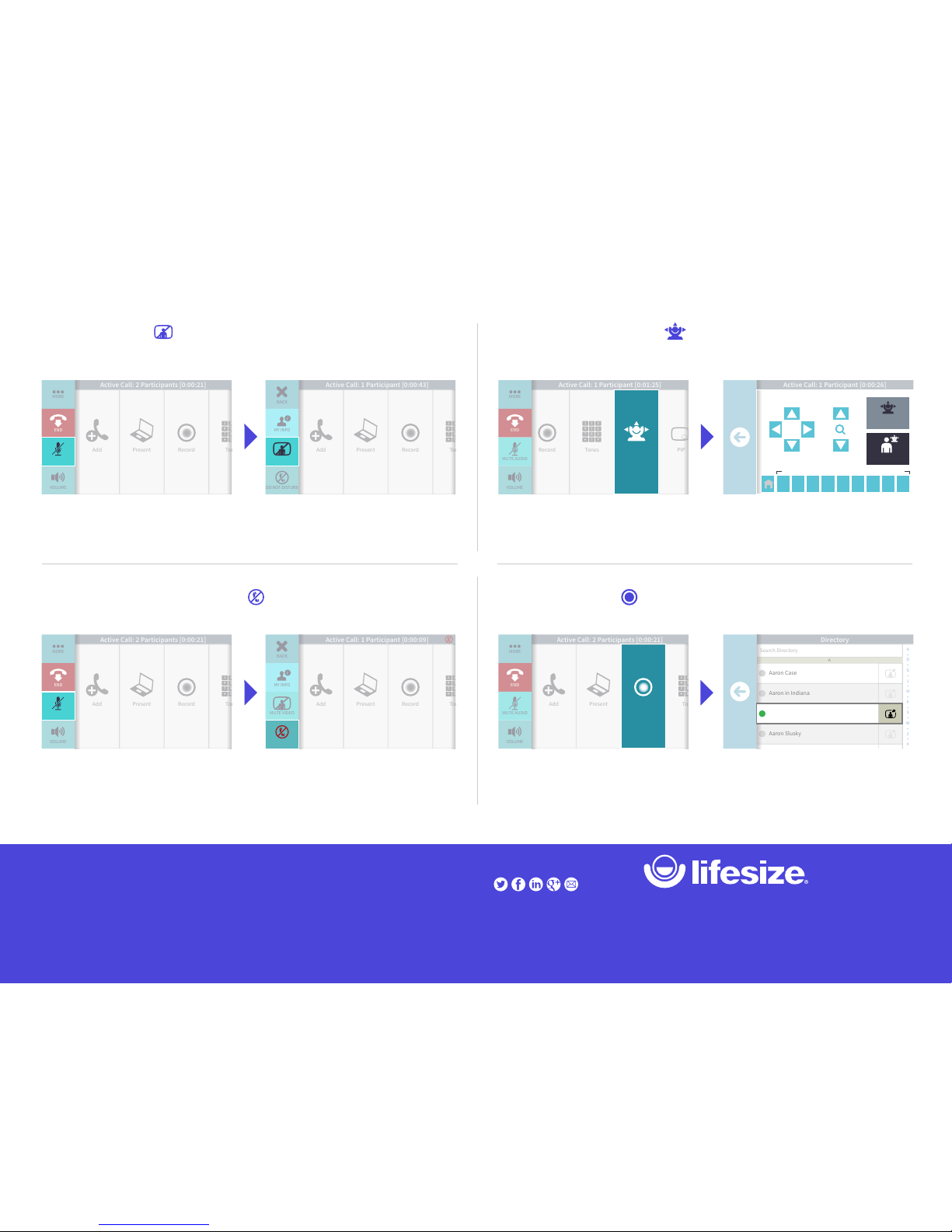
1. While in a call, tap the More icon.
1. While in a call, tap the More icon.
1. While in a call, swipe left and tap the
Camera icon.
1. While in a call, tap the Record icon.
2. Reposition/zoom camera using the controls.
2. Select the person to own the recording.
2. Tap the Mute Video icon.
2. Tap the Do Not Disturb icon.
QUICK TIP: If you’d like to move the camera before you
make a call, just tap the Camera icon on the Home Screen.
DID YOU KNOW? You can add a preset by pressing and
holding a number in the Presets bar.
QUICK TIP: When you are in a one-on-one call, you can
move their camera. Just look for the Remote icon.
NOTE: Lifesize Record and Share is required to be able to
record a call.
Mute Video
Enable Do Not Disturb
Move the Camera
Record a Call
Lifesize Phone HD Quick Start Guide
Add Record TonePresent
Active Call: 2 Participants [0:00:21]
*
0
7 8
4 5
1 2
END
MUTE AUDIO
VOLUME
MORE
MUTE AUDIO
Add Record TonePresent
Active Call: 1 Participant [0:00:43]
BACK
*
0
7 8
4 5
1 2
MY INFO
MUTE VIDEO
DO NOT DISTURB
MUTE VIDEO
CameraRecord PIPTones
*
0
7 8
4 5
1 2
#
9
6
3
Active Call: 1 Participant [0:01:25]
END
MUTE AUDIO
VOLUME
MORE
Camera
Active Call: 1 Participant [0:00:26]
87654321 9
Local
Remote
Press and hold to store a new preset location
Add Record TonePresent
Active Call: 2 Participants [0:00:21]
*
0
7 8
4 5
1 2
END
MUTE AUDIO
VOLUME
MORE
MUTE AUDIO
Add Record TonePresent
Active Call: 1 Participant [0:00:09]
BACK
*
0
7 8
4 5
1 2
MY INFO
MUTE VIDEO
DO NOT DISTURBDO NOT DISTURB
Add Record TonePresent
Active Call: 2 Participants [0:00:21]
*
0
7 8
4 5
1 2
END
MUTE AUDIO
VOLUME
MORE
Record
Directory
A
•
D
•
G
•
J
•
M
•
P
•
S
•
W
•
Z
•
#
Search Directory
A
Aaron Case
Aaron in Indiana
Aaron Slusky
Aaron Lu
Aaron Lu
 Loading...