

Page 1
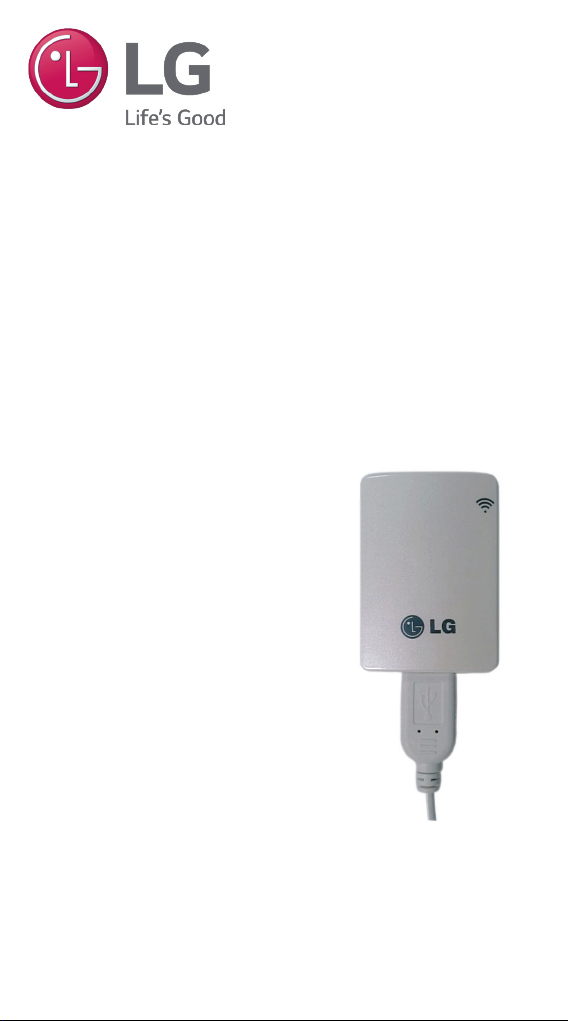
LG SIMs 2.0
MONITORING SYSTEM
Controls for
LG Air Conditioning Systems
SMART INVERTER
USER’S MANUAL
Model PSWMOZ3
Single/Multi
Page 2
Note:
Proprietary Data Notice
This document, as well as all reports, illustrations, data, information, and other materials are the property of LG Electronics
U.S.A., Inc., and are disclosed by LG Electronics U.S.A., Inc.,
only in condence.
Do not throw away, destroy, or lose this manual.
Please read carefully and store in a safe place for future reference.
Content familiarity required for proper installation and operation.
Follow the instructions in this manual to prevent product malfunction, property
damage, injury, and/or death. Incorrect operation due to ignoring any instruc-
tions may cause harm or damage. The level of seriousness is classied by the
symbols described below.
This symbol indicates that the action or lack thereof could
possibly cause death, personal injury, or property damage
This symbol indicates that the action or lack thereof could possibly cause
equipment malfunction or failure.
This symbol indicates that the following action should not be performed.
A summary of safety precautions is on page 4
For more technical materials such as submittals,
engineering databooks, and catalogs, visit www.lghvac.com
UM_SIMS2.0_PSWMOZ3_5_15
For continual product development, LG Electronics U.S.A., Inc.,
reserves the right to change specications without notice.
©LG Electronics U.S.A., Inc.
This document, as well as all reports, illustrations, data, information,
and other materials are the property of LG Electronics U.S.A., Inc.
Page 3

Table of Contents
Safety Precautions ............................................................... 4
LG SIMs 2.0 Terms and Conditions ...................................... 5
LG Smart Inverter Monitoring System 2.0 ............................ 6
LG SIMs 2.0 Operating Considerations ................................ 8
Safety ................................................................................... 9
Installation Sequence ........................................................... 9
Install the SIMs WLAN Module ................................... 9
Install the SIMs App ...................................................11
Install the Android App ...............................................11
Install the iOS App .................................................... 13
Wireless Connection ........................................................... 14
Android Connection .................................................. 14
iOS Connection ........................................................ 16
Using SIMs ......................................................................... 16
Initial Setup ......................................................................... 17
LG SIMs Main Screen ........................................................ 18
Outdoor Info Tab ....................................................... 20
Component ..................................................... 20
Temperature .................................................... 21
Indoor Info Tab .......................................................... 22
Graph Info Tab .......................................................... 23
IDU Temp ........................................................ 23
ODU Temp and Freq ....................................... 24
ODU Electric ................................................... 25
SIMs Troubleshooting Guide .............................................. 26
Troubleshooting SIMs Operation ........................................ 27
Data Guide ......................................................................... 29
WLAN Module Specications ............................................. 29
NOTICE .............................................................................. 30
Page 4

LG SIMs 2.0
Safety Precautions
LG Smart Inverter Monitoring System (SIMs) 2.0 is for use
with LG duct-free split (DFS) systems only. Do not attempt
to use SIMs 2.0 with any other type of system.
The information in this manual is intended for use by an
industry-qualied, experienced, certied technician familiar
with the U.S. National Electric Code (NEC) who is equipped
with the proper tools and test instruments.
Failure to carefully read and follow all instructions in this manual may
result in equipment malfunction, property damage, personal injury
and/or death.
Input power to the outdoor unit remains connected and
on during procedures in this manual. Do not touch any
exposed outdoor unit wiring, terminals, or other electrical components with tools or exposed skin. Only qualied
technicians should install, remove, or re-install this unit.
Improper installation or use may result in re, explosion, electric
shock, physical injury and/or death.
All electrical work must be performed by a licensed electrician and conform to local building codes or, in the absence
of local codes, with the National Electrical Code, and the
instructions given in this manual.
If the power source capacity is inadequate or the electric work is not
performed properly, it may result in re, electric shock, physical injury
and/or death.
Do not install the SIMs unit if it will be exposed to rain or
other precipitation. Do not install the unit in a location
exposed to open ame or extreme heat. Do not touch the
unit with wet hands.
There is risk of re, electric shock, explosion, physical injury and/or death.
Safely dispose of the packing materials.
Tear apart and throw away plastic packaging bags so that children
may not play with them and risk suffocation and death.
4
Due to our policy of continuous product innovation, some specications may change without notication.
©LG Electronics U.S.A., Inc., Englewood Cliffs, NJ. All rights reserved. “LG” is a registered trademark of LG Corp.
Page 5

User Manual
Do not store or use ammable gas or combustibles near
the unit. Do not install the unit in a location that generates
oil, steam, salt, sulfuric acid, etc.
There is risk of product failure, re, explosion, physical injury and/or
death.
Replace all outdoor unit control box and panel covers.
If cover panels are not installed securely, dust, water or other foreign
objects may enter the interior of a disassembled unit, causing re,
electric shock, physical injury and/or death.
Do not cut, lengthen or shorten the cable between the
SIMs unit and the outdoor unit. Do not install the SIMs unit
in a location where the cable cannot be safely and easily
connected between the two units. Do not allow strain on
this cable.
Do not spill water on the inside of the outdoor unit, especially on electrical components. Do not drop the SIMs unit
into water. If the unit is immersed in water or other liquid,
contact your local authorized LG distributor for support.
LG SIMs 2.0 Terms and Conditions
In using LG SIMs 2.0 hardware and smart phone application you
agree to the LG SIMs 2.0 terms and conditions.
• LG SIMs 2.0 hardware and smart phone application are to
be used only with LG Electronics, Inc. inverter air conditioner
products.
• LG SIMs 2.0 hardware and smart phone application cannot be
sold/transferred/rented to any other parties.
• All data generated by LG SIMs 2.0 hardware and smart phone
application cannot be sold/transferred/rented to any other parties.
• A complete list of LG SIMs 2.0 terms and conditions is at
http://www.lg-dfs.com/sims.aspx
Due to our policy of continuous product innovation, some specications may change without notication.
©LG Electronics U.S.A., Inc., Englewood Cliffs, NJ. All rights reserved. “LG” is a registered trademark of LG Corp.
5
Page 6
LG SIMs 2.0
LG Smart Inverter Monitoring system 2.0
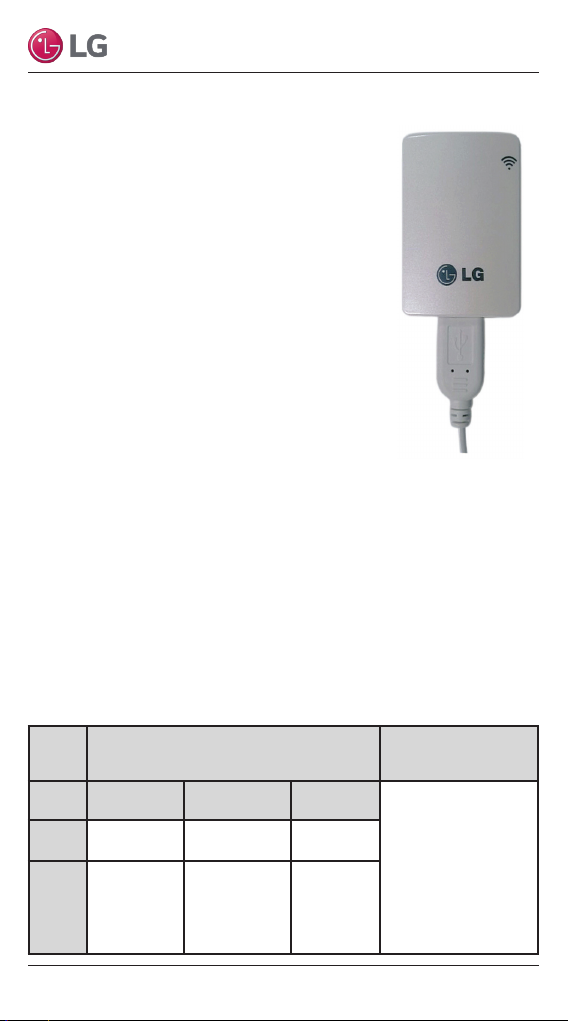
This manual describes how to install and
use the LG Smart Inverter Monitoring system
(SIMs) 2.0, Model PSWMOZ3. SIMs consists
of a hardware Wireless Local Area Network
(WLAN) module, an interface cable, and a free
application (app) for iOS and Android. The
user must supply a smart phone, either an
Apple iPhone or an Android phone. SIMs is not
optimized for tablets.
Before using SIMs, you must download and
install the latest version of the free SIMs
app from either the App store (iOS) or the
Play Store (Android). Be sure to download
the WLAN version of the app. There is also
a Bluetooth version (LG SIMs 1.0 [Bluetooth
Only]) on the Play Store, but the Bluetooth version will not work
with this WLAN SIMs module. Be sure to download LG SIMs 2.0.
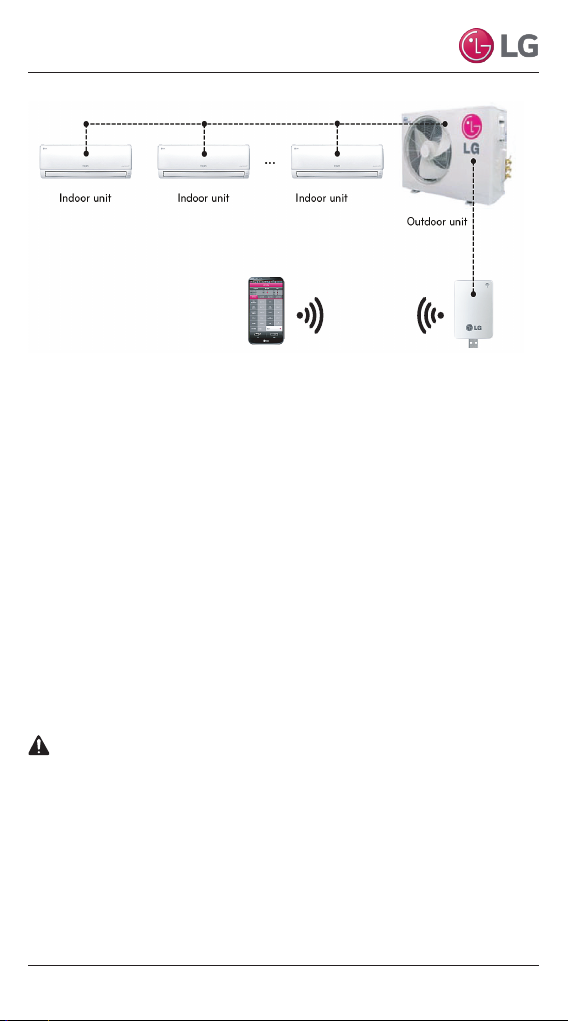
Figure 1 shows the SIMs app and SIMs WLAN module in a typical
DFS application. Table 1 lists SIMs smart phone requirements.
The SIMs WLAN module and the smartphone app together provide
monitoring and troubleshooting capability for LG duct-free systems
(DFS). SIMs functions only with LG DFS products.
Table 1: SIMs Smart Phone Requirements
Smart Phone
Supporting Specications
Minimum
OS
Specication
iOS iOS: 6.1 iOS: 6.1 / 7.0
Android Android 2.3 Android 4.4
6
Due to our policy of continuous product innovation, some specications may change without notication.
©LG Electronics U.S.A., Inc., Englewood Cliffs, NJ. All rights reserved. “LG” is a registered trademark of LG Corp.
Recommended
Specication
Resolution
960x640
1136x640
480x800
720x1280
768x1280
768x1024
1080x1920
Wireless
Communications
Effective Distance
• Effective distance:
32.8 ft (open area)
• Effective distance
may be reduced by
the communication
environment
Page 7
User Manual
LG SIMs
WLAN Module
LG SIMs App
on Smart Phone
Note:
Figure 1: SIMs WLAN Module to Typical DFS System
SIMs can display and graph operational data for the air conditioner
system including the indoor unit and the outdoor unit. SIMs also
displays error codes and a troubleshooting guide.
To use SIMs you must be a trained HVAC service technician
familiar with variable refrigerant flow (VRF) systems in general and
with LG’s DFS products. You should understand the inverter air
conditioning operation cycle, the meaning of the data displayed by
SIMs, and how to use the data to troubleshoot the system.
The DFS air conditioning system must run for at least
15–20 minutes before data collected by SIMs 2.0 is valid
for troubleshooting.
Due to our policy of continuous product innovation, some specications may change without notication.
©LG Electronics U.S.A., Inc., Englewood Cliffs, NJ. All rights reserved. “LG” is a registered trademark of LG Corp.
7
Page 8

LG SIMs 2.0
LG SIMs 2.0 Operating Considerations
• LG SIMs 2.0 processes data in real time. If other functions of
the smart phone are used at the same time as SIMs, smart
phone resources may be insufcient for SIMs to process data
or the SIMs connection may be disconnected. Please use the
product with this in mind. Always use a smart phone with at
least the minimum recommended specications.
• The SIMs application may unexpectedly end due to insufcient
system resources.
• Transmission/reception data volume may increase according
to the number of indoor and outdoor units. SIMs response
speed may be slower for some smart phone specications.
• Wireless transmission/reception distance may be reduced or
communication may be disconnected due to the operational
environment (weather, electromagnetic interference or
physical obstacles).
• SIMs may not work correctly with rooted smart phones.
• As communication distance between the SIMs WLAN module
and the smart phone increases, smart phone WLAN output
may increase, causing greater drain on the smart phone
battery. During use, keep the smart phone as close as safely
possible to the SIMs WLAN module.
8
Due to our policy of continuous product innovation, some specications may change without notication.
©LG Electronics U.S.A., Inc., Englewood Cliffs, NJ. All rights reserved. “LG” is a registered trademark of LG Corp.
Page 9
User Manual
Note:
Safety
Safety of personnel is the primary concern during all procedures.
Read and understand the safety summary at the front of this manual.
Read and understand this installation procedure before beginning
installation. Use the appropriate tools and acccessories during instal-
lation. Plan your work and do not work alone, if possible. Know how to
obtain emergency medical and reghting assistance.
Installation Sequence
To use SIMs, you must install the app on your smart phone and
you must connect the WLAN module to the outdoor unit. If you
have not yet installed the app, it may be more convenient to do so
before arriving at the job site. If desired, you can skip ahead to
the app installation section and return to WLAN module installation
when you are on-site.
Install the SIMs WLAN Module
The SIMs WLAN module must connect to the LGMV connector
on the outdoor unit’s circuit board. Most outdoor units have an
extension cable connected to the LGMV connector. To access the
extension cable you have to remove only the side handle cover.
Some outdoor units may not have the extension cable. If not, you
must remove the top cover of the outdoor unit and connect the
SIMs cable directly to the LGMV connector on the circuit board.
High voltages capable of causing death are used in this equipment.
Outdoor unit power remains connected during this procedure. Take
extreme caution not to touch electrical components or connections.
Failure to observe this warning can result in death or severe injury.
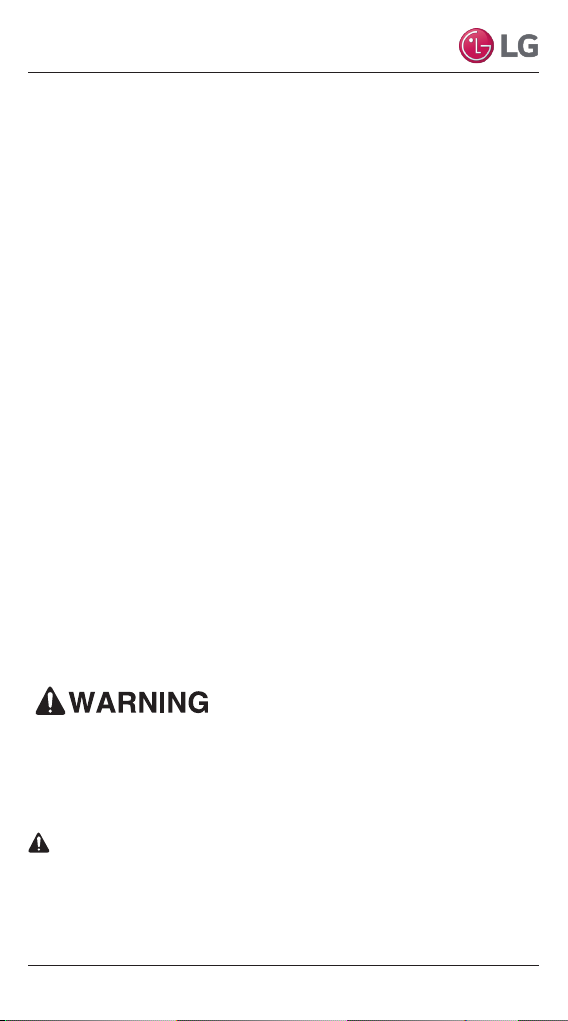
Some ODUs have an LGMV extension cable accessed by
removing the side handle cover. If the ODU does not have this extension
cable, access the LGMV connector by removing the top cover of the ODU.
1. Remove the outdoor unit handle cover.
Due to our policy of continuous product innovation, some specications may change without notication.
©LG Electronics U.S.A., Inc., Englewood Cliffs, NJ. All rights reserved. “LG” is a registered trademark of LG Corp.
9
Page 10
LG SIMs 2.0
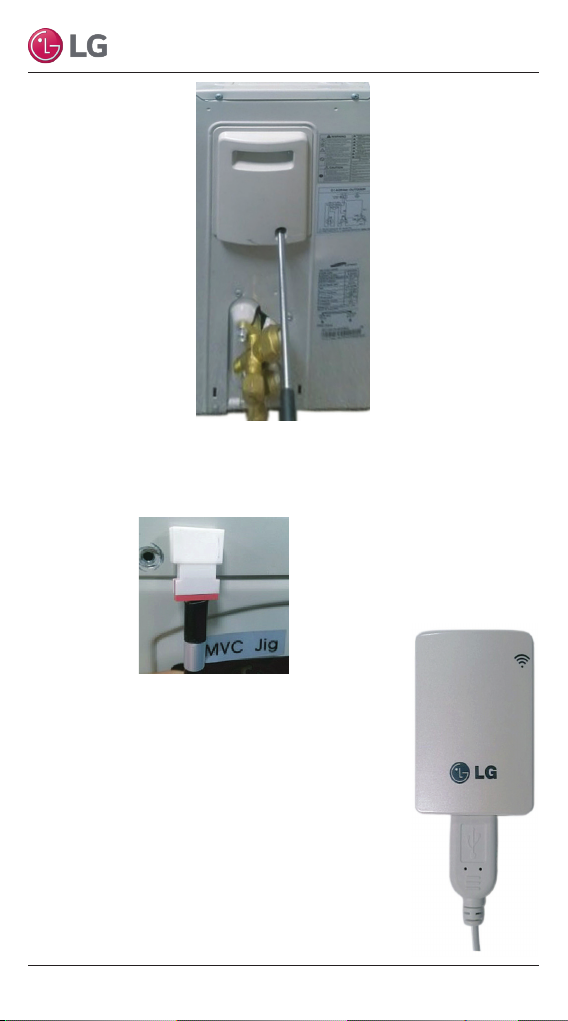
2. Locate the cable labeled MVC Jig inside the outdoor unit. If this
cable is not there, reinstall the handle cover and remove the
top cover of the outdoor unit.
3. Locate the SIMs WLAN module and the SIMs
interface cable.
4. Connect USB connector on the interface cable
to USB connector on the SIMs WLAN module.
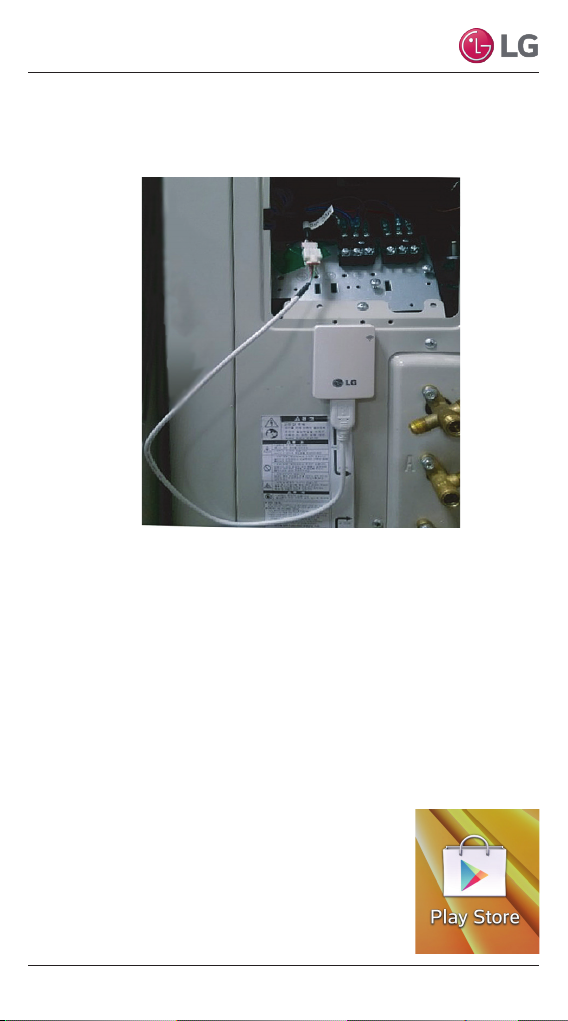
5. If the MVC Jig cable is present, connect the
other end of the interface cable to the MVC
Jig cable connector.
6. If the MVC Jig cable is not present, connect the
other end of the interface cable to the LGMV
connector on the outdoor unit circuit board.
10
Due to our policy of continuous product innovation, some specications may change without notication.
©LG Electronics U.S.A., Inc., Englewood Cliffs, NJ. All rights reserved. “LG” is a registered trademark of LG Corp.
Page 11
User Manual
7. Put the WLAN module in a safe location for operation. Be sure
the direct path from the WLAN module to your smart phone is
not blocked by any object.
8. If you have not yet installed the app, go to Install the SIMs App.
9. If you have already installed the SIMs app, go to Using SIMs.
Install the SIMs App
You must have the free SIMs app correctly installed on your smart
phone before using SIMs. Follow the instructions for your smart
phone, either Android or iPhone.
Install the Android App
Follow these steps to install the app on an
Android smart phone.
1. Be sure your phone meets the specifica-
tions listed in “Table 1: SIMs Smart Phone
Requirements” on page 6.
2. Tap the Play Store icon on the phone.
Due to our policy of continuous product innovation, some specications may change without notication.
©LG Electronics U.S.A., Inc., Englewood Cliffs, NJ. All rights reserved. “LG” is a registered trademark of LG Corp.
11
Page 12
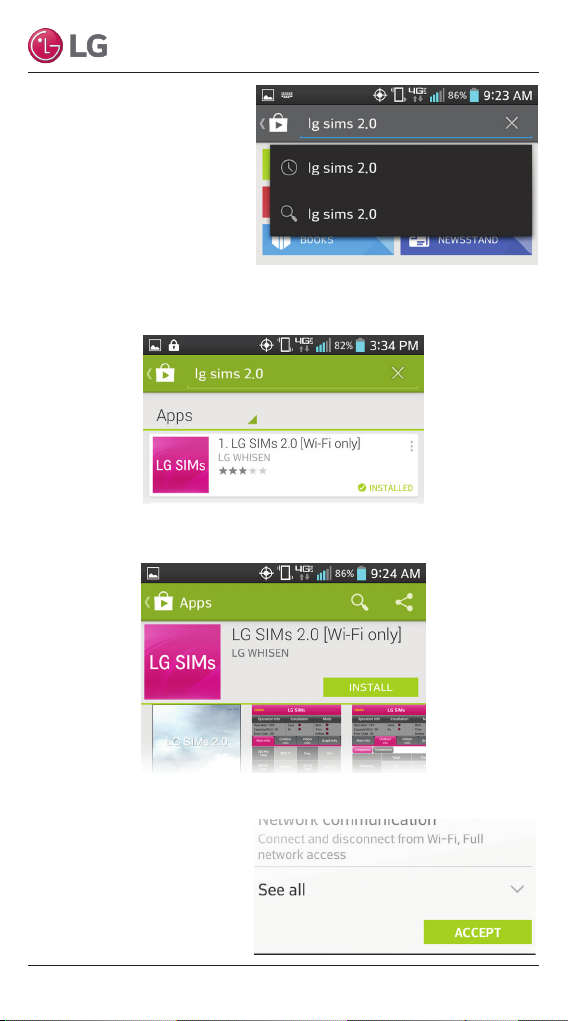
3. Type LG SIMs 2.0 in
the search window and
search for the app.
4. Tap the LG SIMs 2.0
icon in the search results
list. Be sure to install
LG SIMs 2.0. There is
a Bluetooth app named
LG SIMs 1.0 that may also appear in the search results list. The
Bluetooth app will not work with the SIMs WLAN module.
5. Tap the INSTALL button on the LG SIMs 2.0 screen.
LG SIMs 2.0
6. Tap the ACCEPT button on the App permissions screen.
7. When the app is
finished installing,
an OPEN button is
displayed on the
screen.
12
Due to our policy of continuous product innovation, some specications may change without notication.
©LG Electronics U.S.A., Inc., Englewood Cliffs, NJ. All rights reserved. “LG” is a registered trademark of LG Corp.
Page 13
User Manual
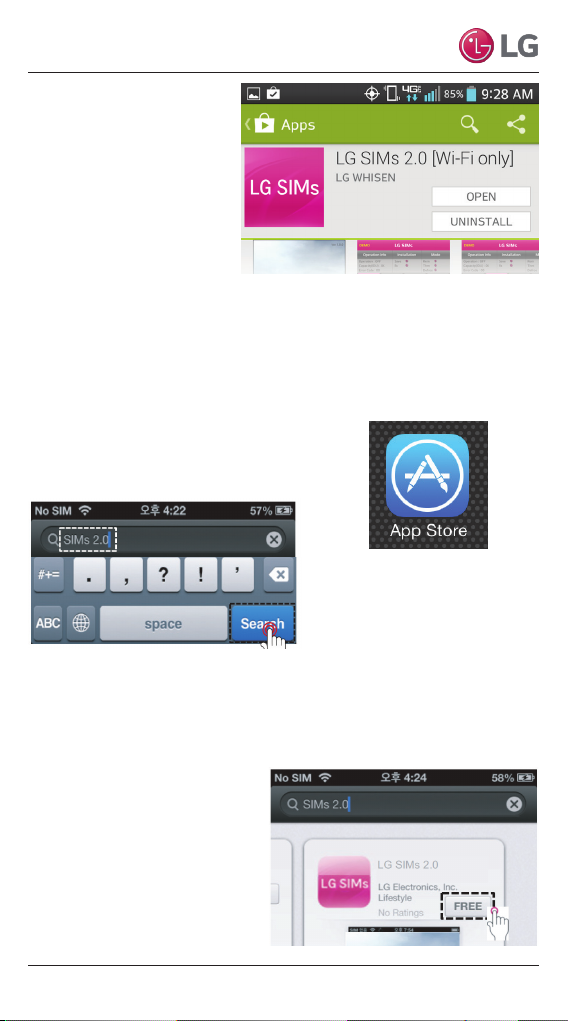
8. If you are ready to
begin SIMs operation,
tap OPEN and the app
will start. If you will use
SIMs later, you can
return to the phone’s
Home screen.
Install the iOS App
Follow these steps to install the LG SIMs 2.0 iOS app.
1. Be sure your iPhone meets the specifications listed in
“Table 1: SIMs Smart Phone Requirements” on page 6.
2. Tap the App Store icon on the screen.
3. Type LG SIMs 2.0 in the search window
and search for the app.
4. Tap the LG SIMs 2.0 icon in the search results list. Be sure to
select LG SIMs 2.0. There is a Bluetooth app named LG SIMs 1.0
that may also appear in the search results list. The Bluetooth app
will not work with the SIMs WLAN module.
5. Tap the FREE Button.
6. If necessary, enter your
Apple ID and password to
continue.
Due to our policy of continuous product innovation, some specications may change without notication.
©LG Electronics U.S.A., Inc., Englewood Cliffs, NJ. All rights reserved. “LG” is a registered trademark of LG Corp.
13
Page 14
LG SIMs 2.0
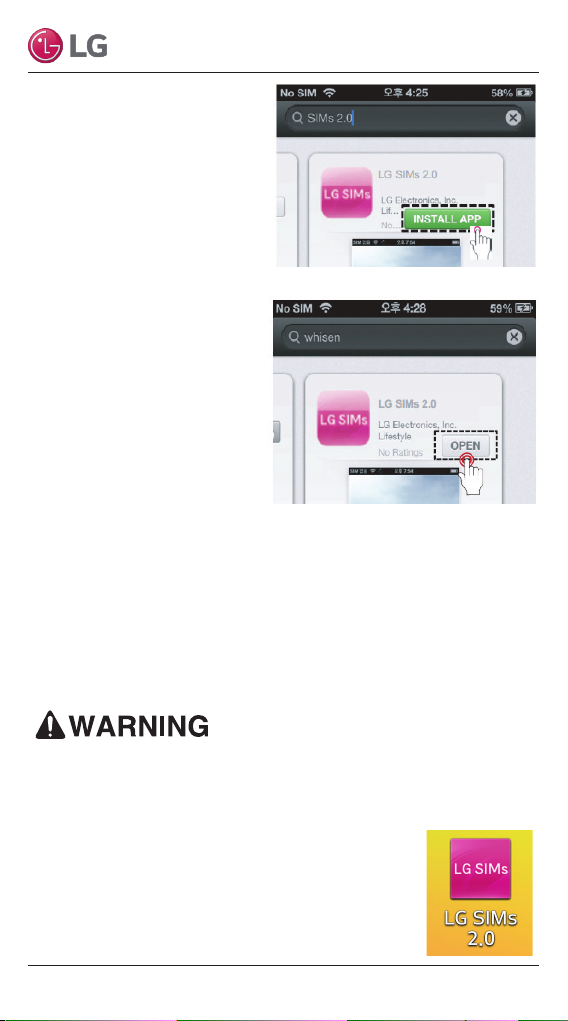
7. Tap the INSTALL APP
button on the LG SIMs 2.0
screen.
8. When installation is com-
plete, an OPEN button is
displayed on the screen.
9. If you are ready to
begin SIMs operation,
tap OPEN and the app
will start. If you will use
SIMs later, you can return
to the phone’s Home
screen.
Wireless Connection
To use SIMs, the SIMs app must be installed on your smart phone
and the SIMs WLAN module must be connected to the air condi-
tioning system’s outdoor unit. Follow the instructions for Android
or for iPhone to connect your smart phone to the SIMs WLAN
module.
High voltages capable of causing death are used in this equipment.
Outdoor unit power remains connected during this procedure. Take
extreme caution not to touch electrical components or connections.
Failure to observe this warning can result in
death or severe injury.
Android Connection
1. Tap the LG SIMs 2.0 icon.
2. The LG SIMs 2.0 Start screen is displayed.
14
Due to our policy of continuous product innovation, some specications may change without notication.
©LG Electronics U.S.A., Inc., Englewood Cliffs, NJ. All rights reserved. “LG” is a registered trademark of LG Corp.
Page 15
User Manual
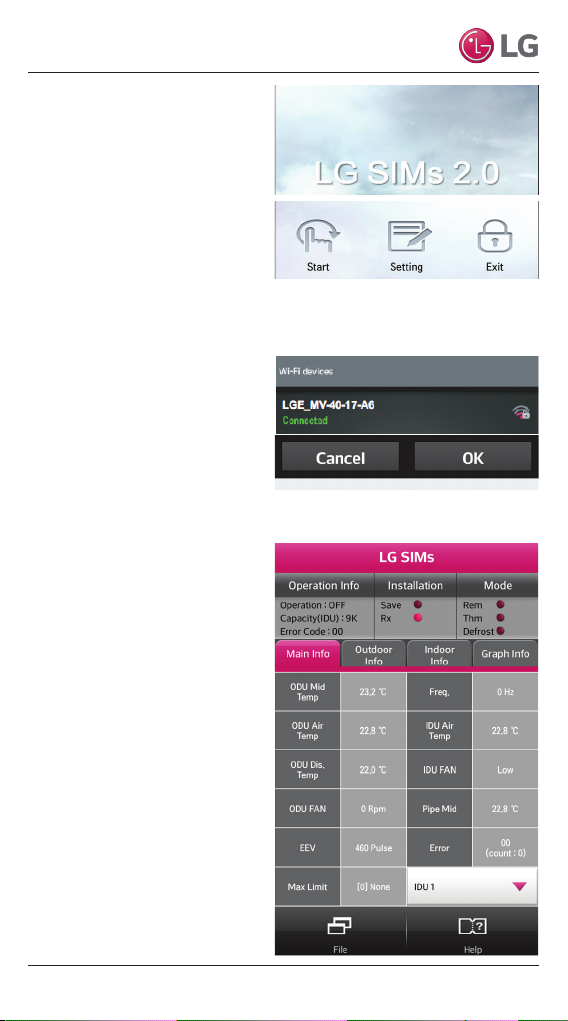
3. Tap the Start button and
SIMs will begin to scan for
active WiFi devices in the
area. When scanning is
complete, a list of devices
displays. The SIMs WLAN
module will have a name
such as LGE_MV-XX-XX-XX,
where the XX characters
are alphanumeric. In some
instances, the name may
be all numbers.
4. Tap the SIMs WLAN name
in the list to connect to the
WLAN module. When the
connection is complete,
Connected displays below
the name.
5. Press the OK button and
the Main Info screen
displays.
Due to our policy of continuous product innovation, some specications may change without notication.
©LG Electronics U.S.A., Inc., Englewood Cliffs, NJ. All rights reserved. “LG” is a registered trademark of LG Corp.
15
Page 16
iOS Connection
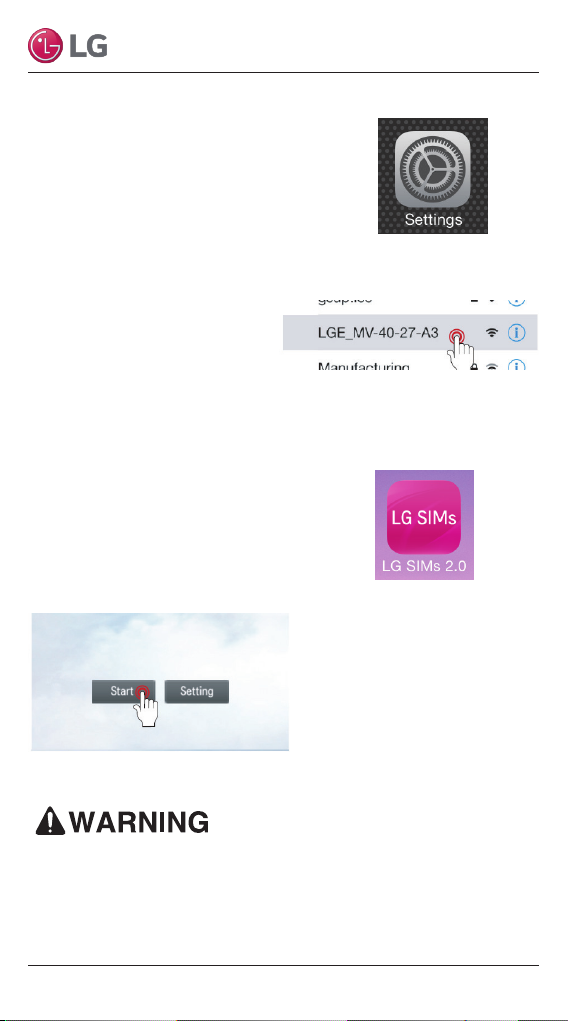
1. Tap the Settings icon on the iPhone
screen.
2. The iPhone Settings screen displays.
Tap the WiFi button and SIMs will
begin to scan for active WiFi devices
in the area. When scanning is complete, a list of devices is displayed. The SIMs WLAN module
will have a name such as
LGE_MV-XX-XX-XX, where
the XX is alphanumeric. In
some instances, the name
may be all numbers.
3. Tap the SIMs WLAN name in the list
to connect to the WLAN module.
4. When WiFi is connected, tap the
LG SIMs 2.0 icon to start the app.
5. The LG SIMs 2.0 Start screen
displays. Tap the Start button to
start the app or the Setting button
to perform an initial app setup.
LG SIMs 2.0
Using SIMs
High voltages capable of causing death are used in this equipment.
Outdoor unit power remains connected during this procedure. Take
extreme caution not to touch electrical components or connections.
Failure to observe this warning can result in death or severe injury.
16
Due to our policy of continuous product innovation, some specications may change without notication.
©LG Electronics U.S.A., Inc., Englewood Cliffs, NJ. All rights reserved. “LG” is a registered trademark of LG Corp.
Page 17
User Manual
Note:
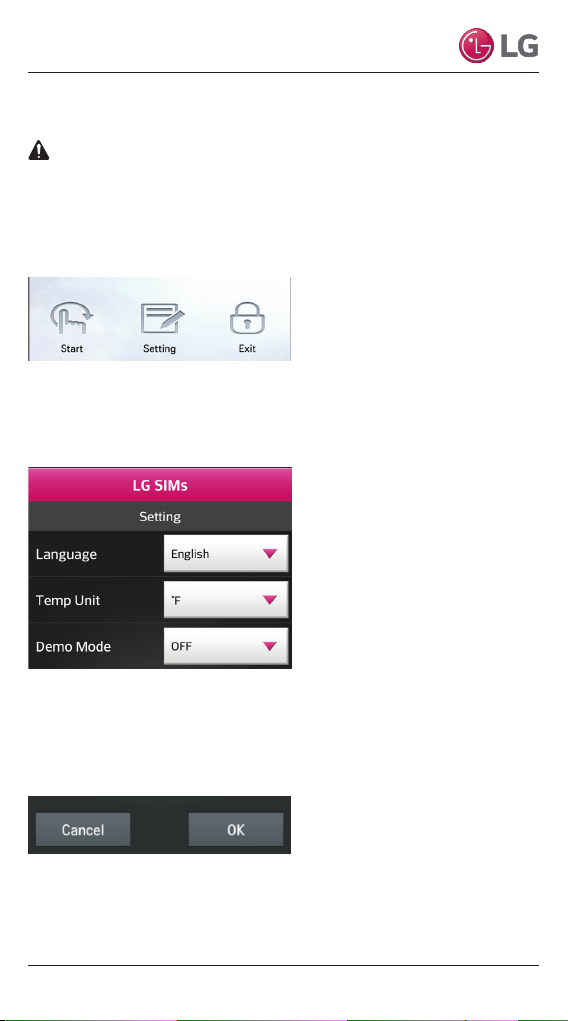
Using SIMs with an Android smart phone or an iPhone is similar.
These examples use Android screens.
The DFS air conditioning system must run for at least 15–20
minutes before data collected by SIMs 2.0 is valid for troubleshooting.
Initial Setup
1. Tap the Setting button on the Start Screen.
2. The Setting screen displays. You can make selections for
Language (English or Korean), Temp Unit (Fahrenheit or
Celsius), and Demo Mode (On or Off).
3. Set these options as desired. Demo Mode is for demonstration only
and does not require a wireless connection to an ODU. Always set
Demo Mode to OFF when monitoring an air conditioning system.
4. When finished making selections, tap OK.
5. The LG SIMs 2.0 main screen displays.
Due to our policy of continuous product innovation, some specications may change without notication.
©LG Electronics U.S.A., Inc., Englewood Cliffs, NJ. All rights reserved. “LG” is a registered trademark of LG Corp.
17
Page 18
LG SIMs 2.0
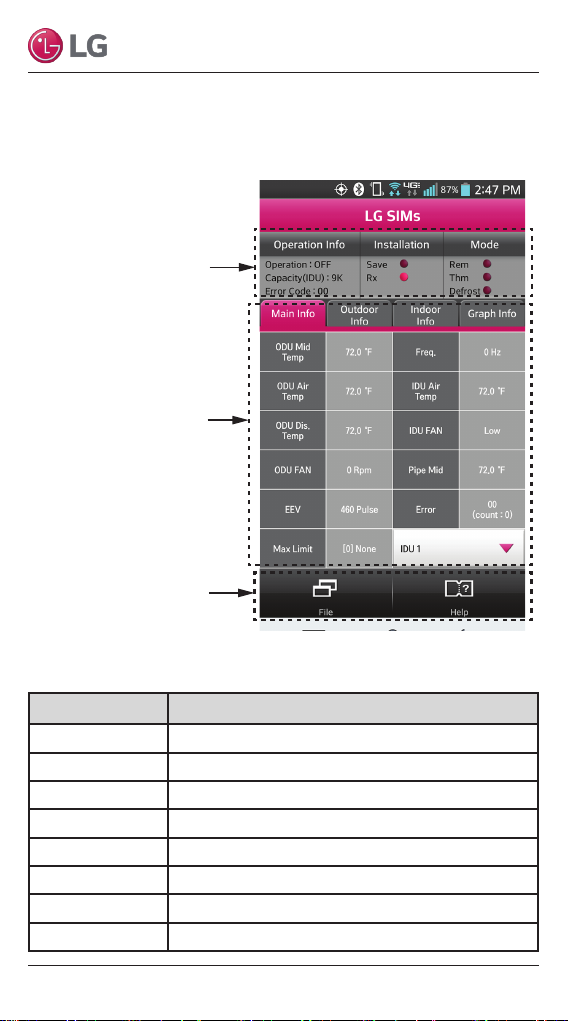
LG SIMs 2.0 Main Screen
The main screen is the first screen displayed after wireless
connection is established. Tap the Main Info tab to display this
information.
Operational
Information
AC Cycle
Information on
Main Info Tab
Help Menu
(File is Factory Use Only)
Operational Information
Item Description
Operation ODU operating mode: Cooling/Heating/Fan/Off
Capacity (IDU) Capacity of the selected indoor unit
Error Code: XX Current AC system error (if any)
Save Not used
Rx When lit, indicates an active wireless connection
Rem Remote controller is on when lit
Thm Thermo on when lit
Defrost System in defrost mode when lit
18
Due to our policy of continuous product innovation, some specications may change without notication.
©LG Electronics U.S.A., Inc., Englewood Cliffs, NJ. All rights reserved. “LG” is a registered trademark of LG Corp.
Page 19
User Manual
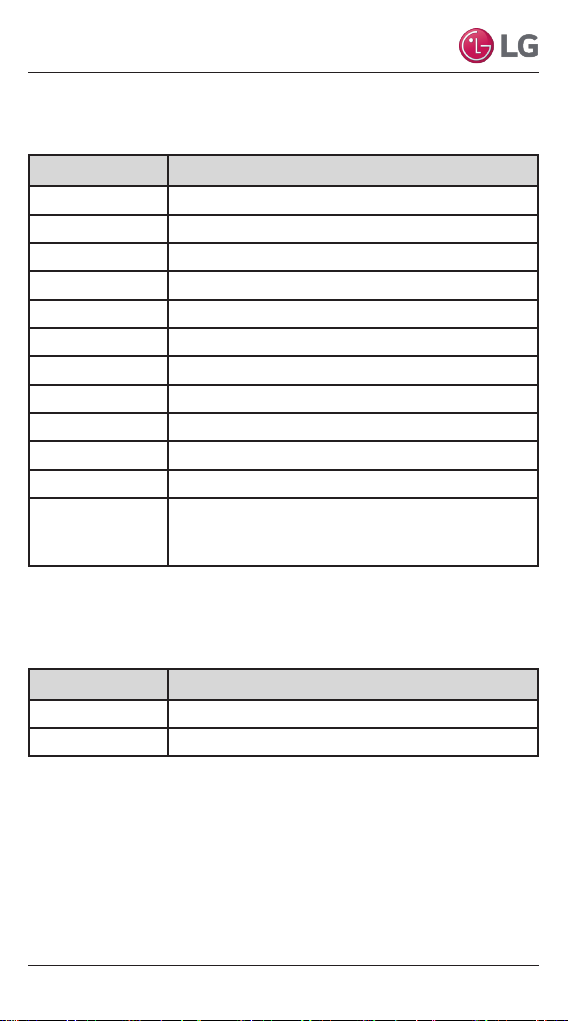
AC Cycle Information – Main Info Tab
Item Description
ODU Mid Temp Outdoor heat exchanger middle pipe temperature
ODU Air Temp Outdoor temperature
ODU Dis Temp Outdoor unit compressor out temperature
ODU Fan Outdoor unit fan speed in RPM
EEV Electronic expansion valve
Max Limit Inverter compressor frequency restriction
Freq Outdoor unit compressor frequency
IDU Air Temp Indoor temperature
IDU Fan Indoor unit fan speed
Pipe Mid Indoor heat exchanger middle pipe temperature
Error Error code
IDU 1 through IDU 12. Tap to display a popup and
IDU 1
then select the number of indoor units in the currently
monitored system.
Help Menu
Item Description
File Not used (factory use only)
Help Tap to display troubleshooting guide
Due to our policy of continuous product innovation, some specications may change without notication.
©LG Electronics U.S.A., Inc., Englewood Cliffs, NJ. All rights reserved. “LG” is a registered trademark of LG Corp.
19
Page 20
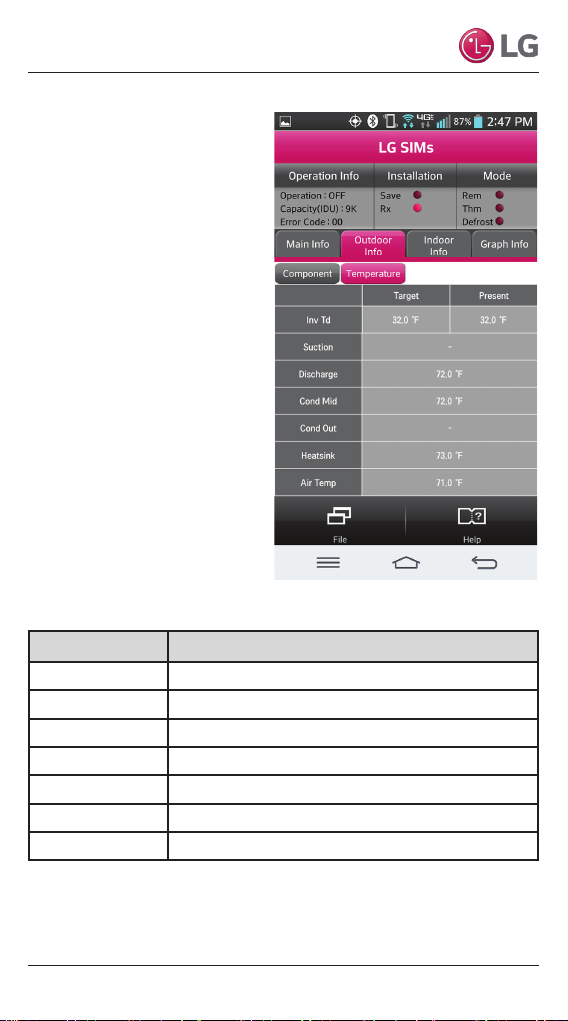
Outdoor Info Tab
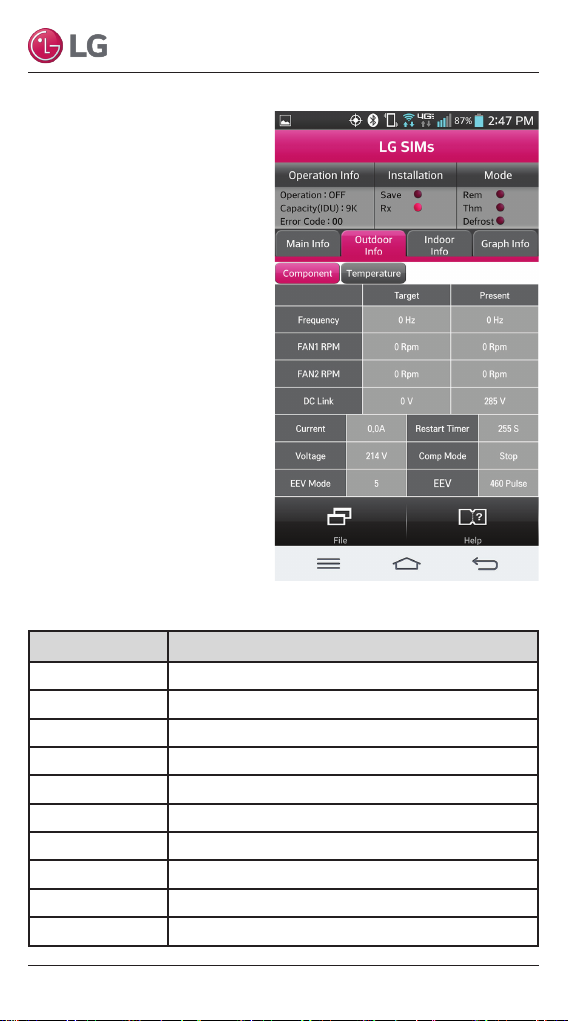
Component
Tap the Outdoor Info tab to
display ODU information. The
Outdoor Info tab has two sub
displays, Component and
Temperature. Tap the desired
one to display its data.
Outdoor Info – Component
LG SIMs 2.0
Item Description
Frequency Target and present inverter compressor frequency
FAN1 RPM Target and present fan 1 speed
FAN2 RPM Target and present fan 2 speed
DC Link Target and present DC link voltage
Current Input current
Voltage Input voltage
EEV Mode EEV operation mode
Restart Timer Restart timer
Comp Mode Compressor operation status
EEV Electronic expansion valve pulse
20
Due to our policy of continuous product innovation, some specications may change without notication.
©LG Electronics U.S.A., Inc., Englewood Cliffs, NJ. All rights reserved. “LG” is a registered trademark of LG Corp.
Page 21
User Manual
Outdoor Info Tab
Temperature
Outdoor Info – Temperature
Item Description
Inv TD Target and present out temperature
Suction Compressor in temperature
Discharge Compressor out temperature
Cond Mid Heat exchanger pipe middle temperature
Cond Out Heat exchanger pipe outlet temperature
Heatsink Heat sink temperature
Air Temp Outdoor temperature
Due to our policy of continuous product innovation, some specications may change without notication.
©LG Electronics U.S.A., Inc., Englewood Cliffs, NJ. All rights reserved. “LG” is a registered trademark of LG Corp.
21
Page 22
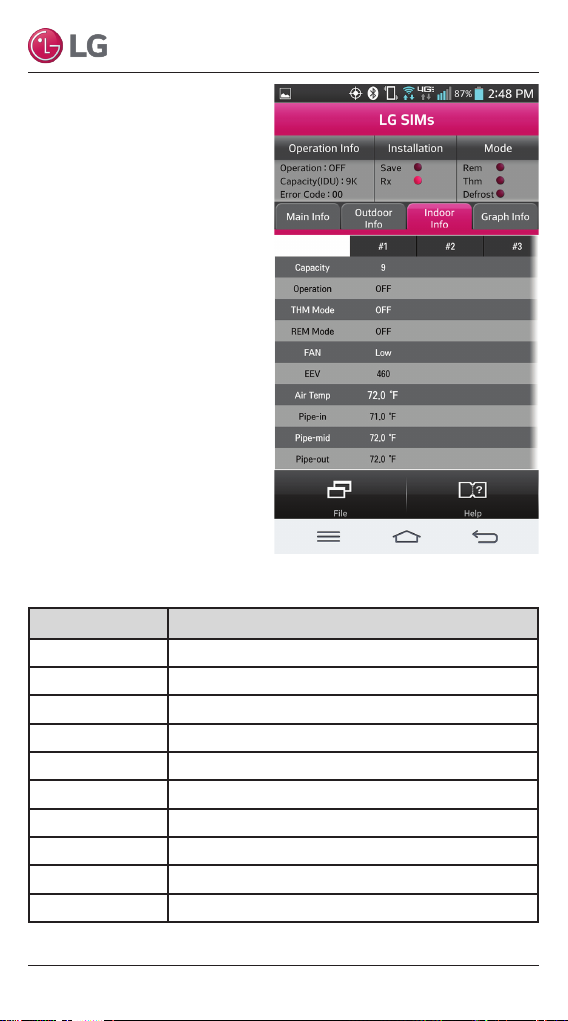
Indoor Info Tab
Tap the Indoor Info tab to
display IDU information.
Flick the number row to the
left to display any additional
IDU numbers.
Indoor Info
Item Description
Capacity Indoor unit capacity
Operation Indoor unit operating mode (cooling/heating)
THM Mode Thermo on/off
REM Mode Remote controller on/off
FAN Fan speed in RPM
EEV Electronic expansion valve
Air Temp Indoor temperature
Pipe-in Heat exchanger pipe inlet temperature
Pipe-mid Heat exchanger pipe middle temperature
Pipe-out Heat exchanger pipe outlet temperature
LG SIMs 2.0
22
Due to our policy of continuous product innovation, some specications may change without notication.
©LG Electronics U.S.A., Inc., Englewood Cliffs, NJ. All rights reserved. “LG” is a registered trademark of LG Corp.
Page 23
User Manual
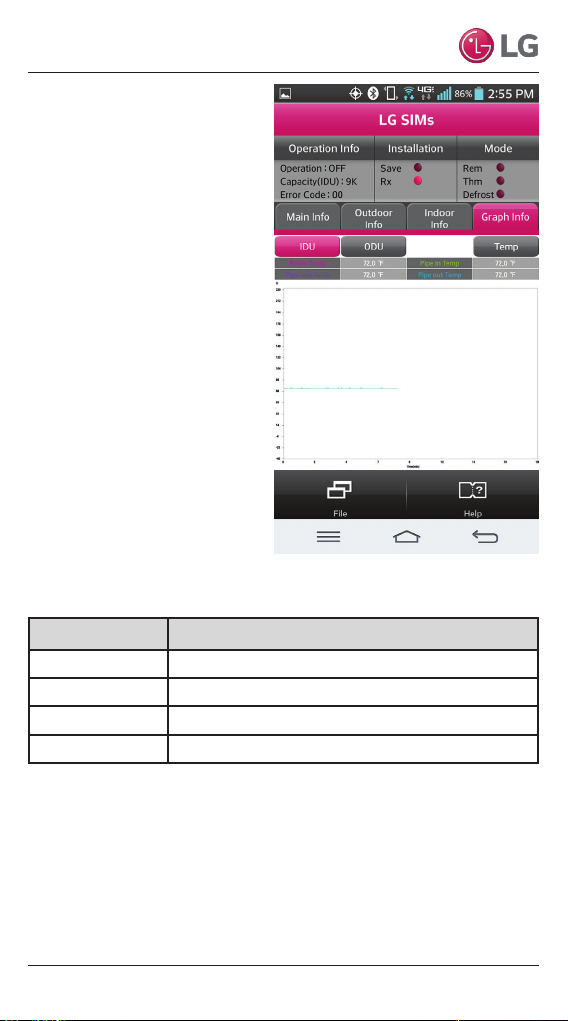
Graph Info Tab
IDU Temp
Tap the Graph Info tab and
then tap the IDU tab to dis-
play IDU information in graph
format. You can “pinch” the
screen in and out to change
the time scale to display data
for a longer or shorter data
collection period.
Allow SIMs to run for 30 to 60
minutes to acquire enough
data to show system
operating trends.
Graph Info – IDU Temperature
Item Description
Room Temp Indoor temperature
Pipe Mid Temp Heat exchanger pipe middle temperature
Pipe In Temp Heat exchanger pipe in temperature
Pipe Out Temp Heat exchanger pipe out temperature
Due to our policy of continuous product innovation, some specications may change without notication.
©LG Electronics U.S.A., Inc., Englewood Cliffs, NJ. All rights reserved. “LG” is a registered trademark of LG Corp.
23
Page 24
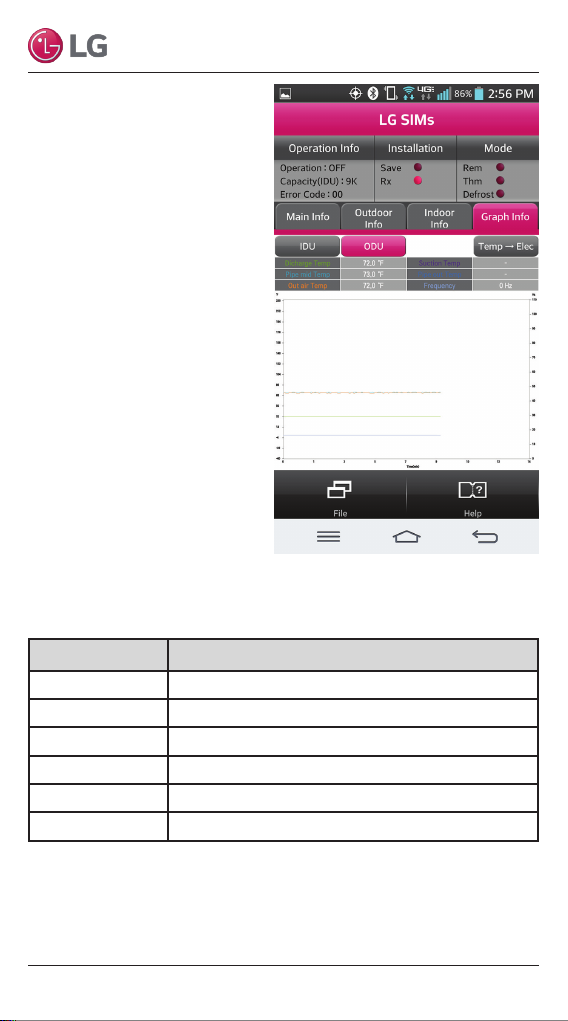
Graph Info Tab
ODU Temp and Freq
Tap the Graph Info tab and
then tap the ODU tab to dis-
play ODU information in graph
format. Tap the Temp → Elec
/ Elec → Temp tab to switch
between ODU temperature
and electric data.
You can “pinch” the screen
in and out to change the time
scale to display data for a
longer or shorter data
collection period.
Allow SIMs to run for 30 to 60
minutes to acquire enough
data to show system
operating trends.
Graph Info – ODU Temperature and Frequency
LG SIMs 2.0
Item Description
Discharge Temp Compressor out temperature
Pipe Mid Temp Pipe middle temperature
Out Air Temp Outdoor air temperature
Suction Temp Compressor in temperature
Pipe Out Temp Pipe outlet temperature
Frequency Compressor frequency
24
Due to our policy of continuous product innovation, some specications may change without notication.
©LG Electronics U.S.A., Inc., Englewood Cliffs, NJ. All rights reserved. “LG” is a registered trademark of LG Corp.
Page 25
User Manual
Graph Info Tab
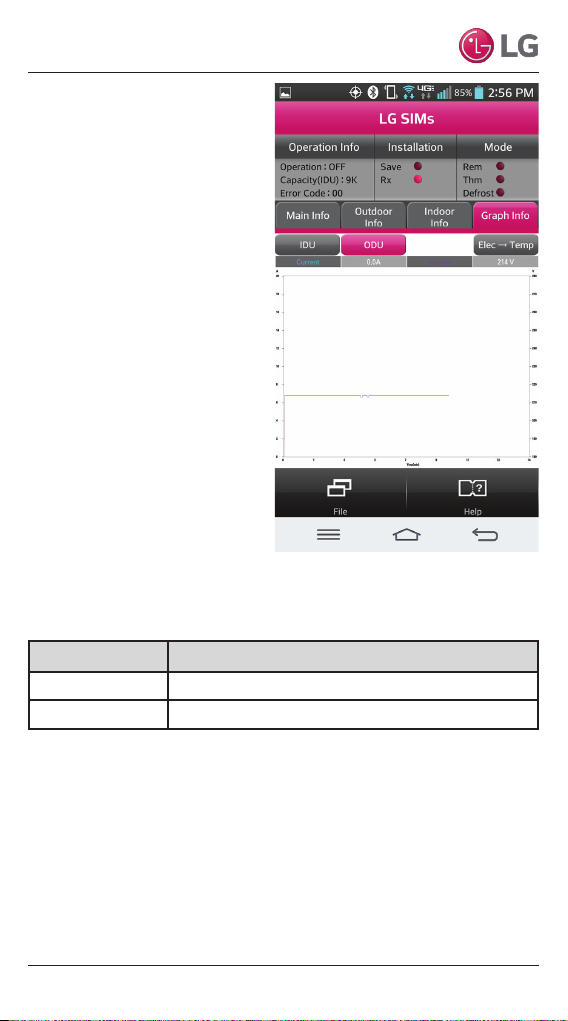
ODU Electric
Tap the Graph Info tab and
then tap the ODU tab to dis-
play ODU information in graph
format. Tap the Temp → Elec
/ Elec → Temp tab to switch
between ODU temperature
and electric data.
You can “pinch” the screen
in and out to change the time
scale to display data for a
longer or shorter data
collection period.
Allow SIMs to run for 30 to 60
minutes to acquire enough
data to show system
operating trends.
Graph Info – ODU Electric
Item Description
Current Outdoor unit current
Voltage Outdoor unit voltage
Due to our policy of continuous product innovation, some specications may change without notication.
©LG Electronics U.S.A., Inc., Englewood Cliffs, NJ. All rights reserved. “LG” is a registered trademark of LG Corp.
25
Page 26
LG SIMs 2.0
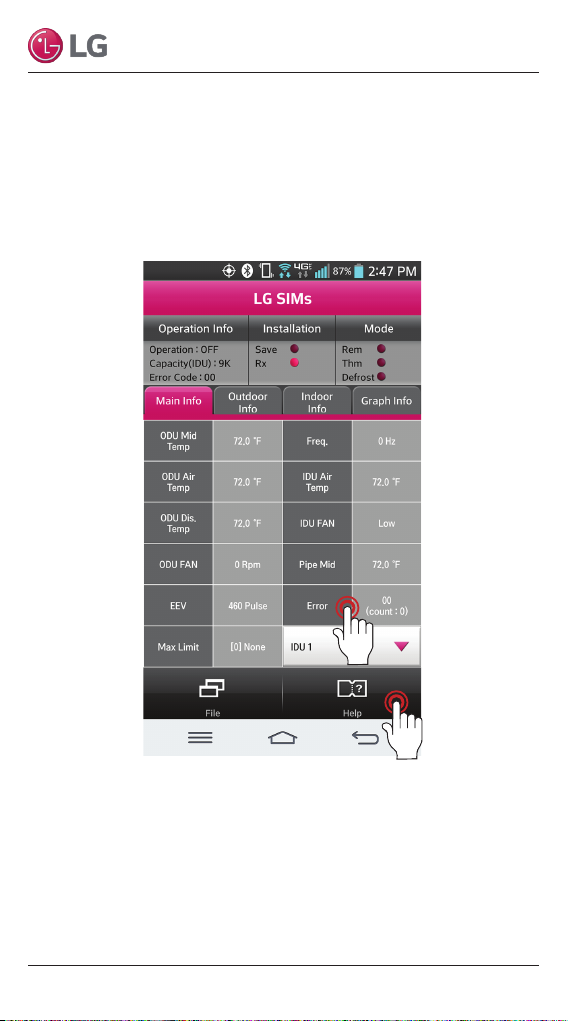
SIMs Troubleshooting Guide
The SIMs app contains a troubleshooting guide (TSG) for the air
conditioning system. You can display the TSG by tapping the Help
button at the bottom of the screen. If SIMs is displaying an error
code, you can tap the error code display and the TSG will open to
the TSG page that pertains to that error.
26
Due to our policy of continuous product innovation, some specications may change without notication.
©LG Electronics U.S.A., Inc., Englewood Cliffs, NJ. All rights reserved. “LG” is a registered trademark of LG Corp.
Page 27
User Manual
Is power supplied
to outdoor unit?
Supply power to the outdoor unit
and try connection again
No
Yes
Yes
No
Yes
No
Yes
No
End the connection to the other
user and try connection again
Disconnect WLAN module. Wait a
few seconds and reconnect the
module. Try the connection again.
Connect outdoor unit board and
WLAN module correctly and try
communication connection again
Are outdoor unit board
and WLAN module correctly
connected?
Is another user
connected?
Is WiFi connected
correctly?
Check smart phone and
installation environment
again.
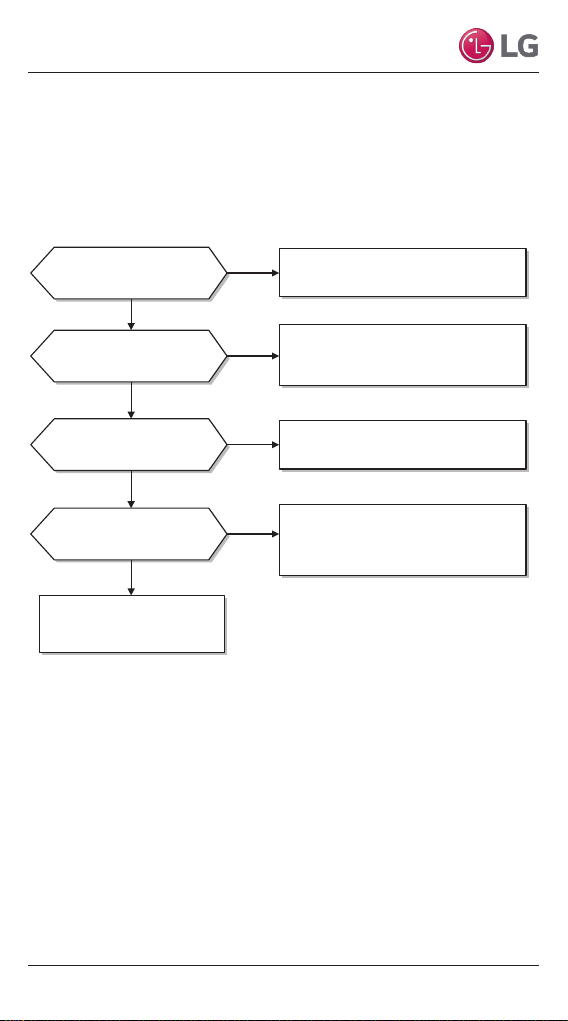
Troubleshooting SIMs Operation
Follow these troubleshooting procedures if the SIMs app does not
function as expected.
Smart Phone will not Connect to WLAN Module
Due to our policy of continuous product innovation, some specications may change without notication.
©LG Electronics U.S.A., Inc., Englewood Cliffs, NJ. All rights reserved. “LG” is a registered trademark of LG Corp.
27
Page 28
LG SIMs 2.0
Is the smart phone within 30
feet of the WLAN module?
No
Yes
No
Yes
Move the smartphone to 30 feet
or less from the WLAN module
and try connecting again
Is there an obstacle between
the smart phone and module?
Check the smart phone
and installation
environment again
Remove the obstacle or change
position so that there is clear
line of sight between the smart
phone and the module. Try
connecting again.
Does the phone have a
screen ratio correction function?
Perform screen ratio correction.
Example: Optimus View
(Setting – display – screen ratio
correction – LG SIMs 2.0 check)
No
Yes
Yes
No
Check smart phone and
installation environment
again.
Does the phone meet the
recommended specifications?
Use a phone that meets recommended
screen resolution specifications :
Android: 800 x 480 or higher
iPhone 4: 960 x 640
iPhone 5: 1136 x 640
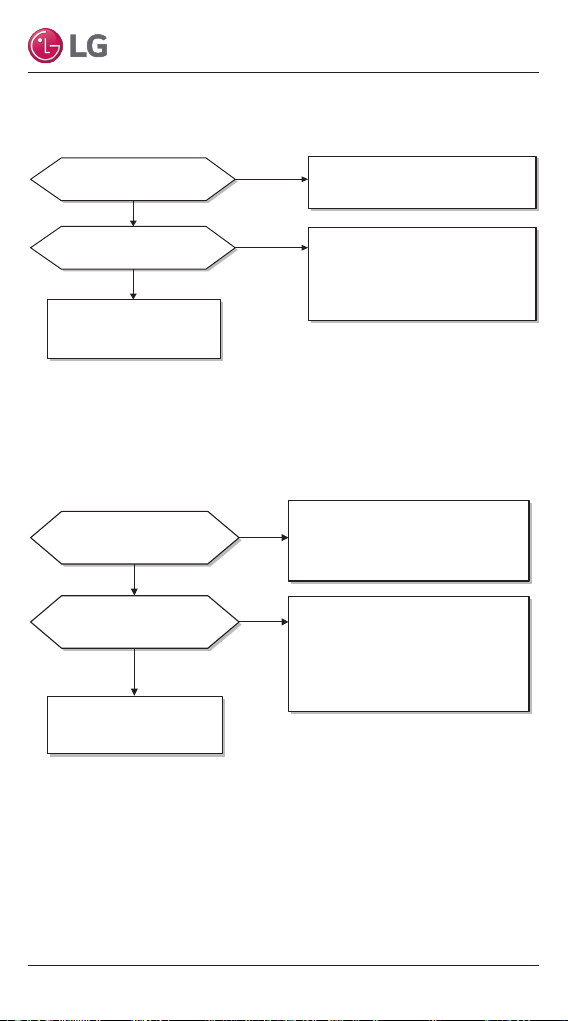
Connection Between Smart Phone and WLAN Module Drops Out
A Portion of Smart Phone Screen is too Wide or not Displayed
28
Due to our policy of continuous product innovation, some specications may change without notication.
©LG Electronics U.S.A., Inc., Englewood Cliffs, NJ. All rights reserved. “LG” is a registered trademark of LG Corp.
Page 29
User Manual
Note:
Data Guide
Open Source
If you would like to get the souce code of GPL, LGPL, MPL, and
others which are developed with open source license and installed
in this product, please visit http://opensource.lge.com.
In addition to the source code, indications of all applicable license
contents, copyright, and no responsibility on warranty can be
downloaded.
If you request the open source code of the software that is installed
on this product by sending email to [email protected] within
3 years of purchasing this product, we will provide it in CD-ROM
with a minimum cost of shipping and handling.
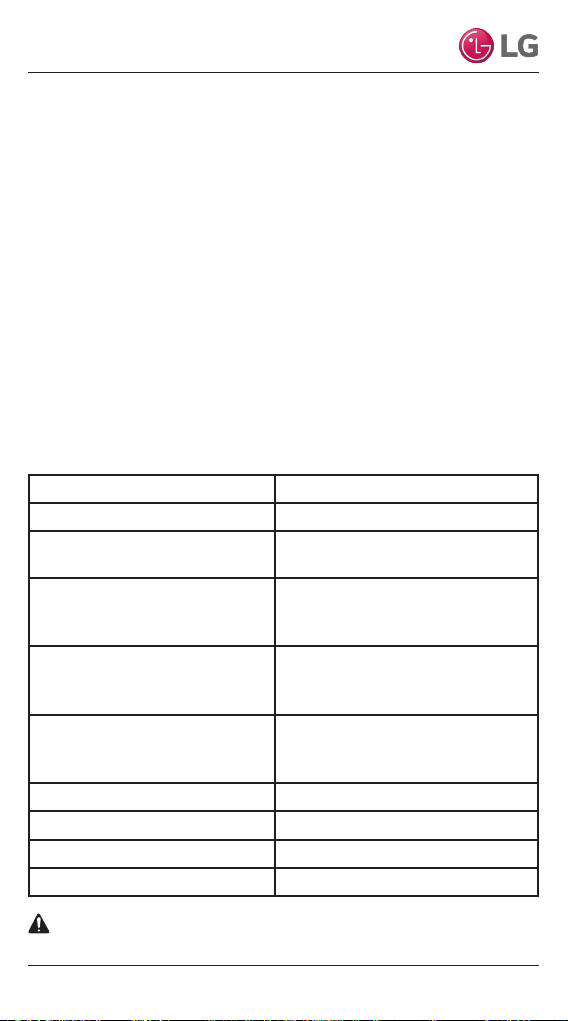
WLAN Module Specications
Standard IEEE 802.11 b/g/n
Frequency Range 2.412 – 2.462 GHz
Security
Output Power
Data Rate
Sensitivity
Modulation QPSK + OFDM
Class of Emission G1D, D2D
Number of Channels 11
Oscillator/Communication mode Crystal/Half-duplex
128 bits WEP, AES
WPA, WPA2
802.11b: 11 dBM (11 Mbps)
802.11g: 15 dBM (54 Mbps)
802.11n : 11 dBM (72.2 Mbps)
802.11b: 11 Mbps
802.11g: 54 Mbps
802.11n: 72.2 Mbps
802.11b: -88 dBm (11 Mbps)
802.11g: -74 dBm (54 Mbps)
802.11n: -69 dBm (72.2 Mbps)
This device is not available for laptop computers or similar
portable systems.
Due to our policy of continuous product innovation, some specications may change without notication.
©LG Electronics U.S.A., Inc., Englewood Cliffs, NJ. All rights reserved. “LG” is a registered trademark of LG Corp.
29
Page 30

LG SIMs 2.0
NOTICE
FCC (Certication)
This device complies with part 15 of the FCC rules.
Operation is subject to the following two conditions:
1. This device may not cause harmful interference, and
2. This device must accept any interference received, including interference that
may cause undesired operation
FCC WARNING: This equipment may generate or use radio frequency energy.
Changes or modications to this equipment may cause harmful interference unless the
modications are expressly approved in the instruction manual. The user could lose the
authority to operate this equipment if an unauthorized change or modication is made.
U.S. Regulatory Wireless Notice
This product emits radio frequency energy, but the radiated output power of this device
is far below the FCC radio frequency exposure limits. Nevertheless, the device should
be used in such a manner that the potential for human contact with the antenna during
normal operation is minimized.
FCC Radiation Exposure Statement
This equipment compiles with FCC radiation exposure limits set forth for an
uncontrolled environment.
This equipment should be installed and operated with minimum distance of 8 in (20 cm)
between the radiator and your body. This transmitter must not be co-located or operated
in conjunction with any other antenna or transmitter.
Federal Communications Commission (FCC) Statement
You are cautioned that changes or modications not expressly approved by the party
responsible for compliance could void the user’s authority to operate the equipment.
This equipment has been tested and found to comply with the limits for a class B digital
device, pursuant to part 15 of the FCC rules. These limits are designed to provide
reasonable protection against harmful interference in a residential installation. This
equipment generates, uses and can radiate radio frequency energy and, if not installed
and used in accordance with the instructions, may cause harmful interference to radio
communications. However, there is no guarantee that interference will not occur in a
particular installation. If this equipment does cause harmful interference to radio or
television reception, which can be determined by turning the equipment off and on, the
user is encouraged to try to correct the interference by one or more of the following
measures:
• Reorient or relocate the receiving antenna.
• Increase the separation between the equipment and receiver.
• Connect the equipment into an outlet on a circuit different from that to which
the receiver is connected.
• Consult the dealer or an experienced radio/TV technician for help.
30
Due to our policy of continuous product innovation, some specications may change without notication.
©LG Electronics U.S.A., Inc., Englewood Cliffs, NJ. All rights reserved. “LG” is a registered trademark of LG Corp.
Page 31

User Manual
End Product Labeling
The modular transmitter must be labeled with its own FCC ID number, and, if the FCC
ID is not visible when the module is installed inside another device, then the outside of
the device into which the module is installed must also display a label referring to the
enclosed module. This exterior label can use wording such as the following: “Contains
Transmitter Module FCC 10: BEJPCRCUDT2” or “Contains FCC ID: BEJPCRCUDT2.”
Any similar wording that expresses the same meaning may be used. The Grantee may
either provide such a label, an example of which must be included in the application for
equipment authorization, or, must provide adequate instructions along with the module
which explain this requirement. In the latter case, a copy of these instructions must be
included in the application for equipment authorization.
IC (Certication)
This device complies with RSS-210 of the Industry Canada Rules.
Operation is subject to the following two conditions:
1. This device may not cause Interference and
2. This device must accept any interference, including interference that may
cause undesired operation of the device
IC Warning
This device complies with Industry Canada license-exempt RSS standard(s).
Operation is subject to the following two conditions:
1. This device may not cause interference, and
2. This device must accept any interference, including Interference that may
cause undesired operation of the device.
Le présent appareil est conforme aux CNR d’lndustrie Canada appllcables aux
appareils radio exempts de licence.
L’exploitation est autorisée aux deux conditions suivantes:
1. l’appareil ne doit pas produire de brouillage, et
2. l’utilisateur de l’appareil doit accepter tout brouillage radioélectrique subi,
même si le brouillage est susceptible d’en compromettre le fonctionnement.
This class B digital apparatus complies with Canadian ICES-003.
Cet appareil numérique de Ia classe B est conforms á Ia norme NMB-003 du Canada.
IC Radiation Exposure Statement
This equipment complies with IC radiation exposure limits set forth for an
uncontrolled environment. This equipment should be installed and operated with
minimum distance 20 cm between the radiator & your body.
NOTE: THE MANUFACTURER IS NOT RESPONSIBLE FOR ANY RADIO OR TV
INTERFERENCE CAUSED BY UNAUTHORIZED MODIFICATIONS TO
THIS EQUIPMENT. SUCH MODIFICATIONS COULD VOID THE USER’S
AUTHORITY TO OPERATE THE EQUIPMENT.
Due to our policy of continuous product innovation, some specications may change without notication.
©LG Electronics U.S.A., Inc., Englewood Cliffs, NJ. All rights reserved. “LG” is a registered trademark of LG Corp.
31
Page 32

UM_SIMS2.0_PSWMOZ3_5_15
 Loading...