

Page 1
Text Messaging
Add Favorite
Contacts
Browse the Web
Customize
Your Phone
Download an App
Use Bluetooth®
QUICK START GUIDE
lgusa.com/exchange
Bluetooth Stereo Headset
(HBS-700)
Vehicle Power Charger
Bluetooth Headset
(HBM-235 – Purple and Black)
Bluetooth Headset with Vehicle
Power Charger (HBM-585)
Bluetooth Headset with
Speakerphone and Solar
Charging Cradle (HBM-810)
Bluetooth Headset
(HBM-570 – Silver, Dark Blue,
Pink, and Purple)
Optional Accessories
Maximize your phone with these cutting-edge accessories at
www.lgusa.com/exchange
All materials in this guide including, without limitation, the design, the text, and any marks are the property of LG Electronics, Inc. Copyright © 2011 LG Electronics, Inc.
ALL RIGHTS RESERVED. LG and the LG logo are registered trademarks of LG Electronics, Inc. is a trademark of LG Electronics, Inc. The Bluetooth® word mark
and logos are registered trademarks owned by Bluetooth SIG, Inc. microSD™ is a trademark of SanDisk. Other trademarks and trade names are those of their respective owners.
Unless otherwise specified herein, all accessories referenced herein are sold separately. All features, functionality, and other product specifications are subject to change. Screen
shots are simulated and subject to change.
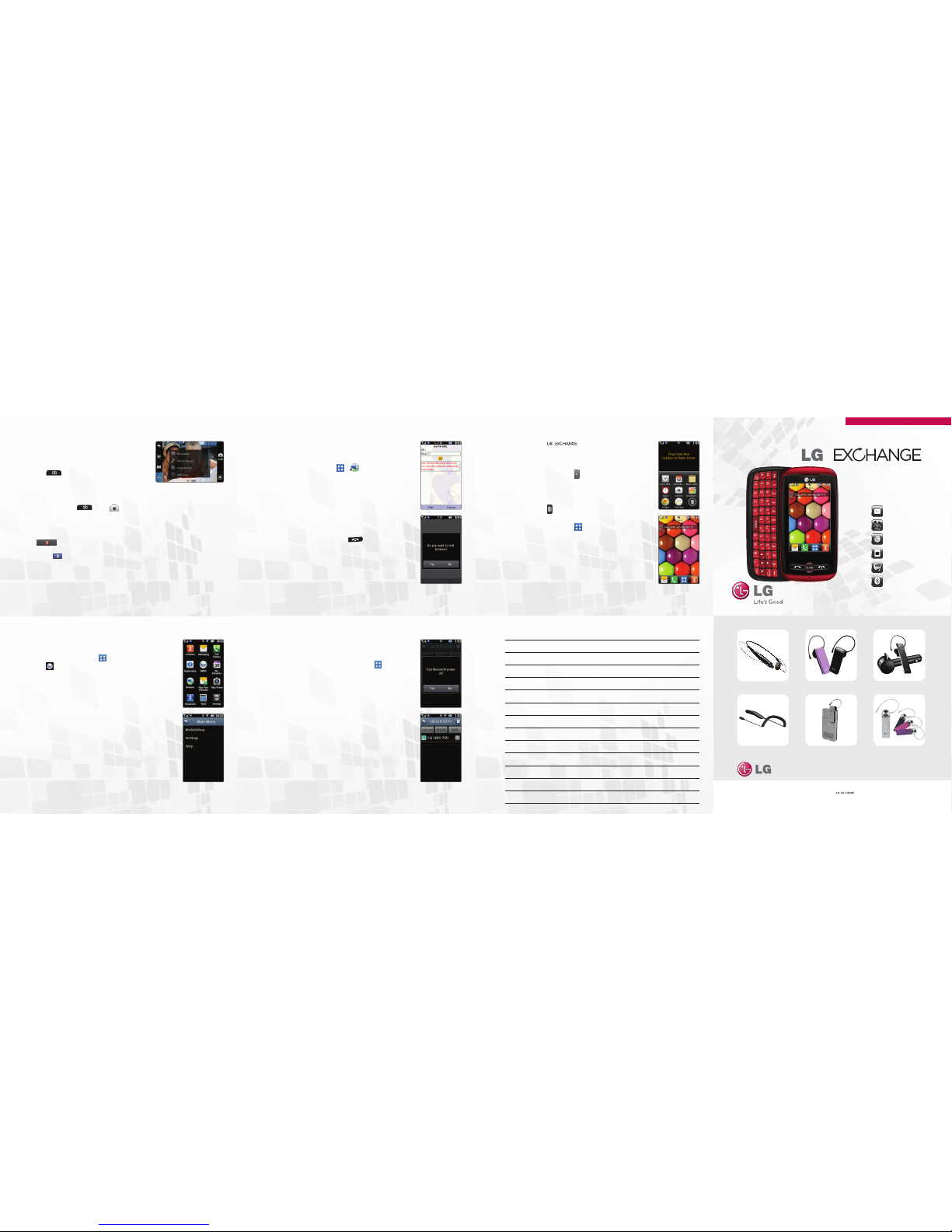
Customize Your Phone
Browse the Web
Take a Picture
Personalize your by adding helpful
widgets to the main home screen and changing the
wallpaper.
Add a Widget
1. From standby mode, tap
.
2. Press and drag a widget to the top of the home
screen and then tap the top of the screen.
3. Press and drag the widget to the desired position
on the home screen. To remove a widget, press
and drag it to
.
Change Wallpaper
1. From standby mode, tap
> Settings >
Display Settings.
2. Tap Wallpaper.
3. Tap the image you’d like to use.
4. You may resize photos you’ve taken by tapping
ADJUST. Default images are already sized to fit
as wallpaper.
5. Tap SET.
Surf the Internet and bookmark web addresses
for quick access to your favorite sites.
Browse the Web
1. From standby mode, tap
> .
2. Tap Launch > Yes.
3. Tap Menu > Go to URL.
4. Tap the URL field, enter a web address, and
tap DONE.
5. Tap Go.
6. To bookmark the site, tap Menu > Bookmarks.
7. Tap Go > Save to add the site as a bookmark.
End Web Session
1. To exit the browser, press the
.
2. Tap Yes in the confirmation dialog box.
Capture life as it happens with
1.3 megapixel camera, then send your photos
to your friends.
1. From standby mode, press and hold
the
.
2. Rotate your phone to a horizontal position
for a real camera feel.
3. You may adjust settings such as white
balance and brightness. When you’re
ready, press the
or tap to take
the picture.
4. From here you may choose to view the
photo, or send it to a friend. Tap Send.
5. Enter the recipient’s number or tap
to select a contact.
6. Tap the Text field to enter a message
or tap
to add another picture to
your message.
7. Tap SEND.
Use Bluetooth®
Notes
Download an App
Connect to headsets, computers, and more via
Bluetooth wireless technology.
1. Place the Bluetooth device you wish to pair with in
pairing mode.* From standby mode, tap
.
2. Tap Bluetooth > ADD.
3. If Bluetooth power is off, tap Yes to turn it on.
4. Tap START.
5. Tap the name of the device you wish to pair with.*
6. Tap Yes to connect to the device.
Download ringtones, apps, games, and wallpaper
via BREW.
1. From standby mode, tap
.
2. Tap
.
3. Tap BREW Apps .
4. Tap Yes if the airtime charges prompt is
displayed.
5. Tap MobileShop.
6. From here you can choose to browse the
catalog, search for apps, or learn more about
MobileShop. Tap Catalog.
7. Tap a category and follow the prompts to
purchase content.
* Refer to your Bluetooth device’s user guide for information
about initiating pairing mode and the passcode if asked
(typically “0000” – four zeroes).
Note: Bluetooth accessories sold separately.
P/N : MBM63197405(1.0)H
Printed in China
Page 2
BACK
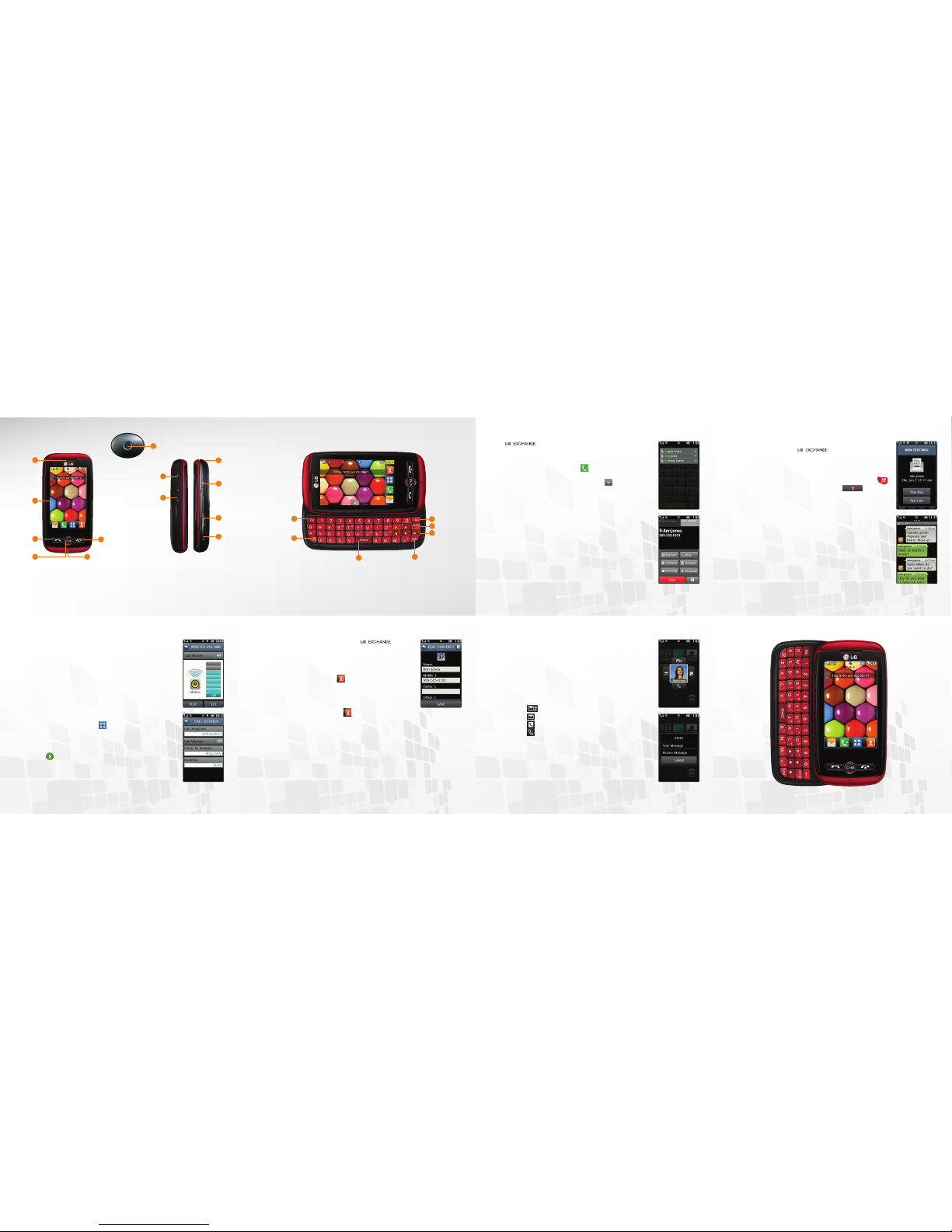
Make a Phone Call
Text Messaging
responsive touch screen makes dialing
phone numbers quick and easy.
Make a Phone Call
1. From the home screen, tap
.
2. Dial the number you want to call or start spelling
the name of the desired contact. Tap
and you
will see a list of contact options.
3. Tap the desired contact to place the call.
When you need to communicate quickly and privately,
send a text message.
features bubblethreaded messaging and chat view to make keeping up
with your conversations even easier.
Send a Message
1. From standby mode and with the slide open, press
.
2. Enter a number in the To field or tap
to access your contact list.
3. Tap the Text field and enter your message.
4. Tap SEND.
Reply to a Message
1. Your phone will alert you when you receive a
new text message. Tap View Now.
2. Tap CHAT to view your message history with
that contact. Otherwise, tap REPLY.
3. Enter a message and tap SEND.
Bubble-Threaded Messaging
1. From standby mode, swipe right on the screen to
move left to the Messaging home screen.
2. Tap a bubble to view the full message and reply.
3. Tap REPLY.
4. Enter a message and tap SEND.
QWERTY Keyboard
Getting to Know Your Phone
1. Earpiece
2. Touch Screen
3. Send Key
4. Clear & Back/
Speakerphone Key
5. Microphone
6. Power/End Key
7. Camera Lens
8. Micro USB Charging Port
9. Volume Up/Down Keys
10. Camera Key
11. microSD™ Card Slot
12. Lock Key*
13. 3.5mm Headset Jack
1. Function Key
2. New Text Message/Shift Key
Change capitalization:
Abc
(sentence case)
ABC (ALL UPPERCASE)
abc (all lowercase)
3. Space Key
4. Symbols Key
5. Navigation Keys
6. Enter Key
7. Clear & Back Key
1
2
3
4
6
5
8
9
10
11
12
13
FRONT SIDES
7
2
1
7
6
5
3
4
* Press and hold to lock or unlock the phone.
Adjust Volume/Ringtone Settings
Manage Contacts
Customize your phone by changing ringtones and alert
sounds—you can even use your own voice memos for
another personal touch!
Adjust Volume
1. From standby mode, press up or down on the
Volume Keys to bring up the Master Volume screen.
2. Press up or down on the Volume Keys or tap the
desired sound level to adjust the volume. Tap Off to
silence all sounds.
3. Tap SET.
Change Ringtone and Sounds
1. From standby mode, tap
.
2. Tap Settings and then tap Sound Settings.
3. Tap Call Sounds > Call Ringtone.
4. Tap Default Ringtones to view a list of ringtones.
5. Tap
to preview a ringtone. Tap a ringtone to
select it.
6. To adjust alert sounds, tap Alert Sounds in the
Sound Settings menu, select an event type, and
then tap Sound.
With room for up to 1,000* contacts,
has
plenty of space for your numbers and email addresses.
Back up your contacts with My Contacts Backup in case
your phone is ever lost or stolen.
Add a Contact
1. From standby mode, tap
.
2. Tap New Contact.
3. Enter the contact’s information and then tap SAVE.
Edit a Contact
1. From the home screen, tap
.
2. Tap a contact name.
3. Tap EDIT.
4. Make the desired changes and then tap SAVE.
*Depends on available memory.
Add Favorite Contacts
Add up to 11 of your favorite contacts or groups for fast
calling and messaging.
1. From standby mode, swipe left to move right to the
Favorites home screen. Tap Add.
2. You may add a contact or a group. Tap the desired
option and then tap the desired contact or group.
3. Tap DONE.
4. Tap the favorite to bring up messaging and
calling options.
•Tap
to view message history.
•Tap
to begin a new text or picture message.
•Tap
to view or edit contact information.
•Tap
to call the contact.
 Loading...