

Page 1
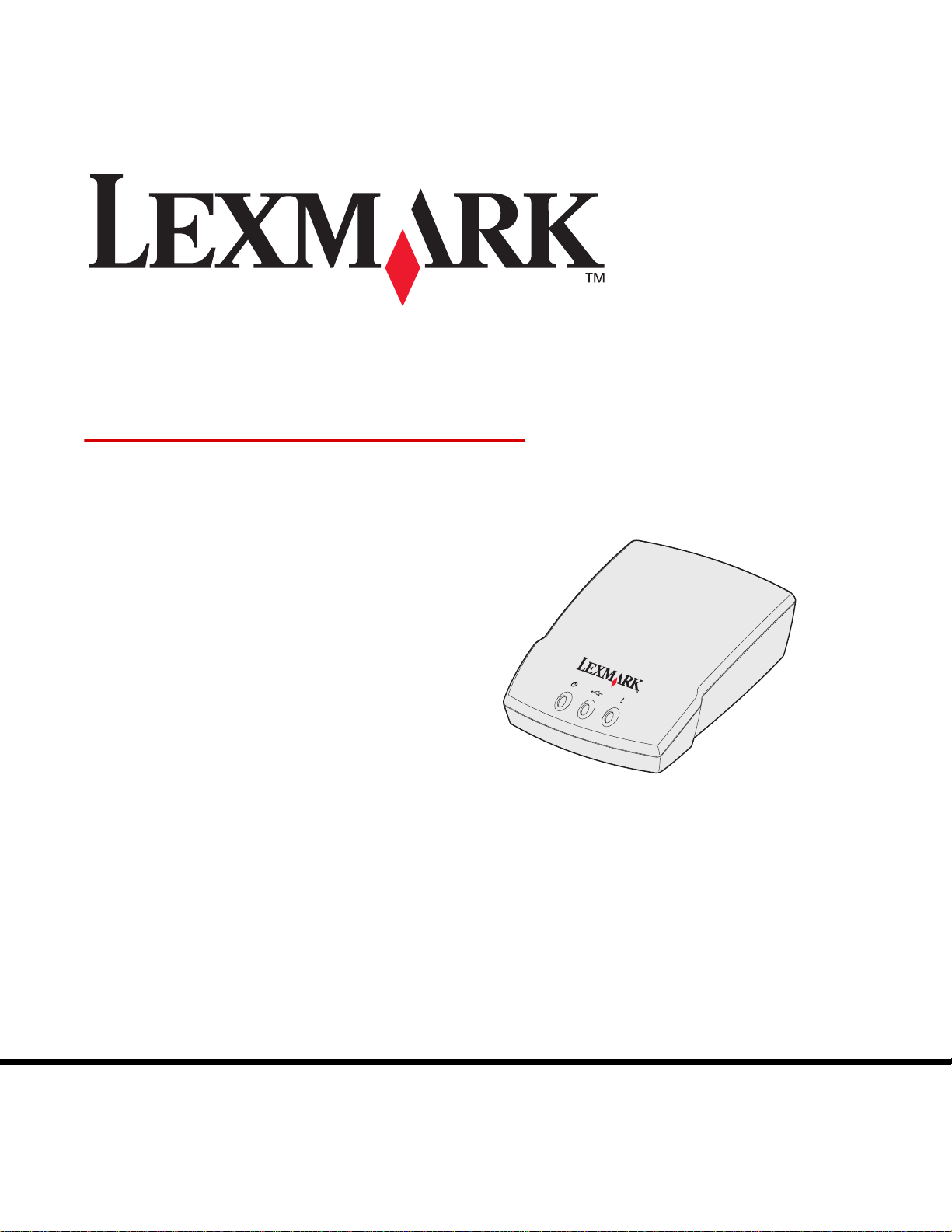
N4000e Print Server
User’s Guide
September 2003
www.lexmark.com
Page 2

Contents
Chapter 1: Introduction ................................................................. 6
Chapter 2: Setup ............................................................................ 7
Requirements................................................................................................. 7
Connecting the hardware................................................ ............................... 8
Understanding the Setup Utility software....................................................... 8
Chapter 3: Troubleshooting........................................................ 12
The Power or USB indicator light is not on................................................... 12
The Status indicator light is on...................................................... ............... 12
An error message appears........................................................................... 13
The Lexmark N4000e Setup Utility CD does not auto launch...................... 13
I don’t know whic h pr in t server to select. ...................................................... 13
My print serve r is no t s h own in the list ... .. .................. .. .. .................. .. ... ....... 14
My printer is not shown in the list (No Printer Attached) ........................ ...... 15
My print server is unconfigured.................................................................... 15
My network printer does not print............ ........................ ....................... ...... 16
Chapter 4: How Do I...?................................................................ 17
Print a test page........................................................................................... 17
Print a print server setup page..................................................................... 17
Uninstall the Lexmark N4000e Setup Utility software....................... .. ......... 18
Check the printer status ............................................................................... 18
Verify the network printer port...................................................................... 18
Determine if my pr in t s er ver is configured....... .. .................... ....................... 19
Change the print server network settings..................................................... 20
Contact Lexm a rk ....... .................. .. ... ................................... .. .. ..................... 20
Contents
2
Page 3

Chapter 5: Glossary..................................................................... 21
Contents
3
Page 4

Edition: September 2003
The follow ing paragraph d oes not appl y
to any country where such provisions
are inconsistent with local law:
LEXMARK INTERNATIONAL, INC.,
PROVIDES THIS PUBLICATION “AS IS”
WITHOUT WARRANTY OF ANY KIND,
EITHER EXPRESS O R IMPLIED,
INCLUDING, BUT NOT LIMITED T O , THE
IMPLIED WARRANTIES OF
MERCHANT ABILITY OR FITNESS FOR A
P ARTICULAR PURPOSE. Some states do
not allow disclaimer of express or implied
warranties in certain transactions;
therefore, this statement may not apply to
you.
This publication could include technical
inaccuracies or typographical errors.
Changes are periodically made to the
information herein; these changes will be
incorporated in later editions.
Improvements or changes in the products
or the programs described may be made at
any time.
Comments about this publication may be
addressed to Lexmark International, Inc.,
Department F95/032-2, 740 West New
Circle Road, Lexington, Kentucky 40550,
U.S.A. In the United Kingdom and Eire,
send to Lexmark International Ltd.,
Marketing and Services Department,
Westhorpe House, Westhorpe, Marlow
Bucks SL7 3RQ. Lexmark may use or
distribute any of the information you supply
in any way it believes appropriate without
incurring any obligation to you. You can
purchase additional copies of publications
related to this product by calling 1-800553-9727. In the United Kingdom and Eire,
call +44 (0)8704 440 044. In other
countries, contact your point of purchase.
References in this publication to products,
programs, or services do not imply that the
manufacturer intends to make these
available in all countries in which it
operates. Any reference to a product,
program, or service is not intended to state
or imply that only that product, program, or
service may be used. Any functionally
equivalent product, program, or service
that does not infringe any existing
intellectual property right may be used
instead. Evaluation and verification of
operation in conjunction with other
products, programs, or services, except
those expressly designated by the
manufacturer , are the user’s responsibility.
Trademarks
Lexmark and Lexmark with diamond
design are trademarks of Lexmark
International, Inc., registered in the United
States and/or other countries.
®
PCL
is a registered trademark of the
Hewlett-Packard Company. PCL is
Hewlett-Packard Company’s designation
of a set of printer commands (language)
and functions included in its printer
products.
Other trademarks are the property of their
respective owners.
© 2003 Lexmark International, Inc.
All rights reserved.
UNITED ST ATES GOVERNMENT
RIGHTS
This software and any accompanying
documentation provided under this
agreement are commercial computer
software and documentation developed
exclusively at private expense.
Electronic emission notices
Federal Communications Commission
(FCC) compliance information
statement
The Lexmark N4000e Print Server has
been tested and found to comply with the
limits for a Class B digital device, pursuant
to Part 15 of the FCC Rules. Operation is
subject to the following two conditions: (1)
this device may not cause harmful
interference, and (2) this device must
accept any interference received, including
interference that may cause undesired
operation.
The FCC Class B limits are designed to
provide reasonable protection against
harmful interference in a residential
installation. This equipment generates,
uses and can radiate radio frequency
energy and, if not installed and used in
accordance with the instructions, may
cause harmful interference to radio
communications. However, there is no
guarantee that interference will not occur in
a particular installation. If this equipment
does cause harmful interference to radio or
television reception, which can be
determined by turning the equipment off
and on, the user is encouraged to try to
correct the interference by one or more of
the following measures:
• Reorient or relocate the receiving
antenna.
• Increase the separation between the
equipment and receiver.
• Connect the equipment into an outlet
on a circuit different from that to
which the receiver is connected.
• Consult your point of purchase or
service representative for additional
suggestions.
The manufacturer is not responsible for
any radio or television interference caused
by using other than recommended cables
or by unauthorized changes or
modifications to this equipment.
Unauthorized changes or modifications
could void the user's authority to operate
this equipment.
Note: To assure compliance with FCC
regulations on electromagnetic
interference for a Class B computing
device, use a properly shielded and
grounded cable, such as the one provided
with this unit, for USB attach. Use of a
substitute cable not properly shielded and
grounded may result in a violation of FCC
regulations.
Direct any questions regarding this
compliance information statement to:
Director of Lexmark Technology &
Services
Lexmark International, Inc.
740 West New Circle Road
Lexington, KY 40550
(859) 232-3000
Industry Canada compliance s tatement
This Class B digital apparatus meets all
requirements of the Canadian
Interference-Causing Equipment
Regulations.
Avis de conformité aux normes
d’Industrie Canada
Cet appareil numérique de la classe B
respecte toutes les exigences du
Règlement sur le matériel brouilleur du
Canada.
European Community (EC) directives
conformity
This product is in conformity with the
protection requirements of EC Council
directives 89/336/EEC and 73/23/EEC on
the approximation and harmonization of
the laws of the Member States relating to
electromagnetic compatibility and safety of
electrical equipment designed for use
within certain voltage limits. A declaration
of conformity with the requirements of the
directives has been signed by the Director
of Manufacturing and Technical Support,
Lexmark International, S.A., Boigny,
France.
This product satisfies the Class B limits of
EN 55022 and safety requirements of EN
60950.
4
Page 5

The United Kingdom
Telecommunications Act 1984
This apparatus is approved under the
approval number NS/G/1234/J/100003 for
the indirect connections to the public
telecommunications systems in the United
Kingdom.
Safety information
• Use only the power supply provided
with this product or the
manufacturer’s authorized
replacement power supply.
• Connect the power cord to an
electrical outlet that is near the
product and easily accessible.
• Refer service or repairs, other than
those described in the user
documentation, to a professional
service person.
CAUTION: Do not set up this product or
make any electrical or cabling connections
during a lightning storm.
5
Page 6

1
Introduction
Thank you for purchasi ng the LexmarkTM N4000e Print Server, the solution to all y our printer sharing
needs!
The print server makes it easy for you to:
• Share your printer between two or more network computers.
• Locate your printer anywhere in your home or office.
You no longer need to locate the printer next to a host computer or make sure a host
computer is powered on before sending your print job from a remote location.
• Quickly transfer informat ion.
Introduction
6
Page 7

2
Setup
Requirements
For setup, you need:
• The Lexmark N4000e Print Server
• An existing Ethernet (10/100 Base TX) network
• An Ethernet (RJ-45, category 5) cable, purchased separatel y
• A network-capable printer
To find out if your printer is network-capable or for other printer-specific information, refer to
the documentation that came with your printer or visit our Web site at:
http://support.lexmark.com.
• The Lexmark N4000e Setup Utility software CD
• The printer software CD that came with your printer
• A computer with a CD-ROM drive
The computer must be connected to the network, have TCP/IP active and running, and have
one of the follo w ing operating systems:
• Windows 95
• Windows 98
• Windows Me
• Windows NT
• Windows 2000
• Windows XP
• Windows 2003 Server
Setup
7
Page 8

Connecting the hardware
Follow all of the st eps on the Setup Sheet that came with your print server.
Setup Sheet
Understanding the print server indicator lights
Power
USB
Power ( ): This light indicates that the print server power supply is properly connected.
USB ( ): This light indicates the printer and print server are properly connected by the USB
cable and the printer is on.
Status (!): This light indicates a firmware error has been detected. If the light is on, see
“Understanding the print server indicator lights.”
Status
Understanding the Setup Utility software
If your print server/printer is shown in the list...
Your print server and attached printer may appear on the screen in a combination of the fol lowing
states:
• Print server configured
• Print server unconfigured
• Printer associated with a port
• Printer not associated with a port
See the following table to determine the state of your print server and printer and what to do in each
case.
Connecting the hardware
8
Page 9

What the list shows... What this means... What to do next...
Multiple print servers More than one print server was
found on your network.
Your print server with the MAC
address appended.
For example:
Lexmark_N4000e_0 020000035 D0
Your print server is configured. Is the print server name followed
1 Identify which print server is the
one you are setting up by
matching the MAC address
MAC address
to the twelve characters
appended to the print server
name in the list.
For example:
Lexmark_N4000e_
0020000035D0
2 Select your print server.
3 Match the way your print server
is listed on the screen to one of
the “What the list shows....”
items below, and then follow the
“What to do next...” instructions
for that item.
by a printer name?
For example:
Lexmark_N4000e_0 020000035 D0
—E320
If so, follow the “What to do next...”
instructions for “Your print server
followed by a printer name.”
If not, do the following:
1 Make sure that the printer is
turned on and that the print
server is properly connected to
the printer (check the USB
cable).
2 Select My print server/printer
is NOT shown in the list.
3 Select the first radio button.
4 Click Next to search the network
again.
Understanding the Setup Utility software
9
Page 10

What the list shows... What this means... What to do next...
Your print server with no MAC
address appended.
For example:
Lexmark_N4000e
Your print server followed by a
printer name.
For example:
Lexmark_N4000e_0 020000035 D0
—E320
Your print server is unconfigured. 1 Select My print server/printer
is shown in the list.
2 Select your print server.
3 Click Next.
4 Enter the IP Address and other
network information.
5 Click Next.
You are returned to the Print
Server Setup screen, where
your print server should now
appear in the list as configured.
Your print server is configured and
properly attached to a printer. It
may or may not need to be
associated with a port before you
can print.
Is the printer name appended by a
port name?
For example:
Lexmark_N4000e_0 020000035 D0
—E320-IP_Lexmark _N4000e_
0020000035D0
If so, the printer already has a port
name associated with it, and you
are ready to print.
Your print server followed by the
message “No Printer Attached. ”
For example:
Lexmark_N4000e_0 020000035 D0
—No Printer Atta ched
Your print server is configured but
either you do not have a printer
attached to it or there is a problem
with the printer.
If not, do the following:
1 Select My print server/printer
is shown in the list.
2 Select the printer.
3 Click Next, and follow the
instructions on the screen.
1 Make sure that the printer is
turned on and that the print
server is properly connected to
the printer (check the USB
cable).
2 Select My print server/printer
is NOT shown in the list.
3 Select the first radio button.
4 Click Next to search the network
again.
Understanding the Setup Utility software
10
Page 11

If your print server/printer is not shown in the list...
If your print server (identified by the 12-character
MAC Address) is not shown in the list, do the
following:
1 Select My print server/printer is NOT shown in
the list.
2 Make sure:
• The power indicator light is on.
• The print server is properly connected to the
network (check the Ethernet cable).
• There is not a problem with your network.
3 Select the first radio button.
4 Click Next to search the network again.
5 If the print server is now shown in the list, match
the way it is listed on the screen to one of the
“What the list shows....” items previously listed, and
then follow the “What to do next...” instructions for
that item.
If the print server is still not shown in the list,
continue with the following steps.
6 Select Perform an advanced search.
7 Click Next.
8 Enter the subnet information.
9 Click Next.
You are returned to the Print Server Setup screen,
where your print server should now appear in the
list as configured.
If your printer is not shown in the list, do the
following:
1 Select My print server/printer is NOT shown in
the list.
2 Make sure:
• The printer is turned on.
• The printer is properly connected to the print
server (check the USB cable).
• There is not a problem with the printer or USB
cable.
3 Select the first radio button.
4 Click Next to search the network again.
Understanding the Setup Utility software
11
Page 12

3
Troub leshooting
Use this section to solve pr oblems you may ha ve while setting up your print server.
The Power or USB indicator light is not on
If this indicator light is not on: Make sure the:
Power ( ) • Power supply is properly connected to the print server and the
electrical outlet.
• There is not a problem with the electrical outlet.
USB ( ) USB cable connecting the print server to the printer is secure and the
printer is on.
Note: This light blinks to indicate a print job is processing.
Note: To locate the P ower and USB indicator lights, see “Understanding the print server
indicator lights.”
The Status indicator light is on
When this light is on, a firmware error has been detected. Power the print server off and back on
again. If the light remains on, contact the Customer Support Center.
Note: To locate the Status indicator light, see “Understanding the print server indicator
lights.”
Troubleshooting
12
Page 13

An error message appears
Message Solution
An error occurred while setting
up your print server
Your print server has been
password protected
Contact the Customer Support Center.
Launch your print server homepage on the Web to reset the password. To
launch the homepage, right-click your print server in the list, and then
select Launch homepage.
Note: You must know the current password in order t o reset it.
The Lexmark N4000e Setup Utility CD does not auto launch
1 Close all open software programs.
2 Restart your computer.
3 Reinsert the Lexmark N4000e Setup Utility CD.
If the setup utility screen appears , continue with step 11 on the Setup Sheet.
If not, continue with the following steps:
a From your desktop, double-click My Computer.
b Double-click the CD-ROM drive icon.
c If necessary, double-click setup.exe.
d Continue with step 11 on the Setup Sheet.
I don’t know which print server to select
If there are multiple print servers on your network, you can identify the one you are set ting up by
matching the MAC address
MAC address
to the twelve characters appended to the print server name in the list. For example,
Lexmark_N4000e_0020000035D0.
An error message appears
13
Page 14

My print server is not shown in the list
1 Select My print server/printer is NOT shown in the list.
2 Make sure:
• The power indicator lig h t is on.
• The print server is properly connected to the network (check the Ethe rnet cabl e).
• There is not a problem with your network.
3 Select the first radio button.
4 Click Next to search the network again.
If the print server is now shown in the list, determine if it is configured. For help, see
“Determine if my print server is configured.”
If the print server is still not shown in the list, continue with the following steps.
5 Select Perform an advanced search.
6 Click Next.
7 Enter the subnet inf ormation .
8 Click Next.
You are returned to the Print Server Setup screen, where y our print server should now appear in th e
list as configured.
My print ser ver is not shown in the list
14
Page 15

My printer is not shown in the list (No Printer Attached)
1 Select My print server/printer is NOT shown in the list on the Print Server Setup screen.
2 Make sure:
• The printer is turned on (check the power indicator light).
• The printer is properly connected to the print server (check the USB cable).
• There is not a problem with the printer or USB cabl e.
3 Select the first radio button.
4 Click Next to search the network again.
My print server is unconfigured
1 Select My print server/printer is shown in the list on the Print Server Setup screen.
2 Select your print server.
3 Click Next.
4 Enter the IP Address and other network information.
5 Click Next.
You are returned to the Print Server Setup screen, where y our print server should now appear in th e
list as configured.
My printer is not shown in the list (No Printer Attached)
15
Page 16

My network printer does not print
• Make sure all cables to the printer, print server, electrical outlet, and network connection are
secure.
• Make sure the Power and USB indicator lights are on and the Status indicator light is off.
• Check the printer status.
• Make sure the network is operating properly.
Refer to y our network documentation or contact your network administrator.
• Make sure the printer software is installed on the computer from which you are sending the
print job.
Note: You must install the printer software on each computer that uses the network
printer.
• Make sure the correct printer port is selected. For help, see “Verify the network printer port.”
• Restart the computer.
• Make sure there is not a problem with the printer itself.
1 Disconnect the printer from the printer adapter.
2 Attach the printer directly to your computer with a USB cable.
If you are ab le t o print wh en the printer is dire ctl y attache d, t here may be a problem with y ou r
network. Refer to your network documentation or contact your network administrator.
• Uninstall and then reinstall the printer software.
If the printer still does not print, refer to your printer documentation for help.
My network printer does not print
16
Page 17

4
How Do I...?
Use this section to find out how to perform the following common tasks related to your print server
and network printer
Print a test page
1 From the Start menu, click Settings → Printers.
2 From the Printers folder, right-click the icon fo r your network printer.
3 Select Properties from the sidebar menu.
4 From the General tab, click Print Test Page.
Print a print server setup page
Once the print server is c onfigur ed a nd the printer as soci ated wi th a port, you can print a setu p page
that lists the network settings, such as the IP address, Netmask, Gateway, DHCP status, and so on.
.
To print a print server setup page, do one of the following:
• If your print ser ver is connected to a printer that supports PCL (ASCII), press the TEST
button on the back of the print server.
• If you already know the IP address:
1 Open your browser.
2 Enter the IP address as the URL. For example, http://192.168.0.1.
3 Click Settings.
4 Click Print Server Setup Page.
5 Click File → Print.
How Do I...?
17
Page 18

Uninstall the Lexmark N4000e Setup Utility software
1 From the Start menu, click Programs or All Programs → Lexmark → N4000e → N4000e
Software Uninstall.
2 Follow the instructions on your screen.
Check the printer status
1 From the Start menu, click Settings → Printers.
2 From the Printers folder, right-click the icon fo r your network printer.
3 Make sure Set as Default is selected and Use Printer Offline is not selected.
Verify the network printer port
Follow the instructions for your operating system.
Windows 95/98/Me, Windows NT 4.0, and Windows 2000
1 From the Start menu, click Settings → Printers.
2 From the Printers folder, right-click the icon fo r your network printer.
3 Click Properties.
4 Click the Details or Port tab.
5 From the Print to the following port: menu, verify that the printer port selected consists of the
printer name followed by the print server MAC address (for example,
Lexmark_E320_0020000035D0).
6 Click OK.
Windows XP and Windows 2003 server
1 From the Start menu, click Control Panel → Printers and Other Hardware → View
installed printers or fax printers.
2 Right-click the icon for your network printer.
3 Make sure Use Printer Offline is not selected, and then click Properties.
4 From the Ports tab, verify that the printer port selected consists of the printer name followed
by the print server MAC address (for example, Lexmark_E320_0020000035D0).
5 Click OK.
Uninstall the Lexmark N4000e Setup Utility software
18
Page 19

Determine if my print server is configured
When you run the Setup Utility software, a list of all print servers found on your network appear on
the screen. Your print server is configured if it appears in the list wit h its MAC address appended to
the print server name. Fo r example, Lexmark_E320_0020000035D0.
Determine if my print server is configured
19
Page 20

Change the print server network settings
Once the IP address is assigned, you can access the homepage on the Web to remotely view and
manage the network printer. Functions include viewing printer status, resetting the print server,
changing settings, and so on.
To access the Web page for your printer server, do one of the following:
• On the Print Server Setup screen, right-click your print server in the list, and then select
Launch homepage.
• Type the IP address in the URL field of your Web browser. For example,
http://192.168.236.24.
Contact Lexmark
Visit our Web site at www.lexmark.com to:
• Register your print server.
• View an up-to-date list of supported printers.
• Receive customer support.
Other ways to contact our Customer Support Center:
• Inser t th e Lexmark N4000e Setup Utility CD, and then click Contact Lexmark.
• Insert the printer software CD that came with your Lexmark printer, and then clic k Contact
Lexmark → Customer Support.
• From the Lexmark Solution Center (available on Lexmark inkjet printers only), click Contact
Information → Customer Support.
Change the print server network settings
20
Page 21

5
Glossary
DHCP. Dynamic Host Configuration Protocol, a protocol fo r assigning dynamic IP addresses to
devices on a netw ork. With dynamic add ress ing, a device can hav e a di fferent IP address e very time
it connects to the network. This means that a new device can be added to a network without having
to manually assign a unique IP address.
Ethernet (category 5) cable. A network cable with RJ-45 connectors. This cable connects the print
server to the Ethernet network. Also referred to as a Cat 5 cable.
IP address. A number that identifies each device connected to the network. For exampl e,
192.168.0.1.
MAC address. A 12-character identifier that is unique for each network hardware device. For
example, 00.02.00.10.08.e8.
network-capable printer. A printing device that does not need to be locally attached to a computer.
When connected to a network it can be accessed by any computer on the same network.
printer port. Windows terminology for a physical or logical connection to a printer. For example:
• LPT1 indicates the printer is attached to a physical parallel port with a parallel cable.
• USB001 indicates the printer is attached to a physical USB port with a USB cable.
• Lexmark_E320_0020000035D0 indicates a logical connection to the printer across your
network.
subnet. A portion of a network that shares a common address component. On TCP/IP networks,
subnets are defined as all devices whose IP addresses have the same prefix. For example, all
devices with IP addresses that start with 192.168.0. would typically be part of the same subnet.
TCP/IP. The Transmission Control Protocol (TCP) and the Internet Protocol (IP) are protocol s that let
different types of computers communicate with each other. The Internet is based on this suite of
protocols.
Glossary
21
Page 22

Statement of Limited Warranty
Lexmark International, Inc., Lexington,
KY
This warranty applies to the United States
and Canada. For customers outside the
U.S. and Canada, refer to the countryspecific warranty information that came
with your printer.
Lexmark N4000e Print Server
This Statement of Limited Warranty applies
to this product if it was originally purchased
for your use, and not for resale, from
Lexmark or a Lexmark remarketer, referred
to in this statement as “Remarketer.”
Warranty
Lexmark warrants that this product:
• Is manufactured from new parts, or
new and serviceable used parts,
which perform like new parts
• Is free from defects in material and
workmanship
• Conforms to Lexmark’s official
published specifications
• Is in good working order
If this product does not function as
warranted during the warranty period,
contact a Remarketer or Lexmark for repair
without charge.
If this product is a feature or option, this
statement applies only when that feature or
option is used with the product for which it
was designed. To obtain warranty service,
you may be required to present the f eature
or option with the product.
If you transfer this product to another user,
warranty service under the terms of this
statement is available to that user for the
remainder of the warranty period. You
should transfer proof of original purchase
and this statement to that user.
Warranty service
The warranty period is 12 months and
starts on the date of original purchase as
shown on the purchase receipt.
To obtain warranty service you may be
required to present proof of original
purchase. Warranty service will be
provided at a Remarketer or a Lexmark
designated location. You may be required
to deliver your product to the Remarketer
or Lexmark, or ship it prepaid and suitably
packaged to a Lexmark designated
location. You are responsible f or loss of, or
damage to, a product in transit to the
Remarketer or the designated location.
When warranty service involves the
exchange of a product or part, the item
replaced becomes the property of the
Remarketer or Lexmark. The replacement
may be a new or repaired item. The
replacement item assumes the remaining
warranty period of the original product.
Replacement is not available to you if the
product you present for exchange is
defaced, altered, in need of a repair not
included in warranty service, or damaged
beyond repair. Also, such product must be
free of any legal obligation or restrictions
that prevent its exchange.
Before you present this product for
warranty service, remove all programs,
data, and removable storage media.
For further explanation of your warranty
alternatives and the nearest Lexmark
authorized servicer in your area, please
contact Lexmark at 1-859-232-3000, or on
the World Wide Web at http://
support.lexmark.com.
Remote technical support is provided for
this product throughout its warranty period.
Lexmark offers a variety of extended
warranty programs that include an
extension of technical support. For
products no longer covered by a Lexmark
warranty, technical support may only be
available for a fee.
Extent of warranty
We do not warrant uninterrupted or errorfree operation of a product.
Warranty service does not include repair of
failures caused by:
• Modification or attachments
• Accidents or misuse
• Unsuitable physical or operating
environment
• Maintenance by anyone other than
Lexmark or a Lexmark authorized
servicer
• Operation of a product beyond the
limit of its duty cycle
• Failure to have installed a
maintenance kit as specified (if
applicable)
• Use of printing media outside of
Lexmark specifications
• Use of other than Lexmark supplies
(such as toner cartridges, inkjet
cartridges, and ribbons)
• Use of other than Lexmark product
or component
ALL EXPRESS AND IMPLIED
WARRANTIES, INCLUDING THE
IMPLIED WARRANTIES OF
MERCHANTABIL ITY AND FITNESS FOR
A PARTICULAR PURPOSE, ARE
LIMITED IN DURATION TO THE
WARRANTY PERIOD. NO
WARRANTIES, EXPRESS OR IMPLIED,
WILL APPLY AFTER THIS PERIOD.
Limitation of liability
Your sole remedy under this Statement of
Limited Warranty is set forth in this section.
For any claim concerning performance or
nonperformance of Lexmark or a
Remarketer for this product under this
Statement of Limited Warranty, you may
recover actual damages up to the limit set
forth in the following paragraph.
Lexmark's liability for actual damages from
any cause whatsoever will be limited to the
greater of 1) $5,000 or 2) the amount you
paid for the product that caused the
damages. This limitation of liability will not
apply to claims by you for bodily injury or
damage to real property or tangible
personal property for which Lexmark is
legally liable. In no event will Lexmark be
liable for any lost profits, lost savings,
incidental damage, or other economic
consequential damages. This is true even if
you advise Lexmark or a Remarketer of the
possibility of such damages. Lexmark is
not liable for any claim by you based on a
third party claim.
This limitation of remedies also applies to
any developer of materials supplied to
Lexmark. Lexmark’s and the developer’s
limitations of remedies are not cumulative.
Such developer is an intended beneficiary
of this limitation.
Additional rights
Some states do not allow limitations on
how long an implied warranty lasts, or do
not allow the exclusion or limitation of
incidental or consequential damages. If
such laws apply, the limitations or
exclusions contained in this statement ma y
not apply to you.
This warranty gives you specific legal
rights. You may also have other rights
which vary from state to state.
31
 Loading...