

Page 1
Smart Lighting Control
WEB VERSION
for the Whole Home
Welcome
Features
What you need to make
it work:
A 2.4GHz Wi-Fi network with high-speed internet.
Getting Started Guide
DI-000-MLWSB-02B
BRIDGE
Cat. No. MLWSB
See the complete line of My LevitonTM app compatible
dimmers, switches, plug-ins, and controllers at
leviton.com/decorasmart
1
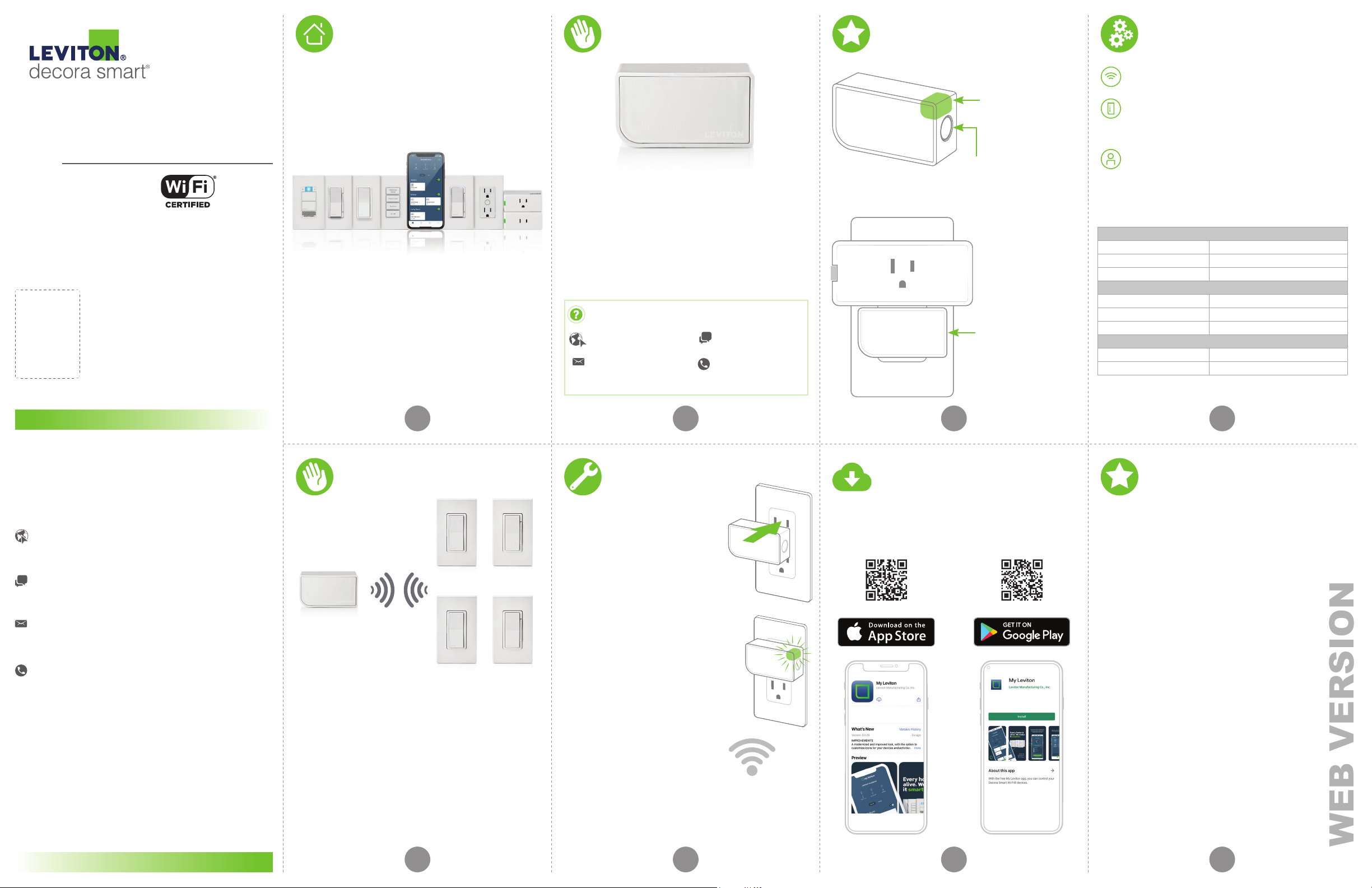
Leviton’s Decora Smart Wi-Fi Bridge is an easy-to-install
plug-in that enables smart features and connectivity to
services such as My Leviton, Apple HomeKit, Amazon Alexa,
and Google Assistant for Decora Smart No-Neutral devices.
Its small form factor lets you plug it in out of the way,
without taking up space on a shelf or desk.
Pairing a Decora Smart No-Neutral Dimmer or Switch with
a Wi-Fi Bridge makes it easier than ever to install smart
lighting control in homes without Neutral wiring in the
electrical wall box.
We are here to help
ONLINE
decorasmartsupport.leviton.com
EMAIL
CHAT
www.leviton.com/support
CALL
1-8 00- 824 -30 05 ( USA )
1-800-405-5320 (Canada)
2 3 4
Status LED
• Illuminates to show
pairing and network
connectivity status.
Setup button
• Used to configure the device.
When installed, its
discreet size does not
obstruct other devices
from being plugged into
the same receptacle.
An iOS (12.0 or later) or Android (8.0 or later)
mobile device.
NOTE: Make sure Wi-Fi and Bluetooth are enabled on
your mobile device.
A My Leviton cloud account
(set up through the My Leviton app).
• Installs in any 120VAC receptacle, including GFCI and AFCI
protected receptacles. Do NOT use in a switched outlet.
• For Indoor Use Only.
SPECIFICATIONS
Operating Temperature 0°C - 40°C (32°F - 104°F)
ating Humidity 10% - 90% non-condensing
Oper
Storage Temperature -10°C - 85°C (14°F - 185°F)
NETWORK
Wi-Fi 802.11 b/g/n networks - 2.4GHz only
Security
Bluetooth v5.0
MY LEVITON APP
iOS version 12.0 or later
oid version 8.0 or later
Andr
Additional self-service support options can be found in
the My Leviton app or at leviton.com/decorasmart.
WPA, WPA2, or WPA3 security, or open
If you need help...
ONLINE
decorasmartsupport.leviton.com
CHAT
www.leviton.com/support
EMAIL
CALL
1-800-824-3005 (USA)
1-800-405-5320 (Canada)
Leviton Manufacturing Co., Inc.
201 North Service Road, Melville, NY 11747
© 2021 Leviton Manufacturing Co., Inc. All rights reserved.
Specifications subject to change at any time without notice.
Your Wi-Fi Bridge
works with:
DN15S
Switch
MLWSB
Bridge
DAWSC
Anywhere
Switch
• The Decora Smart Wi-Fi Bridge provides up to 2,500 sq. ft. of
coverage, and should be placed in a central location within
50 ft. of Decora Smart No-Neutral devices.
• One Decora Smart Wi-Fi Bridge supports up to 25 devices.
• Multiple Bridges can be installed per residence to provide
increased coverage in larger homes.
NOTE:
• One MLWSB Decora Smart Wi-Fi Bridge supports up to 6
Anywhere Companions paired to associated Decora Smart
No-Neutral devices.
Visit Leviton.com/decorasmart for product
compatibility updates.
DN6HD
Dimmer
DAWDC
Anywhere
Dimmer
Installation
1. Insert the Wi-Fi Bridge into a
120VAC receptacle, within a 50 ft.
range of your Decora Smart
No-Neutral devices.
NOTE: For homes with Decora Smart No-
Neutral devices in multiple rooms, install
your Wi-Fi Bridge in a centralized location
for best coverage.
2. When the device first powers up, the
Status LED will flash GREEN to show it
is ready to be configured.
3. Using a smartphone or tablet,
confirm a strong Wi-Fi signal is
available in the area in which you
are installing your Wi-Fi Bridge.
NOTE: This product is not designed to transmit through
exterior surfaces. Environmental factors can impact wireless
range. Before installing, consider materials such as concrete
or steel-reinforced floors, ceilings, walls, masonry, cinderblock,
and reinforced materials, such as plaster and stucco, that may
interfere with range.
65 7 8
Get the app
To download the app,
visit my.leviton.com and select the link or scan
the QR code below for your device.
Device setup
• Your Decora Smart Wi-Fi Bridge can be connected to
My Leviton, Apple HomeKit, or both.
• Once connected, you can add a Decora Smart No-
Neutral Dimmer (DN6HD) or Switch (DN15S) using
the My Leviton app.
• For voice control of Decora Smart No-Neutral
devices with Amazon Alexa or Google Assistant, the
MLWSB Wi-Fi Bridge must be enrolled in My Leviton.
• For voice control of Decora Smart No-Neutral
devices with Siri, connect the MLWSB Wi-Fi Bridge
to Apple HomeKit. See page 10 for instructions on
how to add your MLWSB Wi-Fi Bridge to
Apple HomeKit.
Page 2
Add your device to
WEB VERSION
My Leviton
1. Make sure the device is in Setup mode (status LED should
be blinking GREEN). If the status LED is not blinking
GREEN, see page 13 for instructions on how to put the
device in setup mode.
2. Launch the My Leviton app.
3. Log in or choose “Sign Up” to create a new account.
4. Follow the instructions on the screen.
5. Once logged in, tap the “+” in the upper right-hand corner
of the screen and select “Add Device”.
6. Follow the in-app instructions to add your device and
connect it to your home Wi-Fi network.
9 10 11 12
Add your device to Apple
Homekit (optional)
NOTE: Skip step 1 if your device is already enrolled in
My Leviton and on your Wi-Fi network.
1. Make sure the device is in Setup mode (status LED should
be blinking GREEN). If the status LED is not blinking
GREEN, see page 13 for instructions on how to put the
device into Setup mode.
2. Using an iOS device, open the Apple Home app and select
“Add Accessory”.
3. Locate and scan the HomeKit setup code on the device or
on the front page of this Getting Started Guide.
4. Follow the instructions in the Apple Home app.
5. If you have previously paired Decora Smart No-Neutral
devices to your Wi-Fi Bridge using the My Leviton app,
Apple’s Home app will allow you to import them after
enrolling the Wi-Fi Bridge.
You can now use Apple Siri to control your
Decora Smart No-Neutral devices that are paired
to the Wi-Fi Bridge.
Factory default resetSetup mode
Connect to My Leviton
partners (optional)
works with
Hey Google
Visit my.leviton.com for a complete list of
compatible smart home products.
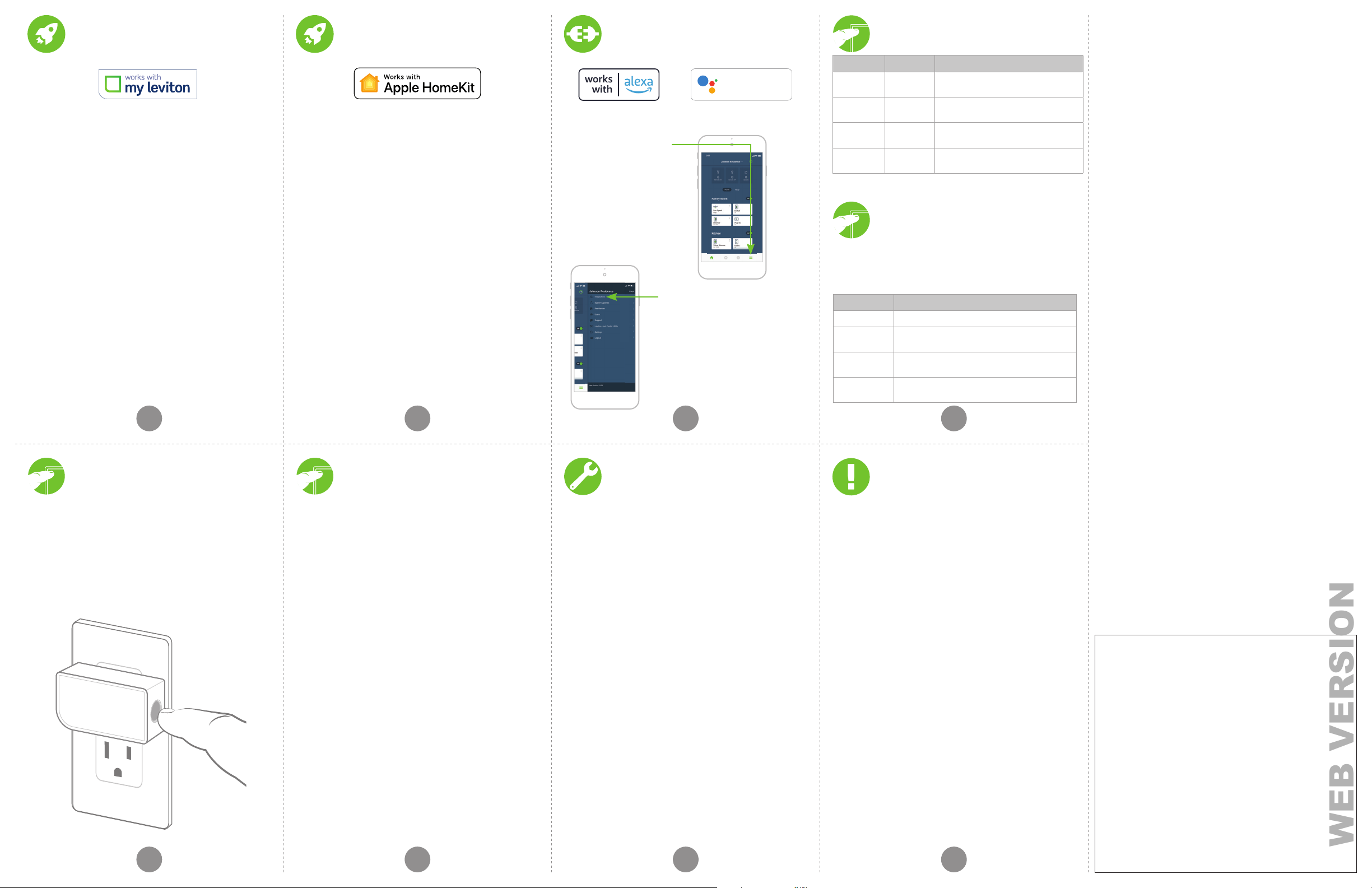
1. Tap menu icon in lower
right corner.
2. Tap Integrations, locate the
desired service, select it, and
follow the instructions.
What to do if...
Status LED
COLOR ACTIVITY STATUS
Green Flashing
Green Slow Blink
Amber Slow Blink
Green/Red/
Amber
Alternating
Blink
In Setup mode and r
to a Wi-Fi network.
Connecting to a Wi-Fi network at
power-up.
Device is not connected to the network
but is attempting to reconnect.
Identify feature triggered from the
My Leviton app.
eady to be added
Please see My.Leviton.com/support for additional
diagnostic assistance.
Diagnostic LED
If your device is not connecting to the My Leviton app,
the Status LED can be used as a diagnostic tool. Press the
button for at least 2 seconds (but no more than 7 seconds),
and then release. The Status LED will blink a diagnostic
code for 2 seconds.
CO L O R STAT U S
Amber Not connected to Wi-Fi.
d
Re
Green/Amber,
Alternating
Green
Connected to Wi-Fi but not able to connect to
the My Leviton cloud.
Connected to Wi-Fi and My Leviton cloud but
unable to set the time from the internet.
Connected to Wi-Fi, and My Leviton cloud is
working properly.
Safety first
Limited 2 Year Warranty &
Exclusions
For Leviton’s limited product warranty, go to www.leviton.com. For a
printed copy of the warranty, call 1-800-824-3005.
FOR CANADA ONLY
For warranty information and/or product returns, residents of Canada
should contact Leviton in writ ing at Lev iton Manufacturing of Canada
ULC to the attention of the Quality Assurance Department, 165 Hymus
Blvd, Pointe-Claire (Quebec), Canada H9R 1E9 or by telephone
at 1 800 405-5320.
FCC COMPLIANCE STATEMENT
The enclosed device complies w ith Par t 15 of the FCC Rules. Operation
is subject to the following two conditions: (i.) This device may not cause
harmful inter ference (ii.) This device must accept any interference
received, including interference that may cause undesired operation.
Any changes or modifications not expressly approved by Leviton could
void the user’s authority to operate this equipment. This equipment
has been tested and found to comply with the limits for a Class B digital
device, pursuant to par t 15 of the FCC Rules. These limits are designed
to provide reasonable protection against harmful interference in a
residential installation. This equipment generates uses and can radiate
radio frequency energy and, if not installed and used in accordance
with the instruc tions, may cause harmful interference to radio
communications. However, there is no guarantee that interference
will not occur in a particular installation. If this equipment does
cause harmful interference to radio or television reception, which
can be determined by turning the equipment off and on, the user is
encouraged to try to correct the interference by one or more of the
following measures:
• Reorient or relocate the receiving antenna.
• Increase the separat ion bet ween the equipment and receiver.
• Connect the equipment into an outlet on a circuit dif ferent from that
o which the receiver is connected.
t
• Consult the dealer or an experienced radio/TV technician
or help.
f
FCC CAUTION
Any changes or modifications not expressly approved by Leviton
Manufacturing Co., Inc., could void the user’s authority to operate
the equipment.
FCC SUPPLIER’S DECLARATION OF CONFORMITY
Model MLWSB Br idge is manufactured by Leviton Manufacturing Co.,
Inc. 201 N. Ser vice Road, Melville, NY 11747. www.leviton.com This
device complies with part 15 of the FCC Rules. Operat ion is subject to
the following two conditions: (1) This device may not cause harmful
interference, and (2) this device must accept any interference received,
including interference that may cause undesired operation.
1. To manually place your Wi-Fi Bridge into Setup mode,
hold the Setup button for 7 seconds and release when
the Status LED turns AMBER.
2. The Status LED will flash GREEN. The device is now in
Setup mode.
3. To exit Setup mode manually, hold the button again
for 7 seconds.
CAUTION: Performing a factory reset will clear
the Wi-Fi Bridge of its network setup and delete
all paired Decora Smart No-Neutral or Anywhere
Companion devices in the My Leviton app (and
Apple’s Home app, if applicable).
1. Hold the Setup button for 14 seconds.
2. After the first 7 seconds, the Status LED will turn AMBER.
Continue to hold.
3. After 7 more seconds, the Status LED will quickly flash
RED/AMBER.
4. Release the Setup button and the device will reset to
factory settings.
1413 15 16
Your Wi-Fi Bridge is not performing as expected:
• Make sure your Wi-Fi Bridge is plugged in and is being
supplied from a non-switched 120VAC, 60Hz source ONLY.
• Use the Diagnostic tool on page 12 to assess the current
state of the device.
Not connected to Wi-Fi:
• In the My Leviton app, select your Wi-Fi Bridge in the device
list, and then select “Device Settings”. On the “Device
Settings” screen, select “Reconfigure Wireless”.
• Follow the prompts to reconfigure your device and update
the Wi-Fi settings.
Intermittent connection with paired Decora
Smart devices:
• Make sure the Wi-Fi Bridge is in range and powered; move
the Bridge closer or to a more central location if possible.
• Remove the Decora Smart No-Neutral device and use the
My Leviton app to re-add the device to your MLWSB
Wi-Fi Bridge.
Additional coverage is needed for a larger home:
• Add additional Wi-Fi Bridges where needed in the home,
within range of installed Decora Smart No-Neutral devices.
• Use the My Leviton app to enroll new Decora Smart
No-Neutral devices, or go to Device Settings to select
“Reconfigure Wireless” and follow the in-app instructions.
How do I clean my device?
• To clean, use a damp cloth with mild soap. Do NOT use
disinfecting products, including foggers, sprays, or other
types of atomized cleaning agents.
WARNING S:
• This product is to be installed and/or used in accordance
w
ith electrical codes and regulations.
• For Indoor Use Only.
• If you are unsure about any part of these instructions,
consu
lt an electrician.
• Leviton’s Wi-Fi enabled devices rely on Wi-Fi
ommunication. For customers looking to install a
c
large number of devices, it is recommended to consult
the wireless network’s access point specifications to
determine the maximum number of supported Wi-Fi
devices. In some cases, such as those involving large
installations, it may be necessary to upgrade to newer
high-performance wireless grade access points to ensure
proper operation.
• Save this instruction sheet. It contains important
t
echnical data, along with testing and Troubleshooting
information, which will be useful after installation
is complete.
ADDITIONAL RATINGS:
• Purpose of Control: Operating Control
• Action Control Type: 1
• Pollution Degree: 2
• Impulse Voltage: 1500V
IC STATE MEN T
This device complies with Industry Canada license-exempt RSS
standard(s). Operation is subject to the following two conditions: (1)
this device may not cause interference, and (2) this device must accept
any interference, including interference that may cause undesired
operation of the device.
RF EXPOSURE AND CO-LOCATION
To comply with FCC OET Bulletin 65 and ISED RF exposure limits for
general population and uncontrolled exposure, this device shall be
installed and operated with a minimum distance of 7.9 inches (20 cm)
between the radiator and your body. Also, must not be co-located or
operated in conjunction with any other antenna or transmitter.
Patents covering this product, if any, can be found on Leviton.com/patents.
Copyright and Trademark Information
Decora and Decora Smart are the registered trademarks of Leviton
Manufacturing Co., Inc., registered in the U.S., Canada, Mexico
and China.
Google and Google Play are trademarks of Google LLC. Alexa, and
related logos are trademarks of Amazon.com, Inc. or its affiliates.
®
, HomeKit®, and Siri® are trademarks of Apple Inc., registered
Apple
in the U.S. and other countries. IFTTT and the Wi-Fi CERTIFIED logo are
trademarks of their respective owners and any use of such marks by
Leviton is under license.
Use of the Works with Apple badge means that an accessory has
been designed to work specifically with the technology identified
in the badge and has been certified by the developer to meet Apple
performance standards. Apple is not responsible for the operation of
this device or its compliance with safety and regulatory standards.
Use herein of other third party trademarks, service marks, trade
names, brand names and/or product names are for informational
purposes only, are/may be the trademarks of their respective
owners; such use is not meant to imply affiliation, sponsorship,
or endorsement. No part of this document may be reproduced,
transmitted or transcribed without the express written permission of
Leviton Manufacturing Co., Inc.
Copyright 2021 Leviton Mfg. Co., Inc.
 Loading...