

Page 1

Leviton Smart Load Center
User Guide
leviton.com/loadcenter
Page 2

Part 1 – Overview
The purpose of this guide is
to provide the user a quick
reference to understand the
features of the Leviton Smart
Load Center.
The Leviton Smart Load Center is
an internet-connected residential
electrical panel and circuit breaker
system that provides users with
energy management options
such as real-time monitoring,
notifications, remote control,
and system updates via their
smartphones, tablets or desktops
with the My Leviton app.
The system automatically
discovers and connects each
of the smart circuit breakers
through the My Leviton app,
so setup is simple. In addition,
Wi-Fi® or Ethernet connectivity
are available and included as
options with the data hub.
This communication capability
helps give homeowners peace of
mind that their electrical system
is functioning properly no matter
where they are in the world. In
addition, access to the My Leviton
app helps contractors securely
troubleshoot issues without
Smart circuit breakers install
the same as our standard circuit
breakers along with our single
data hub installed at the panel.
being in front of the unit itself.
NOTE: Due to software and other updates,
screen content may change over time.
leviton.com/loadcenter
Page 3
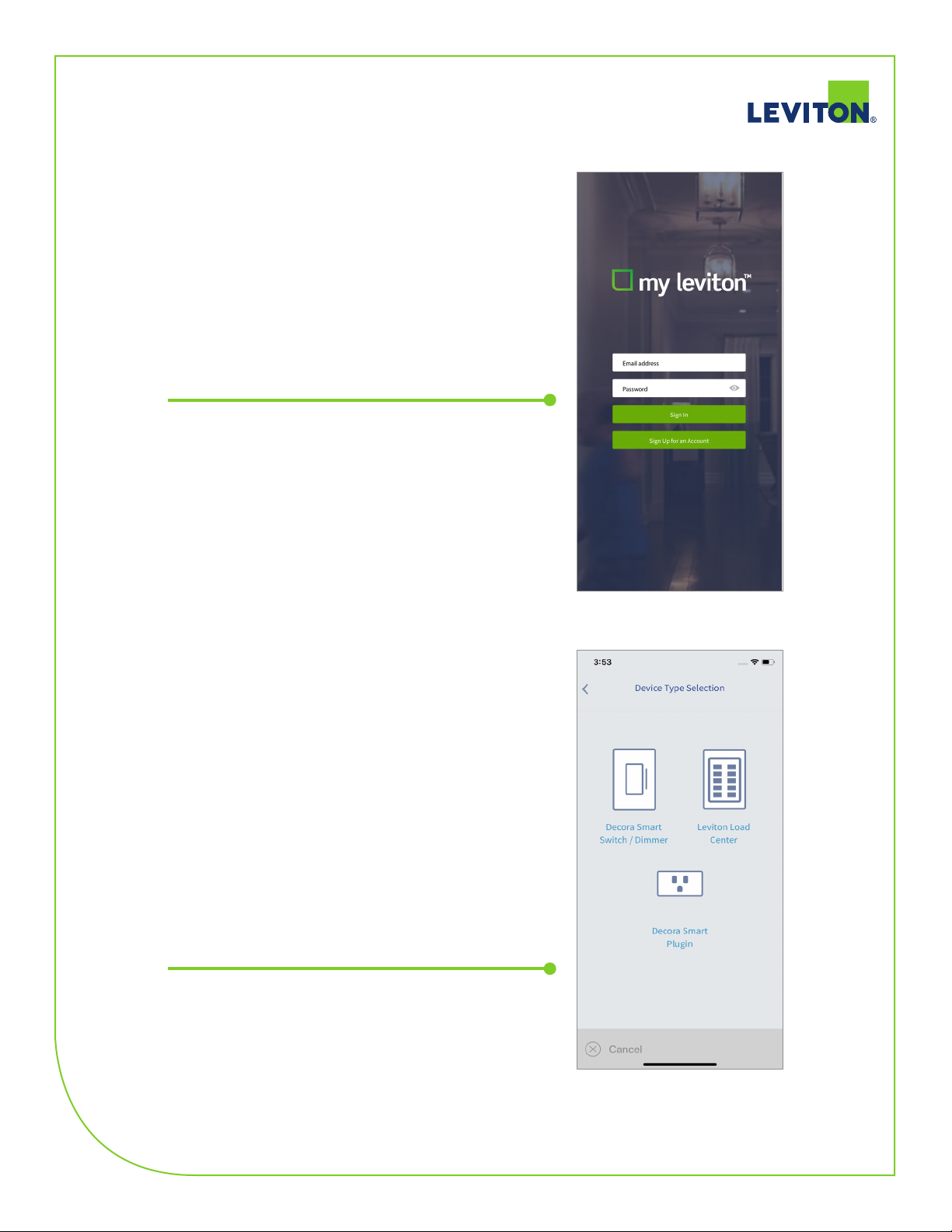
Part 1 – Getting Started
My Leviton App
Log in to your My Leviton account. If you don’t have one,
download the My Leviton app from The App Store or the
Google Play store and follow the steps to create
an account.
Adding a Load Center
If you need to add a load center, select the ‘+’ sign in the
top right to ‘Add a Device’ and select Leviton Load Center
to add it to your residence. The app will walk you through
the configuration process. During this process, you may
give your circuit breakers custom names.
Select the type of device you would
like to enroll.
leviton.com/loadcenter
Page 4
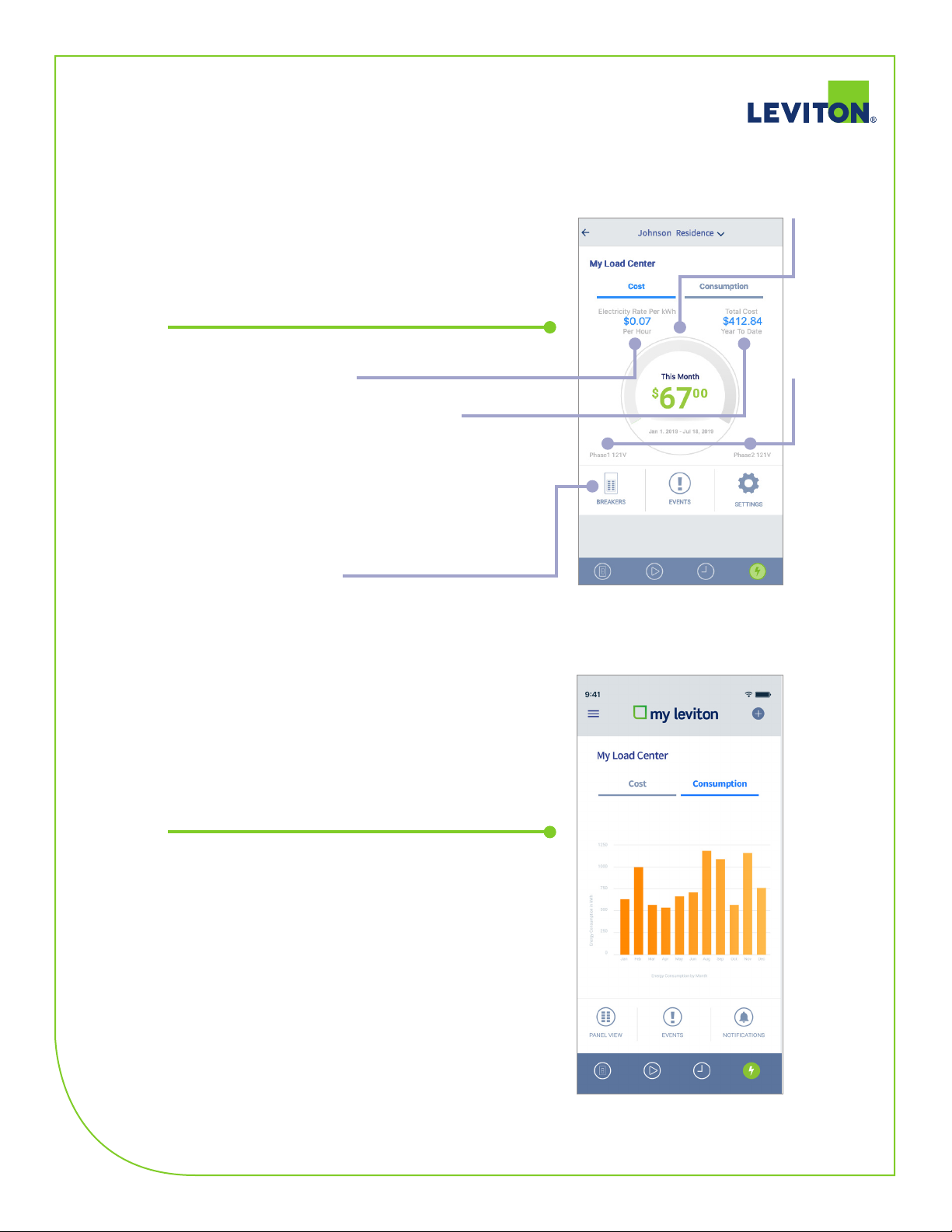
Part 2 – Home Screen
The main page for your Load Center shows you your
current expenditures at a glance. From this screen you go
into all of the various Load Center details and settings.
Cost per
month
You can change your electricity rate.
Cost year to date
Links to other features and settings
are also available from this screen.
Part 3 – Energy Usage
The total consumption and costs for your Load Center
can be seen from the Consumption screen.
Phase
Voltages
Leviton Load Center dashboard
leviton.com/loadcenter
Page 5
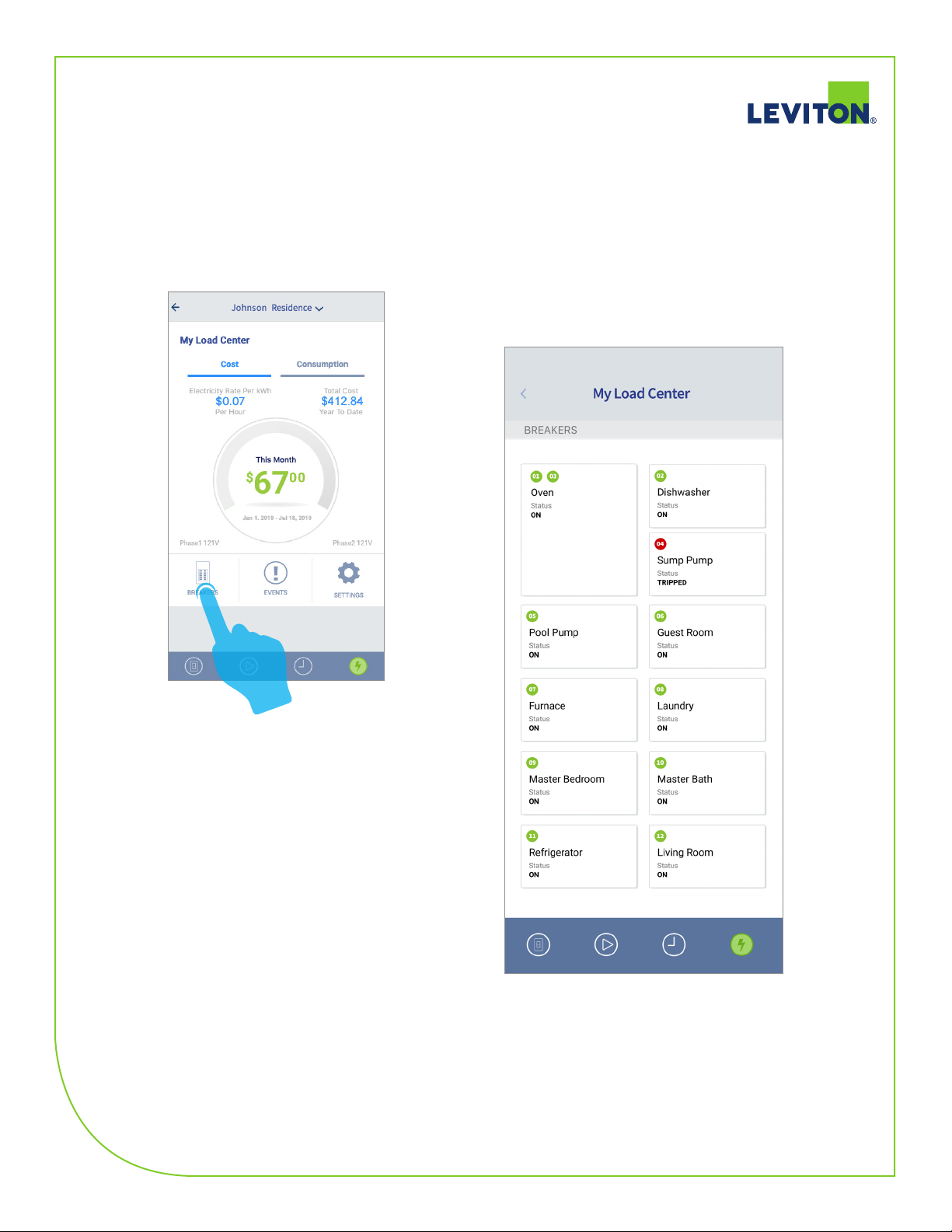
Part 4 – Breaker Details
Tap on the Breakers icon to
view panel layout and access
the breaker settings.
leviton.com/loadcenter
Page 6
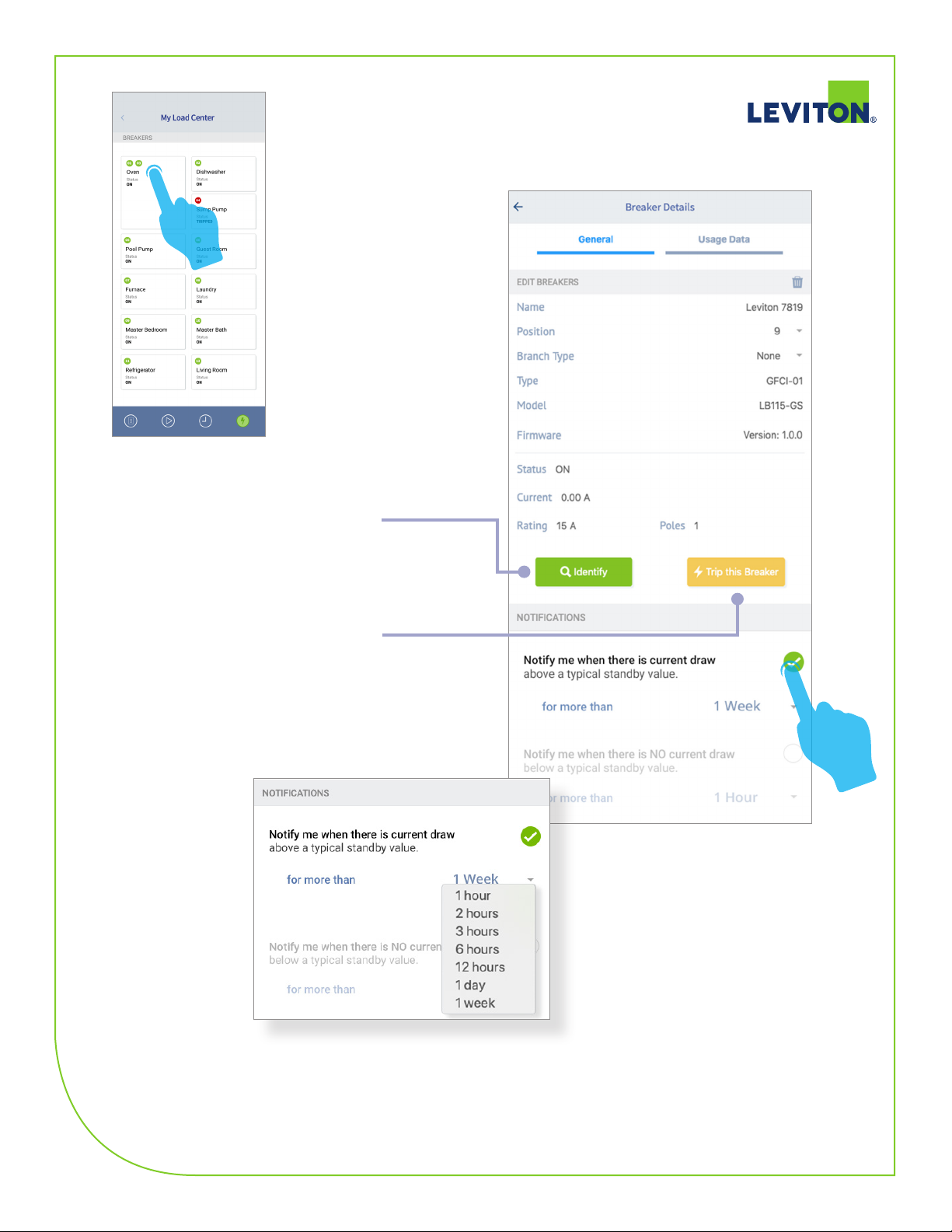
Tapping on a breaker
opens a breaker details
screen. From here
you can view breaker
info, rename it, set the
position, edit notification
settings, etc
Identify makes the
LED blink.
Trip this Breaker
must be manually
reset
Enabling notifications allows you
to set the conditions for receiving
notifications.
leviton.com/loadcenter
Page 7
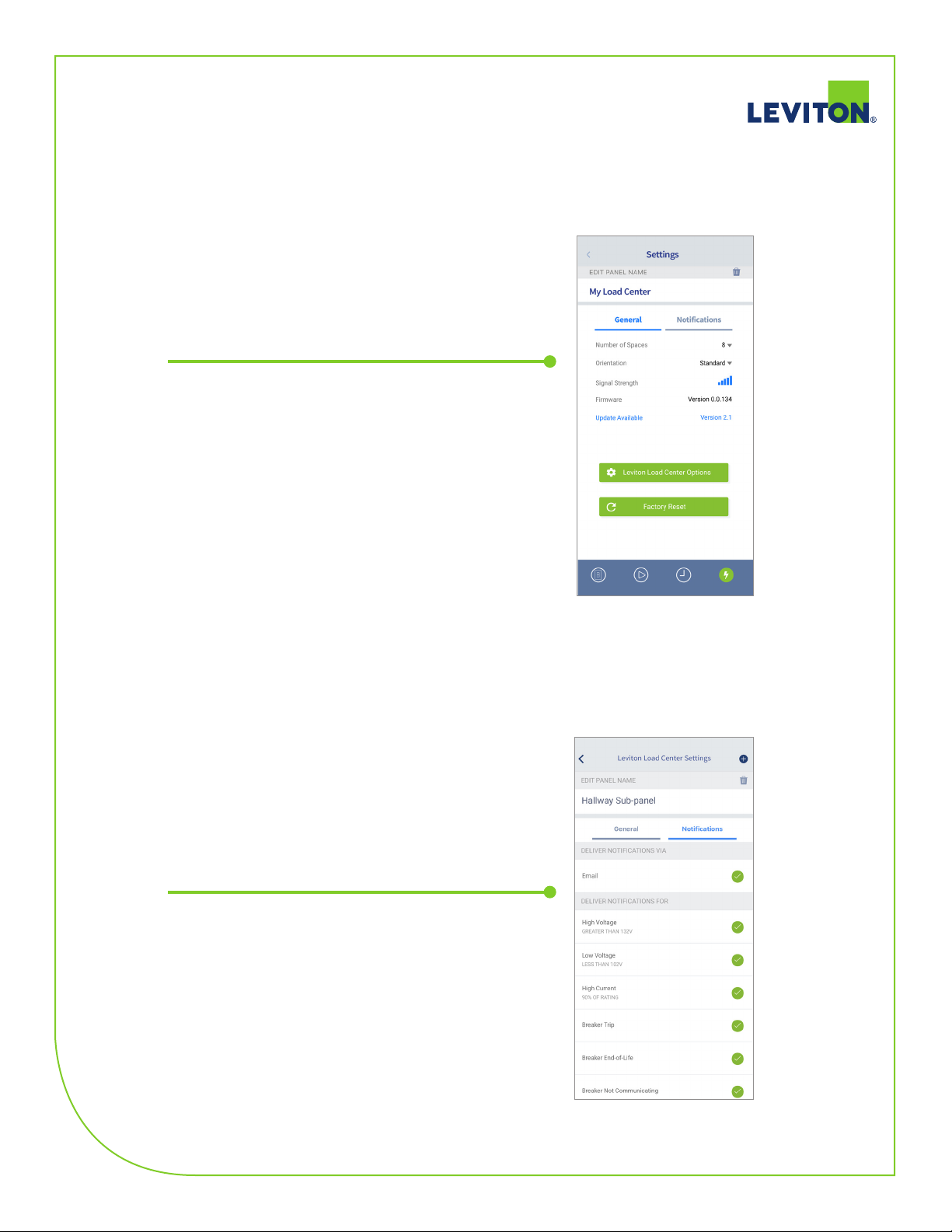
Part 5 – General Settings
The General Settings tab allows you to view basic
settings and system status.
Part 6 – Notifications
Under a Load Center’s settings, the notifications
tab allows you to set the conditions for receiving
notifications.
leviton.com/loadcenter
 Loading...