

Page 1
Smart Lighting Control
WEB VERSION
for the Whole Home
Welcome
Your dimmer
Features
works with:
Getting Started Guide
DI-000-DN6HD-02C
DIMMER
No Neutral Wire Required
Cat. No. DN6HD
See the complete line of My LevitonTM app compatible
dimmers, switches, plug-ins, and controllers at
leviton.com/decorasmart
Leviton’s Decora Smart No-Neutral
Dimmer is the perfect retrofit
solution, making it easier than
ever to install smart lighting
control in homes without Neutral
wiring. Pair with a Decora Smart
Wi-Fi Bridge to control lighting
with your voice via Amazon Alexa,
Google Assistant, or Apple
Siri – or use a smartphone or tablet
to control your lighting with the
My Leviton app even when you’re
away from home.
The Decora Smart No-Neutral
Dimmer looks right at home with
your other Decora brand in-wall
devices, and features intuitive
ON/OFF and DIM/BRIGHT control.
We are here to help
ONLINE
decorasmartsupport.leviton.com
EMAIL
CHAT
www.leviton.com/support
CALL
1-8 00- 824 -30 05 ( USA )
1-800-405-5320 (Canada)
• Dimmable LED, dimmable CFL,
incandescent, and MLV lighting.
• Do NOT use your dimmer with metal
wallplates, electronic low-voltage,
motor loads, or aluminum wire.
• Installation in metal wall boxes or
with metal wallplates may result in
poor RF performance.
• When two or more dimmers are
installed next to each other, the Load
ratings become 500W incandescent
and 500VA MLV for each dimmer.
No reduction is necessary if the Load
is LED or CFL.
• For compatible LED bulbs, go to leviton.com/LED.
• Additional self-service support options can be found in
the My Leviton app or at leviton.com/decorasmart.
RATINGS
General Use 120VAC, 60Hz
LED / CFL 300W
Incandescent 600W
MLV 600VA
Operating Temperature 0°C - 40°C (32°F - 104°F)
Operating Humidity 10% - 90% non-condensing
NETWORK
Frequency 2.4GHz
ange 50 ft
R
MY LEVITON APP
iOS version 12.0 or later
oid version 8.0 or later
Andr
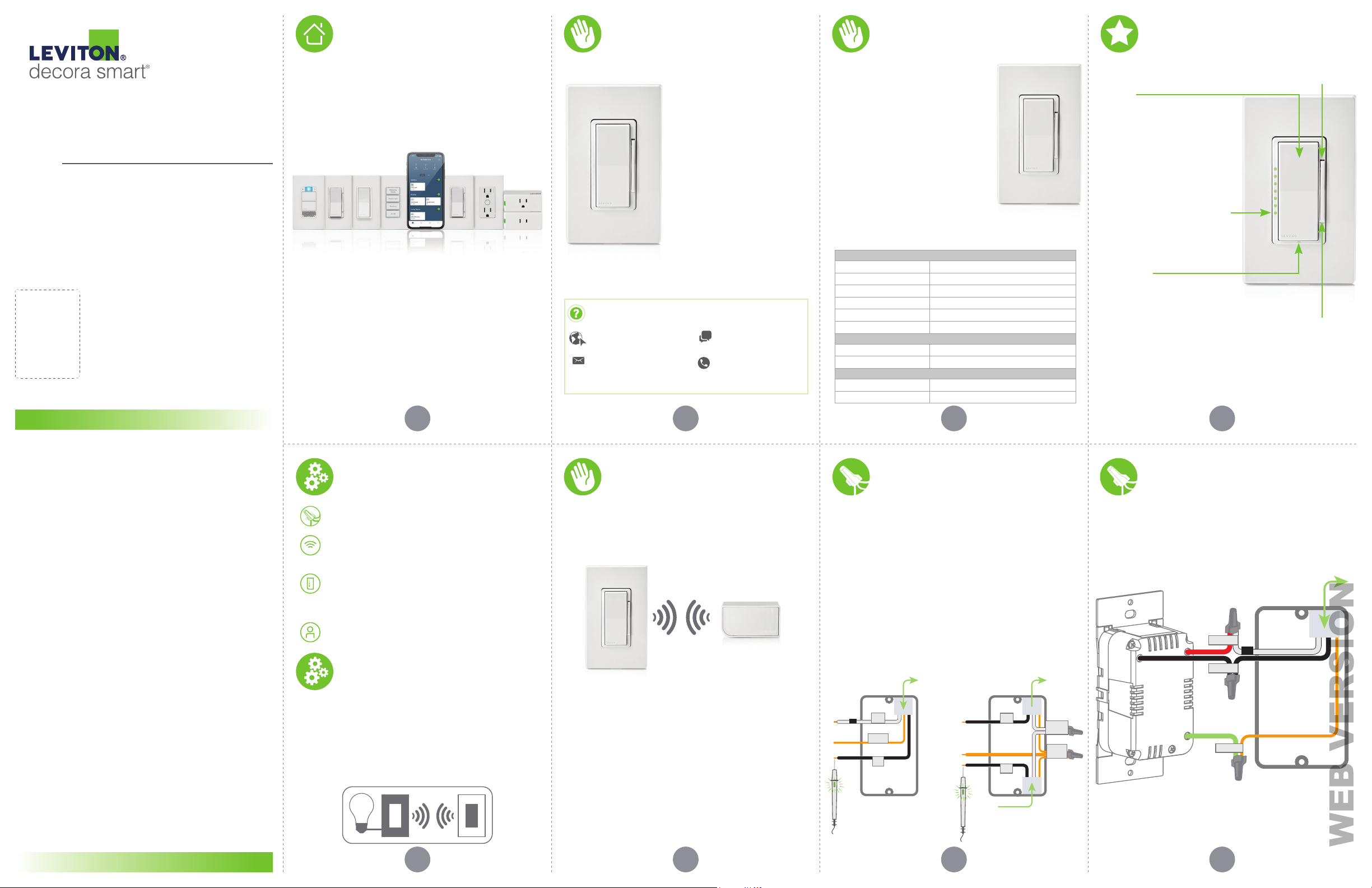
Rocker
• Press the top to turn the
light ON.
• Press the bottom to turn
the light OFF.
• Double press the top
to turn ON at max
brightness.
OFF means OFF
• Ensures low-wattage LED
bulbs always turn OFF.
Brightness indicator lights
• Displays light level when
adjusting brightness.
Status LED
• Illuminates when the lights
are OFF, so you can find the
dimmer in the dark.
• Provides connectivity and
device status feedback.
• Advanced settings available
in the My Leviton app.
Dim / bright bar
Manually adjust light levels.
Air gap switch
This feature will stop power
to the dimmer. Gently pull
bottom out until a click is
heard. Power to the dimmer
and indicator lights will
turn OFF. After servicing is
complete, push back in for
normal operation.
FCC COMPL IANCE STATEMENT
The enc losed devic e complies wit h Part 15 of the FCC R ules. Operat ion is subjec t to the
follow ing two cond itions: (i.) Thi s device may not c ause harmf ul interferen ce (ii.) This dev ice
must ac cept any inter ference rece ived, includ ing interfe rence that may ca use undesi red
operat ion. Any chan ges or modificat ions not expr essly approve d by Leviton cou ld void the
user ’s authorit y to operate thi s equipmen t. This equi pment has bee n tested and fou nd to
comply w ith the limi ts for a Class B d igital dev ice, pursuan t to part 15 of the FCC R ules.
These l imits are des igned to prov ide reasona ble protect ion against h armful inter ference in
a reside ntial inst allation. T his equipm ent generates u ses and can rad iate radio freq uency
energ y and, if not ins talled and u sed in accord ance with th e instruc tions, may c ause harmf ul
inter ference to radi o communicat ions. Howeve r, there is n o guarantee t hat interfe rence will
not occ ur in a parti cular inst allation. If t his equipm ent does caus e harmful int erference to
radio or te levision re ception, wh ich can be dete rmined by tur ning the equ ipment off an d on,
the use r is encoura ged to try to cor rect the in terference b y one or more of th e
follow ing measure s:
• Reori ent or relocate t he receivi ng antenna.
• Conne ct the equi pment into an ou tlet on
ircuit d ifferent fro m that to which t he
a c
receiver is connected.
FCC CAUTI ON
Any cha nges or modific ations not exp ressly approv ed by Leviton Man ufacturi ng Co., Inc.,
could voi d the user’s au thority to o perate the eq uipment.
FCC SUPPL IER’S DECL ARATION OF CONFO RMITY
Model DN 6HD Dimmer is m anufactur ed by Leviton Man ufacturi ng Co., Inc. 201 N. Ser vice
Road, Melv ille, NY 11747. www.levit on.com This de vice complie s with part 15 of t he FCC
Rules. O peration is s ubject to the f ollowing t wo condition s: (1) This de vice may not ca use
harmf ul interfere nce, and (2) this dev ice must acc ept any inter ference receiv ed, includi ng
inter ference that m ay cause undes ired operat ion.
IC S TATEM ENT
This de vice complie s with Indus try Canada l icense-exem pt RSS standa rd(s). Opera tion is
subjec t to the follow ing two cond itions: (1) this de vice may not ca use interfe rence, and (2)
this de vice must ac cept any inter ference, inc luding inter ference tha t may cause unde sired
operat ion of the dev ice.
RF EXP OSURE AND CO -LOCATION
To comply wit h FCC OET Bullet in 65 and ISED RF ex posure limit s for general po pulation an d
uncon trolled expo sure, this dev ice shall be i nstalled an d operated wi th a minimum di stance
of 7.9 inches (20 cm) bet ween the radi ator and your bo dy. Also, must not b e co-locate d or
operat ed in conjunc tion with a ny other anten na or transmi tter.
Copyright and Trademark Information
Decora and Decora Smart are the registered trademarks of Leviton Manufacturing Co., Inc., registered in
the U.S., Canada, Mexico and China.
Google and Google Play are trademarks of Google LLC. Alexa, and related logos are trademarks of Amazon.
com, Inc. or its affiliates. Apple®, HomeKit®, and Siri® are trademarks of Apple Inc., registered in the U.S.
and other countries.
Use herein of other third party trademarks, service marks, trade names, brand names and/or product
names are for informational purposes only, are/may be the trademarks of their respective owners; such
use is not meant to imply affiliation, sponsorship, or endorsement. No part of this document may be
reproduced, transmitted or transcribed without the express written permission of
Leviton Manufacturing Co., Inc.
Patents covering this product, if any, can be found on Leviton.com/patents.
Levito n Manufactu ring Co., Inc.
201 North Serv ice Road, Melville, NY 11747
© 2022 Levito n Manufactu ring Co., Inc. Al l rights re served.
Spec ifications subject to chang e at any time without notic e.
• Increa se the sepa ration betwe en the
e
quipm ent and receive r.
• Consul t the dealer or a n
xperienced radio/TV technician
e
for help .
1 2 3 4
What you need to make
it work:
Line, Load, and Earth Ground wires are required.
A Decora Smart Wi-Fi Bridge (MLWSB), installed and
connected to a 2.4GHz Wi-Fi network with
high-speed internet.
An iOS (12.0 or later) or Android (8.0 or later)
mobile device.
NOTE: Make sure Wi-Fi and Bluetooth are enabled on
your mobile device.
A My Leviton cloud account
(set up through the My Leviton app).
Before you install:
Installation requires electrical knowledge.
If you are unsure of any steps, consult an electrician.
Things to consider:
To control the dimmer from more than one location, such
as in 3-way or multi-way, you will need a wireless DAWDC
Dimmer or DAWSC Switch Anywhere Companion device
(See Page 14). Learn more about Companion devices and
find connection instructions at Leviton.com/decorasmart.
Decora Smart
Wi-Fi Bridge
• This product requires a MLWSB Decora Smart Wi-Fi Bridge
to enable smart features such as My Leviton App control,
scenes, schedules, Anywhere Companion connectivity,
and integration with smart home services, such as voice
assistants.
DN6HD MLWSB
• A MLWSB Decora Smart Wi-Fi Bridge provides up to
2,500 sq ft. of coverage and should be placed within 50 ft.
of the Decora Smart No-Neutral Dimmer.
• One MLWSB Decora Smart Wi-Fi Bridge supports up to
25 total devices. Supported devices include:
• DN6HD Dimmer
• DN15S Switch
• DAWDC or DAWSC Anywhere Companions
NOTE: One MLWSB Decora Smart Wi-Fi Bridge supports up to
6 Anywhere Companions paired to associated Decora Smart
No-Neutral devices.
Visit Leviton.com/decorasmart for product compatibility
updates and MLWSB installation instructions.
65 7 8
Identify your wires Wire your dimmer
WARNING: TO AVOID FIRE, SHOCK, OR DEATH, turn off
power at the circuit breaker.
Check your wall box:
1. Remove wallplate and disconnect existing switch.
2. Restore power. Carefully test wires with voltage tester to
find the Line (Hot) wire.
3. Turn off power at the circuit breaker.
4. Mark the wires as shown below.
Quick tip: This product was designed to work without a
Neutral wire. Line, Load, and Earth Ground connections
are required for installation. If your home does not have
a Ground connection available, contact Leviton Technical
Support or consult an electrician. If your electrical box
contains Neutral wires, you can also use a Decora Smart
Wi-Fi 2nd Gen Dimmer (D26HD) to enable smart features,
without requiring a Wi-Fi Bridge (MLWSB).
To and
From Light
LOAD
GROUND
LINE
Without
Neutral Wiring
To Light
LOAD
LINE
From
Branch Circuit
With
Neutral Wiring
NEUTRAL
GROUND
Single-pole installation:
1. Work on only one connection at a time.
2. Connect wires as shown using the included
wire connectors.
To and
From Light
LOAD
LOAD
LINE
GND
LINE
GROUND
If your wall box contains a different wiring
configuration, contact Leviton’s Technical Support
team or consult an electrician.
Page 2
Test and install
WEB VERSION
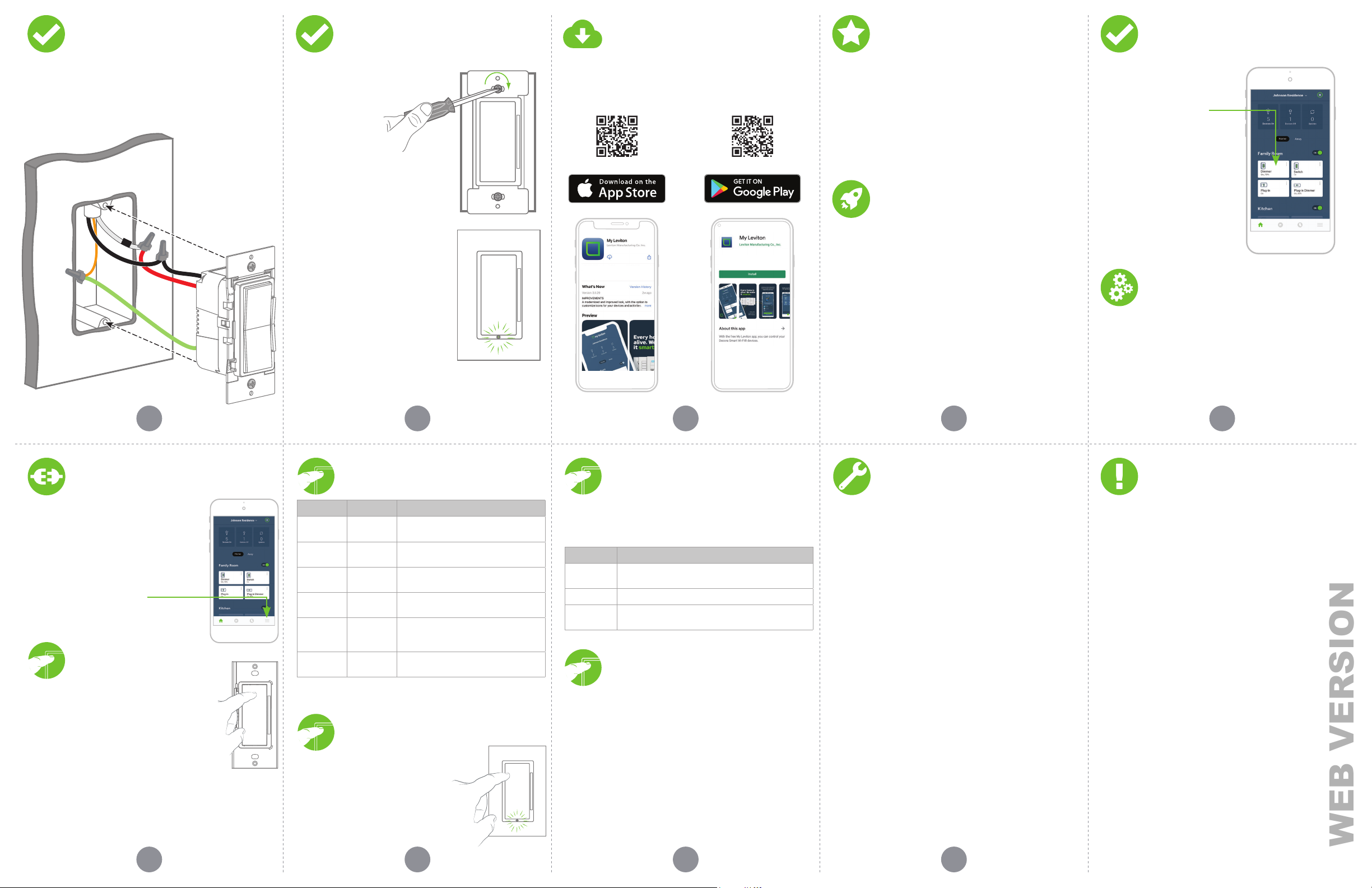
1. Restore power. Status LED should flash GREEN.
2. After powering on the dimmer to confirm it is receiving
power, turn the power back off again at the breaker prior
to completing the installation.
Test and install
(continued)
WARNING: Turn off power at the
circuit breaker before screwing in
your dimmer.
3. Gently push wires
into wall box.
Screw dimmer
to box.
4. Snap on Decora
restore power.
Once power is restored, the status
LED will blink GREEN, indicating
your device is in Setup mode. See
page 15 if your Status LED is not
blinking GREEN.
®
wallplate and
Congratulations!
Your Decora Smart Dimmer
is ready to control your light.
Get the app
To download the app,
visit my.leviton.com and select the link or s
the QR code below for your device.
can
Device setup
• The Decora Smart No-Neutral Dimmer pairs to a Decora
Smart Wi-Fi Bridge for connectivity to My Leviton, Apple
HomeKit, or both.
• Use the My Leviton app to pair your Decora Smart No
Neutral Dimmer (DN6HD) to your Wi-Fi Bridge.
• For voice control with Amazon Alexa or Google Assistant,
you will need to pair your Dimmer to a MLWSB Wi-Fi Bridge
that is enrolled in My Leviton.
• For voice control with Siri, you will need to pair your
Dimmer to a MLWSB Wi-Fi Bridge that is added to HomeKit.
• See MLWSB Getting Started Guide for additional Wi-Fi
Bridge setup details.
Connect your Dimmer
to a Decora Smart Wi-Fi
Bridge with My Leviton
1. Make sure a MLWSB Wi-Fi Bridge is installed within range of
the DN6HD Dimmer.
2. Verify the DN6HD Dimmer is in Setup mode (Status LED
should be blinking GREEN).
•
If the Status LED is not blinking GREEN, see page 15 for
instructions on how to put the device into Setup mode.
3. Launch the My Leviton app.
4. Log in or choose “Sign Up” to create a new account.
5. Follow the instructions on the screen.
6. Once logged in, tap the “+” in the upper right-hand corner of
the screen and select “Add Device”
7. Follow the app instructions to add your device and connect
it to a MLWSB Wi-Fi Bridge.
NOTE: If you are only using HomeKit and do not wish to
create a My Leviton account, select “Use with HomeKit
Only” on the My Leviton sign-up screen.
Test My Leviton
app control
1. Open the My Leviton app.
2. Tap icon to turn ON/OFF.
Quick tip
• The My Leviton app includes many features such as:
scheduling, remote control, Vacation mode,
Auto-Shut-Off, room scenes, and advanced options for
bulb type, fade rates, preset light level, and minimum
dim/maximum brightness.
Additional self-service support options can be found in
the My Leviton app or at leviton.com/decorasmart.
9 10 11 12 13
Connect to My Leviton
partners (optional)
When connected to a MLWSB Wi-Fi Bridge,
your dimmer can work with Amazon Alexa,
Apple HomeKit, Google Assistant, IFTTT,
and more.
Visit my.leviton.com for a complete
list of compatible smart home
products and services.
1. Tap the menu icon, followed
by Integrations. Locate the
desired service, select it, and
follow instructions.
Pair an Anywhere
Companion
1. Make sure your Wi-Fi Bridge is enrolled to
My Leviton and your Decora Smart No-Neutral
device is paired to your Wi-Fi Bridge.
2. Place the Anywhere Companion in Pairing
mode by pressing the top rocker 5 times.
Its Status LED will blink GREEN.
3. Place the primary Decora Smart No-Neutral
device into Pairing mode by pressing the top
rocker 5 times. The Status LED will flash GREEN/AMBER.
4. The Decora Smart No-Neutral device will be automatically
paired to the Anywhere Companion in wireless RF range via
the Wi-Fi Bridge. Once paired, the Status LED will quickly
flash GREEN to show a successful connection.
Learn more about Companion devices and find connection
instructions at leviton.com/decorasmart.
Status LED
COLOR ACTIVITY STATUS
Green Flashing
Green or
OFF
Amber Slow Blink
Green/
Amber
Red Blink
Green/
Red/Amber
Please see My.Leviton.com support for additional
diagnostic assistance.
Solid
Alternating
Blink
Alternating
Blink
In Setup mode and r
to a Decora Smart Wi-Fi Bridge.
Normal operation, can be configured
in a setup.
Device is not connected to the Bridge,
but is attempting to reconnect.
Device is in wireless Anywhere
Companion Pairing mode.
Wireless Anywhere Companion devices
have unpaired or at max. number of
paired devices.
Identify feature triggered from the
My Leviton app.
eady to be added
Setup mode
1. Hold the top rocker for 7 seconds
and release when the Status LED
turns AMBER.
2. The Status LED will flash GREEN.
The device is now in Setup mode.
3. To exit Setup mode manually, hold
the top rocker for 7 second.
1514 16 17
Diagnostic light
If your device is not connecting, the Status LED can be used as a
diagnostic tool. Press the top of the rocker for at least 2 seconds,
but less than 7 seconds, and then release. The Status LED will blink a
diagnostic code for 2 seconds.
CO L O R STAT U S
Red
Amber Not paired to a Decora Smart Wi-Fi Bridge.
Green
Cannot communicate to the Decor
Bridge; Bridge may be out of range or not powered.
Connected to a Decora Smart Wi-Fi Bridge and
working properly.
a Smart Wi-Fi
Factory default reset
1.
Hold the top rocker for 14 seconds.
2. After the first 7 seconds, the Status LED will turn AMBER.
Continue to hold.
3. After 7 more seconds, the Status LED will quickly flash
RED/AMBER.
4. Release the top rocker and then the device will reset.
What to do if...
When power is applied, the light turns ON, but the
dimmer is not able to change the light level:
• For proper operation, the dimmer needs a Line (Hot),
Load, and Ground connection. Make sure your wires are
connected properly and that the wire connectors are
secure.
The dimmer does not dim low enough or begins to flicker
at the low end of the dimming range:
• Use the My Leviton app to increase the minimum dim level
to the point that it does not cause the LED bulb to flicker.
Intermittent dimmer operation:
• Confirm the Load does not exceed its ratings.
Not connected or intermittent connection to the Decora
Smart Wi-Fi Bridge:
• Make sure the MLWSB Wi-Fi Bridge is in range and powered;
move the Bridge closer if possible.
Pair to a different Wi-Fi Bridge:
• Make sure the MLWSB Wi-Fi Bridge is in range and powered.
• Using the My Leviton app, go to dimmer’s device
settings, select “Reconfigure Wireless” and follow the
in-app instructions.
How do I clean my device?
• To clean, use a damp cloth with mild soap. DO NOT use
disinfecting products, including foggers, sprays, or other
types of atomized cleaning agents.
Visit leviton.com/decorasmart or contact Technical
Services for additional help.
Safety first
WARNIN GS:
• TO AVOID FIRE, SHOCK, OR DEATH, TURN OFF POWER at c ircuit breaker
or fuse a nd test that power is off before w iring!
• TO AVOID FIRE, PERSONAL INJURY, OR PROPERTY DAMAGE, DO NOT
nstall to cont rol a receptacle, a motor, or transformer operated appliance.
i
• This pro duct is to be installed and/or used in accordance with electrical
and regulations.
codes
• For indoor use only.
• If you are unsure about any part of t hese instruct ions,
lt an electrician.
consu
CAUTIONS:
• Use wit h compatible 120V dimmable LED/CFL bulbs, inc andescent,
alogen, or magnetic-low-voltage (MLV) fixtures only. Use a Lev iton
h
elect ronic low-volta ge dimmer to control electronic (solid state) lowvoltage transformers. For a li st of compatible LED and CFL bulbs, refer to
www.leviton.com.
• DO NOT mix bulb types when mult iple bulbs are used with one dimmer.
sing the same make/model of each bul b will enhance
U
dimmer performance.
• Save thi s instruction sheet. It contains important technical data along
ith testing and troubleshooting information, which w ill be useful af ter
w
installation is complete.
• Dimmer may feel wa rm to the touch during normal operat ion.
• Recommended minimum wall box depth is 2-3/4 in.
• Use this dimmer with copper or copper-clad w ire only.
ITIONAL RATINGS:
ADD
• Purpose of Control: Operating Control
• Action Control Type: 1
• Pollut ion Degree: 2
• Impulse Voltage: 2500V
• Disconnection Type: Micro
Limited 2 Year Warranty & Exclusions
For Levit on’s limited pro duct warra nty, go to www.leviton.com. For a pri nted copy of the
warra nty, call 1-800-824-3005.
FOR CANADA ONLY
For warr anty inform ation and/or prod uct return s, residents o f Canada should c ontact
Levito n in writing a t Leviton Manu facturin g of Canada ULC to th e attention o f the Quality
Assur ance Depar tment, 165 Hym us Blvd, Pointe -Claire (Queb ec), Canada H9R 1E9 or by
teleph one at 1 800 405-5320.
 Loading...