

Page 1
Decora Smart™ Wi-Fi App Quick Guide
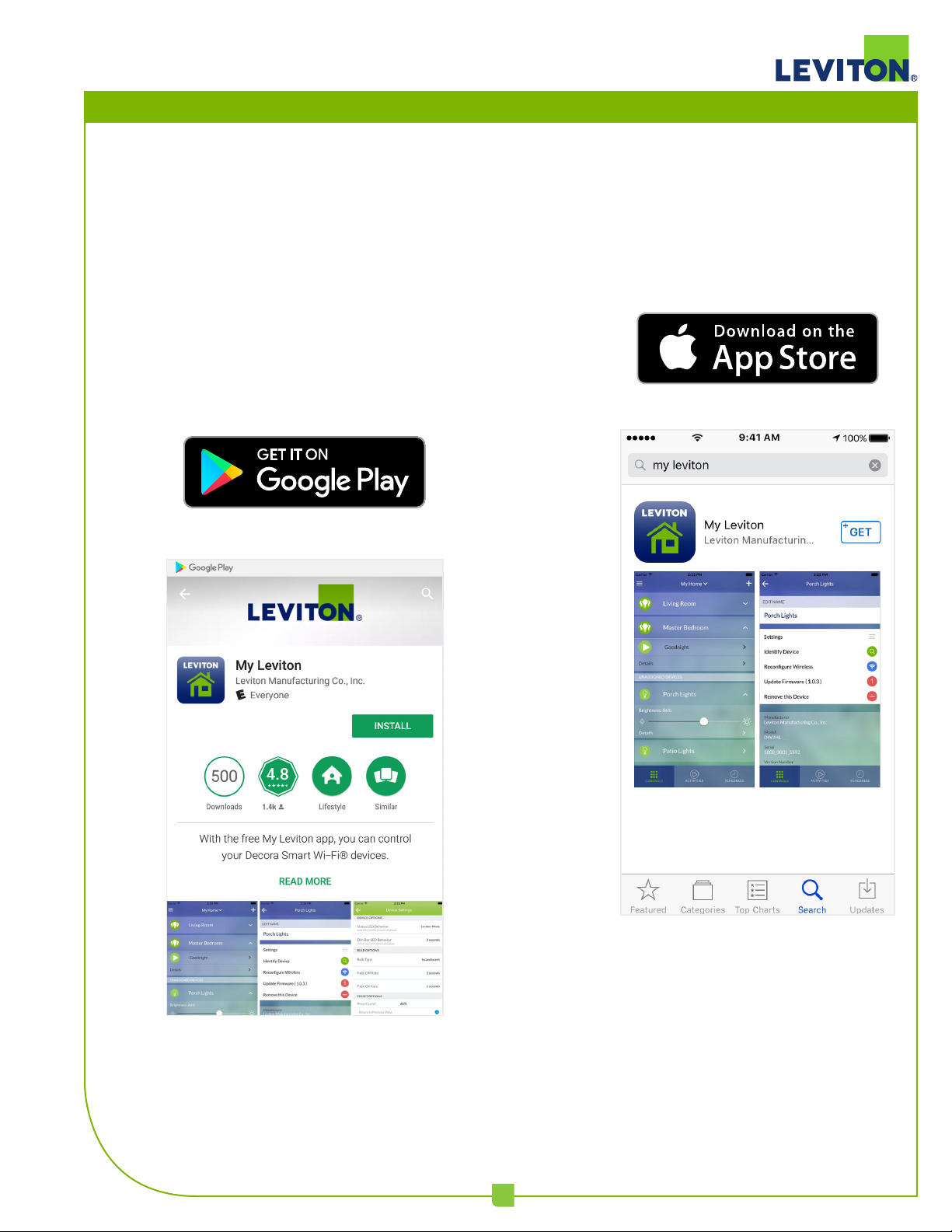
Download the App
The My Leviton app is available on Google
Play and iTunes. Download the correct
version for your mobile device
1
Page 2
Decora Smart™ Wi-Fi App Quick Guide
Adding a Residence
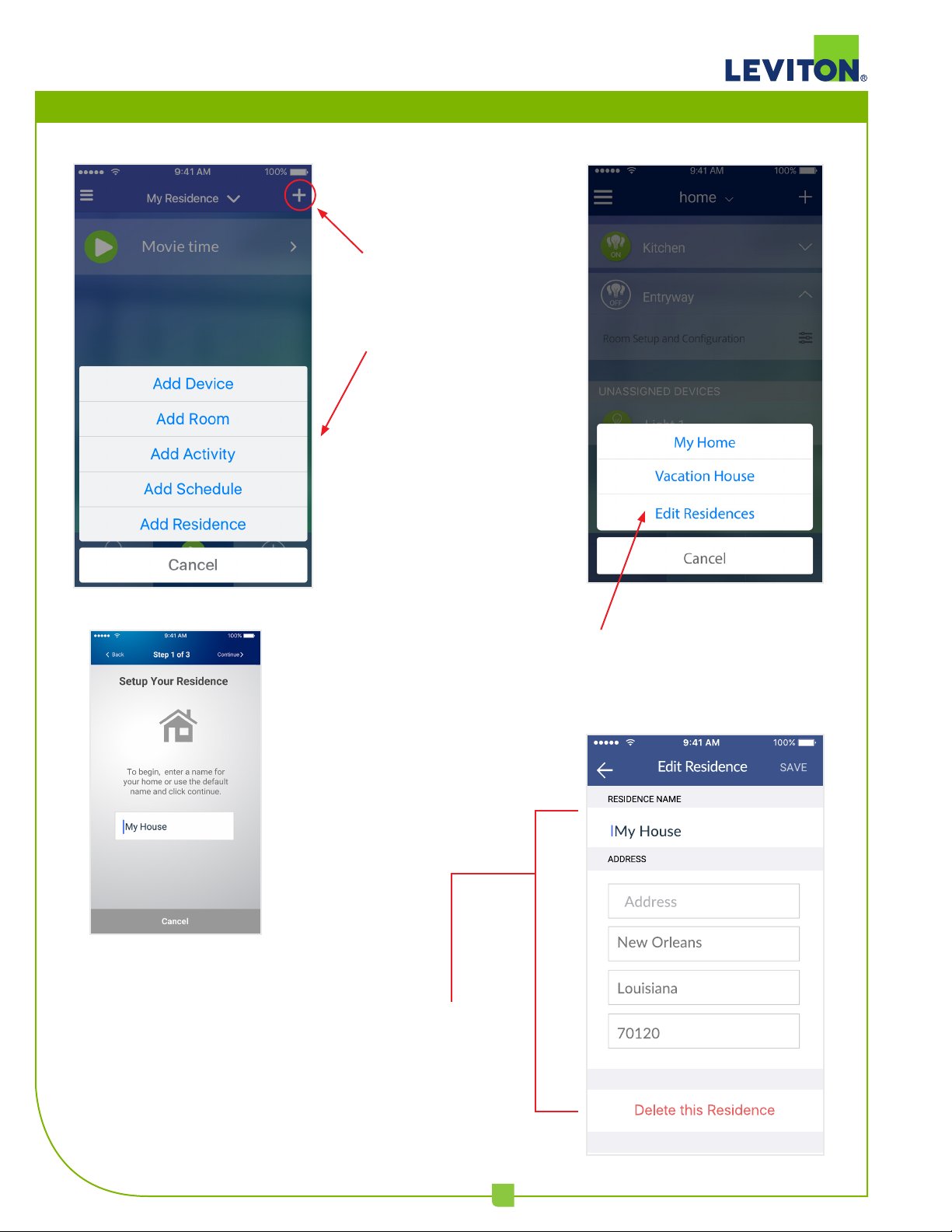
To add a new
Residence, tap (+) and
select Add Residence
from the list.
Follow the steps
to create a new
Residence.
You can rename the
residence, change or
remove the address, or
delete the residence
from this screen.
To edit an existing residence,
click Edit Residences from
the list.
2
Page 3
Decora Smart™ Wi-Fi App Quick Guide
9:41 AM
Adding a Device
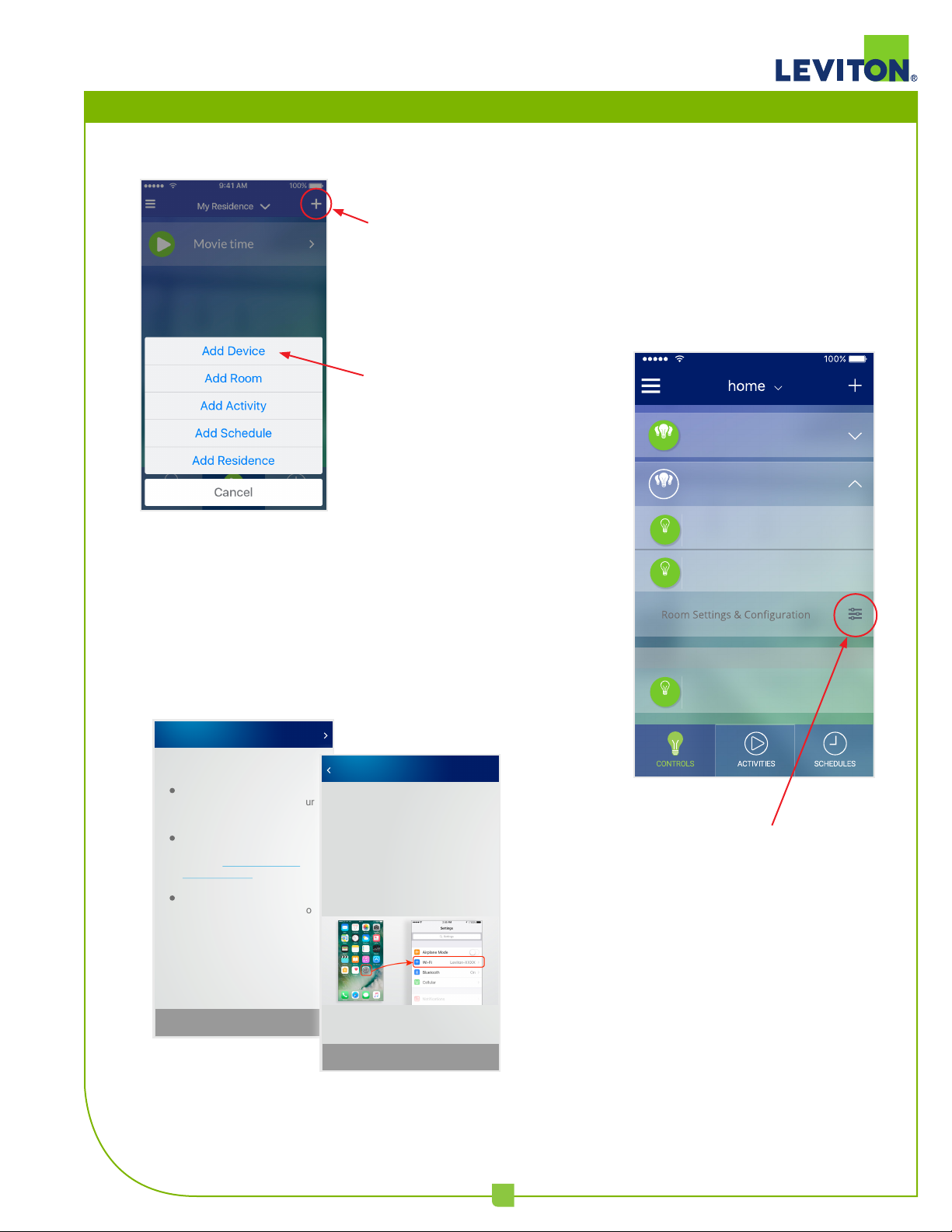
To add a new device,
click (+) and select
Add Device from the list.
Tap Add Device to
start the process.
Once added, your Leviton devices
are available to a room.
Kitchen
ON
Entryway
OFF
Follow the steps to set up your
device. You will first connect to
your new device and then
connect to your home network.
Descriptions
Step 1 of 8
descriptions,
and more
Device Setup
The first step is to get your
new device connected to your
wi-fi network.
Make sure your device is
flashing green. If it is not
flashing, follow the factory
reset procedure.
If the light is flashing green,
press continue to connect to
the device.
descriptions.
Descriptions
descriptions,
and more
descriptions.
Descriptions
Need more help?
Contact us M-F 7-6 CT
descriptions,
1-800-229-7256
and more
or
descriptions.
Continue
Back
Connect to Device
You will need to use your mobile
device’s Wi-Fi setup to connect
to the device. When you are
ready, close this app and
navigate to your phone’s Wi-Fi
settings. With Wi-Fi enabled,
select Leviton-XXXX from the
list of available networks.
Step 2 of 8
Lamp
ON
Light B
ON
UNASSIGNED DEVICES
Light 1
ON
Access the room settings page by
tapping on Room Configuration.
This is where you can assign your
new devices to the room.
Cancel
Once you have connected to
your device, open this app again
and continue the setup process.
Cancel
3
Page 4
Decora Smart™ Wi-Fi App Quick Guide
Adding an Activity
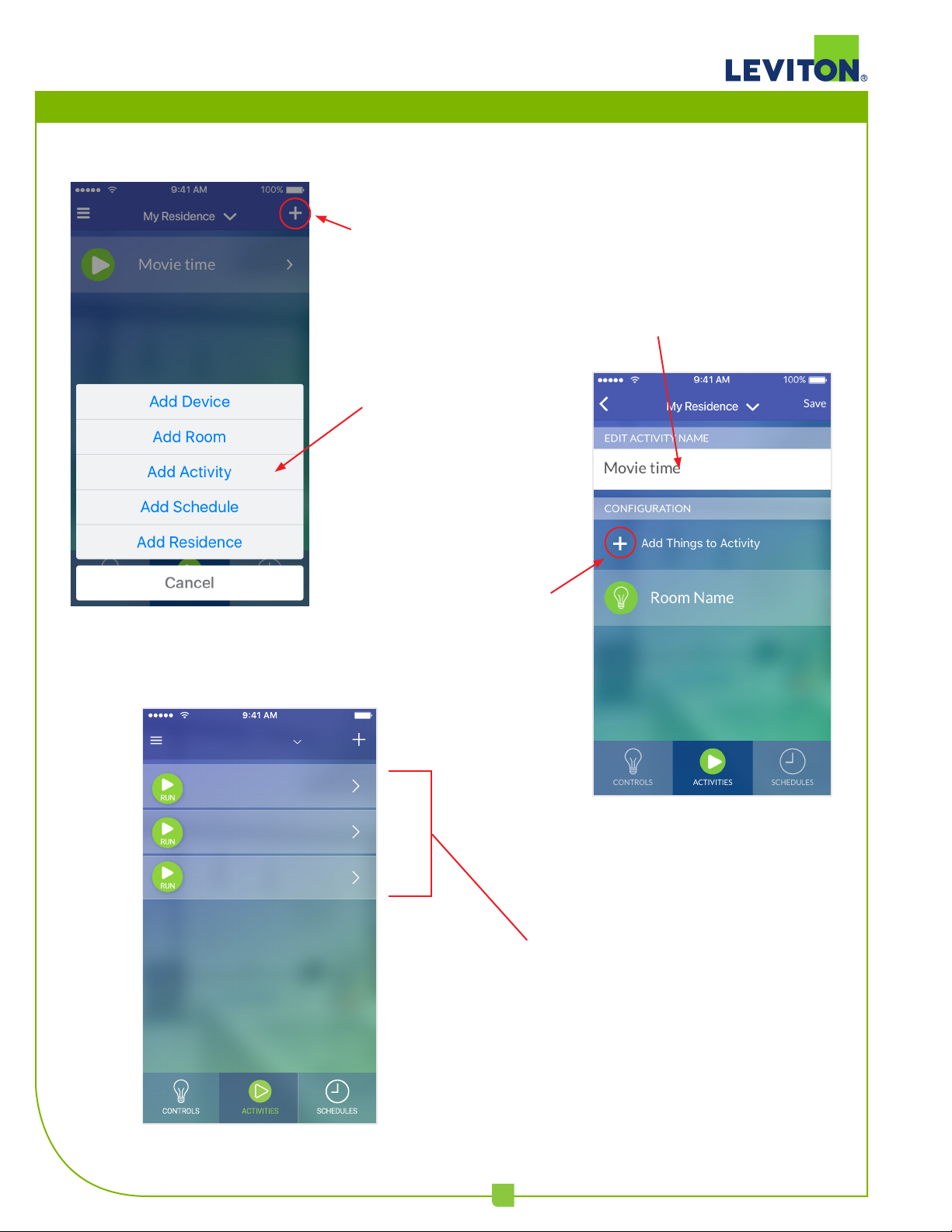
To add an
activity, click
(+) and select
Add Activity
from the list.
Tap to add
an Activity.
Name your new Activity.
My Residence
Pool Party
Evenings
Movie time
Add room
commands or
device commands
to your activity.
100%
New activities are added to the
activies list, where they can be run.
From this page, activities can be
edited or deleted.
4
Page 5
Decora Smart™ Wi-Fi App Quick Guide
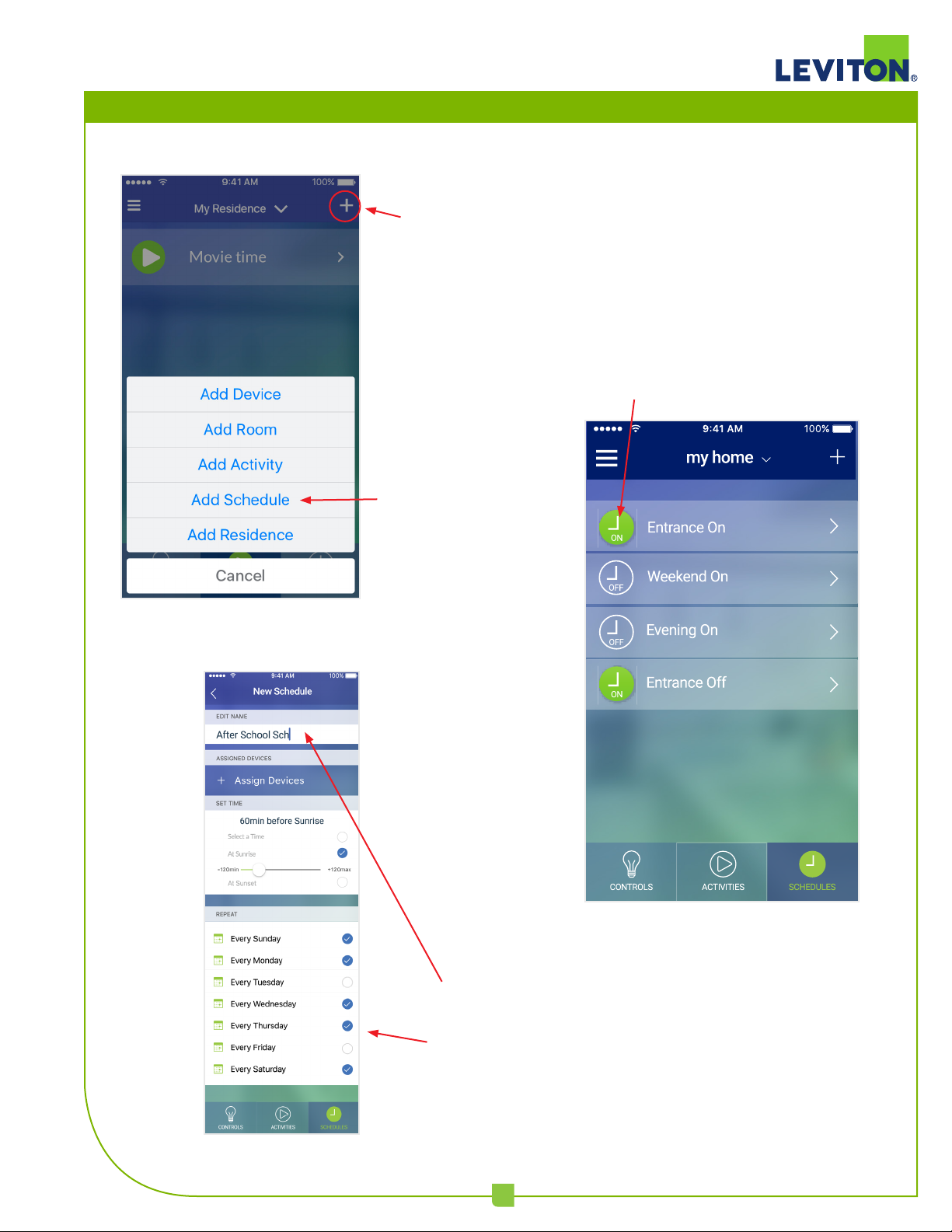
Adding a Schedule
To add a new Schedule, click (+) and
select Add Schedule from the list.
Tap to add
a Schedule.
Schedules can be
turned on and o from
the Schedules screen.
Name the new schedule,
assign devices, and set
the time and frequency.
5
 Loading...