

Page 1

Musical Joey Manual
LEVAC SOFTWARE
License
Hardware
Copyright 2001 Levac Software. All Rights Reserved
Levac Software makes no representation or warranties with regard to the contents of this manual, and
specifically disclaims the warranty of merchantability, noninfringements, and fitness or suitability of the
product for any particular purpose and all other express, implied, or statutory warranties. Levac Software
Limited Warranty is your exclusive warranty and remedy for defects. Please see the Limited Warranty for
details.
Levac Software reserves the right to make changes to the software bundle, documentation, and
specifications without an obligation to notify any persons about such revisions or changes. The software
described in this manual is furni shed under a license agreement and may be used or copied only
accordance with the terms of the license agreement.
Questions or comments regarding these products or documentation should be directed to:
Levac Software
110 W 39th St. Suite 1801
Baltimore MD 21210 USA
Levac Software and Compiano are trademarks of Levac. All other trademarks are property of their
respective owners.
Software
Published by Levac. All Rights Reserved.
Uses MS DirectX 7.0a
Microsoft and Windows are registered trademarks of Microsoft Corporation in the U.S. and in other
countries. IBM Aptiva is a registered trademark of International Business Machines Corporation.
Musical Joey PC version - Model #: MJ01A-C-001
Printed in Korea
Page 2

Table of Contents
Chapter 1: Introduction (Product Information)
Chapter 2: Package Content
Chapter 3: System Requirements
Chapter 4: Installation
A.Hardware
a) USB
b) PS2
B.Software Installation
C.Installing DirectX
D.Uninstalling Musical Joey
Chapter 5: About Musical Joey , Characters, Toys and Capsules and Basic Information
Chapter 6: Starting CD-ROM
Chapter 7: Login
Chapter 8: Main Menu
A.Lesson Mode
B.Game Mode
C.Piano Room
D.Capsules
Chapter 9: Lesson Mode
A.Lesson
a) Select a Lesson
b) Lesson Begins
B.Test Grade
Chapter 10: Game Mode
A.Hunting Bugs
B.Gopher's Go Go
Page 3

C.Piano Ball
D.Where's Note?
Chapter 11: Piano Room
A.Sketch Staff
B.Play Mode
C.Compose Mode
D.Toy Room
Chapter 12: Customer Support
Chapter 13: Troubleshooting
Chapter 1: Introduction
We Introduce Compiano!
Compiano connects to the USB or PS2 port of your computer and works as a piano. With Compiano you
can play games, have fun and learn piano all at the same time. Compiano is easy to use and has been
designed to introduce users to the treasures of music. Will you be the next Mozart?
Compiano was designed by leading music and engineering professionals to help users to learn music
theories and enjoy the benefits of the piano. Although similar synthesizing equipment may be too
expensive for the average consumer, Compiano has been priced so that many people can have access to
its rewards. It contains three octave musical ranges and children as well as adults can experience the joy
of mastering a musical instrument.
Our researchers found that use of a variety of interesting surprises and twists would help keep the interest
of children during music practice. We have adds many study elements and presented them in a format that
keeps the user interested; in fact, the user learns the lessons so easily, he hardly realizes that he has been
studying.
You will notice that Compiano is very attractive. Compiano has been designed with fun colors that are
appealing to both boys and girls. Flowery shapes, ergonomic design and ease of handling are some of the
most apparent positive aspects of the keyboard. The hardware has been manufactured to withstand
ordinary use for many years.
Page 4

Musical Joey provides basic to expert music education in a fun, user paced game. No longer is it
necessary to spend hundreds and even thousands of dollars to discover your musical talents. This is
digital educational software for our next generation.
Chapter 2: Package Contents
Compiano
PS2 Cable
Musical Joey CD
User's Manual
Lesson Mode Manual
Chapter 3: System Requirements
Windows 95 or later
CPU: Pentium 200 MHz or faster
Ram: 32 MB
CD-ROM: Quad-speed (4x) or faster
Chapter 4: Installation
A. Hardware Installation
a) USB:
Caution: USB mode needs accurate installation. Read the information below and start your
installation. Windows 95/98 Install
1) While your computer is on, insert Musical Joey Installation CD into your CD-ROM
drive. If Auto Execute Program starts, click "Exit" to close the program and continue.
2) Connect Compiano to your computer's USB port.
3) New hardware finding dialog box will appear on your computer.
4) Click "Next" when Add New Hardware Wizard dialog box appears.
Page 5
5) On "What do you want to do?" screen, check "Find the best fitting driver
(Recommended)" and click Next.
6) On the finding new driver screen, check "click the location to search"
and click "browse". Click Drivers folder in Musical Joey CD. Choose USB folder and
then click "Next".
7) Click "Next" on the screen with "Device to find drivers: USB Human Interface
Device" screen.
8) Click "OK" when it asks to insert "Windows 98" CD.
9) Click "Find" on "Copying Files " dialog box and Choose Folder screen will appear.
10) Choose USB in Drivers folder of Musical Joey CD and click "OK" to go back to
"Copying Files " screen.
11) Click "OK" and then drivers will be installed automatically.
• Depend on your computer, it will ask for Hidclass.sys, Hidparse.sys, Hidusb.sys, or
Kbdhid.vxd. In this situation, repeat 3) ~ 11) when dialog box appears.
• In Windows Me and Windows 2000, installation will automatically start and finish when
you plug Compiano into USB port while your computer is on.
• Troubleshooting(see page 18)
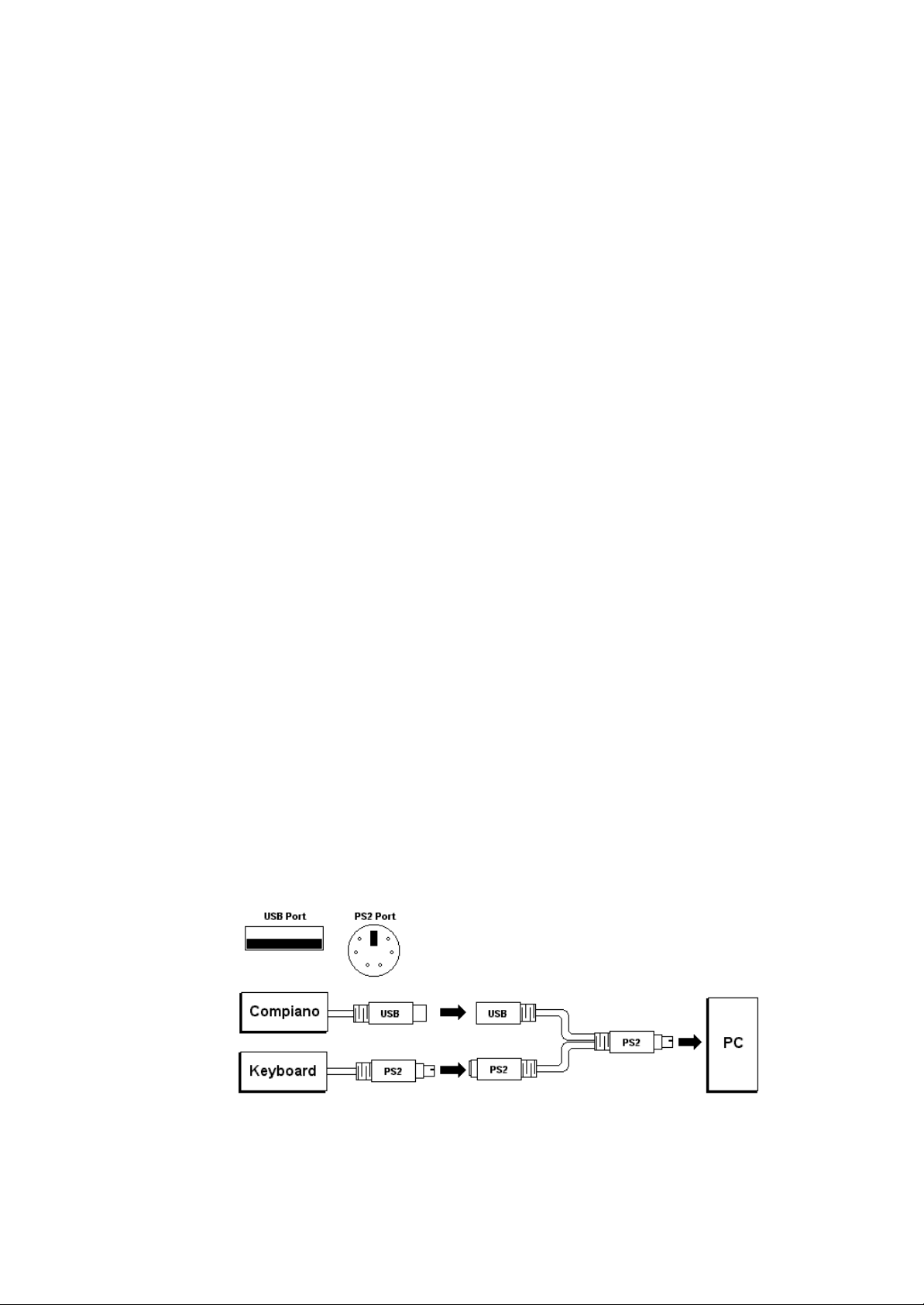
b) PS2
- Turn your computer off.
- Plug out your keyboard cable.
- Connect your keyboard cable to PS2 Divider (see below).
- Connect you Compiano cable to USB Divider (see below).
- Connect PS2 Divider to your pc keyboard port (see below).
- Restart your computer.
Page 6

B. Software Installation
a) Insert the CD-ROM disc into your CD-ROM drive.
- The Software automatically runs the Auto Execute Program when the CD-ROM
is inserted.
- If the Auto Execute Program does not start, click the CD-ROM icon in Windows
Explorer and click on AutoRun.Exe.
b) For first time installation, click on INSTALL.
- If the program is installed, PLAY button will appear. Click PLAY to start the game.
c) Click "Next" on the Welcome screen.
d) Click "Yes" on the Program License Confirmation screen.
e) Find a folder to install on the Install Folder screen, and then click "Next".
f ) Click "Next" on Start, Menu and Registration screens.
g) Required files will be copied to your computer.
h) After all files are copied, click "Yes" when it asks to place the icon on the desktop.
i ) Click "Finish" on the Installation Finished screen to finish the software installation.
* DirectX will be installed right after the software installation.
C. Installing DirectX.(Install not necessary in Windows Me and Windows 2000)
a) Click "Install DirectX" from Auto Execute Program.
- If you need to install manually, click the CD-ROM icon in Windows Explorer and
click on dx7aeng.exe in DirectX folder.
b) Click "Yes" when the dialogue box appears and asks to install.
c) Click "Yes" on the Program License Confirmation screen.
d) DirectX will be automatically installed.
e) Click "Confirmation" to restart the system when the installation is finished.
* The system needs to be restarted for DirectX to install correctly.
* Compiano will be installed right after rebooting and DirectX installation.
D. Uninstalling Musical Joey
a) Go to Windows Start, Settings then Control Panel. Click on Add/Remove Programs.
b) Click "Musical Joey" from the list and then click "Add/Remove "
c) Click "Yes" on Confirmation screen and the progr am will be uninstalled from your hard
disk.
Page 7

Chapter 5: About Musical Joey, Characters, Toys and Capsules and Basic Information
A. About Musical Joey
Joey is an average kid who finds piano lessons boring. If Joey had his way, he would play games. One day,
Joey's mom scolds him because he avoided his piano lesson and played outside. Mom demands that he
practice piano for at least 30 minutes. Joey, in frustration, strikes his piano keyboard as hard as he could
and a key from the piano breaks and bounces away. From that missing space, a very, very bright and
mysterious light appears and calls out Joey? name. Amazed and nervous Joey slowly steps toward the
piano. What happens to our Joey after falling into the mysterious light? What is waiting inside of Joey's
piano?
B. Character Introduction
Joey
Age: Same age as you
Lovable and curious adventurer. Bright and brave. One day he falls in to a mysterious world of the piano.
From there, he explores and discovers many different ways to play piano and becomes friends with the
instrument when he returns to real world.
Mom
Age: 35 years old
Loves Joey very much. She does all she can to make sure her child uses all of his talents. She enjoys
music, especially piano, and she wishes she had learned to play piano when she was Joey's age. Joey's
mom believes that, if given the opportunity, Joey will learn to appreciate music too.
Music Master Compi
Age: 299 years old
Music Master Compi lives in the fantasy world Magical House. Once a well-known pianist, he teaches
kids fun ways to learn piano. He is known to be very careful and precise while teaching music. Music
Master Compi loves all children and enjoys seeing them really learn each lesson.
Tambour
Lives in Joey's room and Zauber World. Tambour becomes a guide when Joey falls into the Zauber World.
He comes out from nowhere when Joey calls out its name. He has the ability to comfort and make people
happy.
Page 8
Buffa & Buffo
Age: 101 years old, both
Zauber World is made up of a tribe of note shape characters. These twins are members of the tribe. They
imitate each other humorously. Although they have identical images, they have different personalities.
They support and lend encouragement to the players as they take part in the adventures of Zauber World.
C. Capsules and Toys
It is your mission to collect all ten toys. Toys can be collected in Lesson Mode and in Game Mode. If you
pass all tests in the Lesson mode, you will get a toy. You can also get a toy by collecting four different
capsules.
How do you earn a capsule? It's easy. First, you practice piano ... remember, "Practice makes perfect."
After practice, play the games and finish them. Each time you finish the game, a capsule will be awarded
to you. There are 4 capsules to earn:
D. Basic Information
a) Oper ating Menu
- Menu will pop up when you drag down your cursor to bottom of the screen.
- Click the menu you like to choose to open.
b) Operating Help
- Click Help icon on Menu or Compiano's Help key to open Help screen.
- Mouse and Compiano's direction keys can be used to move to different pages.
- Click Close or Help key to close Help screen.
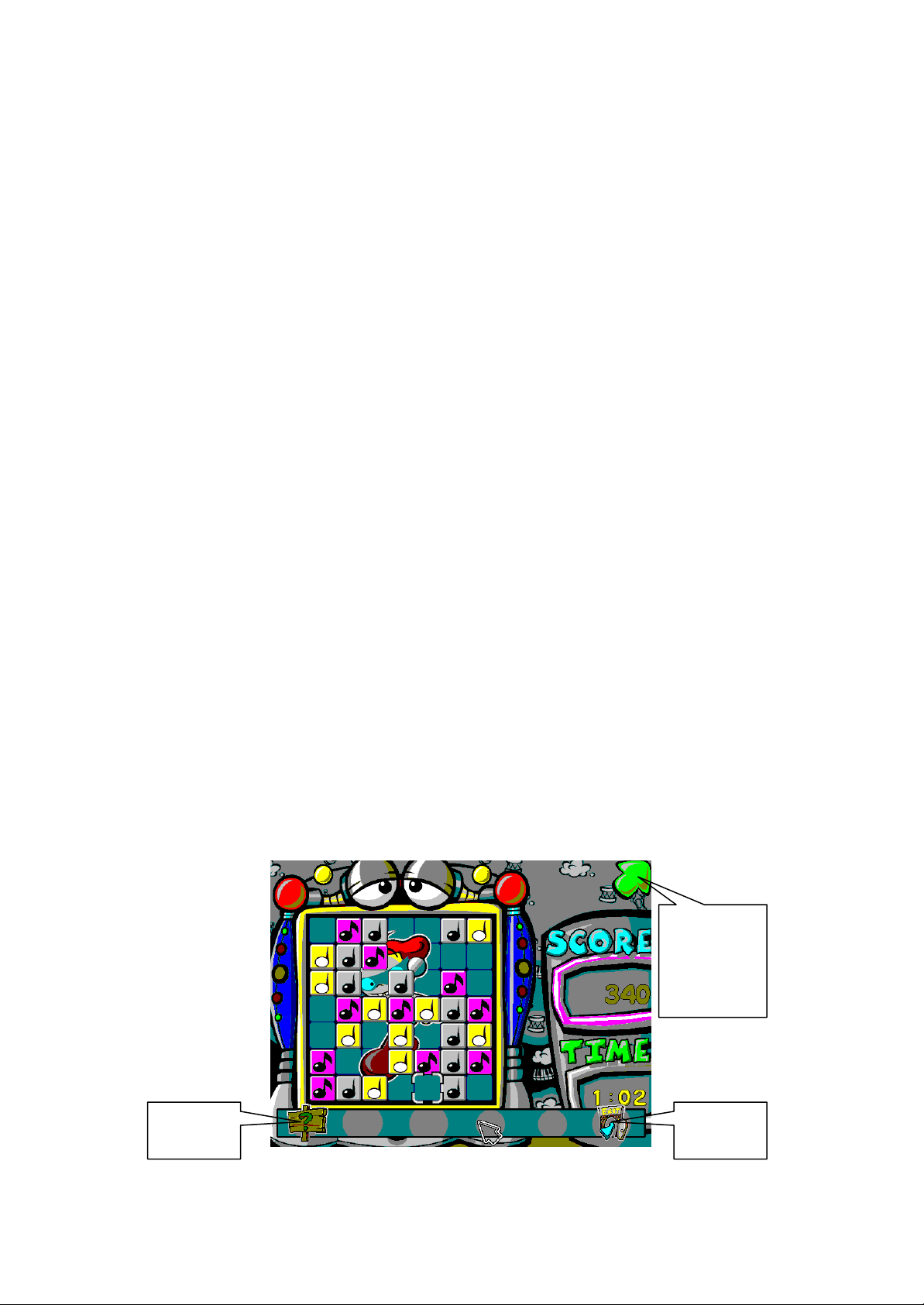
E. Basic Icons
Go to
Previous
Level
Exit Game Help
Page 9
Chapter 6: Starting CD-ROM
Playing Musical Joey
* Musical Joey CD must be in your CD-ROM to play Musical Joey.
* 3ways to run the Software
a) Click Play after inserting CD into CD-ROM drive.
b) Double click Musical Joey icon on your desktop.
c) Click start, go to Programs, LEVAC Software and double click on Musical Joey.
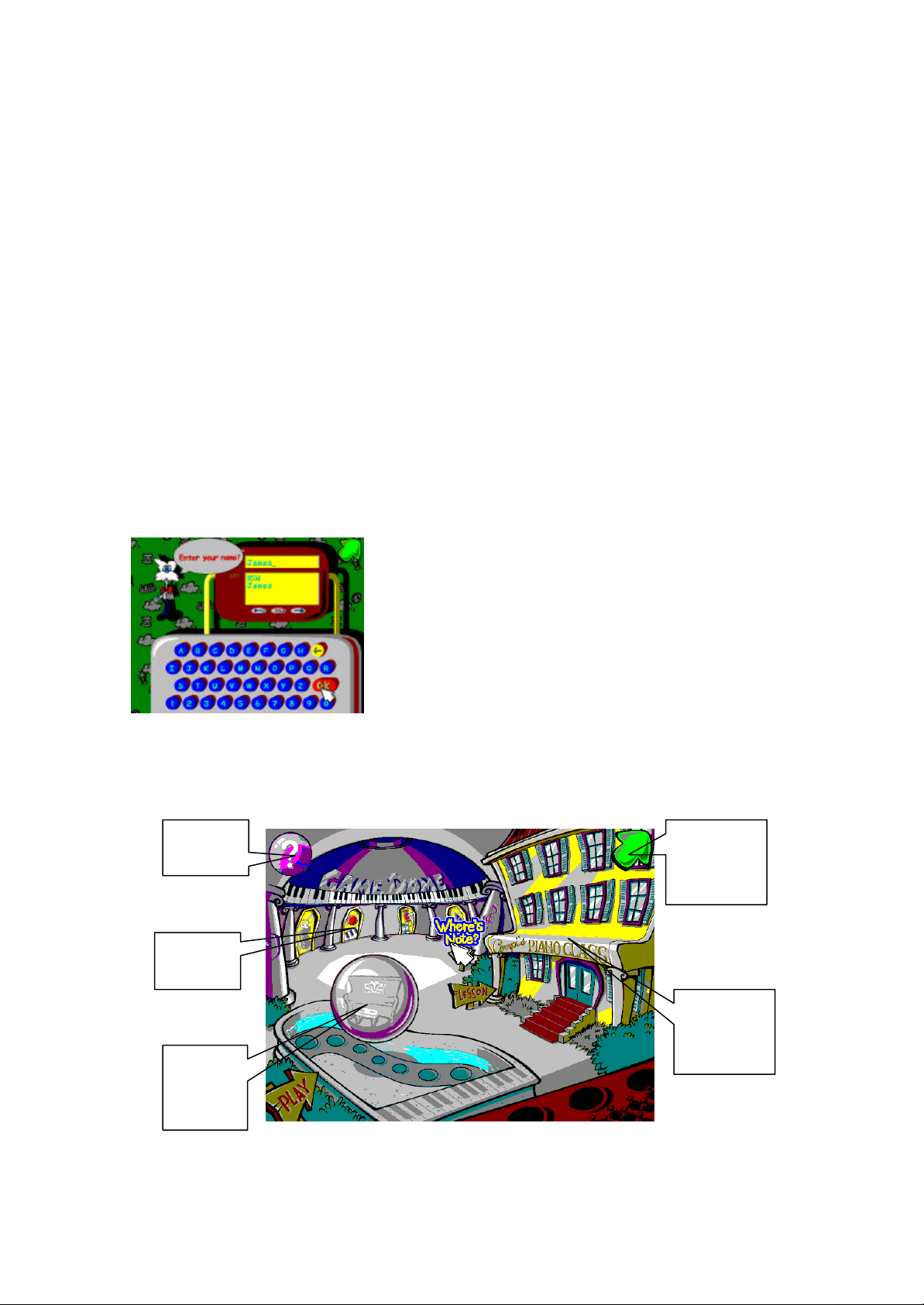
Chapter 7: Login
Log in new user or choose current user. Click OK to move to the
Chapter 8: Main Menu
Capsule
Games
main menu.
To delete a user, click on that person? name and press DEL.
Exit to
Windows
Lesson
Mode
Piano
Room
Page 10
A. Lesson Mode
Lesson Mode. First step for our young pianists! In Lesson Mode Professor Compi guides players through
the 10 rooms of the Magic Castle. Each room teaches a different basic piano concept. Play along with
Compiano, follow along with Music Professer Compi and your skill will improve before anyone knows.
Learn each concept one by one. The lessons have been designed for those who have never played piano
before and for those who don't know how to read music notation? Don't worry ... just have fun!
B. Game Mode
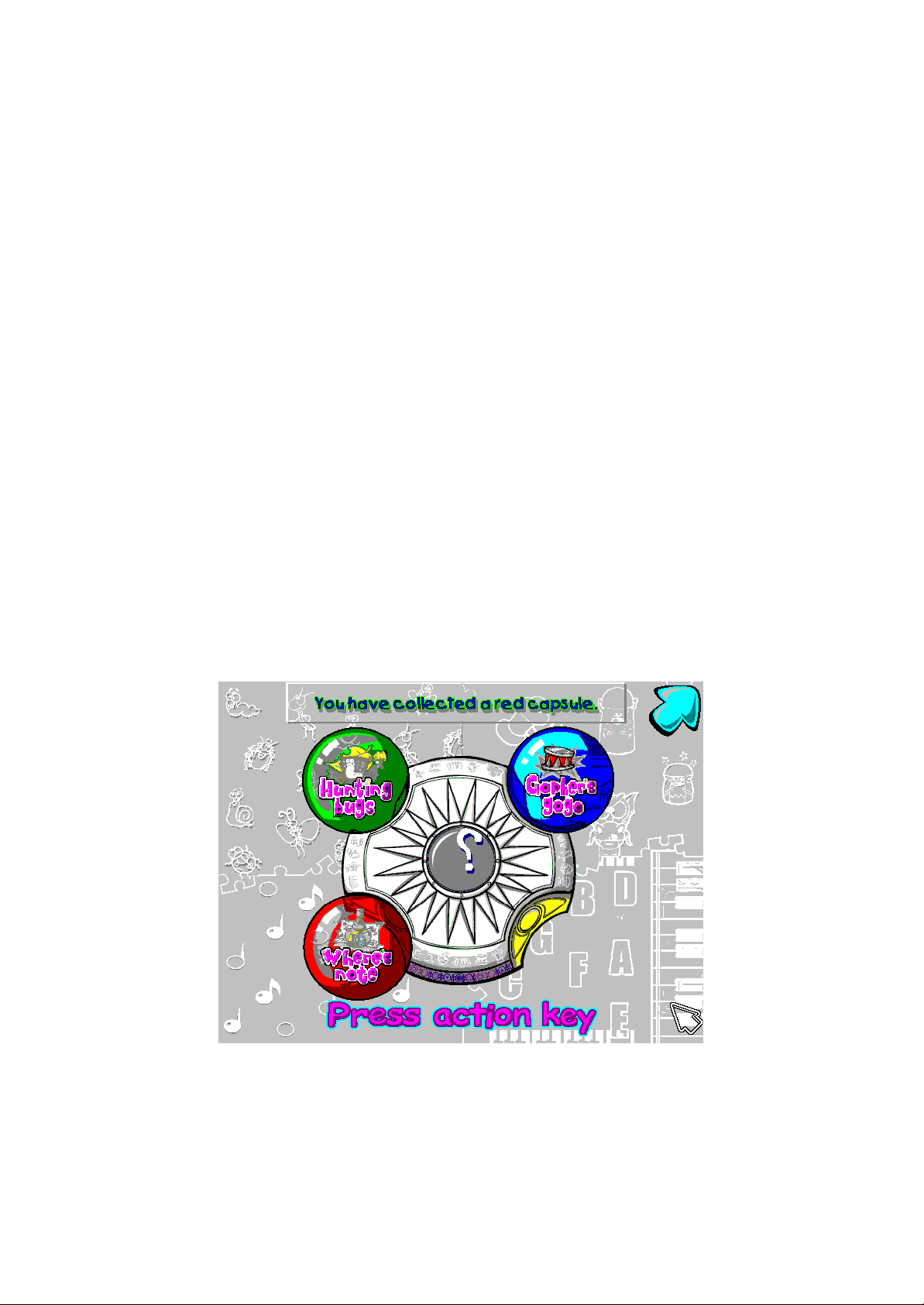
Musical Joey has 4 interesting special games. Each game contains basic elements of music to give music
education and enjoyment. Each game gives a beautiful capsule as a prize when completed. And when 4
capsules are collected from 4 games, they become wonderful toys in Joey's toy room. Be prepared to find
out what kind of toys are in the capsules.
C. Piano Room Mode
This room is for our young piano experts. From the Piano Room, you can enter Sketch Staff, Play Mode
and Compose Mode. (See Chapter 11)
D. Capsules
Capture four capsules by finishing all different games. A new toy will be awarded when all four different
capsules are captured.
Page 11
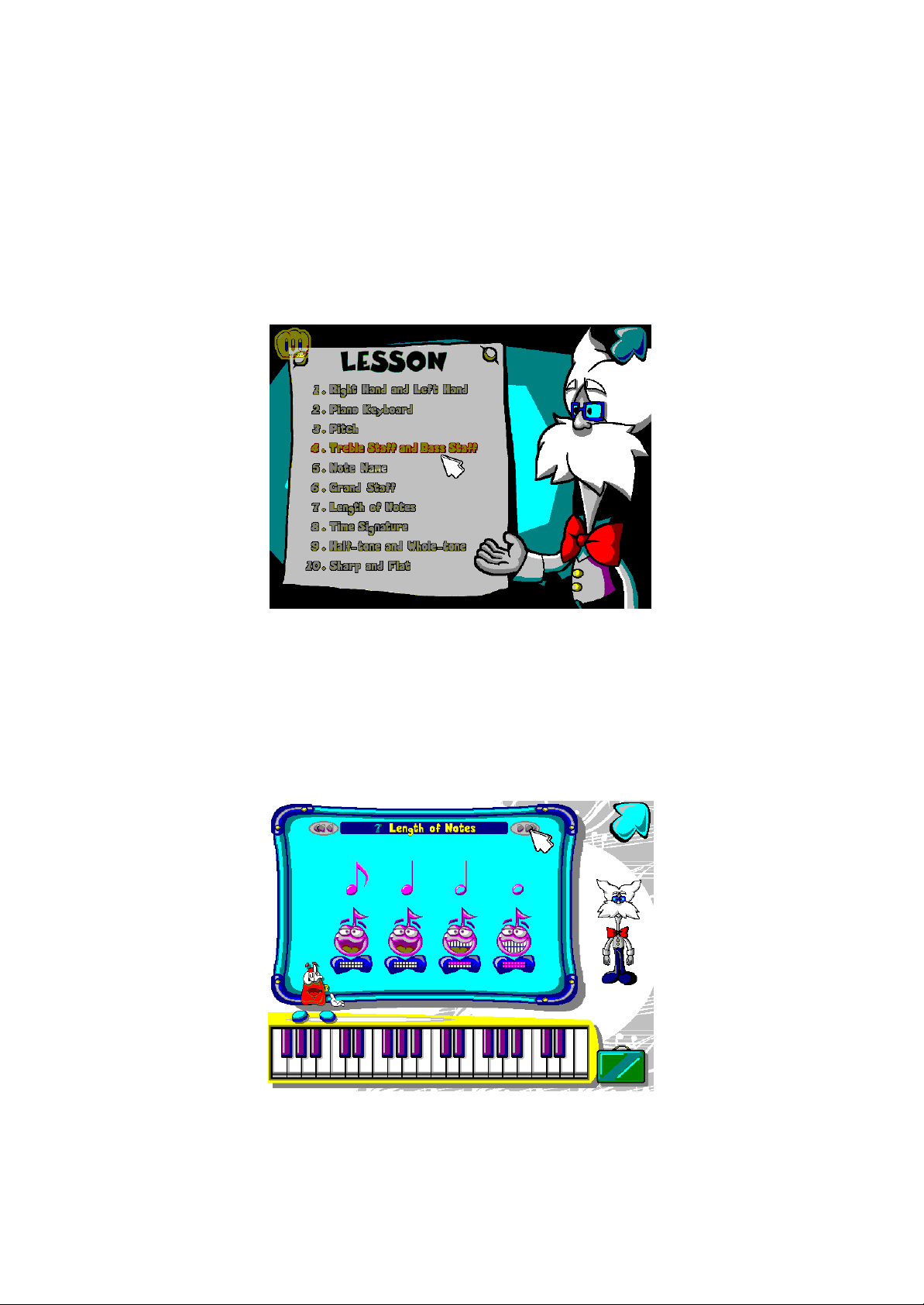
Chapter 9: Lesson Mode
A. Lesson
a) Select a Lesson
Menu contains 10 lessons. Click on the lesson you choose. Follow Professor Compi's
instructions. Once the lesson has concluded, click on the TEST GRADE to see your grade.
b) Lesson Begins
Live screen of a lesson. Use the arrow icons on the left and right side of Lesson Title to
rewind or fast forward. There are two speed modes on Rewind and Fast Forward.
Notes, rest notes and many items come from this Mater ial Box.
Page 12
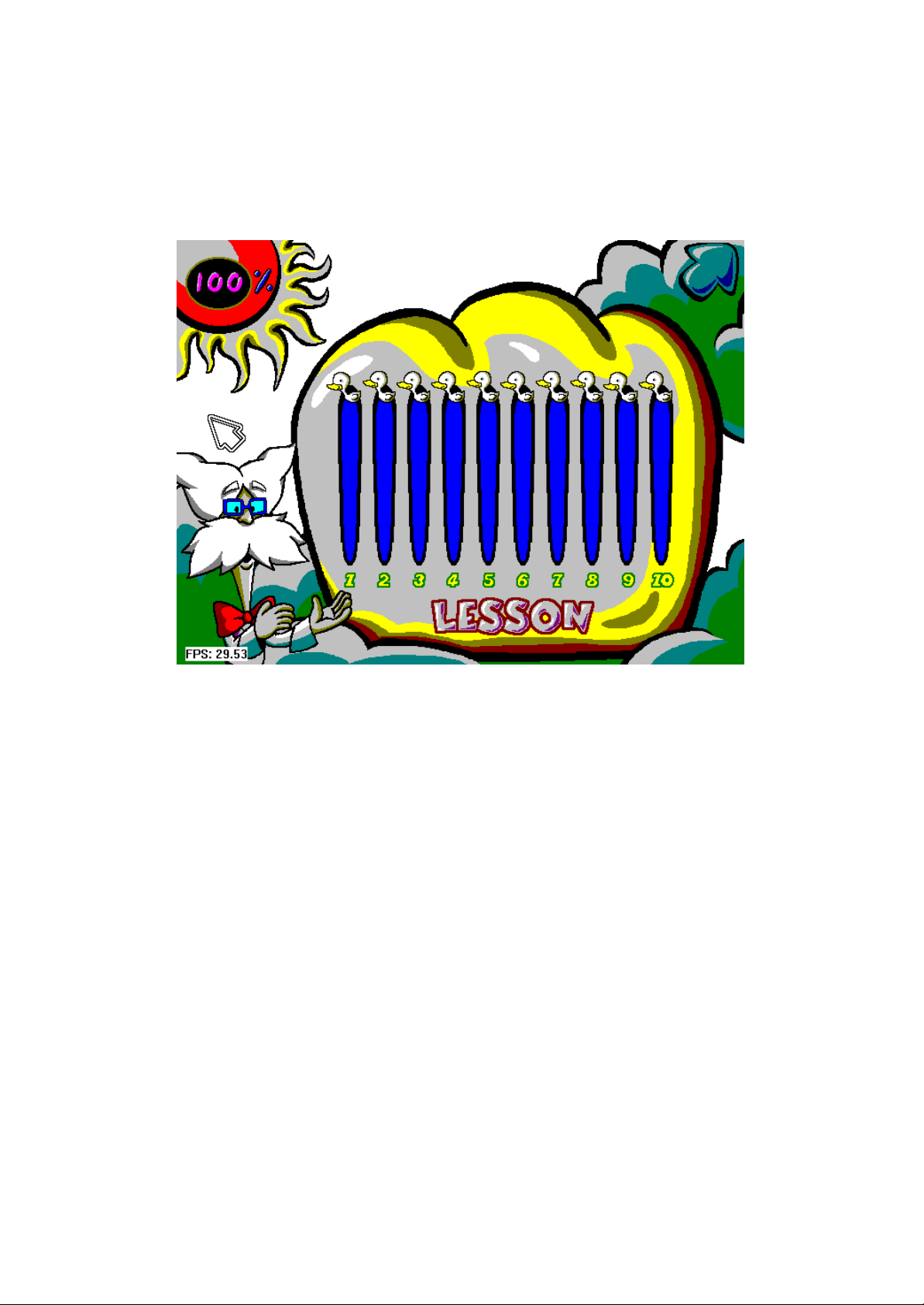
B. Test Grade
You will be tested after each lesson. The better you do, the higher your ducks will go. Your goal is to have
all the ducks above 70% in the lesson mode. When you have all the test grades above 70%, you will get
a new toy. If you do not make at least a 70%, don't worry. Go through the lesson again and concentrate on
parts that gave you trouble. Finish the lesson with a better grade. Take the lessons as often as you wish.
Page 13
Chapter 10: Game Mode
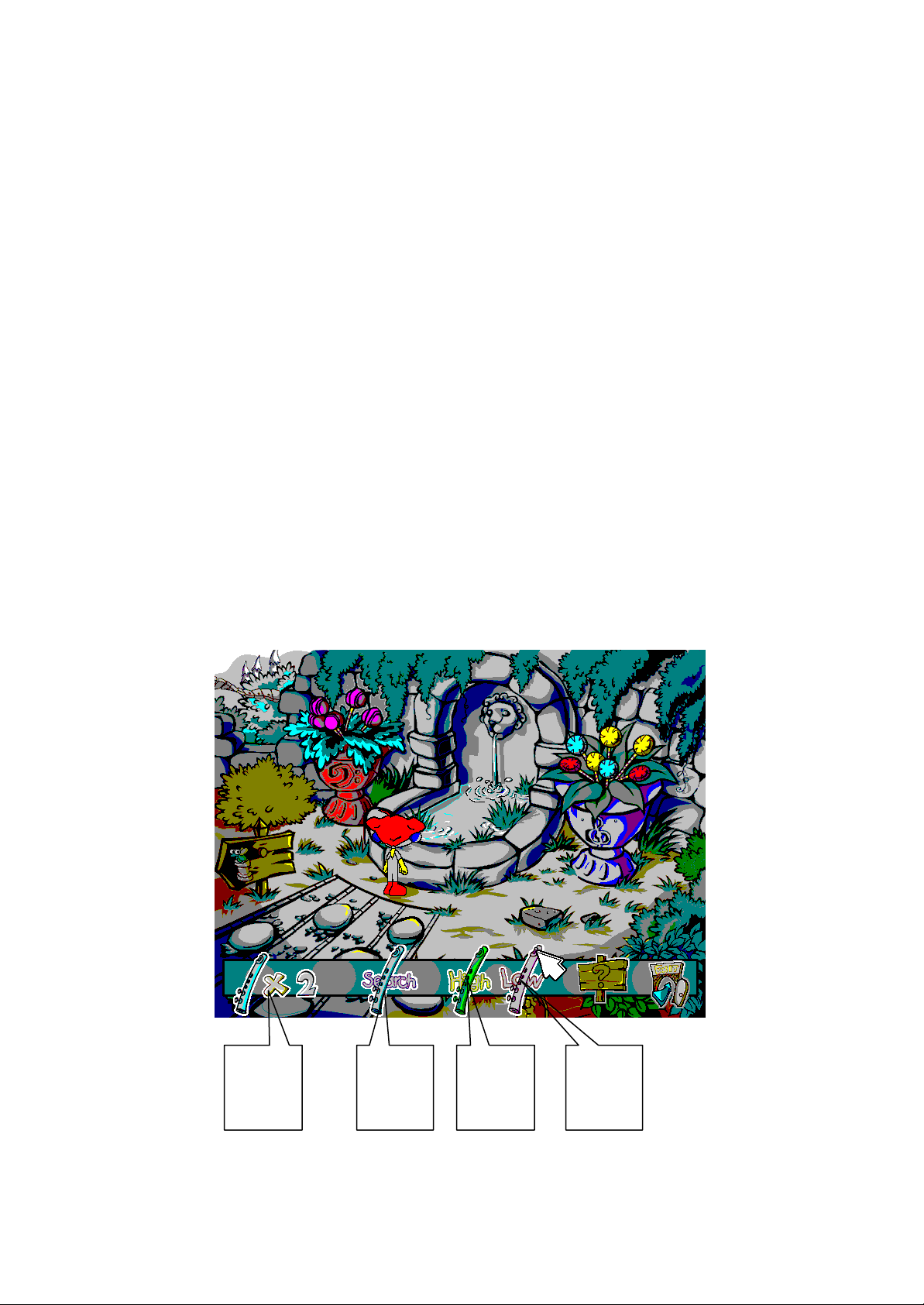
A. Hunting Bugs
Hunting Bugs is a game that is based on understanding pitch of the notes. Hunting Bugs has a total of 7
stages. The goal of the game is to find the magically trapped bugs in these stages. Click on the Search
Flute in each stage. A bug will make a sound. (There are no bugs when there is no sound) Click on High
Flute, if the bug sounds higher, click on Low Flute if the sound is lower. A life is awarded on each correct
choice. One life will be deducted on each incorrect choice. Lives are shown in the area to the left of the
flutes. When incorrect, one life will be deducted. So, use your 3 chances wisely.
- Click EXIT on the right of the menu to end the game.
- Click HELP whenever you need little help.
- Place the cursor on the road and click. Joey will move in the direction of the arrow.
*Catch all seven bugs to capture Hunting Bugs Capsule
*There are some hidden items. Click the cursor when it turns white. Surprise!
Flute
Life
Search
Flute
High
Flute
Low
Flute
Page 14
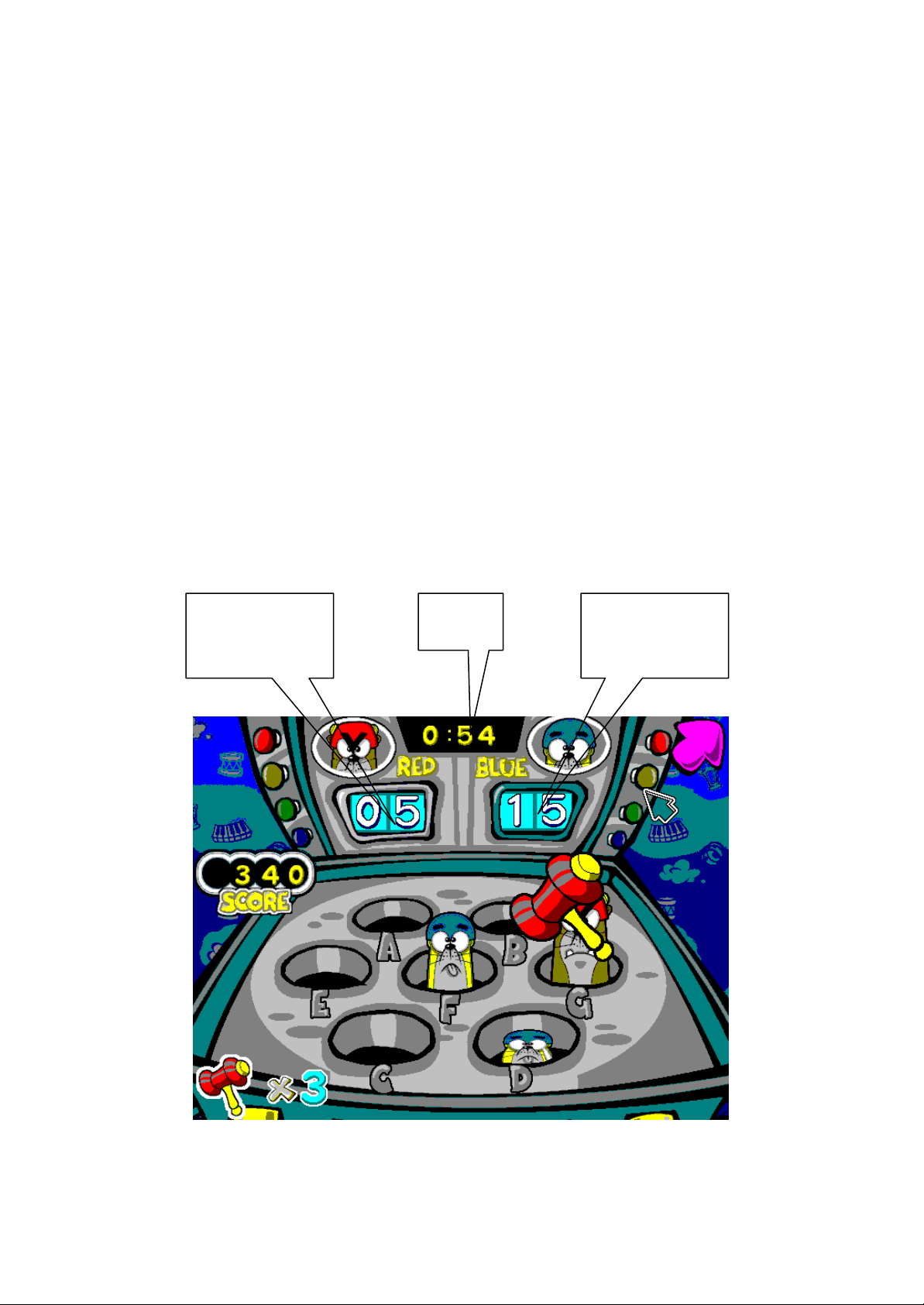
B. Gopher's Go Go
How to play
- Press Action Key to start the game.
- As different notes appear, press the Compiano key that corresponds to the note where the
gopher appears. When the correct key is pressed a mallot will strike the hole and hit the
gopher. The more you hit the gophers, more points you will earn. A ll octaves will play
the same.
- Hit as many gophers as you can before time runs out and the game finishes.
- Points will be deducted when wrong notes are pressed.
*When you have finished four levels, the Gopher's Go Go Capsule will be awarded.
*Drag the cursor to bottom of the screen and menu will appear.
Red Gopher
Counter
Timer
Blue Gopher
Counter
Page 15
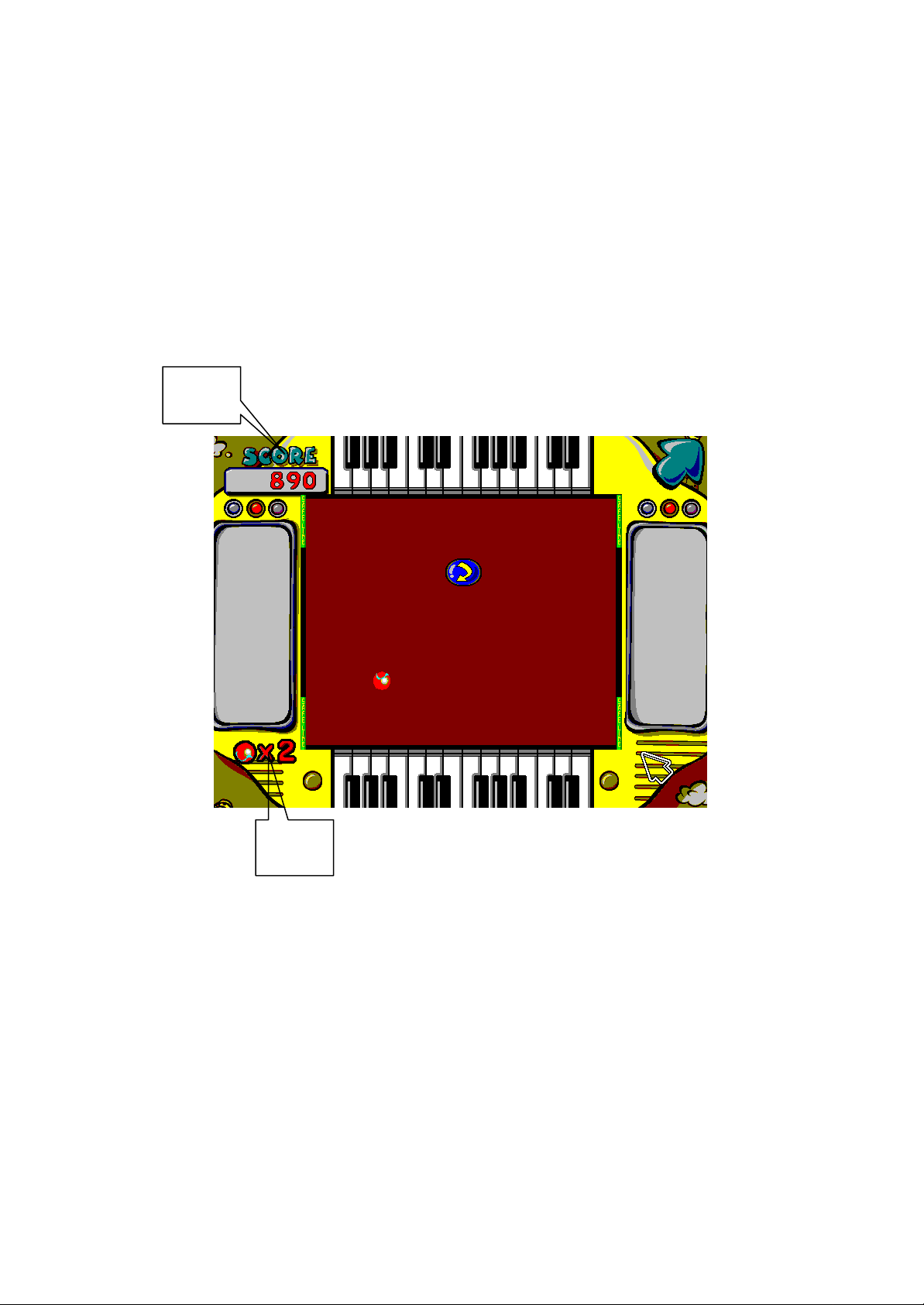
C. Piano Ball
How to play
Different notes will appear on the right and left of the screen. Press the Compiano key that corresponds to
the note that you see. For each correct note, you will earn points. The higher you score, the better you
are.
*When you have finished four levels, the piano ball Capsule will be awarded.
*Drag the cursor to bottom of the screen and menu will appear.
Score
Items:
- 50: 50 points bonus
- 100: 100 points bonus
- Speed Up: Ball speed goes up
- Speed Down: Ball speed slows down
- Random Direction: Direction of the ball changes
- Reverse: Movement of the ball goes opposite way
- Clone: Two balls appear (score doubles)
- Pause: Piano ball pauses for few seconds
Life
Page 16
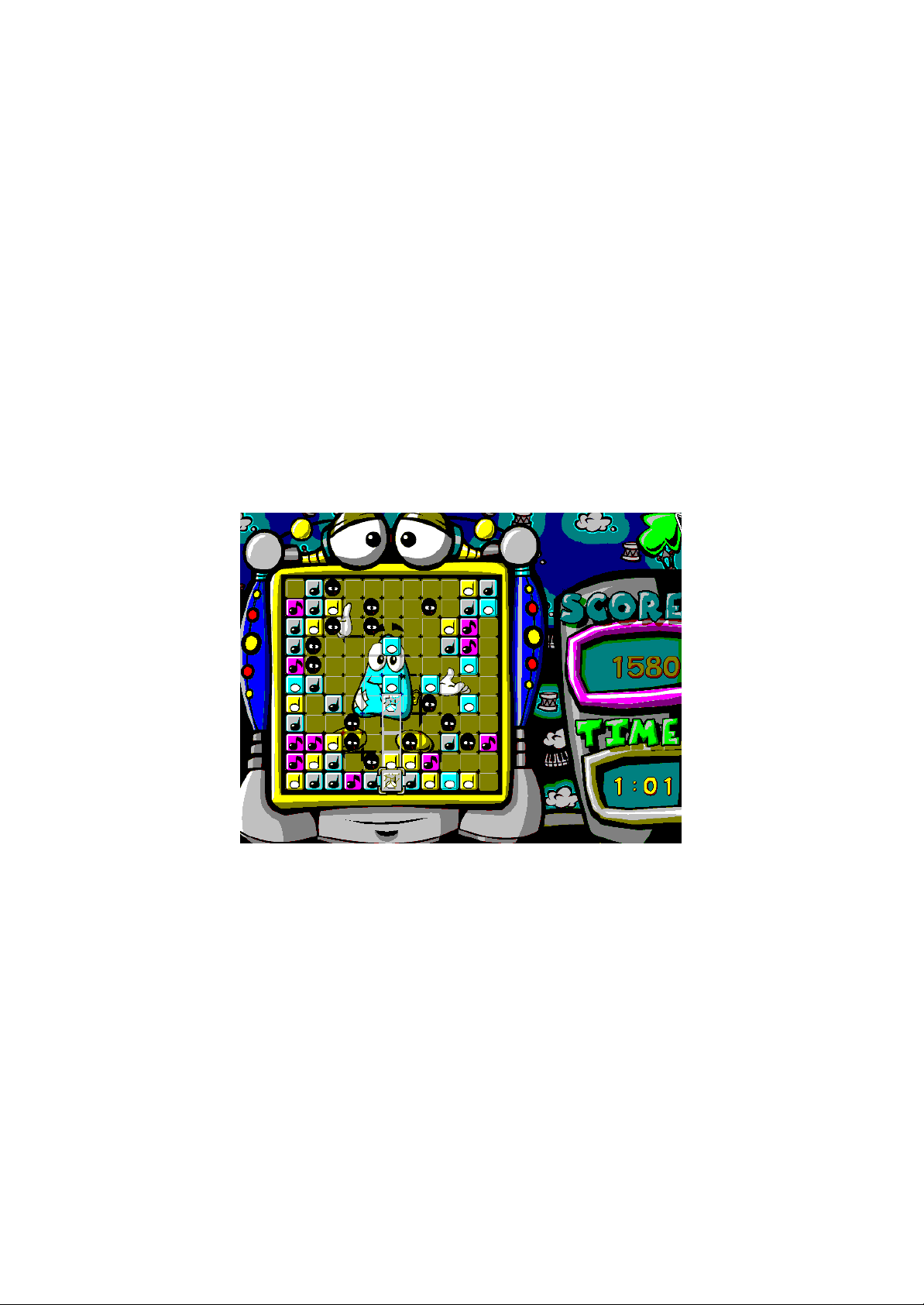
D. Where's Note?
Note (Notation): Pop all the notes in time!
There are 4 different types of notes. Each note is peculiar because it has its own length. In most notes,
certain number of blocks must be present between the beginning and ending note to indicate the length of
the note. For example, A whole note will require 7 blocks between the beginning and ending note. It does
not matter whether other notes are in the blocks. Your job is to select and rearrange the notes on the board
so that the correct number of blocks is in proper place. When you have correctly inserted the proper
amount of space between notes, the notes will ?op?
Note: In later stages, rocks will appear; you must move the notes to avoid the rocks because rock will
keep your notes from popping.
*When you have finished four levels, the Where? note? Capsule will be awarded.
How to play
- Press Action Key to start the game
- Use Navigation Key to move
- Eighth notes need no space to pop
- Fourth notes need 1 space to pop
- Half notes need 3 spaces to pop
- Whole notes need 7 spaces to pop
- Press Action Key once to pick a piece
- Press Action Key twice to clear two pieces
- Higher levels have bigger boards and blocking objects.
Page 17
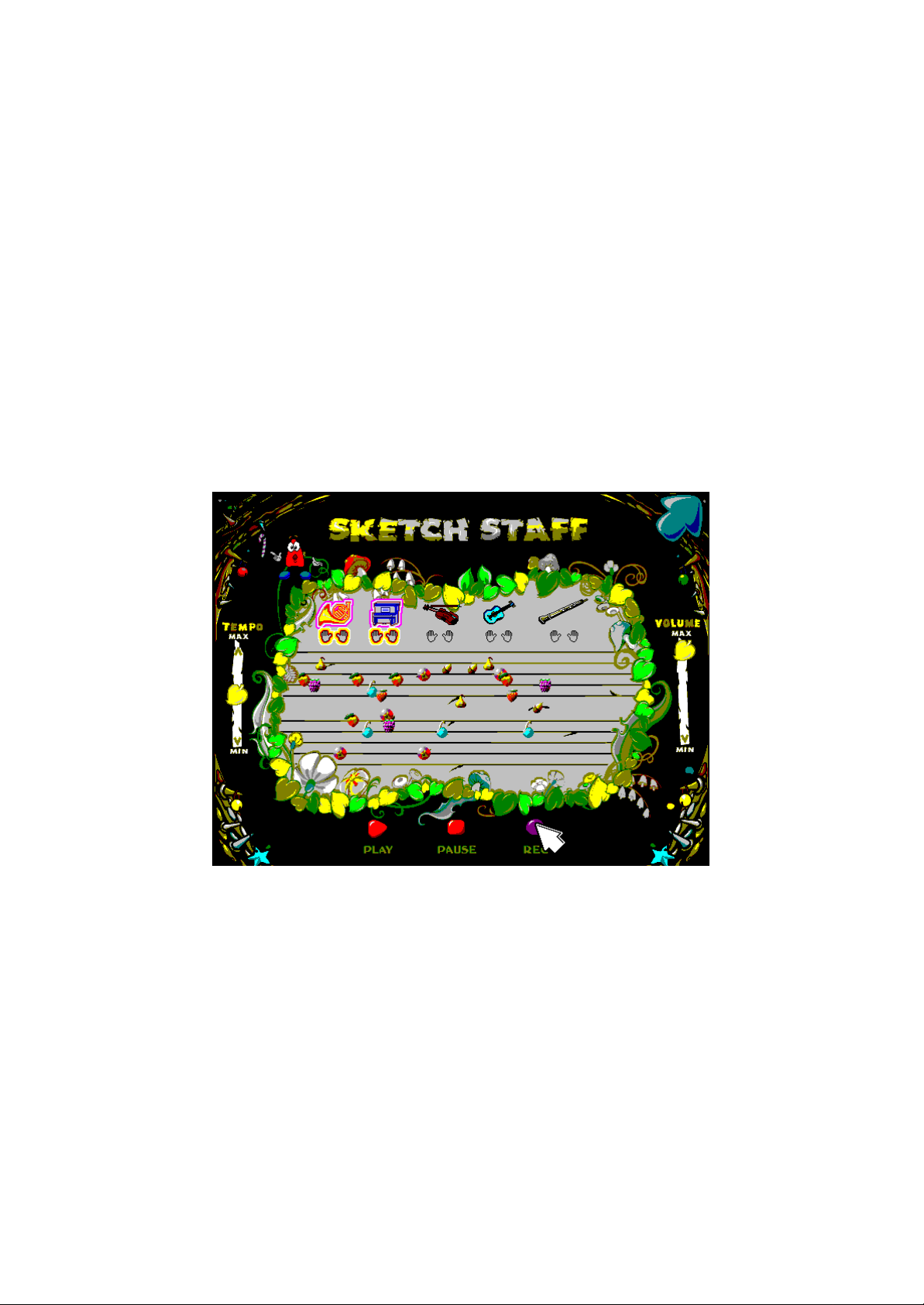
Chapter 11: Piano Room
A. Sketch Staff
In Sketch Staff you can play freely. As you play, beautiful fruit appears on the screen so you can feel and
understand each note. You can save the music and listen again. You can choose to play left hand, right
hand or with both hands. Different instruments can be selected to play your music.
You may change to different instrument: guitar, violin, horn and many more.
- Volume: control volume
- Tempo: control speed
- Rec: Record music
- Play: replay music (Action Key functions same)
- Pause: pause music during replay
- Top-right arrow icon on the screen: quit game
*When echo mode is on, you could select only two instrument at the same time.
Page 18
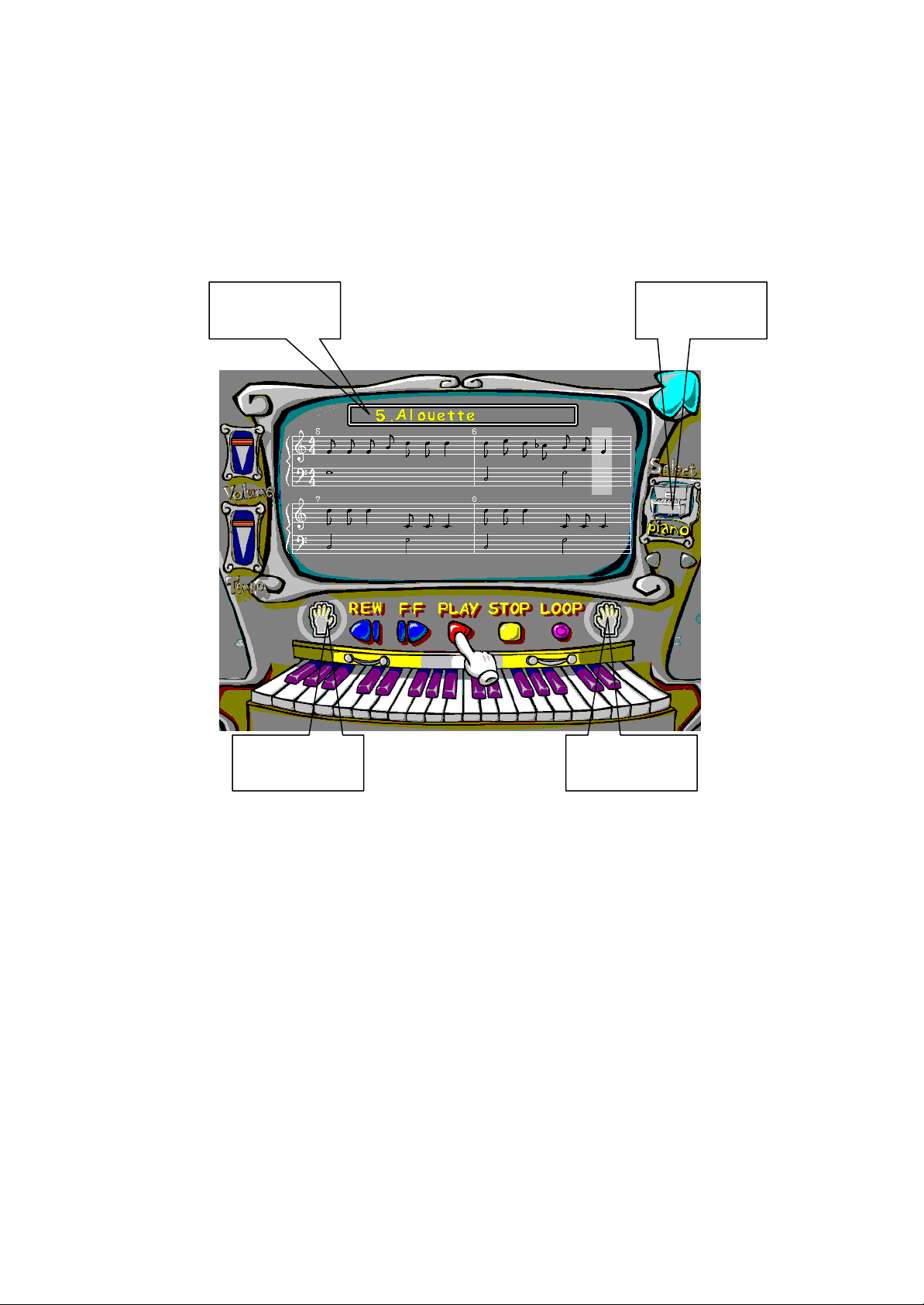
B. Play Mode
Pick your favorite songs and learn how to play them. Or, you can just listen to your favorite songs. Play
mode contains many as 60 enjoyable songs. You can also change to different instruments to listen.
Song Title Instrument
Left Hand Right Hand
- Open: Drag the cursor to the bottom of screen you'll see Open icon - to find the song to
follow along
- Volume: control the volume
- Tempo: control the speed
- REW: rewind
- FF: fast forward
- Play: listen to music
- Stop: stop music
- Instrument: select different instruments
- Left Hand: left hand base clef follow along
- Right Hand: right hand treble clef follow along
- Loop : repeat play
Page 19
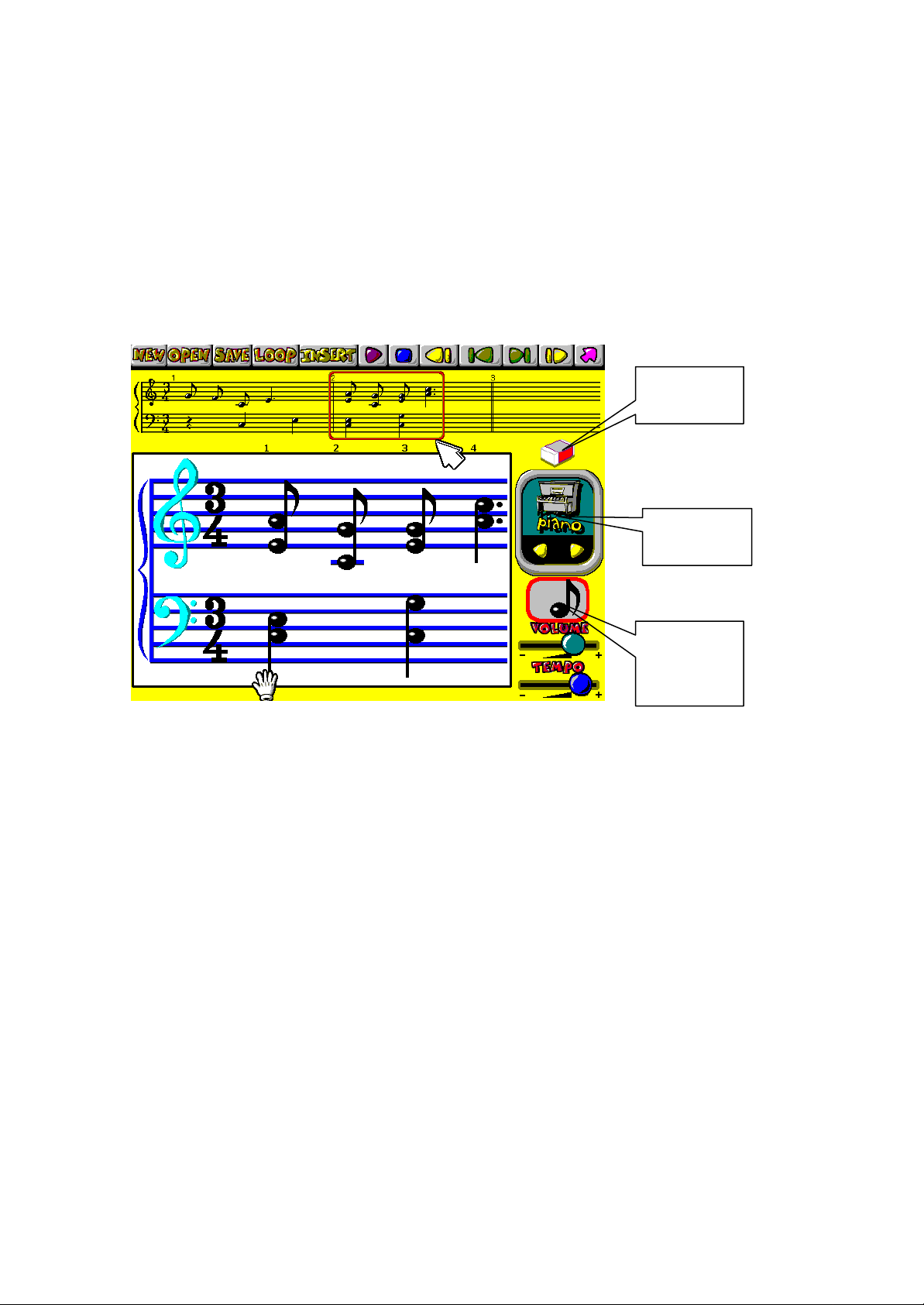
C. Compose Mode
In this mode, you can compose your own music. Put arrow on the note. Select a note and drag it on big
staff. These cute notes on big staff will appear on little staff every time you add them in the big staff.
Once again, many different instruments can be played here. You can rewind, and play and even save the
music you have created.
Eraser
Instrument
Select
Note
- New: open up a new notation
- Open: open previously saved music
- Save: save music
- Loop: repeat play
- Insert: add a bar
- Delete: delete a bar
- Play: play music
- Stop: stop the music
- Bar Start: go to beginning of the notation
- Bar Left: move one bar to the left
- Bar Right: move one bar to the right
- Bar End: go to end of the notation
- Eraser: delete previously entered note
Page 20
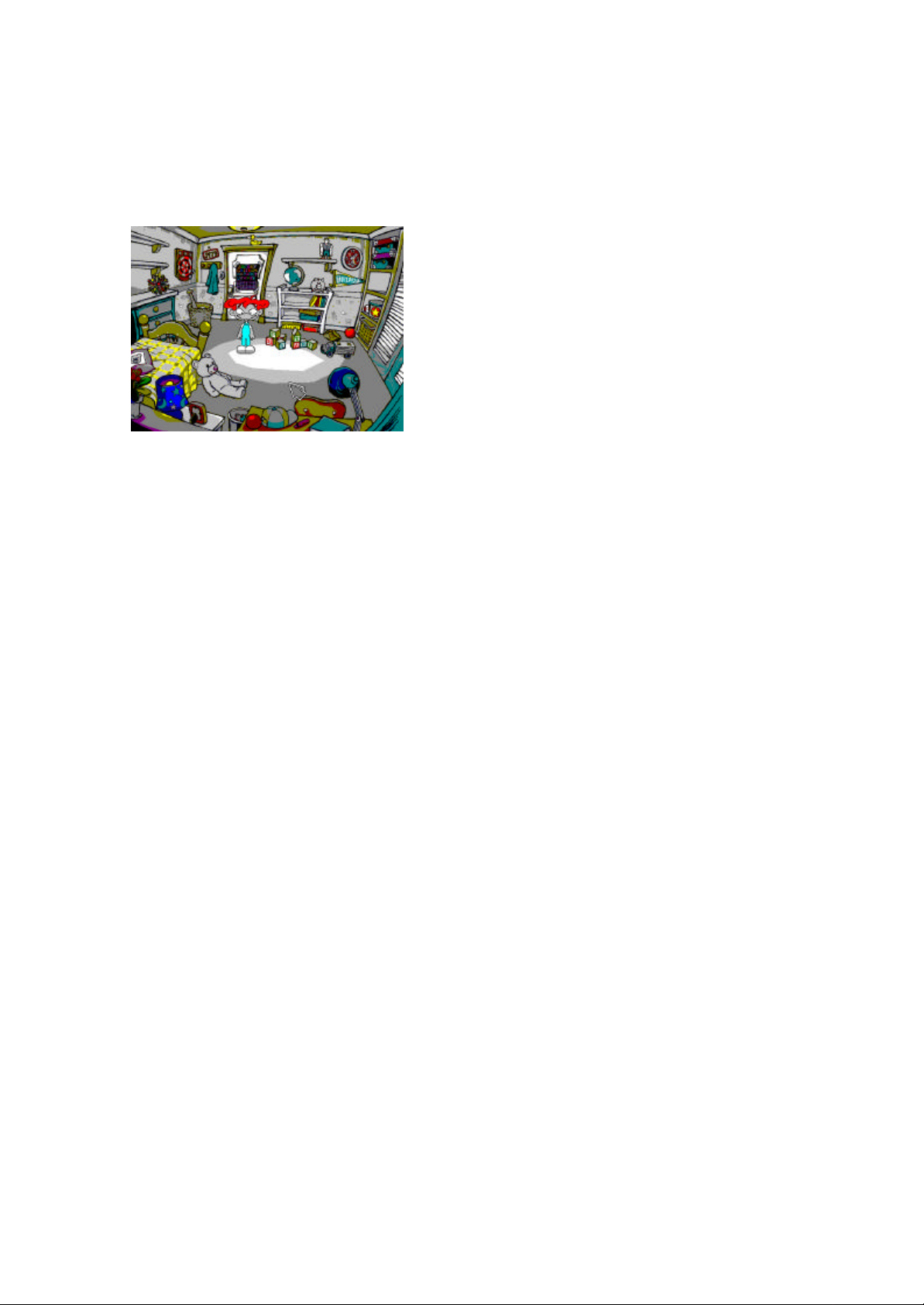
D. Toy Room
Chapter 12: Customer Support
This is your Toy Room. Here are the toys that you have
earned In Zauber World. Click on each and you will see
your toy closely. Click on the door to go back to Piano
Room.
Internet
Online: http://www.levac.net
Mailing Address
Email: [email protected] <mailto:[email protected]>
North America
110W 39th St. Suite 1801
Baltimore MD 21210 USA
tel 1 410 889 5030
fax 1 410 889 5046
Asia
Lifecombi Youido-Dong 61-4
Youngdungpo-Gu, Seoul, Korea
tel 82 2 786 4632
fax 82 2 786 4633
Page 21

Chapter 13: Troubleshooting
Problem: If Compiano is not working properly.
USB driver of Compiano is not installed correctly.
Solution: Delete incorrecty installed USB driver and reinstall by following directions below.
1. Click the Start button, go to Settings and choose Control Panel.
2. Open System in Control Panel and click Device Manager.
3. If you find an unknown device mark on the list, select the item and click the button Remove
on the bottom of the dialog box.
4. Select Universal Serial Bus controllers(USB).
5. Find the device with problem(!) and select it.
6. Click the button Remove to remove incorrectly installed driver.
7. Click the button Refresh to reinstall USB driver.
8. When message shows New Driver Found, reinstall the driver by following USB driver
installation direction.
* If you have any other problems, go to our homepage (http://www.levac.net) and check our
Customer Support page for more help.
Caution
1. Close all programs before installing or playing Musical Joey, especially MP3 player program.
2. Do not drop compiano.
3. While you are using Compiano, do not touch any keys on your computer keyboard.
 Loading...