

Page 1
Best and most reliable connection on the move!
Quick Start Guide
deutsch | english
Page 2

deutsch
english
03
21
Page 3

3
Wi4U | Quick Start Guide | 09/2016
Systemanforderungen
Packungsinhalt
Übersicht Wi4U LTE-Router
Fahrzeuginstallation
Sofort-Inbetriebnahme
Anzeigen
Einstellungen
Wichtige Hinweise
Technische Daten
Inhalt
4
4
5
6
10
14
15
17
19
deutsch
Page 4
!
Systemanforderungen
Zur Konfiguration benötigen Sie einen Computer / Tablet / Smartphone mit WLAN
802.11 b/g/n und einen der folgenden Internet-Browser:
Internet Explorer 6.0 und höher
Firefox
Opera
Safari
Packungsinhalt
Bitte überprüfen Sie den Packungsinhalt.
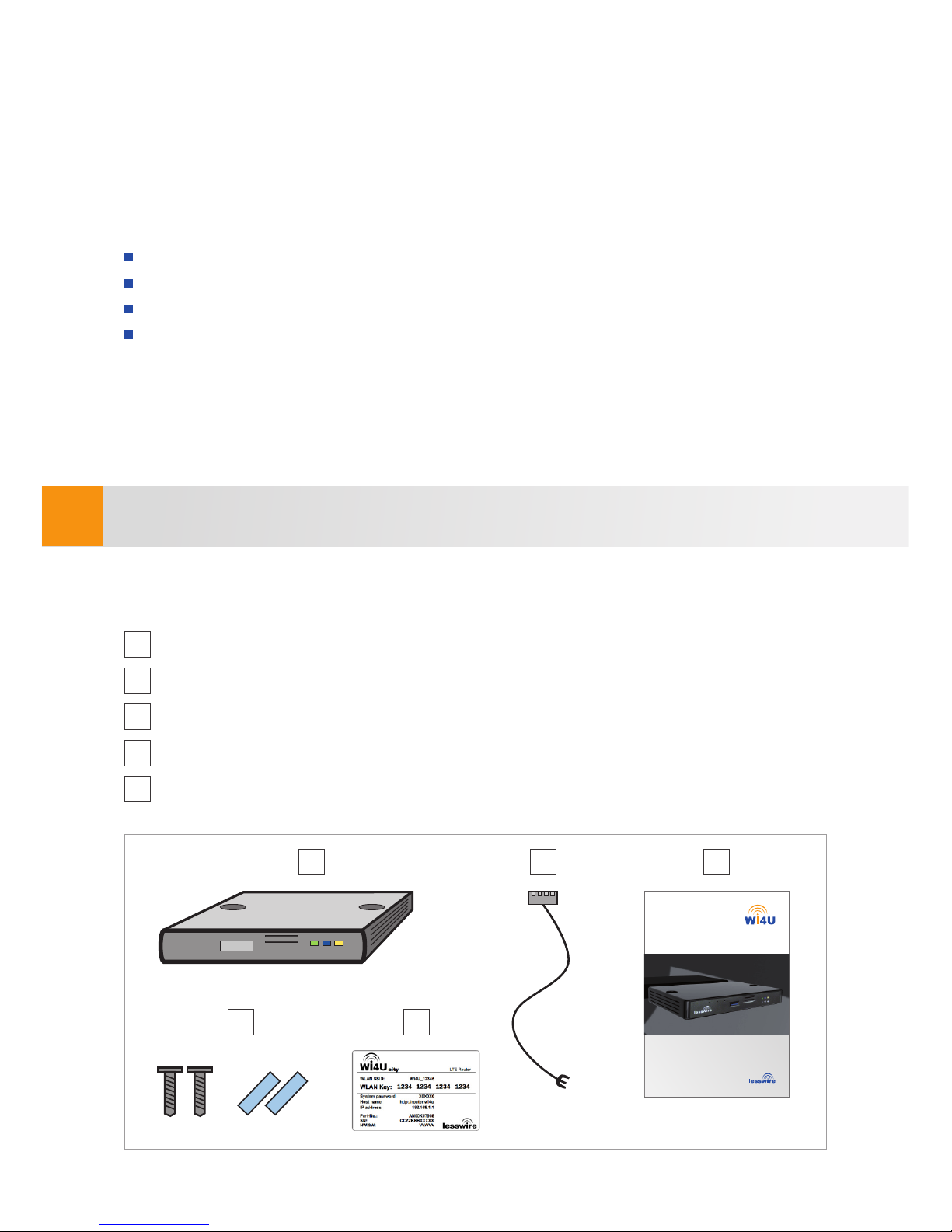
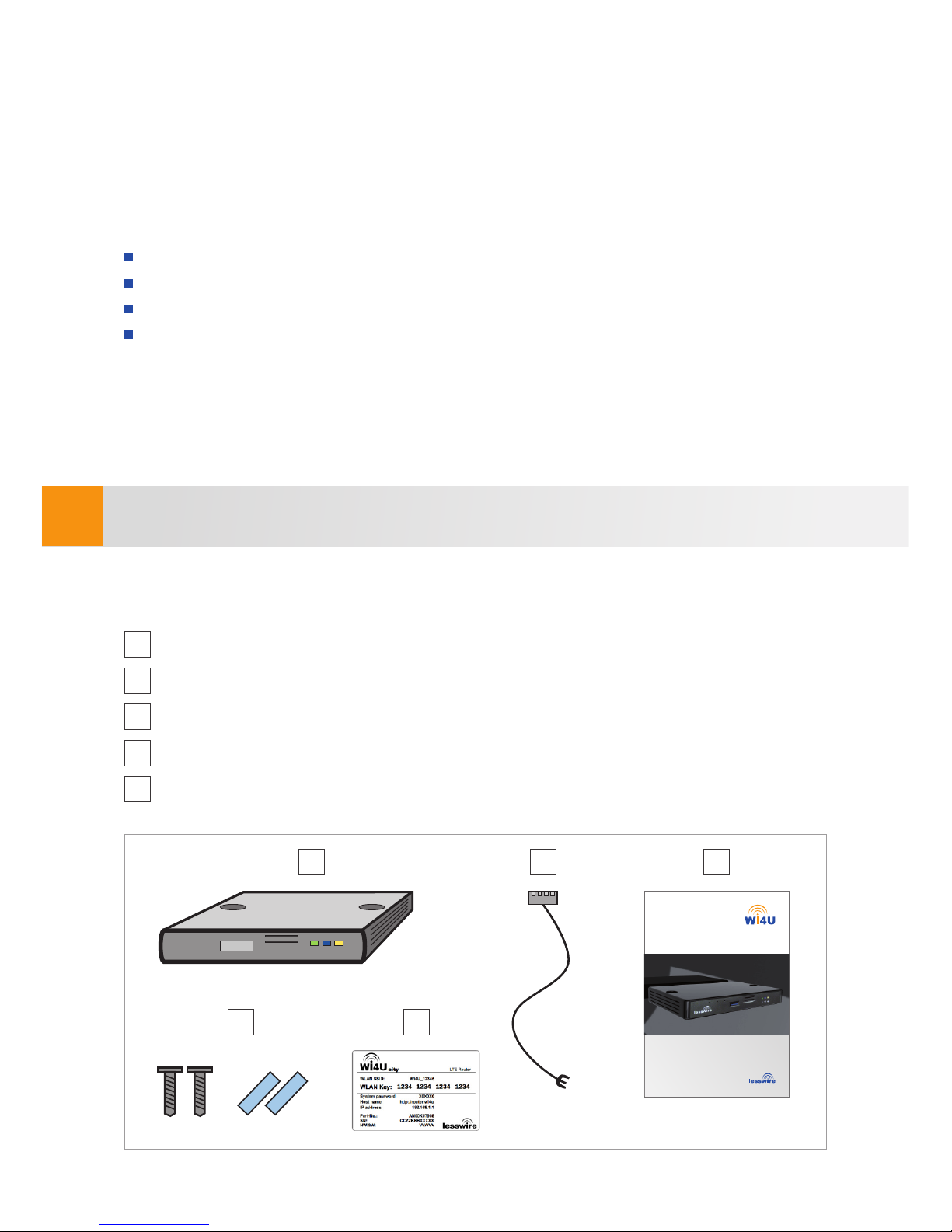
Folgende Teile müssen sich in der Verpackung befinden:
Wi4U LTE-Router
Kabelsatz zum Anschluss an die Bordelektronik
Quick Start Guide
Befestigungsmaterial (2 Schrauben, 2 Klettbänder)
Kundenkarten mit Zugangsdaten zum Wi4U LTE-Router
1
2
3
4
5
4
1 2 3
Best and most reliable connection on the move!
Quick Start Guide
54
Page 5
Übersicht Wi4U LTE-Router
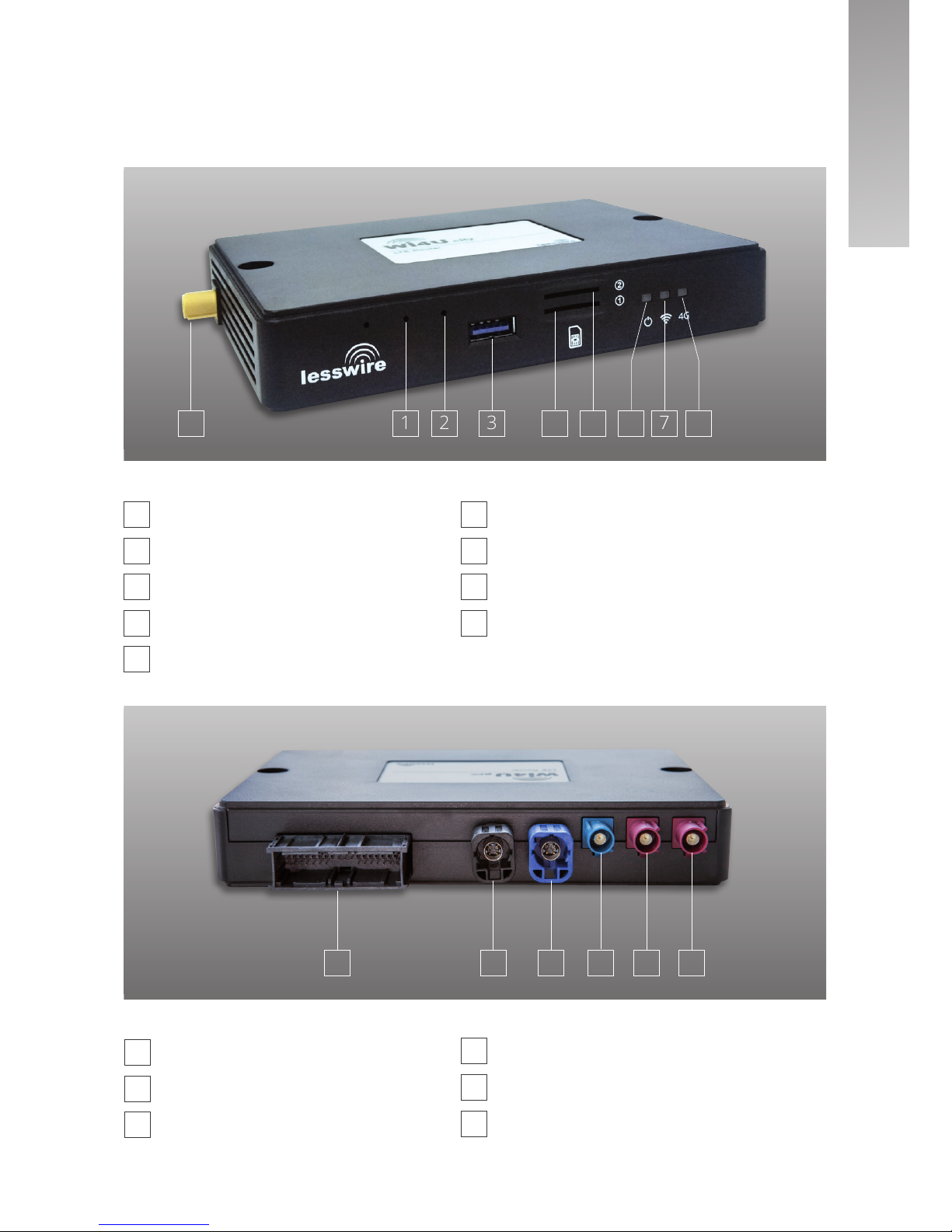
Hardware Reset
Firmware Reset
USB-Buchse
SIM-Kartenslot 1
SIM-Kartenslot 2
LED Spannungsversorgung
LED WLAN
LED Mobilfunk
Fakra WLAN Antennenschluss (nur Wi4U city)
5
1
2
3
4
5
6
7
8
9
21 3 7 864 5
Wi4U | Quick Start Guide
Fakra GPS Antennenanschluss
Fakra LTE Antennenanschluss 1
Fakra LTE Antennenanschluss 2
4
5
6
Spannungsversorgung
HSD Ethernet-Anschluss
HSD USB-Anschluss
1
2
3
21 3 4 5 6
9
deutsch
Page 6
!
6
Fahrzeuginstallation
Bevor Sie den Wi4U LTE-Router mit Ihrem Computer verbinden können, müssen Sie den
Wi4U LTE-Router im Fahrzeug installieren.
Die Installation sollte durch eine geeignete Fachwerkstatt durchgeführt werden. Mögliche
Fachwerkstätten finden Sie unter www.lesswire.com.
Page 7
7
Wi4U | Quick Start Guide
deutsch
Page 8

!
!
8
Installation der Antennen und Kabelverlegung
Der Wi4U sollte mit einer MIMO-LTE-Antenne und optional mit einer GPS-Antenne (falls
Ortungsdienste genutzt werden) betrieben werden. Bei der Nutzung des Wi4U city
benötigen Sie zwei zusätzliche externe WLAN-Antennen zur Verbindung mit dem WLAN.
Es wird empfohlen, die unter www.lesswire.com angegebenen Antennen zu verwenden.
Über gleichwertige Antennen gibt Ihnen Ihr Fachhändler Auskunft.
Bitte beachten Sie, dass die Antennen auf Ihr Fahrzeug und das Produkt abgestimmt
sind. Die Verwendung ungeeigneter Antennen bzw. falscher Installation kann die Leistung
Ihres Wi4U maßgeblich beeinflussen.
Die Antennenanschlüsse am Wi4U LTE-Router sind Fakra-codiert, um Falschanschlüsse
zu vermeiden:
LTE-Antennen
Die Anschlüsse für die LTE-Antennen sind Fakra Typ-D (bordeauxrot, male). D.h. die
Konnektoren der LTE-Antennenkabel müssen entsprechend Fakra Typ-D (bordeauxrot,
female) codiert sein.
WLAN-Antennen (nur Wi4U city)
Die Anschlüsse für die WLAN-Antennen am Wi4U city sind Fakra Typ-I (beige, male). D.h.
die Konnektoren der WLAN-Antennenkabel müssen entsprechend Fakra Typ-I (beige,
female) codiert sein.
GPS-Antenne
Die Anschlüsse für die GPS-Antennen sind Fakra Typ-C (blau, male). D.h. der Konnektor
des GPS-Antennenkabels muss entsprechend Fakra Typ-C (blau, female) codiert sein.
Verbinden Sie die LTE-Antennen, WLAN-Antennen und die GPS-Antenne gemäß der
farblichen Codierung der Fakra-Stecker mit den passenden Buchsen am Wi4U.
Bitte beachten Sie, dass Sie beim Wi4U city auch die WLAN-Antennen angeschlossen
haben. Der Wi4U city verfügt seitlich über entsprechende beige Konnektoren am Gehäuse.
Page 9
!
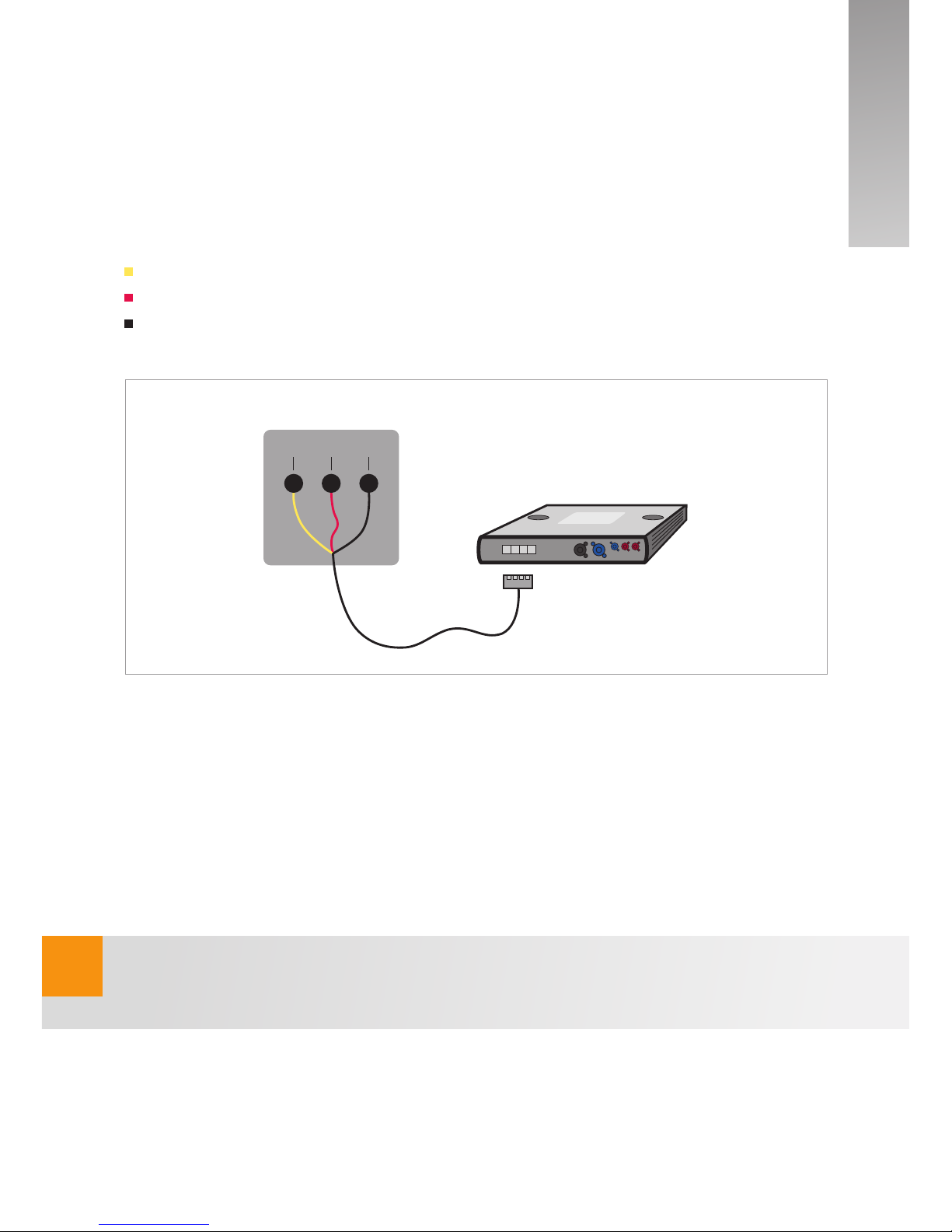
Der Wi4U LTE-Router wird mit einem Kabelsatz zum Anschluss an die Bordelektronik
(12V oder 24V) ausgeliefert. Stecken Sie zunächst den 32-poligen Stecker in die passende Buchse des Wi4U LTE-Router. Verbinden Sie anschließend die Kabel mit den entsprechenden Anschlüssen im Fahrzeug.
Dabei beachten Sie bitte folgende Anschlüsse:
Gelbes Kabel auf Klemme 15 (Zündung ein/aus)
Rotes Kabel auf Klemme 30 (12V bzw. 24V der KFZ-Batterie)
Schwarzes Kabel auf Masse
Montage Wi4U LTE-Router
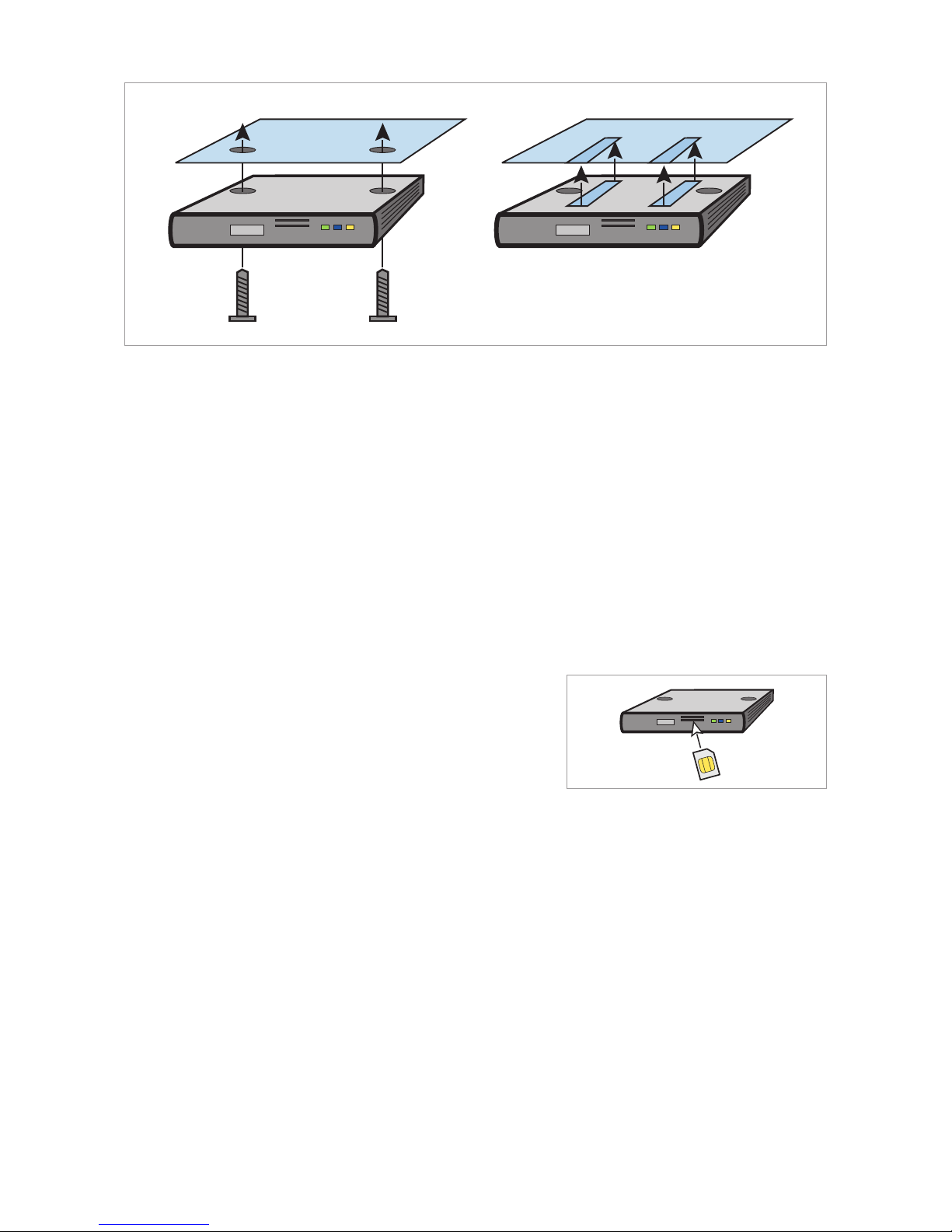
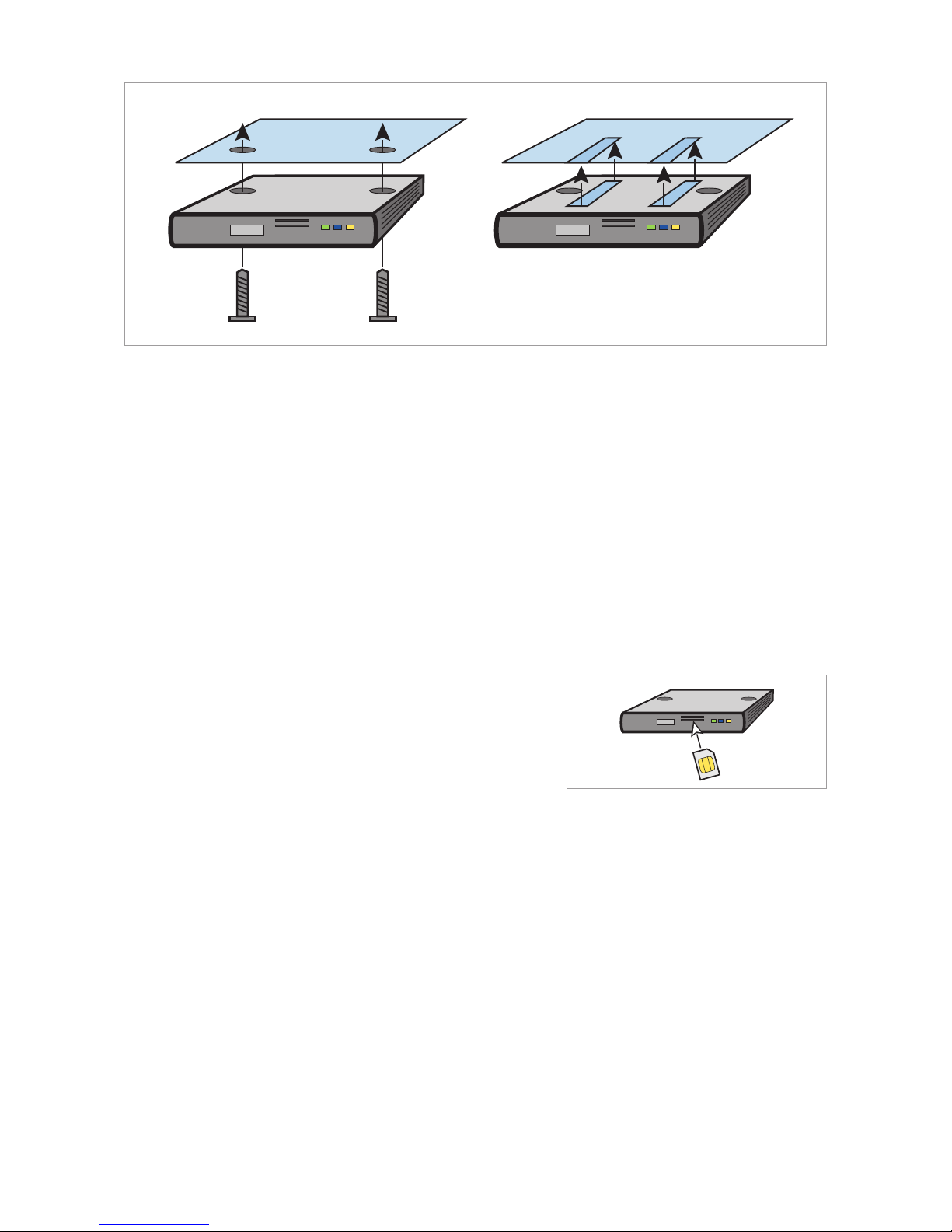
Der Wi4U LTE-Router kann entweder mit den beiliegenden Klettbandstreifen im Handschuhfach angeklebt werden oder mit den beiliegenden Schrauben durch die Gehäusebohrungen in die Kunststoffverkleidung verschraubt werden. Bei Verwendung der Klettstreifen achten Sie bitte auf einen fettfreien Untergrund und hohen Anpressdruck der
Klettstreifen auf dem Untergrund.
Der Wi4U pro darf nicht hinter metallischen Verkleidungen verbaut werden, da sonst die
Wirksamkeit der integrierten WLAN Antennen stark eingeschränkt wird.
9
Wi4U | Quick Start Guide
Bordnetz
KL15 KL30 Masse
deutsch
Page 10
10
Vor der Befestigung schließen Sie bitte alle Anschlusskabel gemäß obiger Zeichnung am
Wi4U LTE-Router an.
Der Wi4U LTE-Router ist so vorkonfiguriert, dass er nur bei eingeschalteter Zündung in
Betrieb ist. Die Start-Up-Zeit beträgt ca. 30 Sekunden.
Sofort-Inbetriebnahme
1. SIM-Karte wie in Abb. rechts in den
SIM-Karteneinschub einlegen.
2. Zündung einschalten.
Wi4U wird gestartet (Power-LED und
WLAN-LED leuchten).
3. Verbindung zum Wi4U über WLAN herstellen.
Der Wi4U ist vorkonfiguriert mit folgenden Einstellungen:
SSID (Netzwerkname)
WPA (TKIP) / WPA2 (AES) (WLAN-Schlüssel)
Die gerätespezifischen Einstellungen befinden sich auf der Rückseite dieses Manuals
sowie auf der Geräteunterseite. Nutzen Sie die normale WLAN-Verbindungs-Applikation
Ihres Computers. Suchen Sie nach Netzwerken und klicken auf Verbinden mit der SSID
des Wi4U. Geben Sie den WPA2-Schlüssel ein.
Page 11
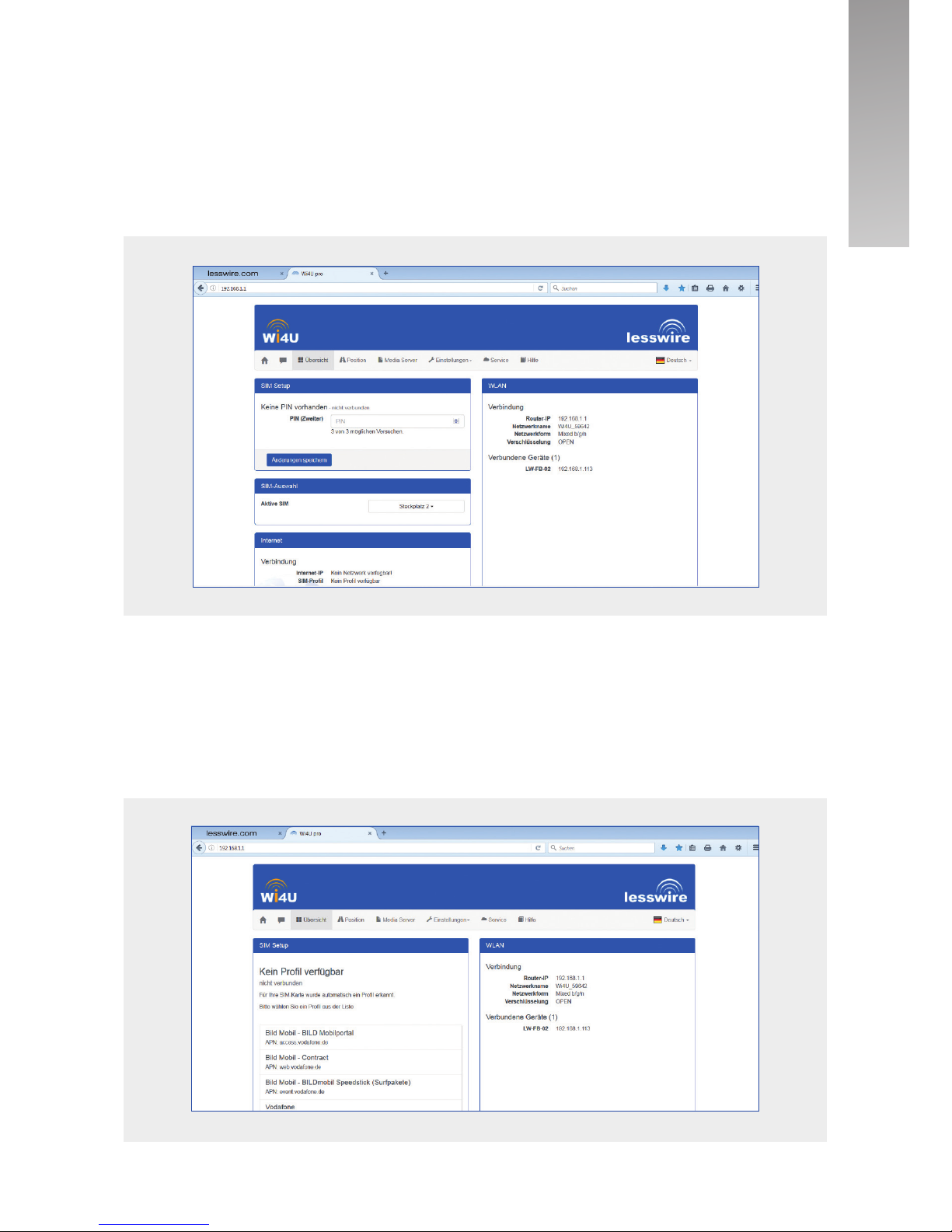
4. Benutzeroberfläche des Wi4U LTE-Routers öffnen und mobilen Internetzugang einrichten. Starten Sie den Internet Browser auf Ihrem Computer und geben Sie
die Adresse http://192.168.1.1 oder http://router.wi4u ein. Das Startfenster des Wi4U-
Webservers öffnet sich und Sie werden nach ein paar Sekunden nach der PIN für Ihre
SIM-Karte gefragt.
Nach Klick auf den Button Änderungen speichern wird die PIN automatisch abgelegt.
Anschließend erfolgt eine automatische Provider-Erkennung. Wählen Sie das geeignete
Profil für Ihre Datenkarte aus und klicken Sie Übernehmen. Es wird anschliessend zusammen mit Ihrer PIN für die SIM-Karte im Router abgelegt.
11
Wi4U | Quick Start Guide
deutsch
Page 12

!
!
12
Die Einstellungen zu der SIM-Karte können unter dem Menüpunkt „Einstellungen / Internet“
später jederzeit geändert werden.
Interneteinstellungen / Providerdaten
Falls Ihr Provider dem Router nicht bekannt ist, können Sie APN und ggf. weitere Einstellungen direkt von Ihrem Provider erfragen und manuell eintragen.
Verbinden mit dem Wi4U über WLAN
Einloggen auf dem Wi4U-Gerät durch Starten des Internet Browsers
Eingabe der Adresse http://192.168.1.1
Auswahl des Menüpunkts „Einstellungen“
Eingabe des System-Passworts: admin
Im Untermenüpunkt „Internet“ können Sie APN und bei Bedarf im erweiterten
Menü die weiteren Einstellungen eintragen und speichern
Roaming ist per Standard-Einstellung deaktiviert. Eine Veränderung der Einstellung kann
wie folgt vorgenommen werden:
Verbinden mit dem Wi4U über WLAN
Einloggen auf dem Wi4U-Gerät durch Starten des Internet Browsers
Eingabe der Adresse http://192.168.1.1
Auswahl des Menüpunkts „Einstellungen“
Eingabe des System-Passworts: admin
Im Untermenüpunkt „SIM Präferenzen“ können Sie Roaming aktivieren.
Einstellungen / Basiskonfiguration / Ausserhalb Roaming-Netzwerk zugelassen:
deaktiviert
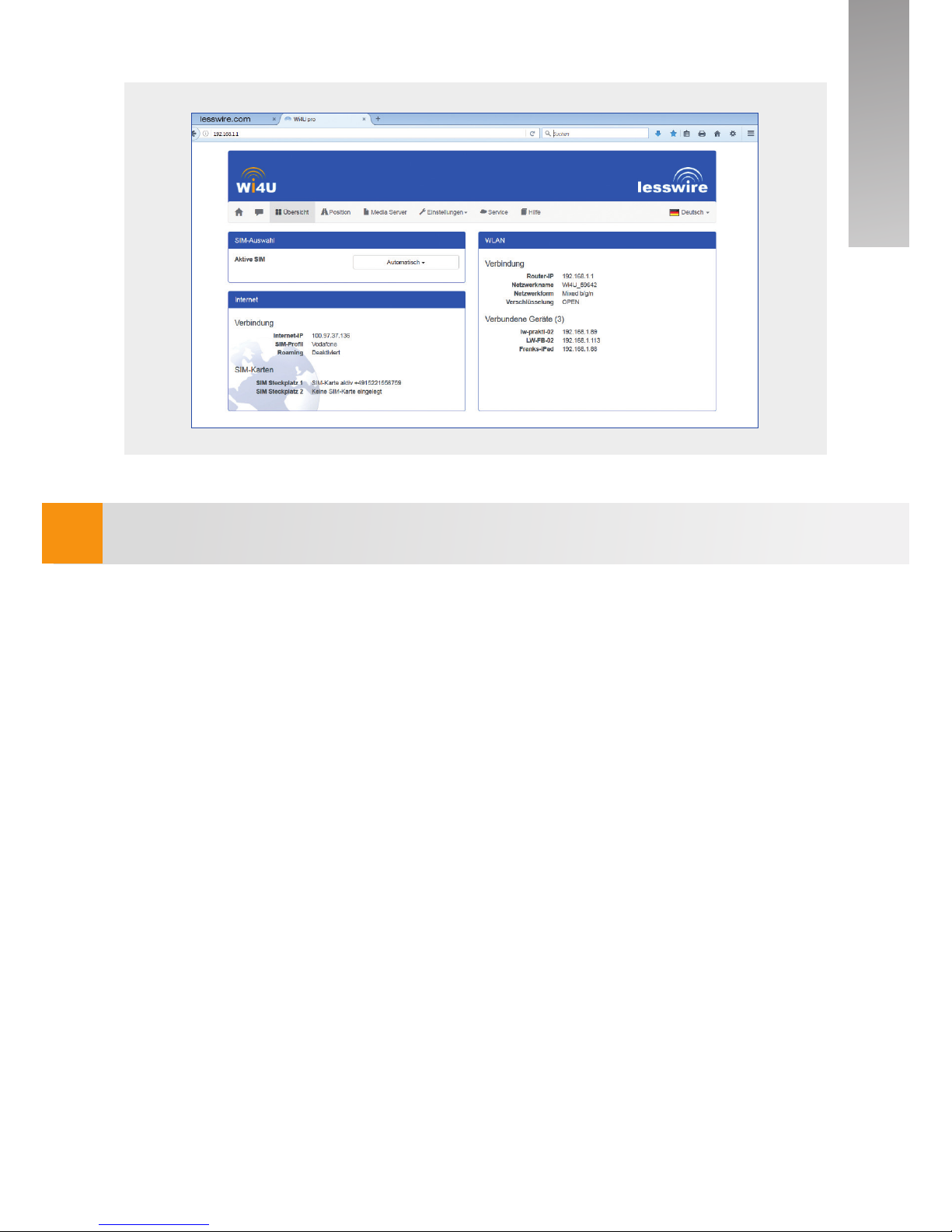
Ihr Router ist jetzt betriebsbereit (LED Mobilfunk leuchtet) für den mobilen Internetzugriff
und die Startseite des Routers wird angezeigt.
Page 13
!
13
Wi4U | Quick Start Guide
Andere Konfigurationseinstellungen siehe Hilfebeschreibung.
deutsch
Page 14
14
Anzeigen
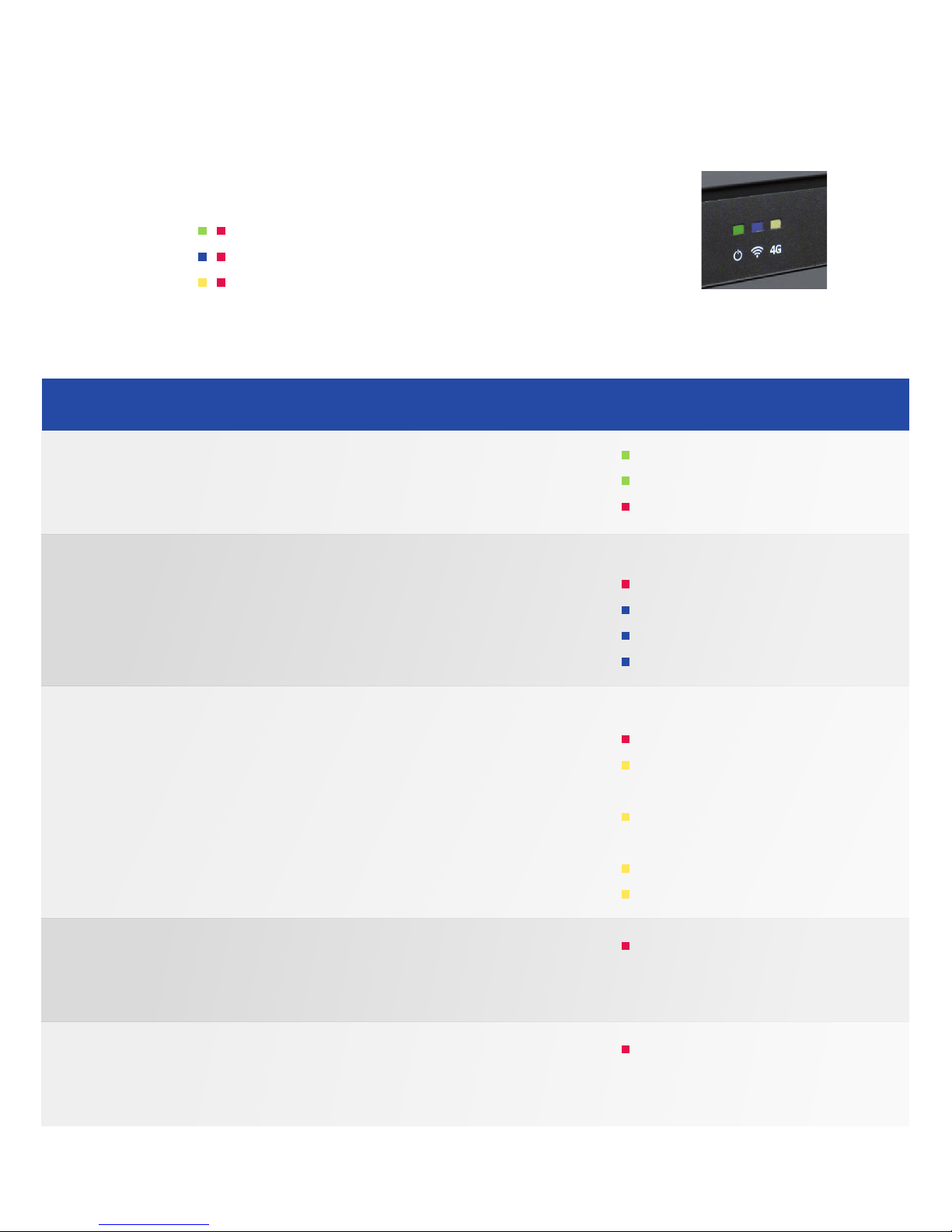
Der Wi4U LTE-Router ist mit drei zweifarbigen LEDs ausgestattet:
Spannungsversorgung
WLAN Aktivität
Mobilfunk Aktivität
Folgende Blinkcodes werden bereitgestellt:
Farbe / Blinkcode
leuchtend
langsam blinkend
leuchtend
Aus
leuchtend
langsam blinkend
leuchtend
blinkend
Aus
leuchtend
langsam regelmäßig
blinkend zweimal pro Sek.
regelmäßig blinkend
einmal pro Sekunde
leuchtend
unregelmäßig blinkend
abwechselnd rot blinkend
(für die Dauer des Updates)
gleichzeitig rot blinkend
(über 5 Sekunden)
Zustand
Spannung im zulässigen Bereich
Gerät im Standby-Mode
Fehler in der Spannungsversorgung
WLAN nicht gestartet
WLAN Fehler
WLAN Access Point wird gestartet
WLAN verfügbar, aber keine Datenübertragung
WLAN Datenübertragung
Mobilfunk nicht gestartet
Mobilfunk Fehler
Mobilfunk Verbindungsaufbau
Mobilfunk Keine SIM Karte
Mobilfunk verfügbar,
aber keine Datenübertragung
Mobilfunk Datenübertragung
WLAN und 4G leuchten abwechselnd
rot wenn das Firmware Update läuft. Nach
dem Neustart wieder normaler Blinkcode
Spannungsversorgung, WLAN und Mobilfunk
blinken gleichzeitig rot auf für einen Zeitraum
von 5 Sekunden
Funktion
Spannungsversorgung
WLAN
Mobilfunk
Firmware
Update
Rücksetzen
auf Fabrikeinstellungen
Page 15
Einstellungen
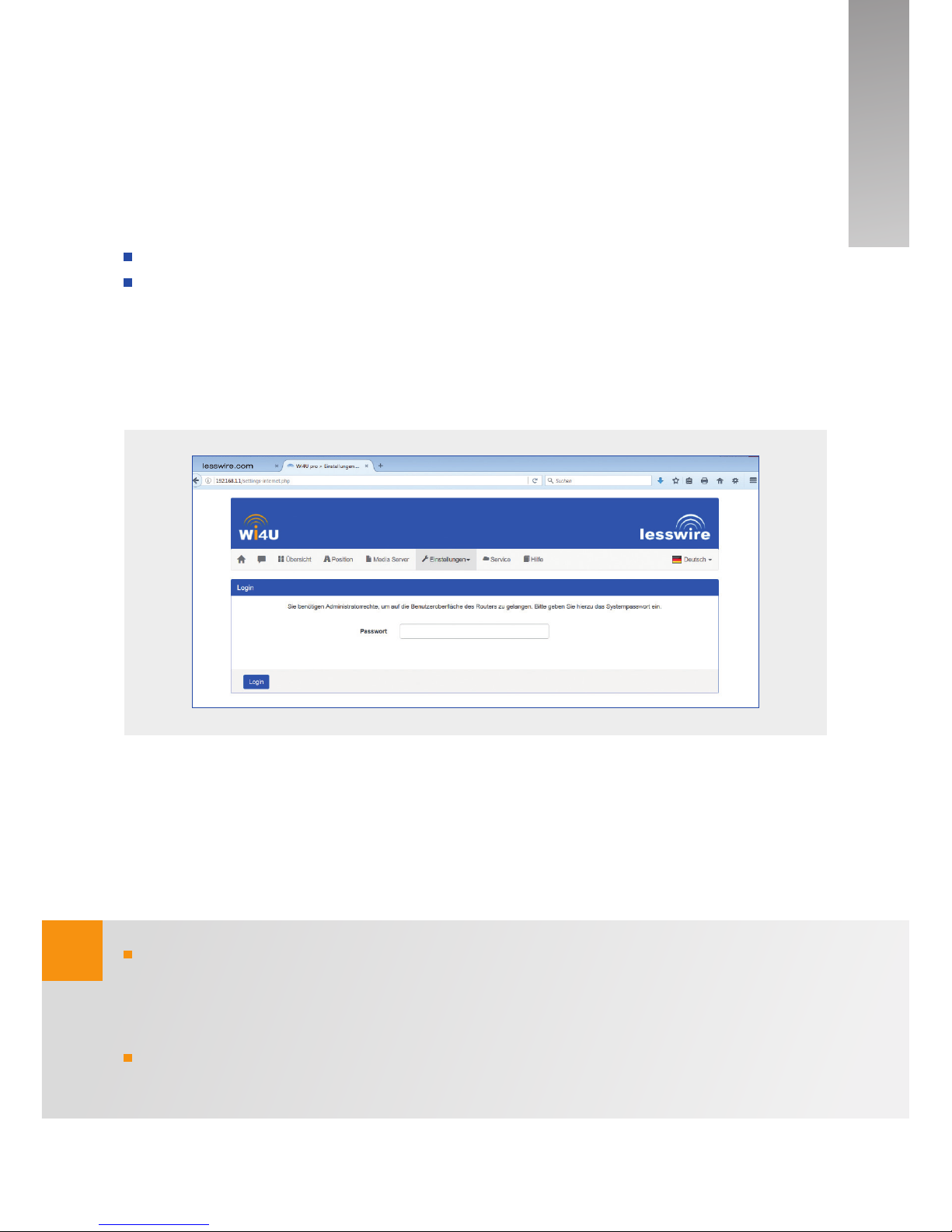
Im Menü Einstellungen konfigurieren Sie den Wi4U LTE-Router, seine WLAN- und mobile
Internetverbindung.
Stellen Sie von Ihrem Endgerät eine WLAN-Verbindung zum Router her.
Starten Sie den Internet Browser auf Ihrem Endgerät und geben Sie die Adresse
http://router.wi4u ein.
Das Menü Einstellungen ist passwortgeschützt. Sie werden zur Eingabe eines Passwortes aufgefordert. Das Standard-Passwort lautet admin
Sprache
Sie können die gewünschte Sprache der Bedienoberfläche rechts oben in der Statuszeile
außerhalb des Einstellungsmenüs ändern.
Das Standard-Passwort sollte aus Sicherheitsgründen durch ein individuelles Pass-
wort ersetzt werden. Unter dem Menüpunkt „Einstellungen / System“ können Sie das
Passwort ändern.
Aus Sicherheitsgründen wird nach einiger Zeit der Inaktivität das Einstellungsmenü
beendet. Sie müssen dann erneut das Passwort eingeben.
!
15
Wi4U | Quick Start Guide
deutsch
Page 16

!
16
Es besteht die Möglichkeit nicht nur die Einstellungsseiten sondern alle Seiten des
geräteeigenen Webservers zu sperren. Unter dem Menüpunkt „Einstellungen / System“
können Sie diesen Schutz einstellen.
Weitere Erklärungen finden die Sie in der Hilfebeschreibung.
Page 17

!
17
Wichtige Hinweise
Bevor Sie Ihr Gerät in Betrieb nehmen, lesen Sie den Quick Start Guide (verfügbar
auch unter www.lesswire.com) sorgfältig und machen Sie sich mit dem Gerät vertraut.
Bewahren Sie diese Anleitung für spätere Fragen im Fahrzeug auf.
Jede Veränderung oder Modifikation am Wi4U LTE-Router, welche nicht explizit
durch eine autorisierte Zulassungsstelle als konform zu den regulatorischen Anforderungen freigegeben wurde, kann die Betriebserlaubnis des Geräts beenden.
Bestimmungsgemäßer Gebrauch
Der Wi4U LTE-Router ist für den Betrieb in einem Kraftahrzeug mit 12V- bzw. 24V-Bordnetzspannung konzipiert.
CE Zulassung
Der Wi4U LTE-Router (CCU3) wurde entsprechend den regulatorischen Anforderungen
der Europäischen Union (EU) nach der Norm R&TTE 1999/5/EC getestet und entspricht
allen Anforderungen für das CE-Label.
E-Mark Zulassung
Der Wi4U LTE-Router (CCU3) wurde entsprechend den regulatorischen Anforderungen
der Europäischen Union (EU) nach der EMV-Richtlinie 72/245/EEC mit der Ergänzung
2009/19/EC sowie der Norm ECE 324 R10 Rev.3 für den Einsatz im KFZ zertifiziert und
entspricht allen Anforderungen für das E-Mark-Label.
Bahnnorm
Der Wi4U city ist entsprechend der Bahnnorm EN50121-3-2:2006 und EN50155:2007
qualifziert.
Die Konformitätserklärung für Wi4U pro und Wi4U city finden Sie finden Sie unter
folgendem Link auf unserer Internetseite: http://www.lesswire.com/produkte/connected
-car-systems/connected-car/wi4u-pro-lte-wlan-router/uebersicht/
Wi4U | Quick Start Guide
deutsch
Page 18

!
!
!
18
Sicherheitshinweise
Der Wi4U LTE-Router sendet im normalen Betrieb Radiosignale aus, die Interferenzen mit anderen funkbasierten Geräten erzeugen können. Er sollte daher ent-
sprechend der Beschreibung im Handbuch betrieben werden. Der Hersteller gibt keine
Garantie, dass keine Interferenzen mit anderen Geräten auftreten.
Betreiben Sie den Wi4U LTE-Router nicht in einem Bereich, wo medizinische
Geräte, lebensrettende Geräte oder andere Geräte, die empfindlich auf Interferenz von Radiosignalen reagieren, benutzt werden.
Betrieb im Fahrzeug
Der Fahrer oder Führer eines Fahrzeuges sollte den Wi4U LTE-Router während
der Fahrt nicht bedienen. Die Bedienung des Wi4U LTE-Routers lenkt den Fahrzeug-
führer vom Verkehr und der Kontrolle über sein Fahrzeug ab. In einigen Ländern ist die
Benutzung solcher Kommunikationsgeräte während des Führens eines Fahrzeugs nicht
gestattet. Bitte beachten Sie die landesspezifischen Auflagen.
Die Position der Mobilfunk-Antennen sollte nicht in der Nähe einer anderen Antenne
betrieben werden. Die Mobilfunk-Antenne sollte mindestens 2 cm Abstand von Metall
und 20 cm Abstand vom Körper haben. Die richtige Antennenposition im Fahrzeug hat
signifikanten Einfluss auf die Verbindungsqualität.
Das Zustandekommen einer Internetverbindung ist abhängig von der Nutzung eines
Mobilfunktarifs mit integrierter Datenoption. Die Übertragungsgeschwindigkeit ist
abhängig von der Infrastruktur des jeweiligen Netzbetreibers, der aktuellen Signalstärke
sowie der Anzahl Nutzer in einer Funkzelle. Die Wi4U LTE-Router haben keinen SIM-Lock
und können daher mit allen SIM-Karten mit Datentarif betrieben werden.
Page 19

Technische Daten
System
Mobiles Netzwerk
WLAN
Antenne
Spannungsverorgung
Temperatur
Zertifizierung
Artikelnummer
Prozessor
Prozessor Frequenz
Betriebssystem
Speicher intern
Speicher extern
Ethernet
Dual SIM
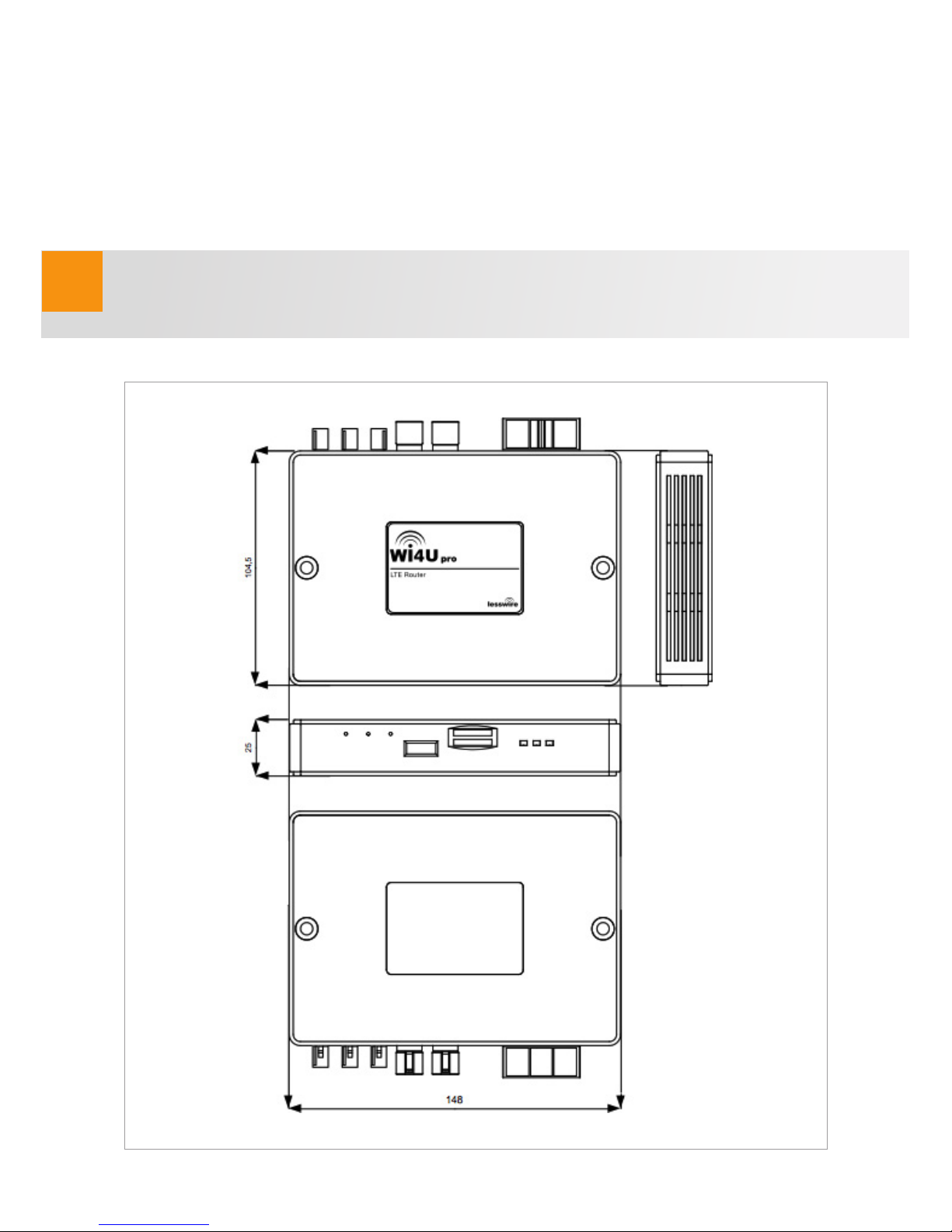
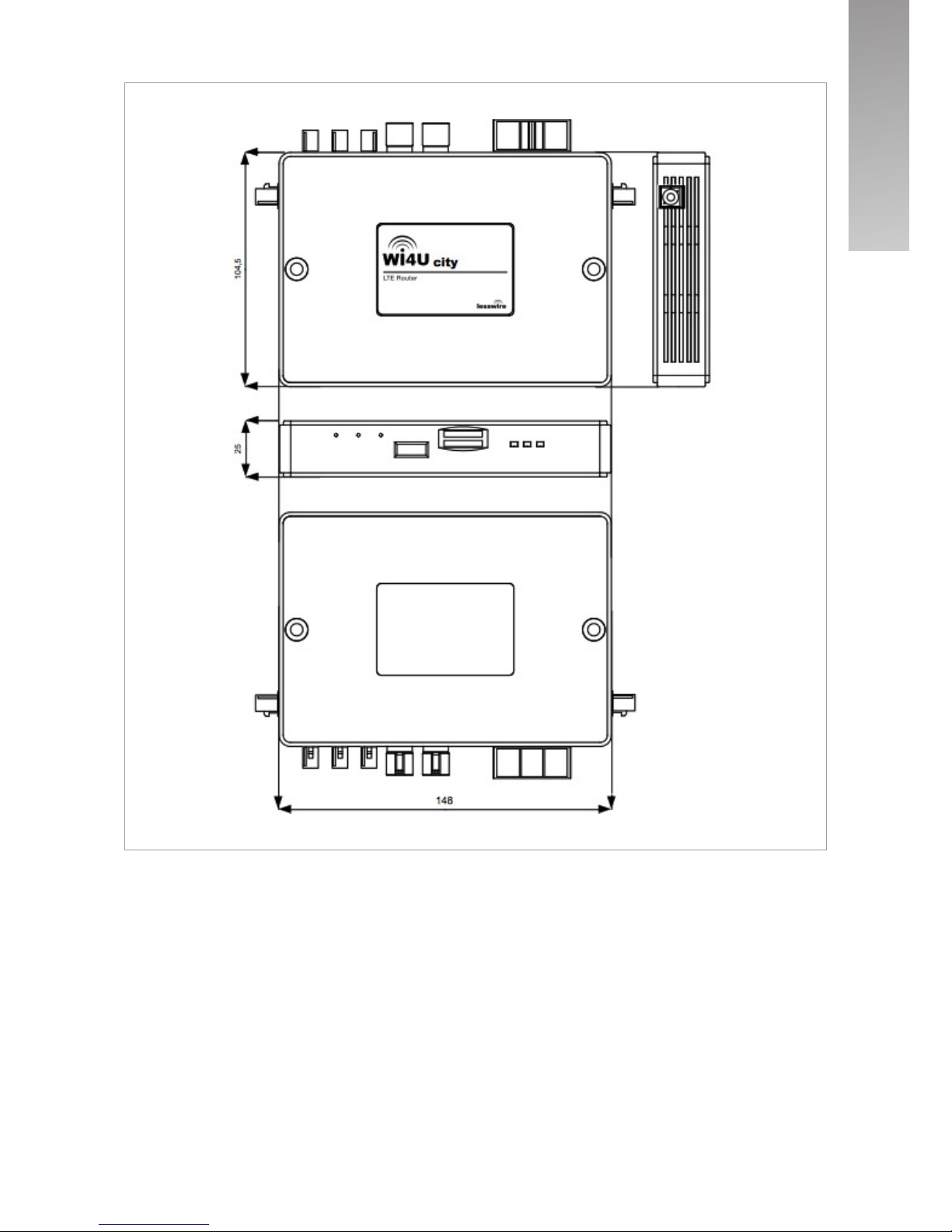
Abmessungen
Gewicht
Standards
Frequenz
Datenrate
Standards
Verschlüsselung
Datenrate
Clients
LTE / UMTS
GPS
WLAN
Spannungsbereich
Anschluss
Betrieb
Lagerung
CE, E1, RoHS
EN50121-3-2:2006
(Wi4U city)
EN50155:2007
(Wi4U city)
AN00K01395 (Wi4U pro)
AN00K07908 (Wi4U city)
Freescale i.MX6 Solo Cortex™-A9
1 GHz / 3.000 DMIPS
Linux
128 MB (DDR3), 256 MB (Nand Flash)
USB2.0 über HSD Anschluss + USB-A Anschluss
100 Mbit/sec über HSD Anschluss
2 x SIM Karteneinschub
147 x 104 (119 inkl. Anschluss) x 24 mm
200 g
4G - LTE
3G - UMTS: HSPA+/EV-DO
2G - GSM: EDGE/GPRS/GSM
LTE (cat 3, 100/50 Mbps):
800/900/1800/2100/2600 (EMEA/APAC)
HSPA+: 850/900/2100
GSM/GPRS/EDGE: 850/900/1800/1900
100/50 Mbit/sec
IEEE 802.11 b/g/n
WEP, WPA (TKIP, AES), WPA2 (CCMP, AES)
bis zu 300 Mbit/sec
bis zu 50 WLAN-Nutzer
2 x Fakra D bordeauxrot für LTE MIMO
Fakra C blau
Antenne intern
(Wi4U pro)
2 x Fakra I beige für externe Antenne (Wi4U city)
12VDC / 24VDC
32 PIN NanoMQS
-40°C bis +80°C
-40°C bis +105°C
© lesswire GmbH 2016. Technische Änderungen vorbehalten.
19
Wi4U | Quick Start Guide
deutsch
Page 20

deutsch
english
03
21
Page 21

21
System requirements
Package contents
Overview of the Wi4U LTE router
Vehicle installation
Getting started immediately
Displays
Settings
Important information
Technical data
Contents
22
22
23
24
28
32
33
35
37
Wi4U | Quick Start Guide | 09/2016
english
Page 22
!
System requirements
In order to configure the router, you require a computer / tablet / smartphone with
WLAN 802.11 b/g/n and one of the following browsers:
Internet Explorer 6.0 and higher
Firefox
Opera
Safari
Package contents
Please check the package contents.
The following items should be included in the package:
Wi4U LTE router
Cable set for connecting to the on-board electronics
Quick Start Guide
Fastening materials (2 screws, 2 Velcro strips)
Customer cards with access data to the Wi4U LTE router
1
2
3
4
5
22
1 2 3
Best and most reliable connection on the move!
Quick Start Guide
54
Page 23
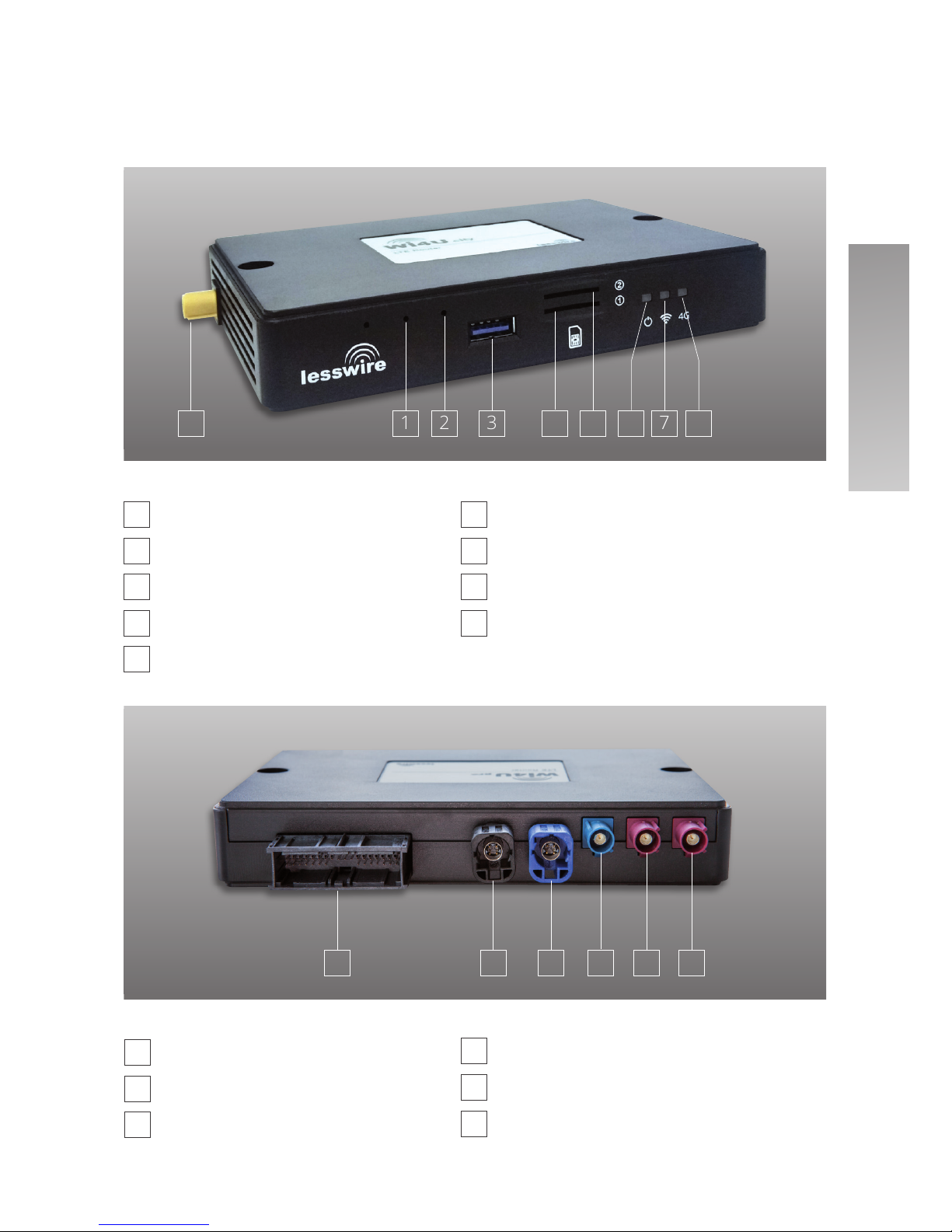
Overview of the Wi4U LTE router
Hardware reset
Firmware reset
USB port
SIM card slot 1
SIM card slot 2
Power supply LED
WLAN LED
Mobile network LED
Fakra WLAN antenna socket (only Wi4U city)
23
1
2
3
4
5
6
7
8
9
21 3 7 864 5
Wi4U | Quick Start Guide
Fakra GPS antenna socket
Fakra LTE antenna socket 1
Fakra LTE antenna socket 2
4
5
6
Power supply
HSD ethernet socket
HSD USB socket
1
2
3
21 3 4 5 6
9
english
Page 24
!
24
Vehicle installation
Before you can connect the Wi4U LTE router to your computer, you must first install the
Wi4U LTE router in the vehicle.
The installation should be carried out by a suitable specialist workshop. You can find
some specialist workshops listed at www.lesswire.com
Page 25
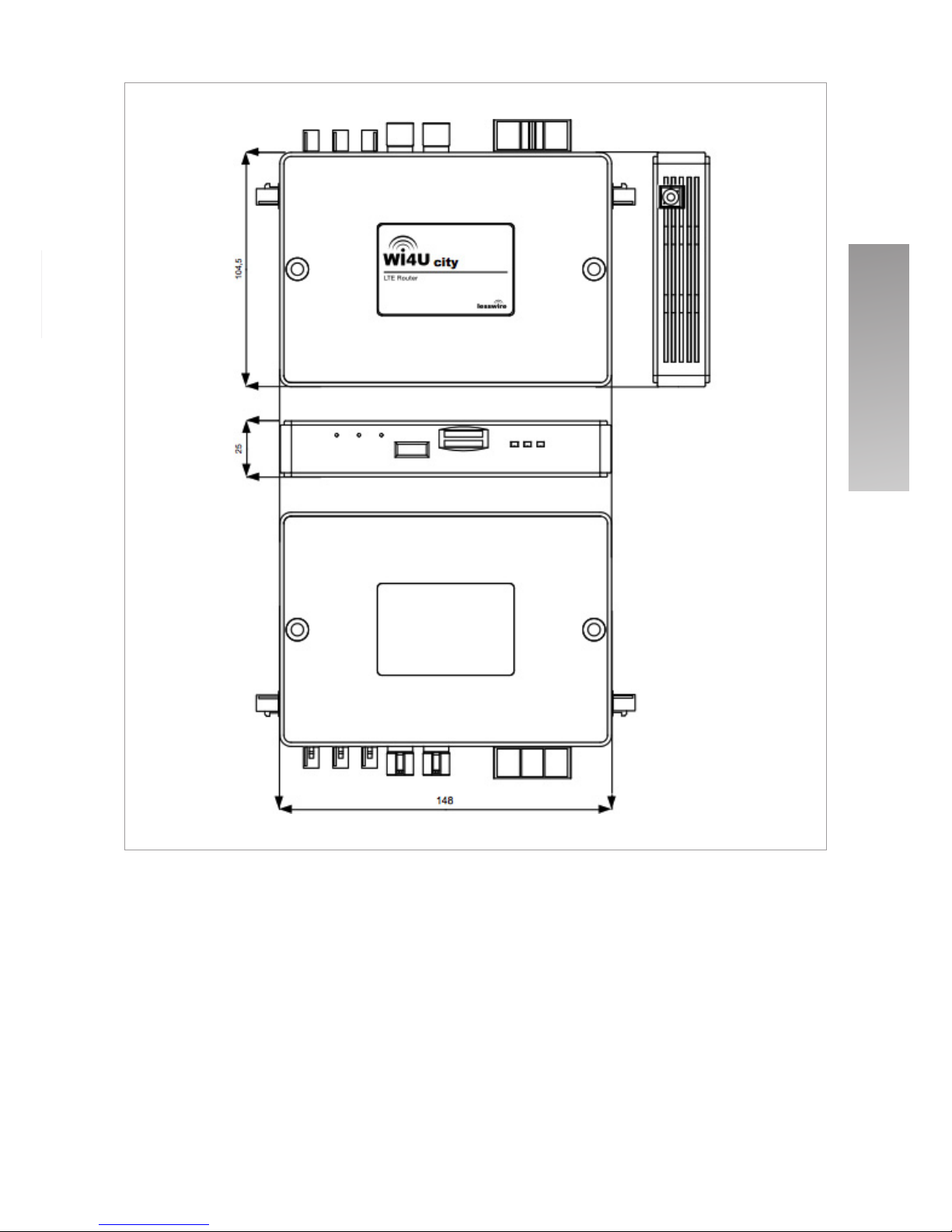
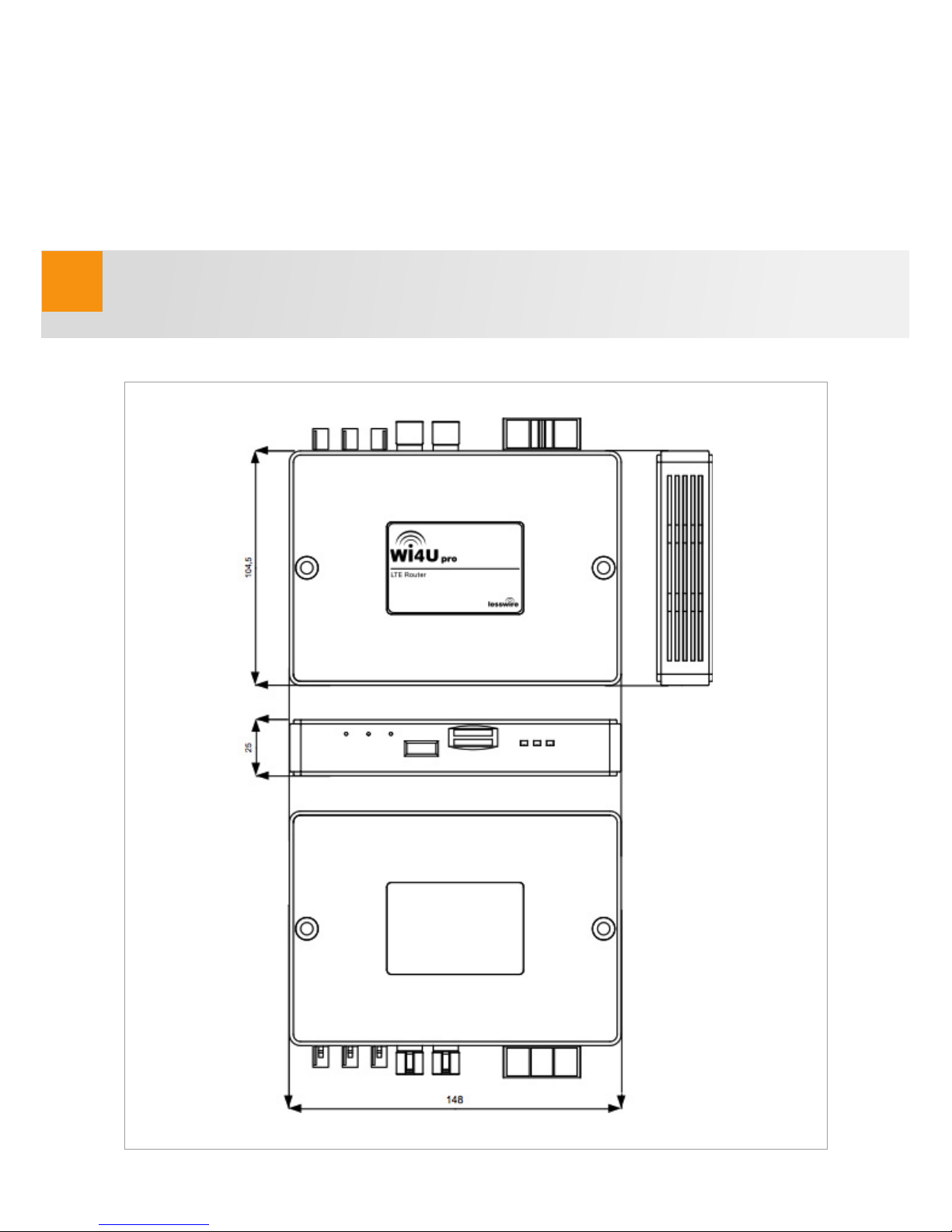
25
Wi4U | Quick Start Guide
english
Page 26

!
!
26
Installation of the antennas and cabling
The Wi4U should be operated using a MIMO LTE antenna and optionally with a GPS
antenna (if you intend to use positioning services). If using the Wi4U city, you require two
additional external WLAN antennas for connecting to the WLAN.
It is recommended that you use the antennas stated under www.lesswire.com. Your
specialist dealer can provide you with information about equivalent antennas.
Please ensure that the antennas are compatible with your vehicle and the product.
The use of an unsuitable antenna or incorrect installation can significantly influence the
performance of your Wi4U.
The antenna connections on the Wi4U LTE router are Fakra colour coded to avoid any
incorrect connections:
LTE antennas
The connections for the LTE antennas are Fakra type D (Bordeaux, male). This means
that the connectors on the LTE antenna cable must have corresponding Fakra type D
(Bordeaux, female) colour coding.
WLAN antennas (only Wi4U city)
The connections for the WLAN antenna on the Wi4U city are Fakra type I (beige, male).
This means that the connectors on the WLAN antenna cable must have corresponding
Fakra type I (beige, female) colour coding.
GPS antenna
The connections for the GPS antenna are Fakra type C (blue, male). This means that
the connectors on the GPS antenna cable must have corresponding Fakra type C (blue,
female) colour coding.
Connect the LTE antennas, WLAN antennas and the GPS antenna to the matching sockets on the Wi4U in accordance with the colour coding on the Fakra plugs.
Please ensure that you have also connected the WLAN antennas if using the Wi4U city.
The Wi4U city has corresponding beige sockets on the side of the housing.
Page 27
!
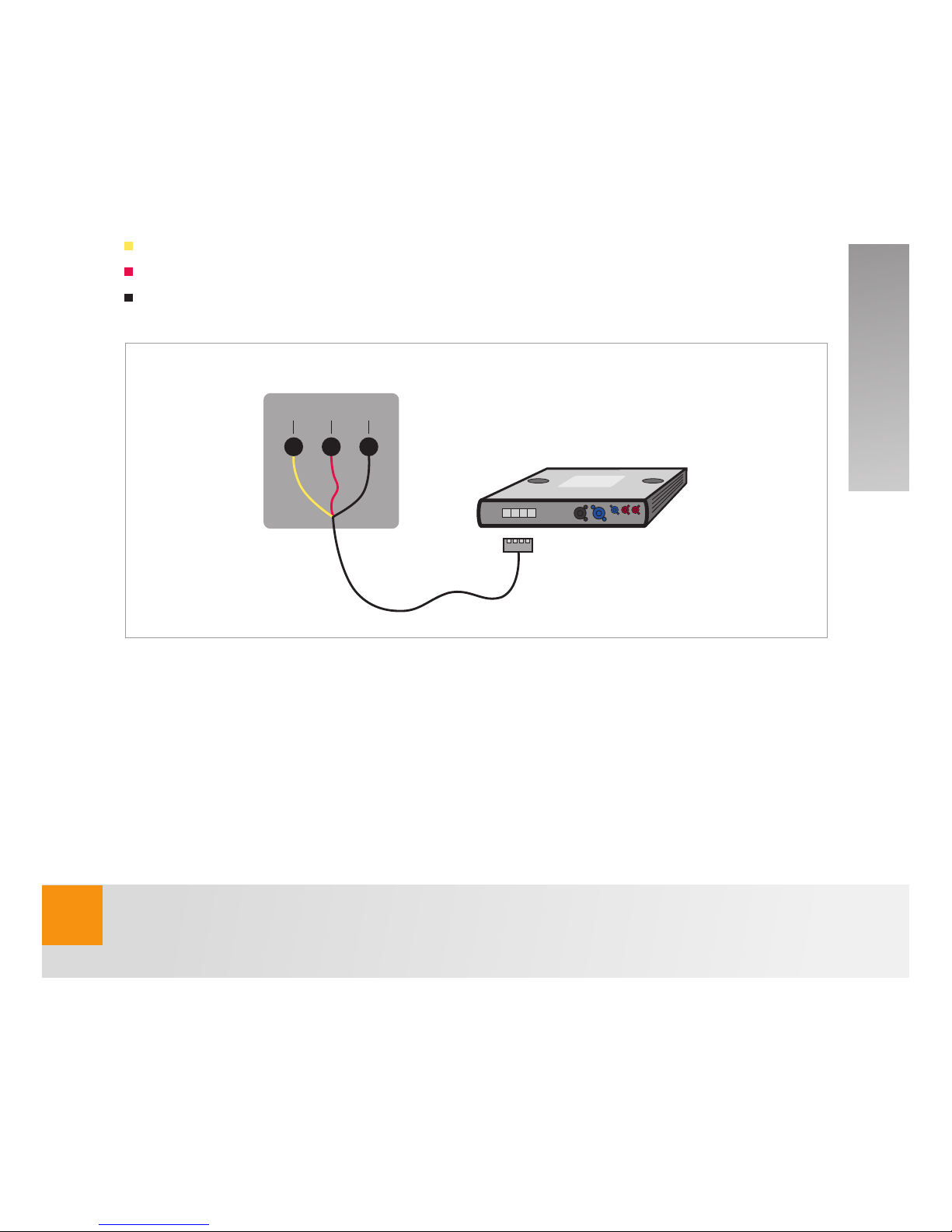
The Wi4U LTE router is delivered with a cable set for connection to the on-board electronics (12V or 24V). Firstly connect the 32-pole plug to the matching socket on the Wi4U
LTE router. Then connect the cable to the corresponding connectors on the vehicle.
Please observe the following connections during this process:
Yellow cable to terminal 15 (ignition on/off)
Red cable to terminal 30 (12V or 24V vehicle battery)
Black cable to ground
Mounting the Wi4U LTE router
The Wi4U LTE router can either be stuck in place in the glove compartment using the
supplied Velcro strips or screwed in place using the supplied screws through mounting
holes in the plastic housing. When mounting using the Velcro strips, please ensure that
the surface is free from grease and apply the Velcro strips with high pressure.
The Wi4U pro must not be installed behind metal panels because otherwise the performance of the integrated WLAN antennas will be severely restricted.
27
Wi4U | Quick Start Guide
On-board electronics
KL 15 KL 30 ground
english
Page 28
28
Please ensure that all of the connection cables have been attached to the Wi4U LTE
router in accordance with the above diagram before mounting the router.
The Wi4U LTE router has been preconfigured to only operate when the ignition is switched
on. The required start-up time is approx. 30 seconds.
Getting started immediately
1. Insert a SIM card into the SIM card slot
as shown in the diagram on the right.
2. Switch on the ignition.
The Wi4U will start (Power LED and
WLAN LED light up).
3. Establish a connection to the Wi4U via WLAN.
The Wi4U has been preconfigured with the following settings:
SSID (Network name)
WPA (TKIP) / WPA2 (AES) (WLAN key)
The device-specific settings can be found on the back of this manual and on the underside of the device. Use the standard WLAN application on your computer to connect to
the router. Search for networks and click on Connect to the SSID for the Wi4U. Enter
the WPA2 key.
Page 29
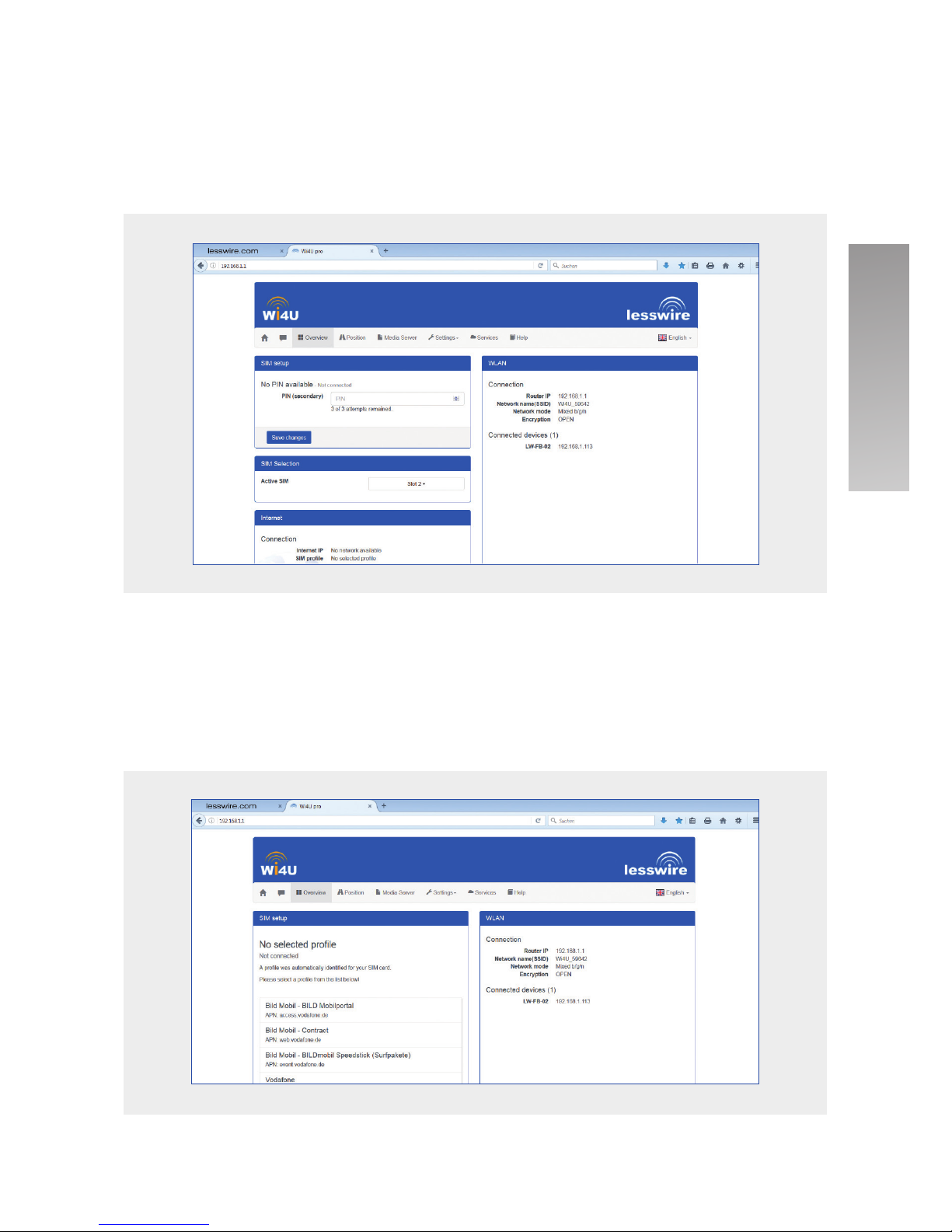
4. Open the user interface for the Wi4U LTE router and configure the mobile
Internet access. Start the Internet browser on your computer and enter the address
http://192.168.1.1 or http://router.wi4u. The start window for the Wi4U web server will
open and after a few seconds you will be prompted to enter the PIN for your SIM card.
After clicking on the button Save changes, the PIN will be automatically saved. The
automatic profile detection process will now be completed. Select a suitable profile for
your SIM card and click on Apply. This setting will now be automatically saved on the
router together with the PIN for your SIM card.
29
Wi4U | Quick Start Guide
english
Page 30

!
!
30
The settings for the SIM card can be changed later at any time under the menu item
“Settings / Internet”.
Internet Settings / Provider Data
If your provider is not recognised by the router, you can request the APN settings and,
if necessary, further settings directly from your provider and then enter them manually.
Connect to the Wi4U via WLAN
Login to the Wi4U device by starting your Internet browser
Enter the address http://192.168.1.1
Select the menu item “Settings”
Enter the system password: admin
In the submenu “Internet”, you can enter and save the APN settings and, if required,
other settings in the advanced settings menu
Roaming is deactivated by default. Changes to this setting can be made as follows:
Connect to the Wi4U via WLAN
Login to the Wi4U device by starting your Internet browser
Enter the address http://192.168.1.1
Select the menu item “Settings”
Enter the system password: admin
In the submenu “SIM preferences”, you can active the roaming setting.
Settings / Basic configuration / Allowed outside roaming network: deactivated
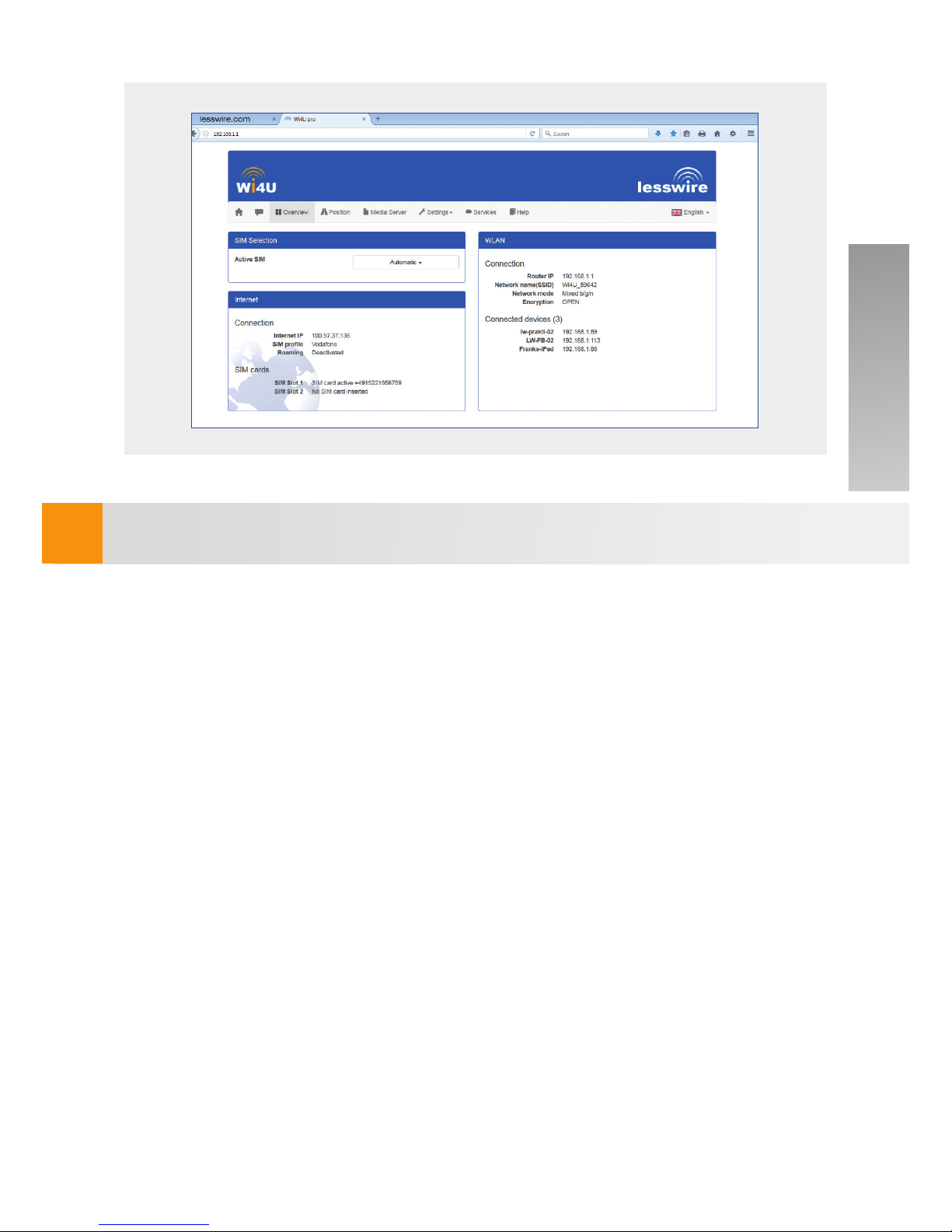
Your router is now ready (mobile network LED is lit) to access the Internet via a mobile
network and the start page for the router will be displayed.
Page 31
!
31
Wi4U | Quick Start Guide
For information on other configuration settings see the help section.
english
Page 32
32
Displays
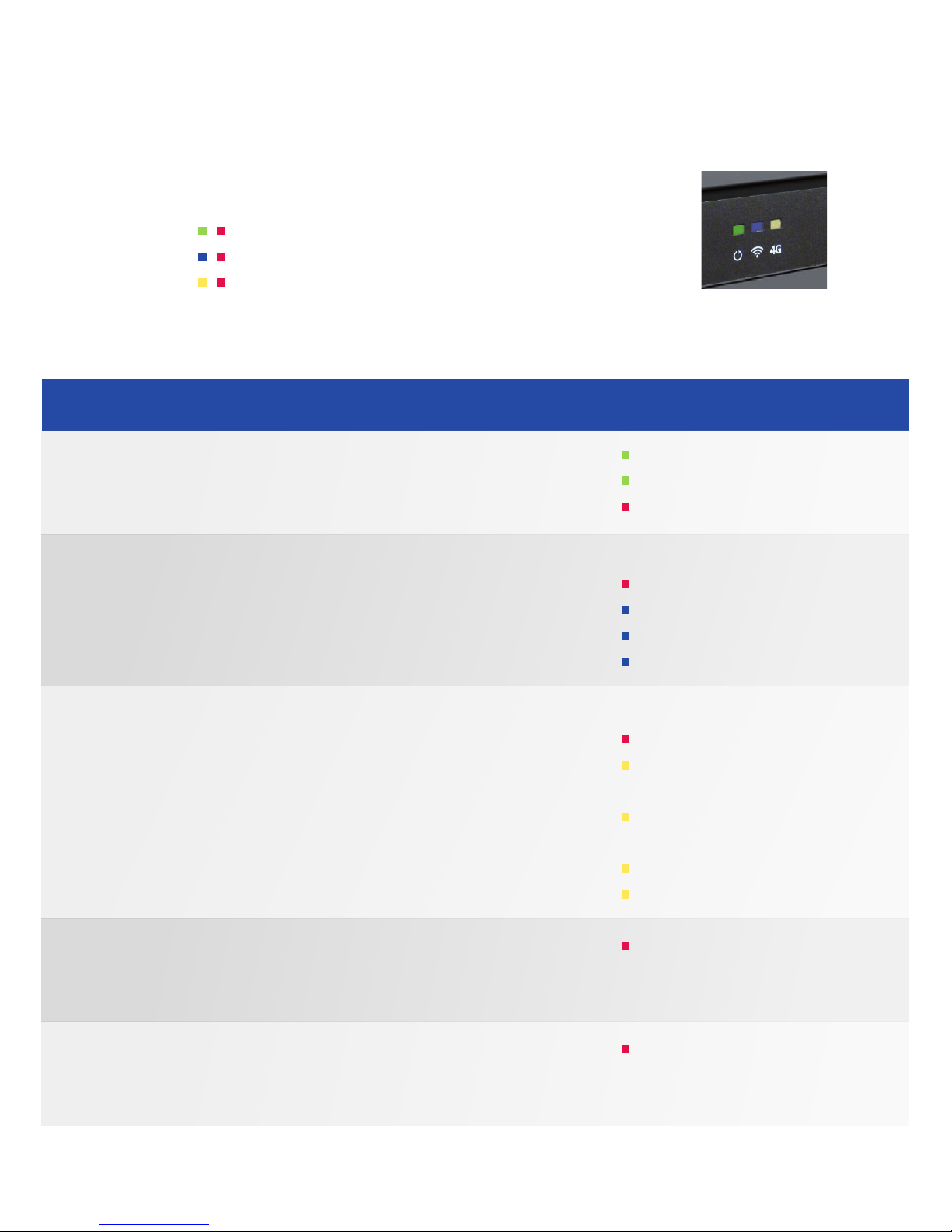
The Wi4U LTE router is equipped with three two-coloured LEDs:
Power supply
WLAN activity
Mobile network activity
The following LED codes been programmed:
Colour / LED code
lit
flashing slowly
lit
Off
lit
flashing slowly
lit
flashing
Aus
lit
flashing slowly and regularly
twice a second
flashing regularly once a
second
lit
flashing intermittently
flashing alternately in red
(for the duration of the update)
flashing simultaneously
in red
(for 5 seconds)
Status
Generated voltage within admissible range
Device in sleep mode
Power supply error
WLAN not started
WLAN error
WLAN access point starting up
WLAN available but no data transfer
WLAN data transfer
Mobile network not started
Mobile network error
Establishing a connection to mobile network
No SIM card for mobile network
Mobile network available but no data transfer
Mobile network data transfer
The WLAN and 4G LEDs light up alternately
in red when the firmware update is running.
After restart, normal LED code resumes
The power supply, WLAN and mobile network
LEDs flash simultaneously in red for a period
of 5 seconds
Function
Power
supply
WLAN
Mobile
network
Firmware
update
Reset to
factory
settings
Page 33
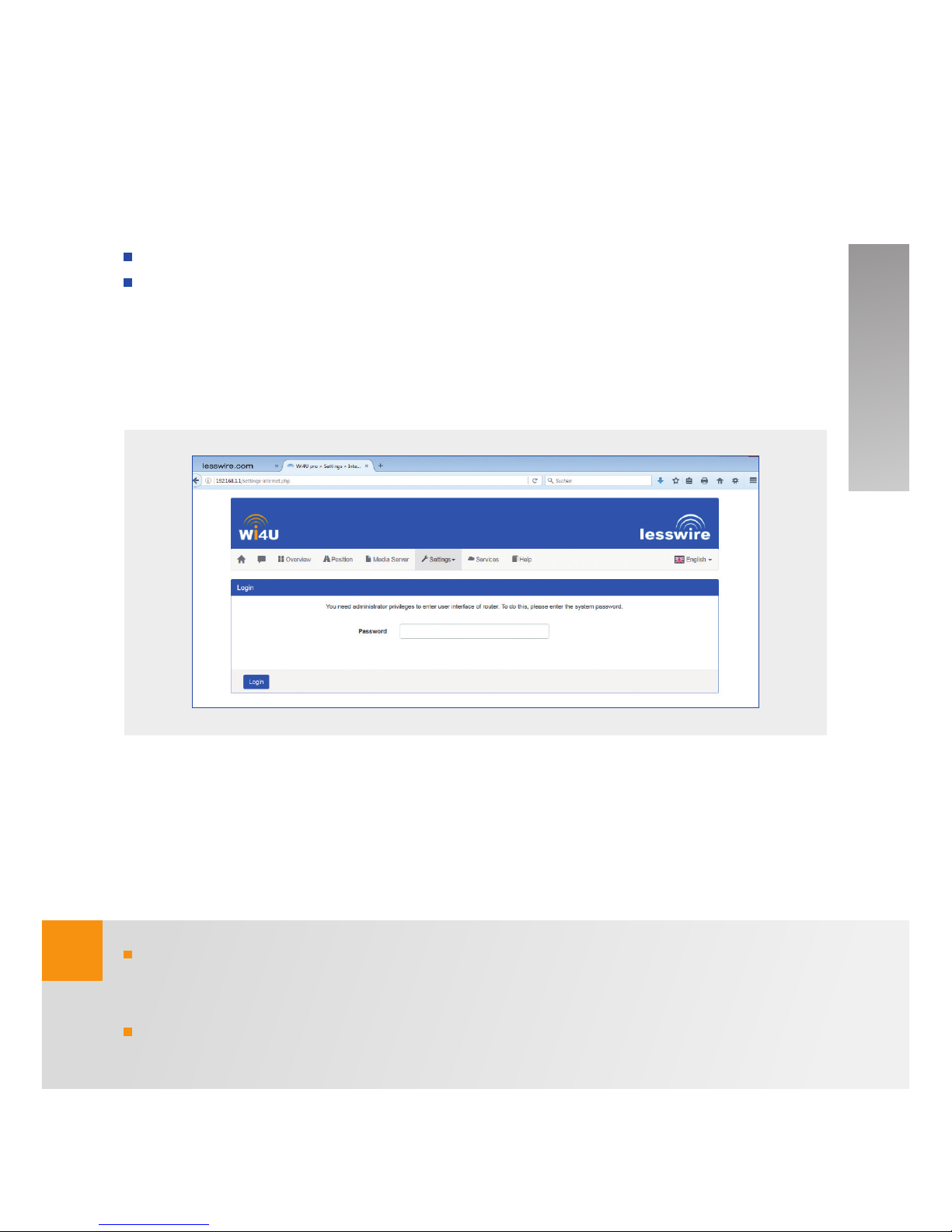
Settings
The Settings menu can be used to configure the Wi4U LTE router, its WLAN and mobile
Internet connections.
Establish a WLAN connection between your end device and the router.
Start the Internet browser on your end device and enter the following address
http://router.wi4u.
The Settings menu is password protected. You will be prompted to enter a password.
The default password is admin.
Language
You can change the desired language for the user interface in the top right in the status
line outside of the settings menu.
The default password should be changed to your own individual password for security
reasons. You can change the password under the menu item “Settings / System”.
After a certain period of inactivity, the settings menu will close automatically for security
reasons. You will then have to re-enter the password.
!
33
Wi4U | Quick Start Guide
english
Page 34

!
34
It is possible to not only block the settings pages but also all of the pages for the
device’s web server. Under the menu item “Settings / System” you can set the level of
security.
You will find further explanations in the help section.
Page 35

!
35
Important information
Before you start using the device, read the Quick Start Guide (also available under
www.lesswire.com) through carefully and familiarise yourself with the device. Store this
guide in the vehicle in case you have any questions that may arise later.
Any change or modification to the Wi4U LTE router, which was not explicitly approved
by an authorised certification body as conforming to the regulatory requirements, may
terminate the operating license for the device.
Intended use
The Wi4U LTE router has been designed for operation in vehicles with a 12V or 24V
on-board voltage supply.
CE approval
The Wi4U LTE router has been tested in accordance with the regulatory requirements of
the European Union (EU) according to the R&TTE Directive (1999/5/EC) and complies
with all CE marking requirements.
E-Mark approval
The Wi4U LTE router (CCU3) is certified in accordance with the regulatory requirements
of the European Union (EU) according to the EMC Directive 72/245/EEC and amendment
2009/19/EC, as well as the standard ECE R10 324 Rev. 3 for use in vehicles and complies with all E-marking requirements.
Railway standard
The Wi4U city is certified in accordance with the railway standards EN50121-3-2:2006
and EN50155:2007.
You can find the declaration of conformity for the Wi4U pro and Wi4U city under
the following link on our website: http://www.lesswire.com/en/products/connected-car-
systems/connected-car/wi4u-pro-lte-wlan-router/overview/
Wi4U | Quick Start Guide
english
Page 36

!
!
!
36
Safety guidelines
The Wi4U LTE router transmits radio signals during normal operation that could
interfere with other radio-based devices. Therefore, it should be operated in accord-
ance with the information provided in this guide. The manufacturer provides no guarantee
that this device will not cause interference to other devices.
Do not operate the Wi4U LTE router in any area where medical equipment, lifesaving devices or other devices are used which are sensitive to interference
from radio signals.
Operation in the vehicle
The driver or person operating the vehicle should not operate the Wi4U LTE
router while driving. Operation of the Wi4U LTE router will divert the attention of the
driver from traffic ahead and affect their control of the vehicle. In some countries, the use
of such communication devices while operating a motor vehicle is prohibited. Please
observe the country-specific conditions.
The mobile network antennas should not be located near to another antenna. The
mobile network antenna should have a minimum clearance of 2 cm from metal objects
and 20 cm from the human body. The correct position of the antenna in the vehicle has a
significant influence on the quality of the connection.
The existence of an Internet connection is dependent on the use of a mobile tariff with
an integrated data option. The transmission speed depends on the infrastructure provided by the network operator, the current signal strength and the number of users in a
radio cell. The Wi4U LTE router does not have a SIM lock and can therefore be used with
any SIM card with a data tariff.
Page 37

Technical data
System
Mobile Network
WLAN
Antenna
Power supply
Temperature
Certification
Article number
Processor
Processor frequency
Operating system
Internal memory
External memory
Ethernet
Dual SIM
Dimensions
Weight
Standards
Frequency
Data rate
Standards
Encryption
Data rate
Clients
LTE / UMTS
GPS
WLAN
Voltage range
Connection
Operating
Storage
CE, E1, RoHS
EN50121-3-2:2006
(Wi4U city)
EN50155:2007
(Wi4U city)
AN00K01395 (Wi4U pro)
AN00K07908 (Wi4U city)
Freescale i.MX6 Solo Cortex™-A9
1 GHz / 3.000 DMIPS
Linux
128 MB (DDR3), 256 MB (Nand Flash)
USB2.0 via HSD connector + USB-A connector
100 Mbit/sec via HSD connector
2 × SIM card slots
147 × 104 (119 incl. connector) × 24 mm
200 g
4G - LTE
3G - UMTS: HSPA+/EV-DO
2G - GSM: EDGE/GPRS/GSM
LTE (cat 3, 100/50 Mbps):
800/900/1800/2100/2600 (EMEA/APAC)
HSPA+: 850/900/2100
GSM/GPRS/EDGE: 850/900/1800/1900
100/50 Mbit/sec
IEEE 802.11 b/g/n
WEP, WPA (TKIP, AES), WPA2 (CCMP, AES)
up to 300 Mbit/sec
up to 50 WLAN clients
2 × Fakra D Bordeaux for LTE MIMO
Fakra C blue
Internal antenna
(Wi4U pro)
2 x Fakra I beige for external antennas (Wi4U city)
12VDC / 24VDC
32 PIN NanoMQS
-40°C to +80°C
-40°C to +105°C
© lesswire GmbH 2016. Technische Änderungen vorbehalten.
37
Wi4U | Quick Start Guide
english
Page 38

38
Page 39

39
Page 40

lesswire GmbH
Germany
www.lesswire.com
 Loading...