

Page 1

Infotainment system
179
User Manual
4G Wi-Fi router
Model CCU5
Wi-Fi router
(when
fitted)
Fig. 77 Wi-Fi router location
Dependant upon specification,
router.
The router can be used to set up a rolling Wi-Fi hotspot, to which
up to eight Wi-Fi devices can be connected simultaneously.
The router is located in the luggage compartment, on top of the
electrical system battery
refer to the heading ‘Battery information’ on page 340.
Note
For further information regarding
user guides, please visit or support page.
the car can be fitted with a 4G Wi-Fi
(see
Fig. 77). For further information,
the
Wi-Fi router, compatibility
and
Page 2

Infotainment
system
180
Important
•
The
SIM
card reader located in the router is for
it is
not
part of
the mobile telephone
•
The transmission speed depends on factors such as: the infrastructure
of the network operator; the current signal strength
of
users
in a
radio
cell.
•
The router does not have
card
that has a data tar
Caution
• Please be
precautions regarding
protection
the Internet
•
Although the 4G router
that
aware
against loss of
via
the user follows
the ro
a SIM
iff.
that it is the
data
data
uter.
has an
the above
system.
lock
and can be
responsibility
protection, anti-virus protection
on mobile devices, when connected to
integrated firewall, it is recommended
advice.
the Wi-Fi router
and
the
used with
of the user
only:
number
any
SIM
to
take
and
Setting up a Wi-Fi hotspot
A data connection must be established before the Wi-Fi
hotspot function can be used. This requires a data SIM
card to be inserted into the router. An unlimited data
contract is recommended.
To start up the router, proceed as follows:
1. Insert the SIM card into the SIM card slot
The SIM card should be inserted with the ‘chip’ facing
downwards and the ‘cut-off ’ corner pointing towards the left.
2. Switch on the ignition. The router will power up, as indicated
by the WLAN and Power LEDs illuminating
& 3).
Important
•
The router takes approximately thirty seconds to start
•
After the router
card will switch the router off. To switch the router
card will need to
so that the
present.
activation using
has
been set
be
router remains permanently
For
further
a SIM
up and
re-inserted.
information, refer to
card’ on
It is
page
switched on, removing the
possible to disable this
182.
(see
(see
on,
even
the heading
Fig. 80,
Fig. 80,
back
if no SIM card is
up.
on, the
item 4).
items 2
SIM
SIM
feature
‘WLAN
Page 3

Infotainment system
181
Connecting to the Wi-Fi router
Prod. No.:
Prod. Date: DD.MM.YYYY
HW/SW Ver.:VV/VVVVV
Fig. 78 Customer Wi-Fi password card example
1111 2222 3333 4444
System password: admin
WLAN SSID: xyyz 12345
WLAN MAC: 00:06:C6:AA:YY:YY
CCZZBBBXXXXX
B1157
This will open the router configuration page. The first time it
is opened, a window will appear.
2. On the 4G router:
From the list displayed, select the desired Service Provider.
The router home page will show the configuration menus
available.
The mobile device is now connected to the internet.
To verify that the connection is working correctly, open up a new
browser page and enter a website address, for example:
www.lesswire.com
Depending on the SIM card used, a PIN may be requested. In this
case, input the PIN and click Save.
To connect to the WLAN (Wireless Local Area network) using a
mobile device, proceed as follows:
1. Switch on the mobile device and open the WLAN application.
2. From the available list, choose the connection with the SSID
shown on the supplied Customer Wi-Fi Password card.
3. Enter the password (adjacent to the key symbol on the
Customer Wi-Fi password card), and click OK.
The router’s WLAN LED will become solid when a connection
to the router is established.
Connecting the Wi-Fi router to the internet
To connect the router to the internet, proceed as follows:
1. Open the web browser on the mobile device and input the
following address: http://192.168.1.1
The PIN will be stored. This is followed by a window showing the
Service Provider details. Click on the Apply button. The settings
will be saved and the router software home page will be displayed.
Important
•
For
ease of use, it is
changed
to a strong, memorable password at the earliest opportun
• If the
•
Service Provider
APN (Access Point
settings required, directly from
manually. This and
configuration of the router by accessing the
home
page and
To
change the language of the
icon
(at
the bottom right-hand side of the
recommended
is
not recognised
Name)
settings,
the
other
settings changes can be made
using the password:
router software
that the default
by the
router, request
and, if
necessary,
Service Provider
Settings
admin
pages,
the 4G router),
password
any
fur
and
enter
to
tab on the ro
click
the fl
ity.
the
ther
them
the
uter
ag
is
Page 4

Infotainment
system
182
and
select the desired
• Roaming is
flag
deactivated
from the available country
by default.
flags.
WLAN activation using a SIM card
By default, the WLAN is only active when a SIM card is inserted
into the router.
To change this setting, proceed as follows:
1. From the router configuration Settings page, select the
WLAN tab.
2. If Disabled is highlighted and the changes are saved, the WLAN
will operate without the SIM card inserted.
Note
The WLAN allows connection to other devices on the LAN (Local Area
Network), but not the internet. A
for internet
connection.
SIM
card with
a data plan is required
Page 5
Infotainment system
183
LED Colour LED
state Description
Not
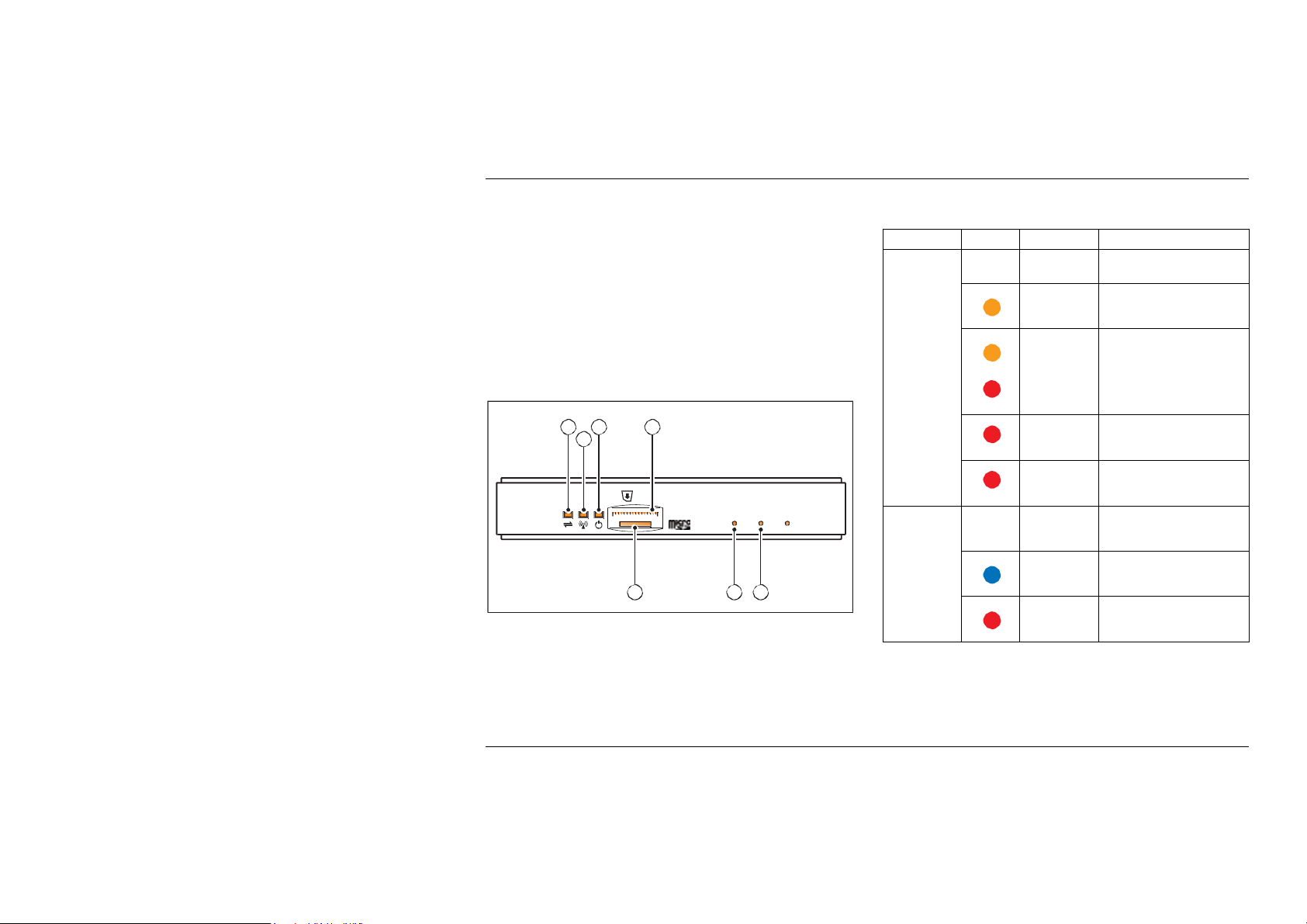
Wi-Fi router front panel
4G router
1 Internet/4G LED
2 WLAN LED
3 Power LED
4 SIM card slot
5 Firmware reset button
6 Reset button (restart)
7 Micro SD card slot
1 3
2
4
SIM
4G Wireless Internet Access
7 6 5
Fig. 80 4G Wi-Fi router front panel display
LED status display
N/A
illuminated
Slow flash
No internet connection
Establishing connection
to Service Provider
Internet/4G
Flashing
alternately
Quick flash SIM card not recognised
Solid
Slow flash
WLAN
Solid
Solid
No connection to Service
Provider
System fault
WLAN data transfer - no
device(s) connected
WLAN data transfer device(s) connected
System fault
Page 6
Infotainment
system
184
.
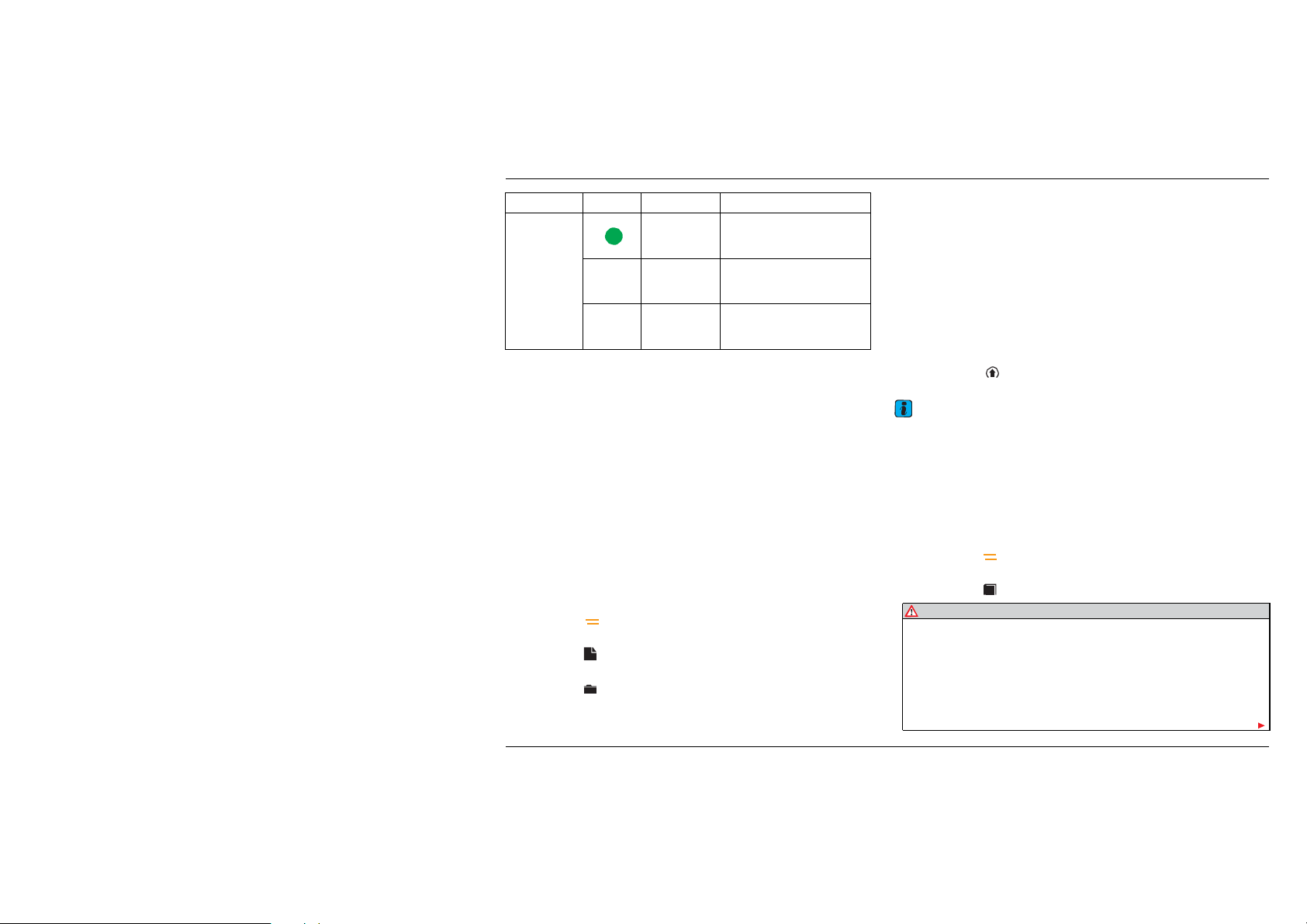
LED Colour LED state
Des
cription
Slow flash System starting up
Power
External storage
The 4G router enables a microSD card to be used to store data
which can be accessed by devices which are connected to the
router.
In order to use this feature, a suitable microSD card must be
present in the router. Insert the microSD card into the slot on the
front of the router,
facing upwards and the ‘notch’ pointing towards the left-hand side
of the router.
To access content on the external storage device, proceed as
follows:
1. Using a device that is connected to the Wi-Fi network, open
a web browser and input one of the following addresses:
http://192.168.1.1
2. Press the button at the top right-hand side of the screen.
A pop-up window will appear.
3. Press the External Storage button. A folder representing
the inserted microSD card will be displayed.
4. Press the button to access the microSD card. Any content
that is stored on the microSD card will be displayed on screen.
Solid
Solid
(see Fig.
80,
System ready for use
System fault
item
7), with the metal ‘contacts’
Click on the desired content to open or download it, depending
on the type of file selected.
To add content to the external storage device, proceed as follows:
1. Follow steps 1 to 4 as described in ‘External storage’ on
page 184.
2. Press the Select file ... button. In the pop-up window that
opens, navigate to the location of the file to be uploaded.
3. Select the file to be uploaded and press Open. If you wish to
select a different file, press the Change file ... button and
select the desired file.
4. Press the Upload button to save the file to the chosen
location.
Note
•
A microSD card
•
The microSD card must
Help menu
of up
to
64
be
(4G router only)
GB capacity
can be used.
formatted to the FAT32
file
system.
The 4G router has a help page, containing information about the
various menu options available for the router.
To access the help menu, proceed as follows:
1. Press the button at the top right-hand side of the screen.
A pop-up window will appear.
2. Press the Help button.
WARNING
While the vehicle is moving, Wi-Fi devices should only be
operated by occupants in the rear cabin or passenger seat: never
by the driver.
In some countries, the use of such communication devices while
operating a motor vehicle is prohibited. Please observe the
country-specific conditions.
Page 7

Infotainment system
185
WARNING (continued)
Laptop computers and similar devices can only be operated safely
when the vehicle is stationary. Always make sure that such devices
are securely stowed while the vehicle is moving.
Wi-Fi devices should not be used in the area around the front
passenger air bag while the vehicle is being driven. Please also
observe the safety warnings in the Safety first chapter. For further
information, refer to the heading ‘Front air bag warnings’ on page
149.
Do not operate the Wi-Fi router in any area where medical
equipment, life-saving devices or other devices are used which
are sensitive to interference from radio signals.
 Loading...