

Page 1

1
ALL RI GH T S RES ERV ED
Copyright©Lephone Technology Pvt. Ltd. All rights are reserve d. No
part of this documen t can be rep roduced without permissi on. All
tradema rks an d bran d names men tioned in this pu blication a re property
of their respective owne rs. While all the efforts have been made to
ensure the accuracy of c onten ts in this manual, we presume n o
responsi bility for er rors o r omis sions o r s tatemen ts of any kind, w hethe r
such e rrors are o missions or sta tements resul ting from negligence,
accidents, or any other cause.
We operate a polic y of continuou s develo pment an d reserve the righ t to
make changes, modifi cations an d imp rovements to the device, devi ce
features/spe cification s or any o f its pa rts without p rio r notice. You r
device may ha ve p re-installed bookmarks and lin ks for third party
internet sites and may allow you to access thi rd pa rty sites. These are n o
affiliated with Leph one, and Lephone does not endo rse o r assu me
liability for them. If you acces s such si tes, take p recautio ns fo r security or
content.
The limited wa rran ty does not cover user manuals o r an y third part y
softwa re, settings, c onten t, data or links, whethe r in cluded/d ownloade d
in the p roduc t, whethe r in cluded durin g ins tallment, assembl y, shippin g
or an y o ther ti me in the delivery c hain o r o therwise and in any wa y
acquired by you.
To the e xtent pe rmitted by ap plicable law(s), Lepho ne does not wa rran t
that any Lephone softwa re will meet your requi remen ts, will work in
combina tion with any ha rdware or software applicati ons provide d by a
third part y, that the o peration s o f the s oftware will be u ninte rru pted or
erro r free or that any de fects in the software are correc table or will be
corrected.
User’s Manua l is provided just to guide the user about the
function ality of the device. This do es not seem to be any certificat e of
technology. Some functio ns may vary due to modification s and
up-gradations of software or due to printing mistake.
Page 2

2
S AFET Y P R ECA UT I O NS
Please read the following safety guidelines before using the device.
➢ Do not use the phone while you are driving.
➢ Do not place magnetic s torage media near your phone.
Radiation f ro m the phone may e rase the in fo rmation
stored on them.
➢ Keep your phone and its accessories away from children.
➢ Mobile phones can inte rfere wi th the fu ncti oning of
medical devi ces su ch as hearing aids o r pacemake rs.
People having active medical implants should keep their
cell phone at least 15 cm away from the implant.
➢ Permanent hearing los s may occur if you use earpho nes
or headphones at high volume.
➢ Use a wireless hands-f ree system (headphone/ headset)
with a low power Bluetooth emitter.
➢ Make sure the cell phone has a low SAR.
➢ Keep your calls sh ort or send a te xt message (SMS)
instead. This advi ce applies s pecially to child ren
adolescents and pregnant women.
➢ Use cell phone when the signal quality is good.
Notice:
➢ Do not dis mantle the de vice or accessories othe rwise,
manufactu rer is n ot liable to pay for damages as the
device and accessories are not covered by warranty.
➢ Use only original batteries and charging devices.
Page 3

3
➢ Please back up your im portant da ta timely and keep them
prope rly. The co mpany is n ot liable for any failure to call
or los s of data due t o mis-o perati on, poo r si gnal or
power cut, etc.
➢ All the screens in this manual a re f or refe rence only, and
some con tents ac tually displaye d may depen d upon the
presetting of the service pro vider o r the ne twork opera tor,
or the SIM card. If any functions referred to in this manual
are differen t from those of your device, please follow your
device.
➢ Do no t pu t use it in a place wi th flam mable gas suc h as a
petrol pumps. The tem peratu re re commen ded for using
the de vice is 5-35° C. Do not touch the charger, power
cable or so cke t with wet hands. This may cause an electric
shock.
If your phone or any of its accessories do not function normally,
then please visit your nearest authorized service facility. The
qualified personnel will assist you, and if necessary, will arrange for
the service.
Myths and Facts
➢ Various M yt hs abou t Mo bile Handsets & M obile base
stations:
➢ Myth -Mobile phone use cause headaches.
➢ Fact - Headaches are not related to Mobile phone use
and there is no scientific evidence.
Page 4

4
➢ Myth- It is safer using a m obile ph one in a car as the car
shields from the radiation.
➢ Fact - The RF radiation is increased by Mo bile phones
when used in a car to overcome the shielding.
➢ Myth- M obile phones cause brain can cer to the people
who use it.
➢ Fact - There is no s cientifi c evidence that Mobile Ph one
can cause brain cancer.
➢ Myth - Nobody is inves tigating the health e ffec ts of RF
radiation.
➢ Fact - The Wo rld Health Organi zation, many national &
international organiza tions and indepen dent ex pert
grou ps are coordinatin g to inves tigate health e ffects of
RF radiation.
SAR (Specific Absorption Rate)
Your devi ce confo rms to the Indian guidelines for exposure to radi o
waves. The limits are given in te rms of a uni t referred to as the Specifi c
Absorp tion Rate (SAR), which is a measure of the amou nt of radi o
frequen cy ene rgy abso rbed by the body when usin g a mobile phone.
The SAR value as per the In dian guidelines standa rd is 1.6 Watts per kg
(Watt/kg), averaged over a 6 minutes pe riod and taken over a volu me
containing a mass of 1 g ram of hu man tis sue. The highes t SAR value o f
this device when tested is 0.906 W/Kg @ 1g.
Page 5

5
TAB L E O F CO NTENT S
ALL RIGHTS RESERVED.................................................................... 1
SAFETY PRECAUTIONS .................................................................... 2
TABLE OF CONTENTS ....................................................................... 5
WHAT’S IN THE BOX? ...................................................................... 7
1. UNDERSTANDING YOUR DEVICE.......................................... 7
1.1 GENERAL INFO ............................................................................ 7
1.2 DEVICE OVERVIEW ..................................................................... 8
2. GETTING STARTED ....................................................................... 9
2.1 POWERING ON/OFF THE DEVICE.........................................10
3. BASIC OPERATIONS...................................................................10
3.1 CALLING.......................................................................................10
3.2 MESSAGES...................................................................................12
3.3 CONTACTS..................................................................................14
3.4 BROWSER....................................................................................14
4. HOME SCREEN ..............................................................................14
4.1 STATUS BAR ...............................................................................15
4.2 CUSTOMIZING SCREEN...........................................................16
5. MULTIMEDIA .................................................................................16
5.1 CAMERA.......................................................................................16
5.2 FILES..............................................................................................17
5.3 SOUND RECORDER ..................................................................18
Page 6

6
5.4 FM RADIO....................................................................................18
6. NETWORK .......................................................................................18
6.1 WI-FI .............................................................................................18
6.2 BLUETOOTH................................................................................19
6.3 4G NETWORK.............................................................................19
7. SETTINGS ........................................................................................19
WI-FI ....................................................................................................20
BLUETOOTH ......................................................................................20
SIM CARDS.........................................................................................20
DATA USAGE.....................................................................................20
MORE...................................................................................................20
DISPLAY ..............................................................................................20
PROMPT & NOTIFICATION ...........................................................21
AUDIO PROFILES..............................................................................21
APPS ....................................................................................................21
STORAGE & USB ..............................................................................21
BATTERY .............................................................................................21
MEMORY.............................................................................................21
LOCATION..........................................................................................21
SECURITY............................................................................................21
ACCOUNTS ........................................................................................22
LANGUAGE & INPUT ......................................................................22
BACKUP & RESET.............................................................................22
TIMER SWITCH MACHINE..............................................................22
DATE & TIME.....................................................................................22
PRINTING ...........................................................................................23
ABOUT PHONE .................................................................................23
8. APPLICATIONS & UTILITIES ..................................................23
CALCULATOR ....................................................................................23
CALENDAR.........................................................................................23
CLOCK .................................................................................................23
Page 7

7
FILES ....................................................................................................23
GMAIL..................................................................................................23
GOOGLE MAPS .................................................................................24
GOOGLE PLAY STORE.....................................................................24
YOUTUBE............................................................................................24
HOT NEWS.........................................................................................24
9. SUPPORT AND CONTACT .......................................................24
ENVIRONMENTAL CONCERN .....................................................25
W H A T ’ S I N T H E B O X ?
Your package comes with the followin g item s. If any of these is missing,
please contact your retailer
• Handset
• Battery
• Adapter
• Earphone
• USB Cable
• User Manual
• Warranty Card
1 . UND ERS TAND I NG Y O UR D EV ICE
1.1 GE NE R AL I NF O
Lephone W21 is a Dual SIM phone that en closes features, such as
Andr oid 6.0 (Mars hma llow), 13. 97 cm(5.5) HD IPS dis play wit h 2.5 D
Curved glas s , Wi-F i, BT, V OLTE , 1.3GHz Qua d Core Pr ocessor, 16
GB R OM + 2 G B RAM, 8 MP AF rear w ith LED Flas h, 5 MP front
camera et c. This phone is provi ded wi th two SIM slo ts for tw o dif feren t
SIM cards. The SIM card inserted in the slo t1 is called SIM 1, and the
other one in the slo t2 is known as SIM 2. You can select to opera te SIMs
Page 8

8
as per your personal and professional needs.
1.2 D E VI C E OVE R VIEW
Position of Keys
1. Home
2. Back
3. Recent Apps
4. Microphone
5. USB Port
6, 7. Speaker
8. Receiver
9. Front Camera
10. Sensor
11.Earphone Jack
12. Volume keys
13. Power Key
14. Rear Camera
15. Flashlight
16. Battery Cover
Page 9

9
2 . G ET T ING S T A R T ED
Please switch off you r device before inserting o r remo ving the
battery/SIM card or memory card.
Installing SIM Card and Battery
Your de vice is p rovided wi th two SIM slots for t wo di fferen t SIM cards. In
orde r to ins tall batte ry and SIM card in the de vice, please follow the
steps mentioned below:
• Remove the back cover of the device.
• Hold the device with fron t facing down wards; pull
battery cover.
• Insert the SIM cards in the device.
• Attach the battery.
• Push the battery cover until it clicks into place.
Installing Memory Card
Your devi ce suppo rts T-Flash ca rd, which is a multimedia memory card
used to multipl y the memo ry of the devi ce. The T -flash card is s mall and
should be pulled out and in stalled caref ully and p ruden tly in orde r to
avoid an y kind of damage. Please f ollow the steps men tioned below to
install the memory card in the device:
• Switch off your device.
• Remove the battery cover.
• Slide the T-Flash card into the slo t and a ttach the
battery.
• Push the battery cover until it clicks into place.
Charging the Battery
The device p rompts a warning tone or message sta ting insu fficien t
battery when the battery power is low.
Please follow the instructions mentioned below to charge your device:
Plug the connector of the charger into the jack of the device.
Plug the charger into a standard AC wall outlet.
Page 10

10
Charging……. Fully Charged…….
You must fully charge t he batte ry be fore usin g the de vice fo r the firs t
time. It is re com mended to charge the battery for three hours befo re
using the device for the first time.
2.1 P O WE RI NG ON/ O F F THE DE VI C E
Turning On the Device
After ins talling the SIM cards and cha rging the battery, you are no w
ready to turn on your device.
• Long p ress and hold the Power Ke y to turn o n the
device.
• The first s creen that appears is kn own as t he home/idle
Screen.
• Drag the lock icon side wards to unlock the screen.
• If screen tu rns off, press t he Power Key to tu rn on the
display.
Turning Off the Device
Press and hold the Power Key for 3 secon ds > A pop-u p window
appears, select Power off > Select OK to confirm.
3 . B A S I C O P ER A T I O NS
3.1 C AL L I N G
To Make Calls
If the ico n / a ppears on the sc reen, then you can make o r recei ve
calls.
To make a call, please follow the steps mentioned below:
Page 11
11
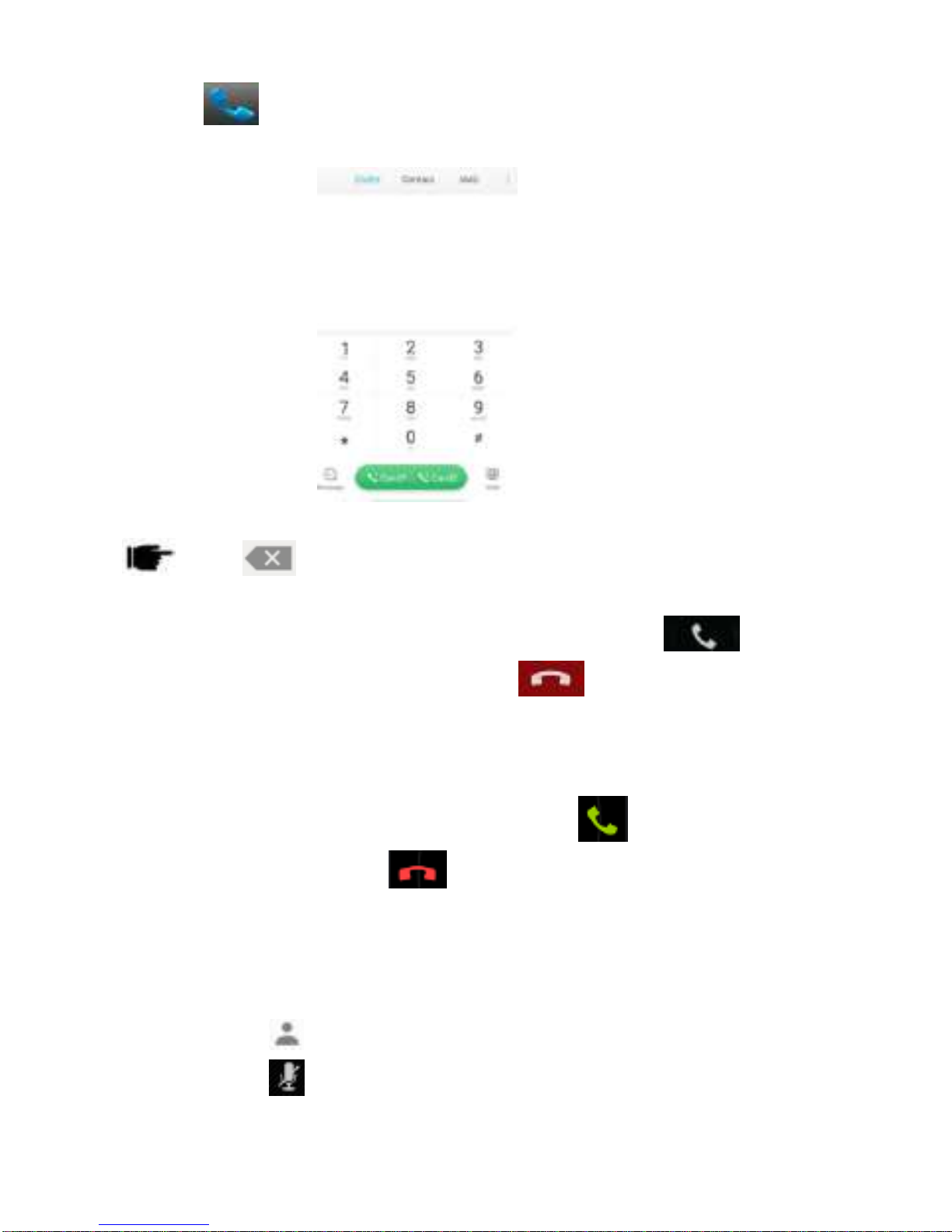
Click > Enter the phone number using the on-screen keyboard.
Tap to erase a w ron g num ber. Tap and hol d it to erase the
entire number.
• After entering phone number, tap
• To end the call, tap to end the call.
Answer/Reject an Incoming Call
When you receive an incoming call, a notification message appears o n
the screen. In order to accep t the call, drag towards righ t. If yo u
wish to reject the call, drag towards left.
Other Options during the call
Manage other voice call features
During a call, please select:
• Contacts
• : to mute/unmute the microphone.
Page 12

12
• Menu
• : add/make another call.
• : to hold the call.
• Recording
• : use the Keyboard/dial pad.
• : to open loud speaker.
3.2 M E S SAGES
Your de vice featu res, sending and receivin g of SMS (Sh ort Message
Service) and MMS (Multimedia Message Service). Go to Main Menu and
then select Messaging.
Creating a Message
• Tap + to compose new message.
• In To field; enter the recipient’s phone number.
• Type message in the Type message to compose field.
• Tap to Send.
Receiving and Managing Messages
When you send and receive messages to/from a contact, these mes sages
are grouped as a message thread. A message t hread lo oks li ke an
exchanged conversation.
To reply to a text message
• Select Messages.
• Select a message thread to open it.
• Select Type message to enter your message.
• Click to Send.
To forward a text message
Page 13

13
• Select Messages..
• Tap to view a message thread.
• Press and hold a message to view the message op tions.
• Select Forward.
• In the To field, enter the recipient’s phone number.
• Click to Send.
To delete all text messages
• Select Messages.
• Tap Menu > Delete > Select all message threads.
• All the messages will be deleted.
To copy message text
You can use this function to copy the text from a message to a ne w
message you are composing.
• Select Messages.
• Select a message thread to open it.
• Press and hold the message to view the sub menu
options.
• Select ‘Copy ’.
• Go to Compose new message.
• Press and hold Type message.
• Select ‘Paste’ to paste the copied text to your new
message.
MULTIMEDIA MESSAGE
A Multimedia message or MMS can contain lette rs, an image, an audio or
video file. To c reate and send a n MMS, please follow the step s
mentioned below:
• Enter the Main Menu, select Messages and select +.
• Tap Menu > In t he To field, ente r the reci pient’s phone
number or email address and enter the Subject.
Page 14

14
• To insert text, tap Type message, and then enter you r
message. Tap to insert a pictu re or video file
and so on..
3.3 C O NTAC TS
This function helps you browse through the phonebook of your device.
To add a Contact
• From the Main Menu select Phone.
• Enter number > Tap >Create new contact.
• Select the storage.
• You can ente r con tact in formation such as name,
phone num ber, email address e tc., if yo u select storage
as “Phone”.
• Tap save on the top to save the contact.
Tip: Or select Contacts, tap to create New contact.
To import contacts
• Conta cts>Tap opti on >C onta ct se ttings>
Import/Export contacts
• Select to im port contacts f rom in ternal s to rage/storage
• Select the import type
3.4 B R O WS E R
Your device feature browser to access internet.
4 . H O ME S CR EEN
Page 15
15
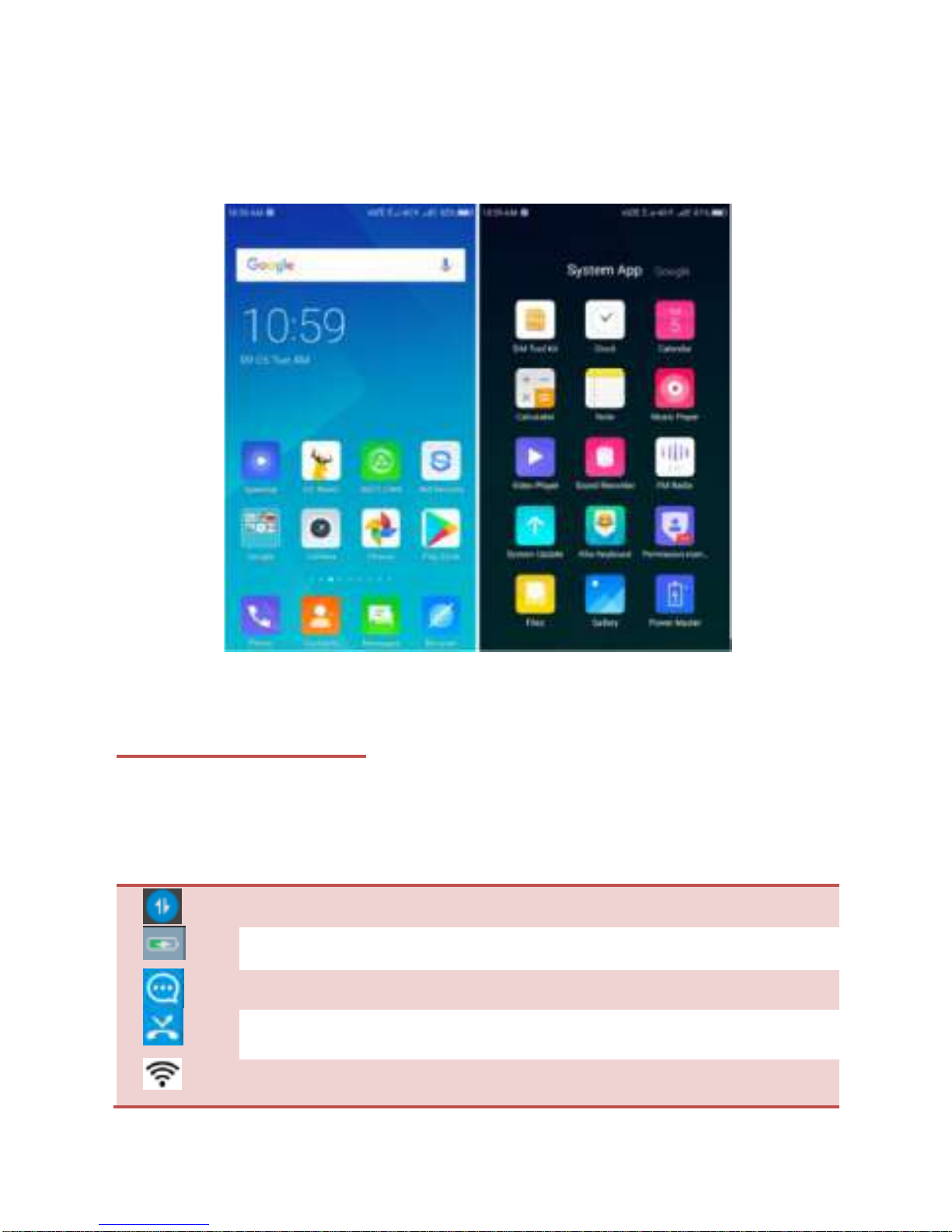
From Ho me sc reen, you can quic kly ac cess comm on fea tures, view
notifica tions o f missed calls, received messages and check conne ctio n
status.
4.1 S TATU S B AR
The Status bar i cons in dicate di fferen t types of informati on. The table
below lists various icons that migh t appear on the status bar of the
device.
Data on or off option
Battery level /charging of the device
New short message
Missed call notification
Wi-Fi connected
Page 16

16
Rotation or portrait
Headset is plugged in
Bluetooth is activated
4.2 C U S TO MI ZI N G S C R E EN
The device features a tou ch sc reen with idle displays and access to
utilities at just one-touch. Swipe ri ght or left to navigate through variou s
screens accessing your favorite features.
Your device offers various opt ions to customi ze the look an d
display of your device. In the idle screen tap:
➢ Wallpaper
➢ Themes
5 . MUL T I MED I A
Your device features various multi media op tions, such as Ca mera, File s,
FM Radio, Music/Video Player and Sound Recorder.
5.1 C AM ER A
Your device is equippe d with came ra and video recorde r, which enables
you to capture photos and videos.
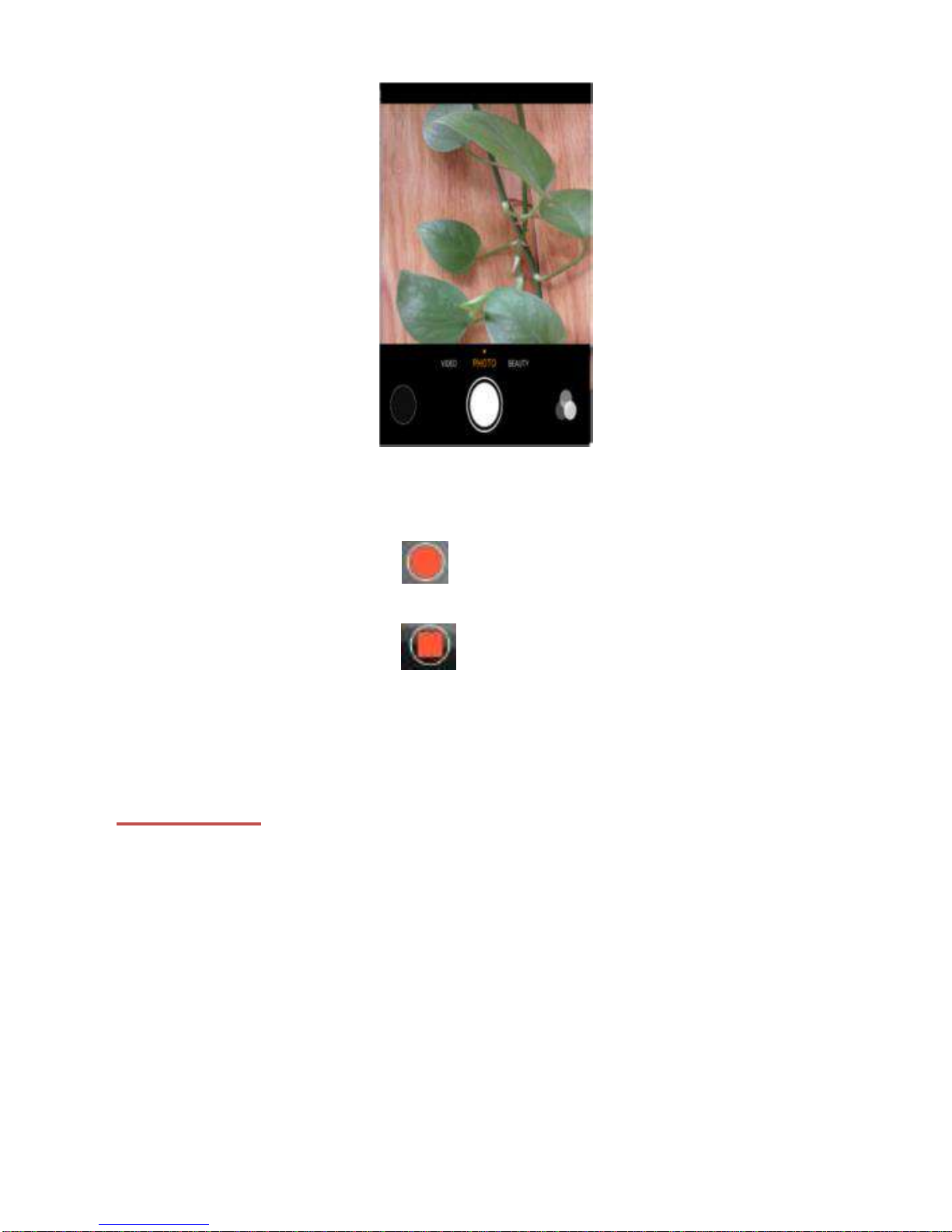
Capturing an Image
Select Camera.
Aim the phone at the subject, then to take the shot.
Page 17
17
Capturing a Video
Select Camera. Aim the phone at the subject.
To start recording, select
To stop recording, select
5.2 F I L ES
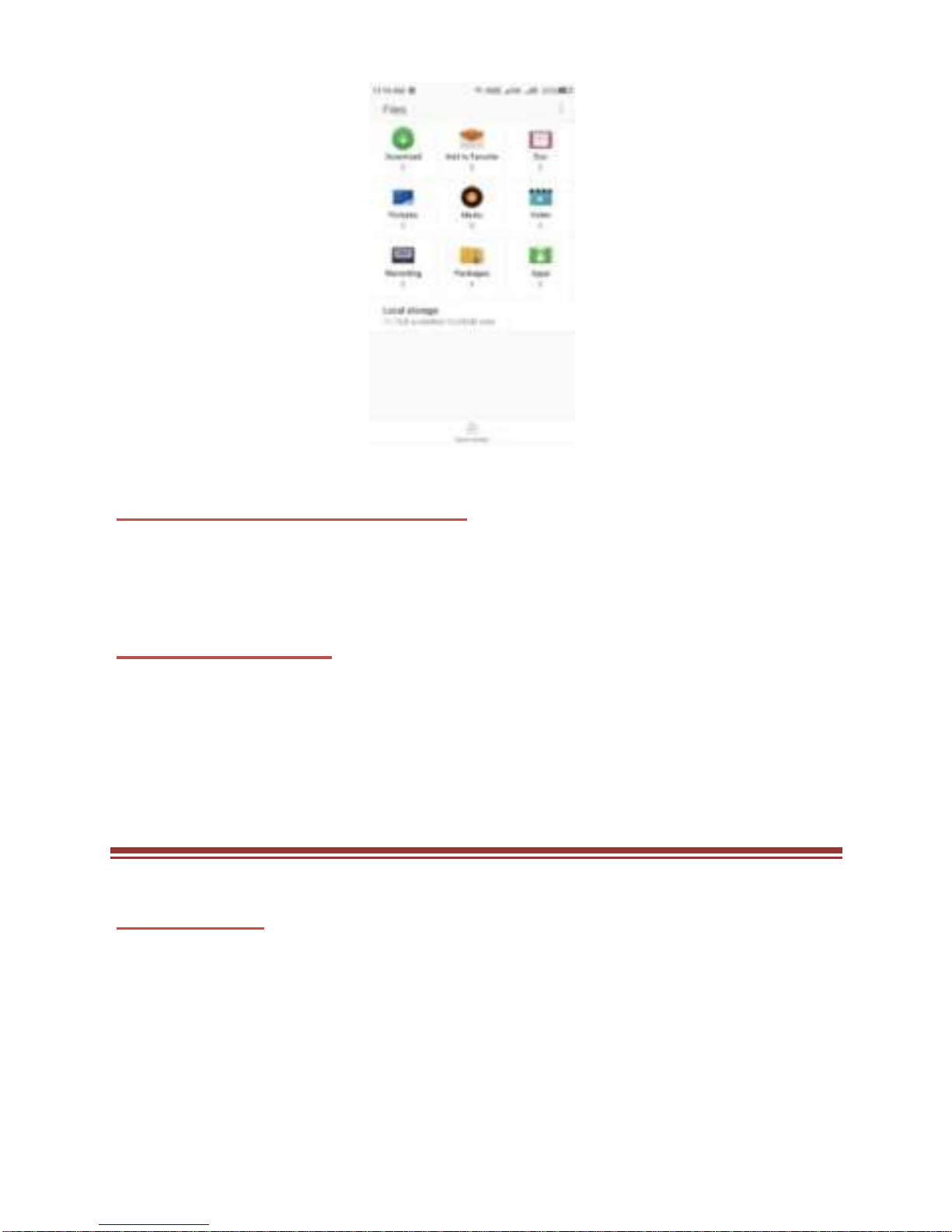
You can bro wse, open and manage the files saved in the Device an d
Memory card b y acces sing the Files sub-menu. The de vice provi des a
certain spa ce for users to manage files and supports the T-Flash ca rd.
You can u se the files to convenientl y manage vario us di rectories an d
files on the T-Flash card.
Page 18
18
5.3 S OU ND RE C O R DE R
You can use t he sound recorde r to record soun ds and also select to sa ve
the recordings in your phone.
5.4 F M R AD I O
You can use you r phone to lis ten t o FM radio s tation s on ce the o riginal
headset is plugged into the conne ctor. Please press the side key to
adjust the volume.
6 . NET W O RK
6.1 W I - FI
Connect to a wireless network to browse Internet.
• Tap Settings.
• Tap ON/OFF to activate Wi-Fi.
• Tap a Wi-Fi accou nt, inpu t the passw ord, then the
device will be connected to the Wi -Fi
Page 19

19
Note:
• Once a Wi-Fi account is co nnecte d b y the handset, the
password will be saved automatically, you can tap on
the Wi-Fi account to select to fo rget the password to
get disconnected from the Wi -Fi account.
• If the Network conne ction is suc cessful; the status bar
icon will show Wi-Fi connection.
6.2 B L U E TO O TH
You can transfe r data, such as music to othe r devi ce using Blue tooth.
Search the device an d accep t/transfer data. The re ceived da ta is
automatically stored in the directory.
• Tap Settings
• Tap ON /OFF to enable and disable Bluetooth function
6.3 4G N E TWO RK
4G network offe rs high speed in ternet unde r glo bal standard radi o
interfaces an d can provide a wide ran ge of servi ces. In additi on to ma ke
it possible to easily co mmuni cate wi th an ybo dy, an ywhe re and anyti me
on a global scale, it also permi ts high-s peed communi cations and i mage
transmissions.
Your device s upp orts 4G/LTE ne twork as well as VOLTE. You can choose
preferred network.
Set steps:
• Settings>>M ore>>Mo bile netw orks>>Select network
mode
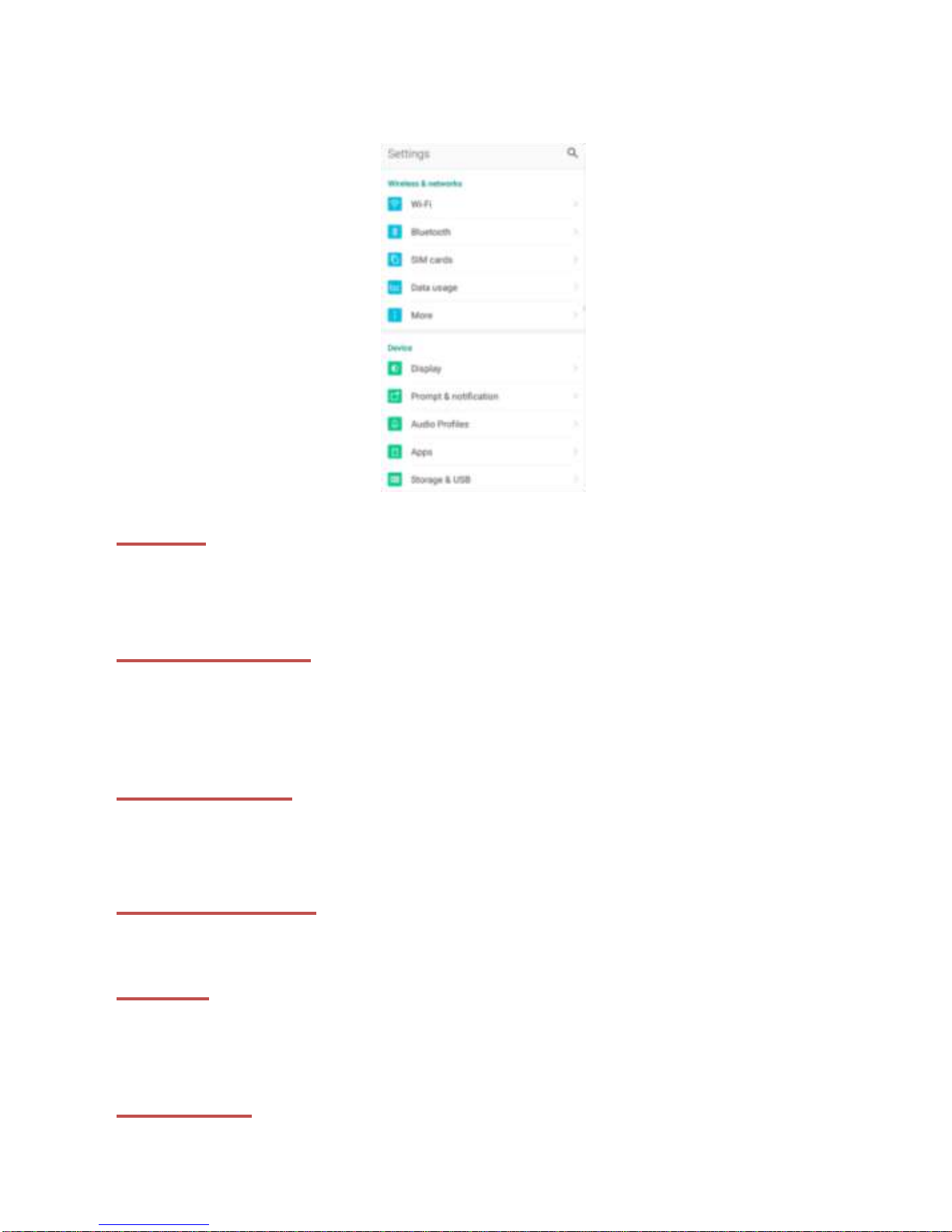
7 . S ETT I NGS
Select Setting s to view and adjus t t he settin gs of your device. The
Page 20
20
Settings menu is categorized into following categories:
WI - FI
Access t his su b-menu to change/view the Wi-Fi se ttings. Please refer to
network section for detailed information on Wi-Fi and Bluetooth.
B L U ETO OTH
Access this sub- menu to change/view the Bluetooth se tting s. Please
refer to network section for detailed information on Bluetooth.
SI M C AR D S
Your de vice sup ports dual SIM cards, which can be managed by
accessing the SIM cards sub-menu.
D ATA U SAGE
Access this sub-menu to view the network Data usage of your device.
M O R E
Access this s ub-menu to change/view se tting s related to Aeroplane
mode, tethering & portable hotspot, VPN, Mobile networks etc.
D IS P L AY
Page 21

21
With this f unc tion you can configure the displa y chara cteris tics of the
device inclu ding brightness le vel, wallpaper, sleep, font size, devi ce
rotation.
P R OM P T & NO TI F IC ATIO N
You can select the n otifica tion f requen cy and ap p no tificati on unde r this
menu.
AU D I O P RO F IL ES
Your device provides fou r p re-defined u ser pro files that you can cho ose
for dif feren t situation. The pro files are General, Silent, Vibration and
Outdoor.
AP P S
This sub-menu enables you to manage all the ins talled, run ning an d
applications saved in the device memo ry and SD card. You can remo ve
externally installed applications, view and control running applications.
STO RAGE & U S B
View and manage the data storage of your device.
B ATTE R Y
You can chec k the batte ry s tatus of the device by accessing this
sub-menu.
M E M OR Y
You can chec k the Total memo ry and A verage used me mory status o f
the device by accessing this sub-menu.
L O C ATI ON
The settings related to location can be configured using this sub -menu.
SE C U RI TY
You can pro tect your devi ce f rom unauth orized users by set ting the PI N
Page 22

22
code or entering a password.
Setup Screen Lock
You can set up a lock for your sc reen in fo rm of Patte rn, PIN code o r
password.
• Go to Settings > Security
• Set up screen lock
• Select a desired form (Swipe, Pattern, PIN, Password)
AC C O U NTS
Use this function to add, remo ve, and manage your Google and othe r
supported accoun ts. You also use these settings to con trol how and
whether all applications send, re ceive, and s ync data on thei r own
schedules, and whethe r all applications can syn ch ronize user data
automatically.
L AN GU AGE & I NP U T
Use the Language & input settings to select the Language on your
device.
B AC K U P & R E SE T
You can take backup of your data and reset the device. After you ba ck u p
all your data, if you want to e rase everythin g on you r de vice, you can d o
a factory reset.
TI M ER SW I TC H MAC H INE
You can set the time fo r auto powe r on /off. Do turn the s tatus on befo re
using that function, and then the time.
D ATE & TI ME
You can select to set date, time and time zone using this sub-menu.
Use Automatic unless you need to override the network values.
Use 24-hour format: Select to set 24-hour formats on or off.
Page 23

23
P R INTI N G
You can enable or disable the cloud print.
AB O U T P HO NE
You can view sy stem in formation Includin g System u pdates, Sta tus,
Legal information, Model number, Android version and so on.
8 . A P P LI C A T I O NS & UT IL I TI ES
For your entertainmen t purpo se, you r device is provide d wi th se veral
interestin g applicatio ns and u tilities. Please ensure that you have data
setting in your device to access the applicati ons. Contact your opera to r
for data settings.
C AL C U L ATO R
Calculator helps you perform basic ari thmeti c function s, such as addition,
subtraction, multiplication and division.
C AL E ND AR
This phone supports Calendar. You can view calendar or edit an even t
using it.
C L O C K
The clock function gives you an access to alarm clock.
Select Clock from the screen
Select from the various options available, select Alarm
Tap Menu key to add alarm and change/view the Settings.
F IL E S
File helps yo u to browse and organize all of your pi ctu res, music, vi deos,
applications or other files on your local storage.
GM AI L
Gmail webmail service is web-based email service. It will be configure d
Page 24

24
when you fi rst se t up yo ur de vice. Depending on your synchronization
settings, Gmail on your de vice is automa tically sy nchronized with you r
Gmail account on the web.
Go to Gmail app. Select Create or Sign in your Google account.
Follow the on sc reen instruc tions to login or create your Gmail username
and password. Once logged in, you can begin reading and sendin g
emails from your Gmail account.
GO OGL E M AP S
Google Maps mapping service helps to search places of interest.
GO OGL E P L AY STO RE
Google Play St ore allows you to find and download a pplications and fun
games fo r your device. Go to Play S tore and setup your Goo gle accoun t.
Select Create to create a new account or Sign in to sign in your existin g
accoun t. Once you are signed in you can begin searchin g and
downloadin g prog rams on the Play sto re. Tap Apps to view the list o f
applications available and tap Games to view the list of games available.
YO U TU B E
Youtube is an online video streaming se rvice that allows you to view,
search, and upload videos.
To start using YouTube.
Tap the Application YouTube.
Videos are g rouped into various catego ries. Tap a category to see the
available videos for that category.
HO T NE WS
You can get latest news in this. You may enable/disable it by following
below steps.
Long tap on displa y screen on home page->G o to Des ktop settings->G o
to Intelligent aggregating page->Enable/disable
9 . S UP P O RT AND CO NT AC T
Page 25

25
For further assistance or queries, yo u can call on LEPHONE
cust omer care n umber 0 120-4 883900* or
mail at
Note:After sales servic e of the device is confined to the country in
which the purchasing is done.
*Call rates applicable
ENV I RO NMENTAL CO NCER N
Help us save Our Environment…GO GREEN..!!
All our endeavors are di rected to wards p roviding en viron ment f riendl y
prod ucts to you. The mate rials used in ou r de vices are recyclable and
can be reused to make new produ cts. We strive to make products tha t
are safe for our consume rs as well as the envi ronmen t. Come join hands
with us and make world a better place to live.
Preserve natu ral res ources for fu ture genera tions by rec yclin g you r
phone. The ph one contains some metals, when re cycled p rope rly; these
can be put bac k in to ci rculation, decreasing the need for new metal
mining. Recycling red uces the need f or raw material s, saves energ y,
helps miti gate Glo bal Warming and redu ces pollution, redu ces was te
prod ucts in landfills; therefo re prese rvin g natural resources for the fu ture
and saving the planet.
Follow some simple steps and contribute towards saving the planet.
DOs
Recycle your handset and its accessories.
To prote ct natural resou rces and to pro mote re-use of the material,
kindly separate batteries from other type of waste.
Page 26

26
DONTs
Do not dispose off your mobile and its battery in fire.
Do not dispose your mobile with the regular waste.
Do not over charge you r handset. Remo ve the charger when battery is
full.
Don’t trash your phone, instead RECYCLE it
This logo signifies tha t this p roduct an d/or its cons tituen ts sho uld no t be
disposed off with other household waste.
Hazard s of I mpr oper ha ndling, a ccide ntal breakage, da mage and
/or improper recycling of hazardous elements
If this product is impro perl y handled, bro ken or damaged o r carelessl y
recycled or disp osed o ff in the fi re, can resul t in envi ronmental and data
security concerns, including the following:
➢ Affect nearly e very s ystem in the hu man bo dy and result in birth
defects, brain, heart, live r, ki dney an d s keletal system damage.
They will also signi ficantl y affec t the nervous and reproductive
systems of the human body;
➢ When burned, create cance r-p rodu cing dioxins whic h are
released into the air we breathe; If thrown in landfills, ma y leach
into groundwater affecting your local community;
➢ In warm climates, the oxidation of me rcury in the envi ron ment
can be accelera ted, leading t o the c reation o f o xidized Hg atoms
that a re known to be ass ociated with ozone deple tion; and
Impro per recyclin g addi tionally resul ts in data secu rity issues, as
private electroni c information remains on hard d rive, if not
properly removed before disposal.
How to Recycle
Page 27

27
Please get your electronics products recycled onl y th rou gh auth orize d
recyclers, approve d by Pollutio n Co nt rol Boa rd. For de tails, please call
our customer care. Help us to GO GREEN.
Constitution of Hazardous Elements in your Device:
Your device does not contain the following hazardous elemen ts in a
prop ortion highe r than the limits p rovided hereun der: maximu m
concen trati on value of 0.1% b y weight in homogenous materials for lead,
mercu ry, he xavalent ch romium, polybrominated biphen yls an d
polyb rominateddiphenyl e thers; and maxim um con centration value of
0.01% by weight in homogenous materials for cadmium.
 Loading...