

Lenovo ThinkPad X60 2510, ThinkPad X60 1708, ThinkPad X60s 1703, ThinkPad X60s 1704, ThinkPad X60s 1705 Install Manual
...Page 1
1
2 3
1
3
4
5
6
6
7
8
9
10
12
7
1
1
2
4
5
6
7
9
8
10
12
3
2
1
11
11
1a
2
1a
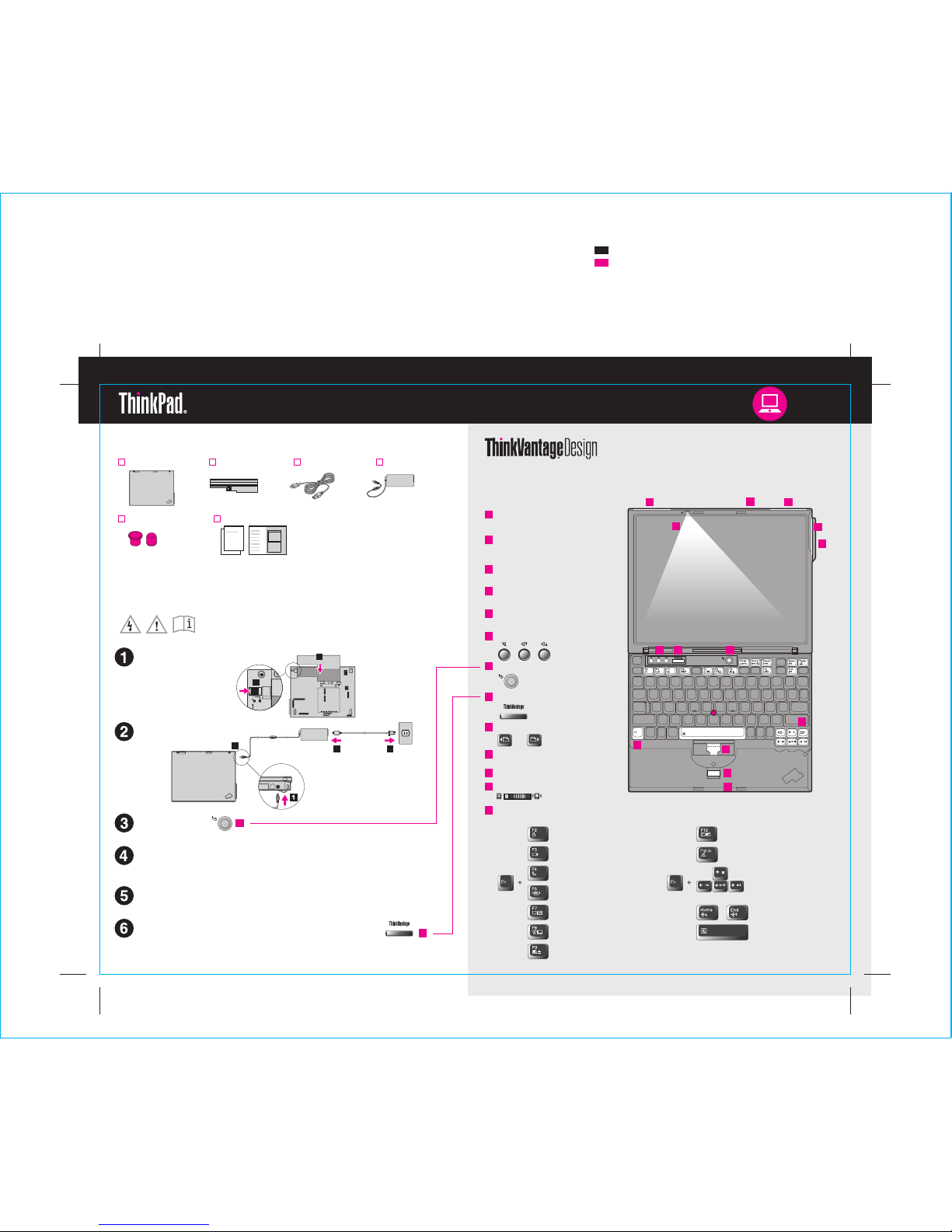
Wireless radio switch
2 TrackPoint(R) caps
ThinkPad(R) computer
Install battery pack:
Your battery is ready to use.
Connect to power:
Turn on the power:
Point and click with TrackPoint(R) Navigation System:
This process takes several minut tiple times.es, and your computer may restart mul
Configure the Operating System following on-screen instructions:
Unpack
Press the TrackPoint cap in the direction you want to move the pointer. The left and right
buttons below the space bar function like mouse buttons.
For more detailed information, press the ThinkVantage(R) button:
P/N: 42T7884
Enter hibernation
ThinkLight on/off
Multimedia controls
Change display brightness
Magnify screen contents
Lock your computer
Manage battery & power
Enter standby
Manage wirelessconnections
Change display settings
Change input device settings
Manage external devices
Fn key
Use in combination with other keys to a resccess special ThinkPad featu
UltraConnect(TM) wireless LAN
antennas (main and auxiliary)
UltraConnect wireless LAN antenna
(third)*
One - handed latch
Wireless WAN antenna*
*Specific models only.
Volume and mute buttons
Power button
ThinkVantage button
Web browser back and forward
Fingerprint reader*
*Specific models only.
TrackPoint center button
Power cord AC adapterBattery pack
Manuals
- Setup Instructions (this sheet)
- Service and Troubleshooting Guide
- Safety and Warranty Guide
- Other supplements or flyers
Initial Setup Instructions
Read the safety notices and important tips in the included manuals
before using your computer.
See reverse for notes about unlist ems and recovery CD.ed, missing,or dam aged it
42T7884
ThinkLight(R) keyboard light
*Specific models only.
X60 models Setup Poster
P/N
8/16/2006
Size : 11x14 inches
Color : 2 color job = Process Black (This plate must be printed in PMS Process Black C)
Process Magenta (This plate must be printed in PMS 032cvc)
Font : IBM Fonts and Helvetica Neue Family
Material : 100 gsm gloss art paper (Use100% recycled paper in only Japan. )
Please change the barcode No.
Please change the country name if the poster is printed in other than China.
Blue line shows die-cut. DO NOT PRINT.
Page 2
Printed in China
For Barcode Position Only
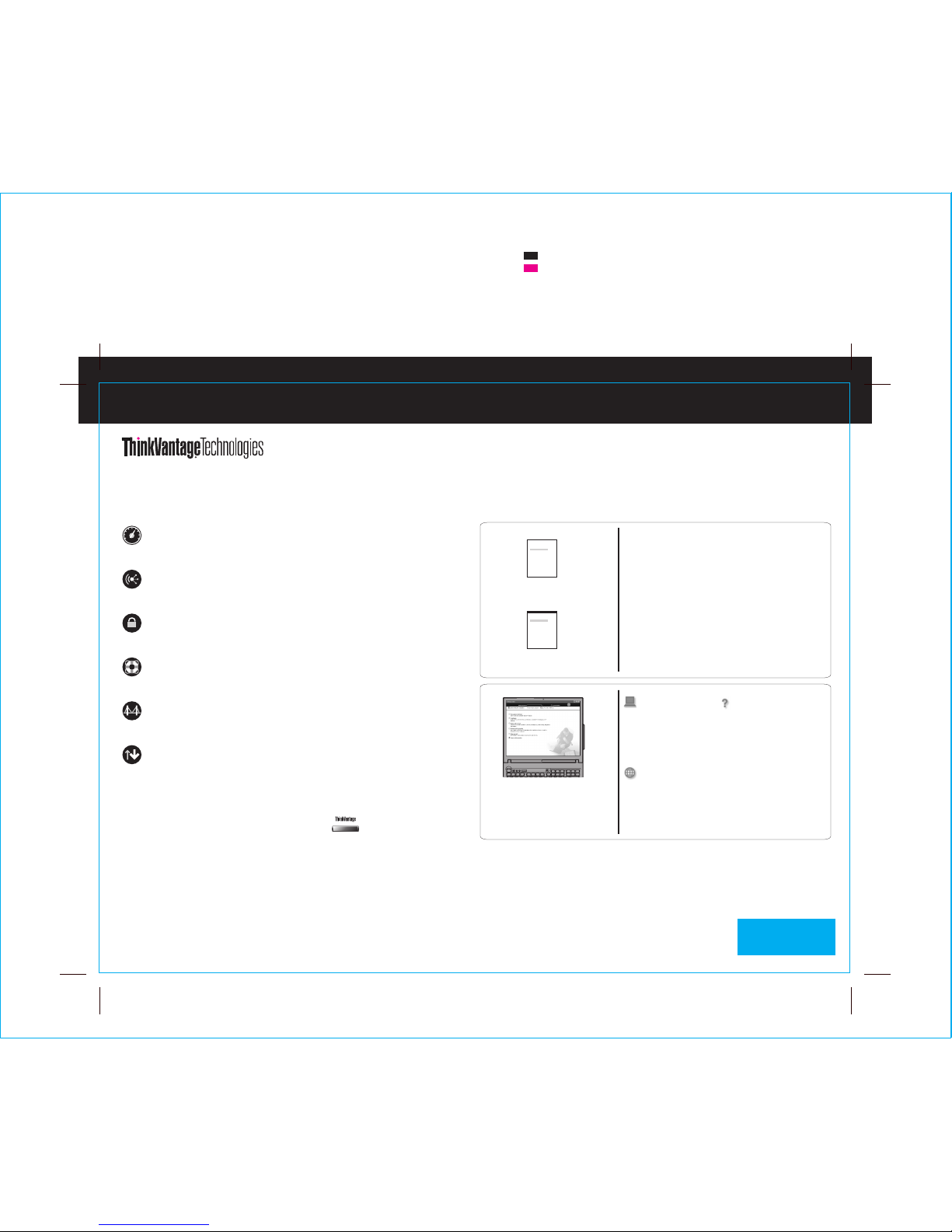
Productivity Center
Access Connections
Client Security Solution
Rescue and Recovery
System Migration Assistant
System Update
Pressing the ThinkVantage button on y uctivity Center.our keyboard opens theThinkVantage Prod
To learn more about ThinkVantage technologies and other items, select a topic in "Help and Support"
from the Productivity Center,and type a word in the keyword search field.
Productivity Center guides you t et up,o a host of information and tools to help you s
understand,maintain, and enhance your ThinkPad computer.
Access Connections allows you to seamlessly switch between wired and wireless
environments while automatically managing security settings, printers,h ome page and
other location-specific settings.
This unique hardware-software com a,bination helps protect your dat including vital
security information like passwords, encryption keys and electronic credentials, while
helping to guard against unauthorized access to data.
Rescue and Recovery t ofincludes a se recovery tools to help you diagno se, get help
and recover from system crashes quickly,even if the primary operating system will not
boot and you are unable to contact your support team.
System Migration Assista nt he cklylps get you up and running by qui and accurately
migrating your data and settings to your new computer.
System Update d ownloads new L d BIOS available for yo ur
ThinkPad computer.
enovo soft ware,drivers a n
ThinkPad is a registered trademark of Lenovo.
All rights reserved.
(C) Copyright Lenovo 2006
* Additional unpacking notes:
1) Some models may contain items that are not listed.
2) If any item is missing or damaged, please contact your place of purchase.
To learn more, press the ThinkVantage button:
Using the included manuals and Help Center (online manual)
To find detailed information a
Troubleshooting Guide or open the Help Center.
bout your ThinkPad computer,see the Safety and Warranty Guide,the
Service and
Help Center
Safety and Warranty Guide
Service and Troubleshooting Guide
Safety and Warranty Guide
Service and Troubleshooting Guide
-Important safety information
-Warranty information
-Introduction to other sources of information
-Important tips for taking care of your computer
-Diagnostics and troubleshooting
-Recovery options
-Help and Service
-Warranty information for your computer
Learn about my
computer
- Use system features
- Configure
- Protect & recover
- Download & update
- Stay current
Get help and support
-View references
-Find support information
-Diagnose a problem
-Download & update
-Ask an expert
Browse other offerings
-Learn how to achieve all day computing
-Innovative ThinkVantage solutions
-Options for your computer
-A community of ThinkPad users
-New looks for your desktop
-Services for your computer
To open the Help Center,
"Help and
support" from the Productivity
Center.
press
the ThinkVantage button and
select a topic in
3) Everything for recovering factory-installed files and applications is on yo ur hard disk eliminating
the need for a recovery CD. For more information, see "Recovery options" in the Service and
Troubleshooting Guide.
42T7884
Size : 11x14 inches
Color : 2 color job = Process Black (This plate must be printed in PMS Process Black C)
Process Magenta (This plate must be printed in PMS 032cvc)
Font : IBM Fonts and Helvetica Neue Family
Material : 100 gsm gloss art paper (Use100% recycled paper in only Japan. )
Please change the barcode No.
Please change the country name if the poster is printed in other than China.
Blue line shows die-cut. DO NOT PRINT.
X60 models Setup Poster
P/N
8/16/2006
 Loading...