

Page 1
PN: SP40A26691
Printed in China
Safety, Warranty, and Setup Guide
Brief user notices
Lenovo B430
http://www.lenovo.com/support
Lenovo® electronic manuals... for a greener planet!
Refer to the electronic User Guide for detailed product information:
http://www.lenovo.com/thinkuserguides
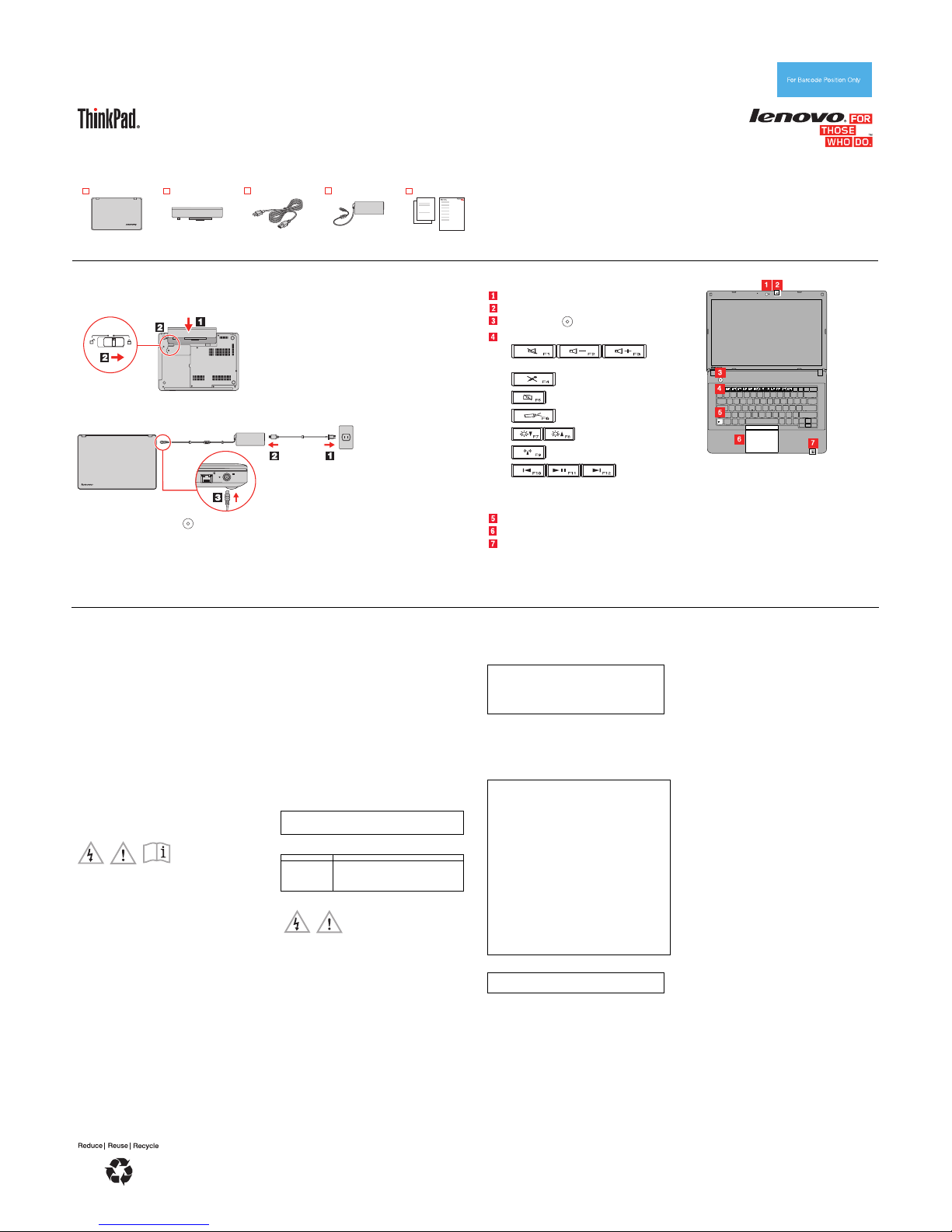
Unpack
Lenovo computer
Battery
Power cord
ac power adapter Publications
Note: Recovery discs are not provided. Instead, everything needed for recovering factory-installed files and
applications is provided in the Lenovo_Recovery partition on your hard disk drive. If you decide to remove
the Lenovo_Recovery partition, be sure to create a recovery disc first. For more information, see “Recovery
overview” in the User Guide. See “Accessing your User Guide” for instructions on opening the electronic
User Guide provided on your computer.
Initial setup instructions
1.
Install the battery pack.
Second Edition (May 2013)
© Copyright Lenovo 2012, 2013.
LIMITED AND RESTRICTED RIGHTS NOTICE: If data or software is delivered pursuant a General Services Administration “GSA” contract, use,
reproduction, or disclosure is subject to restrictions set forth in Contract No. GS-35F-05925.
This system supports only batteries specially designed for this
specific system and manufactured by Lenovo or an authorized
builder. The system does not support unauthorized batteries or
batteries designed for other systems. If an unauthorized battery or
a battery designed for another system is installed, the system will
not charge.
Attention: Lenovo has no responsibility for the performance or
safety of unauthorized batteries, and provides no warranties for
failures or damage arising out of their use.
2. Connect to power. Ensure that all power cord connectors are securely and completely plugged into
receptacles.
3. Press the power button to turn on the computer.
4. Configure the operating system following the on-screen instructions to complete the initial setup. This
process takes several minutes.
Additional information about using your ThinkPad computer is in the User Guide. See “Accessing your User
Guide” later in this document.
Controls and indicators
Camera
Microphone
Power button
Function keys
: Volume
controls
: Microphone mute
: Change camera and audio settings
: Change display settings
: Change display brightness
: Manage wireless connections
: Multimedia
controls
Note: To use the F1 through F12 functions,
press the desired key directly.
Fn key
Touch pad
System status indicator
Attention: Do not force the display open
beyond 135 degrees from the relative
position of the keyboard. Forcing the display
beyond this point can cause damage.
Accessing your User Guide
Your User Guide contains detailed information about your computer.
To access your User Guide, do the following:
Windows
®
8:
From the desktop or the Start screen
1. Move the cursor to the top-right or bottom-right corner of the
screen to display the charms, and then click Search.
2. From the Apps screen, click Lenovo User Guide.
From the Start screen
1. Click Lenovo Support. The Lenovo Support window opens.
2. Click User Guide.
Windows 7:
1. From the Windows desktop, click Start and then click Help and
Support. The Help and Support program opens.
2. Click Lenovo User Guide.
3. In the Lenovo User Guide window, click the link for your model and
the User Guide opens.
Read before using your computer
The following sections provide critical safety and regulatory
information for Lenovo computers and instructions on how to access
electronic versions of the publications developed for your computer.
Read first — regulatory information
Computer models equipped with wireless communications comply
with the radio frequency and safety standards of any country or region
in which it has been approved for wireless use. In addition, if your
product contains a telecom modem, it complies with the requirements
for connection to the telephone network in your country.
Be sure to read the Regulatory Notice for your country or region
before using the wireless devices contained in your computer. To
obtain a PDF version of the Regulatory Notice, refer to the
“Downloading publications” section below.
Downloading publications
Electronic versions of your computer publications are available from
the Lenovo Support Web site. To download the publications for your
computer, go to http://www.lenovo.com/ThinkPadUserGuides and
f
ollow the instructions on the screen.
Downloading drivers
The latest drivers for your computer are available from the Lenovo
Support Web site. To download the latest drivers for your computer,
go to http://www.lenovo.com/drivers and follow the instructions on the
screen.
Service and Support information
The following information describes the technical support that is
available for your product, during the warranty period or throughout
the life of your product. Refer to the Lenovo Limited Warranty for a full
explanation of Lenovo warranty terms. See “Lenovo Limited Warranty
notice” later in this document for details on accessing the full warranty.
If you purchased Lenovo services, refer to the following terms and
conditions for detailed information:
For Lenovo Warranty Service Upgrades or Extensions, go to:
http://support.lenovo.com/lwsu
For Lenov
o Accidental Damage Protection Services, go to:
http://support.lenovo.com/ladps
Online technical support
Online technical support is available during the lifetime of a product at
http://www.lenovo.com/support.
Telephone technical support
You can get help and information from the Customer Support Center
by telephone. Before contacting a Lenovo technical support
representative, have the following information available: model and
serial number, the exact wording of any error message, and a
description of the problem.
Your technical support representative might want to walk you through
the problem while you are at your computer during the call.
Worldwide Lenovo Support telephone list
Important: Telephone numbers are subject to change without notice.
The most up-to-date telephone list for the Customer Support Center is
always available at http://www.lenovo.com/support/phone.
If the telephone number for your country or region is not listed,
contact your Lenovo reseller or Lenovo marketing representative.
Country or region Telephone number
Brazil Calls made from within the Sao Paulo region:
(11) 3889-8986
Calls made from outside the Sao Paulo region:
0800-701-4815
(Brazilian Portuguese)
Safety information
This section contains important safety information for Lenovo
products. Additional safety information is provided in the User Guide
for your product. See “Accessing your User Guide” for additional
information.
Laser compliance statement
CAUTION:
When laser products (such as CD-ROMs, DVD drives, fiber optic
devices, or transmitters) are installed, note the following:
Do not remove the covers. Removing the covers of the laser
product could result in exposure to hazardous laser radiation.
There are no serviceable parts inside the device.
Use of controls or adjustments or performance of procedures
other than those specified herein might result in hazardous
radiation exposure.
DANGER
Some laser products contain an embedded Class 3A or Class
3B laser diode. Note the following:
Laser radiation when open. Do not stare into the beam, do not
view directly with optical instruments, and avoid direct
exposure to the beam.
Plastic bag notice
CAUTION:
Plastic bags can be dangerous. Keep plastic bags away from
babies and children to avoid danger of suffocation.
Rechargeable battery notice (for notebook
computers)
DANGER
Do not attempt to disassemble or modify the battery pack.
Attempting to do so can cause an explosion, or liquid leakage
from the battery pack. A battery pack other than the one
specified by Lenovo, or a disassembled or modified battery pack
is not covered by the warranty.
If the rechargeable battery pack is incorrectly replaced, there is
danger of an explosion. The battery pack contains a small
amount of harmful substances. To avoid possible injury:
Replace only with a battery of the type recommended by
Lenovo.
Keep the battery pack away from fire.
Do not expose it to water or rain.
Do not attempt to disassemble it.
Do not short-circuit it.
Keep it away from children.
Do not drop the battery pack.
Do not put the battery pack in trash that is disposed of in
landfills. When disposing of the battery, comply with local
ordinances or regulations.
The battery pack should be stored at room temperature, charged
to approximately 30 to 50% of capacity. We recommend that the
battery pack be charged about once per year to prevent
overdischarge.
Lithium coin cell battery notice
DANGER
Danger of explosion if battery is incorrectly replaced.
When replacing the lithium coin cell battery, use only the same or an
equivalent type that is recommended by the manufacturer. The
battery contains lithium and can explode if not properly used, handled,
or disposed of.
Do not:
Throw or immerse into water
Heat to more than 100°C (212°F)
Repair or disassemble
Dispose of the battery as required by local ordinances or regulations.
The following statement applies to users in the state of California,
U.S.A.
California Perchlorate Information:
Products containing manganese dioxide lithium coin cell batteries
may contain perchlorate.
Perchlorate Material - special handling may apply, See
www.dtsc.ca.gov/hazardouswaste/perchlorate
Polyvinyl Chloride (PVC) cable and cord notice
WARNING: Handling the cord on this product or cords associated
with accessories sold with this product will expose you to lead, a
chemical known to the State of California to cause cancer, and birth
defects or other reproductive harm. Wash hands after handling.
Using headphones or earphones
CAUTION:
Excessive sound pressure from earphones and headphones can
cause hearing loss. Adjustment of the equalizer to maximum
increases the earphone and headphone output voltage and the
sound pressure level. Therefore, to protect your hearing, adjust
the equalizer to an appropriate level.
Excessive use of headphones or earphones for a long period of time
at high volume can be dangerous if the output of the headphone or
earphone connectors do not comply with specifications of EN 50332-2.
The headphone output connector of your computer complies with EN
50332-2 Sub clause 7. This specification limits the computer’s
maximum wide band true RMS output voltage to 150 mV. To help
protect against hearing loss, ensure that the headphones or
earphones you use also comply with EN 50332-2 (Clause 7 Limits) or
a wide band characteristic voltage of 75 mV. Using headphones that
do not comply with EN 50332-2 can be dangerous due to excessive
sound pressure levels.
If your Lenovo computer came with headphones or earphones in the
package, as a set, the combination of the headphones or earphones
and the computer already complies with the specifications of EN
50332-1. If different headphones or earphones are used, ensure that
they comply with EN 50332-1 (Clause 6.5 Limitation Values). Using
headphones that do not comply with EN 50332-1 can be dangerous
due to excessive sound pressure levels.
Lenovo Limited Warranty notice
This product is covered by the terms of the Lenovo Limited Warranty,
version L505-0010-02 08/2011. Read the Lenovo Limited Warranty
(LLW) at http://www.lenovo.com/warranty/llw_02. You can view the
LLW in a number of languages from this Web site. The LLW also is
displayed on your computer during the initial setup. After the initial
setup has completed, you can view the warranty on your computer by
doing the following:
Windows 8:
From the desktop or the Start screen
1. Move the cursor to the top-right or bottom-right corner of the
screen to display the charms, and then click Search.
2. From the Apps screen, click Warranty Information.
From the Start screen
1. Click Lenovo Support. The Lenovo Support window opens.
2. Click Service & Warranty.
Windows 7:
From the Windows desktop, click Start → All Programs → Lenovo
Device Experience → Lenovo Warranty.
If you cannot view the LLW either from the Web site or from your
computer, contact your local Lenovo office or reseller to obtain a
printed version of the LLW.
Warranty Information
To check the warranty status of your computer, go to
http://www.lenovo.com/support, click Warranty & Services, click
Check Warranty Status, and then follow the instructions on the
screen.
Page 2
Customer Replaceable Units
Customer Replaceable Units (CRUs) are parts that can be upgraded
or replaced by the customer. If a CRU is determined to be defective
during the warranty period, a replacement CRU will be provided to the
customer. Customers are responsible for installing the self-service
CRUs for this product. Customers also can install optional-service
CRUs, which might require some technical skills or tools, or request
that a technician install the optional-service CRU under the terms of
the applicable warranty service type for your country or region. The
following tables list CRUs for your computer and tell where to find the
replacement instructions.
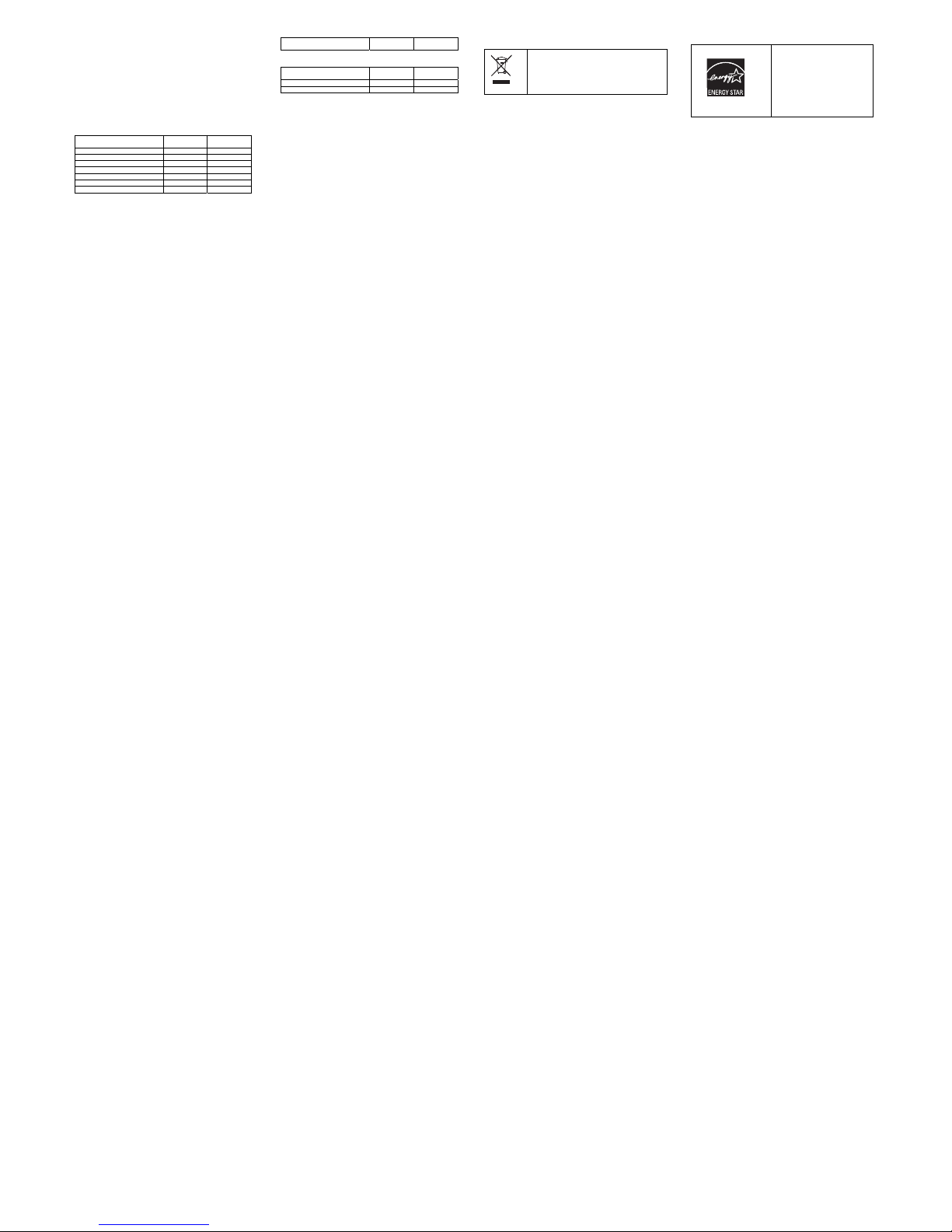
Self-service CRUs
CRU This setup
sheet
User Guide
ac power adapter X X
Power cord for ac power adapter X X
Battery X X
Backup battery X
Memory module X
Optical drive X
Hard disk drive X
PCI Express Mini Card for wireless
LAN
X
Optional-service CRUs
CRU This setup
sheet
User Guide
Keyboard X
Thermal fan X
Note: Your computer might not have PCI Express Mini Card for
wireless WAN, or PCI Express Mini Card for wireless LAN.
CRU installation instructions are in the user guide for the respective
product. See “
Accessing your User Guide” and “Downloading
publications” for additional information.
Recycling and environmental information
Lenovo encourages owners of information technology (IT) equipment
to responsibly recycle their equipment when it is no longer needed.
Lenovo offers a variety of programs and services to assist equipment
owners in recycling their IT products. For information on recycling
Lenovo products, go to:
http://www.lenovo.com/recycling
Important WEEE information
Country-specific information is available at:
http://www.lenovo.com/recycling
Additional recycling statements
Additional information about recycling computer components and
batteries is in your User Guide. See “Accessing your User Guide” for
details.
ENERGY STAR
Select models conform to ENERGY
STAR requirements. Additional
ENERGY STAR information is in
your User Guide. See “Accessing
your User Guide.”
Legal notices
Lenovo, For Those Who Do., and the Lenovo logo are trademarks of
Lenovo in the United States, other countries, or both.
Windows is a trademark of the Microsoft group of companies.
Other company, product, or service names may be trademarks or
service marks of others.
For additional legal notices, refer to the User Guide for your computer.
See "Accessing your User Guide" for additional information.
 Loading...