

Page 1

ThinkCentre
™
Quick Reference
Inside
- Important safety information
- Warranty and other notices
- Computer setup
- Software recovery
- Troubleshooting and diagnostics
- Help and Service
- IBM Lotus software offer
Page 2

Page 3

ThinkCentre
™
Quick Reference
Page 4

Note
Before using this information and the product it supports, be sure to read the
following:
v “Important safety information” on page v
v Appendix B, “IBM Statement of Limited Warranty Z125-4753-08 04/2004,” on
page 35
v Appendix D, “Notices,” on page 63
First Edition (February 2005)
© Copyright International Business Machines Corporation 2005. All rights reserved.
US Government Users Restricted Rights – Use, duplication or disclosure restricted by
GSA ADP Schedule Contract with IBM Corp.
Page 5

Contents
Important safety information . . . . . . . . . . . . . . . .v
Conditions that require immediate action . . . . . . . . . . . . .v
General safety guidelines . . . . . . . . . . . . . . . . . .vi
Additional safety information . . . . . . . . . . . . . . . .ix
Lithium battery notice . . . . . . . . . . . . . . . . . . .x
Modem safety information . . . . . . . . . . . . . . . . .xi
Laser compliance statement . . . . . . . . . . . . . . . . .xi
Additional help . . . . . . . . . . . . . . . . . . . . xiii
Chapter 1. Arranging your workspace . . . . . . . . . . . . .1
Comfort . . . . . . . . . . . . . . . . . . . . . . . .1
Chapter 2. Setting up your computer . . . . . . . . . . . . .3
Turning on power . . . . . . . . . . . . . . . . . . . .7
Finishing the software installation . . . . . . . . . . . . . . .7
Completing important tasks . . . . . . . . . . . . . . . . .7
Updating your operating system . . . . . . . . . . . . . . . .8
Installing other operating systems . . . . . . . . . . . . . . .8
Updating your antivirus software . . . . . . . . . . . . . . .8
Starting the Setup Utility . . . . . . . . . . . . . . . . . .8
Shutting down the computer . . . . . . . . . . . . . . . . .9
Recording your computer information . . . . . . . . . . . . . .9
Chapter 3. Recovering software . . . . . . . . . . . . . . .11
Creating and using product recovery discs . . . . . . . . . . . .11
Backup and recovery . . . . . . . . . . . . . . . . . . .12
Using the rescue and recovery workspace . . . . . . . . . . . .13
Solving recovery problems . . . . . . . . . . . . . . . . .15
Creating and using rescue media . . . . . . . . . . . . . . .16
Creating and using a Recovery Repair diskette . . . . . . . . . .16
Recovering or installing device drivers . . . . . . . . . . . . .17
Setting a rescue device in the startup sequence . . . . . . . . . .18
Chapter 4. Getting information, help, and service . . . . . . . . .19
Getting information . . . . . . . . . . . . . . . . . . .19
Getting help and service . . . . . . . . . . . . . . . . . .19
Purchasing additional services . . . . . . . . . . . . . . . .22
Chapter 5. Troubleshooting and diagnostics . . . . . . . . . .23
Basic troubleshooting . . . . . . . . . . . . . . . . . . .23
LED Diagnostics . . . . . . . . . . . . . . . . . . . . .25
© Copyright IBM Corp. 2005 iii
Page 6

PC Doctor Dos Diagnostics . . . . . . . . . . . . . . . . .25
Error codes . . . . . . . . . . . . . . . . . . . . . .27
POST beep codes . . . . . . . . . . . . . . . . . . . .29
Appendix A. IBM Lotus Software Offer . . . . . . . . . . . .31
Appendix B. IBM Statement of Limited Warranty Z125-4753-08 04/2004 35
Part 1 - General Terms . . . . . . . . . . . . . . . . . . .35
Part 2 - Country-unique Terms . . . . . . . . . . . . . . . .38
Part 3 - Warranty Information . . . . . . . . . . . . . . . .51
Worldwide Telephone List . . . . . . . . . . . . . . . . .56
Guarantee supplement for Mexico . . . . . . . . . . . . . . .58
Appendix C. Customer Replacement Units (CRUs) . . . . . . . .61
Appendix D. Notices . . . . . . . . . . . . . . . . . . .63
Trademarks . . . . . . . . . . . . . . . . . . . . . .64
Electronic emissions notices . . . . . . . . . . . . . . . . .65
Power cord notice . . . . . . . . . . . . . . . . . . . .68
Polyvinyl Chloride (PVC) cable and cord notice . . . . . . . . . .70
iv
Quick Reference
Page 7

Table des matières
Avis aux lecteurs canadiens . . . . . . . . . . . . . . . .v
Consignes de sécurité . . . . . . . . . . . . . . . . . .ix
Conditions nécessitant une intervention immédiate . . . . . . . . .ix
Consignes générales de sécurité . . . . . . . . . . . . . . . .xi
Consignes de sécurité supplémentaires . . . . . . . . . . . . . xiv
Batterie au lithium . . . . . . . . . . . . . . . . . . . .xv
Informations relatives au modem . . . . . . . . . . . . . . .xv
Conformité aux normes relatives aux appareils à laser . . . . . . . . xvi
Aide supplémentaire . . . . . . . . . . . . . . . . . . xvii
Chapitre 1. Organisation de l’espace de travail . . . . . . . . . 71
Confort . . . . . . . . . . . . . . . . . . . . . . . 71
Chapitre 2. Installation de l’ordinateur . . . . . . . . . . . . 73
Mise sous tension . . . . . . . . . . . . . . . . . . . . 77
Fin de l’installation . . . . . . . . . . . . . . . . . . . 77
Tâches importantes à effectuer . . . . . . . . . . . . . . . 77
Mise à jour de votre système d’exploitation . . . . . . . . . . . 78
Installation d’autres systèmes d’exploitation . . . . . . . . . . . 78
Mise à jour de votre logiciel antivirus . . . . . . . . . . . . . 78
Lancement de l’utilitaire de configuration . . . . . . . . . . . . 79
Arrêt de l’ordinateur . . . . . . . . . . . . . . . . . . . 79
Tableau d’informations . . . . . . . . . . . . . . . . . . 79
Chapitre 3. Récupération de logiciels . . . . . . . . . . . . .81
Création et utilisation de disques de récupération Product Recovery . . .81
Sauvegarde et récupération . . . . . . . . . . . . . . . . .83
Utilisation de l’espace de travail Rescue and Recovery . . . . . . . .84
Résolution des incidents de récupération . . . . . . . . . . . .86
Création et utilisation d’un support de secours . . . . . . . . . .87
Création et utilisation d’une disquette de réparation Recovery Repair . . .87
Récupération ou installation de pilotes de périphérique . . . . . . . .88
Configuration d’un périphérique de secours dans la séquence de démarrage 89
Chapitre 4. Assistance technique . . . . . . . . . . . . . .91
Informations . . . . . . . . . . . . . . . . . . . . . .91
Services d’assistance . . . . . . . . . . . . . . . . . . .91
Services complémentaires . . . . . . . . . . . . . . . . . .94
Chapitre 5. Résolution des incidents et outils de diagnostics . . . .95
© Copyright IBM Corp. 2005
Page 8

Résolution des incidents - Procédures de base . . . . . . . . . . .75
Voyants de diagnostic . . . . . . . . . . . . . . . . . . .97
PC Doctor Dos Diagnostics . . . . . . . . . . . . . . . . .98
Codes d’erreur . . . . . . . . . . . . . . . . . . . . .99
Bips émis pendant le POST . . . . . . . . . . . . . . . . 102
Annexe A. Offre de logiciels IBM Lotus . . . . . . . . . . . 103
Annexe B. Déclaration de Garantie Z125-4753-08 04/2004 . . . . . .107
Chapitre 1 - Dispositions générales . . . . . . . . . . . . . .107
Chapitre 2 - Dispositions nationales particulières . . . . . . . . . .111
CHAPITRE 3 - Informations relatives à la garantie . . . . . . . . .126
Liste de numéros de téléphone pour le monde entier . . . . . . . .132
Supplément de garantie pour le Mexique . . . . . . . . . . . .134
Annexe C. Unités remplaçables par l’utilisateur (CRU) . . . . . . .137
Annexe D. Remarques . . . . . . . . . . . . . . . . . .139
Marques . . . . . . . . . . . . . . . . . . . . . . .140
Bruits radioélectriques . . . . . . . . . . . . . . . . . . .141
Cordons d’alimentation . . . . . . . . . . . . . . . . . .145
Cordons d’alimentation et câbles sous enveloppe de PVC (chlorure de
polyvinyle) . . . . . . . . . . . . . . . . . . . . . .147
Aide-mémoire
Page 9

Inhaltsverzeichnis
Wichtige Sicherheitshinweise . . . . . . . . . . . . . . . .v
Situationen, die sofortige Maßnahmen erfordern . . . . . . . . . .v
Allgemeine Sicherheitsrichtlinien . . . . . . . . . . . . . . . vii
Zusätzliche Sicherheitshinweise . . . . . . . . . . . . . . . .x
Hinweis zur Lithiumbatterie . . . . . . . . . . . . . . . . .xi
Sicherheitshinweise zu Modems . . . . . . . . . . . . . . . xii
Lasersicherheit . . . . . . . . . . . . . . . . . . . . . xii
Weiterführende Hilfe . . . . . . . . . . . . . . . . . . xiii
Kapitel 1. Arbeitsplatz einrichten . . . . . . . . . . . . . . 151
Ergonomie . . . . . . . . . . . . . . . . . . . . . . 151
Kapitel 2. Computer in Betrieb nehmen . . . . . . . . . . . 155
Computer einschalten . . . . . . . . . . . . . . . . . . 159
Softwareinstallation abschließen . . . . . . . . . . . . . . . 159
Wichtige Aufgaben . . . . . . . . . . . . . . . . . . . .160
Betriebssystem aktualisieren . . . . . . . . . . . . . . . . .160
Andere Betriebssysteme installieren . . . . . . . . . . . . . .161
Antivirensoftware aktualisieren . . . . . . . . . . . . . . . .161
Programm ″Setup Utility″ starten . . . . . . . . . . . . . . .161
Systemabschluss durchführen . . . . . . . . . . . . . . . .161
Computerdaten notieren . . . . . . . . . . . . . . . . . .162
Kapitel 3. Software wiederherstellen . . . . . . . . . . . . .163
Datenträger zur Produktwiederherstellung erstellen und verwenden . . .164
Sicherung und Wiederherstellung . . . . . . . . . . . . . . .165
Arbeitsbereich von Rescue and Recovery verwenden . . . . . . . .156
Fehler bei der Wiederherstellung beheben . . . . . . . . . . . .159
Wiederherstellungsdatenträger erstellen und verwenden . . . . . . .170
Diskette für Wiederherstellung erstellen und verwenden . . . . . . .170
Einheitentreiber wiederherstellen oder installieren . . . . . . . . .171
Einheit zur Wiederherstellung in der Startreihenfolge definieren . . . . .172
Kapitel 4. Informationen, Hilfe und Service anfordern . . . . . . .175
Informationen anfordern . . . . . . . . . . . . . . . . . .175
Hilfe und Service anfordern . . . . . . . . . . . . . . . . .175
Zusätzliche Services bestellen . . . . . . . . . . . . . . . .178
Kapitel 5. Fehlerbehebung und Diagnoseprogramme . . . . . . .179
Grundlegende Fehlerbehebung . . . . . . . . . . . . . . . .179
Fehlerdiagnose mit Hilfe von Anzeigen . . . . . . . . . . . . .182
Page 10

Diagnoseprogramm ″PC Doctor Dos″ . . . . . . . . . . . . . .182
Fehlercodes . . . . . . . . . . . . . . . . . . . . . .184
POST-Signaltoncodes . . . . . . . . . . . . . . . . . . .187
Anhang A. IBM Lotus Software-Angebot . . . . . . . . . . . .189
Anhang B. IBM Erklärung über begrenzte Gewährleistung Z125-4753-08
04/2004 . . . . . . . . . . . . . . . . . . . . . .193
Teil 1 - Allgemeine Bestimmungen . . . . . . . . . . . . . . .193
Teil 2 - Länderspezifische Bestimmungen . . . . . . . . . . . .197
Teil 3 - Gewährleistungsinformationen . . . . . . . . . . . . .212
Weltweite Telefonliste . . . . . . . . . . . . . . . . . . .218
Ergänzung zu den Gewährleistungsbestimmungen für Mexiko . . . . .224
Anhang C. CRUs (Customer Replaceable Units, durch Kunden aus-
tauschbare
Funktionseinheiten) . . . . . . . . . . . . . .227
Anhang D. Bemerkungen . . . . . . . . . . . . . . . . .229
Marken . . . . . . . . . . . . . . . . . . . . . . . .230
Hinweise zur elektromagnetischen Verträglichkeit . . . . . . . . .231
Hinweis zu Netzkabeln . . . . . . . . . . . . . . . . . .234
Kurzübersicht
Page 11

Indice
Informazioni importanti sulla sicurezza . . . . . . . . . . . . .v
Condizioni che richiedono un intervento immediato . . . . . . . . .v
Linee guida generali per la sicurezza . . . . . . . . . . . . . .vi
Ulteriori informazioni sulla sicurezza . . . . . . . . . . . . . .x
Batteria al litio . . . . . . . . . . . . . . . . . . . . . .x
Informazioni sulla sicurezza del modem . . . . . . . . . . . . .xi
Dichiarazione di conformità relativa al laser . . . . . . . . . . .xi
Ulteriori informazioni . . . . . . . . . . . . . . . . . . xiii
Capitolo 1. Organizzazione dell’area di lavoro . . . . . . . . . 241
Organizzazione ottimale . . . . . . . . . . . . . . . . . 241
Capitolo 2. Installazione dell’elaboratore . . . . . . . . . . . 245
Accensione . . . . . . . . . . . . . . . . . . . . . . 249
Completamento dell’installazione del software . . . . . . . . . . 249
Attività importanti . . . . . . . . . . . . . . . . . . . 250
Aggiornamento del sistema operativo . . . . . . . . . . . . .250
Installazione di altri sistemi operativi . . . . . . . . . . . . . .250
Aggiornamento del software antivirus . . . . . . . . . . . . .251
Avvio del programma Setup Utility . . . . . . . . . . . . . .251
Spegnimento dell’elaboratore . . . . . . . . . . . . . . . .251
Registrazione delle informazioni dell’elaboratore . . . . . . . . . .251
Capitolo 3. Ripristino del software . . . . . . . . . . . . . .253
Creazione e utilizzo dei dischi di ripristino del prodotto . . . . . . .253
Copie di backup e ripristino . . . . . . . . . . . . . . . . .254
Utilizzo dell’area di lavoro di Rescue and Recovery . . . . . . . . .255
Soluzioni relative ai problemi di ripristino . . . . . . . . . . . .258
Creazione e utilizzo di un supporto di ripristino . . . . . . . . . .259
Creazione e utilizzo del minidisco di ripristino . . . . . . . . . .259
Ripristino o installazione dei driver di periferica . . . . . . . . . .260
Impostazione di una periferica di ripristino nella sequenza di avvio . . .261
Capitolo 4. Richiesta di informazioni, supporto e assistenza . . . . .263
Come ottenere le informazioni . . . . . . . . . . . . . . . .263
Come ottenere aiuto e assistenza . . . . . . . . . . . . . . .263
Acquisto di ulteriori servizi . . . . . . . . . . . . . . . . .266
Capitolo 5. Risoluzione dei problemi e programmi di diagnostica . . .267
Risoluzione dei problemi basilari . . . . . . . . . . . . . . .267
Diagnostica LED . . . . . . . . . . . . . . . . . . . . .269
© Copyright IBM Corp. 2005
Page 12

PC Doctor Dos Diagnostics . . . . . . . . . . . . . . . . .270
Codici di errore . . . . . . . . . . . . . . . . . . . . .271
Segnali acustici del POST . . . . . . . . . . . . . . . . . .273
Appendice A. IBM Lotus Software Offer . . . . . . . . . . . .275
Appendice B. Dichiarazione di garanzia IBM Z125-4753-08 04/2004 . .279
Parte 1 - Condizioni generali . . . . . . . . . . . . . . . .279
Parte 2 - Condizioni specifiche . . . . . . . . . . . . . . . .282
Parte 3 - Informazioni sulla garanzia . . . . . . . . . . . . . .295
Elenco telefonico mondiale . . . . . . . . . . . . . . . . .300
Guarantee supplement for Mexico . . . . . . . . . . . . . . .302
Appendice C. CRU (Customer Replacement Unit) . . . . . . . . .305
Appendice D. Informazioni particolari . . . . . . . . . . . . .307
Marchi . . . . . . . . . . . . . . . . . . . . . . . .308
Informazioni sulle emissioni elettromagnetiche . . . . . . . . . .309
Informazioni relative ai cavi di alimentazione . . . . . . . . . . .312
Polyvinyl Chloride (PVC) cable and cord notice . . . . . . . . . .314
Guida di riferimento rapido
Page 13

Inhoudsopgave
Belangrijke veiligheidsinformatie . . . . . . . . . . . . . . .v
Situaties waarin onmiddellijk handelen vereist is . . . . . . . . . .v
Algemene veiligheidsrichtlijnen . . . . . . . . . . . . . . . .vi
Aanvullende veiligheidsvoorschriften . . . . . . . . . . . . . .x
Kennisgeving lithiumbatterij . . . . . . . . . . . . . . . . .x
Veiligheidsvoorschriften voor de modem . . . . . . . . . . . . .xi
Verklaring van conformiteit met laserrichtlijnen . . . . . . . . . .xi
Aanvullende hulp . . . . . . . . . . . . . . . . . . . . xiii
Hoofdstuk 1. De werkplek inrichten . . . . . . . . . . . . . 321
Comfort . . . . . . . . . . . . . . . . . . . . . . . 321
Hoofdstuk 2. De computer installeren . . . . . . . . . . . . 325
De computer aanzetten . . . . . . . . . . . . . . . . . . 329
De installatie van de software voltooien . . . . . . . . . . . . 329
Belangrijk om te doen . . . . . . . . . . . . . . . . . . 329
Het besturingssysteem bijwerken . . . . . . . . . . . . . . 330
Andere besturingssystemen installeren . . . . . . . . . . . . .330
Antivirussoftware bijwerken . . . . . . . . . . . . . . . . .330
De Setup Utility starten . . . . . . . . . . . . . . . . . .330
De computer afsluiten . . . . . . . . . . . . . . . . . . .331
Computergegevens noteren . . . . . . . . . . . . . . . . .331
Hoofdstuk 3. Software herstellen . . . . . . . . . . . . . .333
Herstelschijven maken en gebruiken . . . . . . . . . . . . . .333
Backup en herstel . . . . . . . . . . . . . . . . . . . .334
Het werkgebied van Rescue and Recovery gebruiken . . . . . . . .335
Herstelproblemen oplossen . . . . . . . . . . . . . . . . .338
Noodherstelmedia maken en gebruiken . . . . . . . . . . . . .339
Een Reparatiediskette maken en gebruiken . . . . . . . . . . . .339
Stuurprogramma’s installeren of herstellen . . . . . . . . . . . .340
Een herstelapparaat in de opstartvolgorde opgeven . . . . . . . . .341
Hoofdstuk 4. Informatie, hulp en service . . . . . . . . . . . .343
Informatie opvragen . . . . . . . . . . . . . . . . . . .343
Informatie over hulp en service . . . . . . . . . . . . . . . .343
Extra services aanschaffen . . . . . . . . . . . . . . . . .346
Hoofdstuk 5. Diagnose en probleemoplossing . . . . . . . . . .347
Elementaire probleemoplossing . . . . . . . . . . . . . . . .347
LED-diagnose . . . . . . . . . . . . . . . . . . . . .349
© Copyright IBM Corp. 2005
Page 14

PC Doctor Dos Diagnostics . . . . . . . . . . . . . . . . .349
Foutcodes . . . . . . . . . . . . . . . . . . . . . . .351
Geluidssignalen bij de zelftest . . . . . . . . . . . . . . . .353
Bijlage A. Aanbod van IBM Lotus Software . . . . . . . . . . .335
Bijlage B. IBM Verklaring van Beperkte Garantie Z125-4753-08 04/2004 339
Deel 1 - Algemene voorwaarden . . . . . . . . . . . . . . .339
Deel 2 - Landspecifieke voorwaarden . . . . . . . . . . . . . .363
Deel 3 - Garantie-informatie . . . . . . . . . . . . . . . . .377
Wereldwijde lijst van telefoonnummers . . . . . . . . . . . . .383
Garantiesupplement voor Mexico . . . . . . . . . . . . . . .385
Bijlage C. Door de klant vervangbare onderdelen (CRU’s) . . . . . .387
Bijlage D. Kennisgevingen . . . . . . . . . . . . . . . . .389
Handelsmerken . . . . . . . . . . . . . . . . . . . . .390
Elektronische emissie . . . . . . . . . . . . . . . . . . .391
Kennisgevingen voor het netsnoer . . . . . . . . . . . . . . .394
Kennisgeving voor PVC-kabels (polyvinylchloride) en -snoeren . . . . .397
Naslagboekje
Page 15

Important safety information
Note
Please read important safety information first.
This information can help you safely use your IBM
®
personal computer.
Follow and retain all information included with your IBM computer. The
information in this document does not alter the terms of your purchase
agreement or the IBM Statement of Limited Warranty.
Customer safety is important. Our products are developed to be safe and
effective. However, personal computers are electronic devices. Power cords,
power adapters, and other features can create potential safety risks that can
result in physical injury or property damage, especially if misused. To reduce
these risks, follow the instructions included with your product, observe all
warnings on the product and in the operating instructions, and review the
information included in this document carefully. By carefully following the
information contained in this document and provided with your product, you
can help protect yourself from hazards and create a safer computer work
environment.
Note: This information includes references to power adapters and batteries. In
addition to mobile personal computers, IBM ships some products (such as
speakers or monitors) with external power adapters. If you have such a
product, this information applies to your product. In addition, your computer
product may contain a coin-sized internal battery that provides power to your
system clock even when the machine is unplugged, so the battery safety
information applies to all computers.
Conditions that require immediate action
Products can become damaged due to misuse or neglect. Some product
damage is serious enough that the product should not be used again until it
has been inspected and, if necessary, repaired by an authorized servicer.
As with any electronic device, pay close attention to the product when it is
turned on. On very rare occasions, you might notice an odor or see a puff of
smoke or sparks vent from your machine. Or you might hear sounds like
popping, cracking or hissing. These conditions might merely mean that an
internal electronic component has failed in a safe and controlled manner. Or,
they might indicate a potential safety issue. However, do not take risks or
attempt to diagnose the situation yourself.
© Copyright IBM Corp. 2005 v
Page 16

Frequently inspect your computer and its components for damage or wear or
signs of danger. If you have any question about the condition of a
component, do not use the product. Contact the IBM Support Center or the
product manufacturer for instructions on how to inspect the product and
have it repaired, if necessary. The telephone numbers for your IBM Support
Center location are located in the “Help and Service” section later in this
guide.
In the unlikely event that you notice any of the conditions listed below, or if
you have any safety concerns with your product, stop using the product and
unplug it from the power source and telecommunication lines until you can
speak to the IBM Support Center for further guidance.
The telephone numbers for your IBM Support Center location are located in
the “Help and Service” section later in this guide.
v Power cords, plugs, power adapters, extension cords, surge protectors, or
power supplies that are cracked, broken or damaged.
v Signs of overheating, smoke, sparks or fire.
v Damage to a battery (such as cracks, dents, creases), discharge from a
battery, or a buildup of foreign substances on the battery.
v A cracking, hissing or popping sound, or strong odor that comes from the
product.
v Signs that liquid has been spilled or an object has fallen onto the computer
product, the power cord or power adapter.
v The computer product, the power cord or power adapter has been exposed
to water.
v The product has been dropped or damaged in any way.
v The product does not operate normally when you follow the operating
instructions.
Note: If you notice these conditions with a non-IBM product (such as an
extension cord), stop using that product until you can contact the product
manufacturer for further instructions, or until you get a suitable replacement.
General safety guidelines
Always observe the following precautions to reduce the risk of injury and
property damage.
Service
Do not attempt to service a product yourself unless instructed to do so by the
IBM Support Center. Use only an authorized IBM service provider who is
approved to repair your particular product.
vi Quick Reference
Page 17

Note: Some parts can be upgraded or replaced by the customer. These parts
are referred to as Customer Replaceable Units, or CRUs. IBM expressly
identifies CRUs as such, and provides documentation with instructions when it
is appropriate for customers to replace those parts. You must closely follow all
instructions when performing such replacements. Always make sure that the
power is turned off and that the product is unplugged from any power source
before you attempt the replacement. If you have any questions or concerns,
contact the IBM Support Center.
Power cords and power adapters
Use only the power cords and power adapters supplied by the product
manufacturer.
Never wrap a power cord around the power adapter or other object. Doing so
can stress the cord in ways that can cause the cord to fray, crack or crimp. This
can present a safety hazard.
Always route power cords so that they will not be walked on, tripped over, or
pinched by objects.
Protect the cord and power adapters from liquids. For instance, do not leave
your cord or power adapter near sinks, tubs, toilets, or on floors that are
cleaned with liquid cleansers. Liquids can cause a short circuit, particularly if
the cord or power adapter has been stressed by misuse. Liquids can also cause
gradual corrosion of the power cord terminals and/or the connector terminals
on the adapter which can eventually result in overheating.
Always connect power cords and signal cables in the correct order and ensure
that all power cord connectors are securely and completely plugged into
receptacles.
Do not use any power adapter that shows corrosion at the ac input pins
and/or shows signs of overheating (such as deformed plastic) at the ac input
or anywhere on the power adapter.
Do not use any power cords where the electrical contacts on either end show
signs of corrosion or overheating or where the power cord appears to have
been damaged in any way.
Extension cords and related devices
Ensure that extension cords, surge protectors, uninterruptible power supplies,
and power strips that you use are rated to handle the electrical requirements of
the product. Never overload these devices. If power strips are used, the load
Important safety information vii
Page 18

should not exceed the power strip input rating. Consult an electrician for more
information if you have questions about power loads, power requirements, and
input ratings.
Plugs and outlets
If a receptacle (power outlet) that you intend to use with your computer
equipment appears to be damaged or corroded, do not use the outlet until it is
replaced by a qualified electrician.
Do not bend or modify the plug. If the plug is damaged, contact the
manufacturer to obtain a replacement.
Some products are equipped with a three-pronged plug. This plug fits only
into a grounded electrical outlet. This is a safety feature. Do not defeat this
safety feature by trying to insert it into a non-grounded outlet. If you cannot
insert the plug into the outlet, contact an electrician for an approved outlet
adapter or to replace the outlet with one that enables this safety feature. Never
overload an electrical outlet. The overall system load should not exceed 80
percent of the branch circuit rating. Consult an electrician for more information
if you have questions about power loads and branch circuit ratings.
Be sure that the power outlet you are using is properly wired, easily accessible,
and located close to the equipment. Do not fully extend power cords in a way
that will stress the cords.
Connect and disconnect the equipment from the electrical outlet carefully
Batteries
All IBM personal computers contain a non-rechargeable coin cell battery to
provide power to the system clock. In addition many mobile products such as
Thinkpad notebook PCs utilize a rechargeable battery pack to provide system
power when in portable mode. Batteries supplied by IBM for use with your
product have been tested for compatibility and should only be replaced with
approved parts.
Never attempt to open or service any battery. Do not crush, puncture, or
incinerate batteries or short circuit the metal contacts. Do not expose the
battery to water or other liquids. Only recharge the battery pack strictly
according to instructions included in the product documentation.
Battery abuse or mishandling can cause the battery to overheat, which can
cause gasses or flame to “vent” from the battery pack or coin cell. If your
battery is damaged, or if you notice any discharge from your battery or the
buildup of foreign materials on the battery leads, stop using the battery and
obtain a replacement from the battery manufacturer.
viii Quick Reference
Page 19

Batteries can degrade when they are left unused for long periods of time. For
some rechargeable batteries (particularly Lithium Ion batteries), leaving a
battery unused in a discharged state could increase the risk of a battery short
circuit, which could shorten the life of the battery and can also pose a safety
hazard. Do not let rechargeable Lithium-Ion batteries completely discharge or
store these batteries in a discharged state.
Heat and product ventilation
Computers generate heat when turned on and when batteries are charging.
Notebook PCs can generate a significant amount of heat due to their compact
size. Always follow these basic precautions:
v Do not leave the base of your computer in contact with your lap or any part
of your body for an extended period when the computer is functioning or
when the battery is charging. Your computer produces some heat during
normal operation. Extended contact with the body could cause discomfort
or, potentially, a skin burn.
v Do not operate your computer or charge the battery near flammable
materials or in explosive environments.
v Ventilation slots, fans and/or heat sinks are provided with the product for
safety, comfort, and reliable operation. These features might inadvertently
become blocked by placing the product on a bed, sofa, carpet, or other
flexible surface. Never block, cover or disable these features.
CD and DVD drive safety
CD and DVD drives spin discs at a high speed. If a CD or DVD is cracked or
otherwise physically damaged, it is possible for the disc to break apart or even
shatter when the CD drive is in use. To protect against possible injury due to
this situation, and to reduce the risk of damage to your machine, do the
following:
v Always store CD/DVD discs in their original packaging
v Always store CD/DVD discs out of direct sunlight and away from direct
heat sources
v Remove CD/DVD discs from the computer when not in use
v Do not bend or flex CD/DVD discs, or force them into the computer or their
packaging
v Check CD/DVD discs for cracks before each use. Do not use cracked or
damaged discs
Additional safety information
DANGER
Important safety information ix
Page 20

Electrical current from power, telephone, and communication cables is
hazardous.
To avoid a shock hazard:
v Do not connect or disconnect any cables or perform installation,
maintenance, or reconfiguration of this product during an electrical storm.
v Connect all power cords to a properly wired and grounded electrical
outlet.
v Connect to properly wired outlets any equipment that will be attached to
this product.
v When possible, use one hand only to connect or disconnect signal cables.
v Never turn on any equipment when there is evidence of fire, water, or
structural damage.
v Disconnect the attached power cords, telecommunications systems,
networks, and modems before you open the device covers, unless
instructed otherwise in the installation and configuration procedures.
v Connect and disconnect cables as described in the following table when
installing, moving, or opening covers on this product or attached devices.
To connect:
1. Turn everything OFF.
2. First, attach all cables to devices.
3. Attach signal cables to connectors.
4. Attach power cords to outlet.
5. Turn device ON.
To disconnect:
1. Turn everything OFF.
2. First, remove power cords from outlet.
3. Remove signal cables from connectors.
4. Remove all cables from devices.
Lithium battery notice
CAUTION:
Danger of explosion if battery is incorrectly replaced.
When replacing the battery, use only IBM Part Number 33F8354 or an
equivalent type battery recommended by the manufacturer. The battery
contains lithium and can explode if not properly used, handled, or disposed of.
Do not:
v Throw or immerse into water
v Heat to more than 100°C (212°F)
v Repair or disassemble
Dispose
of the battery as required by local ordinances or regulations.
x Quick Reference
Page 21

Modem safety information
To reduce the risk of fire, electrical shock, or injury when using telephone
equipment, always follow basic safety precautions, such as:
v Never install telephone wiring during a lightning storm.
v Never install telephone jacks in wet locations unless the jack is specifically
designed for wet locations.
v Never touch uninsulated telephone wires or terminals unless the telephone
line has been disconnected at the network interface.
v Use caution when installing or modifying telephone lines.
v Avoid using a telephone (other than a cordless type) during an electrical
storm. There may be a remote risk of electric shock from lightning.
v Do not use the telephone to report a gas leak in the vicinity of the leak.
Laser compliance statement
Some IBM Personal Computer models are equipped from the factory with a
CD-ROM drive or a DVD-ROM drive. CD-ROM drives and DVD-ROM drives
are also sold separately as options. CD-ROM drives and DVD-ROM drives are
laser products. These drives are certified in the U.S. to conform to the
requirements of the Department of Health and Human Services 21 Code of
Federal Regulations (DHHS 21 CFR) Subchapter J for Class 1 laser products.
Elsewhere, these drives are certified to conform to the requirements of the
International Electrotechnical Commission (IEC) 825 and CENELEC EN 60 825
for Class 1 laser products.
When a CD-ROM drive or a DVD-ROM drive is installed, note the following
handling instructions.
CAUTION:
Use of controls or adjustments or performance of procedures other than
those specified herein might result in hazardous radiation exposure.
Removing the covers of the CD-ROM drive or DVD-ROM drive could result in
exposure to hazardous laser radiation. There are no serviceable parts inside the
CD-ROM drive or DVD-ROM drive. Do not remove the drive covers.
Some CD-ROM drives and DVD-ROM drives contain an embedded Class 3A
or Class 3B laser diode. Note the following statement.
DANGER
Laser radiation when open. Do not stare into the beam, do not view directly with
optical instruments, and avoid direct exposure to the beam.
Important safety information xi
Page 22

xii Quick Reference
Page 23

Additional help
This Quick Reference provides the information for installing your IBM
®
computer and starting the operating system. This publication also includes
basic troubleshooting information, software recovery procedures, help and
service information, and warranty information.
The User Guide for your computer has information about installing optional
hardware. This Portable Document Format (PDF) file is available through
Access IBM on your computer desktop. Use Adobe Acrobat Reader to read and
print your User Guide for use when installing optional hardware.
Access IBM is on your desktop, or click Start → Access IBM to learn more
details about the following topics:
v Using your computer
v Installing hardware options
v Connecting communication cables
v Troubleshooting common problems
v Registering your computer
If
you have Internet access, the most up-to-date information for your computer
is available from the World Wide Web.
You can find the following information:
v CRU removal and installation instructions
v Publications
v Troubleshooting information
v Parts information
v Downloads and drivers
v Links to other useful sources of information
To
access this information, point your browser to:
http://www.ibm.com/pc/support/site.wss/document.do?lndocid=part-video
© Copyright IBM Corp. 2005 xiii
Page 24

xiv Quick Reference
Page 25
Chapter 1. Arranging your workspace
To get the most from your computer, arrange both the equipment you use and
your work area to suit your needs and the kind of work you do. Your comfort
is of foremost importance, but light sources, air circulation, and the location of
electrical outlets also can affect the way you arrange your workspace.
Comfort
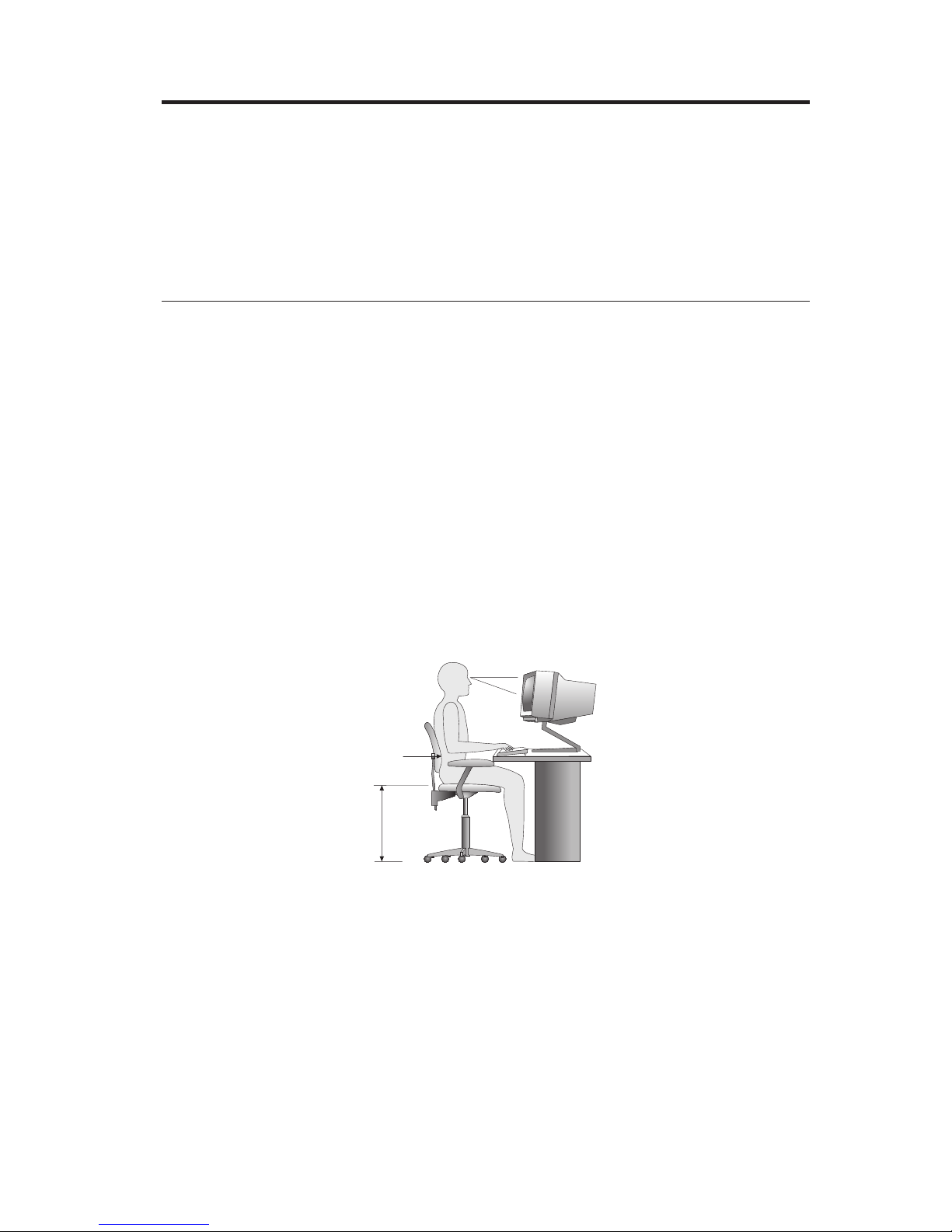
Although no single working position is ideal for everyone, here are a few
guidelines to help you find a position that suits you best.
Sitting in the same position for a long time can cause fatigue. A good chair can
make a big difference. The backrest and seat should adjust independently and
provide good support. The seat should have a curved front to relieve pressure
on the thighs. Adjust the seat so that your thighs are parallel to the floor and
your feet are either flat on the floor or on a footrest.
When using the keyboard, keep your forearms parallel to the floor and your
wrists in a neutral, comfortable position. Try to keep a light touch on the
keyboard and your hands and fingers relaxed. You can change the angle of the
keyboard for maximum comfort by adjusting the position of the keyboard feet.
Viewing Distance
Lower
Back
Support
Seat
Height
Adjust the monitor so the top of the screen is at, or slightly below, eye level.
Place the monitor at a comfortable viewing distance, usually 51 to 61 cm (20 to
24 in.), and position it so you can view it without having to twist your body.
Also position other equipment you use regularly, such as the telephone or a
mouse, within easy reach.
Glare and lighting
Position the monitor to minimize glare and reflections from overhead lights,
windows, and other light sources. Even reflected light from shiny surfaces can
cause annoying reflections on your monitor screen. Place the monitor at right
© Copyright IBM Corp. 2005 1
Page 26

angles to windows and other light sources, when possible. Reduce overhead
lighting, if necessary, by turning off lights or using lower wattage bulbs. If you
install the monitor near a window, use curtains or blinds to block the sunlight.
You might have to adjust the Brightness and Contrast controls on the monitor
as the room lighting changes throughout the day.
Where it is impossible to avoid reflections or to adjust the lighting, an antiglare
filter placed over the screen might be helpful. However, these filters might
affect the clarity of the image on the screen; try them only after you have
exhausted other methods of reducing glare.
Dust buildup compounds problems associated with glare. Remember to clean
your monitor screen periodically using a soft cloth moistened with a
nonabrasive liquid glass cleaner.
Air circulation
Your computer and monitor produce heat. The computer has a fan that pulls in
fresh air and forces out hot air. The monitor lets hot air escape through vents.
Blocking the air vents can cause overheating, which might result in a
malfunction or damage. Place the computer and monitor so that nothing blocks
the air vents; usually, 51 mm (2 in.) of air space is sufficient. Also, make sure
the vented air is not blowing on someone else.
Electrical outlets and cable lengths
The location of electrical outlets and the length of power cords and cables that
connect to the monitor, printer, and other devices might determine the final
placement of your computer.
When arranging your workspace:
v Avoid the use of extension cords. When possible, plug the computer power
cord directly into an electrical outlet.
v Keep power cords and cables neatly routed away from walkways and other
areas where they might get kicked accidentally.
For
more information about power cords, see “Power cord notice” on page 68
of this book.
2 Quick Reference
Page 27
Chapter 2. Setting up your computer
Note: Your computer might not have all of the connectors that are described in
this chapter.
Use the following information when setting up your computer. Look for the
small connector icons on the back of your computer.
If your computer cables and connector panel have color-coded connectors,
match the color of the cable end with the color of the connector. For example,
match a blue cable end with a blue connector, a red cable end with a red
connector.
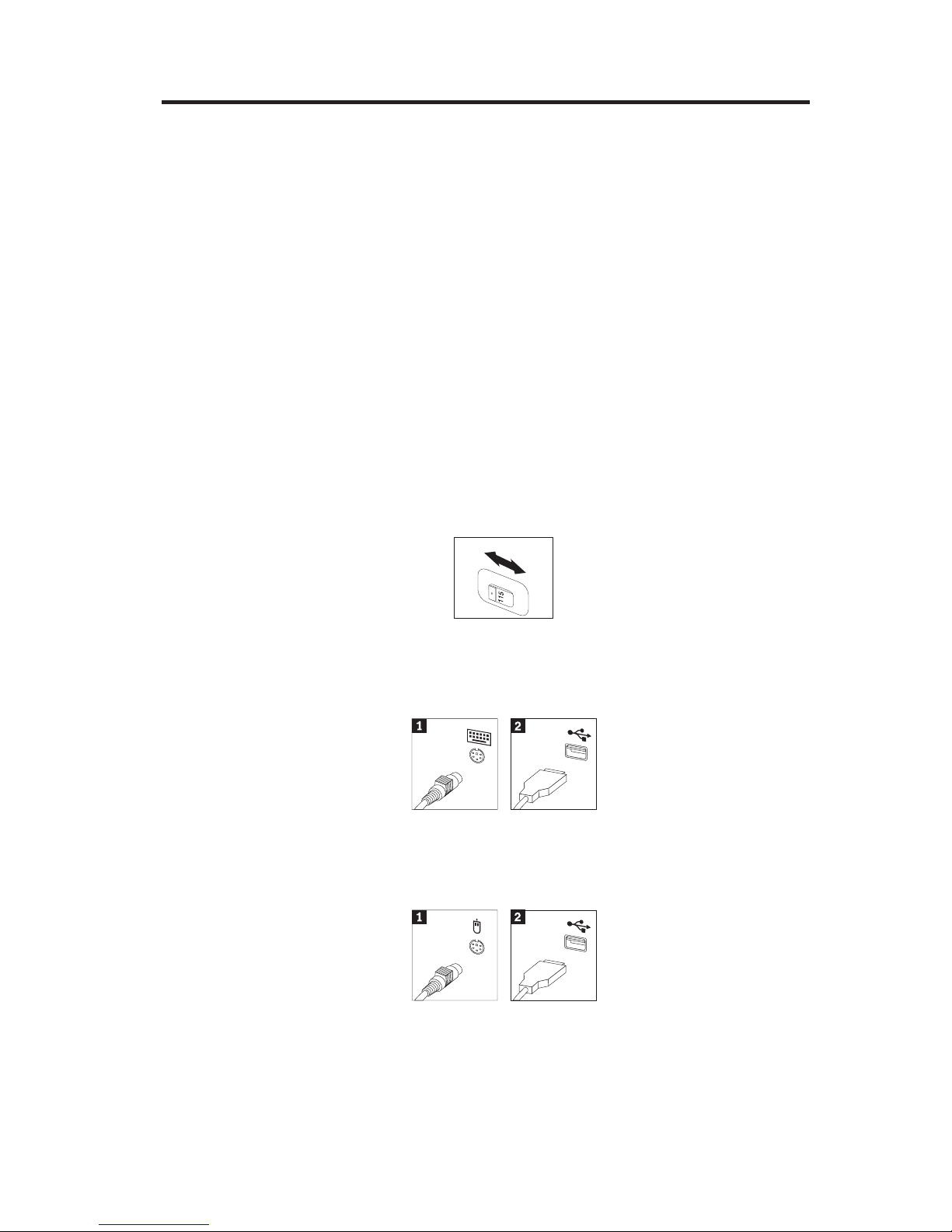
1. Check the position of the voltage-selection switch on the rear of the
computer. Use a ballpoint pen to slide the switch, if necessary.
v If the voltage supply range is 90–137 V ac, set the switch to 115 V.
v If the voltage supply range is 180–265 V ac, set the switch to 230 V.
2. Your keyboard cable might have a standard keyboard connector1 or a
Universal Serial Bus (USB) connector2. Connect the keyboard cable to
the appropriate keyboard connector.
3. Your mouse cable might have a standard mouse connector1 or a USB
connector 2. Connect the mouse cable to the appropriate mouse
connector.
4. Connect the monitor cable to the monitor connector on the computer.
v If you have a Standard Video Graphics Array (SVGA) monitor, connect
the cable to the connector as shown.
© Copyright IBM Corp. 2005 3
Page 28
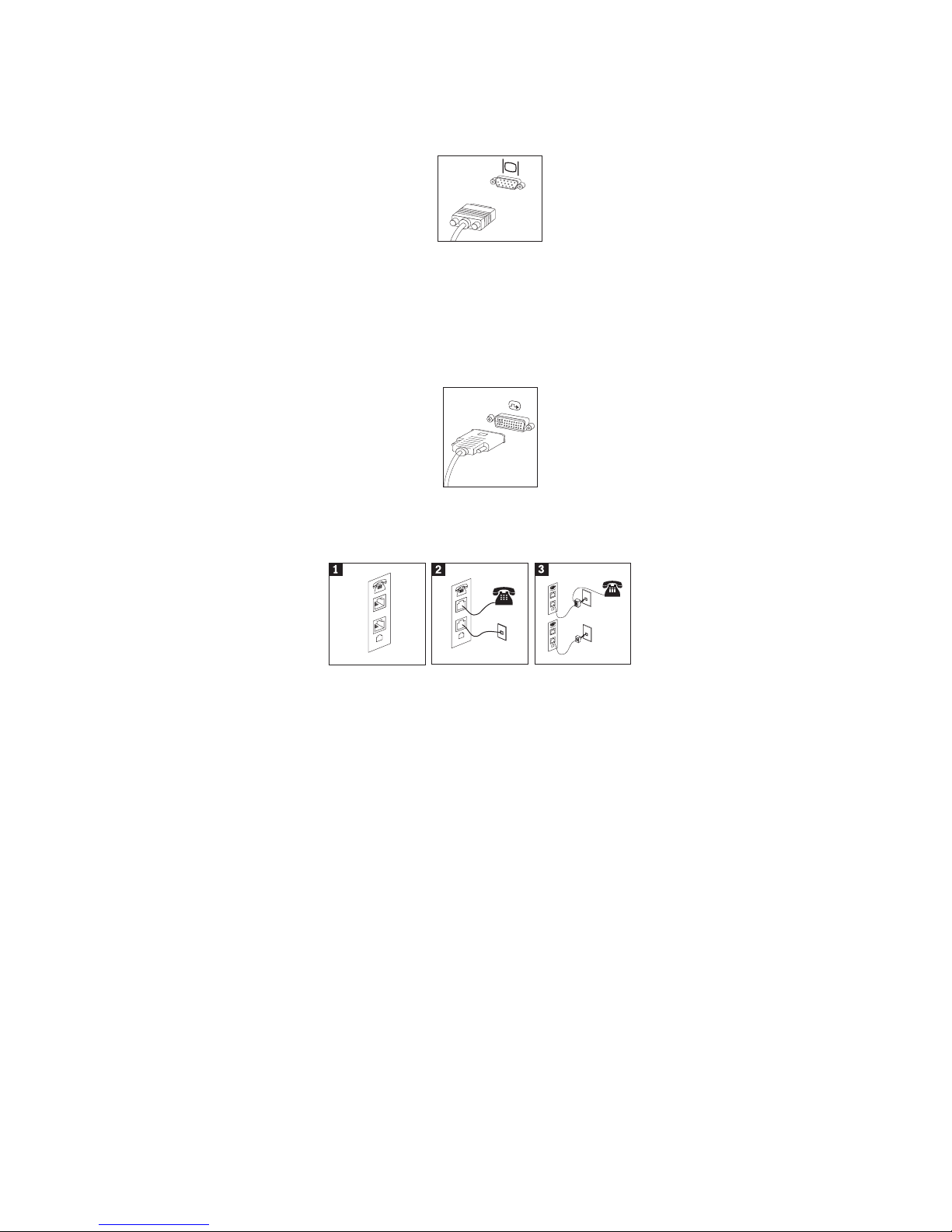
Note: If your model has two monitor connectors, be sure to use the
connector on the accelerated graphics port (AGP) adapter.
v If you have a digital video interface (DVI) monitor, connect the cable to
the connector as shown.
Note: Your computer must have an adapter installed that supports the
DVI monitor.
5. If you have a modem, connect the modem using the following
instructions.
L
I
N
E
P
H
O
N
E
PHO
NE
L
I
N
E
P
H
O
N
E
L
I
N
E
P
H
O
N
E
L
I
N
E
1 Use this dual connection on the back of the computer to set up your modem.
2 Attach one end of the telephone cable to the telephone and the other end to the
telephone connector on the back of the computer. Attach one end of the modem
cable to the modem connector on the back of the computer and the other end to
the telephone outlet.
3 In some cases, a splitter or converter is required to attach the cables to the
telephone outlet, as shown at the top of this illustration. You can also use the
splitter without the telephone, as shown at the bottom of the illustration.
4 Quick Reference
Page 29
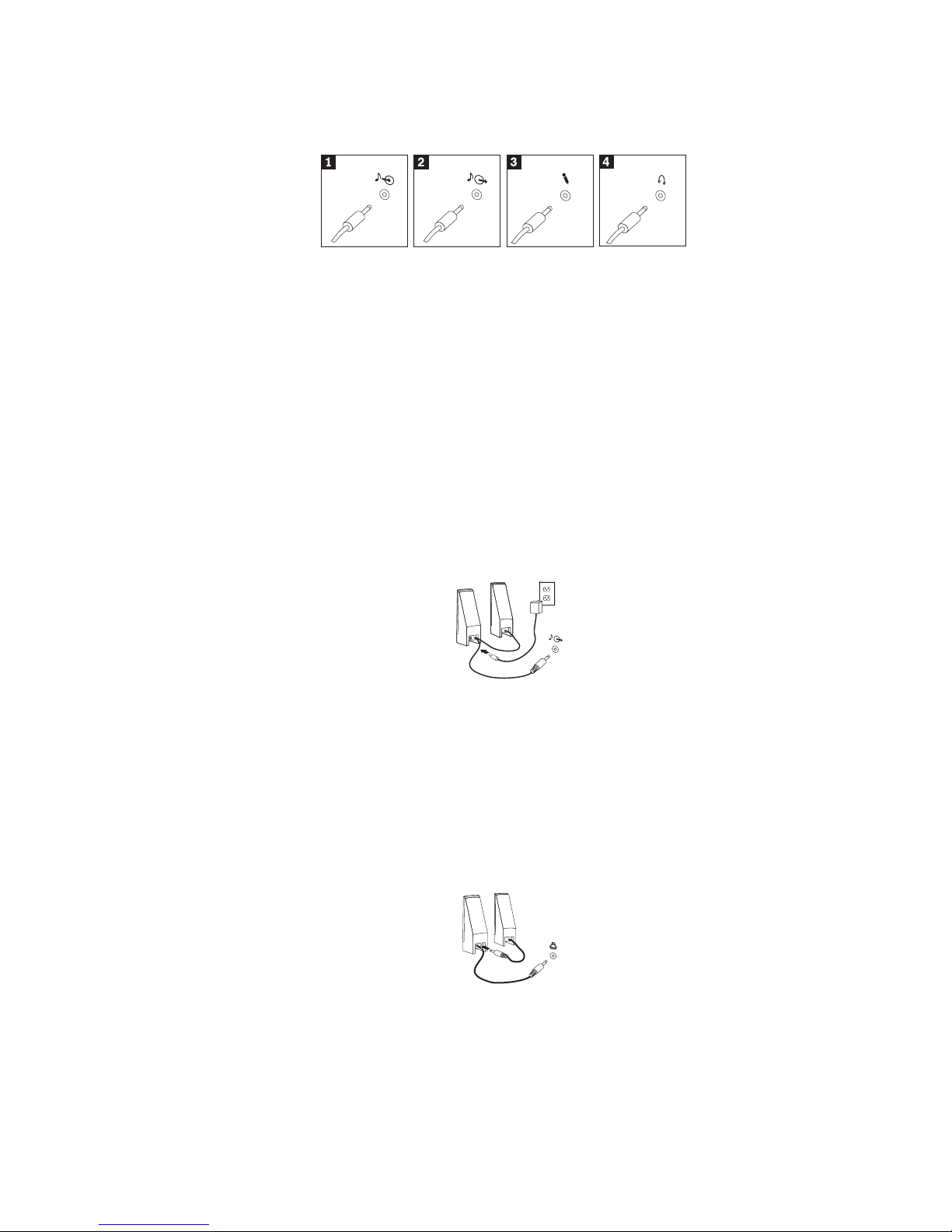
6. If you have audio devices, attach them using the following instructions.
For more information about speakers, see steps 7 and 8.
1 Audio line-in This connector receives audio signals from an external audio
device, such as a stereo system.
2 Audio line-out This connector sends audio signals from the computer to external
devices, such as powered stereo speakers.
3 Microphone Use this connector to attach a microphone to your computer when
you want to record sound or if you use speech-recognition
software.
4 Headphone Use this connector to attach headphones to your computer when
you want to listen to music or other sounds without disturbing
anyone. This connector might be located on the front of the
computer.
7. If you have powered speakers with an ac adapter, use the following
instructions.
a. Connect the cable that runs between the speakers, if necessary. On
some speakers, this cable is permanently attached.
b. Connect the ac adapter cable to the speaker.
c. Connect the speakers to the computer.
d. Connect the ac adapter to the ac power source.
8. If you have unpowered speakers with no ac adapter, use the following
instructions.
a. Connect the cable that runs between the speakers, if necessary. On
some speakers, this cable is permanently attached.
b. Connect the speakers to the computer.
9. Connect any additional devices that you have. Your computer might not
have all connectors that are shown.
Chapter 2. Setting up your computer 5
Page 30
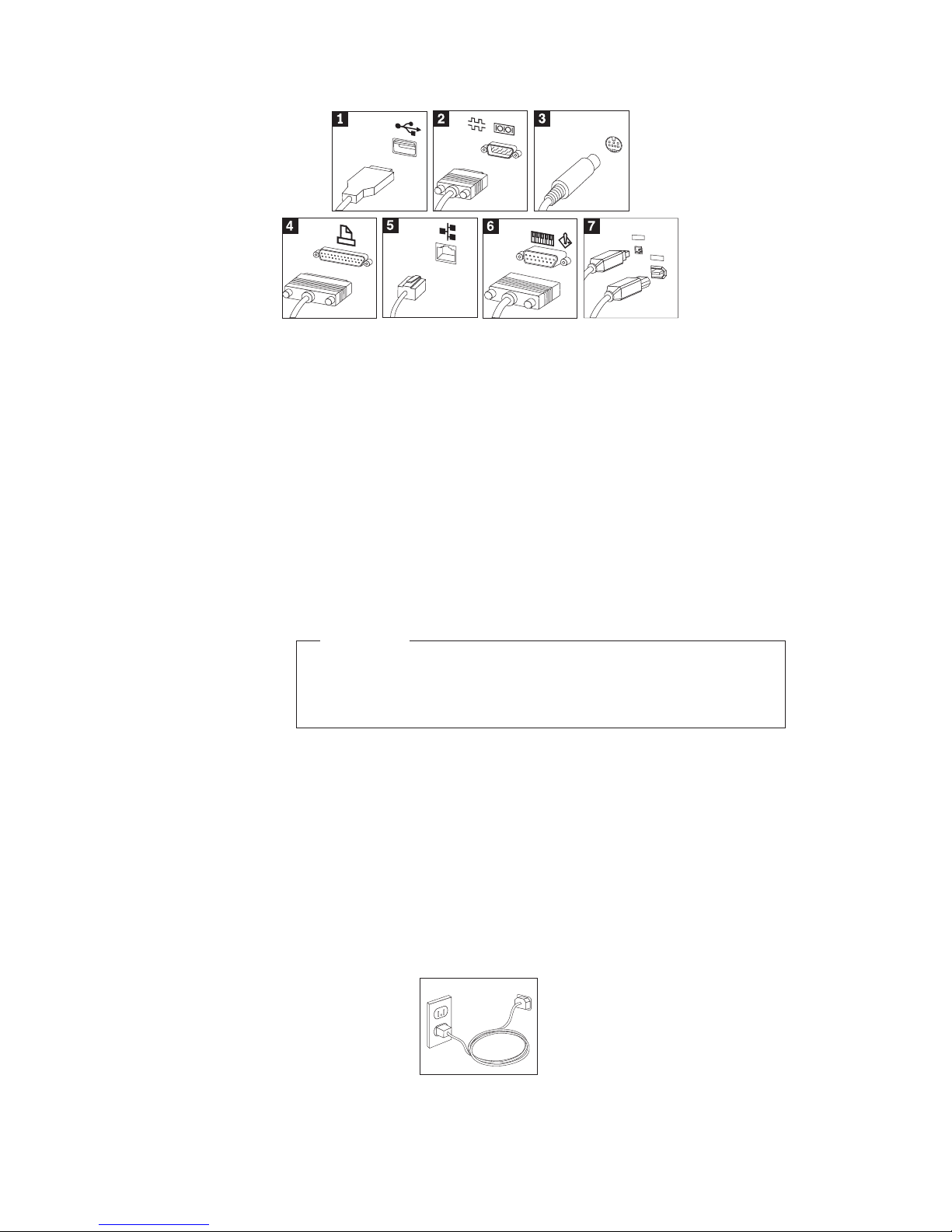
1
3
9
4
1
3
9
4
1 USB Use these connectors to attach a device that requires a Universal
Serial Bus (USB) connection, such as a mouse, scanner, printer, or
personal digital assistant (PDA).
2 Serial Use this connector to attach an external modem, serial printer, or
other device that uses a 9-pin serial connector.
3 S-video Use this connector to attach a television set that has an S-Video
connector. This connector is present on some high-performance
video adapters.
4 Parallel Use this connector to attach a parallel printer or any other device
that requires a 25-pin parallel connection.
5 Ethernet Use this connector to attach the computer to an Ethernet-type local
area network or to a cable modem.
Important
To operate the computer within FCC limits when it is
connected to an Ethernet network, use a Category 5 Ethernet
cable.
6 MIDI/joystick Use this connector to attach a joystick, gamepad, or a musical
instrument digital interface (MIDI) device such as a MIDI
keyboard.
7 IEEE 1394 This connector is sometimes called Firewire because it transmits
data rapidly. There are two types of IEEE 1394 connectors: the
4-pin and the 6-pin. IEEE 1394 offers connection to several types of
consumer electronics, including digital audio devices and scanners.
10. Connect the power cords to properly grounded electrical outlets.
6 Quick Reference
Page 31

Note: For more information about connectors, see Access IBM on your
computer desktop.
Turning on power
Turn on the monitor and other external devices first, and then turn on the
computer. When the power-on self-test (POST) is finished, the IBM logo
window closes. If your computer has preinstalled software, the software
installation program starts.
If you experience any problems during startup, see Chapter 5,
“Troubleshooting and diagnostics,” on page 23 and Chapter 4, “Getting
information, help, and service,” on page 19.
Finishing the software installation
Important
Read the license agreements carefully before using the programs on this
computer. These agreements detail your rights, obligations, and
warranties for the software on this computer. By using these programs,
you accept the terms of the agreements. If you do not accept the
agreements, do not use the programs. Instead, promptly return the entire
computer for a full refund.
Note: Some models might have a multilingual version of Windows XP Pro
preinstalled. If your computer has the multilingual version, you will be
prompted to choose a language during the initial installation process.
After installation, the language version can be changed through the
Windows Control Panel.
After you start the computer for the first time, follow the instructions on the
screen to complete the software installation. If you do not complete the
software installation the first time the computer is turned on, unpredictable
results might occur. When the installation is complete, click Access IBM on
your desktop to learn more about your computer.
Completing important tasks
After you have set up your computer, perform the following tasks, which will
save you time and trouble later:
v Create a diagnostics diskette. The diagnostics tool can isolate hardware
problems and is part of the Product Recovery program. Making a diagnostics
diskette ahead of time assures you use of the diagnostics tool if the Product
Recovery program becomes inaccessible. See “Creating an Diagnostics
diskette” on page 26.
Chapter 2. Setting up your computer 7
Page 32

v Record your computer machine type, model, and serial number. If you need
service or technical support, you will probably be asked for this information.
See “Recording your computer information” on page 9.
Keep
this Quick Reference in a safe place. It is the only publication that has
important information about reinstalling factory-installed software. Chapter 3,
“Recovering software,” on page 11 contains the information about recovering
factory-installed software.
Updating your operating system
Microsoft
®
makes updates available for various operating systems through the
Microsoft Windows Update Web site. The Web site automatically determines
what Windows updates are available for your specific computer and lists those
updates only. Updates could include security fixes, new versions of Windows
components (such as media player), fixes to other portions of the Windows
operating system, or enhancements.
For details about updating your operating system, go to Access IBM.
Installing other operating systems
If you install your own operating system, follow the instructions that come
with your operating-system CDs or diskettes. Remember to install all device
drivers after you install your operating system. Installation instructions are
usually provided with the device drivers.
Updating your antivirus software
Your computer comes with the Norton AntiVirus software you can use to
detect and eliminate viruses. You should run the LiveUpdate application to get
the latest updates from the Norton AntiVirus Web site. LiveUpdate will
download the latest virus list and Norton AntiVirus will use the new list when
it scans your computer the next time.
For details about updating your antivirus software, go to Access IBM.
Starting the Setup Utility
The Setup Utility enables you to view, set, or change BIOS configuration
settings and passwords.
1. Shut down the operating system and turn off your computer.
2. Press and hold the F1 key then turn on the computer. When you hear
multiple beeps, release the F1 key.
8 Quick Reference
Page 33

Note: If an administrator password has been set, the Setup Utility program
menu is not displayed until you type your password. For more
information on the Setup Utility program, see your User Guide.
The
Setup Utility might start automatically when POST detects that hardware
has been removed or new hardware has been installed in your computer.
Shutting down the computer
When you are ready to turn off your computer, always follow the shutdown
procedure for your operating system. This prevents the loss of unsaved data or
damage to your software programs. To shut down the Microsoft Windows
®
operating system select Shut down or Turn off computer.
Recording your computer information
Recording information about your computer can be helpful if you ever need to
have your computer serviced. The service technician will probably ask you for
this information.
Chapter 2. Setting up your computer 9
Page 34

The machine type, model, and serial number are labeled on your computer.
Use the following table to record this information.
Product name ______________________________________________
Machine type and model ______________________________________________
Serial number (S/N) ______________________________________________
Date of purchase ______________________________________________
Register your computer over the Internet when you first visit the IBM Web
site. When you register your computer, you will receive the following benefits:
v Faster service when you call for help
v Automatic notification of free software and special promotional offers
Go
to http://www.ibm.com/pc/register/ and follow the on-screen
instructions. See Access IBM for more information on how to register your
computer.
10 Quick Reference
Page 35

Chapter 3. Recovering software
The Rescue and Recovery
™
program product provides a number of recovery
solutions to meet almost any situation. Portions of the Rescue and Recovery
program program reside with your other Windows
®
programs, while other
portions reside in a separate, hidden area of your hard disk specifically
designed for recovery. This chapter will help you become familiar with some of
the recovery solutions provided by the Rescue and Recovery program program
installed on your computer.
Tasks to do before you encounter a problem
v Create Product Recovery discs. See ″Creating and using Product Recovery
discs.″
v Create rescue media. See “Creating and using rescue media” on page 16.
v Back up your hard disk periodically. See “Backup and recovery” on page 12.
v Create a Recovery Repair diskette. See “Solving recovery problems” on page
15.
Note:
The rescue disc and first disc of the Product Recovery discs and backup
discs are startable (bootable) and can be started in any type of CD or
DVD drive except for a DVD-RAM media.
Tasks to do after you encounter a problem
The starting point for most recovery tasks is the Rescue and Recovery
workspace. See “Using the rescue and recovery workspace” on page 13.
Creating and using product recovery discs
If your computer is equipped with a recordable CD or DVD drive, you can
create a set of Product Recovery discs that enable you to restore the contents of
the hard disk to the same state as when the computer was originally shipped
from the factory. Product Recovery discs are useful if you transfer the
computer to another area, sell the computer, recycle the computer, or as a last
resort put the computer in an operational state after all other methods of
recovery have failed. It is a good idea to create a set of Product Recovery discs
as soon as possible.
Note: Your Microsoft
®
Windows license permits you to create only one set of
Product Recovery discs, so it is important that you store the discs in a
safe place after you make them.
To create Product Recovery discs, do the following:
© Copyright IBM Corp. 2005 11
Page 36

1. From the Windows desktop, click Start, click Programs (or if you are using
Windows XP, click All Programs), click Access IBM, then click Create
Product Recovery discs.
2. Follow the instructions on the screen.
To
use Product Recovery discs, do the following:
Attention: When you restore the factory contents from the Product Recovery
discs, all files currently on the hard disk will be deleted and replaced by the
original factory contents.
1. Insert the Rescue and Recovery program disc into your CD or DVD drive.
2. Restart your computer.
3. After a short delay, the Rescue and Recovery program workspace opens.
Note: If the Rescue and Recovery workspace fails to open, you might not
have your startup device (CD drive or DVD drive) set correctly in
your BIOS startup sequence. See “Setting a rescue device in the
startup sequence” on page 18for more information.
4. In the Rescue and Recovery menu, click Restore factory contents.
5. Follow the instructions on the screen. Insert the appropriate Product
Recovery disc when prompted.
Note:
After restoring your hard disk to the original factory content, you might
have to reinstall some software or drivers. See ″Post-recovery notes″ on
page 15 for details.
Backup and recovery
The Rescue and Recovery program program enables you to back up your
complete hard disk contents including the operating system, data files,
application programs, and personal settings. You can designate where the
Rescue and Recovery program stores the backup:
v On a protected area of your hard disk
v On a second hard disk installed in your computer
v On an externally attached USB hard disk
v On a network drive
v On recordable CDs or DVDs (a recordable CD or DVD drive is required for
this option)
After
you have backed up your hard disk, you can restore the complete
contents of the hard disk or restore selected files only.
To perform a backup operation, do the following:
12 Quick Reference
Page 37

1. From the Windows desktop, click Start, click All Programs, click Access
IBM, then click the Rescue and Recovery program. The Rescue and
Recovery program program opens.
2. In the menu bar, click Backup; then click Back up now.
3. Follow the instructions on the screen.
To
perform a restore operation from the Rescue and Recovery program, do the
following:
1. From the Windows desktop, click Start, click All Programs , click Access
IBM, then click the Rescue and Recovery program The Rescue and
Recovery program program opens.
2. In the menu bar, click Restore; then do one of the following:
v Click Restore your system if you want to restore your hard disk to a
previously backed-up state. This recovery method deletes all data
currently stored on your hard disk and replaces it with the data from the
backup. During the recovery process, you will be given an opportunity
to transfer files currently on your hard disk to other media before any
data is removed.
v Click Restore files if you want to restore only selected files from your
backup.
3.
Follow the instructions on the screen.
For
information about performing a restore operation from the Rescue and
Recovery workspace, see “Using the rescue and recovery workspace.”
Using the rescue and recovery workspace
The Rescue and Recovery workspace resides in a protected, hidden area of
your hard disk that operates independently from the Windows operating
system. This enables you to perform recovery operations even if the Windows
operating system cannot be started. You can perform the following recovery
operations from the Rescue and Recovery workspace:
v Rescue files from your hard disk or from a backup: The Rescue and
Recovery program workspace enables you to locate files on your hard disk
and transfer them to a network drive or other recordable media such as a
USB hard disk drive or a diskette. This solution is available even if you did
not back up your files or if changes were made to the files since your last
backup operation. You also can rescue individual files from a Rescue and
Recovery (TM) backup located on your local hard disk, a USB device, or a
network drive.
v Restore your hard disk from a Rescue and Recovery backup: Once you
perform a backup operation using the Rescue and Recovery program
program, you can perform restore operations from the Rescue and Recovery
workspace, even if you cannot start Windows.
Chapter 3. Recovering software 13
Page 38

v Restore your hard disk to the factory contents: The Rescue and Recovery
workspace enables you to restore the complete contents of your hard disk to
the same state as it was when originally shipped from the factory. If you
have multiple partitions on your hard disk, you have the option to restore
the factory contents to the C: partition and leave the other partitions intact.
Because the Rescue and Recovery workspace operates independently from
the Windows operating system, you can restore the factory contents even if
you cannot start Windows.
Attention: If you restore the hard disk from a Rescue and Recovery backup
or restore the hard disk to the factory contents, all files on the primary hard
disk partition (usually drive C) will be deleted in the recovery process. If
possible, make copies of important files. If you are unable to start Windows,
you can use the Rescue files feature in the Rescue and Recovery workspace to
copy files from your hard disk to other media.
To start the Rescue and Recovery workspace, do the following:
1. Turn off your computer for at least 5 seconds.
2. Press and hold the Enter or F11 key while you press the power button.
3. When you hear beeps or see a logo screen, release the Enter or F11 key.
4. If you set a Rescue and Recovery password, type your password when
prompted. The Rescue and Recovery workspace opens after a short delay.
Note: If the Rescue and Recovery workspace fails to open, see “Solving
recovery problems” on page 15.
5. Do one of the of the following:
v To rescue files from your hard disk or from a backup, click Rescue files;
then, follow the instructions on the screen.
v To restore your hard disk from a Rescue and Recovery backup, click
Restore your system; then, follow the instructions on the screen.
v To restore your hard disk to the factory contents, click Restore your
system; then, follow the instructions on the screen.
Note: After restoring your hard disk to the original factory content, you
might have to reinstall some software o drivers. See ″Post-recovery
notes″ for details.
v For information about other features of the Rescue and Recovery
workspace, click Help.
14 Quick Reference
Page 39

Post-recovery notes
Notes:
1. After restoring a hard disk to the original factory contents you might have
to reinstall device drivers for some devices. See “Recovering or installing
device drivers” on page 17.
2. Some computers come with Microsoft Office or Microsoft Works
preinstalled. If you need to recover or reinstall your Microsoft Office or
Microsoft Works applications, you must use the Microsoft Office CD or
Microsoft Works CD. These CDs are provided only with computers that
come with Microsoft Office or Microsoft Works preinstalled.
Solving recovery problems
The Rescue and Recovery program workspace runs independently of the
operating system. In order to gain access to the workspace, press and hold the
Enter or F11 key during startup. If you are unable to start the Rescue and
Recovery program workspace using this method, you have three options:
v Use your rescue media (CD, DVD, or USB hard disk) to start the Rescue and
Recovery workspace. See “Creating and using rescue media” on page 16 for
details.
v Use a Recovery Repair diskette to reinstall a file that controls access to the
Rescue and Recovery workspace. See “Creating and using a Recovery Repair
diskette” on page 16 for details.
v If your intent is to restore the hard disk to its original factory contents, you
can use a set of Product Recovery discs. See “Creating and using product
recovery discs” on page 11.
It
is a good idea to create a Recovery Repair diskette, rescue media, and a set
of Product Recovery discs as soon as possible and store them in a safe place as
a precautionary measure. If you are unable to access the Rescue and Recovery
workspace from rescue media or a set of Product Recovery CDs, you might not
have the rescue device (CD drive, DVD drive, or USB hard disk drive defined
as a startup device in the BIOS startup sequence. See “Setting a rescue device
in the startup sequence” on page 18 for more information.
Rescue media enables you to start the Rescue and Recovery program from CD,
DVD, or an externally attached USB hard disk drive). Rescue media is
extremely important if you are unable to access the Rescue and Recovery
program using the Enter or F11 key.
Chapter 3. Recovering software 15
Page 40

Creating and using rescue media
Rescue media enables you to start the Rescue and Recovery program from CD,
DVD, or an externally attached USB hard disk drive. Rescue media is
extremely important if you are unable to access the Rescue and Recovery
program using the Enter or F11 key.
To create rescue media, do the following:
1. From the Windows desktop, click Start, click Programs (or if you are using
Windows XP, click All Programs), click Access IBM, then click Create
rescue media.
2. Select the radio button for the type of rescue media you want to create.
3. Click OK.
4. Follow the instructions on the screen.
To use rescue media, do one of the following the following:
v Insert the rescue disc (CD or DVD) into your CD or DVD drive, then restart
your computer.
v Attach your rescue USB hard disk drive to one of the USB connectors on
your computer; then, restart your computer.
When the rescue media starts, the Rescue and Recovery program workspace
opens. Help for each feature is available from the Rescue and Recovery
workspace. If your rescue media fails to start, you might not have your rescue
device (CD drive, DVD drive, or USB device) set correctly in your BIOS
startup sequence. See “Setting a rescue device in the startup sequence” on page
18 for more information.
Creating and using a Recovery Repair diskette
To create a Recovery Repair diskette, do the following:
1. If you are not already connected to the Internet, connect now.
2. Open an Internet browser and go to the following Web address:
http://www.ibm.com/pc/support/site.wss/document.do?lndocid=MIGR54483
3. Insert a blank diskette into diskette drive A.
4. Double-click on the Recovery Repair diskette.exe file; then follow the
instructions on the screen. The Recovery Repair diskette is created.
5. Remove the diskette and label it Recovery Repair diskette.
To use the Recovery Repair diskette, do the following:
1. Shut down the operating system and turn off the computer.
2. Insert the Recovery Repair diskette into diskette drive A.
16 Quick Reference
Page 41

3. Turn on the computer and follow the instructions on the screen.
If
the repair operation finishes without error, you will be able to access the
Rescue and Recovery program workspace by pressing and holding the Enter or
F11 key while you restart your computer.
If an error message appears during the repair operation and the repair
operation cannot be completed, you might have a problem with the partition
that contains the Rescue and Recovery program program. Use your rescue
media to access the Product Recovery program. To create a set of Product
Recovery discs see “Creating and using rescue media” on page 16.
Recovering or installing device drivers
Before you can recover or install device drivers, your operating system must be
installed on your computer. Make sure that you have the documentation and
software media for the device.
Device drivers for IBM-installed devices are located on the computer hard disk
(usually drive C) in the ibmtools\drivers folder. The instructions for installing
device drivers (readme.txt) are also located in the ibmtools\drivers folder.
Other device drivers are on the software media that come with individual
devices.
The latest device drivers for IBM-installed devices are also available on the
World Wide Web at http://www.ibm.com/pc/support/.
To recover a device driver for an IBM-installed device, use the following
procedure:
1. Start your computer and operating system.
2. Use Windows Explorer or My Computer to display the directory structure
of your hard disk.
3. Open the C:\IBMTOOLS folder.
4. Open the drivers folder. Within the drivers folder are several subfolders
that are named for various devices that are installed in your computer (for
example, audio, video, and so on).
5. Open the appropriate subfolder.
6. Use one of the following methods to recover the device driver:
v In the device subfolder, look for a readme.txt file or other file with the
.txt extension that contains information about reinstalling the device
driver. This file might be named after the operating system, such as
win98.txt. The text file has information on how to reinstall the device
driver.
Chapter 3. Recovering software 17
Page 42

v If the device subfolder contains a file with an .inf extension, you can use
the Add New Hardware program (located in the Windows Control
Panel) to reinstall the device driver. Not all device drivers can be
reinstalled using this program. In the Add New Hardware program,
when prompted for the device driver that you want to install, click Have
Disk and Browse. Then select the appropriate device-driver (.inf) file
from the device subfolder.
v In the device subfolder, look for a setup.exe file. Double-click SETUP.EXE
and follow the instructions on the screen.
Setting a rescue device in the startup sequence
Before you start recovery from a CD, DVD, USB HHD or any other external
device, you must first change the startup sequence in the Setup Utility.
1. While turning on your computer, press and release the F1 key repeatedly to
enter the Setup Utility.
2. Select Startup and press enter.
3. In the Startup sequence, select your startup device.
4. Save and exit the Setup Utility.
5. Shut down the operating system and turn off the computer.
6. Choose one of the following:
v If you have an external device, connect it to your computer.
v If you have a CD or DVD, insert it into your computer.
7.
Turn on your computer.
18 Quick Reference
Page 43

Chapter 4. Getting information, help, and service
If you need help, service, or technical assistance or just want more information
about IBM products, you will find a wide variety of sources available from
IBM to assist you. This section contains information about where to go for
additional information about IBM and IBM products, what to do if you
experience a problem with your computer, and whom to call for service should
it be necessary.
Getting information
Information about your computer and preinstalled software, if any, is available
in the documentation that comes with your computer. That documentation
includes printed books, online books, README files, and help files. In
addition, information about IBM products is available on the World Wide Web.
On the World Wide Web, the Web site has up-to-date information about
Personal Computer products and support. The address for the Personal
Computing home page is http://www.ibm.com/pc/.
You can find support information for your products, including supported
options, at http://www.ibm.com/pc/support/.
You can order publications through the IBM Publications Ordering System at
http://www.elink.ibmlink.ibm.com/public/applications/publications/
cgibin/pbi.cgi.
Getting help and service
If you have a problem with your computer, you will find a wide variety of
sources available to help you.
Using the documentation and diagnostic programs
Many computer problems can be solved without outside assistance. If you
experience a problem with your computer, the first place to start is the
troubleshooting information in your computer documentation. If you suspect a
software problem, see the documentation, including README files and online
help, that comes with the operating system or application program.
Most computers and servers come with a set of diagnostic programs that you
can use to help you identify hardware problems. See the troubleshooting
information in your computer documentation for instructions on using the
diagnostic programs.
© Copyright IBM Corp. 2005 19
Page 44

The troubleshooting information or the diagnostic programs might tell you that
you need additional or updated device drivers or other software. IBM
maintains pages on the World Wide Web where you can get the latest technical
information and download device drivers and updates. To access these pages,
go to http://www.ibm.com/pc/support/ and follow the instructions.
Calling for service
If you have tried to correct the problem yourself and still need help, during the
warranty period, you can get help and information by telephone through the
Support Center. The following services are available during the warranty
period:
v Problem determination - Trained personnel are available to assist you with
determining if you have a hardware problem and deciding what action is
necessary to fix the problem.
v hardware repair - If the problem is determined to be caused by hardware
under warranty, trained service personnel are available to provide the
applicable level of service.
v Engineering Change management - Occasionally, there might be changes
that are required after a product has been sold. IBM or your reseller, if
authorized by IBM, will make selected Engineering Changes (ECs) available
that apply to your hardware.
The
following items are not covered:
v Replacement or use of non-IBM parts or nonwarranted IBM parts. All
warranted parts contain a 7-character identification in the format IBM FRU
XXXXXXX.
v Identification of software problem sources.
v Configuration of BIOS as part of an installation or upgrade.
v Changes, modifications, or upgrades to device drivers.
v Installation and maintenance of network operating systems (NOS).
v Installation and maintenance of application programs.
Refer
to your Statement of Limited Warranty for a full explanation of warranty
terms. Be sure to retain your proof of purchase to obtain warranty service.
In the U.S. and Canada, these services are available 24 hours a day, 7 days a
week. In the U.K., these services are available Monday through Friday, from
9:00 a.m. to 6:00 p.m.
Note: Response times vary; may exclude some holidays.
If possible, be at your computer when you call. Please have the following
information ready:
v Machine type and model
v Serial numbers of your IBM hardware products
20 Quick Reference
Page 45

v Description of the problem
v Exact wording of any error messages
v Hardware and software configuration information
Telephone numbers
For a list of Service and Support phone numbers, see “Worldwide Telephone
List” on page 56. Phone numbers are subject to change without notice. For the
most current phone numbers, go to www.ibm.com/pc/support and click
Support phone list.
In all other countries or regions, contact your reseller or marketing
representative.
Other services
Update Connector
™
is a remote communication tool that you can use with
some computers to communicate with the Support Center. Update Connector
enables you to receive and download updates for some of the software that
might come with your computer.
If you travel with your computer or relocate it to a country where your
ThinkCentre machine type is sold, your computer might be eligible for
International Warranty Service, which automatically entitles you to obtain
warranty service throughout the warranty period. Service will be performed by
IBM or by IBM resellers who are authorized to perform warranty service.
Service methods and procedures vary by country, and some services might not
be available in all countries. International Warranty Service is delivered
through the method of service (such as depot, carry-in, or on-site service) that
is provided in the servicing country. Service centers in certain countries might
not be able to service all models of a particular machine type. In some
countries, fees and restrictions might apply at the time of service.
To determine whether your computer is eligible for International Warranty
Service and to view a list of the countries where service is available, go to
http://www.ibm.com/pc/support/, and click Warranty Lookup. Eligible
computers are identified by their four-digit machine types. For more
information about International Warranty Service, see Service Announcement
601-034 at http://www.ibm.com/. Click Support & downloads, click
Announcement letters, and click Announcements search. In the Search by
letter number only field, type 601-034, and click Search.
IBM Integrated Technology Services offers a broad range of information
technology support, implementation, and management services. For more
information about these services, refer to the Integrated Technology Services
Web site at http://www.ibm.com/services/its/.
Chapter 4. Getting information, help, and service 21
Page 46

For technical assistance with the installation of, or questions related to, Service
Packs for your preinstalled Microsoft Windows product, refer to the Microsoft
Product Support Services Web site at http://support.microsoft.com/directory/,
or you can contact the Support Center. Some fees might apply.
Purchasing additional services
During and after the warranty period, you can purchase additional services,
such as support for IBM and non-IBM hardware, operating systems, and
application programs; network setup and configuration; upgraded or extended
hardware repair services; and custom installations. Service availability and
service name might vary by country or region.
For more information about these services, see the online information.
22 Quick Reference
Page 47

Chapter 5. Troubleshooting and diagnostics
This chapter describes some basic troubleshooting and diagnostic tools. If your
computer problem is not described here, use Access IBM for more detailed
troubleshooting information or see “Additional help” on page xiii.
Basic troubleshooting
Symptom Action
The computer does not
start when you press the
power button.
Verify that:
v The power cord is plugged into the rear of the computer
and into a working electrical outlet.
v If your computer has a secondary power switch on the
back of the computer, ensure that it is switched on. Check
the power indicator on the front of the computer to ensure
that the power is on.
v The power supply and system board are working. See
“LED Diagnostics” on page 25
If you cannot correct the problem, have the computer
serviced.
The monitor screen is
blank.
Verify that:
v The monitor cable is securely attached to the rear of the
monitor and to the rear of the computer.
v The monitor power cord is plugged into the monitor and
into a working electrical outlet.
v The monitor is turned on, and the brightness and contrast
controls are set correctly.
v The monitor signal cable is securely connected to the
monitor and to the monitor connector on the computer.
v The power supply and system board are working. See
“LED Diagnostics” on page 25.
Note:
If your computer has two monitor connectors, verify
that your monitor is connected to the one in the accelerated
graphics port (AGP) option slot rather than the one in the
rear of the system board. See Step 4 on page 3.
If you cannot correct the problem, have the computer
serviced.
© Copyright IBM Corp. 2005 23
Page 48

Symptom Action
The keyboard does not
work. The computer
does not respond to the
keyboard.
Verify that:
v The computer and monitor are turned on and the
brightness and contrast controls are set correctly.
v The keyboard is securely connected to the keyboard
connector on the computer.
v No keys are stuck.
If
you cannot correct the problem, have the computer
serviced.
The IBM Enhanced
Performance USB
Keyboard does not work
Verify that:
v The computer is turned on.
v The keyboard is securely connected to a USB connector on
the rear of the computer.
v No keys are stuck.
If
you cannot correct the problem, have the computer
serviced.
The mouse does not
work. The computer
does not respond to the
mouse.
Note: This applies to a
mechanical mouse only.
Clean the mouse. Verify that:
v The computer and monitor are turned on and the
brightness and contrast controls are set correctly.
v The mouse is securely connected to the mouse connector
on the computer.
If
you cannot correct the problem, have the computer
serviced.
The operating system
will not start.
Verify that:
v There is no diskette in the diskette drive.
v The startup sequence includes the device where the
operating system resides. Usually, the operating system is
on the hard disk.
During startup, look for the prompt to start the Setup
Utility program. Press the function key that is specified.
Verify the startup sequence in the Setup Utility program.
If
you cannot correct the problem, have the computer
serviced.
An error code is
displayed before the
operating system starts.
Write down the code number, and see “Error codes” on page
27.
The computer beeps
multiple times before the
operating system starts.
Verify that no keys are stuck down.
If you cannot correct the problem, have the computer
serviced.
24 Quick Reference
Page 49

LED Diagnostics
Some machine types have two LEDs located on power supply on the back of
your computer. The power button LED located on front of your computer and
the two LEDs on the back will help you determine if the power supply or
system board is working. The following table gives the LED diagnostics.
Power Button
LED Green LED Yellow LED Diagnosis
Off Off Off Check the following first:
v Is power cord plugged in?
v Is the power strip on?
Failing
power supply
Off (After
pressing the
power
button)
On Off Failing system board
On On On Failing power supply
On On Off Normal working conditions, but if your
computer is not working correctly then you
have a failing system board or a failing
microprocessor
If you cannot correct the problem, have your computer serviced.
Note: To reset the computer once a yellow LED is on, unplug the power cord.
PC Doctor Dos Diagnostics
The PC Doctor Dos Diagnostics program runs independently of the operating
system. You can use this program to test hardware components of your
computer. You can use this program when other methods are not available or
have not been successful in isolating a possible hardware problem.
You can run the diagnostics using the Product Recovery program on your hard
disk. Alternatively, you can create bootable diagnostics diskettes from the
Product Recovery program.
You can also download the latest version of the diagnostics program from
http://www.ibm.com/pc/support/ on the World Wide Web. Type your
machine type and model number into the Quick Path field to find the
downloadable files that are specific to your computer.
Chapter 5. Troubleshooting and diagnostics 25
Page 50

Running Diagnostics from the Product Recovery program
Use the following steps to run diagnostics from the Product Recovery program:
1. Shut down your operating system, and turn off the computer.
2. When you turn on your computer, press enter when indicated on the screen
to start the Rescue and Recovery program program.
3. From the main menu, select Diagnose Hardware.
4. Follow the prompts on the screen.
5. Restart the computer.
Creating an Diagnostics diskette
Use the following steps to create an diagnostics diskette:
1. Shut down your operating system, and turn off the computer.
2. When you turn on your computer, press Enter when indicated on the
screen to start the Rescue and Recovery program program.
3. From the main menu, select Create a diagnostics disk.
4. Follow the instructions on the screen.
5. When prompted, insert a blank, formatted diskette into the diskette drive,
and follow the instructions on the screen.
Notes:
1. You can also download the latest version of the diagnostic program from
http://www.ibm.com/pc/support/ on the World Wide Web. In the Quick
Path field, type your machine type to find the downloadable files specific
to your computer.
2. You can download a self starting bootable CD image (known as an .iso
image) of the diagnostics program from http://www.ibm.com/pc/support
to support systems without a diskette drive.
Running the Diagnostics diskette
Use the following steps to run the diagnostics diskette or CD image:
1. Shut down the operating system, and turn off the computer.
2. Insert the diagnostics diskette into the diskette drive or CD into the drive.
3. Turn on your computer.
4. Follow the instructions that are displayed on the screen. For help, press F1.
5. When the program finishes, remove the diskette from the diskette drive or
CD into the drive.
6. Shut down or restart your computer.
26 Quick Reference
Page 51

Error codes
The following table includes some of the more common error codes that might
be displayed when your computer is performing the power-on self-test (POST).
v Record error codes that are displayed. If you call for service, you will be
asked for the error codes.
v If there are multiple error codes, always work to solve problems in the order
in which the error codes are displayed. Usually, solving the first error code
will solve succeeding ones.
v If the error code is not in the following table, more in-depth troubleshooting
is required.
– If the operating system starts when you turn on your computer, see “PC
Doctor Dos Diagnostics” on page 25 to run diagnostics. Also, use Access
IBM for more information on problem solving.
– If the operating system will not start, have the computer serviced.
Code Description Action
135 Fan failure Have the computer serviced.
162 A change in device
configuration occurred.
Verify that:
v All external devices are turned on.
v All devices are properly installed
and securely connected.
Reload
the default configuration
settings using the Setup Utility.
If you cannot correct the problem,
have the computer serviced.
164 System memory size is less
than expected.
Add more memory to your computer
or use the Setup Utility to accept the
new memory amount.
If you cannot correct the problem,
have the computer serviced.
210 or 211 A keyboard error has occurred. Verify that:
v The keyboard is properly
connected.
v No keys on the keyboard are stuck.
If
you cannot correct the problem,
have the computer serviced.
250 The battery is defective. Replace the battery. See the battery
replacement procedure in your online
User Guide, which is available
through Access IBM.
Chapter 5. Troubleshooting and diagnostics 27
Page 52

Code Description Action
270 or 271 Real time clock error Set the date and time using the Setup
Utility.
If you cannot correct the problem,
have the computer serviced.
662 A change in configuration
occurred.
A diskette drive has been added or
removed.
v Restore the original hardware.
Or
v Accept the new configuration using
the Setup Utility.
If
you cannot correct the problem,
have the computer serviced.
1762 A change in configuration
occurred.
A hard disk drive has been added or
removed.
v Restore the original hardware.
Or
v Accept the new configuration using
the Setup Utility.
If
you cannot correct the problem,
have the computer serviced.
1962 No operating system found or
no device in the startup
sequence has a valid boot
record.
Change the startup sequence using
the Setup Utility.
If you cannot correct the problem,
have the computer serviced.
5962 A change in configuration
occurred.
An ATAPI device has been added or
removed.
v Restore the original hardware.
Or
v Accept the new configuration using
the Setup Utility.
If you cannot correct the problem,
have the computer serviced.
8603 Pointing device error
No mouse was detected.
v Install a mouse.
Or
v Set the mouse option correctly
using the Setup Utility.
If
you cannot correct the problem,
have the computer serviced.
28 Quick Reference
Page 53

POST beep codes
Another way for POST to notify you of errors is through a series of audible
beeps. A beep pattern represents a numeric value and provides further
information about the location of a potential problem.
The following are the most common POST beep codes that you might hear
when starting your computer.
Beep pattern Description Action
1 long and 2 short
beeps
No on-screen message. Beeps
occur before video
initialization.
Remove and reinstall the dual
inline memory modules
(DIMMs).
If the problem persists, have the
computer serviced.
1 long beep followed
by a series of short
beeps
External ROM failure (such as
VGA)
If the problem persists, have the
computer serviced.
2 short beeps A POST error occurred. If you have changed the
hardware configuration, go into
the Setup Utility and exit to save
setting. Otherwise refer to error
code section to resolve error.
1 short - 3 short - 3
short - 1 short
No memory or no
configuration memory
Reinstall the memory.
If problem persists, replace the
memory.
Here are some general guidelines for working with POST beep codes:
v Record any beep patterns that you hear. If you call for service, you will be
asked for the beep patterns.
v If the beep pattern is not in this book, more in-depth troubleshooting is
required.
– If the operating system starts when you turn on your computer, use
Access IBM to learn how to run diagnostics and see the entire online
troubleshooting procedures.
– If the operating system will not start, have the computer serviced.
Chapter 5. Troubleshooting and diagnostics 29
Page 54

30 Quick Reference
Page 55

Appendix A. IBM Lotus Software Offer
About the offer: As a qualifying IBM personal computer customer, you are
receiving a single, limited license for the Lotus Notes ″standalone″ client and a
single license for the Lotus SmartSuite software. These licenses entitle you to
install and use this software on your new IBM personal computer using one of
the following options:
v Media for this software is not included in this offer. If you do not already
have the appropriate Lotus Notes Client or Lotus SmartSuite software
media, you can order a CD and install the software onto your computer.**
Use one of the methods listed on the following page to order.
v If you already have a licensed copy of the software, you are entitled to
make and use one additional copy of the software you have.
About IBM Lotus Notes: With your standalone, limited use Notes client, you
can integrate your most valuable messaging, collaborative and personal
information management (PIM) resources -like e-mail, calendar, to-do list allowing you to access them while connected to or disconnected from your
network. The standalone license does not include the right to access any IBM
Lotus Domino servers; however this stand-alone license may be upgraded to a
full Notes license at a reduced price. For more information visit
http://www.lotus.com/notes.
About IBM Lotus SmartSuite: Lotus SmartSuite contains powerful
applications with timesaving features that give you a head start on your work
and guide you through individual tasks.
v Lotus Word Pro – Word Processor
v Lotus 1-2-3 – Spreadsheet
v Lotus Freelance Graphics – Presentation Graphics
v Lotus Approach – Database
v Lotus Organizer – Time, Contact, and Information Manager
v Lotus FastSite – Web Publisher
v Lotus SmartCenter – Internet Information Manager
Customer
Support: For support information and phone numbers to help with
initial installation of software, visit http://www.pc.ibm.com/support. To
purchase technical support beyond this initial installation support, visit
http://www.lotus.com/passport.
International License Agreement: The software licensed to you under this
offer does not include software upgrades or technical support, and is subject to
the terms and conditions of the IBM International Program License Agreement
(IPLA) that accompanies the software. Your use of the Lotus SmartSuite and
Lotus Notes programs described in this offer constitutes acceptance of the
© Copyright IBM Corp. 2005 31
Page 56

terms of this Offer and the IPLA. For further information regarding the IBM
IPLA, visit http://www.ibm.com/software/sla/sladb.nsf. These programs are
not for resale.
Proof of Entitlement: The proof of purchase for your qualifying personal
computer, as well as this Offer document, should be retained as your proof of
entitlement.
Purchasing Upgrades, Additional Licenses and Technical Support
Software upgrades and technical support are available for a fee through IBM’s
Passport Advantage Program. For information about purchasing additional
licenses for Notes, SmartSuite, or other Lotus products, visit
http://www.ibm.com or http://www.lotus.com/passport.
To order a CD:
**Important: Pursuant to this Offer, you may order one CD media per license.
You will need to provide the 7 digit serial number of the new IBM personal
computer that you purchased. The CD is provided at no charge; however,
applicable shipping, duties and taxes may be imposed by local jurisdictions.
Please allow 10 to 20 business days from receipt of your request for delivery.
v In U. S. Or Canada:
Call 1-800-690-3899
v In Latin American Countries:
– Via the Internet: http://smartsuite.modusmedia.com
– Mail address:
IBM - Lotus Notes and SmartSuite Program
Modus Media International
501 Innovation Avenue
Morrisville, NC, USA 27560
Fax:
919-405-4495
To inquire about an order, contact:
[email protected]
v In European Countries:
– Via the Internet: http://ibm.modusmedia.co.uk
– Mail address:
IBM - Lotus Notes and SmartSuite Program
P.O. Box 3118
Cumbernauld, Scotland, G68 9JX
To
inquire about an order, contact:
32 Quick Reference
Page 57

v In Asia Pacific Countries:
– Via the Internet: http://smartsuite.modusmedia.com
– Mail address:
IBM - Lotus Notes and SmartSuite Program
Modus Media International
eFulfillment Solution Center
750 Chai Chee Road
#03-10/14, Technopark at Chai Chee,
Singapore 469000
Fax:
+65 6448 5830
To inquire about an order, contact:
[email protected]
Appendix A. IBM Lotus Software Offer 33
Page 58

34 Quick Reference
Page 59

Appendix B. IBM Statement of Limited Warranty
Z125-4753-08 04/2004
Part 1 - General Terms
This Statement of Limited Warranty includes Part 1 - General Terms, Part 2 Country-unique Terms, and Part 3 - Warranty Information. The terms of Part 2
replace or modify those of Part 1. The warranties provided by IBM in this Statement
of Limited Warranty apply only to Machines you purchase for your use, and not for
resale. The term ″Machine″ means an IBM machine, its features, conversions,
upgrades, elements, or accessories, or any combination of them. The term ″Machine″
does not include any software programs, whether pre-loaded with the Machine,
installed subsequently or otherwise. Nothing in this Statement of Limited
Warranty affects any statutory rights of consumers that cannot be waived or
limited by contract.
What this Warranty Covers
IBM warrants that each Machine 1) is free from defects in materials and workmanship
and 2) conforms to IBM’s Official Published Specifications (″Specifications″) which are
available on request. The warranty period for the Machine starts on the original Date
of Installation and is specified in Part 3 - Warranty Information. The date on your
invoice or sales receipt is the Date of Installation unless IBM or your reseller informs
you otherwise. Many features, conversions, or upgrades involve the removal of parts
and their return to IBM. A part that replaces a removed part will assume the warranty
service status of the removed part. Unless IBM specifies otherwise, these warranties
apply only in the country or region in which you purchased the Machine.THESE
WARRANTIES ARE YOUR EXCLUSIVE WARRANTIES AND REPLACE
ALL OTHER WARRANTIES OR CONDITIONS, EXPRESS OR IMPLIED,
INCLUDING, BUT NOT LIMITED TO, THE IMPLIED WARRANTIES OR
CONDITIONS OF MERCHANTABILITY AND FITNESS FOR A
PARTICULAR PURPOSE. SOME STATES OR JURISDICTIONS DO NOT
ALLOW THE EXCLUSION OF EXPRESS OR IMPLIED WARRANTIES, SO
THE ABOVE EXCLUSION MAY NOT APPLY TO YOU. IN THAT EVENT,
SUCH WARRANTIES ARE LIMITED IN DURATION TO THE WARRANTY
PERIOD. NO WARRANTIES APPLY AFTER THAT PERIOD. SOME
STATES OR JURISDICTIONS DO NOT ALLOW LIMITATIONS ON HOW
LONG AN IMPLIED WARRANTY LASTS, SO THE ABOVE LIMITATION
MAY NOT APPLY TO YOU.
What this Warranty Does not Cover
This warranty does not cover the following:
v any software programs, whether pre-loaded or shipped with the Machine,
or installed subsequently;
v failure resulting from misuse (including but not limited to use of any
Machine capacity or capability, other than that authorized by IBM in
© Copyright IBM Corp. 2005 35
Page 60

writing), accident, modification, unsuitable physical or operating
environment, or improper maintenance by you;
v failure caused by a product for which IBM is not responsible; and
v any non-IBM products, including those that IBM may procure and provide
with or integrate into an IBM Machine at your request.
The
warranty is voided by removal or alteration of identification labels on the
Machine or its parts.
IBM does not warrant uninterrupted or error-free operation of a Machine.
Any technical or other support provided for a Machine under warranty, such
as assistance with "how-to" questions and those regarding Machine set-up and
installation, is provided WITHOUT WARRANTIES OF ANY KIND.
How to Obtain Warranty Service
If the Machine does not function as warranted during the warranty period,
contact IBM or your reseller to obtain warranty service. If you do not register
the Machine with IBM, you may be required to present proof of purchase as
evidence of your entitlement to warranty service.
What IBM Will Do to Correct Problems
When you contact IBM for service, you must follow the problem determination
and resolution procedures that IBM specifies. An initial diagnosis of your
problem can be made either by a technician over the telephone or electronically
by access to an IBM website. The type of warranty service applicable to your
Machine is specified in Part 3 - Warranty Information. You are responsible for
downloading and installing designated Machine Code (microcode, basic
input/output system code (called ″BIOS″), utility programs, device drivers, and
diagnostics delivered with an IBM Machine ) and other software updates from
an IBM Internet Web site or from other electronic media, and following the
instructions that IBM provides. If your problem can be resolved with a
Customer Replaceable Unit (″CRU″) (e.g., keyboard, mouse, speaker, memory,
hard disk drive), IBM will ship the CRU to you for you to install. If the
Machine does not function as warranted during the warranty period and your
problem cannot be resolved over the telephone or electronically, through your
application of Machine Code or software updates, or with a CRU, IBM or your
reseller, if approved by IBM to provide warranty service, will either, at its
discretion, 1) repair it to make it function as warranted, or 2) replace it with
one that is at least functionally equivalent. If IBM is unable to do either, you
may return the Machine to your place of purchase and your money will be
refunded. IBM or your reseller will also manage and install selected
engineering changes that apply to the Machine.
Exchange of a Machine or Part
When the warranty service involves the exchange of a Machine or part, the
item IBM or your reseller replaces becomes its property and the replacement
becomes yours. You represent that all removed items are genuine and
unaltered. The replacement may not be new, but will be in good working order
36 Quick Reference
Page 61

and at least functionally equivalent to the item replaced. The replacement
assumes the warranty service status of the replaced item.
Your Additional Responsibilities
Before IBM or your reseller exchanges a Machine or part, you agree to remove
all features, parts, options, alterations, and attachments not under warranty
service.
You also agree to:
1. ensure that the Machine is free of any legal obligations or restrictions that
prevent its exchange;
2. obtain authorization from the owner to have IBM or your reseller service a
Machine that you do not own; and
3. where applicable, before service is provided:
a. follow the service request procedures that IBM or your reseller
provides;
b. backup or secure all programs, data, and funds contained in the
Machine;
c. provide IBM or your reseller with sufficient, free, and safe access to
your facilities to permit IBM to fulfill its obligations; and
d. inform IBM or your reseller of changes in the Machine’s location.
4.
(a) ensure all information about identified or identifiable individuals
(Personal Data) is deleted from the Machine (to the extent technically
possible), (b) allow IBM, your reseller or an IBM supplier to process on
your behalf any remaining Personal Data as IBM or your reseller considers
necessary to fulfill its obligations under this Statement of Limited Warranty
(which may include shipping the Machine for such processing to other IBM
service locations around the world), and (c) ensure that such processing
complies with any laws applicable to such Personal Data.
Limitation
of Liability
IBM is responsible for loss of, or damage to, your Machine only while it is 1)
in IBM’s possession or 2) in transit in those cases where IBM is responsible for
the transportation charges.
Neither IBM nor your reseller are responsible for any of your confidential,
proprietary or personal information contained in a Machine which you return
to IBM for any reason. You should remove all such information from the
Machine prior to its return.
Circumstances may arise where, because of a default on IBM’s part or other
liability, you are entitled to recover damages from IBM. In each such instance,
regardless of the basis on which you are entitled to claim damages from IBM
(including fundamental breach, negligence, misrepresentation, or other contract
or tort claim), except for any liability that cannot be waived or limited by
applicable laws, IBM is liable for no more than
1. damages for bodily injury (including death) and damage to real property
and tangible personal property; and
Appendix B. IBM Statement of Limited Warranty Z125-4753-08 04/2004 37
Page 62

2. the amount of any other actual direct damages, up to the charges (if
recurring, 12 months’ charges apply) for the Machine that is subject of the
claim. For purposes of this item, the term ″Machine″ includes Machine
Code and Licensed Internal Code (″LIC″).
This
limit also applies to IBM’s suppliers and your reseller. It is the maximum
for which IBM, its suppliers, and your reseller are collectively responsible.
UNDER NO CIRCUMSTANCES IS IBM, ITS SUPPLIERS OR RESELLERS
LIABLE FOR ANY OF THE FOLLOWING EVEN IF INFORMED OF THEIR
POSSIBILITY: 1) THIRD PARTY CLAIMS AGAINST YOU FOR DAMAGES
(OTHER THAN THOSE UNDER THE FIRST ITEM LISTED ABOVE); 2)
LOSS OF, OR DAMAGE TO, DATA; 3) SPECIAL, INCIDENTAL, OR
INDIRECT DAMAGES OR FOR ANY ECONOMIC CONSEQUENTIAL
DAMAGES; OR 4) LOST PROFITS, BUSINESS REVENUE, GOODWILL OR
ANTICIPATED SAVINGS. SOME STATES OR JURISDICTIONS DO NOT
ALLOW THE EXCLUSION OR LIMITATION OF INCIDENTAL OR
CONSEQUENTIAL DAMAGES, SO THE ABOVE LIMITATION OR
EXCLUSION MAY NOT APPLY TO YOU. SOME STATES OR
JURISDICTIONS DO NOT ALLOW LIMITATIONS ON HOW LONG AN
IMPLIED WARRANTY LASTS, SO THE ABOVE LIMITATION MAY NOT
APPLY TO YOU.
Governing Law
Both you and IBM consent to the application of the laws of the country in
which you acquired the Machine to govern, interpret, and enforce all of your
and IBM’s rights, duties, and obligations arising from, or relating in any
manner to, the subject matter of this Statement of Limited Warranty, without
regard to conflict of law principles.
THESE WARRANTIES GIVE YOU SPECIFIC LEGAL RIGHTS AND YOU
MAY ALSO HAVE OTHER RIGHTS WHICH VARY FROM STATE TO
STATE OR JURISDICTION TO JURISDICTION.
Jurisdiction
All of our rights, duties, and obligations are subject to the courts of the country
in which you acquired the Machine.
Part 2 - Country-unique Terms
AMERICAS
ARGENTINA
Jurisdiction:
The following is added after the first sentence:
Any litigation arising from this Statement of Limited Warranty will be settled
exclusively by the Ordinary Commercial Court of the city of Buenos Aires.
38 Quick Reference
Page 63

BOLIVIA
Jurisdiction:
The following is added after the first sentence:
Any litigation arising from this Statement of Limited Warranty will be settled
exclusively by the courts of the city of La Paz.
BRAZIL
Jurisdiction:
The following is added after the first sentence:
Any litigation arising from this Agreement will be settled exclusively by the
court of Rio de Janeiro, RJ.
CHILE
Jurisdiction:
The following is added after the first sentence:
Any litigation arising from this Statement of Limited Warranty will be settled
exclusively by the Civil Courts of Justice of Santiago.
COLOMBIA
Jurisdiction:
The following is added after the first sentence:
Any litigation arising from this Statement of Limited Warranty will be settled
exclusively by the Judges of the Republic of Colombia.
EQUADOR
Jurisdiction:
The following is added after the first sentence:
Any litigation arising from this Statement of Limited Warranty will be settled
exclusively by the Judges of Quito.
MEXICO
Jurisdiction:
The following is added after the first sentence:
Any litigation arising from this Statement of Limited Warranty will be settled
exclusively by the Federal Courts of Mexico City, Federal District.
PARAGUAY
Jurisdiction:
The following is added after the first sentence:
Any litigation arising from this Statement of Limited Warranty will be settled
exclusively by the courts of the city of Asuncion.
PERU
Jurisdiction: The following is added after the first sentence:
Any litigation arising from this Statement of Limited Warranty will be settled
exclusively by the Judges and Tribunals of the Judicial District of Lima,
Cercado.
Limitation of Liability: The following is added at the end of this section:In
accordance with Article 1328 of the Peruvian Civil Code the limitations and
exclusions specified in this section will not apply to damages caused by IBM’s
willful misconduct (″dolo″) or gross negligence (″culpa inexcusable″).
Appendix B. IBM Statement of Limited Warranty Z125-4753-08 04/2004 39
Page 64

URUGUAY
Jurisdiction:
The following is added after the first sentence:
Any litigation arising from this Statement of Limited Warranty will be settled
exclusively by the City of Montevideo Court’s Jurisdiction.
VENEZUELA
Jurisdiction:
The following is added after the first sentence:
Any litigation arising from this Statement of Limited Warranty will be settled
exclusively by the Courts of the Metropolitan Area Of the City of Caracas.
NORTH AMERICA
How to Obtain Warranty Service: The following is added to this Section:
To obtain warranty service from IBM in Canada or the United States, call
1-800-IBM-SERV (426-7378).
CANADA
Limitation of Liability: The following replaces item 1 of this section:
1. damages for bodily injury (including death) or physical harm to real
property and tangible personal property caused by IBM’s negligence; and
Governing Law: The following replaces "laws of the country in which you acquired
the Machine" in the first sentence:
laws in the Province of Ontario.
UNITED STATES
Governing Law: The following replaces "laws of the country in which you acquired
the Machine" in the first sentence:
laws of the State of New York.
ASIA PACIFIC
AUSTRALIA
What this Warranty Covers: The following paragraph is added to this Section:
The warranties specified in this Section are in addition to any rights you may
have under the Trade Practices Act 1974 or other similar legislation and are
only limited to the extent permitted by the applicable legislation.
Limitation of Liability: The following is added to this Section:
Where IBM is in breach of a condition or warranty implied by the Trade
Practices Act 1974 or other similar legislation, IBM’s liability is limited to the
repair or replacement of the goods or the supply of equivalent goods. Where
that condition or warranty relates to right to sell, quiet possession or clear title,
or the goods are of a kind ordinarily acquired for personal, domestic or
household use or consumption, then none of the limitations in this paragraph
apply.
40 Quick Reference
Page 65

Governing Law: The following replaces "laws of the country in which you acquired
the Machine" in the first sentence:
laws of the State or Territory.
CAMBODIA AND LAOS
Governing Law: The following replaces "laws of the country in which you
acquired the Machine" in the first sentence:
laws of the State of New York, United States of America.
CAMBODIA, INDONESIA, AND LAOS
Arbitration: The following is added under this heading:
Disputes arising out of or in connection with this Statement of Limited
Warranty shall be finally settled by arbitration which shall be held in
Singapore in accordance with the Arbitration Rules of Singapore International
Arbitration Center (″SIAC Rules″) then in effect. The arbitration award shall be
final and binding for the parties without appeal and shall be in writing and set
forth the findings of fact and the conclusions of law. The number of arbitrators
shall be three, with each side to the dispute being entitled to appoint one
arbitrator. The two arbitrators appointed by the parties shall appoint a third
arbitrator who shall act as chairman of the proceedings. Vacancies in the post
of chairman shall be filled by the president of the SIAC. Other vacancies shall
be filled by the respective nominating party. Proceedings shall continue from
the stage they were at when the vacancy occurred. If one of the parties refuses
or otherwise fails to appoint an arbitrator within 30 days of the date the other
party appoints its, the first appointed arbitrator shall be the sole arbitrator,
provided that the arbitrator was validly and properly appointed. All
proceedings shall be conducted, including all documents presented in such
proceedings, in the English language. The English language version of this
Statement of Limited Warranty prevails over any other language version.
HONG KONG S.A.R. OF CHINA AND MACAU S.A.R. OF CHINA
Governing Law: The following replaces "laws of the country in which you
acquired the Machine" in the first sentence:
laws of Hong Kong Special Administrative Region of China.
INDIA
Limitation of Liability: The following replaces items 1 and 2 of this Section:
1. liability for bodily injury (including death) or damage to real property and
tangible personal property will be limited to that caused by IBM’s
negligence; and
2. as to any other actual damage arising in any situation involving
nonperformance by IBM pursuant to, or in any way related to the subject
of this Statement of Limited Warranty, the charge paid by you for the
Appendix B. IBM Statement of Limited Warranty Z125-4753-08 04/2004 41
Page 66

individual Machine that is the subject of the claim. For purposes of this
item, the term "Machine" includes Machine Code and Licensed Internal
Code ("LIC").
Arbitration:
The following is added under this heading
Disputes arising out of or in connection with this Statement of Limited
Warranty shall be finally settled by arbitration which shall be held in
Bangalore, India in accordance with the laws of India then in effect. The
arbitration award shall be final and binding for the parties without appeal and
shall be in writing and set forth the findings of fact and the conclusions of law.
The number of arbitrators shall be three, with each side to the dispute being
entitled to appoint one arbitrator. The two arbitrators appointed by the parties
shall appoint a third arbitrator who shall act as chairman of the proceedings.
Vacancies in the post of chairman shall be filled by the president of the Bar
Council of India. Other vacancies shall be filled by the respective nominating
party. Proceedings shall continue from the stage they were at when the
vacancy occurred. If one of the parties refuses or otherwise fails to appoint an
arbitrator within 30 days of the date the other party appoints its, the first
appointed arbitrator shall be the sole arbitrator, provided that the arbitrator
was validly and properly appointed. All proceedings shall be conducted,
including all documents presented in such proceedings, in the English
language. The English language version of this Statement of Limited Warranty
prevails over any other language version.
JAPAN
Governing Law: The following sentence is added to this Section:
Any
doubts concerning this Statement of Limited Warranty will be initially
resolved between us in good faith and in accordance with the principle of
mutual trust.
MALAYSIA
Limitation of Liability: The word ″SPECIAL″ in item 3 of the fifth paragraph
is deleted.
NEW ZEALAND
What this Warranty Covers: The following paragraph is added to this Section:
The warranties specified in this section are in addition to any rights you may
have under the Consumer Guarantees Act 1993 or other legislation which
cannot be excluded or limited. The Consumer Guarantees Act 1993 will not
apply in respect of any goods which IBM provides, if you require the goods
for the purposes of a business as defined in that Act.
Limitation of Liability: The following is added to this Section:
Where
Machines are not acquired for the purposes of a business as defined in
the Consumer Guarantees Act 1993, the limitations in this Section are subject to
the limitations in that Act.
42 Quick Reference
Page 67

PEOPLE’S REPUBLIC OF CHINA (PRC)
Governing Law: The following replaces ″laws of the country in which you
acquired the Machine″ in the first sentence:
laws of the State of New York, United States of America (except when local
law requires otherwise).
PHILIPPINES
Limitation of Liability: Item 3 in the fifth paragraph is replaced by the following:
SPECIAL (INCLUDING NOMINAL AND EXEMPLARY DAMAGES),
MORAL, INCIDENTAL, OR INDIRECT DAMAGES FOR ANY ECONOMIC
CONSEQUENTIAL DAMAGES; OR
Arbitration: The following is added: under this heading
Disputes arising out of or in connection with this Statement of Limited
Warranty shall be finally settled by arbitration which shall be held in Metro
Manila, Philippines in accordance with the laws of the Philippines then in
effect. The arbitration award shall be final and binding for the parties without
appeal and shall be in writing and set forth the findings of fact and the
conclusions of law. The number of arbitrators shall be three, with each side to
the dispute being entitled to appoint one arbitrator. The two arbitrators
appointed by the parties shall appoint a third arbitrator who shall act as
chairman of the proceedings. Vacancies in the post of chairman shall be filled
by the president of the Philippine Dispute Resolution Center, Inc.. Other
vacancies shall be filled by the respective nominating party. Proceedings shall
continue from the stage they were at when the vacancy occurred. If one of the
parties refuses or otherwise fails to appoint an arbitrator within 30 days of the
date the other party appoints its, the first appointed arbitrator shall be the sole
arbitrator, provided that the arbitrator was validly and properly appointed. All
proceedings shall be conducted, including all documents presented in such
proceedings, in the English language. The English language version of this
Statement of Limited Warranty prevails over any other language version.
SINGAPORE
Limitation of Liability: The words ″SPECIAL″ and ″ECONOMIC″ in item 3 in
the fifth paragraph are deleted.
EUROPE, MIDDLE EAST, AFRICA (EMEA)
THE FOLLOWING TERMS APPLY TO ALL EMEA COUNTRIES:
The terms of this Statement of Limited Warranty apply to Machines purchased
from IBM or an IBM reseller.
How to Obtain Warranty Service:
Add the following paragraph in Western Europe (Andorra, Austria, Belgium, Cyprus,
Czech Republic, Denmark, Estonia, Finland, France, Germany, Greece, Hungary,
Iceland, Ireland, Italy, Latvia, Liechtenstein, Lithuania, Luxembourg, Malta, Monaco,
Netherlands, Norway, Poland, Portugal, San Marino, Slovakia, Slovenia, Spain,
Appendix B. IBM Statement of Limited Warranty Z125-4753-08 04/2004 43
Page 68

Sweden, Switzerland, United Kingdom, Vatican State, and any country subsequently
added to the European Union, as from the date of accession): The warranty for
Machines acquired in Western Europe shall be valid and applicable in all
Western Europe countries provided the Machines have been announced and
made available in such countries. If you purchase a Machine in one of the
Western European countries, as defined above, you may obtain warranty
service for that Machine in any of those countries from either (1) an IBM
reseller approved to perform warranty service or (2) from IBM, provided the
Machine has been announced and made available by IBM in the country in
which you wish to obtain service. If you purchased a Personal Computer
Machine in Albania, Armenia, Belarus, Bosnia and Herzegovina, Bulgaria,
Croatia, Czech Republic, Georgia, Hungary, Kazakhstan, Kyrgyzstan, Federal
Republic of Yugoslavia, Former Yugoslav Republic of Macedonia (FYROM),
Moldova, Poland, Romania, Russia, Slovak Republic, Slovenia, or Ukraine, you
may obtain warranty service for that Machine in any of those countries from
either (1) an IBM reseller approved to perform warranty service or (2) from
IBM. If you purchase a Machine in a Middle Eastern or African country, you
may obtain warranty service for that Machine from the IBM entity within the
country of purchase, if that IBM entity provides warranty service in that
country, or from an IBM reseller, approved by IBM to perform warranty service
on that Machine in that country. Warranty service in Africa is available within
50 kilometers of an IBM approved service provider. You are responsible for
transportation costs for Machines located outside 50 kilometers of an IBM
approved service provider.
Governing Law:
The phrase "the laws of the country in which you acquired the Machine" is
replaced by:
1) ″the laws of Austria″ in Albania, Armenia, Azerbaijan, Belarus,
Bosnia-Herzegovina, Bulgaria, Croatia, Georgia, Hungary, Kazakhstan,
Kyrgyzstan, FYR Macedonia, Moldova, Poland, Romania, Russia, Slovakia,
Slovenia, Tajikistan, Turkmenistan, Ukraine, Uzbekistan, and FR Yugoslavia;
2) ″the laws of France″ in Algeria, Benin, Burkina Faso, Cameroon, Cape
Verde, Central African Republic, Chad, Comoros, Congo Republic, Djibouti,
Democratic Republic of Congo, Equatorial Guinea, French Guiana, French
Polynesia, Gabon, Gambia, Guinea, Guinea-Bissau, Ivory Coast, Lebanon,
Madagascar, Mali, Mauritania, Mauritius, Mayotte, Morocco, New Caledonia,
Niger, Reunion, Senegal, Seychelles, Togo, Tunisia, Vanuatu, and Wallis &
Futuna; 3) ″the laws of Finland″ in Estonia, Latvia, and Lithuania; 4) ″the laws
of England″ in Angola, Bahrain, Botswana, Burundi, Egypt, Eritrea, Ethiopia,
Ghana, Jordan, Kenya, Kuwait, Liberia, Malawi, Malta, Mozambique,
Nigeria, Oman, Pakistan, Qatar, Rwanda, Sao Tome, Saudi Arabia, Sierra
Leone, Somalia, Tanzania, Uganda, United Arab Emirates, the United
Kingdom, West Bank/Gaza, Yemen, Zambia, and Zimbabwe; and 5) ″the laws
of South Africa″ in South Africa, Namibia, Lesotho and Swaziland.
44 Quick Reference
Page 69

Jurisdiction: The following exceptions are added to this section:
1) In Austria the choice of jurisdiction for all disputes arising out of this
Statement of Limited Warranty and relating thereto, including its existence,
will be the competent court of law in Vienna, Austria (Inner-City); 2) in
Angola, Bahrain, Botswana, Burundi, Egypt, Eritrea, Ethiopia, Ghana, Jordan,
Kenya, Kuwait, Liberia, Malawi, Malta, Mozambique, Nigeria, Oman,
Pakistan, Qatar, Rwanda, Sao Tome, Saudi Arabia, Sierra Leone, Somalia,
Tanzania, Uganda, United Arab Emirates, West Bank/Gaza, Yemen, Zambia,
and Zimbabwe all disputes arising out of this Statement of Limited Warranty
or related to its execution, including summary proceedings, will be submitted
to the exclusive jurisdiction of the English courts; 3) in Belgium and
Luxembourg, all disputes arising out of this Statement of Limited Warranty or
related to its interpretation or its execution, the law, and the courts of the
capital city, of the country of your registered office and/or commercial site
location only are competent; 4) in France, Algeria, Benin, Burkina Faso,
Cameroon, Cape Verde, Central African Republic, Chad, Comoros, Congo
Republic, Djibouti, Democratic Republic of Congo, Equatorial Guinea,
French Guiana, French Polynesia, Gabon, Gambia, Guinea, Guinea-Bissau,
Ivory Coast, Lebanon, Madagascar, Mali, Mauritania, Mauritius, Mayotte,
Morocco, New Caledonia, Niger, Reunion, Senegal, Seychelles, Togo, Tunisia,
Vanuatu, and Wallis & Futuna all disputes arising out of this Statement of
Limited Warranty or related to its violation or execution, including summary
proceedings, will be settled exclusively by the Commercial Court of Paris; 5) in
Russia, all disputes arising out of or in relation to the interpretation, the
violation, the termination, the nullity of the execution of this Statement of
Limited Warranty shall be settled by Arbitration Court of Moscow; 6) in South
Africa, Namibia, Lesotho and Swaziland, both of us agree to submit all
disputes relating to this Statement of Limited Warranty to the jurisdiction of
the High Court in Johannesburg; 7) in Turkey all disputes arising out of or in
connection with this Statement of Limited Warranty shall be resolved by the
Istanbul Central (Sultanahmet) Courts and Execution Directorates of Istanbul,
the Republic of Turkey; 8) in each of the following specified countries, any
legal claim arising out of this Statement of Limited Warranty will be brought
before, and settled exclusively by, the competent court of a) Athens for Greece,
b) Tel Aviv-Jaffa for Israel, c) Milan for Italy, d) Lisbon for Portugal, and e)
Madrid for Spain; and 9) in the United Kingdom, both of us agree to submit
all disputes relating to this Statement of Limited Warranty to the jurisdiction of
the English courts.
Arbitration: The following is added under this heading:
In Albania, Armenia, Azerbaijan, Belarus, Bosnia-Herzegovina, Bulgaria,
Croatia, Georgia, Hungary, Kazakhstan, Kyrgyzstan, FYR Macedonia,
Moldova, Poland, Romania, Russia, Slovakia, Slovenia, Tajikistan,
Turkmenistan, Ukraine, Uzbekistan, and FR Yugoslavia all disputes arising
out of this Statement of Limited Warranty or related to its violation,
termination or nullity will be finally settled under the Rules of Arbitration and
Appendix B. IBM Statement of Limited Warranty Z125-4753-08 04/2004 45
Page 70

Conciliation of the International Arbitral Center of the Federal Economic
Chamber in Vienna (Vienna Rules) by three arbitrators appointed in accordance
with these rules. The arbitration will be held in Vienna, Austria, and the official
language of the proceedings will be English. The decision of the arbitrators will
be final and binding upon both parties. Therefore, pursuant to paragraph 598
(2) of the Austrian Code of Civil Procedure, the parties expressly waive the
application of paragraph 595 (1) figure 7 of the Code. IBM may, however,
institute proceedings in a competent court in the country of installation.In
Estonia, Latvia and Lithuania all disputes arising in connection with this
Statement of Limited Warranty will be finally settled in arbitration that will be
held in Helsinki, Finland in accordance with the arbitration laws of Finland
then in effect. Each party will appoint one arbitrator. The arbitrators will then
jointly appoint the chairman. If arbitrators cannot agree on the chairman, then
the Central Chamber of Commerce in Helsinki will appoint the chairman.
EUROPEAN UNION (EU)
THE FOLLOWING TERMS APPLY TO ALL EU COUNTRIES:
The warranty for Machines acquired in EU countries is valid and applicable in
all EU countries provided the Machines have been announced and made
available in such countries.
How to Obtain Warranty Service: The following is added to this section:
To obtain warranty service from IBM in EU countries, see the telephone listing
in Part 3 - Warranty Information.
You may contact IBM at the following address:
IBM
Warranty & Service Quality Dept.
PO Box 30
Spango Valley
Greenock
Scotland PA16 0AH
CONSUMERS
Consumers have legal rights under applicable national legislation governing
the sale of consumer goods. Such rights are not affected by the warranties
provided in this Statement of Limited Warranty.
AUSTRIA, DENMARK, FINLAND, GREECE, ITALY, NETHERLANDS,
NORWAY, PORTUGAL, SPAIN, SWEDEN AND SWITZERLAND
Limitation of Liability: The following replaces the terms of this section in its
entirety:
Except as otherwise provided by mandatory law:
1. IBM’s liability for any damages and losses that may arise as a consequence
of the fulfillment of its obligations under or in connection with this
Statement of Limited Warranty or due to any other cause related to this
Statement of Limited Warranty is limited to the compensation of only those
damages and losses proved and actually arising as an immediate and direct
consequence of the non-fulfillment of such obligations (if IBM is at fault) or
46 Quick Reference
Page 71

of such cause, for a maximum amount equal to the charges you paid for
the Machine. For purposes of this item, the term ″Machine″ includes
Machine Code and Licensed Internal Code (″LIC″).
The above limitation shall not apply to damages for bodily injuries
(including death) and damages to real property and tangible personal
property for which IBM is legally liable.
2. UNDER NO CIRCUMSTANCES IS IBM, ITS SUPPLIERS OR
RESELLERS LIABLE FOR ANY OF THE FOLLOWING, EVEN IF
INFORMED OF THEIR POSSIBILITY: 1) LOSS OF, OR DAMAGE TO,
DATA; 2) INCIDENTAL OR INDIRECT DAMAGES, OR FOR ANY
ECONOMIC CONSEQUENTIAL DAMAGES; 3) LOST PROFITS, EVEN
IF THEY ARISE AS AN IMMEDIATE CONSEQUENCE OF THE EVENT
THAT GENERATED THE DAMAGES; OR 4) LOSS OF BUSINESS,
REVENUE, GOODWILL, OR ANTICIPATED SAVINGS.
FRANCE AND BELGIUM
Limitation of Liability: The following replaces the terms of this section in its
entirety:
Except as otherwise provided by mandatory law:
1. IBM’s liability for any damages and losses that may arise as a consequence
of the fulfillment of its obligations under or in connection with this
Statement of Limited Warranty is limited to the compensation of only those
damages and losses proved and actually arising as an immediate and direct
consequence of the non-fulfillment of such obligations (if IBM is at fault),
for a maximum amount equal to the charges you paid for the Machine that
has caused the damages. For purposes of this item, the term ″Machine″
includes Machine Code and Licensed Internal Code (″LIC″).
The above limitation shall not apply to damages for bodily injuries
(including death) and damages to real property and tangible personal
property for which IBM is legally liable.
2. UNDER NO CIRCUMSTANCES IS IBM, ITS SUPPLIERS OR
RESELLERS LIABLE FOR ANY OF THE FOLLOWING, EVEN IF
INFORMED OF THEIR POSSIBILITY: 1) LOSS OF, OR DAMAGE TO,
DATA; 2) INCIDENTAL OR INDIRECT DAMAGES, OR FOR ANY
ECONOMIC CONSEQUENTIAL DAMAGES; 3) LOST PROFITS, EVEN
IF THEY ARISE AS AN IMMEDIATE CONSEQUENCE OF THE EVENT
THAT GENERATED THE DAMAGES; OR 4) LOSS OF BUSINESS,
REVENUE, GOODWILL, OR ANTICIPATED SAVINGS.
THE FOLLOWING TERMS APPLY TO THE COUNTRY SPECIFIED:
AUSTRIA
The provisions of this Statement of Limited Warranty replace any applicable
statutory warranties.
What this Warranty Covers: The following replaces the first sentence of the first
paragraph of this section:
The warranty for an IBM Machine covers the functionality of the Machine for
Appendix B. IBM Statement of Limited Warranty Z125-4753-08 04/2004 47
Page 72

its normal use and the Machine’s conformity to its Specifications.
The
following paragraphs are added to this section:
The limitation period for consumers in action for breach of warranty is the
statutory period as a minimum. In case IBM or your reseller is unable to repair
an IBM Machine, you can alternatively ask for a partial refund as far as
justified by the reduced value of the unrepaired Machine or ask for a
cancellation of the respective agreement for such Machine and get your money
refunded.
The second paragraph does not apply.
What IBM Will Do to Correct Problems: The following is added to this section:
During the warranty period, IBM will reimburse you for the transportation
charges for the delivery of the failing Machine to IBM.
Limitation of Liability: The following paragraph is added to this section:
The limitations and exclusions specified in the Statement of Limited Warranty
will not apply to damages caused by IBM with fraud or gross negligence and
for express warranty.
The following sentence is added to the end of item 2:
IBM’s liability under this item is limited to the violation of essential contractual
terms in cases of ordinary negligence.
EGYPT
Limitation of Liability: The following replaces item 2 in this section:
as to any other actual direct damages, IBM’s liability will be limited to the total
amount you paid for the Machine that is the subject of the claim. For purposes
of this item, the term ″Machine″ includes Machine Code and Licensed Internal
Code (″LIC″).
Applicability of suppliers and resellers (unchanged).
FRANCE
Limitation of Liability: The following replaces the second sentence of the first
paragraph of this section:
In such instances, regardless of the basis on which you are entitled to claim
damages from IBM, IBM is liable for no more than: (items 1 and 2 unchanged).
GERMANY
What this Warranty Covers: The following replaces the first sentence of the first
paragraph of this section:
The warranty for an IBM Machine covers the functionality of the Machine for
its normal use and the Machine’s conformity to its Specifications.
The following paragraphs are added to this section:
The minimum warranty period for Machines is twelve months. In case IBM or
your reseller is unable to repair an IBM Machine, you can alternatively ask for
a partial refund as far as justified by the reduced value of the unrepaired
Machine or ask for a cancellation of the respective agreement for such Machine
48 Quick Reference
Page 73

and get your money refunded.
The second paragraph does not apply.
What IBM Will Do to Correct Problems: The following is added to this section:
During the warranty period, transportation for delivery of the failing Machine
to IBM will be at IBM’s expense.
Limitation of Liability: The following paragraph is added to this section:
The limitations and exclusions specified in the Statement of Limited Warranty
will not apply to damages caused by IBM with fraud or gross negligence and
for express warranty.
The following sentence is added to the end of item 2:
IBM’s liability under this item is limited to the violation of essential contractual
terms in cases of ordinary negligence.
HUNGARY
Limitation of Liability: The following is added at the end of this section:
The limitation and exclusion specified herein shall not apply to liability for a
breach of contract damaging life, physical well-being, or health that has been
caused intentionally, by gross negligence, or by a criminal act. The parties
accept the limitations of liability as valid provisions and state that the Section
314.(2) of the Hungarian Civil Code applies as the acquisition price as well as
other advantages arising out of the present Statement of Limited Warranty
balance this limitation of liability.
IRELAND
What this Warranty Covers: The following is added to this section:
Except as expressly provided in these terms and conditions, all statutory
conditions, including all warranties implied, but without prejudice to the
generality of the foregoing all warranties implied by the Sale of Goods Act
1893 or the Sale of Goods and Supply of Services Act 1980 are hereby
excluded.
Limitation of Liability: The following replaces the terms of section in its entirety:
For the purposes of this section, a ″Default″ means any act, statement,
omission, or negligence on the part of IBM in connection with, or in relation to,
the subject matter of this Statement of Limited Warranty in respect of which
IBM is legally liable to you, whether in contract or tort. A number of Defaults
which together result in, or contribute to, substantially the same loss or
damage will be treated as one Default occurring on the date of occurrence of
the last such Default. Circumstances may arise where, because of a Default,
you are entitled to recover damages from IBM. This section sets out the extent
of IBM’s liability and your sole remedy.
1. IBM will accept unlimited liability for death or personal injury caused by
the negligence of IBM
2. Subject always to the Items for Which IBM is Not Liable below, IBM will
accept unlimited liability for physical damage to your tangible property
resulting from the negligence of IBM.
Appendix B. IBM Statement of Limited Warranty Z125-4753-08 04/2004 49
Page 74

3. Except as provided in items 1 and 2 above, IBM’s entire liability for actual
damages for any one Default will not in any event exceed the greater of 1)
EUR 125,000, or 2) 125% of the amount you paid for the Machine directly
relating to the Default.
Items
for Which IBM is Not Liable
Save with respect to any liability referred to in item 1 above, under no
circumstances is IBM, its suppliers or resellers liable for any of the following,
even if IBM or they were informed of the possibility of such losses:
1. loss of, or damage to, data;
2. special, indirect, or consequential loss; or
3. loss of profits, business, revenue, goodwill, or anticipated savings.
SLOVAKIA
Limitation of Liability: The following is added to the end of the last paragraph:
The limitations apply to the extent they are not prohibited under §§ 373-386 of
the Slovak Commercial Code.
SOUTH AFRICA, NAMIBIA, BOTSWANA, LESOTHO AND SWAZILAND
Limitation of Liability: The following is added to this section:
IBM’s entire liability to you for actual damages arising in all situations
involving nonperformance by IBM in respect of the subject matter of this
Statement of Warranty will be limited to the charge paid by you for the
individual Machine that is the subject of your claim from IBM.
UNITED KINGDOM
Limitation of Liability: The following replaces the terms of this section is in its
entirety:
For the purposes of this section, a ″Default″ means any act, statement,
omission, or negligence on the part of IBM in connection with, or in relation to,
the subject matter of this Statement of Limited Warranty in respect of which
IBM is legally liable to you, whether in contract or tort. A number of Defaults
which together result in, or contribute to, substantially the same loss or
damage will be treated as one Default. Circumstances may arise where,
because of a Default, you are entitled to recover damages from IBM. This
section sets out the extent of IBM’s liability and your sole remedy .
1. IBM will accept unlimited liability for:
a. death or personal injury caused by the negligence of IBM; and
b. any breach of its obligations implied by Section 12 of the Sale of Goods
Act 1979 or Section 2 of the Supply of Goods and Services Act 1982, or
any statutory modification or re-enactment of either such Section.
2.
IBM will accept unlimited liability, subject always to the Items for Which
IBM is Not Liable below, for physical damage to your tangible property
resulting from the negligence of IBM.
3. IBM’s entire liability for actual damages for any one Default will not in
any event, except as provided in items 1 and 2 above, exceed the greater of
50 Quick Reference
Page 75

1) Pounds Sterling 75,000, or 2) 125% of the total purchase price payable or
the charges for the Machine directly relating to the Default.
These
limits also apply to IBM’s suppliers and resellers. They state the
maximum for which IBM and such suppliers and resellers are collectively
responsible.
Items for Which IBM is Not Liable
Save with respect to any liability referred to in item 1 above, under no
circumstances is IBM or any of its suppliers or resellers liable for any of the
following, even if IBM or they were informed of the possibility of such losses:
1. loss of, or damage to, data;
2. special, indirect, or consequential loss; or
3. loss of profits, business, revenue, goodwill, or anticipated savings.
Part 3 - Warranty Information
This Part 3 provides information regarding the warranty applicable to your
Machine, including the warranty period and type of warranty service IBM
provides.
Warranty Period
The warranty period may vary by country or region and is specified in the
table below. NOTE: ″Region″ means either Hong Kong or Macau Special
Administrative Region of China. A warranty period of 3 years on parts and 1
year on labor means that IBM provides warranty service without charge for:
1. a. parts and labor during the first year of the warranty period; and
2. b. parts only, on an exchange basis, in the second and third years of the
warranty period. IBM will charge you for any labor provided in
performance of the repair or replacement(s) in the second and third year of
warranty period.
Machine
Type Country or Region of Purchase Warranty Period
Types of
Warranty
Service
8122 United States, Canada, Europe,
Middle East, Africa, Australia, New
Zealand, PRC (China), Korea,
Bangladesh, India, Indonesia,
Malaysia, Philippines, Sinagapore,
Sri Lanka, Vietnam, Brunei,
Thailand, and Taiwan
Parts and Labor - 1
year
5
Latin America, Argentina, China
(Hong Kong S.A.R)
Parts and Labor - 1
year
7
Japan Parts and Labor - 1
year
6
Appendix B. IBM Statement of Limited Warranty Z125-4753-08 04/2004 51
Page 76

Machine
Type Country or Region of Purchase Warranty Period
Types of
Warranty
Service
8123 Canada, Latin America, PRC
(China), Korea, China (Hong Kong
S.A.R), Bangladesh, India,
Indonesia, Malaysia, Philippines,
Sinagapore, Sri Lanka, Vietnam,
Brunei, Thailand, and Taiwan
Parts - 3 years 5
Labor - 1 year
Europe, Middle East, Africa Parts and Labor - 3
years
7
Australia and New Zealand Parts - 3 years 1
No Labor
8124 United States, Latin America,
Argentia, Europe, Middle East,
Africa, Australia, New Zealand,
PRC (China), Korea, China (Hong
Kong S.A.R), Bangladesh, India,
Indonesia, Malaysia, Philippines,
Sinagapore, Sri Lanka, Vietnam,
Brunei, Thailand, and Taiwan
Parts and Labor - 3
years
5
8129 Latin America, Argentina, Europe,
Middle East, Africa, Australia, New
Zealand, PRC (China), Korea,
Bangladesh, India, Indonesia,
Malaysia, Philippines, Sinagapore,
Sri Lanka, Vietnam, Brunei,
Thailand, and Taiwan
Parts and Labor - 1
year
5
China (Hong Kong S.A.R) Parts and Labor - 1
year
7
8131 United States, Canada, Latin
America, Argentina, Europe,
Middle East, Africa,Australia, New
Zealand, PRC (China), Korea,
Bangladesh, India, Indonesia,
Malaysia, Philippines, Sinagapore,
Sri Lanka, Vietnam, Brunei,
Thailand, and Taiwan
Parts and Labor - 1
year
5
China (Hong Kong S.A.R) Parts and Labor - 1
year
7
52 Quick Reference
Page 77

Machine
Type Country or Region of Purchase Warranty Period
Types of
Warranty
Service
8132 Latin America Parts - 3 years 7
Labor - 1 year
Europe, Middle East, Africa Parts and Labor - 3
years
7
PRC (China), Korea, China (Hong
Kong S.A.R), Bangladesh, India,
Indonesia, Malaysia, Philippines,
Sinagapore, Sri Lanka, Vietnam,
Brunei, Thailand, and Taiwan
Parts - 3 years 5
Labor - 1 year
Australia and New Zealand Parts - 3 years 1
No Labor
8133 United States, Canada, Latin
America, Argentina,Europe, Middle
East, Africa, Australia, New
Zealand, PRC (China), Korea,
China (Hong Kong S.A.R),
Bangladesh, India, Indonesia,
Malaysia, Philippines, Sinagapore,
Sri Lanka, Vietnam, Brunei,
Thailand, and Taiwan
Parts and Labor - 3
years
5
8134 Latin America, Argentina, China
(Hong Kong S.A.R
Parts and Labor - 1
year
7
Europe, Middle East, Africa,
Australia, New Zealand, PRC
(China), Korea, Bangladesh, India,
Indonesia, Malaysia, Philippines,
Sinagapore, Sri Lanka, Vietnam,
Brunei, Thailand, and Taiwan
Parts and Labor - 1
year
5
Japan Parts and Labor - 1
year
6
8135 United States, Canada, Latin
America, PRC (China), Korea,
China (Hong Kong S.A.R),
Bangladesh, India, Indonesia,
Malaysia, Philippines, Sinagapore,
Sri Lanka, Vietnam, Brunei,
Thailand, and Taiwan
Parts - 3 years 5
Labor - 1 year
Europe, Middle East, Africa Parts and Labor - 3
years
7
Australia and New Zealand Parts - 3 years 1
No Labor
Appendix B. IBM Statement of Limited Warranty Z125-4753-08 04/2004 53
Page 78

Machine
Type Country or Region of Purchase Warranty Period
Types of
Warranty
Service
8136 Latin America, Argentina, Europe,
Middle East, Africa, Australia, New
Zealand, PRC (China), Korea,
China (Hong Kong S.A.R),
Bangladesh, India, Indonesia,
Malaysia, Philippines, Sinagapore,
Sri Lanka, Vietnam, Brunei,
Thailand, and Taiwan
Parts and Labor - 3
years
5
8137 Latin America Parts - 3 years 7
Labor - 1 years
Europe, Middle East, Africa Parts and Labor - 3
years
7
PRC (China), Korea, China (Hong
Kong S.A.R), Bangladesh, India,
Indonesia, Malaysia, Philippines,
Sinagapore, Sri Lanka, Vietnam,
Brunei, Thailand, and Taiwan
Parts - 3 years 5
Labor - 1 year
Australia and New Zealand Parts - 3 years 1
No labor
8138 United States, Canada, Latin
America, Argentina, Europe,
Middle East, Africa, Australia, New
Zealand, PRC (China), Korea,
China (Hong Kong S.A.R),
Bangladesh, India, Indonesia,
Malaysia, Philippines, Sinagapore,
Sri Lanka, Vietnam, Brunei,
Thailand, and Taiwan
Parts and Labor - 3
years
5
9212 9213 Australia, New Zealand, PRC
(China)
Parts and Labor - 3
years
5
Korea Parts and Labor - 1
year
5
China (Hong Kong S.A.R),
Bangladesh, India, Indonesia,
Malaysia, Philippines, Sinagapore,
Sri Lanka, Vietnam, Brunei,
Thailand, and Taiwan
Parts - 3 years 5
Labor - 1 year
Types of Warranty Service
If required, IBM provides repair or exchange service depending on the type of
warranty service specified for your Machine in the above table and as
described below. Warranty service may be provided by your reseller if
approved by IBM to perform warranty service. Scheduling of service will
54 Quick Reference
Page 79

depend upon the time of your call and is subject to parts availability. Service
levels are response time objectives and are not guaranteed. The specified level
of warranty service may not be available in all worldwide locations, additional
charges may apply outside IBM’s normal service area, contact your local IBM
representative or your reseller for country and location specific information.
1. Customer Replaceable Unit (″CRU″) Service
IBM provides replacement CRUs to you for you to install. CRU information
and replacement instructions are shipped with your Machine and are
available from IBM at any time on your request. Installation of Tier 1 CRUs
is your responsibility. If IBM installs a Tier 1 CRU at your request, you will
be charged for the installation. You may install a Tier 2 CRU yourself or
request IBM to install it, at no additional charge, under the type of
warranty service designated for your Machine. IBM specifies in the
materials shipped with a replacement CRU whether a defective CRU must
be returned to IBM. When return is required, 1) return instructions and a
container are shipped with the replacement CRU, and 2) you may be
charged for the replacement CRU if IBM does not receive the defective
CRU within 30 days of your receipt of the replacement.
2. On-site Service
IBM or your reseller will either repair or exchange the failing Machine at
your location and verify its operation. You must provide suitable working
area to allow disassembly and reassembly of the IBM Machine. The area
must be clean, well lit and suitable for the purpose. For some Machines,
certain repairs may require sending the Machine to an IBM service center.
3. Courier or Depot Service *
You will disconnect the failing Machine for collection arranged by IBM.
IBM will provide you with a shipping container for you to return your
Machine to a designated service center. A courier will pick up your
Machine and deliver it to the designated service center. Following its repair
or exchange, IBM will arrange the return delivery of the Machine to your
location. You are responsible for its installation and verification.
4. Customer Carry-In or Mail-In Service
You will deliver or mail as IBM specifies (prepaid unless IBM specifies
otherwise) the failing Machine suitably packaged to a location IBM
designates. After IBM has repaired or exchanged the Machine, IBM will
make it available for your collection or, for Mail-in Service, IBM will return
it to you at IBM’s expense, unless IBM specifies otherwise. You are
responsible for the subsequent installation and verification of the Machine.
5. CRU and On-site Service
This type of Warranty Service is a combination of Type 1 and Type 2 (see
above).
6. CRU and Courier or Depot Service
This type of Warranty Service is a combination of Type 1 and Type 3 (see
above).
Appendix B. IBM Statement of Limited Warranty Z125-4753-08 04/2004 55
Page 80

7. CRU and Customer Carry-In or Mail-In Service
This type of Warranty Service is a combination of Type 1 and Type 4 (see
above).
When
a 5, 6 or 7 type of warranty service is listed, IBM will determine
which type of warranty service is appropriate for the repair.
* This type of service is called ThinkPad EasyServ or EasyServ in some
countries. The IBM Machine Warranty worldwide web site at
http://www.ibm.com/servers/support/machine_warranties/ provides a
worldwide overview of IBM’s Limited Warranty for Machines, a Glossary of
IBM definitions, Frequently Asked Questions (FAQs) and Support by Product
(Machine) with links to Product Support pages. The Statement of Limited
Warranty is also available on this site in 29 languages.
To obtain warranty service contact IBM or your IBM reseller. In Canada or the
United States, call 1-800-IBM-SERV (426-7378). In the EU countries, see the
telephone numbers below.
Worldwide Telephone List
Phone numbers are subject to change without notice. For the most current
phone numbers, go to www.ibm.com/pc/support and click Support phone
list.
Country or Region Telephone Number Country or Region Telephone Number
Africa Africa:
+44 (0)1475 555 055
South Africa:
+27 11 3028888 and
0800110756
Central Africa: Contact
the nearest IBM
Business Partner
Latvia +386-61-1796-699
Argentina 0800-666-0011 Lithuania +386-61-1796-699
Australia 131-426 Luxembourg +352-298-977-5063
Austria +43-1-24592-5901 Malaysia 1800-88-8558
Belgium Dutch: 02-210 9820
French: 02-210 9800
Malta +356-23-4175
Bolivia 0800-0189 Mexico 001-866-434-2080
Brazil 55-11-3889-8986 Middle East +44 (0)1475-555-055
56 Quick Reference
Page 81

Country or Region Telephone Number Country or Region Telephone Number
Canada English: 1-800-565-3344
French: 1-800-565-3344
In Toronto only call:
416-383-3344
Netherlands +31-20-514-5770
Chile 800-224-488 New Zealand 0800-446-149
China (PRC) 800-810-1818 Nicaragua 255-6658
China
(Hong Kong
S.A.R.)
Home PC:
852 2825 7799
Commercial PC:
852 8205 0333
Norway NetVista and
ThinkCentre:
+47 6699 8960
All products:
+47 815 21550
Columbia 1-800-912-3021 Panama 206-6047
Costa Rica 284-3911 Peru 0-800-50-866
Cyprus +357-22-841100 Philippines 1800-1888-1426
Czech Republic +420-2-7213-1316 Poland +48-22-878-6999
Denmark 4520-8200 Portugal +351-21-892-7147
Dominican
Republic
566-4755
566-5161 ext. 8201
Toll Free within the
Dominican Republic:
1-200-1929
Russia Federation +7-095-940-2000
Ecuador 1-800-426911 Singapore 1800-3172-888
El Salvador 250-5696 Slovakia +421-2-4954-1217
Estonia +386-61-1796-699 Slovenia +386-1-5830-050
Finland +358-9-459-6960 Spain +34-91-714-7983
France +33-238-557-450 Sri Lanka +94-11-2448-442
+94-11-2421-066
+94-11-2493-500
Germany +49-7032-15-49201 Sweden +46-8-477-4420
Greece +30-210-680-1700 Switzerland +41-58-333-0971
Guatemala 335-8490 Taiwan 886-2-8723-9799
Honduras Tegucigalpa & San
Pedro Sula: 232-4222
San Pedro Sula:
552-2234
Thailand 1-800-299-229
Appendix B. IBM Statement of Limited Warranty Z125-4753-08 04/2004 57
Page 82

Country or Region Telephone Number Country or Region Telephone Number
Hungary +36-1-382-5720 Turkey 00800-211-4032
+90-212-317-1760
India 1600-44-6666 United Kingdom +44-1475-555-055
Indonesia 800-140-3555 United States 1-800-IBM-SERV
(1-800-426-7378)
Ireland +353-(0)1-815-9200 Uruguay 000-411-005-6649
Italy +39-02-7031-6101 Venezuela 0-800-100-2011
Japan Toll free: 0120-887-870;
For International:
+81-46-266-4724
Vietnam Ho Chi Minh:
(848) 824-1474
Hanoi:
(844) 842-6316
Korea 1588-5801
Guarantee supplement for Mexico
This supplement is considered part of IBM’s Statement of Limited Warranty
and shall be effective solely and exclusively for products distributed and
commercialized within Territory of the Mexican United States. In the event of a
conflict, the terms of this supplement shall apply.
All software programs pre-loaded in the equipment shall only have a thirty(30) day guarantee for installation defects from the date of purchase. IBM is
not responsible for the information in such software programs and/or any
additional software programs installed by you or installed after purchase of the
product.
Services not chargeable to the guarantee shall be charged to the final user,
prior an authorization.
In the event that warranty repair is required please call the Help Center at
001-866-434-2080, where you will be directed to the nearest Authorized Service
Center. Should no Authorized Service Center exist in your city, location or
within 70 kilometers of your city or location, the guarantee includes any
reasonable delivery charges related to the transportation of the product to our
nearest Authorized Service Center. Please call the nearest Authorized Service
Center to obtain the necessary approvals or information concerning the
shipment of the product and the shipment address.
To obtain a list of Authorized Service Centers, please visit:
http://www.pc.ibm.com/la/centros_de_servicio/servicio_mexico/
servicio_mex ico.html
58 Quick Reference
Page 83

Manufactured by:
SCI Systems de México, S.A. de C.V.
Av. De la Solidaridad Iberoamericana No. 7020
Col. Club de Golf Atlas
El Salto, Jalisco, México
C.P. 45680,
Tel. 01-800-3676900
Marketing by:
IBM de México, Comercialización y
Servicios, S. A. de C. V.
Alfonso Nápoles Gándara No 3111
Parque Corporativo de Peña Blanca
Delegación Álvaro Obregón
México, D.F., México
C.P. 01210,
Tel. 01-800-00-325-00
Appendix B. IBM Statement of Limited Warranty Z125-4753-08 04/2004 59
Page 84

60 Quick Reference
Page 85

Appendix C. Customer Replacement Units (CRUs)
You can find instructions for replacing CRUs by Machine Type in one of the
reference materials listed in the charts below.
8129, 8132, 8133, 8134, 8135, 8136, 9212, 9213
Quick Reference User Guide
Hardware
Replacement Guide
Tier 1 CRUs
Keyboard X X
Mouse X X
HDD X X
Memory X X
Adapter Cards X X
Speaker X X
Optical X
FDD X X
Tier 2 CRUs
Heatsink X
Processor X
System Board X
Power Supply X
8122, 8123, 8124, 8131, 8137, 8138
Quick Reference User Guide CRU Guide
Tier 1 CRUs
Keyboard X X
Mouse X X
Memory X X
Adapter Cards X X
Speaker X X
Optical X X
FDD X
Tier 2 CRUs
Heatsink X
Processor X
© Copyright IBM Corp. 2005 61
Page 86

8122, 8123, 8124, 8131, 8137, 8138
Quick Reference User Guide CRU Guide
System Board X
Power Supply X
HDD X
If you are unable to access these instructions or if you have difficulty replacing
a CRU, you can use either of the following additional resources:
v The Online Hardware Maintenance Manual available on the IBM Support
Web site http://www.ibm.com/pc/support . You will need to enter your
Machine Type information and look under publications to find the
appropriate Hardware Maintenance Manual.
v The replacement instructions that ship with the your new CRU.
62 Quick Reference
Page 87

Appendix D. Notices
IBM may not offer the products, services, or features discussed in this
document in all countries. Consult your local IBM representative for
information on the products and services currently available in your area. Any
reference to an IBM product, program, or service is not intended to state or
imply that only that IBM product, program, or service may be used. Any
functionally equivalent product, program, or service that does not infringe any
IBM intellectual property right may be used instead. However, it is the user’s
responsibility to evaluate and verify the operation of any non-IBM product,
program, or service.
IBM may have patents or pending patent applications covering subject matter
described in this document. The furnishing of this document does not give you
any license to these patents. You can send license inquiries, in writing, to:
IBM Director of Licensing
IBM Corporation
North Castle Drive
Armonk, NY 10504-1785
U.S.A.
INTERNATIONAL
BUSINESS MACHINES CORPORATION PROVIDES THIS
PUBLICATION “AS IS” WITHOUT WARRANTY OF ANY KIND, EITHER
EXPRESS OR IMPLIED, INCLUDING, BUT NOT LIMITED TO, THE IMPLIED
WARRANTIES OF NON-INFRINGEMENT, MERCHANTABILITY OR FITNESS
FOR A PARTICULAR PURPOSE. Some jurisdictions do not allow disclaimer of
express or implied warranties in certain transactions, therefore, this statement
may not apply to you.
This information could include technical inaccuracies or typographical errors.
Changes are periodically made to the information herein; these changes will be
incorporated in new editions of the publication. IBM may make improvements
and/or changes in the product(s) and/or the program(s) described in this
publication at any time without notice.
The products described in this document are not intended for use in
implantation or other life support applications where malfunction may result
in injury or death to persons. The information contained in this document does
not affect or change IBM product specifications or warranties. Nothing in this
document shall operate as an express or implied license or indemnity under
the intellectual property rights of IBM or third parties. All information
contained in this document was obtained in specific environments and is
presented as an illustration. The result obtained in other operating
environments may vary.
© Copyright IBM Corp. 2005 63
Page 88

IBM may use or distribute any of the information you supply in any way it
believes appropriate without incurring any obligation to you.
Any references in this publication to non-IBM Web sites are provided for
convenience only and do not in any manner serve as an endorsement of those
Web sites. The materials at those Web sites are not part of the materials for this
IBM product, and use of those Web sites is at your own risk.
Any performance data contained herein was determined in a controlled
environment. Therefore, the result obtained in other operating environments
may vary significantly. Some measurements may have been made on
development-level systems and there is no guarantee that these measurements
will be the same on generally available systems. Furthermore, some
measurements may have been estimated through extrapolation. Actual results
may vary. Users of this document should verify the applicable data for their
specific environment.
Trademarks
The IBM logo and the following terms are trademarks of the IBM Corporation
in the United States, other countries, or both:
IBM
Lotus
Lotus 1-2-3
Lotus Approach
Lotus FastSite
Lotus Freelance Graphics
Lotus Notes
Lotus Organizer
Lotus SmartCenter
Lotus SmartSuite
Lotus Word Pro
ThinkCentre
IBM Update Connector
Microsoft, Windows, and Windows NT are trademarks of Microsoft
Corporation in the United States, other countries, or both.
PC Direct is a trademark of Ziff Communications Company in the United
States, other countries, or both and is used by IBM Corporation under license.
Other company, product, or service names may be the trademarks or service
marks of others.
64 Quick Reference
Page 89

Electronic emissions notices
The following paragraph refers to machine types 8122, 8123, 8124, 8129, 8131,
8132, 8133, 8134, 8135, 8136, 8137, 8138, 9212 and 9213.
Federal Communications Commission (FCC) statement
Note: This equipment has been tested and found to comply with the limits for
a Class B digital device, pursuant to Part 15 of the FCC Rules. These limits are
designed to provide reasonable protection against harmful interference in a
residential installation. This equipment generates, uses, and can radiate radio
frequency energy and, if not installed and used in accordance with the
instructions, may cause harmful interference to radio communications.
However, there is no guarantee that interference will not occur in a particular
installation. If this equipment does cause harmful interference to radio or
television reception, which can be determined by turning the equipment off
and on, the user is encouraged to try to correct the interference by one or more
of the following measures:
v Reorient or relocate the receiving antenna.
v Increase the separation between the equipment and receiver.
v Connect the equipment into an outlet on a circuit different from that to
which the receiver is connected.
v Consult an authorized dealer or service representative for help.
Properly shielded and grounded cables and connectors must be used in order
to meet FCC emission limits. Proper cables and connectors are available from
authorized dealers. IBM is not responsible for any radio or television
interference caused by using other than recommended cables and connectors or
by unauthorized changes or modifications to this equipment. Unauthorized
changes or modifications could void the user’s authority to operate the
equipment.
This device complies with Part 15 of the FCC Rules. Operation is subject to the
following two conditions: (1) this device may not cause harmful interference,
and (2) this device must accept any interference received, including
interference that may cause undesired operation.
Responsible party:
International Business Machines Corporation
New Orchard Road
Armonk, NY 10504
Telephone: 1-919-543-2193
Appendix D. Notices 65
Page 90

Tested To Comply
With FCC Standards
FOR HOME OR OFFICE USE
Industry Canada Class B emission compliance statement
This Class B digital apparatus complies with Canadian ICES-003.
European Union EMC Directive conformance statement
This product is in conformity with the protection requirements of EU Council
Directive 89/336/EEC on the approximation of the laws of the Member States
relating to electromagnetic compatibility. IBM cannot accept responsibility for
any failure to satisfy the protection requirements resulting from a
nonrecommended modification of the product, including the fitting of non-IBM
option cards.
This product has been tested and found to comply with the limits for Class B
Information Technology Equipment according to CISPR 22/European Standard
EN 55022. The limits for Class B equipment were derived for typical residential
environments to provide reasonable protection against interference with
licensed communication devices.
Federal Communications Commission (FCC) and telephone
company requirements
1. This device complies with Part 68 of the FCC rules. A label is affixed to the
device that contains, among other things, the FCC registration number,
USOC, and Ringer Equivalency Number (REN) for this equipment. If these
numbers are requested, provide this information to your telephone
company.
Note: If the device is an internal modem, a second FCC registration label is
also provided. You may attach the label to the exterior of the
computer in which you install the IBM modem, or you may attach
the label to the external DAA, if you have one. Place the label in a
location that is easily accessible, should you need to provide the
label information to the telephone company.
2. The REN is useful to determine the quantity of devices you may connect to
your telephone line and still have those devices ring when your number is
called. In most, but not all areas, the sum of the RENs of all devices should
not exceed five (5). To be certain of the number of devices you may connect
to your line, as determined by the REN, you should call your local
telephone company to determine the maximum REN for your calling area.
3. If the device causes harm to the telephone network, the telephone company
may discontinue your service temporarily. If possible, they will notify you
66 Quick Reference
Page 91

in advance; if advance notice is not practical, you will be notified as soon
as possible. You will be advised of your right to file a complaint with the
FCC.
4. Your telephone company may make changes in its facilities, equipment,
operations, or procedures that could affect the proper operation of your
equipment. If they do, you will be given advance notice to give you an
opportunity to maintain uninterrupted service.
5. If you experience trouble with this product, contact your authorized
reseller, or call IBM. In the United States, call IBM at 1-800-426-7378. In
Canada, call IBM at 1-800-565-3344. You may be required to present proof
of purchase.
The telephone company may ask you to disconnect the device from the
network until the problem has been corrected, or until you are sure the
device is not malfunctioning.
6. No customer repairs are possible to the device. If you experience trouble
with the device, contact your Authorized Reseller or see the Diagnostics
section of this manual for information.
7. This device may not be used on coin service provided by the telephone
company. Connection to party lines is subject to state tariffs. Contact your
state public utility commission or corporation commission for information.
8. When ordering network interface (NI) service from the local Exchange
Carrier, specify service arrangement USOC RJ11C.
Canadian Department of Communications certification label
NOTICE: The Industry Canada label identifies certified equipment. This
certification means that the equipment meets telecommunications network
protective, operational and safety requirements as prescribed in the appropriate
Terminal Equipment Technical Requirements documents. The Department does
not guarantee the equipment will operate to the user’s satisfaction.
Before installing this equipment, users should ensure that it is permissible to
be connected to the facilities of the local telecommunications company. The
equipment must also be installed using an acceptable method of connection.
The customer should be aware that compliance with the above conditions may
not prevent degradation of service in some situations. Repairs to certified
equipment should be coordinated by a representative designated by the
supplier. Any repairs or alterations made by the user to this equipment, or
equipment malfunctions, may give the telecommunications company cause to
request the user to disconnect the equipment.
Users should ensure for their own protection that the electrical ground
connections of the power utility, telephone lines, and internal metallic water
pipe system, if present, are connected together. This precaution may be
particularly important in rural areas.
Appendix D. Notices 67
Page 92

Caution: Users should not attempt to make such connections themselves, but
should contact the appropriate electric inspection authority, or electrician, as
appropriate.
NOTICE: The Ringer Equivalence Number (REN) assigned to each terminal
device provides an indication of the maximum number of terminals allowed to
be connected to a telephone interface. The termination on an interface may
consist of any combination of devices subject only to the requirement that the
sum of the Ringer Equivalence Numbers of all the devices does not exceed 5.
Power cord notice
For your safety, IBM provides a power cord with a grounded attachment plug
to use with this IBM product. To avoid electrical shock, always use the power
cord and plug with a properly grounded outlet.
IBM power cords used in the United States and Canada are listed by
Underwriter’s Laboratories (UL) and certified by the Canadian Standards
Association (CSA).
For units intended to be operated at 115 volts: Use a UL-listed and
CSA-certified cord set consisting of a minimum 18 AWG, Type SVT or SJT,
three-conductor cord, a maximum of 15 feet in length and a parallel blade,
grounding-type attachment plug rated 15 amperes, 125 volts.
For units intended to be operated at 230 volts (U.S. use): Use a UL-listed and
CSA-certified cord set consisting of a minimum 18 AWG, Type SVT or SJT,
three-conductor cord, a maximum of 15 feet in length and a tandem blade,
grounding-type attachment plug rated 15 amperes, 250 volts.
For units intended to be operated at 230 volts (outside the U.S.): Use a cord set
with a grounding-type attachment plug. The cord set should have the
appropriate safety approvals for the country in which the equipment will be
installed.
IBM power cords for a specific country or region are usually available only in
that country or region.
For units intended to be operated in Denmark: Use a cord set with a
grounding-type attachment plug . The cord set should have the appropriate
safety approvals for the country in which the equipment will be installed.
For units intended to be operated in Norway, Sweden, Finland: Use a cord set
with a two-prong attachment plug. The cord set should have the appropriate
safety approvals for the country in which the equipment will be installed.
68 Quick Reference
Page 93

IBM power cord
part number Used in these countries and regions
6952301 Antigua and Barbuda, Aruba, Bahamas, Barbados, Belize,
Bermuda, Bolivia, Turks and Caicos Islands, Canada, Cayman
Islands, Costa Rica, Columbia, Cuba, Dominican Republic,
Ecuador, El Salvador, Guam, Guatemala, Haiti, Honduras,
Jamaica, Mexico, Micronesia (Federal States of), Netherlands
Antilles, Nicaragua, Panama, Peru, Philippines, Saudi Arabia,
Thailand, Taiwan, United States, Venezuela
13F9979 Afghanistan, Albania, Algeria, Andorra, Angola, Armenia, Austria,
Azerbaijan, Belarus, Belgium, Benin, Bosnia and Herzegovina,
Bulgaria, Burkina Faso, Burundi, Cambodia, Cameroon, Cape
Verde, Central African Republic, Chad, Comoros, Congo
(Democratic Republic of), Congo (Republic of), Cote D’Ivoire
(Ivory Coast), Croatia (Republic of), Czech Rep, Dahomey,
Djibouti, Egypt, Equatorial Guinea, Eritrea, Estonia, Ethiopia,
Finland, France, French Guyana, French Polynesia, Gabon,
Georgia, Germany, Greece, Guadeloupe, Guinea, Guinea Bissau,
Hungary, Iceland, Indonesia, Iran, Kazakhstan, Kyrgyzstan, Laos
(Peoples Democratic Republic of), Latvia, Lebanon, Lithuania,
Luxembourg, Macedonia (former Yugoslav Republic of),
Madagascar, Mali, Martinique, Mauritania, Mauritius, Mayotte,
Moldova (Republic of), Monaco, Mongolia, Morocco,
Mozambique, Netherlands, New Caledonia, Niger, Norway,
Poland, Portugal, Reunion, Romania, Russian Federation Rwanda,
Sao Tome and Principe, Saudi Arabia, Senegal, Serbia, Slovakia,
Slovenia (Republic of), Somalia, Spain, Suriname, Sweden, SSyrian
Arab Replublic, Tajikistan, Tahiti, Togo, Tunisia, Turkey,
Turkmenistan, Ukraine, Upper Volta, Uzbekistan, V anuatu,
Vietnam, Wallis and Futuna, Yugoslavia (Federal Republic of),
Zaire
13F9997 Denmark
14F0051 Liechtenstein, Switzerland
14F0087 Israel
14F0069 Chile, Italy, Libyan Arab Jamahiriya
14F0015 Bangladesh, Lesotho, Macao S.A.R. of China, Maldives, Namibia,
Nepal, Pakistan, Samoa, South Africa, Sri Lanka, Swaziland,
Uganda
14F0033 Abu Dhabi, Bahrain, Botswana, Brunei Darussalam, Channel
Islands, Cyprus, Dominica, Gambia, Ghana, Grenada, Guyana,
Hong Kong S.A.R. of China, Iraq, Ireland, Jordan, Kenya, Kuwait,
Liberia, Malawi, Malaysia, Malta, Myanmar (Burma), Nigeria,
Oman, Qatar, Saint Kitts & Nevis, Saint Lucia, Saint Vincent and
the Grenadines, Seychelles, Sierra Leone, Singapore, Sudan,
Tanzania (United Republic of), Trinidad & Tobago, United Arab
Emirates (Dubai), United Kingdom, Yemen, Zambia, Zimbabwe
Australia, Fiji, Kiribati, Nauru, New Zealand, Papua New Guinea
24P6858 Korea (Democratic Peoples Republic of), Korea (Republic of)
Appendix D. Notices 69
Page 94

IBM power cord
part number Used in these countries and regions
34G0232 Japan
49P2078 India
02K0546 China
49P2110 Brazil
36L8880 Argentina, Paraguay, Uruguay
Polyvinyl Chloride (PVC) cable and cord notice
WARNING: Handling the cord on this product or cords associated with
accessories sold with this product will expose you to lead, a chemical known
to the State of California to cause cancer, and birth defects or other
reproductive harm. Wash hands after handling.
70 Quick Reference
Page 95

ThinkCentre
Aide-mémoire
Contenu
- Consignes de sécurité
- Garanties et autres remarques
- Installation de l’ordinateur
- Récupération des logiciels
- Identification des incidents et
diagnostics
- Aide et maintenance
- Offre de logiciel IBM Lotus
Page 96

Page 97

ThinkCentre
Aide-mémoire
Page 98

Important
Avant d’utiliser le présent document et le produit associé, prenez connaissance des
informations générales figurant aux sections suivantes :
v «Consignes de sécurité», à la page ix
v Annexe B, «Déclaration de Garantie Z125-4753-08 04/2004», à la page 37
v Annexe D, «Remarques», à la page 69
Première édition - mars 2005
LE PRESENT DOCUMENT EST LIVRE ″EN L’ETAT″. IBM DECLINE TOUTE
RESPONSABILITE, EXPRESSE OU IMPLICITE, RELATIVE AUX INFORMATIONS QUI
Y SONT CONTENUES, Y COMPRIS EN CE QUI CONCERNE LES GARANTIES DE
QUALITE MARCHANDE OU D’ADAPTATION A VOS BESOINS. Certaines juridictions
n’autorisent pas l’exclusion des garanties implicites, auquel cas l’exclusion ci-dessus ne
vous sera pas applicable.
Ce document est mis à jour périodiquement. Chaque nouvelle édition inclut les mises à
jour. Les informations qui y sont fournies sont susceptibles d’être modifiées avant que les
produits décrits ne deviennent eux-mêmes disponibles. En outre, il peut contenir des
informations ou des références concernant certains produits, logiciels ou services non
annoncés dans ce pays. Cela ne signifie cependant pas qu’ils y seront annoncés.
Pour plus de détails, pour toute demande d’ordre technique, ou pour obtenir des
exemplaires de documents IBM, référez-vous aux documents d’annonce disponibles dans
votre pays, ou adressez-vous à votre partenaire commercial.
Vous pouvez également consulter les serveurs Internet suivants :
v http://www.fr.ibm.com (serveur IBM en France)
v http://www.can.ibm.com (serveur IBM au Canada)
v http://www.ibm.com (serveur IBM aux Etats-Unis)
Compagnie
IBM France
Direction Qualité
Tour Descartes
92066 Paris-La Défense Cedex 50
© Copyright IBM France 2005. Tous droits réservés.
© Copyright International Business Machines Corporation 2005. All rights reserved.
Page 99

Avis aux lecteurs canadiens
Le présent document a été traduit en France. Voici les principales différences et
particularités dont vous devez tenir compte.
Illustrations
Les illustrations sont fournies à titre d’exemple. Certaines peuvent contenir des
données propres à la France.
Terminologie
La terminologie des titres IBM peut différer d’un pays à l’autre. Reportez-vous
au tableau ci-dessous, au besoin.
IBM France IBM Canada
ingénieur commercial représentant
agence commerciale succursale
ingénieur technico-commercial informaticien
inspecteur technicien du matériel
Claviers
Les lettres sont disposées différemment : le clavier français est de type
AZERTY, et le clavier français-canadien, de type QWERTY.
OS/2 - Paramètres canadiens
Au Canada, on utilise :
v les pages de codes 850 (multilingue) et 863 (français-canadien),
v le code pays 002,
v le code clavier CF.
Nomenclature
Les touches présentées dans le tableau d’équivalence suivant sont libellées
différemment selon qu’il s’agit du clavier de la France, du clavier du Canada
ou du clavier des États-Unis. Reportez-vous à ce tableau pour faire
correspondre les touches françaises figurant dans le présent document aux
touches de votre clavier.
© Copyright IBM Corp. 2005 v
Page 100
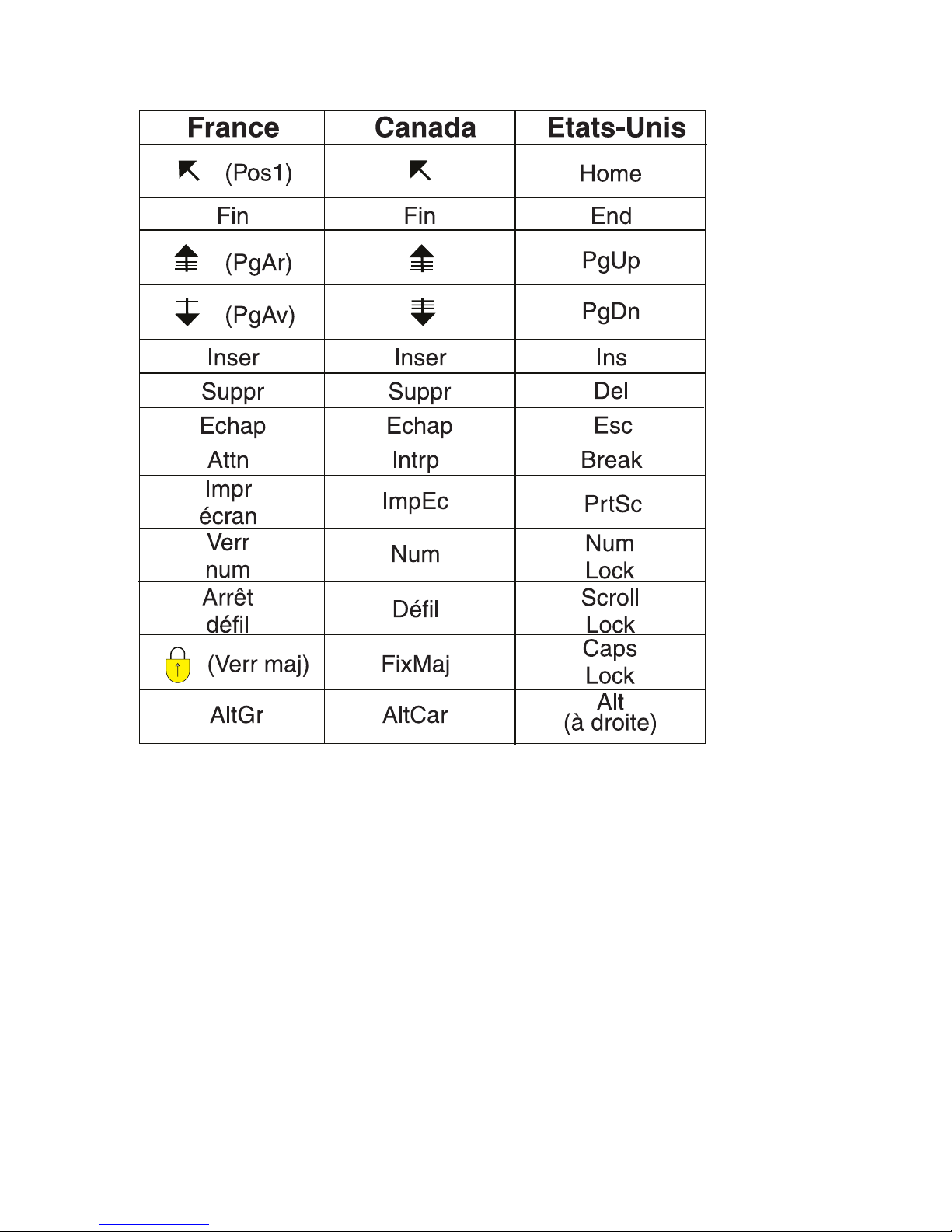
Recommandations à l’utilisateur
Ce matériel utilise et peut émettre de l’énergie radiofréquence. Il risque de
parasiter les communications radio et télévision s’il n’est pas installé et utilisé
conformément aux instructions du constructeur (instructions d’utilisation,
manuels de référence et manuels d’entretien).
Si cet équipement provoque des interférences dans les communications radio
ou télévision, mettez-le hors tension puis sous tension pour vous en assurer. Il
est possible de corriger cet état de fait par une ou plusieurs des mesures
suivantes :
v Réorienter l’antenne réceptrice ;
v Déplacer l’équipement par rapport au récepteur ;
v Éloigner l’équipement du récepteur ;
vi Aide-mémoire
 Loading...