

Lenovo Combined, ScrollPoint Mouse, Laser Wireless Mouse, ThinkPad Precision Wireless Mouse, ThinkPad USB Travel Mouse User Manual
Page 1

LenovoCombinedMouseUserGuide
Page 2

http://www.lenovo.com/safety
Note:Beforeinstallingtheproduct,besuretoreadthewarrantyinformationinAppendixB“LenovoLimited
Warranty”onpage31
.
TwelvethEdition(September2013)
©CopyrightLenovo2005,2013.
LIMITEDANDRESTRICTEDRIGHTSNOTICE:IfdataorsoftwareisdeliveredpursuantaGeneralServicesAdministration
“GSA”contract,use,reproduction,ordisclosureissubjecttorestrictionssetforthinContractNo.GS-35F-05925.
Page 3

Contents
Safetyinformation..........iii
Aboutthisuserguide..........v
Chapter1.LenovoandThinkPad
mice...................1
Productdescription..............1
Installingthesoftware.............1
Installingthemouse.............2
Usingthesoftware..............2
Troubleshooting...............3
Caringforthemouse.............5
Chapter2.ThinkPadBluetoothLaser
Mouse..................7
Productdescription..............7
Installingthesoftware.............8
Installingthebatteries.............8
Usingthemouseandthesoftware........8
BluetoothEasyPairfunction..........8
Manuallyconnectingyourmouse........9
Troubleshooting..............11
Chapter3.LenovoLaserWireless
Mouse.................13
Productdescription.............13
Installingthesoftware............14
Installingthemouse............14
Usingthemouseandthesoftware.......17
Storingthedongle.............17
Troubleshooting..............17
Chapter4.ThinkPadPrecision
WirelessMouse............21
Productdescription.............21
Installingthesoftware............22
Installingthemouse............22
Usingthemouseandthesoftware.......24
StoringtheLenovoUSBReceiver.......24
PairingtheLenovoUSBReceiverwithamouse..25
Troubleshooting..............25
AppendixA.ServiceandSupport...29
Onlinetechnicalsupport...........29
Telephonetechnicalsupport.........29
AppendixB.LenovoLimited
Warranty................31
Part1-GeneralTerms...........31
Part2-Country-specicTerms........33
Part3-WarrantyServiceInformation......36
SuplementodeGarantíaparaMéxico......38
AppendixC.Electronicemission
notices................39
FederalCommunicationsCommissionDeclaration
ofConformity...............39
AppendixD.Notices..........59
Recyclinginformation............59
RecyclinginformationforBrazil........59
ExportClassicationNotice.........60
Trademarks................60
AppendixE.RestrictionofHazardous
SubstancesDirective(RoHS).....61
EuropeanUnionRoHS...........61
ChinaRoHS................61
TurkishRoHS...............61
UkraineRoHS...............61
IndiaRoHS................61
©CopyrightLenovo2005,2013
i
Page 4

iiLenovoCombinedMouseUserGuide
Page 5

Safetyinformation
Beforeusingtheproduct,besuretoreadthesafetydocumentationthatcomeswiththeproduct.
Antesdeusaroproduto,certique-sedeleradocumentaçãodesegurançaincluída.
Prijekorištenjaproizvodasvakakopročitajtepriloženudokumentacijukojasetičesigurnosti.
Předpoužitímproduktujetřebasipřečístbezpečnostnídokumentaci,kterájedodávánasproduktem.
Førdubrugerproduktet,skaldusørgeforatlæsedesikkerhedsforskrifter,derfølgermedproduktet.
Luetuotteenmukanatoimitetutturvaohjeetennentämäntuotteenkäyttöä.
Avantd'utiliserleproduit,veillezàbienlireladocumentationrelativeàlasécuritéfournieavecleproduit.
Πρινναχρησιμοποιήσετετοπροϊόν,διαβάστεταέγγραφαγιατηνασφάλειαπουτοσυνοδεύουν.
VorVerwendungdesProduktssolltenSieunbedingtdieSicherheitsdokumentationlesen,dieim
LieferumfangdesProduktsenthaltenist.
Atermékhasználataelőttmindenképpenolvassaelatermékhezkapottbiztonságielőírásokat.
Primadiutilizzareilprodotto,accertarsidileggereladocumentazionesullasicurezzafornitaconilprodotto.
Lees,voordatuhetproductgebruikt,deveiligheidsdocumentatiediemethetproductismeegeleverd.
Førdubrukerproduktet,mådulesesikkerhetsdokumentasjonensomfølgermedproduktet.
Przedskorzystaniemzproduktunależyzapoznaćsięzdokumentacjąnatematbezpieczeństwadostarczoną
wrazzproduktem.
Antesdeutilizaroproduto,certique-sedequelêadocumentaçãodesegurançafornecidacomoproduto.
Преждечемиспользоватьэтотпродукт,ознакомьтесьсдокументациейпотехникебезопасности,
входящейвкомплектпоставкипродукта.
Predpoužívanímproduktusiprečítajtebezpečnostnúdokumentáciudodanúsproduktom.
Predenzačneteuporabljatiizdelek,preberitevarnostnodokumentacijo,kistejoprejeliskupajzizdelkom.
Antesdeutilizarelproducto,asegúresedeleerladocumentacióndeseguridadqueseentregajuntoconeste.
Lässäkerhetsinstruktionernasomföljermedprodukteninnandubörjaranvändaden.
©CopyrightLenovo2005,2013
iii
Page 6

ivLenovoCombinedMouseUserGuide
Page 7

Aboutthisuserguide
Thisuserguideprovidesinformationaboutthefollowingmice:
•Chapter1“Lenovo
®
ScrollPoint
®
Mouse”onpage1
•Chapter1“LenovoUSBLaserMouse”onpage1
•Chapter1“LenovoOpticalMouse”onpage1
•Chapter1“ThinkPad
®
PrecisionUSBMouse”onpage1
•Chapter1“ThinkPadUSBLaserMouse”onpage1
•Chapter1“ThinkPadUSBTravelMouse”onpage1
•Chapter2“ThinkPadBluetoothLaserMouse”onpage7
•Chapter3“LenovoLaserWirelessMouse”onpage13
•Chapter4“ThinkPadPrecisionWirelessMouse”onpage21
©CopyrightLenovo2005,2013
v
Page 8

viLenovoCombinedMouseUserGuide
Page 9

Chapter1.LenovoandThinkPadmice
Thischapterprovidesinformationaboutthefollowingmice:
•LenovoScrollPointMouse
•LenovoUSBLaserMouse
•LenovoOpticalMouse
•ThinkPadPrecisionUSBMouse
•ThinkPadUSBLaserMouse
•ThinkPadUSBTravelMouse
Productdescription
TheLenovoScrollPointMousehasascrollingpoint,whichenablesyoutocontrolverticalandhorizontal
scrolling.TheLenovoUSBLaserMouse,theThinkPadPrecisionUSBMouse,andtheThinkPadUSBLaser
Mouseenableyoutocontrolverticalandhorizontalscrollingusingthetiltwheel.FortheLenovoOptical
MouseandtheThinkPadUSBTravelMouse,youcanusethescrollingwheeltocontrolverticalscrolling.
Note:InstalltheLenovoMouseSuitesoftwarebeforeusingthehorizontalscrollingfunction.
EachmousecanbeconnectedtoanyenabledUniversalSerialBus(USB)connectoronyourcomputer.
Eachmouseissupportedonthefollowingoperatingsystems:
•Microsoft
®
Windows
®
XP(32-bit)
•MicrosoftWindowsVista
®
(32-bitor64-bit)
•MicrosoftWindows7(32-bitor64-bit)
•MicrosoftWindows8(32-bitor64-bit)
•MicrosoftWindows8.1(32-bitor64-bit)
Eachoptionpackageincludesthefollowing:
•Amouse
•Setupandwarrantyposter
•LaserSafetyInformation
Note:TheLaserSafetyInformationisonlyavailableinlasermousepackages.
Installingthesoftware
ItisrecommendedthatyouinstalltheLenovoMouseSuitesoftwaretocustomizeadvancedsettingsbefore
youusethemouse.
Note:Itisrecommendedthatyouuninstallanypreviouslyinstalledmousesoftwarebeforeinstallingthe
LenovoMouseSuitesoftware.
ToinstalltheLenovoMouseSuitesoftware,dothefollowing:
Notes:
•IntheHardwareInterfaceSelectionwindow,selectUSB(UniversalSerialBus)Interface.
©CopyrightLenovo2005,2013
1
Page 10

•FortheThinkPadPrecisionUSBMouse,ifyouareusingtheWindows7,Windows8,orWindows8.1
operatingsystem,andyourcomputerisconnectedtotheInternet,whenyouconnecttheThinkPad
PrecisionUSBMousetoyourcomputerforthersttime,amessagewillbedisplayed,askingifyouwant
toinstalltheLenovoMouseSuitesoftware.ClickDownloadNowandtheLenovoMouseSuitesoftware
willbeautomaticallyinstalled.Ifthemessageisnotdisplayed,manuallyinstalltheLenovoMouseSuite
softwarebyperformingthefollowingprocedure.
1.Gotohttp://support.lenovo.com/mousesuite.
2.LocateanddownloadtheinstallationleoftheLenovoMouseSuitesoftware.
3.Double-clicktheinstallationle,andthenfollowtheinstructionsonthescreentocompletethe
installation.
Installingthemouse
Thistopiccontainsinformationaboutinstallingthemouse.
Toinstallthemouse,connectthemousetoanavailableUSBconnectoronyourcomputer.TheNew
HardwareFoundwindowopens,andtheWindowsoperatingsystemwillautomaticallyinstalltheproper
devicedriverforthemouse.Then,themouseisreadyforuse.
Usingthesoftware
Eachmousehasmultiplefunctionsandfeaturessuchaszoomingandauto-scrolling,whichhelpyou
increaseyourproductivity.Youalsocanassignfrequentlyusedfunctionsorshortcutstothemousebuttons
usingtheLenovoMouseSuitesoftware.
TousetheLenovoMouseSuitesoftware,dothefollowing:
FortheWindowsXP ,WindowsVista,orWindows7operatingsystem:
1.ClickStart➙AllPrograms➙LenovoMouseSuite➙MouseSuite.
2.TheMousePropertieswindowopenswithseveraltabs.Clickeachtabtoviewrelatedsettingsand
customizesettingsasdesired.
FortheWindows8orWindows8.1operatingsystem:
1.Dependingonyouroperatingsystem,dooneofthefollowing:
•FortheWindows8operatingsystem:FromtheStartscreen,movethepointertothetop-rightor
bottom-rightcornerofthescreentodisplaythecharms,andthenclickSearch.
•FortheWindows8.1operatingsystem:FromtheStartscreen,clickthearrowiconinthe
bottom-leftcornerofthescreentogototheAppsscreen.
2.OntheAppsscreen,ndandclickMouseSuite.
3.TheMousePropertieswindowopenswithseveraltabs.Clickeachtabtoviewrelatedsettingsand
customizesettingsasdesired.
Notes:
•TheLenovoUSBLaserMousesupportsthemouseresolutionfrom400dotsperinch(DPI)to2000DPI.
Bydefault,themouseresolutionsettingis1600DPI.
•TheThinkPadPrecisionUSBMousesupportsthemouseresolutionfrom800DPIto1600DPI.Bydefault,
themouseresolutionsettingis1200DPI.
•TheThinkPadUSBLaserMousesupportsthemouseresolutionfrom400DPIto1600DPI.Bydefault,the
mouseresolutionsettingis1200DPI.
2LenovoCombinedMouseUserGuide
Page 11

•Eachtimeyoustartorrestartyourcomputer,ensurethatyoumovetheThinkPadPrecisionWireless
MouseorclickthemousebuttonbeforeusingtheLenovoMouseSuitesoftware.Otherwise,theLenovo
tabishidden.
Tochangetheresolutionsetting,dothefollowing:
FortheWindowsXP ,WindowsVista,orWindows7operatingsystem:
1.ClickStart➙AllPrograms➙LenovoMouseSuite➙MouseSuite.
2.IntheMousePropertieswindow,clicktheLenovotab.Then,clickAdvancedProperties.
3.IntheResolutionAdjustmentSetuparea,selectthecorrespondingradiobuttontosetthepreferred
mouseresolution.
4.Toconrmyoursetting,clickApply.Formoreinformationaboutthesetting,clickHelp.
FortheWindows8orWindows8.1operatingsystem:
1.Dependingonyouroperatingsystem,dooneofthefollowing:
•FortheWindows8operatingsystem:FromtheStartscreen,movethepointertothetop-rightor
bottom-rightcornerofthescreentodisplaythecharms,andthenclickSearch.
•FortheWindows8.1operatingsystem:FromtheStartscreen,clickthearrowiconinthe
bottom-leftcornerofthescreentogototheAppsscreen.
2.OntheAppsscreen,ndandclickMouseSuite.TheMousePropertieswindowopens.
3.IntheMousePropertieswindow,clicktheLenovotab.Then,clickAdvancedProperties.
4.IntheResolutionAdjustmentSetuparea,selectthecorrespondingradiobuttontosetthepreferred
mouseresolution.
5.Toconrmyoursetting,clickApply.Formoreinformationaboutthesetting,clickHelp.
Troubleshooting
Thistopiccontainstroubleshootinginformationforthemice.Ifyouencounteranyofthefollowingproblems
whenusingthemice,refertothecorrespondingsolution.
Problem:Themouseisnotrecognizedbytheoperatingsystem.
Solution:Tosolvetheproblem,performoneofthefollowingprocedures:
ProcedureA:
Dothefollowing:
•Installthemouseagain.
•AccessyourcomputerBasicInput/OutputSystem(BIOS)SetupUtilityprogramduringthestartupprocess
andmakesurethatalltheUSBconnectorsonyourcomputerareenabled.
Notes:
–ForinformationabouthowtoaccessorusetheBIOSSetupUtilityprogramonyourcomputer,seethe
documentationthatcamewithyourcomputer.
–IfallUSBconnectorsonyourcomputerdonotwork,probablythecomputerBIOSdoesnotsupport
them.Tosolvethisproblem,gotohttp://www.lenovo.com/supporttodownloadthelatestBIOS
updates,orgotohttp://www.lenovo.com/support/phonetondtheLenovotechnicalsupportfor
yourcountryorregion.
Chapter1.LenovoandThinkPadmice3
Page 12

ProcedureB:
FortheWindowsXP ,WindowsVista,orWindows7operatingsystem:
1.ClickStart➙ControlPanel.
2.DependingonyourControlPanelmode,double-clickSystemorclickPerformanceandMaintenance
➙System.
3.ClicktheHardwaretab.
4.ClickDeviceManager.
5.ScrolldownuntilyoundMiceandotherpointingdevices.Then,expandtheMiceandother
pointingdevicescategory.
6.Right-clickHID-compliantmouse,andthenselectUninstall.Awarningwillbedisplayed,prompting
youthatyouaregoingtoremoveadevicefromtheoperatingsystem.
7.ClickOK.
8.Right-clickMiceandotherpointingdevices,andthenselectScanforhardwarechangesto
re-detectthehardware.
Note:Ifayellowexclamationmarkisdisplayedinfrontofthemousenameafterre-detection,itindicates
thatthemousedriverisnotsuccessfullyinstalled.Right-clickthemousename,andthenselectUpdate
DriverorUpdateDriverSoftwaretoinstallthemousedriveragain.
FortheWindows8orWindows8.1operatingsystem:
1.Fromthedesktop,movethepointertothetop-rightorbottom-rightcornerofthescreentodisplaythe
charms,andthenclickSettings➙ControlPanel.
2.DependingonyourControlPanelmode,clickDeviceManagerorclickHardwareandSound➙
DeviceManager.
3.ScrolldownuntilyoundMiceandotherpointingdevices.Then,expandtheMiceandother
pointingdevicescategory.
4.Right-clickHID-compliantmouse,andthenselectUninstall.Awarningwillbedisplayed,prompting
youthatyouaregoingtoremoveadevicefromtheoperatingsystem.
5.ClickOK.
6.Right-clickMiceandotherpointingdevices,andthenselectScanforhardwarechangesto
re-detectthehardware.
Note:Ifayellowexclamationmarkisdisplayedinfrontofthemousenameafterre-detection,itindicates
thatthemousedriverisnotsuccessfullyinstalled.Right-clickthemousename,andthenselectUpdate
DriverorUpdateDriverSoftwaretoinstallthemousedriveragain.
Problem:Themousepointercannotmove.
Solution:Tosolvetheproblem,dothefollowing:
•Ensurethatyouhavefollowedallinstallationprocedures.
•ReinstalltheLenovoMouseSuitesoftware.
•Cleanthemouselenswithasoftcottonswab.Donotuseanyotherliquidorsolventtocleanthemouse
lensbecausesuchitemmightdamagethelens.
•Putamousepadunderthemouse.Ifthemouseismovingonahighlyreectivesurface,especiallya
glassormirrorsurface,themousemightnotbeabletowork.
Problem:ThehorizontalscrollingspeedcannotbechangedontheWheeltabintheMouseProperties
window.
4LenovoCombinedMouseUserGuide
Page 13

Solution:Tosolvetheproblem,customizethehorizontalscrollingspeedsettingbydoingthefollowing:
1.IntheMousePropertieswindow,clicktheLenovotab.Then,clickAdvancedProperties.
2.IntheAdvancedPropertieswindow,clicktheWheeltab.
3.IntheHorizontalScrollingarea,movethesliderrighttoincreaseorlefttodecreasethehorizontal
scrollingspeed.
Problem:TheLenovoMouseSuitesoftwarecannotbeautomaticallyinstalledwhenIconnecttheThinkPad
PrecisionUSBMousetomycomputerforthersttime.
Solution:Tosolvetheproblem,dothefollowing:
1.EnsurethatyouareusingtheWindows7,Windows8,orWindows8.1operatingsystem.
2.EnsurethatyourcomputerhasbeenconnectedtotheInternet.
3.EnsurethatyouhaveinstalledallWindowsupdatesbydoingthefollowing:
a.Enterthecontrolpanelinterface.
b.Dependingonyourcontrolpanelmode,dooneofthefollowing:
•ClickSystemandSecurity➙WindowsUpdate.
•ClickWindowsUpdate.
c.ClickCheckforupdatestoinstallWindowsupdates.
4.EnsurethatyouhaveenabledtheautomaticWindowsupdatefeaturebydoingthefollowing:
a.Enterthecontrolpanelinterface.
b.Dependingonyourcontrolpanelmode,dooneofthefollowing:
•ClickHardwareandSound➙DevicesandPrinters.
•ClickDevicesandPrinters.
c.Right-clickyourcomputericonundertheDevicesmenu,andthenselectDeviceinstallation
settings.
d.FollowtheinstructionsonthescreentoenabletheautomaticWindowsupdatefeature.
5.ConnecttheThinkPadPrecisionUSBMousetoanotherUSBconnectorwhichhasnotconnected
withitbefore.
6.ManuallyinstalltheLenovoMouseSuitesoftwarebydoingthefollowing:
a.Gotohttp://support.lenovo.com/mousesuite.
b.LocateanddownloadtheinstallationleoftheLenovoMouseSuitesoftware.
c.Double-clicktheinstallationle,andthenfollowtheinstructionsonthescreentocompletethe
installation.
Note:IntheHardwareInterfaceSelectionwindow,selectUSB(UniversalSerialBus)Interface.
Caringforthemouse
Alwaysdisconnectthemousebeforecleaning.Keepbeveragesawayfromthemouseworkingareaand
avoidanyspills.Themaintenanceofyourmousewillensurelongerlifeandminimizethechancesofcausing
damagetoyourmouseandcomputer.Therearenouserserviceableparts.
Chapter1.LenovoandThinkPadmice5
Page 14

6LenovoCombinedMouseUserGuide
Page 15
Chapter2.ThinkPadBluetoothLaserMouse
ThischapterprovidesinformationabouttheThinkPadBluetoothLaserMouse.
Productdescription
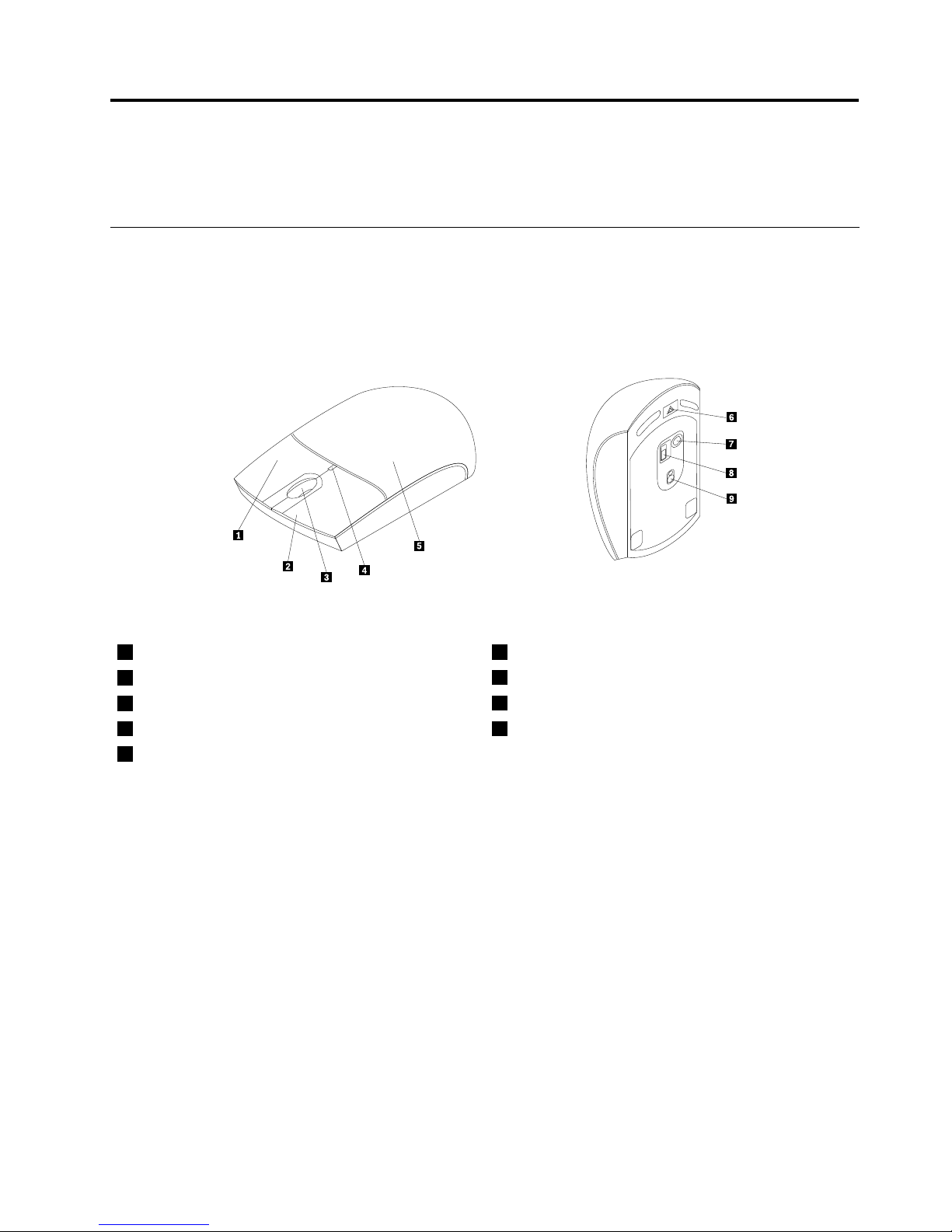
TheThinkPadBluetoothLaserMousehasatiltwheeltocontrolverticalandhorizontalscrolling.Itusesthe
Bluetoothtechnologytoconnecttotheoperatingsystem.
ThefollowinggureshowsthefrontviewandrearviewoftheThinkPadBluetoothLaserMouse.
Figure1.Frontviewandrearviewofthemouse
1Rightbutton6Batterycompartmentreleasebutton
2Leftbutton
7Bluetoothconnectionbutton
3Scrollingwheel
8Powerswitch
4LEDindicator9Laseroutput
5Batterycompartmentcover
Themouseissupportedonthefollowingoperatingsystems:
•MicrosoftWindowsXP(32-bit)
•MicrosoftWindowsVista(32-bitor64-bit)
•MicrosoftWindows7(32-bitor64-bit)
•MicrosoftWindows8(32-bitor64-bit)
•MicrosoftWindows8.1(32-bitor64-bit)
Youroptionpackageincludesthefollowing:
•ThinkPadBluetoothLaserMouse
•T woAAbatteries(forsomecountriesorregionsonly)
•LaserSafetyInformation
•Setupandwarrantyposter
©CopyrightLenovo2005,2013
7
Page 16

Installingthesoftware
ItisrecommendedthatyouinstalltheLenovoMouseSuitesoftwaretocustomizeadvancedsettingsbefore
youusethemouse.
Notes:
•ItisrecommendedthatyouuninstallanypreviouslyinstalledmousesoftwarebeforeinstallingtheLenovo
MouseSuitesoftware.
•T urnontheBluetoothradioinyourcomputerbeforeinstallingtheLenovoMouseSuitesoftware.
•TheThinkPadBluetoothLaserMousedoesnotsupporttheautomaticinstallationoftheLenovoMouse
Suitesoftware.
ToinstalltheLenovoMouseSuitesoftware,dothefollowing:
1.Gotohttp://support.lenovo.com/mousesuite.
2.LocateanddownloadtheinstallationleoftheLenovoMouseSuitesoftware.
3.Double-clicktheinstallationle,andthenfollowtheinstructionsonthescreentocompletethe
installation.
Note:IntheHardwareInterfaceSelectionwindow,selectBluetoothInterface.
Installingthebatteries
TheThinkPadBluetoothLaserMouseneedstwoAAbatteriestoworkwithyourcomputer.Forbetter
performance,itisrecommendedthatyouinstallalkalinebatteriesinyourmouse.
Toinstallthebatteries,dothefollowing:
1.Pressthebatterycompartmentreleasebuttontoopenthebatterycompartmentcover.
2.Insertthetwobatteriesaccordingtothepolarityindicatorsinthemousebatterycompartment.
3.Pushdownthebatterycompartmentcoverandslideitforwarduntilitclicksintoplace.
Notes:
•Thegreenlight-emittingdiode(LED)indicatesthatthebatteriesarechargedandthemouseisready
foruse.
•TheashingamberLEDindicatesalowbatterypowerlevel.Y oushouldinstallnewbatteries.
•T omaximizebatterylife,movethepowerswitchonthemousetotheoffpositionwhenyouarenot
usingthemouse.
Usingthemouseandthesoftware
TheThinkPadBluetoothLaserMousehasmultiplefunctionsandfeaturessuchaszoomingand
auto-scrolling,whichhelpyouincreaseyourproductivity.Y oualsocanassignfrequentlyusedfunctionsor
shortcutstothemousebuttonsusingtheLenovoMouseSuitesoftware.Formoreinformationaboutusing
theLenovoMouseSuitesoftware,see“Usingthesoftware”onpage2.
BluetoothEasyPairfunction
YoucanusetheBluetoothEasyPairfunctioniftheLenovoMouseSuitesoftwarecannotdetectthemouse
orwhenyouwanttorepairtheconnectionbetweenthemouseandtheoperatingsystem.
8LenovoCombinedMouseUserGuide
Page 17

Note:BeforeyouusetheBluetoothEasyPairfunction,dothefollowing:
•Makesurethatthebatteriesarecorrectlyinstalledinthemousebatterycompartment.
•MakesurethattheBluetoothradioinyourcomputeristurnedon.
TousetheBluetoothEasyPairfunction,dothefollowing:
FortheWindowsXP ,WindowsVista,orWindows7operatingsystem:
1.ClickStart➙AllPrograms➙LenovoMouseSuite➙BluetoothEasyPair.
2.ClickNext.
3.Pushthepowerswitchonthemousetotheonposition.
4.HoldtheBluetoothconnectionbuttonforthreeseconds.
5.Whenthemouseisrecognizedbytheoperatingsystem,aconrmationwindowopens.ClickFinish.
FortheWindows8orWindows8.1operatingsystem:
1.Fromthedesktop,gototheC:\ProgramFiles\Lenovo\LenovoMouseSuitefolder,click
MouseWiz.exe.
2.ClickNext.
3.Pushthepowerswitchonthemousetotheonposition.
4.HoldtheBluetoothconnectionbuttonforthreeseconds.
5.Whenthemouseisrecognizedbytheoperatingsystem,aconrmationwindowopens.ClickFinish.
Note:SomeoperatingsystemsdonotsupporttheBluetoothEasyPairfunction.Youcanmanuallyrepair
theconnection.Forinformationaboutmanuallyconnectingthemousewiththeoperatingsystem,see
“Manuallyconnectingyourmouse”onpage9
.
Manuallyconnectingyourmouse
Tomanuallyconnectthemousewiththeoperatingsystemorrepairtheconnectionbetweenthem,
dependingonyouroperatingsystem,dooneofthefollowing:
FortheWindowsXPoperatingsystem:
1.TurnontheBluetoothradioinyournotebookcomputer.
Note:ForThinkPadnotebookcomputers,openthesettingwindowofwirelessradios,andthenturnon
theBluetoothradio.TheBluetoothradioindicatorturnsgreen,andtheBluetoothdeviceisreadyforuse.
FormoreinformationaboutturningontheBluetoothradio,refertotheuserguideorthehelpinformation
systemoftheAccessConnectionsprogramthatcamewithyourcomputer.
2.Double-clicktheMyBluetoothPlacesiconintheWindowsnoticationareaoronthedesktop.
3.Pushthepowerswitchonthemousetotheonposition.
4.HoldtheBluetoothconnectionbuttonforthreeseconds.TheLEDindicatorstartstoash.
5.Dependingonyourmenumode,clickViewdevicesinrangeorSearchfordevicesinrange.
6.Double-clicktheThinkPadBluetoothLaserMouseiconinthelist.IfyourBluetoothdevicerequires
asecuritycode,PINorpasscode,enter0000.
7.Awindowopenstoconrmthatthemouseisconnectedwiththeoperatingsystem.ClickClose.
Note:Ifawindowopensindicatingthattheconnectionfails,right-clicktheThinkPadBluetoothLaser
MouseiconandselectDisabletodisablethemouse.Then,continuewithstep5.
Chapter2.ThinkPadBluetoothLaserMouse9
Page 18

FortheWindowsVistaorWindows7operatingsystem:
1.TurnontheBluetoothradioinyournotebookcomputer.
Note:ForThinkPadnotebookcomputers,openthesettingwindowofwirelessradios,andthenturnon
theBluetoothradio.TheBluetoothradioindicatorturnsgreen,andtheBluetoothdeviceisreadyforuse.
FormoreinformationaboutturningontheBluetoothradio,refertotheuserguideorthehelpinformation
systemoftheAccessConnectionsprogramthatcamewithyourcomputer.
2.ClickStart➙ControlPanel,andthendependingontheoperatingsystemyouareusing,doone
ofthefollowing:
•FortheWindowsVistaoperatingsystem,double-clickBluetoothDevices,andthenclickAdd
WirelessDevice.
•FortheWindows7operatingsystem,dependingonyourControlPanelmode,clicktheAddadevice
optionundertheHardwareandSoundmenuorclickDevicesandPrinters➙Addadevice.
3.Pushthepowerswitchonthemousetotheonposition.
4.HoldtheBluetoothconnectionbuttonforthreeseconds.TheLEDindicatorstartstoash.
5.SelecttheThinkPadBluetoothLaserMouseiconfromthelistandclickNext.
Note:Ifawindowopenspromptingthatyouneedtoselectaconnectionway,selectPairwithout
usingacode.
6.Theconnectionprocessautomaticallystarts.Whentheconnectionprocesscompletes,clickClose.
Then,themouseisreadyforuse.
Note:Ifawindowopensindicatingthattheconnectionfails,clickTryAgain.
FortheWindows8operatingsystem:
1.TurnontheBluetoothradioinyournotebookcomputer.
Note:ForThinkPadnotebookcomputers,openthesettingwindowofwirelessradios,andthenturnon
theBluetoothradio.TheBluetoothradioindicatorturnsgreen,andtheBluetoothdeviceisreadyforuse.
FormoreinformationaboutturningontheBluetoothradio,refertotheuserguideorthehelpinformation
systemoftheAccessConnectionsprogramthatcamewithyourcomputer.
2.Fromthedesktop,movethepointertothetop-rightorbottom-rightcornerofthescreentodisplaythe
charms,clickSettings➙ChangePCsettings➙Devices.
3.Pushthepowerswitchonthemousetotheonposition.
4.HoldtheBluetoothconnectionbuttonforthreeseconds.TheLEDindicatorstartstoash.
5.ClickAddadeviceintheDevicespanel.SelecttheThinkPadBluetoothLaserMousefromthelist.
6.Theconnectionprocessautomaticallystarts.Whentheconnectionprocesscompletes,clickClose.
Then,themouseisreadyforuse.
Note:Ifawindowopensindicatingthattheconnectionfails,clickTryAgain.
FortheWindows8.1operatingsystem:
1.TurnontheBluetoothradioinyournotebookcomputer.
Note:ForThinkPadnotebookcomputers,openthesettingwindowofwirelessradios,andthenturnon
theBluetoothradio.TheBluetoothradioindicatorturnsgreen,andtheBluetoothdeviceisreadyforuse.
FormoreinformationaboutturningontheBluetoothradio,refertotheuserguideorthehelpinformation
systemoftheAccessConnectionsprogramthatcamewithyourcomputer.
2.Fromthedesktop,movethepointertothetop-rightorbottom-rightcornerofthescreentodisplaythe
charms,clickSettings➙ChangePCsettings➙PCanddevices➙Bluetooth.
10LenovoCombinedMouseUserGuide
Page 19

3.Pushthepowerswitchonthemousetotheonposition.
4.HoldtheBluetoothconnectionbuttonforthreeseconds.TheLEDindicatorstartstoash.
5.SelecttheThinkPadBluetoothLaserMousefromthelist,andthenclickPair.Theconnectionprocess
automaticallystarts.Whentheconnectionprocesscompletes,themouseisreadyforuse.
Note:Ifawindowopensindicatingthattheconnectionfails,clickT ryAgain.
Troubleshooting
Thistopicprovidesbasictroubleshootinginformationwhenyouencounterproblemswithyourmouse.
Problem:TheThinkPadBluetoothLaserMouseisnotrecognizedbyyourcomputer.
Solution:Tosolvetheproblem,dothefollowing:
•EnsurethattheBluetoothradioisturnedonandtheBluetoothworks.
•EnsurethattheBluetoothconnectionbuttononthemouseisswitchedon.
•EnsurethatyouhavedownloadedandinstalledthelatestBluetoothforWindows(BTW)software.
•LogintoyournotebookcomputerBIOSinterface,andsetalloptionsrelatedtomousetodefault.For
detailsabouttheBIOSsettings,refertotheuserguidethatcamewithyournotebookcomputer.
•Ensurethatyournotebookcomputeriscompatiblewiththemouse.
•T rymovingthemouseclosertothecomputerandremovingotherobjectswithwirelesssignalstoavoid
signalinterference.
•Ifyouhaveconguredthemouseinonecomputerandyouwanttocongureitinanothercomputer,itis
recommendedthatyoudisablethemouseinthepreviouscomputerrst.
Problem:Themousepointercannotmove.
Solution:Tosolvetheproblem,dothefollowing:
•Ensurethatyouhavefollowedallinstallationprocedures.
•ReinstalltheLenovoMouseSuitesoftware.
•Cleanthemouselenswithasoftcottonswab.Donotuseanyotherliquidorsolventtocleanthemouse
lensbecausesuchitemmightdamagethelens.
•Putamousepadunderthemouse.Ifthemouseismovingonahighlyreectivesurface,especiallya
glassormirrorsurface,themousemightnotbeabletowork.
Problem:ThehorizontalscrollingspeedcannotbechangedontheWheeltabintheMouseProperties
window.
Solution:Tosolvetheproblem,customizethehorizontalscrollingspeedsettingbydoingthefollowing:
1.IntheMousePropertieswindow,clicktheLenovotab.Then,clickAdvancedProperties.
2.IntheAdvancedPropertieswindow,clicktheWheeltab.
3.IntheHorizontalScrollingarea,movethesliderrighttoincreaseorlefttodecreasethehorizontal
scrollingspeed.
Problem:TheThinkPadBluetoothLaserMouselags.
Solution:T osolvetheproblem,trymovingthemouseclosertothecomputerandremovingotherobjects
withwirelesssignalstoavoidsignalinterference.
Chapter2.ThinkPadBluetoothLaserMouse11
Page 20

12LenovoCombinedMouseUserGuide
Page 21
Chapter3.LenovoLaserWirelessMouse
ThischapterprovidesinformationabouttheLenovoLaserWirelessMouse.
Productdescription
TheLenovoLaserWirelessMousefeatureshigh-precisionlaserandascrollingwheel,whichhelpyoueasily
navigatethroughdocumentsandWebpages.Themicro-sizedongle,whichsupportstheplugandplay
functionality,isstoredneatlyinsidethemousefortravel.
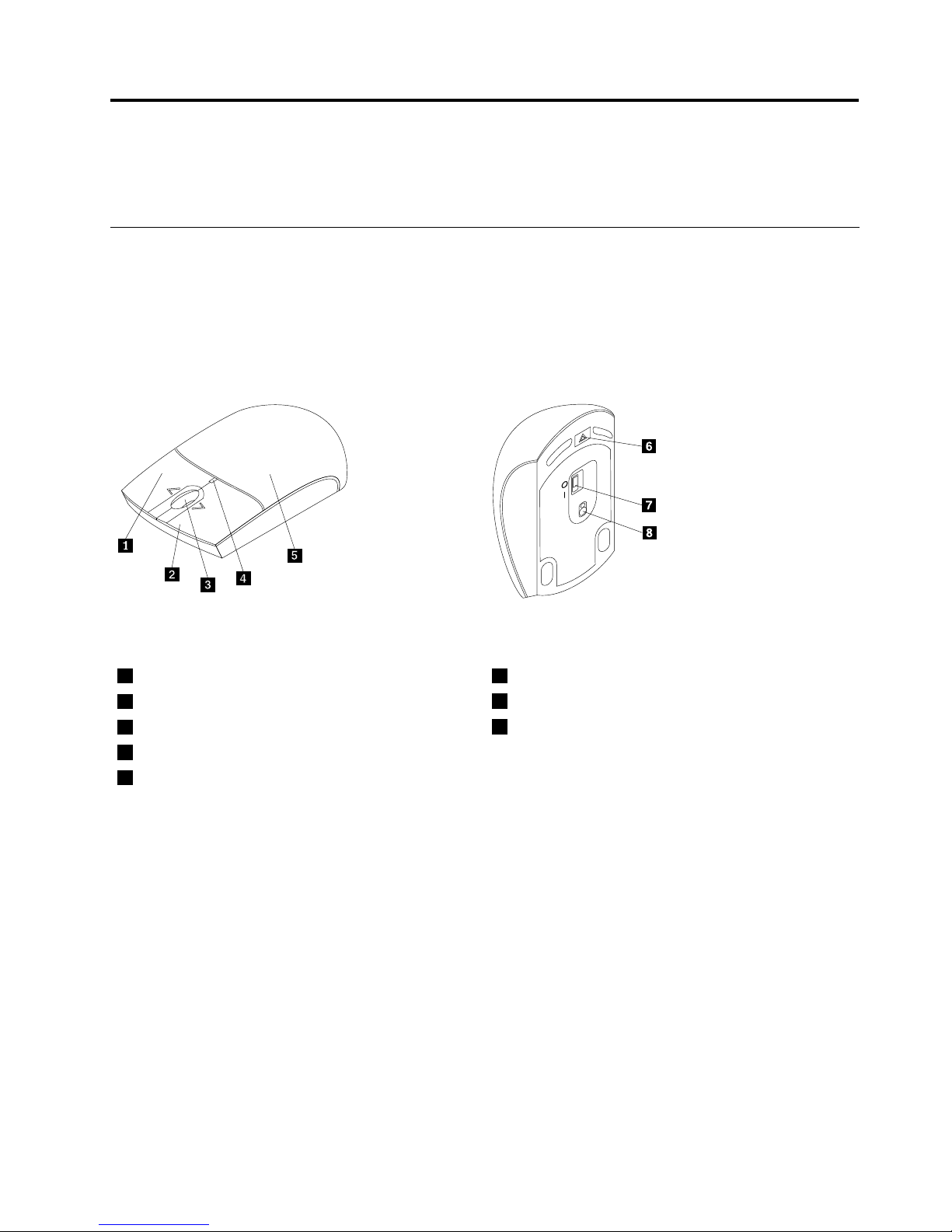
ThefollowinggureshowsthefrontviewandrearviewoftheLenovoLaserWirlessMouse.
Figure2.Mousefrontviewandrearview
1Rightbutton6Batterycompartmentreleasebutton
2Leftbutton
7Powerswitch
3Scrollingwheel
8Laseroutput
4LEDindicator
5Batterycompartmentcover
Themouseissupportedonthefollowingoperatingsystems:
•MicrosoftWindowsXP(32-bit)
•MicrosoftWindowsVista(32-bitor64-bit)
•MicrosoftWindows7(32-bitor64-bit)
•MicrosoftWindows8(32-bitor64-bit)
•MicrosoftWindows8.1(32-bitor64-bit)
Youroptionpackageincludesthefollowing:
•LenovoLaserWirelessMouse(includingthedongle)
•T woAAbatteries(forsomecountriesorregionsonly)
•LaserSafetyInformation
•Setupandwarrantyposter
©CopyrightLenovo2005,2013
13
Page 22
Installingthesoftware
ItisrecommendedthatyouinstalltheLenovoMouseSuitesoftwaretocustomizeadvancedsettingsbefore
youusetheLenovoLaserWirelessMouse.
Notes:
•ItisrecommendedthatyouuninstallanypreviouslyinstalledmousesoftwarebeforeinstallingtheLenovo
MouseSuitesoftware.
•TheLenovoLaserWirelessMousedoesnotsupporttheautomaticinstallationoftheLenovoMouse
Suitesoftware.
ToinstalltheLenovoMouseSuitesoftware,dothefollowing:
1.Gotohttp://support.lenovo.com/mousesuite.
2.LocateanddownloadtheinstallationleoftheLenovoMouseSuitesoftware.
3.Double-clicktheinstallationle,andthenfollowtheinstructionsonthescreentocompletethe
installation.
Note:IntheHardwareInterfaceSelectionwindow,selectUSB(UniversalSerialBus)Interface.
Installingthemouse
Thistopicprovidesinformationonhowtoinstallthemouse.
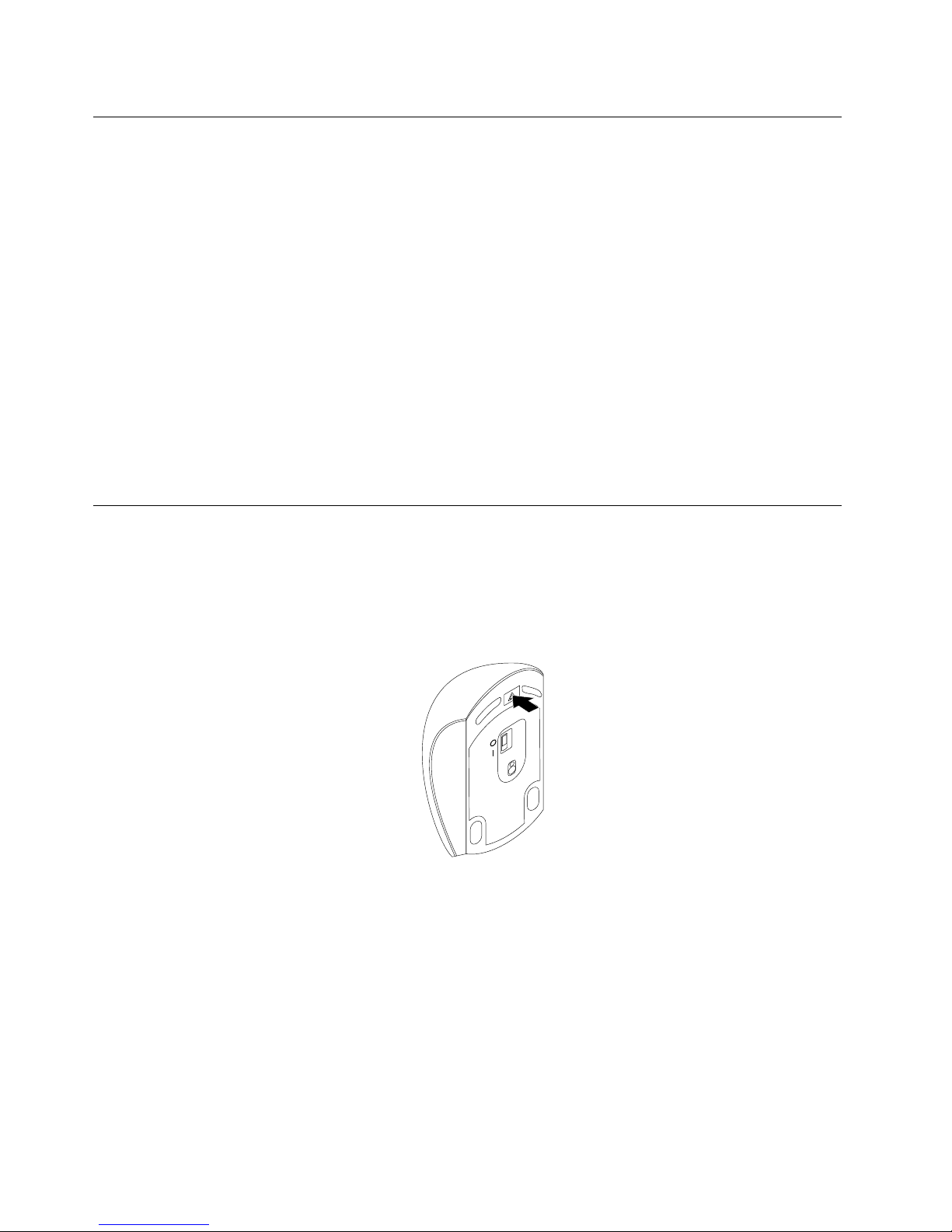
Toinstallthemouse,dothefollowing:
1.Pressthebatterycompartmentreleasebuttontoopenthebatterycompartmentcover.
Figure3.Openingthebatterycompartmentcover
14LenovoCombinedMouseUserGuide
Page 23
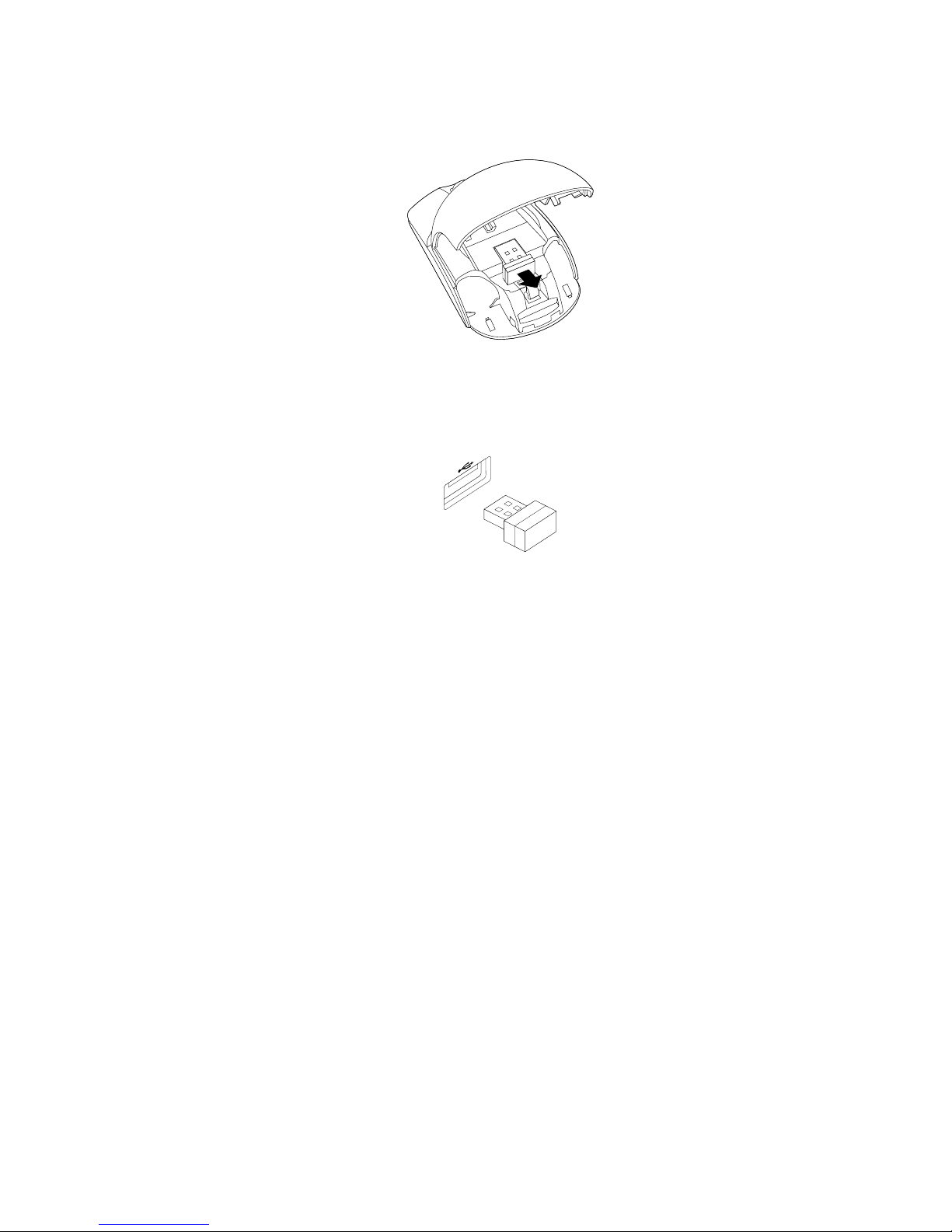
2.Takeoutthedongle.
Figure4.Takingoutthedongle
3.ConnectthedongletoanavailableUSBconnectoronthecomputer.
Figure5.ConnectingthedongletoaUSBconnector
Chapter3.LenovoLaserWirelessMouse15
Page 24
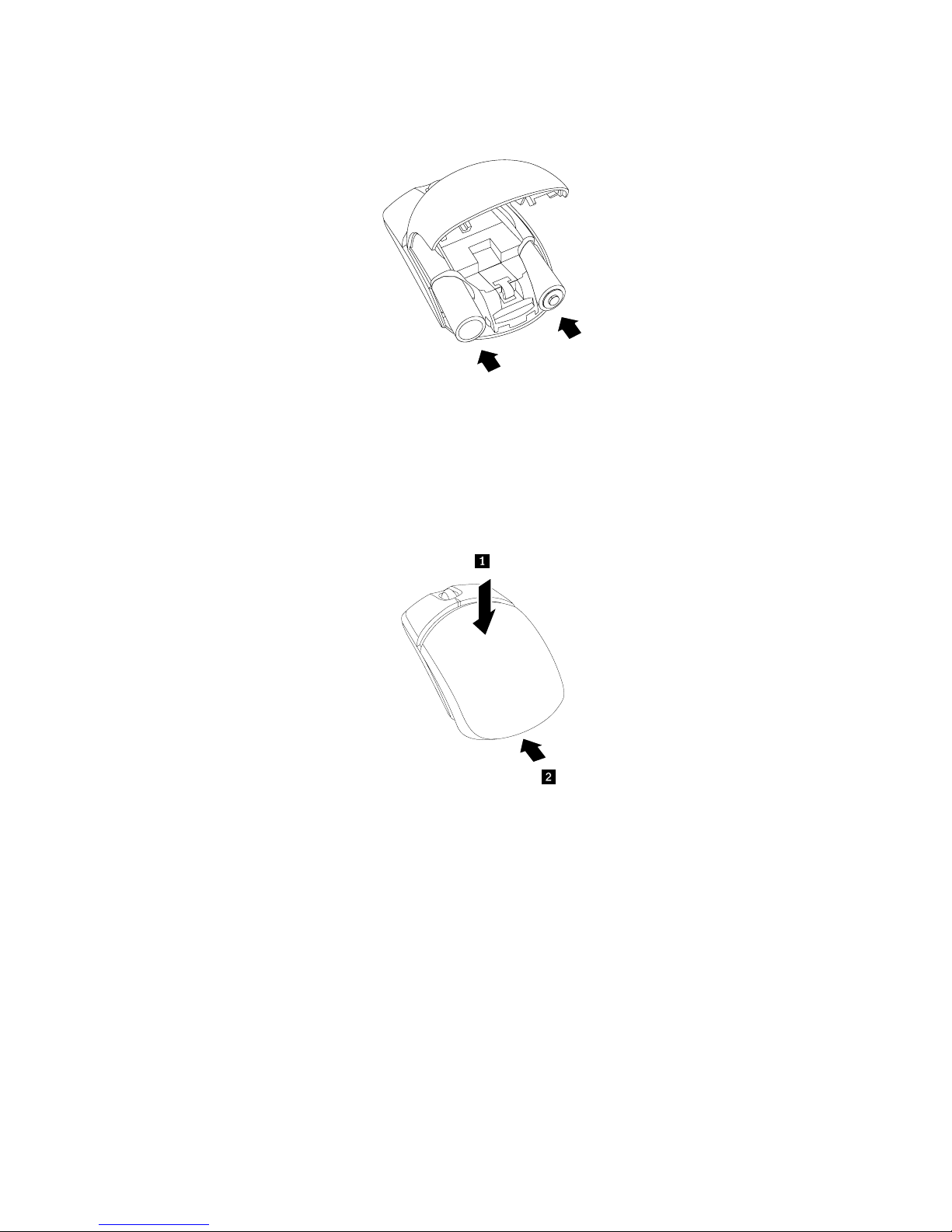
4.InserttwoAAbatteriesintothebatterycompartmentaccordingtothepolarityindicators.
Figure6.Installingthemousebatteries
CAUTION:
Thereisariskofexplosionifabatteryisreplacedbyanincorrecttype.Disposeofusedbatteries
accordingtotheinstructions.
5.Closethebatterycompartmentcoverandslideitforwarduntilitclicksintoplace.
Figure7.Closingthebatterycompartmentcover
16LenovoCombinedMouseUserGuide
Page 25
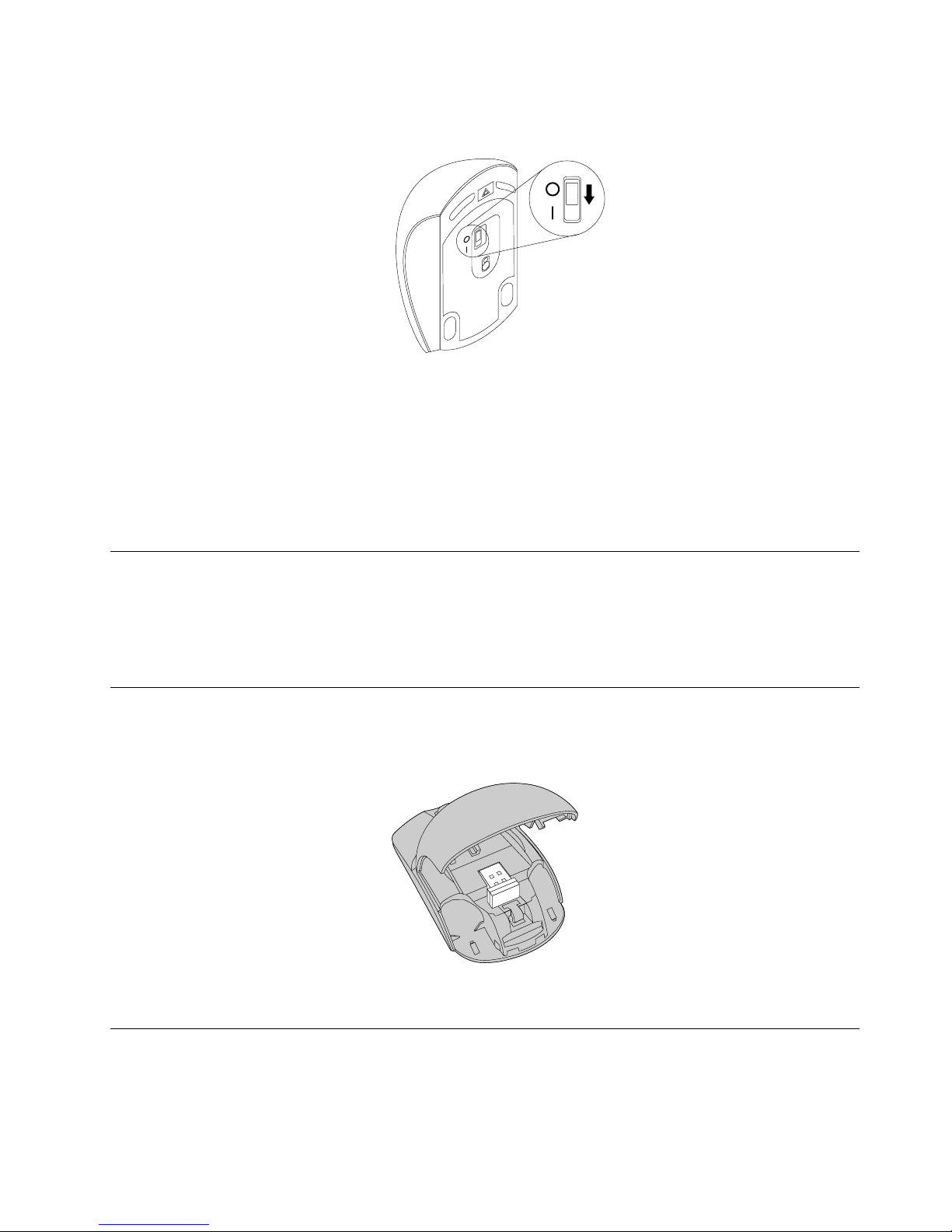
6.MovethepowerswitchonthemousetotheonpositionandtheLEDindicatorison.
Figure8.Movethepowerswitchtotheonposition
Notes:
•ThegreenLEDindicatesthatthemouseisreadyforuse.
•TheashingredLEDindicatesalowbatterypowerlevel.
•T omaximizebatterylife,movethepowerswitchonthemousetotheoffpositionwhenyouarenot
usingthemouse.
Usingthemouseandthesoftware
TheLenovoLaserWirelessMousehasmultiplefunctionsandfeaturessuchaszoomingandauto-scrolling,
whichhelpyouincreaseyourproductivity.Y oualsocanassignfrequentlyusedfunctionsorshortcutsto
themousebuttonsusingtheLenovoMouseSuitesoftware.FormoreinformationaboutusingtheLenovo
MouseSuitesoftware,see“Usingthesoftware”onpage2
.
Storingthedongle
Whenyouarenotusingthemouse,storethedongleinthebatterycompartmentofthemouseasshown:
Figure9.Storingthedongleinthemousebatterycompartment
Troubleshooting
Thistopicprovidesbasictroubleshootinginformationwhenyouencounterproblemswithyourmouse.
Problem:Themouseisnotrecognizedbytheoperatingsystem.
Chapter3.LenovoLaserWirelessMouse17
Page 26

Solution:Tosolvetheproblem,performoneofthefollowingprocedures:
ProcedureA:
Dothefollowing:
•Installthemouseagain.
•AccessyourcomputerBasicInput/OutputSystem(BIOS)SetupUtilityprogramduringthestartupprocess
andmakesurethatalltheUSBconnectorsonyourcomputerareenabled.
Notes:
–ForinformationabouthowtoaccessorusetheBIOSSetupUtilityprogramonyourcomputer,seethe
documentationthatcamewithyourcomputer.
–IfallUSBconnectorsonyourcomputerdonotwork,probablythecomputerBIOSdoesnotsupport
them.Tosolvethisproblem,gotohttp://www.lenovo.com/supporttodownloadthelatestBIOS
updates,orgotohttp://www.lenovo.com/support/phonetondtheLenovotechnicalsupportfor
yourcountryorregion.
ProcedureB:
FortheWindowsXP ,WindowsVista,orWindows7operatingsystem:
1.ClickStart➙ControlPanel.
2.DependingonyourControlPanelmode,double-clickSystemorclickPerformanceandMaintenance
➙System.
3.ClicktheHardwaretab.
4.ClickDeviceManager.
5.ScrolldownuntilyoundMiceandotherpointingdevices.Then,expandtheMiceandother
pointingdevicescategory.
6.Right-clickHID-compliantmouse,andthenselectUninstall.Awarningwillbedisplayed,prompting
youthatyouaregoingtoremoveadevicefromtheoperatingsystem.
7.ClickOK.
8.Right-clickMiceandotherpointingdevices,andthenselectScanforhardwarechangesto
re-detectthehardware.
Note:Ifayellowexclamationmarkisdisplayedinfrontofthemousenameafterre-detection,itindicates
thatthemousedriverisnotsuccessfullyinstalled.Right-clickthemousename,andthenselectUpdate
DriverorUpdateDriverSoftwaretoinstallthemousedriveragain.
FortheWindows8orWindows8.1operatingsystem:
1.Fromthedesktop,movethepointertothetop-rightorbottom-rightcornerofthescreentodisplaythe
charms,andthenclickSettings➙ControlPanel.
2.DependingonyourControlPanelmode,clickDeviceManagerorclickHardwareandSound➙
DeviceManager.
3.ScrolldownuntilyoundMiceandotherpointingdevices.Then,expandtheMiceandother
pointingdevicescategory.
4.Right-clickHID-compliantmouse,andthenselectUninstall.Awarningwillbedisplayed,prompting
youthatyouaregoingtoremoveadevicefromtheoperatingsystem.
5.ClickOK.
6.Right-clickMiceandotherpointingdevices,andthenselectScanforhardwarechangesto
re-detectthehardware.
18LenovoCombinedMouseUserGuide
Page 27

Note:Ifayellowexclamationmarkisdisplayedinfrontofthemousenameafterre-detection,itindicates
thatthemousedriverisnotsuccessfullyinstalled.Right-clickthemousename,andthenselectUpdate
DriverorUpdateDriverSoftwaretoinstallthemousedriveragain.
Problem:Themousepointercannotmove.
Solution:Tosolvetheproblem,dothefollowing:
•Ensurethatyouhavefollowedallinstallationprocedures.
•ReinstalltheLenovoMouseSuitesoftware.
•Cleanthemouselenswithasoftcottonswab.Donotuseanyotherliquidorsolventtocleanthemouse
lensbecausesuchitemmightdamagethelens.
•Putamousepadunderthemouse.Ifthemouseismovingonahighlyreectivesurface,especiallya
glassormirrorsurface,themousemightnotbeabletowork.
Problem:ThehorizontalscrollingspeedcannotbechangedontheWheeltabintheMouseProperties
window.
Solution:Tosolvetheproblem,customizethehorizontalscrollingspeedsettingbydoingthefollowing:
1.IntheMousePropertieswindow,clicktheLenovotab.Then,clickAdvancedProperties.
2.IntheAdvancedPropertieswindow,clicktheWheeltab.
3.IntheHorizontalScrollingarea,movethesliderrighttoincreaseorlefttodecreasethehorizontal
scrollingspeed.
Chapter3.LenovoLaserWirelessMouse19
Page 28

20LenovoCombinedMouseUserGuide
Page 29
Chapter4.ThinkPadPrecisionWirelessMouse
ThischapterprovidesinformationabouttheThinkPadPrecisionWirelessMouse.
Productdescription
TheThinkPadPrecisionWirelessMousefeaturesahigh-precisionsensorandascrollingwheel,whichhelp
youeasilynavigatethroughdocumentsandWebpages.TheLenovoUSBReceiver,whichsupportstheplug
andplayfunctionality,isstoredneatlyinsidetheThinkPadPrecisionWirelessMousefortravel.
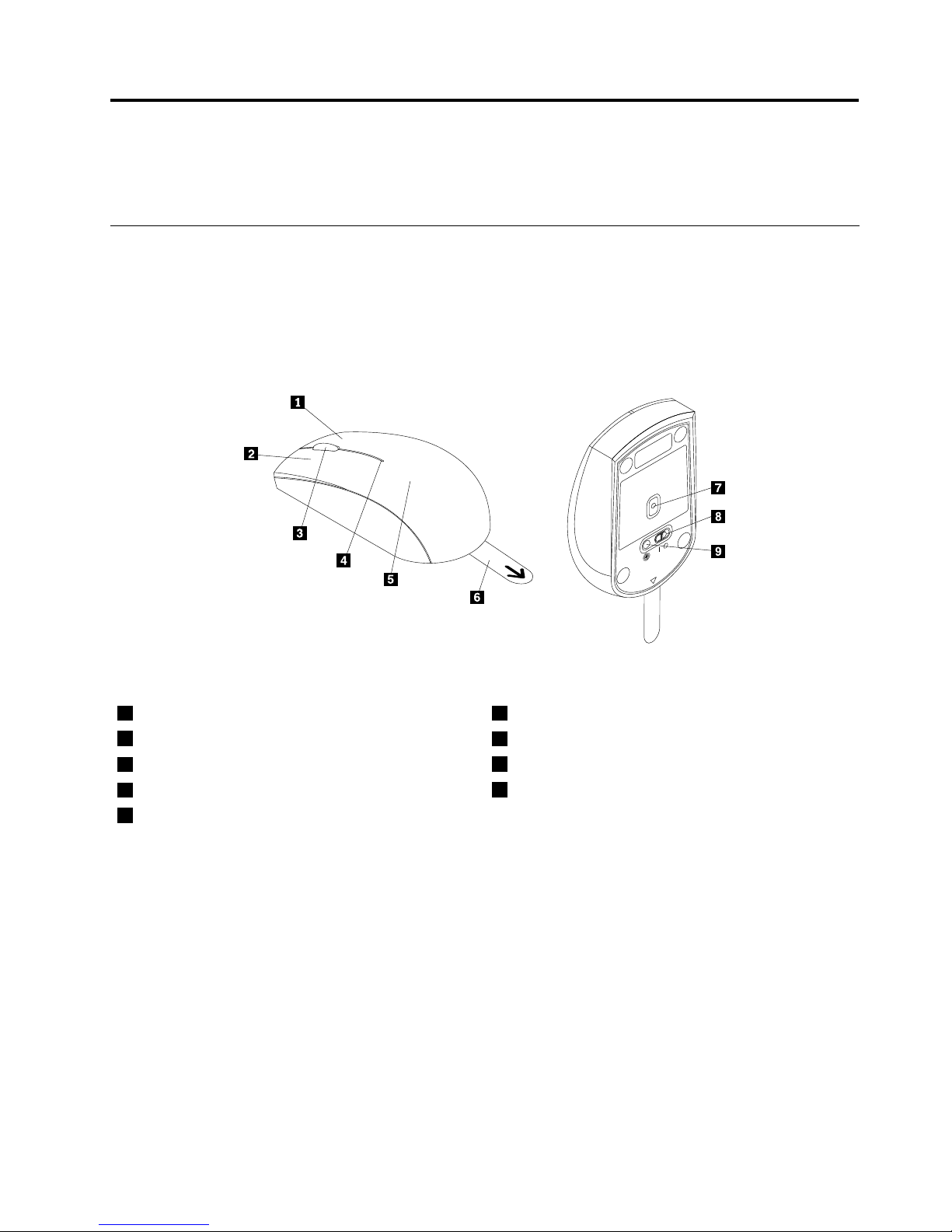
ThefollowingillustrationsshowthefrontviewandrearviewoftheThinkPadPrecisionWirelessMouse.
Figure10.Frontviewandrearviewofthemouse
1Rightbutton6Plastictab
2Leftbutton
7Sensorindicator
3Scrollingwheel
8Powerswitch
4Statusindicator
9Pairingbutton
5Batterycompartmentcover
Themouseissupportedonthefollowingoperatingsystems:
•MicrosoftWindowsXP(32-bit)
•MicrosoftWindowsVista(32-bitor64-bit)
•MicrosoftWindows7(32-bitor64-bit)
•MicrosoftWindows8(32-bitor64-bit)
•MicrosoftWindows8.1(32-bitor64-bit)
Youroptionpackageincludesthefollowing:
•ThinkPadPrecisionWirelessMouse(includingtheLenovoUSBReceiver)
•T woAAbatteries(forsomecountriesorregionsonly)
•Setupandwarrantyposter
©CopyrightLenovo2005,2013
21
Page 30
Installingthesoftware
ItisrecommendedthatyouinstalltheLenovoMouseSuitesoftwaretocustomizeadvancedsettingsbefore
youusetheThinkPadPrecisionWirelessMouse.
Note:Itisrecommendedthatyouuninstallanypreviouslyinstalledmousesoftwarebeforeinstallingthe
LenovoMouseSuitesoftware.
ToinstalltheLenovoMouseSuitesoftware,dothefollowing:
Note:IfyouareusingtheWindows7,Windows8,orWindows8.1operatingsystem,andyourcomputeris
connectedtotheInternet,whenyouconnecttheThinkPadPrecisionWirelessMousetoyourcomputerfor
thersttime,amessagewillbedisplayed,askingifyouwanttoinstalltheLenovoMouseSuitesoftware.
ClickDownloadNowandtheLenovoMouseSuitesoftwarewillbeautomaticallyinstalled.Ifthemessageis
notdisplayed,manuallyinstalltheLenovoMouseSuitesoftwarebyperformingthefollowingprocedure.
1.Gotohttp://support.lenovo.com/mousesuite.
2.LocateanddownloadtheinstallationleoftheLenovoMouseSuitesoftware.
3.Double-clicktheinstallationle,andthenfollowtheinstructionsonthescreentocompletethe
installation.
Note:IntheHardwareInterfaceSelectionwindow,selectUSB(UniversalSerialBus)Interface.
Installingthemouse
ThistopicprovidesinstructionsonhowtoinstalltheThinkPadPrecisionWirelessMouse.
Toinstallthemouse,dothefollowing:
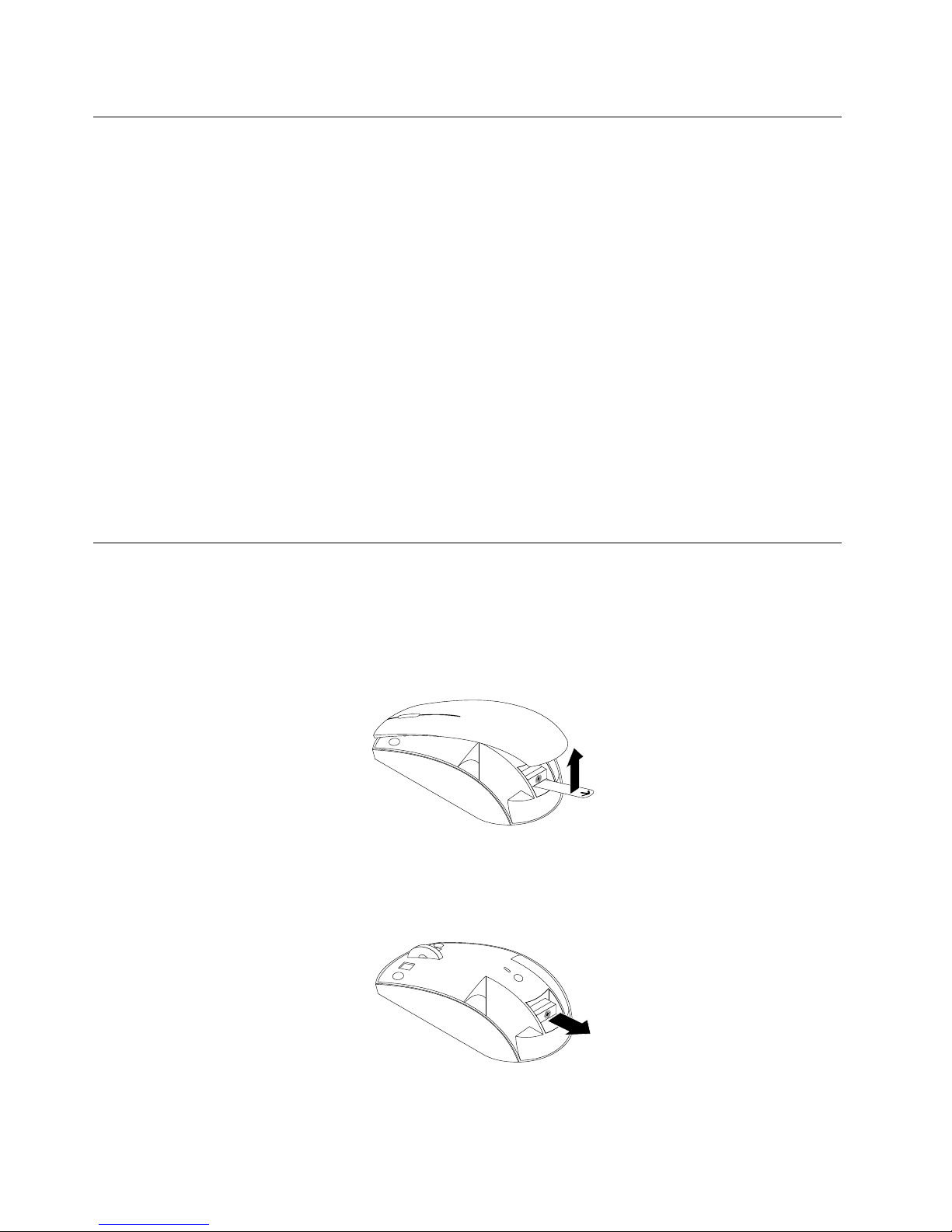
1.Removethebatterycompartmentcoverbyliftingtheplastictab.
Figure11.Removingthebatterycompartmentcover
2.TakeouttheLenovoUSBReceiver.
Figure12.T akingouttheLenovoUSBReceiver
22LenovoCombinedMouseUserGuide
Page 31
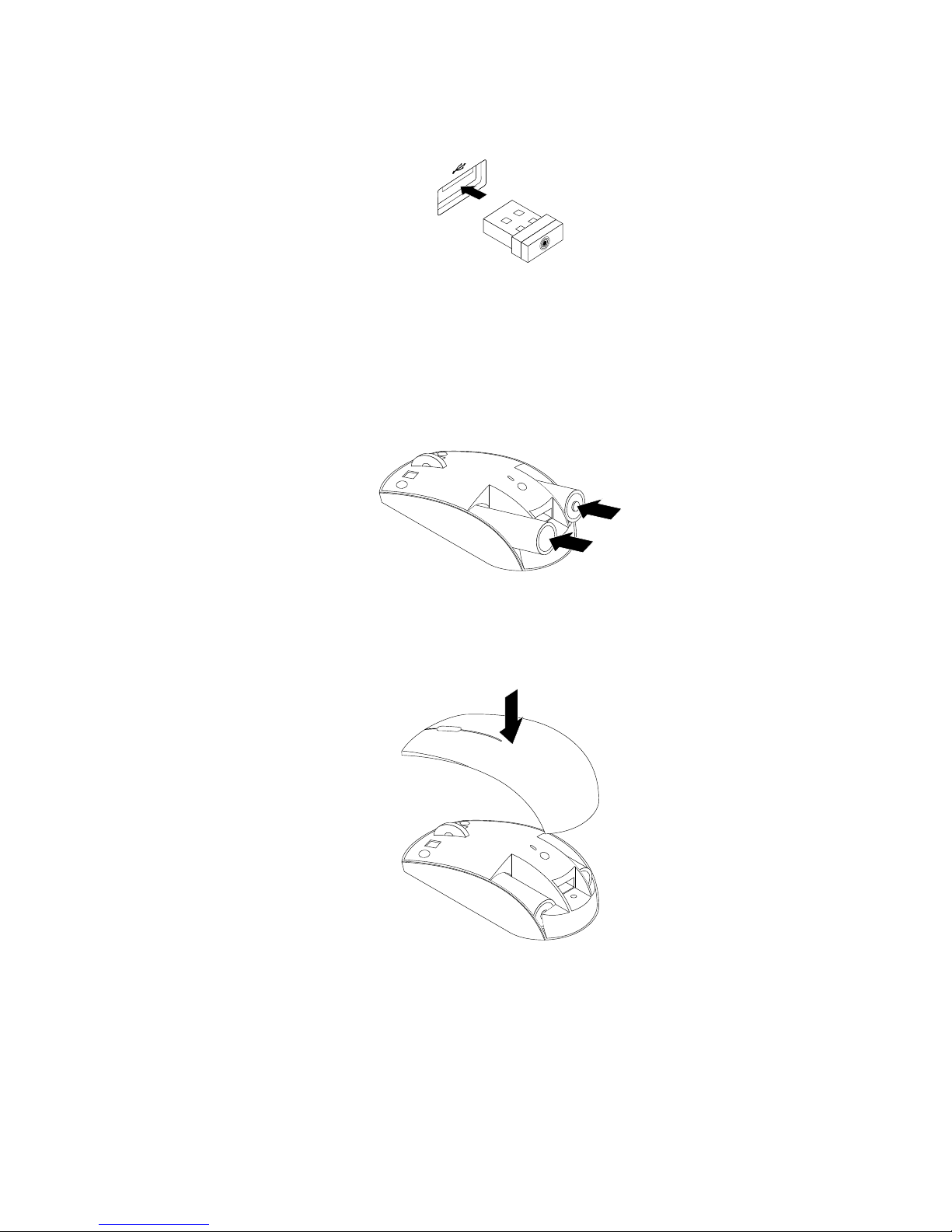
3.ConnecttheLenovoUSBReceivertoanavailableUSBconnectoronthecomputer.
Figure13.ConnectingtheLenovoUSBReceivertoaUSBconnector
4.InserttwoAAbatteriesintothebatterycompartmentaccordingtothepolarityindicators.
CAUTION:
Thereisariskofexplosionifabatteryisreplacedbyanincorrecttype.Disposeofusedbatteries
accordingtotheinstructions.
Figure14.Installingthebatteries
5.Reinstallthebatterycompartmentcover.
Figure15.Reinstallingthebatterycompartmentcover
Chapter4.ThinkPadPrecisionWirelessMouse23
Page 32
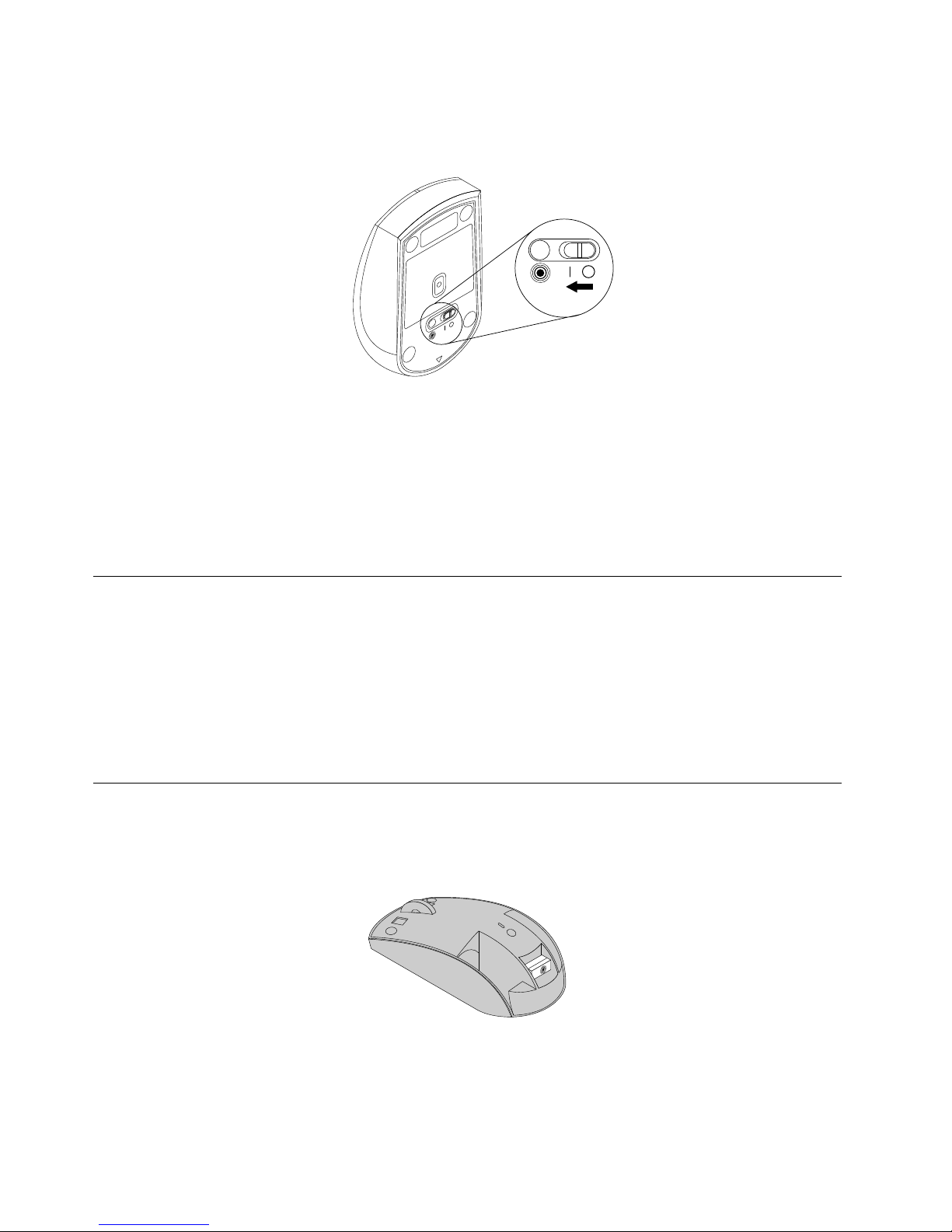
6.MovethepowerswitchontheThinkPadPrecisionWirelessMousetotheonposition.Thestatus
indicatorturnsoningreenandthenturnsoff.TheThinkPadPrecisionWirelessMouseisreadyforuse.
Figure16.Movingthepowerswitchtotheonposition
Notes:
•Ifthestatusindicatorblinksingreen,itindicatesthatthemouseisreadyforpairing.
•Ifthestatusindicatorblinksinamber,itindicatesalowbatterypowerlevel.
•T omaximizebatterylife,movethepowerswitchonthemousetotheoffpositionwhenyouarenot
usingthemouse.
Usingthemouseandthesoftware
TheThinkPadPrecisionWirelessMousehasmultiplefunctionsandfeaturessuchaszoomingand
auto-scrolling,whichhelpyouincreaseproductivity.Youalsocanassignfrequentlyusedfunctionsor
shortcutstothemousebuttonsusingtheLenovoMouseSuitesoftware.Formoreinformationaboutusing
theLenovoMouseSuitesoftware,see“Usingthesoftware”onpage2
.
Note:Eachtimeyoustartorrestartyourcomputer,ensurethatyoumovetheThinkPadPrecisionWireless
MouseorclickthemousebuttonbeforeusingtheLenovoMouseSuitesoftware.Otherwise,theLenovo
tabishidden.
StoringtheLenovoUSBReceiver
WhenyouarenotusingtheThinkPadPrecisionWirelessMouse,storetheLenovoUSBReceiverinthe
batterycompartmentasshown:
Figure17.StoringtheLenovoUSBReceiver
24LenovoCombinedMouseUserGuide
Page 33

PairingtheLenovoUSBReceiverwithamouse
Bydefault,theThinkPadPrecisionWirelessMouseispairedwiththeLenovoUSBReceiverthatshipped
withthemouse.TheThinkPadPrecisionWirelessMouseisreadyforuseafteryouconnectittoyour
computer.InadditiontotheThinkPadPrecisionWirelessMouse,youalsocanpairtheLenovoUSBReceiver
withanyLenovowirelessmouseprintedwiththeicon.TopairtheLenovoUSBReceiverwithanew
Lenovowirelessmouse,dothefollowing:
1.ConnecttheLenovoUSBReceivertoanavailableUSBconnectoronyourcomputer.
2.Placethemousewithin10cm(3.94inches)oftheLenovoUSBReceiver.
3.Movethepowerswitchonthemousetotheonposition.
4.Pressandreleasethepairingbuttononthemouse.Afterthestatusindicatoronthemouseblinksfor
vetimesandthenturnsoff,theLenovoUSBReceiverhasbeensuccessfullypairedwiththemouse.
Troubleshooting
Thistopicprovidesbasictroubleshootinginformationwhenyouencounterproblemswithyourmouse.
Problem:Themouseisnotrecognizedbytheoperatingsystem.
Solution:Tosolvetheproblem,performoneofthefollowingprocedures:
ProcedureA:
Dothefollowing:
•Installthemouseagain.
•AccessyourcomputerBasicInput/OutputSystem(BIOS)SetupUtilityprogramduringthestartupprocess
andmakesurethatalltheUSBconnectorsonyourcomputerareenabled.
Notes:
–ForinformationabouthowtoaccessorusetheBIOSSetupUtilityprogramonyourcomputer,seethe
documentationthatcamewithyourcomputer.
–IfallUSBconnectorsonyourcomputerdonotwork,probablythecomputerBIOSdoesnotsupport
them.Tosolvethisproblem,gotohttp://www.lenovo.com/supporttodownloadthelatestBIOS
updates,orgotohttp://www.lenovo.com/support/phonetondtheLenovotechnicalsupportfor
yourcountryorregion.
ProcedureB:
FortheWindowsXP ,WindowsVista,orWindows7operatingsystem:
1.ClickStart➙ControlPanel.
2.DependingonyourControlPanelmode,double-clickSystemorclickPerformanceandMaintenance
➙System.
3.ClicktheHardwaretab.
4.ClickDeviceManager.
5.ScrolldownuntilyoundMiceandotherpointingdevices.Then,expandtheMiceandother
pointingdevicescategory.
6.Right-clickHID-compliantmouse,andthenselectUninstall.Awarningwillbedisplayed,prompting
youthatyouaregoingtoremoveadevicefromtheoperatingsystem.
Chapter4.ThinkPadPrecisionWirelessMouse25
Page 34

7.ClickOK.
8.Right-clickMiceandotherpointingdevices,andthenselectScanforhardwarechangesto
re-detectthehardware.
Note:Ifayellowexclamationmarkisdisplayedinfrontofthemouseorreceivernameafterre-detection,
itindicatesthatthemouseorreceiverdriverisnotsuccessfullyinstalled.Right-clickthemouseor
receivername,andthenselectUpdateDriverorUpdateDriverSoftwaretoinstallthemouseor
receiverdriveragain.
FortheWindows8orWindows8.1operatingsystem:
1.Fromthedesktop,movethepointertothetop-rightorbottom-rightcornerofthescreentodisplaythe
charms,andthenclickSettings➙ControlPanel.
2.DependingonyourControlPanelmode,clickDeviceManagerorclickHardwareandSound➙
DeviceManager.
3.ScrolldownuntilyoundMiceandotherpointingdevices.Then,expandtheMiceandother
pointingdevicescategory.
4.Right-clickHID-compliantmouse,andthenselectUninstall.Awarningwillbedisplayed,prompting
youthatyouaregoingtoremoveadevicefromtheoperatingsystem.
5.ClickOK.
6.Right-clickMiceandotherpointingdevices,andthenselectScanforhardwarechangesto
re-detectthehardware.
Note:Ifayellowexclamationmarkisdisplayedinfrontofthemousenameafterre-detection,itindicates
thatthemousedriverisnotsuccessfullyinstalled.Right-clickthemousename,andthenselectUpdate
DriverorUpdateDriverSoftwaretoinstallthemousedriveragain.
Problem:Themousepointercannotmove.
Solution:Tosolvetheproblem,dothefollowing:
•Ensurethatyouhavefollowedallinstallationprocedures.
•ReinstalltheLenovoMouseSuitesoftware.
•Cleanthemouselenswithasoftcottonswab.Donotuseanyotherliquidorsolventtocleanthemouse
lensbecausesuchitemmightdamagethelens.
•Putamousepadunderthemouse.Ifthemouseismovingonahighlyreectivesurface,especiallya
glassormirrorsurface,themousemightnotbeabletowork.
Problem:ThehorizontalscrollingspeedcannotbechangedontheWheeltabintheMouseProperties
window.
Solution:Tosolvetheproblem,customizethehorizontalscrollingspeedsettingbydoingthefollowing:
1.IntheMousePropertieswindow,clicktheLenovotab.Then,clickAdvancedProperties.
2.IntheAdvancedPropertieswindow,clicktheWheeltab.
3.IntheHorizontalScrollingarea,movethesliderrighttoincreaseorlefttodecreasethehorizontal
scrollingspeed.
Problem:TheLenovoMouseSuitesoftwarecannotbeautomaticallyinstalledwhenIconnecttheThinkPad
PrecisionWirelessMousetomycomputerforthersttime.
Solution:Tosolvetheproblem,dothefollowing:
1.EnsurethatyouareusingtheWindows7,Windows8,orWindows8.1operatingsystem.
26LenovoCombinedMouseUserGuide
Page 35

2.EnsurethatyourcomputerhasbeenconnectedtotheInternet.
3.EnsurethatyouhaveinstalledallWindowsupdatesbydoingthefollowing:
a.Enterthecontrolpanelinterface.
b.Dependingonyourcontrolpanelmode,dooneofthefollowing:
•ClickSystemandSecurity➙WindowsUpdate.
•ClickWindowsUpdate.
c.ClickCheckforupdatestoinstallWindowsupdates.
4.EnsurethatyouhaveenabledtheautomaticWindowsupdatefeaturebydoingthefollowing:
a.Enterthecontrolpanelinterface.
b.Dependingonyourcontrolpanelmode,dooneofthefollowing:
•ClickHardwareandSound➙DevicesandPrinters.
•ClickDevicesandPrinters.
c.Right-clickyourcomputericonundertheDevicesmenu,andthenselectDeviceinstallation
settings.
d.FollowtheinstructionsonthescreentoenabletheautomaticWindowsupdatefeature.
5.ConnecttheLenovoUSBReceivertoanotherUSBconnectorwhichhasnotconnectedwithitbefore.
6.ManuallyinstalltheLenovoMouseSuitesoftwarebydoingthefollowing:
a.Gotohttp://support.lenovo.com/mousesuite.
b.LocateanddownloadtheinstallationleoftheLenovoMouseSuitesoftware.
c.Double-clicktheinstallationle,andthenfollowtheinstructionsonthescreentocompletethe
installation.
Note:IntheHardwareInterfaceSelectionwindow,selectUSB(UniversalSerialBus)Interface.
Chapter4.ThinkPadPrecisionWirelessMouse27
Page 36

28LenovoCombinedMouseUserGuide
Page 37

AppendixA.ServiceandSupport
Thefollowinginformationdescribesthetechnicalsupportthatisavailableforyourproduct,duringthe
warrantyperiodorthroughoutthelifeofyourproduct.RefertotheLenovoLimitedWarrantyforafull
explanationofLenovowarrantyterms.
Onlinetechnicalsupport
Onlinetechnicalsupportisavailableduringthelifetimeofaproductat:
http://www.lenovo.com/support
Productreplacementassistanceorexchangeofdefectivecomponentsalsoisavailableduringthewarranty
period.Inaddition,ifyouroptionisinstalledinaLenovocomputer,youmightbeentitledtoserviceatyour
location.ALenovotechnicalsupportrepresentativecanhelpyoudeterminethebestalternative.
Telephonetechnicalsupport
InstallationandcongurationsupportthroughtheCustomerSupportCenterwillbeavailableuntil90days
aftertheoptionhasbeenwithdrawnfrommarketing.Afterthattime,thesupportiscancelled,ormade
availableforafee,atLenovo’sdiscretion.Additionalsupportisalsoavailableforanominalfee.
BeforecontactingaLenovotechnicalsupportrepresentative,pleasehavethefollowinginformationavailable:
optionnameandnumber,proofofpurchase,computermanufacturer,model,serialnumberandmanual,
theexactwordingofanyerrormessage,descriptionoftheproblem,andthehardwareandsoftware
congurationinformationforyoursystem.
Yourtechnicalsupportrepresentativemightwanttowalkyouthroughtheproblemwhileyouareatyour
computerduringthecall.
Telephonenumbersaresubjecttochangewithoutnotice.Themostup-to-datetelephonelistforLenovo
Supportisalwaysavailableathttp://www.lenovo.com/support/phone
.Ifthetelephonenumberforyour
countryorregionisnotlisted,contactyourLenovoresellerorLenovomarketingrepresentative.
©CopyrightLenovo2005,2013
29
Page 38

30LenovoCombinedMouseUserGuide
Page 39

AppendixB.LenovoLimitedWarranty
L505-0010-0208/2011
ThisLenovoLimitedWarrantyconsistsofthefollowingparts:
Part1-GeneralTerms
Part2-Country-specicTerms
Part3-WarrantyServiceInformation
ThetermsofPart2replaceormodifytermsofPart1asspeciedforaparticularcountry.
Part1-GeneralT erms
ThisLenovoLimitedWarrantyappliesonlytoLenovohardwareproductsyoupurchasedforyourownuseand
notforresale.ThisLenovoLimitedWarrantyisavailableinotherlanguagesatwww.lenovo.com/warranty.
WhatthisWarrantyCovers
LenovowarrantsthateachLenovohardwareproductthatyoupurchaseisfreefromdefectsinmaterialsand
workmanshipundernormaluseduringthewarrantyperiod.Thewarrantyperiodfortheproductstartson
theoriginaldateofpurchaseasshownonyoursalesreceiptorinvoiceorasmaybeotherwisespecied
byLenovo.Thewarrantyperiodandtypeofwarrantyservicethatapplytoyourproductareasspecied
in“Part3-WarrantyServiceInformation”below.Thiswarrantyonlyappliestoproductsinthecountry
orregionofpurchase.
THISWARRANTYISYOUREXCLUSIVEWARRANTYANDREPLACESALLOTHERWARRANTIES
ORCONDITIONS,EXPRESSORIMPLIED,INCLUDING,BUTNOTLIMITEDTO,ANYIMPLIED
WARRANTIESORCONDITIONSOFMERCHANTABILITYORFITNESSFORAPARTICULARPURPOSE.
ASSOMESTATESORJURISDICTIONSDONOTALLOWTHEEXCLUSIONOFEXPRESSOR
IMPLIEDWARRANTIES,THEABOVEEXCLUSIONMAYNOTAPPL YTOYOU.INTHA TEVENT ,SUCH
WARRANTIESAPPL YONL YTOTHEEXTENTANDFORSUCHDURATIONASREQUIREDBYLAWAND
ARELIMITEDINDURA TIONTOTHEWARRANTYPERIOD.ASSOMESTATESORJURISDICTIONSDO
NOTALLOWLIMIT A TIONSONTHEDURA TIONOFANIMPLIEDWARRANTY ,THEABOVELIMITA TION
ONDURA TIONMA YNOTAPPLYTOYOU.
HowtoObtainWarrantyService
Iftheproductdoesnotfunctionaswarrantedduringthewarrantyperiod,youmayobtainwarrantyserviceby
contactingLenovooraLenovoapprovedServiceProvider.AlistofapprovedServiceProvidersandtheir
telephonenumbersisavailableat:www.lenovo.com/support/phone.
Warrantyservicemaynotbeavailableinalllocationsandmaydifferfromlocationtolocation.Chargesmay
applyoutsideaServiceProvider’snormalservicearea.ContactalocalServiceProviderforinformation
specictoyourlocation.
CustomerResponsibilitiesforWarrantyService
Beforewarrantyserviceisprovided,youmusttakethefollowingsteps:
•followtheservicerequestproceduresspeciedbytheServiceProvider;
©CopyrightLenovo2005,2013
31
Page 40

•backuporsecureallprogramsanddatacontainedintheproduct;
•providetheServiceProviderwithallsystemkeysorpasswords;
•providetheServiceProviderwithsufcient,free,andsafeaccesstoyourfacilitiestoperformservice;
•removealldata,includingcondentialinformation,proprietaryinformationandpersonalinformation,from
theproductor,ifyouareunabletoremoveanysuchinformation,modifytheinformationtopreventits
accessbyanotherpartyorsothatitisnotpersonaldataunderapplicablelaw.TheServiceProvidershall
notberesponsibleforthelossordisclosureofanydata,includingcondentialinformation,proprietary
information,orpersonalinformation,onaproductreturnedoraccessedforwarrantyservice;
•removeallfeatures,parts,options,alterations,andattachmentsnotcoveredbythewarranty;
•ensurethattheproductorpartisfreeofanylegalrestrictionsthatpreventitsreplacement;
•ifyouarenottheownerofaproductorpart,obtainauthorizationfromtheownerfortheServiceProvider
toprovidewarrantyservice.
WhatYourServiceProviderWillDotoCorrectProblems
WhenyoucontactaServiceProvider,youmustfollowthespeciedproblemdeterminationandresolution
procedures.
TheServiceProviderwillattempttodiagnoseandresolveyourproblembytelephone,e-mailorremote
assistance.TheServiceProvidermaydirectyoutodownloadandinstalldesignatedsoftwareupdates.
Someproblemsmayberesolvedwithareplacementpartthatyouinstallyourselfcalleda“Customer
ReplaceableUnit”or“CRU.”Ifso,theServiceProviderwillshiptheCRUtoyouforyoutoinstall.
Ifyourproblemcannotberesolvedoverthetelephone;throughtheapplicationofsoftwareupdatesor
theinstallationofaCRU,theServiceProviderwillarrangeforserviceunderthetypeofwarrantyservice
designatedfortheproductunder“Part3-WarrantyServiceInformation”below.
IftheServiceProviderdeterminesthatitisunabletorepairyourproduct,theServiceProviderwillreplace
itwithonethatisatleastfunctionallyequivalent.
IftheServiceProviderdeterminesthatitisunabletoeitherrepairorreplaceyourproduct,yoursole
remedyunderthisLimitedWarrantyistoreturntheproducttoyourplaceofpurchaseortoLenovofora
refundofyourpurchaseprice.
ReplacementProductsandParts
Whenwarrantyserviceinvolvesthereplacementofaproductorpart,thereplacedproductorpartbecomes
Lenovo’spropertyandthereplacementproductorpartbecomesyourproperty.OnlyunalteredLenovo
productsandpartsareeligibleforreplacement.ThereplacementproductorpartprovidedbyLenovomay
notbenew,butitwillbeingoodworkingorderandatleastfunctionallyequivalenttotheoriginalproductor
part.Thereplacementproductorpartshallbewarrantedforthebalanceoftheperiodremainingonthe
originalproduct.
UseofPersonalContactInformation
Ifyouobtainserviceunderthiswarranty,youauthorizeLenovotostore,useandprocessinformationabout
yourwarrantyserviceandyourcontactinformation,includingname,phonenumbers,address,ande-mail
address.Lenovomayusethisinformationtoperformserviceunderthiswarranty.Wemaycontactyouto
inquireaboutyoursatisfactionwithourwarrantyserviceortonotifyyouaboutanyproductrecallsorsafety
issues.Inaccomplishingthesepurposes,youauthorizeLenovototransferyourinformationtoanycountry
wherewedobusinessandtoprovideittoentitiesactingonourbehalf.Wemayalsodiscloseitwhere
requiredbylaw.Lenovo’sprivacypolicyisavailableatwww.lenovo.com/.
32LenovoCombinedMouseUserGuide
Page 41

WhatthisWarrantyDoesnotCover
Thiswarrantydoesnotcoverthefollowing:
•uninterruptedorerror-freeoperationofaproduct;
•lossof,ordamageto,yourdatabyaproduct;
•anysoftwareprograms,whetherprovidedwiththeproductorinstalledsubsequently;
•failureordamageresultingfrommisuse,abuse,accident,modication,unsuitablephysicaloroperating
environment,naturaldisasters,powersurges,impropermaintenance,orusenotinaccordancewith
productinformationmaterials;
•damagecausedbyanon-authorizedserviceprovider;
•failureof,ordamagecausedby,anythirdpartyproducts,includingthosethatLenovomayprovideor
integrateintotheLenovoproductatyourrequest;
•anytechnicalorothersupport,suchasassistancewith“how-to”questionsandthoseregardingproduct
set-upandinstallation;
•productsorpartswithanalteredidenticationlabelorfromwhichtheidenticationlabelhasbeen
removed.
LimitationofLiability
LenovoisresponsibleforlossordamagetoyourproductonlywhileitisintheServiceProvider’spossession
orintransit,iftheServiceProviderisresponsibleforthetransportation.
NeitherLenovonortheServiceProviderisresponsibleforlossordisclosureofanydata,including
condentialinformation,proprietaryinformation,orpersonalinformation,containedinaproduct.
UNDERNOCIRCUMST ANCES,ANDNOTWITHST ANDINGTHEFAILUREOFESSENTIALPURPOSE
OFANYREMEDYSETFORTHHEREIN,SHALLLENOVO,ITSAFFILIATES,SUPPLIERS,RESELLERS,
ORSERVICEPROVIDERSBELIABLEFORANYOFTHEFOLLOWINGEVENIFINFORMEDOFTHEIR
POSSIBILITYANDREGARDLESSOFWHETHERTHECLAIMISBASEDINCONTRACT,WARRANTY ,
NEGLIGENCE,STRICTLIABILITYOROTHERTHEORYOFLIABILITY:1)THIRDP ARTYCLAIMS
AGAINSTYOUFORDAMAGES;2)LOSS,DAMAGEORDISCLOSUREOFYOURDATA;3)SPECIAL,
INCIDENTAL,PUNITIVE,INDIRECTORCONSEQUENTIALDAMAGES,INCLUDINGBUTNOTLIMITED
TOLOSTPROFITS,BUSINESSREVENUE,GOODWILLORANTICIPA TEDSAVINGS.INNOCASE
SHALLTHETOT ALLIABILITYOFLENOVO,ITSAFFILIATESS,SUPPLIERS,RESELLERSORSERVICE
PROVIDERSFORDAMAGESFROMANYCAUSEEXCEEDTHEAMOUNTOFACTUALDIRECT
DAMAGES,NOTTOEXCEEDTHEAMOUNTPAIDFORTHEPRODUCT .
THEFOREGOINGLIMIT A TIONSDONOTAPPL YTODAMAGESFORBODILYINJURY(INCLUDING
DEATH),DAMAGETOREALPROPERTYORDAMAGETOTANGIBLEPERSONALPROPERTYFOR
WHICHLENOVOISLIABLEUNDERLAW.ASSOMESTATESORJURISDICTIONSDONOTALLOW
THEEXCLUSIONORLIMIT A TIONOFINCIDENT ALORCONSEQUENTIALDAMAGES,THEABOVE
LIMITATIONOREXCLUSIONMAYNOTAPPL YTOYOU.
YourOtherRights
THISWARRANTYGIVESYOUSPECIFICLEGALRIGHTS.YOUMA YHAVEOTHERRIGHTS
ACCORDINGTOTHEAPPLICABLELAWSOFYOURST A TEORJURISDICTION.YOUMAYALSO
HAVEOTHERRIGHTSUNDERAWRITTENAGREEMENTWITHLENOVO.NOTHINGINTHIS
WARRANTYAFFECTSSTATUTORYRIGHTS,INCLUDINGRIGHTSOFCONSUMERSUNDERLAWS
ORREGULA TIONSGOVERNINGTHESALEOFCONSUMERGOODSTHA TCANNOTBEWAIVED
ORLIMITEDBYCONTRACT.
Part2-Country-specicT erms
Australia
AppendixB.LenovoLimitedWarranty33
Page 42

“Lenovo”meansLenovo(Australia&NewZealand)PtyLimitedABN70112394411.Address:Level
10,NorthTower,1-5RailwayStreet,Chatswood,NSW,2067.Telephone:+61280038200.Email:
[email protected]
ThefollowingreplacesthesamesectioninPart1:
WhatthisWarrantyCovers:
Lenovowarrantsthateachhardwareproductthatyoupurchaseisfreefromdefectsinmaterialsand
workmanshipundernormaluseandconditionsduringthewarrantyperiod.Iftheproductfailsduetoa
covereddefectduringthewarrantyperiod,LenovowillprovideyouaremedyunderthisLimitedWarranty.
Thewarrantyperiodfortheproductstartsontheoriginaldateofpurchasespeciedonyoursalesreceiptor
invoiceunlessLenovoinformsyouotherwiseinwriting.Thewarrantyperiodandtypeofwarrantyservice
thatapplytoyourproductaresetforthbelowinPart3-WarrantyServiceInformation.
THEBENEFITSGIVENBYTHISWARRANTYAREINADDITIONTOYOURRIGHTSANDREMEDIESA T
LAW,INCLUDINGTHOSEUNDERTHEAUSTRALIANCONSUMERLAW.
ThefollowingreplacesthesamesectioninPart1:
ReplacementProductsandParts:
Whenwarrantyserviceinvolvesthereplacementofaproductorpart,thereplacedproductorpartbecomes
Lenovo’spropertyandthereplacementproductorpartbecomesyourproperty.OnlyunalteredLenovo
productsandpartsareeligibleforreplacement.ThereplacementproductorpartprovidedbyLenovomay
notbenew,butitwillbeingoodworkingorderandatleastfunctionallyequivalenttotheoriginalproductor
part.Thereplacementproductorpartshallbewarrantedforthebalanceoftheperiodremainingonthe
originalproduct.Productsandpartspresentedforrepairmaybereplacedbyrefurbishedproductsorparts
ofthesametyperatherthanbeingrepaired.Refurbishedpartsmaybeusedtorepairtheproduct;andrepair
oftheproductmayresultinlossofdata,iftheproductiscapableofretaininguser-generateddata.
ThefollowingisaddedtothesamesectioninPart1:
UseofPersonalContactInformation:
Lenovowillnotbeabletoperformourserviceunderthiswarrantyifyourefusetoprovideyourinformation
ordonotwishustotransferyourinformationtoouragentorcontractor.Youhavetherighttoaccess
yourpersonalcontactinformationandrequestcorrectionofanyerrorsinitpursuanttothePrivacyAct
1988bycontactingLenovo.
ThefollowingreplacesthesamesectioninPart1:
LimitationofLiability:
LenovoisresponsibleforlossordamagetoyourproductonlywhileitisintheServiceProvider’spossession
orintransit,iftheServiceProviderisresponsibleforthetransportation.
NeitherLenovonortheServiceProviderisresponsibleforlossordisclosureofanydata,including
condentialinformation,proprietaryinformation,orpersonalinformation,containedinaproduct.
TOTHEEXTENTPERMITTEDBYLAW,UNDERNOCIRCUMSTANCESANDNOTWITHSTANDING
THEFAILUREOFESSENTIALPURPOSEOFANYREMEDYSETFORTHHEREIN,SHALLLENOVO,
ITSAFFILIATES,SUPPLIERS,RESELLERS,ORSERVICEPROVIDERSBELIABLEFORANYOFTHE
FOLLOWINGEVENIFINFORMEDOFTHEIRPOSSIBILITYANDREGARDLESSOFWHETHERTHE
CLAIMISBASEDINCONTRACT ,WARRANTY ,NEGLIGENCE,STRICTLIABILITYOROTHERTHEORY
34LenovoCombinedMouseUserGuide
Page 43

OFLIABILITY:1)THIRDPARTYCLAIMSAGAINSTYOUFORDAMAGES;2)LOSS,DAMAGEOR
DISCLOSUREOFYOURDA T A;3)SPECIAL,INCIDENT AL,PUNITIVE,INDIRECTORCONSEQUENTIAL
DAMAGES,INCLUDINGBUTNOTLIMITEDTOLOSTPROFITS,BUSINESSREVENUE,GOODWILLOR
ANTICIPA TEDSAVINGS.INNOCASESHALLTHETOTALLIABILITYOFLENOVO,ITSAFFILIATESS,
SUPPLIERS,RESELLERSORSERVICEPROVIDERSFORDAMAGESFROMANYCAUSEEXCEEDTHE
AMOUNTOFACTUALDIRECTDAMAGES,NOTTOEXCEEDTHEAMOUNTPAIDFORTHEPRODUCT .
THEFOREGOINGLIMIT A TIONSDONOTAPPL YTODAMAGESFORBODILYINJURY(INCLUDING
DEATH),DAMAGETOREALPROPERTYORDAMAGETOTANGIBLEPERSONALPROPERTYFOR
WHICHLENOVOISLIABLEUNDERLAW.
ThefollowingreplacesthesamesectioninPart1:
YourOtherRights:
THISWARRANTYGIVESYOUSPECIFICLEGALRIGHTS.YOUALSOHAVEOTHERRIGHTSATLAW,
INCLUDINGUNDERTHEAUSTRALIANCONSUMERLAW.NOTHINGINTHISWARRANTYAFFECTS
STA TUTORYRIGHTSORRIGHTSATLAW,INCLUDINGRIGHTSTHATCANNOTBEWAIVEDOR
LIMITEDBYCONTRACT .
Forexample,ourproductscomewithguaranteesthatcannotbeexcludedundertheAustralianConsumer
Law.Youareentitledtoareplacementorrefundforamajorfailureandcompensationforanyother
reasonablyforeseeablelossordamage.Youarealsoentitledtohavetheproductsrepairedorreplacedifthe
productsfailtobeofacceptablequalityandthefailuredoesnotamounttoamajorfailure.
NewZealand
ThefollowingisaddedtothesamesectioninPart1:
UseofPersonalInformation:
Lenovowillnotbeabletoperformourserviceunderthiswarrantyifyourefusetoprovideyourinformationor
donotwishustotransferyourinformationtoouragentorcontractor.Youhavetherighttoaccessyour
personalinformationandrequestcorrectionofanyerrorsinitpursuanttothePrivacyAct1993bycontacting
Lenovo(Australia&NewZealand)PtyLimitedABN70112394411.Address:Level10,NorthTower,1-5
RailwayStreet,Chatswood,NSW,2067.Telephone:61280038200.Email:[email protected]
Bangladesh,Cambodia,India,Indonesia,Nepal,Philippines,VietnamandSriLanka
ThefollowingisaddedtoPart1:
DisputeResolution
Disputesarisingoutoforinconnectionwiththiswarrantyshallbenallysettledbyarbitrationheldin
Singapore.Thiswarrantyshallbegoverned,construedandenforcedinaccordancewiththelawsof
Singapore,withoutregardtoconictoflaws.IfyouacquiredtheproductinIndia,disputesarisingoutofor
inconnectionwiththiswarrantyshallbenallysettledbyarbitrationheldinBangalore,India.Arbitration
inSingaporeshallbeheldinaccordancewiththeArbitrationRulesofSingaporeInternationalArbitration
Center(“SIACRules”)thenineffect.ArbitrationinIndiashallbeheldinaccordancewiththelawsofIndia
thenineffect.Thearbitrationawardshallbenalandbindingonthepartieswithoutappeal.Anyaward
shallbeinwritingandsetforththendingsoffactandtheconclusionsoflaw.Allarbitrationproceedings,
includingalldocumentspresentedinsuchproceedingsshallbeconductedintheEnglishlanguage.The
Englishlanguageversionofthiswarrantyprevailsoveranyotherlanguageversioninsuchproceedings.
EuropeanEconomicArea(EEA)
AppendixB.LenovoLimitedWarranty35
Page 44

ThefollowingisaddedtoPart1:
CustomersintheEEAmaycontactLenovoatthefollowingaddress:EMEAServiceOrganisation,Lenovo
(International)B.V.,Floor2,Einsteinova21,85101,Bratislava,Slovakia.Serviceunderthiswarrantyfor
LenovohardwareproductspurchasedinEEAcountriesmaybeobtainedinanyEEAcountryinwhichthe
producthasbeenannouncedandmadeavailablebyLenovo.
Russia
ThefollowingisaddedtoPart1:
ProductServiceLife
Theproductservicelifeisfour(4)yearsfromtheoriginaldateofpurchase.
Part3-WarrantyServiceInformation
ProductT ypeCountryorRegionofPurchaseWarrantyPeriodTypeofWarrantyService
LenovoLaserWireless
Mouse
Worldwide1year1,4
LenovoOpticalMouse
Worldwide1year1,4
LenovoScrollPoint
Mouse
Worldwide1year1,4
LenovoUSBLaser
Mouse
Worldwide1year1,4
ThinkPadBluetooth
LaserMouse
Worldwide1year1,4
ThinkPadPrecisionUSB
Mouse
Worldwide3years1,4
ThinkPadPrecision
WirelessMouse
Worldwide3years1,4
ThinkPadUSBLaser
Mouse
Worldwide1year1,4
ThinkPadUSBTravel
Mouse
Worldwide1year1,4
Ifrequired,yourServiceProviderwillproviderepairorexchangeservicedependingonthetypeofwarranty
servicespeciedforyourproductandtheavailableservice.Schedulingofservicewilldependuponthetime
ofyourcall,partsavailability,andotherfactors.
TypesofWarrantyService
1.CustomerReplaceableUnit(“CRU”)Service
UnderCRUService,theServiceProviderwillshipCRUstoyouatitscostforinstallationbyyou.CRU
informationandreplacementinstructionsareshippedwithyourproductandareavailablefromLenovoatany
timeuponrequest.CRUsthatareeasilyinstalledbyyouarecalled“Self-serviceCRUs”.“Optional-service
CRUs”areCRUsthatmayrequiresometechnicalskillandtools.InstallationofSelf-serviceCRUsisyour
responsibility.Y oumayrequestthataServiceProviderinstallOptional-serviceCRUsunderoneoftheother
typesofwarrantyservicedesignatedforyourproduct.Anoptionalserviceofferingmaybeavailablefor
purchasefromaServiceProviderorLenovounderwhichSelf-serviceCRUswouldbeinstalledforyou.
YoumayndalistofCRUsandtheirdesignationinthepublicationthatwasshippedwithyourproduct
36LenovoCombinedMouseUserGuide
Page 45

oratwww.lenovo.com/CRUs.TherequirementtoreturnadefectiveCRU,ifany,willbespeciedinthe
instructionsshippedwithareplacementCRU.Whenreturnisrequired:1)returninstructions,aprepaid
returnshippinglabel,andacontainerwillbeincludedwiththereplacementCRU;and2)youmaybecharged
forthereplacementCRUiftheServiceProviderdoesnotreceivethedefectiveCRUfromyouwithinthirty
(30)daysofyourreceiptofthereplacementCRU.
2.On-siteService
UnderOn-SiteService,aServiceProviderwilleitherrepairorexchangetheproductatyourlocation.Y ou
mustprovideasuitableworkingareatoallowdisassemblyandreassemblyoftheproduct.Somerepairs
mayneedtobecompletedataservicecenter.Ifso,theServiceProviderwillsendtheproducttothe
servicecenteratitsexpense.
3.CourierorDepotService
UnderCourierorDepotService,yourproductwillberepairedorexchangedatadesignatedservicecenter,
withshippingattheexpenseoftheServiceProvider.Y ouareresponsiblefordisconnectingtheproductand
packingitinashippingcontainerprovidedtoyoutoreturnyourproducttoadesignatedservicecenter.
Acourierwillpickupyourproductanddeliverittothedesignatedservicecenter.Theservicecenterwill
returntheproducttoyouatitsexpense.
4.CustomerCarry-InService
UnderCustomerCarry-InService,yourproductwillberepairedorexchangedafteryoudeliverittoa
designatedservicecenteratyourriskandexpense.Aftertheproducthasbeenrepairedorexchanged,itwill
bemadeavailabletoyouforcollection.Ifyoufailtocollecttheproduct,theServiceProvidermaydisposeof
theproductasitseest,withnoliabilitytoyou.
5.Mail-InService
UnderMail-InService,yourproductwillberepairedorexchangedatadesignatedservicecenterafteryou
deliveritatyourriskandexpense.Aftertheproducthasbeenrepairedorexchanged,itwillbereturnedto
youatLenovo’sriskandexpense,unlesstheServiceProviderspeciesotherwise.
6.CustomerTwo-WayMail-InService
UnderCustomerTwo-WayMail-InService,yourproductwillberepairedorexchangedafteryoudeliveritto
adesignatedservicecenteratyourriskandexpense.Aftertheproducthasbeenrepairedorexchanged,
itwillbemadeavailabletoyouforreturnshippingatyourriskandexpense.Ifyoufailtoarrangereturn
shipment,theServiceProvidermaydisposeoftheproductasitseest,withnoliabilitytoyou.
7.ProductExchangeService
UnderProductExchangeService,Lenovowillshipareplacementproducttoyourlocation.Y ouare
responsibleforitsinstallationandvericationofitsoperation.Thereplacementproductbecomesyour
propertyinexchangeforthefailedproduct,whichbecomesthepropertyofLenovo.Y oumustpackthe
failedproductintheshippingcartoninwhichyoureceivedthereplacementproductandreturnittoLenovo.
Transportationcharges,bothways,shallbeatLenovo’sexpense.Ifyoufailtousethecartoninwhichthe
replacementproductwasreceived,youmayberesponsibleforanydamagetothefailedproductoccurring
duringshipment.YoumaybechargedforthereplacementproductifLenovodoesnotreceivethefailed
productwithinthirty(30)daysofyourreceiptofthereplacementproduct.
AppendixB.LenovoLimitedWarranty37
Page 46

SuplementodeGarantíaparaMéxico
EsteSuplementoseconsideraparteintegrantedelaGarantíaLimitadadeLenovoyseráefectivoúnicay
exclusivamenteparalosproductosdistribuidosycomercializadosdentrodelTerritoriodelosEstados
UnidosMexicanos.Encasodeconicto,seaplicaránlostérminosdeesteSuplemento.
Todoslosprogramasdesoftwareprecargadosenelequiposólotendránunagarantíadetreinta(30)díaspor
defectosdeinstalacióndesdelafechadecompra.Lenovonoesresponsabledelainformaciónincluida
endichosprogramasdesoftwarey/ocualquierprogramadesoftwareadicionalinstaladoporUstedo
instaladodespuésdelacompradelproducto.
Losserviciosnocubiertosporlagarantíasecargaránalusuarional,previaobtencióndeunaautorización.
Enelcasodequesepreciseunareparacióncubiertaporlagarantía,porfavor,llamealCentrodesoporte
alclienteal001-866-434-2080,dondeledirigiránalCentrodeservicioautorizadomáscercano.Sino
existieseningúnCentrodeservicioautorizadoensuciudad,poblaciónoenunradiode70kilómetros
desuciudadopoblación,lagarantíaincluirácualquiergastodeentregarazonablerelacionadoconel
transportedelproductoasuCentrodeservicioautorizadomáscercano.Porfavor,llamealCentrode
servicioautorizadomáscercanoparaobtenerlasaprobacionesnecesariasolainformaciónrelacionada
conelenvíodelproductoyladireccióndeenvío.
ParaobtenerunalistadelosCentrosdeservicioautorizados,porfavor,visite:
http://www.lenovo.com/mx/es/servicios
Importadopor:
LenovoMéxicoS.deR.L.deC.V.
Av.SantaFe505,Piso15
Col.CruzManca
Cuajimalpa,D.F.,México
C.P .05349
Tel.(55)50008500
38LenovoCombinedMouseUserGuide
Page 47

AppendixC.Electronicemissionnotices
Thefollowinginformationrefersto:
•LenovoLaserWirelessMouse
•LenovoOpticalMouse
•LenovoScrollPointMouse
•LenovoUSBLaserMouse
•ThinkPadBluetoothLaserMouse
•ThinkPadPrecisionUSBMouse
•ThinkPadPrecisionWirelessMouse
•ThinkPadUSBLaserMouse
•ThinkPadUSBTravelMouse
FederalCommunicationsCommissionDeclarationofConformity
•LenovoLaserWirelessMouse-0A36188,0A36189,0A36193
•LenovoOpticalMouse-06P4069
•LenovoScrollPointMouse-31P7405
•LenovoUSBLaserMouse-41U3074
•ThinkPadBluetoothLaserMouse-41U5008
•ThinkPadPrecisionUSBMouse-0A36101,0A36102,0A36104,0A36108
•ThinkPadPrecisionWirelessMouse-0A36111,0A36112,0A36114,0A36118
•ThinkPadUSBLaserMouse-57Y4635
•ThinkPadUSBTravelMouse-31P7410
ThinkPadBluetoothLaserMouse(FCCID:EMJMMOBTC9LA)
LenovoLaserWirelessMouse-MORFFHL(FCCID:EMJMMORFFHL)
DongleforLenovoLaserWirelessMouseandThinkPadPrecisionWirelessMouse-MORFFHL-D
(FCCID:EMJDMORFFHL-D)
ThinkPadPrecisionWirelessMouse-MORFGOO(FCCID:EMJMMORFGOO)
ThisequipmenthasbeentestedandfoundtocomplywiththelimitsforaClassBdigitaldevice,pursuant
toPart15oftheFCCRules.Theselimitsaredesignedtoprovidereasonableprotectionagainstharmful
interferenceinaresidentialinstallation.Thisequipmentgenerates,uses,andcanradiateradiofrequency
energyand,ifnotinstalledandusedinaccordancewiththeinstructions,maycauseharmfulinterference
toradiocommunications.However,thereisnoguaranteethatinterferencewillnotoccurinaparticular
installation.Ifthisequipmentdoescauseharmfulinterferencetoradioortelevisionreception,whichcanbe
determinedbyturningtheequipmentoffandon,theuserisencouragedtotrytocorrecttheinterferenceby
oneormoreofthefollowingmeasures:
•Reorientorrelocatethereceivingantenna.
•Increasetheseparationbetweentheequipmentandreceiver.
•Connecttheequipmentintoanoutletonacircuitdifferentfromthattowhichthereceiverisconnected.
•Consultanauthorizeddealerorservicerepresentativeforhelp.
©CopyrightLenovo2005,2013
39
Page 48

Lenovoisnotresponsibleforanyradioortelevisioninterferencecausedbyusingotherthanspeciedor
recommendedcablesandconnectorsorbyunauthorizedchangesormodicationstothisequipment.
Unauthorizedchangesormodicationscouldvoidtheuser'sauthoritytooperatetheequipment.
ThisdevicecomplieswithPart15oftheFCCRules.Operationissubjecttothefollowingtwoconditions:(1)
thisdevicemaynotcauseharmfulinterference,and(2)thisdevicemustacceptanyinterferencereceived,
includinginterferencethatmaycauseundesiredoperation.
ResponsibleParty:
Lenovo(UnitedStates)Incorporated
1009ThinkPlace-BuildingOne
Morrisville,NC27560
PhoneNumber:919-294-5900
RFExposureStatement
TheradiatedenergyfromtheLenovoLaserWirelessMouseconformstotheFCClimitoftheSAR(Specic
AbsorptionRate)requirementsetforthin47CFRPart2section1093.
Canada-IndustryCanada(IC)
ThinkPadBluetoothLaserMouse(ICID:4251A-MMOBTC9LA)
LenovoLaserWirelessMouse-MORFFHL(ICID:4251A-MMORFFHL)
DongleforLenovoLaserWirelessMouseandThinkPadPrecisionWirelessMouse-MORFFHL-D
(ICID:4251A-DMORFFHLD)
ThinkPadPrecisionWirelessMouse-MORFGOO(ICID:4251A-MMORFGOO)
IndustryCanadaClassBEmissionComplianceStatement
ThisClassBdigitalapparatuscomplieswithCanadianICES-003.
Avisdeconformitéàlaréglementationd'IndustrieCanada
CetappareilnumériquedelaclasseBestconformeàlanormeNMB-003duCanada.
ThisdevicecomplieswithRSS-210oftheIndustryCanadaRules.
Operationissubjecttothefollowingtwoconditions:(1)Thisdevicemaynotcauseharmfulinterference,
and(2)thisdevicemustacceptanyinterferencereceived,includinginterferencethatmaycauseundesired
operation.
CedispositifestconformeàlanormeCNR-210d'IndustrieCanadaapplicableauxappareilsradioexempts
delicence.
Sonfonctionnementestsujetauxdeuxconditionssuivantes:1)ledispositifnedoitpasproduirede
brouillagepréjudiciable,et2)cedispositifdoitacceptertoutbrouillagereçu,ycomprisunbrouillage
susceptibledeprovoquerunfonctionnementindésirable.
LowPowerLicense-ExemptRadioCommunicationDevices(RSS-210)
40LenovoCombinedMouseUserGuide
Page 49

Operationissubjecttothefollowingtwoconditions:(1)thisdevicemaynotcauseinterference,and(2)this
devicemustacceptanyinterference,includinginterferencethatmaycauseundesiredoperationofthedevice.
Permisd’émissionàfaiblepuissance–Casdesappareilsdecommunicationsradio
L’utilisationdecedispositifestautoriséeseulementauxconditionssuivantes:1)ilnedoitpasproduirede
brouillage,et2)l’utilisateurdudispositifdoitêtreprêtàacceptertoutbrouillageradioélectriquereçu,même
sicebrouillageestsusceptibledecompromettrelefonctionnementdudispositif.
ExposureofhumanstoRFelds(RSS-102)
TheLenovoLaserWirelessMouseandDongleemploylowgainintegralantennasthatdonotemitRF
eldinexcessofHealthCanadalimitsforthegeneralpopulation;consultSafetyCode6,obtainablefrom
HealthCanada’sWebsiteathttp://www.hc-sc.gc.ca/
TheradiatedenergyfromtheLenovoLaserWirelessMouseandDongleantennasconformstotheIClimitof
theRFexposurerequirementregardingICRSS-102,Issue2clause4.2.
Expositiondesêtreshumainsauxchampsradioélectriques(RF)(CNR-102)
Lasourisetledongleutilisentdesantennesintégralesàfaiblegainquin'émettentpasunchamp
électromagnétiquesupérieurauxnormesimposéesparleMinistèredelasantécanadienpourla
population;consultezleSafetyCode6surlesiteWebduMinistèredelasantécanadienàl'adresse
http://www.hc-sc.gc.ca/
L'énergieémiseparlesantennesdulasourisetledonglerespectelalimited'expositionauxradiofréquences
tellequedénieparIndustrieCanadadanslaclause4.2dudocumentCNR-102.
EU-EMCDirective(2004/108/EC)EN55022classBStatementofCompliance
DeutschsprachigerEUHinweis:
HinweisfürGerätederKlasseBEU-RichtliniezurElektromagnetischenVerträglichkeit
DiesesProduktentsprichtdenSchutzanforderungenderEU-Richtlinie2004/108/EG(früher89/336/EWG)zur
AngleichungderRechtsvorschriftenüberdieelektromagnetischeVerträglichkeitindenEU-Mitgliedsstaaten
undhältdieGrenzwertederEN55022KlasseBein.
Umdiesessicherzustellen,sinddieGerätewieindenHandbüchernbeschriebenzuinstallierenundzu
betreiben.DesWeiterendürfenauchnurvonderLenovoempfohleneKabelangeschlossenwerden.
LenovoübernimmtkeineVerantwortungfürdieEinhaltungderSchutzanforderungen,wenndasProdukt
ohneZustimmungderLenovoverändertbzw.wennErweiterungskomponentenvonFremdherstellernohne
EmpfehlungderLenovogesteckt/eingebautwerden.
Deutschland:
EinhaltungdesGesetzesüberdieelektromagnetischeVerträglichkeitvonBetriebsmitteln
DiesesProduktentsprichtdem„GesetzüberdieelektromagnetischeVerträglichkeitvonBetriebsmitteln“
EMVG(früher„GesetzüberdieelektromagnetischeVerträglichkeitvonGeräten“).DiesistdieUmsetzungder
EU-Richtlinie2004/108/EG(früher89/336/EWG)inderBundesrepublikDeutschland.
ZulassungsbescheinigunglautdemDeutschenGesetzüberdieelektromagnetischeVerträglichkeit
vonBetriebsmitteln,EMVGvom20.Juli2007(früherGesetzüberdieelektromagnetische
VerträglichkeitvonGeräten),bzw.derEMVEGRichtlinie2004/108/EC(früher89/336/EWG),für
GerätederKlasseB.
AppendixC.Electronicemissionnotices41
Page 50

DiesesGerätistberechtigt,inÜbereinstimmungmitdemDeutschenEMVGdasEG-Konformitätszeichen
-CE-zuführen.VerantwortlichfürdieKonformitätserklärungnachParagraf5desEMVGistdieLenovo
(Deutschland)GmbH,Gropiusplatz10,D-70563Stuttgart.
InformationeninHinsichtEMVGParagraf4Abs.(1)4:
DasGeräterfülltdieSchutzanforderungennachEN55024undEN55022KlasseB.
EuropeanUnion-CompliancetotheElectromagneticCompatibilityDirective
ThisproductisinconformitywiththeprotectionrequirementsofEUCouncilDirective2004/108/EConthe
approximationofthelawsoftheMemberStatesrelatingtoelectromagneticcompatibility.Lenovocannot
acceptresponsibilityforanyfailuretosatisfytheprotectionrequirementsresultingfromanon-recommended
modicationoftheproduct,includingtheinstallationofoptioncardsfromothermanufacturers.
ThisproducthasbeentestedandfoundtocomplywiththelimitsforClassBInformationTechnology
EquipmentaccordingtoEuropeanStandardEN55022.ThelimitsforClassBequipmentwerederived
fortypicalresidentialenvironmentstoprovidereasonableprotectionagainstinterferencewithlicensed
communicationdevices.
Avisdeconformitéàladirectivedel’UnionEuropéenne
Leprésentproduitsatisfaitauxexigencesdeprotectionénoncéesdansladirective2004/108/ECdu
ConseilconcernantlerapprochementdeslégislationsdesEtatsmembresrelativesàlacompatibilité
électromagnétique.Lenovodéclinetouteresponsabilitéencasdenon-respectdecettedirectiverésultant
d’unemodicationnonrecommandéeduproduit,ycomprisl’ajoutdecartesenoptionnonLenovo.
Ceproduitrespecteleslimitesdescaractéristiquesd’immunitédesappareilsdetraitementdel’information
déniesparlaclasseBdelanormeeuropéenneEN55022(CISPR22).Laconformitéauxspécications
delaclasseBoffreunegarantieacceptablecontrelesperturbationsaveclesappareilsdecommunication
agréés,dansleszonesrésidentielles.
UniónEuropea-NormativaEMC
EsteproductosatisfacelosrequisitosdeproteccióndelConsejodelaUE,Directiva2004/108/ECenloque
alalegislaturadelosEstadosMiembrossobrecompatibilidadelectromagnéticasereere.
Lenovonopuedeaceptarresponsabilidadalgunasiesteproductodejadesatisfacerdichosrequisitosde
proteccióncomoresultadodeunamodicaciónnorecomendadadelproducto,incluyendoelajustede
tarjetasdeopciónquenoseanLenovo.
EsteproductohasidoprobadoysatisfaceloslímitesparaEquiposInformáticosClaseBdeconformidad
conelEstándarEuropeoEN55022.LoslímitesparalosequiposdeClaseBsehanestablecidopara
entornosresidencialestípicosandeproporcionarunaprotecciónrazonablecontralasinterferenciascon
dispositivosdecomunicaciónlicenciados.
UnioneEuropea-DirectivaEMC(Conformidadélectromagnética)
QuestoprodottoèconformeallenormativediprotezioneaisensidellaDirettivadelConsigliodell’Unione
Europea2004/108/ECsull’armonizzazionelegislativadeglistatimembriinmateriadicompatibilità
elettromagnetica.
Lenovononaccettaresponsabilitàalcunaperlamancataconformitàallenormativediprotezionedovutaa
modichenonconsigliatealprodotto,compresal’installazionedischedeecomponentidimarcadiversa
daLenovo.
42LenovoCombinedMouseUserGuide
Page 51
Leproveeffettuatesulpresenteprodottohannoaccertatocheessorientraneilimitistabilitiperle
apparecchiaturediinformaticaClasseBaisensidelNormaEuropeaEN55022.Ilimitidelleapparecchiature
dellaClasseBsonostatistabilitialnedifornireragionevoleprotezionedainterferenzemediantedispositivi
dicomunicazioneinconcessioneinambientiresidenzialitipici.
JapanVCCIClassBcompliancestatement
KoreaClassBcompliancestatement
NoticeforusersinKorea
Formodel:MOBT9CL,MORFFHL,MORFFHL-D
Notethatthisdevicehasbeencertiedforresidentialuseandmaybeusedinanyenvironment.
LenovoproductserviceinformationforTaiwan
UkraineComplianceMark-ForLenovoOpticalMouseandThinkPadPrecisionUSBMouse
Europe-EUDeclarationofConformityforThinkPadBluetoothLaserMouse
ProductsintendedforsalewithintheEuropeanUnionaremarkedwiththeConformitéEuropéenne(CE)
Marking,whichindicatescompliancewiththeapplicableDirectivesandEuropeanNorms,andamendments,
identiedbelow.
Hereby,Lenovo(Singapore)Pte.Ltd.,declaresthatthisThinkPadBluetoothLaserMouseisin
compliancewiththeessentialrequirementsandotherrelavantprovisionsofDirective1999/5/EC.
AppendixC.Electronicemissionnotices43
Page 52
44LenovoCombinedMouseUserGuide
Page 53
AppendixC.Electronicemissionnotices45
Page 54
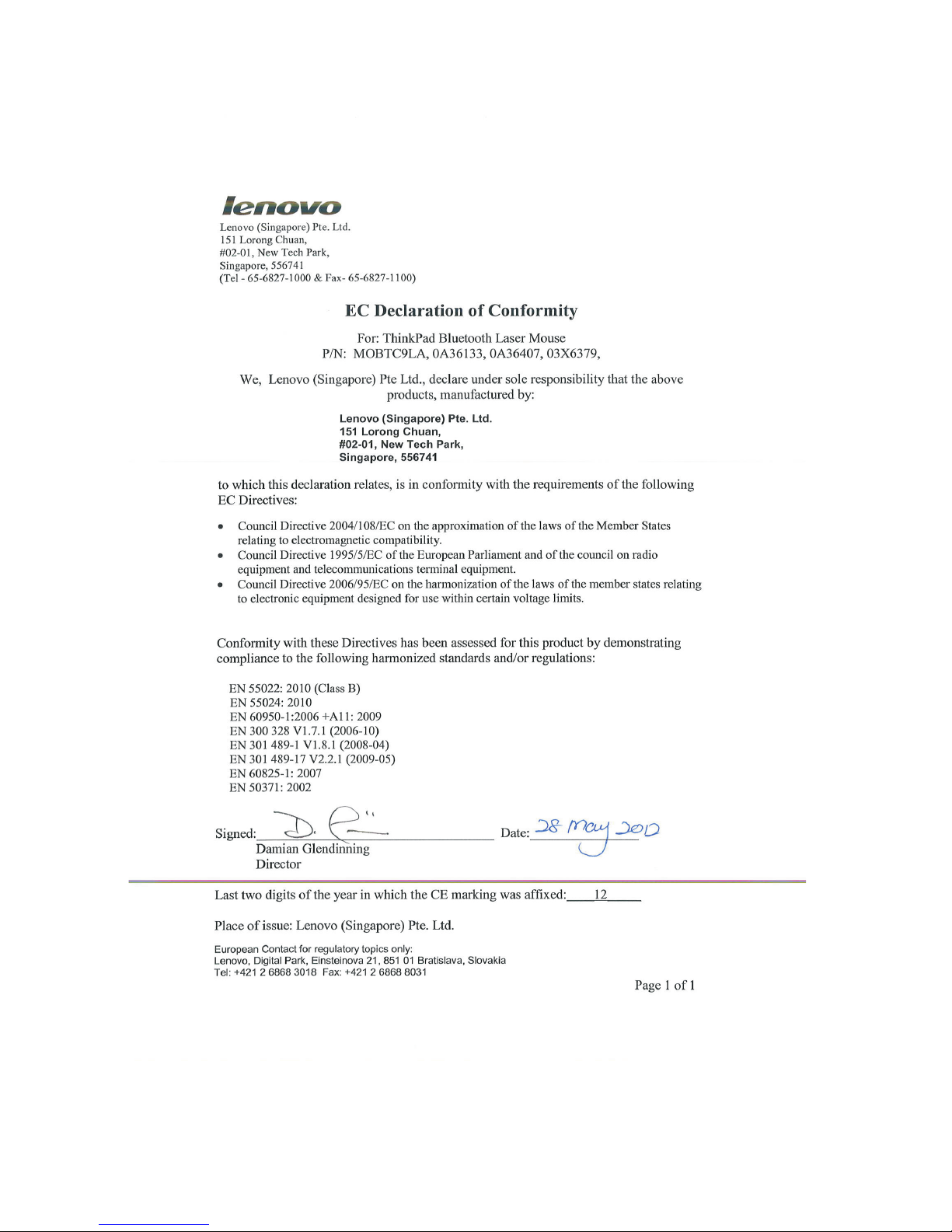
46LenovoCombinedMouseUserGuide
Page 55
Chile-ThinkPadBluetoothLaserMouse
SUBTEL:2890/DFRS04709/F-50
India-ThinkPadBluetoothLaserMouse
ETACERTIFICATENO.1882/2012/WRLO
Indonesia-ThinkPadBluetoothLaserMouse
Israel-ThinkPadBluetoothLaserMouse
MOC:51-15173
Japan-ThinkPadBluetoothLaserMouse
ThinkPad Bluetooth Laser Mouse
MOBTC9LA
07215279/AA/00
Certicatenumber:005-100065
AppendixC.Electronicemissionnotices47
Page 56
SouthAfrica-ThinkPadBluetoothLaserMouse
ThinkPadBluetoothLaserMouseT aiwanNCCID:
SingaporeIDACerticate
Brazil-ThinkPadBluetoothLaserMouse
Europe-EUDeclarationofConformityforLenovoLaserWirelessMouse
ProductsintendedforsalewithintheEuropeanUnionaremarkedwiththeConformitéEuropéenne(CE)
Marking,whichindicatescompliancewiththeapplicableDirectivesandEuropeanNorms,andamendments,
identiedbelow.
Hereby,Lenovo(Singapore)Pte.Ltd.,declaresthatthisLenovoLaserWirelessMouseisincompliance
withtheessentialrequirementsandotherrelavantprovisionsofDirective1999/5/EC.
48LenovoCombinedMouseUserGuide
Page 57
AppendixC.Electronicemissionnotices49
Page 58
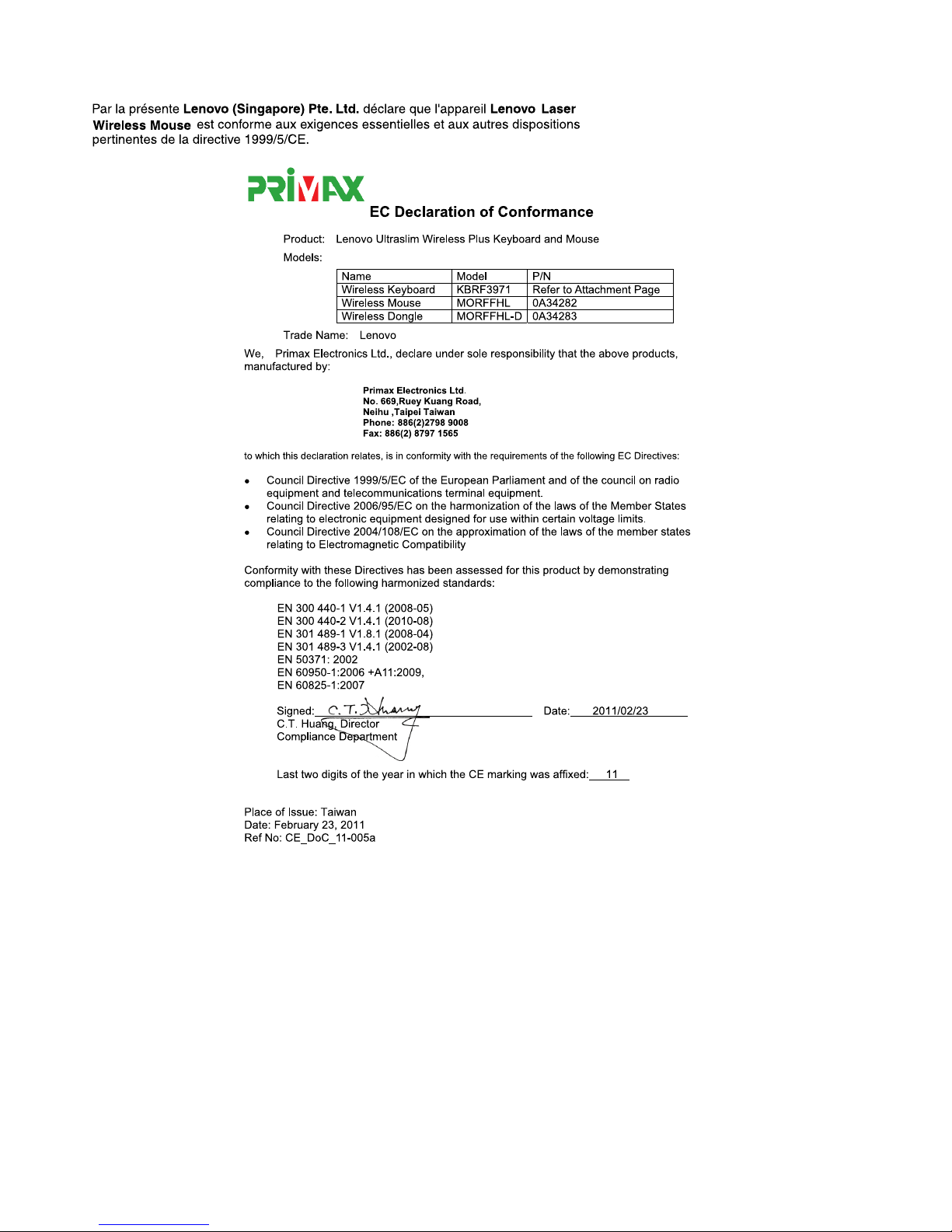
50LenovoCombinedMouseUserGuide
Page 59
Japan-LenovoLaserWirelessMouseandthedongle
Taiwan
LenovoLaserWirelessMouseT aiwanNCCID
DongleforLenovoLaserWirelessMouseTaiwanNCCID
AppendixC.Electronicemissionnotices51
Page 60
SingaporeIDACerticate
Brazil-LenovoLaserWirelessMouse
Brazil-DongleforLenovoLaserWirelessMouse
Formodel:MORFFHLandMORFFHL-D
Portuguese
Esteequipamentooperaemcarátersecundário,istoé,nãotemdireitoaproteçãocontra
interferênciaprejudicial,mesmodeestaçõesdomesmotipo,enãopodecausarinterferência
asistemasoperandoemcaráterprimário.
English
Thisequipmentisasecondarytypedevice,thatis,itisnotprotectedagainstharmful
interference,eveniftheinterferenceiscausedbyadeviceofthesametype,anditalsocannot
causeanyinterferencetoprimarytypedevices.
India-LenovoLaserWirelessMouse
ETA-1073/2011/WRLO
India-DongleforLenovoLaserWirelessMouse
ETA-1072/2011/WRLO
Indonesia-LenovoLaserWirelessMouse
Indonesia-DongleforLenovoLaserWirelessMouse
52LenovoCombinedMouseUserGuide
Page 61
Mexico
MouseinalambricomodeloMORFFHL
COFETEL:RCPLEMO11-0187
DispositivodeacesoinalambricoMORFFHL-D
COFETEL:RCPLEMO11-0188
SouthAfrica-LenovoLaserWirelessMouse
SouthAfrica-DongleforLenovoLaserWirelessMouse
NoticeforusersinThailand
Formodels:LenovoLaserWirelessMouse(MORFFHL),andDongleforLenovoLaserWirelessMouse
(MORFFHL-D)
ThiswirelesscommunicationequipmenthastheelectromagneticeldstrengthincompliancewiththeSafety
StandardfortheUseofWirelessCommunicationDevicesonHumanHealthannouncedbytheNational
TelecommunicationsCommission.
NoticeforusersintheUnitedArabEmirates
Formodels:LenovoLaserWirelessMouse(MORFFHL),andDongleforLenovoLaserWirelessMouse
(MORFFHL-D)
TelecommunicationsRegulatoryAuthority(TRA)approved
FormodelMORFFHL:
AppendixC.Electronicemissionnotices53
Page 62
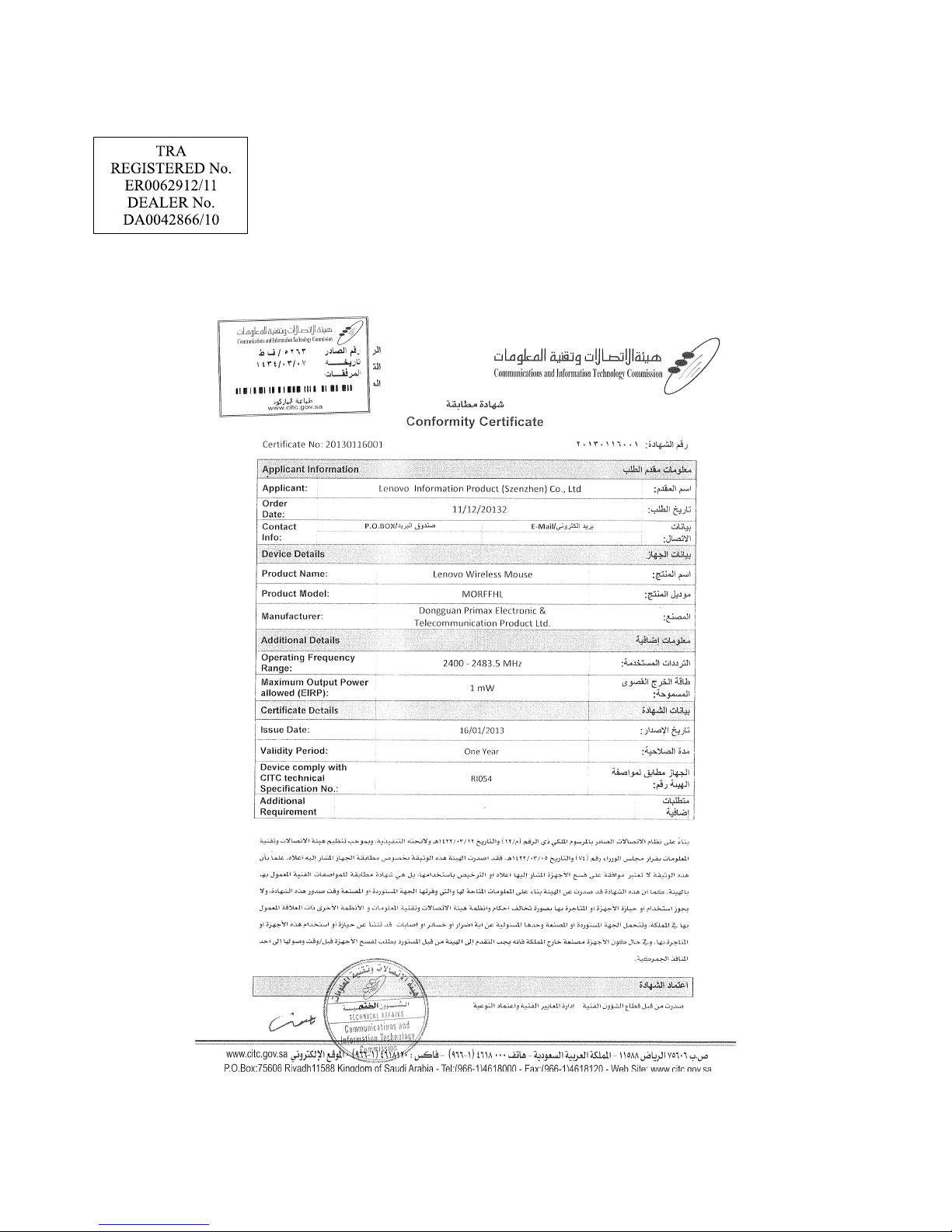
FormodelMORFFHL-D:
SaudiArabia-LenovoLaserWirelessMouse
54LenovoCombinedMouseUserGuide
Page 63
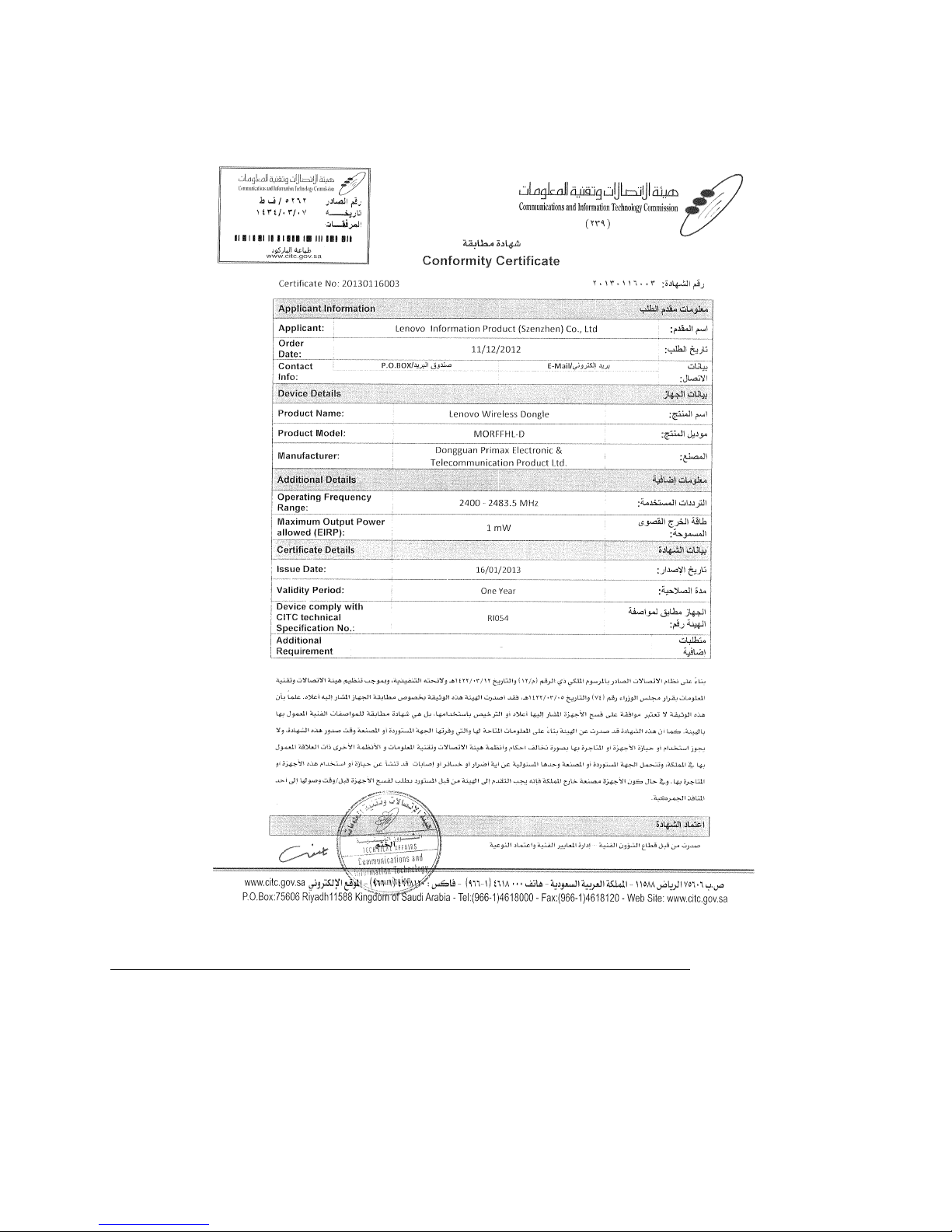
SaudiArabia-DongleforLenovoLaserWirelessMouse
Europe-EUDeclarationofConformityforThinkPadPrecisionWirelessMouse
ProductsintendedforsalewithintheEuropeanUnionaremarkedwiththeConformitéEuropéenne(CE)
Marking,whichindicatescompliancewiththeapplicableDirectivesandEuropeanNorms,andamendments,
identiedbelow.
Hereby,Lenovo(Singapore)Pte.Ltd.,declaresthatthisThinkPadPrecisionWirelessMouseisin
compliancewiththeessentialrequirementsandotherrelevantprovisionsofDirective1999/5/EC.
AppendixC.Electronicemissionnotices55
Page 64

Lenovo(Singapore)Pte.Ltd.,tímtoprohlašuje,žetentoThinkPadPrecisionWirelessMousejeveshodě
sezákladnímipožadavkyadalšímipříslušnýmiustanovenímisměrnice1999/5/ES.
UndertegnedeLenovo(Singapore)Pte.Ltd.erklærerherved,atfølgendeudstyrThinkPadPrecision
WirelessMouseoverholderdevæsentligekravogøvrigerelevantekravidirektiv1999/5/EF .
KäesolevagakinnitabLenovo(Singapore)Pte.Ltd.seadmeThinkPadPrecisionWirelessMouse
vastavustdirektiivi1999/5/EÜpõhinõuetelejanimetatuddirektiivisttulenevateleteisteleasjakohastele
sätetele.
Lenovo(Singapore)Pte.Ltd.vakuuttaatätenettäThinkPadPrecisionWirelessMousetyyppinenlaiteon
direktiivin1999/5/EYoleellistenvaatimustenjasitäkoskeviendirektiivinmuidenehtojenmukainen.
ΜΕΤΗΝΠΑΡΟΥΣΑLenovo(Singapore)Pte.Ltd.ΔΗΛΩΝΕΙΟΤΙThinkPadPrecisionWirelessMouse
ΣΥΜΜΟΡΦΩΝΕΤΑΙΠΡΟΣΤΙΣΟΥΣΙΩΔΕΙΣΑΠΑΙΤΗΣΕΙΣΚΑΙΤΙΣΛΟΙΠΕΣΣΧΕΤΙΚΕΣΔΙΑΤΑΞΕΙΣΤΗΣ
ΟΔΗΓΙΑΣ1999/5/ΕΚ.
HiermiterklärtLenovo(Singapore)Pte.Ltd.dasssichdasGerätThinkPadPrecisionWirelessMousein
ÜbereinstimmungmitdengrundlegendenAnforderungenunddenübrigeneinschlägigenBestimmungender
Richtlinie1999/5/EGbendet.
Alulírott,Lenovo(Singapore)Pte.Ltd.nyilatkozom,hogyaThinkPadPrecisionWirelessMousemegfelel
avonatkozóalapvetõkövetelményeknekésaz1999/5/ECirányelvegyébelõírásainak.
HérmeðlýsirLenovo(Singapore)Pte.Ltd.yrþvíaðThinkPadPrecisionWirelessMouseerísamræmi
viðgrunnkröfurogaðrarkröfur,semgerðareruítilskipun1999/5/EC.
ŠiuoLenovo(Singapore)Pte.Ltd.deklaruoja,kadšisThinkPadPrecisionWirelessMouseatitinka
esminiusreikalavimusirkitas1999/5/EBDirektyvosnuostatas.
AršoLenovo(Singapore)Pte.Ltd.deklarē,kaThinkPadPrecisionWirelessMouseatbilstDirektīvas
1999/5/EKbūtiskajāmprasībāmuncitiemartosaistītajiemnoteikumiem.
HierbijverklaartLenovo(Singapore)Pte.Ltd.dathettoestelThinkPadPrecisionWirelessMousein
overeenstemmingismetdeessentiëleeisenendeandererelevantebepalingenvanrichtlijn1999/5/EG.
Lenovo(Singapore)Pte.Ltd.erklasrerhervedatutstyretThinkPadPrecisionWirelessMouseerI
samsvarmeddegrunñleggendekravog0vrigerelevantekravidiraktiv1999/5/EF .
NiniejszymLenovo(Singapore)Pte.Ltd.oświadcza,żeThinkPadPrecisionWirelessMousejestzgodne
zzasadniczymiwymaganiamiorazinnymistosownymipostanowieniamiDyrektywy1999/5/WE.
Lenovo(Singapore)Pte.Ltd.týmtovyhlasuje,žeThinkPadPrecisionWirelessMousespĺňazákladné
požiadavkyavšetkypríslušnéustanoveniaSmernice1999/5/ES.
Lenovo(Singapore)Pte.Ltd.izjavlja,dajetaThinkPadPrecisionWirelessMousevskladuzbistvenimi
zahtevamiinostalimirelevantnimidoločilidirektive1999/5/ES.
PormediodelapresenteLenovo(Singapore)Pte.Ltd.declaraqueelThinkPadPrecisionWireless
Mousecumpleconlosrequisitesesencialesycualesquieraotrasdisposicionesaplicablesoexigiblesde
laDirectiva1999/5/CE.
HärmedintygarLenovo(Singapore)Pte.Ltd.attdennaThinkPadPrecisionWirelessMousestårI
överensstämmelsemeddeväsentligaegenskapskravochövrigarelevantabestämmelsersomframgår
avdirektiv1999/5/EG.
56LenovoCombinedMouseUserGuide
Page 65
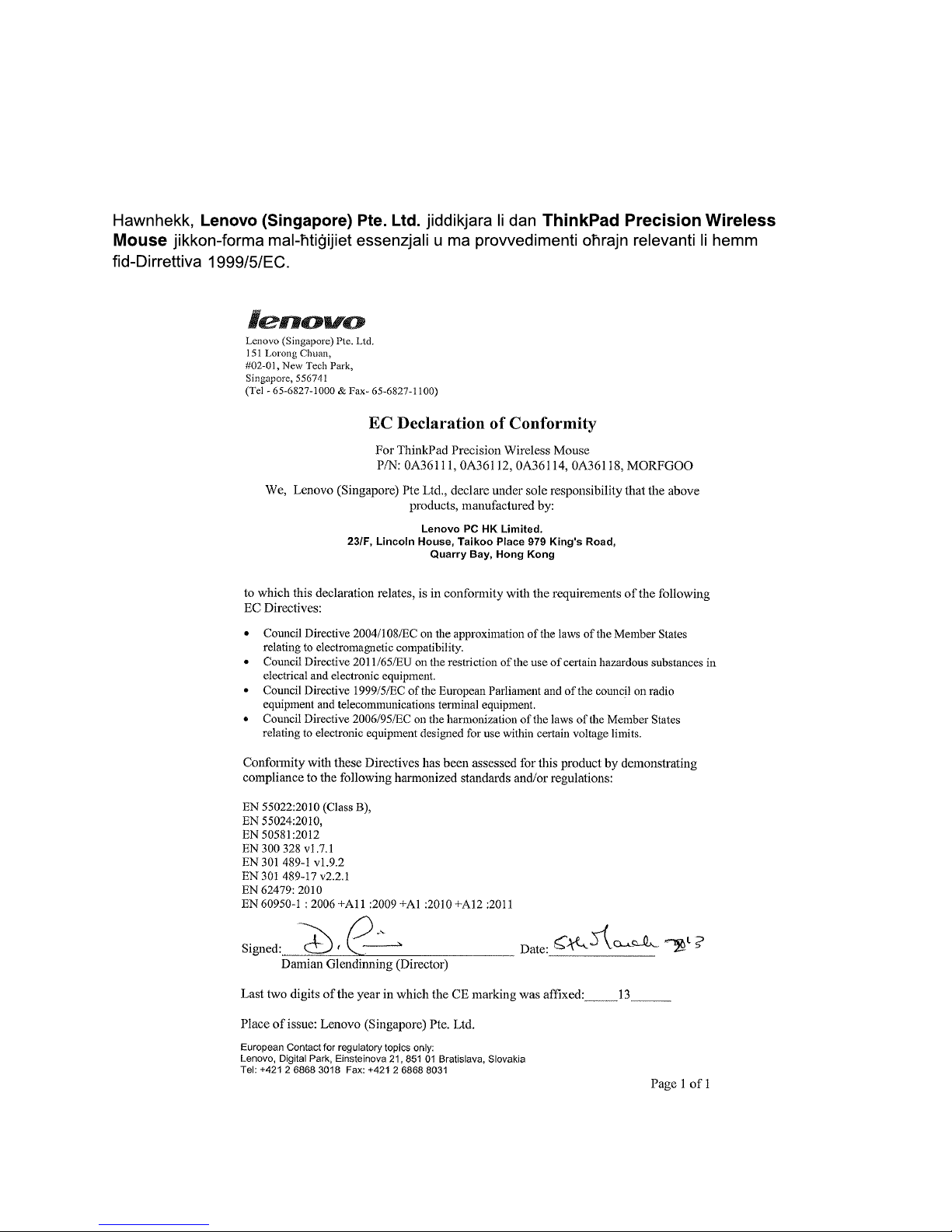
Lenovo(Singapore)Pte.Ltd.declaraqueesteThinkPadPrecisionWirelessMouseestáconformecom
osrequisitosessenciaiseoutrasdisposiçõesdaDirectiva1999/5/CE.
ParlaprésenteLenovo(Singapore)Pte.Ltd.déclarequel’appareilThinkPadPrecisionWirelessMouse
estconformeauxexigenciesessentiellesetauxautresdispositionspertinentesdeladirective1999/5/CE.
AppendixC.Electronicemissionnotices57
Page 66

ThinkPadPrecisionWirelessMouse-MORFGOO(CMIITID:2013DJ5396)
LenovoUSBReceiverforThinkPadPrecisionWirelessMouse-MORFFHL-D(CMIITID:2011DJ0776)
FCCCaution:Changesormodicationsnotexpresslyapprovedbythepartresponsibleforcompliance
couldvoidtheuser’sauthoritytooperatetheequipment.
58LenovoCombinedMouseUserGuide
Page 67

AppendixD.Notices
Lenovomaynotoffertheproducts,services,orfeaturesdiscussedinthisdocumentinallcountries.Consult
yourlocalLenovorepresentativeforinformationontheproductsandservicescurrentlyavailableinyour
area.AnyreferencetoaLenovoproduct,program,orserviceisnotintendedtostateorimplythatonlythat
Lenovoproduct,program,orservicemaybeused.Anyfunctionallyequivalentproduct,program,orservice
thatdoesnotinfringeanyLenovointellectualpropertyrightmaybeusedinstead.However,itistheuser's
responsibilitytoevaluateandverifytheoperationofanyotherproduct,program,orservice.
Lenovomayhavepatentsorpendingpatentapplicationscoveringsubjectmatterdescribedinthis
document.Thefurnishingofthisdocumentdoesnotgiveyouanylicensetothesepatents.Youcansend
licenseinquiries,inwriting,to:
Lenovo(UnitedStates),Inc.
1009ThinkPlace-BuildingOne
Morrisville,NC27560
U.S.A.
Attention:LenovoDirectorofLicensing
LENOVOPROVIDESTHISPUBLICATION“ASIS”WITHOUTWARRANTYOFANYKIND,EITHEREXPRESS
ORIMPLIED,INCLUDING,BUTNOTLIMITEDTO,THEIMPLIEDWARRANTIESOFNON-INFRINGEMENT,
MERCHANTABILITYORFITNESSFORAPARTICULARPURPOSE.Somejurisdictionsdonotallow
disclaimerofexpressorimpliedwarrantiesincertaintransactions,therefore,thisstatementmaynotapply
toyou.
Thisinformationcouldincludetechnicalinaccuraciesortypographicalerrors.Changesareperiodically
madetotheinformationherein;thesechangeswillbeincorporatedinneweditionsofthepublication.
Lenovomaymakeimprovementsand/orchangesintheproduct(s)and/ortheprogram(s)describedinthis
publicationatanytimewithoutnotice.
Recyclinginformation
Lenovoencouragesownersofinformationtechnology(IT)equipmenttoresponsiblyrecycletheirequipment
whenitisnolongerneeded.Lenovooffersavarietyofprogramsandservicestoassistequipmentownersin
recyclingtheirITproducts.ForinformationonrecyclingLenovoproducts,goto:
http://www.lenovo.com/recycling
RecyclinganddisposalinformationforJapanisavailableat:
http://www.lenovo.com/recycling/japan
RecyclinginformationforBrazil
DeclaraçõesdeReciclagemnoBrasil
DescartedeumProdutoLenovoForadeUso
Equipamentoselétricoseeletrônicosnãodevemserdescartadosemlixocomum,masenviadosàpontosde
coleta,autorizadospelofabricantedoprodutoparaquesejamencaminhadoseprocessadosporempresas
especializadasnomanuseioderesíduosindustriais,devidamentecerticadaspelosorgãosambientais,de
acordocomalegislaçãolocal.
©CopyrightLenovo2005,2013
59
Page 68

ALenovopossuiumcanalespecícoparaauxiliá-lonodescartedessesprodutos.Casovocêpossua
umprodutoLenovoemsituaçãodedescarte,ligueparaonossoSACouencaminheume-mailpara:
[email protected],informandoomodelo,númerodesérieecidade,amdeenviarmosasinstruções
paraocorretodescartedoseuprodutoLenovo.
ExportClassicationNotice
ThisproductissubjecttotheUnitedStatesExportAdministrationregulations(EAR)andhasanExport
ClassicationControlNumber(ECCN)ofEAR99.Itcanbere-exportedexcepttoanyoftheembargoed
countriesintheEARE1countrylist.
Trademarks
ThefollowingtermsaretrademarksofLenovointheUnitedStates,othercountries,orboth:
Lenovo
ScrollPoint
TheLenovologo
ThinkPad
Microsoft,Windows,andWindowsVistaaretrademarksoftheMicrosoftgroupofcompanies.
Othercompany,product,orservicenamesmaybetrademarksorservicemarksofothers.
60LenovoCombinedMouseUserGuide
Page 69
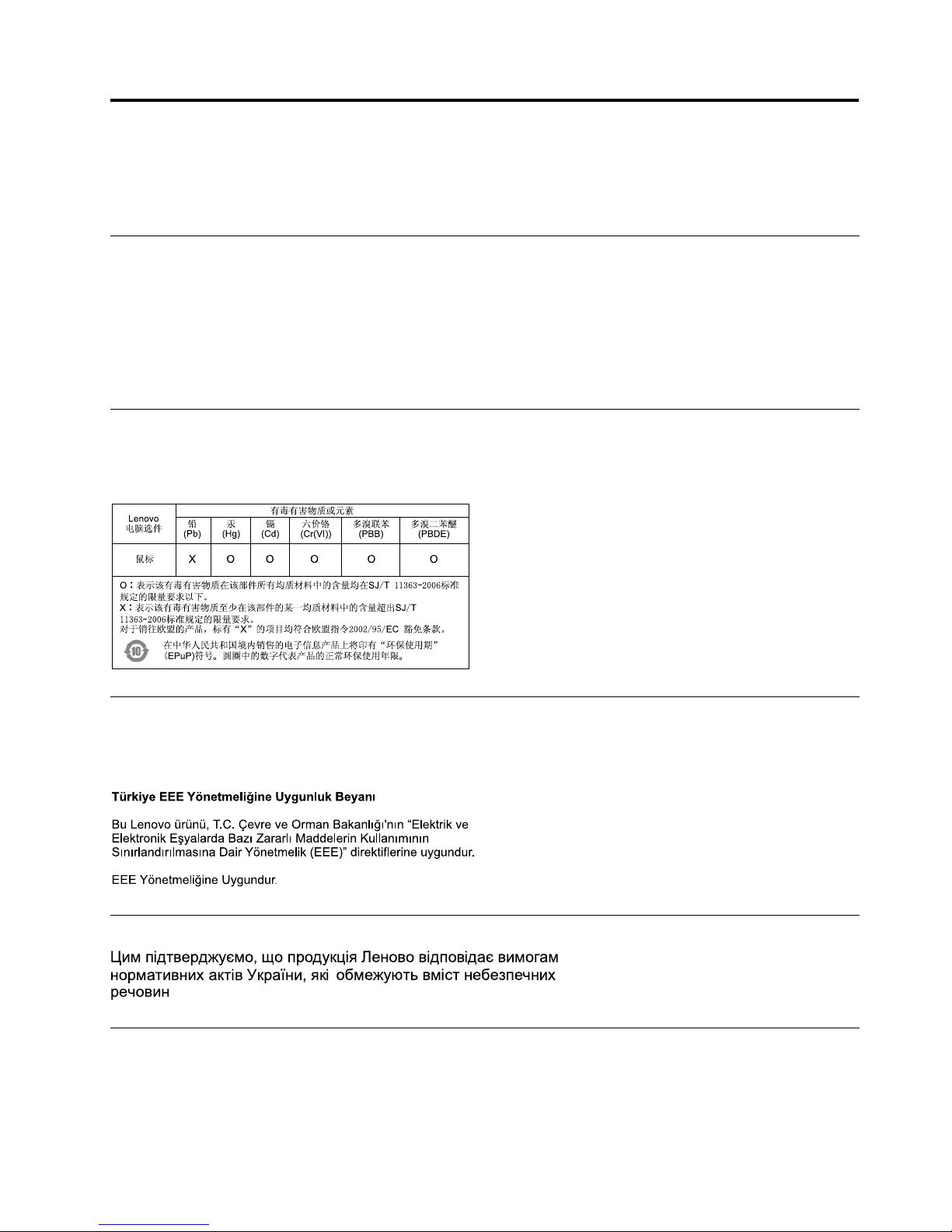
AppendixE.RestrictionofHazardousSubstancesDirective
(RoHS)
EuropeanUnionRoHS
LenovoproductssoldintheEuropeanUnion,onorafter3January2013meettherequirementsofDirective
2011/65/EUontherestrictionoftheuseofcertainhazardoussubstancesinelectricalandelectronic
equipment(“RoHSrecast”or“RoHS2”).
FormoreinformationaboutLenovoprogressonRoHS,goto:
http://www.lenovo.com/social_responsibility/us/en/RoHS_Communication.pdf
ChinaRoHS
TheinformationinthefollowingtableisapplicableforproductsmanufacturedonorafterMarch1,2007for
saleinthePeople’sRepublicofChina.
TurkishRoHS
TheLenovoproductmeetstherequirementsoftheRepublicofTurkeyDirectiveontheRestrictionoftheUse
ofCertainHazardousSubstancesinElectricalandElectronicEquipment(EEE).
UkraineRoHS
IndiaRoHS
RoHScompliantasperE-Waste(Management&Handling)Rules,2011.
©CopyrightLenovo2005,2013
61
Page 70

62LenovoCombinedMouseUserGuide
Page 71

Page 72

 Loading...