

Page 1

D1960 Wide LCD Monitor
User’s Guide
Page 2

TABLE OF CONTENTS
ABOUT THIS GUIDE------------------------------------------------------------------------1
NATIONAL CONVENTIONS---------------------------------------------------------------1
FCC NOTICE --------------------------------------------------------------------------------- 2
PRECAUTIONS ------------------------------------------------------------------------------- 3
SETUP THE STAND AND BASE ------------------------------------------------------- 4
ADJUSTING VIEWING ANGLE ---------------------------------------------------------- 4
ATTACHING THE CABLES --------------------------------------------------------------- 5
WALL MOUNTING -------------------------------------------------------------------------- 6
SETTING THE OPTIMAL RESOLUTION ---------------------------------------------- 7
EXTERNAL CONTROLS ------------------------------------------------------------------ 7
OSD SETTINGS ---------------------------------------------------------------------------- 8
DCB ADJUSTMENT ------------------------------------------------------------------------ 9
IMAGE ADJUSTMENT ------------------------------------------------------------------ 14
LED INDICATORS ------------------------------------------------------------------------ 15
PROBLEMS AND SOLUTIONS ------------------------------------------------------ 16
SPECIFICATIONS -------------------------------------------------------------------------- 17
PRESET DISPLAY MODES ----------------------------------------------------------- 18
PIN ASSIGNMENTS --------------------------------------------------------------------- 19
Page 3
About This Guide
• Technical Support : provides tips and solutions for common problems.
• Product Information: lists the technical specications of the monitor.
This guide describes the monitor’s features, setup, and operation. lnformation in this document is
subject to change without notice.
The sections are as follows:
• Safety Instructions: lists safety information.
• Setup: describes the initial setup process.
• Using the Monitor: gives an overview of how to use the monitor.
National Conventions
The following subsections describe notational conventions used in this document.
Notes, Cautions, and Warnings
Throughout this guide, blocks of text may be accompanied by an icon and printed in bold type or
in italic type. These blocks are notes, cautions, and warnings, and they are used as follows:
NOTE: A NOTE indicates important information that helps you make better use of
your computer system
CAUTION: A CAUTION indicates either potential damage to hardware or loss of data
and tells you how to avoid the problem
WARNING: A WARNING indicates the potential for bodily harm and tells you how to
avoid the problem
Some warnings may appear in alternate formats and may be unaccompanied by an icon. In such
cases, the specic presentation of the warning is mandated by regulatory authority.
1
Page 4
FCC Notice
FCC Class B Radio Frequency Interference Statement WARNING: (FOR FCC CERTIFIED
MODELS)
NOTE: This equipment has been tested and found to comply with the limits for a Class B digital
device, pursuant to Part 15 of the FCC Rules. These limits are designed to provide reasonable
protection against harmful interference in a residential installation. This equipment generates,
uses and can radiate radio frequency energy, and if not installed and used in accordance with
the instructions, may cause harmful interference to radio communications. However, there is no
guarantee that interference will not occur in a particular installation. If this equipment does cause
harmful interference to radio or television reception, which can be determined by turning the
equipment off and on, the user is encouraged to try to correct the interference by one or more of
the following measures:
1. Reorient or relocate the receiving antenna.
2. Increase the separation between the equipment and receiver.
3. Connect the equipment into an outlet on a circuit different from that to which the receiver is
connected.
4. Consult the dealer or an experienced radio/TV technician for help.
NOTICE :
1. The changes or modications not expressly approved by the party responsible for compliance
could void the user’s authority to operate the equipment.
2. Shielded interface cables and AC power cord, if any, must be used in order to comply with
the emission limits.
3. The manufacturer is not responsible for any radio or TV interference caused by unauthorized
modication to this equipment. It is there sponsibilities of the user to correct such
interference.
4. The LCD screen has effective pixels of 99.99% or more. It may include blemishes of 0.01%The LCD screen has effective pixels of 99.99% or more. It may include blemishes of 0.01%
or less such as a missing pixel or a pixel lit all of the time.
WEEE Declaration
Disposal of Waste Equipment by Users in Private Household in the European Union.
This symbol on the product or on its packaging indicates that this product must not be disposed of
with your other household waste .Instead, it is your responsibility to dispose of your waste equipment
by handing it over to a designated collection point for the recycling of waste electrical and electronic
equipment. The separate collection and recycling of your waste equipment at the time of disposal
will help to conserve natural resources and ensure that it is recycled in a manner that protects
human health and the environment. For more information about where you can drop off your waste
equipment for recycling, please contact your local city ofce, your household waste disposal service
or the shop where you purchased the product .
Hg Declaration
SAFETY: Lamp Disposal
LAMP(S) INSIDE THIS PRODUCT CONTAIN MERCURY AND MUST BE RECYCLED OR
DISPOSED OF ACCORDING TO LOCAL, STATE OR FEDERAL LAWS. FOR MORE INFORMATION,
CONTACT THE ELECTRONIC INDUSTRIES ALLIANCE AT WWW.EIAE.ORG.
2
Page 5

Precautions
PRECAUTIONS
• Do not use the monitor near water, e.g. near a bathtub, washbowl, kitchen sink, laundry
tub, swimming pool or in a wet basement.
•
Do not place the monitor on an unstable cart, stand, or table. If the monitor falls, it can
injure a person and cause serious damage to the appliance. Use only a cart or stand
recommended by the manufacturer or sold with the monitor. If you mount the monitor
on a wall or shelf, use a mounting kit approved by the manufacturer and follow the kit
instructions.
• Slots and openings in the back and bottom of the cabinet are provided for ventilation. To
ensure reliable operation of the monitor and to protect it from overheating, be sure these
openings are not blocked or covered. Do not place the monitor on a bed, sofa, rug, or
similar surface. Do not place the monitor near or over a radiator or heat register. Do not
place the monitor in a bookcase or cabinet unless proper ventilation is provided.
• The monitor should be operated only from the type of power source indicated on the
label. If you are not sure of the type of power supplied to your home, consult your dealer
or local power company.
• The monitor is equipped with a three-pronged grounded plug, a plug with a third
(grounding) pin. This plug will t only into a grounded power outlet as a safety feature.
If your outlet does not accommodate the three-wire plug, have an electrician install the
correct outlet, or use an adapter to ground the appliance safely. Do not defeat the safety
purpose of the grounded plug.
• Unplug the unit during a lightning storm or when it will not be used for long periods of time.
This will protect the monitor from damage due to power surges.
• Do not overload power strips and extension cords. Overloading can result in re or electric
shock.
• Never push any object into the slot on the monitor cabinet. It could short circuit parts
causing a re or electric shock. Never spill liquids on the monitor.
• Do not attempt to service the monitor yourself; opening or removing covers can expose
you to dangerous voltages and other hazards. Please refer all servicing to qualied
service personnel.
• To ensure satisfactory operation, use the monitor only with UL listed computers which
have appropriate congured receptacles marked between 100 - 240V AC, Min. 5A.
• The wall socket shall be installed near the equipment and shall be easily accessible.
• For use only with the attached power adapter (Output 12Vdc) which have UL,CSA listed
license(Only for monitors with power adapter).
• Please make sure to clean the cabinet regularly with the provided cloth , you can use
soft-cleanser to clean the stain , instead of severe spray cleanser which will cauterize the
monitor cabinet.
• Don’t leak liquid into monitor which will result in the damage of chassis or component.
Please unplug before cleaning ,and do not scratch the screen with hard things.
WARNING: Use of controls, adjustments, or procedures other than those specied in this
documentation may result in exposure to shock, electrical hazards, and/or mechanical
hazards
Read and follow these precautions when connecting and using your computer monitor:
For displays with glossy bezels the user should consider the placement of the display as
•
the bezel may cause disturbing reflections from surrounding light and bright surfaces.
3
Page 6
Setup the stand and base
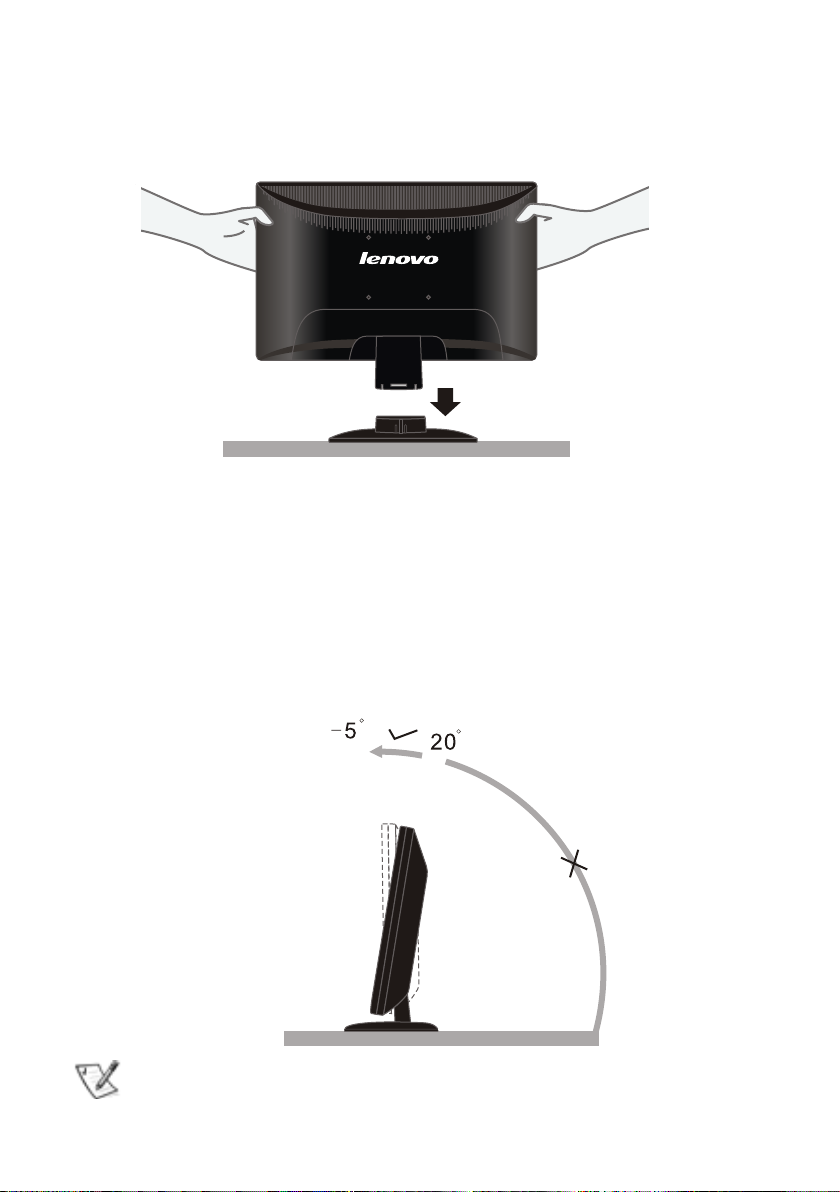
Please setup or remove the base following below steps.
Adjusting Viewing Angle
• For optimal viewing it is recommended to look at the full face of the monitor, then adjust the
monitor’s angle to your own preference.
• Hold the stand so you do not topple the monitor when you change the monitor’s angle.
• You are able to adjust the monitor’s angle from -5°to 20 °.
NOTE: Do not touch the LCD screen when you change the angle. It may cause damage or
break the LCD screen.
4
Page 7
Attaching the Cables
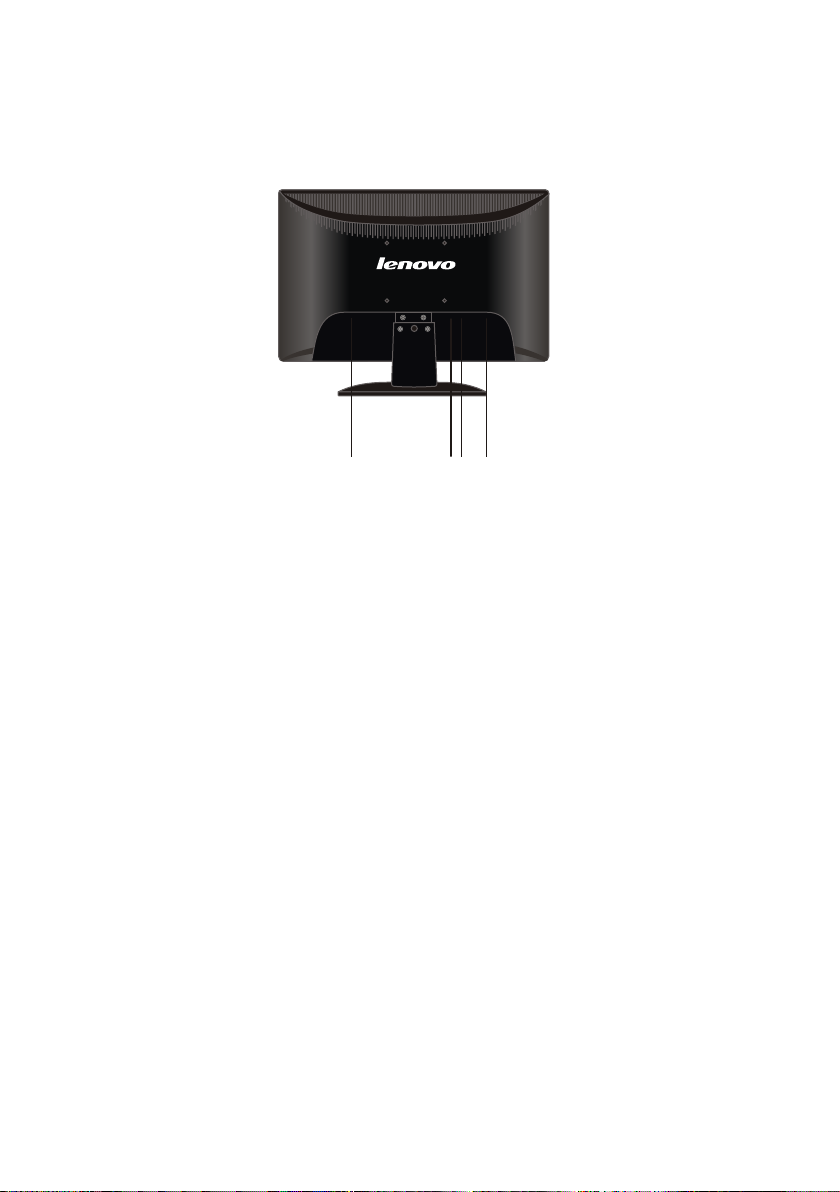
Cable Connections On Back of Monitor and Computer
1 23 4
1. Power Cord
2. Audio Cable
3. DVI Cable
4. Analog Cable
Turn off your computer before performing the procedure below.
1. Connect the power cable to the AC port on the back of the monitor.
2. Connect one end of the 15-pin D-Sub cable to the back of the monitor and connect the other
end to the computer’s D-Sub port.
3. (Optional – Requires a video card with DVI port) - Connect one end of the 24-pin DVI cable
to the back of the monitor and connect the other end to the computer’s DVI port.
4. Plug audio cable between the computer multimedia (or sound) card’s audio output and
monitor’s audio input.
5. Turn on your monitor and computer.
If your monitor displays an image, installation is complete. If it does not display an image, see
Troubleshooting.
5
Page 8

Wall Mounting
Preparing to Install An Optional Wall Mounting Arm
This monitor can be attached to a wall mounting arm you purchase separately. Disconnect power
before this procedure. Follow these steps:
1. Remove the base.
2. Follow the manufacturer’s instructions to assemble the wall mounting arm.
3. Place the wall mounting arm onto the back of the monitor. Line up the holes of the arm with
the holes in the back of the monitor.
4. Insert the 4 screws into the holes and tighten.
5. Reconnect the cables. Refer to the user’s manual that came with the optional wall mounting
arm for instructions on attaching it to the wall.
Noted : VESA mounting screw holes are not available for all models, please check with the dealer
or the reseller nearest your house.
6
Page 9

Setting the Optimal Resolution
External Controls
Press the power button to turn the monitor on or off. The other control knobs are located at front
panel of the monitor (See Figure ). By changing these settings, the picture can be adjusted to your
personal preferences.
* The power cord should be connected.
* Press the power button to turn on the monitor. The power indicator will light up.
The recommended resolution for this monitor is 1366 by 768. To setup the monitor to this resolution,
follow the steps below.
1. Click START.
2. Click SETTINGS.
3. Click CONTROL PANEL.
4. Double click DISPLAY.
5. Click SETTINGS.
6. Set the resolution SLIDE-BAR to 1366 by 768.
1 2 3 4 5
1 Auto / Exit
2 Decrease Volume / -
3 ON / OFF
4 Increase Volume / +
5 Menu / Enter
7
Page 10

OSD Settings
• Press the MENU-button to activate the OSD window.
• Press+ or - to navigate through the functions. Once the desired function is
highlighted, press the MENU-button to activate it. If the function selected
has a sub-menu, press or again to navigate through the sub-menu functions.
Once the desired function is highlighted, press MENU-button to activate it.
• Press+ or - to change the settings of the selected function. To exit and save,
select the exit function. If you want to adjust any other function, repeat steps
2-3.
• OSD Lock Function: To lock the OSD, press and hold the Menu button while
the monitor is off and then press power button to turn the monitor on. To unlock the OSD - press and hold the Menu button while the monitor is off and
then press power button to turn the monitor on.
• Auto congure hot key: When the OSD is closed, press Auto button will be
auto congure hot key function .
8
Page 11

DCB Adjustment
What is DCB?
Dynamic Color Boost (DCB) is an advanced color adjustment technology. Through analyzing RGB
signals, DCB creates more vivid and natural images to suit various color environment needs. DCB
has two types of color enhancers: “Color Boost” and “Picture Boost” .
DCC: Dynamic color control
ICM: Intelligent color management
9
Page 12

1) How to use Color Boost?
Five color-enhancement settings: To accommodate various display needs, Color Boost also
offers 5 different color enhancement modes: Full Enhance, Natural Skin, Green Field, Sky Blue,
and Auto-Detect. Please go to the fourth icon labeled “Color Boost” in the OSD menu and select
one of the ve settings you desire to be turned on.
Full Enhance: When “Full Enhance” is turned on, the color saturation of the entire screen is fully
enriched, thus all colors become more vibrant.
10
Page 13

Nature Skin: When “Natural Skin” is turned on, the red and yellow colors are enriched automatically,
thus presents human skin with more natural and truer colors. “Natural Skin” setting is ideal for
viewing human portrait and detailed skin texture.
Green Field: When “Green Field” is turned on, the green color is enriched so that football eld and
mountain landscape would look more natural and fresh. “Green Field” setting is ideal for watching
mountain scenery and outdoor sports.
11
Page 14

Sky Blue: When”Sky Blue” is turned on, the color blue is being ne-tuned so that the sky or ocean
landscape will look more vivid and in-depth. “Sky Blue” setting is ideal for viewing sky and ocean
images.
Auto Detect: When “Auto Detect” is turned on, every pigment will be detected and self-adjusted
to render a lively picture.
Demo: Screen divided into two for demonstration purposes.
12
Page 15

2) How to use Picture Boost?
Users can change the color settings of a self-selected zone on the screen. The size and position of
the selected zone can also be adjusted. “Picture Boost” is located in the fth icon labeled “Picture
Boost” in the OSD menu. Turn on “Bright Frame” to select a zone on the screen to be enhanced.
Please note when adjust or turn on any one of the DCB features, the rest of color settings including
DCR will be disabled or return to default.
Disclaimer: DCB aftereffects are subject to the resolution and quality of the display content, hence
may look different than the above illustrations.
13
Page 16

Image Adjustment
Internet Internet Mode
Game Game Mode
Movie Movie Mode
Esports Sports Mode
Gamma
Gamma1 Adjust Gamma1
Gamma2
Adjust Gamma2
Gamma3 Adjust Gamma3
Luminance Adjust Range Description
Brightness 0-100 Backlight Adjustment
Contrast 0-100 Constrast from Digital-register
Eco
Image Setup
Clock 0-100 Adjust picture Clock to reduce Vertical-Line noise
Focus 0-100 Adjust Picture Phase to reduce Horizontal-Line noise
H-Position 0-100 Adjust the horizontal position of the picture
V-Position 0-100 Adjust the vertical position of the picture
Color Temperature
Warm 6500K Recall Warm Color Temperature from EEPROM
Normal 7300K Recall Normal ColorTemperature from EEPROM
Cool 9300K Recall Cool Color Temperature from EEPROM
sRGB Recall SRGB Color Temperature from EEPROM
User
Color Boost
Full Enhance On or Off Disable or Enable Full Enhance Mode
Nature Skin On or Off Disable or Enable Nature Skin Mode
Green Field On or Off Disable or Enable Green Green Field Mode
Sky-blue On or Off Disable or Enable Sky-blue Mode
AutoDetect On or Off Disable or Enable AutoDetect Mode
Demo On or Off Disable or Enable Demo Mode
Picture Boost
Frame Size 14-100 Adjust Frame size
Brightness 0-100 Adjust Frame Brightness Contrast
Contrast 0-100 Adjust Frame Contrast
Hue 0-100 Adjust Frame Hue Saturacion
Saturation 0-100 Adjust Frame Saturation Position
Position
Bright Frame On or Off Disable or Enable Bright Frame
OSD Setup
V. Position 0-100 Adjust the Vertical position of OSD
H. Position 0-100 Adjust the Horizontal position of OSD
Timeout 0-100 Adjust the OSD Timeout
Language Select the OSD language
Extra
Input Select
Auto Congure Yes or No Auto adjust the picture to default
DDC/CI
Reset
Information
Standard Standard Mode
Text Text Mode
User-B Blue Gain from Digital-register
User-G Green Gain Digital-register
User-R Red Gain from Digital-register
User-Y Yellow Gain from Digital-register
User-C Cyan Gain from Digital-register
User-M Magenta Gain from Digital-register
H. Position Adjust Frame horizontal Position
V. Position Adjust Frame vertical Position
Analog Select Analog Signal Source as Input
Digital Select Digital Signal Source as Input
Yes or No
Yes or No
Show the information of the main image and sub-
Turn ON/OFF DDC/CI support
Reset the menu to default
image source
14
Page 17

Notes:
1)If the product has only one signal input, the item of “Input Select” is disable to adjust.
LED Indicators
Status LED Color
Full Power Mode Green or Blue
Active-off Mode Orange or red
15
Page 18

Problems and Solutions
Problem and Questions Possible Solutions
Power LED is Not ON
No Plug & Play
Picture is Fuzzy and has
Ghosting Shadowing Problem
Picture Bounces, Flickers or
Wave Pattern is Present in the
Picture
Monitor is Stuck in Active OffMode
• Make sure the power button is ON and the Power Cord
is properly connect to a grounded power outlet and to
the monitor
• In order for the Plug & Play feature of the monitor to
work, you need a Plug & Play compatible computer &
video card. Check with your computer manufacturer.
Also check the monitor’s video cable and make sure
none of the pins are bent
• Make sure the Monitor’s Drivers are installed
• Adjust the Contrast and Brightness Controls
• Make sure you are not using an extension cable or
switch box. We recommend plugging the monitor
directly to the video card output connector on the back
of your computer
• Move electrical devices that may cause electrical
interference as far away from the monitor as possible
• Use the maximum refresh rate your monitor is capable
of at the resolution your are using
• The computer Power Switch should be in the ON
posiiton
• The computer Video Card should be snugly seated in
its slot
• Make sure the monitor’s video cable is properly
connected to the computer
• Inspect the monitor’s video cable and make sure none
of the pins are bent
• Make sure your computer is operaional by hitting the
CAPS LOCK key on the keyboard while observing the
CAPS LOCK LED. The LED shuould either turn ON or
OFF after hitting the CAPS LOCK key
Missing one of the primary
colors (RED, GREEN or BLUE)
Screen image is not centerred
or sized properly
Picture has color defects (while
does not look white)
Horizontal or Vertical
disturbances on the screen
• Inspect the monitor’s video cable and make sure that
none of the pins are bent
• Make sure the monitor’s video cable is properly
connected to the computer
• Adjust H-Position and V-Position or press hot-key
(AUTO)
• Adjust RGB color or select color temperature
• Use win 95/98/2000/ME/XP shut-down mode Adjust
CLOCK and FOCUS or perform hot-key (AUTO-key)
16
Page 19

Specications
R, G, B Analog Interface & Digital
Analog: 0,7 V p-p (standard), 75 OHM,
Positive & DVI-D Digital Interface (TMDS)
LCD Panel
Resolution
Physical
Characteristics
Enviromental
Model Number D1960wA
Driving system TFT Color LCD
Viewable Image Size 470mm diagonal
Pixel Pitch 0.3mm (H) x 0.3mm (V)
Vídeo
Separate Sync. H/V TTL
Display Color 16.7M Colors
Dot Clock 85.5 MHz
Horizontal scan range 30 kHz - 80 kHz
Horizontal scan Size (Maximum) 409.8mm
Vertical scan range 55 Hz - 75 Hz
Vertical scan Size (Maximum) 230.4mm
Optimal present resolution 1366 x 768 (60 Hz)
Highest preset resolution 1366 x 768 (60 Hz)
Plug & Play VESA DDC2B/CI
Input Connector D-Sub 15 pin & DVI-D
Input Video Signal
Power Source 100 ~ 240 VAC, 50/60 Hz
Power Consumption
Connector Type 15-pin Mini D-Sub & DVI-D
Signal Cable Type Detachable
Speakers 1.5Wx 2
Dimensions & Weight:
Height (with base) 348mm
Width 449.4mm
Depth 182.5mm
Weight (monitor only) 3.90 kg
Weight (with packaging) 5.10 kg
Temperature:
Operating 0° to 40°
Non-Operating -20° to 60°
Humidity:
Operating 10% to 85% (non-condensing)
Non-Operating 5% to 80% (non-condensing)
Altitude:
Operating 0~ 3000m (0~ 10000 ft )
Non-Operating 0~ 5000m (0~ 15000 ft )
Interface
Active < 25 W
Standby < 0.6 W
17
Page 20

EPA ENERGY STAR ®
ENERGY STAR® is a U.S registered mark. As an ENERGY STAR® Partner, our
company has determined that this product meets the ENERGY STAR® guidelines
for energy efciency.
Preset Display Modes
STAND RESOLUTION
VGA 640 x 480 @60Hz 31.469 59.94
VGA 640 x 480 @67Hz 35 66.667
VGA 640 x 480 @72Hz 37.861 72.809
VGA 640 x 480 @75Hz 37.5 75
Dos-mode 720 x 400 @70Hz 31.469 70.087
Dos-mode 640 x 400 @70Hz 31.469 70.087
SVGA 800 x 600 @56Hz 35.156 56.25
SVGA 800 x 600 @60Hz 37.879 60.317
SVGA 800 x 600 @72Hz 48.077 72.188
SVGA 800 x 600 @75Hz 46.875 75
Mac-mode 832 x 624 @75Hz 49.725 74.551
XGA 1024 x 768 @60Hz 48.363 60.004
XGA 1024 x 768 @70Hz 56.476 70.069
XGA 1024 x 768 @72Hz 57.5 72.074
XGA 1024 x 768 @75Hz 60.023 75.029
XGA 1024 x 768 @75Hz 60.241 74.927
WSXGA 1360 x 768 @60Hz 47.712 60.015
WSXGA 1366 x 768 @60Hz 47.765 59.856
HORIZONTAL
FREQUENCY (kHZ)
VERTICAL
FREQUENCY (HZ)
18
Page 21

Pin Assignments
D-Sub pins
Pin
Number
1 Video - Red
2 Video - Green
3 Video - Blue
4 Ground
5 Detect Cable
6 GND-R
7 GND-G
8 GND-B
9 +5V
10 Ground
11 Ground
12 DDC-Serial data
13 H-sync
14 V-sync
15 DDC-Serial clock
15-Pin Side of the
Signal Cable
DVI-D pins
Pin No. Signal Name Pin No. Signal Name Pin No. Signal Name
1 TMDS Data 2- 9 TMDS Data 1- 17 TMDS Data 0-
2 TMDS Data 2+ 10 TMDS Data 1+ 18
TMDS Data 2/4
3
Shield
4 TMDS Data 4- 12 TMDS Data 3- 20 TMDS Data 5-
5 TMDS Data 4+ 13 TMDS Data 3+ 21
6 DDC Clock 14 +5V Power 22
7 DDC Data 15 Ground (for +5V) 23
8 N.C. 16 Hot Plug Detect 24 TMDS Clock -
11
TMDS Data 1/3
Shield
19
TMDS Data
0+
TMDS Data
0/5 Shield
TMDS Data
5+
TMDS Clock
Shield
TMDS Clock
+
Plug and Play
Plug & Play DDC2B Feature
This monitor is equipped with VESA DDC2B capabilities accordiling to the VESA DDC STANDARD.
It allows the monitor to inform the host system of its identity and, depending on the level of DDC
used, communicate additional information about its display capabilities.
The DDC2B ia a bi-directional data channel based on the I2C protocol. The host can request EDID
information over the DDC2B channel.
19
 Loading...