

Page 1
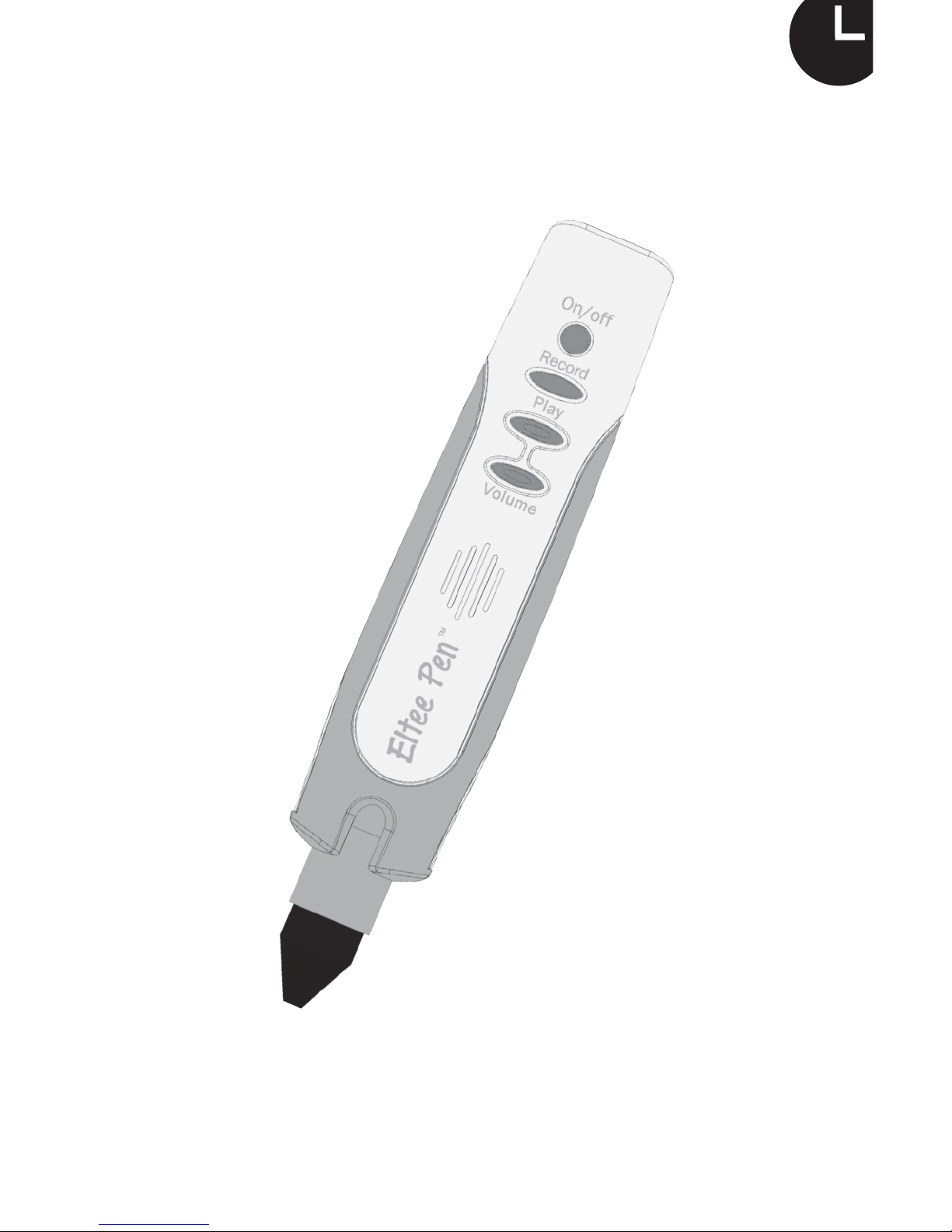
User Manual
Eltee Pen
TM
Page 2
Screwdriver
User Manual
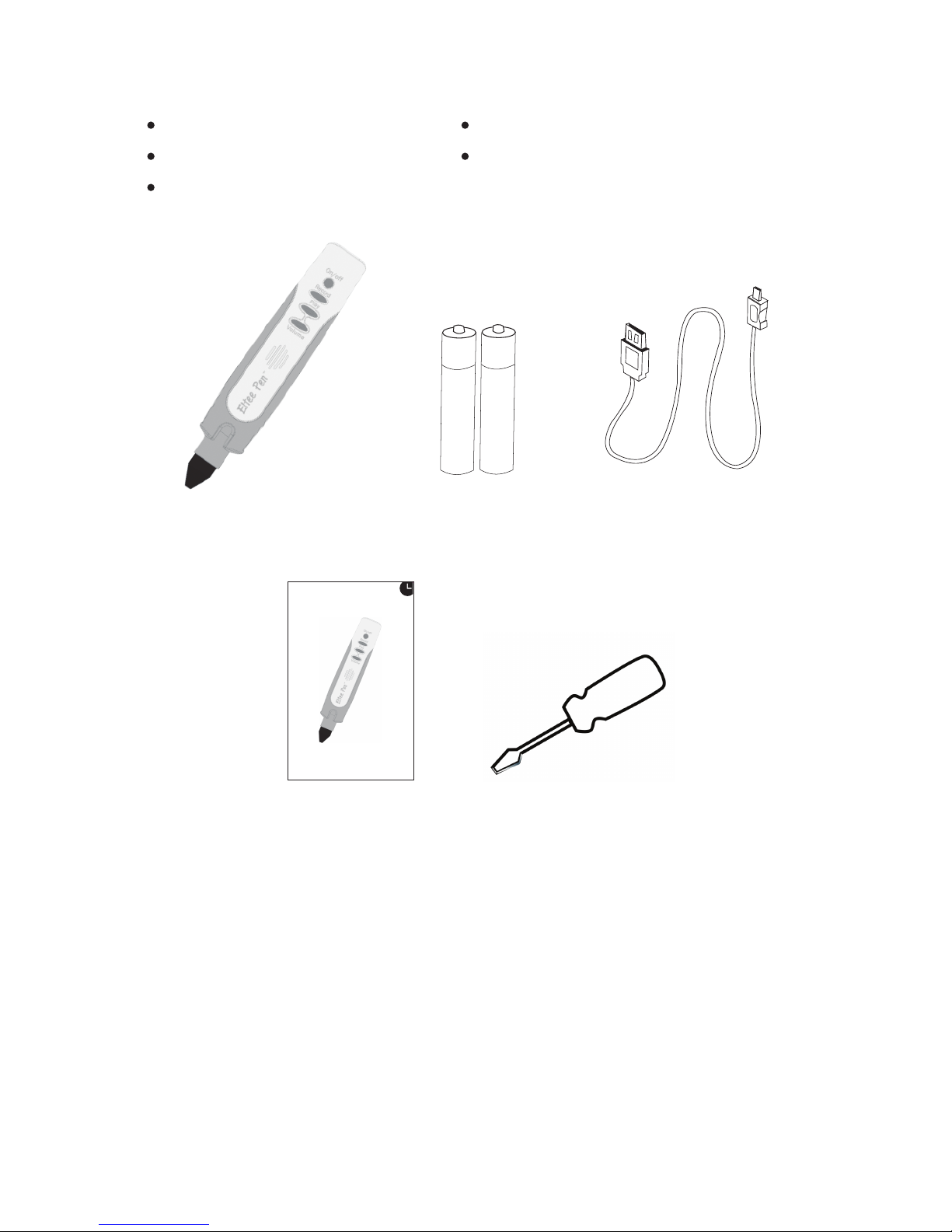
Included in the box:
Eltee Pen
USB Cable
Batteries: 2x AAA
Batteries USB CableEltee Pen
AAA battery
AAA battery
User Manual Screwdriver
User Manual
Eltee Pen
TM
Set-up (inserting the batteries)
1. Remove the battery cover using the screwdriver
provided.
2. Insert two AAA batteries in the correct position.
3. Replace the battery cover and screw securely
in place.
4. Store the screwdriver in a safe place, and out
of the reach of children.
1
Page 3

Features and Functions
1. Turning on: To turn on your Eltee Pen using the
battery power, press and hold the power button for
3 seconds until the light flashes and you hear, “Hello,
I’m Eltee.”
2. Turning off: To turn off your Eltee Pen, hold the
power button for 3 seconds until the light
switches off and you hear ‘Good bye, see you soon’.
3. Auto off: To save battery power, your Eltee Pen
will automatically switch off if it is unused for
more than 3 minutes.
4. Record: A quick press and release of the record
button will turn the light on. This indicates
that recording is activated. To record your voice
clearly, bring your Eltee Pen close to your
mouth. To stop recording, press and release the
same button again. When the light goes off, this
indicates that recording has stopped.
Please note: the maximum recording time is one
minute and every new recording deletes
the previous one.
5. Play: To listen to the recorded voice, press and
quickly release the Play button.
6. Volume: There are 5 levels of sound volume. The
default level is set at 3. Each press of the
volume button will alter the volume through the
sequence: 4-5-4-3-2-1. Press the volume button
until you achieve the desired volume.
7. Speaker: Take care not to cover the speaker whilst
playing recordings on your Eltee Pen.
8. Audio Out: You may connect external speakers
or headphones using a standard audio cable
(not provided).
9. SD Card: All your Eltee Pen sound files are
recorded on the SD Card. Please do not remove it
2
Page 4
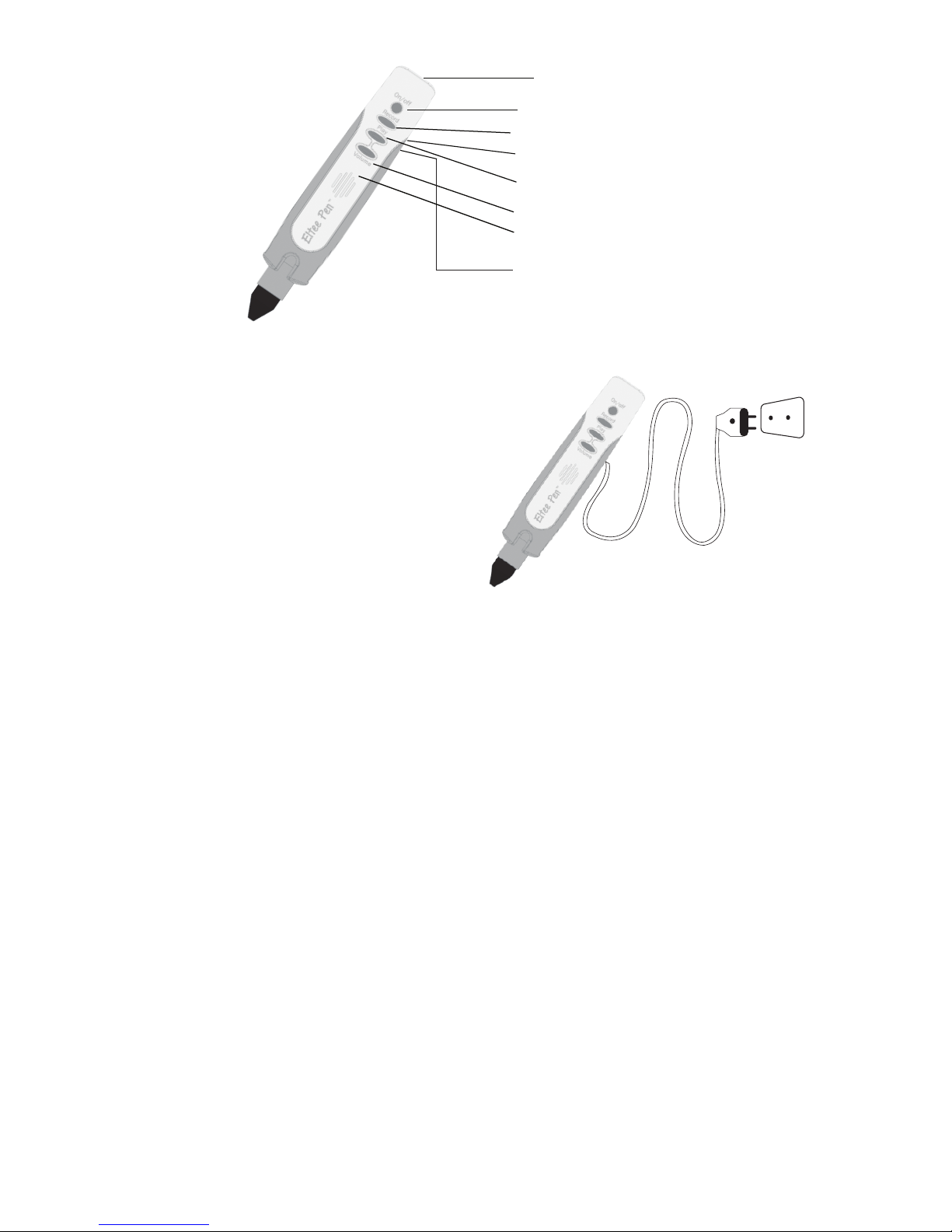
Power
Audio Out
SD Card housing
Record
Play
Volume
Speaker
USB Power
Using Eltee Pen with
Power Supply
1. To use your Eltee Pen
with a power supply,
connect the USB cable
(provided) to a USB
plug (plug not provided
due to local variations).
2. When connected to
the power, the red
light will turn on. Push
the Power button.
When you hear, “Hello!
I’m Eltee.” your Eltee
Pen is ready to use.
Using Eltee Pen with Compatible Books
1. Activation: Each book has an activation icon on the
first page (as shown in the image). After switching on
the Eltee Pen, scan the icon to activate the Pen for
that particular book. You will hear a welcome
message. Repeat this step every time you want to
use your Eltee Pen with a compatible book.
3. Please avoid connecting
the USB cable to your
computer, as there is
a risk of accidentally
deleting data from your
Eltee Pen.
3
Page 5

2. Sound Icons: There are sound icons
on every page. When you scan these
icons with your Eltee Pen, a sound
will play.
3. Take care not to push or scratch the
head of the pen on the pages, as
this may damage the sound icons.
Troubleshooting
1. No sound: If you can’t hear any sound, please check
whether the Eltee Pen is switched on. The power
light should be on when the Eltee Pen is switched on.
If the Pen is on and there is still no sound, check the
volume.
2. Sounds do not match with the content: This usually
means you have not activated the Eltee Pen for that
particular book. Please activate your Eltee Pen with
your chosen book, and try again Pen for that
particular book. Please activate your Eltee Pen with
your chosen book, and try again
3. Power light goes red: This means your Eltee Pen is
running low on battery. Replace the batteries, or
connect to a power supply.
4. Audio-out does not work: When your Eltee Pen is
connected to an external speaker through an audio
cable, and no sounds play, this usually suggests a
problem with the audio cable or the external
speaker. Check the audio cable and the external
speaker are working well with other audio devices.
5. Headphones do not work: If you connect your Eltee
Pen with headphones, but cannot hear any sounds,
this usually suggests a problem with the head
phones. Check if the headphone is working well with
other audio devices.
Once you have established that there is a problem with
the Eltee Pen itself, please contact your local distributor.
4
Page 6

Caring for Eltee Pen
1. Eltee Pen is not a toy and should only be used under
adult supervision.
2. Eltee Pen is a sensitive electronic device with an
optical scanner inside its nib.
3. The Eltee Pen should not be dropped; immersed in
liquid; kept in direct sunlight; or stored in sandy,
dusty or extreme temperatures.
4. When changing the batteries, use caution when
discarding the old ones. Do not burn them, as
they may explode.
5. Remove the batteries if you do not plan to use Eltee
Pen for an extended period of time.
Product Specifications
• Memory Card: 4 GB
• Size: 158 mm x 30 mm x 20 mm
• Weight: 49 gms
• Battery: Two AAA batteries
• Sound Quality: 8Kbps~320Kbps
• SafeTemperature Range: 10 degrees to 45 degrees
centigrade
5
Page 7

Please feel free to contact Learning Time directly in
case of any problems with the warranty:
www.learningtime.co
Learning Time, its agents, representatives or distributors
shall not be liable for any loss, injury or damage, including
consequential loss, injury or damage arising directly or
indirectly out of, or in connection with, the service,
delivery or use of the product, Eltee Pen.
Warranty
Your warranty is valid for one year from the date of
purchase, as per the conditions below:
1. There’s no need to register for warranty but please
keep your invoice/receipt as a proof of purchase.
2. You will need to bring/send the product to your
distributor at your cost, with the proof of purchase.
3. During the warranty period, you’ll be entitled to free
repair or replacement arising from defects in
materials and workmanship of the product.
4. The warranty does not apply in case of damage
caused by misuse, negligence, accident, inflow of
any liquid, sand or dirt or excessive pressure that
deformed or damaged the product.
5. The warranty will not apply if the product is
modified, tampered with or repaired in any way by
a third party.
6
Page 8

www.learningtime.co
'Learning Time', the clock logo device and all related titles, logos and characters are trademarks of Motivate Educational Supplies FZC or its licensors.
2015 Motivate Educational Supplies FZC. All rights reserved.
TM
 Loading...