

Page 1

Leadtek
WinFast Wi2000D
Intel® WiDi Adapter and Enhanced Streaming Digital Media
Render (DMR)
User Manual
Page 2

CONTENTS
CONTENTS ..................................................................................................... 1
1. Installation ............................................................................................... 1
1.1 Hardware Recommendation ............................................................... 1
1.2 Hardware Installation .......................................................................... 3
1.3 Airfun Utility installation ....................................................................... 6
1.4 Other iPhone/Android Streaming Application Installation ................ 8
2. Usage of Airfun Utility ............................................................................ 9
2.1 Network connection ............................................................................. 9
2.2 Basic Usage of AIRFUN Utility ......................................................... 12
2.3 Advanced Setting .............................................................................. 15
3. Usage of Wi-Fi Miracast ..... ………………………………………………..19
4. Usage of Intel® WiDi Utility .................................................................. 21
5. Usage of Streaming mode in Windows 7 ............................................ 23
5.1 Turn-on Media Streaming ................................................................. 23
5.2 Stream a File to DMR ....................................................................... 25
6. WinFast Wi2000D System Reset ......................................................... 27
7. Troubleshooting ................................................................................... 34
7.1 Troubleshooting of AIRFUN ............................................................. 34
7.2 Troubleshooting of Streaming-DMR ................................................ 42
7.3 Common Solutions to Many Issues ................................................. 43
Appendix A: .................................................................................................. 46
Appendix B: .................................................................................................. 47
Page 3

1
1. Installation
1.1 Hardware Recommendation
WinFast Wi2000D supports WiFi Miracast mode, Intel® WiDi Adapter (Screen
Capture) mode and Streaming DMR mode.
Hardware Recommendation for Intel® WiDi mode
Users must have Intel® WiDi compatible platforms to support Intel Wireless
Display.
System Component Requirement
Processor
ONE of the following:
Intel® Core™ i7: 640M; 660LM; 640LM; 620LM; 620M; 610E; 690UM;
680UM; 660UM; 640UM; 620UM; 660UE; 2710QE; 2820QM; 2720QM;
2635QM; 2630QM; 2657M; 2649M; 2629M; 2620M; 2617M; 2540M;
2520M; 2510E; 2640LM; 2620LM; 2630UM; 2610UM; 2530UM;
2920XM
Intel® Core™ i5: 580M; 560M; 540M; 520M; 480M; 460M; 450M;
430M; 580UM; 560UM; 540UM; 520UM; 470UM; 430UM; 2540M;
2520M; 2410M; 2537M
Intel® Core™ i3: 390M; 380M; 370M; 350M; 330M; 330E; 2310M
Graphics Intel® HD Graphics
Wireless
ONE of the following:
Intel® Centrino® Wireless-N 1000, 1030
Intel® Centrino® Advanced-N 6200, 6205, or 6230
Intel® Centrino® Wireless-N + WiMAX 6150
Intel® Cent ino® Advanced-N + WiMAX 6250
Intel® Centrino® Ultimate-N 6300
Software
Intel® My WiFi Technology (Intel® MWT)2 and Intel® Wireless Display
1
must be pre-installed and enabled.
OS
Windows 7 64-bit*, Home Premium, Ultimate or Professional
Windows 7 32-bit*, Home Premium, Ultimate, Professional or Basic
Page 4

2
Hardware Recommendation for Streaming Mode
WinFast Wi2000D is designed to be a DMR (digital media renderer), and you
are able to stream video/music/photo contents from PC (Windows 7 based),
smart phone, and Tablet-PC to your TV through this device.
PC or Notebook
CPU: 1.6 GHz or better
Memory: 1.0 GB or better
Network: 802.11g/n Wi-Fi and/or 100/1000 Mbps Ethernet
Smart phone
CPU: 800 MHz or better
Memory: 256 MB or better
Network: 802.11g/n Wi-Fi or better
Tablet-PC
CPU: 600 MHz or better
Memory: 256 MB or better
Network: 802.11g/n Wi-Fi or better
Hardware Recommendation for WiFi Miracast mode
Wi-Fi Miracast certified smart phone/tablet/PC
Page 5

3
1.2 Hardware Installation
1. Plug in the power cord. Connect HDMI cable to HDMI output of WinFast
Wi2000D and HDMI input of TV/Monitor.
2. Push power button to turn on WinFast Wi2000D.
3. You can see the logo during booting.
4. After few seconds, when you see the below screen: the device is assigned
an IP address, the system is in Miracast mode and ready to receive
video/music/photo from your PC/NB/Tablet/Smartphone.
Page 6

4
5. You can switch between WiFi Miracast mode /Intel® WiDi Adapter
mode/Streaming mode by pushing the button twice (Please wait one
second and then press 2nd time) at the side of box (next to USB
connector).
Page 7

5
6. When you see the screen below, the box is ready for Intel Wireless Display
connection. Please refer to chapter 4 for Intel® WiDi connection.
7. You can switch to Streaming mode by push the mode button twice again.
Please refer Chapter 2 /Chapter 3 / WinFast Wi2000D iOS android media
sharing guide for more information about Streaming mode operation.
Page 8

6
1.3 Airfun Utility installation
Airfun is enhanced DLNA DMR and it can support more video/audio format
that traditional DLNA DMR.
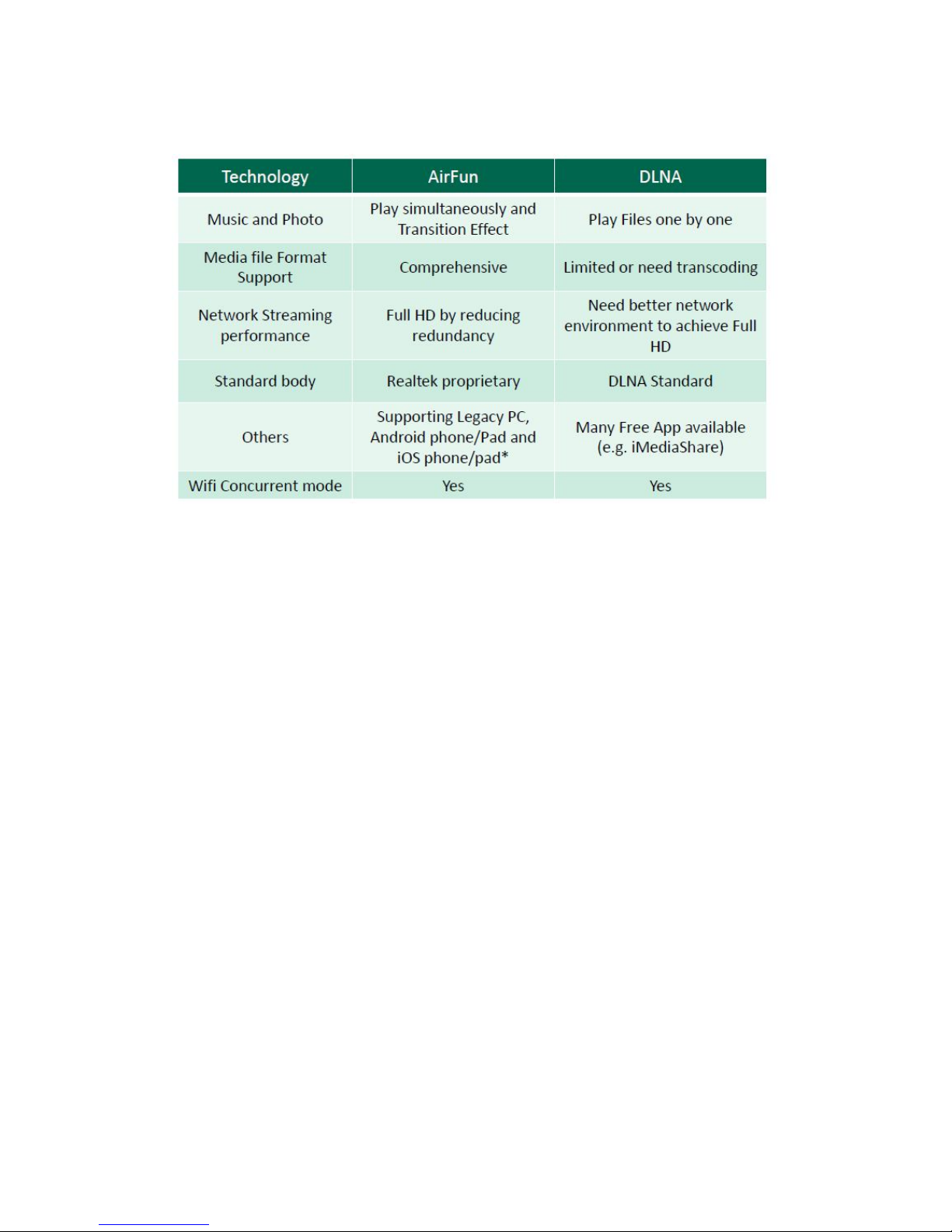
The major differences between Airfun and DLNA are listed in Appendix B.
However, WinFast Wi2000D is DLNA v1.5 DMR so it is also compatible with
standard DLNA DMC App.
Windows 7 Installation
1. Run AirfunInstall.exe
2. Click “Next”
3. Click “Install”.
Page 9

7
4. Click “Finish”
Android Installation
1. Please copy airfun.apk to SD card and put the SD card into
smartphone/tablet.
2. Install APKInstaller APP on Google Play store for your tablet/smartphone.
Page 10

8
3. Install Airfun APP with APK installer. After installation, you can see Airfun
logo in the program list.
iOS
Airfun for iOS is not available now. Please use “iMediashare Lite” or “Twonky
mobile” instead.
1.4 Other iPhone/IPAD/Android Streaming Application
Installation
Please refer to IOS/Android media share guide for more information.
Page 11

9
2. Usage of Airfun Utility
2.1 Network connection
WinFast Wi2000D works as a wireless access point but without the ability of
Internet Access. If you want to access Internet via another wireless AP at the
same time, you must configure the setting to Concurrency mode. (Setting=>
Network=>Concurrency mode, For more information, please check 2.3
advanced setting)
In Concurrency mode, Video streaming and Internet access are working
independently and concurrently
After the AIRFUN device is ready, please connect your PC’s Wi-Fi to the
“device SSID” of the AIRFUN device. The “device SSID” shows on the waiting
screen.
The sample of “device SSID” in the picture is “WinFast Wi2000D XXX”.
Page 12

10
The password is not required in the default setting.
If the connected network device still shows “Identifying”, you are not able to run
AIRFUN application yet.
In Windows 7 / Vista, the yellow exclamation mark is normal to express that it
is without Internet ability, and it would not affect AIRFUN application anymore.
After the Wi-Fi is connected, You can launch AIRFUN Utility.
Concurrency mode
Before configuring WinFast Wi2000D to Wi-Fi Concurrent mode, you have to
connect it by AP mode first. After connected WinFast Wi2000D, please go to
“Network” page to set the network in Concurrent mode. Please refer to “2.3”.
Network Stability
Sometimes, the network might spend a long time to finish the connection
because of the Windows behaviors.
Before the readiness of the network, you are not able to run AIRFUN
application or set its network configuration. Especially in Windows 7 / Vista,
it would spend more time to detect the possibility of Internet connection when a
new network is connected at the first time. Moreover, in the same
phenomenon, you might experience a sudden disconnection2 and
reconnection again in a short time.
Page 13

11
The Network icon in System Tray as the left picture presents that the network
is not ready yet.
At this moment, you can check the readiness by clicking the “Network” icon at
the System Tray. If the connected network device still shows “Identifying”, you
are not able to run AIRFUN application yet.
Page 14

12
2.2 Basic Usage of AIRFUN Utility
1. Double click the AIRFUN icon from your desktop.
2. If the left dialog window is prompted, please tick both of “Private networks”
and “Public networks”. Then click “Allow access” to agree that AIRFUN
application could be unblocked from Windows Firewall.
3. The AIRFUN start to search the AIRFUN device. If there is no AirFun
device, it will show “No device found”.
4. If getting AIRFUN device, you should be able to see your PC screen on the
TV now.
Page 15

13
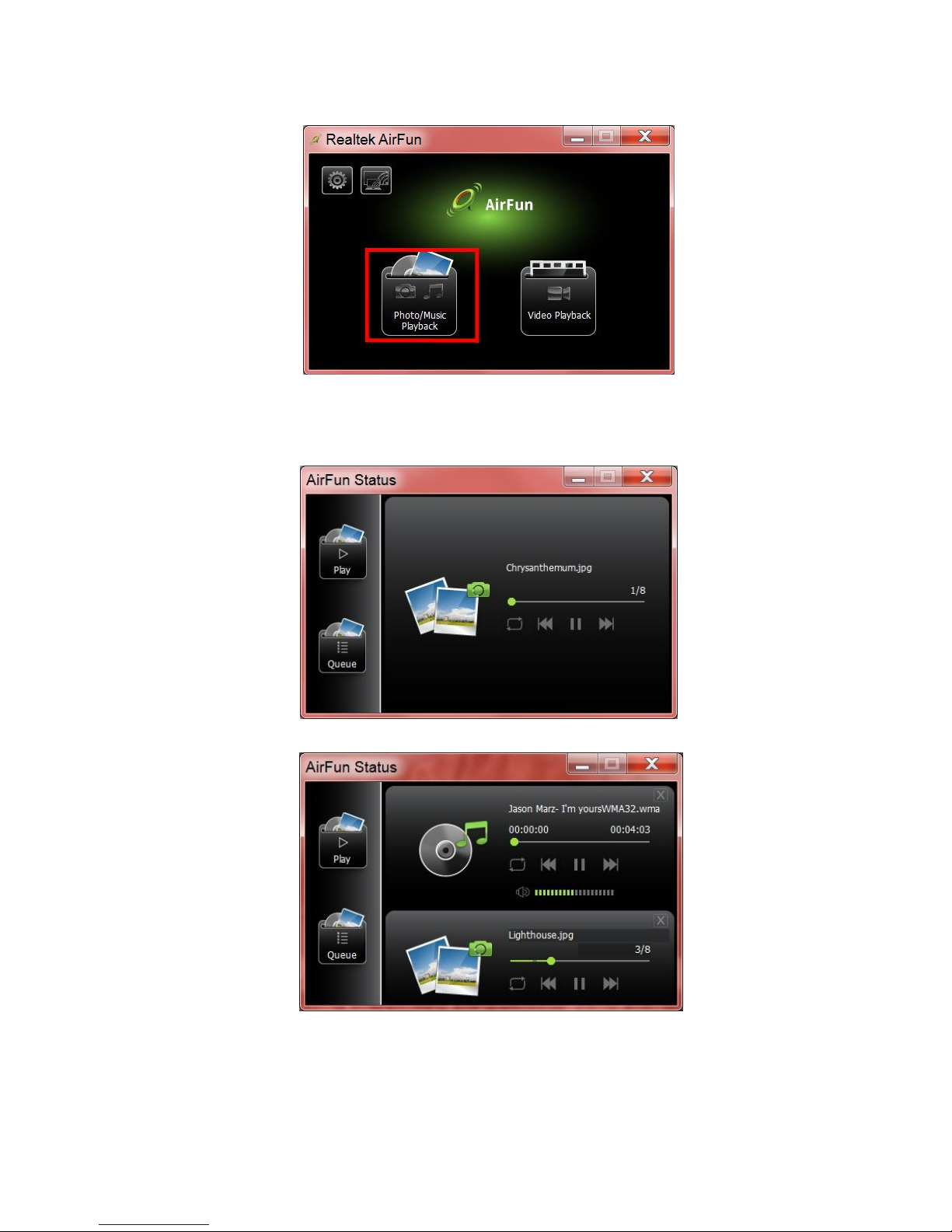
5. You can drag the video/photo/music file to Airfun main menu directly. For
video files, please drag files to the right folder.
6. You can move the progress bar and adjust the volume. To replace the
current playlist, you can drag the new file to the “play” icon.
7. To add file into the playlist, you can drag files to the “playlist” icon.
Page 16
14
8. For photo/music files, please drag files to the left folder.
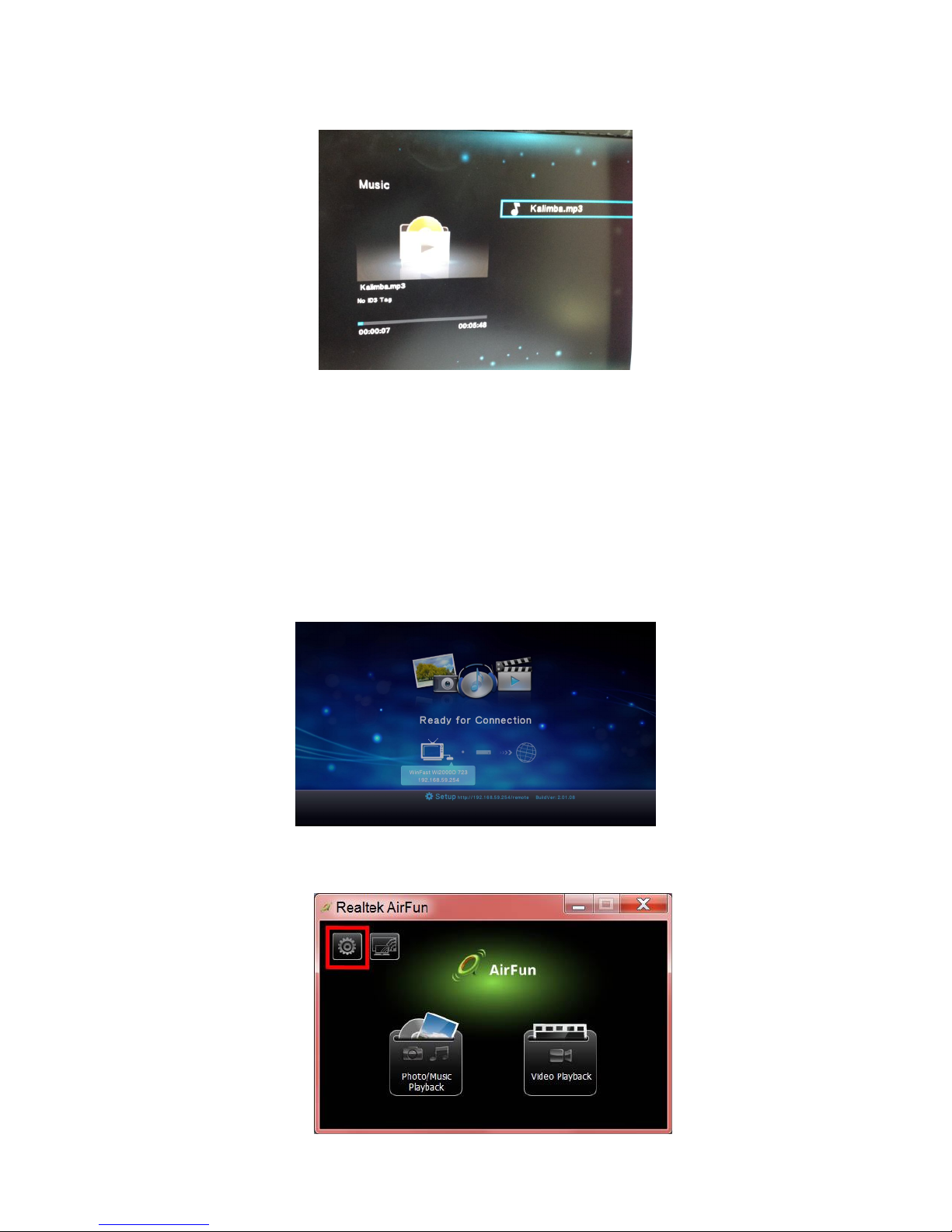
9. Photos and Music can be played concurrently.
Page 17
15
10. You can see the playlist on the TV screen, too.
2.3 Advanced Setting
To change advanced setting of WinFast Wi2000D box, you need to connect to
WinFast Wi2000D first. (Please check 2.1 Network connection)
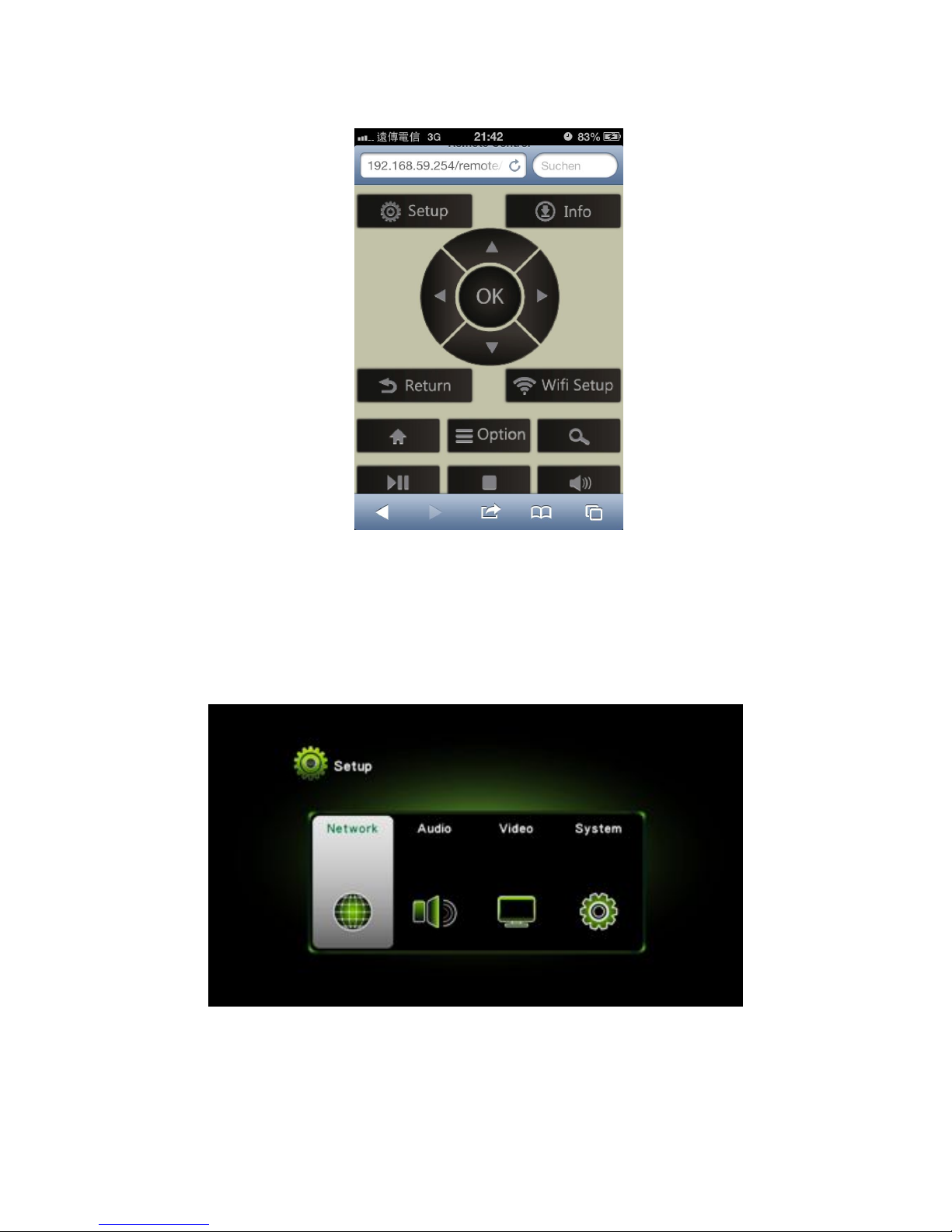
There are 2 way to go to the setting page.
(1) Key in the address on TV screen with a web browser of
PC/NB/smartphone/tablet connected to WinFast Wi2000D.
(2) Click the setup icon of Airfun
Page 18
16
A control pad will appear to work as a remote controller.
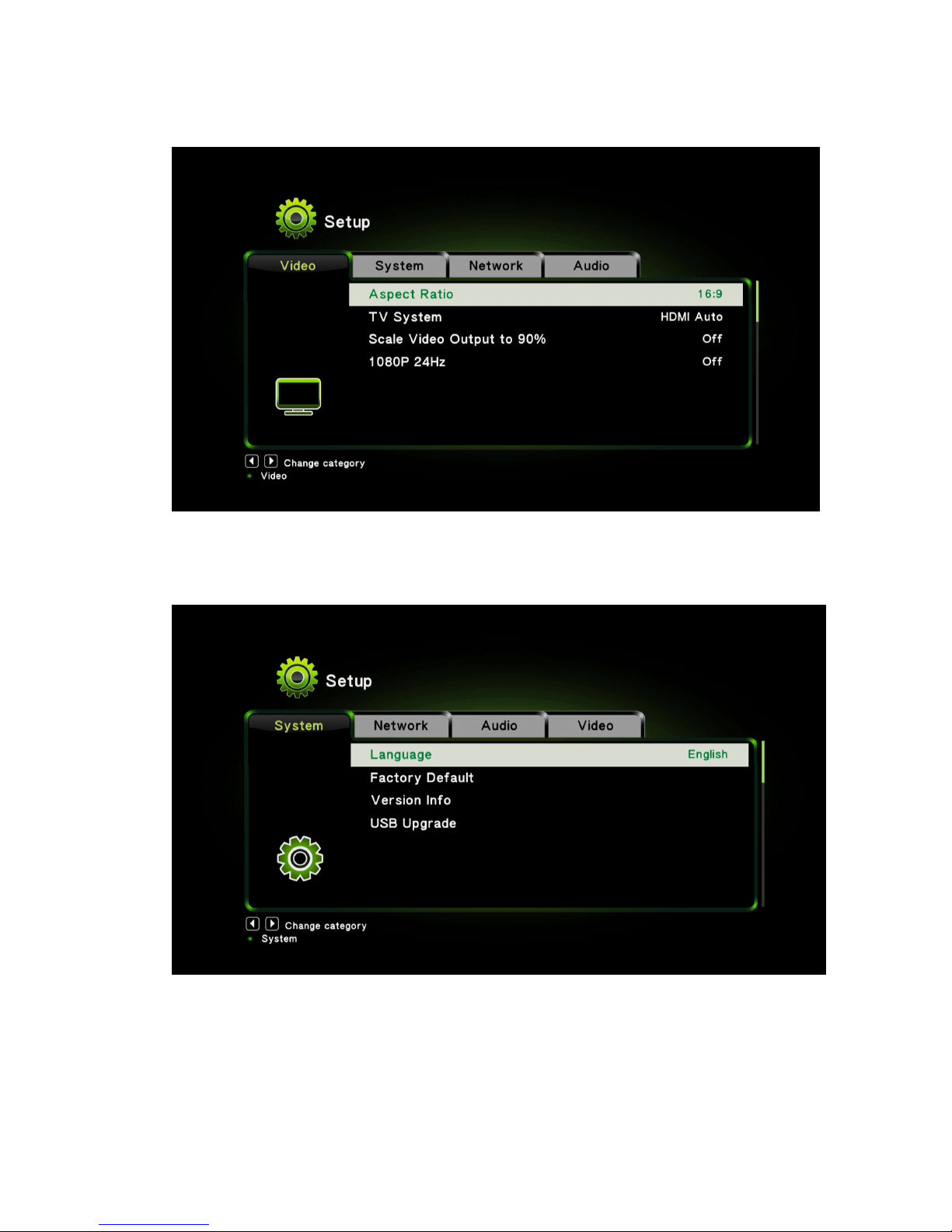
On TV you will see the setup page .
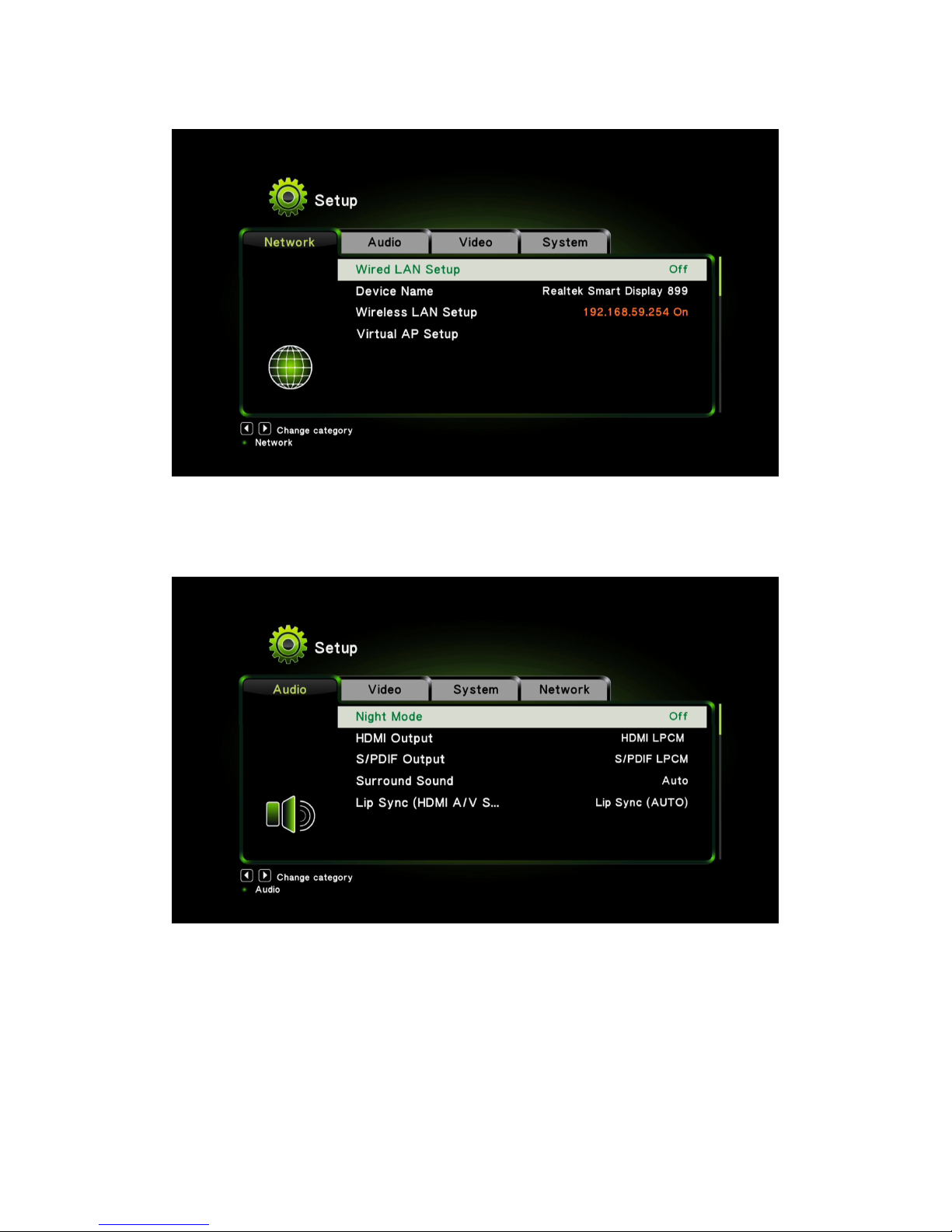
- Select “left/right/OK” to enter the setting page for Network / Audio / Video /
System.
- Select “Return” to go to the previous page.
Page 19
17
2.3.1. Network Setting
2.3.2. Audio Setting
Page 20
18
2.3.3. Video Setting
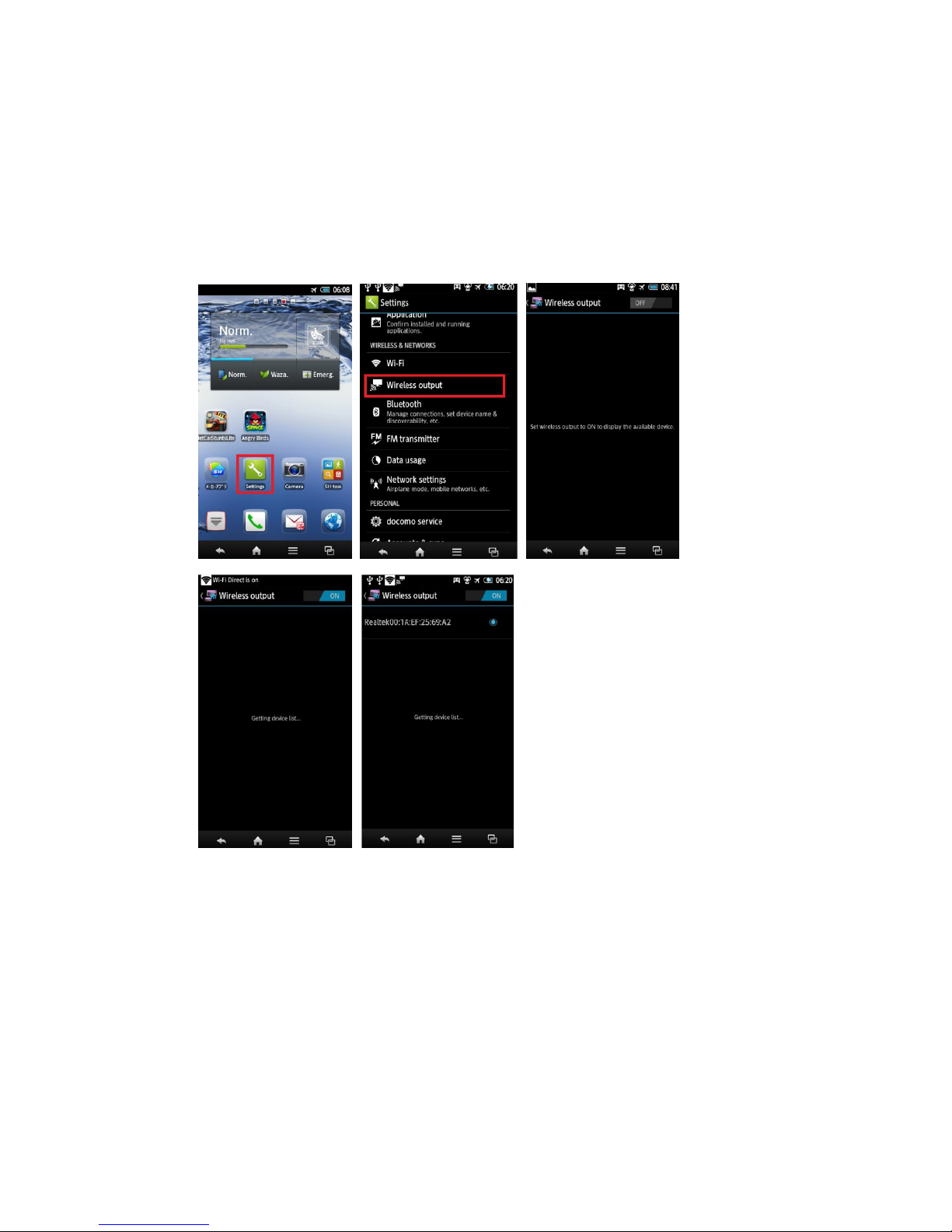
2.3.4. System Setting
Page 21
19
3. Usage of Wi-Fi Miracast
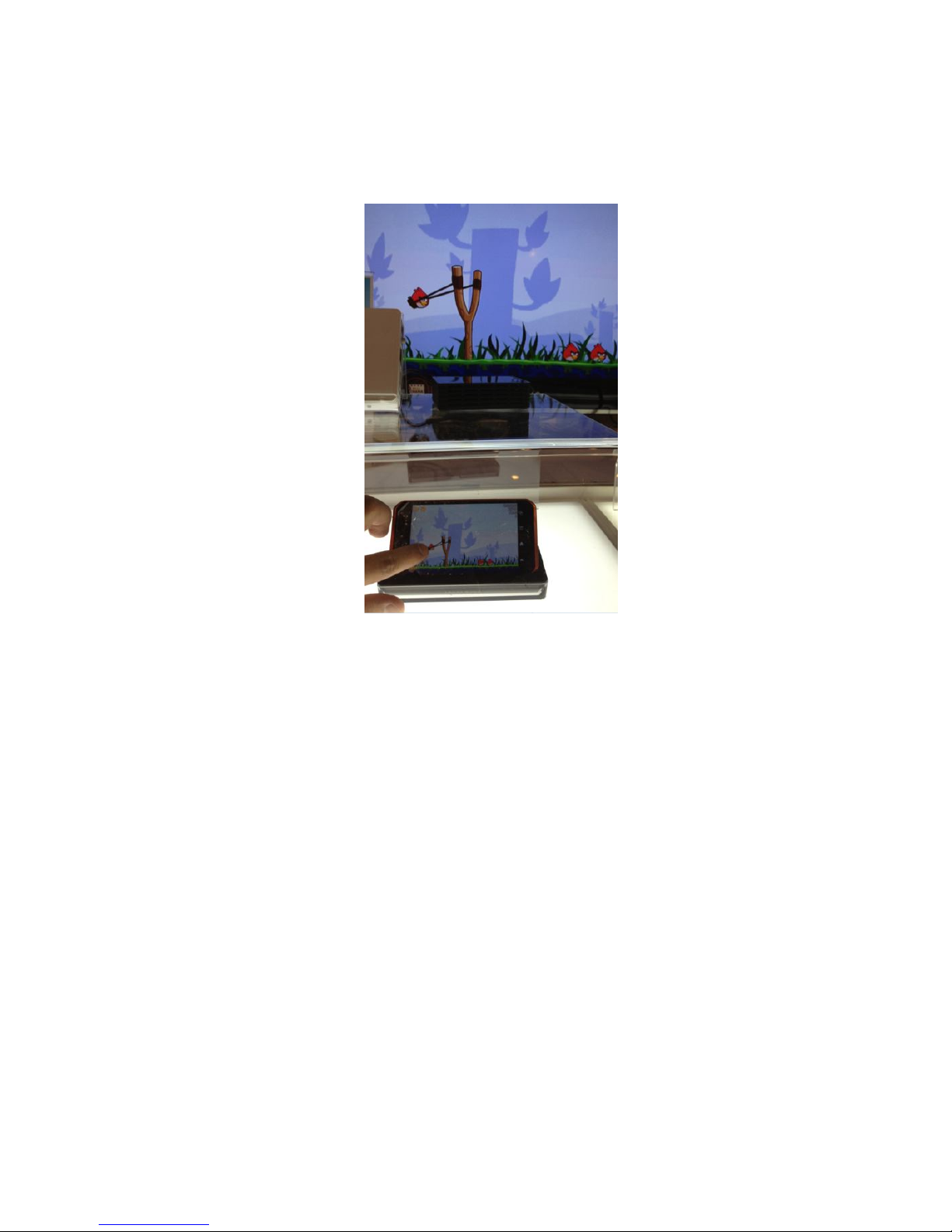
To connect Wi2000D with WiFi Miracast mode, your smart phone or tablet
device must be WiFi Miracast certified. You can find “Wireless output”
screen mirroring function in “Setting” page of your device.
1. Choose “Setting”=> “Wireless output” =>”ON”.
Page 22
20
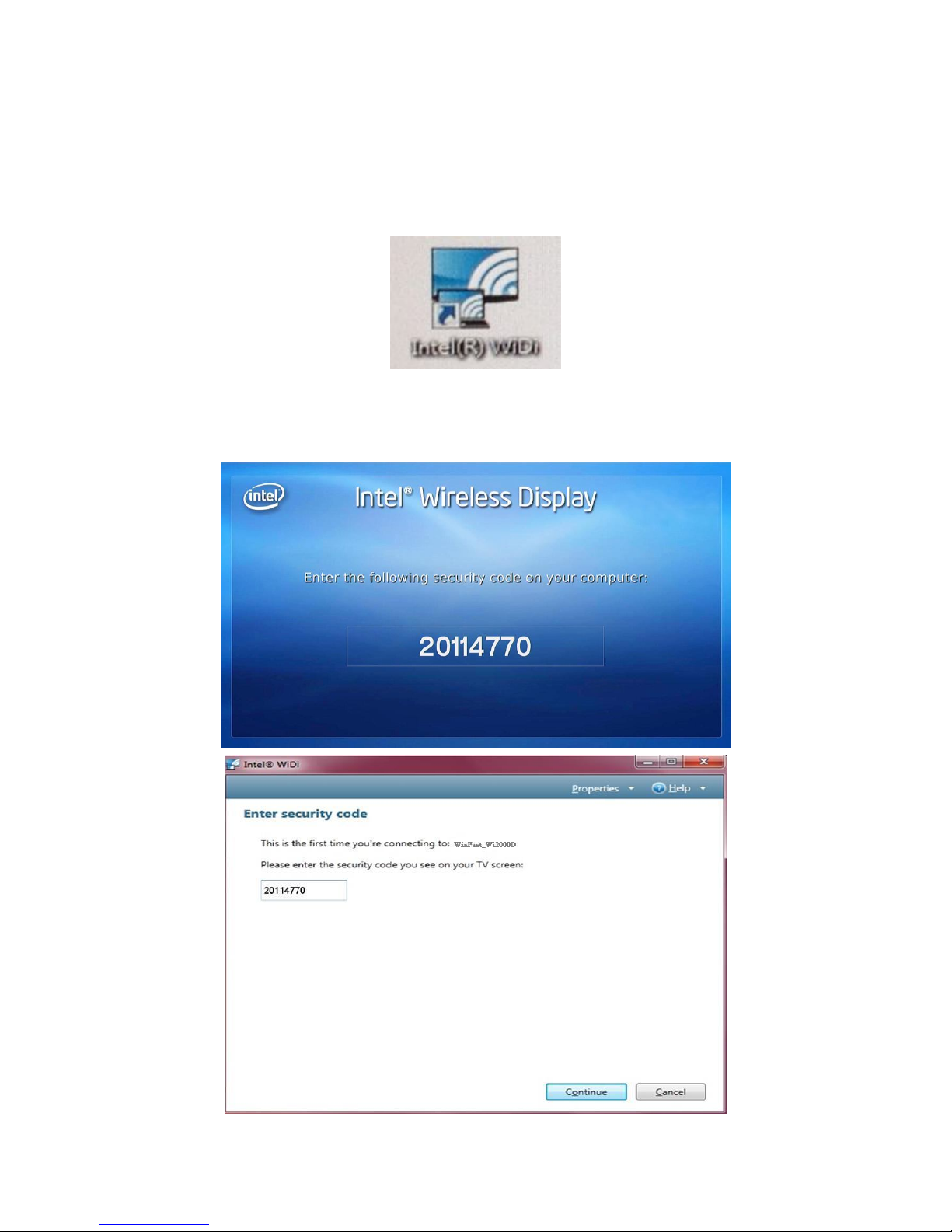
2. Choose Wi2000D from the Wireless Output access list to connect your
device. Mirroring will begin while your device connect to Wi2000D
successfully.
Page 23
21
4. Usage of Intel® WiDi Utility
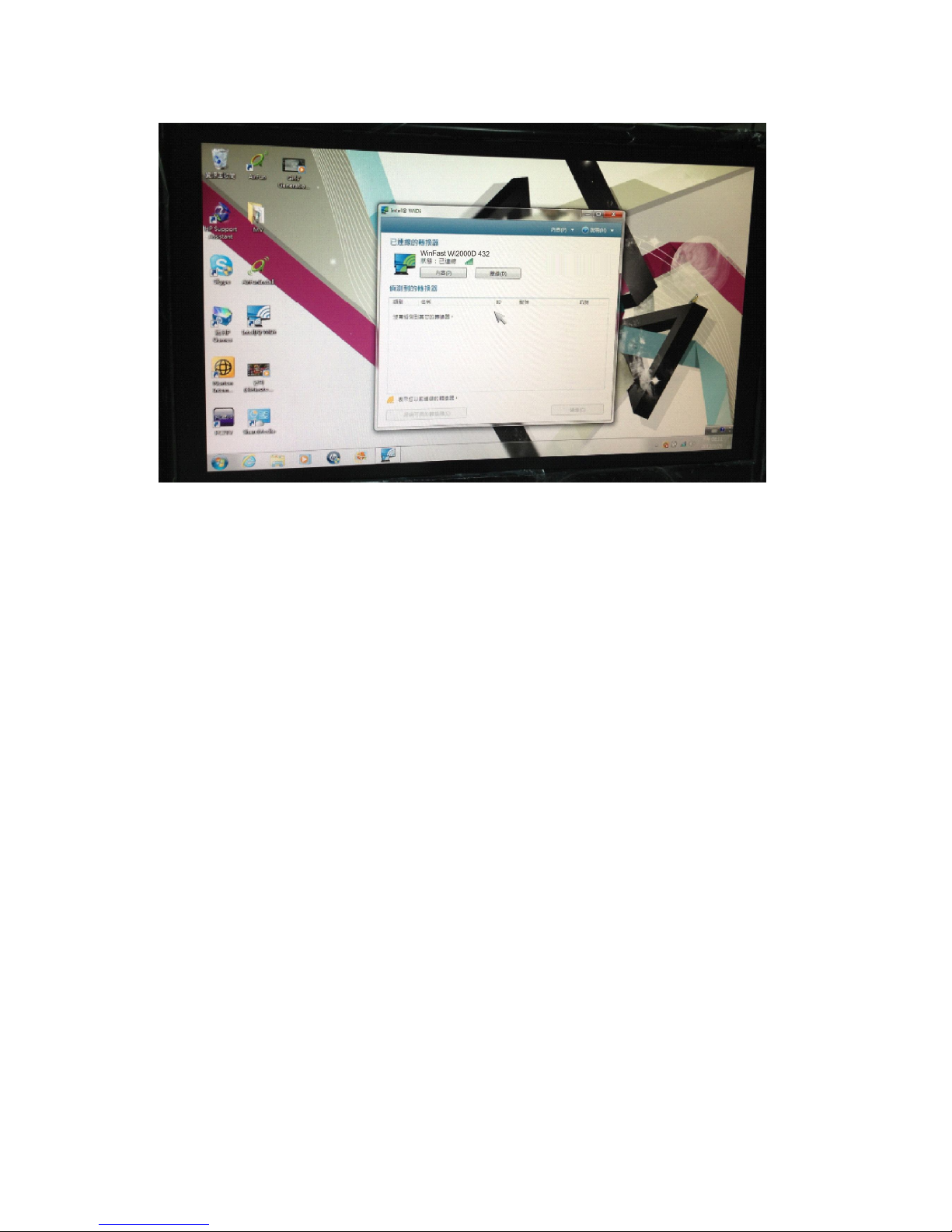
1. Double click the Intel WiDi icon from your desktop.
2. For the first connection, users need to type the password show on the TV
screen. (The password is 8-digit numbers)
Page 24
22
3. After the successful connection, PC screen will be projected to TV.
Page 25
23
5. Usage of Streaming mode in Windows 7
5.1 Turn-on Media Streaming
Before streaming a file to the DMR of WinFast Wi2000D device by Windows 7,
you have to connect the device with your PC and then turn on the media
streaming first. Every time the device is disconnected with the PC, you have to
run this section again before streaming a file to the DMR by Windows 7.
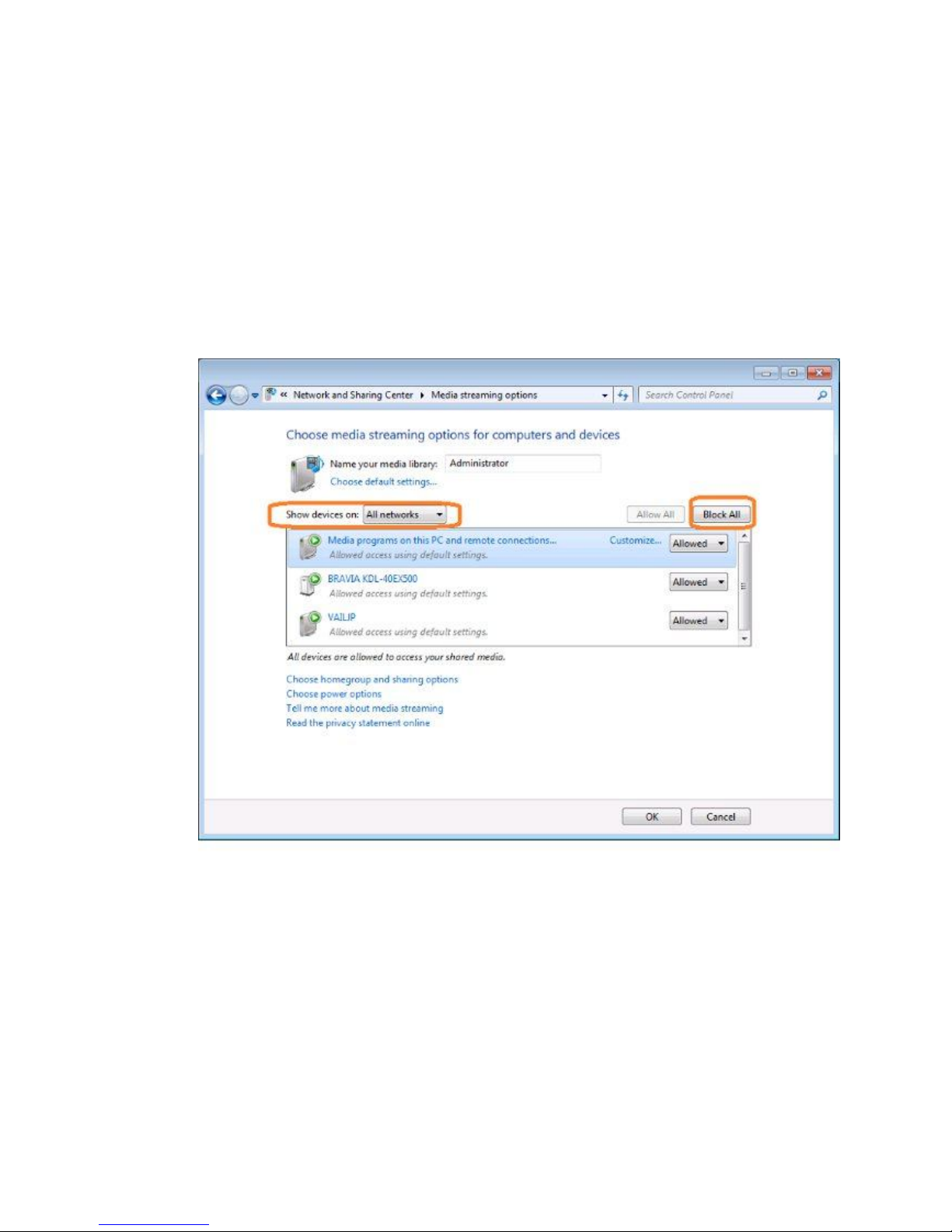
1. Click “Control Panel” => “Network and Sharing Center” => “Media Sharing
Options”
Page 26
24
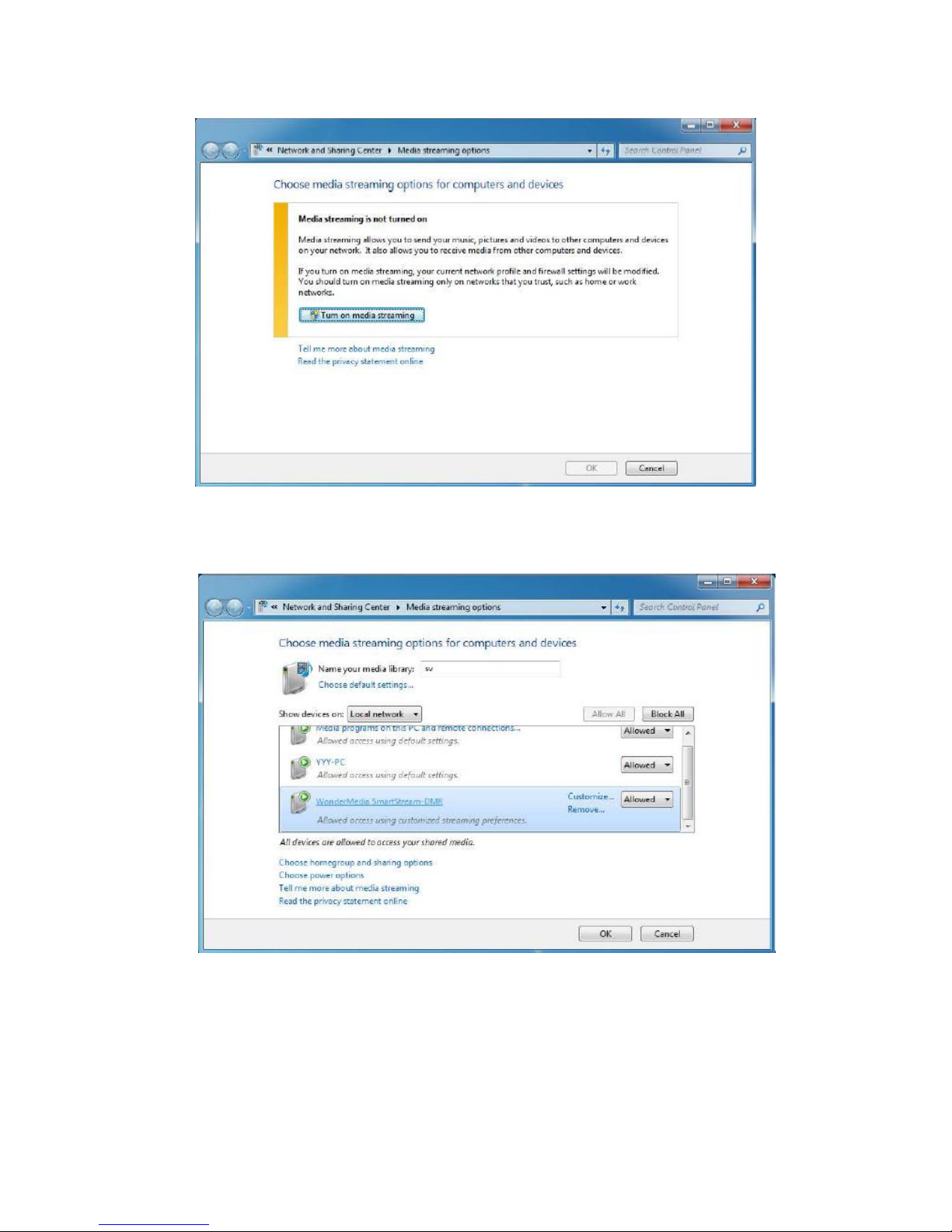
2. Click “Turn on media streaming” to agree media streaming from your PC.
3. Please confirm the DMR device(s) is “allowed” and then click “OK”.
Page 27
25
5.2 Stream a File to DMR
After turned on the media streaming Please follow the following steps to
stream a file to DMR.
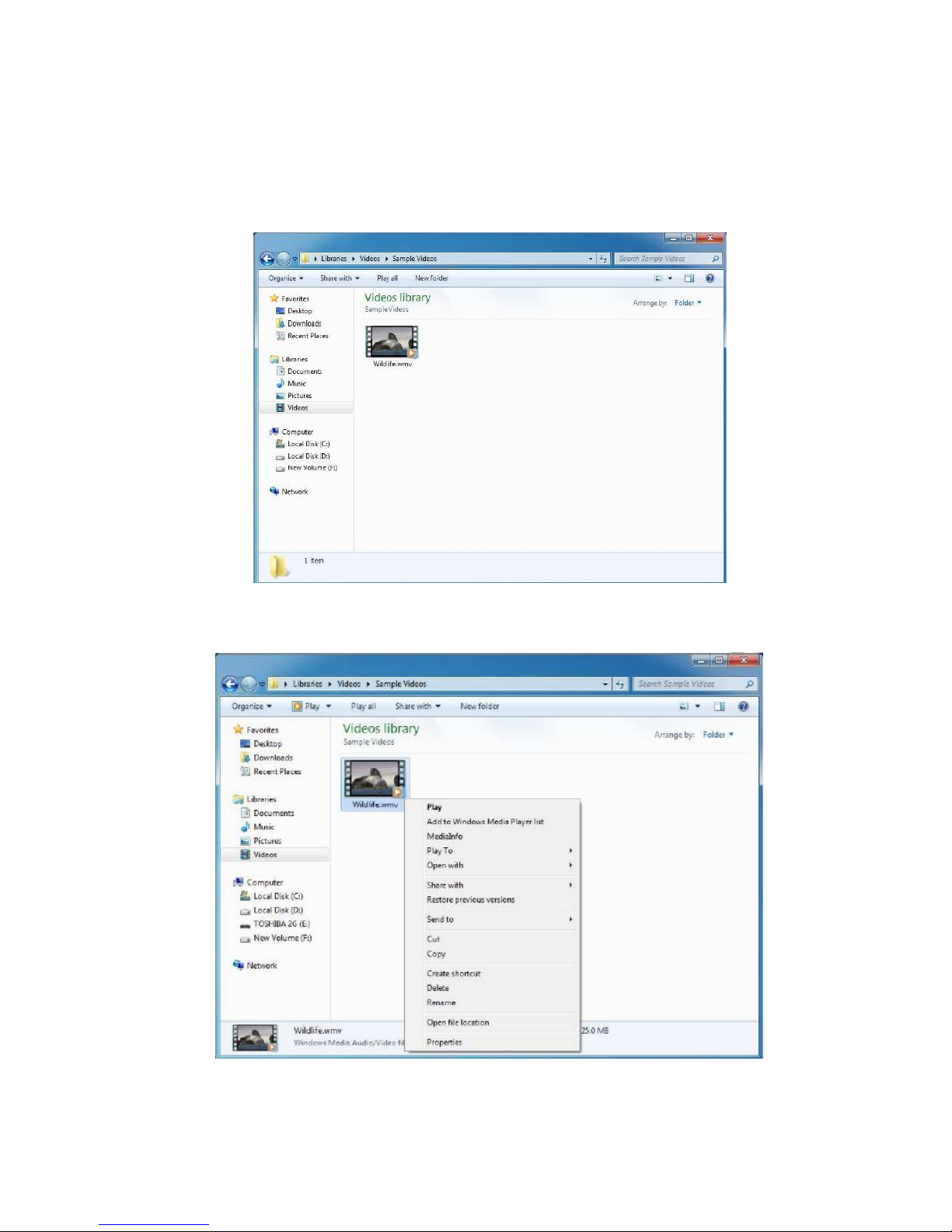
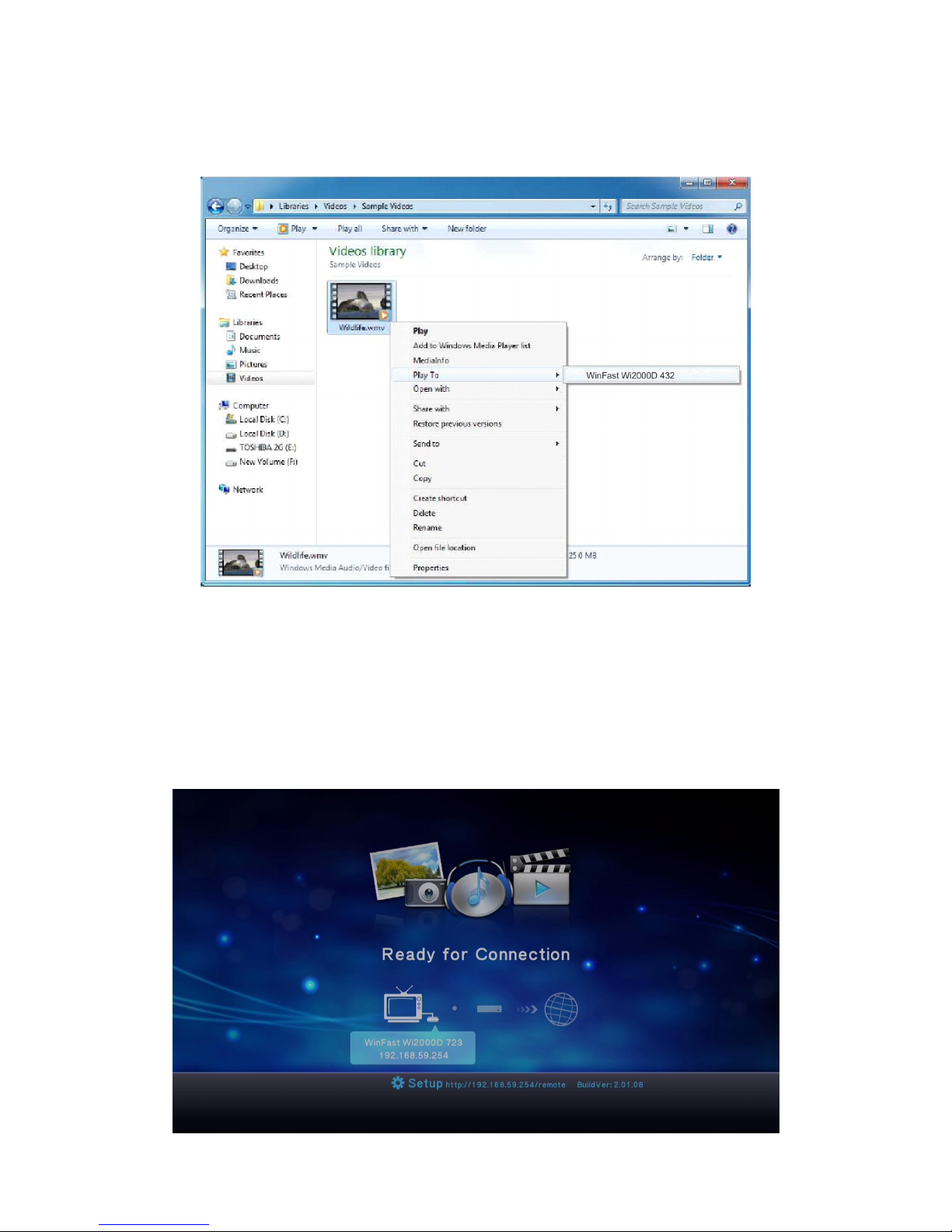
1. Open your folder with targeted media file(s).
2. Select the targeted file, and then click the right key of mouse on it.
Page 28
26
3. Move the cursor onto “Play to”, and then the list of DMR device(s) would be
prompted by the side of “Play To”. Select a DMR device and then click it.
4. The DMC (Digital Media Controller) would be prompted on the desktop of
Windows 7 for user to control, and the targeted file would start to be playback
on the TV / Monitor through WinFast Wi2000D for a while.
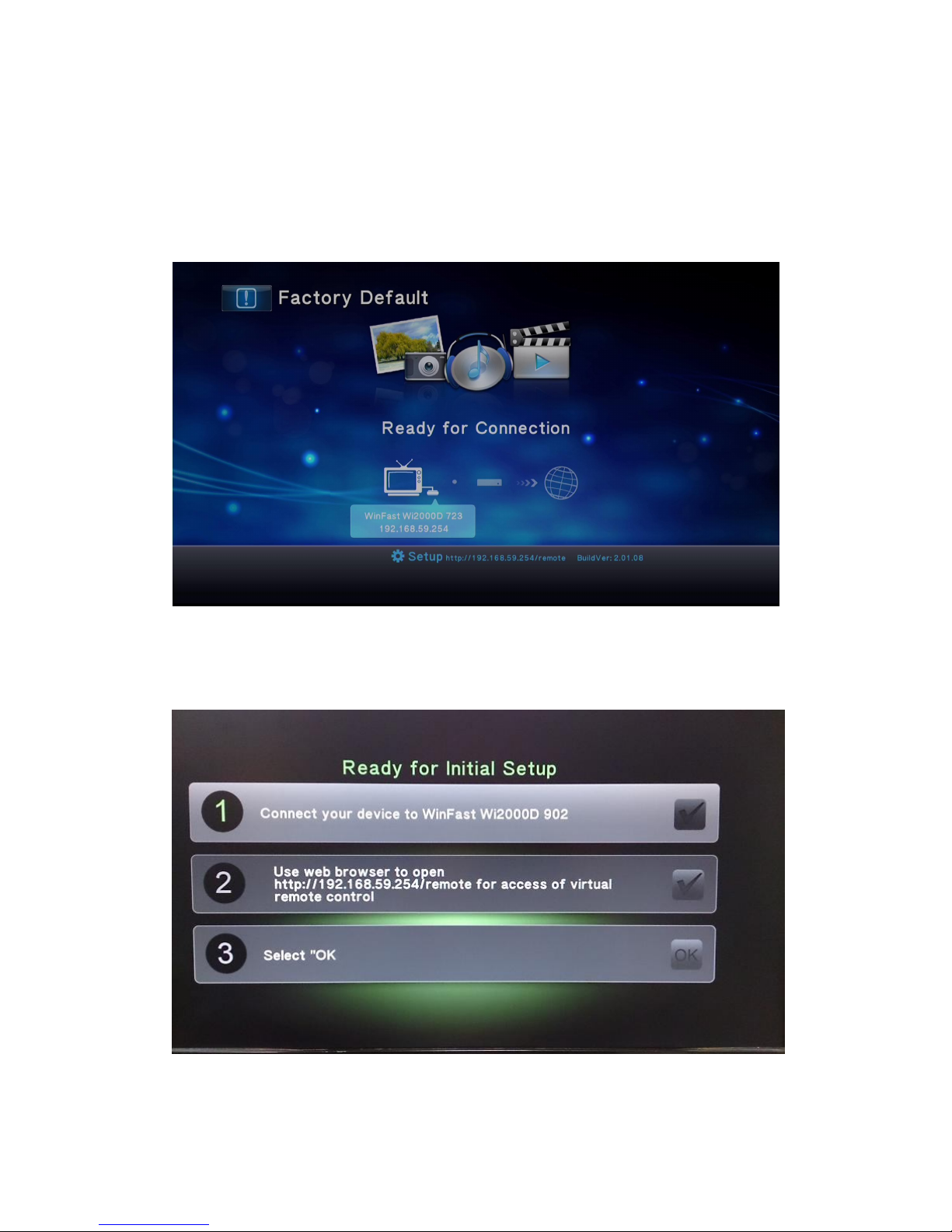
5. After end of the playback, WinFast Wi2000D would be back to the waiting
screen.
Page 29
27
6. System Reset
When you press the reset button at the bottom of the box for 5 seconds, it will
pop up a message: “! Factory Default” and the system will restart
automatically.
After reboot, the system is restored to the default value. Please follow the
instructions on the screen to finish the initial setup procedure.
Page 30
28
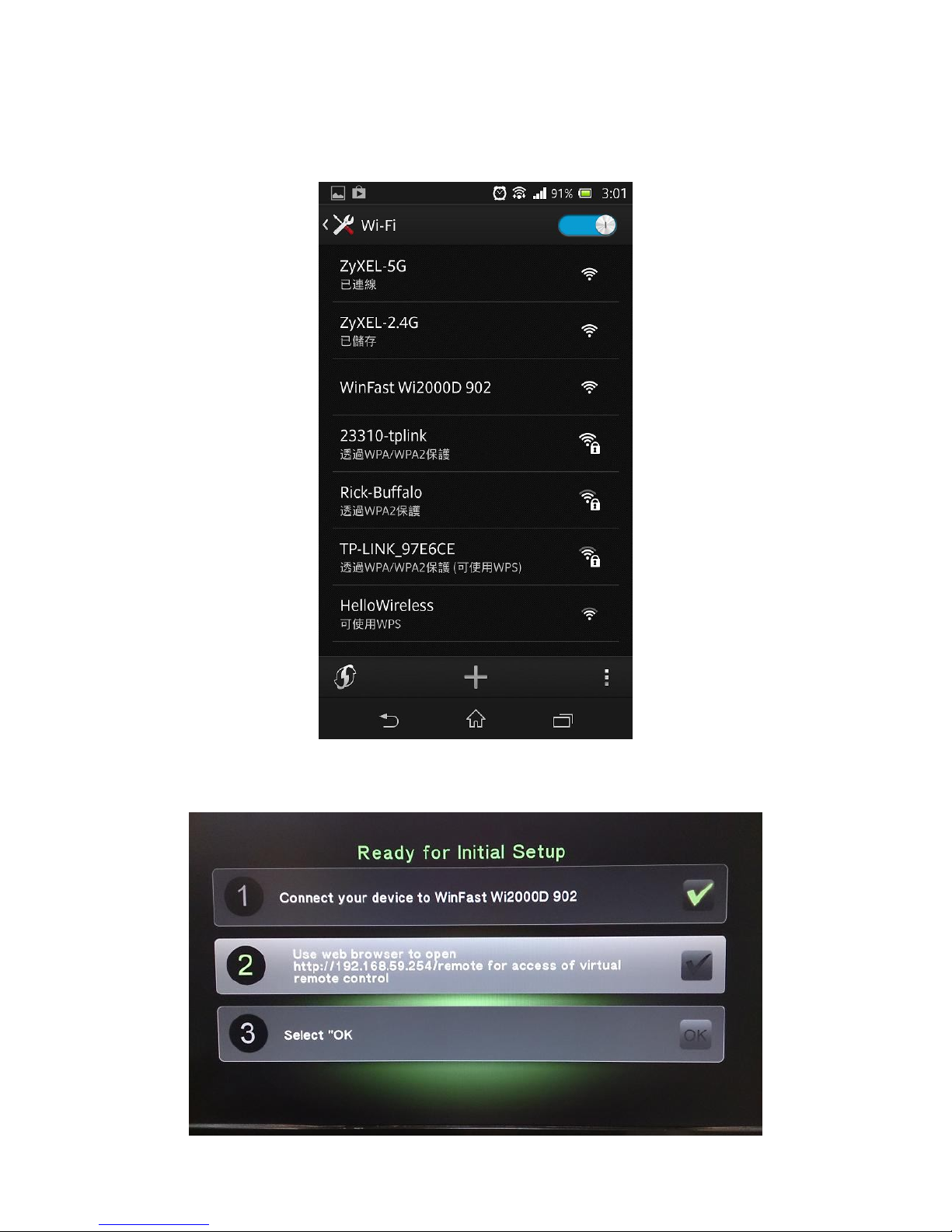
There are 3 steps to enter initial setup page.
Step1: Please connect your device to Wi2000D XXX.
You can choose the Wi2000D device from the Wi-Fi access point list.
The check box of step 1 will be checked after you connect your device to
Wi2000D.
Page 31
29
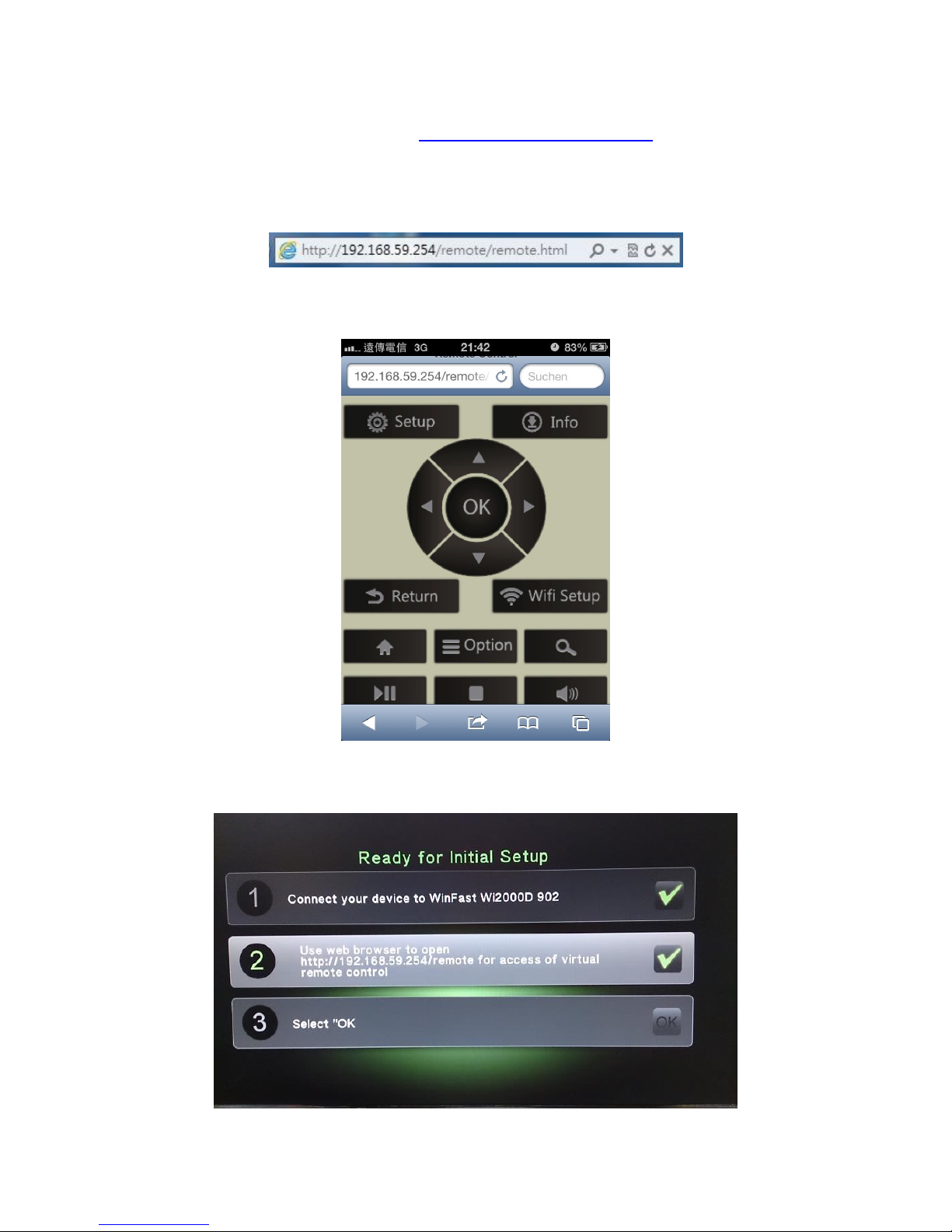
Step2: Access virtual remote control
(A) Use Web browser to open http://192/168.59.254/remote for access of
virtual remote control.
Please open the browser and key in the hyperlink as below.
A virtual remote pad will appear and you can use the virtual remote to finish the
further setting.
The check box of step 2 will be checked after you finish the step2.
Page 32
30
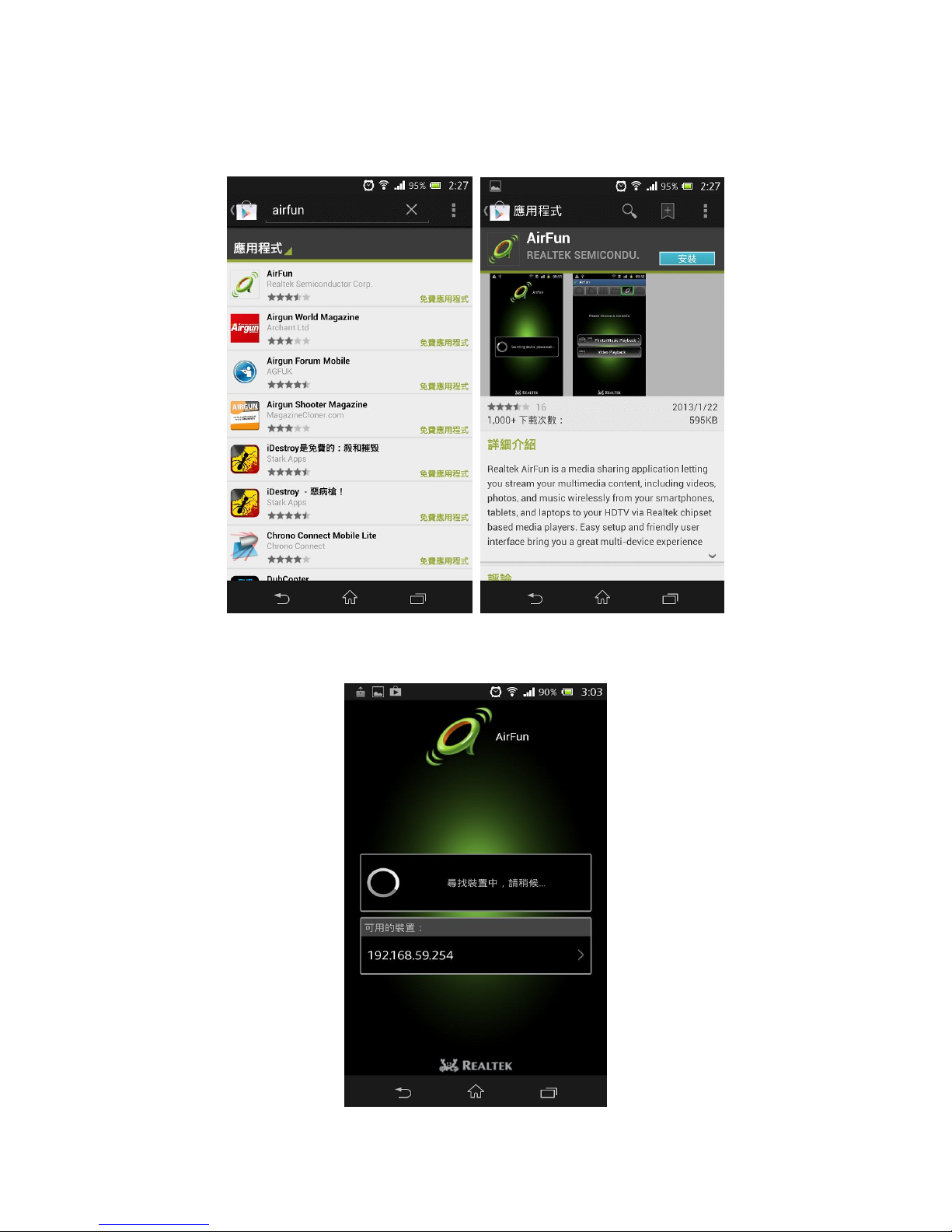
(B) Download AirFun app to access virtual remote control
If your use Android smartphone, you can download AirFun app from Android
Market.
While you run AirFun app, the app will search Wi2000D device, and the IP
address is 192.168.59.254
Page 33
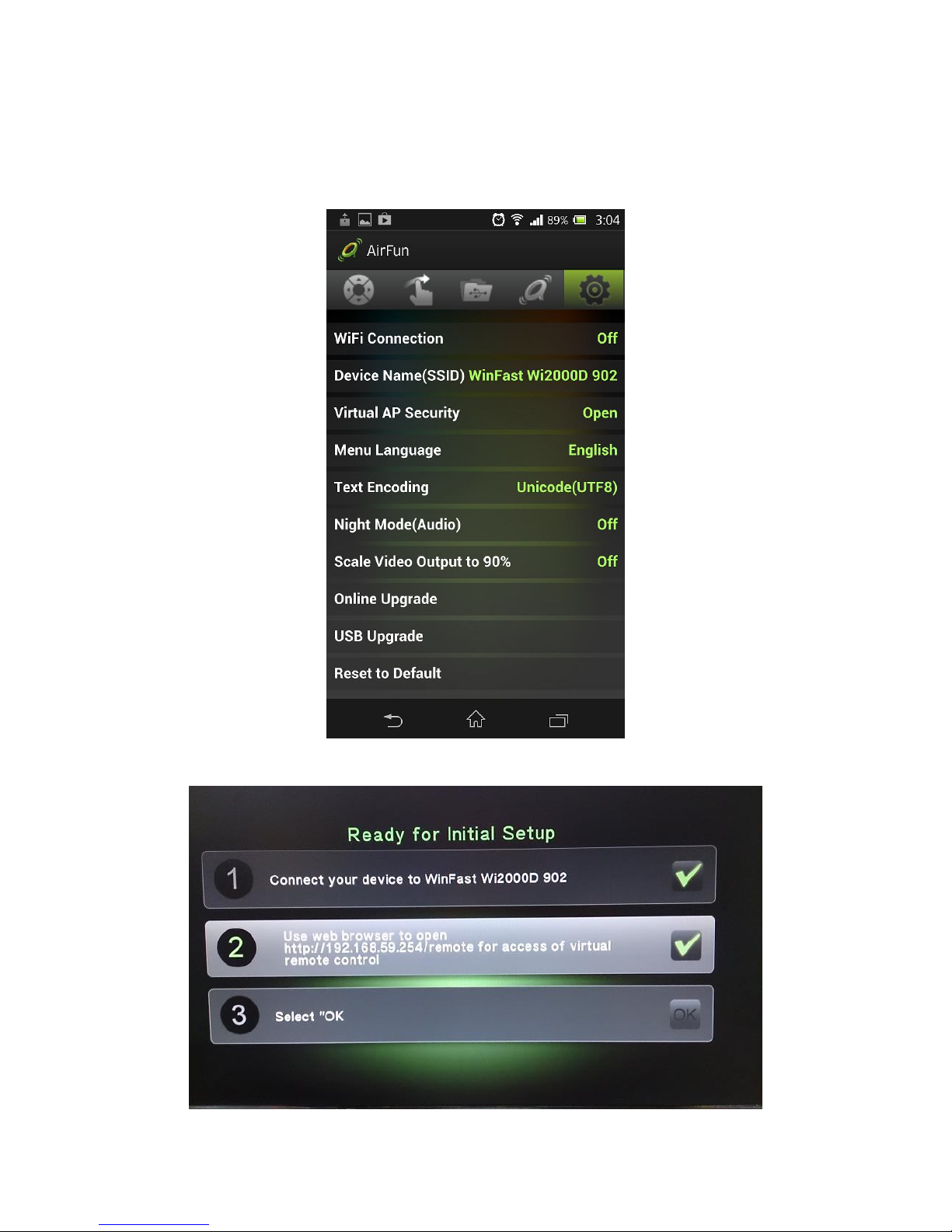
31
While AirFun app detects the device successfully, the app will show the related
information. Meanwhile, the check box of step 2 will be checked after you finish
the step2.
.
Page 34
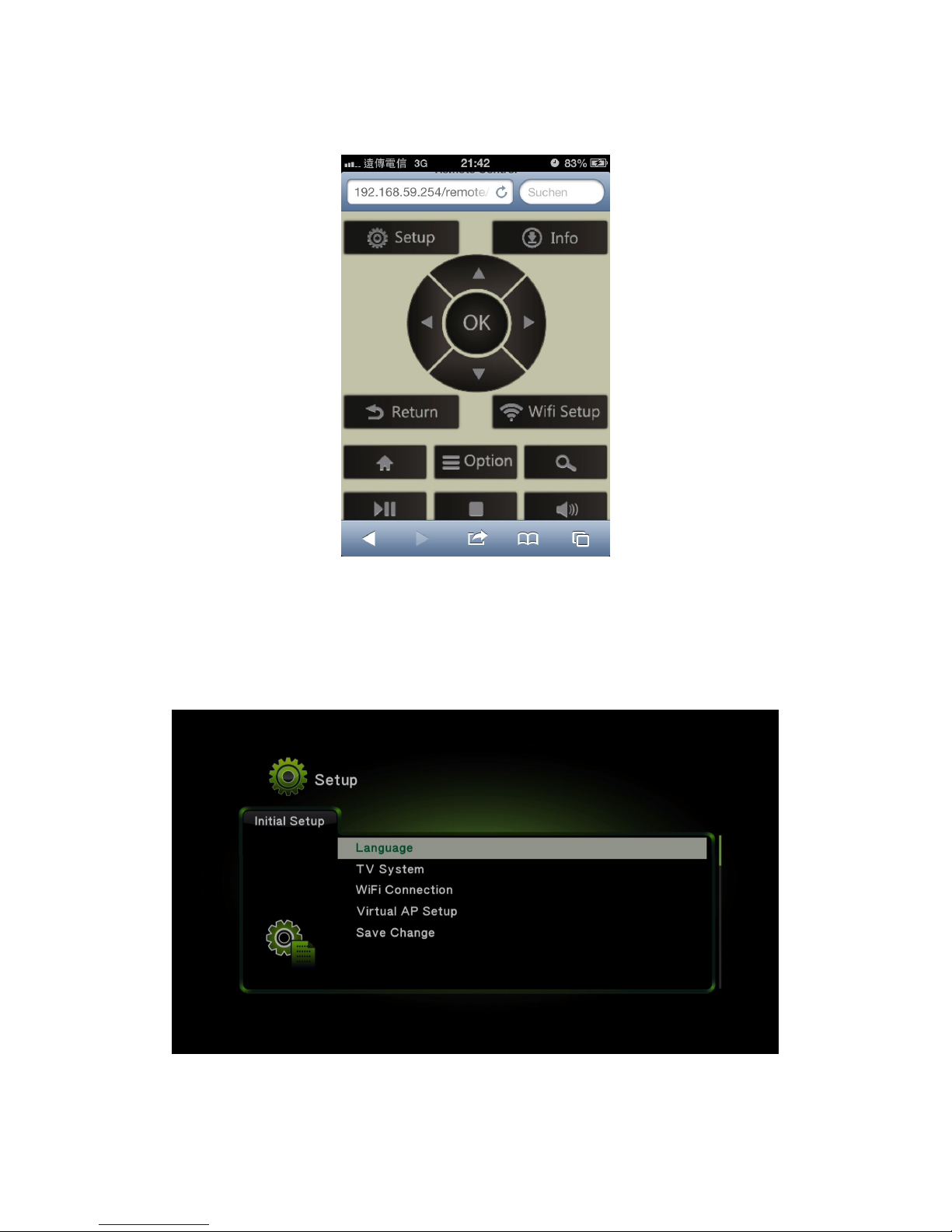
32
Step 3: Press OK on the virtual remote
Then please press OK on the virtual remote to finish step3.
After you press OK, you will enter the initial setup page and be asked to adjust
the settings of “Language”, “TV system”, “Wi-Fi Connection” and Virtual AP
setup.
After you finish the setting, please choose “Save Change”.
Page 35
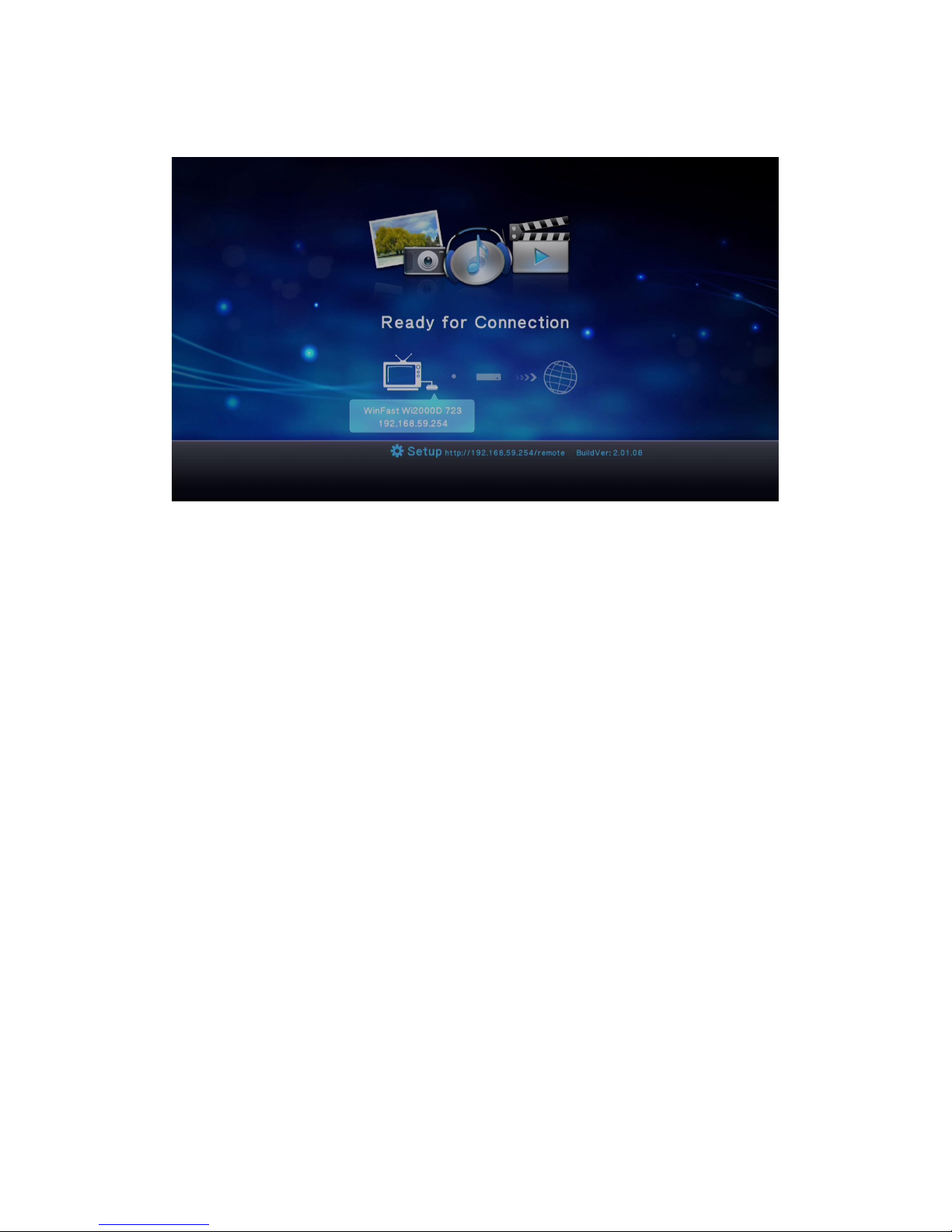
33
Congratulation! You have finished the initial setup and your Wi2000D device is
ready for use.
Page 36
34
7. Troubleshooting
7.1 Troubleshooting of AIRFUN
7.1.1 Run as Administrator in Windows 7 / Vista
If the network is connected well, but the AIRFUN utility cannot find any
WinFast Wi2000D devices in Windows 7 / Vista, please restart-up it as
administrator.
Click to exit the AIRFUN utility.
Click the right key of mouse on the icon of AIRFUN utility.
Select “Run as administrator” to start-up the AIRFUN utility again.
7.1.2 Network Discovery and Firewall Checking
If the network is connected well, but the AIRFUN utility cannot find any
WinFast Wi2000D devices, please try to check the status of each following
parts and get solutions.
7.1.3 Turn on Network Discovery and File Sharing
Select “Network” from “Windows Explorer”. If you see the warning bar shows
“Network discovery is turned off” as the left picture, please click it. Select “Turn
on network discovery and file sharing”. Click “Yes” to turn on network
discovery and file sharing.
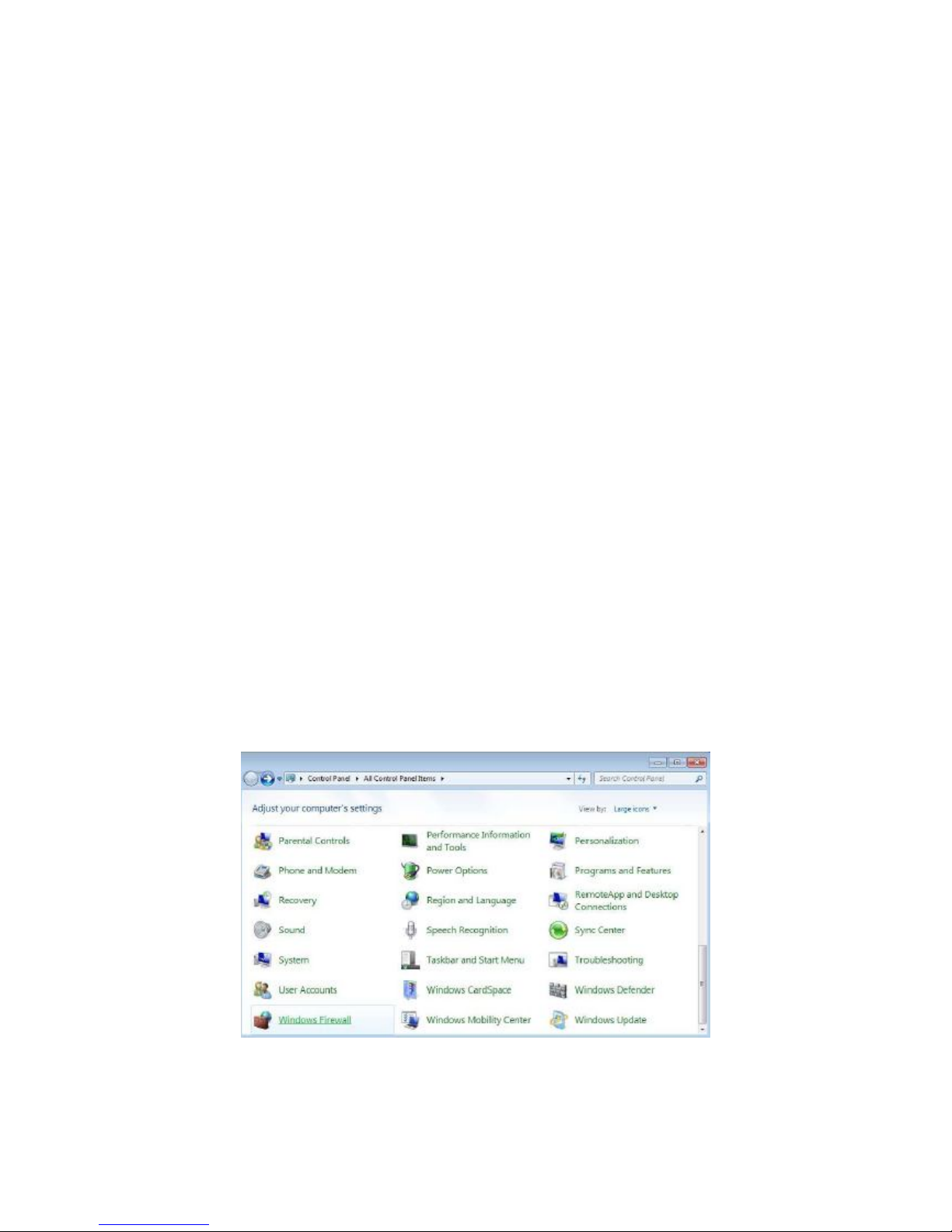
7.1.4 Unblock AIRFUN Application from Windows Firewall
Open the “Windows Firewall” from “Control Panel”.
Page 37
35
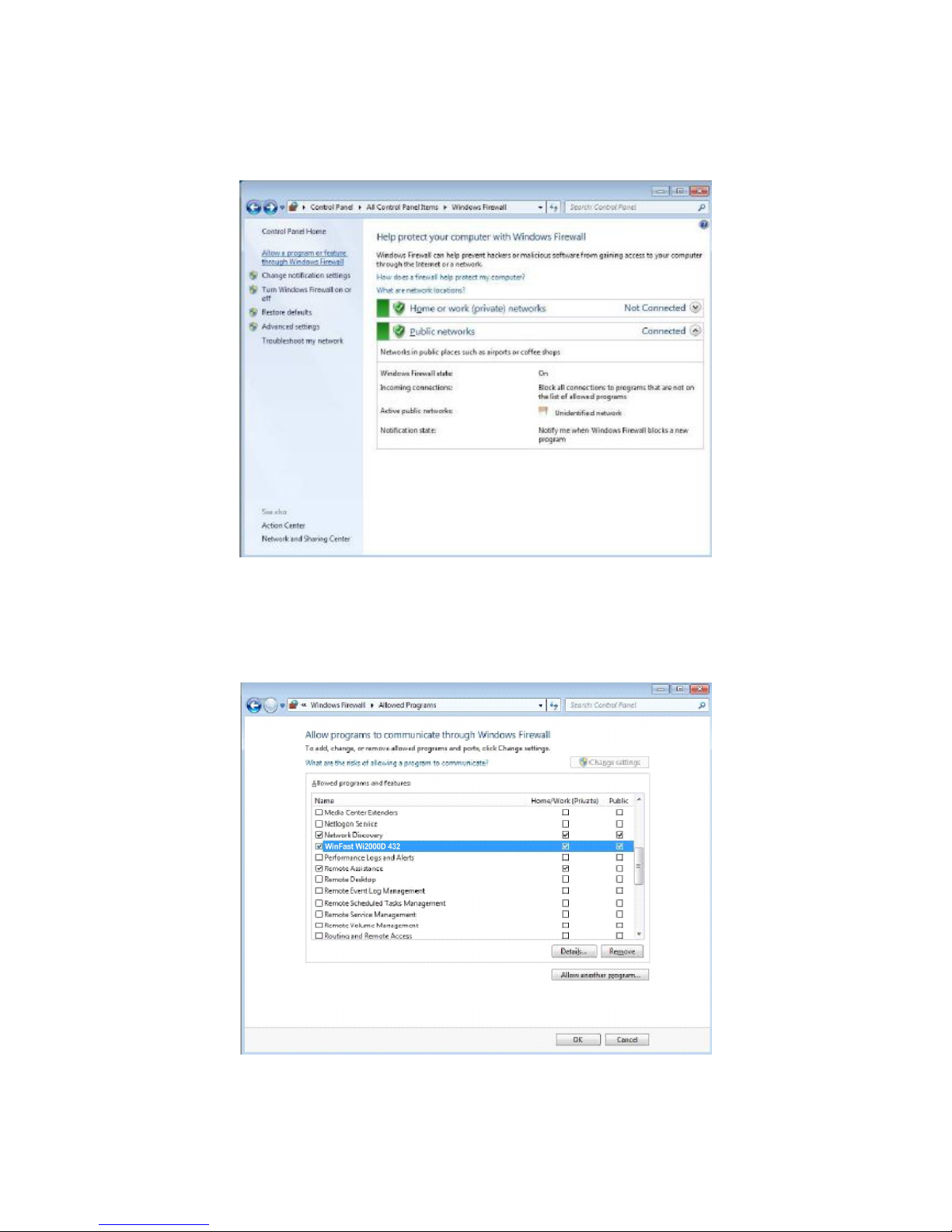
Click “Allow a program or feature through Windows Firewall”
from the left panel.
Check "AIRFUN" is ticked in both of “Private” and “Public” to unblock AIRFUN
application from Windows Firewall.
If not, add or tick it.
Page 38
36
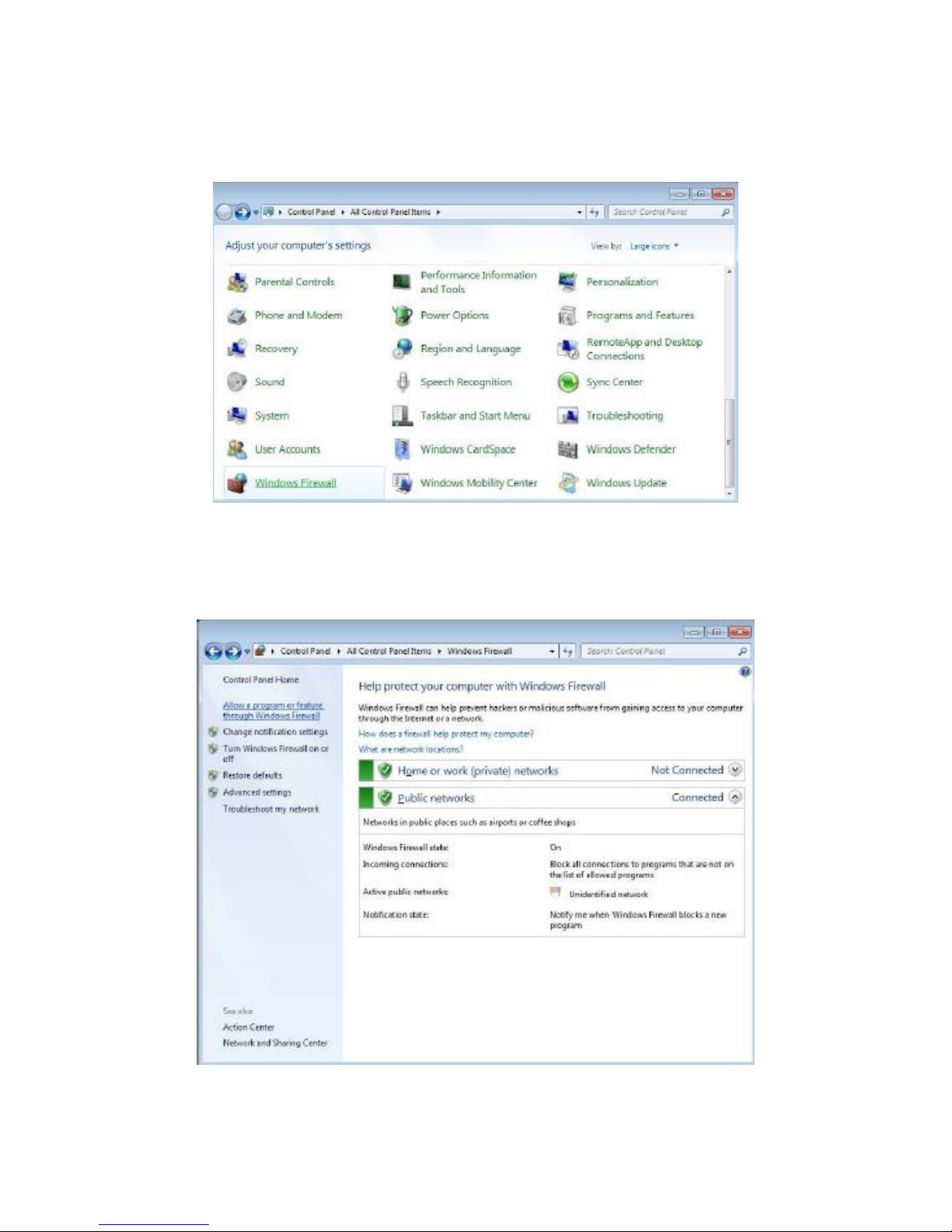
7.1.5 Enable SSDP and UPnP from Windows Firewall
Open the “Windows Firewall” from “Control Panel”.
Click “Advanced Settings” from the left panel. Select “Inbound Rules” from the
left window.
Page 39
37
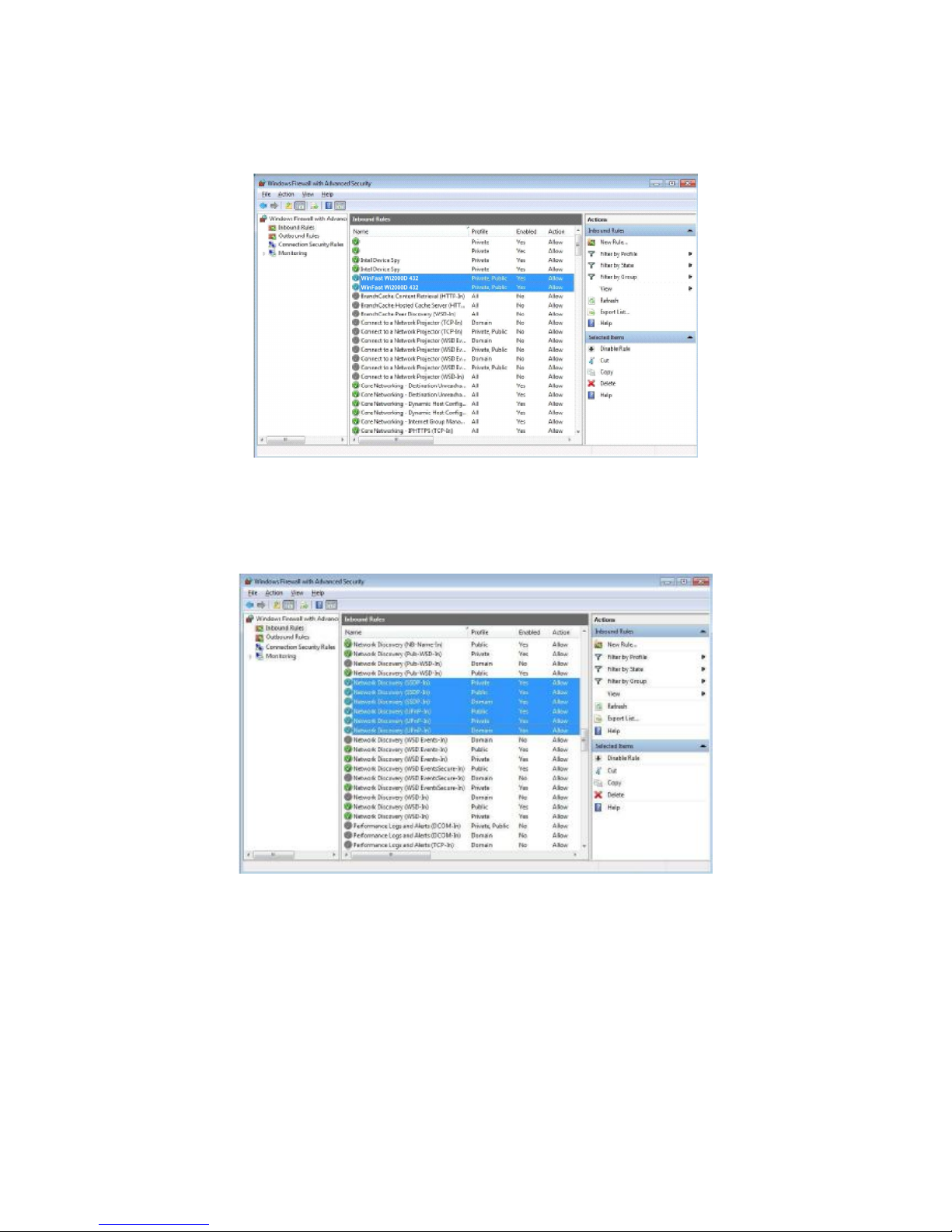
Click “AIRFUN” is enabled in “Private” and “Public” profiles. If not, enable
them.
Then check “NetworkDiscovery (SSDP-In) and (UPnP-In)” are all enabled in
“Private”, “Public”, and “Domain” Profile. If not, enable all of them.
Page 40
38
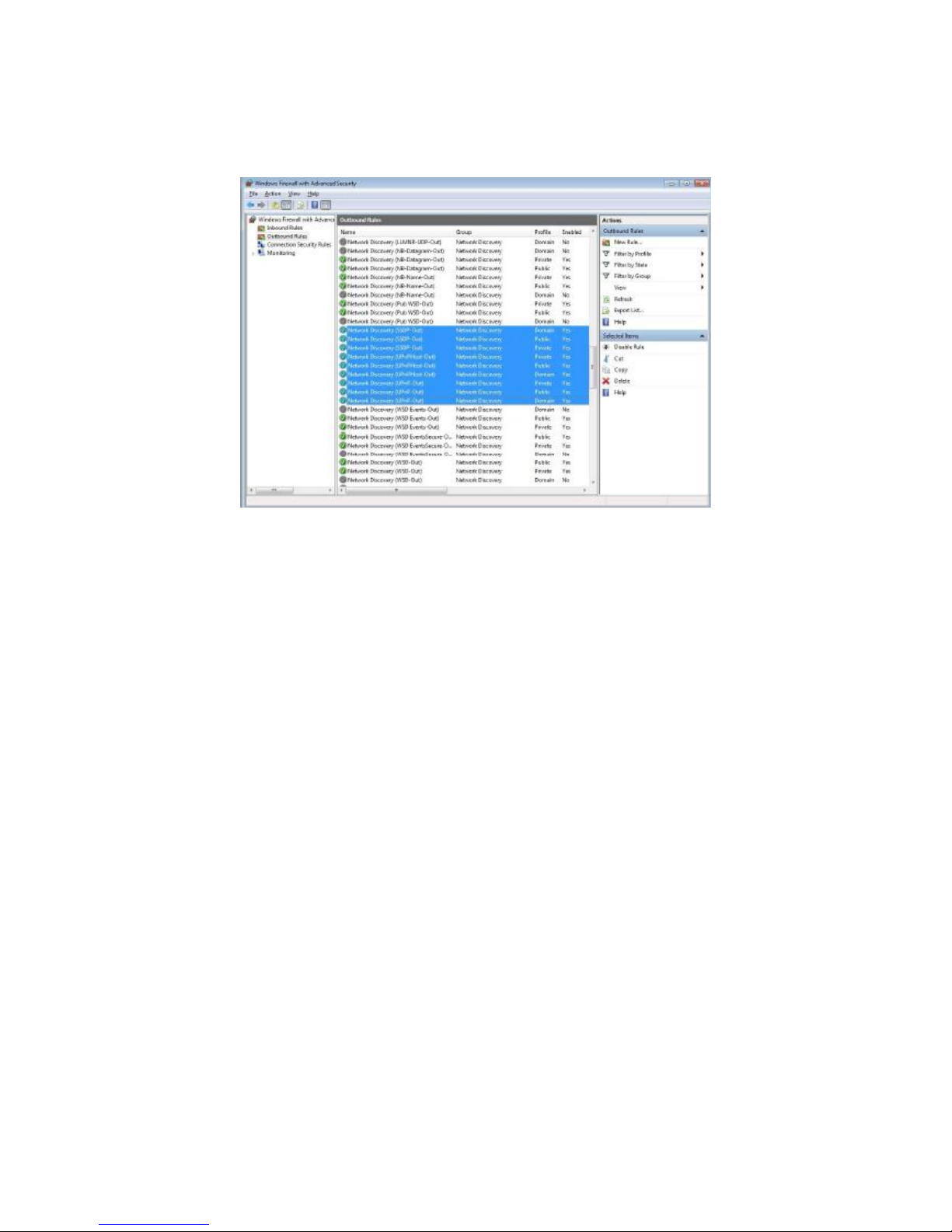
Select “Outbound Rules” from the left window. Check “Network Discovery
(SSDP-out), (UPnP Host-out),(UPnP-Out)” are all enabled in “Private”, “Public”,
and “Domain” Profile.
If not, enable all of them. After enabled/checked all of above items, you might
need to “Restart” your Windows and then run AIRFUN utility again.
7.1.6 Audio Playback Issue
This section is to check and troubleshoot the audio device when “Play”
AIRFUN application or after “Stop” AIRFUN application.
7.1.6.1 “Play” Mode Issue
If the audio does not work well after “Play” AIRFUN application, please check
the audio devices on your media player. For example: Windows Media Player
12 Select the audio device setting from Windows Media Player. The
“Speakers” should be set as “Default Audio Device”. If not, select it and then
click “OK” or “Apply” to save the setting. Then close your media player and
restart-up it again.
7.1.6.2 After “Stop” Issue
If the audio does not work well after “Stop” AIRFUN application, please check
the audio devices on your PC. Open the “Sound” from “Control Panel”. The
“Default Device” in the “Playback” tab should be set at your PC’s hardware
audio speakers. In the left picture, the PC’s hardware audio speakers is “High
Definition Audio Device”. If not, select it and then click “OK” or “Apply” to save
the setting. Then close your media player and restart-up it again.
Page 41
39
7.1.6.3 Movie and Video Playback Issue in Windows XP
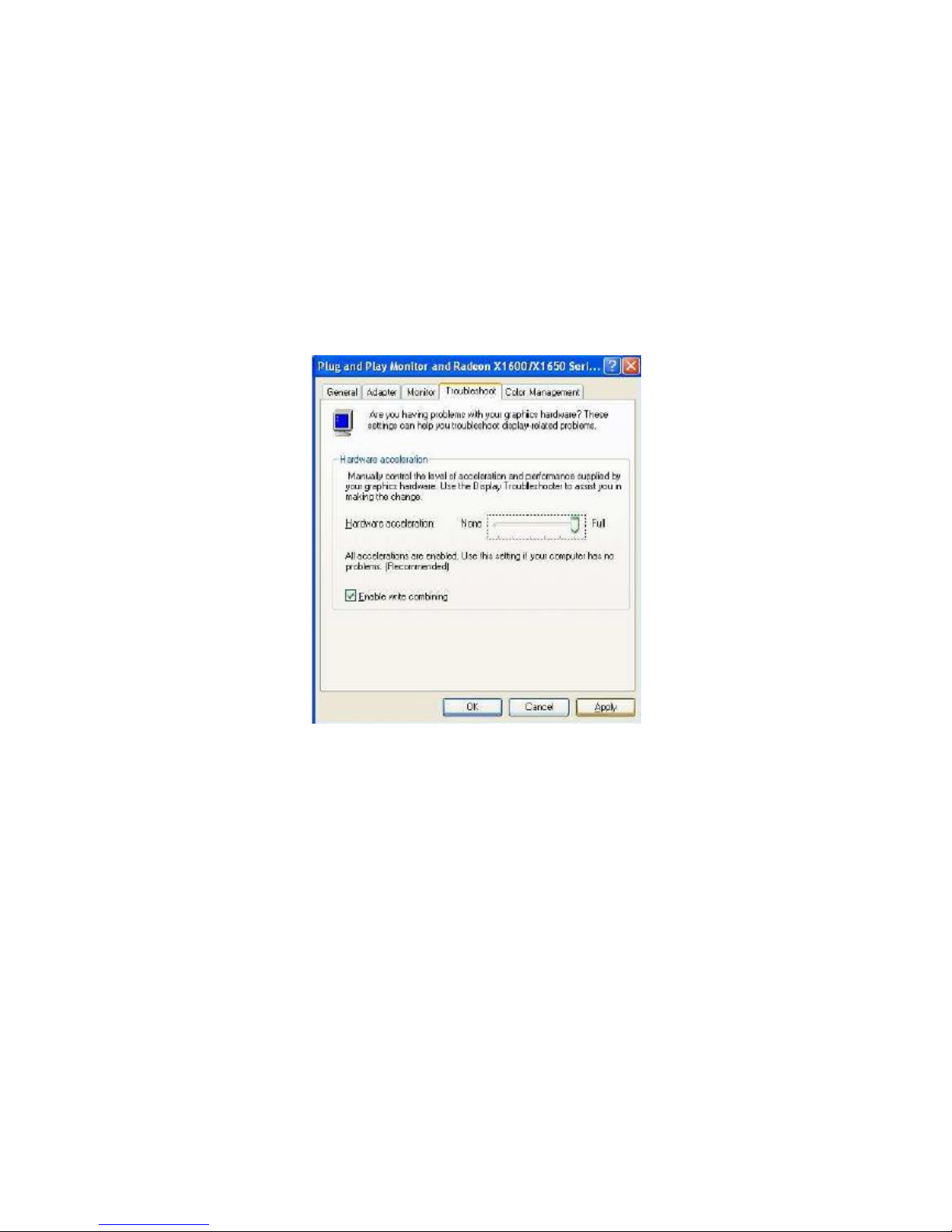
If you play a movie through AIRFUN application, but only hear its audio without
video displaying in your media player in Windows XP, please see the following
steps to solve it.
Click right key of your mouse on the desktop, and then select “Properties”.
Select “Settings” tab and then click “Advanced”. Select “Troubleshoot” tab and
then move the Hardware acceleration to “Full”. Click “OK” or “Apply” to save
the setting. Then close your media player and restart-up it again.
7.1.7 Poor Display Fluency of AIRFUN Application
If you get bad or poor fluency in playing a video or movie through AIRFUN
application, please try to check the status of each following parts and get
improved solutions.
7.1.7.1 Switch Desktop Themes of Windows 7 / Vista
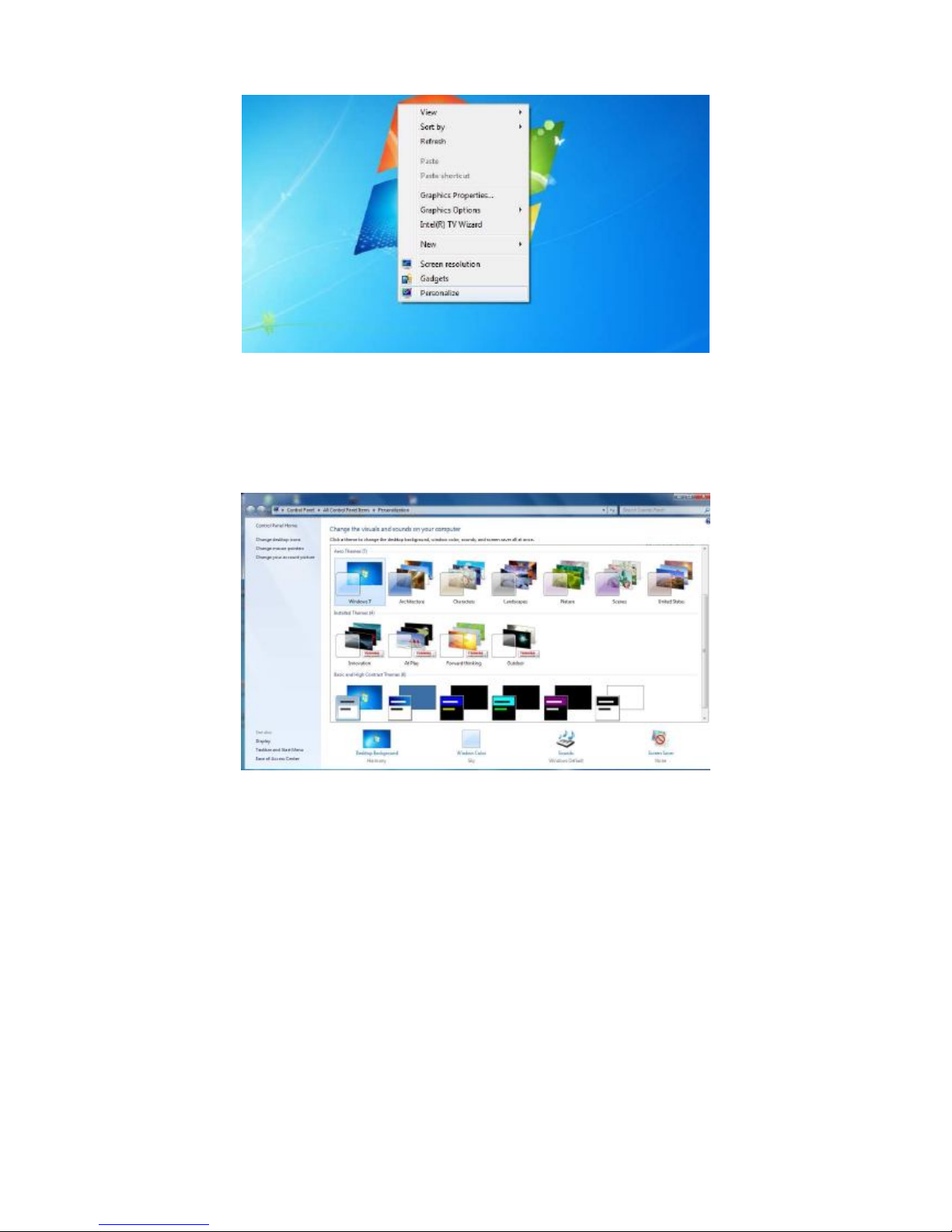
Click right key of your mouse on the desktop, and then select “Personalize”.
Page 42
40
Switch the theme between “Basic and High Contrast Themes” and “Aero
Themes”.
Close the window. The “Aero themes” should be for better PC capability, and
the “Basic and High Contrast Themes” should be for poorer PC capability.
7.1.7.2 Check the “Optimum Mode” setting
Click to open the advanced menu. If the “Optimum Mode” is set at an
inappropriate mode, please modify it.
7.1.7.3 Check PC’s Desktop Resolution
Click right key of your mouse on the desktop, and then select “Screen
resolution”. If the “Resolution” setting is over the maximum supported one of
your PC capability, please change the resolution to an appropriate one.
7.1.7.4 Check CPU Usage
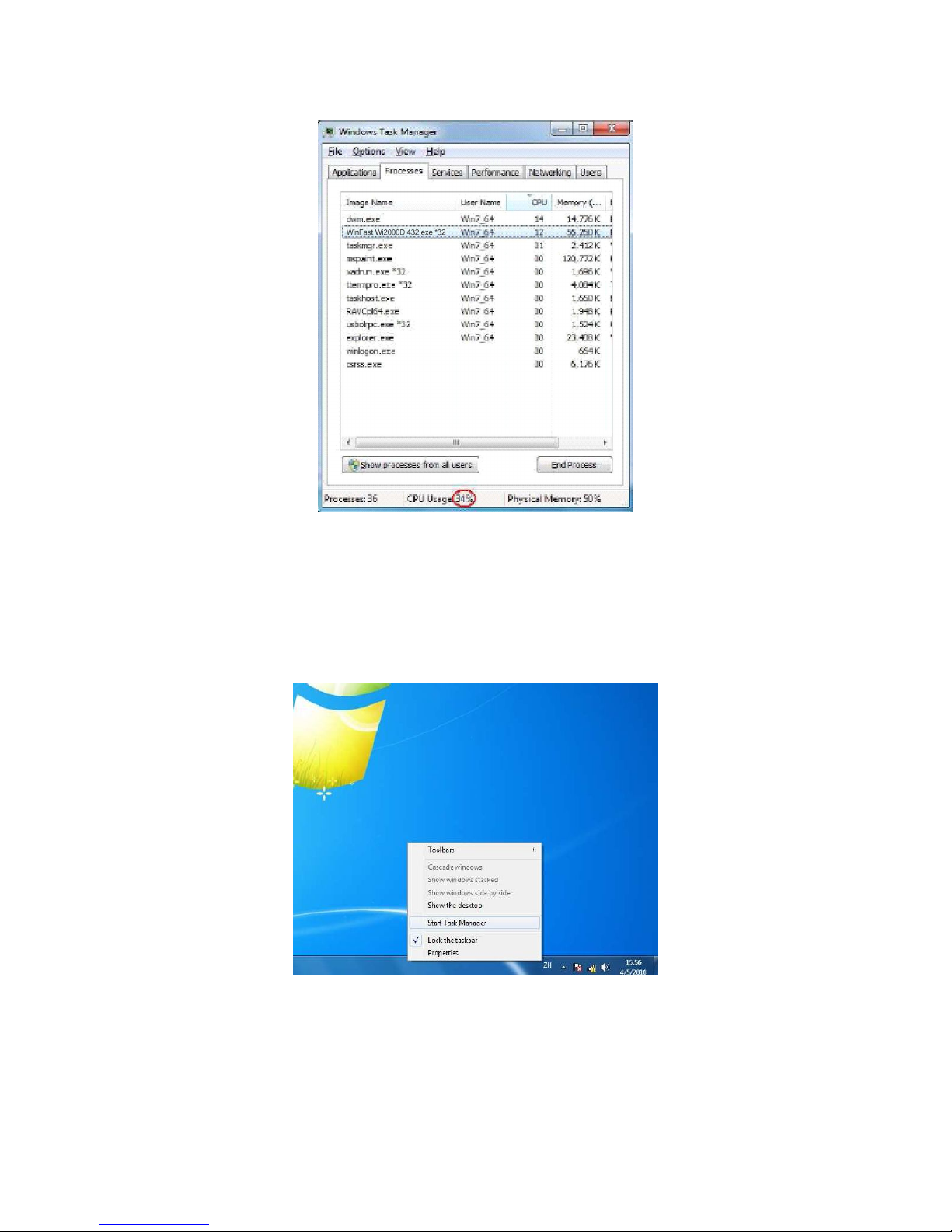
Click the right key of your mouse on the taskbar, and then select “Start Task
Manager”. Check the “CPU Usage” under the “Task Manager” window; it
Page 43
41
should be under 80%.
If not, please save your documents, and close unused programs from
“Applications”.
7.1.7.5 Check Wi-Fi Link Speed
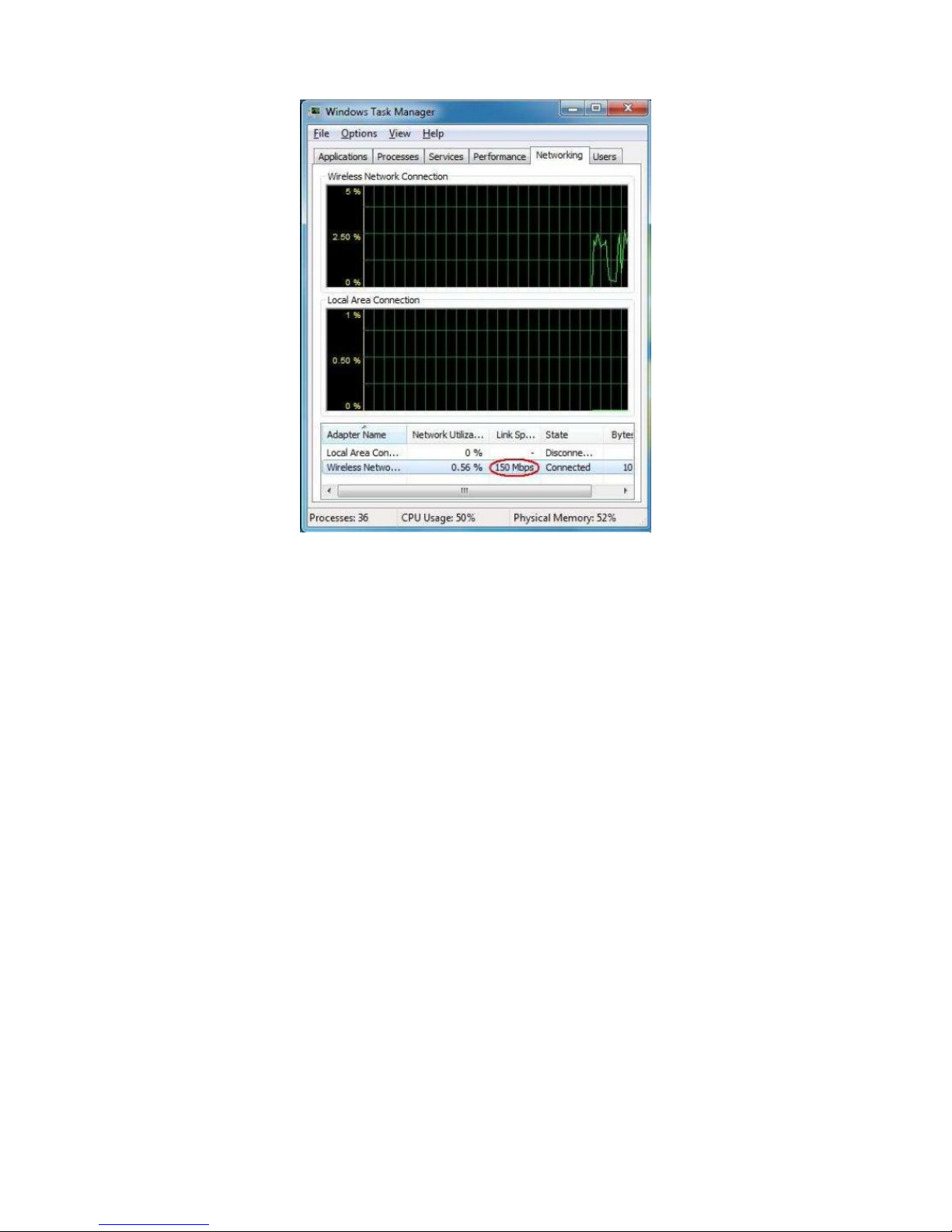
This solution is only for Wi-Fi connection. Click the right key of your mouse on
the taskbar, and then select “Start Task Manager”.
Click the “Networking” tab.
Check the Wi-Fi link speed; it should be higher than 36 Mbps.
Page 44
42
If not, try to move the WinFast Wi2000D device to different positions that
should be farther away from other electronic equipments, or closer to your PC.
The recommended distance is less than 6 meter. If the above solution is still
not useful, try to disconnect the Wi-Fi connection and then connect it again.
7.2 Troubleshooting of Streaming-DMR
7.2.1 No “Play To” Selection in Windows 7
If you are not able to see “Play To” when clicking the right key of mouse on a
targeted media file in Windows 7, please try to check the status of each
following parts. The format of targeted file is supported by WinFast Wi2000D
device. The “Media Streaming” of Windows 7 should be turned on. The DLNA
required services and protocols might be blocked by Windows.
7.2.2 Blank Screen after “Play To”
If you are not able to see and hear anything on the TV / Monitor after streaming
a file to WinFast Wi2000D device by DLNA, please try check the status of each
following parts and get improved solutions. The format of targeted file is
supported by WinFast Wi2000D device. It might be because of poor network
bandwidth.
Page 45

43
7.2.3 Poor Display Fluency of DMR
If you get bad or poor fluency in streaming a video or movie to WinFast
Wi2000D device by DLNA, please try check the status of each following parts
and get improved solutions. The video format of the file is within the support
criteria of WinFast Wi2000D device. The CPU utilization of you PC / smart
phone / Tablet-PC should be under 80% for video or movie streaming. If the
connection between PC / smart phone / Tablet-PC and WinFast Wi2000D
device is through Wi-Fi, the bandwidth of network is recommended to over 36
Mbps for video or movie streaming.
7.2.4 Audio is Always Mute
If you always get mute audio in streaming an audio, video, or movie to WinFast
Wi2000D device by DLNA, please check whether the audio format of the file is
within the support criteria of WinFast Wi2000D device or not.
7.3 Common Solutions to Many Issues
1. If the other troubleshooting sections have not helped, there may be some
common solutions for trying.
2. Please wait enough time for fully booted of Microsoft Windows before
starting-up AIRFUN or DLNA (Windows DMC) utility.
3. Please wait enough time for the readiness of network before “Play”
AIRFUN application or “Play To” DLNA-DMR application.
4. Close AIRFUN or DLNA utility, restart-up the utility, and then run the
application again.
5. Close AIRFUN or DLNA utility, disconnect the network, reconnect your
network, restart-up the utility, and then run the application again.
6. Close AIRFUN or DLNA utility, disconnect the network, close all of other
programs and services on your PC, reconnect your network, restart-up the
utility, and then run the application again.
7. Shut down the WINFAST WI2000D device, reboot the device, reconnect
your network, restart-up AIRFUN or DLNA utility, and then run the application
again.
8. Shut down your PC, reboot the PC, reconnect your network, restart-up
AIRFUN or DLNA utility, and then run the application again.
9. Uninstall AIRFUN utility, restart your Windows, install AIRFUN utility,
restart your Windows, restart-up AIRFUN utility, and then “Play” AIRFUN
application again.
Page 46

44
7.4 Known Issues and Limitations
This section lists known issues and limitations of AIRFUN and DLNA-DMR
applications, including some workarounds for trying.
7.4.1 AIRFUN Limitations
In “Basic and High Contrast Themes” of Windows 7 / Vista, there are several
limitations with AIRFUN application as follows. Therefore, it is recommended
to change the theme to “Aero themes”. When playing a movie/video by
Windows Media Center or Windows Media Player through AIRFUN application,
it may show a middle horizontal line on the TV /Monitor. AIRFUN application
could not support full screen of Windows Media Center. When you press Ctrl +
Alt + Delete while AIRFUN application is playing, it would freeze the TV /
Monitor’s screen. When setting password in Windows screen saver, it could
not be supported by AIRFUN application.
It is not achievable to play DVD movies by Windows Media Player in Windows
XP through AIRFUN application; it is recommended to use another media
player, ex. Media Player Classic - Home Cinema.
7.4.2 DLNA-DMR Limitations
It might be not achievable to “Play to” a media file to DMR device, when your
PC already connects to Internet by another network connection (Ethernet or
Wi-Fi). Please disconnect the link of Internet and then “Play to” again. Some
types of video or movie files are not suitable for streaming. If this is the case,
the audio might be always mute in streaming.
7.4.3 General Limitations
No matter for AIRFUN or DLNA-DMR application, once the Wi-Fi bandwidth is
not always stable enough, the video playback might lag suddenly or even
continually. It should be avoided to change any kinds of network configurations
when AIRFUN or DLNA-DMR application is playing, otherwise it may cause
momentary disconnection or end the connection directly.
7.4.4 Display Resolutions
7.4.4.1 Maximum Resolution Support and Conditions
The WinFast Wi2000D device is able to support 1,920 x 1,080 (HDTV: 1080P)
for AIRFUN application, but the following conditions are all required:
1. The PC is powered by 2nd Generation Intel Core i3 / i5 / i7 series CPU
(Intel’s codename: Sandy Bridge).
Page 47

45
2. The operation system should be Windows 7 or above.
3. The PC’s graphic driver(s) should be updated to the latest one(s).
4. The working graphic on PC should be Intel’s graphic; AMD/ATI or Nvidia
graphic is not able to support it. Lack of either of above conditions, WinFast
Wi2000D device could only support the display resolution up to 1,440 x 900
(widescreen) and 1,280 x 1,024 (4:3 screen). AIRFUN-only device could only
support up to 1,440 x 900 and 1,280 x 1,024. DLNA-DMR application would
always support the maximum resolution of TV / Monitor (under 1080P.)
7.4.4.2 Principals of Intel Wireless Display Resolution Implementation
After “Play” AIRFUN application, the TV / monitor would follow the three
principals to implement the display resolution.
1. The resolution of PC’s desktop should be implemented on your TV /
Monitor, once it is within your TV / monitor’s EDID (Extended Display
Identification Data) information. Please refer to your TV / monitor’s user
manual to check its resolution support table. If not, please see “Auto-720P”.
2. “Auto-720P” means the PC’s desktop resolution is higher than 1,280 x 720
(HDTV:720P), but TV / monitor’s EDID does not support it and only
supports 1,280 x 720, then 1,280 x 720 would be implemented as the
display resolution on both sides of PC and TV / monitor. If not, please see
“Auto-XGA”
3. “Auto-XGA” means the PC’s desktop resolution is higher than 1,024 x 768
(XGA), but TV / monitor’s EDID supports neither PC’s desktop resolution
nor 1,280 x 720, then 1,024 x 768 would be implemented as the display
resolution on the TV / monitor. For HDMI output, the supported resolutions
of AIRFUN application are only 1,920 x 1,080, 1,280 x 720, 1,024 x 768,
and 800 x 600. If the PC’s resolution is not set at one of them, the 1,280 x
720 or 1,024 x 768 would be implemented automatically as the display
resolution on the TV / monitor, after “Play” AIRFUN application.
Page 48

46
Appendix A:
DLNA Support Video Format
Format File extension
AVI avi
MPEG-1 mpg, mpeg
MPEG-2 mpg, mpeg
MPEG-TS m2t, tts
MPEG-4 mp4, mp4v, mpeg4, m4v
3GP 3gp, 3gpp
3GP2 3g2, 3gpp2
MOV mov
WMV wmv
DVR-MS dvr, dvr-ms
DLNA Support Audio Format
Format File extension
MP3 mp3
LPCM pcm, wav, l16
WMA wma
WAV wav
MP4 mp4
AAC aac
OGG ogg, oga, ogv
DLNA Support Photo Format
Format File extension
GIF gif
JPG jpg, jpeg
BMP bmp
PNG png
Page 49
47
Appendix B:
 Loading...