

Page 1
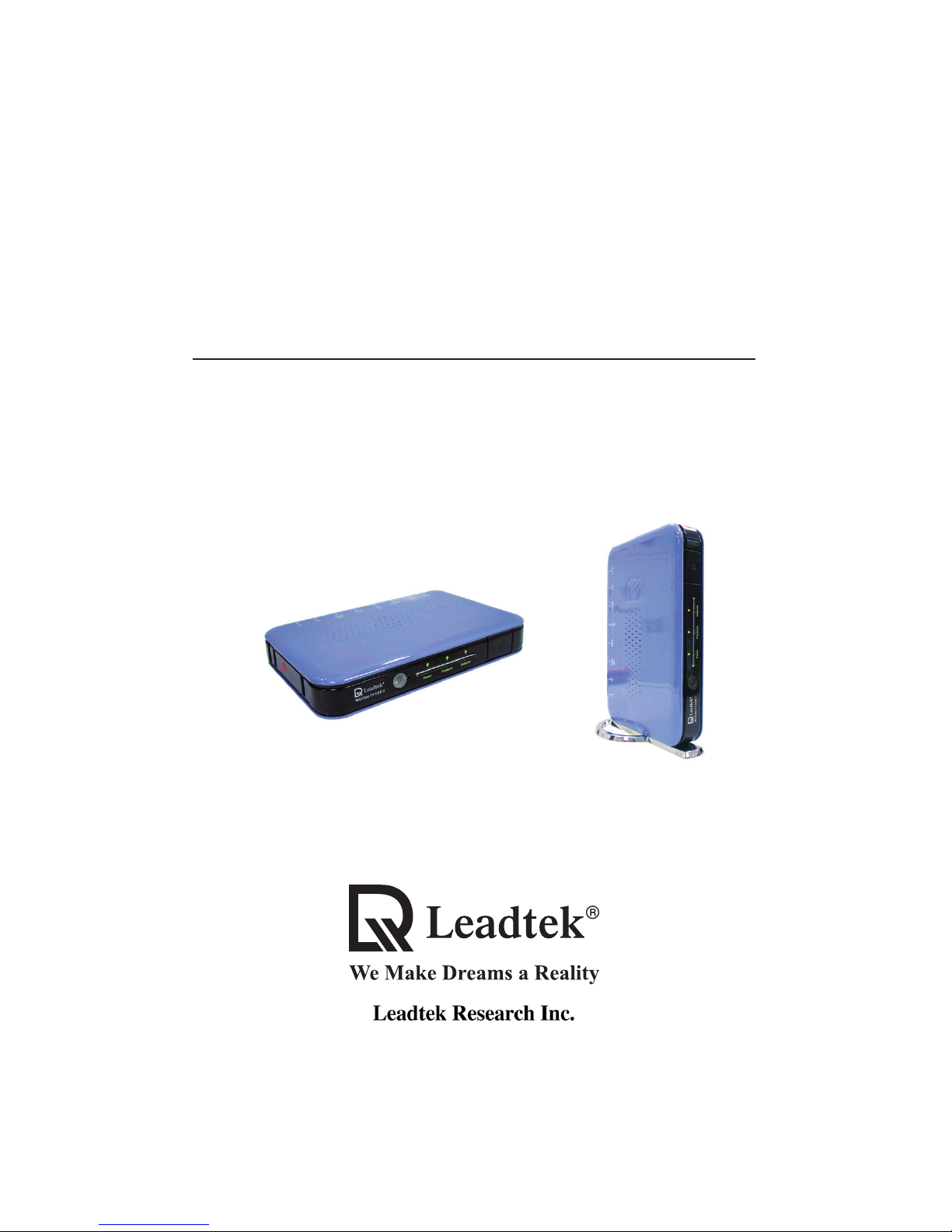
WinFast
Ò
QUICK INSTALLATION GUIDE
TV USB II
CODE: LR6020, 6021
P/N: W0500841
Page 2
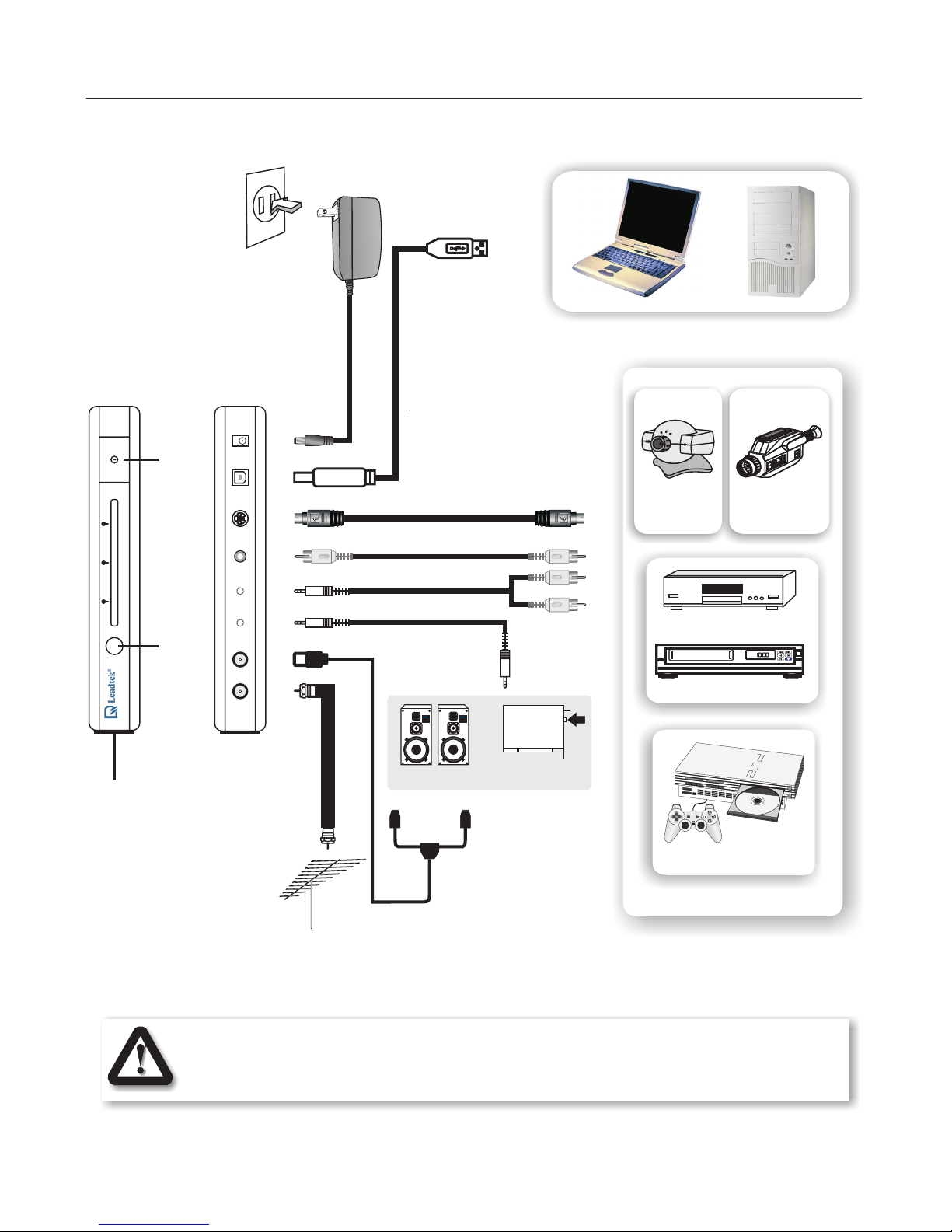
Connecting Devices
1
Before placing WinFast TV USB II on the stand, please remove the rubber
lid on the side near the Leadtek logo first.
Connect
to the
USB port
onaPC
or laptop
computer
DC Power
Adaptor
CCD cameraCCD camera Camcorder
VCR
DVD/VCD Player
SELECT START
ANALOG
SONY
PlayStation
Video Game Console
Input sources
S-Video in S-Video Out
Composite Video in
Composite Video Out
Audio in Audio Out
From Cable
TV or
Antenna
FM Antenna
Audio Out Audio In
OR
Speakers
Sound Card
Line-In
Rubber Lid
Power Playback Capture
WinFast TV USB II
Power
Button
IR
Sensor
USB
DC +5V
FM
TV
Page 3

WinFast TV USB II
Ò
QUICK INSTALLATION GUIDE
English
!
!
!
!
!
Pentium III 550 MHz or higher PC compatible
128MB or more system memory
Microsoft Windows XP with SP1 / 2000 with SP4 operating system
1 sound card line-in or speakers
USB 2.0 compliant port
Minimum
!
!
Pentium III 1 GHz or higher for MPEG-1/2 recording
Pentium III 1.2 GHz or higher for Timeshifting
Suggested
To speed up CPU performance and to provide better image quality, please
install Windows XP patch (KB822603) by the following steps. If you have
installed Windows XP Service Pack 2 or later, skip this section and proceed.
Step 1:
Recommended Update for Windows
XP SP1 (KB822603) Add Install Now
Go to Microsoft Windows Update and find the
file. Click and .
For Windows XP Users Only
System Requirements
Step 2:
Accept the terms of pending License Agreement. The patch will then be installed.
Step 3:
OKThe system will prompt you to restart the computer. Select to reboot.
2
Page 4
Driver & Application Installation
3
Notice:
Please make sure the WinFast TV USB II is powered on and the USB cable is properly
connected between PC and the device.
Step 2: Insert the software CD and click Move the cursor to the
WinFast TV USB II icon and select to start installation.
WinFast TV USB.
Driver
Step 1: When the window flashes, dismiss it by clicking .New Hardware Found Cancel
Step 3: Select the language you use and click .OK
Step 4: The window pops to display welcome info.
Click .
WinFast TV USB II Installation
Next
Step 5: When the Install Shield Wizard has completed the installation, check
and click .
Yes, I
want to restart my computer now Finish
Step 6: After rebooting the computer, eject the CD and insert it again. Click
and move the cursor to the WinFast TV USB II icon. Select .
WinFast TV
USB Application
Step 7: Choose Setup Language
OK
When the dialog box appears again, select the
language you use and then click .
Step 8:
Next
The InstallShield Wizard shows the welcome message of the application
installation. Click to start the installation of the application.
The(
Warning messages may pop up several times
during the installation. Click
to proceed.
System may prompt you to install
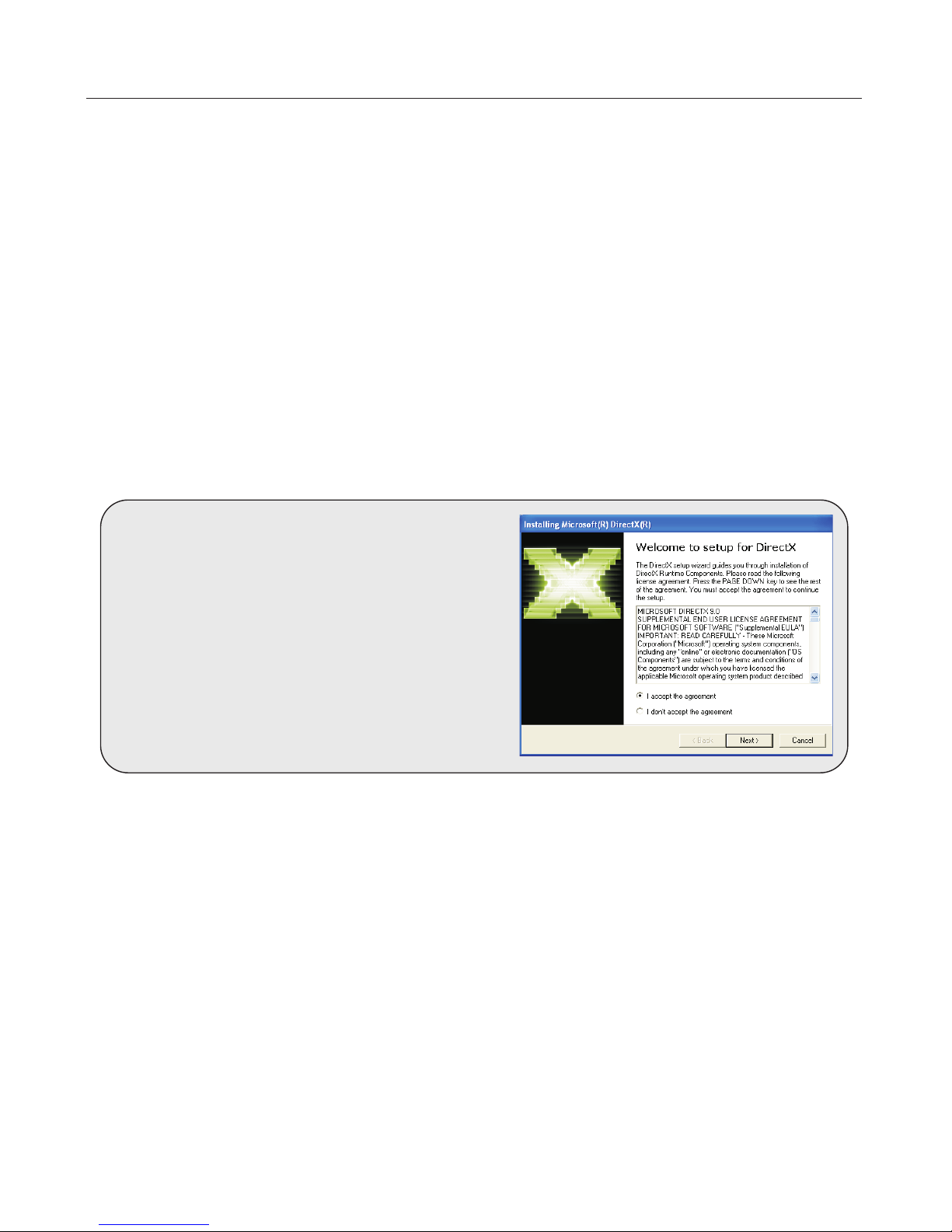
Microsoft DirectX for updating purpose. Select
and to install it.
Follow the on-screen instructions and the
system will automatically reboot.) When the
driver installation is completed, click and
to restart the computer.
Continue
Anyway
I accept the agreement Next
YES
Finish
Step 9: YesA license agreement appears on the screen. Click to continue.
Step 10:
Next Browse
InstallShield Wizard will next prompt you to choose the destination location for
the application. To use the preset location as shown in the lower part of the panel,
simply click to go to the next step. If another location is desired, click to
choose a location.
Page 5
Driver & Application Installation
Step 16:
Next
The setup program will next ask you if you want to update your component or
reinstall the component entirely. Tick your desired option and then click .
Step 17:
Next
The setup program will then show a list of components. Make sure the
component check boxes are checked. And then click .
Step 18:
Next
The setup program is now ready to install the Windows Media components.
Click .
Step 19: FinishWhen the setup has completed, click .
Step 20: FinishThe entire installation of the application is completed, click .
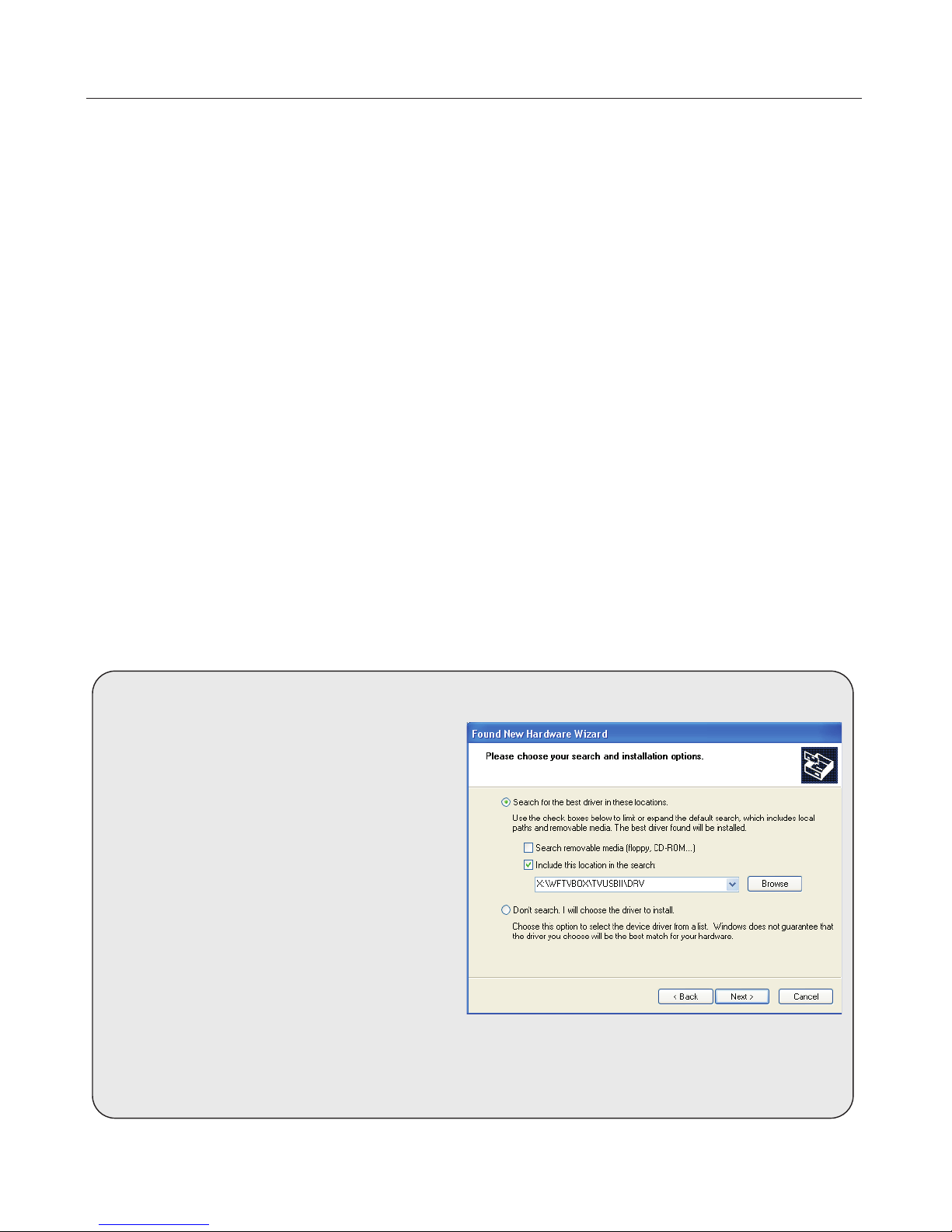
The system may pop up a
window when you change its
location. Check
and click . Tick
and
. Browse for the file under
(X is the
letter of the CD-ROM drive) and click
to install it.
Found New
Hardware
Install from a list or
specific location Next
Search for the best driver in these
locations Include this location in
the search:
X:\WFTVBOX\TVUSBII\DRV\
Next
The window may appear
and request
File Needed
when you
plug WinFast TV USB II in the
PC/Laptop. Insert the software CD and
browse for the file under
(X is the
letter of the CD-ROM drive) and click
to install it.
emDevice.sys
X:\WFTVBOX\TVUSBII\DRV\
OK
If you plug the WinFast TV USB II in a different USB port
There is no need to install WinFast
PVR again if you have already
installed it.
4
Step 15:
Next
The Windows Media Component Setup welcome message appears. Click
.
Step 14:
Yes
Another Microsoft license agreement appears stating the terms of using
Windows Media Player codecs. Click to continue.
Step 13:
Yes
A dialog box prompts you to exit all other applications before installing the
Windows Media Player Codecs. Click .
Step 12:
Yes
During the installation a Microsoft Windows Media Format License agreement
appears stating the terms of using Windows Media Player codecs. Click .
Step 11:
Setup Status
The InstallShield Wizard starts to install the driver. The progress is shown in
the dialog box as shown in the figure to the right.
Page 6

Leadtek Research Inc.
International Headquarters
18th Fl., 166, Chien-Yi Rd., Chung Ho, Taipei Hsien, Taiwan (235)
Phone: +886 (0)2 8226 5800 Fax: +886 (0)2 8226 5801
http://www.leadtek.com.tw E-mail: [email protected]
United States Office
46732 Lakeview Blvd., Fremont, CA94538, U.S.A.
Phone: +1 510 490 8076 Fax: +1 510 490 7759
http://www.leadtek.com
Europe Office
Antennestraat 16 1322 AB, Almere, The Netherlands
Phone: +31 (0)36 536 5578 Fax: +31 (0)36 536 2215
http://www.leadtek.nl
Copyright 2003 by Leadtek Research Inc. All rights reserved.
No part of this document may be copied or reproduced in any form or by any means
without the prior written consent of Leadtek Research Inc.
Leadtek makes no warranties with respect to this documentation and disclaims any
implied warranties of merchantability, quality, or fitness for any particular purpose. The
information in this document is subject to change without notice. Leadtek reserves the
right to make revisions to this publication without obligation to notify any person or entity
of any such changes.
WinFast is a registered trademark of Leadtek Research Inc. Trademarks or brand
names mentioned herein are trademarks or registered trademarks of their respective
owners.
WinFast TV USB II Quick Installation Guide
Version A
December 2003
If the attempt of resolving the problem on your own was unsuccessful, please contact
your vendor or E-mail our technical support staff at : , and
provide them in your message with:
product name, software driver version,
motherboard manufacturer, BIOS version and chipset, Computer type and speed,
Monitor manufacturer and model, and a detailed description of your problem.
Technical Support
5
 Loading...