

Page 1
User Manual
www.thescorpionstore.com
Page 2

Table Of Contents
Packing Contents ......................................2
Overview....................................................3
Features ....................................................3
Product Structure ......................................4
Installation .................................................5
Operation Guide ....................................6-7
Saving and Playing Files ...........................8
PC Camera ................................................9
Specications ..........................................10
1
www.thescorpionstore.com
Page 3
Packing Contents
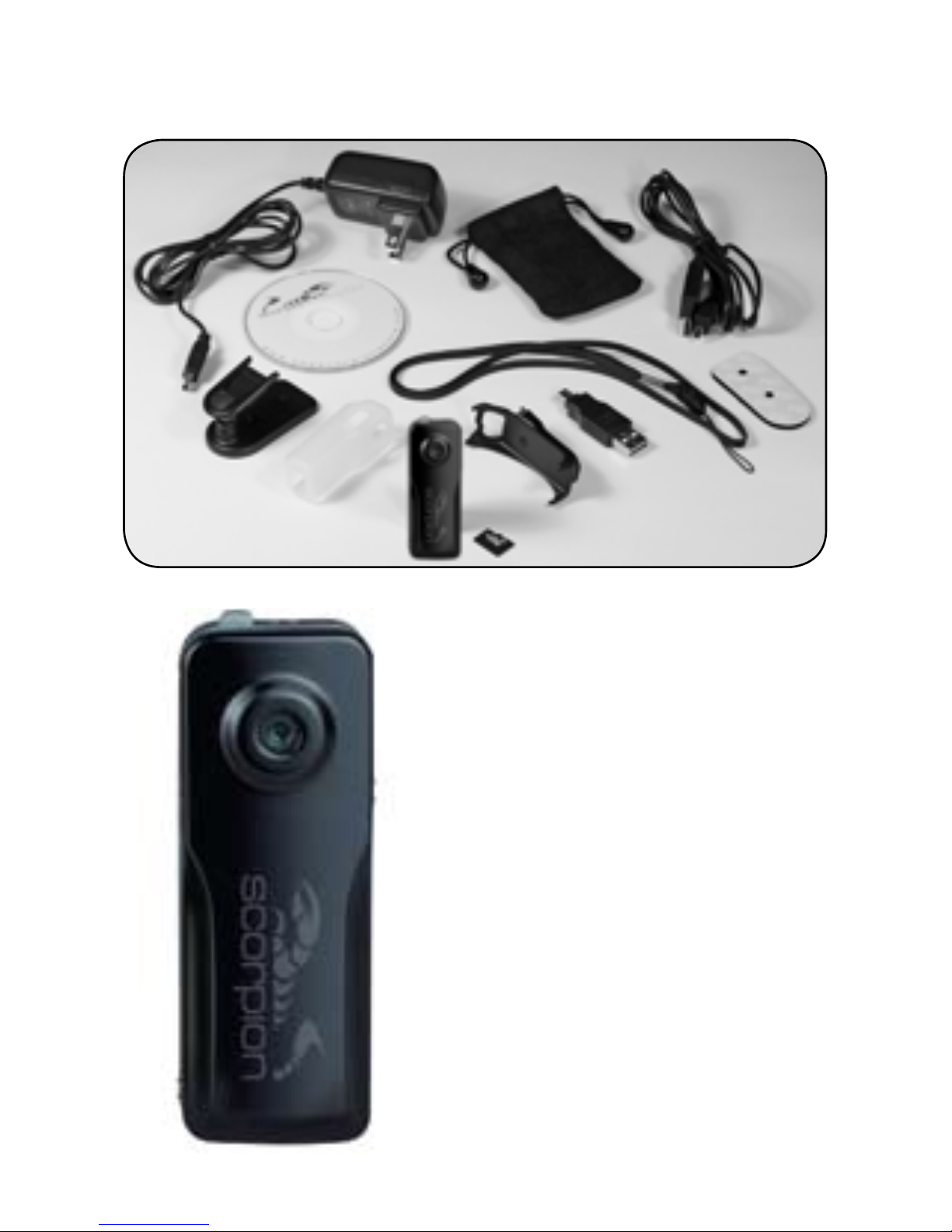
• Scorpion Micro DV
• Mounting Bracket
• Mounting Clip
• Micro SD Card
• AC Adapter
• USB Cable & Adapter
• Storage Pouch
• Mounting Velcro
• Carrying Strap
• Protective Sleeve
• Mounting Screws
• Software CD
2
Page 4

Overview
The Scorpion Micro DV possesses a series of
advanced functions including digital photography,
voice memory, voice activated recording, high speed
USB data transfer and USB charging.
Features
• Thumb size alloy housing.
• Manual and Voice (Vox) activated recording.
• Web camera for online video chat.
• AVI video format.
• Low illumination, high resolution image 2 megapixel.
• 30 frames per second for 640 x 480 video output.
• Support USB1.1/2.0.
• Micro SD card ( up to 8GB ).
• Built-in Li rechargeable battery. For up to 2 hours
of continuous recording.
• Easy operation with LED indicator.
• Flexible installation with clip and bracket.
3
Page 5
Product Structure
4
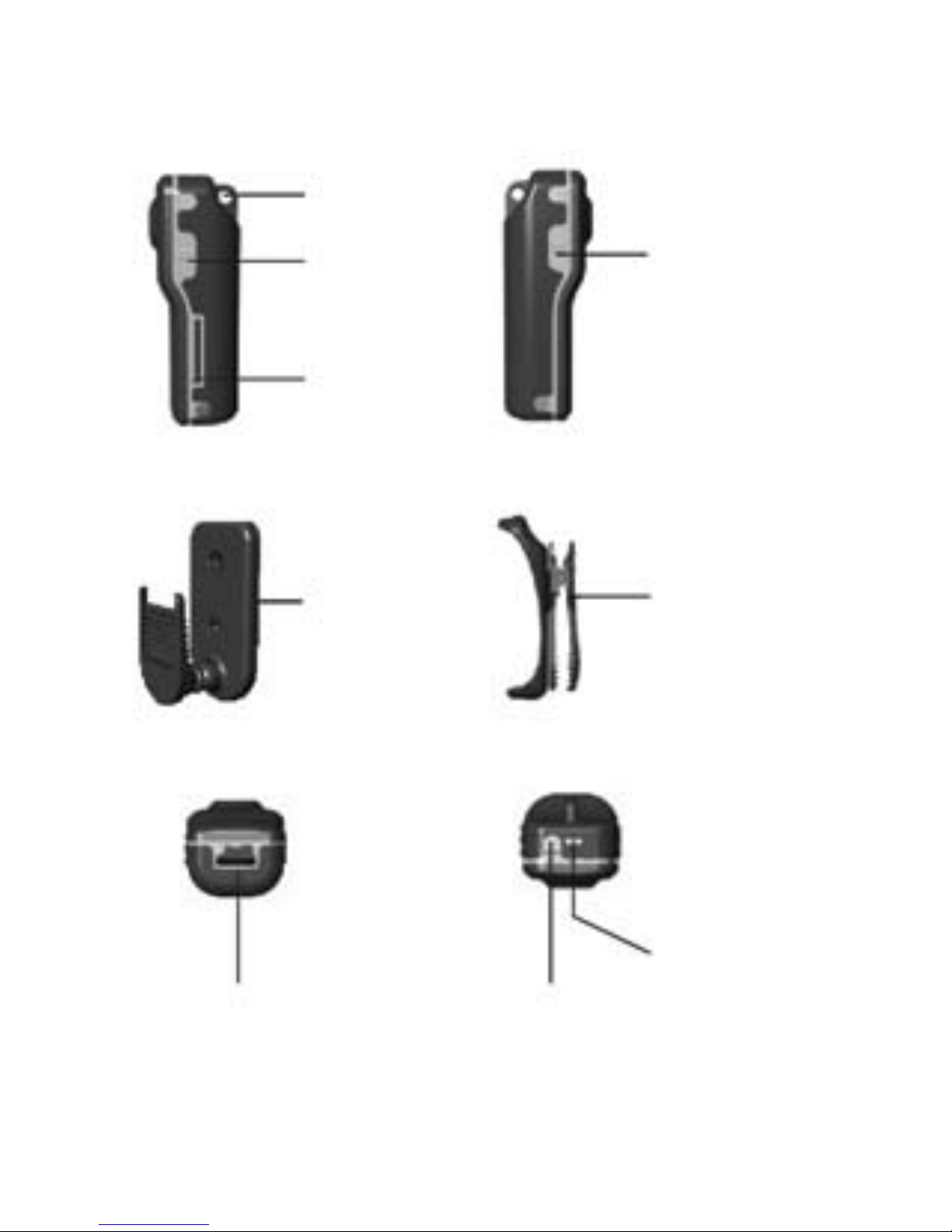
Hanging Ring
Sound Trigger,
Voice (Vox)
Switch
Micro SD
Card Slot
Power Switch
Mounting
Bracket
Mounting
Clip
USB Jack
LED Indicator
Record Switch
Page 6
5
Installation
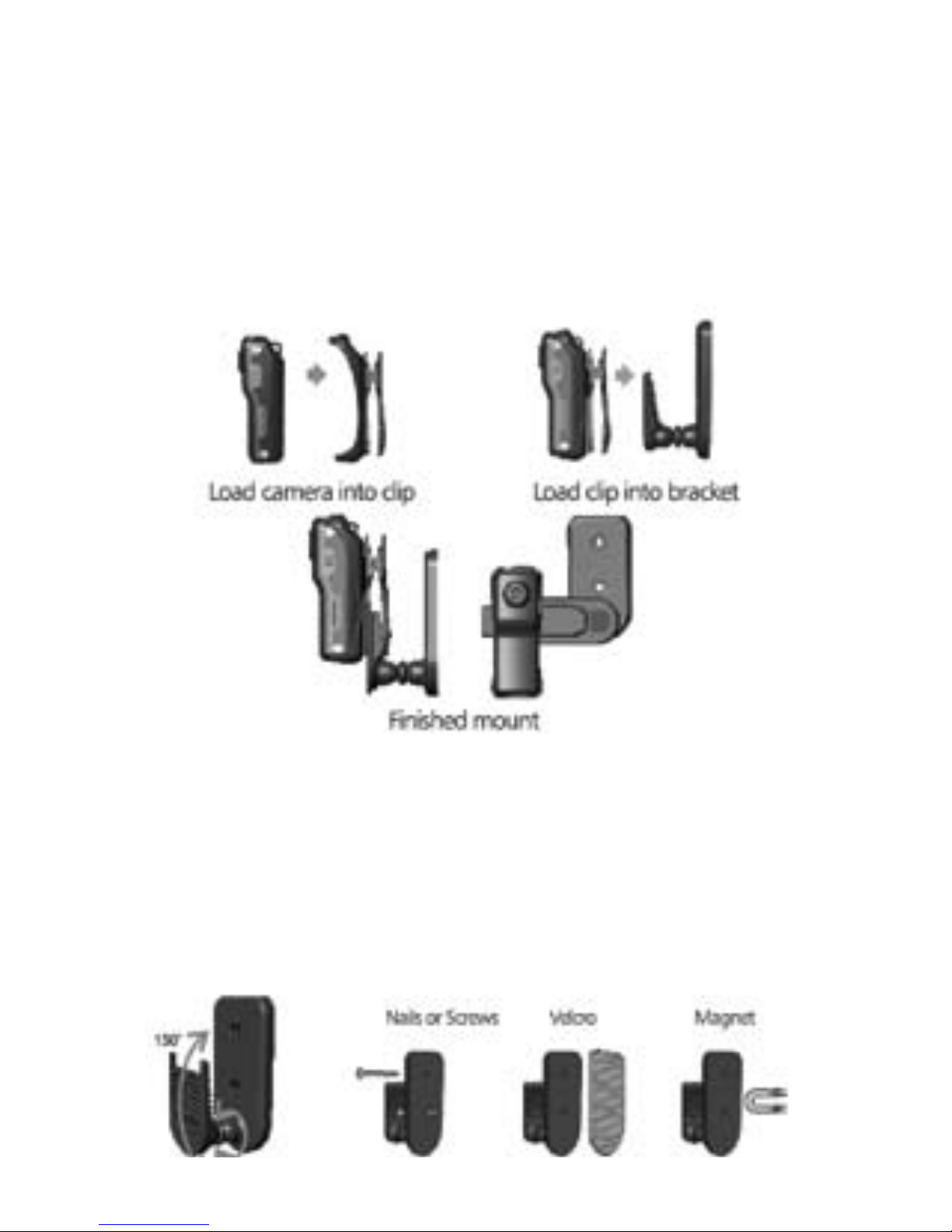
1. With the unique clip design and exible installation,
the Scorpion Micro DV can be attached on a backpack, hat, helmet, jacket, vest and many other Items
and locations, depending upon monitoring scenario.
2. The unique bracket design can support wide angle
shooting, pan 360
o
, tilt 150o. The bracket can be
mounted with nails, screws, velcro or by magnet.
Page 7

6
Operation Guide
*Time / Date Setting
Time and date may be set by using the program
“Set time.exe” which is on the CD included with your
Scorpion Micro DV.
Install the “Set time.exe” program on you PC. After
installation, an icon will appear on your desktop.
With the Scorpion Micro DV power switch in the ON
position and the VOX switch in the OFF position,
connect to the PC with the USB cable. The Scorpion
Micro DV should be recognized by the PC as an
external storage drive.
Double click on the Set Time icon on the desktop.
Click on Browse on the pop-up window that appears
and select the Scorpion Micro DV. Click on the
“UPDATE” button. A message box will appear.
Verify correct time and date. The time and date are
read from the PC. Conrm the time and date.
Unplug the USB cable from the Scorpion Micro DV.
Turn the power switch on the Scorpion Micro DV to
OFF and then to ON to update the Time / Date. The
power must be cycled OFF and then ON in order for
the Time / Date to be updated.
Page 8

7
Operation Guide
1. Insert Micro SD card.
2. Slid the power switch to the on position. The LED
indicator will be blue when the power is on.
Notice:
1. The blue indicator will ash slowly when the battery is low. After 2
minutes, in the low battery condition the Scorpion Micro DV will enter
stand by mode and power off automatically.
2. The LED indicator turns green and ashes quickly when there is no
Micro SD card present in the Scorpion Micro DV.
3. Recording
*1. Manual Recording: With the voice (Vox) switch in
the off position, Press “Record Switch” to start
recording. The LED indicator ashes green slowly.
Press “Record Switch” again to stop recording. The
les will be saved as “*.AVI” format.
Notice:
1. In standby mode, press “Record Switch” once to wake up the
Scorpion Micro DV . The LED indicator displays blue. Press “Record
Switch” again to begin manual recording. The LED indicator ashes
green slowly.
2. The LED indicator will stop ashing and remain green and stop
recording when the Scorpion Micro DV card is full. The green LED will
then shut off after 30 minutes. The Scorpion Micro DV will be unresponsive to any switches when the LED indicator is steady green.
Page 9

8
Operation Guide
*2. Voice Activated (Vox) recording:
A: Place the voice (Vox) switch in the on position. The
Scorpion Micro DV will start recording if the sound is
greater than 65 decibels.
B: The Scorpion Micro DV will automatically enter
standby mode when the sound is less than 65
decibels for 2 minutes.
C: In the standby mode, when the sound is greater
than 65 decibels the Scorpion Micro DV will begin
recording again.
4. After recording, the les will be saved automatically.
Notice:
1. Turning off the power during recording without rst stopping
the recording, will result in the le not being saved and the video
will be lost.
5. The LED indicator will show red when the Scorpion
Micro DV is powered by USB or AC adapter. When the
Scorpion Micro DV is fully charged the indicator will
go out.
Page 10
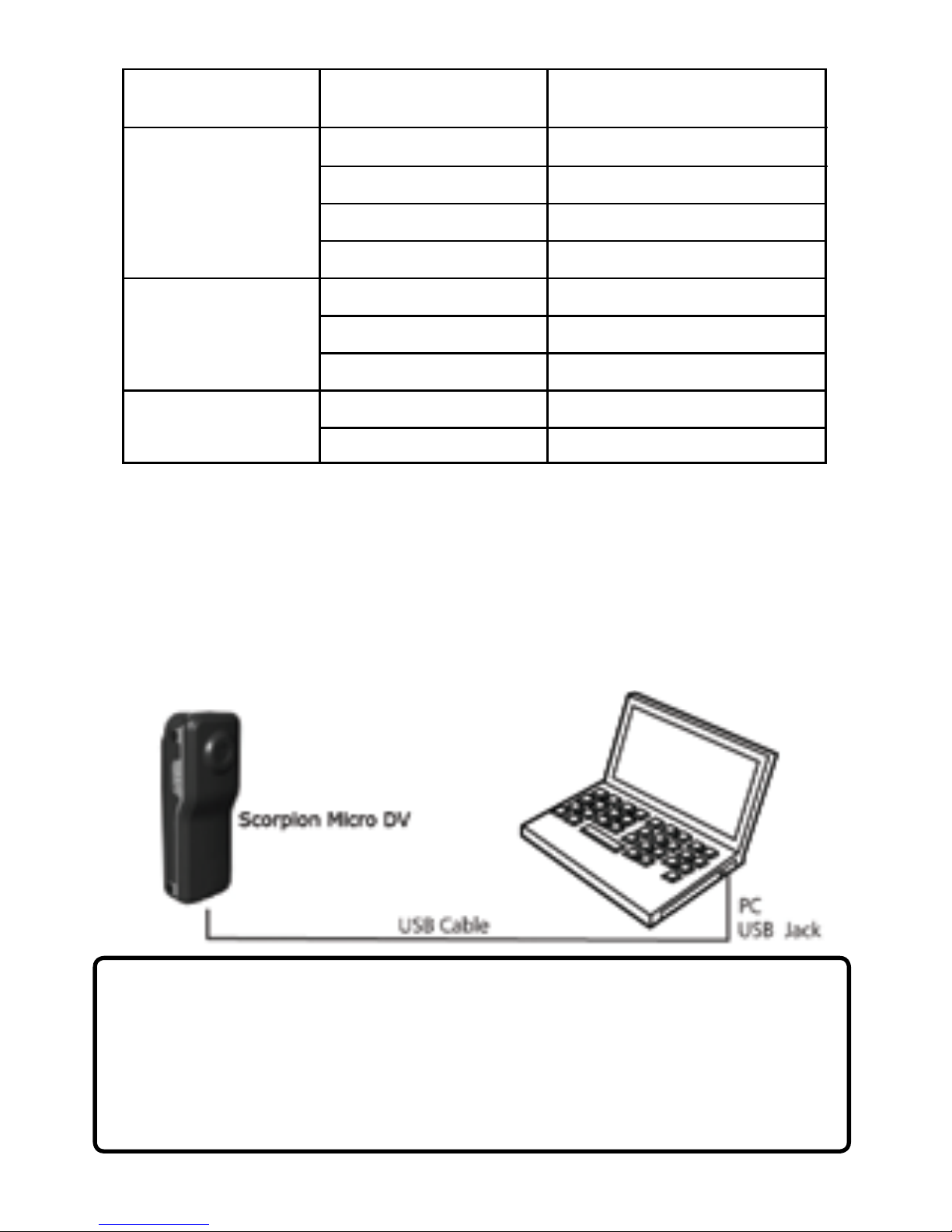
Saving & Playing Files
Connect the Scorpion Micro DV to your PC by USB cable
after recording, then copy the data from the Scorpion
Micro DV to your PC. You may also remove the micro SD
card and use a card reader compatible with the micro SD
card and read the micro SD card directly.
Notice: 1. You can only copy the data from the Scorpion Micro
DV when the power is on and the voice (Vox) switch is off.
2. The Scorpion Micro DV can be used as a PC camera when the
power is on and the voice (Vox) switch is on.
3. Turn off the power before connecting and removing the USB cable.
9
Indicator
Blue
Green
Red
State
steady
off
ash slowly
ash quickly
steady
ash slowly
ash quickly
steady
off
Motion
power on
standby
low battery
copy data
micro SD card full
no micro SD card
recording
charging
fully charged
Page 11
10
PC Camera
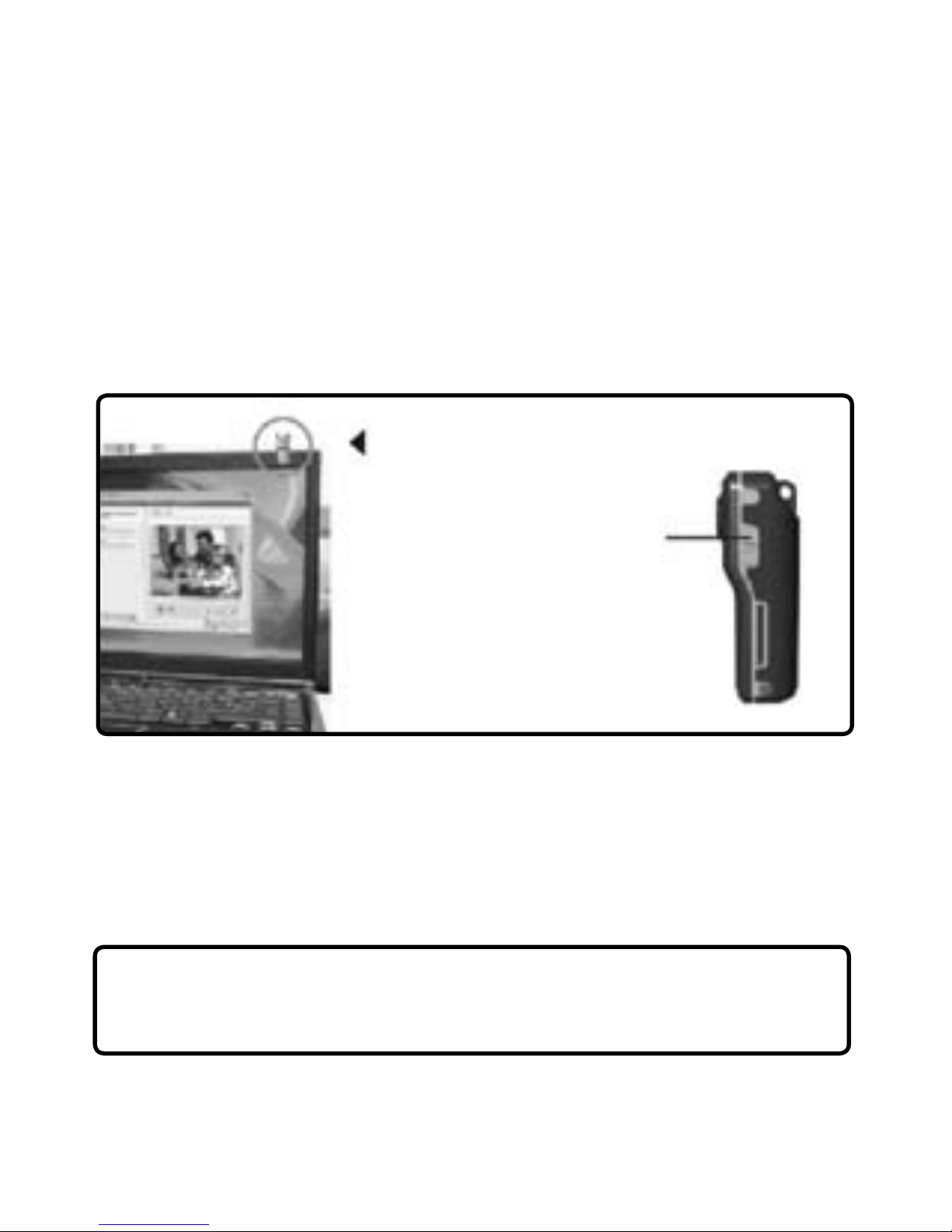
Please install the camera driver before using the
Scorpion Micro DV as a PC camera. After connecting
the Scorpion Micro DV to your PC with the USB cable,
rst turn the Vox Switch to the on position then turn
the Power Switch to the on position. A video device
will appear on the PC which indicates the Scorpion
Micro DV can be used as a PC camera.
PC camera function is also applicable to some
third-party application software by which the
real-time video can be saved on the local computer,
such as Amcap or HyperCam
Notice: You can only copy the data from the Scorpion Micro DV
when the voice (Vox) switch is off and the power is on.
Sound Trigger,
Voice (Vox) Switch
Web Camera
Page 12
11
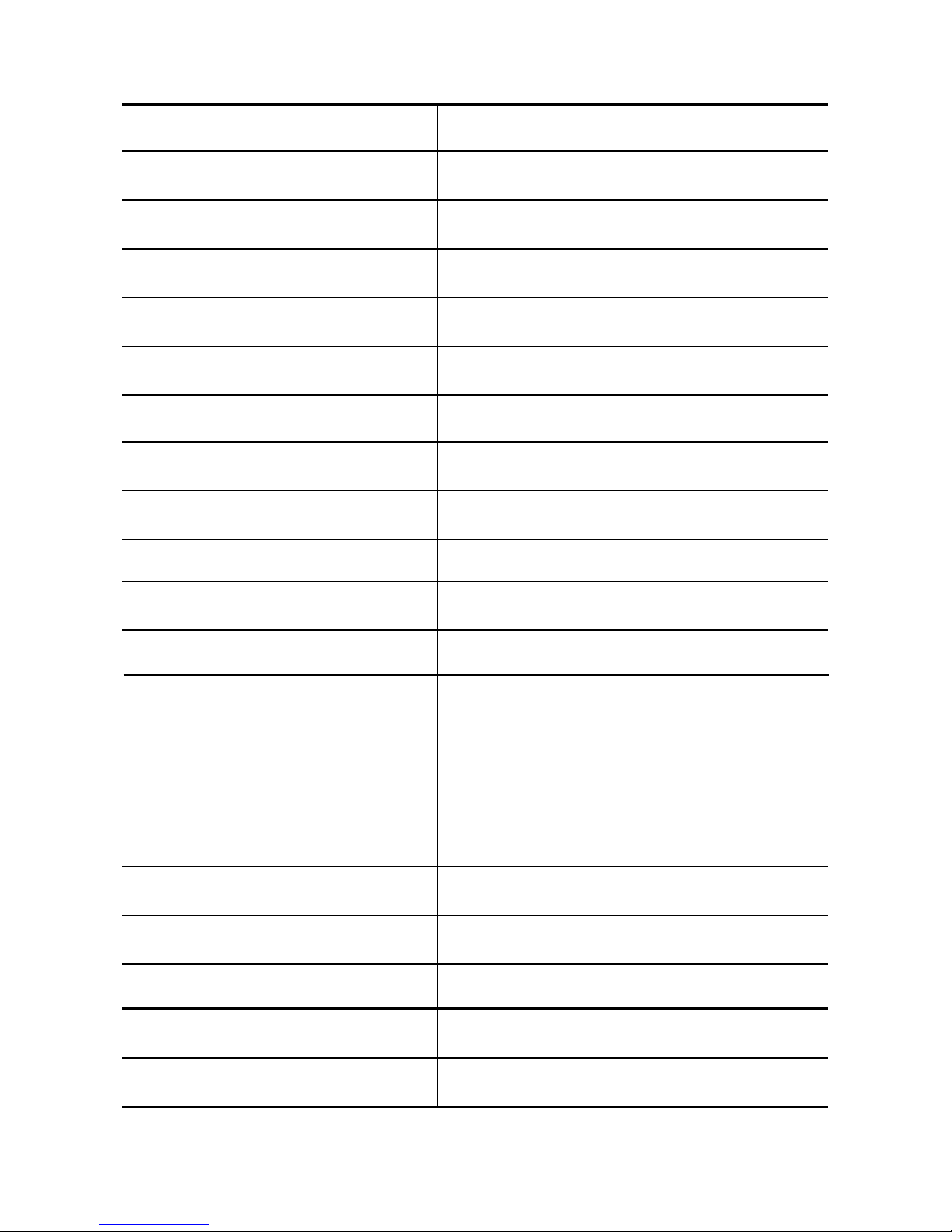
Specications
Pixel
View Angle
Minimum Illumination
Battery Capacity
Record Time
Stand By Time
Current
Store Temperature
Operation Temperature
Operation Humidity
Memory Medium
SD Capability
Video Function & Format
USB Jack
Operation System
Store Consumption
Charge Time
Weight
Dimension
2 Million CMOS
72
o
1 Lux (min)
260mAH
2 hours (approx)
250 hours (approx)
120mA/3.7V (max.)
-10
o
to 70o C
-10
o
to 60o C
15 - 81 % RH
Micro SD card (TF Card)
Max 8GB Micro SD Card
Video decode use motion JPEG
Recording for AVI format.
VGA (640 x480 at 30 frame
second)
USB1.1 / 2.0
2000 / XP / Vista 32
1GB per 30 min (approx)
2H (approx)
1.7 oz (approx)
2.17'' x .85'' x .78'' (approx)
Page 13

This product has been tested and found to comply with
the limits for a Class B digital device, pursuant to Part 15
of the FCC rules.
This product complies with standards including Low
Voltage Device Directive 73/23/EEC; EMC Directive
89/336/EEC and R&TTE Directive 1999/5/EC.
www.thescorpionstore.com
 Loading...