

Page 1

Quick Guide
1.Insert a SIM card (not included) into the SIM card slot located in the battery compartment of the tracker.
Note: 4G SIM cards are acceptable to use with this device however the unit only operates on a 2G band.
This unit requires data to be activated on your pre-paid or contract SIM card.
(Recommend order 20-30M/Month data package)
2.Connect the wiring loom to the tracker and the bare ended wires to the accessories, ground, engine immobilizer and
external SOS button.
Red Wire – Accessories 12/24V +
Black Wire – Ground (Car or truck chassis)
Yellow Wire – Engine Immobilizer
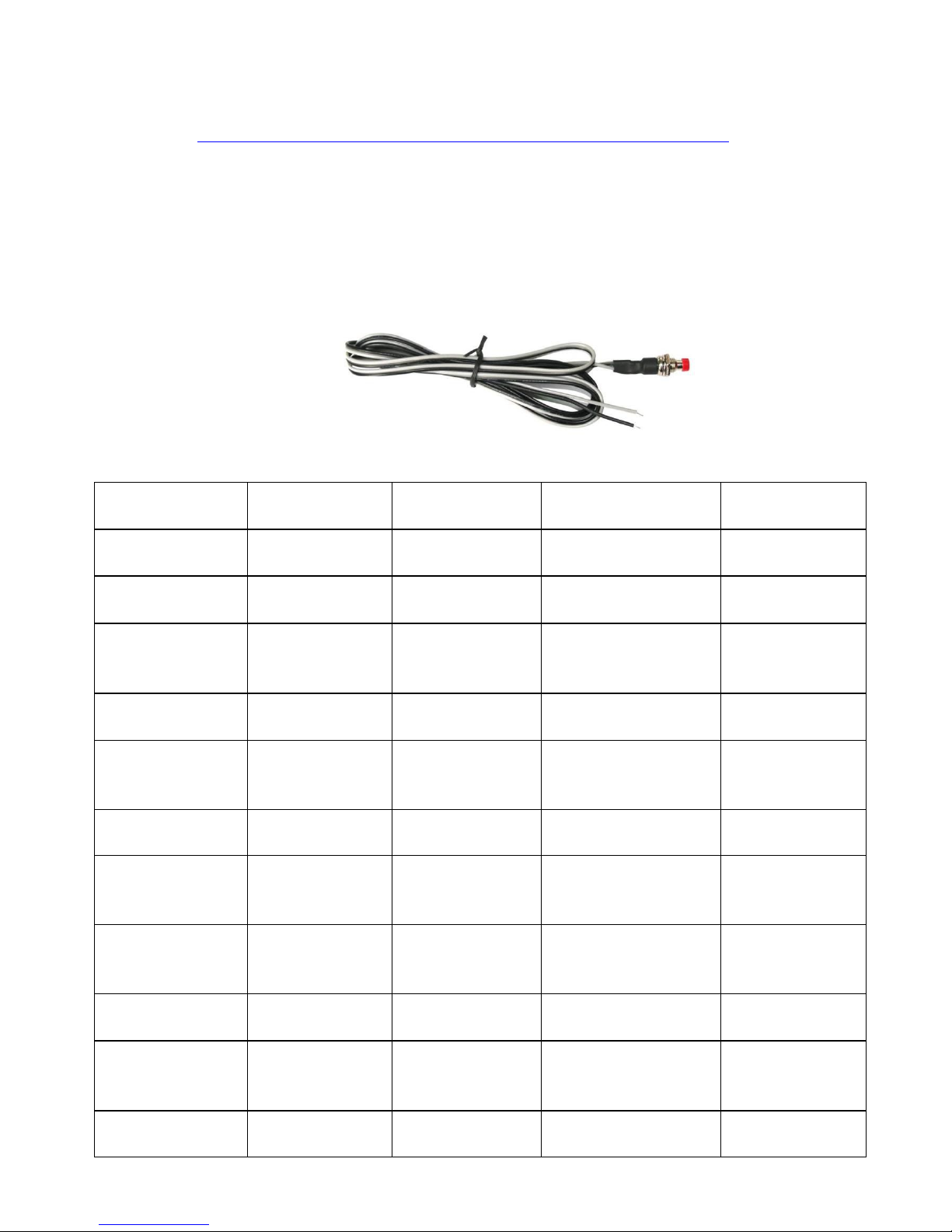
White Wire – External SOS button
3.Once the unit has been wired up correctly, turn the unit on by pressing the power button until the green LED remains
turned on.
4.Contact your mobile service provider to obtain the APN “name” in order to view the location on the tracking website.
APN’s vary depending on your SIM card’s plan (i.e. pre-paid or contract)
5.Enter the following command via SMS on your the tracker to set the APN “name”:
Send SMS “APN*123456*apnname” (123456 refers to the default password)
For example:
SIM Card Company: Cablw & Wireless
“apnname”: apn01.cwpanama.com.pa
Send SMS: APN*123456*apn01.cwpanama.com.pa
If the APN “Name” has been entered correctly, you will receive a SMS stating “APN:cwpanama.com.pa”(example)
Note: The APN “name” needs to be entered correctly otherwise the location may show up in China, Africa, etc.
6.Login to the tracking website (www.geniusgps.com) using the last 7 digits of the serial number for the username
and password which is located in the battery compartment of the tracker.
For example:
Serial number: CC2014012345678
Username: 2345678
Password: 2345678
7.Free “GPSTracker1” app is available on iTunes® and www.geniusgps.com tracking platform to easily view the current
tracking location on your iOS® or Android smart phone or tablet.
App name: GPSTracker1
Page 2

G-810 Real Time Car GPS Tracker
Welcome to use this Real Time Vehicle GPS tracker G-810 & tracking system. This product
integrates GSM and GPS Module. So it can achieve many functions through our website, such as real
time uploading current location to website, display history tracking on website, monitoring and speaking
through the mobile phone, alarming over certain area or speed, remote controlling to turn off the engine,
emergency SOS help etc, and it has built in backup rechargeable polymer battery (800mAH) to protect
cut the power supply, also It have SMS locate and link locate function without platform.
With GPS and GSM, the tracker sends the present location information through GPRS to internet
server, so that user visit the website www.geniusgps.com with the applied user’s name and password
(Given by us) through any computer with available internet, and without downloaded any software. And it
can help to arrange the whole fleet or the vehicles of company or group or personal vehicles with the
anti-hijack function.
It can be used as tracking cars, company vehicles, buses, taxis, trucks, moving equipments,
transportations, etc.
Packing list
G-810 main unit, GSM antenna, GPS antenna, Speaker, Microphone, Wires, Manual
Main unit GSM antenna GPS antenna Speaker
Microphone Wires
Before Using
Page 3

This tracker is suit for 12V and 24V vehicles, please confirm this first.
1. Install SIM card
Push the yellow point of the SIM card holder on one side of the main box, the SIM card holder will
come out, pull out the holder, and put the SIM card in the holder, please pay attention on the SIM card
metal pin face up (don’t face down to the plastic holder), and inert the SIM card holder in the device.
Note: 1. This tracker use 2G GSM network, and it upload tracking only through GPRS, it can not
work in CDMA network or 3G(WCDMA or CDMA2000) network.
2. Please confirm the PIN code of the SIM card is disabled.
3. Before installing or uninstalling the SIM card, please power off the tracker.
2. Power ON / OFF
Switching the power switch on one side of the main box to “ON” position will power on the system,
and switching the power switch to “OFF” position will power off the system.
When the power on the system, the device will recharge the backup battery automatically.
3. LED flash indicator
System LED indicator (Green & Red 2 color LED)
Green Flash once : both of GSM and GPS signal are OK
Green Flash twice : GSM network is OK but the GPS signal is weak
Green Flash quickly : Incoming a call or making a call.
Green Always ON : system is searching for the GSM network.
Green Always OFF : System power off
RED Flash once : Uploading location to website
RED Flash twice : Recording location to memory
RED Always OFF : GPRS and GPS power off
GSM LED Indicator (BLUE LED)
Flash quickly : Searching the GSM network
Flash slowly : The GSM signal is good
GPS LED Indicator (GREEN LED)
Always On : Searching for the GPS signal
Flash Slowly : GPS signal is good
4. Recharge and power supply
Warning: this tracker only uses the 9-28V DC power supply, too high voltage or AC voltage may
Page 4

damage the tracker or even cause accidents, so please check the power supply first before
installing.
After the backup battery is full, the built in recharging circuit will stop recharging, and if the tracker
do not move, the tracker will go to sleep, then the tracker will cost few power and will not make the
car battery can not start car engine.
5. Back to default set (Factory configuration)
Power off the system, press the external “SOS” button and don’t release, switch the power switch
to ON position to power on the system, a few seconds later the GREEN LED will flash 10 times and
turn ON continuously, and then release the “SOS” button, the tracker is back to default configuration.
Notes: After back to default set, all IP / APN / GPRS / TIME ZONE
setting are deleted and back to default, all preset phone number are deleted
and password change to 123456, all the alarm setting is cancelled, if the
IP/APN/GPRS name& password/TIMEZONE have been changed, you need
set these again by sending SMS.
6. ANTENNA
The Antenna of GSM and GPS are external, please confirm to install the antenna on the place
that have good GSM & GPS signal
7. ON /ACC Control Uploading and Power Saving
This tracker using ACC/ON signal to control uploading and GPS ON/OFF, when the ACC/ON
signal is active, the tracker will turn on GPS and upload location automatically, when the ACC/ON
signal is inactive, the tracker will turn off GPS & GPRS automatically (Stop uploading location), this
can save the car battery power, otherwise maybe cause the battery can not start car engine.
8. Using Condition
The working temperature is -200C to 600C, over this range the specification maybe can not reach
the standard level, the storage temperature can reach to -400C to 800C.
Installation Guide
Before power on, please install the GSM SIM card, the GSM antenna, the GPS antenna the
microphone and the speaker, according to the map 1, like below:
Install the wire set, according to map 2, like below:
Page 5

Map 1: Install the GSM SIM card, the GSM antenna and the GPS antenna
Map 2: Install the microphone and the speaker and the wire set
Notes: We do not recommend connect the engine cut wire or use stop engine running function, it is
dangerous to stop the engine running when driving.
How to Use
1. 2G GSM phone SIM card will be needed for this product. This also needs SMS service and
incoming caller ID display, and GPRS function. Please disable the PIN code of the SIM card. The SIM
card phone number is the tracker number and the number for all other operations (calling and sending
SMS) to the tracker.
2. After install the SIM card in the tracker, turn on the tracker and send a SMS to the tracker to set
the APN name and GPRS user name & password first. Some mobile phone service providers do not
required setting the APN or GPRS user name & password. So please confirm this with your service
provider when purchasing the SIM card.
3. Please confirm the tracker can receive the GPS signal and GSM signal (the Green LED will
Page 6

flash once every 4 seconds to indicate the GSM and GPS signal are working), when the tracker begin
to move, the tracker will upload the location to the platform: www.geniusgps.com .
4. Platform user name and password is the last 7 digital number of the ID or S/N number printed
on the back of the device. send SMS “ID*password” (Tracker default password is 123456) to the
tracker to check the ID number, the user can also change the password. The current location of the
tracker can be viewed on Google map after login to the website, and it can also display the tracking
history in the specific dates and time.
5. You could also have the tracker to send back the location in Google map website link by SMS
(Send LINKLOCATE*123456 to tracker).
6. The data & time of the tracker upload to the website is GMT time (Greenwich Mean Time, add or
minus a fixed digit is your local time), please change the time zone to your local time zone in “My
Account” after login the platform, please refer the following platform using guide. (For example the
Sydney time zone is +10).
7. If you have several trackers, we can create a user that can see all your trackers after you login,
this can be used as fleet management, ask your dealer to contact us to get your administrator user
name and password of your fleet.
SMS Instruction Description
Check Tracker ID Number :
The tracker ID is print on the label of the tracker, the S/N number on the label is the ID, Also if the
label is missing, send SMS “ID*123456” to tracker, in which, “ID” is the fixed command and
“123456”is the password. Having successfully been made, there will be a SMS “ID:
CW0800C01234567”, in which, “CW0800C01234567” is the ID and every tracker corresponds to the
only number. This number is used to differ the tracking uploaded to the website from others. the last 6
digital number of the tracker ID is the user name and password of the tracker on the platform, for
example the tracker ID is : CW0800C001234567, and then the user name on the platform of this
tracker is : 1234567, and the platform password for this user name also is same with user name or is
123456, user can login the platform to change the password.
Set Website Server IP :
Send SMS “IP*123456*58.64.155.133,8011” to the tracker, in which, “IP” is the fixed command,
“123456” is the password and “58.64.155.133,8011” is the IP address of the server computer of our
Page 7

website. Having successfully been set , there will be a SMS “IP: 58.64.155.133,8011”. However, the IP
address may be changed with the upgrade of our service so please see to the notices on our website
or to inquire the agents.
Set APN name:
For some mobile phone company, there must be to set the APN name to get through the internet
by GPRS. Send SMS “APN*123456*apnname” to the tracker, in which, “APN” is the fixed command,
“123456” is the password and “apnname” is the APN name of a mobile phone company. Having
successfully been made, there will be a SMS “APN: apnname”.
Notice: Some mobile company is not necessary to set APN or GPRS user name & password, please
contact your mobile company to confirm this, or get APN and GPRS user name & password from your
mobile phone company that the tracker used.
Set GPRS User Name & Password:
Send SMS “USERNAME*123456*username*password” to the tracker, “USERNAME” is a
command, “123456” is the password of the tracker; “username” is the mobile company GPRS user
name, “password” is the mobile company GPRS password, if the operation is success, the tracker
will send back the information “Username:username, Password:password”, please call the mobile
phone service hotline to get the GPRS username and password, some mobile company do not need
set the GPRS username and password. if the password is not right, the operation is fault, the tracker
will send back information “Wrong Password”
Note: before upload the tracking user need set IP, APN, GPRS user name & password (2G GSM
network APN, GPRS name &password, 3G network is not suit for this tracker), these only need set
once, and will be saved in the tracker. But if the tracker is back to default, then these setting need be
set again.
Add / Delete / Check preset number:
The preset phone number is used to send alarm information by SMS, or use mobile phone to locate
the tracker without platform, if the preset phone number is not set, then the alarm information can not
send to user by SMS (battery low, SOS, etc).
1. Add preset phone number by SMS
Send SMS“ADDPHONE*123456*A*number”(Not including the quotation marks “ ”, Number
means the telephone number you want preset, the following is same) to tracker is OK, “ADDPHONE”
is a command; “123456” is password; “A” is preset number location, every tracker have 3 preset
Page 8

phone number locations, A and B, and C, so you can preset 3 phone numbers, if the add operation is
success, the tracker will send back the information ”Add Preset Phone OK”, if the password is not right,
the operation is fault, the tracker will send back information “Wrong Password”.
2. Delete preset phone number by SMS
Send SMS “DELETEPHONE*123456*A” to the tracker, “DELETEPHONE” is a command;
“123456” is password; “A” is preset phone number location, there are 3 locations “A” and “B” and “C”;
if the delete operation is success, the tracker will send back the information ”Delete Preset Phone OK”,
if the password is not right, the operation is fault, the tracker will send back information “Wrong
Password”.
3. Check preset phone number by SMS
Send SMS “CHECKPHONE*123456” to tracker, “CHECKPHONE” is a command; “123456” is
password; if the operation is success, the tracker will send back the information “Preset Phone
A:13912345678; B:13812345678; C:13712345678 , the phone number is just an example. if the
password is not right, the operation is fault, the tracker will send back information or “Wrong
Password”.
Change / Check Password
1. Change tracker password
Send SMS “CHANGEPASSWORD*123456*888888” to tracker, “CHANGEPASSWORD” is a
command; “123456” is old password; “888888” is new password; if the operation is success, the
tracker will send the information “ New Password: 888888” to every preset phone number, if the
password is not right, the operation is fault, the tracker will send back information “Wrong Password”.
Note: Only preset phone can change the password.
2. Check tracker password
Send SMS “CHECKPASSWORD” to the tracker, “CHECKPASSWORD” is a command, if the
operation is success, the tracker will send back the information “Password: 888888”; “888888”is an
example.
Note: Only preset phone can check the password.
Keep On line (keep upload tracking):
Normally the upload location is controlled by ON wire signal, when the car is turn on, the tracker
will begin to upload tracking to server, also you can trigger the tracker to upload the tracking all the
time. Send SMS “KEEPONLINE *123456” to tracker, “KEEPONLINE” is a command, “123456” is
Page 9
password, After receive this SMS, the tracker will keep upload the current location and will not go to
sleep mode however the tracker is moving or not or the KEY ON signal is ON or not, this mode can
be used as tracking stolen car. This status can be canceled by “CANCELALARM” operation (back to
ON wire control uploading).
Notes: The Following instruction such as SMS locate, LINK locate, Shock alarm, can be work without
platform, these can be used like normal personal SMS tracker without platform.
Locate the tracker by calling the tracker (Platform is not necessary):
1. using preset phone call the tracker, after ring 3 times, the tracker will hang up the call
automatically and locate immediately, 10 seconds later, the tracker will send back the SMS
location information (map website link) of current location to the caller. user can use mobile phone
to click the website link to visit internet, and the location on map will display on the mobile
phone(the phone SIM card need enable the GPRS function). If the tracker has not preset number,
any phone call can trigger the tracker to locate immediately, if the tracker has preset number, then
only preset phone call can trigger the tracker to locate immediately.
2. Basic Location information including Map Website Link, Battery etc.
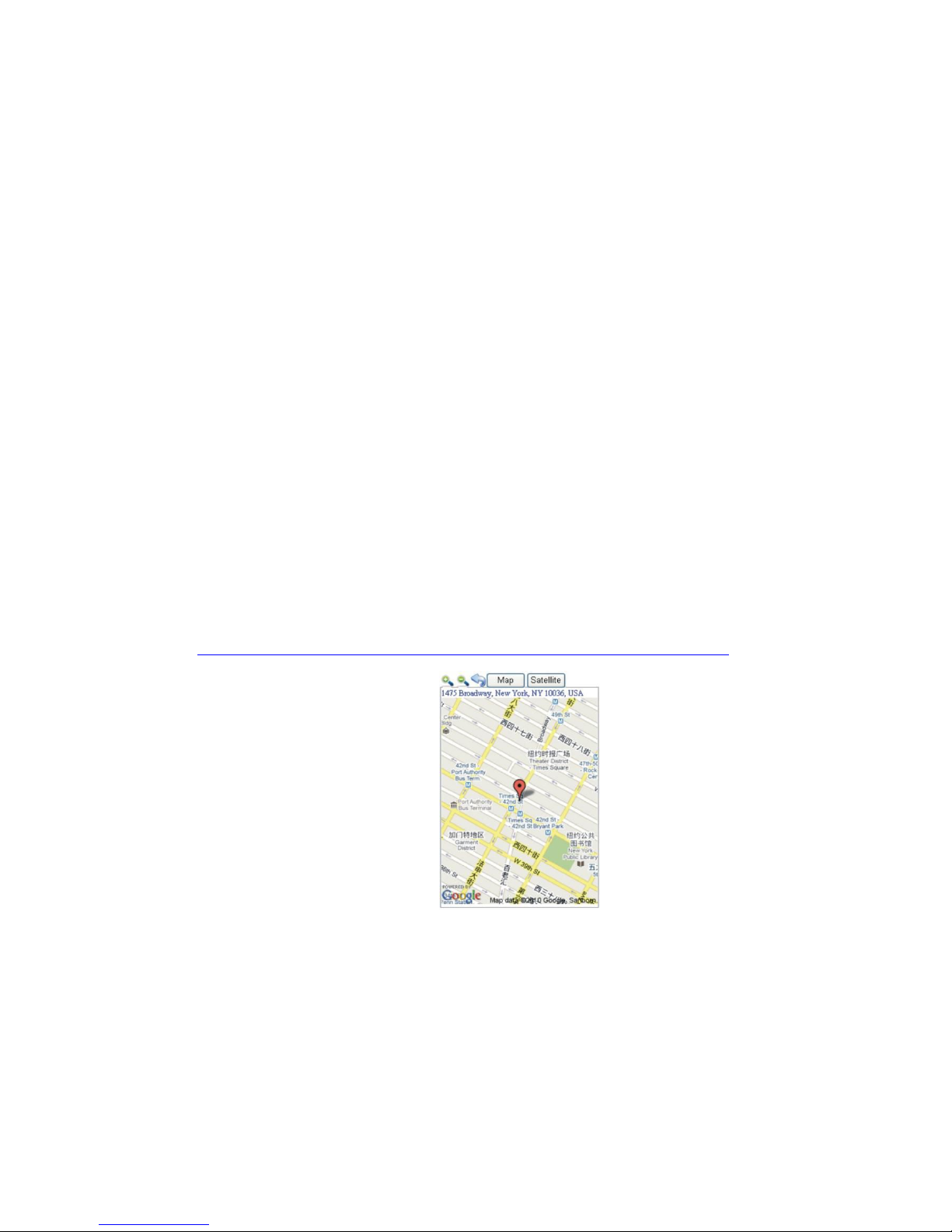
the SMS information sample is as follow:
http://www.followmegps.mobi/map.aspx?lat=40.756441&lng=-73.986378&l=en
Send a SMS trigger locate by map link (Platform is not necessary)
Send SMS “LINKLOCATE*123456” to the tracker, “LINKLOCATE” is a command, “123456” is
password; the tracker will locate immediately and send back the location information (map website
internet link) of current location to the caller. use smart phone to click the website link to visit internet,
and the location will display on the map on your phone(the smart phone SIM card need enable the
GPRS function), if the password is not right, the operation is fault, the tracker will send back
information “Wrong Password.
Page 10

Enable Shock & Move Alarm (Can be used as car alarm):
Send SMS “SHOCKALARM*123456” to tracker, “SHOCKALARM” is a command, “123456” is
password, the tracker will send back the information “Set Shock Alarm OK” to indicate the operation
is success, if the password is not right, the operation is fault, the tracker will send back information
“Wrong Password”
After enable shock alarm, the system will check shock sensor, if the shock sensor is trigger, the
tracker will send alarm and location information by SMS to who set the alarm, and also send the
alarm information to the website server, and later every 2 minutes the tracker will send alarm
information by SMS if the tracker keep moving. 3 times alarm later, shock alarm will stop, user can
send SMS to enable the shock alarm again, this function will not turn on GPS continuously, it will turn
on GPS only when the shock alarm is trigger, so it will not reduce battery power.
The shock & move alarm SMS is as follow:
Shock Alarm
http://www.followmegps.mobi/map.aspx?lat=40.756441&lng=-73.986378&l=en
Battery:91%
Low Battery Alarm:
When the tracker battery voltage is low, the GREEN LED of the tracker will flash 3 or 4 times, and
then the tracker will automatically send battery low information to the first preset phone number. the
battery life can last about 1-2 days according the different using condition. (For example GPS and
GSM signal is not good will reduce the battery time, and keep moving and uploading will also make
the battery time reduce to less 1 day.)
Cancel All Alarm Setting
Cancel all the alarm setting: Send SMS “CANCELALARM*123456” to tracker, “CANCELALARM”
is a command, “123456” is password, the tracker will send back information “All Alarm Cancel”, and
cancel all the shock alarm setting in the tracker. if the password is not right, the operation is fault, the
tracker will send back information “Wrong Password”.
Auto Re-power On and Reset Tracker
Auto power off and power on and Cancel all the alarm setting: Send SMS “RESET*123456” to
tracker, “RESET” is a command, “123456” is password, The tracker will power off and then power
on automatically, this will take a few minutes, and then cancel all the alarm setting in the tracker,
including shock alarm, over area alarm, over speed alarm, keep online(change to shock control),
Page 11
stop working(change to start working), etc. the tracker will send back information “Reset Tracker”, if
the password is not right, the operation is fault, the tracker will send back information “Wrong
Password”.
Remotely Turn off the Car Engine (car immobilizer)
Send SMS “STOPENGINE*123456” to tracker, “STOPENGINE” is a command, “123456” is password,
the car engine will be turned off immediately. The tracker will send back information “Car Engine turn
off”, if the password is not right, the operation is unsuccessful, and the tracker will send back
information as “Wrong Password”.
Attention: Turning off engine is very dangerous when the car is on the road. This
may cause an accident.
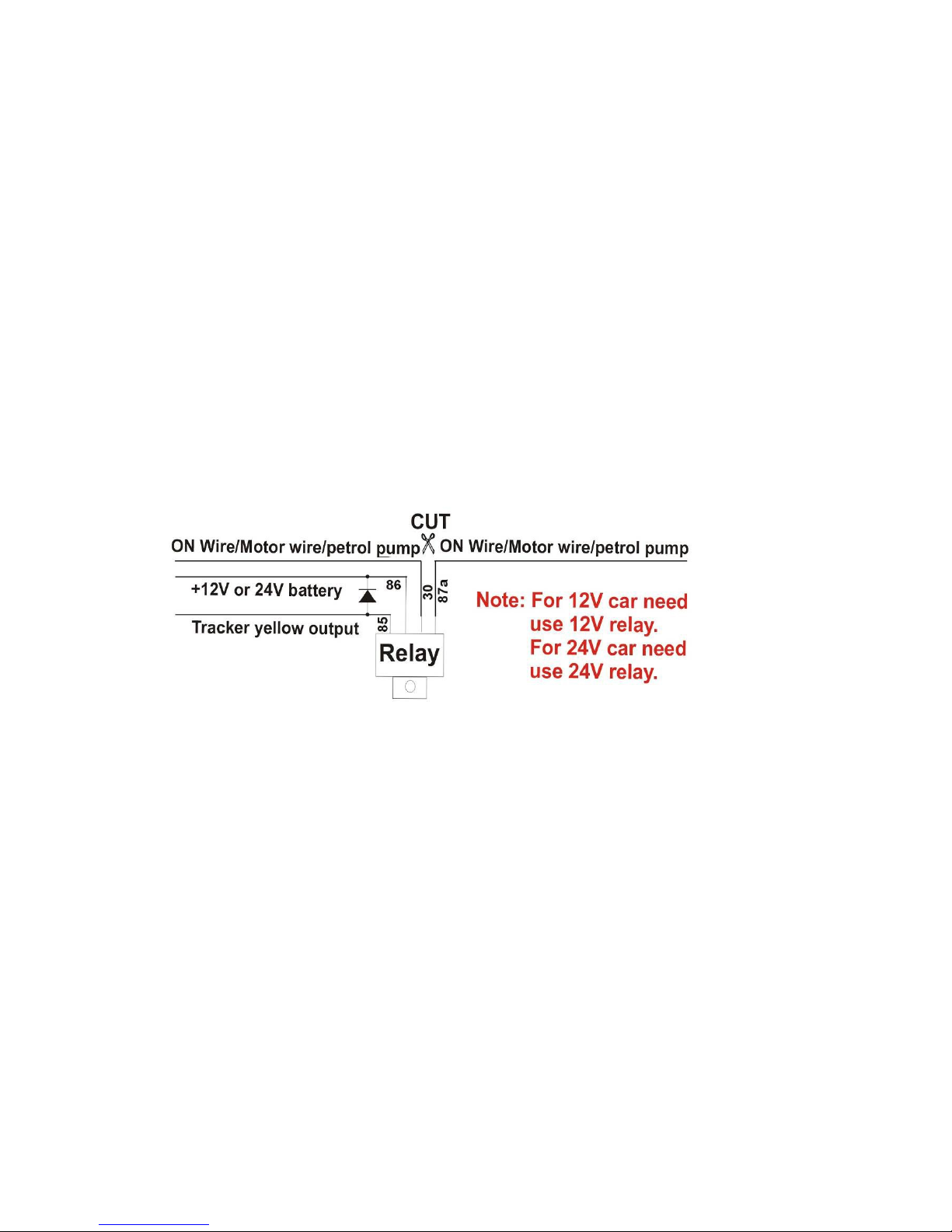
A relay is need to install to turn off the car engine, and also a diode is necessary to add to protect the
tracker driving wire, the diagram is as follow:
Talking to Tracker
Use the preset phone number call the tracker, the tracker will pick up the calling automatically, and
then you can talk to the tracker (only preset phone can call the tracker to monitor the sound). Besides,
the user also can send SMS to request monitoring the tracker. Send SMS “TALK*123456*”, in which,
“TALK” is the fixed command, “123456” is the password, the tracker will call back to the sender
automatically, pick up the calling and then talk to the tracker.
Monitor / Listen Sound Around Tracker
Send SMS “MINITOR*123456” to the tracker to listen sound around the tracker, “MONITOR ” is a
command, “123456” is password, the tracker will call back, answer the call and then you could hear
the sound around the tracker.
“SOS” Emergency
Press the “SOS” button 6 seconds, first the LED will flash fast, then the LED will turn OFF, release
the button, the tracker will send SOS help information to all 3 preset phone.
Page 12
HELP ! ! !
http://www.followmegps.mobi/map.aspx?lat=40.756441&lng=-73.986378&l=en
Battery:91%
If the tracker receive the HELP information, please note that the SOS button must be pressed,
please call the driver to confirm with the user is safe or not or call the police.
The SOS function need installing the external SOS button, install the external SOS button in a
hidden place that driver can press the button.
Instruction List
Function
SMS Instruction
Note
Reply
Note
Set IP address
IP*123456*58.64.1
55.133,8011
Any mobile phone
can set
IP: 58.64.155.133,8011
Reply to operation
phone
Set APN name
APN*123456*apnn
ame
Any mobile phone
can set
APN:apnname
Reply to operation
phone
Set GPRS user
name & password
USERNAME*1234
56*username*pas
sword
Any mobile phone
can set
Username:username,
Password:password
Reply to operation
phone
Check tracker ID
Number
ID*123456
Any mobile phone
can set
ID:CW0810C01234567
Reply to operation
phone
Add phone number
ADDPHONE*1234
56*A*1391234567
8
Any mobile phone
can set
Add Preset Phone OK
Reply to the
operation phone
Delete phone
number
DELETEPHONE*1
23456*A
Any mobile phone
can delete
Delete Preset Phone
OK
Reply to the
operation phone
Check preset phone
number
CHECKPHONE*1
23456
Any mobile phone
can check
A:13912345678;
B:13812345678;
C:13712345678;
Reply to the
operation phone
Change password
CHANGEPASSW
ORD*123456*888
888
Only preset phone
can change
New Password:888888
Reply to operation
preset phone
Check password
CHECKPASSWO
RD
Only preset phone
can check
Password: 888888
Reply to operation
preset phone
Send SMS trigger
map link report
location
LINKLOCATE*123
456
Any mobile phone
can set
Current location map
website link
Reply to operation
phone
Set shock & move
alarm
SHOCKALARM*1
23456
Any mobile phone
can set
Set Shock & Move
Alarm OK
Reply to operation
phone
Page 13

Keep On Line
KEEPONLINE*12
3456
Any mobile phone
can set
Trigger tracker upload
location continuously
Reply to operation
phone
Cancel All Alarm
Setting
CANCELALARM*
123456
Any mobile phone
can set
All Alarm Cancel
Reply to operation
phone
Auto Re-power on
& Reset tracker
RESET*123456
Any mobile phone
can set
Tracker Re-power on
and cancel all alarm
setting
Reply to operation
phone
Request Talking to
Tracker
TALK*123456*
Only preset phone
can set
Pick up the calling and
begin to talk
Reply to operation
phone
Monitor sound
around Tracker
MONITOR*12345
6*
Only preset phone
can set
Pick up the calling and
then monitoring
Reply to operation
phone
Remote Stop
Engine Running
STOPENGINE*12
3456
Only preset phone
can set
Car engine Stop
running
Reply to operation
phone
SOS Emergency
Press SOS button
until the GREEN
LED turn off
HELP + location
information
Send SOS HELP
information to all
preset phone
1.Please add preset phone first then change the password.
2.All the SMS information is in English word, “*” is the star key, “” is not including in the SMS information, it
is just used to indicate the information.
Notes:
1. Please confirm that the SIM card PIN code has been disabled, it means if mobile phone use
this SIM card, it is not necessary to input any password. Otherwise the tracker can not find
GSM network, the Green LED will keep ON .
2. This tracker use 2G GSM network, and it upload tracking only through 2G GPRS, it can not
work in CDMA network or 3G(WCDMA or CDMA2000) network.
3. The antenna of GSM and GPS is external, please note that the antenna install location of the
tracker must can receive the GPS & GSM signal, normally the back of the seat or arm rest
box or under the back window or room on the panel etc. please leave away the tracker from
big metal, and keep away from the magnetic components.
4. The tracker built in high capacity Li battery, recharge one time can use about 1-2 days
(standby mode), also you can connect the tracker to the car battery all the time, this can keep
the tracker has power supply continuously, and the charging circuit will control the
recharging.
5. The tracker built in GSM and GPS module, so please power off the tracker at the special
place that restrict using mobile phone, such as on the plane, etc.
6. The GPS need 10-200 seconds to locate the position, when the GSM signal is weak or the
Page 14

network is very busy, the SMS maybe delay to send by the GSM network, this is normal.
7. The tracking data on our server will keep 3-6 months, the old data will be deleted.
Trouble Shooting
1. The tracker auto power off: please confirm the tracker power supply is good, and the fuse on
the VCC line is good.
2. After power on the tracker, the tracker GREEN LED keep on, and it has not any repose, and
no ring, please confirm the SIM card has been installed properly, the SIM card PIN code is
disable, and the SIM card has enough charge, and the mobile phone can work well in that
place. If the tracker work well the Green LED will flash once every 4 seconds.
3. If the tracker can not upload location to website, please confirm the SIM card has GPRS
function, and has set the APN or GPRS username & password (call the mobile phone hotline
to confirm it is necessary to set these or not). if the tracker do not move, the tracker will not
upload tracking, try moving with the tracker.
4. If the tracker can not send back information by SMS, please confirm the SIM card has ID
caller display function and SMS service function, and please read the SMS information of
the tracker sending back, and check the instruction & password is right or not.
5. When call the tracker, it has ringing, but it will not hang up the calling, please check the
tracker has set the preset phone number, use the preset phone or delete the preset phone
number or let the tracker back to default is OK.
6. Can not login the platform: use SMS to check the ID of the tracker, and try it again, if not
success please contact us.
7. After go out the under ground park, some tracking will lost, the GSM and GPS module will
take a few minutes to receive signal and re-locate, some tracking maybe lost, this is normal.
8. Some time some location point is lost, this is normal, in the transmit process, some point
maybe is lost, but this will not happen very often.
Specification:
GSM Module
SIMCOM 900
GPS Module
Sirf-Star or MTK
GSM Frequency
850/900/1800/1900 MHz
GPS channel
32 channels
GSM / GPS Antenna
Built in
Locate precision
5-20 Meters
GPS Cold Start Time
36 seconds
GPS Hot Start Time
1 second
Page 15

Recharging Current
< 5V/300mA
Standby Current
< 10 mA
Uploading Current
<200mA / 5V
Battery
800mAh
Working Temperature
-200C to +550C
Absolute Temperature
-350C to +700C
Storage Temperature
-400C to +800C
Warranty
This system has been tested before sold. We strongly recommend you to get this system installed by
professional. There is a one-year warranty except the following condition:
1. Installed, fixed, or changed by personally or unprofessional.
2. Warranty will eliminate if the ownership of the tracker has been changed.
3. Parts damaged by man-made.
4. Battery, adapter, wires, etc.
Warning: this device is just a auxiliary product that applying the location of current object, we have not any
responsibility if you have damage or lost in using this tracker.
Customer
Addr
Date
Year month day
Model
G-810
Serial Number
Distributor
Notes: The explanation of this manual is belonged to our company, some small changes may not notice
customer, if you have any problem please contact us, thanks!
Page 16
Website Tracking Platform Operation Guide
This software is web based system, for users to logon with given user name & password to locate the
tracker’s current location, play back the history tracking with specified date & time, remote turn off car engine,
listen the sound in car, and set over speed alarm etc.
This system uses the Google map and support all the explore software, such as Microsoft IE, Google
Chrome, Firefox, Apple Safari, Opera etc. Apps are also available for iOS iPhone & Android App. Please visit
www.geniusgps.com and click the the QR code to download the app & manual user guide. Scan the QR code
on the login page www.geniusgps.com also can download the app & manual.
This device can be used to track cars, company vehicles, buses, taxis, trucks, and other vehicles.
Tracking Platform Operation
Every tracker has a unique user name and password. The default user name is the last 7 digits of the S/N
or ID or IMEI number which is printed on the label that sticks on the back of the tracker or under the battery.
You could also check the tracker ID by sending a SMS (ID*123456 or CHECK*123456) to tracker to check ID
and the default password is the same with user name. For example if the tracker’s ID is: 800201401234567,
then the default user name on the platform of this tracker is: 1234567, and the default platform password
is :1234567.Users can change the password and user information (Such as car number plate numbers and
phone numbers).
Note: In the following words, “Click” means the action of clicking the left button of your mouse once.
Platform Login:
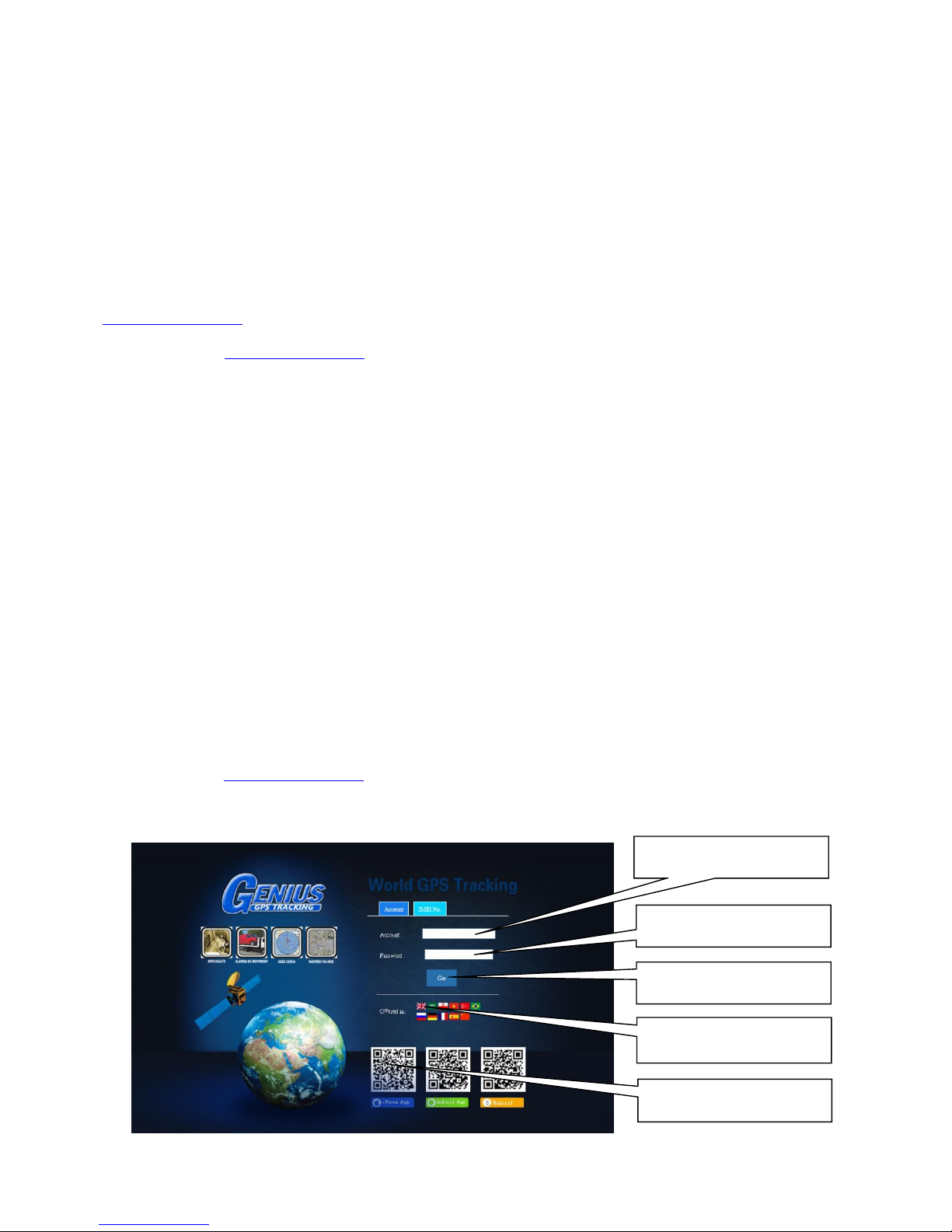
Visit www.geniusgps.com , select the language version, the login page will display as follow, input
the user name & password and then click “Login”:
User password
Click “Login” to login
Select Language
iPhone & Android App
Platform User name
Page 17
Page After Login
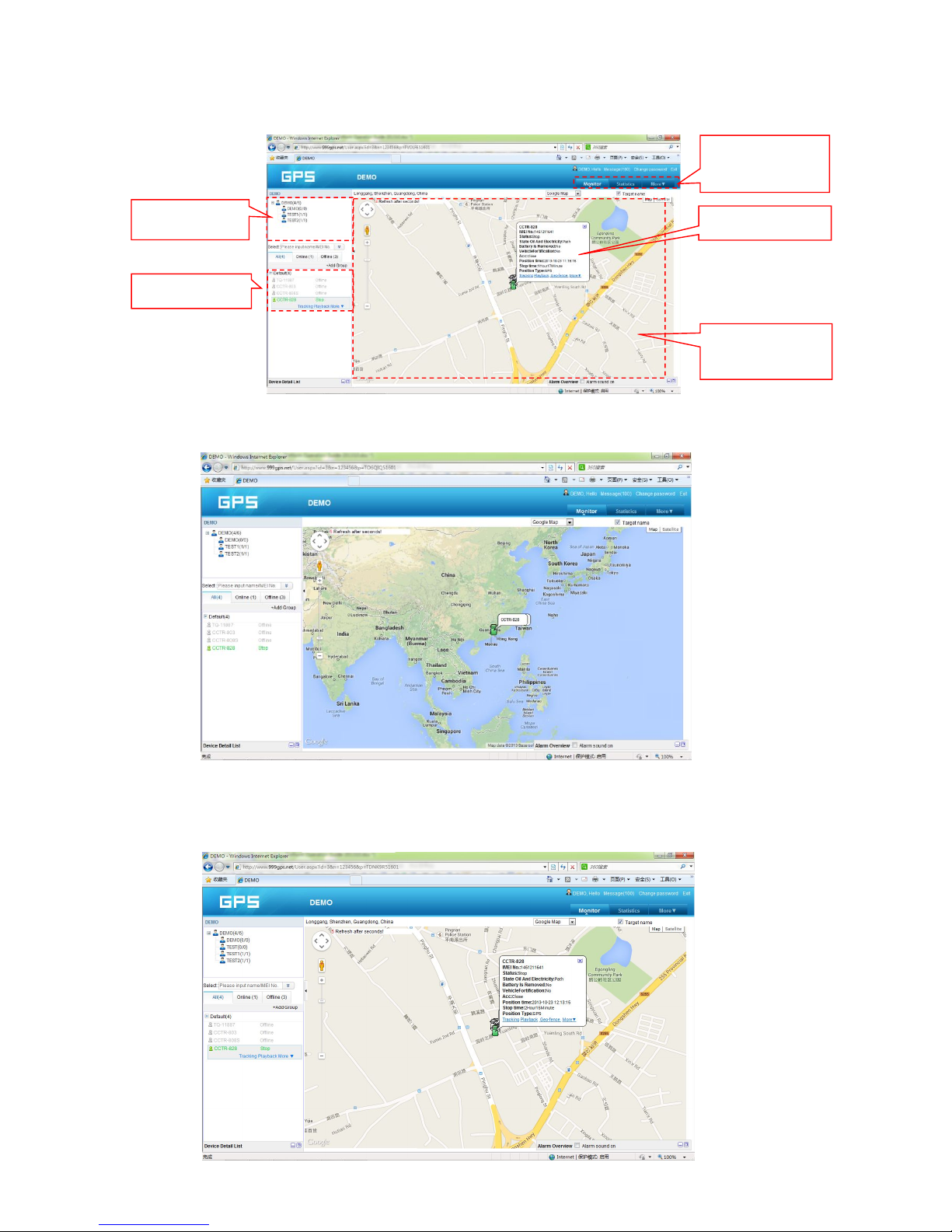
Display current car location:
Every time after you login, the following window will display.
The bottom left window will display the current fleet car name and status (online or offline), click
the car name, the car detail location and status will display.
Running, alarm,
Report
Name & status
Tracking Map
window
Car status window
Fleet and user
Page 18
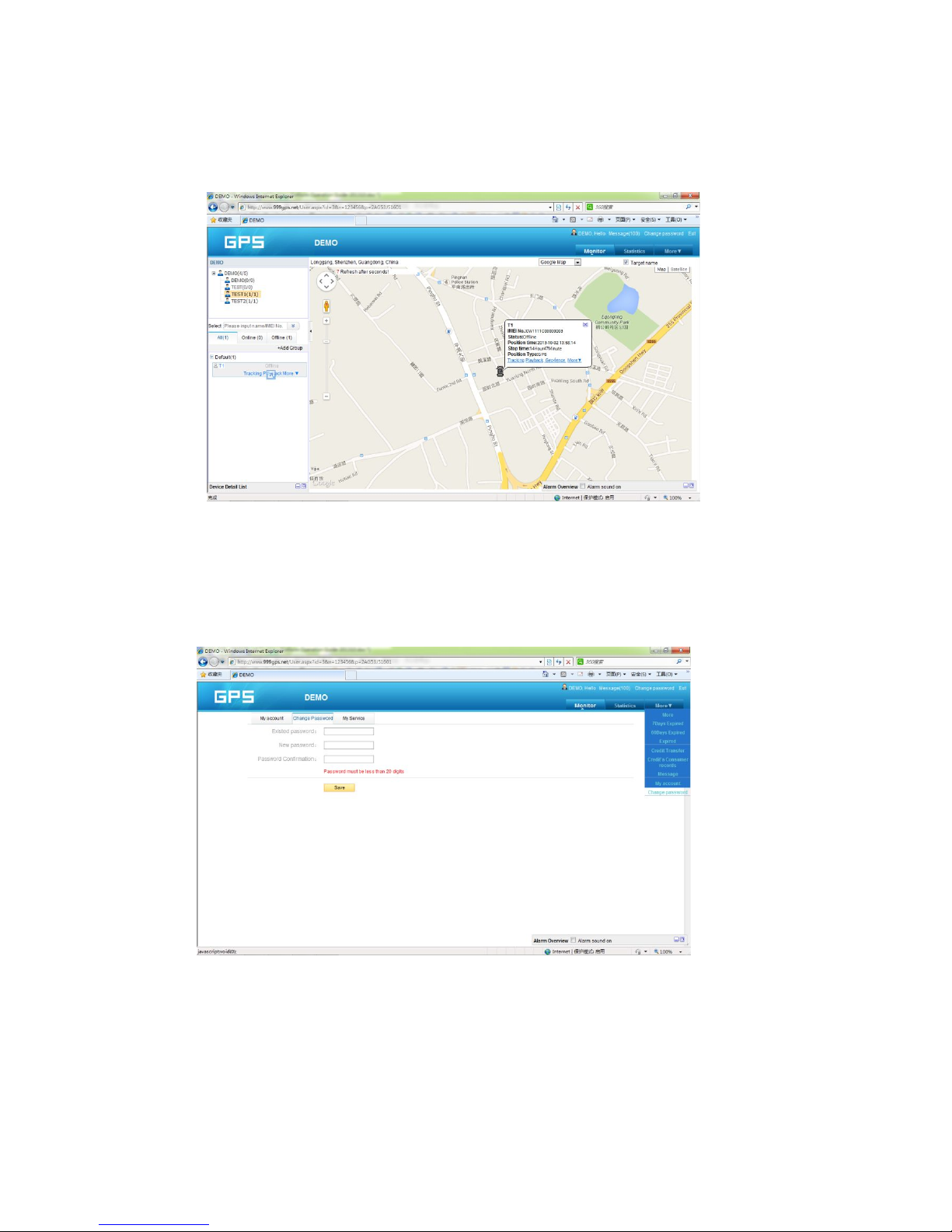
For the sub-fleet car, click the sub-fleet name, the sub-fleet car name will display in the left bottom
window, also click the car name, the car location will display on map (For Example click sub-fleet
TEST1, the car T1 will display, click T1, T1 location will display).
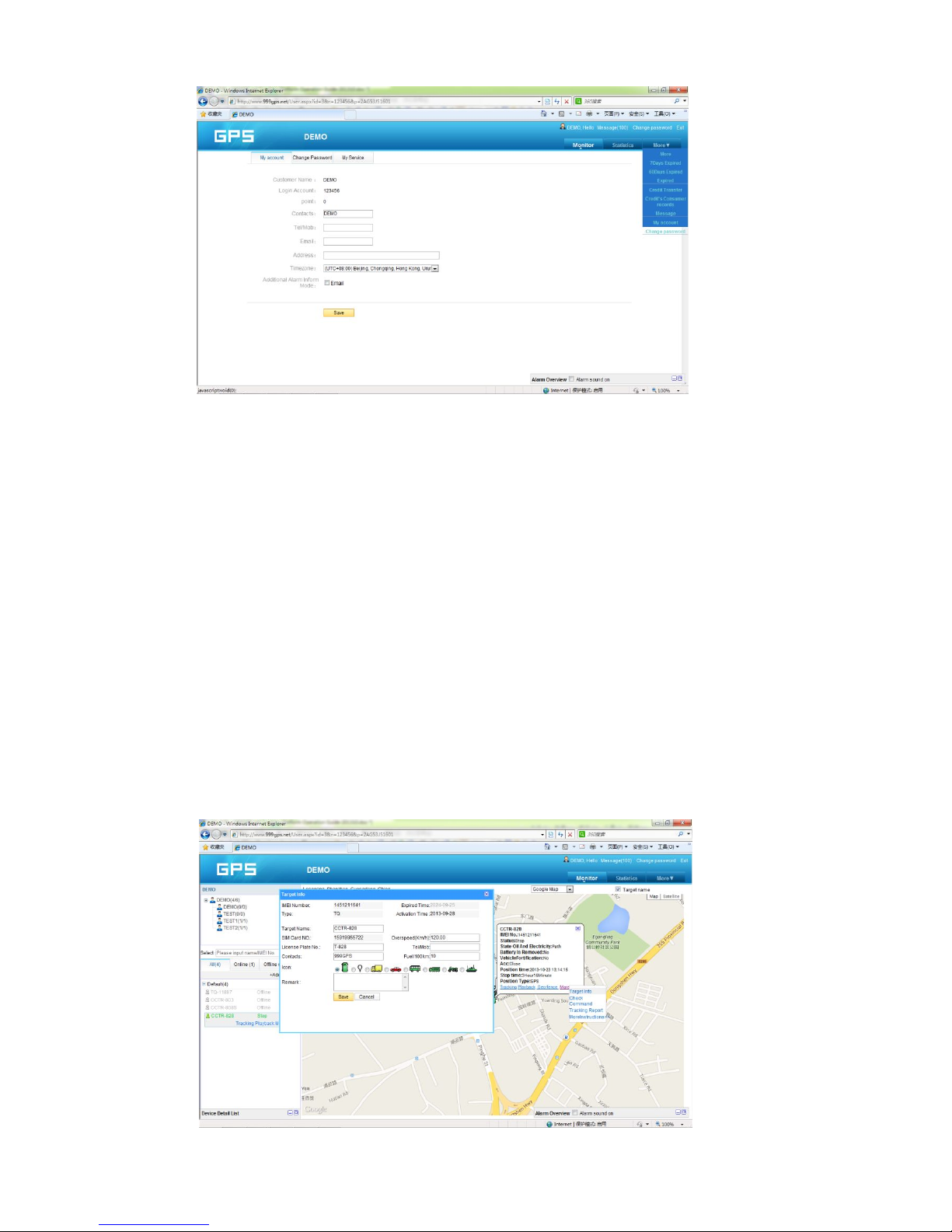
Change User Password:
The default password is same as the user name. We recommend the users to change the
password before using. Click the menu “More” on the top right, and then click “Change password”, the
change password page will display, input the current and new password.
Change User Account Information:
Click the menu “More” on the top right, and then click “My account”. The account information page
will display, please set the user contact information, and select local timezone (upload time is GMT
time, not your local time,after selecting local timezone, it is not necessary to set local time by sending
SMS to tracker again). The contact information is very important.
Page 19
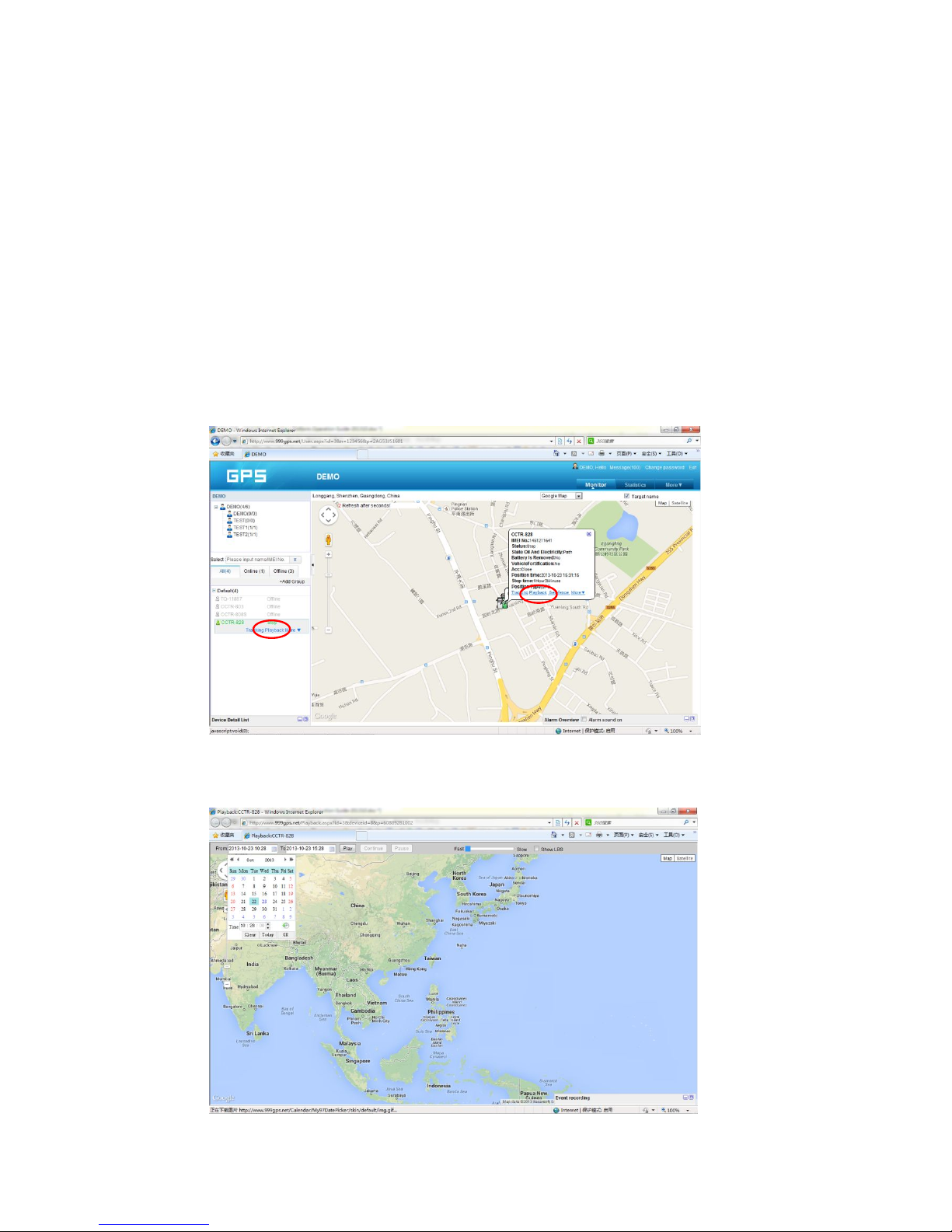
Change target Information (Car Name / SIM card number etc.)
Click the car name in the bottom left window. The pop up windows will display the car status and
click the menu “More” in the pop up window. Another window will pop up, click the “target info”, the
target info window will pop up. The IMEI number / expired date / Type / Active date cam not be
changed by user, the target Name is the car name that display in the bottom left window, SIM card
number is the sim card number in the tracker(this can avoid you forget the sim card number in the
future), License Plate No is the car plate number that can be used to login the platform (Select IMEI or
Car Plate, password is the same), the over speed (Km/h) is the alarm speed, and the Contacts is your
name, and Fuel /100km is the average fuel consume every 100km (used for calculate about how
many fuel will be exhaust), and the display car icon on the map can be selected. Click “Save” to save
the changing of the setting.
Page 20
Car Status:
To save vehicle or object power battery and gprs data, after the object stop moving for 2 minutes,
the tracker will turn off GPS and GPRS, and go to sleep mode. The car status will change to offline
mode, and when the vehicle started moving again, the tracker will turn on the GPS and GPRS to
upload the location to server again. If you need keep the tracker online all the time, please send SMS
to change the setting of the tracker, the detail SMS command please see the tracker manual for
details.
History Track Playback:
Click the car name in the left bottom window, the pop up windows will display the car status, and
click the menu “Playback” in the pop up window or below the car name.
A new playback page will pop up, click the “From” and “To” to select the start and end playback
time, and then Click “OK”.
And then Click “Play”, the system will load the history tracking and playback automatically, you
Page 21
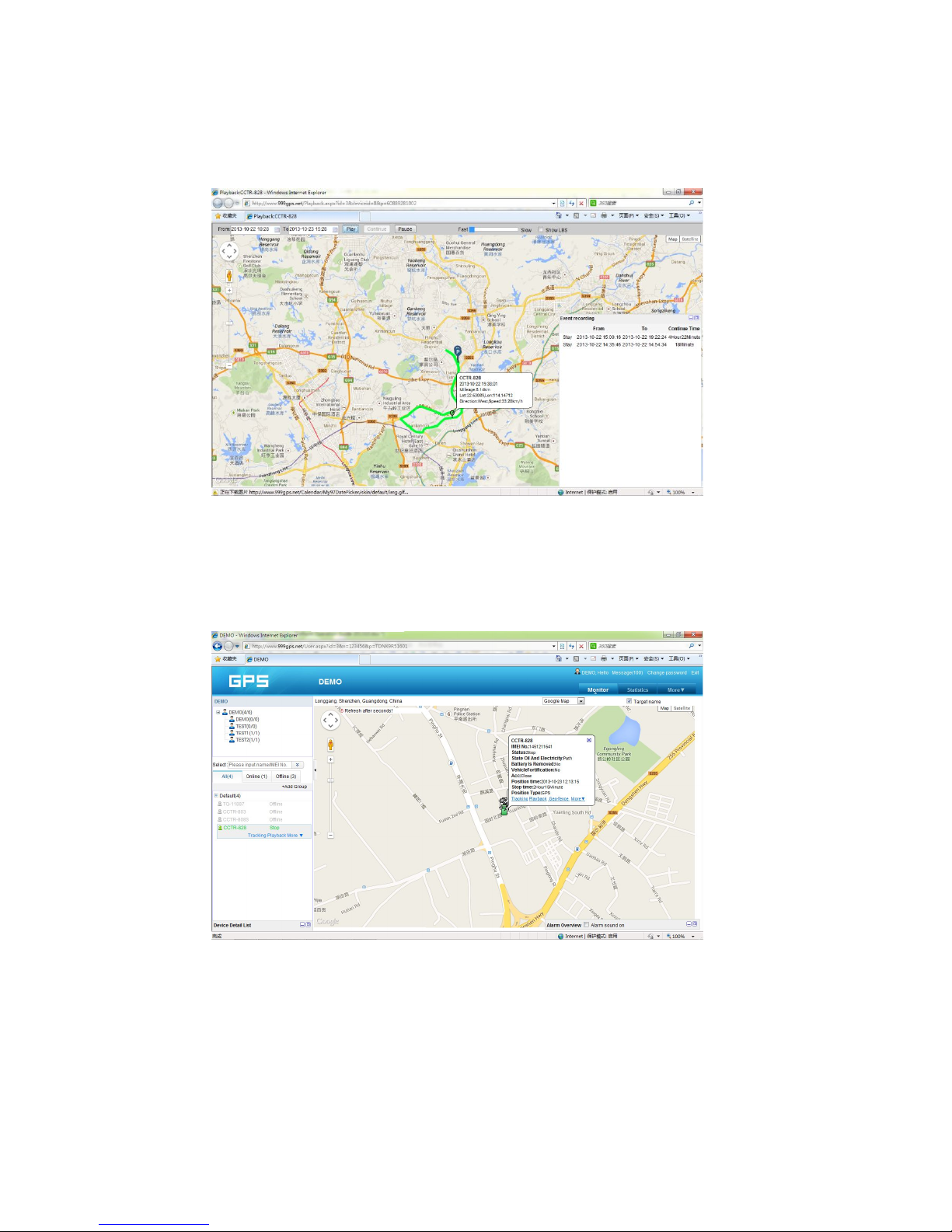
can slide the blue “█” button to slow to make the playback speed slower, and the right bottom window
will display the event recoding (Stop time and period etc.), the server will keep the tracking data for
6-12 months.
Real Time Tracking:
Click the car name, the car’s latest location will display on the map, and every 30 seconds the
location will be updated from the server on the map, it is not necessary to do any operation when
tracking the vehicle on the web, just keep the explorer open.
Set Break Geo-fence Alarm(In out Area Alarm):
Click the car name in the left bottom window, the pop up windows will display the car status, and
click the menu “Geo-fence” in the pop up window or below the car name “More” and “Geo-fence”, the
menu is the same location on the screen with the above, an new “Geo-fence” page will pop up, click
the “Add” menu to define a new geo-fence. Click and hold the mouse button to drag the circle bigger
or smaller, and click and hold the center point of the circle can move the circle to your demand place
Page 22
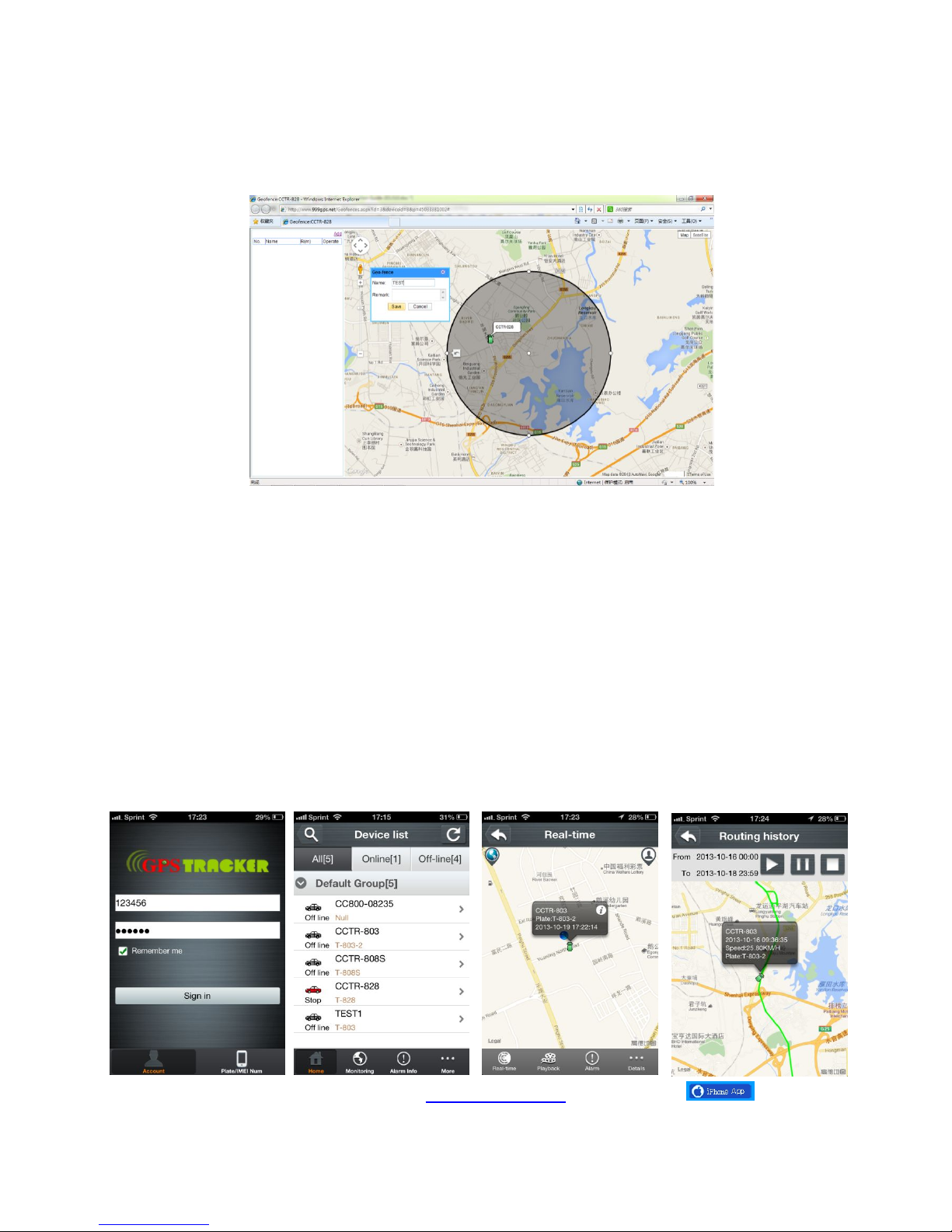
on the map. Give a name of this geo-fence, and click “Save” to save the geo-fence, later when the
object is out of the area, the alarm information will be record in the server, you can check and export
the alarm list any time.
Over Speed Alarm:
The over speed alarm is set in the “target Info”, please see the above to set the speed. the alarm can
be check and export from the “Statistics” menu.
iOS iPhone App Locate:
iPhone & Android App locate will cost GPRS data, Before using mobile phone app to locate, you
need enable GPRS service or enable WLAN and connect to available wifi, if use app under non-wifi
condition, user need pay GPRS data charge of mobile phone, order a GPRS data package can save
money. after using the app, please exit the app to avoid using GPRS data in the back ground.
iPhone App is available for locating car with current location and playing back history back.
Use mobile phone visit website: www.geniusgps.com , click the icon on the login
page, it will link to the apple app store, you can download and install the iPhone software on apple
Page 23
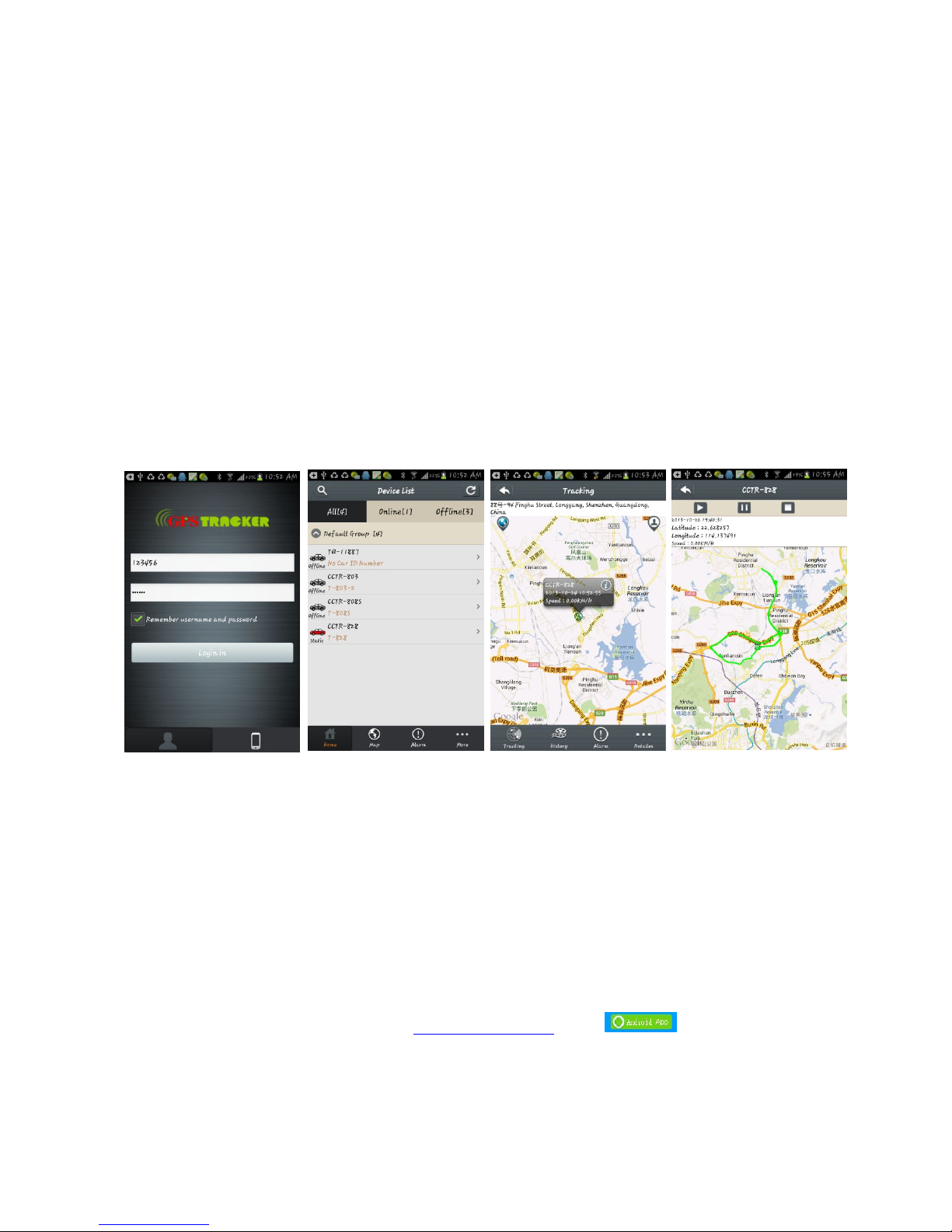
app store, it is free, and it is not necessary to do the IOS Jailbreaking, you just need register an apple
ID with email and verify it on the app store https://appleid.apple.com is OK.
Open app store on iPhone, Search “gpstrack1” app, the above app will display, click the “Get”
and “Install”, and input your apple ID and password, the app will be downloaded and installed on the
iPhone automatically.
Note: before running the GPStrack1 app, the “Location Services” need be enabled, please set as
the following: Setting→Location Services, or: Settings→Privacy→Location Services, Enable the
“Location Services”, and please confirm the the selection of the GPStrack1 list in the program also
have been enabled to “On”.
Android phone App Locate:
Android app is available for locating car with current location and playing back history back.
For Android mobile phone, security setting need change before installation, click menu “Settings
-- Security -- Device administration -- Unknown sources (Allow installation of non-Market apps)”, Click
to select this option (V change to Green ), this means the mobile phone can allow installing the
download apps, after installation, you can change the above setting back to disable status.
Note: before running the GPStrack1 app, the “Location Services” need be enabled, please set as
the following: Setting→Location Services, Enable the “Google location service” and “GPS satellites”
(click the selection frame and appear a green V can enable the selection).
Use mobile phone visit website: www.geniusgps.com , click icon on the login page, it
will download the app, or visit the website with PC, scan the Android App QR code on the login page
with mobile phone, click the website link can download the android app, After downloading, the
system will install the app automatically, Click “Install” to begin the installing, after the installation click
Page 24

“Open” or “Done” is OK. Press the app icon and hold can move the app icon to main screen, and then
later, it is easy to find and run the app.
Some company android system mobile phone, the “GoogleServicesFramework” are removed by
the manufacture from the android system, and the GPStrack1 app will use this service, so this will
make the installation been terminated by the system, so you need download and install the standard
“GoogleServicesFramework” from internet, and update the android os system and re-power on the
mobile phone, and then the GPStrack1 app can be installed on the mobile phone, the detail
information for how to update the android please search on internet.
Trouble Shooting
1. The history tracking data on our server will keep up to 6-12 months, the old data will be
deleted.
2. If the car status is kept offline when the object is moving, and the location did not change,
please confirm the SIM card in the tracker has been enabled GPRS function and has
enough call credit in it, and the APN has been set by your tracker SIM card mobile phone
using guide, and please keep the tracker outside to receive the GPS signal and GSM signal,
if the tracker is moving, it will upload location to server, but if the tracker stop moving, it will
not upload tracking to the server and go to offline status. If the tracker Green LED keep ON,
it means no GSM network, if the Green LED flashes twice, it means GPS signal weak.
3. If the tracker can not reply SMS, please confirm the SIM card in tracker has been enabled
caller ID display & SMS function and have enough money, also please confirm the command
and password is right.
4. The tracker is not online all the time, this is normal, the tracker built in shock sensor to
control GPS and uploading, if the tracker stop moving 2 minutes, the tracker will turn off GPS
and go to standby mode, this can save car battery power & GPRS data charge, if the tracker
begin moving, it will upload location to server immediately, and the status will change to
online immediately.
5. If you forget your login password or user name, or can not login the platform any more,
please confirm your service date is not expired, if still can not login, please contact your
dealer or distributor to reset password or recharging for the platform service.
6. Can not logon the platform, sending SMS (ID*123456 or check# ) to tracker to check
tracker’s ID, the user name is the last 7 digit of the ID, and the password is same with user
name, if still can not logon, please contact dealer or us. For example the ID is : 1451217388,
then the user name is :1217388, and password is : 1217388.
7. In some place, GPS signal & GSM signal maybe not very good, in the transmit process,
Page 25

some tracking point maybe lost, this is normal, but this will not happen very often.
8. The mileage in the vehicle running report is calculated from GPS data, and the precision is
not very high, maybe it has some difference with the mileage meter.
 Loading...