

Page 1
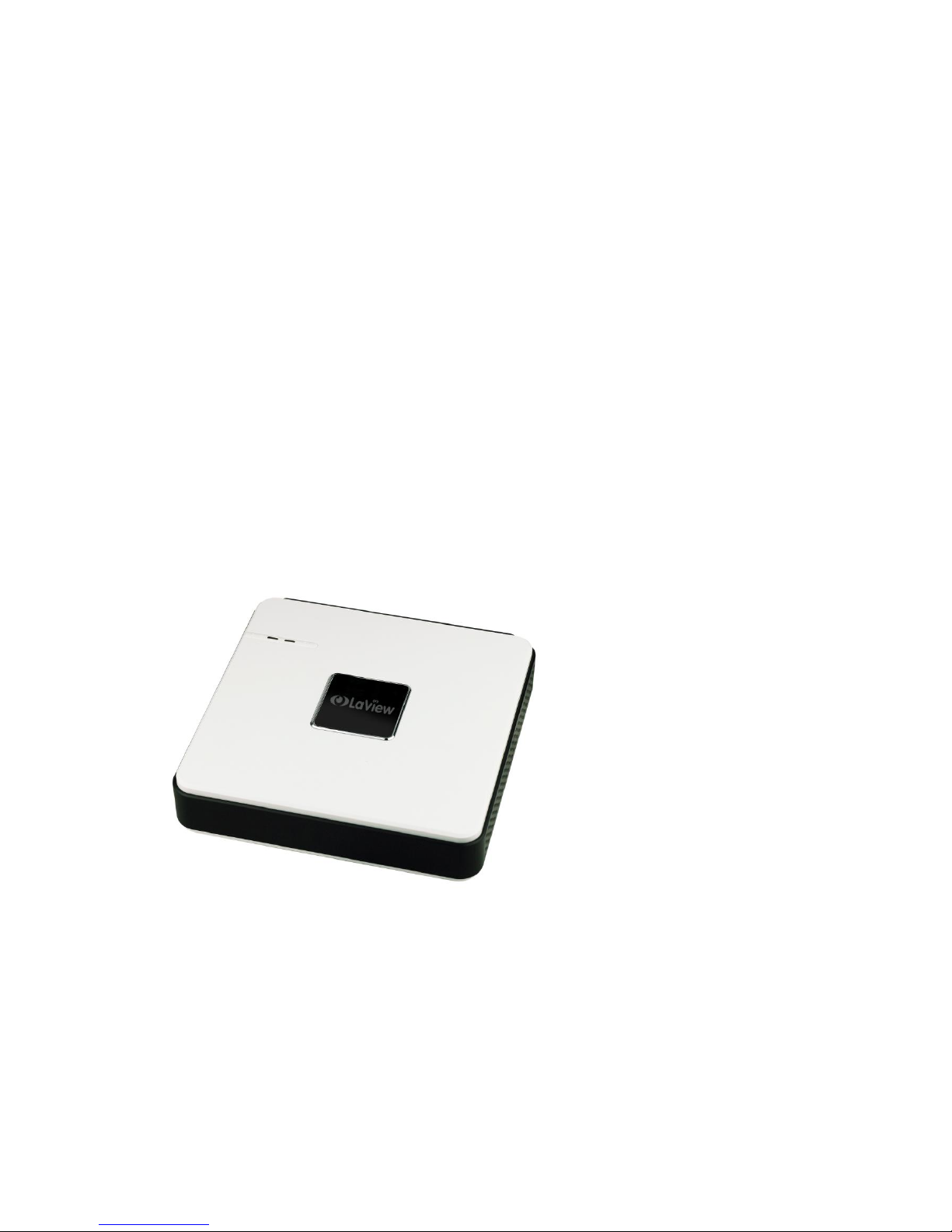
Cube DVR
User Manual
Page 2

User Manual of Cube DVR Series
1
Precautions
Please observe the following precautions, in order to avoid damaging or losing data caused by improper operation.
DVR should work at proper temperature and humidity.
Do not install DVR in humid, dusty or smoky environment.
Require a solid mounting surface for installation.
Do not block any ventilation openings. Install under the manufacturer's instructions.
Do not spill liquid of any kind on device.
Do not put any other equipment on device.
Do not dismantle the device.
Select specified HDD by manufacture.
Page 3

User Manual of Cube DVR Series
2
Note
This user manual is for reference only, subject to available products.
This user manual may contain inaccurate data or printing error.
Updates to the manual or products themselves will occur without further notification.
The products and manual will be updated regularly without further notice
Pictures are not from the same machine, for illustrative purposes only.
Contact the customer service department if you have any question or want the latest software and file.
Page 4

User Manual of Cube DVR Series
3
Content
Chapter 1 Product introduction ................................................................................................................ 4
1.1. Summary ..................................................................................................................................... 5
1.2. Features ....................................................................................................................................... 5
1.3. Installation .................................................................................................................................. 6
1.4. Mouse ......................................................................................................................................... 7
1.5. Put Method ................................................................................................................................. 8
1.6. Power ON/OFF ........................................................................................................................... 9
1.7. Icon ........................................................................................................................................... 10
Chapter 2 Getting Started ........................................................................................................................ 12
2.1. Wizard ...................................................................................................................................... 13
Chapter 3 Operation guide ...................................................................................................................... 14
3.1. Right Button Menu ................................................................................................................... 15
3.2. Main Menu Introduction ........................................................................................................... 18
3.3. Search ....................................................................................................................................... 19
3.4. Configuration ............................................................................................................................ 21
3.5. Storage ...................................................................................................................................... 33
3.6. Output ....................................................................................................................................... 43
3.7. Maintain .................................................................................................................................... 45
3.8. Shutdown .................................................................................................................................. 47
Chapter 4 Web & Client .......................................................................................................................... 48
4.1. WEB Operation ........................................................................................................................ 49
4.2. Client Operation ....................................................................................................................... 55
Chapter 5 Function ................................................................................................................................... 56
5.1. DDNS Function ........................................................................................................................ 57
5.2. Port Mapping ............................................................................................................................ 59
5.3. NTP Function ........................................................................................................................... 61
5.4. Voice Intercom ......................................................................................................................... 62
5.5. HDD Redundancy ..................................................................................................................... 62
5.6. HDD S.M.A.R.T ....................................................................................................................... 63
Chapter 6 Appendix .................................................................................................................................. 66
6.1. TERMS ..................................................................................................................................... 67
6.2. HDD Capacity Calculation ....................................................................................................... 68
6.3. Common Faults ......................................................................................................................... 70
Page 5

User Manual of Cube DVR Series
4
Chapter 1 Product introduction
Page 6

User Manual of Cube DVR Series
5
1.1. Summary
Our Embedded Digital Video Recorder is an excellent digital surveillance product which adopts H.264 video compression, hard disk
recording, TCP/IP transmission, and a Linux based OS in addition to some of the more advanced technologies in the information
technology industry. This enables a more stable, reliable and high picture quality.
These products support synchronized video and audio recording, playback, and monitoring. This series also supports network based
system control, as well as excellent network streaming capabilities.
1.2. Features
Live View
CVBS interface, TV, VGA/HDMI synchronous output.
Compression
H.264 video compression, G.711 audio compression, supports high definition, low bit-rate video coding and storage.
Recoding
Recording modes include manual, time, alarm, motion detection, etc.; Support SATA HDD and local disk S.M.A.R.T. technology,
Support USB backup and internet backup.
Playback
Playback search by various conditions, local and network playback; support multiple channel simultaneous playback , support fast,
slow, rewind and frame mode; support exact time playback.
Camera Control and Alarm
Remote camera control, Multi-channel alarm input interface for connecting various types alarm equipment; Motion detection alarm,
video loss alarm, masking alarm; Multi-channel alarm output, alarm linkage and on-site lighting control.
Communication Interface
USB 2.0 high speed interface connecting various backup devices; Standard Ethernet interface, work under various networks.
Network Protocol
Support TCP / IP, UDP, RTP / RTSP, DHCP, PPPoE, DDNS, NTP etc.; support network real-time live view, recording, playback,
control; built-in WEB Server, IE browser for direct access.
Operation Mode
Support the front panel, remote controls, mouse and so on many kinds of operating mode; With simple, intuitive graphical; With
simple, intuitive graphical interface.
Page 7
User Manual of Cube DVR Series
6
1.3. Installation
1.3.1. Check DVR and Accessories
Please carefully check the contents as packing list. If any of the items are missing, please contact with your dealer.
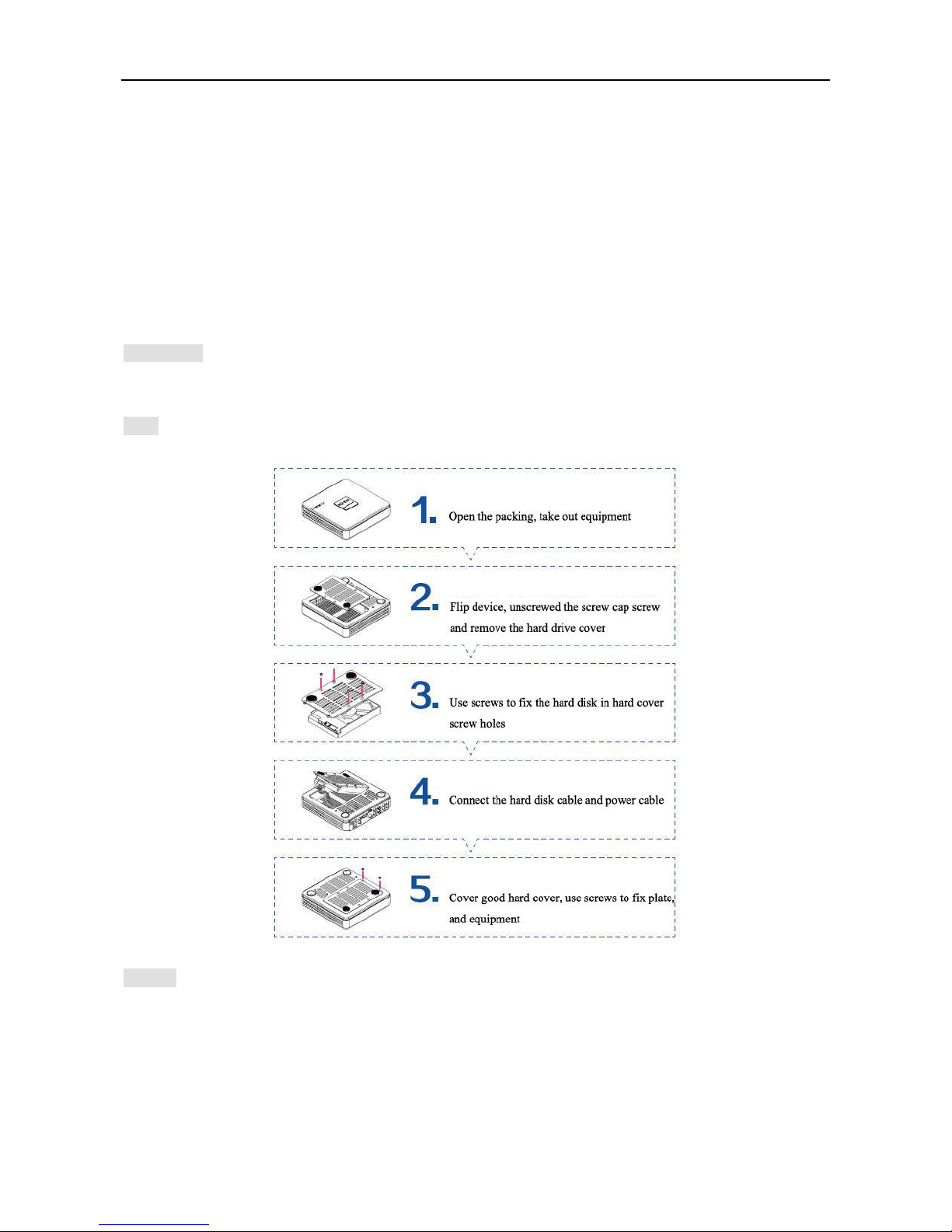
1.3.2. HDD Installation
Preparation
Prepare a Cross Screwdriver.
Steps
Caution
Only use HDD specified by the manufacturer.
HDD will be formatted automatically during startup, it may cause data loss.
Recording duration is decided by HDD capability and DVR parameters (recording setup, encoding setup).
Page 8

User Manual of Cube DVR Series
7
1.3.3. Wiring Installation
Preparing for Installation
Camera, displayer, AV cable, cable, mouse, other kind‟s cables.
Steps
DVR in a horizontal position, connect camera to video input interface in back panel.
Connect video output to the displayer.
Connect cable to RJ45 interface when access network.
Mouse should be USB interface type, front or back panel USB interface both work.
Power supply.
Caution
For an external alarm device or PTZ, please refer to the relevant instructions.
DVR power lines should be under all lines connected correctly.
1.4. Mouse
In addition to front panel keys and remote control menu, the user can use mouse for menu functions. Insert mouse with USB interface
into machine panel.
Click Left Button
If the user does not log in, password box will pop up first; click the left mouse button to enter the main menu when real-time
monitoring.
Left click mouse the Options icon enter the menu.
Exact Instructions on control
Change the state of check box and dynamic detection block.
Click the combo box drop-down list will pop up.
Double Click Left Button
Select and confirm or open, for example, double-click playback video.
Under multi-screen double click one channel can make the picture full screen; double-click again to return to the previous
multi-screen.
Click Right Button
Pop-up context menu under monitor screen
Page 9

User Manual of Cube DVR Series
8
Exit without saving under menu interface.
Turning Wheel
Increase or decrease value when fill digital box Switch combo box options.
Flip up and down for list box.
Mouse Move
Select controls in current coordinates to move.
Mouse Drag
Select motion detection area.
Set up regional coverage area.
1.5. Put Method
In the input box, choose numbers, symbols, case in English input. Click left mouse button to select value; ←means backspace, _
means a space.
Letter Input Interface
Figure1.1 Front Panel
Number Input Interface
Figure1.2 Number Input Interface
Page 10
User Manual of Cube DVR Series
9
1.6. Power ON/OFF
1.6.1. Power On
DVR installed correctly, switch on with power light is on, DVR will boot up automatically. Different model have different boot up
status, please refer to the Front-panel Introduction.
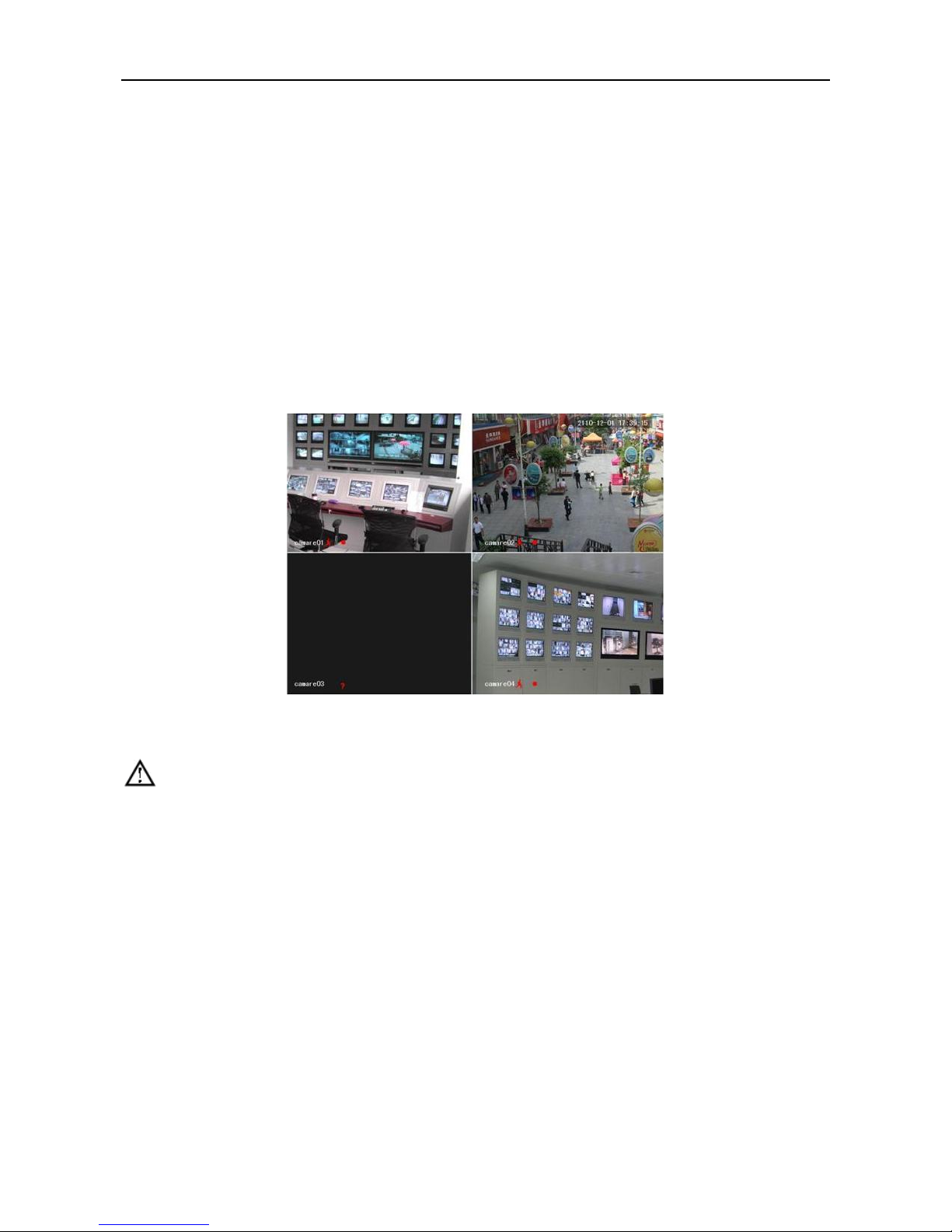
DVR will detect the hardware when power on, the process will last 20 seconds more or less. After the detection, DVR make a
“Buzzing” sound and enter into a multi-screen live view, user can operate now. Please refer to XXX. Main Menu Introduction and
Other Introduction.
If recording time contains power up time, DVR will automatically start timing recording when power on.
Figure1.3 Diagram
Note: Power supply has to match with DVR, any other substitutes are not allowed.
1.6.2. Power OFF
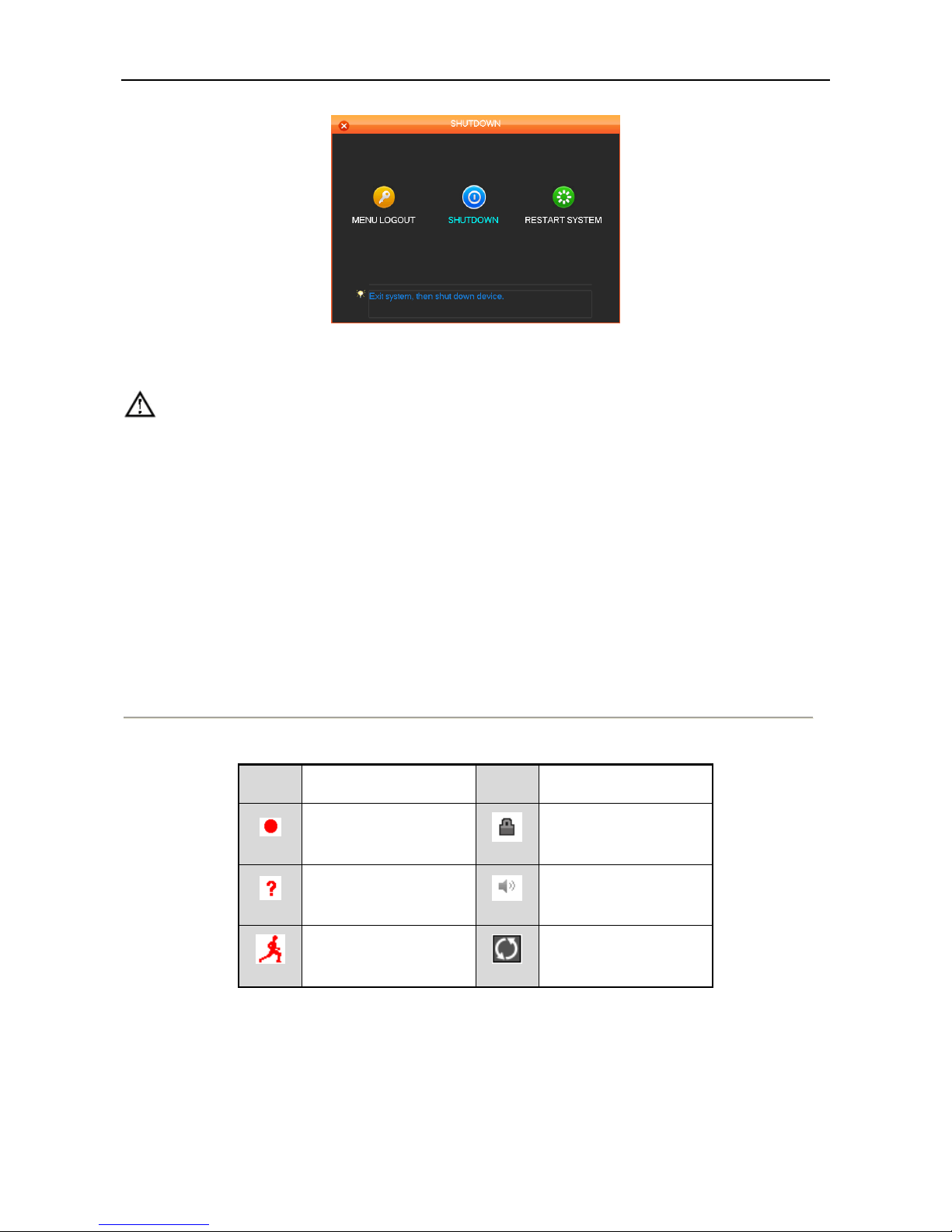
Hold down on-off key to turn off device.
【Main Menu】→【Power off】→【Power off】.
Page 11
User Manual of Cube DVR Series
10
Figure1.4 Shutdown
Note: turn off device and switch off power when changing HDD.
1.6.3. Outage Recovery
Reboot after an outage or forceful shutdown, DVR will save the record before outage and return to normal operation mode.
1.7. Icon
1.7.1. Status Icons
Description of the status Icon
Table 1.1 Description of the Soft Keyboard Icons
Icons
Description
Icons
Description
Record
Channel lock
Video loss
Adjust the local audio output
Motion detection
Allows screen to switch
polling
Page 12

User Manual of Cube DVR Series
11
1.7.2. Operation Icon
Description of the operation Icon as below
Table 1.2 Description of the Soft Keyboard Icons
Icons
Description
Icons
Description
Not Selected;
Save parameters
Selected
Restore factory settings, return to the last set
of parameters after the modified parameters
Down Menu
Apply current set to the system
Confirm revise/get into menu
Copy current set to other channels
Cancel revise /cancel get into menu
Enter the configuration menu
Set parameters
Config alarm, video detection trigger‟s
processing
Live View
Power on DVR and entry into live view mode: there are date, time, channel names icons which indicate recording and alarm status
display on screen.
Switch display screens by the front panel, remote control or mouse control.
When enable the screen message for external alarm, video loss, masking, motion detection, network and IP conflict alarm, the below
interface would popup when those alarm occur. Shows as:
Figure1.5 Alarm Status
Page 13

User Manual of Cube DVR Series
12
Chapter 2 Getting Started
Page 14
User Manual of Cube DVR Series
13
2.1. Wizard
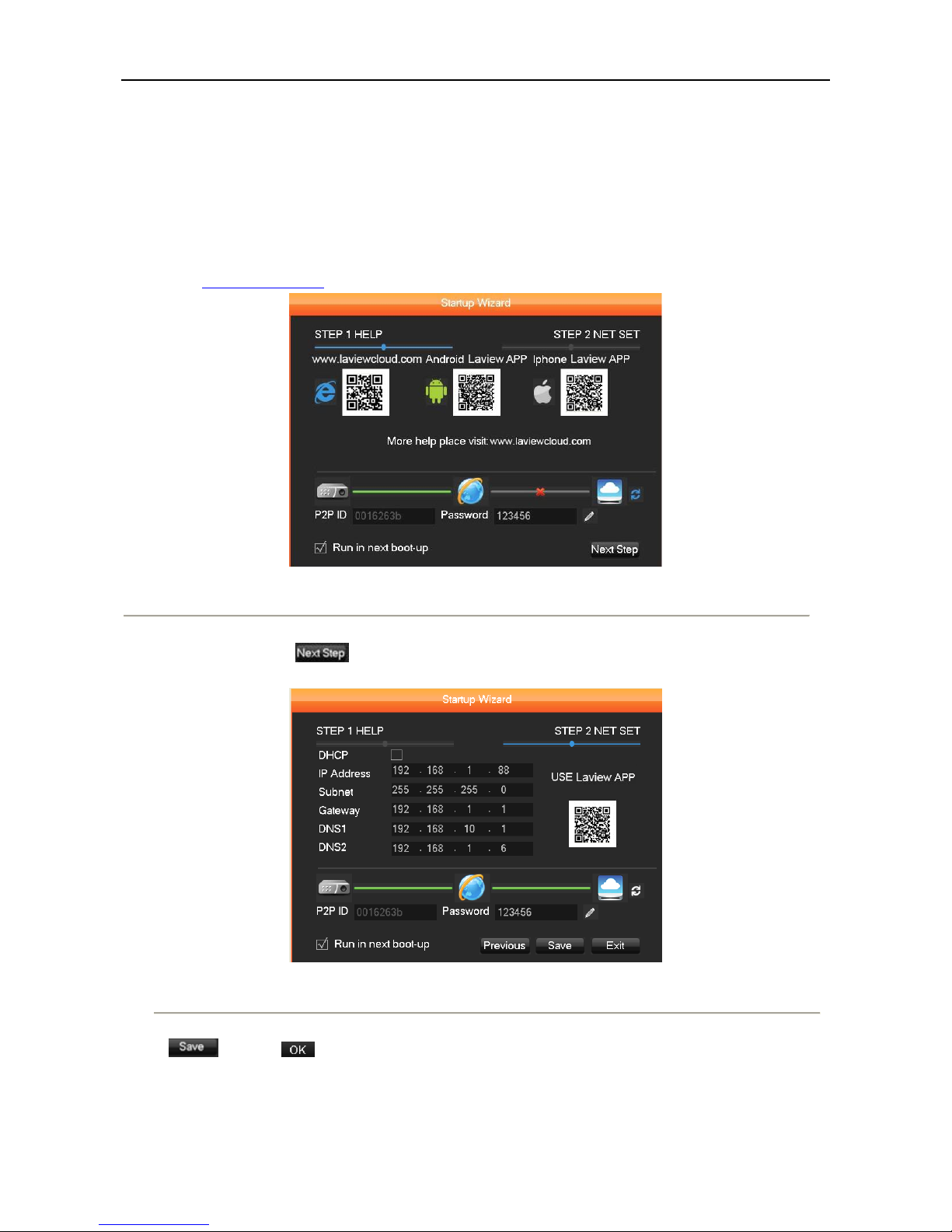
By default, the Setup Wizard starts once the device has loaded, as shown in Figure 2.1.
Steps:
1. Help: Laview app QR code and cloud server address are list as below. For more information please visit
www.laviewcloud.com .
Figure 2. 1 Start Wizard Interface
2. After the step 1, click which takes you to the Network Start Wizard window, as shown in Figure 2.2.
Make sure you network settings correct and can connect to cloud server
Figure 2. 2 Network Configuration
Figure 5.1
3. and Click to complete the start wizard settings.
Page 15

User Manual of Cube DVR Series
14
Chapter 3 Operation guide
Page 16
User Manual of Cube DVR Series
15
3.1. Right Button Menu
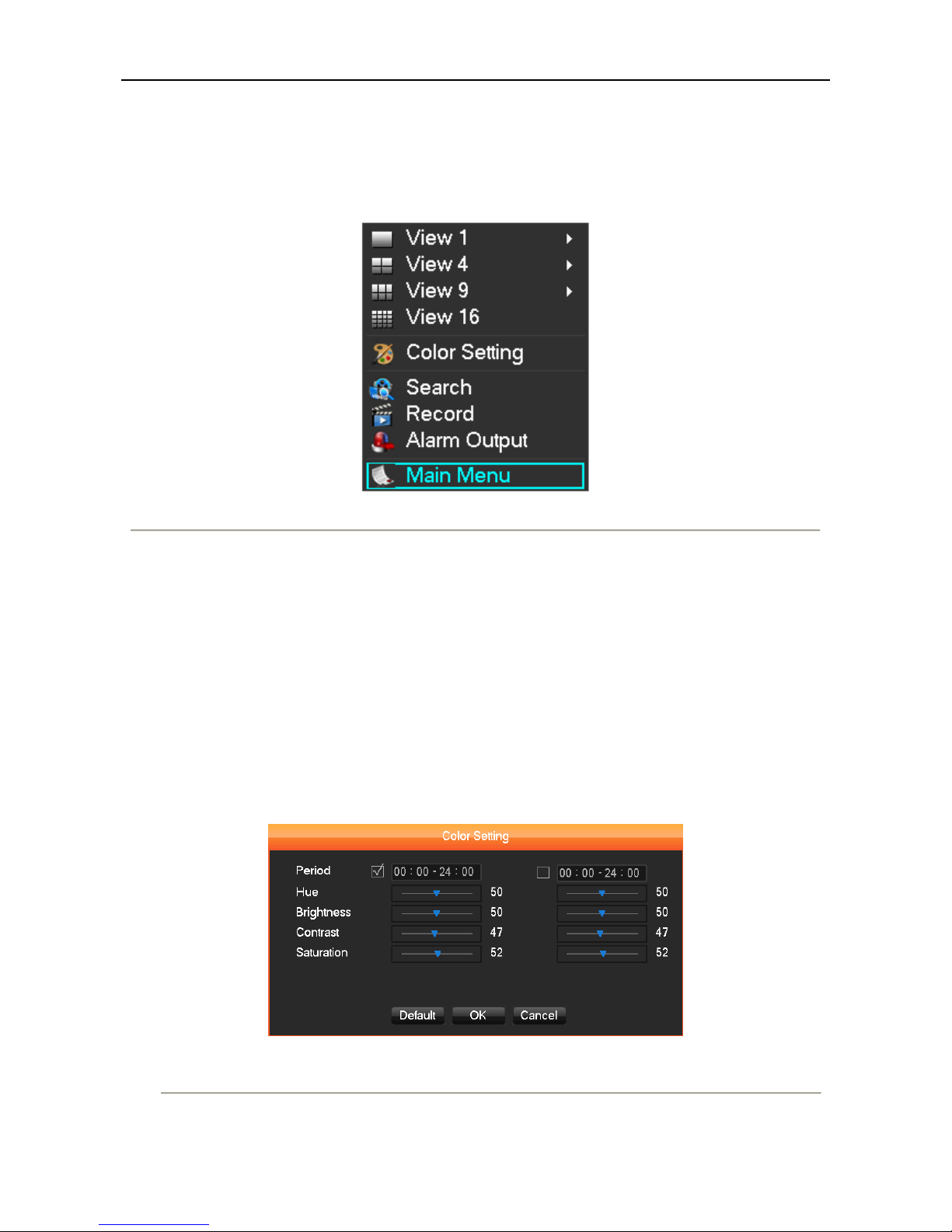
Click the right mouse button after booting into the real-time browser interface, action menu pop-up, shows as
Figure 3.1 Right Button Menu
3.1.1. Screen Switching
Max 16 channel in one screen, user can choose single, four, nine and sixteen channel.
3.1.3. Image
Adjust the specified screen (single screen) image color hue, brightness, contrast, saturation, gain and white-level parameters set two
time periods according to the local environment difference between day and night for each adjustment period set, the device will
automatically switch to the best video quality . As shown in.
Figure 3.2 Color Setting
Page 17
User Manual of Cube DVR Series
16
【Period】 two periods can be set according to ambient light during the day and night; device will automatically switch configuration
time. Need to select the Enable box.
【Hue】 Adjust according to image color cast
【Brightness】 Visual image brightness, according to the environment, reduces or increases the brightness of the image brightness to
make the image relatively clear.
【Contrast】 Adjust image of black and white in proportion, the greater ratio, the brighter image.
【Saturation】 Image color purity, the greater value, the more colorful images.
【Gain】 Enlarge the image signal to improve signal quality.
【White Level】 Change the white level reference value, to improve the brightness of the image display.
Note: Different mode different function
3.1.4. Recording Search
Refer to 4.3 recording search.
3.1.5. Manual Recording
Remark: manual user must have "RECORD" right
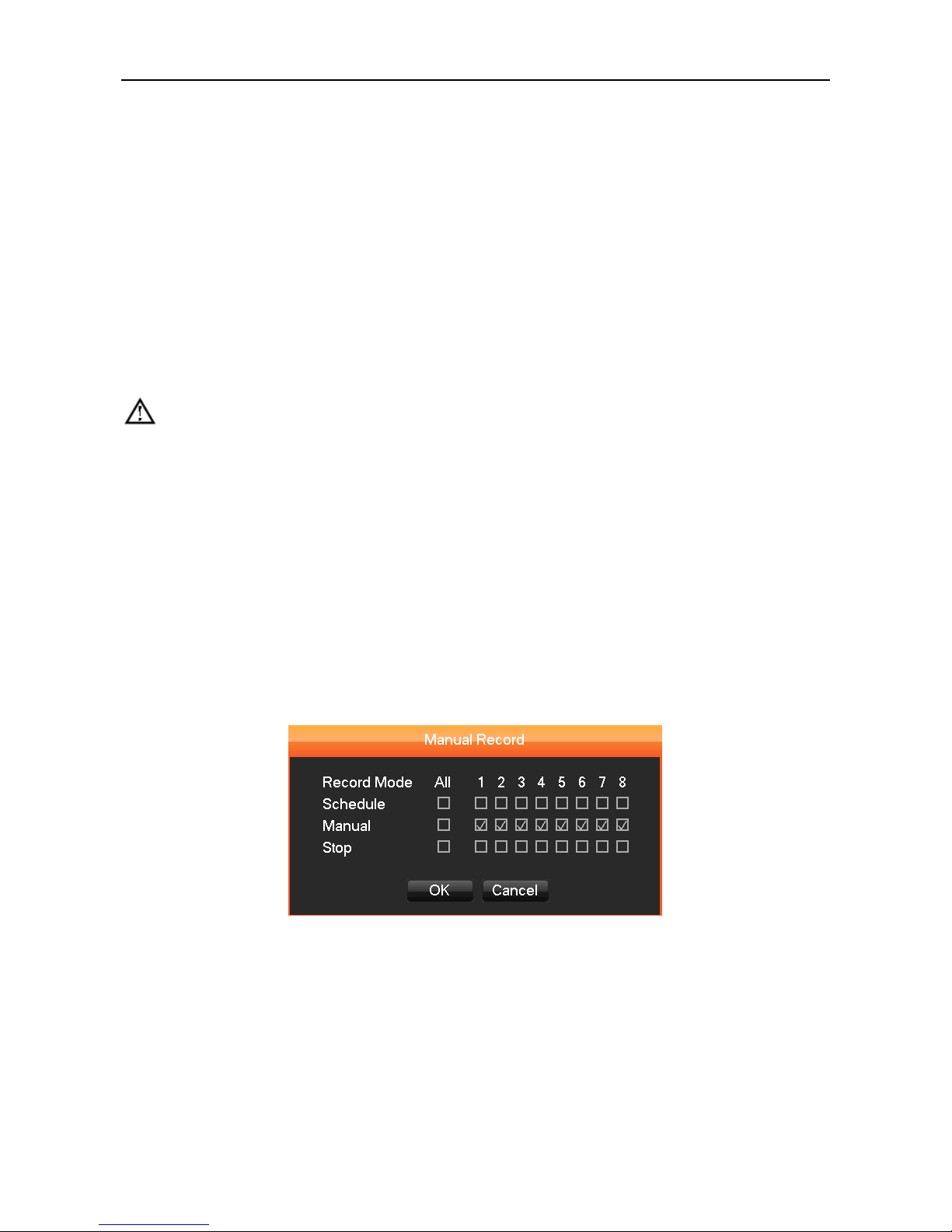
In live view screen, click on 【Manual Record】, or press the 【video】 key on remote control into manual recording interface, as
shown in.
Figure 3.3 Manual Record
【Manual】 The highest priority, no matter what the current status of each channel, the corresponding channels will make common
recording when press "Manual" button;
【Schedule】 Record according to recording type in recoding set. (Common motion Detection and alarm);
【Stop】 Stop all channel recording.
Page 18
User Manual of Cube DVR Series
17
To change record status of one channel, firstly check the recording status of the channel is selected non-selected (non-selected
indicates that the channel is not recording; selected indicates the channel in recording mode).Then use mouse to click, or use【←】or
【→】arrow keys move the active box to the channel, then use 【↑】or【↓】arrow keys or corresponding number key to switch the
channel recording status.
Note: All selected can change record status for all channels/
3.1.6. Alarm Output
Refer to chapter 4.6.2 alarm output.
3.1.7. Main Menu
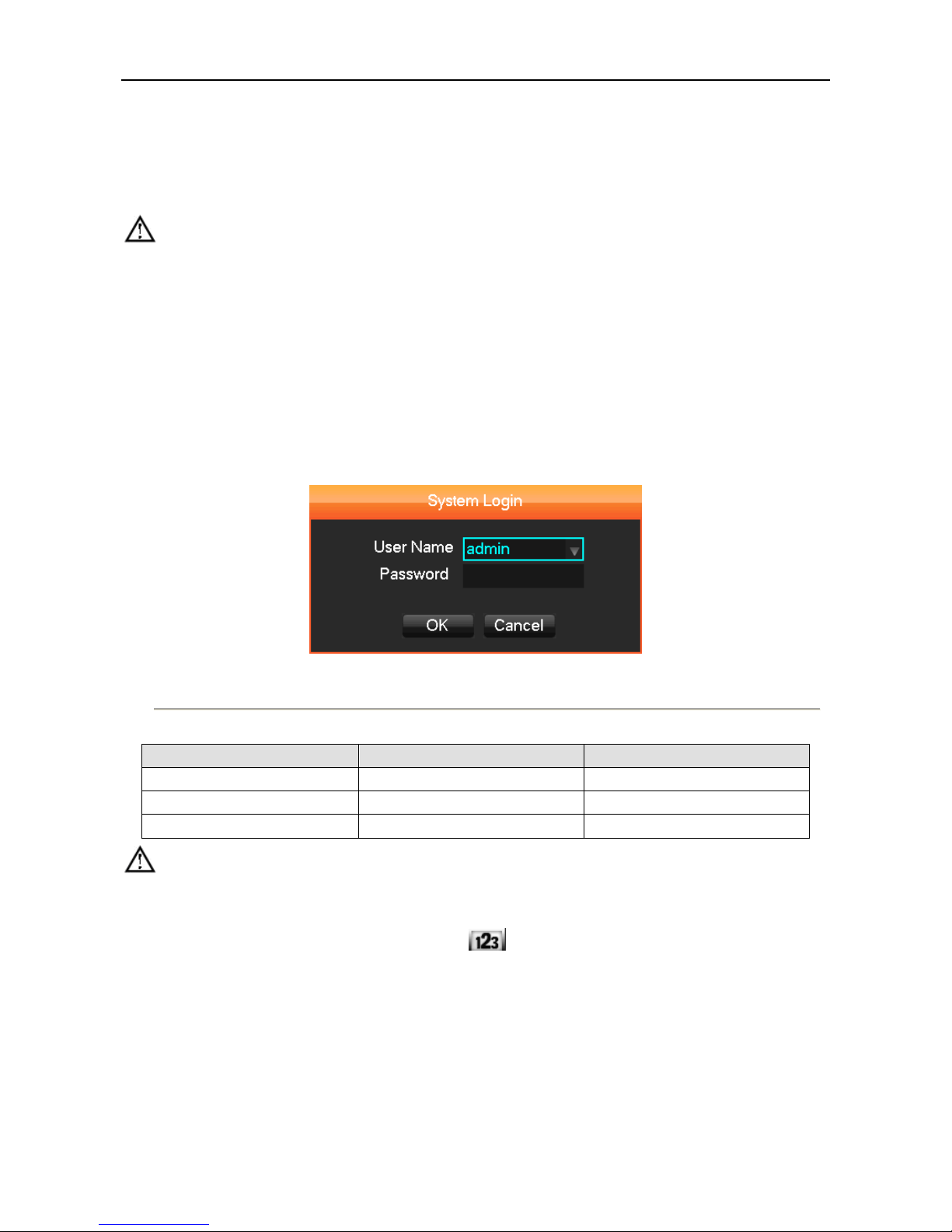
Click the 【Main Menu】, input user name and password, click【OK】to enter the system menu. As shown in.
Figure 3.4 System Login
Table 3.1 Default Users
User Type
User Name
Password
Administrator
Admin
123456
User
User
123456
Hidden
Default
Default
Note: Password security: occur alarm after three time’s wrong input and system lockout in 30 minutes after 5 unsuccessful
login. For security consideration, please modify the default password. For information on how to add groups, users and modify users
information, please refer chapter 4.4.5 Uses Management, Click to toggle the character input method in mouse mode.
Page 19
User Manual of Cube DVR Series
18
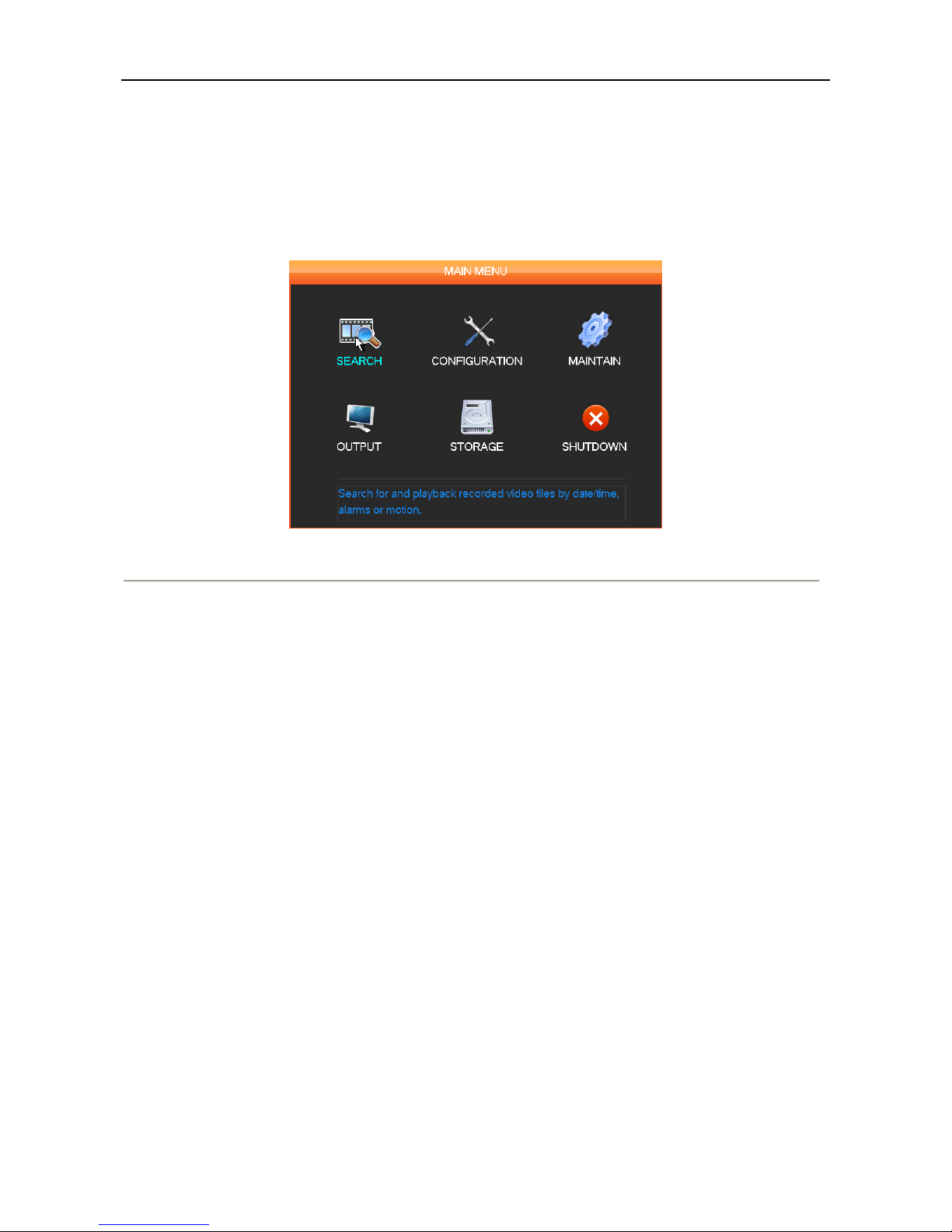
3.2. Main Menu Introduction
The main menu as shown, there are search, configuration, storage, output, maintain and shutdown.
Figure 3.5 Main Menu
【Search】 Search recoding by type, channel, time and playback.
【Configuration】 recording, motion detection, abnormal, alarm, system, network and user management configurations.
【Storage】 HDD management and backup management.
【Output】 PTZ, alarm output, serial and output mode configuration.
【Maintain】 to display the system log information, version information, stream statistics, and online user and set the factory default,
automatic maintenance.
【Shutdown】 Log off the user menu, turn off the machine, restart the system, and switch user and other operations.
Page 20
User Manual of Cube DVR Series
19
3.3. Search
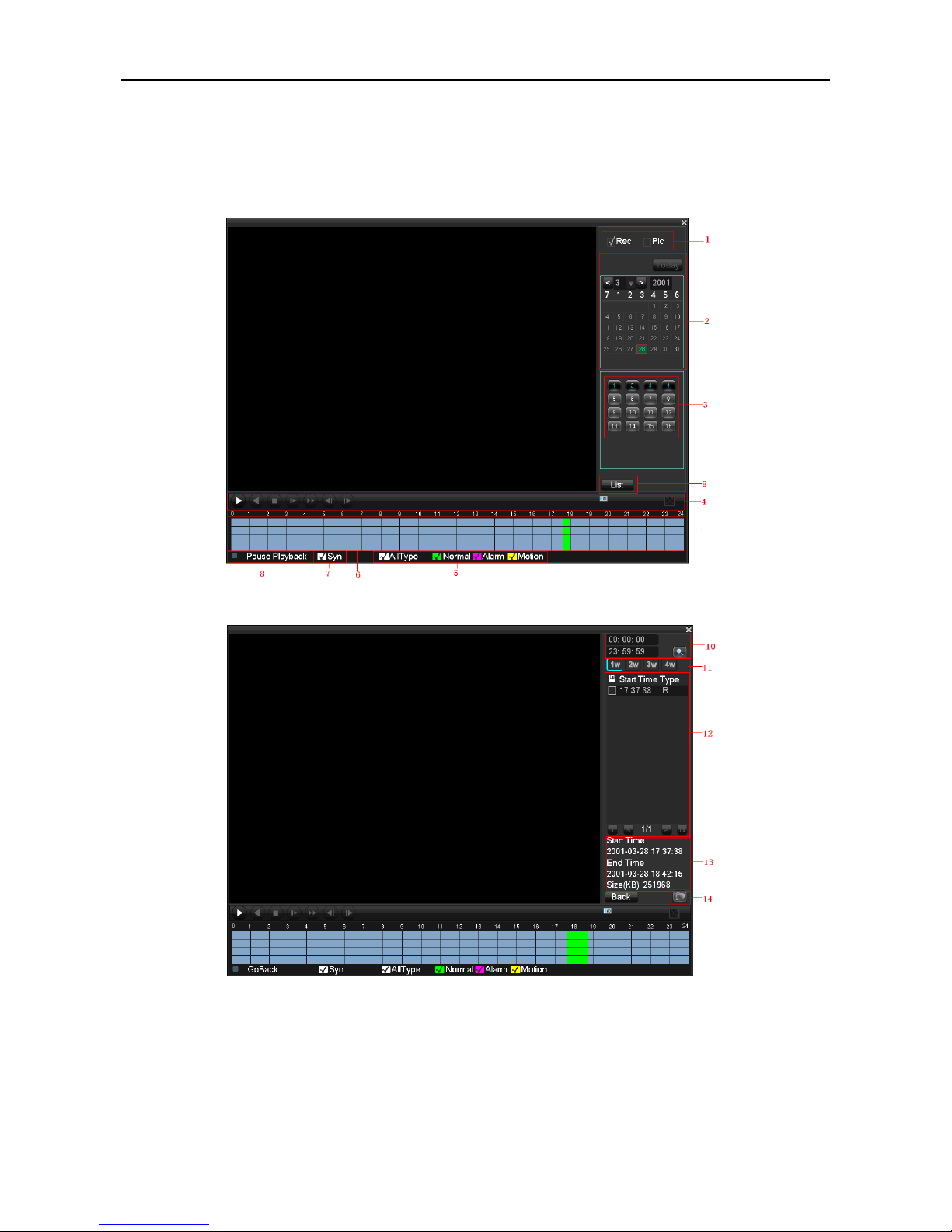
In real-time monitoring screen, click the right mouse button, click 【search】, or enter video playback via main menu interface, as
shown in.
Figure 3.6 Search
Figure 3.7 Search
Page 21
User Manual of Cube DVR Series
20
Table 3.2 Description of Search
Index
Name
Description
1
Record
Record and Picture to choice.
2
Calendar
Select record search day
3
Channel
Choose searched channel
4
Play
Playback control: stop/play, pause, fast, slow, previous/next frame in pause.
5
Recoding mode
Choose searched recording mode, including whole, outside alarm, motive detection, whole alarm
recording.
6
Time bar
Green means Regular record; Red means alarm record; Yellow means MD record.
7
Syn
Implement each video playback channel in the process of playback time synchronization and
consistency of the operation.
8
Status
Display status information of function buttons, including fast forward, slow speed, etc.
9
List
Choose the start time, channel, and click “search” will display results in the list.
10
Time
Select record search start and end time.
11
Channel No.
Choose searched channel
12
Record List
128 video records shows in searching list choose file and press enter or double click mouse to view
record.
13
Record
information
Show single record file‟s start and end time, the size of the record file.
14
Backup
Tick “ “to choose backup file in file list box, click backup button cancel backup file ---click
“√”from backup menu “√”.
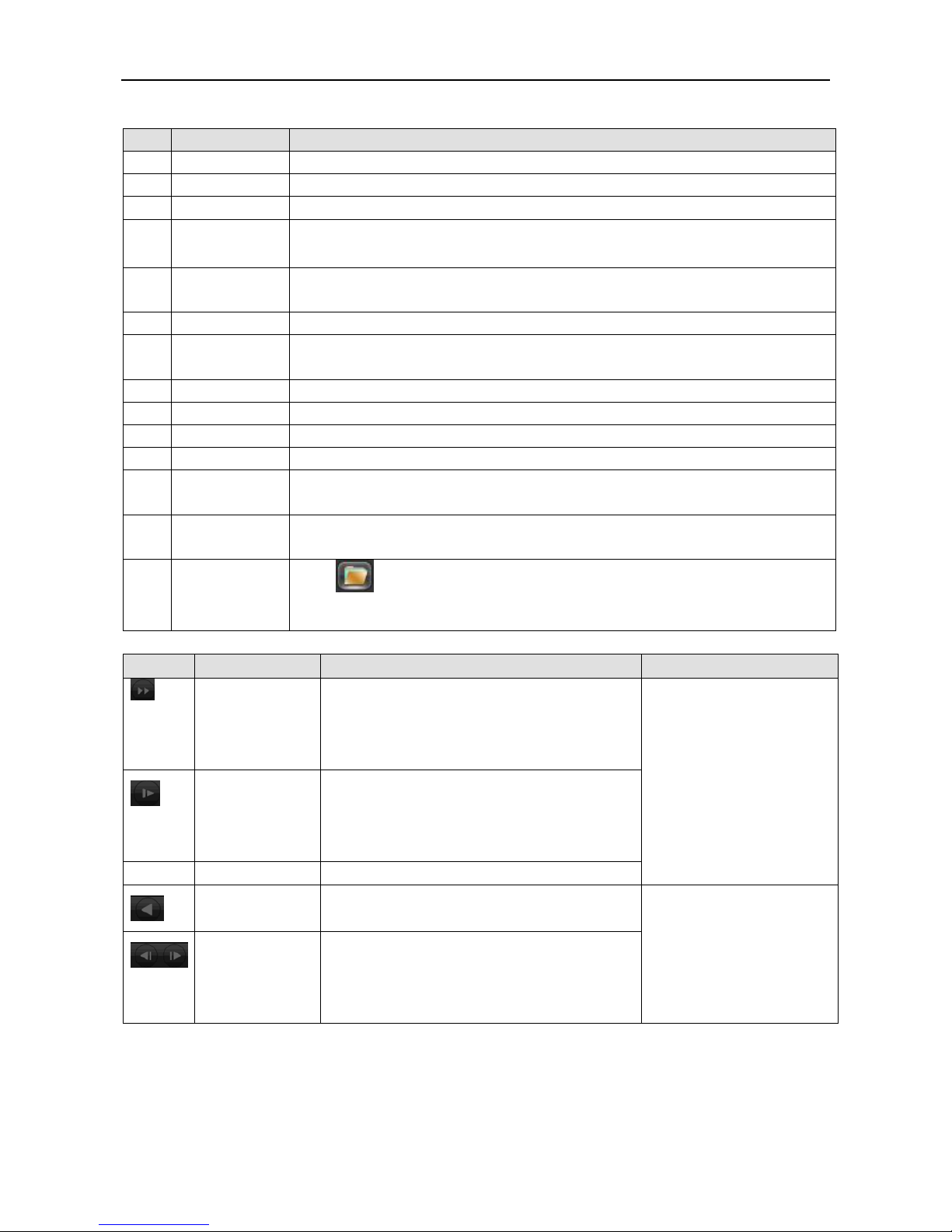
Table 3.3 Description of Playback Control
Icon
Key
Description
Remark
Video playback :
Fast-forward button
Under playback mode, pressing this key, you can get a
variety of fast cycle switching speeds; fast-forward
button can be used as slow-release button reverse switch
key.
Actual play rate based on version
Video playback :
Slow key
Under playback mode, pressing this key, switch
cyclically support a variety of slow-release rate, slow
release button can be used as fast-forward button reverse
switch key.
►/
Play/pause
Play/pause switch when slow-play
Video playback :
Slow key
Single left click backward key
To play backwards and single
click again to stop back run under
common playback Rewind or
single-frame playback, press the
play button ►/ to enter the
normal playback .
Manual single frame
playback
single frame playback by clicking │and│ when
common playback pause
Remark:
1. The player playback control bar show file playback speed, channel, time, playback progress and other information.
2. Playback speed and rewind function are related to DVR version, and please prompt on the player panel shall prevail.
Page 22
User Manual of Cube DVR Series
21
3.4. Configuration
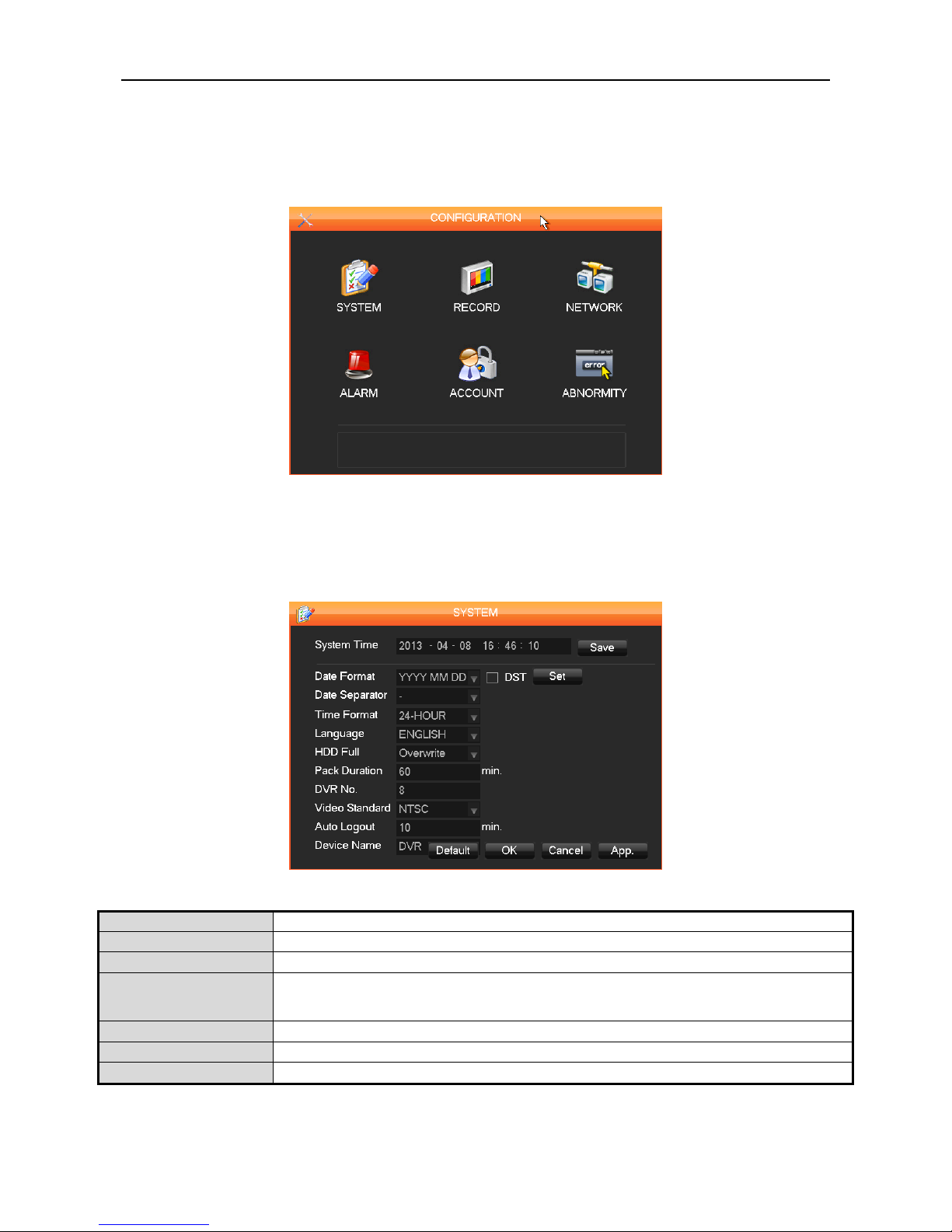
User can get into configuration through main menu; Function of system , record, network, alarm, account and abnormity as shown in.
Figure 3.8 Configuration
3.4.1. System
Figure 3.9 System Configuration
Item
Description
【Time】
Set the current time.
【Date Format】
To modify the date display format
【Snapshot Interval】
When caught in figure set, scratching figure mode to timing diagram, timing images crawl down at a
certain frequency can be uploaded to the FTP server (above maximum upload the latest four images )
【Daylight Saving Time
Click “DST” to enable the function, and enter the local DST starting and ending time
【Date Separator】
To select the separator for date
【Time Format】
24 hr or 12 hr display mode.
Page 23

User Manual of Cube DVR Series
22
【Device Name】
Push function of form a complete set of network configuration, display iphone equipment received alarm
【DVR No.】
Number more than one DVR, click “Ad” button on remote control and input a number to select the
corresponding DVR to operate
【Full HDD】
When HDD is full, there are two options: “Overwrite” or “Stop recording”. If you select “Overwrite”, the
DVR will overwrite the earliest recorded files and continue recording as all HDD in DVR are full. If you
【Language】
language selections vary by different model
【Pack Duration】
To set time length for each record, default is 60 minutes, the maximum is 120 minutes
【Video Standard】
standard: PAL/NTSC (match camera model)
【Auto Logout】
This ranges from 0-60 minutes. 0 means no setting. DVR will automatically let user quit after standby
Note: Click to save the time modification.
3.4.2. Record
Figure 3.10 Record
Item
Description
【Channel】
the channel selection
【Compression】
H.264
【Resolution】
main stream options are D1/CIF, frame rate scope is different depending on channel and resolution. Vice
stream support D1/CIF. Main stream parameters are selectable.
【FPS】
PAL: 1fps-25fps; NTSC: 1fps-30fps
【Bit Rate Control】
Constant Bit rate or Variable Bit rates. Bit rate can be settled in Constant Bit rate. There are 6 levels of
image quality in Variable Bit rate, 6 is the best but it is fixed in Constant Bit rate
【Audio】
Enable or disable the recording of video and audio per channel
【Snapshot】
Select the main stream/extensional stream audio and video resolution coding on and off.
【Snapshot Mode】
Trigger capture, capture picture when alarming
【Picture Size】
CIF capture
【Picture Quality】
6 levels
【Snapshot Rate】
set highest capture rate for single channel,1s/pc 2s/pc 3s/pc 4s/pc 5s/pc 6s/pc 7s/pc 8s/pc
【More 】
enter 【Configuration】
Note: Resolution and frame rate are vary depending on DVR model.
Page 24

User Manual of Cube DVR Series
23
Figure 3.11 More Setting
Item
Description
【Channel Name 】
show channel name in screen or not
【Date Display】
show date or not
【Channel Display】
drag channel title, save instantly, after quitting by right button, position of channel title would not vary in
displayer or monitor, and varied position can be shown recorder and WEB interface
【Time Display】
drag time title, save instantly, after quitting by right button, position of time title would not vary in displayer
or monitor, and varied position can be shown recorder and WEB interface
【Video Cover】
4 zones preview and display protect, privacy zone can adjust area
【Preview】
set masking zone, masking zone shown in the screen when display, no masking zone in web and record
【Monitor】
set masking zone, masking zone shown in the screen when display or record
【Copy】
copy one channel‟s configuration to other record plan
Record Plan
Figure 3.12 Record Plan
Page 25

User Manual of Cube DVR Series
24
Item
Description
【Channel】
To select channel. Green, yellow and red refer to the normal, MD and alarm recording type. Modify it in【Set】
【Snapshot】
Form a complete set of screenshots function use regularly, used in the timing capture function of the
corresponding channel number
【Set】
Set plan interface
Figure 3.13 Recording Config
Item
Description
【Period】
recording time, 6 recording time zone can be set every day
【regular】
For normal record
【MD】
For Moving detection
【Alarm】
For alarm record
Page 26

User Manual of Cube DVR Series
25
3.4.3. Network
Set the DVR network parameters in “Network” interface. The default IP address is 192.168.1.88
Base setting
Figure 3.14 Base setting interface
Item
Description
【DHCP】
Enable the DVR to obtain an IP address automatically. If this is enabled, the DVR
will reboot and search for a DHCP server, and then assign a dynamic IP address.
The dynamic IP address will be displayed in the menu. Enter a static IP address if
there is no DHCP service available. If you are using the advanced feature PPPoE,
【IP Address】
use()or input numbers to modify IP, and then set 【subnet mask】 and 【default
【First DNS Server】
DNS server IP
【Alternate DNS Server】
DNS alternate IP
【Physical Address】
physical address of current net port
Page 27

User Manual of Cube DVR Series
26
Advanced
Figure 3.15 Advance interface
Item
Description
【PPPOE】
enable PPPOE, Input PPPOE username and password provided by ISP. Operation: Using this
feature, the DVR will automatically obtain a public IP address from your ISP. You can then
visit the web interface of the DVR by typing this IP into Internet Explorer.
【3G】
Insert the 3G card, and input use name, password etc
【DDNS】
enable the DVR to update a DDNS hostname, which run on a fixed IP address web client.Select
DDNS type supports various DDNS currently, include CN99 DDNS, NO-IP DDNS, Private
DDNS and Dyndns DDNS, Sysdns DDNS with many other compatible and enable the function;
input the update server IP, port, DNS, username and password. Once setup, you can then login
via the Web client by using this DNS in Internet Explorer.Private DDNS is available for use with
a specific DDNS server and client software.Details refer to 6.1 DDNS function
【NTP】
On/off NTP. Network Time Protocol – allows the DVR to sync with SNTP time server
automatically.
Host IP: input IP of NTP
Server Port: This SNTP support TCP only, the unique port is 123.
Update cycle: time interval between 1 min and 65535 min.
Time zone: London: GMT+0, Berlin: GMT +1, Cairo: GMT +2, Moscow: GMT +3, New
Delhi: GMT +5, Bangkok: GMT +7, Hong Kong/Peking: GMT +8, Tokyo: GMT +9,
Sydney: GMT +10, Hawaii standard time(HST): GMT-10, Alaska standard time(AKST):
GMT-9, Pacific standard time (PST): GMT-8, Mountain standard time(MST): GMT-7,
【IP Filter】
DVR authority management, if you enable the white list, only the DVR in IP list is allowed to
connect. This system supports a max of 64 IPs
【Multicast】
Multicast
Page 28

User Manual of Cube DVR Series
27
【Max Connect】
range: 0-10, 0 indicates that no connections are allowed
【 Network Connection
NUM】
0-32 should be proper. Need Check first then browse real time video on the network, the number
of connections depending on network bandwidth, the greater the number, the greater the network
load, the impact of video playback smooth
【Speedy online download】
0-8 should be proper.
【 Network Transmission
QOS】
Fluency priority or Picture Quality priority or self-adaption according to the setting, the network
automatically adjusts the stream.
【Speedy online download】
if enabled, speed is 1.5-2 times to normal speed
【HTTP】
default: 80
【TCP】
default: 8000, variable
【UDP】
default: 8001, variable
【UPnP】
Protocol on the router automatically open port mapping, make sure UPnP feature is enabled on
the router
【Multicast】
tick “Multicast” and set a group in “Set”, IP should be limited as follow picture, port no limit
【Email】
Set the sender mailbox SMTP server IP address, port, username, password and sender‟s mailbox,
mail SSL Encryption.Email title support Chinese, English and Arabic numerals input, Max input
32 characters. Max support 3 Receive Addresses and SSL Encryption Mailbox.
【FTP】
Tick “FTP” and click “Set
Set FTP server IP address, port and destination folder. System will create folders by IP, time and
channel if there is no remote folder specified.
FTP username and password
Set a maximum file size, channel, time, type and etc.
Set FTP file length. Upload the whole record if the file length is smaller than setting; leave out
the exceed part if the file length is exceed the setting; 0 refers to uploading the entire record in
any condition.
【Alarm Center】
reserved interface
【Push】
Push service and premium version of the Iphone client, the operating interface is mainly used to
push the opening of the service function, the current mobile client associated with the hard disk
video recorder, even in the case of mobile client did not open, a local of real-time alarm message
will be sent to the Iphone for customer inquiries.
Page 29

User Manual of Cube DVR Series
28
Network status: Display the current DHCP PPPoE and IP.
Figure 3.16 Push
P2P
Figure 3.17 Network
Item
Description
[Enable]
Enable P2P by clicking OPEN, and click OK to finish the device configuration
[Transfer Mode]
Fluency/Latency/None
[Device ID]
Each serial number Of devices are different, this cannot be modified
[Password]
This is generated by the system, you can change it
[Local Port]:
Default is 3000, can be modified
[State]
Check the connect status of the device and the server
Remark
When it shows Offline, click【Ping】 to check the connect status again
Note: If the status still shows offline, please check the if the network light is on, and the device is connected or not.
Page 30

User Manual of Cube DVR Series
29
3.4.4. Alarm Configuration
Local alarm
Figure 3.18 Local Alarm interface
Item
Description
【Alarm Input Channel No.】
select the alarm input channel
【Enable】
the specified alarm in /out
【Type】
select the alarm circuit type
【Process Mode】
enter alarm linkage interface
Figure 3.19 Alarm Period
Item
Description
【Period】
set alarm active period
Page 31

User Manual of Cube DVR Series
30
Figure 3.20 Linkage Set
【Linkage】 on/off 【Record Channel】, 【PTZ】, 【Tour】, 【Snapshot】 linkage and select channel.
Figure 3.21 Local Alarm Process
【Abnormity】: enable or disable 【Alarm Out】, 【Show Message】, 【Send Email】 and 【Buzzing】
Time delay for alarm cancel is 10-300s
Notice: some models have no LOCAL ALARM Function; please refer to the Product Specification.
Page 32

User Manual of Cube DVR Series
31
Video detection
Item
Description
【motion detection】
motion detection and alarm
【zone setting】
22*18 =396 zones mask
【Sensibility】
6 grades
【management】
as same as local alarm
【preview】
alarm preview
【video lose】
detect video loses and alarm
【management】
as same as local alarm
【preview】
alarm preview
3.4.5. User Management
Note:
Group and user names can be from 1-6 characters in length. Valid characters include letter, numbers, and limited symbols:
underline, subtraction sign, dot, you may not use a space as a leading or ending character.
There is no limit to the number of groups or users. By default there are two different group levels: admin and user.
User management determined upon two levels: the group and the user level.
Group and user names cannot be duplicated, and each user can only belong to one group.
Figure 3.22 User management interface
Page 33

User Manual of Cube DVR Series
32
Item
Description
【Add users】
add group member information and set authorities.
Default users are: “admin”, “user” and hidden “default”, the password of first two username is 123456.
“Admin” has advanced authorities; “user” only has surveillance and playback authority.
Hidden default: operate in password-less login mode, cannot delete, DVR login in this name automatically if
“no user login” user can revise limits of power then operate some without login.
Enter【Add users】input username, password and select group and reusable options. Reusable allows the
account to be used by multiple logins.
【Modify users】
modify existing group member information and authority
【Add group】
add group and set group authorities.Set a group and authorize 60 items including control panel, shut down,
live view playback, record, record backup, PTZ control, account, system information, alarm in /out setting,
system config, search log, log delete, upgrade, operation authority, etc.
【Modify group】
modify existing group information.
【Modify Password】
change password
Select a username input the old password and new password twice.
Click【Save】to confirm
Password can be in 1-6 numbers, letters or symbol; blank in beginning and end is invalid.
3.4.6. Abnormity
Figure 3.23 Abnormity interface
Item
Description
【No Disk】
alarm when HDD is not present or can not be detected
【Disk No Space】
alarm when hard disk capacity is lower than setting
【Network Failure】
alarm when network is not connected.
【IP Conflict】
alarm when IP address conflict
【Disk Error】
alarm when there is error in reading and writing hard disk.
【Process】
includes:【Alarm Output】, 【Display On Screen】 and 【Send Email】
Page 34

User Manual of Cube DVR Series
33
3.5. Storage
3.5.1. HDD Management
Figure 3.24 Maintain and manage local HDD
Base Configuration
“Base Config” as, shows DVR storage capacity, available space and working status.
Figure 3.25 HDD Manage
【Format】it is possible to format an individual HDD.
【Set】to set HDD as read-write, read only or redundancy mode. In read only mode, video data cannot be covered.
Note: Hard disk format operation result in the loss of video data
Page 35

User Manual of Cube DVR Series
34
Figure 3.26 HDD S.M.A.R.T intelligent detection
Record
Record menu, shows start-stop time.
Figure 3.27 HDD Record
Page 36

User Manual of Cube DVR Series
35
3.5.2. Cloud Storage
Device Configuration
Select channel and configuration your needs, here we take motion detect, Video Loss, Camera Masking as example to
show you how to use cloud storage step by step.
Figure 3.28 Configuration interface
Motion Detect
Upload the snapshot on cloud storage
Step 1: Enter Main Menu, and then click ALARM
Figure 3.29 Configuration
Step 2: Enter ALARM, and then click Detect.
Page 37

User Manual of Cube DVR Series
36
Figure 3.30 Alarm
Step 3: Enter Detect tab to choose channel, check Motion Detect checkbox, and then click Process button on the right.
Figure 3.31 Detect
Step 4: Enter Process interface to set period, linkage set, process as below.
Figure 3.32 Period
Page 38

User Manual of Cube DVR Series
37
Figure 3.33 Linkage Set
Figure 3.34 Process
Video loss/ Camera masking
Upload new and snapshot on cloud storage Follow the step from 1 to 4 as motion detect to finish the configuration.
Page 39

User Manual of Cube DVR Series
38
Connect Drop box
Step 1: select Drop box, Click Bind
Figure 3.35 Cloud storage
Step 2: open the linking via you browser (scan QR code with your Ipad , phone.)
Figure 3.36 Bind Drop box
Step 3: The linking will lead to the “dropbox” website. And require to login your Account and password.
(You must have account of “dropbox”, if you haven‟t, please enter www.dropbox.com to apply for an account)
Page 40

User Manual of Cube DVR Series
39
Figure 3.37 Drop box Sign in
Step 4: Authorized the specific DVR to visit your drop box, and get the authorization code.
Figure 3.38 Drop box authorization
Step 5: Enter the authorization code into your DVR from web pages. And click OK
Figure 3.39 Enter authorization code
Page 41

User Manual of Cube DVR Series
40
Figure 3.40 Drop box capacity
Figure 3.41 Bind Success
Step 6: After finish your DVR trigger motion detection, video loss, Camera masking settings.
It will upload the information to your drop box automatically. Then you can login drop box and get the
information you want.(www.dropbox.com)
Figure 3.42 Login drop box
Page 42

User Manual of Cube DVR Series
41
Figure 3.43 Check information
Page 43

User Manual of Cube DVR Series
42
3.5.3. Record Backup
Connect an External USB device with the USB port to backup in the “Record Backup” menu
Figure 3.44 Backup
【Detect】: Identify external USB device and display the device information.
【Backup】: tick the external device and click 【Backup】 to enter the backup menu
Figure 3.45 Backup
Back
Select the record start-stop time and click 【Add】 to add in list; duplicate it by inputting the start-stop time again; click【Delete】
to clear the files list. Tick the record you want and click 【Start】 to backup and display time remaining. 【Delete】 delete all data
in USB backup device
Remark: USB backup carry player automatically
Note: this operation probably cause permanent data loss
Page 44

User Manual of Cube DVR Series
43
3.6. Output
Figure 3.46 Output
3.6.1. Display
Display Menu
Figure 3.47 GUI
Item
Description
【Transparency】
total 4 grades
【Channel Name】
to modify channel name, available options are symbols, letters, and numbers
【Time Display】
to choose whether time displays on screen
【Channel Display】
to choose whether channel name displays on screen
【Over Info】
to choose whether overlaying information displays on screen
Note: 1) Channel name up to 48 half-width characters
2) 16 characters is suitable, otherwise some problems happen when multi-screen
Page 45

User Manual of Cube DVR Series
44
Output configuration
Figure 3.48 Output config
Item
Description
【VGA Output】
to select VGA resolution and refresh rate, default is 1024×768@60Hz.
【TV Adjust】
to adjust TV output area. Modify the image to the right size for monitor
【VGA/TV Color Set】
to adjust displayer‟s hue, brightness, contrast, saturation
【TV Color Set】
to adjust monitor or TV‟s brightness, contrast, saturation
Tour configuration
Figure 3.49 Tour configuration
Item
Description
【Motion Tour Type】
to set the motion detection tour mode
【Alarm Tour Type】
to set the alarm tour mode
Setting tour mode and interval between rotation , the time is within 5-120s,the mode include single screen, four-, eight-, nine-,
sixteen-screen.
Note: Shortcut Setting: click the button at the top right corner of the monitoring picture or press the Shift Key to switch, you can
control the tour.
Page 46

User Manual of Cube DVR Series
45
3.7. Maintain
Figure 3.50 Maintain
3.7.1. Log
【LOG】 display system log information.
Figure 3.51 Log
Select the type and time press the Find, the system will display the log in tabular form, you can also click the backup button to export
the log backup to your computer.
Log type: system operation; configuration; data management; alarm event; recording; user management; log delete; document
operation. Select the type and time to filter the log list.
Click “delete” to delete all logs.
Page 47

User Manual of Cube DVR Series
46
3.7.2. Version
【Version】: Show features, software version etc.
【upgrade】: Connect a USB flash device which contains the upgrade firmware and click “Upgrade”.
Note: upgrade may cause the startup failure. Please operate under professional direction.
3.7.3. Default
【default】 restore(items are selectable)
Figure 3.52 Default
Note: Menu transparency, language, time format, video format, IP, user ID, etc are not restored.
3.7.4. BPS
【BPS】shows video‟s size, data rate of each channel by wave form.
Note: Estimated value just for reference
3.7.5. Auto Maintain
【Auto Maintain】set auto maintenance items.
3.7.6. On-line User
【On-line Users】check the current online user‟s status.
Page 48

User Manual of Cube DVR Series
47
3.8. Shutdown
Figure 3.53 Shutdown
Item
Description
【Menu Logout】
log out of the current user account
【Shutdown】
shutdown the DVR
【Restart System】
reboot the DVR
Page 49

User Manual of Cube DVR Series
48
Chapter 4 Web & Client
Page 50

User Manual of Cube DVR Series
49
4.1. WEB Operation
4.1.1. Network Connection
H Series: Check network connection by LCD on front panel, “ “ refers connection error, P Series: Check B-Lamp on front panel,
light indicates connection
Set IP, subnet mask and gateway for computer and DVR. Please assign the same segment IP address without router, need to set the
appropriate subnet mask and gateway with router.
The detail of DVR network configuration please see【Configuration】→【Network Setting】
Ensure the IP is correct and check whether the DVR is on the network by using the Windows command “ping”.
4.1.2. Active x Control Setup & Login / Log Out
User cans remote access to DVR by Internet Explorer, assuming you have a correct network configuration.
The following interface wills popup when you access the IP address in Internet Explorer.
Figure 4.1 Login
Install ActiveX: Right click and choose install. If installation is blocked by Windows, please add the IP as a trusted site or lower your
Internet Explorer security settings to allow this.
Page 51

User Manual of Cube DVR Series
50
Figure 4.2 Install
The following interface will popup when you input your username, password and click “Login”. Interface like Diagram 4-3 Web
Interface when user login successfully. Click “Exit” to quit.
Figure 4.3 Login
If the Win 7 system prompts control is not registered, click Close button in the above page, and click close the Active X filtering, and
then click Install button in the bottom of the page.
It needs resetting if you can login the interface, but camera 01 and the other 15 channels are hidden. Click 【Tool】-【Compatibility
View Setting】-【Check】(display all outlets (E) in compatibility View), then click Close to finish it.
4.1.3. WEB Operation Interface
Table 4.1 Web operation Interface
Index
Name
Description
1
Channel
Channel selection
2
Function
Local playback: playback local record
Open all: play live views in surveillance window
3
Surveillance window
Change window layout
4
Image color & other saturation
Image color: modify brightness, contrast and saturation
Other: set capture path, record download path and reboot
5
PTZ control
PTZ Control Menu
6
Menu
System config, record search, alarm setting, exit, etc.
Page 52

User Manual of Cube DVR Series
51
4.1.4. Live View
Into the WEB interface, select the focus window in live window, the focus window has a light blue border.
From the left channel column select channel
Figure 4.4 Live View
Click on 2 area in upper right corner can choose open / close the channel of the main stream or secondary stream, shows the current
DVR's IP and rate information, as shown in.
Figure 4.5 Web Menu toolbar
Lower left corner shows the current video channel name.
Upper right corner shows the current video time information.
Click “ “(Lower left corner of the display window)to switch between single screen and multi-screen.
Lower right corner of the display window is function keys, as, refer to area zoom, Multi-screen switch, local record, capture and
mute/unmute audio.
Area zoom: Video images can be enlarged;
Multi-screen switch: switch from single screen to multi-screen and vice versa;
Local record: save and record video to a local HDD while in a live view. Set recording path in configuration;
Capture: capture of the present channel, set the path in “other”;
Sound: on/off sound.
Off video: off the focus window video.
Page 53

User Manual of Cube DVR Series
52
Figure 4.6 Function Key
4.1.5. PTZ CONTROL
Set protocol(see【Setting】→【PTZ Config】)
Control PTZ direction, step size, zoom, IRIS, preset, tour, pattern, border scan, light, wiper, auto pan, etc.
Step size controls PTZ direction and speed, e.g. step size 8 is moved faster than step size 1.
Eight direction rotations: up, down, right, left, upleft, upright, lower left, lower right.
Figure 4.7 PTZ config
Border scan
Operation: select the camera line scan of the left/right margin by direction button, and click the Settings button in the left /right
margin position to determine the left border.
Page 54

User Manual of Cube DVR Series
53
Preset
Operation: modify preset position by direction button and inputting a preset number, then click “Add” to save.
Tour
Operation: select “Tour”; Point between the first cruise line cruise input box value. And input numbers in “Path” and “preset”. Click
【Add Preset】to adds one preset in the cruise path, and repeat to add additional presets. Click 【Clear Preset】to delete a preset,
repeat to delete more.
Pattern
Operation: Click “Pattern” in order to record an automated pattern. Then, go back to the PTZ controls in order to modify the zoom,
focus and IRIS, etc. Stop recording in “Pattern” setting to save the pattern.
AUX
On/off one of AUX
Wiper
On/off wiper under protocol
4.1.6. CONFIGURATION
Access DVR local configuration menu by click “System Setting”, the further details please refer【Local operation guide】.
Figure 4.8 Configuration
Page 55

User Manual of Cube DVR Series
54
4.1.7. Search Record
Click “Search record” to open the search interface , can search and operate record, alarm, motion, local record
Search record
By selecting the record type, start and end times, and click the check button, get a list of files on the DVR. Select the appropriate file
and download can be played
Play
Double click a search result to play in video window. Control the playing video by the control keys on the bottom. At this point, the
bottom of the video window will display the video control buttons, video playback can be controlled.
Figure 4.9 Play
Download: select a searched video to download to local. The download speed and percentage are displayed on the bottom of the
screen.
Figure 4.10 Download
Page 56

User Manual of Cube DVR Series
55
4.1.8. Alarm Configuration
Click the 【Alarm】 to enter the alarm setup menu, user set up and operate the alarm mode, as.
Choose type of alarm on menu, monitor video loss, motion detection, and disk full, disk error, video mask, external alarm.
Click 【Video Pop-up】, open the video loss, motion detection, hard disk full, hard disk failure, video block, video encoder alarm
pop-up linkage.
Click 【prompt】, open the prompts: when an alarm occurs in real-time will pop-up alarm window menu.
Click 【Sound Pop-up】, you can choose alarm tone pre-recorded on the local hard drive when an alarm occurs, tone file in WAV
format.
Figure 4.11 Alarm configuration
4.1.9. About
Please refer to WEB controls related version information.
4.2. Client Operation
Please refer to IMS 200 Description
Page 57

User Manual of Cube DVR Series
56
Chapter 5 Function
Page 58

User Manual of Cube DVR Series
57
5.1. DDNS Function
5.1.1. Summary
Dynamic DNS is a kind of system which point internet domain name to variable IP. According to the rule of internet domain name,
domain name must associate with the fixed IP address. Dynamic DNS provide a fixed Name server for the dynamic domain, and then
guide the domain search to the IP address of dynamic user through Name server, which can make the outside user connect to the
dynamic user‟s URL.
5.1.2. FNT DDNS
FNT DDNS is a professional dynamic domain name analysis server embedded in our company‟s DVR.Can be directly on the device
to register above, specific steps are as follows:【MAIN MENU】->【CONFIGURATION】->【NETWORK】->【Advanced】->
【DDNS】,choice FNT DDNS.
Figure 5.1
1. DDNSType choice FNT DDNS, and Enable.
2. Type usename, and Domain Name=use name+.faceaip.net.
3. Type Password.
4. Click 【Register】, if the domain name has not been registered, will pop up registration, if the domain name being used, you will be
prompted to register failure.
Best advice: amend the basic configuration of DNS server to the router's DNS servers.
5. After successful registration, click 【OK】,complete preservation.
Page 59

User Manual of Cube DVR Series
58
5.1.3. NO-IP(www.no-ip.com)
Register
Register new username at no-ip, click 【Create Account】.
Create domain name, click 【Add a Host】.
Embedded DVR Setting
Open 【Main Menu】→【Management】→【Network】→【Advanced】→【DDNS】→【Enable】
Table 5.1 Explain:
Name
Configuration
DDNS Type
NO-IP DDNS
Server IP
dynupdate.no-ip.com
Port
80
Domain Name
xxx.xxx.org
User Name
xxx
Password
xxxxxx
5.1.4. DYNDNS DDNS(www.dyndns.com)
Register
To login at dyndns, register an account.
Click on the confirmation link, login the account, click 【Add Host Services】 at [My Services], set your own realm name, and then
operate according to the procedure.
Configuration of the Embedded DVR
Open 【Main Menu】→【Management】→【Network】→【Advanced】→【DDNS】→【Enable】
Table 5.2 Explain:
Name
Configuration
DDNS Type
Dyndns DDNS
Server IP
Members.dyndns.org
Port
80
Domain Name
xxx.xxx.com
User Name
xxx
Password
xxxxxx
Page 60

User Manual of Cube DVR Series
59
5.1.5. Test and Verify DDNS
After setting the Embedded DVR, wait for a few minutes, analysis records will update. Click Operation in the Menu of computer,
input “cmd”, click “OK” to open a window. As the shows.
Figure 5.2
Input “ping+ Domain name” then presses Enter, as the shows.
Figure 5.3
The computer will analyses the domain name confabulated in DVR, and return to the current IP, as the picture shows underlined in
red. When the IP correspond to the embedded DVR‟s IP in Public internet, it means the DDNS is setting right. If they are not, please
check the network connection of embedded DVR and DDNS information.
5.2. Port Mapping
Port mapping is mapping a port of outside web host‟s IP address to a machine inside web, and provide the service. When user
connects to the port of the IP, the server will automatically map the request to the corresponding machine inside LAN.
Page 61

User Manual of Cube DVR Series
60
With the function of port mapping, we can map many ports of a machine‟s IP address to different machines‟ different ports inside
web. The port mapping can also have other special agent functions, like POP, SMTP, TELNET, etc.
Theoretically, it can provide more than sixty thousand ports.
For example, if we want to map a web server which has an IP address of 192.168.111.10, we just need to input the IP address and
TCP port 80 into the port mapping chart of the router.
There are two ways to map the port: UPnP function automatically map and modify the router‟s port mapping chart by manual.
5.2.1. UPnP FUNCTION
In order to get connection to the Embedded DVR through Public network, we need to set the Router to cross the NAT of Embedded
DVR. UPnP can make the NAT cross automatically by the UPnP agreement of Embedded DVR, and don‟t have to set the Router.
Note: to realize the UPnP Function, there must be Router support and enable the UPnP Function.
The first step
Connect the Router to the network, get to the Menu of the Router, set the Router, and enable the UPnP Function.
Routers made by different manufacturers may have some difference, please refer to the specification carefully before setting the
Router.
The second step
Connect the Embedded DVR to the Router; the configuration will automatically gain the IP address or static IP. After setting up the
IP, click the Advanced Config. And get to the XXX, ports and multicast etc. choose to open the Enable at the 【UPnP port mapping】
The third step
Enter into the Router management interface; detect the port if there is already a Port mapping. If there is, it shows UPnP setting‟s
finished.
The forth step
Input the IP address in IE, and add port number of the Embedded DVR, for example: 155.157.12.227:81. If you want to enter by the
Client Software, use the TCP port offered by the outer net.
Note: if there are a few embedded DVRs need to set the UPnP function, in order to avoid IP conflict, set the ports of embedded
DVR into different ports numbers. Otherwise, it will choose the embedded DVR port set preceded as the first choice.
Page 62

User Manual of Cube DVR Series
61
5.2.2. MAMUAL PORT MAPPING
The first step
Connect the Embedded DVR to the Router, set the static IP.
The second step
Log in Router, enter into the configuration menu of Router, and set the menu. Then get to port, set the IP distributed by the
Embedded DVR, and set the rule of port mapping, add HTTP and TCP port into mapping list.
Default access ports of Embedded DVR include HTTP port 80 and TCP port 8000, if the ports are occupied by the other devices,
please modify the default port of the Embedded DVR into other vacant ports.
The third step
Input the public net IP address in the IE, and add the port number of the Embedded DVR you want to access after the IP, for example:
http://155.157.12.227:81. If you want to access by Client Software, you can use the outer net TCP port directly.
Notice: for detail configuration setting, please refer to the user manual of Router.
5.3. NTP Function
Enable NTP function; make the time synchronization with both the DVR and GPS clock server, to ensure the accuracy of device
time.
5.3.1. Internet Configuration
Get to the 【CONFIGURATION】→【NETWORK】, choose 【Advanced】, and then choose 【NTP】to set.
After the device can access the Internet, NTP server can use the standard NTP server as the time. For example, the server of China‟s
national research center (IP address: 210.72.145.44). Input the IP address and domain name of relative server at NTP setting.
To activate NTP, click to choose “Enable”.
The interval of changing time is from 1 to 65535 minutes.
5.3.2. Internet Configuration
If DVR work under the intranet, user can set up a privately-owned server as clock source.NTP address in DVR configuration fill in
privately-owned NTP address can work.
Privately-owned NTP server can adopt standard NTP products and accurate time PC system. Please refer to below instruction when
adopt PC system as a NTP server.
Page 63

User Manual of Cube DVR Series
62
NTP Server Set Up under Windows
“Start” menu → “Run” (or Win+R), input “regedit” to get into REGEDIT.
Build a new key assignment of WORD Value under:
HKEY_LOCAL_MACHINE\SYSTEM\CurrentControlSet\Services\W32Time\Parameters registry sub key;
Change the value to 1, and save.
Restart the computer.
NTP server set up under Linux system
Due to the particularity of Linux system, for detail way to erect the NTP server, please refer to every editions of the manual.
5.4. Voice Intercom
5.4.1. Summarize
Embedded DVR Bidirectional Talk: user can talk to remote client software or Web via DVR audio input and output ports; user can
listen voice from Client Software and WEB via DVR audio output ports.
Two types of bidirectional talk ---- sharing and standalone ----for different models, exact info please refer to specifications.
5.4.2. Configuration
Local configuration
Connect a microphone to the MIC input port, connect loudspeaker to the audio output port.
If no standalone MIC input port, please connect microphone to the number 1 audio input port.
Note: local output needs active audio output device.
Remote PC Configuration
Connect microphone and loudspeaker to computer.
USE
Enable bidirectional talk in IMS software or WEB.
5.5. HDD Redundancy
HDD redundancy function can backup the recording file, user can retrieve files by HDD redundancy if single HDD damaged, by
which improve the system‟s safety.
Page 64

User Manual of Cube DVR Series
63
Hard disk redundancy function is through the designated channel data double backup in HDD, so DVR need a standalone HDD for
redundancy function.
HDD redundancy configuration
Open main menu enter into the storage configuration, choose one HDD as the redundancy HDD, click setting.
Redundancy HDD must be an independent HDD, user can set several HDDs as a redundancy HDD group. Once a HDD is assigned
as redundancy HDD, the recording data can be saved in both normal HDD and redundancy HDD.
Data on redundancy HDD should be automatically cycle coverage, cycle period depends on the recording data and redundant HDD‟s
capacity.
Note: Make sure 2pcs HDD at least in DVR, one for read and write, another for redundancy.
Channel redundancy configuration
User can choose part channels or all channels to set redundancy backup. Please get to 【Configuration】→【Record】, choose
redundancy channel, check mark 【Redundancy】.
Note: the data in channel turn off redundancy only is recorded in normal reading and writing HDD if the redundancy is not
enabled.
Retrieve HDD redundancy
User can retrieve backup recording data from redundancy HDD when RW HDD damage or data lost. Firstly, shut down DVR and
remove damaged HDD, then restart DVR;
Secondly, Get into 【Main menu】→【Storage】, set redundancy HDD as a reading and writing HDD, and then it can be searched.
5.6. HDD S.M.A.R.T
S.M.A.R.T: “Self-Monitoring, Analysis and Reporting Technology”
S.M.A.R.T HDD can analysis head, disc, motor, circuit operation, history and default security values via monitor instruction in HDD
and surveillance software in host. Alarm will be sent to user automatically when the value is outside the scope of the security
situation.
Detection parameters of Seagate HDD for example are divided into seven: ID detection code, Attribute Description, Threshold,
Attribute Value, Worst, Date, and Status.
1 ID detection code
ID detection code is not the only; manufacturer can use different ID code or increase or decrease its quantity according to the
detected parameter‟s quantity.
For example: the ID detection code of WEASTERN Digital‟s product is “04”, parameter is Start/Stop Count, but the parameter of
same code in Fujitsu‟s product is “Number of times the spindle motor is activated”.
2 Attribute Descriptions
Page 65

User Manual of Cube DVR Series
64
Attribute Description: name of detection item. Manufacturer can increase or decrease. As ATA standard update constantly,
sometimes different models in same brand maybe different ,but must ensure major test items specified in S.M.A.R.T .(although
different manufacturers have specific naming convention ,the essence of monitoring is the same.)
1 Read Error Rate
2 Spin up Time
4 Start/Stop Count
5 Relocated Sector Count
7 Seek Error Rate
9 Power-on Hours Count
10 Spin up Retry Count
194 Power temperatures
195 ECC on the Fly count
197 Current Pending Sector Count
198 Disconnection beyond repair
199 CRC cyclic redundancy check
200 Write Error Count
Note: Different manufacturers and different models have different attribute description, user has no need to know exact
meaning, attribute detection values enough for them.
3 Thresholds
It is specified by manufacturer calculated through a specific formula. If there is a attribute value lower than the threshold, which
means HDD become unreliable and data stored is very easy to lose. Composition and size of reliable attribute values is different for
different HDD. It should be noted that, ATA standard only provides some SMART parameters; it does not provide a specific value.
"Threshold" value is determined by manufacturers based on products‟ features. Thus, results tested by manufacturer provided
detection software is very different from testing software under Windows (such as AIDA32)
4 Attribute Value
Attribute value is the maximum normal value; the general range is from 1 to 253. Typically, the maximum attribute value is 100 (for
IBM, Quantum, and Fujitsu) or 253 (for Samsung). Of course, there are some exceptions, for example, some models produced by
Western Digital have two different attribute values, and property value is set 200 when initial production, but after then it is changed
into 100.
5 Worst
Worst value is the largest non-normal value in HDD‟s running. It is a value calculates for HDD‟s cumulative running, it is constantly
refreshed according to running cycle, and very closed to the threshold. Whether the HDD is normal by S.M.A.R.T analysis is based
on the comparison with threshold. The maximum value appear when new HDD start to use, which would continue to decrease with
Page 66

User Manual of Cube DVR Series
65
the everyday use or error happen. Consequently, larger attribute values mean better quality and higher reliability; smaller values
mean more possibility of failure increases.
6 Dates
Actual values of HDD‟s detection items, many items are cumulative values.
7 Statuses
It is current statues of HDD‟s every attribute after analyzing and comparing above attribute values by S.M.A.R.T, also is important
information to judge HDD healthy or not.
There are three statuses: Normal, Alarm and Error----which is closely related with Pre-failure/advisory BIT.
Page 67

User Manual of Cube DVR Series
66
Chapter 6 Appendix
Page 68

User Manual of Cube DVR Series
67
6.1. TERMS
Dual-stream
Dual-stream: one high bit rate stream for the local HD store, QCIF/CIF/2CIF/DCIF/4CIF coding, other low bit rate stream for
network transmission, such as QCIF / CIF coding,
I Frame
I frame: intra frame image, remove redundant information to compress the transmittal data, also called key frames.
B Frame
B frame: According to time redundant of the source image sequence previously encoded frame and account the source image after
the encoded frame to compress transmittal data, also known as bi-directional prediction frame.
P Frame
P-frame: according to image frame lower than the previous „time redundant to compress transmittal data, also called predicted
frames.
Wide Dynamic
Bright parts and dark parts in particular can be seen very clearly at the same time. Wide dynamic range is a ratio between the
brightest luminance signal value and the darkest value.
S.M.A.R.T
SMART (Self Monitoring, Analysis and Reporting Technology): now widely used in hard disk data security technology, monitoring
system analysis Motor, circuit, HDD and disk head when HDD working, warn when abnormality, sometimes will automatically slow
down and back up data.
CVBS
Composite Video Broadcast Signal, consists of luminance and color signal from the composite baseband signal.
BNC
Coaxial cable connector, composite video signals or audio signals, commonly use 75 ohm connectors. BNC welding and should pay
attention to weld strength and remove burrs, or the signal wire and shield‟s contact will lead to a substantial attenuation of signal
strength.
Page 69

User Manual of Cube DVR Series
68
6.2. HDD Capacity Calculation
6.2.1. Reference of HDD Capacity Calculation
The first time install DVR, please check if the HDD has installed.
The capacity of the HDD
There is no limitation of capacity of single HDD to DVR, please choose the HDD according to the Vedios‟ saving time.
The choose of the Capacity
Computational formula of HDD Capacity:
Whole HDD Capacity = number of the channels × time in need (hour) × spent of HDD Capacity per hour (MB/hour)
Similarly we can have the formula of recording time:
annelAmountofChhrrHourcupationpeCapacityOc
pacityTotalHDDCa
hourtimeR
)(
)(
)(
MB/
MB
ecording
Note: 1GB=1000MB, not 1GiB=1024MiB, so HDD capacity shown in Base Configuration under HDD Management less than
real marked.
File size per hour (CBR).
Bit Rate
File
Bit Rate
File
Bit Rate
File
96k
42M
320k
140M
896k
393M
128k
56M
384k
168M
1.00M
450M
160k
70M
448k
196M
1.25M
562M
192k
84M
512k
225M
1.50M
675M
224k
98M
640k
281M
1.75M
787M
256k
112M
768k
337M
2.00M
900M
Table 6.1
File size is more unpredictable when VBR style, please refer to the real size of recording file.
Page 70

User Manual of Cube DVR Series
69
6.2.2. Hard Disk Problem
Use Detection Tool provided by the HDD manufacturer to detect the Function of HDD to solve data problem.
We recommend Seagate and Western Digital.
How to detect Seagate HDD
a) Get into www.seagate.com, Click Support & Downloads choose Sea Tools, download tool, as
Figure 6.1
b) Double-click to install downloaded file , click installed file to detect the HDD information on PC.
c) Choose the HDD for detection (other manufacturer‟s hard disk suitable too).
How to detect WDC HDD
a) Get into www.wdc.com , choose WD support / download / SATA&SAS / WD Caviar / GP, download software as
Figure 6.2
b) Click Icon to hard disk detection after downloading .
c) Double click hard desk in device list, as:
Page 71

User Manual of Cube DVR Series
70
Figure 6.3
6.3. Common Faults
DVR startup failure or continuously reboot
Possible reasons:
1. The system has been damaged from a bad DVR update.
2. There is a problem with the DVR main board error, please contact supplier.
3. There is an HDD error. Replace faulty HDD.
Remote control does not work
Possible reasons:
1. Check for batteries in remote control , especially Positive and Negative;
2. Check for batteries‟ power;
3. Check if remote receiver is obscured;
4. Check if DVR address corresponds to the remote control address.
DVR cannot control PTZ
Possible reasons:
1. RS-485 cable connection error, A, B ports are inversely connected;
2. PTZ decoder, protocol, baud rate, address are incorrect;
Page 72

User Manual of Cube DVR Series
71
3. Parallel connect a 120Ω resistance to resolve signal reflex caused by too many PTZs on the line.
4. The RS-485 port on DVR is defective
Blurred screen in preview mode
Possible reasons:
Please make sure your cameras match your video format selected in the General menu. E.g. camera is NTSC standard but the DVR
is PAL standard, the preview would be blurred.
Blurred screen in playback mode or failure to playback records
Possible reasons:
1. Procedure error, reboot the DVR
2. HDD error, test or change out the HDD
3. DVR hardware failure, contact your local supplier
Can not connect DVR through network
Possible reasons:
1. Check the physical network connection is correct.
2. Check the DVR network configuration parameters.
3. Check whether IP conflicts exist in network.
Download recording can not be played
Possible reasons:
• Player installation error.
• The USB or HDD device has an error.
• Do not install graphic software later than DX8.1.
Internet Explore Crash
Possible reasons:
Close IE explore, enter into the tool bar.
Page 73

User Manual of Cube DVR Series
72
Figure 6.4
 Loading...